Logo

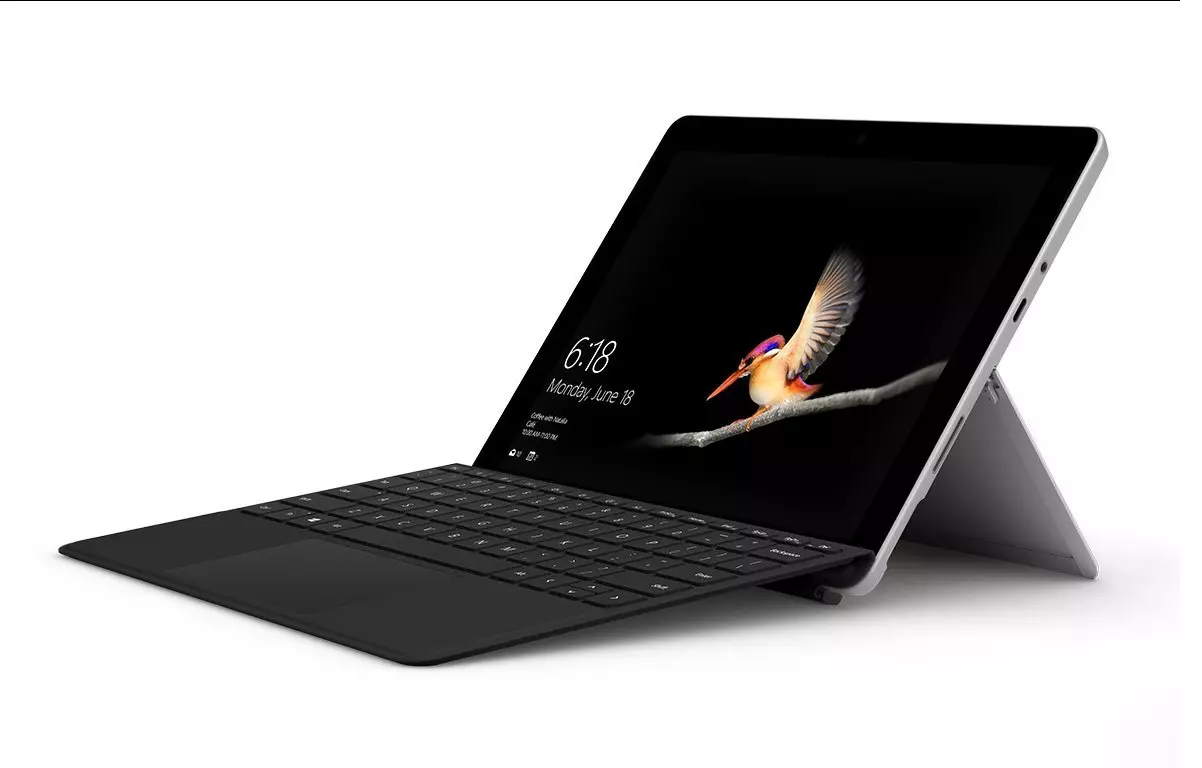
New MS Surface coming in October

In the Windows ecosystem, MS Surface laptops are among the best laptops on the market, they are regarded as equivalent to Apple MAC laptops but for Windows. Microsoft Fall 2022 Event will be held on October 12th at 10 AM. The event itself will be held right before it kicks off its annual, developer-focused Ignite event in Seattle from that same day through October 14.

ms surface pro

This event is the first in-person event that Microsoft has held since the beginning of the pandemic. We expect the launch of the Surface Pro 9 and the Surface Laptop 5, and maybe Surface Studio 3 as well. There are also some rumors about products themselves like choices between an ARM or x86 CPU but nothing is confirmed so far, we can just wait and see.

Do You Need Help with Your Device?

Our Team of Experts May Help
Troubleshoot.Tech Experts are There for You!
Replace damaged files
Restore performance
Free disk space
Remove Malware
Protects WEB browser
Remove Viruses
Stop PC freezing
GET HELP
Troubleshoot.Tech experts work with all versions of Microsoft Windows including Windows 11, with Android, Mac, and more.

Share this article:

You might also like

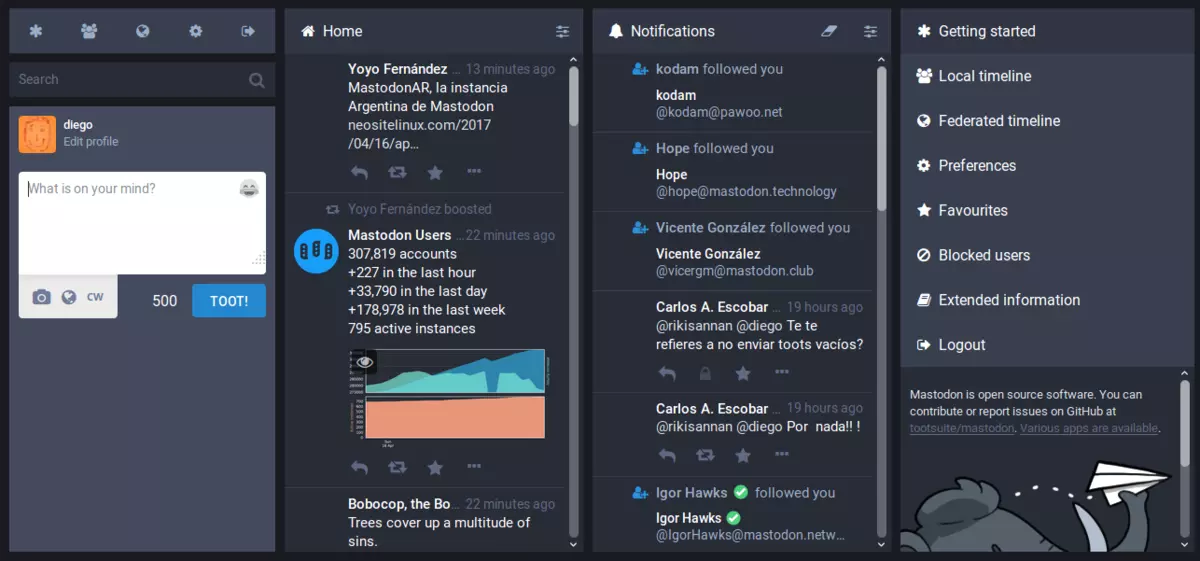
Mastodon test and review

What is Mastodon? Mastodon is an open-source microblogging network very similar to Twitter. You can make 500 characters post messages called toot (tweet), share videos or images, and follow other people. But unlike Twitter, Mastodon is decentralized, meaning the entire Mastodon is not run by a single company pulling all strings.

mastodon

Mastodon can be used directly in your web browser or through a mobile client on a smartphone or tablet. It includes features that seem copied from Twitter-like replies, boosts (retweets), favorites (loves), a timeline view, blocking, and voluntary content warnings that hide sensitive content.

Mastodon also has some great features that Twitter does not have like automated post deletion for the older post of a certain age, requiring approval for follows without restricting your account, and opting out of search engine indexing.

Currently, there are also no ads on Mastodon meaning no ad tracking or ad network surveillance.

How Does Mastodon Work?

Mastodon is a social media network made of nodes called servers or instances each running special software meaning anyone can run their own Mastodon instance (if they have a proper dedicated server). When you have your own instance it can be linked in the federation or remain private, so individuals or companies can have control over individual Mastodon servers.

The software itself is open source based on the social networking protocol ActivityPub which was developed by WWW Consortium.

While using Mastodon, people sign up for accounts with specific instances. Once logged in, you can view a local timeline (of posts from that instance only) or, if the instance is federated with others, see a federated timeline comprised of toots from people in other instances. Mastodon users can send messages to each other using their Mastodon account names that are similar to email addresses in that they feature the server address as well as the user name.

Read More
Create Custom Views in Event Viewer
The Event Viewer in the Windows operating system is used to troubleshoot any computer issues. It is one of the most useful tools that keep logs of both security and system events. It also monitors for both software and hardware problems in the computer. This tool is the only one with amazing features that maintain logs about everything that’s going on in the computer system. It keeps track of all the information to the point where going over them will take a lot of time. Luckily, the Event Viewer tool now allows users to create custom views where you can set the filters and sort the data recorded to limit the information details to only what you’re interested in seeing. For instance, if you want to troubleshoot with one hard drive, you can just create a special custom view to display only the hard drive warnings in the security logs. This will save you hassle and time. Take note that the logs in the Event Viewer are divided into two main categories namely the Window logs and the Application and Services logs. You can just set the filter to the logs by their event id, specific date, and many other events when you have to troubleshoot some problem in your computer. So if you are trying to troubleshoot a problem in your Windows 10 computer and you’re checking the Event Viewer, read on as this post will guide you in creating custom event views in the Event Viewer. To get started, refer to the instructions given below. Step 1: Go to the Start menu and in the search box, type “event viewer” and then click on Event Viewer from the search results to open it. Step 2: After opening Event Viewer, click on Custom Views located in the left pane of the window. Step 3: Next, click on the Administrative events under the Custom View to create special log views. Step 4: Then on the right side of the window, click on Create Custom View to open the Create Custom View window. Step 5: There is a logged drop-down list under Filter. From there, you have the option to choose an appropriate predefined time or use a custom time range for your Custom log views. Step 6: After that, select an appropriate event level for your custom view. You have fine entry-level options to choose from such as critical event level, error, warning, information and verbose.
  • Critical – select this if you want to see the events that require your immediate attention in the custom view.
  • Error – select this if you want your Event Viewer to display the events that are less critical but hints at the problems.
  • Warning – select this event-level if you want to see the event with the potential problem but may not bound to happen.
  • Verbose – select this if you want to see detailed information about all the events.
Step 7: After you’ve selected the event level, you now have to select how you want the events to be filtered. They can either be filtered By the log or By the source.
  • By the log – you can select two options called Windows log and, Application and Service logs. The Windows logs allow you to filter the logs created during events like setup, security, applications, and system events. While the Application and Service logs filter the log created by the installed applications in your system.
  • By the source – select this if you want your Custom View to search for information in event sources. It allows you to view events in detail for various applications and devices.
Note: You have the option to further customize the event logs with more filters like Event IDs, task category, keywords, User, and Computer. Using these additional filters, you can choose to filter the events in the special views by specifying event id numbers in the Event IDs, entering predefined Windows words in the Keyword, specify the user accounts in the User field, as well as choose the system from the server to maintain logs in the Computer field. Step 8: Once you’re done customizing the log filter, click on OK to apply the changes made. Step 9: After that, a Save Filter should be displayed in the Custom View window. Just enter the Custom View name and select the Event Viewer folder where you want to save the Custom view. The folder name should be Custom View by default. And if you want, you can also create your own folder if you want your custom views to be visible to all the system users. Step 10: Next, check all the Users box located in the lower corner of the window and then click the OK button after you’re done. You should now see the customized filter you just created on the left side of the window. Just click on it to check your filtered events in the center of the Event Viewer window. And for you to save the custom view logs, simply right-click on the Custom views you created and then click on Save All Events in the Custom View As from the drop-down menu. Then put a name on the file and select the appropriate location where you want to save the logs and click on the Save button. Note that the log file is saved with the “.EVTX” file extension and when you double click on it, it will open the file in the Event Viewer.
Read More
DownSpeedTest Removal Guide

DownSpeedTest is a Browser Toolbar Extension for Google Chrome that allows users to test their internet speed and convert files, however this speed test does not show proper values, nor even close.

Upon installation DownSpeedTest will replace your default New Tab page with its own Search Engine “MyWay.com” or “Search.MyWay.com”. This Search Engine camouflages itself as a “Enhanced Google Search Engine”, but all it does is allow more room for easier ad injection. In the background, this extension monitors user browsing behavior and records visited links, viewed products, clicked links and time spend on websites. This information is later used for Ad targeting.

While browsing the internet with this extension enabled you will experience additional ads, sponsored content, and even pop-up ads on some occasions. Due to its information mining behavior and aggressive ad placement, DownSpeedTest had been marked as a Browser Hijacker and it is recommended for removal.

About Browser Hijackers

Browser hijacking is a type of unwanted program, commonly a web browser add-on or extension, which causes modifications in the browser’s settings. There are lots of reasons why you may experience a browser hijack; but commercial, advertising and marketing are the major reasons for their creation. These are typically used to force hits to a specific site, manipulating web-traffic to generate ad-revenue. Even though it might appear naive, these tools are made by malicious people who always try to take full advantage of you, so that hackers could earn money from your naive and distraction. In a worst-case scenario, your browser could be hi-jacked to download malicious software that can do a lot of damage to your laptop or computer.

How one can know whether the browser is hijacked?

When your web browser is hijacked, the following might happen: your browser’s homepage has been reset to some unknown webpage; new bookmarks pointing to porn websites have been added to your bookmarks; the default browser configurations are modified and/or your default web engine is altered; you see unwanted new toolbars added; unstoppable flurries of pop-up ads show up on your computer screen; your browser gets slow, buggy, crashes regularly; you can’t navigate to specific internet pages, such as security software related websites.

How does a browser hijacker infect a computer?

Browser hijackers infect computers via malicious e-mail attachments, downloaded infected documents or by visiting infected internet sites. They can be included with toolbars, add-ons, BHO, plugins or browser extensions. Also, some freeware and shareware can put the hijacker in your PC through “bundling”. Browser hijackers could record user keystrokes to collect potentially important information leading to privacy concerns, cause instability on computers, significantly disrupt user’s browsing experience, and ultimately slow down the system to a point where it becomes unusable.

How you can fix a browser hijack

One thing you could try to eradicate a browser hijacker is to find the malware in the “Add or Remove Programs” list of the Microsoft Windows Control Panel. It might or might not be there. When it is, uninstall it. However, most browser hijackers are difficult to eliminate manually. Regardless of how much you attempt to get rid of it, it might come back over and over. Amateur PC users should never try for the manual form of removal methods, since it demands in-depth system knowledge to perform fixes on the system registry and HOSTS file. Anti-malware software is really effective when it comes to picking up and eliminating browser hijackers that regular anti-virus application has overlooked. If you’d like to get rid of persistent hijackers effectively, install the top-rated Anti-Malware software Safebytes Anti-Malware. Use a system optimizer (like Total System Care) along with your anti-malware software to fix various registry issues, remove system vulnerabilities, and improve your computer performance.

What To Do If You Cannot Install Any Anti-Malware?

Practically all malware is bad and the consequences of the damage could differ according to the specific kind of malicious software. Some malware is created to interfere with or block things that you’d like to do on your PC. It may not permit you to download anything from the web or prevent you from accessing a few or all of the internet sites, especially the anti-malware websites. So what you should do if malware prevents you from downloading or installing Anti-Malware? There are a few actions you can take to circumvent this problem.

Install the anti-virus in Safe Mode

Safe Mode is a unique, simplified version of Microsoft Windows in which only essential services are loaded to counteract viruses and also other problematic applications from loading. If the malware is set to load immediately when computer starts, switching into this mode may prevent it from doing so. To start the computer into Safe Mode, press the “F8” key on the keyboard just before the Windows logo screen shows up; Or after normal Windows boot up, run MSConfig, look over “Safe Boot” under the Boot tab, and then click Apply. Once you are in Safe Mode, you can try to install your antivirus application without the hindrance of the malicious software. Following installation, run the malware scanner to get rid of most standard infections.

Download the anti-malware program using a different browser

Web-based malware could be environment-specific, aiming for a particular web browser or attacking particular versions of the browser. If you’re not able to download the security program using Internet Explorer, it means virus is targeting IE’s vulnerabilities. Here, you should switch over to an alternative web browser such as Chrome or Firefox to download Safebytes Anti-malware software.

Install anti-malware on a thumb drive

Another solution is to save and operate antivirus software tool completely from a Pen drive. Follow these steps to use a USB flash drive to clean your infected PC. 1) Make use of another virus-free computer to download Safebytes Anti-Malware. 2) Insert the USB drive on the same system. 3) Double click on the downloaded file to run the installation wizard. 4) Choose the USB flash drive as the location for saving the software file. Follow the instructions to complete the installation process. 5) Now, plug the USB drive into the corrupted computer. 6) Double-click the Safebytes Anti-malware icon on the pen drive to run the application. 7) Run Full System Scan to identify and clean-up of all types of malware.

Protect Your Computer & Privacy With SafeBytes Anti-Malware

If you’re planning to purchase anti-malware for your computer, there are lots of brands and utilities for you to consider. A few of them do a good job in getting rid of threats while many will harm your PC by themselves. You need to select one that is trustworthy, practical and has a good reputation for its malware source protection. While thinking about the dependable programs, Safebytes Anti-Malware is certainly the strongly recommended one. SafeBytes anti-malware is a reliable software that not only secures your system permanently but is also very user friendly for people of all skill levels. Through its cutting-edge technology, this software will help you protect your PC against infections brought on by different kinds of malware and other threats, including spyware, adware, viruses, worms, trojans, keyloggers, potentially unwanted program (PUPs), and ransomware.

SafeBytes has great features when compared with other anti-malware programs. The following are some of the features you might like in SafeBytes Anti-Malware.

Live Protection: SafeBytes provides complete and real-time security for your computer system. This tool will continuously monitor your PC for any suspicious activity and updates itself regularly to keep abreast of the latest threats. World-class AntiMalware Protection: With a critically acclaimed anti-malware engine, SafeBytes offers multilayered protection which is made to find and remove threats which are hidden deep in your computer’s operating system. Safe Browsing: Safebytes assigns all sites a unique safety ranking that helps you to have an idea of whether the webpage you’re just about to visit is safe to view or known to be a phishing site. Lightweight: This program is light-weight and will work quietly in the background, and will not affect your computer efficiency. 24/7 Online Technical Support: Support service is available for 24 x 7 x 365 days via email and chats to answer your queries. SafeBytes can keep your PC safe from latest malware threats automatically with very little input needed from you again. Once you have installed this software, you no longer have to worry about malware or any other security worries. You will get the very best all-around protection for the money you pay on SafeBytes anti-malware subscription, there’s no question about it.

Technical Details and Manual Removal (Advanced Users)

To get rid of DownSpeedTest manually, go to the Add or Remove programs list in the Control Panel and select the offending program you want to get rid of. For internet browser extensions, go to your browser’s Addon/Extension manager and choose the plug-in you intend to disable or remove. You’ll likely also want to reset your web browser. To ensure the complete removal, manually check your hard disk and computer registry for all the following and remove or reset the values as needed. Please be aware that this is for skilled users only and might be challenging, with incorrect file removal causing additional system errors. In addition, some malware is capable of replicating itself or preventing deletion. You’re suggested to do this procedure in Safe Mode.
Files: %USERPROFILE%\Microsoft\Windows\Start Menu\Programs\DownSpeedTest %ALLUSERSPROFILE%\Microsoft\Windows\Start Menu\Programs\DownSpeedTest %ALLUSERSPROFILE%\Application Data\Microsoft\Windows\Start Menu\Programs\DownSpeedTest %LOCALAPPDATA%\Google\Chrome\User Data\Default\Sync Extension Settings\maoffpmgdffbgbncadalkhfhmlfihkgk %UserProfile%\Local Settings\Application Data\Google\Chrome\User Data\Default\Sync Extension Settings\maoffpmgdffbgbncadalkhfhmlfihkgk %LOCALAPPDATA%\Google\Chrome\User Data\Default\Extensions\maoffpmgdffbgbncadalkhfhmlfihkgk %UserProfile%\Local Settings\Application Data\Google\Chrome\User Data\Default\Extensions\maoffpmgdffbgbncadalkhfhmlfihkgk Registry: HKEY_CURREN_USER\SOFTWARE\Wow6432Node\Microsoft\Windows\CurrentVersion\explorer\Browser Helper Objects\5818CEA7-889D-459A-9A75-889E1298A892 HKEY_LOCAL_MACHINE\Software\Microsoft\Windows\CurrentVersion\Ext\Stats\5818CEA7-889D-459A-9A75-889E1298A892 HKEY_LOCAL_MACHINE\Software\Microsoft\Windows\CurrentVersion\Ext\Stats\481F6B47-2AD8-4C6A-8554-A2897E6CF900 HKEY_LOCAL_MACHINE\Software\Microsoft\Windows\CurrentVersion\Ext\Stats\1AAB982B-77D7-44F1-B305-8909DAC045F2 HKEY_LOCAL_MACHINE\Software\Microsoft\Windows\CurrentVersion\Ext\Settings\5818CEA7-889D-459A-9A75-889E1298A892 HKEY_LOCAL_MACHINE\Software\Microsoft\Windows\CurrentVersion\Ext\Settings\481F6B47-2AD8-4C6A-8554-A2897E6CF900 HKEY_LOCAL_MACHINE\Software\Microsoft\Windows\CurrentVersion\Ext\Settings\1AAB982B-77D7-44F1-B305-8909DAC045F2 HKEY_LOCAL_MACHINE\Software\Microsoft\Internet Explorer\Approved Extensions, value: 1AAB982B-77D7-44F1-B305-8909DAC045F2 HKEY_LOCAL_MACHINE\Software\Microsoft\Internet Explorer\SearchScopes\CA6A7AB9-F4B5-4D50-B5D2-33E996549AE3 HKEY_CURREN_USER\SOFTWARE\Wow6432Node\Microsoft\Internet Explorer\Toolbar, value: 1AAB982B-77D7-44F1-B305-8909DAC045F2 HKEY_CURREN_USER\SOFTWARE\Microsoft\Internet Explorer\Toolbar, value: 1AAB982B-77D7-44F1-B305-8909DAC045F2 HKEY_CURREN_USER\SOFTWARE\Wow6432Node\Microsoft\Tracing\DownSpeedTest_RASMANCS HKEY_CURREN_USER\SOFTWARE\Microsoft\Tracing\DownSpeedTest_RASMANCS HKEY_CURREN_USER\SOFTWARE\Wow6432Node\Microsoft\Tracing\DownSpeedTest_RASAPI32 HKEY_CURREN_USER\SOFTWARE\Microsoft\Tracing\DownSpeedTest_RASAPI32 HKEY_CURREN_USER\SOFTWARE\Microsoft\Internet Explorer\LowRegistry\DOMStorage\downspeedtest.dl.myway.com

Read More
Fix DLL is not designed to run on Windows
As you know, DLL files in the Windows environment contain all the code needed by programs in order to properly function. And like with most other software, the functions in the DLL file have to be compatible with Windows especially if they are using any built-in service. So if you encounter an error that says, “DLL is either not designed to run on Windows or it contains an error”, when you try to launch a program, then this could be due to a compatibility issue. To fix this error, read on as this post will walk you through doing that. Based on the reports of users who encountered this error, the error pointed to a DLL file that was either designed to run on a different version of Windows. It is also possible that the DLL file itself is the problem. Here’s the complete error message:
“Bad Image – DLL file is either not designed to run on Windows or it contains an error. Try installing the program again using the original installation media or contact your system administrator or the software vendor for support.”
According to security experts, the DLL files that are known to trigger this kind of error message are msvcr100.dll, msvcr110.dll, msvcp140.dll, lmirfsclientnp.dll, and so on. To fix this problem, you can try to update or reinstall the program that’s throwing the error to its latest version. You could also ask the vendor for the latest version of the DLL as well as run a System File Checker scan.

Option 1 – Try to update or reinstall the program to its latest version

The first thing you can do to fix the problem is to update or reinstall the program that’s throwing the error. It is possible that the version of DLL might be using a system call that is deprecated. So if you had updated your Windows 10 computer recently, you might want to check for an update of the software or you could also try to reinstall its latest version.

Option 2 – Try asking the vendor for the latest version of the DLL

The next thing you can do to fix the error is to ask for the latest version of DLL from the vendor. There are times when the software uses an open-source version of DLL so it is better if you ask the vendor if there is a DLL file that has to be updated. If there is, then you need to make sure to register the DLL once you have it.

Option 3 – Try to re-register the problematic DLL file

You can also try to re-register the DLL to resolve the problem. The Regsvr32 tool is a command-line utility that can be used to register and unregister OLE controls like DLL and ActiveX (OCX) controls in the Windows operating system. Follow the steps below to use it.
  • Open Command Prompt as admin from the WinX menu.
  • Next, type the following commands in the elevated Command Prompt and hit Enter to execute the command. This will re-register the affected DLL file using the Windows operating system tool, regsvr32.exe.
    • exe /[DLL file]
    • exe [DLL file]
Note: Replace “[DLL file]” with the name of the DLL file that was pointed out in the error.
  • After you execute the given commands, you should see a message saying, “DllRegisterServer in vbscript.dll succeeded” if the Regsvr32 tool was able to run successfully. After that, try to install the program again and see if it now works.

Option 4 – Try to replace the DLL file from a trusted source

  • First, you need to get the new DLL file from another computer with preferably the same file version number.
  • After that, you need to boot your PC into Safe Mode and navigate to the paths listed below and then replace the file using a USB drive or other external storage devices.
    • x86: This PC > C:/Windows/System32
    • x64: This PC > C:/Windows/SysWOW64
  • Next, type “cmd” in the Cortana search box and right-click on Command Prompt, and select “Run as administrator” to open it with administrator privileges.
  • Now type the “regsvr32 ntdll.dll” command and hit Enter.
  • Restart your PC and check if the error is now fixed.

Option 5 – Run System File Checker scan

If reinstalling the program didn’t work, you can also try running the System File Checker or SFC scan to fix the error. System File Checker is a command utility built into your computer that helps restore corrupted files and missing files. Refer to the following steps to run it:
  • Hit the Win + R keys to launch Run.
  • Type in cmd in the field and tap Enter.
  • After opening Command Prompt, type in sfc /scannow
The command will start a system scan which will take a few whiles before it finishes. Once it’s done, you could get the following results:
  1. Windows Resource Protection did not find any integrity violations.
  2. Windows Resource Protection found corrupt files and successfully repaired them.
  3. Windows Resource Protection found corrupt files but was unable to fix some of them.
 Reboot your computer.

Option 6 – Troubleshoot the isDone.dll error in a Clean Boot State

You can also troubleshoot the “DLL is either not designed to run on Windows or it contains an error” in a Clean Boot state. It could be that there are some third-party applications in your computer that are preventing the application from getting installed and to isolate this possibility, you need to boot your computer in a Clean Boot State and then try installing the program again. Putting your computer in this state can help you identify which program is the culprit and thus isolates the problem. In a Clean Boot state, your computer will start using only the pre-selected minimal set of drivers and startup programs. Note that you have to disable and enable one process at a time.
  • Log onto your PC as an administrator.
  • Type in MSConfig in the Start Search to open the System Configuration utility.
  • From there, go to the General tab and click “Selective startup”.
  • Clear the “Load Startup items” check box and make sure that the “Load System Services” and “Use Original boot configuration” options are checked.
  • Next, click the Services tab and select the “Hide All Microsoft Services” check box.
  • Click Disable all.
  • Click on Apply/OK and restart your PC. (This will put your PC into a Clean Boot State. And configure Windows to use the usual startup, just simply undo the changes.)
  • After you’ve set your computer into a Clean Boot State, make sure that you’re signed in as administrator and then try to install the application again.

Option 7 – Try scanning your computer using Windows Defender

The DLL file might also be infected with malware or virus and to eliminate it which could explain why you’re getting the “DLL is either not designed to run on Windows or it contains an error”. Thus, you have to scan your computer using security programs like Windows Defender.
  • Tap the Win + I keys to open Update & Security.
  • Then click on the Windows Security option and open Windows Defender Security Center.
  • Next, click on Virus & threat protection > Run a new advanced scan.
  • Now make sure that Full Scan is selected from the menu and then click the Scan Now button to get started.
Read More
Guide to Fixing PFN_LIST_CORRUPT Blue Screen

PFN_LIST_CORRUPT Blue Screen - What is it?

PFN_LIST_CORRUPT is a blue screen of death error code. It occurs when the PFN (Page Frame Number) list becomes corrupt. The Page Frame Number is basically used by your hard drive to determine your location of each one of your files on the disk. This error may occur when starting up the program or while using it. Blue screen of death errors occurs without any warnings. The program disrupts all of a sudden and the computer screen turns blue.

Solution

Restoro box imageError Causes

PFN_LIST_CORRUPT Blue Screen error may occur due to multiple reasons. Some of the common reasons include:
  • Hardware problems
  • Device driver issues
  • Registry problems
  • Viral Infection
It is recommended to resolve the PFN_LIST_CORRUPT Blue Screen of Death error immediately without any delay virtually because this error can be quite fatal to your PC. It can pose serious threats to your system like system freeze, crash, failure, and valuable data loss. Furthermore, if the error is related to viral infection, it can expose you to privacy issues, data breaches, and cybercrime too.

Further Information and Manual Repair

This is a critical PC error but easy to resolve. You don’t need any technical expertise to fix this error on your PC. Here are some quick and easy methods to resolve PFN_LIST_CORRUPT Blue Screen error:

Method 1: Install Compatible Device Drivers

Sometimes when new hardware is added to the PC, you need to install updated versions of the device drivers to ensure there are no incompatibility issues. Incompatibility between the hardware and device drivers may generate PFN_LIST_CORRUPT Blue Screen of death error on your screen. To resolve, it is advisable to download and install the latest updated versions of the device drivers from the manufacturer’s website.

Method 2: Scan for Viruses

PFN_LIST_CORRUPT Blue Screen of Death error may occur due to viral infection too. Viruses and spyware enter your PC when you log on to unreliable websites and download programs from there or open phishing emails on your PC. These viruses corrupt and damage programs and files resulting in such errors. To fix the issue, you need to install a powerful antivirus and ensure all kinds of viruses and spyware are detected and removed from your system.

Method 3: Clean and Restore the Registry

PFN_LIST_CORRUPT Blue Screen error indicates poor PC maintenance. When you don’t clean and remove unnecessary and obsolete files like junk files, bad registry keys, cookies, internet history, temporary files, and invalid entries from the registry, the registry overloads and gets damaged. These files accumulate taking up a lot of disk space and also corrupt system files. If these files are not removed timely, it results in registry issues like a blue screen of death errors and run-time errors. To remove these files and clean the registry, you need to install a powerful registry cleaner. Whether the underlying cause for PFN_LIST_CORRUPT Blue Screen of Death error on your PC is viral infection or registry issues, to resolve the BSOD error code in seconds download Restoro. This is a cutting-edge and multi-functional PC fixer deployed with both an antivirus and a registry cleaner. Additional features include a system optimizer too. It is user-friendly and easy to operate. You can download it on all Windows versions without any hassle. It is safe and bug-free. The registry cleaner feature scans and removes all unnecessary files, cleans and repairs the registry while the antivirus utility simultaneously removes all kinds of malicious software including spyware, viruses, Trojans, and malware. Click here to download Restoro now and resolve the PFN_LIST_CORRUPT Blue Screen of Death error immediately!
Read More
Fix Windows Update error 0xc1900130
If you suddenly encountered Error Code 0xc1900130 while trying to update your Windows 10 computer, read on for this post will help you fix the problem. This kind of Windows Update error may occur when the network connection between the Windows Update server and the client machine is interrupted and the install can’t continue since the instance hash was not found. In such cases, you will see the following error message in Settings:
“Failed install attempt – 0xc1900130”
Here are the technical details of the error:
“Error Code: 0XC1900130 Message: MOSETUP_E_INSTALL_HASH_MISSING Description: The install cannot continue because the instance hash was not found.”
If you are currently facing this problem when you tried to install a Feature Update, you might have to check your internet connection and then try to install the Windows Update again. However, if it didn’t work, then you can refer to each one of the given options below to fix the error.

Option 1 – Reset the Windows Update components

If by any chance that the second option didn’t work, resetting the Windows Update components could also help you resolve the problem. How? Refer to the following steps:
  • Open Command Prompt with admin privileges.
  • After that, type each one of the following commands and hit Enter after you key in one after the other.
    • net stop wuauserv
    • net stop cryptsvc
    • net stop bits
    • net stop msiserver
Note: The commands you entered will stop the Windows Update components such as Windows Update service, Cryptographic services, BITS, and MSI Installer.
  • After disabling WU components, you need to rename both the SoftwareDistribution and Catroot2 folders. To do that, type each one of the following commands below, and don’t forget to hit Enter after you type one command after the other.
    • ren C:WindowsSoftwareDistribution SoftwareDistribution.old
    • ren C:WindowsSystem32catroot2 Catroot2.old
  • Next, restart the services you’ve stopped by entering another series of commands. Don’t forget to hit Enter after you key in one command after the other.
    • net start wuauserv
    • net start cryptsvc
    • net start bits
    • net start msiserver
  • Close Command Prompt and reboot your PC.

Option 2 – Try configuring the Windows Update-related Services

  • Tap the Win + R keys to open the Run dialog box.
  • Then type “cmd” in the field and tap Enter to open an elevated Command Prompt.
  • Next, execute the following commands. Note that you have to type and enter each command one after the other.
    • SC config wuauserv start= auto
    • SC config bits start= auto
    • SC config cryptsvc start= auto
    • SC config trustedinstaller start= auto
  • The commands you executed will make sure that the Windows Update-related services are available. Once it’s done, restart your computer and see if the Windows Update error is now fixed.

Option 3 – Try downloading and installing the Windows Updates manually

Windows Upgrade Error Code 0xc1900130 might be due to a Windows Update that has failed. So if it is not a feature update and only a cumulative update, you can download the Windows Update and install it manually. But first, you need to find out which update has failed, and to do so, refer to the following steps:
  • Go to Settings and from there go to Update and Security > View Update History.
  • Next, check which particular update has failed. Note that Updates that have failed to install will be displayed under the Status column which has a label of “Failed”.
  • After that, go to the Microsoft Download Center and look for that update using its KB number and once you find it, download and then install it manually.
Note: You can also use the Microsoft Update Catalog, a service from Microsoft that provides a list of software updates that can be distributed over a corporate network. With the help of this service, it can be easier for you to find Microsoft software updates, drivers as well as fixes.

Option 4 – Try to run the Windows Update troubleshooter

Windows 10 have various troubleshooters that can help you resolve many system issues. So if you’re dealing with Windows Update errors like Error Code 0xc1900130, you can run the Windows Update troubleshooter to resolve it. To run it, go to Settings and then select Troubleshoot from the options. From there, click on Windows Update and then click the “Run the troubleshooter” button. After that, follow the next on-screen instructions and you should be good to go.

Option 5 – Try to flush the DNS cache

You could also try to flush the DNS cache as it might fix the problem. To do so, follow these steps:
  • Right-click on the Start button and click on Command Prompt (administrator) so you can pull up an elevated Command Prompt.
  • After that, execute the following command to flush the DNS cache
ipconfig /flushdns
  • Next, restart your PC and check if the problem’s fixed.
Note: You might also check your internet connection or reboot your router or plug out and then plug in your Ethernet connection manually to verify the reliability of your internet connection since intermittent connection could also cause Windows Update errors like Error Code 0xc1900130.
Read More
How to change network from Public to Private

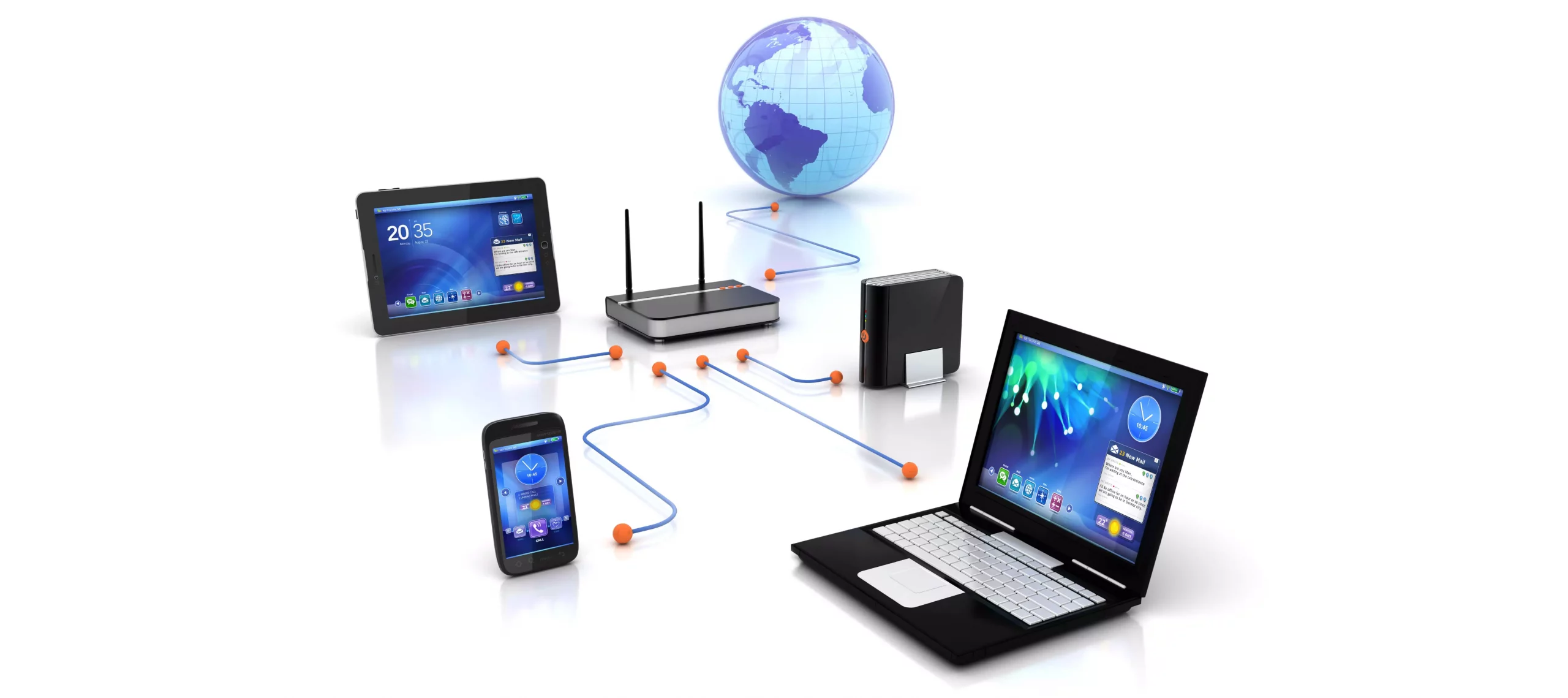
If you would like your computer to be discoverable on your network and use print and file sharing you will have to change your network profile on your computer from public to private.

computer network

Follow the provided guide step by step to change your network profile setting:

Switch to private profile in Windows 10

Locate the Wi-Fi icon in your system tray and click on it. Click on properties on your WI-FI network to open the network menu. Inside the menu in the Network profile section enable the Private option.

Your changes will be automatically saved.

Switch profile to private in Windows 11

Find the WI-FI icon in the system tray and right-click on it, then choose Network and Internet Settings. Network & Internet page with open, find your network name at the top and select properties.

On the WI-FI page, in the Network Profile Type section choose Private. As in Windows 10, your changes will be automatically charged, and you can start using them immediately.

Another way around

If you want to switch back to a public profile follow provided steps but disable the private option.

Read More
Find files fast using command prompt
Finding files via File Explorer can be a really slow and tedious process and if you are searching often it can accumulate a lot of time loss. I am a person which often has assets for projects in several different folders and altho I am trying my best to be tidy and organized sometimes I can not remember where I have placed certain assets that I need, in this case in order for me to find a required asset I usually search it via command prompt because it is lightning fast and gives results in second not minutes compared to File Explorer. If you are in a similar position and you need fast results please read on as we dive deeper into the command prompt and its usage. To quickly open the command prompt press ⊞ WINDOWS + X to bring Windows secret menu and choose the command prompt, you can also choose the admin version but for sake of this specific task, there is no difference. keyboard with windows and x markedin the command prompt you need to type the next command:

dir \search term* /s
where search term* is well, what are you searching for. Now if you are looking for a specific file this command is straightforward, you just change search term* with file_name.extension and there you go, but know that this command can be used to be more powerful, for example, you can find all JPG files in your drive by typing dir \*.jpg /s or all files named work by typing dir \work.* /s " * " is a so-called joker sign, it replaces several characters with any in a given string, meaning that dr*s will give you all results with the first 2 letters dr and last one s. Use this to specify better search results and you will get your files in no time.
Read More
NewTabAid Malware Removal Guide

New Tab Aid is an extension for Google Chrome. It is published by Spigot Inc. It is classified as a potentially unwanted browser hijacker as it injects Yahoo search into your new tab windows. This extension also adds recently viewed tabs under the search bar. It also redirects all your searches to Yahoo instead of your default browser search engine. It is often found bundled with other software found on the internet and not installed directly by the user. For these reasons, numerous anti-malware utilities flag New Tab Aid as potentially unwanted or malicious.

About Browser Hijackers

Browser hijackers (sometimes called hijackware) are a kind of malicious software that changes internet browser configurations without the user’s knowledge or permission. These types of hijacks appear to be increasing at an alarming rate around the world, and they could be actually nefarious and often harmful too. Browser hijackers could do more than just modifying homepages. The idea is to force users to visit specific websites that are looking to improve their website visitor traffic and produce higher ad earnings. Even though it may seem naive, all browser hijackers are damaging and therefore always regarded as security risks. Browser hijackers can even allow other vicious programs without your knowledge to further damage your personal computer.

Major signs that your web browser has been hijacked

There are numerous signs of browser hijacking: 1. the home page of your respective web browser is changed all of a sudden 2. you see new unwanted bookmarks or favorites added, typically directed to advertisement-filled or pornography sites 3. the default web browser settings are changed and/or your default web engine is altered 4. unwanted new toolbars are added to your browser 5. you observe numerous ads show up on your browsers or computer screen 6. your web browser gets sluggish, buggy crashes regularly 7. Inability to navigate to particular websites, particularly anti-malware and other security software sites.

How does a browser hijacker infect a computer?

Browser hijackers might use drive-by downloads or file-sharing networks or even an email attachment in order to reach a targeted computer. Many web browser hijackings come from add-on applications, i.e., toolbars, browser helper objects (BHO), or plug-ins added to browsers to provide them additional features. Browser hijackers sneak into your computer in addition to free software application downloads also that you unintentionally install alongside the original. Popular examples of browser hijackers include Conduit, CoolWebSearch, Coupon Server, OneWebSearch, RocketTab, Searchult.com, Snap.do, and Delta Search. Browser hijacking can result in severe privacy issues and also identity theft, affect your browsing experience by taking control of outgoing traffic, substantially slows down your personal computer by consuming a lot of resources, and cause system instability also.

How to fix a browser hijack

Certain browser hijacking could be quite easily stopped by discovering and eliminating the corresponding malware software through your control panel. However, most hijackers are hard to get rid of manually. No matter how much you attempt to remove it, it may come back again and again. Moreover, browser hijackers could modify the Windows registry therefore it can be very hard to repair manually, particularly when you’re not a very tech-savvy individual.

Virus Blocking Access To Safebytes Site And Preventing Anti-Malware Downloads - What To Do?

Malware can cause all kinds of damage if they invade your computer, from stealing sensitive information to deleting files on your computer system. Certain malware goes to great lengths to stop you from installing anything on your computer system, especially anti-malware software programs. If you’re reading this, you probably have affected by malware that prevents you from installing a computer security application like Safebytes Anti-Malware. Although this sort of issue will be tougher to get around, there are a few actions you can take.

Eliminate malware in Safe Mode

If any malware is set to load immediately when Microsoft Windows starts, getting into Safe Mode could block this attempt. Just minimal required applications and services are loaded whenever you start your personal computer into Safe Mode. The following are the steps you need to follow to take out viruses in Safemode. 1) Tap the F8 key repeatedly as soon as your PC boots, however, before the large Windows logo shows up. This should bring up the Advanced Boot Options menu. 2) Select Safe Mode with Networking with arrow keys and hit ENTER. 3) When this mode loads, you should have the internet. Now, obtain the malware removal application you want by using the web browser. To install the software, follow the directions within the installation wizard. 4) Once the application is installed, let the diagnostic scan run to eliminate viruses and other threats automatically.

Switch over to an alternate browser

Malicious program code may exploit vulnerabilities on a particular browser and block access to all anti-malware software sites. The most effective solution to avoid this issue is to choose a browser that is well known for its security measures. Firefox contains built-in Malware and Phishing Protection to keep you safe online.

Install and run antivirus from your USB drive

Another way is to download and transfer an antivirus application from a clean computer to run a scan on the affected system. Do these simple measures to clean up your affected computer using a portable antivirus. 1) Download the anti-malware program on a virus-free computer. 2) Insert the USB drive on the same system. 3) Double-click the exe file to open the installation wizard. 4) When asked, select the location of the pen drive as the place in which you want to put the software files. Follow the instructions on the computer screen to finish off the installation process. 5) Now, transfer the USB drive to the infected computer. 6) Double-click the Safebytes Anti-malware icon on the pen drive to run the software. 7) Run Full System Scan to detect and get rid of all sorts of malware.

Ensure the Safety of Your PC by Installing SafeBytes Anti-Malware

These days, anti-malware software can protect your computer from various types of internet threats. But exactly how to decide on the best one among many malware protection application that is available on the market? As you might be aware, there are several anti-malware companies and products for you to consider. Some of them are good, some are ok types, and some will destroy your computer themselves! When searching for antimalware software, pick one that provides reliable, efficient, and full protection against all known viruses and malware. One of the highly recommended software by industry experts is SafeBytes Anti-Malware, the most dependable program for Microsoft Windows. SafeBytes anti-malware is a powerful, very effective protection tool designed to assist end-users of all levels of computer literacy in detecting and eliminating malicious threats out of their computer. This program could easily detect, remove, and protect your computer from the most advanced malware attacks including spyware, adware, trojan horses, ransomware, parasites, worms, PUPs, along with other possibly damaging software programs. SafeBytes has excellent features when compared to various other anti-malware programs. Let’s look into some of them below: Active Protection: Malware programs trying to get into the computer are discovered and stopped as and when detected by the SafeBytes real-time protection shields. This tool will constantly monitor your computer for any suspicious activity and updates itself continuously to keep current with the latest threats. Antimalware Protection: With its enhanced and sophisticated algorithm, this malware removal tool can identify and remove the malware threats hiding in your PC effectively. Web Security: Safebytes allots all websites a unique safety rating that helps you to get an idea of whether the webpage you’re about to visit is safe to browse or known to be a phishing site. Lightweight: SafeBytes is well known for its minimal impact on computer resources and great detection rate of diverse threats. It operates quietly and efficiently in the background so you are free to utilize your personal computer at full power all of the time. 24/7 Customer Service: For any technical concerns or product assistance, you can get 24/7 professional assistance through chat and email.

Technical Details and Manual Removal (Advanced Users)

If you wish to manually remove NewTabAid without the use of an automated tool, it may be possible to do so by removing the program from the Windows Add/Remove Programs menu, or in cases of browser extensions, going to the browsers AddOn/Extension manager and removing it. You will likely also want to reset your browser. To ensure the complete removal, manually check your hard drive and registry for all of the following and remove or reset the values accordingly. Please note that this is for advanced users only and may be difficult, with incorrect file removal causing additional PC errors. In addition, some malware is capable of replicating or preventing deletion. Doing this in Safe Mode is advised.

The following files, folders, and registry entries are created or modified by NewTabAid

Files: C:windowssystem32services.exe C:Windowswinsxsamd64_microsoft-windows-s..s-servicecontroller_31bf3856ad364e35_6.1.7600.16385_none_2b54b20ee6fa07b1services.exe C:WindowsInstallerbbee3ba2-89af-930c-bb78-1fb4e17db3cc C:DOCUME~1USER~1LOCALS~1Tempnsw1.tmp C:c0b5e060b7e0becc89a6b6111a8644db7612072dc9a02f5bd32dc25dc459d7 C:DOCUME~1USER~1LOCALS~1Tempnsw2.tmp C:DOCUME~1USER~1LOCALS~1Tempnsg3.tmp C:DOCUME~1USER~1LOCALS~1Tempnsg3.tmpSM.dll C:WINDOWSRegistrationR000000000007.clb C:WINDOWSsystem32rsaenh.dll C:c0b5e060b7e0becc89a6b6111a8644db7612072dc9a02f5bd32dc25dc459d7 C:DOCUME~1USER~1LOCALS~1Tempnsw2.tmp C:WINDOWSRegistrationR000000000007.clb C:WINDOWSsystem32rsaenh.dll c:autoexec.bat C:WINDOWSsystem32cmd.exe C:DOCUME~1USER~1LOCALS~1Temp~sp4.tmp.exe C:DOCUME~1USER~1LOCALS~1Tempnsb6.tmp C:DOCUME~1USER~1LOCALS~1Tempnsw2.tmp C:DOCUME~1USER~1LOCALS~1Tempnsg3.tmpSM.dll C:DOCUME~1USER~1LOCALS~1Tempnsg3.tmpSystem.dll C:DOCUME~1USER~1LOCALS~1Tempnsg3.tmp.dll C:DOCUME~1USER~1LOCALS~1Tempnsg3.tmpNSISdl.dll C:DOCUME~1USER~1LOCALS~1Tempnsg3.tmppixel C:DOCUME~1USER~1LOCALS~1Temp~sp4.tmp.exe C:DOCUME~1USER~1LOCALS~1Tempnsb6.tmp C:DOCUME~1USER~1LOCALS~1Tempnsb7.tmpSystem.dll C:DOCUME~1USER~1LOCALS~1Tempnsb7.tmpSM.dll C:DOCUME~1USER~1LOCALS~1Tempnsw1.tmp C:DOCUME~1USER~1LOCALS~1Tempnsg3.tmp C:DOCUME~1USER~1LOCALS~1Tempnsg3.tmpNSISdl.dll C:DOCUME~1USER~1LOCALS~1Tempnsg3.tmppixel C:DOCUME~1USER~1LOCALS~1Tempnsg3.tmpSM.dll C:DOCUME~1USER~1LOCALS~1Tempnsg3.tmpSystem.dll C:DOCUME~1USER~1LOCALS~1Temp~sp4.tmp C:DOCUME~1USER~1LOCALS~1Tempnsr5.tmp C:DOCUME~1USER~1LOCALS~1Tempnsb7.tmp C:DOCUME~1USER~1LOCALS~1Tempnsb7.tmpSM.dll Registry: HKEY_LOCAL_MACHINESOFTWAREWow6432NodeMicrosoftWindowsCurrentVersionRunRandom.exe HKCUSOFTWAREMicrosoftWindowsCurrentVersionRunRandom.exe HKEY_LOCAL_MACHINEsoftwaremicrosoftwindowscurrentversionpoliciesexplorerEnableShellExecuteHooks= 1 (0x1) HKEY_LOCAL_MACHINESOFTWAREMicrosoftWindowsCurrentVersionpoliciesExplorerrunRandom.exe
Read More
Fix Steam stuck on Allocating disk space
If you have been stuck on allocating disk space on steam you know how annoying this error could be. Here you are, with your new game eager to play it and relax a little and all of the sudden steam gets stuck on allocating disc space. Luckily this error is fixable, follow provided guide to fix the error and continue with installing the game.
  1. Restart computer

    An old age solution of turning it off and turning it back on but in this case, it works 90% of the time.
  2. Run Steam as administrator

    Allocating disk space when done by a third-party application can be a task that requires privileges higher than the normal user. Find the steam executable file in the installation folder, right-click on it and run it as an administrator
  3. Clear Steam cache

    Launch Steam in admin mode. Once in the client, click on Steam at the top left corner of the screen. From the drop-down box, click on Settings. Once in the Settings, navigate to the Downloads tab. Click the Clear Download Cache option. Click OK on the prompt to confirm your action. Wait for the process to complete. When done, save changes and exit the client.
  4. Change download server

    Launch Steam client in admin mode. Once in the client, click on Steam at the top left corner of the screen. From the drop-down box, click on Settings. Once in the Settings, navigate to the Downloads tab. Click the drop-down menu under the Download Region. Choose a different server to download from. Exit the Steam client.
  5. Refresh installation files

    • Kill a Steam process in Task Manager.
    • Navigate to your Steam folder
    • Inside the Steam folder, select everything except the steamapps folder and the Steam.exe executable file.
    • Tap the Delete key on your keyboard.
  6. Turn off firewall

    Firewall can prevent steam and cut access to system operations, disable firewall to fix this issue.
  7. Stop overclocking

    If you have overclocked your PC, you can simply reverse the change. The steps you will need to take depends on the overclocking software. Launch the software and look for the option to stop the overclocking. Once done, restart your computer, rerun the game installation.
Read More
1 2 3 171
Logo
Copyright © 2023, ErrorTools. All Rights Reserved
Trademark: Microsoft Windows logos are registered trademarks of Microsoft. Disclaimer: ErrorTools.com is not affiliated with Microsoft, nor claims direct affiliation.
The information on this page is provided for information purposes only.
DMCA.com Protection Status