
Logo

Hide game activity and set privacy on Steam

Steam is a game store behemoth that offers more titles than any other game store online, take that along with the fact that steam was one of the first online dedicated stores for games and you can guess that many people have a steam account, buy and play games on it. It is a platform where you can meet new people in games and add them as friends on steam so you can spend some time together. But happens if you want to have friends on Steam but you would like to hide your game activity? Or even if you want to go fully private on Steam so no one can find you so you can play whatever you want without paying and judging eyes?

Luckily Valve appreciates your privacy and offers ways to do exactly this. Keep on reading on how to set up your privacy settings in Steam.

Hiding Steam game activity

  • Launch Steam on your PC.
  • Go to the top bar of Steam and click on your name.
  • Select Profile from the context menu.
  • Click on the Edit Profile button present at the right section of the window.
  • Next, click on the My Privacy Settings button.
  • Now, the Privacy Settings page will be opened.
  • Scroll down and go to the My Profile section.
  • Open the drop-down list given next to the Game Details and select the Private option.
  • Now, check if this process is working or not. For this, right-click anywhere on the blank space in the Steam screen > choose the Copy Page URL option.
  • Then, open a browser and paste the copied page URL in the address bar and check whether your Steam game activity is hidden or not.

Making profile private

  • Launch Steam > click on your name > select Profile from the menu list.
  • Click on the Edit Profile > My Privacy Settings button.
  • Go to the My Profile and open the dropdown menu.
  • Click on the Private option.
  • Now, the changes will be saved automatically.

If you would like to read more helpful articles and tips about various software and hardware visit errortools.com daily.


Do You Need Help with Your Device?

Our Team of Experts May Help
Troubleshoot.Tech Experts are There for You!
Replace damaged files
Restore performance
Free disk space
Remove Malware
Protects WEB browser
Remove Viruses
Stop PC freezing
GET HELP
Troubleshoot.Tech experts work with all versions of Microsoft Windows including Windows 11, with Android, Mac, and more.

Share this article:

You might also like

Changing the Primary and Secondary monitor
If you are using a dual monitor setup on your computer and you wish to change the Primary and Secondary monitor in Windows 10, then you’ve come to the right place as this post will guide you on how exactly you can do that. A lot of users use more than one monitor to be more productive so having dual monitors helps a lot. So if you have more than one monitor, know that you can actually select any monitor as the primary monitor after installing Windows. Changing the primary and secondary monitor in Windows 10 does not really require you to install any third-party application since you can get the job done by simply making some alterations in the Windows 10 Settings panel. You won’t have any problem in making such alterations since it is quite simple – from modifying the wallpaper to scaling and so on.

To get started, follow the instructions given below carefully.

Step 1: First, tap the Win + I key combination to open the Windows 10 Settings app and go to System and click the Display tab. Step 2: Next, look for the Identify button located on your right-hand side and then click on it. This button will help you check which one is the primary and the secondary monitor. Step 3: After that, select the desired monitor that you want to set as the primary one from the drop-down menu. Step 4: After that, mark the checkbox for the “Make this my main display” option. Step 5: After choosing the primary monitor, this will automatically set the other monitor as the secondary monitor. Restart your computer. So that’s how you change the primary and secondary monitor on your Windows 10 computer. Note that you can always go back to the previous setting of your monitor by following the same instructions provided above.
Read More
Automatically restart apps when you sign back
If you wish to continue where you have left off when you signed out of Windows follow this guide and learn how to continue your work after signing in, restart apps in your Windows. You can set Windows 10 to Automatically save your restartable apps when you sign out and restart them after you sign in. Here’s how:
  1. Right-click on the Windows logo to open the secret menu
  2. Select Settings
  3. Click open Accounts
  4. From the left side, select Sign-in options
  5. Scroll down till you see Restart apps setting
  6. Toggle the Automatically save your restartable apps when you sign out and restart them after you sign in setting to On position
Read More
Fix Windows Update Install Error 0x80070020
Getting a few errors here and there when updating your Windows 10 computer is not uncommon. Some of these errors won’t allow the Windows Update service to initiate while the other ones will halt the process while it’s running. So in this post, we’ll show you what you can do to fix the Windows Update error 0x80070020. The Windows Update error 0x80070020 is most likely caused by some programs installed in the system which interferes with the Windows Update process. It might be an antivirus program, an incompatible program, a potentially unwanted program, or worse, malware. In addition, corrupted or missing files might also be the culprit. Whichever the cause may be, here are some suggestions you need to check out to resolve the problem.

Option 1 – Try to reset the Windows Update components manually

  • To manually reset the Windows Update components, first, you need to stop the Background Intelligent Transfer Service, Windows Update, and the Cryptographic Services. To do so, run the following command in Command Prompt and make sure to press Enter after you enter each one of them:
    • net stop bits
    • net stop wuauserv
    • net stop cryptsvc
  • Next, delete the “qmgr*.dat” file in order to reset the Windows Update components. To do delete this file, run the following command in Command Prompt:
    • Del “%ALLUSERSPROFILE%Application DataMicrosoftNetworkDownloaderqmgr*.dat
  • Now you have to rename both the SoftwareDistribution and Catroot2 folders by entering the following command in Command Prompt:
    • Ren %systemroot%SoftwareDistributionSoftwareDistribution.bak
    • Ren %systemroot%system32catroot2catroot2.bak
  • Reset BITS and Windows Update service by entering the following commands in Command Prompt:
    • sc.exe sdset bits D:(A;;CCLCSWRPWPDTLOCRRC;;;SY)(A;;CCDCLCSWRPWPDTLOCRSDRCWDWO;;;BA)(A;;CCLCSWLOCRRC;;;AU)(A;;CCLCSWRPWPDTLOCRRC;;;PU)
    • sc.exe sdset wuauserv D:(A;;CCLCSWRPWPDTLOCRRC;;;SY)(A;;CCDCLCSWRPWPDTLOCRSDRCWDWO;;;BA)(A;;CCLCSWLOCRRC;;;AU)(A;;CCLCSWRPWPDTLOCRRC;;;PU)
  • Now enter the following command:
  • cd /d %windir%system32
  • RE-register BITS and other Windows Update related files by typing each one of the following commands:
    • regsvr32.exe atl.dll
    • regsvr32.exe urlmon.dll
    • regsvr32.exe mshtml.dll
    • regsvr32.exe shdocvw.dll
    • regsvr32.exe browseui.dll
    • regsvr32.exe jscript.dll
    • regsvr32.exe vbscript.dll
    • regsvr32.exe scrrun.dll
    • regsvr32.exe msxml.dll
    • regsvr32.exe msxml3.dll
    • regsvr32.exe msxml6.dll
    • regsvr32.exe actxprxy.dll
    • regsvr32.exe softpub.dll
    • regsvr32.exe wintrust.dll
    • regsvr32.exe dssenh.dll
    • regsvr32.exe rsaenh.dll
    • regsvr32.exe gpkcsp.dll
    • regsvr32.exe sccbase.dll
    • regsvr32.exe slbcsp.dll
    • regsvr32.exe cryptdlg.dll
    • regsvr32.exe oleaut32.dll
    • regsvr32.exe ole32.dll
    • regsvr32.exe shell32.dll
    • regsvr32.exe initpki.dll
    • regsvr32.exe wuapi.dll
    • regsvr32.exe wuaueng.dll
    • regsvr32.exe wuaueng1.dll
    • regsvr32.exe wucltui.dll
    • regsvr32.exe wups.dll
    • regsvr32.exe wups2.dll
    • regsvr32.exe wuweb.dll
    • regsvr32.exe qmgr.dll
    • regsvr32.exe qmgrprxy.dll
    • regsvr32.exe wucltux.dll
    • regsvr32.exe muweb.dll
    • regsvr32.exe wuwebv.dll
  • Now type each one of those commands below.
    • net start bits
    • net start wuauserv
    • net start cryptsvc

Option 2 – Install the updates in a Clean Boot State

You might want to try putting your computer in a Clean Boot state and then install Windows Updates again without any trouble. During this state, you can start the system with a minimum number of drivers and startup programs that will surely help you in isolating the root cause of the issue.
  • Log onto your PC as an administrator.
  • Type in msconfig in the Start Search to open the System Configuration utility.
  • From there, go to the General tab and click “Selective startup”.
  • Clear the “Load Startup items” check box and make sure that the “Load System Services” and “Use Original boot configuration” options are checked.
  • Next, click the Services tab and select the “Hide All Microsoft Services” check box.
  • Click Disable all.
  • Click on Apply/OK and restart your PC. (This will put your PC into a Clean Boot State. And configure Windows to use the usual startup, just simply undo the changes.)
  • After that, try to install the Windows Updates or upgrade again.

Option 3 – Clear the contents of both the SoftwareDistribution and Catroot2 folders

  • Open the WinX Menu.
  • From there, open Command Prompt as admin.
  • Then type in the following command – don’t forget to hit Enter right after typing each one of them.
net stop wuauserv net stop bits
  • After entering these commands, it will stop the Windows Update Service and the Background Intelligent Transfer Service.
  • Next, go to the C:/Windows/SoftwareDistribution folder and get rid of all the folders and files thereby tapping the Ctrl + A keys to select them all and then click on Delete. Note that if the files are in use, you won’t be able to delete them.
  • Once all the contents in the Software Distribution folder are deleted, restart your PC and then go back to Command Prompt and input the following commands again.
net start wuauserv net start bits
 Since the folder has already been flushed, it will be populated afresh the instant your restart your computer and open Windows Update.

Option 4 – Try to run the Windows Update Troubleshooter

Running the built-in Windows Update troubleshooter could also help you resolve the Windows Update error 0x80070020. To run it, go to Settings and then select Troubleshoot from the options. From there, click on Windows Update and then click the “Run the troubleshooter” button. After that, follow the next on-screen instructions and you should be good to go.

Option 5 – Try restarting the Windows Update Services

  • Open the Services Manager.
From there, make sure that you set the following services and Startup types:
  • Background Intelligent Transfer Service: Manual
  • Cryptographic Service: Automatic
  • Windows Update Service: Manual (Triggered)
Read More
Device attached to system is not functioning
If you are trying to connect your mobile or external device to your Windows 10 computer but suddenly encountered an error saying, “A device attached to the system is not functioning”, read on as this post will guide you on how you can resolve this error using a couple of potential fixes. In this case, it is possible that the connected device is not working for some reason and this error pops up when you connect your device or when you try to move or copy files from your computer to your external device and vice versa. As you can see, the error message is pretty straightforward, and it mostly occurs when you connect plug and play devices such as USB drives, printers, external storage devices, and many more. And when you open the Device Manager to check the device, you will most likely see a yellow exclamation mark on the device which indicates that the device is currently having problems. To fix this problem, there are several options you can check out. You need to check the status of the device or check the compatibility between the external device and the drive types. You also have to make sure that the device is connected properly or check if the device has been formatted properly. For more details, follow the given suggestions below.

Option 1 – Try to check the status of the device

The first thing you can do to get rid of the error is to check the status of the external device, especially if it’s a plug-and-play device. So when your computer boots, check if it is able to detect the device or not.

Option 2 – Try to check the compatibility between the external devices and drivers

As you know, when you connect an external device to your computer, Windows installs drivers to communicate with the device, the same way as any hardware you connect to the motherboard and if the driver ends up getting corrupted or is incompatible, then you need to update the device driver. To do that, follow the steps below.
  • First, click the Start button and type “device manager”.
  • Then click on the “Device Manager” from the search results to open it.
  • From there, look for the driver the external device related to and then right-click on each one of the Device drivers and select the Update Driver from the menu.
  • Restart your PC and then click the “Search automatically for updated driver software” option.
Note: If updating the device drivers didn’t work, you can try to reinstall them instead.

Option 3 – Try checking the hardware connections

The first thing you have to do before you further troubleshoot the problem is to check the hardware connections of your computer and see if there are damaged ones, just like with USB ports, it would also affect the overall connectivity of the device with the computer. So if you notice some irregularities in the connecting cable physically, you might have to buy another one and replace it and then see if it fixes the problem or not.

Option 4 – Check if the device is formatted properly

You might also want to check if the external device is properly formatted especially if you’ve recently formatted it. If a device wasn’t formatted properly, then it’s no wonder why you’re getting the “A device attached to the system is not functioning” error. To fix this, you need to use Disk Management. From there, you can find the devices connected but are not visible. If you are using an admin account, then to fix this error, you have the option to format the drive or create new partitions using the interface. Once you do this, it should resolve the problem.

Option 5 – Try to run System File Checker or SFC scan

  • Tap Win + R to launch Run.
  • Type in cmd in the field and tap Enter.
  • After opening Command Prompt, type in sfc /scannow and hit Enter.
  • Once done, restart your computer.

Option 6 – Restart your computer in a Clean Boot State

If a third party program like antivirus is the one that’s causing the problem, you can try to put your computer in a Clean Boot State to isolate the issue by following these steps:
  • Log onto your PC as an administrator.
  • Type in MSConfig in the Start Search to open the System Configuration utility.
  • From there, go to the General tab and click “Selective startup”.
  • Clear the “Load Startup items” check box and make sure that the “Load System Services” and “Use Original boot configuration” options are checked.
  • Next, click the Services tab and select the “Hide All Microsoft Services” check box.
  • Click Disable all.
  • Click on Apply/OK and restart your PC. (This will put your PC into a Clean Boot State. And configure Windows to use the usual startup, just simply undo the changes.)
  • Now try to connect your device or copy the files to your external device again and check if the error is now gone.
Read More
How to Fix Windows 10 Error Code 0x80070570

Error Code 0x80070570 - What is it?

Error Code 0x80070570 is a common Windows 10 error code that generally is seen by users who are attempting to install a new version of the operating system. While it is most often associated with Windows 10, variations on this same error code have been present in previous versions of the operating system, going all the way back to Windows 7.

Common symptoms include:

  • Inability to run through the installation process to completion when attempting to install a new version of the operating system
  • Error message regarding corrupt or missing files
While it is frustrating to encounter an error like Error Code 0x80070570 as you try to install a new operating system version on your device, there are several methods that can be used to try to resolve the issue. If you do not feel like you have the skill or knowledge necessary to successfully apply the steps below, be sure to get in touch with a trusted computer repair technician that is competent in the repair of Windows 10 errors.

Solution

Restoro box imageError Causes

In some cases, Error Code 0x80070570 arises erroneously when the system isn’t able to find a particular file that it needs. Other times, it happens when there is a conflict with the antivirus software that you are running and the installation software. Finally, there may be a faulty source of RAM in your computer that needs to be removed before the installation can be completed.

Regardless of what you believe to be the cause behind the error code, there are at least two different methods that you can use to try to resolve Error Code 0x80070570 on your device. The first is fairly simple and easy to follow, while the second requires a little bit more knowledge of your hardware in order to complete it successfully.

Further Information and Manual Repair

There are two common ways that users can attempt to get around Error Code 0x80070570 on their devices. Each requires a little more skill and technical knowledge than the last. If you don’t feel like you have the skill, time, or ability to invest in the methods below, be sure to get in touch with a Windows repair technician who can help you to complete the necessary steps in the right ways.

Here are the best ways to attempt to resolve Error Code 0x80070570 on your Windows device:

Method One:  Reattempt Installation

In some cases, when Error Code 0x80070570 appears on your computer, you can simply click on the OK button and then go back to the screen immediately proceeding where your installation has left off, choosing to restart the process of installation. For some users, repeating this method at least four times has allowed them to bypass the error without undertaking more serious and time-consuming methods to resolve the issue at hand.

Method Two:  Check Your Various Sources of RAM

If you have more than one source of RAM in your computer, first remove one of the sources, then re-attempt installation. If you are still encountering Error Code 0x80070570 after removing one of the sources, continue to remove each until you are down to a single source, then trade that last source for one of the ones that have been pulled.

If you have a bad source of RAM, this can help you to figure out which input is causing the error to appear and to address the problem appropriately. Once you have determined which specific source is causing the problem, you can reboot your computer and attempt to run the installation process one more time.

If your RAM sources are not specifically causing the issue, you may still need to run diagnostics tests on your hardware to identify the source of the problem at hand.

Method Three: Use An Automated Tool

If you wish to always have at your disposal a utility tool to fix these Windows 10 and other related issues when they do arise, download and install a powerful automated tool.
Read More
Valve Steam Deck is Compatible with Windows 11
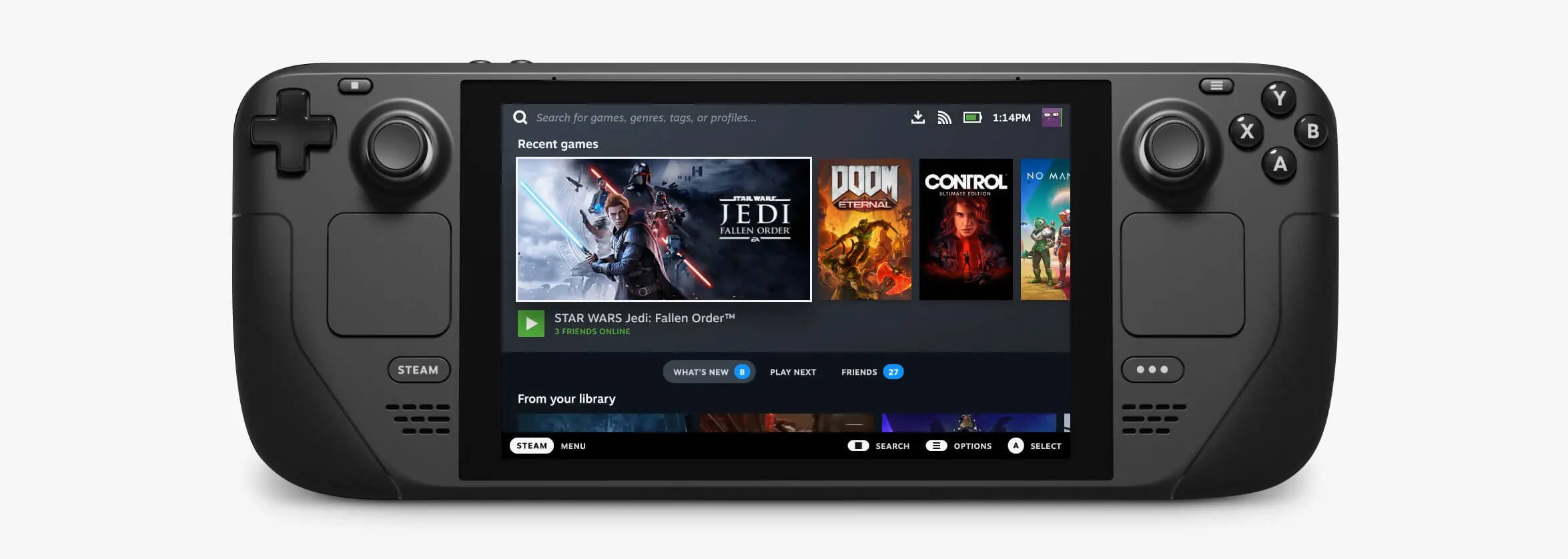
Steam DeckValve has officially announced that Steam Deck will be compatible with Windows 11 despite TPM 2.0 Microsoft requirements. From the beginning, Deck was announced like a mini handheld PC device. Powered with new Steam OS 3.0 based on Linux. However, besides out-of-the-box OS it was also stated that Deck will be a personal device meaning that other PC-based operating systems could be installed on it and even run your typical applications in it. Since Microsoft announced Windows 11 hardware requirements, specifically the TPM 2.0 requirement many users voiced concern that Steam Deck will not be able to connect to Windows 11 TPM 2.0 is something that Microsoft requires for every internal and hardware component that is to connect on a Windows 11 device. This is to ensure that only trusted devices would be included in the array of a PC setup and avoid any problems like malicious hardware injecting software into a system. This would also minimize the compromise Windows would have, as unverified or untrusted devices connect to a Windows PC. However, Valve and AMD are ensuring us that Deck will not have any issue connecting to a PC running Windows 11 or even if you wish to transform Deck itself into a Device running Windows 11.
Read More
Check if your data has been stolen for free

Website breaches and stealing user data is nothing new in the world of the internet. Although a very unpleasant experience it still happens even on some high-quality websites. In this article, we will not focus on how can you not be the target of this kind of attack, because you really cannot. Weel you can kind of if you decide not to have your data on websites at all, but let's just say that is not something you are willing to do.
stolenSo, in this case, you have some social, forum, or gaming accounts but you heard that service has been breached and that your email or password might be stolen. Well in this case all you need to do is of course to login into the service and change your password. But, what happens if you are not aware at all that service has been compromised?

Mozilla foundation has asked themselves this same question it seems and they have decided to help us out. They have placed a free online service where you can just by typing in your email address find out if your email or data has been compromised in any way.

Go to https://monitor.firefox.com/ and check it out, if you find out that there is some website that you did not know was breached, change your password right away, and if you have used the same password for anything else (I hope not), change them as well.

Read More
What to do if CPU is not running at full speed
The speed at which the CPU runs varies depending on any Windows laptop or desktop. And in case you don’t know, the CPU does not run at full speed all the time as it depends on how the operating system distributes the load so it works accordingly. However, there are instances when it runs at full speed especially if your Windows 10 computer is on a heavy workload. But if you find that even when your computer is already on a heavy workload and the CPU is still not running at full speed, then you need to look into this situation. To verify that your CPU’s speed, you can use any CPU stress test tool. This kind of issue is common on laptops compared to desktop computers since laptop runs on battery. The Intel Processor on laptops uses the Speed Stepping Technology which means that when you are doing some small tasks on your laptop, the processor’s speed is reduced. On the other hand, if this happens when you are using a heavy application, it can be due to a low charge on the laptop’s battery. Thus, Windows will try its best to keep the computer running for as long as possible by reducing the CPU speed or processor. But there are times when you are ready to sacrifice battery to make sure that the work gets done on time. To achieve that, here are some options you can check out.

Option 1 – Try setting the processor state to the maximum in Power Options

  • Type “control” in the search box to view the classic Control Panel as well as the popular options.
  • Next, click on Power Options > Change plan settings > Change advanced power settings.
  • Then navigate to Processor power management > Maximum processor state.
  • Now select 100% when it is on Battery and Plugged in.
  • After that, expand the System cooling policy option and make sure to set it as Active to make sure that the battery won’t overheat.
  • Finally, apply the changes made to all the profiles of the power management and restart your computer. This will ensure that your CPU will run at maximum power at all times.

Option 2 – Try to update or disable the Intel Power Management driver

The next option you can try is to update or disable the Intel Power Management driver. The Intel-powered computers have dedicated software that controls CPU speed and Fan speed when it needs to save battery. You can try disabling it temporarily and check if there are any changes with the CPU fan speed.
  • First, restart your computer by holding the Shift key to boot your computer into Troubleshooting or Advanced mode.
  • Next, go to Troubleshoot > Advanced Options > Command Prompt.
  • Then change the directory to C:/Windows/System32/driver and then rename the file named “Intelppm” by entering the “ren intelppm.sys intelppm.sys.bak”.
  • Now restart your computer.
Note: If you were not able to find the drivers in C:/Windows/System32/driver, check if they are available under C:/Drivers/IntelPPM. After that, the CPU speed should change now with the Intel driver missing from the system. And in case you want to enable it, simply follow the same steps given above and rename the file again.

Option 3 – Try disabling the IPPM using the Command Line or Registry Editor

  • Command Prompt:
    • Tap the Win + R keys to open the Run dialog box and type “cmd” and tap Enter to open Command Prompt.
    • Next, type this command and hit Enter: sc config intelppm start= disabled
    • The “sc config” command you entered modifies the value of a service’s entries in the registry as well as in the Service Control Manager database.
  • Registry Editor:
    • Tap the Win + R keys to open the Run dialog box and type “Regedit” in the field and hit Enter to open the Registry Editor.
    • Next, navigate to HKEY_LOCAL_MACHINESYSTEMCurrentControlSetServicesintelppm.
    • From there, double click on the intelppm and change the Start key value to
    • Now close the Registry Editor and reboot your computer.
Note: The steps given will make sure that the CPU will run at maximum power at all times.
Read More
Enable or disable Fast User Switching
When your computer is slow, you don’t have much choice but to wait until it gets done with a task at its own pace, albeit a slow one. So if you want to switch user accounts on your computer a couple of times daily, then a slow computer can get really irritating. What makes system processes slow is that the accounts have some programs or applications running and resources allocated to them. And besides, if your computer is already low on performance, it will kill the natural fluidic flow of the user. But worry not, for this post will guide you in switching user accounts with the help of some minor tweaks in your Windows 10 computer. To disable or enable Fast User Switching, you have two methods to do that using the Registry Editor and the Group Policy Editor. Either way, refer to the instructions laid out below.

Option 1 – Enable or disable Fast User Switching via Registry Editor

  • Tap the Win + R keys to open the Run dialog box.
  • After that, type “Regedit” in the field and tap Enter to open the Registry Editor.
  • Next, go to this registry key: HKEY_LOCAL_MACHINESOFTWAREMicrosoftWindowsCurrentVersionPoliciesSystem
  • Then right-click on System and select New > DWORD (32-bit) Value and name this newly created DWORD as “HideFastUserSwitching”.
  • Now double click on it. If you want to enable Fast User Switching, input “0” as the value, and if you want to disable it, input “1” as its value.
  • Restart your PC to successfully apply the changes made.

Option 2 – Enable or disable Fast User Switching via Group Policy Editor

Take note that this option will not work if you are using the Windows 10 Home edition since the Group Policy Editor does not come with Windows 10 Home. Refer to the steps below to enable or disable Fast User Switching using Group Policy Editor.
  • Tap the Win + R keys to open the Run dialog box and then type in “gpedit.msc” in the field and hit Enter to open the Group Policy Editor.
  • Next, navigate to this path inside the Group Policy Editor: Computer ConfigurationAdministrative TemplatesSystemLogon
  • Now double click on the configuration listing labeled as “Hide entry points for Fast User Switching” to open the configuration page.
Note: On the configuration page, you will see the following description:
“This policy setting allows you to hide the Switch User interface in the Logon UI, the Start menu, and the Task Manager. If you enable this policy setting, the Switch User interface is hidden from the user who is attempting to log on or is logged on to the computer that has this policy applied. The locations that the Switch User interface appears in the Logon UI, the Start menu, and the Task Manager. If you disable or do not configure this policy setting, the Switch User interface is accessible to the user in the three locations.”

  • From there, you can choose to enable or disable the Fast User Switching depending on your preferences. After you’ve selected, click OK and exit the Group Policy Editor.
  • Now restart your PC to apply the changes made successfully.
Read More
Windows Clock is missing, invisible or black
Although the Windows Updates do bring in new features and improvements, there are times when they also introduce issues as well. The main cause for these arising bugs is the incompatibility between the old and new software components. One of the issues brought in by such bugs is Clock is missing, invisible or black This problem was experienced by users after they recently installed a feature update. This particular bug can make the Windows clock in the taskbar appear to be black or invisible which makes it hard for users to read the time on their computers. According to experts, this bug has something to do with the Windows Themes and Aero styling. To fix this issue, here are some suggestions that could help but before you get started, you have to restart Explorer first and see if it can help in resolving the problem – if it didn’t, follow the options given below carefully.

Option 1 – Try to disable Custom Theme

It could be that the reason behind the black or invisible Windows Clock can be an old or an incompatible theme. You might have a custom theme in place and it became incompatible after an update. Thus, you can try switching to one of the default themes and then recreate your custom theme afterward. To do so, follow the steps below.
  • Right-click on your desktop and select Personalize.
  • Next, select Themes from the left menu and then select Windows 10 as your theme.
  • After that, you can delete all the other custom themes and create them again from scratch. This should fix the black or invisible Windows 10 Clock.

Option 2 – Try to edit your existing themes

If you don’t want to get rid of your existing themes, there is an alternative solution you can try to fix the missing Windows 10 Clock albeit it’s a bit of a complex one. Follow the given steps below to modify the existing themes and fix the missing or black Windows Clock.
  • First, you need to save your existing theme. Just simply right-click on your desktop and select Personalize and select Themes from the left menu.
  • Next, click on the Save Theme button below your custom theme to save it. You can name the theme anything.
  • After that, you can now modify the saved theme by going to C:/Users/UserName/AppData/Local/MicrosoftWindowsThemes.
  • From there, look for the file with the theme name you just saved, and then right-click on the file and open it with notepad or any other text editing app.
  • Now you have to look for the line that says, “Path=%SystemRoot%resourcesthemesAeroAeroLite.msstyles” and change it to “Path=%SystemRoot%resourcesthemesAeroAero.msstyles” and then save the file and rename it with some other name.
  • Afterward, go back to themes and select the new theme you’ve created. This should resolve the Windows Clock issue as well as other Themes and Taskbar issues.

Option 3 – Try disabling the small icons in Taskbar

This option should help you fix any Windows Clock cases. So if your Windows Clock is nowhere to be found, you can try to disable small taskbar icons on your Windows 10 PC.
  • Go to Settings > Personalization > Taskbar.
  • From there turn off the toggle button for the “Use small taskbar buttons” option. Note that this solution is only a temporary one and it may or may not work in some cases.
Read More
1 2 3 171
Logo
Copyright © 2023, ErrorTools. All Rights Reserved
Trademark: Microsoft Windows logos are registered trademarks of Microsoft. Disclaimer: ErrorTools.com is not affiliated with Microsoft, nor claims direct affiliation.
The information on this page is provided for information purposes only.
DMCA.com Protection Status

