Logo

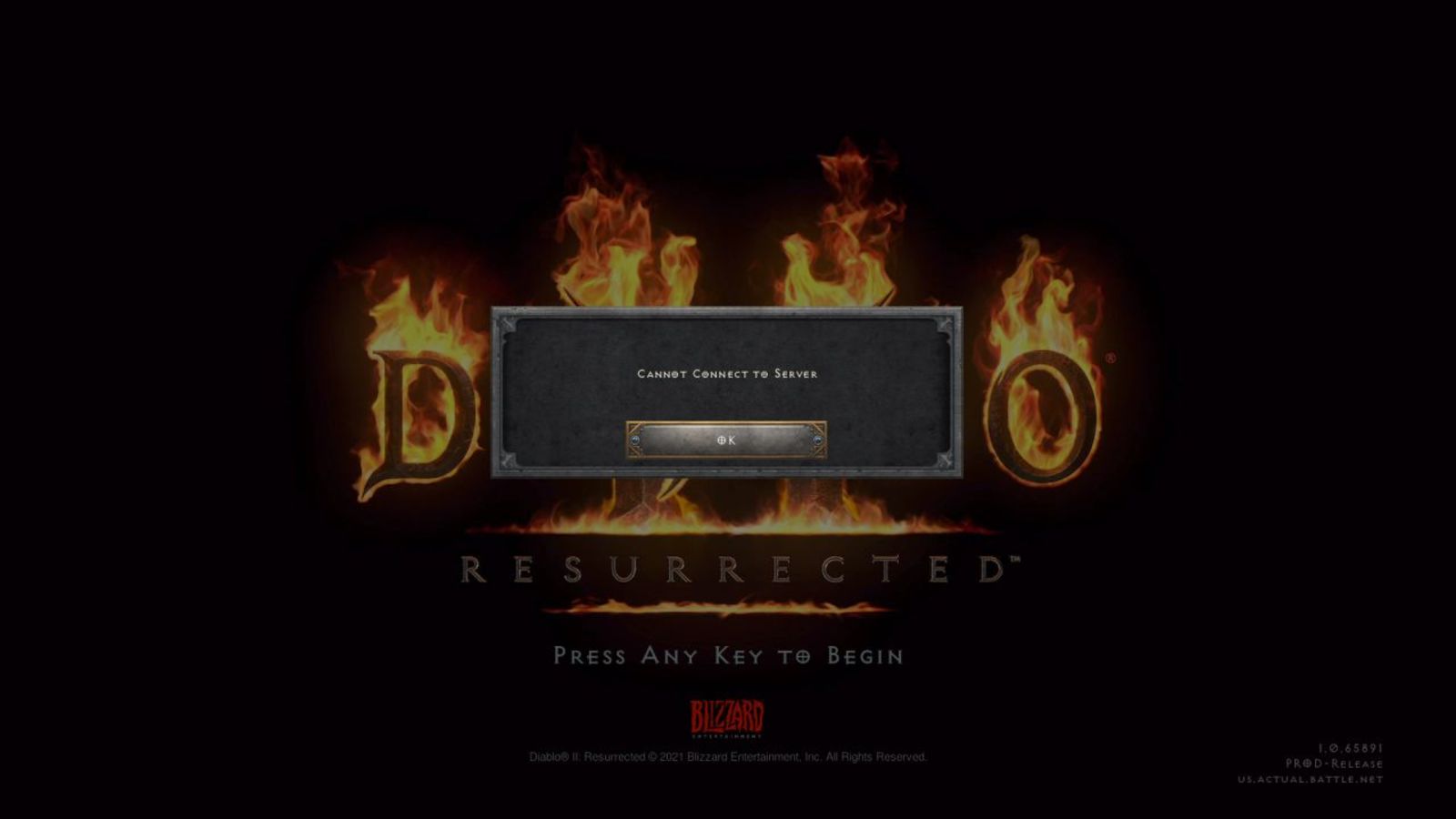
Diablo 2 Resurrected facing server issues

It has been some time since the release of Diablo 2 resurrected and overall reception was pretty good. People are enjoying the old classic game in hi-def. resolution and with new and improved visuals. Sadly some server issues are present still until this day and somewhat spoil the experience for players.

diablo 2 server statusThe greatest lag and server crashes are pinpointed to game-creating events. When a player creates a new online game, the server needs to pull a lot of details from the database and make a game, due to some legacy code present this process takes some time and it is demanding a bit on the server-side, and although code was optimized to cater to more modern approach some legacy code still remains.

Another thing that was spotted to affect performance itself is player behavior, to be more specific, modern gamer behavior. Where players find good builds and runs on the internet and then go to farm-specific areas or bosses for loot or experience points, which in return boils down to making plenty and short runs that are made by creating games and after run eliminating them. Now pair that with the previous statement about legacy server and database code and you can add 1 and 1 and see how this might be an issue.

A lot of short games over legacy code are placing games in a state it was not designed for back in 2001 and therefore we have issues. Sadly solutions without completely rewriting the whole code are not very promising and they include rate limiting, which will prevent players to create many games in succession in a short period of time and maybe even login queues to drop a load on servers.

Blizzard reached to people in the whole company, even old diablo 2 developers to ask for advice and they say that they are working on solutions so they could lift limitations and have everything running fine.

Do You Need Help with Your Device?

Our Team of Experts May Help
Troubleshoot.Tech Experts are There for You!
Replace damaged files
Restore performance
Free disk space
Remove Malware
Protects WEB browser
Remove Viruses
Stop PC freezing
GET HELP
Troubleshoot.Tech experts work with all versions of Microsoft Windows including Windows 11, with Android, Mac, and more.

Share this article:

You might also like

Media Creation Tool Error 0x80072f76 – 0x20016
One of the most useful tools in the Windows 10 operating system is the Windows Media Creation tool. This tool is used to download and install the latest version of Windows 10. However, there are times when you might encounter some issues while using this tool. One of these issues is the Error code 0x80072F76 – 0x20016. If you encounter this error, you will see the following error message during setup:
“We’re not sure what happened, but we’re unable to run this tool on your PC. If you continue experiencing problems, reference the error code when contacting customer support – Error code: 0x80072F76 – 0x20016.”
This kind of error in the Media Creation tool could be due to an interrupted download or unstable internet connection, and many more. To fix it, you can run the Windows Update troubleshooter or try using another browser to download the tool to another location. You can also try changing the DNS or the ISP connection or use the Windows 10 Update Assistant as well as delete the $Windows.~BT & $Windows.~WS folders. Check out the given suggestions below to fix the Media Creation Tool Error code 0x80072F76 – 0x20016 in your Windows 10 computer.

Option 1 – Try to run the Windows Update troubleshooter

Windows 10 have various troubleshooters that can help you resolve many system issues. So if you’re dealing with Windows Update errors like Error Code 0x80072f76 – 0x20016, you can run the Windows Update troubleshooter to resolve it. To run the Windows Update troubleshooter, go to Settings and then select Troubleshoot from the options. From there, click on Windows Update and then click the “Run the troubleshooter” button. After that, follow the next on-screen instructions and you should be good to go.

Option 2 – Try using a different browser to download the tool to another location

You could also use another browser in downloading the tool and place it in a different location on your computer but if you do not have another browser, you can just install one and then download the same tool to another location like the Desktop.

Option 3 – Try to change the DNS

  • Tap the Win + R keys to open the Run dialog box.
  • Then type “inetcpl.cpl” in the field and hit Enter to pull up the Internet Properties.
  • After that, go to the Connections tab and select the LAN settings.
  • From there. Uncheck the “Use a Proxy Server” option for your LAN and then make sure that the “Automatically detect settings” option is checked.
  • Now click the OK and the Apply buttons.
  • Restart your PC and then check if the Media Creation tool error is fixed.
Note: If you are using a third-party proxy service, you have to disable it.

Option 4 – Try to change the ISP connection

There are times when the connection to the Microsoft servers is interrupted due to some glitch or it could also be blocked by your Internet Service Provider or ISP. To rule out this possibility, you can try to change your computer’s internet connection and then see if it fixes the problem.

Option 5 – Try to use the Windows 10 Update Assistant

There’s another tool you can use as an alternative to the Media Creation tool. It is called the Windows 10 Update Assistant. This tool can also help you download and install Windows updates seamlessly.

Option 6 – Try to delete the $Windows.~BT and $Windows.~WS folders

From time to time, the Windows Update files also get corrupted which can cause some problems and conflicts when downloading and installing a Windows Update. To fix this, you need to delete the $Windows.~BT & $Windows.~WS folders in your computer.
Read More
How to Get Rid of Email Access Online

Email Access Online is a browser extension published by Polarity Technologies Ltd. That offers users quick and easy access to emails and weather reports. While this might sound interesting and useful, there is nothing this extension offers that cannot be solved with a few simple bookmarks.

While installed Email Access Online monitors the user's browser activity and records visited websites, clicked links, and bought products, this data is later used to serve partner ads if the user looks for the covered categories, additionally, it will hijack your new tab page, changing your search engine to Yahoo to allow easier ad placement.

Browsing the internet with this extension enabled will result in additional ad placement, pop-up ads, and sponsored links throughout your browsing sessions.

Upon further investigation, it was discovered that this extension is a repack of MyEmailXP, which was a repack of Fast Email Checker. Due to its suspicious delivery methods and information gathering, several anti-virus scanners have marked this extension as a browser hijacker and it is recommended to remove it from your computer.

About Browser Hijackers

Browser hijacking means that a malicious code has taken control over and modified the settings of your web browser, without your consent. Browser hijacker malware is designed for many different reasons. The idea is to force users to visit specific websites which are aiming to increase their visitor traffic and generate higher advertisement income. It may appear naive, but the majority of such websites are not legitimate and can present a significant risk to your online safety. In a worst-case scenario, your internet browser could be hi-jacked to download malicious software that can do a lot of damage to your PC.

Major signs that your internet browser has been highjacked

There are many signs that could indicate a browser hijacking: 1. the home page of the web browser is changed suddenly 2. you observe new unwanted bookmarks or favorites added, usually directed to ad-filled or porn websites 3. the default search engine is changed and the web browser security settings have been brought down without your knowledge 4. you see unwanted new toolbars added 5. your internet browser will display constant pop-up windows 6. your web browser starts running sluggishly or presents frequent errors 7. Inability to navigate to particular sites, especially anti-malware and other computer security software websites.

So how does a computer get infected with a browser hijacker

There are a number of ways your computer can get infected by a browser hijacker. They usually arrive through spam e-mail, via file sharing websites, or by a drive-by-download. They could also come from add-on software, also referred to as browser helper objects (BHO), web browser extensions, or toolbars. Browser hijackers sneak to your computer in addition to free software application downloads that you unintentionally install along with the original. The presence of any browser hijacker on your system could substantially diminish the web browsing experience, monitor your internet activities that lead to critical privacy concerns, create system stability problems and finally cause your PC to slow down or to a practically unusable condition.

How to repair a browser hijack

Certain kinds of browser hijackers can be effortlessly removed from your PC by deleting malicious software programs or any other recently installed shareware. However, most hijacking codes are certainly not very easy to remove manually, as they go deeper into your operating system. And there’s no denying the very fact that manual repairs and removal methods can certainly be a difficult job for an inexperienced PC user. Besides, there are several risks connected with fiddling around with the system registry files. Anti-malware program is incredibly effective when it comes to discovering and removing browser hijackers that regular anti-virus application has missed. To get rid of any kind of browser hijacker from your computer, you can download the following certified malware removal application – SafeBytes Anti-Malware.

What you can do if Virus Stops You From Downloading Antivirus?

Practically all malware is bad, but certain kinds of malicious software do much more damage to your PC than others. Some malware goes to great lengths to stop you from downloading or installing anything on your personal computer, especially anti-malware software. If you are reading this right now, you’ve probably realized that virus infection is the reason behind your blocked net traffic. So what to do when you want to install an anti-malware application such as Safebytes? There are a few actions you can take to circumvent this issue.

Make use of Safe Mode to fix the issue

If the malware is set to run automatically when Windows starts, getting into safe mode may block this attempt. Since only the bare minimum programs and services start-up in “Safe Mode”, there are rarely any reasons for conflicts to happen. You will need to do the following to remove malware in Safe mode. 1) At power on/start-up, tap the F8 key in one-second intervals. This will bring up the Advanced Boot Options menu. 2) Use the arrow keys to choose Safe Mode with Networking and press ENTER. 3) When you are into this mode, you will have access to the internet again. Now, use your internet browser normally and navigate to https://safebytes.com/products/anti-malware/ to download Safebytes Anti-Malware. 4) Once the software is installed, let the diagnostic scan run to remove viruses and other threats automatically.

Obtain the antivirus software in an alternate browser

Certain viruses may target vulnerabilities of a particular web browser that obstruct the downloading process. If you seem to have a virus attached to Internet Explorer, then switch to an alternate browser with built-in safety features, such as Firefox or Chrome, to download your favorite antivirus program – Safebytes.

Run anti-virus from a pen drive

Here’s yet another solution which is using a portable USB anti-malware software package that can scan your computer for viruses without needing installation. Follow these steps to run the anti-malware on the infected PC. 1) Make use of another virus-free computer to download Safebytes Anti-Malware. 2) Plug the Flash drive into the uninfected computer. 3) Double-click on the downloaded file to run the installation wizard. 4) Choose the drive letter of the USB drive as the location when the wizard asks you exactly where you want to install the anti-virus. Follow activation instructions. 5) Now, insert the USB drive into the infected system. 6) Double click the Safebytes Anti-malware icon on the thumb drive to run the software. 7) Click on “Scan Now” to run a complete scan on the infected computer for malware.

Let's Talk About SafeBytes Anti-Malware!

Nowadays, anti-malware software can protect your PC from different forms of internet threats. But wait, how to select the right one among plenty of malware protection application that is available on the market? As you may be aware, there are numerous anti-malware companies and tools for you to consider. Some of them are good, some are ok types, while some will affect your computer themselves! When looking for an antivirus program, select one which gives solid, efficient, and full protection against all known computer viruses and malware. On the list of the recommended tool by industry experts is SafeBytes Anti-Malware, well-known security software for Microsoft Windows. SafeBytes anti-malware is really a powerful, highly effective protection software intended to help end-users of all levels of IT literacy in identifying and removing malicious threats from their computers. Once you have installed this tool, SafeBytes advanced protection system will ensure that absolutely no viruses or malware can seep through your personal computer.

SafeBytes possesses a plethora of amazing features that can help you protect your computer from malware attacks and damage. The following are some of the great features included in the application.

Real-time Active Protection: SafeBytes offers a totally hands-free active protection and is set to observe, prevent and wipe out all threats at its first encounter. It’ll constantly monitor your pc for hacker activity and also gives users superior firewall protection. Anti-Malware Protection: Using its advanced and sophisticated algorithm, this malware removal tool can detect and remove the malware threats hiding in your PC effectively. High-Speed Malware Scanning Engine: This computer software has got one of the fastest and most efficient virus scanning engines in the industry. The scans are extremely accurate and take a short amount of time to complete. Web Security: SafeBytes gives an instant safety rating on the pages you are about to check out, automatically blocking risky sites and making sure that you’re certain of your online safety while browsing the web. Lowest Memory/CPU Usage: SafeBytes gives you complete protection from online threats at a fraction of the CPU load due to its enhanced detection engine and algorithms. Fantastic Tech Support Team: For any technical inquiries or product guidance, you could get 24/7 expert assistance through chat and email. SafeBytes will keep your personal computer protected from most advanced malware threats automatically, thus keeping your online experience safe and secure. You now may know that this particular software does more than just scan and delete threats on your computer. If you want advanced forms of protection features and threat detections, buying SafeBytes Anti-Malware could be well worth the dollars!

Technical Details and Manual Removal (Advanced Users)

To remove Email Access Online manually, navigate to the Add/Remove programs list in the Windows Control Panel and choose the program you want to remove. For browser plug-ins, go to your browser’s Addon/Extension manager and choose the plug-in you want to remove or disable. You will probably also want to reset your internet browser. To make sure of complete removal, find the following Windows registry entries on your system and eliminate it or reset the values accordingly. However, this is a difficult task and only computer professionals can perform it safely. Additionally, certain malware is capable of replicating itself or preventing deletion. You’re suggested to do this process in Windows Safe Mode.
Registry: HKEY LOCAL MACHINE\SOFTWARE\Microsoft\Internet Explorer\SearchScopes\675942D5-E956-4670-9ADE-6982CF23558F
Read More
Fixing To use System Restore you must ...
There are cases when you want to undo some changes you’ve made to your computer and to do that you have to perform the System Restore task. However, if you encounter an error that states “To use System Restore you must specify which Windows installation to restore”, when doing so, read on as this post will help you fix the problem. This kind of error in System Restore could be due to corrupted files in the system. There are also situations where you are not able to boot up once you encounter this error which could be a big problem. On the other hand, this error might have something to do with corrupted BCD files. Whatever the cause is, here are some potential fixes you have to try.

Option 1 – Try to run System File Checker offline

Like pointed out, since the error might be due to corrupted system files, you can try to run System File Checker offline. How? Refer to these steps:
  • You need to go to the Advanced Startup Options and from there select Troubleshoot.
  • Next, select the Advanced Options and then Command Prompt.
  • After opening Command Prompt, type the commands given below and tap Enter right after you type each one of them.
    • Cd /
    • Dir
  • If you can see the “Users” folder, that is your system’s drive. However, if you can’t see it, you can just change the drive-by assigning “D” as its alphabet volume.
  • Then execute this command where “C” is the system drive: sfc /scannow /offbootdir=C: /offwindir=C:Windows
  • Now repeat the given steps sequentially.

Option 2 – Try to run DISM tool

You can also run the DISM tool to repair the potentially corrupted system image. First, you have to check the health of the system like checking the integrity of the system files and Windows services. To run DISM, follow the given steps below sequentially.
  • Open Command Prompt from the Advanced Startup options.
  • After that, execute this command where “C:” is the system volume: DISM /Image:C:Windows /Cleanup-Image /RestoreHealth /Source:C:WindowsWinSxS
  • If you encounter an error after executing the given command, insert the Windows USB or DVD and then execute this next command where “E:” is the USB or DVD drive: DISM /Image:C:Windows /Cleanup-Image /RestoreHealth /Source:esd:E:SourcesInstall.esd:1 /limitaccess
  • In some cases, “install.esd” would be “install.wim” and in such case, you have to modify and execute this command: DISM /Image:C:Windows /Cleanup-Image /RestoreHealth /Source:wim:E:SourcesInstall.wim /limitaccess

Option 3 – Try to repair corrupted BCD

As mentioned, the error could also be due to corruption in BCD, and to fix it, you can use Bootrec.exe – a built-in command-line tool used to troubleshot issues related to boot up and Windows Startup. Before you run this tool, make sure that you have inserted a bootable USB or DVD into your computer. Once you have that covered, follow these steps:
  • You need to go to the Advanced Startup Options.
  • Then click on Troubleshoot.
  • Next, select the Advanced Options and then Command Prompt.
  • Once Command Prompt has been pulled up, enter each one of the following commands and in the sequence that they are given to rebuild BCD files and repair MBR files:
    • Bootrec /Fixmbr
    • Bootrec /FixBoot
  • After you execute the commands given above, you should see a confirmation message that says, “The operation completed successfully”.
  • Now type the “Bootrec /RebuildBCD” command to rebuild BCD.
  • Finally, close Command Prompt and then restart your computer to successfully apply the changes made.

Option 4 – Try to run the Automatic Repair Utility

You might also want to use Automatic Repair in fixing the error. To do so, follow the steps below.
  • You can start by creating and booting from a bootable Windows 10 USB Stick.
  • After that, click on Repair your computer located in the bottom left corner when you are on the initial Windows Startup screen.
  • Next, click on Troubleshoot, and then on the other screen, click the Startup Repair option.
  • Now select the operating system you want to repair. Once you do that, it will start to repair your operating system. Wait until the process is completed and then check if the problem’s now fixed.

Option 5 – Try to use the Windows Recovery Environment

If the four options given above didn’t help fix the problem, you could try running Windows Repair and a Windows bootable USB or DVD.
  • First, insert the bootable USB or DVD and boot into it, and select the “Repair your computer” option.
  • Next, once you see the manufacturer logo on your computer, tap the key to enter into Windows Recovery Environment.
  • After that, change the Boot sequence to DVD drive under the UEFI Firmware settings and restart your computer.
  • Once your computer has restarted, select the boot order and make changes accordingly as displayed in the BIOS.

Option 6 – Try running System Restore in Advanced Startup Options

Since you probably can’t boot into your Windows 10 computer, you can try to run System Restore again in the Advanced Startup Options.
  • Boot your computer into the Advanced Startup Options screen.
  • From there, you will see some options to troubleshoot when you can’t log in to Windows in the usual way.
  • Now select Troubleshoot > Advanced Options > Command Prompt.
  • After that, type “exe /OFFLINE:C:Windows” and hit Enter to execute the command which will start the System Restore process.
Note: You need to replace “C” with the drive where Windows Installation is located.
Read More
Rocketbook Fusion smartbook review

In today's age of smart gadgets and complete replacement of even some simple things with their smart counterpart, it is not really a surprise to see some strange innovations that try to take advantage of modern technology.

rocketbook

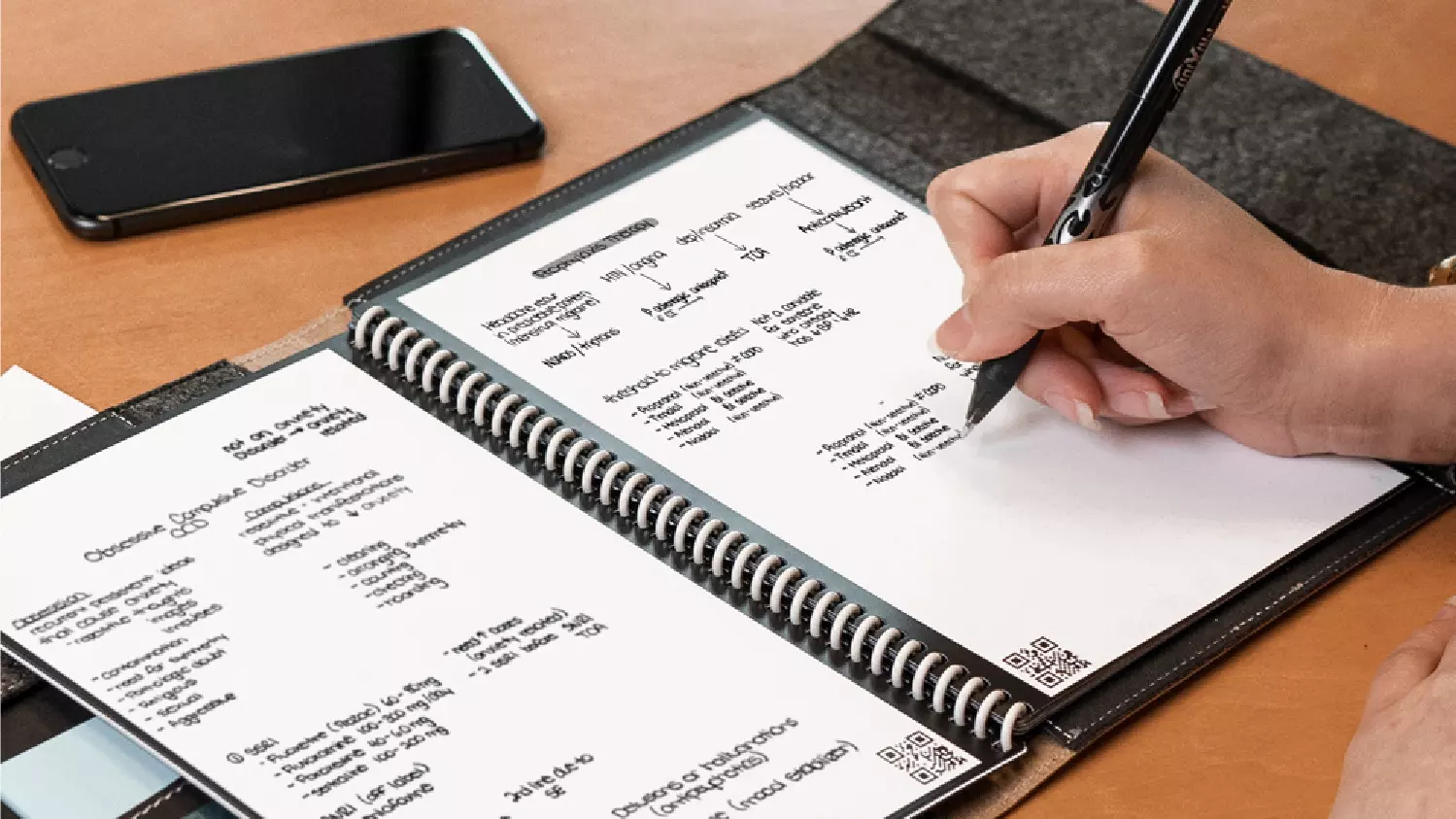
One of these innovations is a smart book, or to be more precise smart note, a reusable notebook that could be connected to your phone.

Why Rocketbook Fusion smartbook

One thing that could justify, well it should justify buying Rocketbook is the preservation of trees and the environment since it can be reused. The second argument would be its price since it is not expensive considering what it offers.

On top of all, you also have a free application for your phone in order to take full advantage of it.

What is a smartbook?

Imagine this scenario, you have a notebook of 42 pages with several different page styles inside. You write in it and after it is filled you upload its content to your email or cloud service of your choice, get a cloth, erase everything and start again from zero.

So as mentioned notebook comes with 42 pages of various page styles. Most of the pages are either lined or dotted but the notebook also includes a monthly calendar, two-week detailed calendar pages, and three pages for project or idea tracking. Since everything can be erased this is enough variety to cover all basis and eliminate any need for another workbook ever.

When you feel like you want to save work or once it is filled you can easily upload and save the workbook from the scan page option in the free Rocketbook app. Once scanned pages can be uploaded to your preferred cloud service or sent to your email.

Now in order to write and be able to erase any of Rocketbook's notebooks, you will have to use Pilot's Frixion writing pens. They will dry around 15s on the page and can be of course easily wiped with a damp microfiber cloth that is included with the purchase. One pen also comes with a workbook when purchased.

Application

Application has cool features, of course, the most important and most useful one is setting your upload scan destination so when you scan your pages they get automatically uploaded to your chosen destination.

In the application settings, you can also toggle some handwriting recognition features that will allow you to easily search your uploaded documents. For example, you can search through documents just by writing now or two words. There is also a Smart List feature as well that will take your checklist and make it into a virtual checklist.

The app also has a fun Explore section where you can find all sorts of fun hacks and different ideas on how to use your Rocketbook.

Read More
Microsoft removed password as a requirement
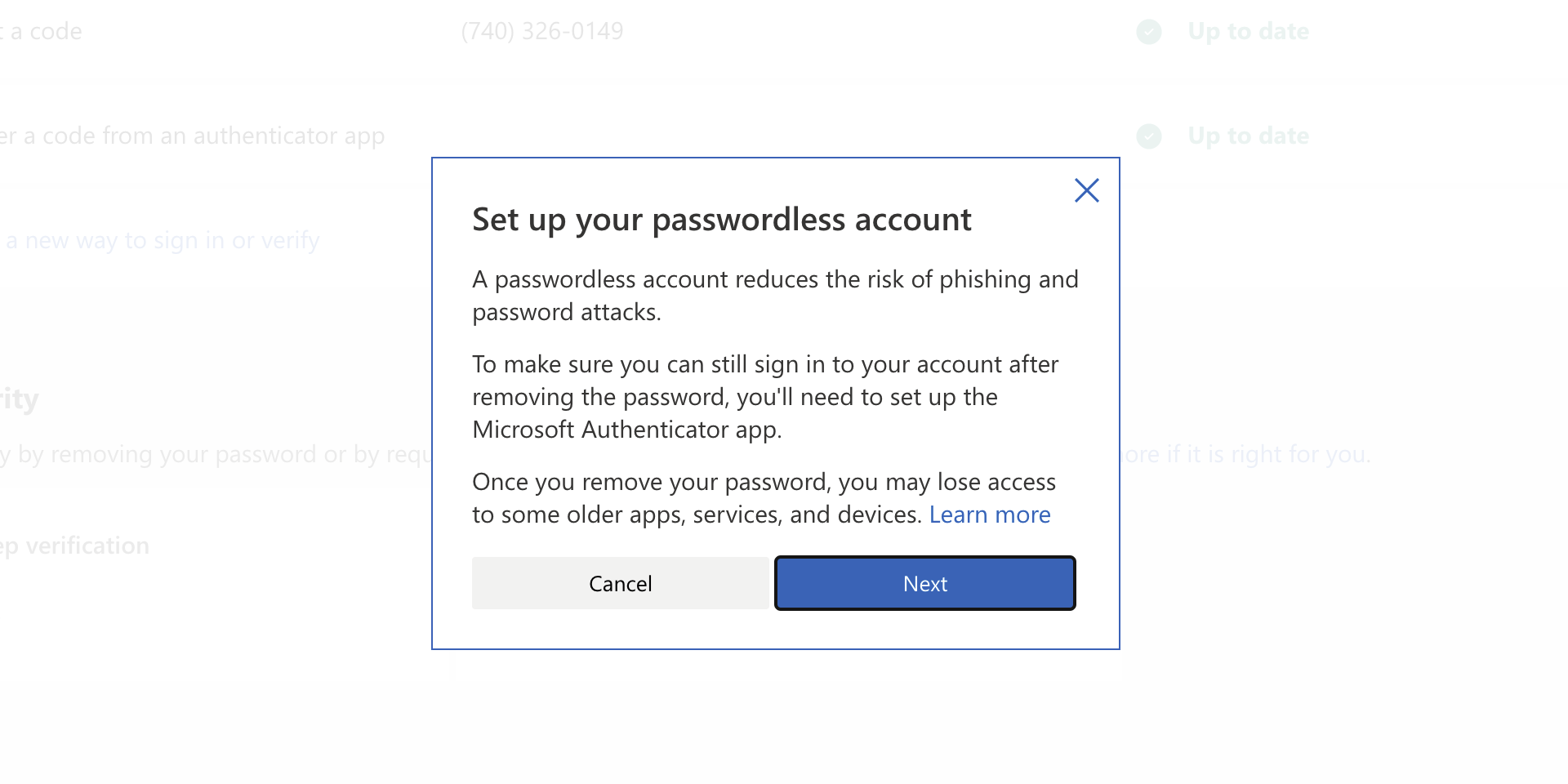
ms password goneAs of the time of writing this article you no longer need or are required to have a password if you plan to log in to your Microsoft account. Microsoft explored various options for account security and came to the conclusion that passwords are obsolete. Microsoft is letting you access your account through the Microsoft Authenticator app, Windows Hello, a security key, SMS verification, or email verification code. All of these methods are way better in terms of security than passwords.

How to turn these features on?

To get rid of your Microsoft password, the process is simple. You simply need to go to your Microsoft account, click “advanced security options,” then “enable passwordless accounts” under the Additional security section.
Read More
How To Easily Fix Unresponsive Script
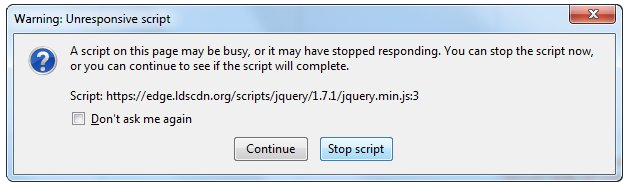
This Unresponsive Script problem information is most frequent on Firefox, which is among the top browsers worldwide. Firefox might show you these errors with the information, "Warning: Unresponsive Script". It is going to subsequently inform you that software to the web page you're trying to open is unresponsive, or has quit reacting. This means that the script has ceased functioning and may freeze or hang Firefox if not immediately resolved. You can easily solve this problem.

Solution

Restoro box imageError Causes

Before you can fix this error, you need to understand its primary cause. The biggest risk is that if left unchecked, Unresponsive Scripts will hang your browser and to an extension of your computer thus limiting your productivity. You may have to uninstall and re-install Firefox if the problem persists. Listed here are several of the very most typical reasons for unresponsive script:
  • Programming Errors
  • Interference by other Softwares
  • Using an older outdated version of the program.

Further Information and Manual Repair

Most times, you have to do very little to fix this problem. Furthermore, a lot of the remedies supplied here do not require the assistance of a qualified professional technician. You can easily perform them and completely solve the error.
  • If you wish to stop the error, keep your browser and add-ons up to date.

It's easy to update your browser and any add-ons therein. In most cases it's free. By upgrading your browser and add-ons frequently, you are effectively eliminating the risk of Unresponsive Script occurring and interfering with your work.
  • unresponsive script in firefox warning dialogCheck for a poorly functioning background process

The sorts of background procedures that might result in the Unresponsive Software error include Javascript code, media plugin, and browser extension. You can stop the script from running while using Firefox thus eliminating the Unresponsive script error. Shutting the dialog box is just another easy way of eliminating the unresponsive script error information. Firefox offers you two choices in case of this malfunction. Either "Continue" or "Stop Script". Whatever alternative you pick, you can be certain the dialog box shuts, thus allowing you to continue browsing. firefox home screenThe final solution. Contact Firefox about these errors on your browser. Oftentimes, these errors occur when you attempt to visit particular websites. Mark the offending websites' URLs and include them in your communications with Firefox. Sometimes you can also contact the website owner yourself and request them to check their website's code. Following are additional measures you can take to resolve the Unresponsive Script error.
  • Waiting longer for the error to resolve itself automatically
  • Blocking the offending script
  • Yanking the guilty add-ons
  • Disabling the hardware acceleration tool.
With one of these few steps, you won't have to worry about the Unresponsive Script error, can continue enjoying your browsing activities on Firefox.
Read More
How to hide taskbar inside Windows 11
windows 11 taskbarWindows 11 has brought some bad reviews for its inability to change the taskbar location to the screen. Luckily we can still hide it if needed. In order to hide the taskbar from the screen follow these simple instructions:
  1. Right-click the taskbar itself and select “Taskbar Settings” in the tiny menu that pops up or open Windows Settings and navigate to Personalization > Taskbar
  2. Click on Taskbar Behaviors
  3. Check the box next to Automatically hide the Taskbar
  4. Close settings
As soon as you click on the box to hide the taskbar Windows 11 will apply your settings and hide the taskbar, you will get one line at the very bottom of the screen indicating that the taskbar is still present, just hidden. When you reach the bottom of your screen with the mouse it will pop up and be visible again, just like in all Windows so far.
Read More
Hot to get rid of DiscoverAncestry from your PC

DiscoverAncestry is a Browser Extension for Google Chrome developed by Mindspark Inc that presents itself as a web tool to discover the origins or meanings of particular family names. When installed this extension changes your default new tab page to search by MyWay, as well as your default search engine to Search.MyWay.com

While active, DiscoverAncestry logs user browsing information, recording clicked links, visited websites and viewed products. This information is later used to better target personal ads. Browsing the internet with this extension active will result in injection of additional ads, sponsored content and even pop-up ads throughout the browsing sessions.

DiscoverAncestry is usually found bundled with other potentially unwanted software, this combined alongside its aggressive ad injection is why DiscoverAncestry has been marked as a Browser Hijacker, and it is recommended to remove it from your computer.

About Browser Hijackers

Browser hijacking is regarded as the web’s constant risks that target web browsers. It’s a type of malware program that redirects web browser requests to other suspicious websites. Basically, most browser hijackers are made for advertising or marketing purposes. It redirects you to the sponsored websites and inserts adverts on your internet browser which helps its developer generate income. It might seem naive, but the majority of such websites aren’t legitimate and can pose a significant risk to your on-line safety. In a much worst case, your internet browser could be hi-jacked to download malware that will do a lot of damage to your computer.

Browser hijacking signs and symptoms

There are several symptoms that could indicate a browser hijacking: 1. your homepage is reset to some unknown site 2. bookmark and the new tab are also changed 3. default online search engine is modified 4. you’re getting browser toolbars you haven’t witnessed before 5. you will find random pop-ups start showing regularly 6. your internet browser has instability issues or exhibits frequent errors 7. you are blocked to access the websites of antivirus solution providers.

How does a computer get infected with a browser hijacker?

Browser hijackers can get into a computer by some means or other, for instance via file sharing, downloads, and email also. Many web browser hijackings originate from add-on applications, i.e., toolbars, browser helper objects (BHO), or extensions added to web browsers to give them extra features. A browser hijacker may also come bundled-up with some free application that you inadvertently download and install, compromising your PC security. Common examples of browser hijackers include CoolWebSearch, Conduit, Coupon Server, OneWebSearch, RocketTab, Snap.do, Delta Search, and Searchult.com. Browser hijackers may record user keystrokes to gather potentially valuable information leading to privacy issues, cause instability on systems, drastically disrupt user’s browsing experience, and eventually slow down the computer to a stage where it becomes unusable.

Removal

Some browser hijacking can be simply reversed by discovering and eliminating the corresponding malware software through your control panel. However, many hijackers are really tenacious and need specialized applications to remove them. Also, manual removals demand deep system understanding and thus can be quite a difficult task for novices. Professionals always suggest users eliminate any malicious software including browser hijackers by using an automatic malware removal tool, which is easier, safer, and faster than the manual removal procedure. To remove any kind of browser hijacker from your laptop or computer, you should download the following certified malware removal tool – SafeBytes Anti-Malware. Along with anti-virus software, a system optimizer tool, similar to Total System Care, will help you repair Windows registry errors, get rid of unwanted toolbars, secure your online privacy, and stabilize programs installed on your computer.

Learn How to Get rid of Malware that is Blocking Websites or Preventing Downloads

Viruses may cause a lot of damage to your computer. Some malware sits in between your PC and the internet connection and blocks some or all internet sites that you really want to visit. It will also prevent you from adding anything to your PC, particularly antivirus applications. If you’re reading this article, you probably have affected by a virus that prevents you from downloading a security program like Safebytes Antimalware on your PC. There are some actions you can take to circumvent this issue.

Install anti-malware in Safe Mode with Networking

In the event the malware is set to run at Windows start-up, then booting in safe mode should avoid it. Just bare minimum required programs and services are loaded when you boot your PC in Safe Mode. Here are the steps you need to follow to start into the Safe Mode of your Windows XP, Vista, or 7 computers (check out the Microsoft website for instructions on Windows 8 and 10 computers). 1) At power on, press the F8 key while the Windows splash screen begins to load. This should bring up the Advanced Boot Options menu. 2) Choose Safe Mode with Networking using arrow keys and hit Enter. 3) Once you get into this mode, you will have an internet connection again. Now, obtain the malware removal program you need by utilizing the web browser. To install the program, follow the directions within the setup wizard. 4) Right after installation, do a complete scan and allow the software eliminate the threats it finds.

Utilize an alternate browser to download antivirus software

Some malware only targets certain browsers. If this sounds like your situation, utilize another internet browser as it can circumvent the malware. The ideal way to avoid this problem is to opt for a internet browser that is known for their security features. Firefox contains built-in Phishing and Malware Protection to keep you safe online. Create a portable USB antivirus for removing viruses Another method is to download and transfer an anti-malware application from a clean PC to run a virus scan on the infected computer. To run antivirus using a USB drive, follow these simple measures: 1) Make use of another virus-free computer system to download Safebytes Anti-Malware. 2) Plug the USB drive into the clean computer. 3) Double-click the executable file to open the installation wizard. 4) When asked, choose the location of the USB drive as the place where you want to store the software files. Follow the on-screen instructions to finish the installation. 5) Transfer the flash drive from the clean computer to the infected computer. 6) Double-click the anti-malware software EXE file on the pen drive. 7) Run Full System Scan to identify and clean-up up all sorts of malware.

SafeBytes Anti-Malware: Lightweight Malware Protection for Windows Computer

If you are looking to purchase anti-malware for your desktop, there are numerous brands and packages for you to consider. A few are well worth your money, but most aren’t. When looking for an antivirus tool, select one which provides dependable, efficient, and comprehensive protection against all known computer viruses and malware. On the list of highly recommended applications by industry leaders is SafeBytes Anti-Malware, well-known security software for Windows computers. SafeBytes is a powerful, real-time anti-spyware application that is made to assist everyday computer users in safeguarding their computers from malicious threats. Once you’ve got installed this software, SafeBytes advanced protection system will make sure that absolutely no viruses or malicious software can seep through your PC.

There are lots of amazing features you’ll get with this security product. The following are some typical features present in this software program:

Active Protection: Malware programs aiming to get into the system are discovered and stopped as and when detected by the SafeBytes real-time protection shields. This utility will always keep track of your computer for any suspicious activity and updates itself continuously to keep current with the latest threats. World-class AntiMalware Protection: Built upon a highly acclaimed antivirus engine, this malware removal tool can find and get rid of various obstinate malware threats such as browser hijackers, PUPs, and ransomware that other typical anti-virus applications will miss. Fast Multi-threaded Scanning: SafeBytes’s virus scan engine is one of the fastest and most efficient within the industry. It's targeted scanning tremendously increases the catch rate for viruses which is embedded in various computer files. Web Protection: SafeBytes provides instant safety rating about the webpages you’re about to visit, automatically blocking dangerous sites and to make sure that you’re certain of your online safety while browsing the net. Lightweight Utility: This software is lightweight and will work silently in the background, and will not impact your PC efficiency. 24/7 Customer Service: You can obtain totally free 24/7 technical support from their IT experts on any product queries or computer security issues. SafeBytes has created a wonderful anti-malware solution to help you conquer the latest computer threats and virus attacks. Now you may realize that this particular software does more than just scan and eliminate threats from your computer. So if you are searching for the best anti-malware subscription for your Windows-based computer, we strongly recommend SafeBytes Anti-Malware software.

Technical Details and Manual Removal (Advanced Users)

If you don’t want to use an automated tool and prefer to eliminate DiscoverAncestry manually, you might do so by going to the Windows Add/Remove Programs menu in the control panel and deleting the offending software; in cases of web browser plug-ins, you can remove it by visiting the browsers Add-on/Extension manager. You might even want to reset your web browser settings, and also delete temporary files, browsing history, and cookies. To ensure complete removal, manually check your hard disk and registry for all of the following and remove or reset the values accordingly. Please remember that this is for skilled users only and may be challenging, with wrong file removal leading to additional system errors. Furthermore, certain malware keeps replicating which makes it tough to eliminate. You are suggested to do this process in Windows Safe Mode.
Files: %USERPROFILE%\Application Data\DiscoverAncestry_chIE %USERPROFILE%\AppData\LocalLow\DiscoverAncestry_chIE %USERPROFILE%\Application Data\DiscoverAncestry_ch %USERPROFILE%\AppData\LocalLow\DiscoverAncestry_ch %PROGRAMFILES(x86)%\DiscoverAncestry_chEI %PROGRAMFILES%\DiscoverAncestry_chEI %LOCALAPPDATA%\Google\Chrome\User Data\Default\Local Extension Settings\icmiidhlbncmcphhngimjmggjiionjpe %UserProfile%\Local Settings\Application Data\Google\Chrome\User Data\Default\Local Extension Settings\icmiidhlbncmcphhngimjmggjiionjpe %LOCALAPPDATA%\Google\Chrome\User Data\Default\Sync Extension Settings\icmiidhlbncmcphhngimjmggjiionjpe %UserProfile%\Local Settings\Application Data\Google\Chrome\User Data\Default\Sync Extension Settings\icmiidhlbncmcphhngimjmggjiionjpe %UserProfile%\Local Settings\Application Data\Google\Chrome\User Data\Default\Extensions\pakhopeeieecchbhooipmmgjkfajbpkl %LOCALAPPDATA%\Google\Chrome\User Data\Default\Extensions\pakhopeeieecchbhooipmmgjkfajbpkl Registry: HKEY_LOCAL_MACHINE\Software\Microsoft\Internet Explorer\Approved Extensions, value: 8EAFF39E-95FA-48E7-B465-74F985754E6C HKEY_LOCAL_MACHINE\Software\Microsoft\Internet Explorer\Approved Extensions, value: D9712913-5FE6-4956-B291-7A6689170736 HKEY_CURRENT_USER\SOFTWARE\Wow6432Node\Microsoft\Windows\CurrentVersion\explorer\Browser Helper Objects\8eaff39e-95fa-48e7-b465-74f985754e6c HKEY_CURRENT_USER\SOFTWARE\Microsoft\Windows\CurrentVersion\explorer\Browser Helper Objects\8eaff39e-95fa-48e7-b465-74f985754e6c HKEY_CURRENT_USER\SOFTWARE\Wow6432Node\Microsoft\Windows\CurrentVersion\explorer\Browser Helper Objects\d9712913-5fe6-4956-b291-7a6689170736 HKEY_CURRENT_USER\SOFTWARE\Microsoft\Windows\CurrentVersion\explorer\Browser Helper Objects\d9712913-5fe6-4956-b291-7a6689170736 HKEY_CURRENT_USER\SOFTWARE\Wow6432Node\Microsoft\Internet Explorer\Toolbar, value: 6ffa4cac-5ad4-42f5-bd18-7cd228761d1a HKEY_CURRENT_USER\SOFTWARE\Wow6432Node\Microsoft\Windows\CurrentVersion\Run, value: DiscoverAncestry EPM Support HKEY_CURRENT_USER\SOFTWARE\Wow6432Node\Microsoft\Windows\CurrentVersion\Run, value: DiscoverAncestry Search Scope Monitor HKEY_CURRENT_USER\SOFTWARE\Microsoft\Windows\CurrentVersion\Run, value: DiscoverAncestry Search Scope Monitor HKEY_CURRENT_USER\SOFTWARE\Microsoft\Windows\CurrentVersion\Run, value: DiscoverAncestry EPM Support HKEY_CURRENT_USER\SOFTWARE\Microsoft\Windows\CurrentVersion\Run, value: DiscoverAncestry AppIntegrator 64-bit HKEY_CURRENT_USER\SOFTWARE\Microsoft\Windows\CurrentVersion\Run, value: DiscoverAncestry AppIntegrator 32-bit HKEY_CURRENT_USER\SYSTEM\CurrentControlSet\services\DiscoverAncestry_chService HKEY_CURRENT_USER\SYSTEM\ControlSet001\services\DiscoverAncestry_chService HKEY_CURRENT_USER\SYSTEM\ControlSet002\services\DiscoverAncestry_chService HKEY_LOCAL_MACHINE\Software\Microsoft\Internet Explorer\Toolbar\WebBrowser, value: 6FFA4CAC-5AD4-42F5-BD18-7CD228761D1A HKEY_CURRENT_USER\SOFTWARE\Wow6432Node\DiscoverAncestry_ch

Read More
Fix DRIVER_PAGE_FAULT_IN_FREED_SPECIAL_POOL
If you suddenly encounter the DRIVER_PAGE_FAULT_IN_FREED_SPECIAL_POOL Blue Screen error on your Windows 10 computer along with the error codes, 0x000000D5, 0xb10BBD9E, 0x0D82DA24, 0Xfecd479D, 0x779827CB then read on as this post will provide you some troubleshooting tips that could help you resolve the BSOD error. Getting this kind of BSOD error means that a driver has referenced memory that was freed earlier and it could also mean that the Driver Verifier Special Pool option has caught the driver accessing memory which was freed earlier. Follow the given options below to fix the DRIVER_PAGE_FAULT_IN_FREED_SPECIAL_POOL BSOD error.

Option 1 – Use the Driver Verifier Manager

The Driver Verifier Manager is another tool in Windows that could help you fix driver-related issues.
  • Type in the keyword “Verifier” in the Cortana search box to search for Verifier in Windows 10.
  • After that, select the option “Create custom settings”.
  • Make sure that you have checked everything except the options “DDI compliance checking” and “Randomized low resources simulation”.
  • Next, select the option “Select driver names from a list” option.
  • Afterward, you have to select all the drivers from any unofficial or third-party provider. To simply put it, you have to select all the drivers that are not supplied by Microsoft.
  • Then click on the Finish button.
  • Open Command Prompt as administrator and execute this command – verifier /querysettings
  • The command you just executed will display the Driver Verifier settings so if you see any of the flags enabled boot your Windows 10 PC into Safe Mode.
  • Open the Command Prompt as admin again and run this command – verifier /reset
  • The command will reset the Driver Verifier. Once the process is done, restart your PC and check.

Option 2 – Try updating SSD firmware

If you have installed SSD on your computer recently and you have started getting the DRIVER_PAGE_FAULT_IN_FREED_SPECIAL_POOL Blue Screen error since then you may have to update the SSD firmware. To fix this, you can download the Intel Solid-State Drive Toolbox from the official website. This toolbox is compatible with Windows 10 and Windows 7 and later versions.

Option 3 – Try running the Blue Screen Troubleshooter

The Blue Screen troubleshooter is a built-in tool in Windows 10 that helps users in fixing BSOD errors like DRIVER_PAGE_FAULT_IN_FREED_SPECIAL_POOL. It can be found in the Settings Troubleshooters page. To use it, refer to these steps:
  • Tap the Win + I keys to open the Settings panel.
  • Then go to Update & Security > Troubleshoot.
  • From there, look for the option called “Blue Screen” on your right-hand side and then click the “Run the troubleshooter” button to run the Blue Screen Troubleshooter and then follow the next on-screen options. Note that you might have to boot your PC into Safe Mode.

Option 4 – Try running Microsoft’s online Blue Screen Troubleshooter

If running the built-in Blue Screen Troubleshooter didn’t work, you can also try running Microsoft’s online Blue Screen Troubleshooter. All you have to do is go to Microsoft’s website and from there, you will see a simple wizard that will walk you through the troubleshooting process.

Option 5 – Try to reinstall or update device drivers of recently installed hardware

If the first few options didn’t work for you, then it’s time to either update or roll back the device drivers. It is most likely that after you updated your Windows computer that your driver also needs a refresh. On the other hand, if you have just updated your device drivers then you need to roll back the drivers to their previous versions. Whichever applies to you, refer to the steps below.
  • Open the Devices Manager from the Win X Menu.
  • Then locate the device drivers and right-click on them to open the Properties.
  • After that, switch to the Driver tab and click on the Uninstall Device button.
  • Follow the screen option to completely uninstall it.
  • Finally, restart your computer. It will just reinstall the device drivers automatically.
Note: You can install a dedicated driver on your computer in case you have it or you could also look for it directly from the website of the manufacturer.

Option 6 – Try disabling Hardware Acceleration

You might want to disable Hardware Acceleration system-wide or for a particular program like Google Chrome and see if it resolves the DRIVER_PAGE_FAULT_IN_FREED_SPECIAL_POOL BSOD error
Read More
Screensaver Timeout Settings
One of the cool and interesting features in Windows is the Screensaver which allows users to display animation or change the wallpaper automatically when the computer is not being used. This feature can also time out and lock your computer when it remains idle for quite some time. However, if you notice that the screensaver of your computer turns on a lot earlier, then you’ve come to the right place as this post will guide you on how you can change the timeout settings of the screensaver of your Windows 10 computer. Usually, the screensaver in Windows 10 is turned off by default, however, if some other user has turned it on or if you have turned it on, you can actually change the timeout settings of the screensaver using several methods. You can do it through the Personalization settings, Registry Editor, as well as the Group Policy Editor. Before you proceed with the instructions provided below, make sure that you create a System Restore point first. Once done, follow each one of the suggestions carefully to successfully change the Screensaver timeout settings in Windows 10.

Option 1 – Modify the timeout settings of Screensaver via Personalization settings

  • Open the Start menu and type “screen saver” in the field.
  • On the search results that appear, click on the “Change Screen Saver” option.
  • From there, you have the option to change the screen saver type, preview, open settings, change the wait time, as well as choose to display lock screen on your resume.
  • Now to change the timeout settings of your screensaver, you have to increase the wait time from 1 to 15 or anything that works for you.
  • Once done, click OK and exit to save the changes made.

Option 2 – Try to change the screensaver time via Registry Editor

The next option you can try to change the timeout settings in the screensaver is using the Registry Editor. To get started, follow these steps:
  • Tap the Win + R keys to launch the Run utility and type “regedit” in the field and hit Enter to open the Registry Editor.
  • Next, navigate to this registry path: ComputerHKEY_CURRENT_USERSoftwarePoliciesMicrosoftWindows
  • From there, right-click on Windows located in the right pane and select New > Key.
  • Name the key as “Control Panel” and right-click on it and select New > Key and then name it as “Desktop”.
  • Once done, click on the newly created Desktop key to highlight it.
  • After that, right-click on any empty space in the right pane and select New > String Value and then type “ScreenSaveTimeOut” and hit Enter to save it.
  • Now right-click on ScreenSaveTimeOut and select Modify and then set its value data in seconds.
  • Click on OK and exit the Registry Editor to save the changes made.

Option 3 – Change Screensaver timeout settings via Group Policy Editor

  • Tap the Win + R keys to open the Run dialog box and type “gpedit.msc” in the field and hit Enter to open the Group Policy Editor.
  • Next, navigate to User Configuration > Administrative Templates > Control Panel > Personalization.
  • Then look for a policy setting named “Screen saver timeout” and double click on it and then click on the Enabled option to enable it.
  • Add the screen timeout in seconds and click on the Apply and OK buttons to save the changes.
  • Restart your computer.
Note: If you want to disable the screensaver feature in your computer, you can always do so by disabling a policy setting named “Enable Screen Saver”.
Read More
1 2 3 171
Logo
Copyright © 2023, ErrorTools. All Rights Reserved
Trademark: Microsoft Windows logos are registered trademarks of Microsoft. Disclaimer: ErrorTools.com is not affiliated with Microsoft, nor claims direct affiliation.
The information on this page is provided for information purposes only.
DMCA.com Protection Status