Logo

Delete last 15 min of browsing history on phone

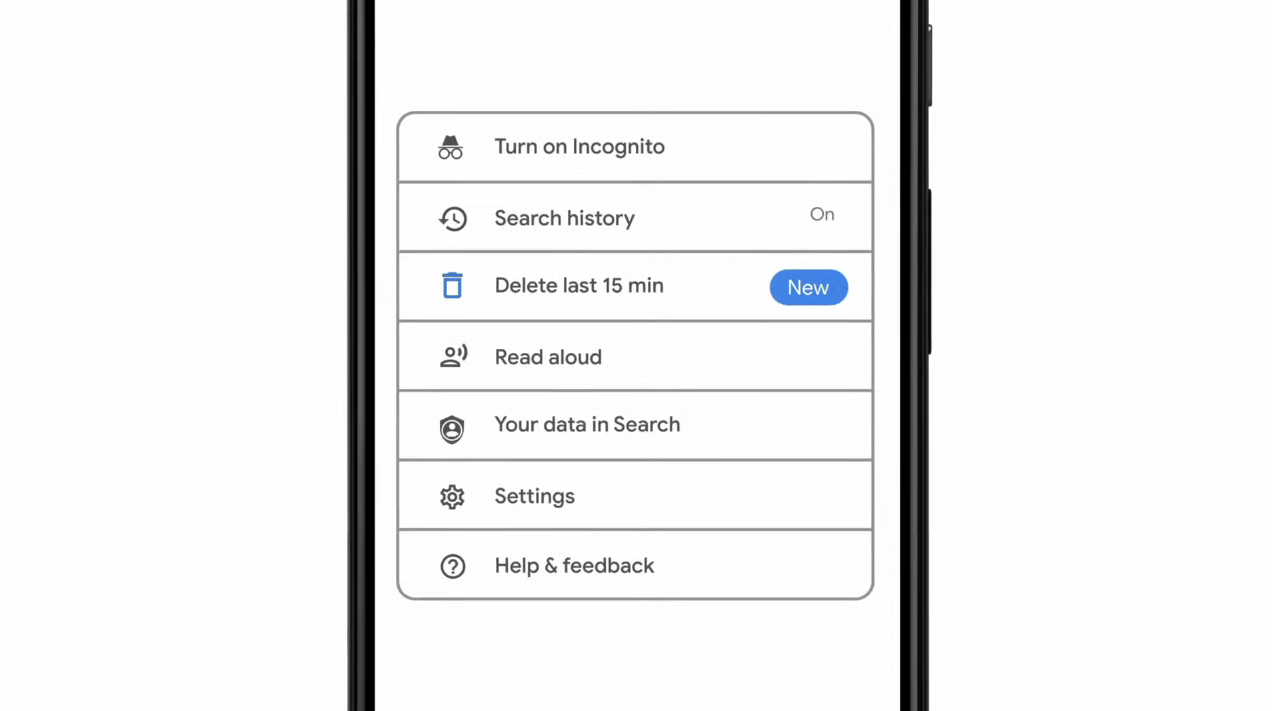
google browsing 15min history deleteAs previously announced by Google feature to quickly delete the last 15min of browsing history via one button is rolling out now.

For now, only Apple users will be available to use this feature but the Android update is scheduled for later this year, a strange move by Google but it is what it is.

For anyone who is unfamiliar with this feature, basically, Google wants a quick way to remove the last 15min of browsing history as a supposedly stated request to make deleting browsing history much easier.

Google came up with this idea so you can keep the previous history intact but remove just 15min time frame, no additional explanation was given on why 15 but I presume it is some round number that came up as the middle one with research, read telemetry info.

Using quick delete requires being signed into Search with a Google account. Users can access the option by simply tapping on the avatar icon to access the settings then choosing "Delete last 15 minutes."

Do You Need Help with Your Device?

Our Team of Experts May Help
Troubleshoot.Tech Experts are There for You!
Replace damaged files
Restore performance
Free disk space
Remove Malware
Protects WEB browser
Remove Viruses
Stop PC freezing
GET HELP
Troubleshoot.Tech experts work with all versions of Microsoft Windows including Windows 11, with Android, Mac, and more.

Share this article:

You might also like

How to Fix (1058) ERROR_SERVICE_DISABLED Error in Windows 10
This post will guide you in fixing the (1058) ERROR_SERVICE_DISABLED error you can encounter when trying to launch various games. Usually, this error pops up during startup and prevents you from running the game. In fact, this error has become quite a headache for many users. Some of the games it affects are Smite, Paladins, Far Cry, and many more. In most cases, this error is caused by missing or corrupted game files. It could also be caused by the anti-cheat utility you might have installed along with your games. Whichever the cause is, you can try to check out the possible fixes given below to resolve the (1058) ERROR_SERVICE_DISABLED error.

Option 1 – Verify the Integrity of the Game files

This is the first option you can try no matter what kind of issues you are having with Steam games.
  • Double click on the game’s icon located on your Desktop and then go to the Library tab in the Steam window.
  • From there, look for GTA V from the list of games installed in your library.
  • Next, right-click on its entry and select Properties.
  • After that, navigate to the Local Files tab and click the “Verify Integrity of Game Files” button.
  • Now, wait for the tool to complete checking the game’s integrity. You should see that some of the files may have been downloaded.
  • Reopen the game and see if it now runs properly without crashing.

Option 2 – Apply some tweaks in the Service’s startup settings

As pointed out earlier, the error can also occur due to the anti-cheat tools that were installed alongside the game. These tools are usually used by games to check if you are running something which might give you an unfair advantage over other players. These anti-cheat tools include but are not limited to BattlEye, EasyAntiCheat, and PunkBuster. The error might occur if the service’s startup settings are not correctly configured which is why you can apply some tweaks in order to resolve the problem.
  • Tap the Win + R keys to open the Run dialog box.
  • Next, type “services.msc” in the field and hit Enter or click OK to open Services.
  • From the list of Services, look for any of the services mentioned above such as BattlEye, EasyAntiCheat Service, or PunkBuster Service. Then right-click on the service and select Properties from the context menu.
  • After that, check if the service is started by checking the Service status. If it is started, click on the Stop button to stop the service and if it is already stopped, leave it as it is, at least for now.
  • Next, make sure that the Startup type menu in the Service’s properties is set to Automatic before you go on.
  • Now confirm any dialog boxes that may appear as you set the Startup type and then click on the Start button located in the middle before you exit Properties.
Note: You might get the following error message when you click on the Start button:
“Windows could not start the service on Local Computer. Error 1079: The account specified for this service differs from the account specified for other services running in the same process.”
If you got the error message above, then here’s how you can fix it:
  • Tap the Win + R keys to open the Run dialog box.
  • Next, type “services.msc” in the field and hit Enter or click OK to open Services.
  • From the list of Services, look for any of the services mentioned above such as BattlEye, EasyAntiCheat Service, or PunkBuster Service. Then right-click on the service and select Properties from the context menu.
  • Now go to the Log On tab and click on the “Browse…” button.
  • After that, type in your account’s name under the “Enter the object name to select” box and click on Check Names then wait for the name to be recognized.
  • Then click OK once you’re done and type in the password in the Password field when you are prompted to do so. This should resolve the issue.

Option 3 – Try reinstalling the Anti-cheat program

If the first two options did not work out, you can try reinstalling the anti-cheat program.
  • Open Steam from your Desktop or by searching for it in the Start menu.
  • After opening the Steam client, go to the Library tab in the Steam window and then look for the Rust entry from the list.
  • Next, right-click on the game’s icon in the library and select Properties.
  • Now go to the Local Files tab under Properties and click the Browse Local Files button.
  • From there, look for BattlEye, EasyAntiCheat, or PunkBuster folder depending on the game, and then double click on it to open the folder.
  • Then right-click on EasyAntiCheat_setup.exe or the BattlEye installed file in the folder or PunkBuster and select the Run as administrator option.
  • Exit the Steam client by clicking Steam > Exit from the menu located at the top.
Read More
Fix Failed to play test tone Error in Windows
If you are testing your headphone or your speaker but all of a sudden encountered an error that says, “Failed to play test tone” in your Windows 10 computer, worry not for this post will walk you through how you can fix this problem. The test tone is used to check the right-left balance of the headphones and speakers in your computer, however, if you are not able to use it, there are several options you can check out. You can try to run the Playing Audio troubleshooter or restart the services that are related to Windows Audio. Aside from these, you could also disable Audio Enhancements or you could also change the default test tone rate and bit depth.

Option 1 – Try to run the Playing Audio Troubleshooter

Since the Windows 10 operating system has the Playing Audio Troubleshooter, you can use this troubleshooter to try and fix the problem with the “No Audio Output Device is installed” error. You can access this tool in the Control Panel or in the Taskbar Search and even on the Troubleshooters page of Windows 10. Run this troubleshooter and see if it can fix the issue or not.

Option 2 – Try to restart the Windows Audio-related services

The next thing you can do to fix the problem is to restart the services related to Windows Audio. Although the audio services start automatically on every system boot, there are times when they might fail to start. Thus, you can start these services manually by following these steps:
  • Tap the Win + R keys to launch the Run utility and type “services.msc” in the field and hit Enter to open the Services Manager.
  • Then look for the services named “Windows Audio” and “Windows Audio Endpoint Builder”.
  • Double click on each one of these services and check if their Service Status is set to Running or not and also check if the Startup Type is set to Automatic.
  • If none of the services are running, just click on the Start button and select the Automatic option from the drop-down menu.
  • Now click on the Apply and OK buttons to save the changes made and then check if the error is fixed.

Option 3 – Try to update the Audio driver

You might also want to consider updating or the Audio driver as it could help in fixing the error.
  • Tap the Win + R keys to open the Run dialog box and then type in devmgmt.msc and tap Enter or click OK to open the Device Manager.
  • Expand the section for the outdated device drivers.
  • And then select the outdated driver(s) and right-click on it/them.
  • From the drop-down menu, select the Update Driver option and follow the on-screen instructions to install the latest version of the driver.
  • Then also click on the option, “Search automatically for updated driver software.
  • Restart your PC after the installation.
Note: If updating or reinstalling the Audio driver didn’t work, you can go to the manufacturer’s website and look for the support section where you can download the drivers for your computer. You just need to take note of your PC’s correct model and model number so you can find the appropriate driver.

Option 4 – Try changing the default test tone rate and bit depth

Windows selects a default test tone rate and bit depth depending on your headphone or speaker. This allows you to look for the best sound quality from your audio output device. So if your headphone or speaker has some problems with the default settings, then it’s no wonder why you’re getting the “Failed to play test tone” error. To fix this, you can try to change the default test tone rate and bit depth by following the steps below.
  • First, you need to open the Windows Settings panel and then go to System > Sound.
  • Next, look for the Device properties option located on your right-hand side and click on it.
  • After that, select the Additional device properties option and go to the Advanced tab.
  • From there, select a different test tone rate and bit depth and then click on the Test button.
  • Once done, check if it was able to fix the problem or not.

Option 5 – Try disabling the Sound or Audio enhancements

To make your operating system’s specific hardware sound nothing but perfect, both Microsoft and third-party vendors have shipped audio enhancement packages which are usually referred to as “Audio Enhancements” in Windows 10. However, there are instances when instead of improving the sound or audio quality of your computer, it can cause problems so to fix the problem you need to turn off these audio enhancements. How? Simply follow the steps below.
  • Type in “Sound” in the taskbar search and then from the list of results, select “Sound Control Panel”.
  • After clicking Sound, the Sound properties box will pop up. From there, go to the Playback tab and right-click on the default device i.e. Speakers or Headphones then select Properties.
  • After that, the Speakers properties box will appear. From there, go to the Enhancements tab and select the checkbox for the “Disable all enhancements” option.
Read More
Fix Can’t Find Games on Twitch
Can’t Find Games on Twitch is a common error happening to a vast variety of people. The issue can be traced back to browser issues to others like malware infection. In this guide, we will provide you with common fixes on how to overcome this issue so you can continue watching your favorite streamer.
  1. Sign out of Twitch, then sign back in

    If it is a browser issue or some glitch in the Twitch system simply signing out and then signing back in will solve the issue since information about the account will be resent to the twitch platform.
  2. Refresh the application

    Sometimes servers are having high traffic and can get overloaded, refresh the application in the upper left corner to reload content.
  3. Use browser instead of Twitch application

    If you are still having issues with the application, open the twitch website and access content there.
  4. Close twitch

    But in task manager. Sometimes just closing it via the X button is not enough, some glitches stay and the application is still running in the background. Open task manager and close it from there.
  5. Scan system for malware

    Scan the entire system for malware, various malware can halt twitch and cause issues.
  6. Reinstall application

    If everything else failed, reinstall the application.
Read More
A Guide to Fixing Corefoundation.dll Error on Your PC

Corefoundation.dll Error - What is it?

Corefoundation.dll error is a DLL error code associated with Apple software such as iTunes, MobileMe, QuickTime and etc. To understand this error better, first you need to understand what corefoundation.dll file is. Corefoundation.dll is a Dynamic Link Library file that is used by Apple software products. This file is created by Apple computer Inc and is designed to help open up some of the media files that you might have on your PC. DLLs help promote modularization of code, efficient memory usage, code reuse and reduced disk space allowing the operating system and the programs to load and run faster and take less disk space on the computer.

Error Messages

This error pops on the screen when there is an issue related to Apple software products on your system. Corefoundation.dll error is displayed on the computer screen in any one of the following formats:
“The program can not start because corefoundation.dll is missing from your computer. Try reinstalling the program to fix this problem”. "This application has failed to start because CoreFoundation.dll was not found. Re-installing the application may fix this problem." “The procedure entry point_CFBundleCopyFileTypeForFileData could not be located in the dynamic link library corefoundation.dll.” "MobileMe Control Panel cannot continue as Apple Application Support is missing or outdated. Please uninstall and reinstall the latest version of iTunes and MobileMe Control Panel to fix this issue.”
Though this error code is not fatal but if it is not fixed immediately it will hamper your ability to load and run Apple programs on your system.

Solution

Restoro box imageError Causes

Corefoundation.dll error can be triggered due to several reasons. Here are some of the most common corefoundation.dll error causes:
  • Outdated PC drivers
  • Viral infection
  • Damaged Windows registry files
  • Corrupted corefoundation.dll file
  • Missing corefoundation.dll file
  • Incorrectly installed third-party software

Further Information and Manual Repair

To fix this issue on your computer here are some of the best, easy and quick do it yourself methods that you can try:

Method 1: Download the Original Corefoundation.dll File

If the underlying reason for corefoundation.dll error is file corruption or it goes missing, then the best way to resolve is to download the original corefoundation.dll file. Once you download it, paste it to its exact location. DLL files are normally located in the following location C:\Windows\System32. Once you paste it, register the file by typing ‘regsvr corefoundation.dll’ at the command prompt. When the process is complete, restart your PC to activate changes. Alternatively, you can uninstall and re-install any Apple Software you may have on your Windows Computer. To do that, Open the Control Panel, navigate to "Install/Uninstall a Program", search for Apple software, and uninstall them.

Method 2: Update Window Drivers

If the error code is related to outdated drivers, then it is recommended that you update them promptly to resolve the corefoundation.dll error on your PC. This can be done by using a driver update wizard from within Device Manager. The driver update wizard walks you through the entire drive update process, making updating a hassle-free process.

Method 3: Download Restoro

If the error still persists, then try method 3. Sometimes the cause of corefoundation.dll can be viral infection or registry issues.  Viruses may enter your PC unknowingly through phishing emails and downloads which can corrupt and damage your dll files. Also, if you don’t clean your registry frequently, unnecessary and obsolete files may accumulate in the registry like cookies, junk files, internet history and temporary files. These files take up a lot of disk space corrupt DLL files and lead to disk fragmentation. Regardless of what the issue is, Restoro is your one-stop PC Fixer. It is a multi-functional and user-friendly repair tool embedded with 6 different scanners including a registry cleaner and an antivirus. It scans and removes all types of viruses and cleans and restores the registry too. Click here to download Restoro and resolve the corefoundation.dll error today!
Read More
How to Fix Entry Point not Found Dll Errors

What is ‘Entry Point not found dll’ Error?

Entry Point not found dll errors are common in Windows PC. These errors indicate poor PC maintenance. An entry point is basically the memory address inside the dynamic link library. It contains the call being made. A dynamic link library on the other hand is a collection of small programs which use and request this call to run and load programs successfully on your PC. However, when this process is unable to be executed successfully, you come across ‘entry point not found dll’ error messages.

Solution

Restoro box imageError Causes

Generally speaking, some of the typical causes of ‘entry point not found dll’ errors are:
  • Missing, corrupted, and damaged dll files
  • Registry overloaded with invalid entries
  • Disk fragmentation
  • Viral infection
It is advisable to resolve these ‘entry point not found dll’ errors on your PC immediately because dll errors can cause you a great deal of inconvenience as you may be locked out and unable to access your desired programs. Furthermore, if dll errors are left unresolved, such errors can expose your PC to serious threats like system failure, system damage, corruption, and crash.

Further Information and Manual Repair

Though ‘entry point not found dll’ errors are critical errors but the good news is that these can be easily resolved. To fix dll errors on your PC, you don’t always have to hire a professional technician or be a computer programmer yourself. Here are some of the best DIY (do it yourself) ways to resolve ‘entry point not found dll’ errors on your system:

1. Reinstall the Deleted Program

This method to resolve ‘entry point not found dll’ error code is very basic. It is advisable to uninstall and then reinstall the deleted program to retrieve the missing or deleted dll files. Here’s why: dll files are shared files. There are multiple programs on your PC that may be using one type of dll file to load. Now when you uninstall a program that you no more need on your PC, chances are that it may also delete that particular dll file. And when this happens the other programs supported by the deleted dll file are unable to load. Therefore, in such an event the best way to retrieve the missing dll file is to uninstall the program that displays the errors message and then reinstall it. This will help you restore the missing dll file and run the program successfully.

2. Install an Antivirus and a Registry Cleaner

As mentioned above, ‘entry point not found dll’ errors indicate poor PC maintenance. If you don’t maintain your system, the registry overloads with bad and invalid entries, redundant and obsolete files, junk files and cookies. These files acquire a lot of space which damages dll files and the registry. Furthermore, due to data volume overload and less storage space, files are then saved in different places. This is also known as disk fragmentation. When these files are called, it takes a lot of time for the disk to consolidate fragmented data and execute the function successfully. To resolve these issues, you need to clean and restore the registry. Though this can be done manually it may be slightly complicated and time consuming therefore it is advisable to install and run a registry cleaner.

Restoro.

In addition to this, due to poor PC maintenance, viruses and malware can also enter your system unknowingly through file downloads and phishing emails. These can also damage dll files. To remove viruses and malware from your PC it is important to run an anti-virus. Instead of downloading both tools separately on your system, we recommend Restoro. This is a multi-functional and advanced PC fixer embedded with an intuitive algorithm and a user-friendly interface. It includes multiple utilities including a powerful antivirus, a high functional registry cleaner, and Active X controls and class scanner. It also functions as a system optimizer. By running this software on your system, you can easily scan all registry issues and viruses simultaneously. It repairs the damaged registry and dll files, removes unnecessary files and all types of malicious software. It is compatible with all Windows versions. It is easy to use and high on performance. It is a one-stop solution for all ‘entry point not found dll’ errors on your PC. In just a few clicks you can resolve system errors and optimize your PC performance dramatically. Click here to download Restoro and resolve ‘entry point not found dll’ errors.

Read More
Fix Chassis Intruded…Fatal Error…System Halted
When you encounter an error message that says, Chassis Intruded…Fatal Error…System Halted on your monitor then it indicates that the Chassis or the cabinet that holds the CPU, GPU, motherboard, and many more is open. It is a security feature offered by OEMs wherein a connector that is found in the motherboard can detect if the chassis component has been replaced or removed. There are a few OEMs that offer onboard speaker or PC chassis speaker which goes off in this kind of situation. Obviously, the problem has something to do with the hardware and in most cases, you have to put the jumper back on the motherboard with the pin-labeled chassis signal and ground. There are times when some OEMs offer a simple switch that is armed automatically when you properly close the chassis. Thus, you need to check if this switch has something to do with the error. If there is no switch or if it doesn’t resolve the issue, although you may be able to get into Windows with a warm boot, the normal Windows boot won’t really work unless you fix the problem. It is rather false positive and has something to do with the RTC RAM state or the BIOS. You might need to completely disable the Chassis intrusion feature to fix the error. Refer to the suggestions given below to try and fix the “Chassis Intruded, Fatal Error … System Halted” error.

Option 1 – Try to clear CMOS

You can easily clear CMOS by shorting two pins which can be found side by side on the motherboard. Keep in mind that it may vary from OEM to OEM although the basics are still the same to clear CMOS. In addition, you might also have to download the manual from the OEM’s website so that you’ll know its exact location.

Option 2 – Try booting into the BIOS

You can also try booting into the BIOS. All you have to do is tap either the DEL or F2 keys to get there. Note that everything will be set back to their default setting after you reset the CMOS.

Option 3 – Try disabling Chassis intrusion

In this option, you have to look for the Chassis intrusion feature in your BIOS. It might be located under security. From there, disable it and check if the problem’s fixed.

Option 4 – Try to reconfigure the BIOS

Once you have disabled the Chassis feature, you need to reconfigure the BIOS the way you expect it to be or to what it was before the reset.
Read More
Fix Update Error 0x800705B3 in Windows
Some Windows users are encountering the 0x800705b3 error code after failing to install a pending update on Windows 10. Most commonly this particular issue is reported to occur with Integrated webcam drivers updates and Bluetooth adapter driver updates. Follow the guide below in order to fix the issue and update your Windows successfully

Running the Windows Update Troubleshooter

The majority of users that were dealing with this issue reported that the issue was fixed after they ran the Windows Update Troubleshooter and applied the recommended fix.
  1. Open a Run dialog box by pressing ⊞ WINDOWS + R. Inside the text box, type ‘ms-settings:troubleshoot’ and press ENTER to open up the Troubleshooting menu. Opening the Troubleshooting tab on Windows 10
  2. Once you’re inside the Troubleshooting tab, move over to the right-hand section of the screen and click on Windows Update (under Get up and Running). Next, from the context menu that just appeared, click on Run the Troubleshooter.
  3. Once you’re inside the Windows Update troubleshooter, wait until the initial scan is complete and see if a viable repair strategy is found.
  4. If the scan has identified a strategy with the potential to fix your ongoing issue, click on Apply this fix and wait until the procedure is complete. Applying the fix Note: Depending on the type of fix that was recommended, you might need to follow an additional set of instructions before the fix will be properly imposed.
  5. After you’ve done this, reboot your computer and wait for the next startup to complete.
  6. Open Windows Update once again and see if the installation of this pending update is now successful.

Installing the pending Update Manually

Whether you’re experiencing this issue with an integrated webcam driver or with anything else, chances are you’ll be able to circumvent the apparition of the 0x800705b3 error by using the Microsoft Update Catalog to find, download and install the pending update manually.
  1. Open your default browser and navigate to the root web page of the Microsoft Update Catalog.
  2. Once you’re inside the Microsoft Update Catalog, use the search function (top-right corner of the screen) to search for the update that is failing.
  3. After the search is completed and you get the list of results, look for an updated driver version that is compatible with your Windows version and CPU architecture.
  4. Once you manage to identify the correct Windows Update, click on the hyperlink associated with the update that you want to install, then click the Download button and wait for the process to complete.
  5. After the download is complete, use File Explorer to navigate to the location where you previously downloaded the update.
  6. When you get to the correct location, right-click on the .inf file and choose Install from the context menu that just appeared. Note: If you have multiple failing updates with the same 0x800705b3, repeat the instructions above with every Windows Update that you’re having trouble installing.
  7. At the end of this operation, reboot your computer and see if the problem is fixed at the next computer startup.

Enabling the Windows Installer Service

The Windows installer service is responsible for installing pending updates that get downloaded by the Windows Update component. If this service is disabled on your configuration, none of the updates waiting to get installed will get completed.
  1. Press ⊞ WINDOWS + R to open up a Run dialog box. Inside the text box, type ‘services.msc’ and press ENTER to open up the Services utility.
  2. Once you’re inside the Services screen, move over to the right-hand tab of the screen, scroll down through the list of services and locate the Windows Installer service. When you find it, right-click on it and choose Properties from the context menu that just appeared.
  3. Once you are inside the Properties screen of the Windows Installer services, access the General tab, click on the Start button to force-start the service. Note: If you can, also change the Startup type to Automatic via the associated drop-down menu. However, depending on your administrator settings, this might not be possible.
  4. Restart your computer and wait for the next startup to complete. Once your PC boots back up, attempt to reinstall the driver that was previously triggering the 0x800705b3 error and see if the issue is now fixed.

Performing a Winsock Reset

In case the 0x800705b3 error is related to some kind of network inconsistency (TCP or IP related), you might see Windows Updates failing due to bad data that forces the Windows to abort the installation of new pending updates. In this case, you should proceed by doing a complete Winsock reset procedure to fix the majority of the socket and temporary data-related issues that might cause this behavior. Several affected users have confirmed that this method was the only thing that allowed them to finally fix the Windows Update issue and install pending updates normally. Here are some step-by-step instructions that will walk you through the process of performing Winsock Reset:
  1. Open up a Run dialog box by pressing ⊞ WINDOWS + R. Inside the text box, type ‘cmd’, then press CTRL + SHIFT + ENTER to open up an elevated Command Prompt. Accessing an elevated CMD prompt Note: When prompted by the UAC (User Account Control) prompt, click Yes to grant admin access.
  2. Inside the elevated CMD prompt, type and taste the following commands in order and press ENTER after each one to effectively reset the TCP and IP data that might be responsible for the apparition of the 0x800705b3 error code:
    nbtstat -R
    nbtstat -RR
    netsh int reset all
    netsh int ip reset
    netsh winsock reset
  3. Once every command above is processed successfully, you can go ahead and close the elevated Command Prompt and reboot your computer.
  4. After the next startup is complete, repeat the installation of the Windows Update that was previously failing and see if the issue is now fixed.

Performing SFC and DISM Scans

If none of the ‘superficial’ causes have worked in your case, you should start considering some type of system corruption that might affect your computer’s ability to complete pending updates that are currently waiting to be installed. In case you find yourself in this particular scenario, you should run a couple of built-in utilities capable of fixing corrupted instances that might be currently affecting the Windows Update component. Our recommendation is to start with a simple System File Checker scan. An SFC scan will cross-check every Windows File against a local archive that maintains healthy copies. In case corrupted instances are found, this utility will swap the corrupted instance with the healthy equivalent.

Performing an SFC scan

Once the SFC scan is complete, reboot your computer and wait for the next startup to complete. After your computer boots back up, initiate a DISM scan. This utility works differently in the sense that it relies on a sub-component of Windows Update to download healthy copies for the corrupted Windows files that need to be replaced. Because of this, it’s important to make sure that you have a reliable Internet connection before initiating this operation.

Doing a DISM scan

After the DISM scan is complete, reboot your computer one final time and see if the issue is fixed once the next startup is complete.
Read More
5 ways to open task manager in Windows 11
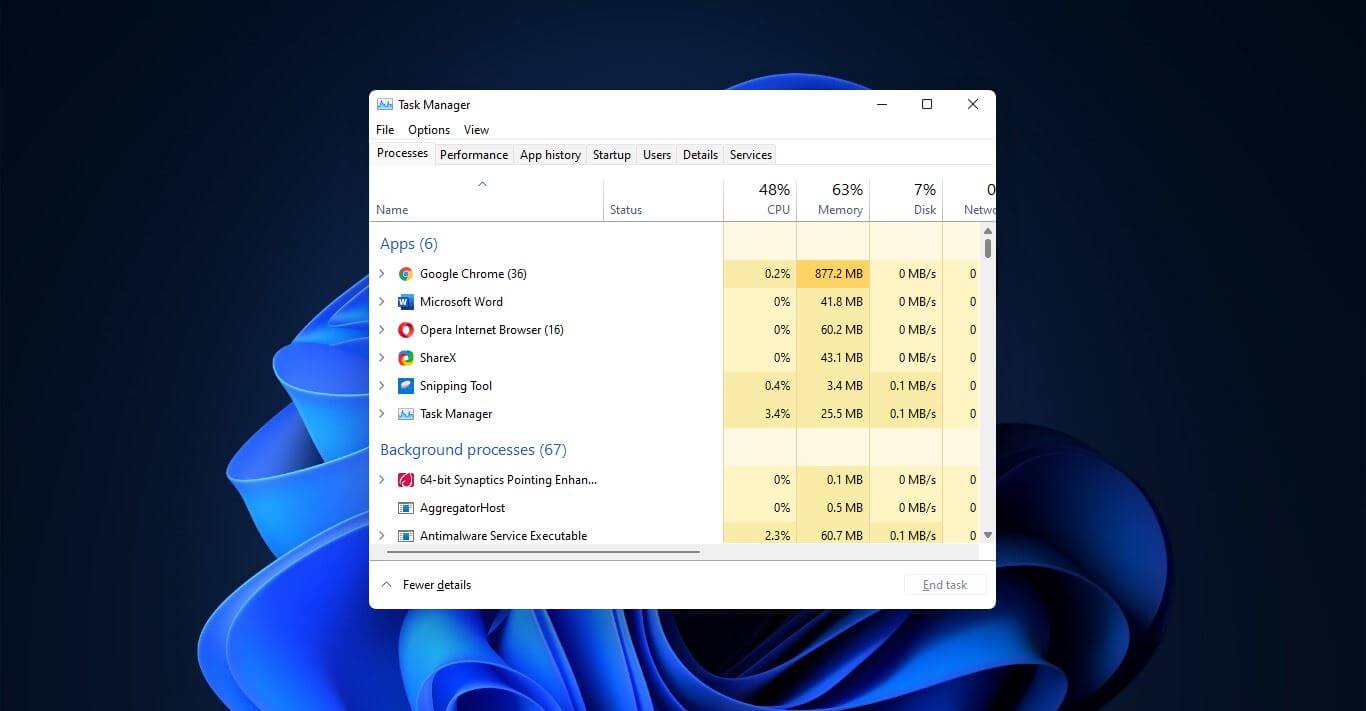
Something we are used to doing in a certain way inside Windows 10 is slightly changed in Windows 11. One of those things is how you open task manager, well kind of. task managerOption to right-click on the taskbar and launch task manager is gone but do not worry there are other same and simple ways you can launch it.
  1. Press CTRL + SHIFT + ESC or CTRL + ALT + DEL
  2. Right-click on the START button
  3. Type task manager in start search on top in the start menu
  4. Type taskmgr in command prompt
  5. Press ⊞ WINDOWS + R to open run dialog and type in taskmgr
And that’s it, now depending on your situation, you might use different methods to evoke task manager.
Read More
How to change network from Public to Private

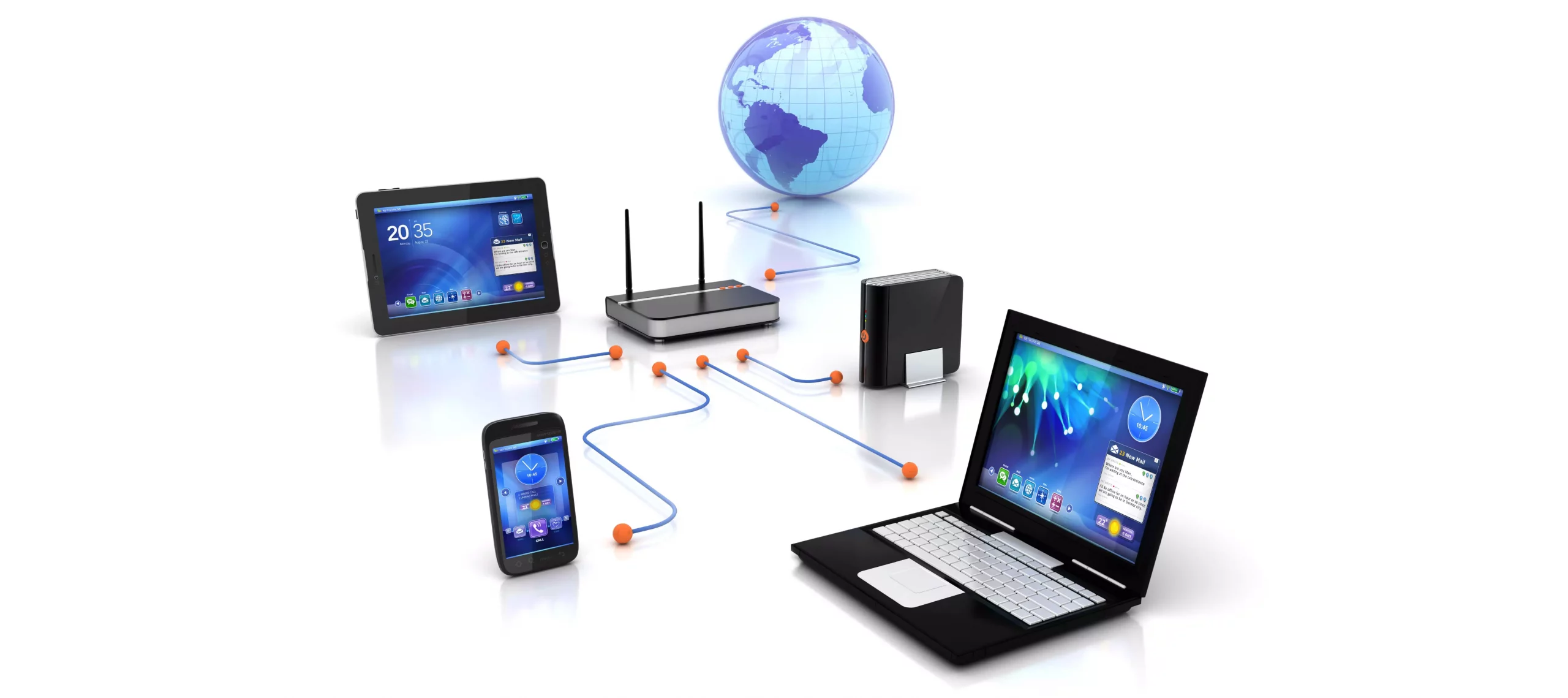
If you would like your computer to be discoverable on your network and use print and file sharing you will have to change your network profile on your computer from public to private.

computer network

Follow the provided guide step by step to change your network profile setting:

Switch to private profile in Windows 10

Locate the Wi-Fi icon in your system tray and click on it. Click on properties on your WI-FI network to open the network menu. Inside the menu in the Network profile section enable the Private option.

Your changes will be automatically saved.

Switch profile to private in Windows 11

Find the WI-FI icon in the system tray and right-click on it, then choose Network and Internet Settings. Network & Internet page with open, find your network name at the top and select properties.

On the WI-FI page, in the Network Profile Type section choose Private. As in Windows 10, your changes will be automatically charged, and you can start using them immediately.

Another way around

If you want to switch back to a public profile follow provided steps but disable the private option.

Read More
The executable program that ...
If you are trying to start a service using the Windows Services Manager but you got an error message stating, “The executable program that this service is configured to run in does not implement the service”, then you’ve come to the right place as this post will provide you instructions on how you can fix this error. Since almost all program requires service to run on your computer, if the service is not listed in the corresponding registry key, then you will most likely encounter this error on your Windows 10 computer. Here’s the entire content of the error message:
“Windows could not start the service on Local Computer. Error 1083: The executable program that this service is configured to run in does not implement the service.”
To fix this error, you have to add the service name in the respective host in the Registry Editor, and to do that, here are some steps you need to take on. Step 1: The first thing you have to do is to take note of the service name that’s given in the error message. For instance, you get the “Windows Management Service. Step 2: Next, you need to open the Services Manager by tapping the Win + R keys and typing “services.msc” in the Run dialog box, and then tapping Enter. Step 3: After opening the Services Manager, look for the Windows Management Service and once you see it, double click on it. This will open a new mini window. Step 4: From the newly opened window, copy the Service name and the Path to executable under the General tab. If the path to the executable is displayed as “C:/Windows/system32/svchost.exe -k netsvcs –p”, you need the “netsvcs” part only. Note that it can be different for different services and you need the part that comes after “-k”. Step 5: Now tap the Win + R keys again to open Run utility and type “Regedit” in the field and click OK to open the Registry Editor. Step 6: After that, navigate to the following registry path:
ComputerHKEY_LOCAL_MACHINESOFTWAREMicrosoftWindows NTCurrentVersionSvchost
Step 7: From the given registry path, look for a key named “REG_MULTI_SZ” located on your right-hand side. This key is named after the “Path to executable” part. For instance, you should see “netsvcs”. Step 8: Double click on the REG_MULTI_SZ key and enter the Service name that you’ve copied earlier and then write it down at the end of the preset list. Step 9: Now save the changes you’ve made and try to open the program or run the service again.
Read More
1 2 3 171
Logo
Copyright © 2023, ErrorTools. All Rights Reserved
Trademark: Microsoft Windows logos are registered trademarks of Microsoft. Disclaimer: ErrorTools.com is not affiliated with Microsoft, nor claims direct affiliation.
The information on this page is provided for information purposes only.
DMCA.com Protection Status