Logo

See if your Data is safe in Facebook breach

It is no secret that a few days ago Facebook has been breach and tons of user accounts have been compromised. These kinds of things are very unpleasant experiences for both users and the company itself. User trust lowers significantly in the company and it can greatly increase the chances of users migrating to another platform.

This just shows how much a hacker or security breach can produce damage to the business.

Sadly we can not offer you guidance or assistance in recovering your stolen data nor can we provide you with removing your data from the hands of the attacker. What we can do is to provide you with information has your data been stolen.

Threat actor released the personal information for 533,313,128 Facebook users on a hacking forum, including mobile numbers, name, gender, location, relationship status, occupation, date of birth, and email addresses. This data was originally sold in private sales after being collected in 2019 using a bug in the 'Add Friend' feature on Facebook.

Facebook had closed this vulnerability soon after it was discovered, but threat actors continued to circulate the data until it was finally released practically for free. Since then, Troy Hunt has added the leaked data to his Have I Been Pwned data breach notification service to help users determine if a Facebook member's data was exposed in the leak.

Go to the site and enter your email address to check and see if your data has been compromised.

Do You Need Help with Your Device?

Our Team of Experts May Help
Troubleshoot.Tech Experts are There for You!
Replace damaged files
Restore performance
Free disk space
Remove Malware
Protects WEB browser
Remove Viruses
Stop PC freezing
GET HELP
Troubleshoot.Tech experts work with all versions of Microsoft Windows including Windows 11, with Android, Mac, and more.

Share this article:

You might also like

How to get rid of EverydayLookup Toolbar

EverydayLookup is a browser extension for Google Chrome developed by Mindspark Inc. This extension allows users to find what mobile network a certain number belongs to, to find out an area code of a country/town, or locate a town by zip code. While these features look promising and interesting, this extension comes with a downside.

When installed, this extension will change your default search engine, the home page, and new tab to search from MyWay.com, it will monitor user browsing activity, log searches, visited links, opened websites, and other information. This information is forwarded to Mindspark ad servers, then later sold/used to better target ads.

While browsing the internet with this extension you will see additional injected ads and sponsored content throughout your browsing sessions (even if the ads do not match your search queries). It can inject banners to websites, and sometimes even put an ad above website content making it extremely annoying to deal with.

About Browser Hijackers

Browser hijacking means that a malicious code has taken power over and modified the settings of your web browser, without your permission. Browser hijackers are capable of doing many different things on your computer. Typically, browser hijacking is used for earning ad revenue that comes from forced advert mouse clicks and site visits. Even though it might seem naive, all browser hijackers are damaging and thus always classified as security threats. Browser hijackers can also permit other destructive programs without your knowledge to further damage the computer. How one can determine if your browser is hijacked Signs that a browser is a hi-jacked include: 1. your home page is reset to some unknown webpage 2. new bookmarks pointing to pornographic websites have been added to your favorite pages 3. the essential web browser settings are modified and unwanted or unsafe resources are added to the trusted sites list 4. find new toolbars that you simply did not add 5. you find lots of pop-ups on your screen 6. your web browser starts running slowly or presents frequent errors 7. Inability to navigate to certain websites, particularly antivirus and other security software webpages.

Exactly how browser hijacker finds its way to your computer

Browser hijackers can get into a computer in some way or other, for instance via file sharing, downloads, and e-mail too. Many web browser hijackings come from add-on programs, i.e., browser helper objects (BHO), toolbars, or extensions added to browsers to give them additional features. Sometimes you may have mistakenly accepted a browser hijacker as part of a software bundle (generally freeware or shareware). A good example of some well-known browser hijackers includes Conduit, Anyprotect, Babylon, DefaultTab, SweetPage, Delta Search, and RocketTab, but the names are continually changing. Browser hijackers can record user keystrokes to gather potentially invaluable information leading to privacy concerns, cause instability on computers, severely disrupt user’s browsing experience, and eventually slow down the computer to a stage where it becomes unusable.

How to get rid of a browser hijacker

Certain browser hijacking could be simply stopped by discovering and removing the corresponding malware application through your control panel. Many times, it could be a tough job to find and delete the malicious program because the associated file will be running as part of the operating system process. Moreover, manual removal requires you to perform many time-consuming and tricky procedures that are very hard to conduct for new computer users. Industry experts always suggest users eliminate any malware including browser hijacker by using an automatic removal tool, which is easier, safer, and faster than the manual removal solution. If you’d like to eliminate persistent hijackers effectively, install the award-winning anti-malware software Safebytes Anti-Malware. And employ a system optimizer, such as Total System Care, to erase all related files from the registry and fix browser issues.

Can't Install Safebytes Anti-malware because of a Virus? Try This!

Practically all malware is inherently harmful, but certain types of malware do a lot more damage to your computer than others. Some malware types modify browser settings by adding a proxy server or modify the computer’s DNS configuration settings. In such cases, you will be unable to visit some or all sites, and thus unable to download or install the required security software to remove the infection. So what to do if malicious software prevents you from downloading or installing Anti-Malware? There are some fixes you could try to get around with this problem.

Install in Safe Mode with Networking

In the event the malware is set to load at Windows startup, then booting in safe mode should avoid it. Since only the bare minimum applications and services launch in “Safe Mode”, there are rarely any reasons for issues to take place. To start your Windows XP, Vista, or 7 computers in Safe Mode with Networking, do as instructed below. 1) At power on, press the F8 key while the Windows splash screen starts to load. This will conjure up the Advanced Boot Options menu. 2) Choose Safe Mode with Networking with arrow keys and hit Enter. 3) Once you get into this mode, you should have an internet connection once again. Now, utilize your browser to download and install Safebytes Anti-malware. 4) After installation, run a full scan and let the program delete the threats it discovers.

Obtain the security software using an alternate browser

Malicious program code may exploit vulnerabilities on a specific browser and block access to all anti-malware software sites. In the event you suspect that your Internet Explorer has been hijacked by a computer virus or otherwise compromised by online hackers, the ideal approach would be to switch to a different internet browser like Mozilla Firefox, Google Chrome, or Apple Safari to download your chosen security software – Safebytes Anti-Malware.

Install and run anti-virus from your Thumb drive

Another way is to download and transfer anti-malware software from a clean PC to run a scan on the affected computer. Abide by these steps to run the anti-malware on the infected computer. 1) On a clean computer, install Safebytes Anti-Malware. 2) Insert the USB drive into the uninfected computer. 3) Double-click the executable file to open the installation wizard. 4) Pick the USB drive as the location when the wizard asks you exactly where you want to install the application. Follow the directions to complete the installation process. 5) Now, transfer the pen drive to the infected PC. 6) Double-click the EXE file to open the Safebytes software right from the pen drive. 7) Hit the “Scan Now” button to start the virus scan.

A Look at the Best AntiMalware Program

Today an anti-malware tool can protect your computer or laptop from different types of internet threats. But how to choose the right one amongst various malware protection application that’s available on the market? Perhaps you might be aware, there are numerous anti-malware companies and tools for you to consider. A few are well worth your money, but most aren’t. You need to be careful not to select the wrong application, particularly if you purchase a premium program. One of the highly recommended tools by industry leaders is SafeBytes Anti-Malware, the most dependable program for Windows computers. SafeBytes anti-malware is a trustworthy tool that not only secures your computer permanently but is also quite easy to use for people of all ability levels. This program can easily identify, remove, and protect your personal computer from the latest malware attacks such as spyware, adware, trojan horses, ransomware, PUPs, worms, parasites along other potentially harmful software programs.

SafeBytes has excellent features when compared to various other anti-malware programs. Listed here are some of the great ones:

Anti-Malware Protection: Using its advanced and sophisticated algorithm, this malware elimination tool can detect and eliminate the malware threats hiding in your computer system effectively. Active Protection: SafeBytes provides round-the-clock protection for your computer limiting malware attacks instantly. This software will constantly keep track of your computer for suspicious activity and updates itself continuously to keep current with the latest threats. Web Protection: Through its unique safety rating, SafeBytes alerts you whether a website is safe or not to access it. This will assure that you’re always certain of your online safety when browsing the internet. High-Speed Malware Scanning Engine: SafeBytes’s high-speed malware scanning engine lessens scan times and extends battery life. At the same time, it’ll effectively find and eradicate infected computer files or any internet threat. Low Memory/CPU Usage: SafeBytes is renowned for its minimal influence on computer resources and great detection rate of diverse threats. It runs quietly and efficiently in the background so you’re free to use your computer or laptop at full power all of the time. Premium Support: For any technical inquiries or product guidance, you can obtain 24/7 professional assistance via chat and e-mail. To conclude, SafeBytes Anti-Malware is really great for securing your computer against all sorts of malware threats. Malware trouble will become a thing of the past once you put this software program to use. If you’re looking for the very best malware removal application out there, and when you don’t mind shelling out some dollars for it, go for SafeBytes Anti-Malware.

Technical Details and Manual Removal (Advanced Users)

If you’d like to manually get rid of EverydayLookup without using an automated tool, it might be possible to do so by removing the application from the Microsoft Windows Add/Remove Programs menu, or in cases of browser plug-ins, going to the browsers AddOn/Extension manager and uninstalling it. You will likely also want to reset your internet browser. To be certain of complete removal, find the following registry entries on your computer and delete them or reset the values appropriately. However, this is a complicated task and only computer experts can perform it safely. Furthermore, certain malware is capable of replicating or preventing removal. It is recommended that you carry out the removal procedure in Windows Safe Mode.
Files: %LOCALAPPDATA%\EverydayLookup_d9 %UserProfile%\Local Settings\Application Data\EverydayLookup_d9 %UserProfile%\Local Settings\Application Data\Google\Chrome\User Data\Default\Extensions\fpeepicldbpmefboahpolegllmiglnai %LOCALAPPDATA%\Google\Chrome\User Data\Default\Extensions\fpeepicldbpmefboahpolegllmiglnai %PROGRAMFILES%\EverydayLookup_d9 %PROGRAMFILES(x86)%\EverydayLookup_d9 %UserProfile%\Local Settings\Application Data\EverydayLookupTooltab Registry: HKEY_LOCAL_MACHINE\SYSTEM\ControlSet001\services\EverydayLookup_d9Service HKEY_LOCAL_MACHINE\SOFTWARE\Microsoft\Windows\CurrentVersion\Run, value: EverydayLookup EPM Support HKEY_LOCAL_MACHINE\SOFTWARE\Wow6432Node\Microsoft\Windows\CurrentVersion\Run, value: EverydayLookup EPM Support HKEY_LOCAL_MACHINE\SOFTWARE\Microsoft\Internet Explorer\Toolbar, value: 0a7d3c2c-131d-4b0a-9c1b-2045f6bae42a HKEY_LOCAL_MACHINE\SOFTWARE\Wow6432Node\Microsoft\Internet Explorer\Toolbar, value: 0a7d3c2c-131d-4b0a-9c1b-2045f6bae42a HKEY_LOCAL_MACHINE\SOFTWARE\Wow6432Node\Microsoft\Internet Explorer\SearchScopes\3eb9a50f-f2ab-4d63-8e33-96d71f659640 HKEY_CURRENT_USER\Software\Microsoft\Internet Explorer\SearchScopes\3eb9a50f-f2ab-4d63-8e33-96d71f659640 HKEY_CURRENT_USER\Software\Microsoft\Internet Explorer\Approved Extensions, value: 0A7D3C2C-131D-4B0A-9C1B-2045F6BAE42A HKEY_LOCAL_MACHINE\SOFTWARE\Wow6432Node\EverydayLookup_d9 HKEY_CURRENT_USER\Software\EverydayLookup_d9 HKEY_CURRENT_USER\Software\AppDataLow\Software\EverydayLookup_d9 HKEY_CURRENT_USER\Software\EverydayLookup

Read More
A Quick Guide to Fixing JavaScript Void 0 Error

JavaScript Void 0 Error - What is it?

JavaScript is a computer programming language used to make a website work smoothly with the internet. It helps to display visual effects, animations, and other web page functions. You may come across the JavaScript Void (0) error message when there is a problem in loading JavaScript from a web page or the internet browser.

Error Causes

JavaScript Void (0) error is triggered by multiple reasons such as:
  • It can be due to a simple random Windows application glitch.
  • You are visiting an unsafe website that contains malware
  • JavaScript’s web browser implementation  is broken due to poor program installation
  • Active X controls, Java applets, and active scripting, the key components of JavaScript are disabled
  • Registry issues like invalid or misconfigured registry keys

Further Information and Manual Repair

For JavaScript Void (0) error-free web surfing, it is advisable to repair the issue without any delays. Let’s take a look at different methods to resolve this error on your system.

Cause: Simple Random Glitch

Solution: If the cause for the JavaScript Void 0 error is a simple glitch, then it is advisable to restart your system and then run the program again.

Cause: JavaScript’s web browser implementation is broken

Solution: If you experience the JavaScript Void 0 error message after the installation of the new browser on your system, then poor installation of the program or program conflict is most likely to be the deep-rooted cause of this error code. To resolve it, uninstall the program and undo the recent changes.

Cause: Active X controls, Java applets, and active scripting, the key components of JavaScript are disabled

Solution: You should know that components including Active X controls, Java applets, and active scripting are all essential to JavaScript in order to make your browsers run properly. If these are disabled, you may come across the JavaScript Void (0). To fix it open your browser and select the Tools tab. Then click the options button and select content. Here check the ‘enable JavaScript’ check box and click Ok to enable these components.

Cause:  Registry Issues

Solution: If after performing all the solutions discussed above, you still come across JavaScript Void (0) error code, then you should know that the problem is bigger than what you expected. It triggers registry issues. Either the cause of the error is misconfigured or invalid registry keys. To reconfigure the registry keys setting may be a challenging task and complex if you are not a computer programmer.
Read More
Fix Error 105 ERR_NAME_NOT_RESOLVED in Chrome
If you suddenly receive an error saying, “Error 105 (net:: ERR NAME NOT RESOLVED): Unable to resolve the server’s DNS address” when browsing the web, then this means that the DNS lookup has failed. This kind of error is one of the most commons ones you can encounter while using the Chrome browser. And since it’s a pretty common error, the solutions for this one are pretty easy as well.

Option 1 – Disable both the Antivirus and Firewall temporarily

There are times when antivirus programs and the firewall blocks a website that they consider to be malicious or even because of false-positive effects. Thus, you need to disable these programs temporarily as it might be the reason why you’re getting the “Error 105 (net:: ERR NAME NOT RESOLVED): Unable to resolve the server’s DNS address” error in Chrome.

Option 2 – Check the Network Cables and restart the router then reconnect

Of course, the next thing you have to do is to check if the network cables connected to your computer or router are properly connected. And if your computer is connected via Wi-Fi, you need to make sure to restart your router once. In addition, you can also forget the Wi-Fi your computer is currently connected to and then try reconnecting again to see if it would work.

Option 3 – Try running the Chrome Cleanup tool

You might want to run Google Chrome’s built-in Malware Scanner & Cleanup tool as it could also help in getting rid of any unwanted ads, pop-ups, and even malware, as well as unusual startup pages, toolbars, and anything else that might overtake the network and could affect the performance of the browser.

Option 4 – Try removing the Proxy

Removing the Proxy might also help you in fixing the ERR_NAME_NOT_RESOLVED error in Chrome. Here’s how you can do it:
  • Tap the Win + R keys to open the Run dialog box.
  • Then type “inetcpl.cpl” in the field and hit Enter to pull up the Internet Properties.
  • After that, go to the Connections tab and select the LAN settings.
  • From there. Uncheck the “Use a Proxy Server” option for your LAN and then make sure that the “Automatically detect settings” option is checked.
  • Now click the OK and the Apply buttons.
  • Restart your PC.
Note: If you are using a third-party proxy service, you have to disable it.

Option 5 – Disable Prefetch in Chrome

In case you don’t know, Google makes use of a prediction service that helps users in completing searches and typing URLs in the address bar. This prediction service uses the already resolve IP address to connect to the website you’ve already visited. Thus, it would be better if you disable it in cases like this one.
  • Open Chrome’s Settings.
  • Next, go to Privacy and Security then look for “Prefetch”.
  • After finding Prefetch, toggle off the “Use a prediction service to help complete searches and URLs typed in the address bar” setting and then restart Chrome.

Option 6 – Flush the DNS, reset Winsock and then reset TCP/IP

  • Click the Start button and type in “command prompt” in the field.
  • From the search results that appear, right-click on Command Prompt and select the “Run as administrator” option.
  • After opening Command Prompt, you have to type each one of the commands listed below. Just make sure that after you type each command, you hit Enter
    • ipconfig /release
    • ipconfig /all
    • ipconfig /flushdns
    • ipconfig /renew
    • netsh int ip set dns
    • netsh winsock reset
After you key in the commands listed above, the DNS cache will be flushed and the Winsock, as well as the TCP/IP, will reset.

Option 7 – Try using the Google Public DNS

  • The first thing you have to do is right-click on the network icon in the Taskbar and select Network and Sharing Center.
  • Next, click on the “Change Adapter Settings” option.
  • After that, search for the network connection that you are using to connect to the internet. Note that the option might be “Wireless Connection” or “Local Area Connection”.
  • Right-click on your network connection and click on Properties.
  • Then select the new window to choose the “Internet Protocol 4 (TCP/IPv4)” option.
  • After that, click on the Properties button and click the checkbox in the new window for the option “Use the following DNS server addresses”.
  • Type in “8.8.8” and “8.8.4.4” and click OK and exit.

Option 8 – Reset Chrome

Resetting Chrome can also help you fix the error. Resetting Chrome means restoring its default settings, disabling all the extensions, add-ons, and themes. Aside from that, the content settings will be reset as well and the cookies, cache, and site data will also be deleted. To reset Chrome, here’s what you have to do:
  • Open Google Chrome, then tap the Alt + F keys.
  • After that, click on Settings.
  • Next, scroll down until you see the Advanced option, once you see it, click on it.
  • After clicking the Advanced option, go to the “Restore and clean up the option and click on the “Restore settings to their original defaults” option to reset Google Chrome.
  • Now restart Google Chrome.
Read More
HolidayPhotoEdit Removal Guide for Windows

Holiday Photo Edit is a Browser Extension for Google Chrome developed by Mindspark Inc. and offers users a basic photo editing tool alongside links to some popular editing websites.

When installed this extension changes your default search engine to MyWay and hijacks your New Tab page, changing it to HolidayPhotoEdit. It monitors user browsing activity recording visited websites and clicked links in order to learn more about the user, this data is later used/sold to better target Injected Ads.

While browsing the internet with the HolidayPhotoEdit extension enabled, users will experience more ads throughout their search results, additional sponsored links to partner products, and sometimes even pop-up ads with special giveaways designed to lure users to buy something.

Popular anti-virus scanners have marked HolidayPhotoEdit as a Browser Hijacker, and it is recommended to remove it from your computer.

About Browser Hijackers

Browser hijackers (sometimes called hijackware) are a type of malware that changes internet browser configuration settings without the computer owner’s knowledge or approval. These hijacks appear to be increasing at an alarming rate across the world, and they could be actually nefarious and often dangerous too. Practically all browser hijackers are made for advertising or marketing purposes. In most cases, it will drive users to particular sites which are trying to boost their advertising campaign revenue. Though it might appear naive, all browser hijackers are harmful and therefore always regarded as security risks. Browser hijackers can even permit other vicious programs without your knowledge to further damage your PC.

Find out how to identify a browser hijack

The typical signs that signify having this malicious software on your PC are: 1. the home page of the web browser is changed suddenly 2. you observe new unwanted bookmarks or favorites added, usually directed to advertisement-filled or pornography websites 3. the essential web browser settings are modified and unwanted or unsafe resources are put into the trusted sites list 4. unwanted new toolbars are added to your browser 5. many pop-up ads appear and/or your web browser pop-up blocker is disabled 6. your web browser has become unstable or starts running sluggishly 7. you have prohibited entry to particular websites, for example, the website of an anti-malware software developer like SafeBytes.

How does a browser hijacker infect a computer?

Browser hijackers can get into a PC by some means or other, including via file sharing, downloads, and email also. They also come from add-on software, also called browser helper objects (BHO), web browser plug-ins, or toolbars. Some internet browser hijackers spread in user’s PC using a deceptive software distribution method called “bundling” (generally through freeware and shareware). A good example of some well-known browser hijackers includes Anyprotect, Conduit, Babylon, SweetPage, DefaultTab, Delta Search, and RocketTab, but the names are constantly changing.

Removing browser hijackers

Certain hijackers can be removed by just uninstalling the related free software or add-ons from the Add or Remove Programs in the Microsoft Windows Control Panel. However, many hijackers are quite tenacious and require specialized tools to get rid of them. And there is no denying the very fact that the manual fixes and removal methods could be a difficult job for an amateur computer user. Furthermore, there are various risks associated with tinkering around with the pc registry files. Browser hijackers can be effectively removed by installing and running anti-malware software on the affected PC. To eradicate any kind of browser hijacker from your PC, you could download this particular professional malware removal program – SafeBytes Anti-Malware. Together with the antivirus tool, a system optimizer, such as SafeBytes’s Total System Care, could help you in deleting all related files and modifications in the registry automatically.

Can't Install Safebytes Anti-malware because of Malware? Try This!

Malware could potentially cause many different types of damage to PCs, networks, and data. Some malware variants modify internet browser settings by adding a proxy server or change the PC’s DNS configuration settings. When this happens, you’ll be unable to visit certain or all internet sites, and thus not able to download or install the required security software to clear out the computer virus. If you’re reading this right now, you may have probably realized that a malware infection is the cause of your blocked internet traffic. So how to proceed if you need to download and install an anti-malware program such as Safebytes? Even though this kind of issue will be difficult to get around, there are a few actions you can take.

Install the antivirus in Safe Mode

If the malware is set to load at Windows startup, then booting in safe mode should prevent it. Only the bare minimum required applications and services are loaded whenever you start your computer in Safe Mode. You will have to do the following to eliminate malware in Safe mode. 1) At power-on/startup, hit the F8 key in 1-second intervals. This would invoke the “Advanced Boot Options” menu. 2) Select Safe Mode with Networking using arrow keys and hit ENTER. 3) When this mode loads, you should have internet access. Now, use your web browser normally and go to https://safebytes.com/products/anti-malware/ to download Safebytes Anti-Malware. 4) After installation, run a full scan and allow the program to delete the threats it discovers.

Utilize an alternate internet browser to download anti-malware software

Malicious program code may exploit vulnerabilities on a particular internet browser and block access to all anti-virus software websites. The ideal way to overcome this issue is to select an internet browser that is renowned for its security features. Firefox contains built-in Malware and Phishing Protection to help keep you secure online.

Create a bootable USB antivirus drive

Another way is to download and transfer an anti-malware program from a clean PC to run a scan on the infected computer. Adopt these measures to employ a flash drive to clean your corrupted PC. 1) On a clean computer, download and install Safebytes Anti-Malware. 2) Plug the Thumb drive into the uninfected computer. 3) Double-click the Setup icon of the anti-malware program to run the Installation Wizard. 4) Choose the drive letter of the flash drive as the place when the wizard asks you where you would like to install the antivirus. Follow the instructions on the computer screen to finish off the installation process. 5) Now, insert the pen drive into the corrupted PC. 6) Double click the Safebytes Anti-malware icon on the flash drive to run the software. 7) Click on the “Scan” button to run a full computer scan and remove viruses automatically.

Protect Your PC and Privacy With SafeBytes Anti-Malware

To protect your PC from various internet-based threats, it’s very important to install an anti-malware application on your PC. However, with countless numbers anti-malware companies in the marketplace, nowadays it’s hard to decide which one you should purchase for your personal computer. Some of them are great and some are scamware applications that pretend as authentic anti-malware software waiting around to wreak havoc on your PC. You have to look for a product that has got a good reputation and detects not just computer viruses but other types of malware too. One of the recommended software is SafeBytes AntiMalware. SafeBytes has a superb reputation for top-quality service, and clients are very happy with it. SafeBytes anti-malware is a highly effective and easy-to-use protection tool that is made for end-users of all levels of computer literacy. After you have installed this software program, SafeBytes advanced protection system will ensure that no viruses or malicious software can seep through your computer.

SafeBytes anti-malware offers an array of enhanced features that sets it aside from all others. Some of them are given as below:

Live Protection: SafeBytes provides complete and real-time security for your personal machine. It’ll continuously monitor your computer for hacker activity and also gives end-users sophisticated firewall protection. World-class AntiMalware Protection: Built upon a highly acclaimed anti-virus engine, this malware removal application can identify and get rid of many obstinate malware threats like browser hijackers, PUPs, and ransomware that other typical antivirus programs will miss. Safe Browsing: SafeBytes checks and gives a unique safety ranking to each and every website you visit and block access to web pages known to be phishing sites, thus safeguarding you from identity theft, or known to contain malicious software. Lightweight Application: SafeBytes is a lightweight and user-friendly anti-virus and antimalware solution. As it utilizes minimal computer resources, this tool leaves the computer’s power exactly where it belongs: with you. Fantastic Tech Support Team: You could get high levels of support 24/7 if you’re using their paid software. SafeBytes has developed a wonderful anti-malware solution to help you conquer the latest computer threats and virus attacks. There is no doubt that your computer system will be protected in real-time as soon as you put this software program to use. You will get the very best all-around protection for the money you pay on SafeBytes anti-malware subscription, there’s no question about it.

Technical Details and Manual Removal (Advanced Users)

If you do not want to use malware removal software and prefer to get rid of HolidayPhotoEdit manually, you may accomplish this by going to the Windows Add/Remove Programs menu in the control panel and removing the offending software; in cases of web browser plug-ins, you could uninstall it by visiting the browsers Add-on/Extension manager. You’ll probably also want to totally reset your internet browser to its default configuration settings. Lastly, examine your hard disk for all of the following and clean your computer registry manually to remove leftover application entries following an uninstallation. But bear in mind, this is often a challenging task and only computer experts could accomplish it safely. Furthermore, some malware keeps replicating which makes it difficult to remove. Completing this task in Safe Mode is recommended.
Files: %LOCALAPPDATA%\HolidayPhotoEditTooltab %LOCALAPPDATA%\Google\Chrome\User Data\Default\Local Extension Settings\ompcmhnafgchjgmdcdopfhlebohkgall %UserProfile%\Local Settings\Application Data\Google\Chrome\User Data\Default\Local Extension Settings\ompcmhnafgchjgmdcdopfhlebohkgall %LOCALAPPDATA%\Google\Chrome\User Data\Default\Extensions\ompcmhnafgchjgmdcdopfhlebohkgall %UserProfile%\Local Settings\Application Data\Google\Chrome\User Data\Default\Extensions\ompcmhnafgchjgmdcdopfhlebohkgall Registry: HKEY_LOCAL_MACHINE\Software\Microsoft\Internet Explorer\DOMStorage\www.holidayphotoedit.com HKEY_LOCAL_MACHINE\Software\Google\Chrome\PreferenceMACs\Default\extensions.settings, value: ompcmhnafgchjgmdcdopfhlebohkgall HKEY_LOCAL_MACHINE\Software\Microsoft\Internet Explorer\DOMStorage\holidayphotoedit.dl.myway.com HKEY_LOCAL_MACHINE\Software\Microsoft\Internet Explorer\DOMStorage\holidayphotoedit.dl.tb.ask.com HKEY_CURRENT_USER\SOFTWARE\HolidayPhotoEdit HKEY_CURRENT_USER\SOFTWARE\Wow6432Node\HolidayPhotoEdit HKEY_LOCAL_MACHINE\Software\[APPLICATION]\Microsoft\Windows\CurrentVersion\Uninstall..Uninstaller HolidayPhotoEditTooltab Uninstall Internet Explorer
Read More
Changing the Primary and Secondary monitor
If you are using a dual monitor setup on your computer and you wish to change the Primary and Secondary monitor in Windows 10, then you’ve come to the right place as this post will guide you on how exactly you can do that. A lot of users use more than one monitor to be more productive so having dual monitors helps a lot. So if you have more than one monitor, know that you can actually select any monitor as the primary monitor after installing Windows. Changing the primary and secondary monitor in Windows 10 does not really require you to install any third-party application since you can get the job done by simply making some alterations in the Windows 10 Settings panel. You won’t have any problem in making such alterations since it is quite simple – from modifying the wallpaper to scaling and so on.

To get started, follow the instructions given below carefully.

Step 1: First, tap the Win + I key combination to open the Windows 10 Settings app and go to System and click the Display tab. Step 2: Next, look for the Identify button located on your right-hand side and then click on it. This button will help you check which one is the primary and the secondary monitor. Step 3: After that, select the desired monitor that you want to set as the primary one from the drop-down menu. Step 4: After that, mark the checkbox for the “Make this my main display” option. Step 5: After choosing the primary monitor, this will automatically set the other monitor as the secondary monitor. Restart your computer. So that’s how you change the primary and secondary monitor on your Windows 10 computer. Note that you can always go back to the previous setting of your monitor by following the same instructions provided above.
Read More
A Guide to Fixing Error Code 0x8007007b in Windows 8

Error Code 0x8007007b – What is it?

This error code occurs when users fail to activate their Windows operating system. It is one of the more popular Windows error codes since it affects many versions of Windows including Windows 7, Windows 8.1, and Windows 10. Error code 0x8007007b has common symptoms which include the following:

  • Inability to activate a Windows installation
  • Message box highlighting error code 0x8007007b

Solution

Restoro box imageError Causes

Error code 0x8007007b in Windows 8.1 usually results due to one or more main clauses. Windows 8.1 users may experience this error due to the use of volume-licensed media. The error code may also arise if the activation wizard is unable to connect to Key Management Service (KMS) host computer or if corrupted system files are present on your computer.

Further Information and Manual Repair

Windows error codes such as Error code 0x8007007b can be a complicated issue, requiring the use of technical knowledge and skills. For this reason, we have listed instructions in the simplest of forms to enable even average users to successfully complete manual repair methods that will resolve error code 0x8007007b.

The same approach has been applied to all our error code solutions. See also Error Code 0x00000024 and Error Code 0x80004005.

Below are the two main methods for correcting this issue.

Method One: Use Multiple Activation Key (MAK) to Activate Windows

This method involves the use of a Multiple Activation Key (MAK) instead of the Key Management Service (KMS) to activate the Windows operating system you intend to use on your PC. This manual repair method requires the use of Command Prompt so ensure you follow the instructions provided carefully so as to avoid the risks of causing harm to your system.

  • Step one: Select Windows log key + X.
  • Step two: Click Command Prompt, then Admin
  • Step three: Type in admin password if Command Prompt requests it
  • Step four: Type slmgr -ipk followed by the MAK product key. Note that the product key should have 25 characters with dashes between them like this xxxxx-xxxxx-xxxxx-xxxxx-xxxxx

Attempt to activate your Windows installation once you’ve completed the exact instructions above. If you are unable to complete this process, consider getting help from a Windows repair technician or simply move to the next manual repair method listed below.

Method Two: Run System File Checker

System File Checker (SFC) enables Windows users to scan and repair errors or corruption on system files. Since such errors within your system files can cause error code 0x8007007b to occur, follow the steps below to fix this error code.

  • Step One: Go to Start and type Command Prompt or CMD.
  • Step Two: Run as Administrator
  • Step Three: Type sfc /scannow with a space between “sfc” and “/scannow”.

The System File Checker tool will begin scanning your machine for corrupted or missing files in need of repair. If these files are found on your system, the tool will repair and replace them. Once this is done, restart your computer then check to see if you can now activate your Windows operating system.

Method Three: Use an Automated Tool

If you wish to always have at your disposal a utility tool to fix these Windows 8 and other related issues when they do arise, download and install a powerful automated tool.

Read More
Fix SPECIAL POOL DETECTED MEMORY CORRUPTION
If you suddenly encounter the SPECIAL POOL DETECTED MEMORY CORRUPTION Blue Screen error with a bug check value of “0x000000C1” while you are using your computer then it might be due to some problem with the hardware of your Windows 10 computer. According to security experts, it is most likely caused by the physical RAM which could be due to some error in the Realtek driver for Wireless USB 2.0 as well as corruption of the files inside the RAM, and so on. This kind of problem indicates that the driver wrote to an invalid section of the special pool. On the other hand, system files like the rtwlanu.sys or nvlddmkm.sys can also trigger the SPECIAL_POOL_DETECTED_MEMORY_CORRUPTION Blue Screen error. To resolve this Blue Screen error, you can use the options provided below as reference but before you do that, make sure to create a System Restore point first. After you have that covered, proceed to the given options below.

Option 1 – Delete the settings of the Driver Verifier Manager

  • Open the Driver Verifier Manager using the Start search.
  • After that, select or click on the “Delete existing settings” option and then click on Finish.
  • Reboot your computer and see if it fixes the Blue Screen error or not.

Option 2 – Try to update or rollback your Network driver

If you have updated the driver software as of late and you suddenly got this BSOD error, you might have to roll back the device driver – in other words, switch back to the previous working version. To do that, follow these steps:
  • Tap the Win + R keys to launch the Run window and then type in the “msc” command and hit Enter to open the Device Manager window.
  • Under the Device Manager, you will see a list of drivers. From there, look for the Network Adapters and expand it.
  • From the list of Network Drivers, look for “Realtek <Model> Wireless LAN 802.11n PCI-E NIC” and then right-click on it and select Update Driver.
  • Restart your PC and see if it helped in fixing the BSOD error.
Note: If you see any of the following entries under the Network drivers, you might want to download their latest available versions from each one of their manufacturer’s websites.
  • Realtek High-Definition (HD) Audio Driver
  • Realtek Card Reader Driver
  • Realtek Local Area Network (LAN) Driver
On the other hand, if updating the Network driver didn’t help, you can also try to roll back to its previous version.
  • Open the Device Manager again and then look for Network Drivers.
  • Next, select Realtek <Model> Wireless LAN 802.11n PCI-E NIC from the list of Network Drivers and then double click to open a new mini window.
  • After that, make sure that you’re on the Driver tab and if you are not, just navigate to it then click the Roll Back Driver button to switch back to the previous version of the Realtek driver.
  • Now restart your computer to successfully apply the changes made.

Option 3 – Try running the ChkDsk utility

You can also run the ChkDsk utility to fix the SPECIAL_POOL_DETECTED_MEMORY_CORRUPTION Blue Screen error.
  • First, open This PC and right-click on your operating system partition for Windows.
  • Next, click on Properties and navigate to the Tools tab.
  • Then click on Check under the Error Checking section.
  • After that, a new mini window will be opened and from there click on Scan drive and let it scan your disk drive partition for any errors and then restart your computer.

Option 4 – Use the Windows Memory Diagnostics

Since the problem has something to do with the physical RAM, you need to use Windows Memory Diagnostics. To run it, refer to these steps:
  • Tap the Win + R keys to open Run and type exe and hit Enter to open the Windows Memory Diagnostic Tool.
  • After that, it will give two options such as:
    • Restart now and check for problems (Recommended)
    • Check for problems the next time I start my computer
  • Once your computer has restarted, perform a basic scan or you could also go for the “Advanced” options such as “Test mix” or “Pass count”. Simply tap the F10 key to start the test.
Note: After you select the option, your PC will restart and check for memory-based issues. If it finds any issues, it will automatically fix them.

Option 5 – Run the Blue Screen Troubleshooter

The Blue Screen troubleshooter is a built-in tool in Windows 10 that helps users in fixing BSOD errors like SPECIAL_POOL_DETECTED_MEMORY_CORRUPTION. It can be found in the Settings Troubleshooters page. To use it, refer to these steps:
  • Tap the Win + I keys to open the Settings panel.
  • Then go to Update & Security > Troubleshoot.
  • From there, look for the option called “Blue Screen” on your right-hand side and then click the “Run the troubleshooter” button to run the Blue Screen Troubleshooter and then follow the next on-screen options. Note that you might have to boot your PC into Safe Mode.
Read More
Open Source Software Alternatives
Open Source Software is developed, tested, or improved through public collaboration and distributed with the idea that the must be shared with others, ensuring an open future collaboration. In other words, it is free software developed and maintained by public contribution. Many open-source projects have reached performance and usability like their paid alternatives, some have even surpassed them. Here we will explore open source alternatives to paid applications, you will find alternatives to paid ones that aim to do the same task.
  1. LINUX - alternative to Windows or macOS

    When it comes to the operating system, Windows and macOS mostly dominate the home market, but if you go a little deeper into the OS world you will hear this talk about LINUX and its distributions. LINUX is an open-source operating system, it has many various distributions aimed at different types of users and they are also open source as well. Its security and account privileges, as well as complete control over it, make it one of the best-operating systems in the world, many servers that run websites today use LINUX as their choice of operating system mostly due to its superior security features. If LINUX is good enough for big web companies, I am sure it will be at least satisfactory to you as well. Get your LINUX distribution here. open source os linux
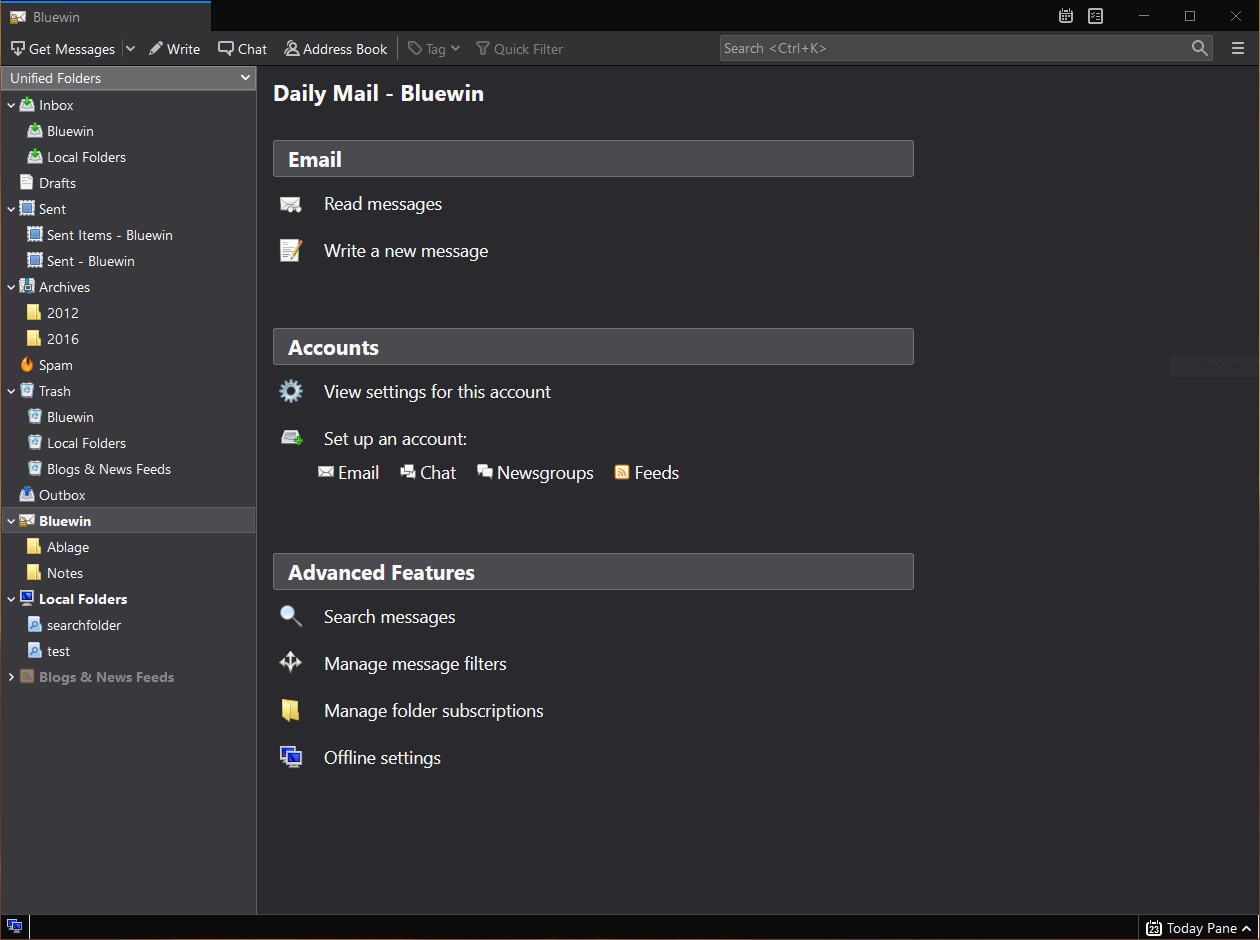
  2. Thunderbird - alternative to outlook

    A great alternative to any mail client actually, connect all of your emails into thunderbird and use it as the centralized email client for all of your email needs. Thunderbird does not lack any features that its paid counterparts have and overall it is a great application worth installing. Grab it from here. open source email client thunderbird
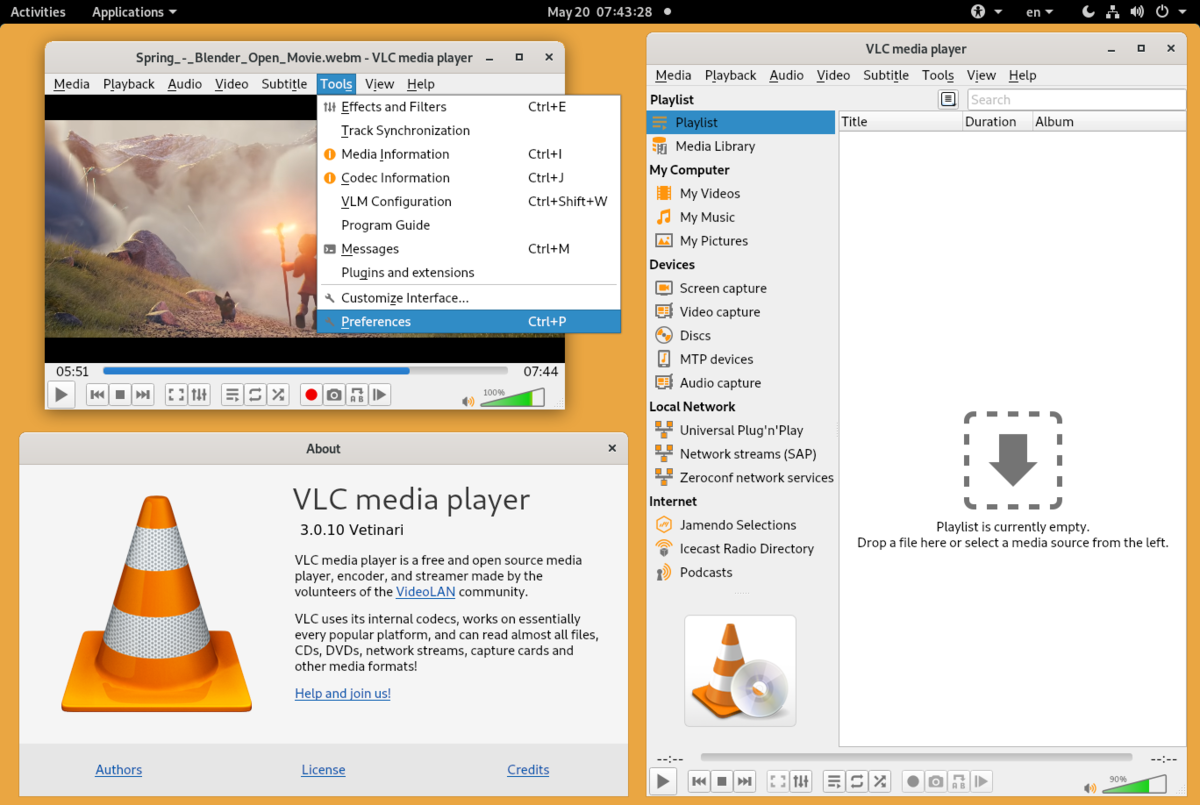
  3. VLC media player - media player able to play almost anything

    Are you looking for a great media player alternative to Windows media player or iTunes? Look no further, VLC is a lightweight media player that can play almost any file type, it is customizable and packed with features even its paid counterparts would envy. Its playback features are unmatched by other applications and once you try it, I am sure you will hardly go back from it. Give it a go and grab it from here. open source media player vlc
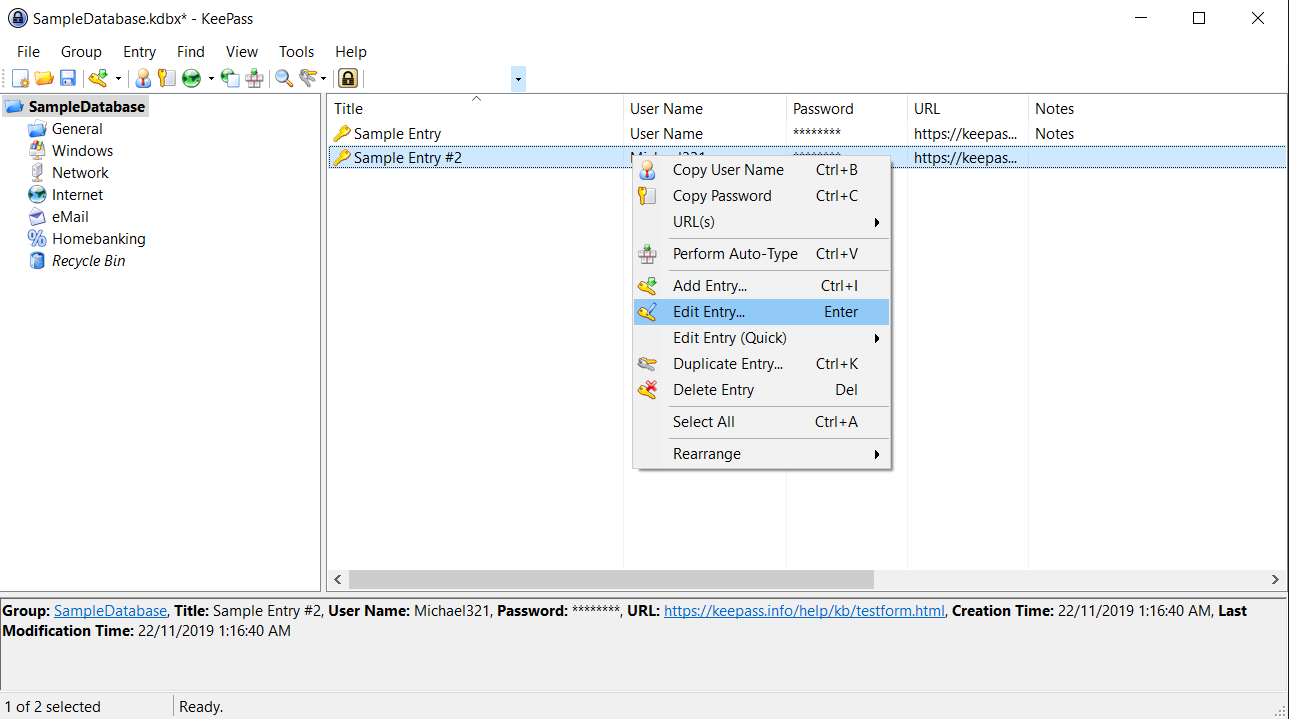
  4. KeePass - password manager

    Keepass is a simple, user-friendly lightweight password generator and manager, it uses industry-standard AES encryption and two-factor authentication to keep the details of your accounts safe and secure. you can store him and the database on a USB stick for safekeeping making it a great one to use on a go, wherever you need it. Get it from this link. open source password manager keypass
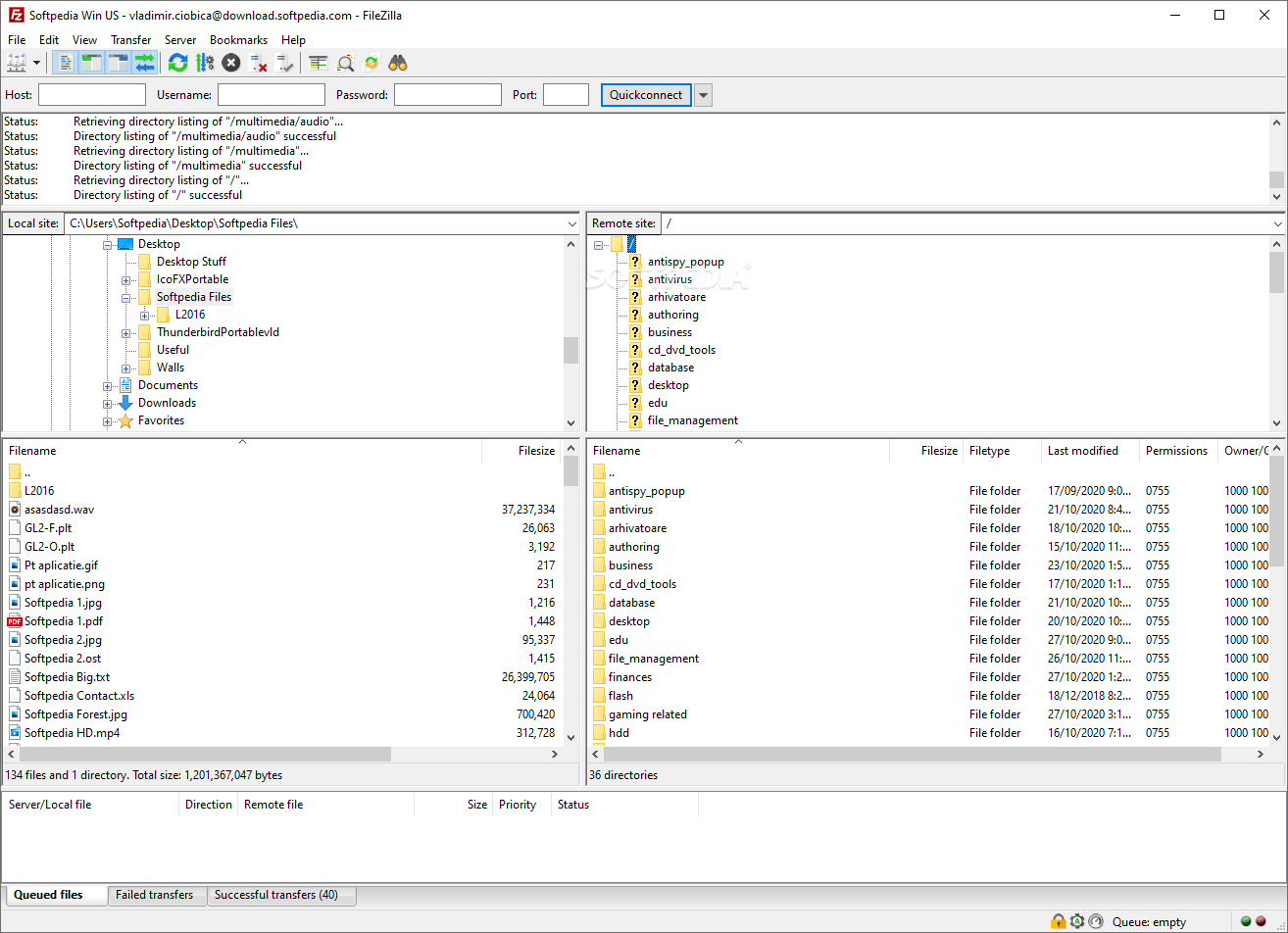
  5. FileZilla - FTP client

    A lightweight and future-rich FTP solution. It supports remote file editing and resuming of lost transfers, overall great application which anyone who needs this type of software should not overlook. Download it from its official website. open source FTP client FileZilla
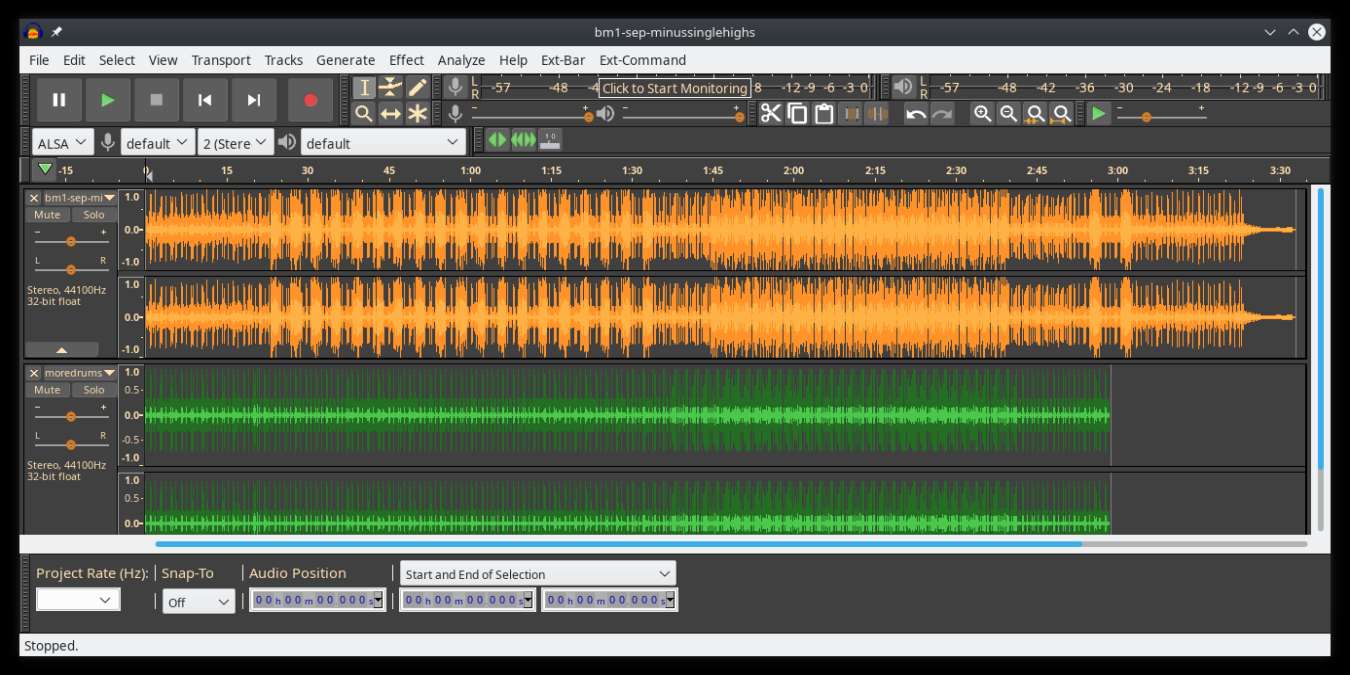
  6. Audacity - alternative to Audition, Fl, apple logic pro,...

    Digital audio editor and recording computer software with some great features like recording audio from multiple sources, post-processing of all types of audio, including podcasts by adding effects such as normalization, trimming, and fading in and out. Audacity has a great following and it is well documented, easy to learn and use. Grab it from here. open source sound editor audacity
  7. Shortcut - alternative to adobe premiere, avid media composer, DaVinci resolve

    The shortcut is a video editor application that demonstrates how long an open-source project can go if enough dedication and work are put into it, started as not so great and not so feature-packed in beginning, today it can easily contend with its paid counterparts with its non-destructive editing, color gradation, keyframing, etc. It is running and using FFmpeg, an open-source video framework that lets it open and works with virtually any video or audio format. Download it from here. open source video editor shotcut
  8. Gimp - alternative to adobe photoshop

    This one has been around since 1996 and it is one of the best maintained open source applications. With its features like built-in support for layers, filters, and automatic photo enhancement. It also makes it easy to create new graphic design elements and you can really take things to the next level by downloading plug-ins created by the broader GIMP open source community. Gimp is the best pixel manipulation-free tool on the market and with the right skills, it can go side by side with adobe's flagship product. Check it out here. open source photo editor gimp
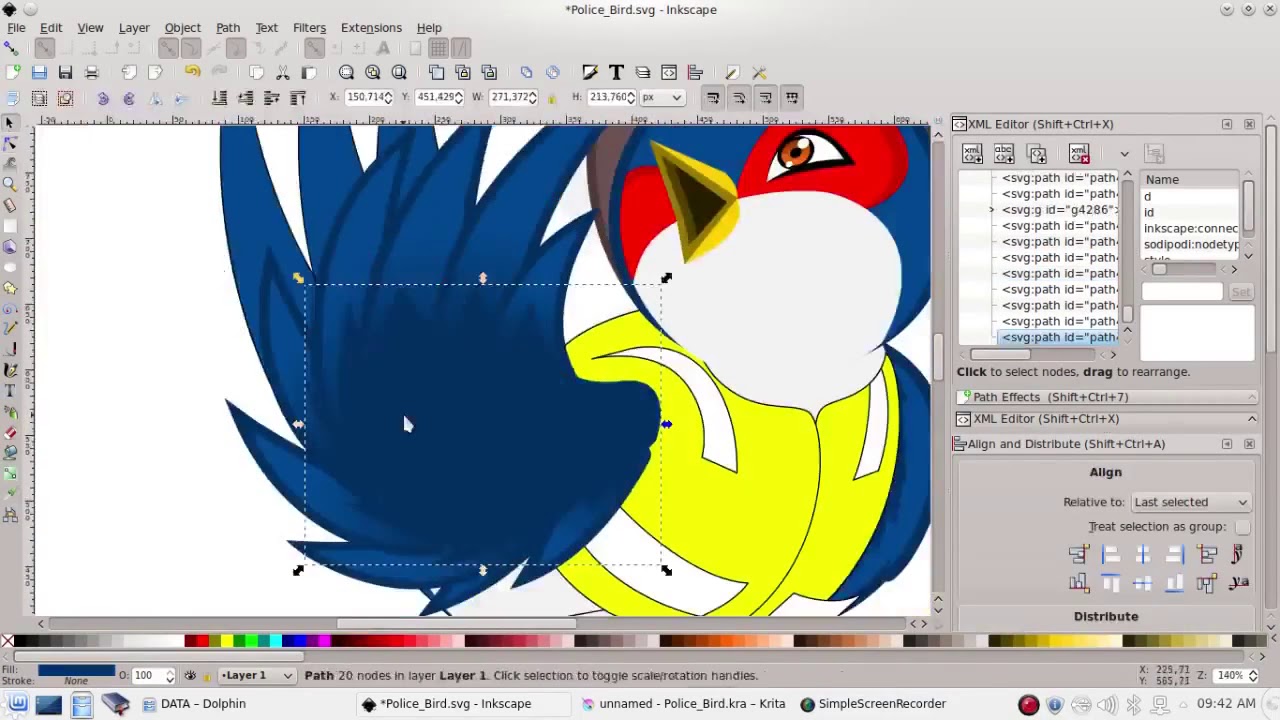
  9. Inkscape - alternative to adobe illustrator, Corel draw

    What is Gimp for photoshop that is Inkscape for illustrator. This free open-source vector graphic tool does not fall behind with its tools in comparison to its paid counterparts and I would highly recommend it for anyone. Features like alpha blending, cloning on-point path manipulations can assure that you can create anything you want inside it. get your copy from here. open source vector tool inkscape
  10. Libre office - alternative to MS office

    Libre office is one of the most quality office suite there, it has spreadsheets, word processor, presentation app, calculation applications, database application, and diagrams. All these applications create and make one great suite that can open Microsoft Office files and even work with them naturally. Completely free and active in development there is no reason, not t use it in your daily routine. Go to its official website and download it for a test run. open source office suite libre office
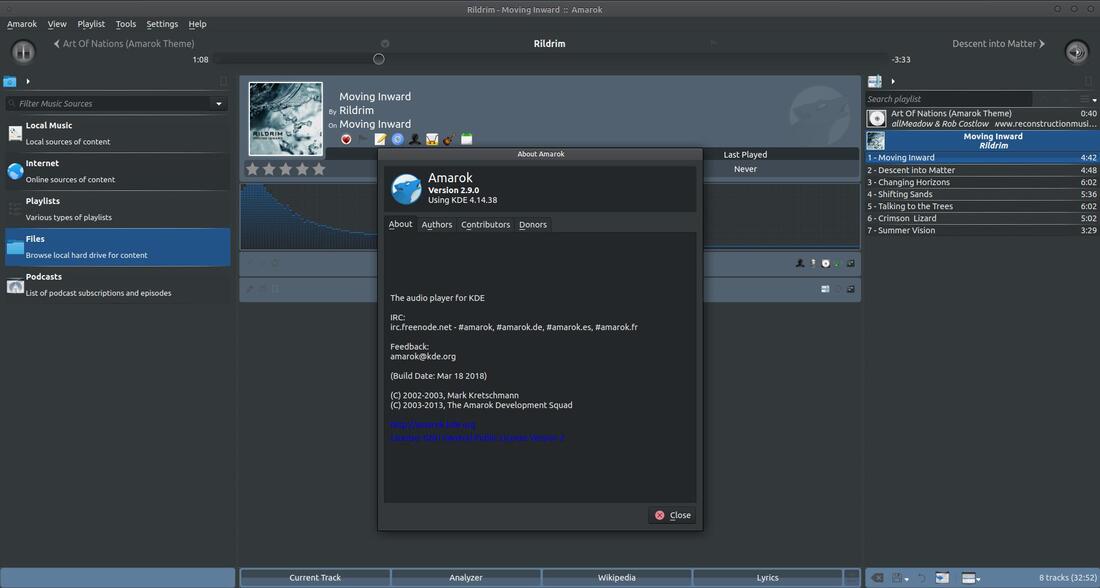
  11. Amarok - alternative to iTunes

    Amarok is an audio player with a broad range of features like integration with multiple Web audio services, dynamic playlists, bookmarks, scripting, context view, and more. get it from here. open source music player amarok
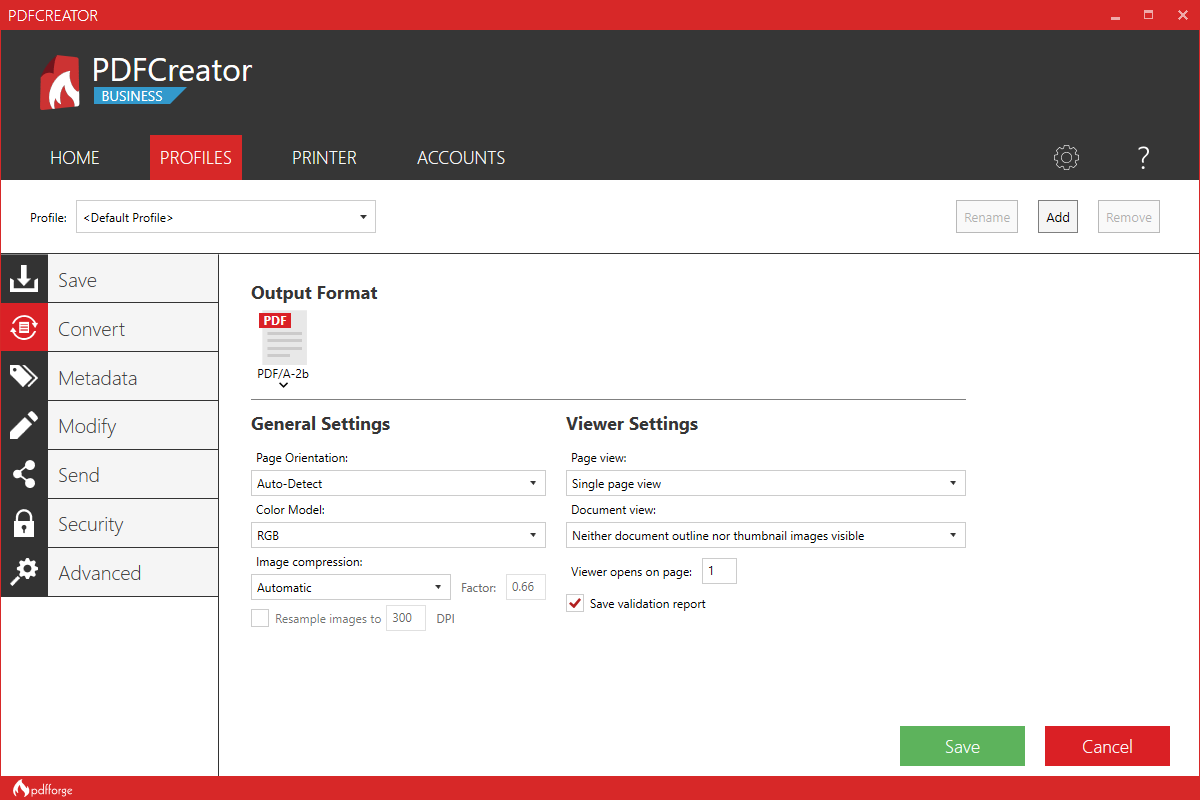
  12. PDF Creator - alternative to adobe acrobat

    As its paid counterpart PDF Creator lets you make PDF files from any application that could print. It works the same way as adobe acrobat and supports encryption and digital signature, it lacks in PDF forms a little but if that is not something that you need, it is a great alternative to acrobat and completely free. Download it from here. open source PDF maker PDFCreator
  13. Blender - Alternative to Autodesk Maya, Autodesk 3dmax, foundry Modo, cinema4d,...

    3D modeling and animation software is very expensive. From the point of home user long it has been lost dream to have industry quality 3D modeling, animation, and rendering application for an affordable price. Blender has made that dream a possibility, completely free and open-source this package offers everything that its paid counterparts offer, some could even argue that since its open-source nature and availability of full code it offers even more. Why you are still here? Go get it here. open source 3d application blender
  14. Bluefish - alternative to Adobe Dreamweaver

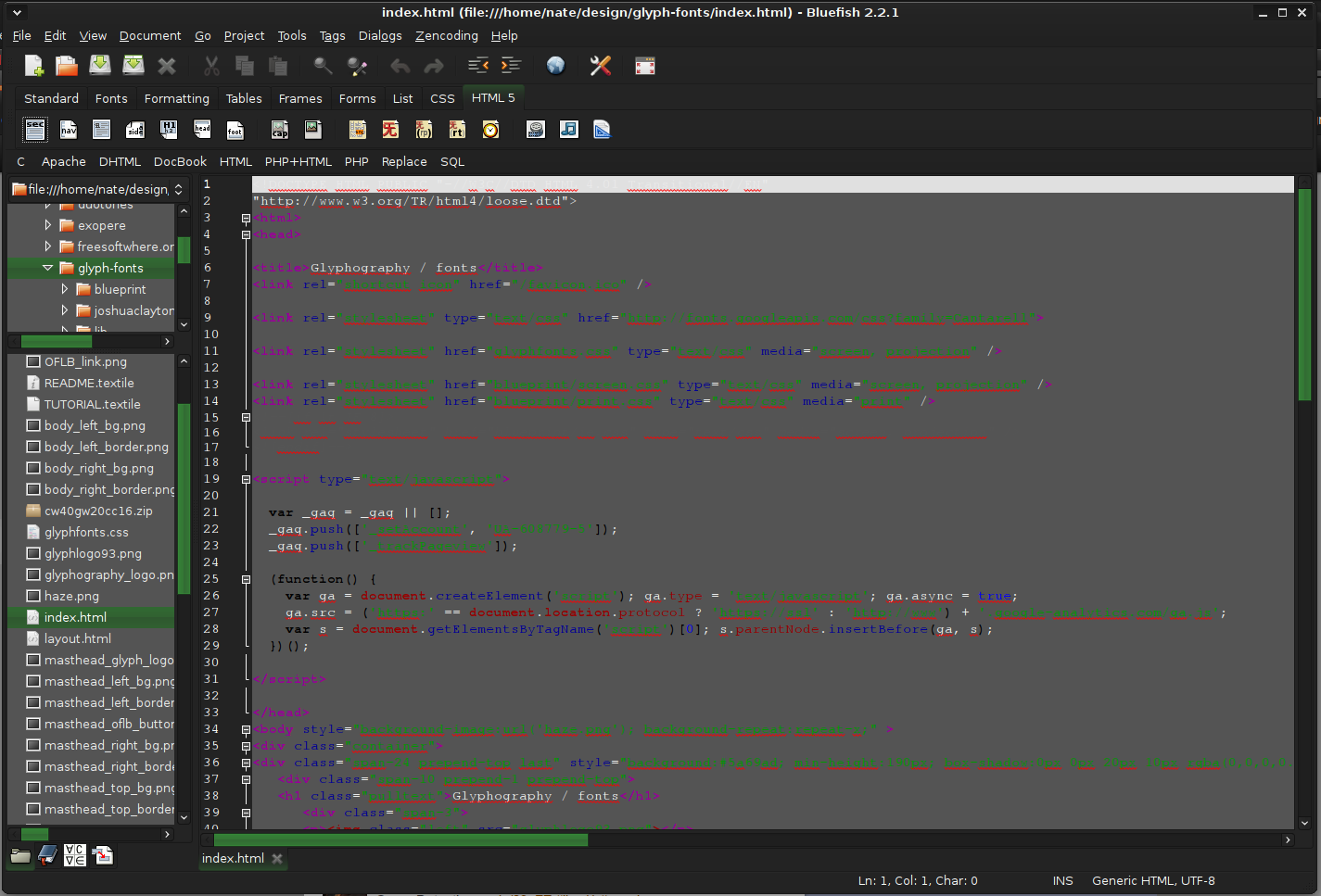
    When it comes to web editing and code editing applications, notepad ++ seems like a person go-to application, but if you prefer a more professional suited IDE for web development check out Bluefish, auto-filling, code syntax, and constant development make sure that this application will not go away soon and it is worth investing your time in it. Get it from here. open source wed editor bluefish
  15. ClamWin - alternative to Kaspersky, BItdefender, Norton

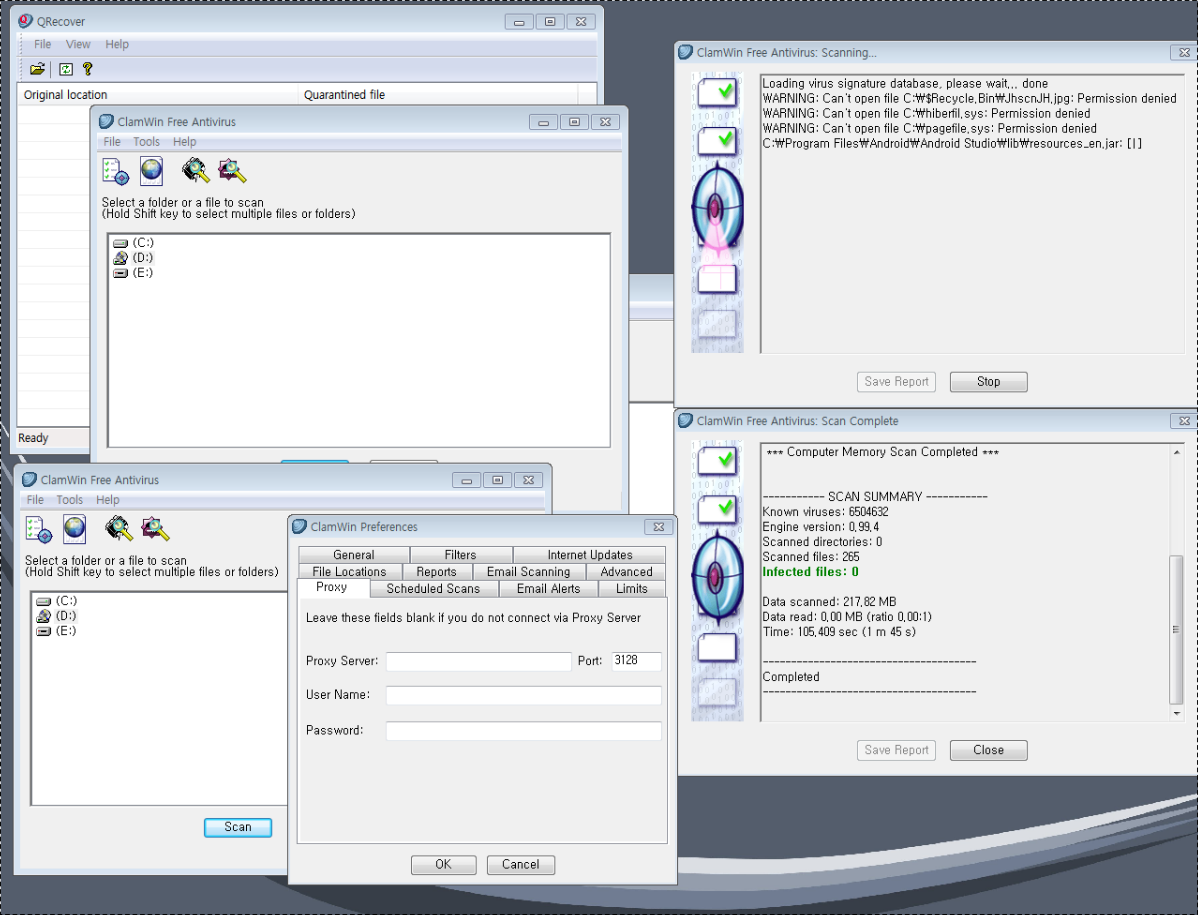
    This antivirus has over 600000 users and active database updates also feature a full email scanner, scanning scheduler, and File Explorer integration. It is far better than other freeware alternatives and if you are looking for a free antivirus option look no further, ClamWin is here to stay. Grab it from here. open source anti virus ClamWin
  16. Natron - alternative to adobe aftereffects, foundry nuke

    Full-featured node-based composition and effects suite. Natron is a powerful Digital Compositor that can handle all of your 2D/2.5D needs. Its robust OIIO file formats and OpenFX architecture is what makes Natron the most flexible open-source compositor for the visual effects community. Its interface and functionally are the same across all platforms such as macOS, Linux, and Windows. Natron has a powerful keying, roto/roto paint, 2D tracking tools that are staple for all current film production project that requires visual effects. Get natron from here. open source composition and effect application natron
  17. Clonezilla - alternative to Norton Ghost

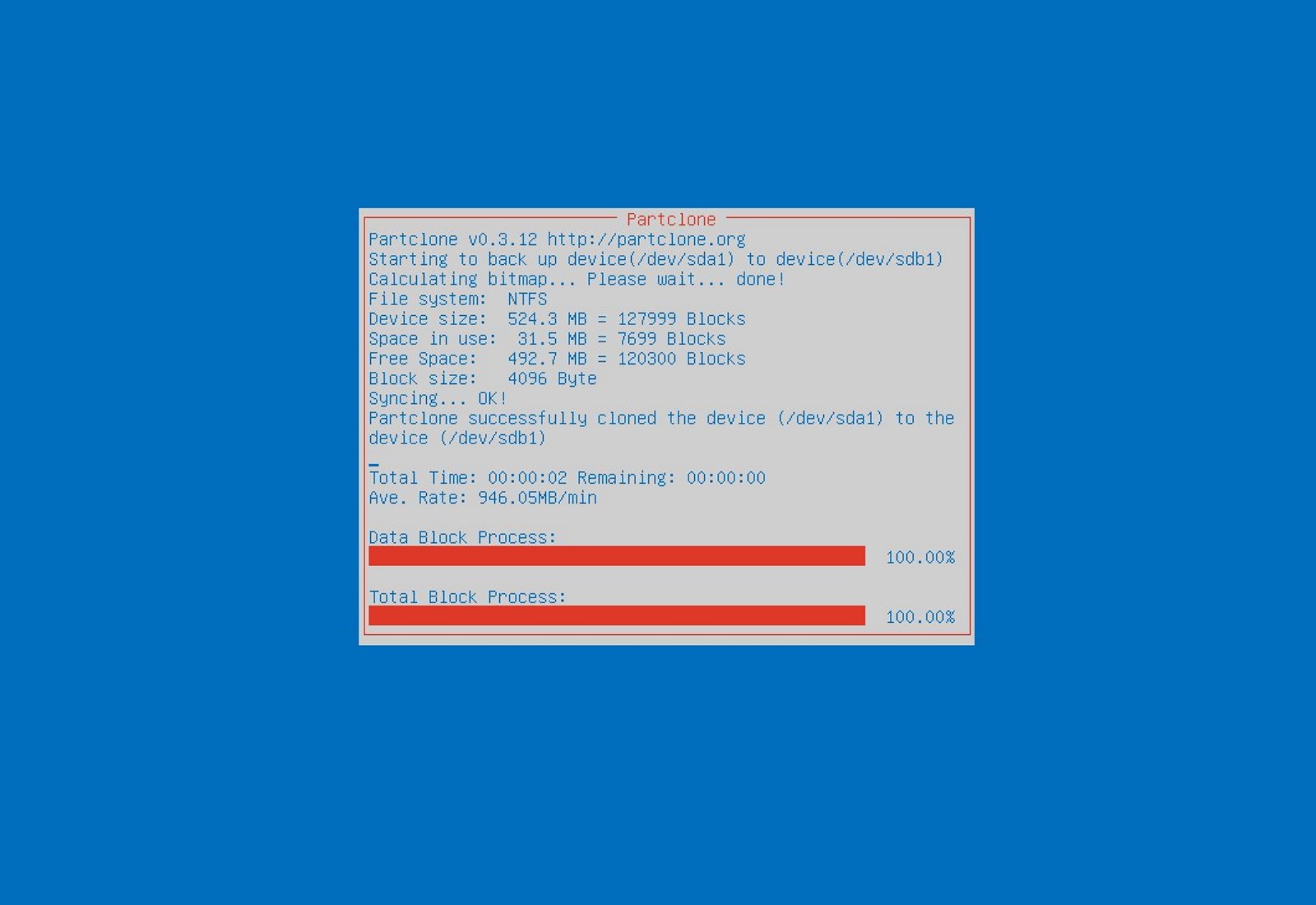
    When it comes to cloning hard drives usually there is only one application, Norton ghost. Clonezilla tends to change that by offering the same usability as the ghost. Grab your copy from here. open source HD clone clonezilla
  18. FreeCAD - alternative to Autodesk AutoCAD

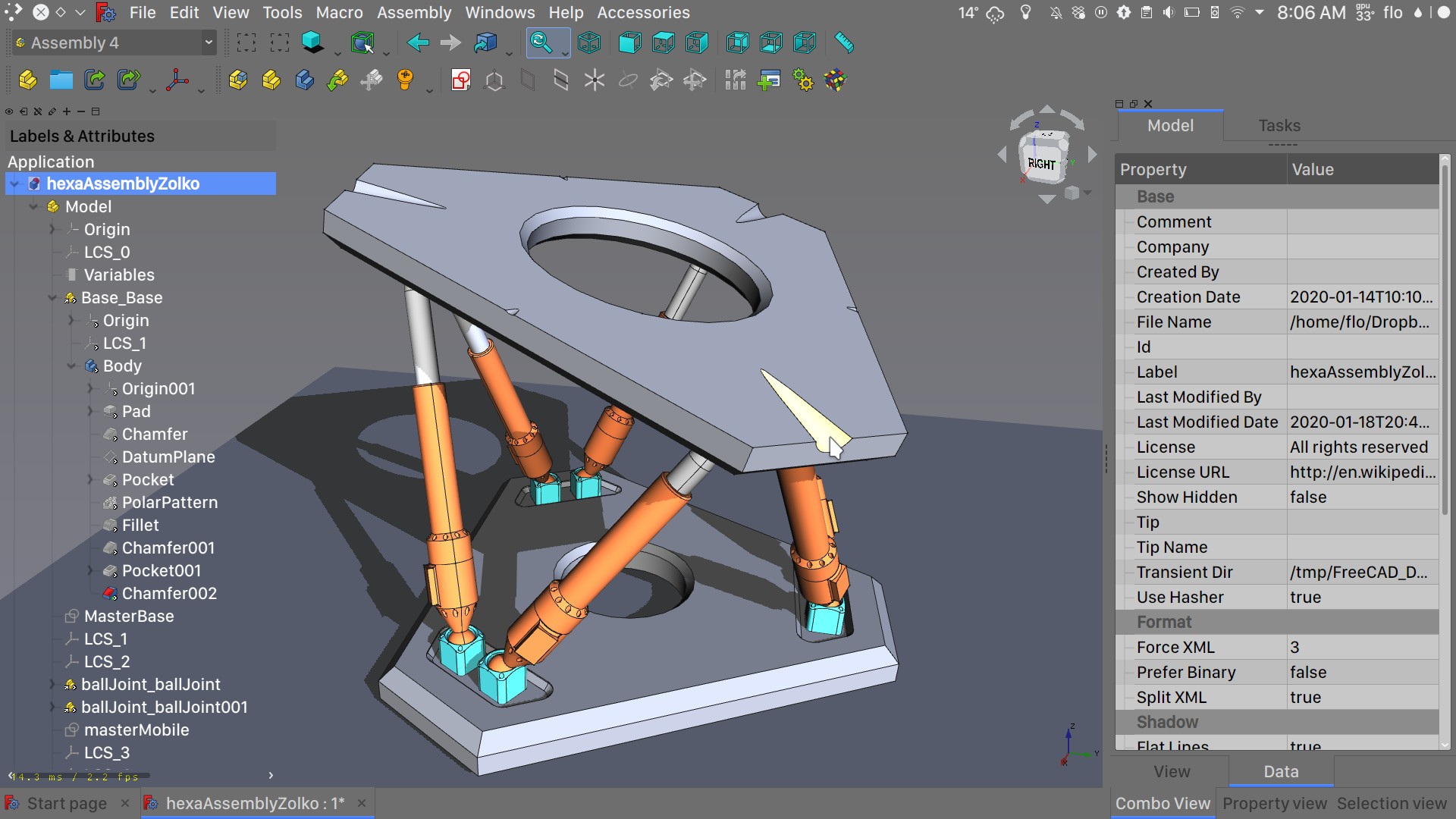
    Autodesk AutoCAD has years of development and dedication of its team behind it to keep it as the best CAD application on the market and it shows. However, if you are not really a hardcore professional who needs all of AutoCAD features and can live without some automation inside it FreeCAD is one of the best free open source options, it will certainly get the job done and with its dynamic simulation and analysis, it is guaranteed that you can achieve same results as in AutoCAD with little more time investment. Get if here. open source CAD freecad
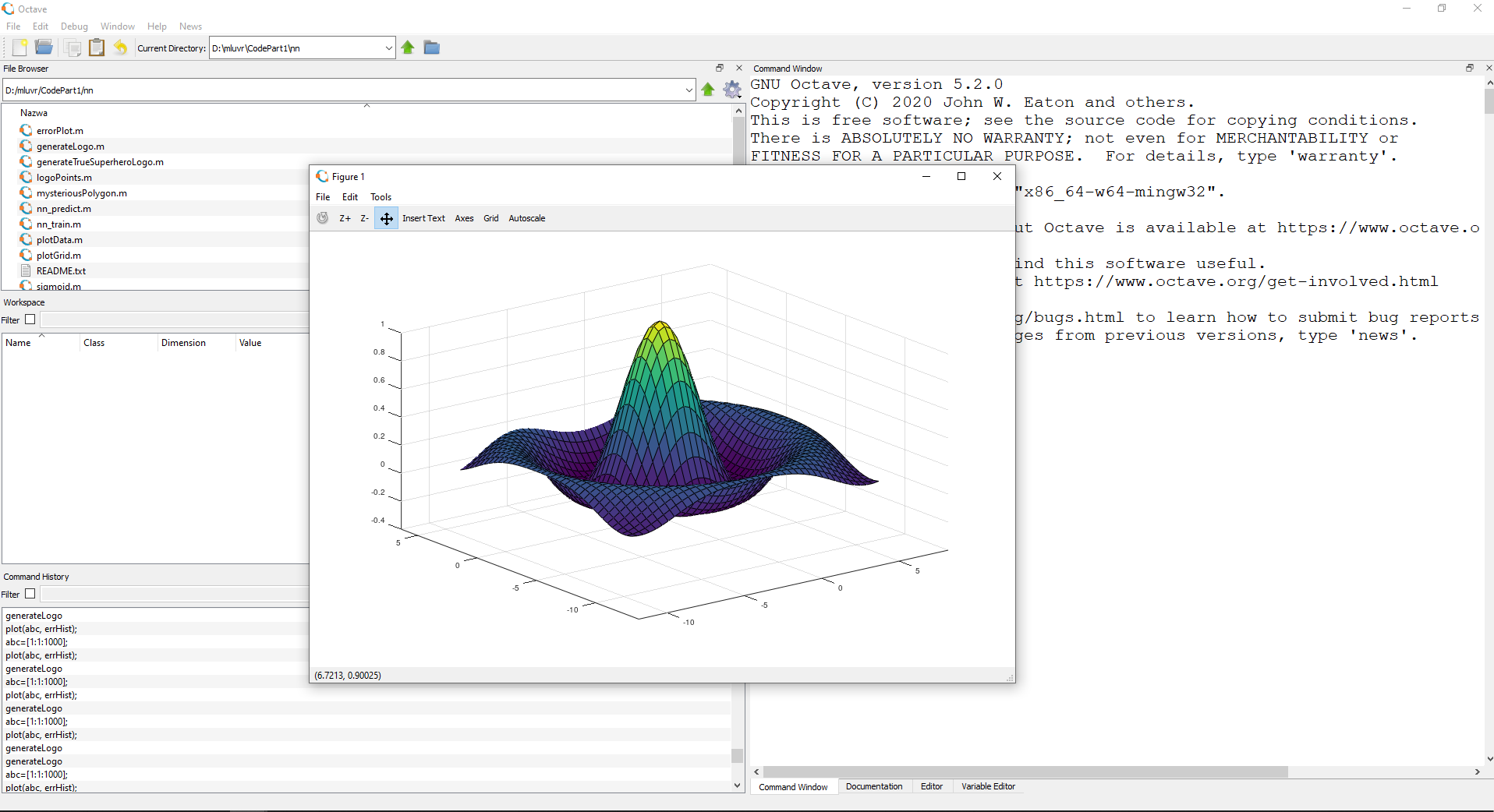
  19. Octave - alternative to MATLAB

    Octave is the best open-source educational tool used for numerical computation with an interactive environment. The tool features powerful mathematics-oriented syntax with built-in plotting and visualization tools and also Octave syntax is largely compatible with Matlab. Get your copy from here. open source math tool octave
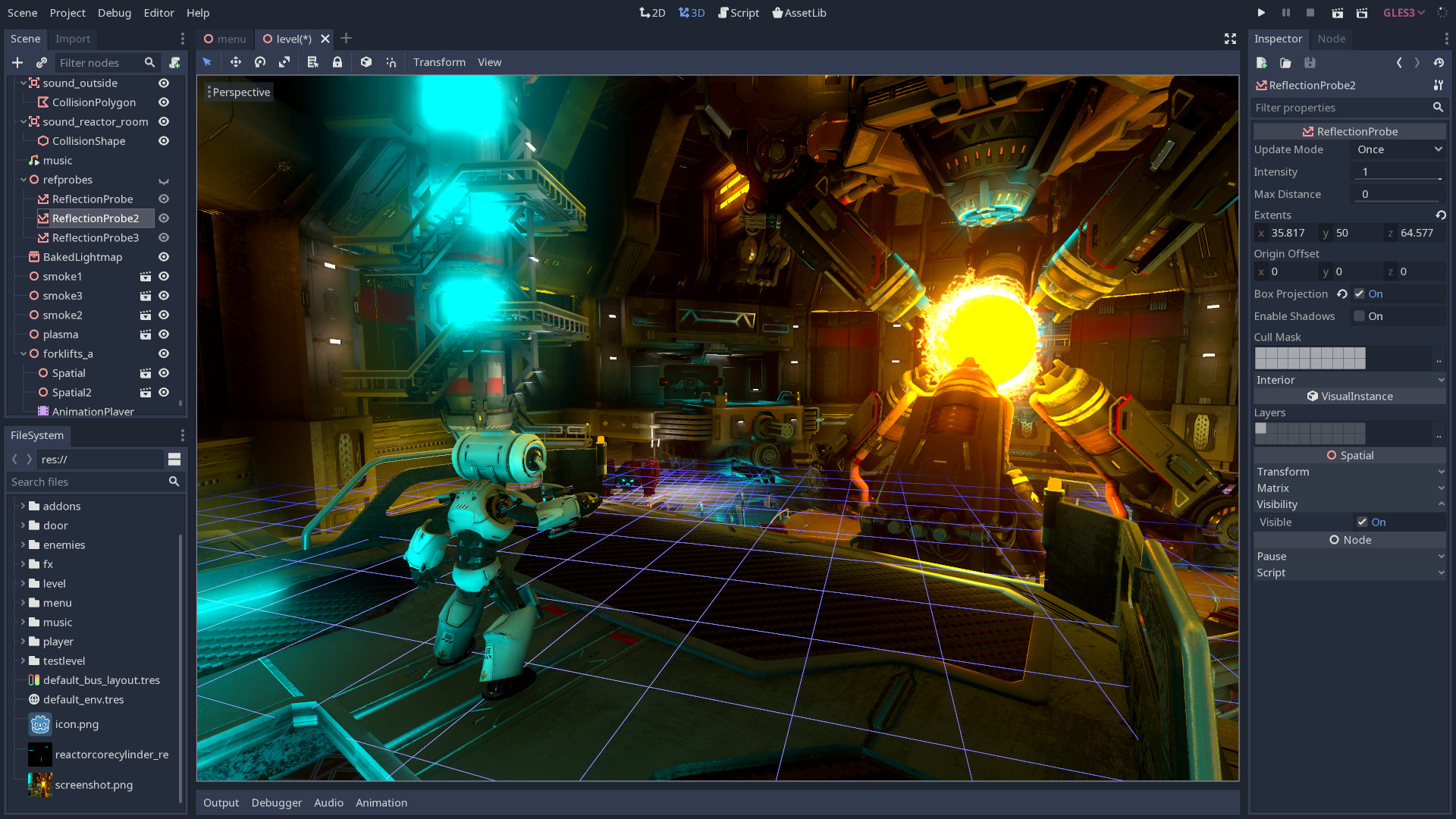
  20. Godot - alternative to Unity3D, Unreal

    Godot is a lightweight feature-packed node-based game development engine, completely open-source and free to use for commercial projects. The engine has reached 3.2 version and it is more and more adopted by various independent game makers across the globe, recently there are to of video tutorials and documentation to get you up and running and its open-source nature lets you modify the engine itself in any way that suits and benefits you. Also, any project made with Godot is completely yours, there are no hidden fees or anything similar. Download it from here. open source game engine godot

Conclusion

That's it, my pick for 20 open source alternatives which I believe you should at least try and if you end up with at least one, you have saved some hard-earned money. And always remember:
  1. Open-source programs give you complete freedom without any shady terms and conditions.
  2. Open-source software code is readily available for anyone who wants it, so anyone can use it, share it, modify it for their own needs, and study it.
  3. No spying eyes, no tracking, and no telemetry
  4. In some cases, open-source tools offer features or performance benefits that surpass their commercial counterparts.
  5. No hidden charges, completely free.
If you would like to read more helpful articles and tips about various software and hardware visit errortools.com daily.
Read More
Restoring accidentally deleted system files
There are times when we delete a system files without meaning to on your Windows 10 computer. This happens a lot for users sometimes mistake a system file for a malware-laden file or junk file when it’s actually a system file from the System32 or SysWOW64 folder. In such cases, it could affect your computer. For instance, you might not be able to reboot your PC or open Settings. If you have removed system files from any of these folders by accident and you desperately want to restore them, read on, as this post will guide you in resolving the problem. Restoring them isn’t actually hard, just make sure that you have system admin access. The good thing is that there exists Windows Resource Protection which protects registry keys and folders and even critical system files. So if there are any detected changes to a protected system file, the modified file is restored from a cached copy located in the Windows folder. However, if the Windows Resource Protection program fails to restore these files, you need to check out the given fixes below.

Option 1 – Run System File Checker scan

To restore the system files you deleted, you can try running System File Checker or SFC scan. System File Checker is a command utility built into your computer that helps restore corrupted files and missing files. Refer to the following steps to run it:
  • Boot your PC into Safe Mode.
  • Hit the Win + R keys to launch Run.
  • Type in cmd in the field and tap Enter.
  • After opening Command Prompt, type in sfc /scannow
The command will start a system scan which will take a few while before it finishes. Once it’s done, you could get the following results:
  1. Windows Resource Protection did not find any integrity violations.
  2. Windows Resource Protection found corrupt files and successfully repaired them.
  3. Windows Resource Protection found corrupt files but was unable to fix some of them.
  • Reboot your computer.

Option 2 – Try to run the DISM tool

Aside from System File Checker, you can also run the DISM or Deployment Imaging and Servicing Management Tool as it could help in restoring the system files on your Windows 10 computer. Using this built-in tool, you have various options such as the “/ScanHealth”, “/CheckHealth”, and “/RestoreHealth” which could help you resolve the problem.
  • Open the Command Prompt with admin privileges.
  • Then type in the following commands and make sure to hit Enter right after you type each one of them:
    • Dism /Online /Cleanup-Image /CheckHealth
    • Dism /Online /Cleanup-Image /ScanHealth
    • exe /Online /Cleanup-image /Restorehealth
  • Do not close the window if the process takes a while as it will probably take a few minutes to finish.

Option 3 – Try performing a System Restore

Running System Restore can also help you bring back the system files. You can do this option either by booting into Safe Mode or in System Restore. If you are already in the Advanced Startup Options, just directly select System Restore and proceed with the next steps. And if you have just booted your PC into Safe Mode, refer to the steps below.
  • Tap the Win + R keys to open the Run dialog box.
  • After that, type in “sysdm.cpl” in the field and tap Enter.
  • Next, go to the System Protection tab then click the System Restore button. This will open a new window where you have to select your preferred System Restore point.
  • After that, follow the on-screen instructions to finish the process and then restart your computer and check if the problem is fixed or not.

Option 4 – Try to run Automatic or Startup Repair

Startup Repair, previously known as Automatic Repair, is an advanced tool in Windows that can help you diagnose various system issues, including this one. This tool will scan system files, configuration settings, registry settings, and so on in order to fix the problem on its own. To run Startup Repair, all you have to do is boot into the Advanced Startup Options and then go to Troubleshoot > Advanced option > Startup Repair and then run it. This will resolve the problem if you have deleted any system file that’s essential to your Windows 10 PC.

Option 5 – Reset your computer

  • Tap the Win key or click on the Start button located in the Taskbar.
  • Then click on the Power button at the bottom right portion of the screen.
  • Next, press and hold the Shift key on your keyboard and then click on Restart. This will restart your Pc into the Advanced Startup options.
Note: Once you have access to the Advanced Startup options, you have to go to the setting which allows you to Reset your Windows 10 PC. All you have to do is select Troubleshoot > Reset this PC to reach the following screen Afterward, select either the “Keep my files” option and then proceed to the next on-screen instructions that follow to reset your Windows 10 computer without losing your files.
Read More
Fix Windows Update Error 0x80070103
This post will guide you in fixing the error 0x80070103 when installing Windows Update. According to users who encountered this problem, Windows Update (WU) fails to install several different updates. This kind of Windows Update error is can mostly be seen in the Windows Update screen inside the update reports although it is also known to occur when a user attempts to install a peripheral driver – only if the Windows Update offers to update the driver through a prompt and when you click Yes. There are several possible causes for this error, it could be that Windows Update is trying to install a particular driver for the second time already which happens when it gets confused by an additional piece of identical hardware like the graphics adapter. Aside from that, the Windows Update might have already installed the driver which is known to occur with unsuitable versions of the already installed driver. In addition, the error could also be due to a third-party program interference like a security program or a utility program that is using the same driver and conflicts with the Windows Update. Here are some suggestions that might help in fixing the Windows Update error 0x80070103.

Option 1 – Install the updates in a Clean Boot State

You might want to try putting your computer in a Clean Boot state and then install Windows Updates again without any trouble. During this state, you can start the system with a minimum number of drivers and startup programs that will surely help you in isolating the root cause of the issue.
  • Log onto your PC as an administrator.
  • Type in MSConfig in the Start Search to open the System Configuration utility.
  • From there, go to the General tab and click “Selective startup”.
  • Clear the “Load Startup items” check box and make sure that the “Load System Services” and “Use Original boot configuration” options are checked.
  • Next, click the Services tab and select the “Hide All Microsoft Services” check box.
  • Click Disable all.
  • Click on Apply/OK and restart your PC. (This will put your PC into a Clean Boot State. And configure Windows to use the usual startup, just simply undo the changes.)
  • After that, try to install the Windows Updates or upgrade again.

Option 2 – Try installing the failing driver without using Windows Update

If installing the updates in a clean boot state didn’t help, you can try a manual approach to yield much better results using the Device Manager or by downloading the driver from the manufacturer’s website manually.
  • Tap the Win + R keys to launch Run.
  • Type in msc into the box and tap Enter or click OK to open the Device Manager.
  • After that, a list of device drivers will be displayed. Look for the device driver you and then select either “Update driver” or “Uninstall device”. And if you find any “Unknown device”, you need to update it as well.
  • Select the “Search automatically for updated driver software” option and then follow the instructions to complete the process.
  • If you have chosen to uninstall the driver, follow the screen options to complete the process and then restart your PC.
Note: You also have the option to go directly to the website of your device driver manufacturer and go to the section called Drivers then check if there’s a new available update – if there is, download and install it.

Option 3 – Try to run the Windows Update Troubleshooter

You might also want to run the built-in Windows Update Troubleshooter in Windows that could help you in resolving the Windows Update error 0x80070103. All you have to do is go to Settings > Update& security > Troubleshoot > Windows Update. From there, click on the Run the troubleshooter button and follow the next one-screen instructions that appear. After that, restart your computer and check if the error is now fixed or not by trying to install the update once again.
Read More
1 2 3 171
Logo
Copyright © 2023, ErrorTools. All Rights Reserved
Trademark: Microsoft Windows logos are registered trademarks of Microsoft. Disclaimer: ErrorTools.com is not affiliated with Microsoft, nor claims direct affiliation.
The information on this page is provided for information purposes only.
DMCA.com Protection Status