Logo

Apple, Windows, or Linux machine

In today's IT world, if you want a computer for typical day-to-day actions and gaming, there are 3 primary ways you can go. An Apple computer with its proprietary hardware and operating system or a typical machine with Windows or Linux operating system.

Each system has both advantages and disadvantages and picking the right one might be difficult for some users. From hardware differences to specific software and operating system, each system is aimed at a different type of work, and in this article, we will explore each one and help you in choosing the right one for you.

Apple ecosystem

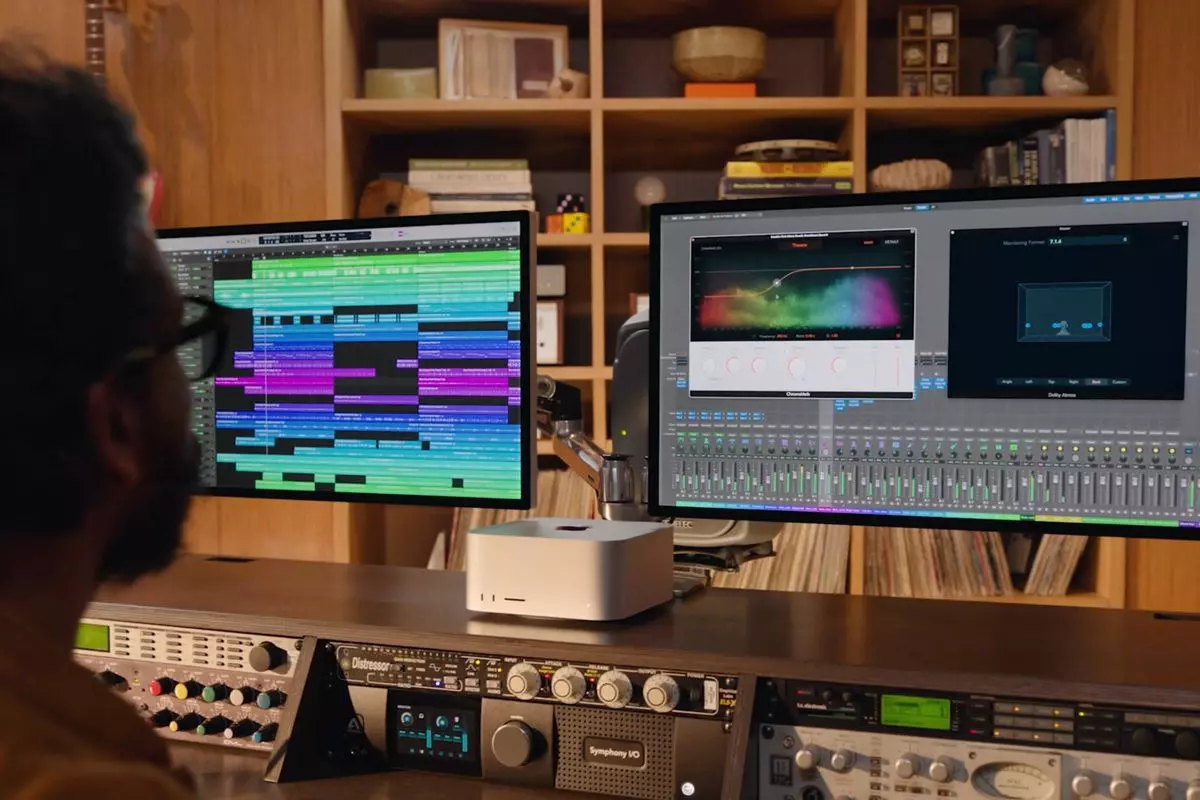
apple MAC studio

Apple has managed to create a unique ecosystem of its own devices, from its iMac desktop computers to more professional MAC studio and power MAC and all the way to tablet iPad and iPhone are powered by Apple's own operating system that connects all of these devices into one large system. So if you really need one singular ecosystem this is a huge advantage.

The ecosystem on the side, MAC computer systems are great, some would argue best for coding, design, video work, and sound editing. MAC M2 chip is optimized for all of these tasks and a specially tailored operating system is just the icing on the cake. Specific Apple-made software like a logic pro or final cut also helps a lot to position MAC systems on top of the line.

Reading all of this you might think hey this is the computer for me, it does everything! Sadly the truth is not like that. The first thing that is difficult on MAC systems and a maybe big reason that it is not so adopted outside professional working environment is lack of games. If you are a gamer or plan on using MAC for gaming, well I have some bad news. The second big turn-off is that MAC systems tend to be more expensive than PC systems, yes components are of higher quality but rest assured that you will pay for also for branding.

Get MAC as your workstation for serious work and for good tech support, if you need a plain home computer keep reading.

Windows PC machine

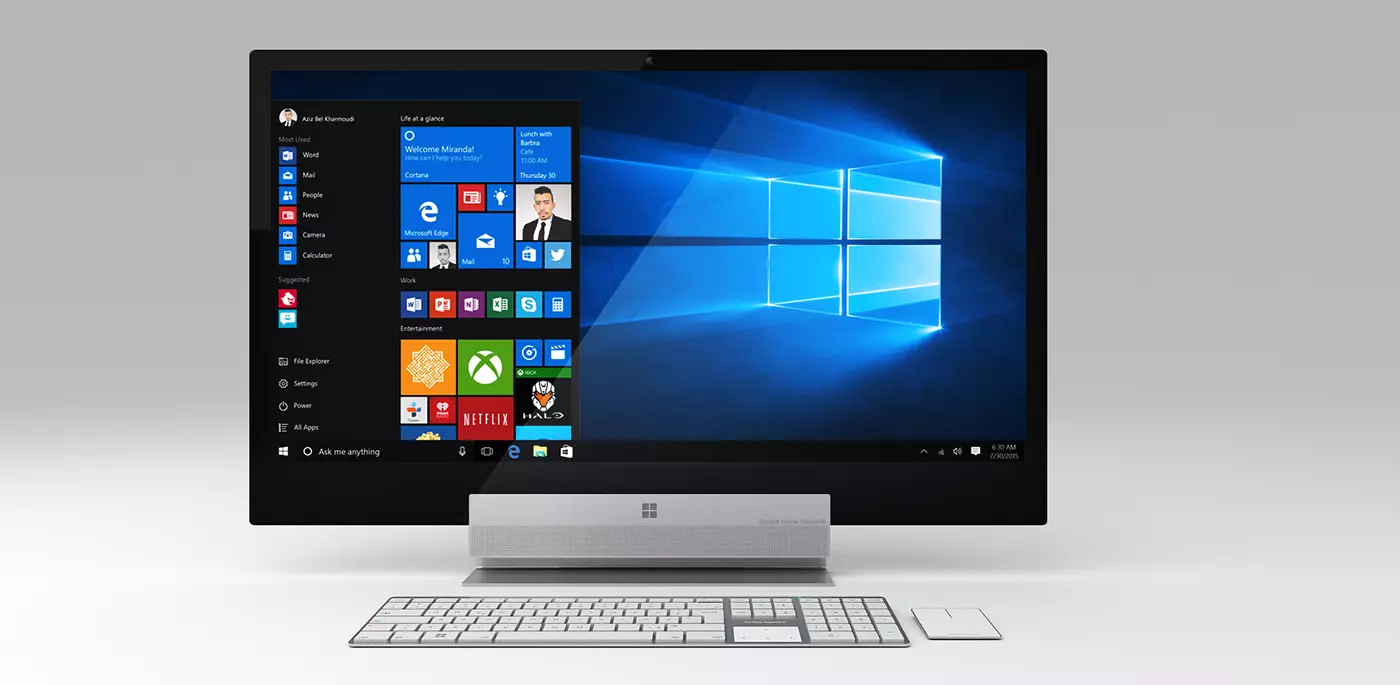
Windows surface pro

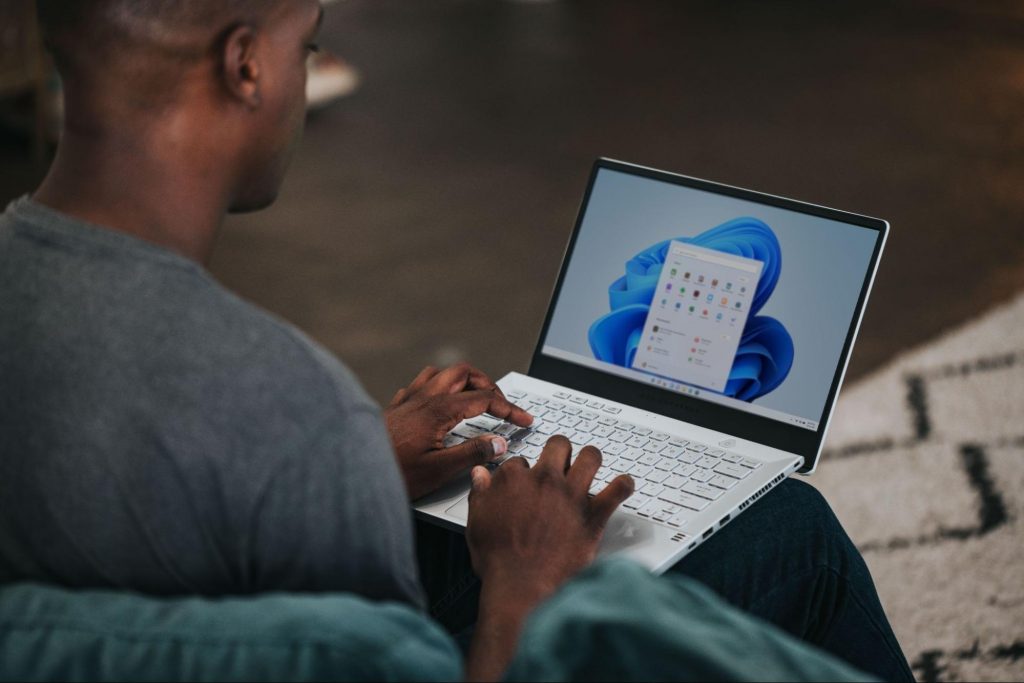
There is no better feeling than assembling your own computer, tweaking hardware to make a monster and despite haters hating, Windows is the best all-around operating system on the market. It is supporting the largest variety of hardware and the largest variety of software.

The best platform for serious gaming and streaming Windows machine has cemented itself as a multimedia powerhouse. But, this kind of computer is not alien to being also a professional machine, you can practically do everything that you can do on Apple or Linux machine inside Windows, yes some things might require extra steps or will be slightly slower but in the end, being able to do anything is the greatest strength of Windows machine.

Of course, every system has its flaws and Windows is not immune to that. One of the biggest is being the operating system for every hardware ever made and every software as well while keeping legacy support for old software and hardware, basically, its biggest strength is in the same time its biggest weakness leading to sometimes stability issues. Also being able to place any kind of hardware can also lead to the same stability issues. Executing something a little slower than other systems and having some extra steps can also be looked upon as weaknesses.

Linux system

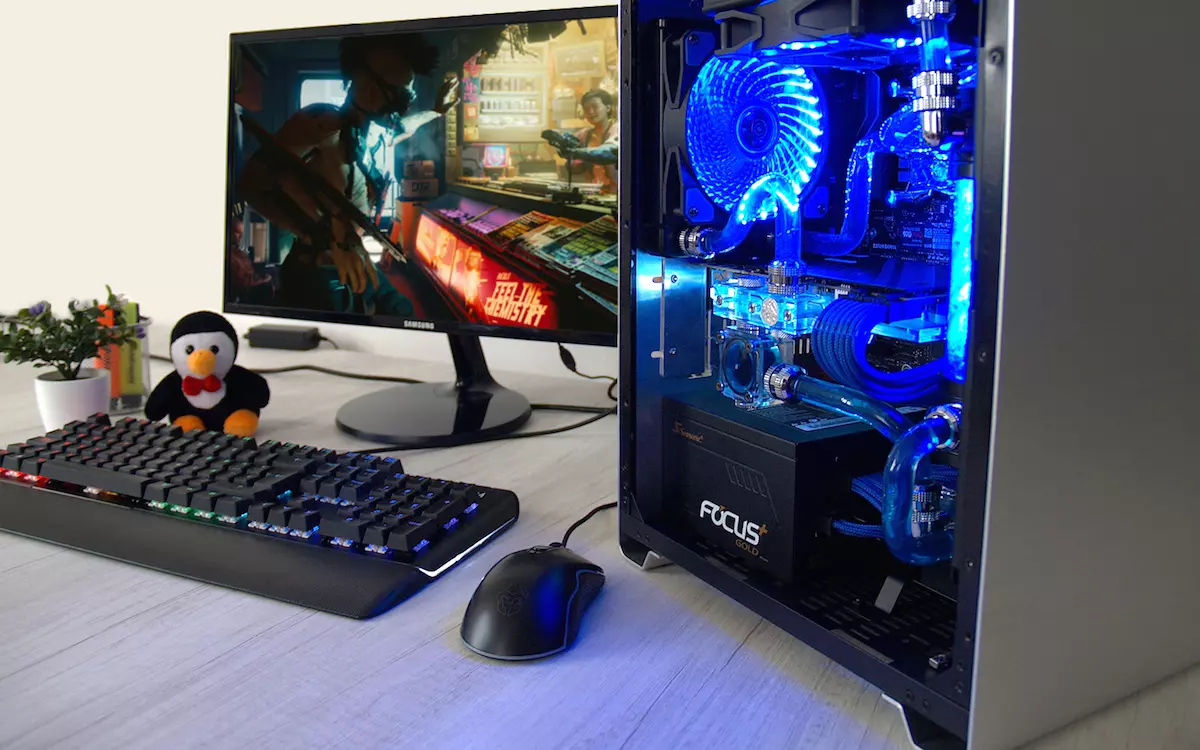
Linux machine

First and perhaps for some people, the biggest advantage of the Linux operating system is its price, it is completely free! Other advantages include the great server and networking included in the OS itself, the large amount of customization, and unmatched stability. The ability to write scripts inside the OS terminal is also a great thing and coding is much more streamlined and friendlier than on other machines.

The power of Linux is the ability to change anything, even on the system layer, no other operating system will let you change the basic functionality of the OS itself while Linux will let you do this. It is also the only operating system you can fully use by booting it up from a USB stick and having the same experience as it was installed on a local hard drive. Among other OS mentioned earlier, Linux is by far the lightest one, taking the smallest amount of memory among the three.

The bad side of the Linux machine is the steep learning curve, among the three mentioned operating systems rest assured Linux is the most difficult to learn and be comfortable in it. The operating system will require you to know the hardware and how computers work in order to fully use its potential. Other things that place it behind are not so wide hardware support compared to Windows and the somewhat confusing distro model.

Linux versions come in form of different distro packages and first-time users will face many of them being left in awe of which one to choose. Also installing drivers and software via a package system can also be a tedious task as well, often being that some version of the driver will not work on the newer version of the Linux distro.

Get a Linux machine if you are well versed in computer technology, if you want great customization of the OS itself or if you do not want to spend money on OS and software since almost entire Linux software is open source.

Do You Need Help with Your Device?

Our Team of Experts May Help
Troubleshoot.Tech Experts are There for You!
Replace damaged files
Restore performance
Free disk space
Remove Malware
Protects WEB browser
Remove Viruses
Stop PC freezing
GET HELP
Troubleshoot.Tech experts work with all versions of Microsoft Windows including Windows 11, with Android, Mac, and more.

Share this article:

You might also like

Windows 11 23H2 Update Details Revealed

Loving Windows 11 so far? We sure are. Microsoft has clearly decided to take its OS to the next level and keeps showing it through every update. It makes you wonder what’s next - and today, you’ll find out!

Tons of new features have been leaked, and we can probably expect them with the 23H2 update. Here’s everything you need to know so far.

What’s Windows 11 23H2 bringing?

Windows 11
Credit: Windows on Unsplash

There are plenty of new features already confirmed for Windows 11. The only issue is we don’t know for sure if they’re coming with the 23H2 update or separately, at a different time. Whatever the case, a lot of them are pretty exciting.

Here’s an overview of what we might be getting this fall.

  • Windows Copilot. Microsoft wants to add this AI-powered feature based on chatbots like Bing Chat and ChatGPT to assist users with all kinds of actions and tasks on the platform. As part of this development, the integration of first- and third-party plugins and the Bing Chat AI will be enhanced. This is a pretty amazing addition to look forward to, if you ask us.
  • Dynamic Lighting. RGB lovers will rejoice upon this one! Dynamic Lighting will allow you to control your RGB-powered components directly through the Windows Settings, allowing smooth integration of your favorite peripherals with your OS. No need for third-party software anymore!
  • Taskbar enhancements. Microsoft has announced some neat improvements to the Windows 11 taskbar. For one, we’ll be able to hide the Time and Date now, which is extremely useful for focus, but also for clean screenshots. Another change is the ability to shut down programs directly from the Taskbar, without having to run the Task Manager.
  • Expanding native support for archive formats 7-zip, rar, gz and others on the libarchive open-source projects.
  • Microsoft Store AI features. The theme of AI power is clearly being taken up a notch, because the Microsoft Store seems to be getting several awesome features in this regard. One of them is AI hub, which “curate the best AI experiences built by the developer community and Microsoft” (Windows Developer Blog). We’re not sure what that means exactly, but we sure can’t wait to see.

Another is AI-generated keywords, designed to improve the discoverability of apps you’re searching for. Moreover, the AI-generated review summary is designed to give us a simpler experience looking at reviews. Huge numbers of reviews will be compiled into a summary that’s easy to scan and lets us discover new content faster.

  • Other Microsoft Store improvements. Business owners will be happy to hear that Microsoft Store ads will now reach 150+ regions worldwide, significantly increasing the audiences they can target. Furthermore, there will be enhancements to the Backup and Restore functionality to give users a more seamless experience in case they switch devices. 
  • File Explorer changes. Rumor has it that Microsoft is working on a Gallery to be embedded within the File Explorer. The addition of a Recommended section might be on the horizon as well. 
  • Widget Panel update. The introduction of the Widget Panel in itself was exciting for many. As a next step in the development of this feature, Microsoft is planning to make it possible to pin widgets to the desktop. 
  • Presence sensor. You might actually already have this one, as it was rolled out as part of Moment 3 for compatible devices. With the Presence sensing app, found in the Privacy settings, you can decide which (if any) apps use APIs to detect the state of your activity on Windows. This can significantly enhance privacy and security, as you can have apps containing sensitive data lock automatically when unattended. If you’re a laptop user, it can also be beneficial to your battery life.
  • Bluetooth LE. Microsoft is adding support for Bluetooth Low Energy, a functionality that allows reduced battery consumption when devices are connected.
  • Adding more languages to the Live Captions feature. This specification is only as powerful as the languages it supports. Microsoft is reportedly working on expanding the list with 10 more languages.

Summary

We’ve got some interesting stuff to look forward to with the next major Windows 11 update. And these are just the things the Internet’s actually heard of, so who knows what else Microsoft might be planning? It remains to be seen, hopefully just a few months from now. 23H2 has been released on October 31st.

Read More
Radeon Settings are currently not available
One of the most common brands of GPUs that comes in a large number of computers is AMD’s Radeon Graphics processing units. AMD included the Radeon Settings panel so that users can control how the hardware functions. However, as of late, a lot of users reported that the Radeon Settings panel throws an error that says, “Radeon Settings are currently not available. Please try again after connecting AMD graphics” when they try to use it. This kind of error in the Radeon Settings panel is most likely caused by either corrupted drivers or incompatible drivers. If you are one of the users who are facing this problem, worry not for this post will guide you in fixing this error. You can either use the Device Driver Uninstaller or change the driver version. For more details, make use of the options provided below.

Option 1 – Try to use the Device Driver Uninstaller

The first thing you can do to fix the problem is to uninstall the AMD Radeon drivers by using the Device Driver Uninstaller software. After you’ve uninstalled the AMD Radeon drivers using this software, go to the official website of AMD to download the AMD Radeon drivers. Once you’ve downloaded them, you can install them by simply running the executable file. Once the installation of the new AMD Radeon drivers is done, try to open the Radeon Settings panel and see if the error is now fixed or not. If not, refer to the next given option below.

Option 2 – Try changing the Driver version

If you have followed the instructions in the first option then you can proceed to the next given steps below.
  • Now that you’ve completely uninstalled the AMD Radeon drivers and reinstalled their latest working versions, check if the drivers are still updating. If they are, you need to stop them.
  • To disable the drivers being automatically updated, you need to go to the Group Policy Editor by tapping the Win + R keys to open the Run utility and then type “gpedit.msc” in the field and tap Enter or click OK.
  • After opening the Group Policy Editor, navigate to this policy setting: Computer Configuration > Administrative Templates > System > Device Installation > Device Installation Restrictions
  • From there, double click on the “Prevent installation of devices that match any of these device IDs” policy setting to open a new window, and from this window, you will see the following description of the setting:
“This policy setting allows you to specify a list of Plug and Play hardware IDs and compatible IDs for devices that Windows is prevented from installing. This policy setting takes precedence over any other policy setting that allows Windows to install a device. If you enable this policy setting Windows is prevented from installing a device whose hardware ID or compatible ID appears in the list you create. If you enable this policy setting on a remote desktop server the policy setting affects the redirection of the specified devices from a remote desktop client to the remote desktop server. If you disable or do not configure this policy setting devices can be installed and updated as allowed or prevented by other policy settings.”
  • Now set the radio button of the policy setting to “Enabled”. This will turn off the delete confirmation prompt. Note that setting the radio button to either Not Configured or Disabled will turn off the driver being automatically updated.
  • Next, click on the Show button under the Options section. And in the field that pops up, type in the Hardware ID of your GPU and click OK. You can find the GPU’s Hardware ID under this location: Device Manager > <DEVICE NAME> Properties > Details > Hardware IDs
  • Once you’re done, click the Apply and OK buttons to save the changes made.
  • Close the Group Policy Editor and restart your PC and see if the “Radeon Settings are currently not available. Please try again after connecting AMD graphics” error is now fixed.
Read More
A Quick Guide to Resolving Error Code 0x800ccc92 on Your PC

0x800ccc92 - What is it?

Do you come across this error message “Receiving’ reported error (0x800ccc92): “Your e-mail server rejected your login”? Verify your user name and password in your account properties. The server responded: - ERR invalid user names and password” when you try to send or open emails using your Outlook account? If yes, then this article is a must-read for you as we explain why this error occurs and how you can resolve it. To begin with, 0x800ccc92 is a common Microsoft Outlook error. This error restricts your ability to send and receive emails on your Outlook email address. In other words, it locks you out and hampers your ability to use your account successfully causing a great deal of inconvenience especially if you use your Outlook account for communication in and across your office.

Solution

Restoro box imageError Causes

The 0x800ccc92 error message may occur due to numerous reasons so narrowing it down to one particular reason for occurrence is not easy. However, here we have listed down some of the most common causes of this error code:
  • Incorrect Outlook configuration settings
  • Invalid password or username
  • PST file crosses its fixed file size limit
  • Failure of POP3 and Protocol STMP in database server connection
  • Improper synchronization between Outlook and the server
  • Virus Infection
  • Invalid registry entries

Further Information and Manual Repair?

To fix the error code 0x800ccc92 on your system, here are some quick, effective, and easy DIY solutions that you can try:

Solution 1:

Sometimes the error code may occur due to an invalid password and usernames entry. Therefore, first, cross-check user ID and password. If you’ve entered the wrong password, try inserting the correct password to access your account.

Solution 2:

If the error still persists, then try installing the latest available Server Service Pack for Exchange. This solution works best if compatibility is the issue and the underlying reason for the error is improper synchronization between Outlook and the server.

Solution 3:

The presence of malware and viruses can also lead to such errors. Therefore, it is advisable to scan your entire PC for malware and viruses using a powerful antivirus.

Solution 4:

If the issue occurs due to bad and invalid registry entries, then it is important that you remove them right away. Due to such entries, you may experience the 0x800ccc92 error on your PC. To remove them, you need to download a registry cleaner. Downloading two programs an antivirus and a registry cleaner separately may slow down the speed of your PC. Therefore, to ensure this does not happen it is recommended you install Restoro Restoro is an advanced and multi-functional PC Fixer. This software is deployed with an intuitive algorithm and multiple powerful PC repair utilities including a registry cleaner, anti-virus, and a system optimizer. It is a one-stop solution for all PC-related issues. Using this tool, you can scan your entire PC and remove all types of malicious software including malware, viruses, spyware, and Trojans corrupting your PC in seconds. Simultaneously, it also removes all bad registry keys and entries and files the damaged system file, thereby restoring the registry back to normal. The system optimizer utility ensures your PC speed is not compromised due to the repair process. This software is safe, bug-free, efficient, and user-friendly. It is compatible with all Windows versions. Click here to download Restoro on your PC to instantly remove viruses and invalid registry entries to resolve the 0x800ccc92 error message on your system now!
Read More
Troubleshooting Epic Games Launcher issues
If you are having trouble using the Epic Games Launcher, here are some troubleshooting steps that usually fix common problems.

Check the Epic Games server status

Check the Epic Games Server Status page to make sure all systems are operational. If the Epic Games Launcher is affected by an outage or system-wide issue, your issue may be fixed when the outage is resolved.

Clear your launcher’s webcache

Clearing the webcache often resolves display issues that may prevent you from using the launcher. Follow these steps to clear your webcache:

Windows

  1. Exit the Epic Games Launcher by right-clicking the system tray icon in the bottom-right corner, and then clicking Exit.
  2. Press Windows key + R, type “%localappdata%”, and then press Enter to open a File Explorer window.
  3. Open the Epic Games Launcher folder.
  4. Open the Saved folder.
  5. Click the webcache folder, and then delete it.
  6. Restart your computer, and then relaunch the Epic Games Launcher.

Mac

  1. Exit the Epic Games Launcher.
  2. Open Finder.
  3. Click on Go then Go to Folder...
  4. Type ~/Library/Caches/com.epicgames.EpicGamesLauncher and press Enter.
  5. Drag the webcache folder to the Trash.
  6. Press control and click on Trash.
  7. Click on Empty Trash.
  8. Relaunch the Epic Games Launcher.

Run the launcher as an administrator

Running the launcher as an administrator elevates its permissions so it can avoid problems with downloading games, for example. Follow these steps to run the launcher as an administrator:
  1. Right-click your Epic Games Launcher shortcut.
  2. Click Run as Administrator.

Update graphics card drivers

Making sure the player is using the latest graphics card drivers may resolve the launcher crashing. Review this article for steps on how to do update their graphics drivers.

Reinstall the Epic Games Launcher

Note: The following process will remove all of your installed games.

On Windows: 

Run system file checker then reinstall the Epic Games Launcher.
  1. Close the Epic Games launcher by right-clicking the system tray icon in the bottom right corner and then clicking Exit.
  2. Click Start.
  3. Type "cmd", right-click Command Prompt, and then click Run as administrator.
  4. In the window that opens, type "sfc /scannow", and then press Enter.  This may take a little while.
  5. Restart your computer.
  6. Click Start.
  7. Type "Add or Remove Programs", and then press Enter.
  8. Select Epic Games Launcher from the list of programs.
  9. Click Uninstall.
  10. Go to www.epicgames.com and click Get Epic Games in the top right corner to download the latest installer.

On Mac:

  1. Close the Epic Games Launcher.
  2. Verify there are no processes associated with the Epic Games Launcher by checking Activity Monitor.
  3. Open the Applications folder.
  4. Click and drag the Epic Games Launcher application to the Trash.
  5. Verify all the following directories no longer have any Epic Games Launcher folders or files:
    • ~/Library/Application Support
    • ~/Library/Caches
    • ~/Library/Preferences
    • ~/Library/Logs
    • ~/Library/Cookies
  6. Go to www.epicgames.com and click Get Epic Games in the top right corner to download the latest installer.

Launcher freezing on macOS 10.15.1 or earlier

If your launcher is freezing on macOS 10.15.1 or earlier, follow the steps above to reinstall the Epic Games Launcher on your Mac.

Verify system requirements

Make sure your computer meets the system requirements to run the Epic Games Launcher using this article here. The system requirements for the Epic Games Launcher are here.

Blinking Epic Games Launcher icon on the taskbar

If you can't start the Epic Games Launcher and see a blinking icon on your taskbar, use these steps to try and fix this:
  1. Right-click your Epic Games Launcher shortcut.
  2. Click Properties.
  3. Select Normal Window from the drop-down menu next to Run.
  4. Click the Compatibility tab.
  5. Uncheck any boxes, and then click Apply then OK.
  6. Click Start, then type "Graphics Settings" and press Enter.
  7. Select Classic app from the drop-down under Graphics performance preference.
  8. Click Browse.
  9. Navigate to the Epic Games Launcher installation directory. By default, this is C:/Program Files (x86)/Epic Games/Launcher/Portal/Binaries/Win64.
  10. Click the EpicGamesLauncher.exe file, and then click Add.
  11. Click Options.
  12. Select Power Saving.
  13. Click Save.
  14. Relaunch the Epic Games Launcher.
Read More
How to Use and Configure Active Hours
The issue with the abrupt system reboots to force Windows 10 updates on a computer has been lessened with Active Hours. This feature keeps a record of the hours during which a system remains active and prevents the installation of updates during such hours. For example, when a system restart is needed to complete the installation of an update, Active Hours delays the update and allows you to finish what you’re doing on your computer. Thus, if you haven’t heard of this feature, then now is the time you do, read this post to configure and use Active Hours in your Windows 10 computer. There are three ways you can configure Active Hours. The first one is for general users, whereas the rest of the two methods are for users who knows their way about the Windows Registry and Group Policy. To get started, refer to every given option below.

Option 1 – Configure Active Hours via Windows 10 Settings

  • Go to Settings > Update & Security. From there, click on the “Change active hours” option under the Windows Update section.
  • Next, you can select a time (“Start time” and “End time”) during which the restart can occur.
  • After that, click on the Save button and exit.
Note: Keep in mind that the values you’ve entered indicate the hours during which your system is in use, namely, ACTIVE. It is important for your active hour’s interval period and it can be anything between 1 and 18 hours since you can’t go beyond 18 hours. In addition, there is no option to configure different active hours on different days and you can’t specify different active hours for weekends and weekdays as well. On the other hand, Windows 10 also offer users an option to override Active Hours. All you have to do is go to Settings > Update & Security > Windows Update > Restart Options. From there, you can choose a custom restart time when your computer will restart to install the updates but this is only a one-time setting.

Option 2 – Configure Active Hours via Registry Editor

  • Tap the Win + R keys to open the Run utility and type “Regedit” in the field and tap Enter or click OK to open the Registry Editor.
  • Next, navigate to this registry path: HKEY_LOCAL_MACHINESOFTWAREMicrosoftWindowsUpdateUXSettings
  • In the given registry path, you can choose to change “ActiveHoursStart” and “ActiveHoursEnd”.
Note: There are no extra settings available in the Registry Editor but you can change the remote computer’s Active hours settings using the Registry Editor.

Option 3 – Configure Active Hours via Group Policy

Note that this option is available for the Windows 10 Pro and Educational or Enterprise versions. It is mostly used by computers in Business or through remote access. To get started, follow these steps:
  • Tap the Win + R keys to launch Run and type “gpedit.msc” in the field and tap Enter or click OK to open the Group Policy Editor.
  • Next, navigate to this group policy setting: Local Computer Policy > Computer Configuration > Administrative Templates > Windows Components > Windows Updates.
  • From there, look for a policy labeled “Turn off auto-restart for updates during active hours” and double click on it. This will open a new window.
  • Click on the Enabled radio button to enable Active Hours. You also have the option to choose active hours just like in the first given option above. It works just fine except when the following policies don’t override:
    • No Auto-restart with logged-on users for scheduled automatic updates installations.
    • Always automatically restart at the scheduled time.
  • Since Group Policy allows you to reduce the range of active hours, you can configure it if you want it to be less than 18 hours. Just find the policy setting labeled “Specify Active hours range for auto -restarts. The minimum is 8 hours”.
  • After you set the Active Hours, click the Apply and OK buttons to save the changes made.
Read More
Your computer is running low on resources
Signing in to a computer that runs a Windows 10 version OS is usually fast and straightforward. However, there are instances when signing in takes too long especially if there are a lot of programs in the Startup. So if many things are loading as soon as you log into your computer, it will slow down the sign-in process. Aside from programs in Startup, it is also possible that there are too many users that are logged in to the account. In such a case, you will most likely encounter an error that says, “Your computer is running low on resources, so no new users can sign in. Please use an account that has already been signed in”. If you’ve encountered such an error when you try to log into your computer, read on as this post will be guiding you on how you can fix it. Each time a user signs in to Windows 10, it will allocate resources in order to work smoothly. But, in many cases, the system is running low on resources which is why this error pops up and blocks a sign-in of a new user. To fix it, you can try to log out the existing users, or perform a Cold Boot, as well as run both the DISM tool and System File Checker scan.

Option 1 - Try to logout existing users

The first thing you can do is to log out the existing users. If you have a shared Windows 10 computer, you have to check if someone hasn’t logged out. It could be that some background task or there is an existing program that is still running under that account. So you have to make sure to ask the same user to log out in case there is some unsaved work. On the other hand, if that user is not around, then you reboot the computer right away.

Option 2 - Try Performing a Cold Boot

You could also try to perform a Cold Boot to fix the problem. A Cold Boot is a process that makes sure that the Windows 10 Kernel shuts down properly and releases all the resources held by any account. To perform a Cold Boot, just press and hold the physical power button on your CPU until it goes off. After that, boot your computer regularly and see if you can now log into your account without any error.

Option 3 - Try to run a System File Checker scan

System File Checker is a built-in command utility in Windows that helps in restoring corrupted files as well as missing files. It replaces bad and corrupted system files to good system files that might be the cause why you’re getting the error when you log into your computer. To run the SFC command, follow the steps given below.
  • Boot your computer into the Advanced Recovery mode and from there open Command Prompt.
  • After opening Command Prompt, type in sfc /scannow
The command will start a system scan which will take a few whiles before it finishes. Once it’s done, you could get the following results:
  1. Windows Resource Protection did not find any integrity violations.
  2. Windows Resource Protection found corrupt files and successfully repaired them.
  3. Windows Resource Protection found corrupt files but was unable to fix some of them.
 Now restart your computer and see if the problem is fixed or not.

Option 4 - run the dism tool

You might also want to run the DISM tool. This tool is known to repair potentially corrupted files in your system as having them could also system issues like the “Your computer is running low on resources, so no new users can sign in” error. To repair these corrupted system files, you can run the DISM commands:
  • Go to the Advanced Recovery mode and select Command Prompt.
  • After that, input each one of the commands listed below sequentially to execute them:
    • Dism /Online /Cleanup-Image /CheckHealth
    • Dism /Online /Cleanup-Image /ScanHealth
    • Dism /Online /Cleanup-Image /RestoreHealth
  • Once you’ve executed the commands given above, restart your computer and check if the problem is now fixed.
Read More
WebShield Malware Removal Tutorial

Web Shield is a free application that allows you to view insightful analyses about the websites that you visit and specifically how they’re tracking you online. Web Shield cannot determine exactly who is tracking your computer usage. Instead, Web Shield allows a user to see which websites have placed tracking code onto their computer.

This software is ad-supported and displays advertisements in the form of injected banner ads, popups, and context hyperlinks in the user’s web browser. It adds Windows Background services, displays unwanted advertisements, and can modify the browser’s home page.

About Browser Hijackers

Browser hijackers (also called hijackware) are a type of malicious software that modifies web browser settings without the user’s knowledge or permission. These hijacks appear to be increasing at a worrying rate across the world, and it could be really nefarious and sometimes dangerous too. There are lots of reasons why you may experience a browser hijack; but commercial, marketing, and advertising are the main reasons for their creation. The idea is to force users to visit specific sites that are looking to increase their site visitor traffic and generate higher ad income. Nevertheless, it is not that harmless. Your web safety is jeopardized and it is also very irritating. Furthermore, hijackers will make the entire infected system fragile – other destructive malware and viruses would seize these opportunities to intrude into your system very easily.

Browser hijacking signs

Here are some symptoms that indicate you have been hijacked: home-page is modified; you see new unwanted favorites or bookmarks added, typically directed to ad-filled or pornography sites; the default search engine has been changed and the web browser security settings have been cut down without your knowledge; you notice many toolbars on the internet browser; you see lots of pop-up ads on your computer screen; your internet browser has become unstable or starts running slowly; you can’t visit certain websites like home pages of anti-malware software.

How does a PC get infected with a browser hijacker?

Browser hijackers might use drive-by downloads or file-sharing networks or even an email attachment to reach a targeted computer system. They may also originate from any BHO, browser extension, add-on, toolbar, or plug-in with the malicious objectives. Some browser hijackers spread in user’s PC by using a deceptive software distribution strategy called “bundling” (usually through shareware and freeware). A good example of a popular browser hijacker is the most recent Chinese malware named “Fireball”, which has attacked 250 million computers across the world. It acts as a hijacker but could be changed into a fully functioning malware downloader later on. Browser hijackers will affect the user’s web surfing experience severely, record the websites frequented by users and steal personal information, cause problems in connecting to the net, and eventually create stability issues, causing applications and systems to crash.

Browser hijacker removal

Some browser hijacking could be quite easily reversed by finding and removing the corresponding malware software from your control panel. But, most browser hijackers are difficult to get rid of manually. No matter how much you try to remove it, it can come back over and over. Moreover, manual removal requires you to carry out several time-consuming and intricate actions that are hard to do for novice computer users.

Malware Blocking Access To Safebytes Website And Anti-Malware Downloads - What To Do?

Every malware is bad and the effects of the damage can vary based on the specific type of malicious software. Some malware types alter browser settings by including a proxy server or change the computer’s DNS settings. In these cases, you’ll be unable to visit some or all internet sites, and therefore unable to download or install the required security software to get rid of the malware. If you’re reading this, chances are you’re stuck with a malware infection that is preventing you to download and/or install Safebytes Anti-Malware software on your PC. Even though this type of problem can be tougher to circumvent, there are some steps you can take.

Start your system in Safe Mode

If the malware is set to load at Windows start-up, then booting in Safe Mode should avoid it. Since just the bare minimum programs and services start-up in Safe Mode, there are rarely any reasons for issues to occur. The following are the steps you need to follow to start your computer into the Safe Mode of your Windows XP, Vista, or 7 computers (go to Microsoft website for directions on Windows 8 and 10 computers). 1) Tap the F8 key continuously as soon as your computer boots, but before the large Windows logo or black screen with white texts appears. This would conjure up the “Advanced Boot Options” menu. 2) Make use of the arrow keys to choose Safe Mode with Networking and press ENTER. 3) Once this mode loads, you should have internet access. Now, get the malware removal program you need by using the browser. To install the program, follow the guidelines within the setup wizard. 4) Right after installation, run a complete scan and allow the program to delete the threats it detects.

Switch over to an alternate browser

Some malware only targets particular browsers. If this is your situation, make use of another internet browser as it might circumvent the malware. If you appear to have a trojan attached to Internet Explorer, then switch to a different web browser with built-in safety features, such as Firefox or Chrome, to download your favorite antivirus program – Safebytes.

Install and run anti-virus from your Thumb drive

Here’s yet another solution which is utilizing a portable USB antivirus software that can scan your system for malware without the need for installation. Follow these steps to use a thumb drive to clean your infected computer system. 1) Make use of another virus-free PC to download Safebytes Anti-Malware. 2) Plug in the USB flash drive to a USB port on the uninfected computer. 3) Run the setup program by double-clicking the executable file of the downloaded software, which has a .exe file extension. 4) When asked, choose the location of the pen drive as the place where you want to put the software files. Follow the directions to complete the installation process. 5) Now, transfer the pen drive to the infected PC. 6) Double-click the anti-malware software EXE file on the USB flash drive. 7) Click on “Scan Now” to run a scan on the affected computer for malware.

Review of SafeBytes Anti-Malware

Do you want to download the very best anti-malware software program for your desktop? You can find many applications available that come in free and paid versions for Windows systems. A few of them are great, some are ok types, and some will harm your computer themselves! You need to pick one that is reliable, practical, and has a good reputation for its malware protection. When considering the reliable software programs, Safebytes Anti-Malware is undoubtedly the highly recommended one. SafeBytes anti-malware is a trusted software that not only secures your PC completely but is also quite user-friendly for people of all ability levels. Through its cutting-edge technology, this software protects your computer against infections caused by different types of malware and other threats, including spyware, adware, trojans horses, worms, computer viruses, keyloggers, ransomware, and potentially unwanted program (PUPs). SafeBytes anti-malware comes with a plethora of enhanced features that sets it apart from all others. Here are a few popular features present in this program: World-class AntiMalware Protection: This deep-cleaning anti-malware software program goes much deeper than most antivirus tools to clean out your personal computer. Its critically acclaimed virus engine locates and disables hard to remove malware that hides deep within your PC. Real-time Active Protection: SafeBytes offers complete and real-time security for your computer system. It’ll regularly monitor your laptop or computer for hacker activity and also provides users with advanced firewall protection. Web protection: SafeBytes checks and provides a unique safety rating to every website you visit and block access to web pages considered to be phishing sites, thus protecting you from identity theft, or known to contain malware. Low CPU Usage: SafeBytes is a lightweight and simple-to-use anti-virus and anti-malware solution. Since it uses very little computer resources, this software leaves the computer power exactly where it belongs to: with you actually. 24/7 Guidance: You could get high levels of support 24/7 if you’re using their paid version.

Technical Details and Manual Removal (Advanced Users)

If you’d like to manually get rid of WebShield without the use of an automated tool, it may be actually possible to do so by deleting the program from the Microsoft Windows Add/Remove Programs menu, or in cases of web browser extensions, going to the browsers AddOn/Extension manager and removing it. You’ll probably also want to totally reset your browser to its default settings. If you choose to manually delete the system files and registry entries, make use of the following list to make sure you know precisely what files to remove before undertaking any actions. Please keep in mind that this is for advanced users only and might be challenging, with incorrect file removal leading to additional system errors. In addition to that, certain malware is capable of replicating or preventing deletion. It is recommended that you do the removal procedure in Safe Mode.
Files: %ProgramData%webshield %ALLUSERSPROFILE%Application DataWebShield %ALLUSERSPROFILE%WebShield Registry: [HKEY_LOCAL_MACHINESOFTWAREMicrosoftWindowsCurrentVersionUninstallmweshield] [HKEY_LOCAL_MACHINESOFTWAREmweshield] [HKEY_LOCAL_MACHINESYSTEMCurrentControlSetservicesmwescontroller]

Read More
Chrome features that you need to use

Google Chrome is the most used browser in the world with the most user downloads. Most users are using browsers how it is, open it up and just surf but Chrome offers more than just plain surfing. Here we are presenting you with some interesting features that most users do not use but should.

google chrome

Use Omnibox to search inside websites

Chrome's Omnibox, also known as the address bar got its name because it can do much more than just search the internet. You already probably know that just by typing any word you will search the internet with Google or another search engine of choice.

You can also set specific keywords inside Chrome settings to tie them with specific websites, for example, you can tie the letter E with errortools, and then just by typing E windows error you will search term windows error on website errortools. There are some already predefined things and you can add anything you want so this is a great feature in order to speed up your work skipping part of actually opening the site.

Search the internet for selected text

On any webpage, you can simply select any text and right-click on it to get a new menu entry that will say search Google for "your selected text" and by clicking on it you will automatically search the net for the selected term.

Grouping tabs

When we surf the internet some of us tend to have plenty of open tabs and over time they can clutter and shrink in width making the surfing experience an unpleasant one.

Chrome has tab groups and you really need to start using them since you can organize much better all the tabs, even color-code them.

Search all open tabs

On top right part on title bar right next to minimize button there is small arrow pointing down, once you clik on it all opened tabs will be displayed by name as a listand by clicking on it you will automatically switch to it.

Change download location

Google Chrome has its default download destination but you can change that destination and even turn on option to be asked where you would like your download to be saved each time.

Live Captions

YouTube has cations for its videos but Chrome itself has live caption option in order to provide you with automatic AI captions for any type of video or audio on any website. If you are struggling with following what is being said try this awesome option.

Extensions

Using extensions in Chrome is awesome, specialy if extensions are usefull but if you go incognito they are not active. There is an option in Chrome to turn on the extensions even in incognito mode and even better, you can even choose which ones you want to be active, you do not need to turn all of them.

Read More
What to do if Windows is stuck in Tablet Mode
To make the Windows 10 operating system a lot more user-friendly, Microsoft introduced the Tablet Mode for Windows 10 devices, especially the 2-in-1 devices like Surface Pro and Surface Book. Despite the Tablet Mode’s efficiency, it also encounters some errors from time to time. One of the issues users reported about tablet mode is that they can’t turn off or exit tablet mode. If you are one of these users, read on as this post will guide you in what you can do to fix the issue. To fix the problem with Tablet Mode, there are several suggestions you can check out. You can try to check the full-screen setting, or perform a full shutdown or perform two buttons to restart the Surface devices. You could also disable Tablet Mode via Registry Editor or perform System Restore or change the settings in the System tab or the Action Center.

Option 1 – Try to check the full-screen setting

  • Tap the Win + I keys to open the Windows Settings app.
  • Then navigate to this path, Personalization > Start.
  • Next, scroll down to toggle off the “Use Start Full Screen” option.
  • After that, restart your computer and see if the problem is fixed.

Option 2 – Perform a full shutdown

  • Open Command Prompt with admin privileges first.
  • Next, execute this command to perform a full shutdown: shutdown /s /f /t 0
  • The command you entered will shut down your computer and once it’s turned off, wait for a couple of minutes and then turn it back on.

Option 3 – Try to perform a two-button restart on your Surface device

  • Tap and hold the power button for about 30 seconds.
  • Then release them after 30 seconds.
  • After that, tap and hold the volume up + the power button for 20 seconds. This will cause the display to flash a few times but you have to keep those buttons pressed until your Surface device is turned off.
  • Wait for a couple of minutes and your Surface will turn back on. This should resolve the problem.

Option 4 – Try to disable the Tablet Mode via Registry Editor

  • In the Start Search, type “registry editor” and right-click on the Registry Editor from the results, and then select the Run as administrator option. This will open the Registry Editor with admin privileges.
  • Next, navigate to this registry key: ComputerHKEY_CURRENT_USERSoftwareMicrosoftWindowsCurrentVersionImmersiveShell
  • From there, look for the DWORD named “SignInMode” and double click on it.
  • Set its value to “1” and its base as hexadecimal.
  • After that, click on OK to save the changes made. This will make sure that you are signed in to the desktop mode when you log into your account.
  • Now look for the DWORD named “TabletMode” and double click on it and set its value data to “0” and it's base as hexadecimal.
  • Click on OK to save the changes made and then restart your computer.

Option 5 – Run System Restore

  • Tap the Win + R keys to open the Run dialog box.
  • After that, type in “sysdm.cpl” in the field and tap Enter.
  • Next, go to the System Protection tab then click the System Restore button. This will open a new window where you have to select your preferred System Restore point.
  • After that, follow the on-screen instructions to finish the process and then restart your computer and check if the problem is fixed or not.

Option 6 – Try changing the settings in the System tab or the Action Center

  • Go to Settings and navigate to System > Tablet Mode.
  • After that, scroll down to set the “Use desktop mode” from the drop-down menu under the “When I sign in” section.
  • Now restart your computer and see if the issue is fixed.
Read More
Shift Key is not working in Windows
A lot of users rely on keyboard shortcuts to carry out tasks on their PCs. One of the most common keyboard shortcuts used is the Ctrl + Shift + Esc which opens the Task Manager. As you can see, the Shift key is not just used to capitalize a text as it can also be used for other functions and plays an essential role in operating a computer. However, if you suddenly find it not working, read on as this post will help you fix the problem. If your Shift key is not working, there are several potential fixes you can check out to fix it. These are the different ways to get rid of the Shift key not working issue on Windows 10:
  1. Physically clean the key and keyboard
  2. Disable Sticky Keys.
  3. Update, Reinstall, or Rollback Keyboard driver.
  4. Test the keyboard on another system.
  5. Check your connections
  6. Run the Hardware troubleshooter
  7. Troubleshoot in Clean Boot State.

Option 1 – Clean the keyboard keys physically

Your keyboard might not be working properly due to some dirt or other corrosion. Thus, you need to clean your keyboard, especially the Shift key. First, you need to shut down your computer and then unplug the keyboard if you are using a desktop computer and then prepare it for cleaning. After that, use a small cotton ear cleaning tool to get between the creases and clean them. You can dip it slightly in alcohol to make it more efficient in cleaning dust and dirt. And if you can, you have the option to pull apart the keyboard completely and then wipe away all the corrosion from the inside. Once you’re done, put the keyboard back together and then plug it back into your PC. Now turn your PC on and check if the Shift key is now working.

Option 2 – Try to disable the Sticky keys

Another thing you can try is to disable the Stick keys. How? Refer to these steps:
  • Tap the Win + I keys to open the Settings app.
  • After that, navigate to the Ease of Access section, and here, select Keyboard.
  • Next, make sure that the option for Press one key at a time under the Sticky Keys is toggled off.

Option 3 – Reinstall, update or rollback your keyboard driver

Once you’ve determined that the problem is in the software part of the keyboard, it is now time to try to reinstall, update or roll back your keyboard drivers. To reinstall the driver for your keyboard, refer to these steps:
  • From the WinX Menu, open the Device Manager.
  • In the Device Manager, you should find your laptop’s keyboard under the “Keyboards” option. Right-click on it and select the “Uninstall” option.
Note: If you’re not quite certain about your laptop’s keyboard, you can uninstall all the keyboards if there’s more than one.
  • After that, restart your PC and see if the keyboard driver is installing automatically. If not, open the Device Manager again and right-click on Keyboards, and select the option “Scan for hardware changes” to install it.
Once the keyboard driver is installed again, check if your keyboard is now working properly or not.

Option 4 – Try connecting the keyboard to a different USB port or another computer

The problem might have something to do with the USB port that’s currently in use by your keyboard. It could be that it’s not working so it makes sense to unplug it and attach it to another USB port. You can also clean the USB port on both ends to ensure that they are not affected by corrosion. In addition, you can also try connecting the keyboard to a different computer and see if the Shift key works there or not.

Option 5 – Try to check your connections

You can also try checking if the connection mode you are using for your keyboard is functioning properly. For instance, if you are using a Surface 2-in-device, you can clean the connection pins and see if it resolves the problem.

Option 6 – Run the Hardware and Devices Troubleshooters

  • The first thing you need to do is click on Start and then on the gear-like icon to pull up the window for Settings.
  • After opening Settings, look for the Update and Security option and select it.
  • From there, go to the Troubleshoot option located on the left-hand side of the list.
  • Next, select Hardware and Devices from the list and open the Troubleshooter and run it. Once it is doing its job, wait for it to complete the process and then restart the system.
  • After the system restarts, check if the problem’s now fixed. If not, refer to the next option given below.

Option 7 – Put your PC in a Clean Boot State

You might also want to put your computer in a Clean Boot State to fix the problem with the Shift key. It could be that there is a third-party program that’s preventing the Shift key from functioning. To isolate this possibility, you need to put your computer in a Clean Boot State.
  • Log onto your PC as an administrator.
  • Type in MSConfig in the Start Search to open the System Configuration utility.
  • From there, go to the General tab and click “Selective startup”.
  • Clear the “Load Startup items” check box and make sure that the “Load System Services” and “Use Original boot configuration” options are checked.
  • Next, click the Services tab and select the “Hide All Microsoft Services” check box.
  • Click Disable all.
  • Click on Apply/OK and restart your PC. (This will put your PC into a Clean Boot State. And configure Windows to use the usual startup, just simply undo the changes.)
  • Now try to connect the external devices and check if the error is now gone.
Read More
1 2 3 171
Logo
Copyright © 2023, ErrorTools. All Rights Reserved
Trademark: Microsoft Windows logos are registered trademarks of Microsoft. Disclaimer: ErrorTools.com is not affiliated with Microsoft, nor claims direct affiliation.
The information on this page is provided for information purposes only.
DMCA.com Protection Status