Logo

Apple gaming is coming!!!

New Apple's upscaling technology called MetalFX will place iOS and macOS devices back into the gaming world. Apple had great games back in the old days and some all-time hits like the prince of Persia have been made first for apple but along the way, it just lost it.

Same as NVIDIA's DLSS and Intel's XeSS systems, Apple MetalFX also uses AI algorithms to upscale the resolution of output game frames. So, for example, the GPU inside your MAC might render the game at 1080p, but through MetalFX and AI upscaling it will look like a 4K image but have a good frame rate since it is rendered in base resolution.

apple metalfx

The ability to make AI strike a good balance between performance and image quality is a key to technology in today's modern gaming and having this technology will help developers a ton to be able to achieve great results on Apple hardware.

The First MetalFX Games

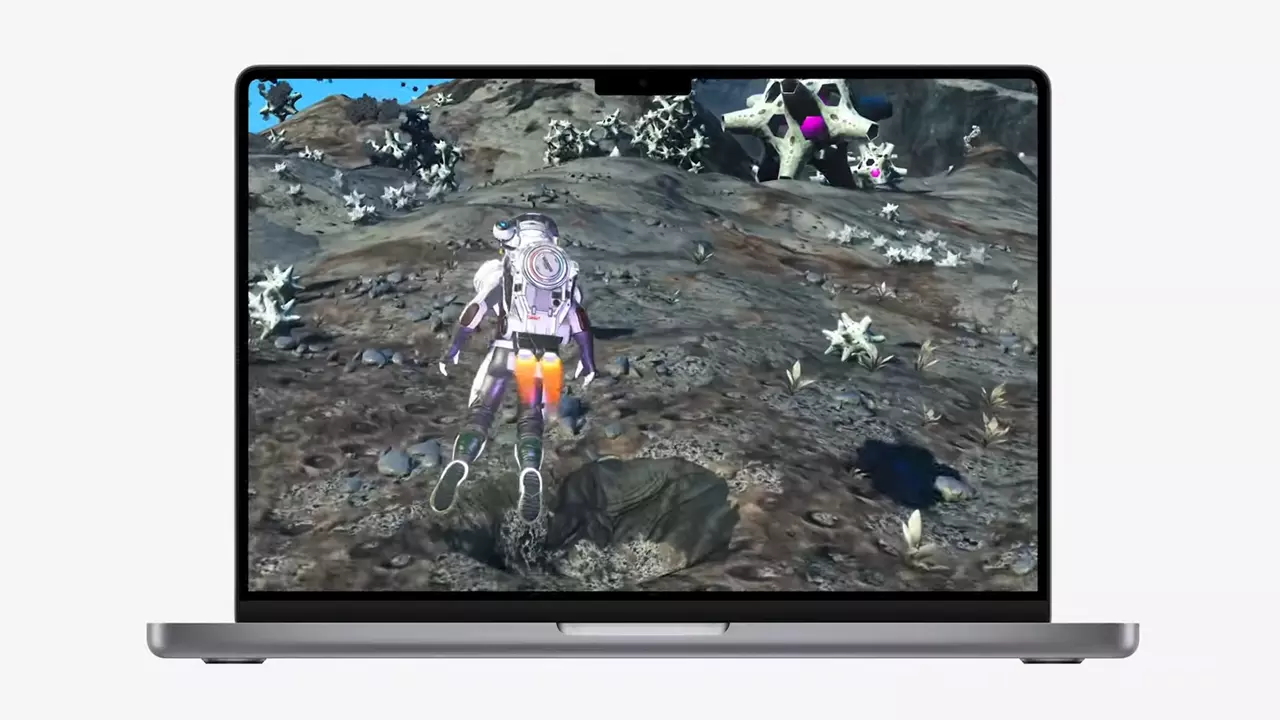
So far three official games that will use this technology and be released natively for Appl hardware are Resident Evil 8 Village, GRID legends, and No Man's Sky. All three games have been confirmed and Resident Evil 8 Village is already sent for review people are impressed since the game can run smoothly on all Apple devices, even ones with an M1 CPU.

Apple is back into gaming

When you say Apple gaming is probably the last thing that comes to your mind but truth be told Apple makes more money from games than Microsoft, Nintendo and Sony combined. Also, Apple itself was a big player once regarding computer games as well, Myst and Prince of Persia are games that were made and have been released for Apple first. Bungie was also founded by Apple developers and Halo was originally announced as a Mac game.

Apple has been trying and pushing gaming on its platform since it kind of died down. Today all Sony, Nintendo, and Microsoft controllers work without any issues with all Apple products. Apple also has its own gaming subscription service, Apple Arcade, and its Apple TV is packed with GPU that can rival Xbox ones.

MetalFX API ties and brings it all together, it is designed to get the most performance from the hardware by minimizing overhead.

Now, computers and laptops do not hold any large numbers if we look at the user base, and that could deter developers but if we look at iPad and iPhone things are different there, much different. How same CPU power these devices and how MetalFX is available across all products it is clear that there is a market for games there. No Man's Sky is coming to iPad using these technologies and bringing full computer experience to tablets.

Do You Need Help with Your Device?

Our Team of Experts May Help
Troubleshoot.Tech Experts are There for You!
Replace damaged files
Restore performance
Free disk space
Remove Malware
Protects WEB browser
Remove Viruses
Stop PC freezing
GET HELP
Troubleshoot.Tech experts work with all versions of Microsoft Windows including Windows 11, with Android, Mac, and more.

Share this article:

You might also like

Fix MS Store error code 0x80073d12 in Windows
The Microsoft Store error 0x80073d12 occurs when you try to download software from the store. In order to solve the issue follow the presented guide step by step in the order presented.
  1. Check do you have enough hard drive space for installation

    Store locates and assigned space on the hard drive before it installs the application, if there is not enough space available it will return the given error. Go to file explorer and check is there enough space available.
  2. Check that game is not expansion

    If you are trying to install expansion for the game without owning the required base game, you will receive the mentioned error. Check the store page to see if there are some prerequisites for the game like other games or packs.
  3. Install the game from my library

    Press Start. Open the Microsoft Store App. Click the See more button at the top right of the MS Store app’s window. Click Download and updates on the menu. Click Downloads on the left to open My library. Then click Ready to install to open a list of apps. Click the Install button for the game app that you need to install.
  4. Install on another partition

    It was reported that an error vanishes if installation is placed on another partition instead of the default C drive.
Read More
Fix Page Fault in Non-Paged Area in Windows 10
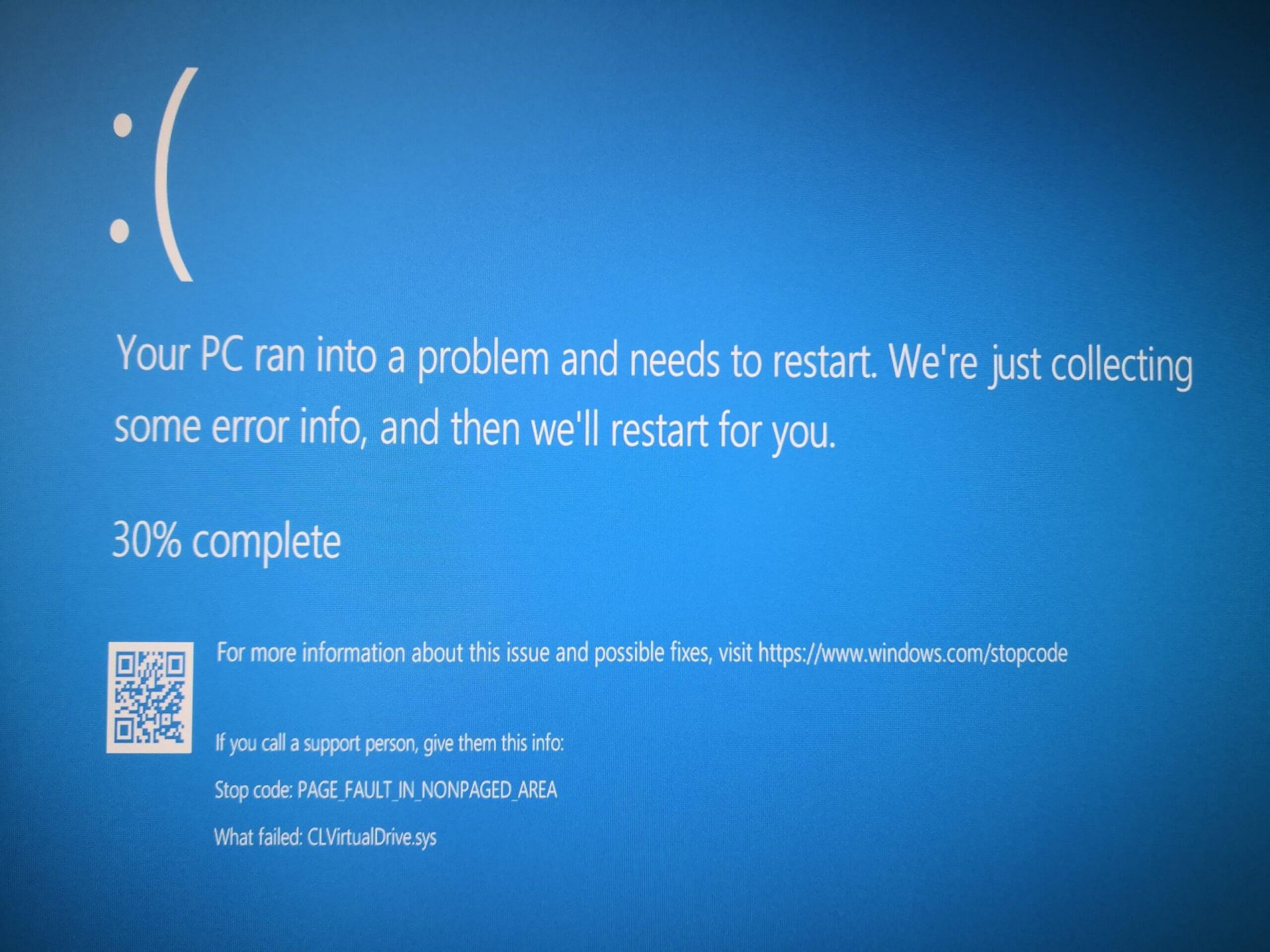
Page Fault in Non-Paged Area is a blue screen error usually happening with faulty drivers but it can come from different issues like faulty RAM. In this short article, we will cover usual ways on how to approach and solve this error.

Solving Page fault in Non-Paged Area

Page Fault in Non-Paged AreaRollback using system restore

Simple and easy solution, roll back to the previous system restore point where Windows was stable and working.

Fix Page Fault in Non-Paged Area using device manager

  1. Press ⊞ WINDOWS + X to open the hidden menu
  2. Click on device manager
  3. Find a device with a question mark and right-click on it
  4. Click on the rollback driver button

Fix via command prompt

  1. Press ⊞ WINDOWS + X to open the hidden menu
  2. Click on command prompt (admin)
  3. Inside command prompt type in SFC / scannow and press ENTER
  4. Wait for the process to be finished and then reboot the PC

Fix via DISM tool

  1. Press ⊞ WINDOWS + X to open the hidden menu
  2. Click on command prompt (admin)
  3. Inside command prompt type in DISM /Online /Cleanup-image /Restorehealth and press ENTER
  4. Wait for the process to be finished and then reboot the PC

Page fault in Non-Paged Area via a dedicated tool

Sometimes manual and provided solutions just simply cannot cut it because the issue is triggered also with something else and not just a single issue. Use DRIVERFIX to fix this specific issue with a single click.
Read More
How to Fix QTCF.dll Error

What is QTCF.dll Error?

Sometimes you may experience QTCF.dll error on your computer either during installation or while upgrading applications like iTunes and QuickTime. This error indicates that the installation or the upgrading of the desired application was unsuccessful. The QTCF.dll error is recognized by the Apple Support Community and they have provided a solution to fix this error easily.

Solution

Restoro box imageError Causes

QTCF.dll error occurs because the computer overloads with too much data which corrupts and damages registry files. And therefore the desired program fails to download and start on your PC. When this happens you see a pop up on your screen and the QTCF.dll error message that is usually displayed as:
  • QTCF.dll not found
  • QTCF.dll file is missing
Such message display hinders your ability to use iTunes or QuickTime applications on your PC. Furthermore, it also slows the performance of your system and you may encounter startup and shutdown problems. Therefore, it is advisable to repair the problem and fix the QTCF.dll error right away.

Further Information and Manual Repair

The good news is that you don’t need to go to a professional or be an IT expert in order to fix the QTCF.dll error. Since this error means that the installation or the attempt to upgrade the system was unsuccessful therefore you need to reinstall the fresh copy of the application. Here’s how you can easily fix the problem by yourself and install a fresh copy of the application: Step 1: First close all the applications running on your computer. Step 2: Now uninstall the application that you were trying to install such as iTunes or QuickTime.  To do this, go to the start menu, click on settings, control panel, and programs. Now click on the application you want to remove. Step 3: Once the application is uninstalled and removed from your computer, then restart it again. Step 4: Now download a fresh version of the application (iTunes or QuickTime) from Apple’s official website http://www.apple.com/quicktime/download/. Step 5: Run the installer. If reinstalling doesn’t work, then it is advisable to download the QTCF.dll repair tool. This repair tool will scan your PC for errors in seconds. Once the scanning is complete, click on the ‘fix all’ button to repair your computer. Once the error is fixed, restart your computer and then try reinstalling the desired application one more time.

A Word of Advice

For regular PC users, it is advisable to install an anti-virus and malware scanner and run it every time you use your computer. This helps you keep informed about the viruses or errors that your computer might be exposed to. And you can take timely actions before you experience file corruption and damage.
Read More
Disabling Windows 10 startup delay
First time when your computer is turned ON and when Windows is booting it will wait 10 seconds before starting your startup applications. This 10 second is used to load all of Windows services so everything is running smoothly. If by any chance you do not want to wait for this startup delay and wish to start applications right away then keep on reading and follow this guide precisely. This guide will require you to play ad tweak with the registry of Windows, it is always recommended to make a registry backup before attempting any tweaks. Also, it is imperative to follow the guide as it is presented step by step. be aware that this guide will eliminate a 10-second delay for all of your starting applications, there is no way currently to remove delay for only one or a few.
  1. Press ⊞ WINDOWS + R to open the run dialog
  2. In run dialog type Regedit and press ENTER
  3. Locate HKEY_CURRENT_USER\SOFTWARE\Microsoft\Windows\CurrentVersion\Explorer\Serialize
  4. If the key does not exist, make a new one,  Go to HKEY_CURRENT_USER\SOFTWARE\Microsoft\Windows\CurrentVersion\Explorer\, right-click on the explorer and choose new > key. Name it Serialize
  5. Right-click on Serialize and choose New > DWORD (32-bit) Value
  6. Name the value StartupDelayInMSec
  7. Double click on StartupDelayInMSec and locate Value data
  8. Set the value to 0
  9. Save changes and Exit Registry editor
  10. Reboot
If you want to reverse changes and enable delay again, go back to the Registry Editor and delete the StartupDelayInMSec value.
Read More
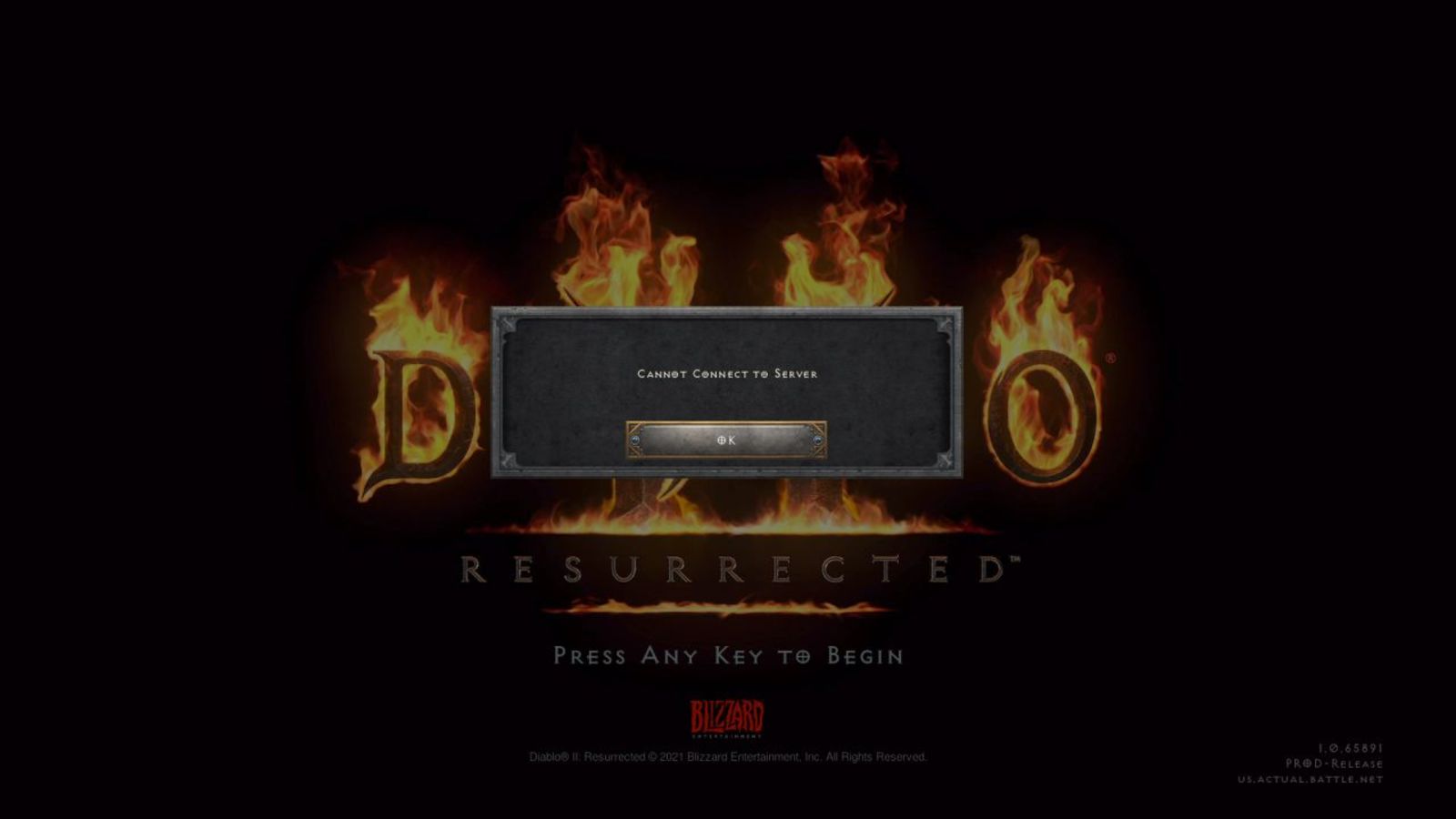
Diablo 2 Resurrected facing server issues
It has been some time since the release of Diablo 2 resurrected and overall reception was pretty good. People are enjoying the old classic game in hi-def. resolution and with new and improved visuals. Sadly some server issues are present still until this day and somewhat spoil the experience for players. diablo 2 server statusThe greatest lag and server crashes are pinpointed to game-creating events. When a player creates a new online game, the server needs to pull a lot of details from the database and make a game, due to some legacy code present this process takes some time and it is demanding a bit on the server-side, and although code was optimized to cater to more modern approach some legacy code still remains. Another thing that was spotted to affect performance itself is player behavior, to be more specific, modern gamer behavior. Where players find good builds and runs on the internet and then go to farm-specific areas or bosses for loot or experience points, which in return boils down to making plenty and short runs that are made by creating games and after run eliminating them. Now pair that with the previous statement about legacy server and database code and you can add 1 and 1 and see how this might be an issue. A lot of short games over legacy code are placing games in a state it was not designed for back in 2001 and therefore we have issues. Sadly solutions without completely rewriting the whole code are not very promising and they include rate limiting, which will prevent players to create many games in succession in a short period of time and maybe even login queues to drop a load on servers. Blizzard reached to people in the whole company, even old diablo 2 developers to ask for advice and they say that they are working on solutions so they could lift limitations and have everything running fine.
Read More
Mouse automatically scrolls up or down
Microsoft has implemented a number of small features in Windows 10 to enhance user productivity. These features make a difference in the overall experience and productivity of users. However, there are times that instead of helping users, these small feature causes some issues instead which causes the computer to function in an unusual way. One of the issues caused by these features is where the Mouse automatically scrolls up or down even without any user intervention. This can get really annoying especially when you’re doing an important task on your computer. So if this bug takes place repeatedly, it can make your computer unusable. If you are currently facing this problem, worry not for this post will guide you on what to do to fix the mouse auto-scrolling issue in your Windows 10 computer. Use the options provided below to fix the mouse auto-scrolling issue.

Option 1 – Try to toggle the appropriate Mouse 10 setting

  • Tap the Win + I keys to open the Settings app.
  • After that, navigate to Devices > Mouse.
  • From there, toggle the “Scroll inactive windows when I hover over them” setting to off.
  • Now restart your computer and see if the issue is resolved.

Option 2 – Try to uninstall the installed Windows Updates recently

The mouse issue might have something to do with a recent update you have installed on your computer. It is possible that there are some recently installed updates that have messed up some settings in your computer. Thus, you can try to uninstall this recent Windows Update to try and fix the problem. Not that the best way to do this is in Safe Mode.
  • Boot your computer into Safe Mode first.
  • Once your computer has restarted, tap the Win + I keys to open the Settings app.
  • Next, click on Update and Security, and from the left side menu column, select Windows Update.
  • After that, select the “View installed update history” option on the right-side column.
  • Then click on Uninstall Updates. This will open a window where you’ll see the list of all the installed updates on your computer.
  • Select the update you want to uninstall and click on the Uninstall button located in the lower-right corner of the window.

Option 3 – Try to run System Restore

You might have made some adjustments in your computer’s settings that caused the issue with the mouse. You can undo those changes using System Restore.
  • Tap the Win + R keys to open the Run dialog box.
  • After that, type in “sysdm.cpl” in the field and tap Enter.
  • Next, go to the System Protection tab then click the System Restore button. This will open a new window where you have to select your preferred System Restore point.
  • After that, follow the on-screen instructions to finish the process and then restart your computer and then check if your mouse is now back to its normal state.
Read More
Software and hardware cleaning tips
Spring is almost here and with spring comes work, nature wakes up, people wake up, no more heating bills, time to start working, and time to start cleaning your PC. Good day everyone and welcome to another tip & trick for your PC. This time we are talking about cleaning your PC and keeping it up to software tight so you are ready for the upcoming spring season. Thank you for being with us and let's start:

Uninstall applications that you are not using

The unused applications can cause many issues for PC, from taking unnecessary disk space to even causing slower boot times if they have active services that require to be all-time up and running. They could slow down other applications like file explorer if they have extensions installed into them and can take RAM space with their background processes. If you are not using a particular application anymore or do not plan to use it soon it is always best practice to delete it from the system and thus removing all services and processes that go with it freeing so much-needed RAM and disc space.

Remove browser extensions you do not need

Browser extensions like applications can cause some issues with PC performance. if you spend a lot of time on the internet browser extensions can slow down browser and page loadings, they can make browsers take up more RAM memory and if they are outdated they could even present a serious security threat. Best practices are to keep only the extensions that you need all time, maybe some password managers or similar, extensions that you use on a daily basis, the rest should be uninstalled.

Remove things from the startup

Many services are booted along with Windows itself, some of them are crucial to the system even working, some not so. By eliminating not-needed services from the startup menu you will make sure that your boot times and overall performance of the system are in healthy form and that your PC is more responsive.

Organize files, folders, and desktop

The speeding of computer is not the only thing that you need to take care of, in order to be prepared and have maximum efficiency you will need to organize your files and folders as well. In a working environment, we often tend to save and place files all over the place, and in time they clog up desktop and hard drives. If the files are not well organized we will lose precious time trying to find anything that we need and require, so instead of wasting your time in locating files, why not organize them for easy and logical search so you can access them easily when needed.

Clean taskbar and start menu

Taskbar and start menu as well can be clogged with icons and non-organized application shortcuts and document shortcuts. Remove everything you do not need for that tidy and easily accessible access.

Sort bookmarks

It is very likely that you have plenty of bookmarks saved in our browser. It is also very likely that these bookmarks are not sorted and organized and now would be a great time to do it. Like files bookmarks also can cause you a lot of time loss if you need to find a specific one in a sea of many.

Run disc cleanup

Built-in disc cleanup utility will find temporary files, unused ones, and plenty of other junk on your hard drive. Now would be a great time to run it and get rid of junk files from your system.

Physically clean your computer

Now when we have taken care of the software part of our computer and system, it is time to clean up the computer itself. Unplug your computer and clean it, we will not go into details of this procedure, there is already an article on our site which deals with this part in detail so look it up if you need assistance with this part.

Clean your peripherals

Besides the computer for effective and pleasant work take care of your screen, keyboard, mouse, printer, etc. All of these devices need to be dust-free and clean if you expect them to behave on top of their game. If you would like to read more helpful articles and tips about various software and hardware visit errortools.com daily.
Read More
New Microsoft Windows 11 store
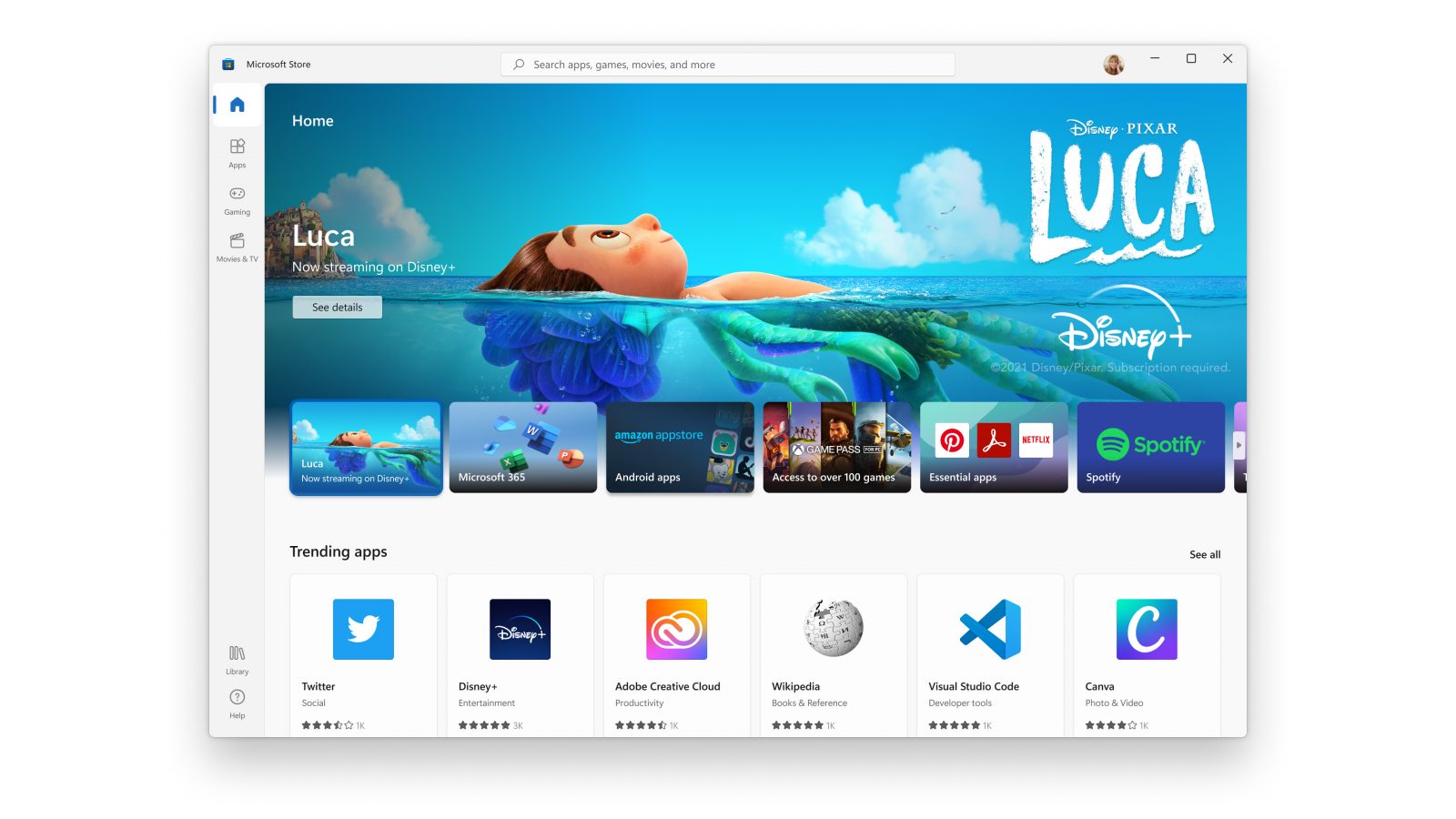
When Microsoft held Windows 11 presentation it took special time to present the upcoming new Windows 11 store as kind of a big deal. It was openly stated that with new Windows we will get a new store with a different attitude and new look.

microsoft storeNew Microsoft store

Microsoft has stated that both customer and developer feedback over time has contributed to their redesign and rethinking of the store itself. They want to be sure that policies for developers are more straightforward and clear so more developers will decide to bring their product to Windows. As for customers, they want more safety and more security so they feel protected when making a purchase. The new store will come in Windows 11 but also in Windows 10 as well via update.

Stories and collections

Introducing the new store will be curated stories. Microsoft believes that stores should be focused on user experience so stories from customers themselves will play a big role here. They are rich editorial content to keep you informed about the best apps and inspire you to achieve more with your device. This approach to information is aimed at bringing unknown applications to users via presenting them in a professional manner. Android apps in the store As stated in Windows 11 unveiling and presentation, Android apps will work inside Windows 11. Microsoft has teamed up with Amazon to bring you Android apps directly inside Windows via the new Microsoft store.

Pop up store from within a browser

When you are surfing on a certain webpage and want to save and install the application from there, a new pop-up store window will show allowing you to install the app directly. Microsoft has not said will this feature work outside their Edge browser so we will have to wait and see about that.

Support for multiple types of applications

Since now developers were tied to certain formats if they wanted to publish their application in any kind of environment. Microsoft wants to bridge this. Windows developers can publish any kind of app, regardless of app framework and packaging technology – such as Win32, .NET, UWP, Xamarin, Electron, React Native, Java, and even Progressive Web Apps. For Progressive Web Apps Microsoft has made open-source tool PWABuilder 3.

Flexibility and choice of commerce platform

Starting July 28, app developers will also have an option to bring their own or a third-party commerce platform in their apps, and if they do so they don’t need to pay Microsoft any fee. They can keep 100% of their revenue.
Read More
FreeMaps Removal Tutorial

FreeMaps is a google chrome extension by Mindspark powered by Ask or MyWay. This extension offers users a quick and easy way to find the routes or locations that they desire. While all of this may seem appealing, this extension was classified as a Browser Hijacker by many anti-virus applications and was marked for removal.

When installed FreeMaps will change your home page, new tab and default search engine to MyWay.com, it will monitor your browsing activity and send it back to Mindspark ad servers. This data is later used/sold to better display targeted ads depending on your search queries.

While browsing the internet with this extension active you will see additional pop-up ads, sponsored links, and injected ads displaying throughout your browsing sessions, and even injected into websites that should be ad-free. Due to poor code optimization, these ads can sometimes cover a part of the page, making it unreadable or inaccessible.

About Browser Hijackers

Browser hijacking is a form of unwanted software, commonly a browser add-on or extension, which then causes modifications in the web browser’s settings. Browser hijackers are capable of doing more than simply changing home pages. These are typically used to force hits to a specific site, manipulating web traffic to earn ad revenue. It could seem naive, but most of such websites aren’t legitimate and could present a major threat to your online safety. As soon as the malware attacks your laptop or computer, it begins to mess things up a whole that slows your computer down to a crawl. In the worse case, you will be forced to tackle serious malware threats too.

How you can know whether the browser is hijacked?

Signs that your web browser is hi-jacked include: your browser’s homepage is suddenly different; bookmark and the new tab are likewise modified; default web engine is modified; find new toolbars which you didn’t add; unstoppable flurries of popup adverts show up on your computer screen; your browser has instability issues or exhibits frequent errors; you cannot visit specific websites such as home pages of anti-malware software.

Exactly how browser hijacker finds its way onto your computer

A browser hijacker could be installed on your PC if you check out an infected website, click an e-mail attachment, or download something from a file-sharing website. They can also be deployed via the installation of a web browser toolbar, extension, or add-on. Some browser hijackers spread in user’s computer systems by using a deceptive software distribution method known as “bundling” (usually through freeware and shareware). Typical examples of browser hijackers include Conduit, CoolWebSearch, OneWebSearch, Coupon Server, RocketTab, Searchult.com, Snap.do, and Delta Search. Browser hijackers can record user keystrokes to gather potentially invaluable information that leads to privacy issues, cause instability on systems, drastically disrupt user’s browsing experience, and eventually slow down the system to a point where it becomes unusable.

Tips on how to remove browser hijackers

Some types of browser hijackers can be removed from your PC by deleting malicious software applications or any other recently installed shareware. Having said that, many hijackers are very tenacious and require specialized tools to eliminate them. You should think of carrying out manual repairs only if you are a tech-savvy person since there are dangers associated with messing around with the computer registry and HOSTS file. Professionals always suggest users to remove any malicious software including browser hijacker with an automatic malware removal tool, which is better, safer and faster than the manual removal procedure. One of the best tools for repairing browser hijacker malware is SafeBytes Anti-Malware. It will help you remove any pre-existing malicious software in your pc and provides you real-time monitoring and protection against the latest threats.

How To Install Safebytes Anti-Malware On An Infected Computer

All malware is inherently harmful, but certain kinds of malware do a lot more damage to your computer or laptop than others. Certain malware goes to great lengths to prevent you from downloading or installing anything on your PC, especially antivirus applications. So what should you do if malware prevents you from downloading or installing Safebytes Anti-Malware? Follow the instructions below to get rid of the malware in alternate ways.

Start Windows in Safe Mode

In the event the malware is set to run at Windows start-up, then booting in safe mode should avoid it. Only the bare minimum required programs and services are loaded when you start your PC in Safe Mode. Here are the steps you should follow to start your computer into the Safe Mode of your Windows XP, Vista, or 7 computers (visit Microsoft website for directions on Windows 8 and 10 computers). 1) Hit the F8 key repeatedly as soon as your PC boots, however, before the big Windows logo or black screen with white texts comes up. This should bring up the Advanced Boot Options menu. 2) Use the arrow keys to choose Safe Mode with Networking and press ENTER. 3) As soon as this mode loads, you will have an internet connection. Now, obtain the malware removal software you want by utilizing the internet browser. To install the program, follow the directions within the setup wizard. 4) After installation, run a full scan and let the program get rid of the threats it discovers.

Obtain the anti-malware software in a different internet browser

Some malware mainly targets specific browsers. If this sounds like your case, employ another web browser as it could circumvent the virus. If you appear to have malware attached to Internet Explorer, then switch to an alternate internet browser with built-in safety features, such as Chrome or Firefox, to download your preferred antivirus program – Safebytes.

Install antivirus on a flash drive

Here’s yet another solution which is using portable USB anti-malware software that can scan your system for viruses without the need for installation. Abide by these steps to run the anti-virus on the affected computer system. 1) Download Safebytes Anti-Malware or Microsoft Windows Defender Offline onto a virus-free PC. 2) Insert the USB drive into the clean PC. 3) Double click on the exe file to open the installation wizard. 4) Select the flash drive as the location for saving the software file. Follow activation instructions. 5) Transfer the thumb drive from the uninfected computer to the infected PC. 6) Double-click the Safebytes Anti-malware icon on the pen drive to run the program. 7) Press the “Scan Now” button to start the virus scan.

Protect your PC from Malware With SafeBytes Security Suite

In order to protect your computer from many different internet-based threats, it is important to install an anti-malware application on your laptop. However, with so many anti-malware companies out there, these days it’s tough to decide which one you should purchase for your PC. Some of them are great while some are scamware applications that pretend as legit anti-malware programs waiting around to wreak havoc on your PC. You have to be very careful not to pick the wrong product, especially if you purchase a premium application. When it comes to commercial anti-malware software options, the majority of people go with popular brands, like SafeBytes, and they are very happy with it. SafeBytes anti-malware is a highly effective and user-friendly protection tool that is designed for end-users of all levels of computer literacy. This program could easily detect, remove, and protect your PC from the latest malware intrusions including adware, spyware, trojan horses, ransomware, parasites, worms, PUPs, along with other potentially harmful software applications.

SafeBytes has fantastic features when compared with other anti-malware programs. The following are some of the great features included in the software.

Live Protection: SafeBytes gives real-time active supervision and protection from all known viruses and malware. It’ll continuously monitor your pc for hacker activity and also provides end-users with advanced firewall protection. World-class AntiMalware Protection: Safebytes is built on the best virus engine in the industry. These engines will detect and remove threats even during the initial stages of a malware outbreak. Safe Browsing: SafeBytes inspects the hyperlinks present on a web page for possible threats and tells you whether the website is safe to explore or not, through its unique safety rating system. “Fast Scan” Features: Safebytes AntiMalware, using its advanced scanning engine, gives ultra fast scanning which can quickly target any active online threat. Lowest CPU/Memory Usage: This software is lightweight and can work quietly in the background, and will not impact your computer efficiency. Premium Support: You can get 24/7 technical assistance to immediately resolve any issue with your security application. To conclude, SafeBytes Anti-Malware is really great for securing your laptop or computer against all kinds of malware threats. Now you may realize that this particular software does more than just scan and eliminate threats in your PC. If you’re searching for the best malware removal application out there, and if you don’t mind spending some dollars for it, go for SafeBytes Anti-Malware.

Technical Details and Manual Removal (Advanced Users)

If you’d like to manually get rid of FreeMaps without the use of an automated tool, it may be actually possible to do so by removing the program from the Microsoft Windows Add/Remove Programs menu, or in cases of browser extensions, going to the browser’s AddOn/Extension manager and removing it. It’s also suggested to factory reset your browser settings to their default state. If you opt to manually remove the system files and registry entries, use the following list to ensure that you know precisely what files to remove before executing any actions. Please remember that this is for professional users only and may be challenging, with incorrect file removal resulting in additional PC errors. In addition, certain malware is capable of replicating or preventing removal. Completing this task in Safe Mode is advised.
Files: %LOCALAPPDATA%\FreeMapsTooltab\TooltabExtension.dll %TEMP%\nsf516A.tmp\nsDialogs.dll %TEMP%\nsf516A.tmp\System.dll %APPDATA%\Microsoft\Windows\Cookies\[email protected][1].txt %LOCALAPPDATA%\Microsoft\Internet Explorer\Recovery\High\Active\RecoveryStore.E9B13F93-5957-11E6-93FC-0A00273BA4BE.dat %LOCALAPPDATA%\Microsoft\Windows\Temporary Internet Files\Content.IE5\T1CS2ORS\installerParams[1].jhtml %TEMP%\nsf516A.tmp\installerParams
Read More
Fix 0x00000016 Blue Screen Error
If you are a gamer, you might have encountered either the CID HANDLE CREATION or VIDEO TDR ERROR errors with an error code of 0x00000016 as you play a game. These kinds of Stop errors have something to do with the Graphics card driver. It could be that your Graphics card driver needs to be updated or it may be corrupted. Whichever the case is, you can try fixing this error using the given solutions below but before you proceed, make sure to create a System Restore Point first so that you can easily roll back to the previous state of your computer in case something does not go as expected.

Option 1 – Try checking if your graphics card is enabled and update it as well

Although the problem is quite massive, the fix could be as simple as enabling the graphics card if it turns out to be disabled. There might be some strange reason why your graphics card disables itself. Thus, the best and first option you can try is to check if the graphics card is enabled or not. To do so, follow these steps:
  • Tap the Win + R keys to open the Run dialog box.
  • Then type “devmgmt.msc” in the field and hit Enter to open the Device Manager.
  • After opening the Device Manager, look for your graphics card option among the list of device drivers. Once you found it, check if it is enabled or not. If it’s not enabled, you should see a gray arrow pointing downwards. Right-click on the card and select Enabled.
  • Next, right-click on the graphics card once more and click on the Update Driver Software option and then click on the “Search automatically for updated driver software” option.

Option 2 – Reinstall the Graphics card drivers

  • Tap Win + R to open Run then type “devmgmt.msc” in the field and hit Enter to open the Device Manager.
  • From there, look for the Display adapters and uninstall each one of the graphics card drivers by right-clicking on them and selecting the Uninstall device option.
  • After uninstalling the graphics card drivers, close the Device Manager and tap Win + R to open Run once again.
  • After that, type “appwiz.cpl” in the field and hit Enter to open Programs & Features in the Control Panel.
  • Next, look for any program that’s related to your GPU manufacturers like Nvidia, AMD, or Intel. Right-click on any GPU-related entry and click on Uninstall to uninstall them and then follow the next on-screen instructions that appear afterward.
  • Now restart your computer.
  • Once your computer has restarted, go to the GPU manufacturer’s website and download the latest driver version for your graphics card model and then install it.
  • Restart your computer once again. That should fix the problem.

Option 3 – Try reinstalling the game

If updating and reinstalling your Graphics card driver didn’t help, then you can try to reinstall the game where you’re getting the CID HANDLE CREATION or VIDEO TDR ERRORS.

Option 4 – Uninstall the programs you installed recently

Chances are, some programs that you just installed might be the one that’s causing the BSOD error. Thus, you need to uninstall the program to resolve the problem.
  • In the search box, type in “control” and then click on Control Panel (desktop app) among the search results.
  • After that, select Programs and Features from the list which will give you a list of all the programs installed on your computer.
  • From there, look for the concerned program and select it and then uninstall it.
Note: If you have downloaded the app from the Windows Store, you can simply right-click on it from the application list and then uninstall it. In addition, you might also want to check the hardware components of your computer that might not support the operating system itself. You can disconnect all the external devices like USB drives, scanners, printers, etc., and then reboot your PC. After that, add the devices again one after the other and check if the BSOD error is now fixed or not.

Option 5 – Try disabling your monitor’s Sleep functionality

There are times when the Sleep functionality of your monitor can also cause BSOD errors like CID HANDLE CREATION or VIDEO TDR errors. There are also times when the graphics card is running in the background and the display goes to sleep and then it’s turned back on but you encounter this kind of Blue Screen error. This is why you can try to disable your computer monitor’s Sleep mode.

Option 6 – Run the Blue Screen Troubleshooter

The Blue Screen troubleshooter is a built-in tool in Windows 10 that helps users in fixing BSOD errors like CID HANDLE CREATION or VIDEO TDR errors. It can be found on the Settings Troubleshooters page. To use it, refer to these steps:
  • Tap the Win + I keys to open the Settings panel.
  • Then go to Update & Security > Troubleshoot.
  • From there, look for the option called “Blue Screen” on your right-hand side and then click the “Run the troubleshooter” button to run the Blue Screen Troubleshooter and then follow the next on-screen options. Note that you might have to boot your PC into Safe Mode.

Option 7 – Try to run the Chkdsk utility

Running the CHKDSK utility might also help you resolve the CID HANDLE CREATION or VIDEO TDR errors. If your hard drive has issues with integrity, the update will really fail as the system will think that it’s not healthy and that’s where the CHKDSK utility comes in. The CHKDSK utility repairs hard drive errors that might be causing the problem.
  • Open Command Prompt with admin privileges.
  • After opening Command Prompt, execute the following command and hit Enter:
chkdsk /f /r
  • Wait for the process to be completed and then restart your computer.
Read More
1 2 3 171
Logo
Copyright © 2023, ErrorTools. All Rights Reserved
Trademark: Microsoft Windows logos are registered trademarks of Microsoft. Disclaimer: ErrorTools.com is not affiliated with Microsoft, nor claims direct affiliation.
The information on this page is provided for information purposes only.
DMCA.com Protection Status