Logo

Windows 10 Power Toys detailed guide

Hello and welcome everyone, today we will be talking about power toys, a great, completely free, open-source, Microsoft-supported Windows project which aims to provide Windows itself with powerful features not found natively in it.

We will explore power toys completely here and explain each module and its features.

The first thing is of course to download power toys themselves. You can find them here. After you download them, double click on the downloaded file and install. Start power toys, you will find them at the bottom of the taskbar, note that power toys need to be active in order to use their features.

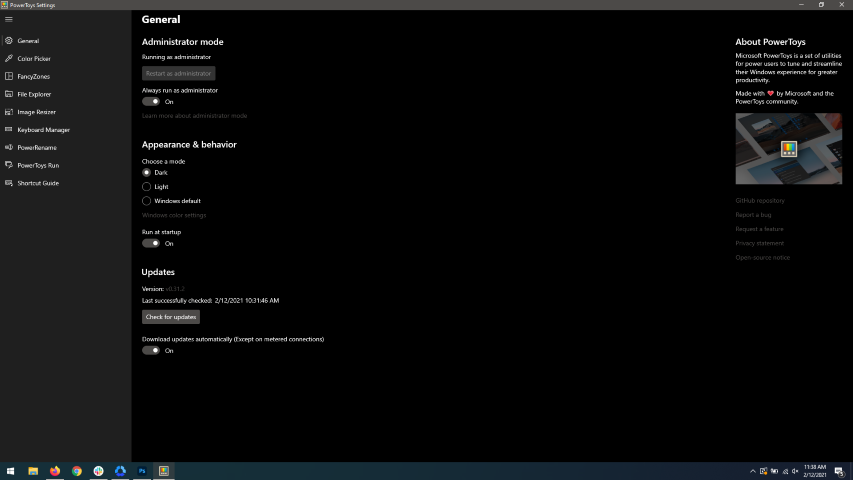
power toysWhen opened you will be greeted with general settings window. These are settings for power toys themselves, Here you can check for updates, change the looks of power toys, run it on system startup and run them as administrator. Set them up so they best suit your needs.

Color Picker

Moving down next tab we have is Color picker.

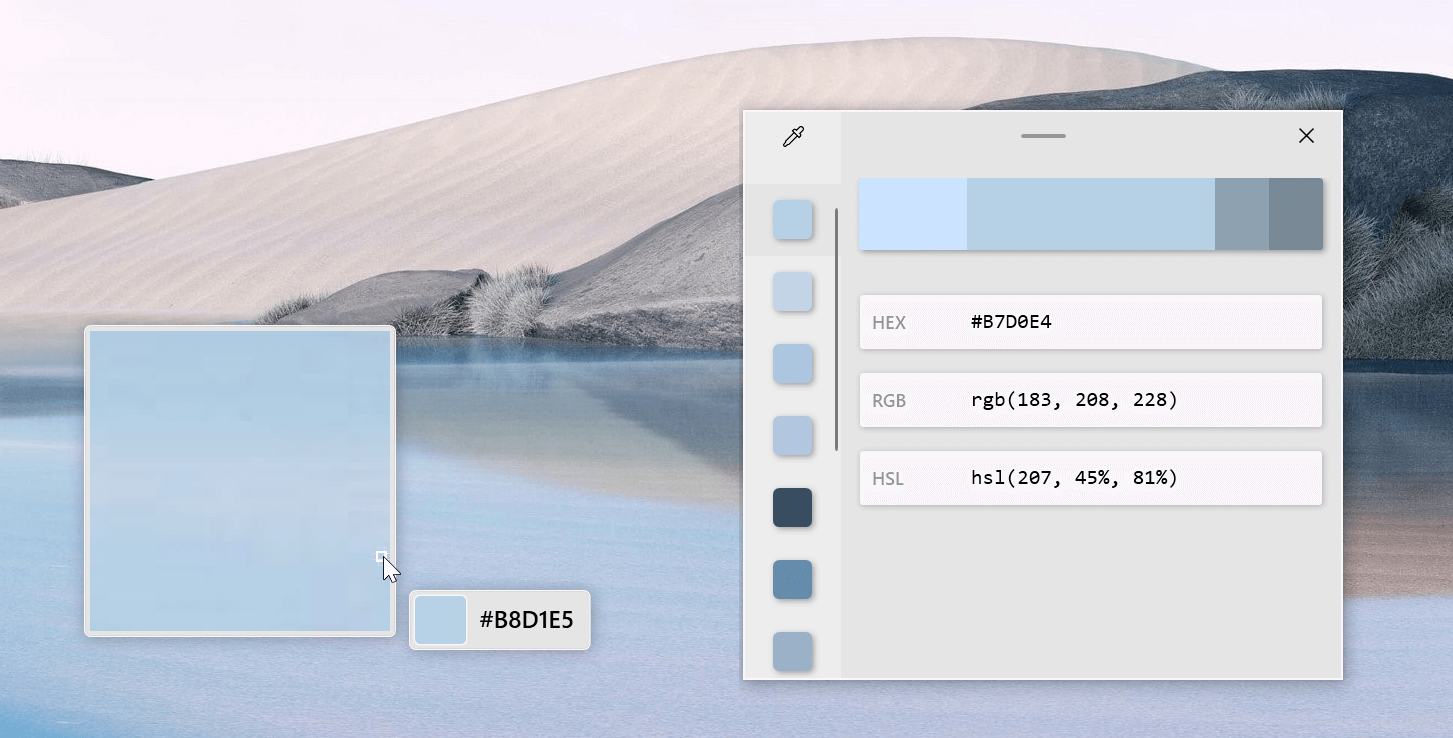
power toys colorpicker hex editorThe color picker will let you as the name suggests pick colors, it will sample colors from running applications and windows, snap their values, and place them in the clipboard. A useful application if you are working as a graphic designer, want to create some cool word document, or just want to compare the difference between colors.

After the Color Picker is activated, hover your mouse cursor over the color you would like to copy and left-click the mouse button to select a color. If you want to see the area around your cursor in more detail, scroll up to zoom in. The copied color will be stored in your clipboard in the format that is configured in the settings (HEX by default). The editor lets you see the history of picked colors (up to 20) and copy their representation in any predefined string format. You can configure what color formats are visible in the editor, along with the order that they appear. This configuration can be found in PowerToys settings. The editor also allows you to fine-tune any picked color or get a new similar color. Editor previews different shades of currently selected color - 2 lighter and 2 darker ones. Clicking on any of those alternative color shades will add the selection to the history of picked colors (appears on the top of the colors history list). Color in the middle represents your currently selected color from the history of the colors. By clicking on it, the fine-tuning configuration control will appear, which will let you change the HUE or RGB values of the current color. Pressing OK will add newly configured color into the history of the colors.

Fancy Zones

Moving down, we have fancy zones.

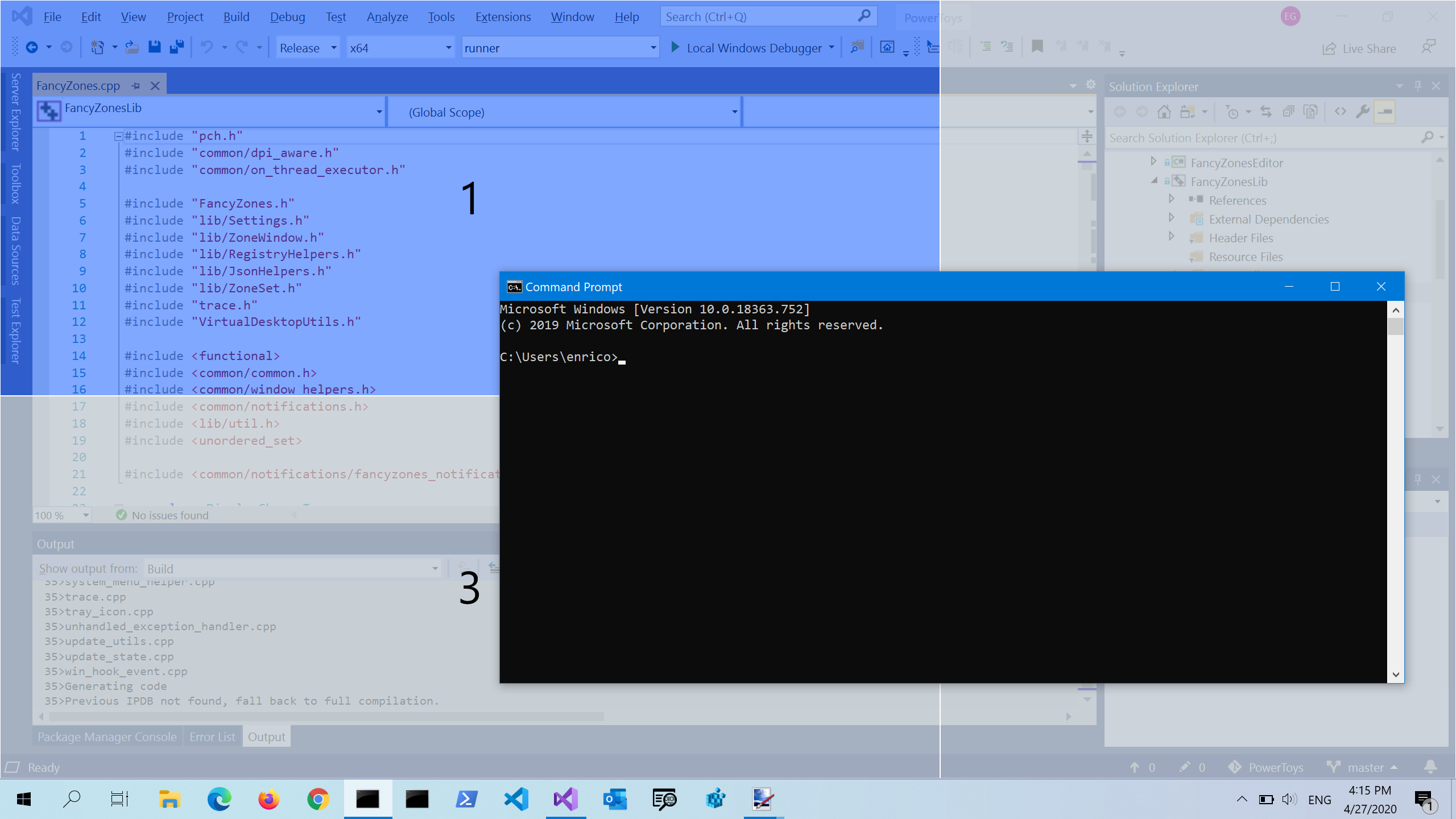
power toys fancy zonesFancyZones is a window manager utility for arranging and snapping windows into efficient layouts to improve the speed of your workflow and restore layouts quickly. FancyZones allows the user to define a set of window locations for a desktop that are drag targets for windows. When the user drags a window into a zone, the window is resized and repositioned to fill that zone. When first launched, the zones editor presents a list of layouts that can be adjusted by how many windows are on the monitor. Choosing a layout shows a preview of that layout on the monitor. The selected layout is applied automatically.

File Explorer

Next, File Explorer.

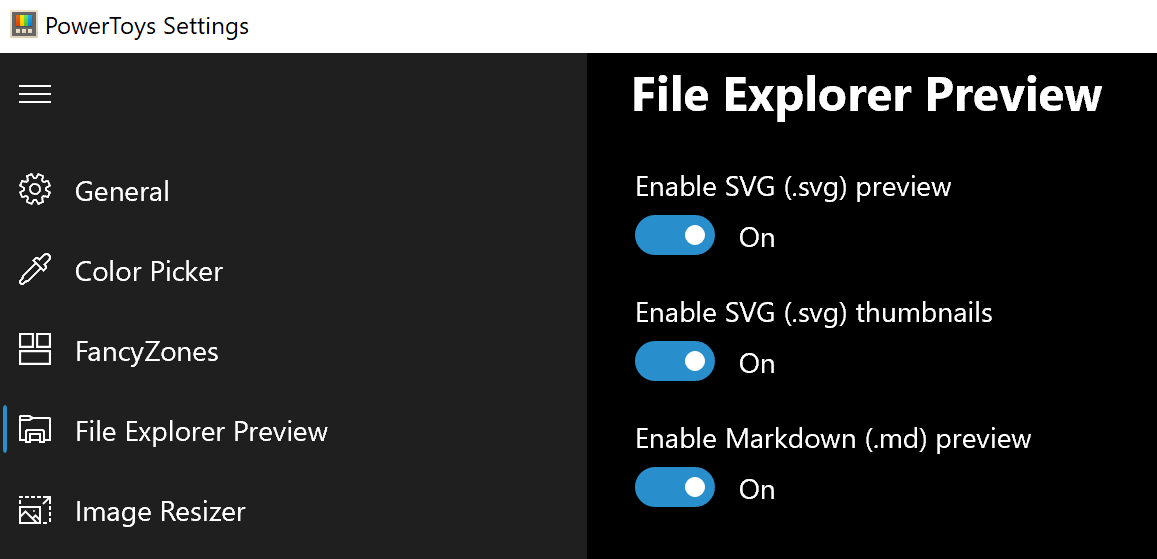
power toys settings file explorerOnly 3 options here but maybe some are important to you. This extension lets you enable SVG file preview in File Explorer, enable Markdown preview, and enable SVG thumbnails. Turn on each one you might need.

Image Resize

Next down the line, we have Image resize.

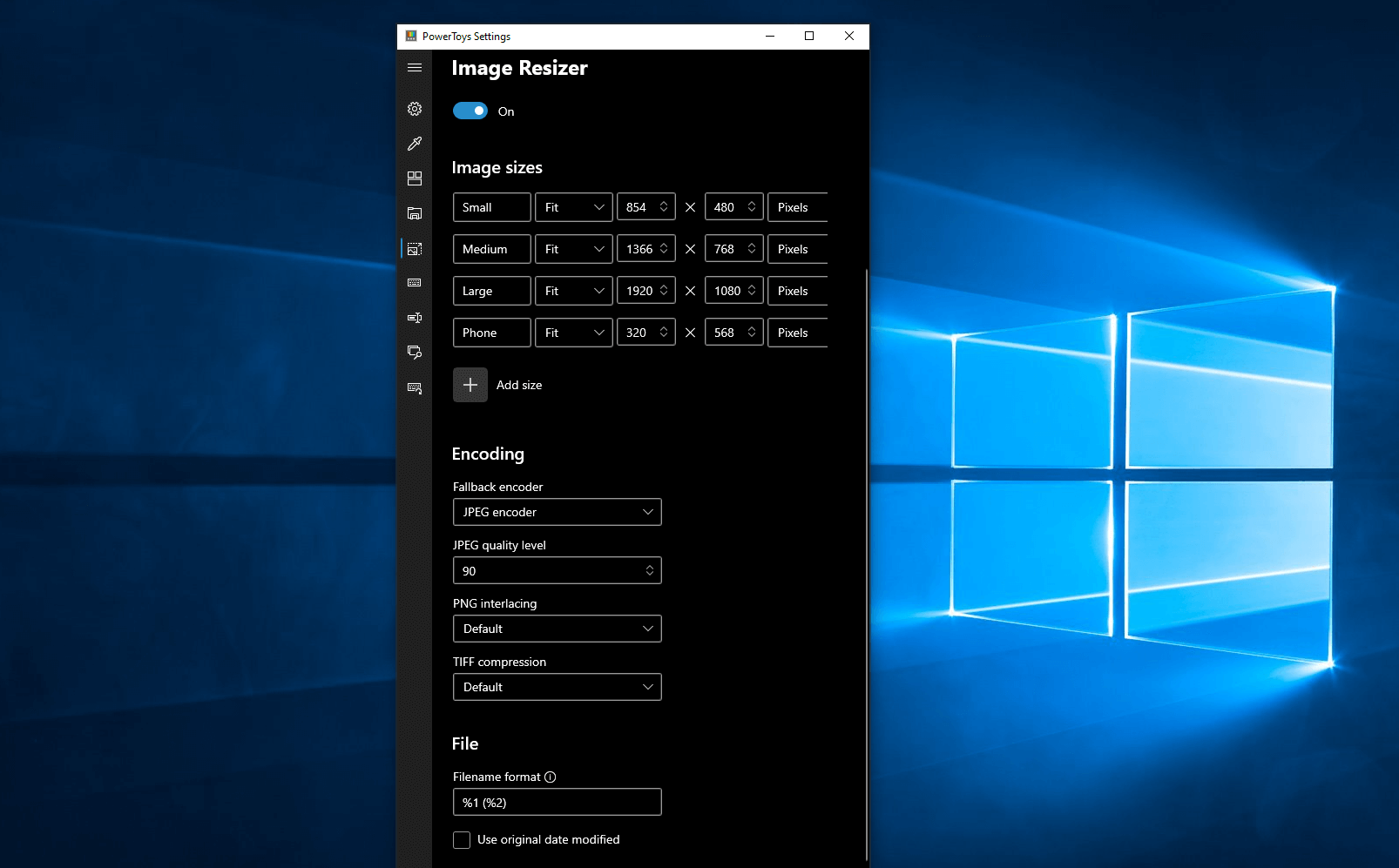
power toys image resizeImage Resizer is a Windows shell extension for bulk image-resizing. After installing PowerToys, right-click on one or more selected image files in File Explorer, and then select Resize pictures from the menu. You can specify your own sizes if you want, you can resize when dragging files, you can overwrite files or make new copies of new sizes, and many more options. A very useful tool I am sure plenty of users can use since this eliminates the need for pictures or any other image application for common resizing tasks.

Keyboard Manager

The keyboard manager is the next tab in power toys.

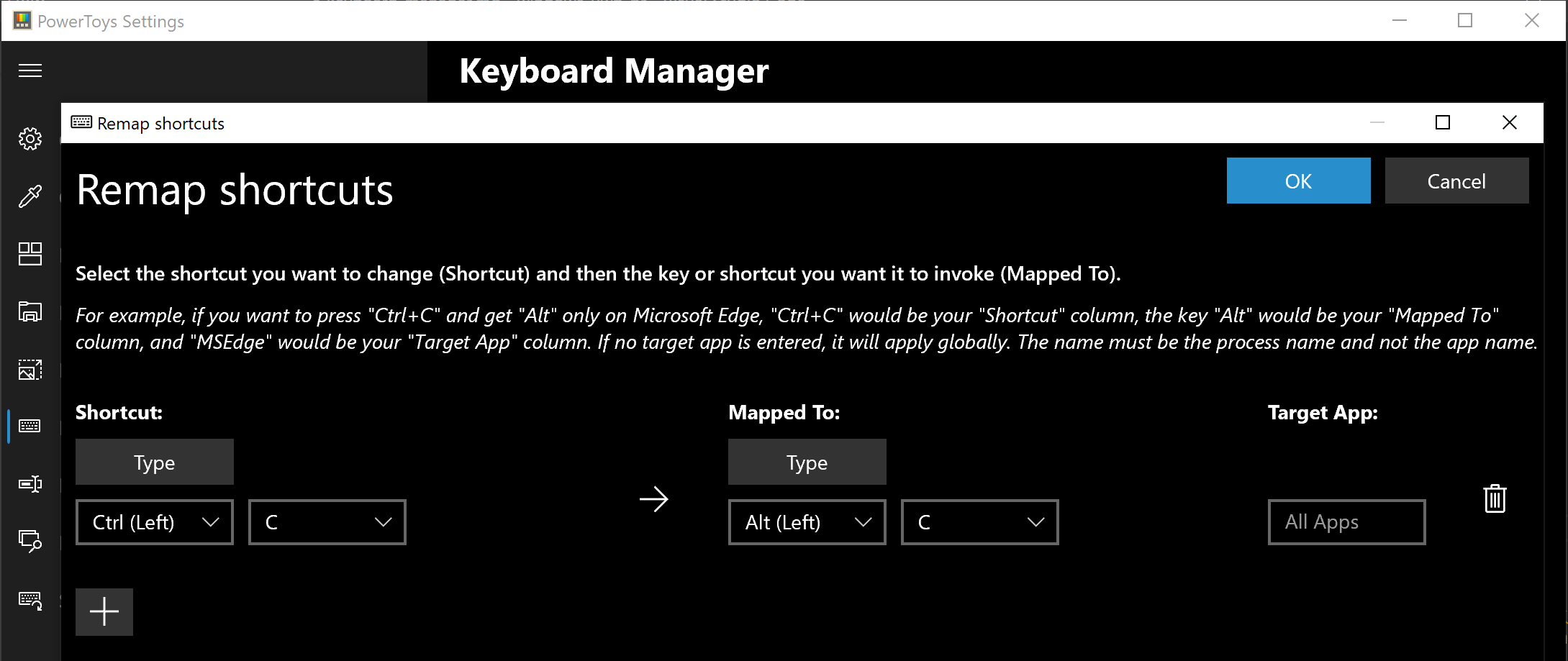
power toys keyboard shortcutsThe PowerToys Keyboard Manager enables you to redefine keys on your keyboard. For example, you can exchange the letter A for the letter D on your keyboard. When you select the A key, a D will display. You can also exchange shortcut key combinations. For example, the shortcut key, Ctrl+C, will copy the text in Microsoft Word. With the PowerToys Keyboard Manager utility, you can exchange that shortcut for ⊞ Win+C). Now, ⊞ Win+C) will copy text. If you do not specify a targeted application in PowerToys Keyboard Manager, the shortcut exchange will be applied globally across Windows. PowerToys Keyboard Manager must be enabled (with PowerToys running in the background) for remapped keys and shortcuts to be applied. If PowerToys is not running, key remapping will no longer be applied.

Power Rename

Nex we have a very cool and powerful Power Rename

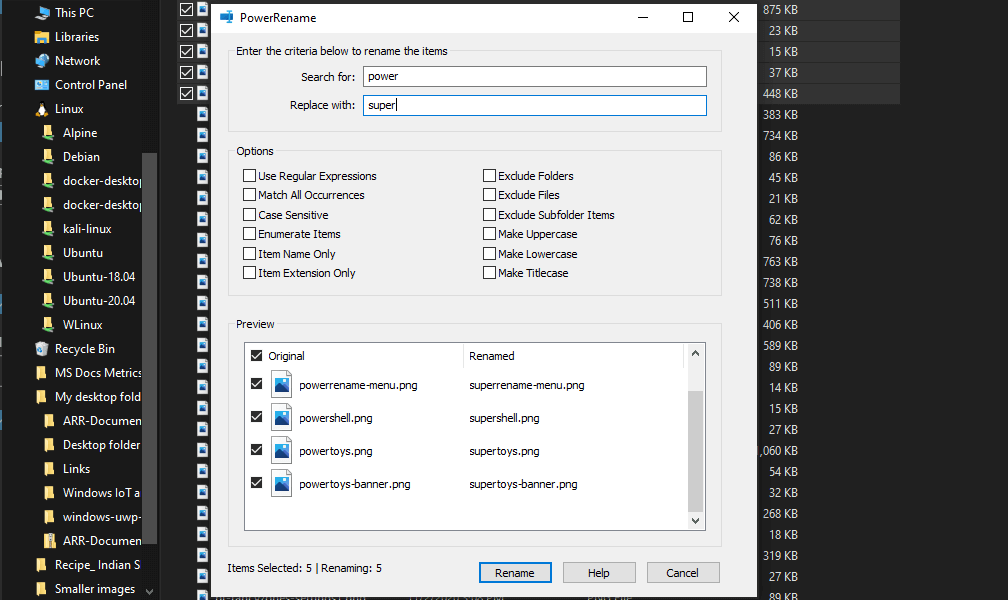
power toys power renamePowerRename is a bulk renaming tool that enables you to:

  • Modify the file names of a large number of files (without renaming all of the files with the same name).
  • Perform a search and replace on a targeted section of file names.
  • Perform a regular expression rename on multiple files.
  • Check expected rename results in a preview window before finalizing a bulk rename.
  • Undo a rename operation after it is completed.

Run Utility

Power Toys Run utility follows next.

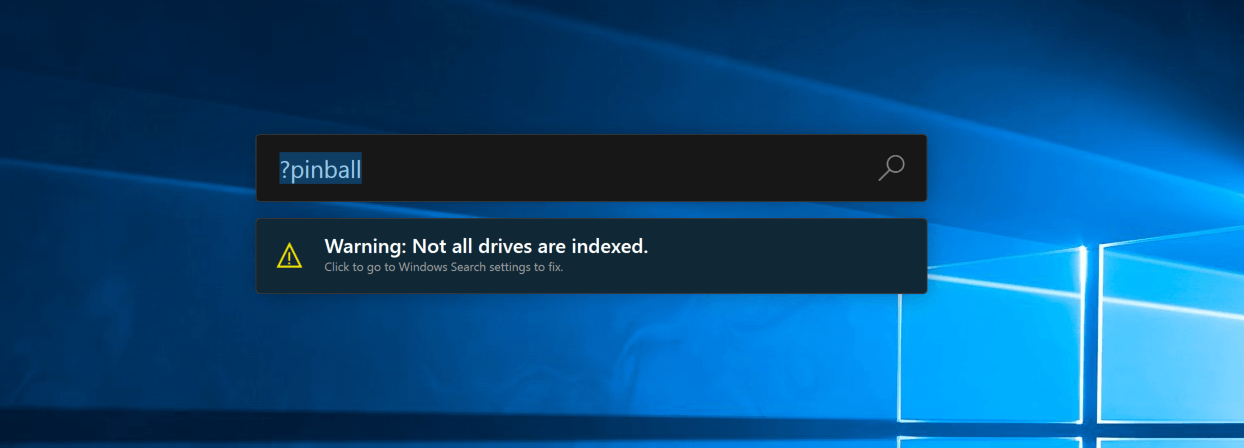
power toys run warningPowerToys Run is a quick launcher for power users that contains some additional features without sacrificing performance.

PowerToys Run features include:

  • Search for applications, folders, or files
  • Search for running processes (previously known as WindowWalker)
  • Clickable buttons with keyboard shortcuts (such as Open as the administrator or Open containing folder)
  • Invoke Shell Plugin using > (for example, > Shell:startup will open the Windows startup folder)
  • Do a simple calculation using the calculator

Shortcut Guide

Last but not least we have a Shortcut guide.

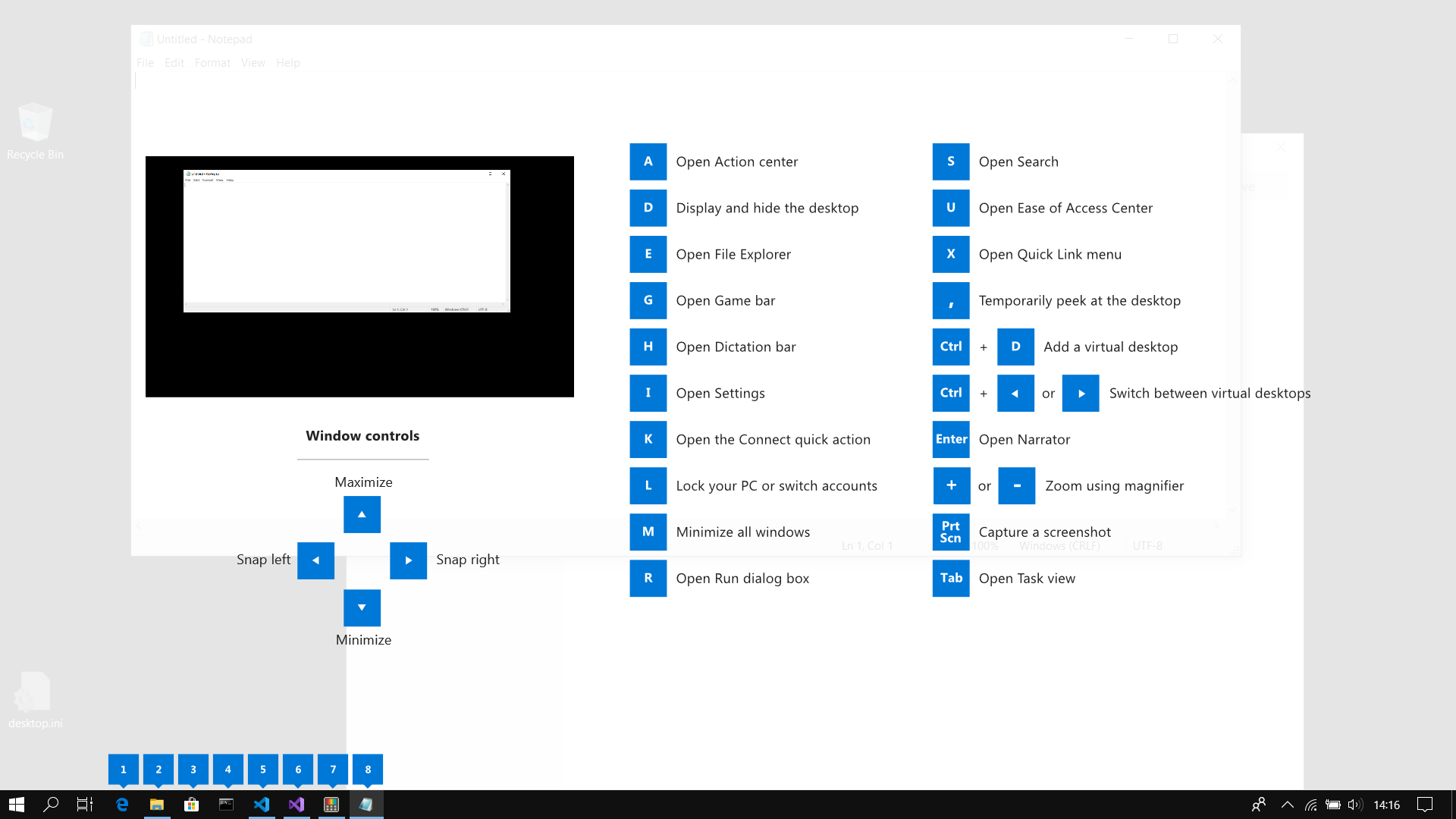
power toys shortcut guide largeThis guide uses PowerToys to display common keyboard shortcuts that use the Windows ⊞ key. Windows key keyboard shortcuts can be used while the guide is being shown and the result of those shortcuts (active window moved, arrow shortcut behavior changes, etc) will be displayed in the guide. Releasing the Windows ⊞ key will make the overlay disappear. Tapping the Windows ⊞ key will display the Windows Start menu.

Hey, you made it till the end, thank you for reading and I hope to see you soon.

Do You Need Help with Your Device?

Our Team of Experts May Help
Troubleshoot.Tech Experts are There for You!
Replace damaged files
Restore performance
Free disk space
Remove Malware
Protects WEB browser
Remove Viruses
Stop PC freezing
GET HELP
Troubleshoot.Tech experts work with all versions of Microsoft Windows including Windows 11, with Android, Mac, and more.

Share this article:

You might also like

How to Fix the File Too Large Error in Windows 10
If you are trying to copy large files that are over 4GB to a USB flash drive or SD card, but you suddenly get an error message saying, “File Too Large, The file is too large for the destination file system”, read on as this post will help you fix this problem. A user recently reported that while trying to copy a 4.8GB zipped file from a Windows 10 PC to a new 8GB USB drive but only got the File Too Large error message instead. If you share the same problem with this user and you know that there is more than enough available space for the file in your USB drive or SD card, continue reading until you get to the instructions provided in this post so that you will be able to copy the file successfully. It is most likely that the USB drive has been FAT32 formatted which is why you’re unable to copy the file and got an error. The FAT32 file system has a built-in limitation on the size of the individual file that it may contain. For instance, it’s 4GB so even though collectively, it may have files or even 1TB individually it shouldn’t be more than 4GB. Thus, you need to change the file system from FAT32 to NTFS. To do that, carefully follow the instructions provided below.
  • Step 1: Connect the USB drive and open the Windows File Explorer.
  • Step 2: Afterwards, right-click on the USB drive letter and select Format from the context menu.
  • Step 3: Next, select NTFS instead of FAT32 the instant a dialog box appears from the drop-down menu for the file system.
  • Step 4: Now click on the Quick Format option and then click the Start button to reformat the USB drive.
Note: There is also another way you can change the file system. In this alternative way, you need to open an elevated Command Prompt and type the convert X: /fs:ntfs /nosecurity command, and hit Enter to execute it. Remember that in this command, “X” is the letter of your USB drive so whatever the letter of your drive is, you need to make sure to put it instead of “X”. Once the process is completed, try copying the file again.
Read More
Fix Device requires further installation Error
If you are trying to connect an external device to your computer but you suddenly encounter an error that says, “Device requires further installation”, then you’ve come to the right place as this post will guide you on how exactly you can fix this error. In most cases, USB sticks, headphones, speakers, and other external devices, install drivers automatically once you connect them to your computer which means that the drivers are downloaded and installed in the system as soon as the external device is plugged in. However, if the driver has become corrupted or outdated, you might encounter an error like the
“Device requires further installation”
Aside from corrupted or outdated drivers, the error could also be caused by pending updates, an incorrect version of the Intel PROSet Wireless driver, or checking the wrong event. Whatever the cause is, this post will provide you with some potential fixes that can help you resolve the problem. But before you troubleshoot the problem, ensure that your Windows 10 computer is updated to its latest version and you must also not forget to check that you’re checking the correct event on the Event Viewer. Once you have these things covered, proceed to the instructions below.

Option 1 – Try to update the device drivers to the latest version

One of the most likely root causes of the “Device requires further installation” error is either outdated or corrupted drivers in your computer. This kind of problem is more common on several devices like scanners and printers for which the drivers are provided with them.
  • First, boot your computer into Safe Mode.
  • After that, tap the Win + R keys to launch Run.
  • Type in devmgmt.msc into the box and tap Enter or click OK to open the Device Manager.
  • After that, a list of device drivers will be displayed. From there, look for any outdated device drivers and click on each one of them.
  • After that, right-click on each entry of the device drivers and select the “Uninstall Device” option from the menu.
  • Now restart your computer.
  • After restarting your computer, go to the Settings app and Check for Updates in the Windows Update section.
Note: You also opt to download the latest versions of the device drivers directly from the website of the manufacturer. Once you’ve downloaded them, you can install them into your computer right away and then try connecting the external device again. On the other hand, you can also try to reinstall the device drivers.

Option 2 – Try to install the latest version of the Intel PROSet Wireless driver

A lot of users who experience the problem reported that their wireless driver wasn’t also working properly and it was then found that it was caused by the outdated Intel PROSet wireless driver. Thus, to fix the problem, you need to install the latest version of this driver from the intel.com website and install it on your computer. When you download the driver, make sure that your computer is running an Intel system and then download the correct driver depending on whether your computer is a 64-bit system or a 32-bit one.
Read More
How to Fix Task Scheduler Error 0x80070057
One of the important functions in the Windows operating system is the Task Scheduler. It can automatically run various tasks at a certain time where you’ll have to add a task that needs to be executed and then choose the time it has to run at. So when that time comes, the Task Scheduler will run the task automatically. However, some users reported getting an Error 0x80070057 where the Task Scheduler fails to start. This kind of error may be due to a disabled service that prevents the service from running. It is also possible that the antivirus program interfered with the task – it could be that the Task Scheduler is somewhat in the block list since the antivirus adds it to the list automatically when it’s installed. On the other hand, it could be that you lack administrator-level privilege which is why the Task Scheduler was not able to carry out the task. To fix this issue, here are some suggestions you can try.

Option 1 – Try to restart the Task Scheduler service

As mentioned, it is possible that the Task Scheduler service could be disabled. You could have disabled it when trying to enhance your computer’s performance and whatnot. Thus, you need to verify if it’s running or not and then restart it.
  • First, you need to tap the Win + R keys on your keyboard to open the Run dialog box.
  • Next, type “services.msc” in the field and click OK or tap Enter to open the Windows Services Manager.
  • You will see a list of Services and from there, look for the Task Scheduler service and double click on it.
  • After that, go to the General tab and click on the Startup Type options and then select “Automatically” from the given list.
  • Click on the “RUN” option and select the “Restart the Service” option.
  • And click on the “After Second Failure” option and then select the “Restart-Service” option again.
  • Now click on the “After Subsequent Failures” tab and select the “Restart the Service” option.
  • Finally, click on the Apply and OK buttons and then run the Task Scheduler and see if the issue is now fixed.

Option 2 – Try to temporarily disable the anti-virus program

As mentioned, the error could be due to the antivirus program or the Windows Defender Firewall installed in your computer. Thus, disabling them or any security software installed on your computer is always a good idea you can try when you’re not able to access the shared drive on your computer. There are times when you encounter problems like the Task Scheduler Error 0x80070057 due to interference of antivirus or security programs. Thus, you have to disable both your antivirus program for the meantime and check if it fixes the error or not.

Option 3 – Run the Task Scheduler with an administrator account

Like pointed out, the Task Scheduler Error 0x80070057 may be due to the lack of admin privileges. Thus, you have to log in to an administrator account and try running the Task Scheduler again. It is also recommended that the administrator account you’re going to use as a password when logging in.

Option 4 – Repair the Task Scheduler by deleting corrupted tasks

Note that a single corrupted file can cause big problems so this option is quite important. And for you to delete a corrupted task or any task from the Task Scheduler, you have to use the Registry Editor if you are not able to use the Task Scheduler interface. To do so, follow these steps:
  • Tap the Win + R keys to open the dialog box for Run.
  • Next, type in Regedit and click on OK or tap Enter to open the Registry Editor.
  • Then navigate to this path: ComputerHKEY_LOCAL_MACHINESOFTWAREMicrosoftWindows NTCurrentVersionScheduleTaskCacheTree
Note: In this path, you can see all the tasks that are currently set in the Task Scheduler. And since it would be hard to tell which one of them is corrupted, you have to delete the latest one in Task Scheduler last. But before you do so, make sure that you take note of the ID of the tasks. And for you to get the ID, you have to select the task you wish to delete and double click on the ID string located on your right-hand side, and then copy it in the Notepad.
  • Right-click on the task name and then delete it.
  • After that, delete the very same GUID which you have copied earlier from these folders:
  • ComputerHKEY_LOCAL_MACHINESOFTWAREMicrosoftWindows NTCurrentVersionScheduleTaskCacheBoot
  • ComputerHKEY_LOCAL_MACHINESOFTWAREMicrosoftWindows NTCurrentVersionScheduleTaskCacheLogon
  • ComputerHKEY_LOCAL_MACHINESOFTWAREMicrosoftWindows NTCurrentVersionScheduleTaskCacheMaintenance
  • ComputerHKEY_LOCAL_MACHINESOFTWAREMicrosoftWindows NTCurrentVersionScheduleTaskCachePlain
  • ComputerHKEY_LOCAL_MACHINESOFTWAREMicrosoftWindows NTCurrentVersionScheduleTaskCacheTasks
Note: You might not see the same GUID from these folders but if you see it, delete it right away.
  • Next, navigate to this location: C:/Windows/System32/Tasks
  • Delete the very same tasks you just deleted from the Registry Editor.
  • Restart your PC and check if the Task Scheduler is back to its normal state or not.
Read More
How to Resolve HP Printer Spooler Not Running Error

HP Printer Spooler Not Running - What is it?

If you have the HP printer, then you may come across this error. HP Printer Spooler not running errors does not mean there is anything wrong with your printer. It indicates printer driver issues.

Solution

Restoro box imageError Causes

There can be multiple causes behind the HP printer Spooler not running error code such as:
  • The poor or unsuccessful printer driver installation
  • Invalid registry entries
Though this is not a critical error code as it does not pose serious damage threats to your PC, however, it is advisable to resolve it as it can cause you a great deal of inconvenience especially if you want to take out printouts every now and then.

Further Information and Manual Repair

Here are some ways you can try to resolve HP Printer Spooler Not Running Error on your system: 1. Reinstall the HP Printer driver on Your System
  • Simply go to the control panel and then click on the Device Manager option
  • Once you click it you will see details pane with a list of devices. Now simply click on the printer, to reinstall the driver software.
  • Double click on it to open the properties dialog box
  • After that click on the driver tab and then click update driver
Once you update the driver, try using the Printer to see if it works. Sometimes you may come across a pop-up displaying the following message: ‘Driver installed correctly, Device is ready to use however, you may not see the printer under the printer’s pane. This triggers registry issues. 2. To resolve registry issues, install Restoro on your system. This is a highly functional registry cleaner integrated with a powerful antivirus. It helps resolve registry issues, malware, and guarantees system optimization. This feature-filled tool is the answer to all your PC-related issues. Restoro is a next-generation PC repair software that extends outstanding usability and helps PC users resolve errors efficiently. Its simple navigation and user-friendly interface make it so easy to use that even novice users can also work around it and repair issues without any hassle or difficulty. It’s a smart and intuitive in-built registry cleaner that wipes out all the unnecessary and obsolete files on your hard disk. This includes junk files, internet history, invalid registry keys, and files from the uninstalled old program versions. Sometimes the files from the uninstalled programs hamper your ability to update new program versions thus leading to unsuccessful driver installation. Nonetheless, all such files are removed in seconds with this helper and you are then ready to reinstall the driver. This registry cleaner cleans the clutter from your hard disk and optimizes your system's speed, lowering your PC boot time significantly. Total System Care can be used on all Windows versions To fix the HP printer spooler not running error on your computer, simply click here to install Restoro. Run it to scan for the error and fix it in seconds. Once the issue is resolved, update the printer driver. You’ll see the driver will be updated successfully and the HP printer will also appear in the printer’s panel. By installing Restoro on your system, you can also resolve several other issues like privacy errors triggered by malware and virus infections. With this tool, you will not have to download and run a separate anti-virus on your system.
Read More
How to Fix Unknown Hard Error in Windows 10
The “Unknown Hard” error that keeps on appearing in Windows 10 can put users in an unpleasant situation. This kind of error leads to the freezing of the taskbar, blackening of the screen, and sudden disappearance of the icons on the Desktop. And each time you try to open Windows, the system will only give you an error message saying that it’s a critical error and some applications like Start and Cortana won’t work. Upon analysis, it seems that the “sihost.exe” is not responding and that it is the one that’s causing the c000021a Unknown Hard error to pop up. Sihost.exe files represent the Shell Infrastructure Host which is an essential component in the Windows operating system. The Windows Shell Infrastructure Host is primarily responsible for handling some graphical elements of the operating system interface such as the Start menu and the taskbar transparency. And so if the Shell Infrastructure or Sihost.exe has stopped, has been removed, or corrupted, you will most likely have issues with the overall functionality of the Windows operating system and you’ll get the Unknown Hard error In addition, the ctfmom.exe Unknown Hard error may also occur due to incompatible drivers installed on your PC. Ctfmom is a process that identifies inputs such as handwriting, languages, and many more. It’s the one that controls the functions of background behavior. To resolve this issue, you need to first try to identify which application is the one that’s running the sihost.exe file. And if needed, you need to either update or reinstall or completely uninstall the problematic application.

Option 1 – Try to run the System File Checker

The SFC Scan or System File Checker, us a built-in utility in Microsoft Windows that can be found in the C:\Windows\System32 folder. This tool allows users to scan and restore any corrupted system files in Windows that might be causing the Unknown Hard error to appear. Before you use this tool, make sure to find out whether the sihost.exe on your computer is a Trojan that you have to remove or if it’s a file that belongs to a trusted Windows application. Once you have that sorted out, follow the steps below.
  • Tap Win + R to launch Run.
  • Type in cmd in the field and tap Enter.
  • After opening Command Prompt, type in sfc /scannow
The command will start a system scan which will take a few whiles before it finishes. Once it’s done, you could get the following results:
  1. Windows Resource Protection did not find any integrity violations.
  2. Windows Resource Protection found corrupt files and successfully repaired them.
  3. Windows Resource Protection found corrupt files but was unable to fix some of them.

Option 2 – Try to use System Restore

You can also try using System Restore. This is one of the ways you can use it to back up your PC. Since restore points are created automatically each week by System Restore, you can use System Restore to restore your computer back to an earlier good point in time.

Option 3 – Try to troubleshoot the error in a Clean Boot State

Putting your PC in a Clean Boot state can help you diagnose and troubleshoot the issues in your system. During this state, you can start the system with a minimum number of drivers and startup programs that will surely help you in isolating the root cause of the Unknown Hard Error.
  • Log onto your PC as an administrator.
  • Type in MSConfig in the Start Search to open the System Configuration utility.
  • From there, go to the General tab and click “Selective startup”.
  • Clear the “Load Startup items” checkbox and make sure that the “Load System Services” and “Use Original boot configuration” options are checked.
  • Next, click the Services tab and select the “Hide All Microsoft Services” checkbox.
  • Click Disable all.
  • Click on Apply/OK and restart your PC. (This will put your PC into a Clean Boot State. And configure Windows to use the usual startup, just simply undo the changes.)
After putting your PC in a Clean Boot State, try creating a system restore point and see if the problem still occurs. Clean Boot troubleshooting is designed to help you isolate the problem. For you to execute a clean boot troubleshooting, you must do a couple of actions (the steps are given above) and then restart your PC after every action. You might have to disable one third-party app after the other to really isolate the issue. And once you’ve narrowed down the problem, you can either disable the third-party app that’s causing the problem or remove it. Note that you must switch your PC back into the Normal Startup mode after you’re done troubleshooting the problem. Here’s how you can do it:
  • From the “Start” menu, go to System Configuration.
  • After that, switch to the General tab and click the option for “Normal Startup”.
  • Next, go to the Services tab and clear the checkbox for “Hide all Microsoft services”.
  • Then find and click “Enable all” and if prompted, you have to confirm.
  • Afterward, go to the Task Manager and enable all the Startup programs and confirm the action.
  • Restart your PC when prompted.
Read More
What Is Phishing And How Can You Protect Yourself From It?

Ever gotten an e-mail offer that seemed just a little bit too good to be true? Might’ve been a phishing attempt! These are everywhere and can come in many different forms. 

So what’s phishing exactly, how can you detect it and how can you keep safe?

What is phishing?

Phishing (pronounced like fishing) is a type of cyberattack that tricks the user into trusting the source and revealing sensitive information. Fishing being the perfect analogy, the bait is a legitimate-looking site, e-mail or file and when you take a bite, your identity, banking information and much more can be revealed and stolen.

Phishing Illustration
Credit: Anne Nygård on Unsplash

Some phishing attempts are incredibly obvious, others are super elaborate. Like with most types of malware, cybercriminals have become extremely well-versed in phishing and anyone can fall for it. To help you recognize and avoid it, we’ll take you through a couple of phishing types and give you tips on what to do if faced with them.

Phishing techniques

E-mail phishing

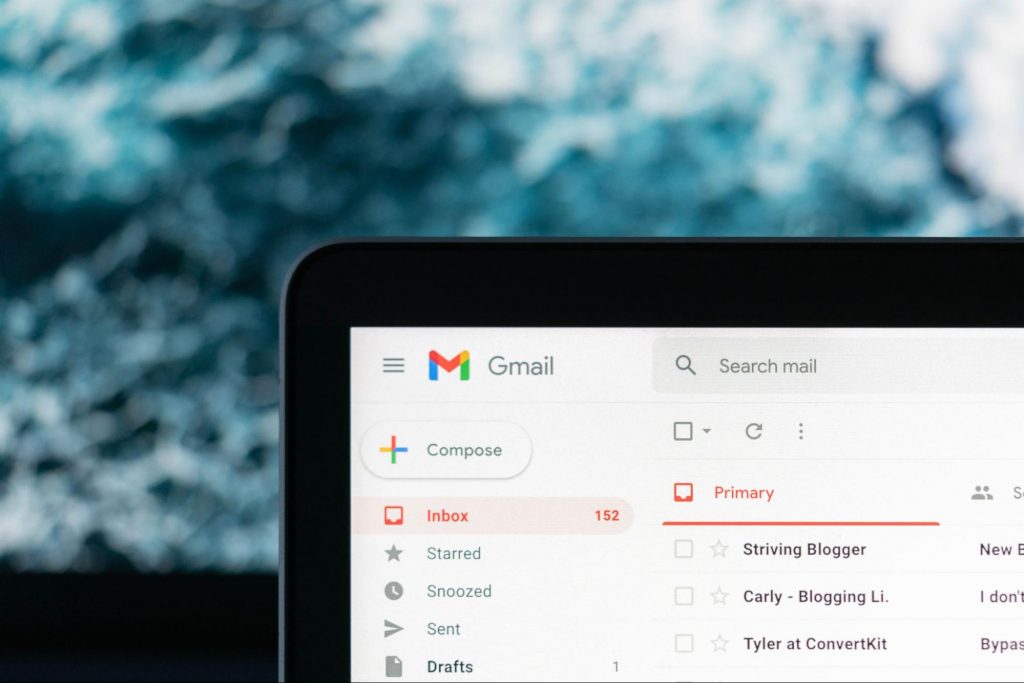
This is actually the most common type of phishing. A cybercriminal creates an e-mail containing stuff like attractive offers, legitimate-looking attachments or links and makes it appear as though it’s coming from a trusted source.

Illustration of Email Phishing
Credit: Justin Morgan on Unsplash

For example, it looks like it’s coming from your bank or your favorite retailer. The logo looks legit and the structure of the e-mail seems familiar, so you might get tricked into clicking on whatever clickable content is in it.

Unfortunately this exposes your device to malware that hands your data off to the hacker, who can decide what to do with it further.

SMS and social media phishing

Like the above example, you could be approached with lucrative offers or links via text messages or social media messages. Typically, the messages seem relevant to the user as they will be made to look like they’re related to apps or services you’re using.

Voice phishing

Voice phishing attacks are schemes that appear as though they’re coming from a credible number. Normally, you’ll get a call about something related to credit cards or taxes to get you into a state of worry, leading you to disclose personal information on the phone.

Spear phishing, whaling and BEC

Spear phishing normally targets specific individuals within a company who are likely to have access to sensitive data. Spear phishers spend time collecting information they can use to reach out to the individual looking as trustworthy as possible. They’ll typically lead with something relevant, for example mentioning an upcoming company event, and make a seemingly legitimate request.

Whaling is a more elaborate form of spear phishing, which targets people in even stronger positions such as executives or high-value individuals. The ultimate goal is to get them to transfer financial or other sensitive information that can be used to compromise the entire business.

Spear Phishing Illustration
Credit: Azamat E on Unsplash

BEC, or Business e-mail compromise, is a specific spear phishing technique carried out via e-mail. While there are many ways this is done, most commonly you’ll see instances where the phisher poses as a CEO or similar executive, or as a lower-level employee in specific positions (e.g. sales managers or financial controllers).

In the first situation, the impersonator reaches out to employees requesting them to transfer certain files or pay invoices. In the second situation, the phisher takes control of the employee’s e-mail account and sends false instructions to other employees in order to obtain data and information from them.

What can you do?

There are many ways you can be aware and spot a phishing attempt. Here are some tips:

  • Always check the sender’s address in your e-mails, even when they seem to come from a familiar source.
  • In any instance where payment information is requested, be very, very careful.
  • If you are receiving attachments you never asked for and definitely didn’t expect, better not click on them. 
  • Beware of content that transmits a sense of urgency (sales deals, urgent updates to login credentials, etc.).
  • Bad spelling and grammar are usually a telltale sign of phishing.
  • Links that look shortened (e.g. Bit.ly) or just suspicious in general - if you have a bad feeling, do not click on them.
  • If you are receiving threats, you probably shouldn’t be clicking on anything in that message.
  • Always examine first-time senders in detail.
  • Block suspicious e-mail addresses, numbers and social media accounts.
  • If you are receiving a coupon for free stuff… You aren’t.
  • If you’re being asked to update your payment details by a service you use, such as Netflix, chances are it’s an impersonator.

Those are some of the ways to identify and prevent phishing attacks. However, sometimes phishers disguise themselves a little too well or a misclick happens and there you go - you’ve been exposed to malware.

Illustration of a Lock on Keyboard Keys
Credit: FLY:D on Unsplash

This won’t happen if you invest in powerful protection software from the get-go, though. A good antivirus program like Bitdefender will keep you safe from becoming a victim of phishing scams. In fact, it will protect you from malicious attacks overall.

Be it your household or your business you’re concerned about, there are a bunch of different packages and options available, providing different kinds of cybersecurity services. That’s the only way you can ever really be sure you aren’t at risk of a digital attack.

Summary

Have you ever been targeted by phishers and didn’t know that’s what it was until you read this article? Many can relate. Protect yourself before it’s too late!

Read More
Enumerating user sessions to generate ...
There are times when the Windows Search doesn’t work and you wouldn’t have a clue as to why it happened since it does not give any error codes. In such cases, you have to check the error logs in the Event Viewer to find out more about the problem. From there, look for an error with the Event ID 3104 in the Windows error logs and if you see an error message that says, “Enumerating user sessions to generate filter pools failed”, read on as this post will guide you in fixing the problem. Apart from the error message, you might also see more information in the details section of the log that says, “(HRESULT: 0x80040210) (0x80040210)”. This kind of error is most likely caused by something that prohibits the search function from initializing. A lot of users assumed that it could be due to Cortana but it’s actually not. While some users also reported that they encounter the issue after they restarted their computers. This error was also reported with the same event ID 3104 on the Windows Server. According to security researchers, this error could be caused by problems in the Registry entry of Windows search. It could also be due to an issue with the SYSTEM account where it hasn’t been added to the DCOM Security. It is also possible that the Windows Search function has not been initialized. To fix this error, you can try to rebuild the Search Index manually or run the Search and Indexing troubleshooter. You can also check the startup type of the Windows Search service or try some registry tweak.

Option 1 – Try to rebuild the Search Index manually

The first thing you can do to fix the problem is to manually rebuild the Search Index. You can do that by going to Control Panel > Indexing Options and from there, click on Advanced. After that, go to the Index Settings tab and then click on Rebuild > OK. Once you’re done, check if it fixed the problem.

Option 2 – Try running the Search and Indexing troubleshooter

You could also run the Search and Indexing troubleshooter in Windows 10 as it checks whether the settings are in place and automatically corrects any issues with the Windows 10 search function. To run this troubleshooter, just click on the Start button and select Settings > Updates and Security > Troubleshoot. From there, select the Search and Indexing Troubleshooter. Once the troubleshooter is done, restart your computer and see if it fixed the error.

Option 3 – Try checking the startup type of the Windows Search Service

In this option, you have to check the startup type of the Windows Search service since the service won’t start. To do so, refer to these steps:
  • Tap the Win + R keys to open the Run utility and type “services.msc” in the field and then tap Enter to open the Services Manager.
  • Next, from the list of services, look for the Windows Search Service or WSearch. Once you find it, right-click on it and select Properties.
  • After that, change the Startup type to Automatic and click on the Start button if the service is in the Stop state.
  • Now click on the Apply and OK buttons to save the changes made and then restart your computer.

Option 4 – Try changing the Registry entry for Windows Search

Before you apply some registry tweak, you need to create a System Restore point first. Once you have that covered, follow these steps:
  • Tap the Win + R keys to open the Run utility and type “Regedit” in the field and tap Enter to open the Registry Editor.
  • If a User Account Control prompt appears, just click Yes to proceed.
  • After opening the Registry Editor, navigate to this registry path: HKEY_LOCAL_MACHINESOFTWAREMicrosoftWindows Search
  • From there, click on Windows Search and look for the key named “SetupCompletedSuccessfully” and change its value to “0”. Just right-click on it and select Modify.
  • Then input “0” as its value data and click on OK to save the changes made.
  • Exit the Registry Editor and restart your computer.
  • Now check if the Enumerating user sessions to generate filter pools failed is fixed or not.
Read More
RebateInformer Hijacker removal guide for windows

RebateInformer is a browser extension for Google Chrome. This extension monitors the web pages the user is visiting and checks against an affiliate database for various rebates and coupons related to the context of the products being shown in the browser.

This extension analyzes websites your browser visits and attempts to find deals associated with the merchant’s product offerings. If an offer is found, it is injected into the deals page even if it's sold by a different merchant at a higher price. Several anti-virus scanners have marked this extension as Potentially Unwanted, and due to its data mining behavior, it is not recommended to keep it on your computer.

About Browser Hijackers

Browser hijacking is regarded as the web’s constant problem that targets web browsers. It is a type of malicious software that alters your web browser’s settings and redirects you to sites or webpages that you had no intention of visiting. Browser hijacker malware is created for numerous reasons. It redirects you to the sponsored sites and injects adverts on your internet browser that helps its creator generate ad revenue. It could seem naive, but the majority of these websites are not legitimate and may pose a serious threat to your online safety. Additionally, hijackers can make the whole infected system fragile – other dangerous malware and viruses will use these opportunities to intrude into your computer system effortlessly.

Browser hijacking symptoms

There are many different symptoms that indicate the web browser has been highjacked: your browser’s home page is suddenly different; new bookmarks pointing to porn websites are added to your bookmarks; the default internet search engine and the default browser settings are modified; unsolicited new toolbars are added to your browser; numerous pop-up adverts show up and/or your browser pop-up blocker is disabled; your web browser starts running slowly or displays frequent errors; you’re blocked to access the websites of computer security solution providers.

How browser hijacker infects computers

There are several ways your PC could become infected with a browser hijacker. They usually arrive through spam e-mail, via file-sharing networks, or by a drive-by-download. They also come from add-on applications, also called browser helper objects (BHO), browser extensions or toolbars. Sometimes you may have inadvertently accepted a browser hijacker as part of an application package (generally freeware or shareware). An example of some notorious browser hijacker includes Conduit, Anyprotect, Babylon, DefaultTab, SweetPage, Delta Search, and RocketTab, however, the names are continually changing. Browser hijackers could record user keystrokes to collect potentially valuable information that leads to privacy concerns, cause instability on systems, drastically disrupt the user experience, and eventually slow down the computer to a point where it becomes unusable.

Browser hijacker removal

Some browser hijacking can be simply stopped by finding and removing the corresponding malware software through your control panel. Unfortunately, many of the software packages utilized to hijack a web browser are deliberately built to be hard to detect or remove. Furthermore, manual removals require in-depth system knowledge and thus could be a very difficult job for novice computer users. Professionals always suggest users remove any malicious software including browser hijacker by using an automatic malware removal tool, which is better, safer, and quicker than the manual removal technique. Safebytes Anti-Malware features a state-of-the-art anti-malware engine to help you prevent browser hijacker infection in the first place, and mop up any existing problems. And employ a PC optimizer to erase all associated files in the registry and fix browser problems.

Can’t Install Safebytes Anti-malware due to the presence of a Virus? Try This!

Malware can cause all sorts of damage once they invade your system, from stealing your personal information to deleting data files on your computer. Some malware sits in between the computer and the net connection and blocks a few or all internet sites that you would like to visit. It could also block you from the installation of anything on your system, especially the anti-malware program. If you’re reading this right now, you’ve perhaps recognized that a malware infection is the real cause of your blocked web traffic. So how to proceed when you want to install an anti-virus application such as Safebytes? Refer to the instructions below to eliminate malware by alternate methods.

Download the software in Safe Mode with Networking

In Safe Mode, you can actually modify Windows settings, uninstall or install some applications, and get rid of hard-to-delete viruses. If the malware is set to load automatically when the computer boots, shifting into this mode may prevent it from doing so. In order to enter into Safe Mode or Safe Mode with Networking, press F8 while the computer is booting up or run MSConfig and find the “Safe Boot” options under the “Boot” tab. As soon as you reboot into Safe Mode with Networking, you could download, install, and update the anti-malware program from there. After installation, run the malware scanner to remove standard infections.

Obtain the anti-malware software using an alternate web browser

Web-based malware can be environment-specific, targeting a particular web browser or attacking specific versions of the web browser. The ideal solution to avoid this issue is to choose a browser that is renowned for its security measures. Firefox contains built-in Malware and Phishing Protection to keep you secure online.

Install anti-malware on a thumb drive

Here’s another solution which is using a portable USB antivirus software that can check your system for malicious software without needing installation. Do these simple steps to clean up your infected PC by using a portable antivirus. 1) Download Safebytes Anti-Malware or MS Windows Defender Offline onto a virus-free computer. 2) Connect the USB flash drive to a USB port on the clean computer. 3) Double-click the Setup icon of the anti-malware program to run the Installation Wizard. 4) Choose the drive letter of the flash drive as the place when the wizard asks you where you want to install the antivirus. Follow activation instructions. 5) Transfer the USB drive from the uninfected computer to the infected PC. 6) Double-click the anti-malware program EXE file on the USB flash drive. 7) Hit the “Scan Now” button to begin the virus scan.

Review of SafeBytes Anti-Malware

These days, an anti-malware program can protect your computer or laptop from different types of internet threats. But how to select the right one amongst various malware protection application that’s available in the market? You may be aware, there are numerous anti-malware companies and tools for you to consider. A few are very good ones, some are ok types, and some are simply just bogus anti-malware programs that can damage your PC themselves! You need to be very careful not to pick the wrong application, particularly if you purchase a premium application. With regards to commercial antimalware tool options, many people go with popular brands, such as SafeBytes, and are quite happy with it. SafeBytes anti-malware is a reliable tool that not only protects your PC permanently but is also quite user-friendly for people of all skill levels. With its most advanced virus detection and repair technology, this software will help you protect your personal computer against infections brought on by different types of malware and other internet threats, including spyware, adware, trojans, worms, computer viruses, keyloggers, potentially unwanted program (PUPs), and ransomware. SafeBytes has got a plethora of features that can help you protect your computer from malware attacks and damage. Here are some typical features found in this application: Real-time Protection: SafeBytes provides round-the-clock protection for your computer restricting malware intrusions instantly. It will check your PC for suspicious activity regularly and its unparalleled firewall guards your PC against illegal entry by the outside world. Robust, Anti-malware Protection: This deep-cleaning anti-malware software goes much deeper than most antivirus tools to clean your personal computer. Its critically acclaimed virus engine detects and disables hard-to-remove malware that conceals deep inside your PC. Safe Web Browsing: Safebytes assigns all sites a unique safety rating that helps you to get an idea of whether the webpage you’re just about to visit is safe to view or known to be a phishing site. Low CPU Usage: SafeBytes is really a lightweight tool. It consumes a very small amount of processing power as it runs in the background so you won’t notice any system performance issues. 24/7 Online Support: Expert technicians are at your disposal 24/7! They will quickly fix any technical issues you may be experiencing with your security software. To sum it up, SafeBytes Anti-Malware offers superb protection combined with an acceptable low system resources usage with great malware detection and prevention. You now may know that this particular tool does more than just scan and delete threats on your computer. So if you are looking for the best anti-malware subscription for your Windows-based PC, we strongly recommend the SafeBytes Anti-Malware tool.

Technical Details and Manual Removal (Advanced Users)

If you do not wish to use malware removal software and prefer to get rid of RebateInformer manually, you may do so by going to the Add/Remove Programs menu in the Control Panel and removing the offending software; in cases of browser plug-ins, you can uninstall it by visiting the browsers Add-on/Extension manager. You will definitely also want to reset your browser. Lastly, check your hard drive for all of the following and clean your registry manually to get rid of leftover application entries following an uninstallation. However, this can be a difficult task and only computer professionals could perform it safely. Also, some malware is capable of replicating itself or preventing deletion. It is highly recommended that you carry out the removal process in Windows Safe Mode.
Files: Search and Delete: baddomaindb.dat domaindb.dat chrRebateInformerSetup.exe RebateBlast.com.url RebateInformer.lnk Help.url RebateBlast.com.url RebateInformer.lnk Settings.lnk Uninstall RebateInformer.lnk npUniPlugin.dll RebateI.dll RebateInf.exe unins000.dat unins000.exe Folders: %APPDATA%\RebateInformer\ %PROGRAMS%\Inbox.com Toolbar\ %PROGRAMS%\RebateInformer\ %PROGRAMFILES%\Inbox.com\ %PROGRAMFILES%\RebateInformer\ Registry: key HKEY_LOCAL_MACHINE\SOFTWARE\CToolbar\PlugIns\REBATEINF key HKEY_LOCAL_MACHINE\SOFTWARE\Rebate Informer key HKEY_CURRENT_USER\SOFTWARE\CToolbar\PlugIns\REBATEINF key HKCU\Software\CToolbar key HKLM\SOFTWARE\CToolbar key HKCU\Software\Microsoft\Windows\CurrentVersion\Explorer\FileExts\.crdownload key HKLM\SOFTWARE\Microsoft\Windows\CurrentVersion\Uninstall\4EF645BD-65B0-4F98-AD56-D0437B7045F6_is1 key HKLM\SOFTWARE\Microsoft\Windows\CurrentVersion\Uninstall\CToolbar_UNINSTALL key HKLM\SOFTWARE\Microsoft\Windows\CurrentVersion\Installer\UserData\Crawler key HKLM\SOFTWARE\Microsoft\Windows\CurrentVersion\Explorer\Browser Helper Objects\CCB69577-088B-4004-9ED8-FF5BCC83A039 key HKLM\SOFTWARE\Classes\RebateInf.RebateInfObj key HKLM\SOFTWARE\Classes\RebateI.RebateInformImageGen key HKLM\SOFTWARE\Classes\RebateI.Rebate Informer BHO key HKLM\SOFTWARE\Classes\CToolbar.TB4Server key HKLM\SOFTWARE\Classes\CToolbar.TB4Script key HKLM\SOFTWARE\Classes\ctbcommon.Buttons key HKLM\SOFTWARE\Classes\CToolbar.TB4Client key HKLM\SOFTWARE\Classes\CShared.TB4Server2 key HKLM\SOFTWARE\Classes\CShared.TB4Server key HKLM\SOFTWARE\Classes\CShared.TB4Script key HKLM\SOFTWARE\Classes\CShared.TB4Client key HKLM\SOFTWARE\Classes\TypeLib\E79BB61D-7F1A-41DF-8AD0-402795E3B566 key HKLM\SOFTWARE\Classes\TypeLib\506F578A-91E1-46CE-830F-E2F4268E9966 key HKLM\SOFTWARE\Classes\TypeLib\438B047C-C041-4D15-98CF-A97C6B366C28 key HKLM\SOFTWARE\Classes\PROTOCOLS\Handler\rebinfo key HKLM\SOFTWARE\Classes\Interface\E9BBD270-4B87-4EE2-912F-6635674986C0 key HKLM\SOFTWARE\Classes\Interface\B3BA5582-79A9-464D-A7FA-711C5888C6E9 key HKLM\SOFTWARE\Classes\Interface\604EA016-1EDE-41E6-A23E-76CF8F2A4808 key HKLM\SOFTWARE\Classes\Interface\41349826-5C7F-4BF0-8279-5DAF1DE6E9AE key HKLM\SOFTWARE\Classes\Interface\01C78433-6FDF-4E5A-A82D-B535C32E03DF key HKLM\SOFTWARE\Classes\CLSID\EFB46ED3-8FD8-4051-8FD6-DD9CE7E63BEF key HKLM\SOFTWARE\Classes\CLSID\DB35C569-5624-4CFC-8043-E5139F55A073 key HKLM\SOFTWARE\Classes\CLSID\CCB69577-088B-4004-9ED8-FF5BCC83A039 key HKLM\SOFTWARE\Classes\CLSID\AF808758-C780-404C-A4EE-4526323FD9B6 key HKLM\SOFTWARE\Classes\CLSID\8736C681-37A0-40C6-A0F0-4C083409151C key HKLM\SOFTWARE\Classes\CLSID\54ECA872-DB2A-4C6B-BBB2-F3777C6786CC key HKLM\SOFTWARE\Classes\CLSID\4EF645BD-65B0-4F98-AD56-D0437B7045F6 key HKLM\SOFTWARE\Classes\CLSID\1DDA201E-5B42-4352-933E-21A92B297E3B key HKLM\SOFTWARE\Classes\CLSID\183643C8-EE67-4574-9A38-927852E34163 Value [HKEY_CURRENT_USER\Software\Mozilla\Firefox\Extensions][email protected]=[%PROGRAM_FILES%]\REBATE~1\Firefox\ Value [HKEY_CURRENT_USER\SOFTWARE\Microsoft\Windows\CurrentVersion\Run]RebateInformer=[%PROGRAM_FILES%]\REBATE~1\REBATE~1.EXE /STARTUP Value [HKEY_CURRENT_USER\Software\Mozilla\Firefox\Extensions][email protected]=[%PROGRAM_FILES%]\RebateInformer\Firefox\ Value [HKEY_CURRENT_USER\SOFTWARE\Microsoft\Windows\CurrentVersion\Run]RebateInformer=[%PROGRAM_FILES%]\RebateInformer\RebateInf.exe /STARTUP
Read More
How to Fix DISM Error 1726 in Windows 10
What is DISM Error 1726? Every time you encounter some issues in your Windows 10 computer, especially when it comes to corrupted system files, you can always use the SFC scan and if the SFC can isn’t able to resolve the issue, there is also the DISM tool you can use which usually resolve the vast majority of system file corruption sufficiently. However, there are times when even the DISM commands experience issues as well. Such is the case with the 1726 error: “The remote procedure call failed”.

Some users reported that this DISM problem happens right before the process is supposed to end. According to experts, this error in DISM occurs due to any of the following reasons:

  1. A third-party program might have interrupted the DISM operation and is the one that triggered the 1726 error: “The remote procedure call failed”.
  2. The error could also pop up when there is a pending corruption repair. This usually happens when you tried to run a DISM command previously that was terminated manually or was halted because of some malfunction.
  3. Lastly, the error could also occur because the process that’s responsible for the procedure is disabled or was prevented from running.
Whichever the case is, here are some suggestions that might help you in resolving the 1726 error: “The remote procedure call failed”.

Option 1 – Try updating your PC to the latest Windows build available

Since the problem is specific to certain builds in Windows 10, you need to make sure that your computer is updated before you try other troubleshooting steps. Thus, follow the steps below to update your Windows 10 PC.
  • Tap the Win + R keys to open the Run dialog box.
  • Then type “ms-settings:windowsupdate” in the field and hit Enter to open the Windows Update screen.
  • After that, click on Check for Updates and then follow the next on-screen instructions to apply the latest Windows update.
  • Once the update has been installed, restart your PC and run the DISM command again and see if the problem is fixed.

Option 2 – Try to change the Startup Type of the Remote Procedure Call service

As stated early on, the error might also be caused by a disabled Remote Procedure Call service or RPC or that it might be prevented from running for some reason. In case you don’t know, RPC is the service control manager for both COM and DCOM servers and it’s responsible for performing object variation requests, exporting resolution as well as distributing collection for the servers. And so if the server is disabled, all programs that are using COM and DCOM including the DISM commands, will not function correctly. Thus, you need to make sure that the RPC service is scheduled to enable itself on every system boot. To do so, here’s what you have to do:
  • Tap the Win + R keys to open the Run dialog box.
  • Type “services.msc” in the field and hit Enter to open Services.
  • From there, scroll down until you see the Remote Procedure Call (RPC) service and then right-click on it and select Properties.
  • Then go to the General tab and change the drop-down menu next to Startup type to Automatic.
  • After that, click the Apply button and then OK to apply the changes made.
  • Restart your PC and run the DISM command once again at the next startup.

Option 3 – Try to modify the RpcSs registry key value

If the option didn’t work, you can also try enabling the RPC service using the Registry Editor. Before you proceed, make sure to create a System Restore point first and then follow the steps below afterward.
  • Tap the Win + R keys to open the Run dialog box.
  • Type “Regedit” in the field and hit Enter or click OK to open the Registry Editor. And if a User Account Control prompt appears, just click on Yes.
  • After that, navigate to this registry key: HKEY_LOCAL_MACHINE SYSTEM CurrentControlSet Services RpcSs
  • After selecting the aforementioned registry key, go to the right pane and double-click on the Start value.
  • Next, change the Value data of start to 2 and click OK to save the changes made.
  • Exit the Registry Editor and restart your PC and check if the 1726 error in DISM has already been resolved or not.

Option 4 – Try to disable the Windows Search service temporarily

Some users also recommended disabling the Windows Search service for the meantime as it could be the one that’s interrupting the DISM process.
  • Tap the Win + R keys to open the Run dialog box.
  • In the field, type “services.msc” to open the Services window again and hit Enter to open it.
  • Next, scroll down over the services list and double-click on the Windows Update service.
  • Afterward, go to Windows Search properties and click the General tab and then click the Stop button to stop the service from running temporarily.
  • Now try running the DISM commands again and see if the problem’s fixed or not.
  • Restart the Windows Search service and then restart your PC as well.
Read More
MS Mariner, new OS for servers based on Linux
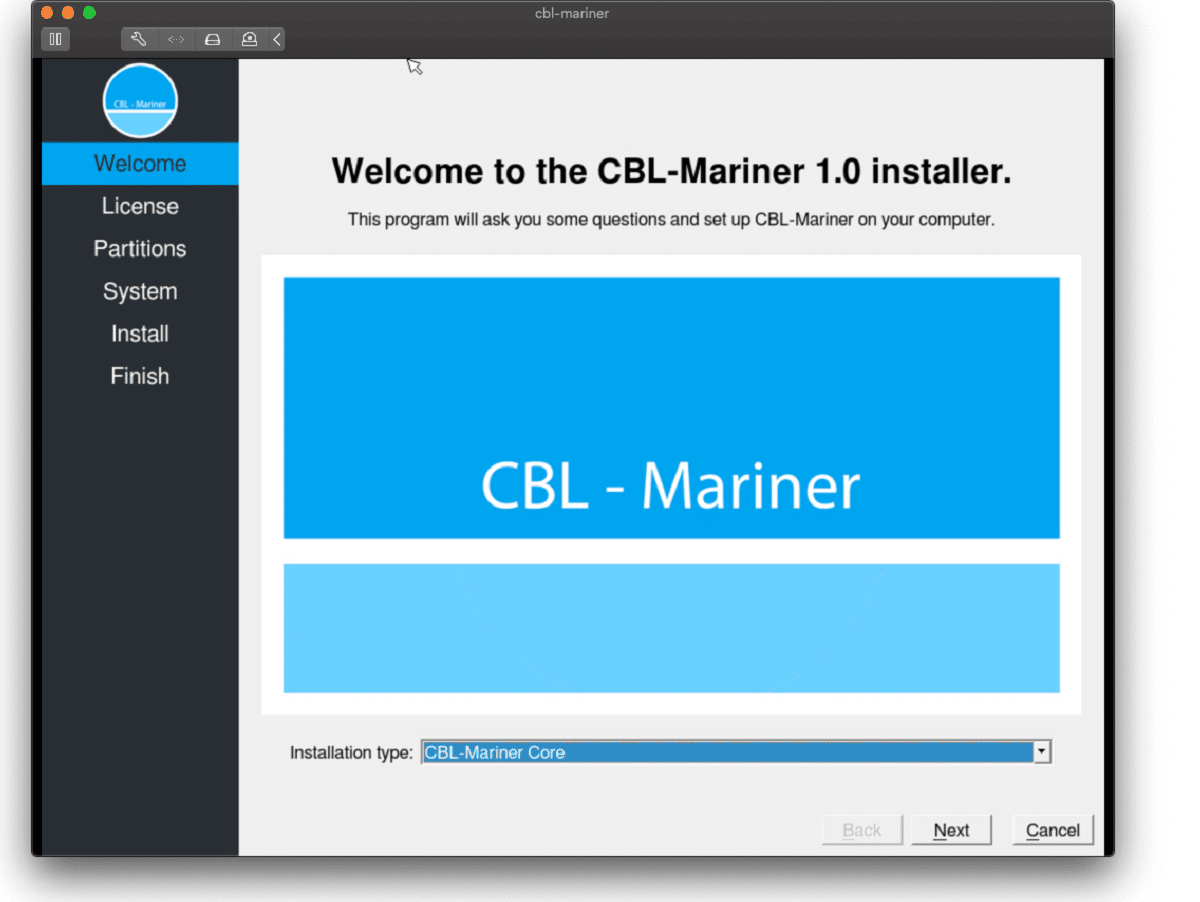
mariner installerWell if anyone told me just a few years ago that I will see the day when Microsoft releases a new OS based on Linux I would be very amused, but that day has come. Mariner is the newest OS out of nowhere. Microsoft’s new Linux Distro, dubbed Common Base Linux (CBL)-Mariner, isn’t the type of distro you’d want to install directly on any old machine. It’s primarily meant for cloud infrastructure and edge products. Specifically Microsoft’s Cloud and Edge products. But if you are curious, it’s possible to run. Juan Manuel Rey, a Microsoft Senior Program Manager for Azure VMware, recently published a guide to ISO CBL-Mariner image. With that, you can easily get it up and running. And you can build CBL-Mariner on an Ubuntu 18.04 desktop. So you can try it out since it is free. You can get it from here: https://github.com/microsoft/CBL-Mariner It is obvious that Microsoft aims to set itself as a leader in enterprise server environments with this move and it is very likely that it may succeed or at least give a good shake to its competitors, mainly red hat and Suse which are two dominant distros in that field. Many believe that they can win over by providing regular updates and package delivery via their already established system and that feature could be a turning point for some. In any case, time will tell and we shall see.

Read More
1 2 3 171
Logo
Copyright © 2023, ErrorTools. All Rights Reserved
Trademark: Microsoft Windows logos are registered trademarks of Microsoft. Disclaimer: ErrorTools.com is not affiliated with Microsoft, nor claims direct affiliation.
The information on this page is provided for information purposes only.
DMCA.com Protection Status