Logo

Windows won’t go Sleep, Legacy Kernel Caller

If the display of your Windows 10 computer turns on all of a sudden no matter how put it to sleep over and over again, it always wakes up, read on as this post will guide you in resolving this peculiar issue.

In case you don’t know, the Windows 10 computer Sleep state is made in such a way that if it’s really important, it wakes up. You may have configured this kind of behavior or there could be some hardware component that’s interrupting its Sleep state. Thus, this post will give you some troubleshooting tips to fix the Sleep state issue caused by the Legacy Kernel Caller. The Legacy Kernel Caller points to the external hardware that’s causing your Windows 10 to wake up even when it’s in a Sleep state.

Step 1: Find out what’s keeping your computer from going to sleep.

To figure out what really is keeping your computer from going to sleep, you can execute the “powercfg –requests” command instead of checking the power configuration of your computer. This command will look for requests from applications and drivers that prevent the computer from turning off the display or from going to sleep.

To execute the command, simply open Command Prompt and type “powercfg –requests” and hit Enter. After that, you will see part of the result that looks like this:

“SYSTEM

[DRIVER] USB AUDIO DEVICE

An audio stream is currently in use

[DRIVER] Legacy Kernel Caller.”

Step 2: The next thing you have to do is remove all the external hardware connected to your computer.

In this step, you have to disconnect external hardware from your computer. Based on reports from users who experienced the same issue, the “TV card” is the culprit so make sure you remove that one. Once you’ve removed it, open Command Prompt and run the “powercfg –requests” command again and you’ll see that the “Legacy Kernel Caller” will no longer be on the list. In addition, your computer will get into its regular sleep mode once the hardware is removed. Once you do that, the driver gets hung and won’t release the power request despite being used.

Step 3: Try using the request override option

The powercfg command also offers a request override option which allows users to disable the requests from applications and services to wake the computer from sleep mode. To run this command, simply open Command Prompt with admin privileges. After you open Command Prompt, type the following command and hit Enter to disable requests from applications and services that causes the computer to wake from sleep state.

Powercfg -requestsoverride Driver "Legacy Kernel Caller" System

Step 4: Check the streaming and media applications

You also have to check if your computer is running an audio or video service in the background. In such cases, your computer won’t be able to go to sleep mode if these services are running in the background. You might have noticed that when you play a video or audio, your computer never goes to sleep. And if you have put it to sleep in between watching the video, then it’s probably why your computer is waking up. Thus, you have to stop these services.

Step 5: Check the devices that can wake your computer

If you didn’t see the Legacy Kernel Caller in the result after you execute the ”powercfg –requests” command, then you can try to execute the following command instead.

powercfg –devicequery wake_armed

After you enter this command, it will give you a list of all the devices that can wake your computer. So if there is anything other than the mouse, keyboard, touchpad, you have to check the power configuration of that device. To do that, go to the Device Manager and disable the device’s “Allow this device to wake the computer” option in its Properties

Step 6: Check the Sleep Advanced Settings

  • Click on the Windows key and type “control panel” in the field and select the related search result.
  • Next, select the Security and Maintenance option and click on the Power Options.
  • After that, you have to select the Change Plan Settings but keep in mind that this option is barely readable so you need to read each option carefully.
  • Now click on the Change advanced power settings button and a new window will appear.
  • Then look for the “Sleep” option and expand it. Make sure that the “Allow hybrid sleep” option is on.
  • Reboot your computer and check if your computer now functions properly. If it still didn’t work, you may have to reverse the changes you’ve made.

On the other hand, you could also run the Power Troubleshooter to resolve the Sleep state issue. This built-in troubleshooter will automatically fix any power-related issues in your computer.

Do You Need Help with Your Device?

Our Team of Experts May Help
Troubleshoot.Tech Experts are There for You!
Replace damaged files
Restore performance
Free disk space
Remove Malware
Protects WEB browser
Remove Viruses
Stop PC freezing
GET HELP
Troubleshoot.Tech experts work with all versions of Microsoft Windows including Windows 11, with Android, Mac, and more.

Share this article:

You might also like

Fix Your system requires SMB2 or higher Error
SMB which stands for “Server Message Block”, is a protocol used for file sharing. It provides the Read and Writes operating on network devices. Thus, it is why it is widely used when accessing a server-based in Linux. Its latest version is the SMB2 which follows after SMB1. The SMB2 contains more fixes to vulnerabilities that were found in SMB1. The predecessor was vulnerable since it served as a gateway to various modern ransomware which is why Microsoft disabled it by default starting with Windows 10 v1709. When you try to share a file, you will get the following error message:
“Microsoft Windows Network: You can’t connect to the file share because it is not secure. This share requires the obsolete SMB1 protocol, which is unsafe and could expose your system to attack. Your system requires SMB2 or higher.”
In this post, you will be guided on how to check if the SMB2.0 version can be installed on your Windows 10 computer. To get started, follow the steps below. Step 1: Tap the Win + X keys to open the Device Manager. Step 2: After that, click on the Windows PowerShell (Admin) option. Step 3: In the Windows PowerShell window, type the following command and hit Enter:
Get-SmbServerConfiguration | Select EnableSMB2Protocol
Note: After entering the command, you will see the following content on your screen which means that your Windows 10 computer is now capable of running the SMB2 protocol Now all that’s left for you to do is to enable the SMB 2 protocol on your Windows computer by enabling the SMB 1 protocol first and then upgrading it to SMB 2 afterward. Refer to the steps below for more details. Step 1: Tap the Win + I keys to open the Settings app. Step 2: Then type in “control panel” in the search area and click on Control Panel from the search results. Step 3: After opening Control Panel, click on Programs. From there, select the “Turn Windows features on or off” option under the larger menu of Programs and Features. Step 4: After that, Windows Features will appear on your screen. And from there, make sure that you select SMB 1.0/CIFS File Sharing Support and then click on OK. Step 5: Now let it install all the required files and then restart your computer to apply the changes made successfully. After your computer has restarted, the SMB 2 protocol should now be supported on your Windows 10 computer. Note: On the other hand, you can also enter the following command in the Windows PowerShell window. Just make sure you have admin rights to enable it.
Set-SmbServerConfiguration –EnableSMB2Protocol $true
Read More
TitleBar, Minimize, Maximize and Close missing
In case you don’t know, the Title bar comes with the Maximize, Minimize, as well as the Close button. However, there are instances when you might notice that the Title bar, Maximize, Minimize and Close buttons are missing in the File Explorer. This kind of problem might be due to some glitch in the computer, or it could also be caused by some built-in tool or an installed program in your computer. Moreover, there are also other factors that you have to consider such as corruption in the system files as well as errors in the user profile which is generated on a domain network, and so on. There are several suggestions you can check out to fix the problem. You can try to boot your computer in a Clean Boot State to see if a third-party program is the root cause of the problem. You can also try to run built-in tools like System File Checker and the DISM tool. You could also get the video buffer emptied, reset or reinstall the program, or recreate the User Profile.

Option 1 – Put your computer in a Clean Boot State

As pointed out, it is possible that some third-party program or service is the one that’s behind the problem. To isolate this possibility and to identify the culprit, you have to put your computer into a Clean Boot State. To do so, follow the steps below.
  • Log onto your PC as administrator.
  • Type in MSConfig in the Start Search to open the System Configuration utility.
  • From there, go to the General tab and click “Selective startup”.
  • Clear the “Load Startup items” check box and make sure that the “Load System Services” and “Use Original boot configuration” options are checked.
  • Next, click the Services tab and select the “Hide All Microsoft Services” check box.
  • Click Disable all.
  • Click on Apply/OK and restart your PC. (This will put your PC into a Clean Boot State. And configure Windows to use the usual startup, just simply undo the changes.)
  • You need to disable one third-party app after the other to really isolate the issue. And once you’ve narrowed down the problem, you can either disable the third-party app that’s causing the problem or remove it.

Option 2 – Run System File Checker scan

You might also try running the System File Checker or SFC scan to fix the issue. System File Checker is a command utility built into your computer that helps restore corrupted files and missing files. Refer to the following steps to run it:
  • Hit the Win + R keys to launch Run.
  • Type in cmd in the field and tap Enter.
  • After opening Command Prompt, type in sfc /scannow
The command will start a system scan which will take a few whiles before it finishes. Once it’s done, you could get the following results:
  1. Windows Resource Protection did not find any integrity violations.
  2. Windows Resource Protection found corrupt files and successfully repaired them.
  3. Windows Resource Protection found corrupt files but was unable to fix some of them.
  • Restart your computer and see if the System32 folder still pops up at startup or not.

Option 3 – Try running the DISM tool

You can try running the Deployment Imaging and Servicing Management or DISM tool to fix the Windows Upgrade problem. Using this built-in tool, you have various options such as the “/ScanHealth”, “/CheckHealth”, and “/RestoreHealth”.
  • Open the Command Prompt with admin privileges.
  • Then type in the following commands and make sure to hit Enter right after you type each one of them:
    • Dism /Online /Cleanup-Image /CheckHealth
    • Dism /Online /Cleanup-Image /ScanHealth
    • exe /Online /Cleanup-image /Restorehealth
  • Do not close the window if the process takes a while as it will probably take a few minutes to finish.

Option 4 – Try to empty the Vide buffer

These kinds of problems could also be due to bad data in the Video Buffer. Thus, you can try to empty the Video buffer to resolve the problem. All you have to do is tap the Shift + Ctrl + Win key + B keys on your keyboard. After that, leave your computer idle for about 10 seconds until you notice it blink once. Now you try using your computer as usual and see if the glitch is now fixed or not.

Option 5 – Try to reset or reinstall the program

Another thing you can do to fix the issue is to reset or reinstall the program where you encounter the problem. Chances are, you are running the application in the Full-screen mode but you can exit it by simply tapping the Esc or F11 key. However, if nothing changed, then consider resetting or reinstalling the program. Just go to the Windows 10 Settings app and navigate to Apps > Apps & Features. From there, look for the entry of the application you’re having problems with and select it and then click on the Advanced options. After that, click on the Reset button under the Reset section.

Option 6 – Try recreating the User Profile

You might also want to try recreating the User Profile on your computer since some errors in the creation of a User Profile can result in problems like this one. Thus, you have to try deleting the User Profile and then recreate it.
Read More
How to Fix Windows 10 Error Code 0x8024001e

Error Code 0x8024001e - What is it?

Error Code 0x8024001e is most commonly associated with the installation of apps from the Windows store, although versions of the error have been present in multiple versions of the Windows operating system. At its most basic level, the error says that a program has not been installed, even after the installation wizard has run through to completion.

Common symptoms include:

  • Inability to open or run apps downloaded from the Windows store
  • The error message reads, “Something happened and this app couldn’t be installed. Please try again.”

The solutions to Error Code 0x8024001e are somewhat complex, so it is a good idea to get in touch with a computer repair professional if you do not feel confident in your ability to follow the steps below to complete. However, most users should be able to follow the steps below and achieve the desired results.

Solution

Restoro box imageError Causes

There are a couple of different causes that can lead to the appearance of Error Code 0x8024001e. In some cases, extraneous data left in the app cache can cause the problem. In other cases, particular processes may need to be manually reset to clear the problem. Last, but not least, unresolved updates may lead to Error Code 0x8024001e causing issues with downloaded and installed apps from the Windows Store.

Further Information and Manual Repair

There are three primary methods to address the appearance of Error Code 0x8024001e. These should work for all users, regardless of the specific cause for their machine. The methods below do require some advanced skills in computing, so be sure to contact a Windows repair technician if you have trouble following the instructions below.

Here are the top ways to repair Error Code 0x8024001e on Windows 10:

Method One:  Clear the App Cache and Use Power User Options

In many cases, simply clearing your app cache can resolve the errors that pop up when you are downloading, installing, or updating any apps that have come from the Windows store. This method may not perfectly resolve the problem every time, but it is a step that should always be done before any others.

Next, open up the Power User options by pressing both the Windows key and the X key at the same time. Choose “Command Prompt (Admin)” from the options that appear. Then type in the commands into the prompt, one at a time:

  • net stop wuauserv
  • cd/windows
  • rename SoftwareDistribution SoftwareDistribution.bck
  • net start wuauserv

Restart your computer after these changes have been made so that all changes can take effect. You may be able to access the desired programs and apps after this is complete.

Method Two:  Run Your Registry Repair Tools

Sometimes, the best way to repair Error Code 0x8024001e is to simply open up the Window Registry tools and run the repair process. This will scan your registry for any errant entries, corrupted entries, or missing entries, repairing them automatically as the device is able to do. This process may take some time to complete, so plan accordingly.

After this process is complete, it is always a good idea to restart your computer to apply any changes that have been made. Reattempt to install or run the program in question one this is done.

Method Three:  Run Windows Updates as Necessary

Last, open up the Windows Update tools to check to see if any of your programs need to be updated or if your operating system needs to be updated. Install each of the updates, restarting your computer after the entire process has been completed so that they can fully take effect on your machine. You should be able to run the programs that had caused problems once this is complete.

It is important to keep up-to-date on your system and program updates to avoid future errors in installations and downloads from the Windows store.

In most cases, using the steps above should allow you to use the apps that you’ve downloaded from the Windows store without Error Code 0x8024001e popping back up. If the problem persists or if you have not been able to follow the steps listed above to remedy the error, it is a good idea to contact a qualified professional who is experienced in working with Windows 10 errors.

Method Four: Use An Automated Tool

If you wish to always have at your disposal a utility tool to fix these Windows 10 and other related issues when they do arise, download and install a powerful automated tool.
Read More
What Is Phishing And How Can You Protect Yourself From It?

Ever gotten an e-mail offer that seemed just a little bit too good to be true? Might’ve been a phishing attempt! These are everywhere and can come in many different forms. 

So what’s phishing exactly, how can you detect it and how can you keep safe?

What is phishing?

Phishing (pronounced like fishing) is a type of cyberattack that tricks the user into trusting the source and revealing sensitive information. Fishing being the perfect analogy, the bait is a legitimate-looking site, e-mail or file and when you take a bite, your identity, banking information and much more can be revealed and stolen.

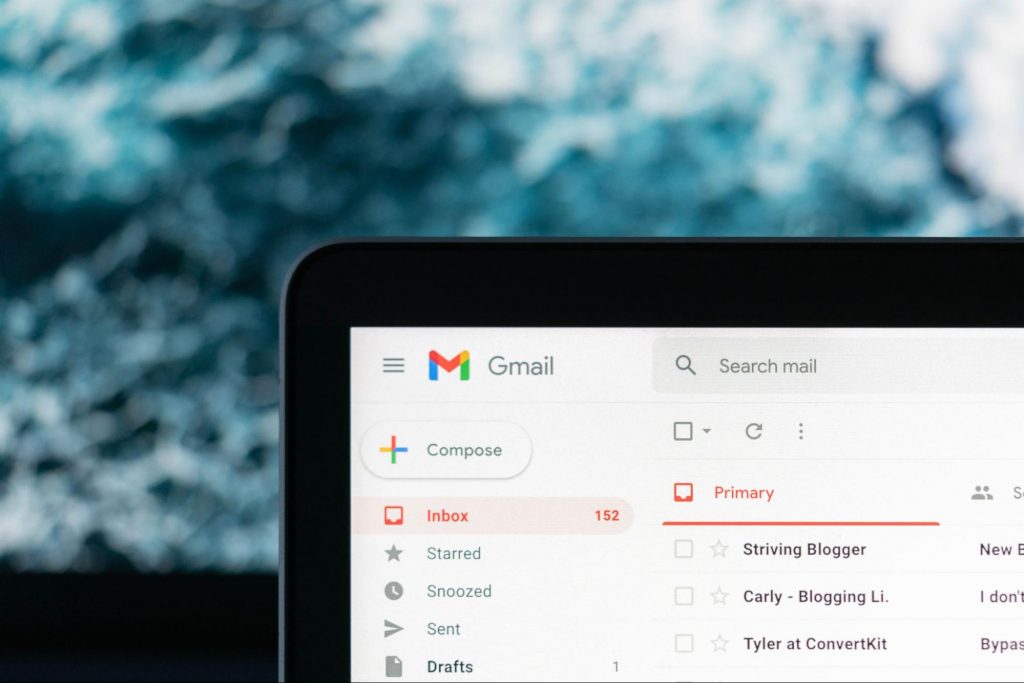
Phishing Illustration
Credit: Anne Nygård on Unsplash

Some phishing attempts are incredibly obvious, others are super elaborate. Like with most types of malware, cybercriminals have become extremely well-versed in phishing and anyone can fall for it. To help you recognize and avoid it, we’ll take you through a couple of phishing types and give you tips on what to do if faced with them.

Phishing techniques

E-mail phishing

This is actually the most common type of phishing. A cybercriminal creates an e-mail containing stuff like attractive offers, legitimate-looking attachments or links and makes it appear as though it’s coming from a trusted source.

Illustration of Email Phishing
Credit: Justin Morgan on Unsplash

For example, it looks like it’s coming from your bank or your favorite retailer. The logo looks legit and the structure of the e-mail seems familiar, so you might get tricked into clicking on whatever clickable content is in it.

Unfortunately this exposes your device to malware that hands your data off to the hacker, who can decide what to do with it further.

SMS and social media phishing

Like the above example, you could be approached with lucrative offers or links via text messages or social media messages. Typically, the messages seem relevant to the user as they will be made to look like they’re related to apps or services you’re using.

Voice phishing

Voice phishing attacks are schemes that appear as though they’re coming from a credible number. Normally, you’ll get a call about something related to credit cards or taxes to get you into a state of worry, leading you to disclose personal information on the phone.

Spear phishing, whaling and BEC

Spear phishing normally targets specific individuals within a company who are likely to have access to sensitive data. Spear phishers spend time collecting information they can use to reach out to the individual looking as trustworthy as possible. They’ll typically lead with something relevant, for example mentioning an upcoming company event, and make a seemingly legitimate request.

Whaling is a more elaborate form of spear phishing, which targets people in even stronger positions such as executives or high-value individuals. The ultimate goal is to get them to transfer financial or other sensitive information that can be used to compromise the entire business.

Spear Phishing Illustration
Credit: Azamat E on Unsplash

BEC, or Business e-mail compromise, is a specific spear phishing technique carried out via e-mail. While there are many ways this is done, most commonly you’ll see instances where the phisher poses as a CEO or similar executive, or as a lower-level employee in specific positions (e.g. sales managers or financial controllers).

In the first situation, the impersonator reaches out to employees requesting them to transfer certain files or pay invoices. In the second situation, the phisher takes control of the employee’s e-mail account and sends false instructions to other employees in order to obtain data and information from them.

What can you do?

There are many ways you can be aware and spot a phishing attempt. Here are some tips:

  • Always check the sender’s address in your e-mails, even when they seem to come from a familiar source.
  • In any instance where payment information is requested, be very, very careful.
  • If you are receiving attachments you never asked for and definitely didn’t expect, better not click on them. 
  • Beware of content that transmits a sense of urgency (sales deals, urgent updates to login credentials, etc.).
  • Bad spelling and grammar are usually a telltale sign of phishing.
  • Links that look shortened (e.g. Bit.ly) or just suspicious in general - if you have a bad feeling, do not click on them.
  • If you are receiving threats, you probably shouldn’t be clicking on anything in that message.
  • Always examine first-time senders in detail.
  • Block suspicious e-mail addresses, numbers and social media accounts.
  • If you are receiving a coupon for free stuff… You aren’t.
  • If you’re being asked to update your payment details by a service you use, such as Netflix, chances are it’s an impersonator.

Those are some of the ways to identify and prevent phishing attacks. However, sometimes phishers disguise themselves a little too well or a misclick happens and there you go - you’ve been exposed to malware.

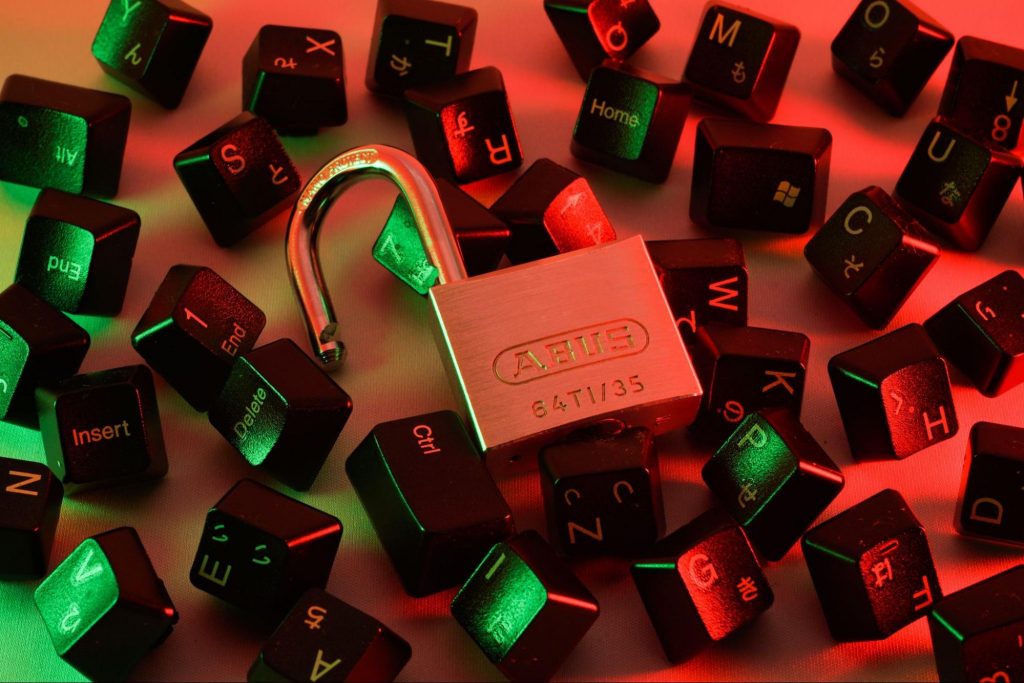
Illustration of a Lock on Keyboard Keys
Credit: FLY:D on Unsplash

This won’t happen if you invest in powerful protection software from the get-go, though. A good antivirus program like Bitdefender will keep you safe from becoming a victim of phishing scams. In fact, it will protect you from malicious attacks overall.

Be it your household or your business you’re concerned about, there are a bunch of different packages and options available, providing different kinds of cybersecurity services. That’s the only way you can ever really be sure you aren’t at risk of a digital attack.

Summary

Have you ever been targeted by phishers and didn’t know that’s what it was until you read this article? Many can relate. Protect yourself before it’s too late!

Read More
Easy Directions Finder Removal Guide for Windows PC

Easy Directions Finder is a browser extension developed by Mindspark Inc. for Google Chrome. This extension offers users quick access to popular websites for navigation and evens. While at first glance this might look useful, keep in mind that this extension has been marked as a Browser Hijacker by several anti-virus applications.

When installed EasyDirectionsFinder will record your browsing history, visited links, clicked URL-s, and viewed products. This data is later forwarded/sold to Mindspark's ad network and used to better target ads to users.

While browsing the internet with this extension installed (it does not have to be enabled) you will see additional injected ads, sponsored links, and pop-up ads throughout your browsing sessions. Due to its information mining behavior and aggressive ad injections, it is recommended to remove this extension from your computer.

About Browser Hijackers

Browser hijacking is a type of unwanted software, often a web browser add-on or extension, which causes modifications in web browser’s settings. Browser hijackers are capable of doing more than just modifying homepages. In general, browser hijacking is utilized for earning advertising revenue from forced ad mouse clicks and site visits. While it may seem naive, all browser hijackers are dangerous and thus always classified as security risks. When the malware attacks your laptop or computer, it starts to mess things up a whole that slows your system down to a crawl. In the worse case, you may be pushed to deal with serious malware threats as well.

How one can know whether the web browser is hijacked?

The common symptoms that suggest having this malicious software on your computer are: the browser’s home page is modified; you find yourself regularly directed to some other webpage than the one you actually intended; the default web browser settings have been modified and/or your default search engine is altered; unsolicited new toolbars are added to your web browser; your internet browser displays endless pop-up ads; web pages load slowly and often incomplete; you can’t navigate to certain webpages, like computer security software related sites.

So how does a browser hijacker infect a computer?

Browser hijackers may use drive-by downloads or file-sharing networks or an e-mail attachment in order to reach a targeted PC. They could also be deployed via the installation of an internet browser toolbar, add-on, or extension. A browser hijacker could also come bundled up with some freeware that you unintentionally download to your PC, compromising your internet security. Some of the most popular hijackers are EasyDirectionsFinder, Babylon Toolbar, Conduit Search, Sweet Page, OneWebSearch, and CoolWebSearch.

Browser hijacker removal tips

Some browser hijacking could be easily reversed by discovering and eliminating the corresponding malware software through your control panel. Sometimes, it can be a tough task to discover and eliminate the malicious component since the associated file will be running as part of the operating system process. Moreover, browser hijackers could modify the Computer registry therefore it can be quite tough to restore all the values manually, especially when you’re not a very tech-savvy individual. Industry experts always suggest users eliminate any malware including browser hijacker with an automatic removal tool, which is better, safer, and quicker than the manual removal solution. SafeBytes Anti-Malware could counter persistent browser hijackers and give you active PC protection against all types of malware. Together with the antivirus tool, a PC optimizer, such as SafeBytes Total System Care, can help you in deleting all related files and modifications in the computer registry automatically.

How To Get Eliminate Malware That Is Preventing Antivirus Downloads?

Malware could cause many different types of damage to computers, networks, and data. Some malware sits in between the computer and the internet connection and blocks a few or all sites that you really want to visit. It will also prevent you from adding anything to your PC, particularly anti-virus applications. So what to do when malicious software prevents you from downloading or installing Safebytes Anti-Malware? There are a few actions you can take to get around this issue.

Boot your computer in Safe Mode

If any malware is set to load immediately when Microsoft Windows starts, getting into Safe Mode could very well block the attempt. Since only the minimal programs and services launch in Safe Mode, there are hardly any reasons for conflicts to happen. Below are the steps you should follow to start into the Safe Mode of your Windows XP, Vista, or 7 computers (check out Microsoft site for directions on Windows 8 and 10 computers). 1) At power on, press the F8 key while the Windows splash screen starts to load. This will conjure up the “Advanced Boot Options” menu. 2) Choose Safe Mode with Networking with arrow keys and hit ENTER. 3) Once you get into this mode, you should have an internet connection again. Now, utilize your internet browser normally and go to https://safebytes.com/products/anti-malware/ to download and install Safebytes Anti-Malware. 4) After the software program is installed, let the diagnostic scan run to remove trojans and other malware automatically.

Switch over to an alternative web browser

Web-based malware can be environment-specific, targeting a specific web browser or attacking particular versions of the browser. If you seem to have malware attached to Internet Explorer, then switch to an alternate browser with built-in security features, such as Chrome or Firefox, to download your preferred antivirus program – Safebytes.

Install security software on a flash drive

Another option is to create a portable antivirus program onto your USB flash drive. Abide by these steps to run the anti-malware on the infected PC. 1) Download the anti-malware on a virus-free computer. 2) Plug the pen drive into the clean PC. 3) Run the setup program by double-clicking the executable file of the downloaded application, with a .exe file format. 4) Select the USB stick as the location for saving the software file. Follow the on-screen instructions to complete the installation process. 5) Now, insert the USB drive into the infected computer. 6) Run the Safebytes Anti-malware directly from the pen drive by double-clicking the icon. 7) Run Full System Scan to detect and clean-up up all sorts of malware.

SafeBytes AntiMalware Overview

If you’re looking to purchase anti-malware for your laptop or computer, there are plenty of brands and packages for you to consider. A few are very good ones, some are ok types, while some are just fake anti-malware applications that will damage your computer themselves! You need to purchase a product that has obtained a good reputation and detects not just viruses but other sorts of malware too. While thinking about reliable applications, Safebytes AntiMalware is certainly the strongly recommended one. Safebytes is among the well-established computer solutions companies, which provide this complete anti-malware tool. Using its outstanding protection system, this tool will quickly detect and remove most of the security threats, including adware, viruses, browser hijackers, ransomware, PUPs, and trojans.

There are numerous wonderful features you’ll get with this security product. Here are some of the good ones:

Best AntiMalware Protection: With its enhanced and sophisticated algorithm, this malware elimination tool can detect and eliminate the malware threats hiding in the computer system effectively. Live Protection: SafeBytes offers totally hands-free real-time protection and is set to observe, prevent and eliminate all threats at its very first encounter. It’ll regularly monitor your pc for hacker activity and also gives end-users superior firewall protection. SuperSpeed Scanning: Safebytes Anti-Malware, with its enhanced scanning engine, provides extremely fast scanning that can promptly target any active internet threat. Website Filtering: SafeBytes provides an instant safety rating about the pages you’re going to check out, automatically blocking dangerous sites and making sure that you are certain of your online safety while browsing the net. Low CPU Usage: SafeBytes is a lightweight and easy-of-use antivirus and antimalware solution. As it uses low computer resources, this program leaves the computer power exactly where it belongs: with you. 24/7 Live Professional Support: You may get high levels of support 24/7 if you are using their paid version. Overall, SafeBytes Anti-Malware is a solid program since it has plenty of features and can detect and eliminate any potential threats. You can be sure that your computer will be protected in real-time once you put this software to use. So if you’re searching for the absolute best malware removal tool out there, and if you don’t mind paying out a few bucks for it, go for SafeBytes Anti-Malware.

Technical Details and Manual Removal (Advanced Users)

If you do not wish to use a malware removal software and like to remove EasyDirectionsFinder manually, you could possibly accomplish this by going to the Windows Add/Remove Programs menu in the Control Panel and delete the offending program; in cases of browser plug-ins, you may uninstall it by going to the browser’s Add-on/Extension manager. You’ll likely also want to reset your browser. Finally, examine your hard drive for all of the following and clean your Windows registry manually to remove leftover application entries after uninstallation. But bear in mind, editing the registry is often a hard task that only advanced computer users and professionals should attempt to fix the problem. Moreover, some malicious programs have the capability to defend against its deletion. Completing this task in Safe Mode is advised.
Files: %LOCALAPPDATA%\EasyDirectionsFinderTooltab %UserProfile%\Local Settings\Application Data\EasyDirectionsFinderTooltab %LOCALAPPDATA%\Google\Chrome\User Data\Default\Sync Extension Settings\pjclebnjamlmkpgapopafeniobfnlllf %UserProfile%\Local Settings\Application Data\Google\Chrome\User Data\Default\Sync Extension Settings\pjclebnjamlmkpgapopafeniobfnlllf %LOCALAPPDATA%\Google\Chrome\User Data\Default\Local Extension Settings\pjclebnjamlmkpgapopafeniobfnlllf %UserProfile%\Local Settings\Application Data\Google\Chrome\User Data\Default\Local Extension Settings\pjclebnjamlmkpgapopafeniobfnlllf Registry: HKEY_CURRENT_USER\SOFTWARE\EasyDirectionsFinder HKEY_CURRENT_USER\SOFTWARE\Wow6432Node\EasyDirectionsFinder HKEY_LOCAL_MACHINE\Software\Microsoft\Internet Explorer\DOMStorage\easydirectionsfinder.com HKEY_LOCAL_MACHINE\Software\Google\Chrome\PreferenceMACs\Default\extensions.settings, value: pjclebnjamlmkpgapopafeniobfnlllf HKEY_LOCAL_MACHINE\Software\Microsoft\Internet Explorer\DOMStorage\easydirectionsfinder.dl.myway.com HKEY_LOCAL_MACHINE\Software\Microsoft\Internet Explorer\DOMStorage\easydirectionsfinder.dl.tb.ask.com HKEY_LOCAL_MACHINE\Software\[APPLICATION]\Microsoft\Windows\CurrentVersion\Uninstall..Uninstaller EasyDirectionsFinderTooltab Uninstall Internet Explorer

Read More
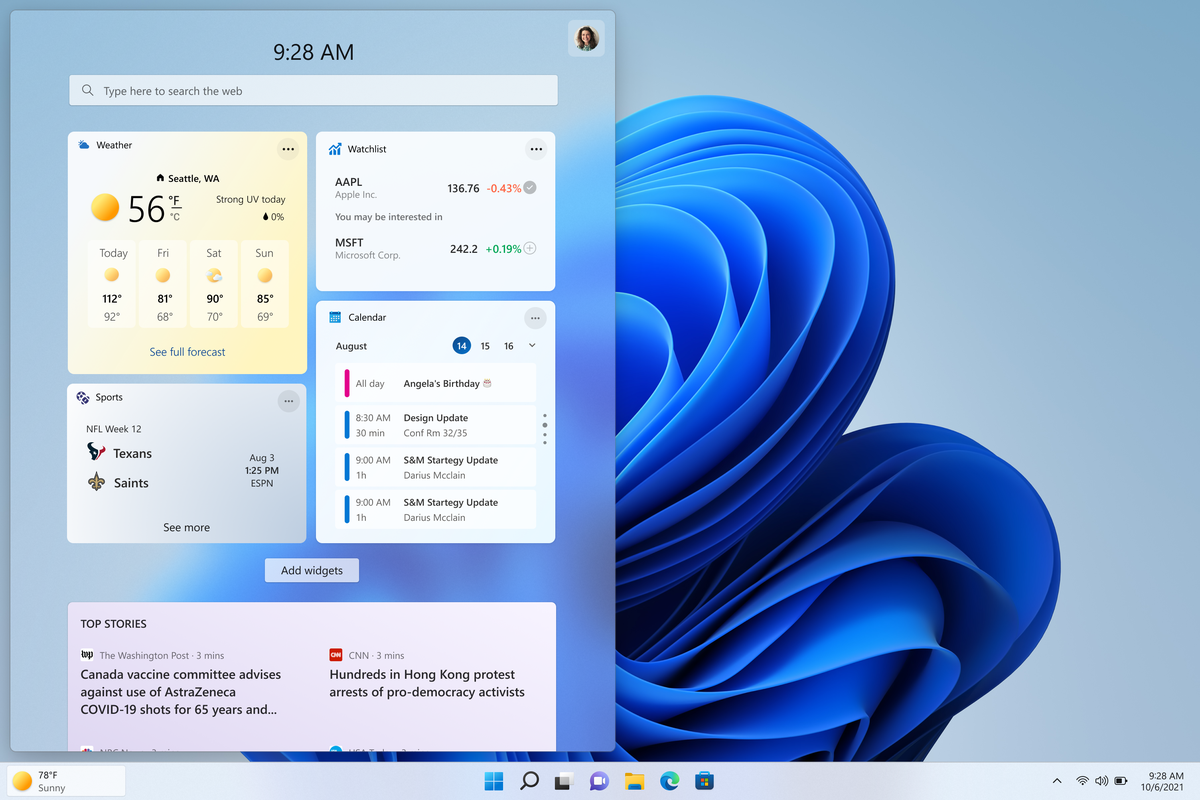
How to remove weather widget from W11
The latest Windows 11 update has brought with it not so popular widget from Windows 10, the weather widget that will reside into the taskbar and constantly show stuff like temperature, weather conditions, etc. The weather widget is not a bad thing but most users found it a little annoying and turned it off in Windows 10. If you wonder how can you do the same but this time inside Windows 11 please keep reading. weather widgetThe first step is to right-click  anywhere on the taskbar (in empty space) and choose Taskbar settings Once the taskbar settings are opened, find Widgets and click on the switch on the far right to turn it off, immediately no more information will be shown on the taskbar and it will be free again. And that is all there is to it.
Read More
Access Denied, You don’t have permission
When you try to open a website but instead encounter an “Access Denied, You don’t have permission to access on this server” error message along with the ULR which you aren’t able to access with a reference number, then it is most likely caused by some network-related issue in your browser. Note that this error mostly occurs on Firefox browsers. The “Access Denied” error appears when your Mozilla Firefox browser uses a different proxy setting or VPN instead of what’s really set on your Windows 10 PC. Thus, when a website detected that there is something wrong with your browser cookies or your network, it blocks you which is why you can’t open it. To resolve this error, here are some suggestions you can try. And if you got the same error message on a different browser, you can still follow the possible solutions given below.

Option 1 – Try clearing everything about the website

  • Open your browser and tap the Ctrl + H keys on your keyboard.
  • After that, look for the listing of the website from your browser history and right-click on it.
  • Then select the “Forget about this site” option. This will get rid of all the data such as browsing history, cache, cookies, and passwords. Thus, if you have a password saved or other important data of the website, you have to save it first before you tap the Ctrl + H keys.

Option 2 – Try disabling the VPN

As pointed out earlier, if you are using VPN, this could be the reason why you’re getting the “Access Denied” error so the most obvious thing to do is for you to turn off the VPN and try to run the Windows Update once more. And if you use a VPN software that works using their software, you can just completely exit or log-off from its account. On the other hand, if you are using a built-in Windows 10 VPN, you can simply turn it off or delete all the settings you have created there.

Option 3 – Uninstall the VPN service you are using or use a different provider

If you disabling the VPN service worked in fixing the “Access Denied” error, you might want to uninstall it. As mentioned, website administrator blocks IP ranges if they notice any malicious activities and because of this, your IP address might fall into the banned range even if you didn’t do anything at all. To uninstall the VPN service, follow the steps below.
  • Tap the Win + R keys to open the Run dialog box
  • Then type “appwiz.cpl” in the field and hit Enter to open the Programs and Features in Control Panel.
  • From there, look for the VPN service you are using, select it and then click on Uninstall to remove it.
  • After that, restart your computer and try to install the latest version of the program again. It should work now. If not, proceed to the next available option below.

Option 4 – Try disabling the proxy server for your LAN

If your PC was just attacked by some adware or malware as of late, it is possible that it has changed the network settings in the system and might display spam advertisements. Thus, you have to disable the proxy server for your LAN. To do that, refer to these steps:
  • Tap the Win + R keys to open the Run dialog box.
  • Then type “inetcpl.cpl” in the field and hit Enter to pull up the Internet Properties.
  • After that, go to the Connections tab and select the LAN settings.
  • From there. Uncheck the “Use a Proxy Server” option for your LAN and then make sure that the “Automatically detect settings” option is checked.
  • Now click the OK and the Apply buttons.
  • Restart your PC.
Note: If you are using a third-party proxy service, you have to disable it.
Read More
Fix W11 Installation assistant is not working
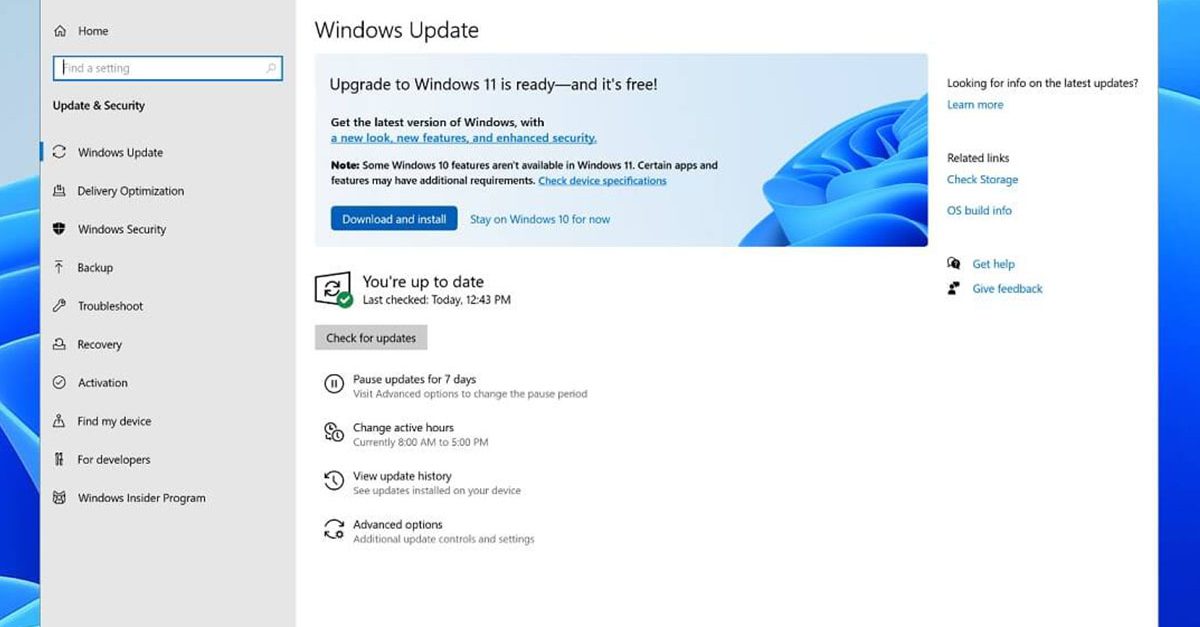
Windows 11 is getting adopted more and more each day, and how more and more users are installing it some smaller bugs show up. One of the things that have manifested lately is that in some cases installation assistant is not working throwing error 0x8007007f at you while you try to finish the update of Windows. Win not working thumb If you are one of the users that are experiencing this kind of annoyance, we have a solution for you. Follow this guide as presented and repair this annoying error.

Run installation assistant as administrator

This is the most simple solution that can solve problems right away and it is advised to be tried first.
  1. Download standalone Installation assistant installer from Microsoft website here
  2. Go to the location where you had the file downloaded
  3. Right-click on file
  4. Click on Run as administrator
  5. On the permission box, click YES

Disable antivirus and/or firewall software

Antivirus or firewall software can sometimes interfere with Windows’s update and prevent for any reason download or installation of files they consider not safe. If the first solution has not provided success turn off your antivirus or firewall software and try again to install updates by running them as administrator. Now, how many different antivirus or firewall applications are unique pieces of software it would take too much time to cover all of them but usually and most commonly if you right-click on the taskbar icon of security app most of the time you will have either option to open it and close it or simply just to snooze it for some time.

Set the compatibility

If you are still having issues with installing updates try setting compatibility mode for the installer.
  1. Download standalone Installation assistant installer from Microsoft website here
  2. Go to the location where you had the file downloaded
  3. Right-click on file
  4. Click on properties
  5. Go to the Compatibility tab
  6. Click on Run this program in compatibility mode for:
  7. Choose Windows 7
  8. Click on APPLY
  9. Run installer

Run SFC scan

If you are still facing installation issues there is a high chance there is something wrong with Windows system files. Luckily Windows itself has a built-in tool to address these issues and fix them.
  1. Open command prompt as administrator by pressing Start and searching for the command prompt and then on right-clicking on run as administrator
  2. Once the command prompt opens type in SFC / SCANNOW and press ENTER
  3. Wait for the whole process to complete and then restart your system
Read More
Fix Media Player – Server Execution Failed
You might be trying to play music files using the Windows Media Player, but were unable to do so since you encountered an error saying, “Windows Media Player Error – Server Execution Failed” error. If you encountered this error, worry not for this post will guide you on how to fix it using some potential fixes. In the error message, the “Server execution failed” indicates that the “wmplayer.exe” is still running or shutting down at that point and it is possible that it is stuck which is not able to close properly. To fix this error, there are several potential fixes you can try. The first one is to run the Video Playback troubleshooter. While you could also try to disable the WMP Network Sharing Service or register both the jscript.dll and vbscript.dll files. For more information, refer to the options provided below.

Option 1 – Try to run the Video Playback troubleshooter

The first thing you can do to fix the problem, you can try to run the Video Playback troubleshooter instead. To run it, simply go to Settings > Update & security > Troubleshoot. From there, scroll down until you see the Video Playback option and then click on the “Run the troubleshooter” button to get started. This troubleshooter will detect and automatically fix any problems related to video playback so it should help fix the error.

Option 2 – Try to disable the WMP Network Sharing Service

If the Video Playback troubleshooter didn’t work in fixing the problem, the next thing you need to do is disable the Windows Media Player Network Sharing Service. The WMP Network Sharing Service is used to share the libraries of the Windows Media Player to other users on the network as well as media devices using the Universal Plug and Play. And since you are not using any network here, then you can disable this service to fix the problem. How? Refer to the given steps below.
  • Tap the Win + R keys to open the Run dialog box and type “services.msc” in the field and tap Enter to open the Services Manager.
  • Next, look for the Windows Media Player Network Sharing Service from the list of Services and right-click on it.
  • After that, click on the Stop option and see if it fixes the Windows Media Player error.

Option 3 – Try to register the jscript.dll and vbscript.dll files

  • Tap the Win + X keys and from the menu select the Windows PowerShell (Admin) option to open an elevated Command Prompt.
  • Next, type this command to register the jscript.dll file and click on the confirmation box: regsvr32 jscript.dll
  • After that, execute the regsvr32 vbscript.dll command to register the vbscript.dll file.
  • Once you’re done, these DLL files will be re-registered and should fix the Windows Media Player error.
Read More
Get a Custom URL for Your YouTube Channel
Having a youtube channel nowadays is quite an easy task, you just need to create a free google account and there you go, you can start uploading videos to your YouTube channel. All you need in today's world is some applications for manipulating video material, creation of titles and graphics, some charisma and ideas for content and you could be a well-known YouTuber. For some guidance on software needed for this kind of creativity, we urge you to check our article about open source free software alternatives to paying ones here. So now that we have technicality out of way there is one more prerequisite that is needed in order for you to have your unique custom URL for your channel.
  • The channel must be at least 30 days old.
  • The channel must have a profile picture and a banner image.
  • The channel must have at least 100 subscribers.
You need to fulfill all three prerequisites in order to change your typical URL to something nicer and personal like youtube.com/myGREATchannel So if you have everything needed let's get that custom URL for your channel.
  1. Sign in to your YouTube channel
  2. On the top-right corner of the YouTube window, click on your profile picture.
  3. From the drop-down menu, select YouTube Studio.
  4. From the list on the right side of the YouTube Studio page, select Customization.
  5. Under Channel customization, select Basic info.
  6. Under Channel URL, click on Set a custom URL for your channel.
  7. Your custom URL will appear in the box below. You can change it as you desire.
  8. Click on the Publish button on the top-right corner of the window to set your custom URL.

WORD OF WARNING:

Once the custom URL is set, it can neither be changed nor transferred to someone else so make sure that channel name is really something that you want for the long run.
Read More
1 2 3 171
Logo
Copyright © 2023, ErrorTools. All Rights Reserved
Trademark: Microsoft Windows logos are registered trademarks of Microsoft. Disclaimer: ErrorTools.com is not affiliated with Microsoft, nor claims direct affiliation.
The information on this page is provided for information purposes only.
DMCA.com Protection Status