Logo

DisplayLink in Windows 10 is not working

This post will guide you in what to do if the DisplayLink in Windows 10 is not working. There are several users who reported that their DisplayLink device has stopped working with the Windows 20 Anniversary or the Creators update all of a sudden. According to users, this issue occurs right after they finish installing a big Windows Update like the Anniversary Update or the Creators Update or right when the DisplayLink driver is updated using Windows Update.

DisplayLink is a graphics transport technology that allows users to connect to any computer that supports USB or Wi-Fi. Aside from that, it is also an excellent universal docking solution to any platform which makes it a great solution for enabling multiple displays. Thus, it can be quite annoying when DisplayLink suddenly stops working. There really is no actual error message when it happens. The only telltale sign is that all the devices that use the DisplayLink technology will also stop functioning. There could be tons of reasons why DisplayLink stopped working. It could be due to an incompatible driver, or the DisplayLink driver itself is corrupted or is connected to a USB 2.0 port. In addition, the problem could also be due to the Nvidia Share (ShadowPlay) that conflicts with DisplayLink or that the Universal Serial Bus is broken. To resolve the issue, refer to the following options laid out below.

Option 1 – Run the Hardware and Devices troubleshooter

As you know, Windows comes with a built-in tool that you can use to troubleshoot the problem with DisplayLink. You can find it in Settings > Update & Security > Troubleshoot. For further instructions, follow these steps:

  • The first thing you need to do is click on Start and then on the gear-like icon to pull up the window for Settings.
  • After opening Settings, look for the Update and Security option and select it.
  • From there, go to the Troubleshoot option located on the left-hand side of the list.
  • Next, select Hardware and Devices from the list and open the Troubleshooter and run it. Once it is doing its job, wait for it to complete the process and then restart the system.
  • After the system restarts, check if the problem’s now fixed. If not, refer to the next option given below.

Option 2 – Try to uninstall DisplayLink and reconnect the docking station

If the Hardware and Device troubleshooter is of no help, you can try uninstalling DisplayLink and reconnecting the docking station. To do so, follow these steps:

  • Disconnect the docking station or any other device that uses DisplayLink.
  • Tap the Win + R keys to open the Run dialog box.
  • Then type “cpl” and hit Enter to open Programs and Features.
  • From there, look for DisplayLink, right-click on it and click Uninstall.
  • After that, follow the next on-screen instructions that appear on your screen to completely remove DisplayLink from your computer.
  • Once you’ve uninstalled DisplayLink, click this link to download and install DisplayLink again.
  • Now reconnect the docking station as well as other devices that use DisplayLink and follow the next on-screen instructions to reinstall the required drivers in your computer.
  • Restart your computer and then check if DisplayLink is now working fine or not.

Option 3 – Try using a USB 3.0 port

If you are experiencing this issue with DisplayLink with a monitor that you’re trying to connect using DisplayLink, then you have to make sure that you are using a USB 3.0 port. Based on some reports, there are certain monitors that will not work with DisplayLink while connected to a USB 2.0 port since they have insufficient power to run the monitor.

Like pointed out earlier, the problem with DisplayLink might have something to do with the Nvidia ShadowPlay. This streaming feature was often reported to crash the DisplayLink monitors which is why you might want to try disabling it for a while to check if it’s really true. Once you’ve disabled Nvidia ShadowPlay, restart your computer and check if your DisplayLink monitor now works.

Option 5 – Reinstall the Universal Serial Bus controller

You can also reinstall the Universal Serial Bus controller to fix DisplayLink since a malfunctioning USB port can sometimes cause issues with DisplayLink.

  • Tap the Win + R keys to open the Run dialog box.
  • Then type “msc” in the field and hit Enter to open the Device Manager.
  • From there, look for the Universal Serial Bus controllers and expand its drop-down menu.
  • Next, right-click on every Host Controller and then click on Uninstall Device.
  • After uninstalling every entry, restart your computer to force your system to reinstall the drivers you’ve just uninstalled.
  • Once your computer has rebooted, wait until the drivers are reinstalled and then try opening DisplayLink again.

Option 5 – Reinstall the Universal Serial Bus controller

You can also try to perform a System Restore as it can also help you fix DisplayLink. You can do this option either by booting into Safe Mode or in System Restore. If you are already in the Advanced Startup Options, just directly select System Restore and proceed with the next steps. And if you have just booted your PC into Safe Mode, refer to the steps below.

  • Tap the Win + R keys to open the Run dialog box.
  • After that, type in “sysdm.cpl” in the field and tap Enter.
  • Next, go to the System Protection tab then click the System Restore button. This will open a new window where you have to select your preferred System Restore point.
  • After that, follow the on-screen instructions to finish the process and then restart your computer and check if the problem is fixed or not.

Do You Need Help with Your Device?

Our Team of Experts May Help
Troubleshoot.Tech Experts are There for You!
Replace damaged files
Restore performance
Free disk space
Remove Malware
Protects WEB browser
Remove Viruses
Stop PC freezing
GET HELP
Troubleshoot.Tech experts work with all versions of Microsoft Windows including Windows 11, with Android, Mac, and more.

Share this article:

You might also like

Fix the MEMORY 0x000000FC Stop Error
The Blue Screen of Death error or BSOD is definitely not an issue to face on your computer. Many users, if not all, have already experienced this headache at least once. One of these BSOD errors is the ATTEMPTED EXECUTE OF NOEXECUTE MEMORY error. The bug check error code for this is 0x000000FC and is usually caused by outdated or faulty drivers. In some cases, it could also be caused by an error in the Random Access Memory or RAM. This kind of error in the RAM might be physical, based on drivers, or even some kind of unwanted malware. So basically there are lots of possibilities why this particular BSOD error pops up. If you are currently facing this BSOD error, read on and carefully follow the suggestions given below but before you do that, make sure to create a System Restore point just in case something goes wrong. This way, you can always undo those changes using the System Restore point. Once you have that covered, proceed to the options given below to fix the ATTEMPTED EXECUTE OF NOEXECUTE MEMORY error.

Option 1 – Try updating Windows 10 with all the security patches and updates

You might be able to fix the ATTEMPTED EXECUTE OF NOEXECUTE MEMORY error by simply updating your Windows 10 computer with all the security patches and updates. To do so, go to Settings then proceed to the Windows Update section > Update & Security > Windows Update, and then click on the Check for Updates option. After you do that, it will automatically find and install all the latest security patches and feature updates from Microsoft.

Option 2 – Try updating all your drivers

From time to time, drivers get corrupted or outdated so it’s no surprise that they conflict with the operating system and cause errors like the ATTEMPTED EXECUTE OF NOEXECUTE MEMORY BSOD error. To fix the problem, you need to update all your drivers. Follow the steps below to update your drivers.
  • Tap the Win + R keys to launch Run.
  • Type in devmgmt.msc into the box and tap Enter or click OK to open the Device Manager.
  • After that, a list of device drivers will be displayed. If you see a red or yellow sign that shows up against the driver, right-click on the driver’s name and select “Update Driver Software” or “Uninstall”. And if you find any “Unknown device”, you need to update it as well.
  • Select the “Search automatically for updated driver software” option and then follow the instructions to complete the process.
  • Restart your PC.
Note: You also have the option to go directly to the website of your graphics card manufacturer and check if there’s a new update – if there is, download it.

Option 3 – Try running a Memory Check using Windows Memory Diagnostic

As mentioned, this error might be caused by some issues in the memory. To resolve it, you need to run the Memory Check on your Windows 10 PC. Refer to these steps to do so.
  • Tap the Win + R keys to open the Run dialog box.
  • Then type “mdsched.exe” in the field and hit Enter to open the Windows Memory Diagnostic.
  • After that, the Windows Memory Diagnostic will give out two options such as:
  1. Restart now and check for problems (recommended)
  2. Check for problems the next time I start my computer
  • Select any of the given options. After that, your computer will restart and check for memory-based issues upon the restart. If there are any issues, it will automatically them.

Option 4 – Try using the System File Checker via Command Prompt

System File Checker or SFC is a built-in command utility that helps in restoring corrupted files as well as missing files. It replaces bad and corrupted system files with good system files that might be causing the ATTEMPTED EXECUTE OF NOEXECUTE MEMORY BSOD error. To run the SFC command, follow the steps given below.
  • Tap Win + R to launch Run.
  • Type in cmd in the field and tap Enter.
  • After opening Command Prompt, type in sfc /scannow
The command will start a system scan which will take a few whiles before it finishes. Once it’s done, you could get the following results:
  1. Windows Resource Protection did not find any integrity violations.
  2. Windows Resource Protection found corrupt files and successfully repaired them.
  3. Windows Resource Protection found corrupt files but was unable to fix some of them.
Read More
How to Fix Error Code 0x8007041d on Your PC

Error Code 0x8007041d - What is It?

Error Code 0x8007041d is an error that arises during the Windows 10 Update process. In some cases, this error code can also arise during the Windows 10 Activation process. It is an error code that has been present in multiple versions of the software but usually arises when antivirus or registry issues interfere with the Windows Update or Activation software.

Common symptoms include:

  • Inability to download the needed Windows 10 updates
  • Inability to complete the Windows 10 Update process

If you are experiencing the Error Code 0x8007041d on your machine, there are several methods that you can use to attempt to resolve the problem. Several of the steps that are most successful for the resolution of this error require familiarity with registry and antivirus tools, so if you are unsure of your ability to complete these steps on your own, contact a qualified computer repair technician to assist you.

Solution

Restoro box imageError Causes

In most cases, Error Code 0x8007041d arises when there is a conflict between multiple antivirus or malware tools on the computer, if there is an issue in the Windows registry, or if your Windows Defender software is out of date. During the Windows Update process, the system checks to ensure that there are not any factors that are present that could introduce viruses to the system, so if there are any indicators that could present issues to the software, Error Code 0x8007041d will often arise.

Further Information and Manual Repair

For users who experience Error Code 0x8007041d, there are several steps that can be taken to resolve the issue. If the following methods are not successful for you or if you are unsure of your ability to undertake them on your own, contact a qualified Windows 10 computer technician.

Here are the best ways to attempt to fix Error Code 0x8007041d on your computer:

Method 1:  Remove Additional Security Software Apart from Windows Defender

In some cases, having multiple versions of malware or antivirus software installed on your computer can cause the Windows system to create conflicts between them, which can interfere with your ability to update. During the update process, the system may attempt to determine if there is any malware present, and having multiple kinds of antivirus software present on the same machine may return mixed results.

If you currently are running antivirus software that is separate from Windows Defender, consider removing it from your computer prior to running the update software. This may allow you to successfully complete your update process without conflict. Additional software can be reinstalled after the update is complete, but make sure to keep both sets of software up to date in order to lessen the chances of encountering this error code again during future updates.

Method 2:  Update Your Windows Defender Software

If you currently have Windows Defender as your primary antivirus software, check to see whether it is fully up to date. Out of date antivirus software can cause conflicts with the Windows Update process since the update to Windows 10 will not be able to be completed unless the system is free from viruses or malware.

If you are unsure of whether or not your Windows Defender is up to date, open it and run the process to check for updates, then re-attempt to run Windows Update. In some cases, you may want to restart your computer before running the Windows 10 Update process a second time.

Method 3:  Run the Registry Repair Tool

Another issue that could cause Error Code 0x8007041d is a problem in the system registry. If you believe that this may be the case, run the Windows Registry Repair Tool on your machine to check for and resolve any issues. This is a fairly simple and straightforward tool to use, but it can help you to resolve any number of problems that may interfere with your ability to update your Windows 10 software.

If you have taken the steps listed above, restart your computer before attempting to proceed with the Windows Update process. If the three methods listed above are not successful in completely resolving Error Code 0x8007041d on your machine or if you are not comfortable in your ability to implement these steps on your own, contact a qualified Windows repair technician who is familiar with the Windows Update process to assist you.

If you wish to always have at your disposal a utility tool to fix these Windows 10 and other related issues when they do arise, download and install a powerful automated tool.

Read More
Nostalgic gaming with Retroid pocket 2
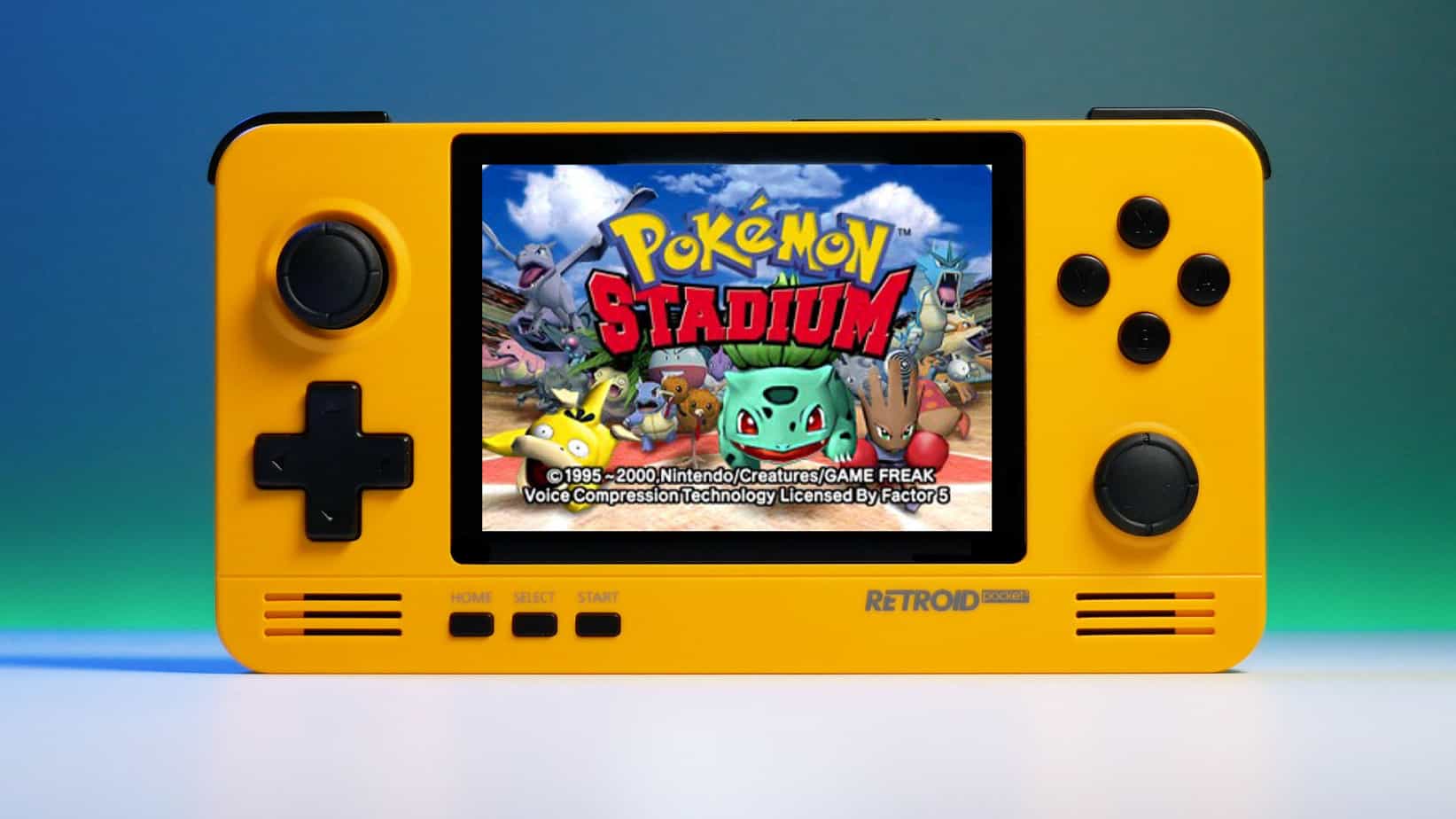
We have talked about gaming on old computers and have covered new and upcoming Steam deck handheld console. Today we are combining old gaming with a handheld console and our target of talk is Retroid pocket 2. This product is packed with really high-quality plastic and with some great features in it. retroid pocket 2So let's dive into this cool handheld in more detail and find out why we like it so much.

Good manufacturing quality

Plastic and overall manufacturing quality are really, really good. The battery is great, packing 4000mAh that can hold over 3 hours of nonstop gaming, and all buttons and joysticks are great. The screen is a 640 x 480 60Hz 3.5″ IPS screen (4:3 aspect ratio) that performs really great for its purpose, retro gaming. There is a Digital D-Pad and dual analog joysticks. The right joystick is the lower profile to avoid being accidentally moved when pressing the four gaming buttons. There are three buttons at the bottom which are Home, Start, and Select. On either side are good-quality stereo speakers. On the bottom of the device are a Micro SD Card slot and a 3.5mm headphone port. On the top of the device are Left and Right shoulder and trigger buttons. There are the power button and volume adjustments. There are a USB Type-C OTG port and a Micro HDMI output for connection to a TV.

Good technical statistics

Good, not great but then again since this is retro handheld you cannot really expect some crazy stuff like alder lake inside. So the console is punching ARM Cortex A7 CPU with 2 cores and a clock of 1.5GHz paired with ARM Mali 400-MP2 500MHz GPU. The console has 1GB LPDDR3 RAM memory and 8GB eMMC Storage where 5GB is freely available, the rest is taken for OS. As mentioned before the display is 640x480 resolution with a size of 3.5″. The battery is Lithium-Ion with a power of 4000mAh and on the handheld, there is a USB Type-C connector, 3.5mm headphone jack, and Micro-HDMI. It also has Wifi/Bluetooth 4.0

Retroid Pocket 2 OS and support

Pocket 2 comes with Android 6 but you can update its firmware to the 8.1 version on the official site that I would highly recommend. New versions of the handheld will come with 8.1 on it from the box. Having Android as OS opens many possibilities like you can download Android apps such as Steam Link, allowing you to play actual PC games on your Retroid Pocket 2. Not just that, if it does get a newer version of Android it could even have the ability to use xCloud, Xbox’s cloud gaming service. Of course, hardware will not be able to handle modern games but the option is still there and for some old PC titles available on steam like Commander Keen, for example, this is a great option. The console can emulate basically everything up to Dreamcast, including N64, PSP, and Playstation 1. It can emulate Nintendo DS also, but it can only do so with one screen. The only problem with this console is you will need to install and update Apps. You’ll need to learn about RetroArch, an app that lets you download emulators or cores to play games.

Retroid price

The last thing on the list is the price of the console itself. Going just under the 100$ mark this really makes it an affordable option for plenty of people that would like to experience retro handheld gaming or for ones like me, nostalgic gamers wanting to relive some era of playing games on the road.

Conclusion

Among Chinese handheld devices for retro gaming, Retroid Pocket 2 is really on top of what the market can offer. If you are looking for a great handheld retro console and are not afraid of little dive-ins into the OS and various configurations, Pocket 2 will reward you with plenty and wide emulation support.
Read More
Reversing Mouse & Touchpad scrolling direction
As you know, aside from making computing a lot easier, mouse and touchpad, it also makes computing more efficient and less time-consuming. And so life is unimaginable without these useful devices. However, it is a known fact that you can’t customize these devices since all touchpads and mice come with their own default scrolling direction but worry not for in this post you will be guided on how you can reverse their default scrolling directions. Every user has their own different preferences when it comes to scrolling directions. You might want the scrolling directions to look like the page is being scrolled in the same direction in where you move your fingers over the touchpad or you might prefer it in an inverted way. Reversing the scroll direction for your device’s touchpad is really easy as Windows by default offers this customization. So if you are trying to find a way to reverse the scrolling direction of your mouse, then you have to follow a tricky little method which will be provided in this post. It is apparent from the number of settings the touchpad is available that it has become more customizable. You can configure everything, from its gestures, taps, sensitivity, and even its scrolling direction. And now, if you want to reverse its scrolling direction, here’s what you have to do: Step 1: Tap the Win + I keys to open Settings. Step 2: From there, go to Devices and select Touchpad from the menu. Step 3: Next, look for the Scrolling Direction setting. Step 4: Then click on the drop-down and select your preferred setting.  If you want the same direction scrolling, just select the “Downwards motion scrolls down” option, and if you want the opposite select the other one. After you carry out these steps, the settings will be applied right away and you will see the changes. On the other hand, if you want to change the scrolling direction for your mouse, the procedure is not as simple as it was for the touchpad.

To reverse the scrolling direction for a mouse, refer to these steps:

Step 1: In the Start Search, type “device manager” and click on the appropriate result to open the Device Manager. Step 2: After opening the Device Manager, look for your Mouse under the “Mice and other pointing devices” section. It is mostly listed as an “HID-compliant mouse”. Step 3: Right-click on your mouse and click Properties. Step 4: From there, go to the Details tab and from the drop-down menu, select Device Instance Path. Step 5: Now take note of the value displayed on its value field and then tap the Win + R keys to open the Run dialog box. Step 6: Type in “Regedit” in the field and hit Enter to open the Registry Editor. Step 7: Next, navigate to the following location:
HKEY_LOCAL_MACHINESYSTEMCurrentControlSetEnumHID
Step 8: From this folder, you have to start matching the values in the first part of the value you’ve taken note of. Step 9: Open the folder which has the same value and repeat this for the second part of the value. Step 10: Afterwards, click on the Device Parameters and look for a property named “FlipFlopWheel” and invert its value from 0 to 1 or 1 to 0 to reverse the scrolling direction. And then restart your PC to apply the changes made. After you restart your PC, you should see the changes in the scrolling direction of your mouse. Note that you can change the value back to its original value or just use the registry backup to undo the changes you’ve made.
Read More
A Guide to Fixing Error 0x80004005

Error 0x80004005 - What is it?

Error 0x80004005 is a typical Outlook error. This error code occurs either when sending emails or receiving them. The error message may be displayed in either of the following formats:
‘Sending and receiving reported error "0x80004005": The operation failed.’ ‘This message could not be sent. Try sending the message again or contact your network administrator. The client operation failed. Error is [OX80004005- 0X0004B9-OXOO501].’

Error Causes

There are several causes for the error 0x80004005 such as:
  • The Script Blocking Feature Enabled While Using Norton Antivirus
  • Spyware
  • Viruses
  • Registry problems-Missing or corrupt registry keys
It is advisable to repair and resolve error 0x80004005 immediately as it may cause a great deal of inconvenience to you. This error may hamper your ability to receive and send emails from your Outlook account and lower your productivity too as you may be unable to communicate with your peers.

Further Information and Manual Repair

To fix error 0x80004005, you don’t have to wait for the network personnel or be a technical expert yourself. This may be a critical error but the good news is that it is easy to resolve. Here are some effective methods and quick fixes to resolve the error 0x80004005 instantly.

Method 1: Disable Script Blocking Feature in Norton Antivirus

After installing Norton Antivirus on your PC, if you start experiencing the Outlook error 0x80004005, then the best way to resolve it is to simply disable the script blocking feature. However, the downside of this is that by disabling this feature your PC will become vulnerable to viruses and malware.

Method 2: Disable the New-Mail Notification Feature in MS Outlook

If you don’t have Norton Antivirus downloaded on your PC, then try method 2. This method involves disabling the new-mail notification feature in MS Outlook. The error code 0x80004005 is often resolved by switching off this feature. Try it to see if it works. To disable the new-mail feature all you have to do is open your Outlook account and then go to the Tools menu, then go to Options and then select the ‘Preferences’ tab. After that click on the ‘Emails Options’ tab and then simply uncheck the check-box against ‘Display a notification message when new mail arrives’. To confirm changes press OK.

Method 3: Scan for Viruses

The error 0x80004005 may also be triggered due to viral infection or spyware. Such malicious software enters your PC through phishing emails and while downloading files and attachments. You may not be aware of this but your PC may be infected by viruses. It is important you remove them immediately as they can expose you to serious risks including privacy issues, identity thefts, data breaches, and more.
Read More
Turn On/Off and Clear Windows Clipboard
Windows 10 has a Cloud Clipboard feature that allows users to have a list of multiple copied text in place so that they can reuse it. And each time the computer restarts, the Clipboard Data is cleared. However, you can actually do it manually. How? Read on as this post will walk you through how you can turn on or off as well as clear the Clipboard history in Windows 10. This kind of feature is already available in Windows 10 v1903. In the previous versions of Windows, there was no feature to turn off history in the clipboard and users have to use other ways to clear the clipboard history. And now it seems that Microsoft has put an end to this dilemma as it now allows users to clear the clipboard history. To turn on or off or clear the Clipboard history, here are some instructions you need to follow: Step 1: Tap the Win + X keys to open the power menu and select Settings. Step 2: After that, navigate to Settings > System > Clipboard. Step 3: From there, turn off the toggle button under the Clipboard history section. This will turn off the Cloud Clipboard feature. As a result, the default clipboard will hold one last item and will not display the data on the clipboard. Note: When you tap the Win + V keys to invoke the clipboard manager, you will see a prompt that says, “Can’t show history, See all copied items in place, Turn on clipboard history”. You have the option to turn it back on by simply clicking on the available button. Doing so would only hide the existing data and makes sure that no copy of the data is kept.

Conclusion

On the other hand, if you want to clear the clipboard without affecting its history data, you have to make sure to pin the items on the clipboard that you want to stay. After that, click on the three-dotted icon for the menu and click on the “clear all” option. This will delete all the entries but will keep the pinned items on your clipboard.
Read More
Fix Boot Configuration Data error 0xc0000185
This post will guide you in fixing a particular problem where your Windows 10 computer does not even let you turn it on and it appears as soon as it starts to boot the operating system and it displays an error message that says, “The Boot Configuration Data for your PC is missing or contains errors, Error code 0xc0000185”. On the other hand, it may also display a different error message saying, “The operating system couldn’t be loaded because a required file is missing or contains errors”. There are various suggestions you can try to resolve this error. You could check the physical status of your hardware or rebuild the Boot Configuration Data, use the Automatic Startup Repair or System Restore, or better yet, reset your Windows 10 computer. Since your computer will not boot, you will have to either try to get into the Advanced Startup Options screen, boot Windows 10 in Safe Mode, or use a bootable Windows 10 media to boot your computer.

Option 1 – Try to rebuild the BCD files

The first thing you can do to resolve the issue is to Rebuild Boot Configuration Data or BCD files.
  • You can start by booting into the installation environment for Windows 10 from an installation media.
  • After that, click on Repair your computer and on the blue screen, select Troubleshoot and then select the Advanced options menu.
  • From there, select Command Prompt and once you open it, enter each one of the commands given below by sequence.
    • bootrec /FixMbr
    • bootrec /FixBoot
    • bootrec /ScanOS
    • bootrec /RebuildBcd
  • Once you’re done executing the commands given above, type “exit” to close the Command Prompt window and then restart your computer and see if it fixed error code 0xc000014c.

Option 2 – Try to run Automatic Startup Repair

In this option, you need to boot your computer into the Advanced Startup Options and from there, run the Automatic Startup Repair and then wait until the process is completed.

Option 3 – Try running System Restore in Advanced Startup Options

Since you probably can’t boot into your Windows 10 computer, you can try to run System Restore again in the Advanced Startup Options.
  • Boot your computer into the Advanced Startup Options screen.
  • From there, you will see some options to troubleshoot when you can’t log in to Windows in the usual way.
  • Now select Troubleshoot > Advanced Options > Command Prompt.
  • After that, type “rstrui” and hit Enter to execute the command which will start the System Restore process.

Option 4 – Try to perform repair install by creating a Windows 10 installation media

  • Click this link and then click the Download Tool Now button.
  • Next, click the “Use the tool to create installation media (USB flash drive, DVD, or ISO file)…” option and follow the next given instructions on the screen.
  • Now select the ISO file option in step 5.
  • After that, you should now have an ISO file.
  • Next, go to the location where you’ve downloaded the ISO file.
  • Then right-click on the Windows 10 ISO file and select the Open with option and then select File Explorer.
  • Now click on “setup.exe” and follow the next instructions that appear on the screen. When asked, you have to select either Nothing (clean install) or Keep personal files only option. Take note that you must not select the “Keep personal files, apps, and Windows settings since it doesn’t really work.

Option 5 – Try to physically check the hardware

You should also check the physical status of the hardware in your computer. You can clean the dust off the hardware components like the Network Card of the computer. You might want to use a small blower or you could also use a soft cloth and run the components gently. Make sure that you don’t damage any parts with moisture or cause harm to any circuits while you carry out this task.
Read More
Error 0x8007002C - 0x4001E, installation failed in the SECOND_BOOT phase
Recently, a lot of users reported getting several error messages when they upgraded their Windows 10 computers. One of these error messages users encountered during a Windows 10 upgrade is the Error 0x8007002C-0x4001E. if you are one of the users who is facing this error, read on as this post will help you fix it. When you encounter this error, you will see the following error message on your screen:
“We couldn’t install Windows 10 We’ve set your PC back to the way it was before you started installing Windows 10 0x8007002C-0x4001E, The installation failed in the SECOND_BOOT phase with an error during PRE_OOBE operation.”
To resolve the 0x8007002C-0x4001E, The installation failed in the SECOND_BOOT phase error, here are some suggestions that might help.

Option 1 – Try flushing the SoftwareDistribution and Catroot2 folders

You have to stop a couple of services such as BITS, Cryptographic, MSI Installer, and Windows Update Services. And to do that, you need to flush the contents in the SoftwareDistribution folder. The Software Distribution folder in the Windows operating system is a folder that can be found in the Windows directory and is used to store files temporarily which might be required to install the Windows Update on your PC. Thus, it is required by the Windows Update and maintained by WUAgent. Aside from that, it also contains all the Windows Update History files and once you delete them, you will most likely lose the Update history. As a result, the next time you run the Windows Update, it may result in a longer detection time.
  • Open the WinX Menu.
  • From there, open Command Prompt as admin.
  • Then type in the following command – don’t forget to hit Enter right after typing each one of them.
net stop wuauserv net start cryptSvc net start bits net start msiserver
  • After entering these commands, it will stop the Windows Update Service, Background Intelligent Transfer Service (BITS), Cryptographic, and the MSI Installer
  • Next, go to the C:\Windows\SoftwareDistribution folder and get rid of all the folders and files thereby tapping the Ctrl + A keys to select them all and then click on Delete. Note that if the files are in use, you won’t be able to delete them.
After flushing the SoftwareDistribution folder, you need to reset the Catroot2 folder to restart the services you just stopped. To do that, follow these steps:
  • Type each one of the following commands.
net start wuauserv net start cryptSvc net start bits net start msiserver
  • After that, exit Command Prompt and restart your computer, and then try to run Windows Update once more.

Option 2 – Select the Keep your files option

You can also select the option to perform an in-place upgrade and opt for the “Keep my files” option during an installation as it might make the process a lot smoother and if you need to perform a clean install, you can do so once the setup is completed.

Option 3 – Try to run the Windows Update Troubleshooter

Running the built-in Windows Update troubleshooter could also help you resolve the 0x8007002C-0x4001E, The installation failed in the SECOND_BOOT phase error. To run it, go to Settings and then select Troubleshoot from the options. From there, click on Windows Update and then click the “Run the troubleshooter” button.

Option 4 – Try to run Microsoft’s online troubleshooter

Aside from the Windows Update Troubleshooter, you can also run the online troubleshooter of Microsoft as it can help you with Windows 10 upgrade errors.

Option 5 – Perform a clean install

If none of the options worked, you can try to clean install Windows 10. Just make sure that you have the ISO from the official Microsoft Website and then a bootable USB drive to install Windows 10 again. Take note that this will delete all the data from your drive where Windows 10 was installed previously.
Read More
Remove or join a Domain from Windows
As you know, networks that are domain-based are common in organizations and companies. These domain-based networks require multiple computers to be controlled through a single node known as a server. And the one that sets certain policies and restrictions on every system that is joined to the domain is the server administrator. So if you want to add your computer to a domain, you need to have the following information available:
  • The domain name
  • A user account name that’s registered in the active directory associated with the server
  • Windows Enterprise, Pro, or education version
In this post, you will be guided on how you can join or remove a domain. To get started, follow the given instructions below.

Option 1 – Joining a domain

  • First, you need to connect your computer to the network associated with the server since your computer and the server have to be on the same network.
  • Next, click the Start button and then click on the gear-like icon for Settings to open it.
  • After that, navigate to this path: Accounts > Access work or school.
  • Then click on Connect. This will open a new dialog box and from there, select the “Join this device to a local Active Directory domain” option.
  • Afterward, you will be asked to enter the username and password of your domain account.
  • Now select your Account type and when you proceed, you have to restart your computer. Your domain account should now be created.

Option 2 – Removing a domain

  • You need to open the Windows 10 Settings app.
  • And from there, go to this path: Accounts > Access work and school.
  • Next, select the account you want to remove from the domain and then click on Disconnect.
  • A prompt will then appear that says, “Are you sure you want to remove this account? This will remove your access to resources like email, apps, network, and all content associated with it. Your organization might also remove some data stored on this device”. Just click on Yes.
  • This will give you a Disconnect from the organization prompt.
  • Now click on Disconnect and select Restart now to restart your computer. This will complete the removal process of the domain.
Read More
DailyLocalGuide Removal Guide

DailyLocalGuide is a Browser Extension developed by Mindspark for Google Chrome. This extension hijacks your default search engine, the home page, and new tab, setting them to MyWebSearch.com.

From the Author:

The Software and Services are sponsored by third-party advertisements and commercial offers and may also contain links to third parties websites, advertisements, products, offers, applications, and more. By downloading and using the Software you give your consent to display to you such Third Party Content (by using display ads, pops, coupons, price comparison, in-line text, and content recommendations) through Our or Our business partners’ technology.

While installed, this extension gathers user browsing activity and sends it back to ad servers. This information is later used to better target ads. When browsing the internet with DailyLocalGuide installed you will see additional injected ads and sponsored content throughout your browsing sessions.

About Browser Hijackers

Browser hijacking is actually a type of unwanted software program, commonly a web browser add-on or extension, which causes modifications in web browser’s settings. They are made to interfere with browser functions for a variety of purposes. It redirects you to the sponsored websites and inserts ads on the browser that helps its creator generate revenue. Nonetheless, it isn’t that innocent. Your online safety is compromised and it is also very irritating. When the malware attacks your computer, it starts to mess things up a whole lot that slows your system down to a crawl. In the worse case, you may be forced to tackle serious malware threats too.

Symptoms of browser hijacker malware

Symptoms that your web browser is hijacked include: your home page is reset to some unfamiliar website; you see new unwanted favorites or bookmarks added, typically directed to advertisement-filled or pornography websites; the essential web browser settings are modified and unwanted or unsafe sites are added to the trusted sites list; you find unsolicited new toolbars added; your internet browser will display endless pop-up ads; your web browser starts running slowly or presents frequent glitches; you have prohibited entry to particular webpages, for example, the website of an antivirus software manufacturer like SafeBytes.

Exactly how they get into the computer

Browser hijackers infect computer systems in numerous ways, including through a file-share, a drive-by download, or an infected e-mail. They can also be deployed through the installation of an internet browser toolbar, add-on, or extension. Some internet browser hijackers spread in user’s computers using a deceptive software distribution method called “bundling” (often through freeware and shareware). Popular examples of browser hijackers include Conduit, CoolWebSearch, Coupon Server, OneWebSearch, RocketTab, Searchult.com, Snap.do, and Delta Search.

Browser Hijacker Malware – Removal

Some browser hijacking could be simply stopped by discovering and removing the corresponding malware program from your control panel. However, most browser hijackers are hard to eliminate manually. Irrespective of how much you attempt to get rid of it, it can keep returning over and over. Apart from that, manual removal expects you to do many time-consuming and complicated actions that are hard to accomplish for novice computer users. An anti-malware program is extremely effective with regards to finding out and eliminating browser hijackers that normal anti-virus software has missed. SafeBytes Anti-Malware detects all types of hijackers – such as DailyLocalGuide – and eliminates every trace quickly and efficiently.

What To Do If You Cannot Install Safebytes Anti-Malware?

Malware can cause many different types of damage to PCs, networks, and data. Certain malware types modify internet browser settings by including a proxy server or modify the PC’s DNS configuration settings. When this happens, you’ll be unable to visit certain or all websites, and therefore unable to download or install the required security software to eliminate the computer virus. If you’re reading this, you probably have affected by malware that prevents you from installing a computer security application such as Safebytes Antimalware on your PC. There are some solutions you can try to get around with this particular problem.

Remove malware in Safe Mode

The Windows OS has a special mode referred to as “Safe Mode” where just the minimum required programs and services are loaded. In case the malware is set to load immediately when the computer starts, switching into this mode may well prevent it from doing so. To start the computer into Safe Mode, hit the “F8” key on your keyboard right before the Windows boot screen shows up; Or right after normal Windows boot up, run MSConfig, check Safe Boot under Boot tab, and then click Apply. Once you’re in Safe Mode, you can attempt to install your antivirus program without the hindrance of the malicious software. Right after installation, run the malware scanner to remove most standard infections.

Obtain the security software in an alternate internet browser

Some viruses might target vulnerabilities of a particular browser that obstruct the downloading process. If you appear to have malware attached to Internet Explorer, then switch over to a different internet browser with built-in safety features, such as Firefox or Chrome, to download your favorite antivirus program – Safebytes.

Create a portable antivirus for eliminating viruses

Here’s another solution which is utilizing a portable USB anti-virus software that can check your system for malicious software without the need for installation. Adopt these measures to employ a USB drive to fix your corrupted computer. 1) Download the anti-malware on a virus-free computer. 2) Plug the Flash drive into the uninfected computer. 3) Double-click the Setup icon of the antivirus software to run the Installation Wizard. 4) Choose a USB flash drive as the location when the wizard asks you where you intend to install the application. Follow the directions to finish the installation process. 5) Transfer the USB drive from the clean computer to the infected PC. 6) Run the Safebytes Anti-malware directly from the flash drive by double-clicking the icon. 7) Run Full System Scan to identify and clean-up up all types of malware.

Highlights of SafeBytes Anti-Malware

Do you wish to install the best anti-malware program for your laptop? There are numerous applications available that come in free and paid versions for Windows systems. A few of them are excellent, some are decent, while some will destroy your computer themselves! You have to look for a product that has got a good reputation and detects not just computer viruses but other sorts of malware also. With regards to commercial antimalware tool options, many people go with well-known brands, like SafeBytes, and they are very happy with it. SafeBytes anti-malware is a trustworthy tool that not only secures your computer permanently but is also very user-friendly for people of all ability levels. With its outstanding protection system, this software will automatically detect and remove most of the security threats, which include browser hijackers, viruses, adware, ransomware, PUPs, and trojans.

SafeBytes anti-malware offers an array of advanced features which sets it apart from all others. These are some of the highlighted features included in the product.

World-class AntiMalware Protection: Safebytes is based on the very best virus engine within the industry. These engines will detect and remove threats even during the initial phases of a malware outbreak. Real-Time Protection: SafeBytes gives round-the-clock protection for your personal computer restricting malware attacks in real-time. This tool will continuously monitor your computer for suspicious activity and updates itself regularly to keep abreast of the constantly changing threat scenarios. Internet Security: SafeBytes provides an instant safety rating about the web pages you’re going to check out, automatically blocking harmful sites and making sure that you are certain of your safety while browsing the world wide web. Fast Scan: SafeBytes Anti-Malware possesses a multi-thread scan algorithm that works up to 5x faster than any other protection software. Lightweight: SafeBytes is really a lightweight application. It uses up a very small amount of processing power as it operates in the background so you’re free to use your Windows-based computer the way you want. Premium Support: You can get high levels of support around the clock if you are using their paid version. Overall, SafeBytes Anti-Malware is a solid program as it has loads of features and can detect and eliminate any potential threats. Once you’ve downloaded and installed this software, you will no longer have to bother about malware or other security worries. If you need advanced forms of protection features & threat detections, buying SafeBytes Anti-Malware could be well worth the money!

Technical Details and Manual Removal (Advanced Users)

If you wish to perform the removal of DailyLocalGuide manually rather than employing an automated software tool, you can follow these measures: Navigate to the Windows Control Panel, click the “Add or Remove Programs” and there, select the offending program to uninstall. In cases of suspicious versions of browser plugins, you can actually remove it via your web browser’s extension manager. You will likely also want to reset your internet browser to its default configuration settings. If you decide to manually remove the system files and Windows registry entries, utilize the following checklist to ensure that you know exactly what files to remove before carrying out any actions. But bear in mind, this is often a tricky task and only computer professionals could accomplish it safely. Furthermore, some malware keeps replicating which makes it tough to remove. Carrying out this malware-removal process in Safe Mode is suggested.
Files: Directory %LOCALAPPDATA%\DailyLocalGuideTooltab. Directory %LOCALAPPDATA%\Google\Chrome\User Data\Default\Extensions\hkeaafmlcginkhibjjdijabnpfobeibe Directory %LOCALAPPDATA%\Google\Chrome\User Data\Default\Local Extension Settings\hkeaafmlcginkhibjjdijabnpfobeibe Directory %LOCALAPPDATA%\Google\Chrome\User Data\Default\Sync Extension Settings\hkeaafmlcginkhibjjdijabnpfobeibe Registry: key DailyLocalGuide at HKEY_CURRENT_USER\Software\ key DailyLocalGuideTooltab Uninstall Internet Explorer at HKEY_CURRENT_USER\Software\Microsoft\Windows\CurrentVersion\Uninstall\

Read More
1 2 3 171
Logo
Copyright © 2023, ErrorTools. All Rights Reserved
Trademark: Microsoft Windows logos are registered trademarks of Microsoft. Disclaimer: ErrorTools.com is not affiliated with Microsoft, nor claims direct affiliation.
The information on this page is provided for information purposes only.
DMCA.com Protection Status