Logo

Airplane Mode turns on by itself in Windows

As you know, Airplane mode is the one that gets devices in such a state where all the wireless connections are turned off. However, recently, there are some reports from users claiming that the Airplane Mode turns on by itself in their Windows 10 computers. This kind of problem could be due to an error with the Network driver, third-party applications, and many other factors. Other users also reported that the Airplane Mode automatically flickers, while some stated that they aren’t able to toggle the option for Airplane mode.

There are several options you can try to resolve this problem. You can try to configure the Power Management settings for the driver or run the Network troubleshooter. You could also roll back, reinstall or update the Network driver, as well as troubleshoot the problem in a Clean Boot State. For more details, follow each one of the given options below.

Option 1 – Try configuring the Power Management settings for the driver

The first thing you can do to fix the problem is to try configuring the Power Management settings for the driver. How? Refer to these steps:

  • Tap the Win + X keys to open the WinX menu and from there, select the Device Manager to open it.
  • Next, expand the Network adapters and select the entry for your Wi-Fi hardware.
  • After that, right-click on it and select Properties.
  • From there, go to the Power Management tab and uncheck the “Allow the computer to turn off this device to save power” option.
  • Once done, restart your computer and see if it has fixed the problem.

Option 2 – Try to run the Network troubleshooter

To run the Network Troubleshooter, refer to these steps:

  • Open the Search bar on your computer and type in “troubleshoot” to open the Troubleshoot settings.
  • Next, scroll down and select the “Network Adapter” option from the right pane.
  • Then click on the Run Troubleshooter” button.
  • After that, your computer will check for any possible errors and will pinpoint the root cause of the problem if possible.
  • Restart your computer.

Option 3 – Try to update, rollback or reinstall the Network adapter drivers

The next thing you can do to resolve the problem is to update the Network Adapter drivers by following these steps:

  • Tap the Win + R keys to launch the Run window and then type in the “devmgmt.msc” command and hit Enter to open the Device Manager window.
  • Under the Device Manager, you will see a list of drivers. From there, look for the Network Adapters and expand them.
  • Look for the Broadcom Network Adapter and right-click on it, as well as other network adapters that have an exclamation icon, and update them all.
  • Restart your PC and see if it helped in fixing the problem.

Note: If updating the network drivers didn’t help in fixing the problem, you can also try to roll back the very same drivers from their previous versions and restart your Windows 10 PC. After that, the system itself will reinstall the drivers you just uninstalled. Alternatively, you can also download and install the drivers from the manufacturer’s website directly.

To reinstall the network adapter drivers, refer to these steps:

  • Open the Devices Manager from the Win X Menu.
  • Then locate the device drivers and right-click on them to open the Properties.
  • After that, switch to the Driver tab and click on the Uninstall Device button.
  • Follow the screen option to completely uninstall it.
  • Finally, restart your computer. It will just reinstall the device drivers automatically.

Option 4 – Try to reset the Network Adapter

You can also try to perform a Network Reset to resolve the problem. This will reset the entire network configuration including your IP address. To perform Network Reset, follow these steps:

  • Tap the Win + I keys to open Settings.
  • From there, go to the Network and Internet section.
  • Next, scroll down and look for “Network Reset” under the status pane.
  • After that, click on Network Reset and then on Reset now to start resetting the network configuration. Once done, check if it is able to fix the error or not.

Option 5 – Try putting your computer in a Clean Boot State

You can also troubleshoot the problem in a Clean Boot state. It could be that there are some third-party applications in your computer that are causing the Airplane Mode to behave in a strange way. So, to isolate this possibility, you need to boot your computer in a Clean Boot State be using these steps:

  • Log onto your PC as an administrator.
  • Type in MSConfig in the Start Search to open the System Configuration utility.
  • From there, go to the General tab and click “Selective startup”.
  • Clear the “Load Startup items” check box and make sure that the “Load System Services” and “Use Original boot configuration” options are checked.
  • Next, click the Services tab and select the “Hide All Microsoft Services” check box.
  • Click Disable all.
  • Click on Apply/OK and restart your PC. (This will put your PC into a Clean Boot State. And configure Windows to use the usual startup, just simply undo the changes.)
  • After you’ve set your computer into a Clean Boot State, try to observe if the Airplane mode is now back to normal or not.

Do You Need Help with Your Device?

Our Team of Experts May Help
Troubleshoot.Tech Experts are There for You!
Replace damaged files
Restore performance
Free disk space
Remove Malware
Protects WEB browser
Remove Viruses
Stop PC freezing
GET HELP
Troubleshoot.Tech experts work with all versions of Microsoft Windows including Windows 11, with Android, Mac, and more.

Share this article:

You might also like

Step By Step Guide to Fixing Regsvr32.exe Error On Windows

What is Regsvr32.exe Error?

Regsvr32 (Microsoft Register Server) is a command-line utility in Microsoft Windows Operating System. This is used for registering and unregistering OLE controls such as ActiveX controls and DLLs in the Windows Registry. This is executed as Regsvr32.exe.  The filename extension .exe is the abbreviation for executable.   It is installed in the %systemroot%System32 folder in Windows XP and new Windows versions. The Regsvr32.exe is an error that occurs when you attempt to run Regsvr32.exe to register a 32 bit DLL (Dynamic Link Library) on a 64-bit version of Windows. The error message is displayed as the following:
  • Filename.dll is not an executable file and no registration helper is registered for this file type.
  • Unrecognized flag: /invalid_flag
  • No DLL name specified
  • Dll_Name is not an executable file and no registration helper is registered for this file type.
  • The module "%1" failed to load.

Solution

Restoro box imageError Causes

There are multiple causes for the Regsvr32.exe error code. These include:
  • Invalid entry (command) path
  • Active X control errors
  • Missing or Damaged .dll files
  • Viral infection (Trojans) (.exe can easily get infected by viruses)
  • Registry issues
If you come across the Regsvr32.exe error code, it is advisable to repair it immediately before the damage sets in. Since this may occur due to viral infection, it can pose privacy and data security risks to your PC.

Further Information and Manual Repair

Here are solutions that you can implement to resolve the Regsvr32.exe error code on your system:
  1. If an invalid entry point is the cause of the error, then simply open an elevated command prompt. If the 32-bit DLL is in the %systemroot%System32 folder, then move it to the %systemroot%SysWoW64 folder. After that run the following command: %systemroot%SysWoW64regsvr32 <full path of the DLL>. This will help resolve the Regsvr32.exe error.
  2. If the cause of the error is a viral infection, then you will need to run a powerful antivirus to detect and remove viruses from your system to resolve the Regsvr32.exe error on your system.
  3. Nonetheless, if the causes for Regsvr32.exe are either Active X controls or registry corruption, then you will need to scan your computer with different tools to resolve each issue separately.
This can be time-consuming and too many program installations at one time can also slow down your system’s performance. This means you’ll also have to compromise on your PC’s speed.

Repair Regsvr32.exe Error With Restoro

To avoid all this hassle yet repair the Regsvr32.exe error, download Restoro. This is a multi-functional and innovative PC repair tool deployed with multiple utilities in one program including features like a registry cleaner and an Active X controls error fixer. It also functions as a system optimizer. It is a one-stop solution for all your PC-related errors including the Regsvr32.dll error. It is safe, efficient, and user-friendly. It is compatible with all Windows versions. When the RAM overloads it leads to damaged dlls and registry corruption. The registry cleaner utility repairs the damaged dll files and the corrupt registry. It wipes out all the unnecessary files cluttering the RAM including the junk files, invalid registry entries, and temporary files. Restoro also has an Active X controls scanning utility. This utility can be of great use if the Regsvr32.exe error is triggered by Active X control-related issues. Click here to download Restoro and resolve Regsvr32.exe on your computer right away.
Read More
NVIDIA Control Panel is not opening
Users who constantly use graphic-intensive applications like games or any video-rendering software need to control how their graphics card is used. There are some who always toggle their Graphic Quality settings to get the Frames Per Second or FPS up. While some tend to adjust the size, orientation, scaling, and other display settings in order to use their PCs in a more efficient way or to simply work better. And in all of that, that’s where the NVIDIA Graphics Card comes into the picture. Take note that this software only works on PCs which has NVIDIA Graphics Card attached to them. Thus, if you use another Graphics Card then this post is not for you, otherwise, proceed reading to know what you can do if the NVIDIA Control Panel is not opening on your Windows 10 PC. Here are a couple of things you can try if the NVIDIA Control Panel is not opening, not responding, or not working:
  • Restart the process of the NVIDIA Control Panel
  • Restart the NVIDIA Display Driver Service
  • Update your NVIDIA Display Drivers
For more details, refer to the instructions provided below.

Option 1: Restart the process of the NVIDIA Control Panel.

  • Tap the Ctrl + Shift + Esc keys to open the Task Manager.
  • After opening the Task Manager, look for the process named NVIDIA Control Panel Application.
  • Once you found it, expand it and right-click on the NVIDIA Control Panel sub-process, and click on End Task.
  • Now try opening the NVIDIA Control Panel from the Start Menu and see if it now works fine or not.

Option 2: Restart the NVIDIA Display Driver Service

  • Tap the Win + R keys to open the Run dialog box.
  • Then type “services.msc” in the field and hit Enter to open the Windows Services Manager.
  • After opening the Services window, you will see a list of services. From there, look for services named “NVIDIA Display Container LS” and double click on it to open its Properties.
  • Now make sure that the service is Started. If it isn’t, you need to start it, otherwise, you need to Stop it and Start It again. You also have to make sure that the Startup Type is set to Automatic.
  • Do the same for the NVIDIA LocalSystem Container service.
  • Restart your computer and check if the problem’s fixed.

Option 3: Try updating the drivers from the official site of NVIDIA

If both the first and second given options didn’t work, you can also try updating the drivers from the official NVIDIA website. And in case you don’t know the type of Nvidia graphics card that your computer is on, follow the steps below:
  • Tap the Win + R keys to open the Run dialog box.
  • Next type in “dxdiag” in the field and click OK or hit Enter to open the DirectX Diagnostic Tool.
  • From there, you can see what type of Nvidia graphics card that your system is on.
  • Take note of your graphics card information and then look for the best drivers for your operating system. Once you’ve downloaded and installed the file, restart your PC.
Read More
Software Licensing Service 0xC004F009 Error
A copy of Windows gets into a grace period when it is installed on a computer which means that you can use your Windows computer without any constraints on its feature. However, if you suddenly encounter an error code 0xC004F009 then this means that the grace period has already expired. In such cases, you will see the following error message on your screen:
“Error Code 0xC004F009, The Software Licensing Service reported that the grace period expired.”
One of the possible causes of this error is that it could be that the grace period has already expired way before the system was activated which is a result of which the system is in the Notifications state at this moment. The error code 0xC004F009 has something to do with MAK-enabled computers in an enterprise when it comes to Volume Licensing. One of the reasons that this error pops up is due to the possibility that the computer was not activated yet even when it was already connected to the Enterprise. Another most likely cause of the error is when the system was never connected with the Enterprise at all and the given grace period has expired before your computer system is activated. Whatever the real cause of this error, this post will guide you in fixing it. Just refer to the instructions given below to fix it.

Option 1 – Try activating Windows using the command-line tool

  • First, you need to obtain your MAK key from the IT administrator.
  • Once you have it, tap the Win + R keys on your keyboard and then type “cmd” in the field and hit Enter to open an elevated Command Prompt.
  • After that, type this command and hit Enter to install the product key or replace the existing one: Slmgr.vbs –ipk <your mak key>
  • Next, type another command and hit Enter: slmgr.vbs –ato
  • Once you’ve executed the given commands, Windows should be activated after it connects to Microsoft servers and then gives it some time and try to check if error code 0xC004F009 is now fixed or not.

Option 2 – Try activating Windows using your mobile phone

Activating Windows 10 can also be done using your phone. Just note that you have to call Microsoft to do so.
  • In the Start Search box, type in “Slui 4” and tap Enter.
  • Next, select your country and click on Next.
  • Keep the window open and call the toll-free number of the country you’re from.
  • Afterward, a confirmation ID should be given by the automated system which you must take a note of.
  • Finally, in the box on the window, type in the confirmation ID and click on the Activate button. That should do it.

Option 3 – Try to prolong the grace period

On the other hand, it is also possible for you to prolong the grace period but you might have to get another genuine Windows key for that. Before you proceed, you need to create a System Restore point first afterwards, refer to the steps given below to increase the grace period of the Software Licensing Service on your Windows 10 computer.
  • Tap the Win + R keys to open the Run dialog box and type “Regedit” in the field then hit Enter to open the Registry Editor.
  • After that, navigate to this registry key: HKEY_LOCAL_MACHINESOFTWAREMicrosoftWindowsCurrentVersionSetupOOBEmediabootinstall
  • Next, change the value of the “mediabootinstall” key to “0”.
  • Now open Command Prompt with admin privileges and then type this command and hit Enter: slmgr –rearm
  • The command you just entered will add another grace period to your system activation. After that, you have to obtain a new key and then activate Windows.

Option 4 – Try running the Windows 10 Activation Troubleshooter

You can also try to run the Windows 10 Activation troubleshooter to help resolve the error code 0xC004F009.
  • Go to Settings and then select Activation.
  • After that, click on the Windows Activation and then troubleshoot. This will help you address most of the commonly found activation issues in Windows devices.
Read More
Fix error code 0x80190001 in Windows
If you are trying to install a Feature Update in Windows 10 but you got the error code 0x80190001, then it means that there is something wrong with the installation files. The installation files are either corrupted or some of them failed to be downloaded. On the other hand, the issue might also have something to do with a driver issue. When you encounter error 0x80190001, you will see the either of following error message on your screen:
“Something went wrong Couldn’t download Windows 10, please check your network settings and try again. You can contact Microsoft support for help with this error. Here’s the error code 0x80190001”. Or: “An unexpected error was encountered while attempting to download files required for the upgrade”.
Here are some fixes that could help you resolve the error 0x80190001. Follow them carefully.

Option 1 – Run the Network Troubleshooter

As mentioned in the error message the issue might have something to do with the network settings of your computer so you can try to run the Network Troubleshooter and then try updating or installing Windows 10 again.

Option 2 – Update Network drivers

  • Tap the Win + R keys to launch Run.
  • Type in msc into the box and tap Enter or click OK to open the Device Manager.
  • After that, look for Network Adapters from the list of device drivers displayed. Once you find it, expand it to see the Network drivers.
  • Right-click on it and select the option “Uninstall device” – do the same thing for the other Network drivers.
  • Restart your PC so Windows can detect and reinstall the drivers you just uninstalled.

Option 3 – Use Storage Sense to clean up temporary and junk files

  • Open Setting > System > Storage from the WinX Menu.
  • From there, you will see a list of all the local and connected storage devices along with the details on the free space.
  • Now make sure that the Storage Sense feature is turned On then go find a link that says “Free Up Space” and click it to open.
  • After that, a screen which is the built-in program in Windows 10 will appear and will scan your computer for the following junk files so you can free up disk space:
  • Windows Upgrade Log Files
  • The system created Windows Error Reporting Files
  • Thumbnails
  • Temporary Internet Files
  • Previous Windows Installation Files
  • Delivery Optimisation Files
  • DirectX Shader Cache
Note: Once you’re done freeing up space on your drive, try to run the setup file again.

Option 4 – Delete the contents in the SoftwareDistribution folder

The Software Distribution folder in the Windows operating system is a folder that can be found in the Windows directory and is used to store files temporarily which might be required to install the Windows Update on your PC. Thus, it is required by the Windows Update and maintained by WUAgent. A lot of users tried deleting the files in this folder to fix the problem and so far it has worked. Like them, you can try clearing the Windows Update cache by simply deleting the contents of the folder named “SoftwareDistribution” since Windows apparently can’t clear and re-download the update contents once they are corrupted. Thus, deleting the contents of this folder will make Windows download the contents again which will fix the problem. To do that, follow the steps below.
  • Open the WinX Menu.
  • From there, open Command Prompt as admin.
  • Then type in the following command – don’t forget to hit Enter right after typing each one of them.
net stop wuauserv net stop bits
  • After entering these commands, it will stop the Windows Update Service and the Background Intelligent Transfer Service.
  • Next, go to the C:/Windows/SoftwareDistribution folder and get rid of all the folders and files thereby tapping the Ctrl + A keys to select them all and then click on Delete. Note that if the files are in use, you won’t be able to delete them.
  • Once all the contents in the Software Distribution folder are deleted, restart your PC and then go back to Command Prompt and input the following commands again.
net start wuauserv net start bits
 Since the folder has already been flushed, it will be populated afresh the instant your restart your computer and open Windows Update.

Option 5 – Run the Windows Update Troubleshooter

You might also want to run the Windows Update Troubleshooter as it is also known to help users resolve Windows Update errors like error 0x80190001.

Option 6 – Try to disable your antivirus program

Disabling the antivirus program or any security software installed in your computer is always a good idea you can try when the Windows Update process does not go smoothly. So before you try updating your computer again, make sure to disable the antivirus or security program and once the Windows Update is done, don’t forget to enable the antivirus program back again.

Option 7 – Try to use the Media Creation tool

The Media Creation tool in Windows allows you to use the ISO installation file to make a bootable device that you can use to install Windows on your PC. Note that this is kind of different from the usual installation process as it could erase your computer’s current settings and data on the primary drive. Thus, before you proceed, you need to backup all your data into some removable drive and then use the Media Creation Tool to make a bootable drive.
  • After making the bootable drive, you need to plug it into your computer and then reboot.
  • Next, tap the F10 or Esc key to open the boot options.
  • Now set the boot priority of the removable drive the highest. Once the setup comes forth, follow the next onscreen instructions and install Windows without any problems.
Read More
Apple M2 Chip review

Direct replacement for Apple M1 Chip is near. There were some M1 Chips versions like M1 MAX and M1 ULTRA that were upgrades of the existing M1 chip, but the new and upcoming M2 is something different and it is aiming to replace M1 completely.

apple m2 chip

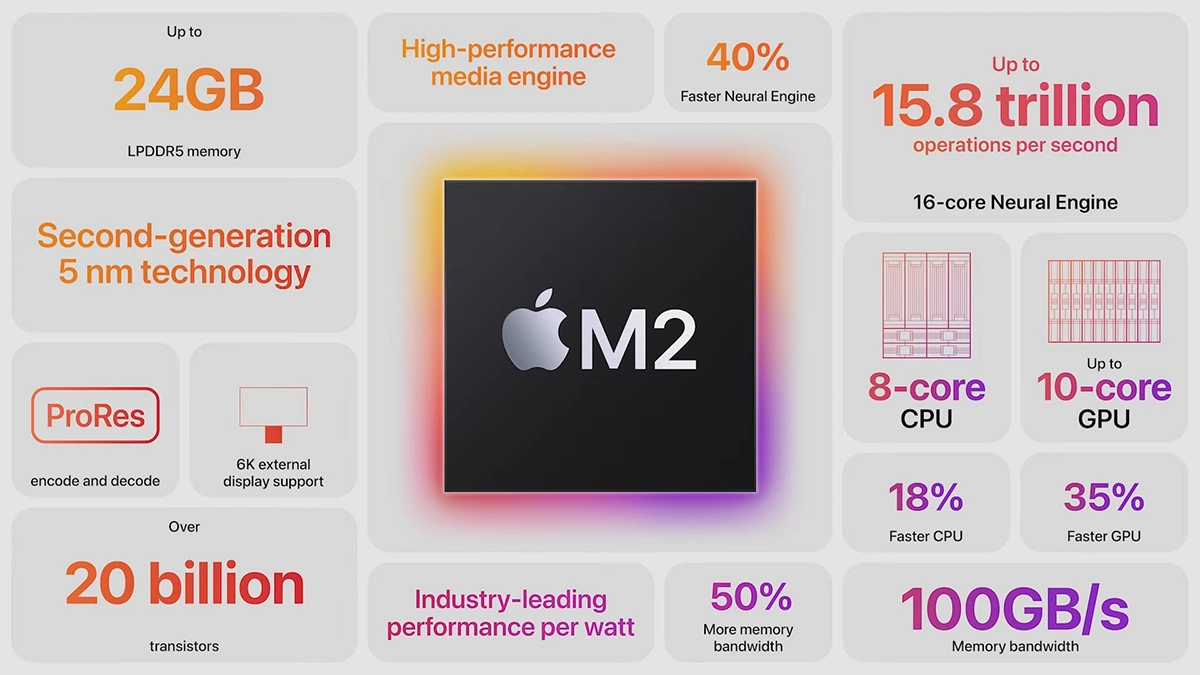
Made in a 5-nanometer design, with 20 billion transistors and 100GB/s of unified memory bandwidth is meant to increase performance over M1. It has the same M1 8 core design with 4 high-efficiency cores and 4 high-performance ones.

All CPU and GPU cores are faster than their M1 equivalents and Apple states that when running M1 and M2 at the same power level M2 will perform 25% faster. The first version of the chip will place focus on power efficiency so if you are more on side of being a power user wait for the MAX or ULTRA version of M2.

Tech details of M2

M2 system on a chip like its predecessor M1 combines both CPU and GPU on a single chip with shared memory in order to increase performance compared to systems that have separate CPU and GPU. M2 so far has been only announced for MacBook Air and the 13-inch MacBook Pro that suppose to hit the market somewhere around July this year. Of course, we expect that M2 is included in future iPad series or Mac Mini series as well.

  • CPU Cores: 8
  • GPU Cores: Up to 10
  • Unified Memory: Up to 24 GB
  • Neural Engine Cores: 16
  • Number of Transistors: 20 billion
  • Process: Second Generation 5nm
Read More
BubbleDock Complete Removal Tutorial

BubbleDock is a software developed by Nosibay. It installs a customizable dock at the top of your screen.

It adds registry entities to allow it to start automatically each time your system is rebooted, as well as installing an update checker that will automatically update the software when an update is available. The software also adds various scheduled tasks to start the application at different times, this ensures that once the application is closed, it is re-launched at a later time, making it very hard to keep the software closed permanently.

While the software is running, it will generate ad links in your browser, display sponsored ads, and collect personal information and deliver it back to it’s ad network. While using this software you may see additional ads, banners, links, pop-up ads, and various other sponsored content while browsing the internet.

About Potentially Unwanted Applications

Have you ever found out an unwanted program running on your computer system and wondered exactly how the heck it got there? A PUA / PUP (potentially unwanted application / potentially unwanted program) is actually a piece of software that comes bundled with freeware and you consent to install it on your computer. These are programs you certainly don’t want on your computer since it does not provide any beneficial service. From a technical standpoint, a PUP isn’t “true” malware. An interesting difference between PUP and malware is distribution. Malware is commonly dropped via vulnerability exploitation whereas PUP gets installed with the consent of the user, who purposefully or unwittingly authorizes the PUP installation on their PC. Although a PUP is not malware by definition, it can still be harmful software and put your computer at risk exactly the same way a computer virus does.

Exactly how do PUPs look like?

PUPs come in many forms; however, most of them are adware, which usually displays irritating adverts and advertising banners on internet pages that you’re surfing. PUPs which come as browser add-ons and toolbars are widely recognizable. These toolbars alter your homepage and your default search engine in the installed web browser, track your internet activities, modify your search results with re-directs and sponsored hyperlinks, and eventually slow down your internet browser and diminish your web browsing experience. Potentially Unwanted Programs occasionally act quite much like viruses or spyware. They will carry dialers, keyloggers, as well as other software built right into them that may monitor you or deliver your sensitive details to 3rd parties. Even if the PUPs are not basically malicious, these applications still do practically nothing good on your personal computer – they’ll take precious system resources, slow your PC, weaken your device’s security, and make your PC more susceptible to viruses.

Preventing PUPs

• Study the fine print to be sure the end-user license agreement (EULA) you are accepting is only for the program you actually intend to download. • Never accept standard, express, default, or other installation settings which are recommended. Always opt for custom installation. • Use a good anti-malware program. Try Safebytes Anti-Malware which will spot PUPs and handle them as malware by flagging them for deletion. • Avoid shareware or freeware wherever possible. Disable or get rid of toolbars and browser extensions you don’t actually need. • Don’t download software from popups, online advertising, file sharing sites, as well as other unreliable sources; look out for any pre-set, unwanted features when downloading the program. Avoid heading to blogs and websites that promote pirated programs.

How To Install Safebytes Anti-Malware On An Infected Computer

Practically all malware is inherently unsafe, but certain kinds of malicious software do a lot more damage to your computer than others. Certain malware goes to great lengths to prevent you from downloading or installing anything on your personal computer, particularly antivirus applications. So what should you do if malicious software keeps you from downloading or installing Anti-Malware? There are some solutions you could try to get around with this particular obstacle.

Install in Safe Mode with Networking

Safe Mode is a unique, simplified version of Microsoft Windows where only the bare minimum services are loaded to stop malware and other troublesome applications from loading. In the event, the malicious software is set to load immediately when the PC starts, switching to this mode can prevent it from doing so. In order to enter into Safe Mode or Safe Mode with Networking, press the F8 key while the PC is starting up or run MSCONFIG and look for the “Safe Boot” options under the “Boot” tab. After you restart the PC into Safe Mode with Networking, you may download, install, as well as update the anti-malware program from there. Now, you can run the anti-virus scan to remove computer viruses and malware without interference from another application.

Switch to some other internet browser

Web-based malware could be environment-specific, aiming for a particular internet browser or attacking specific versions of the web browser. If you’re not able to download the security software program using Internet Explorer, this means the virus may be targeting IE’s vulnerabilities. Here, you must switch over to a different browser like Firefox or Chrome to download Safebytes Anti-malware software.

Create a portable USB antivirus for removing viruses

Here’s yet another solution which is creating a portable USB antivirus software that can scan your computer for malware without needing installation. Abide by these steps to run the anti-virus on the affected computer. 1) Use another virus-free computer to download Safebytes Anti-Malware. 2) Plug the Flash drive into the clean computer. 3) Double-click the Setup icon of the antivirus software to run the Installation Wizard. 4) When asked, select the location of the USB drive as the place where you would like to put the software files. Follow the activation instructions. 5) Now, transfer the USB drive to the infected PC. 6) Double-click the antivirus program EXE file on the flash drive. 7) Hit the “Scan Now” button to start the virus scan.

Benefits and Features of SafeBytes Security Suite

To protect your computer from many different internet-based threats, it’s very important to install an anti-malware application on your laptop. However, with so many antimalware companies in the marketplace, these days it’s tough to decide which one you should obtain for your PC. A few of them are excellent, some are ok types, and some will destroy your computer themselves! You should pick one that is efficient, practical, and has a strong reputation for its malware source protection. While considering the highly regarded software programs, Safebytes Anti-Malware is undoubtedly the highly recommended one. SafeBytes anti-malware is a powerful, highly effective protection application intended to help end-users of all levels of computer literacy in identifying and eliminating harmful threats out of their personal computer. After you have installed this software program, SafeBytes' superior protection system will ensure that no viruses or malicious software can seep through your personal computer. There are numerous great features you’ll get with this security product. Let’s check out a few of them below: Live Protection: Malware programs attempting to get into the computer are identified and stopped as and when detected by the SafeBytes real-time protection shields. They’re very efficient in screening and getting rid of different threats since they’re constantly improved with the latest updates and safety measures. Robust Anti-malware Protection: Built upon a greatly acclaimed anti-virus engine, this malware removal tool is able to identify and get rid of many stubborn malware threats like browser hijackers, potentially unwanted programs, and ransomware that other common antivirus applications will miss. Internet Security: SafeBytes gives an instant safety rating about the web pages you’re about to visit, automatically blocking dangerous sites and ensuring that you are certain of your safety while browsing the net. “Fast Scan” Abilities: Safebytes AntiMalware, with its enhanced scanning engine, provides ultra-fast scanning that will promptly target any active online threat. Lightweight: This program is not “heavy” on the computer’s resources, so you will not find any performance problems when SafeBytes is operating in the background. 24/7 Guidance: Expert technicians are at your disposal 24/7! They will quickly fix any technical issues you may be experiencing with your security software.

Technical Details and Manual Removal (Advanced Users)

If you wish to manually remove BubbleDock without the use of an automated tool, it may be possible to do so by removing the program from the Windows Add/Remove Programs menu, or in cases of browser extensions, going to the browsers AddOn/Extension manager and removing it. You will likely also want to reset your browser. To ensure the complete removal, manually check your hard drive and registry for all of the following and remove or reset the values accordingly. Please note that this is for advanced users only and may be difficult, with incorrect file removal causing additional PC errors. In addition, some malware is capable of replicating or preventing deletion. Doing this in Safe Mode is advised.

The following files, folders, and registry entries are created or modified by BubbleDock

Files: %APPDATA%Nosibay %PROGRAMS%Bubble Dock %PROGRAMFILES%Nosibay Registry: Key: HKCUSoftwareNosibay Key: HKCUSoftwareClassesbubbledock Key: HKCUSoftwareClasses.bubbledock Key: HKCUSoftwareMicrosoftWindowsCurrentVersionUninstallBubble Dock Key: HKLMSOFTWAREGoogleChromeExtensionskbjlipmgfoamgjaogmbihaffnpkpjajp Key: HKLMSOFTWAREMicrosoftWindowsCurrentVersionExplorerBrowser Helper Objects23AF19F7-1D5B-442c-B14C-3D1081953C94 Key: HKLMSOFTWAREClassesNosibay.SurfMatch Key: HKLMSOFTWAREClassesAppIDIESurfMatch.DLL
Read More
Fix Shell Infrastructure Host stopped working
The Windows 10 operating system supports the logging in of multiple users at the same time. Aside from that, it also allows administrators to create a Guest Account that has limited rights. However, there are some instances when you could encounter an error when you use the Guest Account. The error may state:
“Shell Infrastructure Host has stopped working. A problem caused the program to stop working correctly. Please close the program”.
This error indicates that the Shell Infrastructure Host or SiHost.exe process that is used for handling graphical elements, has crashed. And to fix this error, there are several options you can check out. You can try to reinstall the Microsoft Redistributable Packages or run a System File Checker scan. In addition, you can also use a new Guest Account or troubleshoot the problem in a Clean Boot State.

Option 1 – Try to install or repair Microsoft Visual C++ Redistributable 2013

A corrupted Microsoft Visual C++ Redistributable package or the absence of it can trigger the “Shell Infrastructure Host has stopped working” error – so if you do not have this package yet, you have to install it but if you already have it, follow the steps below to repair it.
  • Open Control Panel and proceed to Program and Features.
  • Under Programs and Features, look for Microsoft Visual C++ Redistributable package among the list.
  • Then right-click on it and click the Change button.
  • Next, you should see the Repair option – click on it to repair the installation of the Microsoft Visual C++ Redistributable package.
  • The process may take a couple of minutes before it finishes so once it does, you have to restart your PC.
After doing all these steps and you still encounter the problem, you might have to uninstall this package and download it directly from Microsoft’s website. However, if you are using Windows 10, you might not be able to do so since it only supports Windows versions up to Windows 8.1 so just proceed to the next option below.

Option 2 – Try to run a System File Checker scan

  • In the Windows Start Search, type “command prompt” and right-click on Command Prompt from the search results, and then select the “Run as administrator” option.
  • After opening Command Prompt with admin privileges, type the “sfc /scannow” and tap Enter to execute it.
  • Once the scan is finished, restart your computer and see if the Windows Script Host error.

Option 3 – Try using a new Guest Account

You might want to use a new Guest Account as it could help get rid of the error. All you have to do is have your admin delete the old Guest Account and create a new one and see if it helps in fixing the error.

Option 4 – Try troubleshooting the problem in a Clean Boot State

Setting your computer in a Clean Boot State can help you diagnose and later troubleshoot the problems in your computer. During this state, the system will start with a minimal number of drivers and startup programs that help in isolating the problem with the interfering software. To put your computer in a Clean Boot State, follow the given steps below.
  • Log onto your computer as an administrator.
  • Type in MSConfig in the Start Search to open the System Configuration utility.
  • From there, go to the General tab and click “Selective startup”.
  • Clear the “Load Startup items” check box and make sure that the “Load System Services” and “Use Original boot configuration” options are checked.
  • Next, click the Services tab and select the “Hide All Microsoft Services” check box.
  • Click Disable all.
  • Click on Apply/OK and restart your PC. (This will put your PC into a Clean Boot State. And configure Windows to use the usual startup, just simply undo the changes.)
  • From there, start to isolate the problem by checking which one of the programs you installed recently is the root cause of the problem.
Read More
DownSpeedTest Removal Guide

DownSpeedTest is a Browser Toolbar Extension for Google Chrome that allows users to test their internet speed and convert files, however this speed test does not show proper values, nor even close.

Upon installation DownSpeedTest will replace your default New Tab page with its own Search Engine “MyWay.com” or “Search.MyWay.com”. This Search Engine camouflages itself as a “Enhanced Google Search Engine”, but all it does is allow more room for easier ad injection. In the background, this extension monitors user browsing behavior and records visited links, viewed products, clicked links and time spend on websites. This information is later used for Ad targeting.

While browsing the internet with this extension enabled you will experience additional ads, sponsored content, and even pop-up ads on some occasions. Due to its information mining behavior and aggressive ad placement, DownSpeedTest had been marked as a Browser Hijacker and it is recommended for removal.

About Browser Hijackers

Browser hijacking is a type of unwanted program, commonly a web browser add-on or extension, which causes modifications in the browser’s settings. There are lots of reasons why you may experience a browser hijack; but commercial, advertising and marketing are the major reasons for their creation. These are typically used to force hits to a specific site, manipulating web-traffic to generate ad-revenue. Even though it might appear naive, these tools are made by malicious people who always try to take full advantage of you, so that hackers could earn money from your naive and distraction. In a worst-case scenario, your browser could be hi-jacked to download malicious software that can do a lot of damage to your laptop or computer.

How one can know whether the browser is hijacked?

When your web browser is hijacked, the following might happen: your browser’s homepage has been reset to some unknown webpage; new bookmarks pointing to porn websites have been added to your bookmarks; the default browser configurations are modified and/or your default web engine is altered; you see unwanted new toolbars added; unstoppable flurries of pop-up ads show up on your computer screen; your browser gets slow, buggy, crashes regularly; you can’t navigate to specific internet pages, such as security software related websites.

How does a browser hijacker infect a computer?

Browser hijackers infect computers via malicious e-mail attachments, downloaded infected documents or by visiting infected internet sites. They can be included with toolbars, add-ons, BHO, plugins or browser extensions. Also, some freeware and shareware can put the hijacker in your PC through “bundling”. Browser hijackers could record user keystrokes to collect potentially important information leading to privacy concerns, cause instability on computers, significantly disrupt user’s browsing experience, and ultimately slow down the system to a point where it becomes unusable.

How you can fix a browser hijack

One thing you could try to eradicate a browser hijacker is to find the malware in the “Add or Remove Programs” list of the Microsoft Windows Control Panel. It might or might not be there. When it is, uninstall it. However, most browser hijackers are difficult to eliminate manually. Regardless of how much you attempt to get rid of it, it might come back over and over. Amateur PC users should never try for the manual form of removal methods, since it demands in-depth system knowledge to perform fixes on the system registry and HOSTS file. Anti-malware software is really effective when it comes to picking up and eliminating browser hijackers that regular anti-virus application has overlooked. If you’d like to get rid of persistent hijackers effectively, install the top-rated Anti-Malware software Safebytes Anti-Malware. Use a system optimizer (like Total System Care) along with your anti-malware software to fix various registry issues, remove system vulnerabilities, and improve your computer performance.

What To Do If You Cannot Install Any Anti-Malware?

Practically all malware is bad and the consequences of the damage could differ according to the specific kind of malicious software. Some malware is created to interfere with or block things that you’d like to do on your PC. It may not permit you to download anything from the web or prevent you from accessing a few or all of the internet sites, especially the anti-malware websites. So what you should do if malware prevents you from downloading or installing Anti-Malware? There are a few actions you can take to circumvent this problem.

Install the anti-virus in Safe Mode

Safe Mode is a unique, simplified version of Microsoft Windows in which only essential services are loaded to counteract viruses and also other problematic applications from loading. If the malware is set to load immediately when computer starts, switching into this mode may prevent it from doing so. To start the computer into Safe Mode, press the “F8” key on the keyboard just before the Windows logo screen shows up; Or after normal Windows boot up, run MSConfig, look over “Safe Boot” under the Boot tab, and then click Apply. Once you are in Safe Mode, you can try to install your antivirus application without the hindrance of the malicious software. Following installation, run the malware scanner to get rid of most standard infections.

Download the anti-malware program using a different browser

Web-based malware could be environment-specific, aiming for a particular web browser or attacking particular versions of the browser. If you’re not able to download the security program using Internet Explorer, it means virus is targeting IE’s vulnerabilities. Here, you should switch over to an alternative web browser such as Chrome or Firefox to download Safebytes Anti-malware software.

Install anti-malware on a thumb drive

Another solution is to save and operate antivirus software tool completely from a Pen drive. Follow these steps to use a USB flash drive to clean your infected PC. 1) Make use of another virus-free computer to download Safebytes Anti-Malware. 2) Insert the USB drive on the same system. 3) Double click on the downloaded file to run the installation wizard. 4) Choose the USB flash drive as the location for saving the software file. Follow the instructions to complete the installation process. 5) Now, plug the USB drive into the corrupted computer. 6) Double-click the Safebytes Anti-malware icon on the pen drive to run the application. 7) Run Full System Scan to identify and clean-up of all types of malware.

Protect Your Computer & Privacy With SafeBytes Anti-Malware

If you’re planning to purchase anti-malware for your computer, there are lots of brands and utilities for you to consider. A few of them do a good job in getting rid of threats while many will harm your PC by themselves. You need to select one that is trustworthy, practical and has a good reputation for its malware source protection. While thinking about the dependable programs, Safebytes Anti-Malware is certainly the strongly recommended one. SafeBytes anti-malware is a reliable software that not only secures your system permanently but is also very user friendly for people of all skill levels. Through its cutting-edge technology, this software will help you protect your PC against infections brought on by different kinds of malware and other threats, including spyware, adware, viruses, worms, trojans, keyloggers, potentially unwanted program (PUPs), and ransomware.

SafeBytes has great features when compared with other anti-malware programs. The following are some of the features you might like in SafeBytes Anti-Malware.

Live Protection: SafeBytes provides complete and real-time security for your computer system. This tool will continuously monitor your PC for any suspicious activity and updates itself regularly to keep abreast of the latest threats. World-class AntiMalware Protection: With a critically acclaimed anti-malware engine, SafeBytes offers multilayered protection which is made to find and remove threats which are hidden deep in your computer’s operating system. Safe Browsing: Safebytes assigns all sites a unique safety ranking that helps you to have an idea of whether the webpage you’re just about to visit is safe to view or known to be a phishing site. Lightweight: This program is light-weight and will work quietly in the background, and will not affect your computer efficiency. 24/7 Online Technical Support: Support service is available for 24 x 7 x 365 days via email and chats to answer your queries. SafeBytes can keep your PC safe from latest malware threats automatically with very little input needed from you again. Once you have installed this software, you no longer have to worry about malware or any other security worries. You will get the very best all-around protection for the money you pay on SafeBytes anti-malware subscription, there’s no question about it.

Technical Details and Manual Removal (Advanced Users)

To get rid of DownSpeedTest manually, go to the Add or Remove programs list in the Control Panel and select the offending program you want to get rid of. For internet browser extensions, go to your browser’s Addon/Extension manager and choose the plug-in you intend to disable or remove. You’ll likely also want to reset your web browser. To ensure the complete removal, manually check your hard disk and computer registry for all the following and remove or reset the values as needed. Please be aware that this is for skilled users only and might be challenging, with incorrect file removal causing additional system errors. In addition, some malware is capable of replicating itself or preventing deletion. You’re suggested to do this procedure in Safe Mode.
Files: %USERPROFILE%\Microsoft\Windows\Start Menu\Programs\DownSpeedTest %ALLUSERSPROFILE%\Microsoft\Windows\Start Menu\Programs\DownSpeedTest %ALLUSERSPROFILE%\Application Data\Microsoft\Windows\Start Menu\Programs\DownSpeedTest %LOCALAPPDATA%\Google\Chrome\User Data\Default\Sync Extension Settings\maoffpmgdffbgbncadalkhfhmlfihkgk %UserProfile%\Local Settings\Application Data\Google\Chrome\User Data\Default\Sync Extension Settings\maoffpmgdffbgbncadalkhfhmlfihkgk %LOCALAPPDATA%\Google\Chrome\User Data\Default\Extensions\maoffpmgdffbgbncadalkhfhmlfihkgk %UserProfile%\Local Settings\Application Data\Google\Chrome\User Data\Default\Extensions\maoffpmgdffbgbncadalkhfhmlfihkgk Registry: HKEY_CURREN_USER\SOFTWARE\Wow6432Node\Microsoft\Windows\CurrentVersion\explorer\Browser Helper Objects\5818CEA7-889D-459A-9A75-889E1298A892 HKEY_LOCAL_MACHINE\Software\Microsoft\Windows\CurrentVersion\Ext\Stats\5818CEA7-889D-459A-9A75-889E1298A892 HKEY_LOCAL_MACHINE\Software\Microsoft\Windows\CurrentVersion\Ext\Stats\481F6B47-2AD8-4C6A-8554-A2897E6CF900 HKEY_LOCAL_MACHINE\Software\Microsoft\Windows\CurrentVersion\Ext\Stats\1AAB982B-77D7-44F1-B305-8909DAC045F2 HKEY_LOCAL_MACHINE\Software\Microsoft\Windows\CurrentVersion\Ext\Settings\5818CEA7-889D-459A-9A75-889E1298A892 HKEY_LOCAL_MACHINE\Software\Microsoft\Windows\CurrentVersion\Ext\Settings\481F6B47-2AD8-4C6A-8554-A2897E6CF900 HKEY_LOCAL_MACHINE\Software\Microsoft\Windows\CurrentVersion\Ext\Settings\1AAB982B-77D7-44F1-B305-8909DAC045F2 HKEY_LOCAL_MACHINE\Software\Microsoft\Internet Explorer\Approved Extensions, value: 1AAB982B-77D7-44F1-B305-8909DAC045F2 HKEY_LOCAL_MACHINE\Software\Microsoft\Internet Explorer\SearchScopes\CA6A7AB9-F4B5-4D50-B5D2-33E996549AE3 HKEY_CURREN_USER\SOFTWARE\Wow6432Node\Microsoft\Internet Explorer\Toolbar, value: 1AAB982B-77D7-44F1-B305-8909DAC045F2 HKEY_CURREN_USER\SOFTWARE\Microsoft\Internet Explorer\Toolbar, value: 1AAB982B-77D7-44F1-B305-8909DAC045F2 HKEY_CURREN_USER\SOFTWARE\Wow6432Node\Microsoft\Tracing\DownSpeedTest_RASMANCS HKEY_CURREN_USER\SOFTWARE\Microsoft\Tracing\DownSpeedTest_RASMANCS HKEY_CURREN_USER\SOFTWARE\Wow6432Node\Microsoft\Tracing\DownSpeedTest_RASAPI32 HKEY_CURREN_USER\SOFTWARE\Microsoft\Tracing\DownSpeedTest_RASAPI32 HKEY_CURREN_USER\SOFTWARE\Microsoft\Internet Explorer\LowRegistry\DOMStorage\downspeedtest.dl.myway.com

Read More
Quick Solution Guide to Error Code 40

Error Code 40 – What is it?

Error Code 40 is a device driver error that users encounter on any Windows 2000 and later operating systems. It occurs when the peripheral device that you connect to your PC cannot be accessed due to a change in the system registry.

This is due to the presence of invalid sub-keys of the device driver in the system registry. It is a common error that users come across and appears on your PC with either of the following messages:

“Information in the registry entry for this driver is invalid”

OR

"Windows cannot access this hardware because its service key information in the registry is missing or recorded incorrectly. (Code 40)"

Solution

driverfix boxError Causes

As mentioned above, the error code is triggered when the device driver’s invalid sub-keys appear in the registry, effectively changing it. This happens when the windows system files get damaged due to the following factors:

  • An incomplete program uninstallation
  • An incomplete program installation
  • Hardware is not removed properly
  • System recovery from viruses
  • An improper system shut down

Factors such as incomplete installations or uninstallations or an improper system shut down can cause files to become damaged that threaten the health of your computer.

Removing viruses from the computer is also another factor as it removes the entries in the Windows system files which contain the viruses including spyware or malware

Further Information and Manual Repair

Fixing Error Code 40 is similar to fixing other device manager error codes. Here are a few methods you can try.

Method 1 – Use System Restore

You can use system restore to eliminate the problem. Here is how you can use it:

  • Log in using an Administrator account
  • Click ‘Start’ button and select All Programs > Accessories > System Tools > System Restore
  • Click ‘Restore my computer to an earlier time’ and click ‘Next’
  • Select the last Windows restore point from the ‘On this list, click a restore point’ list, and click ‘Next’
  • Click ‘Next’ on the confirmation window to proceed
  • Restart your PC after restoration is complete
By restoring the system via a last saved system checkpoint, you can obtain undamaged Windows system registry files that can help avert the error code.

Method 2 – Manually uninstall then reinstall the device driver

If using system restore also does not work in removing the error code, you may have to resort to manually uninstalling and then reinstalling the device driver causing the problem.

This would be necessary since the remaining incomplete files due to a partial removal or installation of programs is what contributes to the error code. By uninstall and reinstalling the device driver program, it would lead to the completion of the files.

You can do this by firstly logging in as Administrator and open Device Manager. Select the device that is causing the problem and double click it and make sure that the peripheral is connected properly to the PC. Upon opening, click on the ‘Driver’ tab and then select ‘Update Driver’.

Make sure to refer to the system documentation that you received with your PC or computer to check for the motherboard details and driver specifics.

Method 3 – Use software to automatically download the driver

Manually uninstalling and reinstalling the driver will do the trick, however, it may be time-consuming especially when you would have to resort to your hardware user manual.

Therefore, using a program such as DriverFIX can save you a lot of time and frustration in having your device work properly on your computer.

DriverFIX, with its user-friendly approach to help you fix your PC issues, comes with an integrated database that detects which drivers you need to reconfigure within just a few seconds and downloads it automatically.

It further ensures that your drivers are installed in their entirety leaving no room for any incomplete files to remain that create Error Code 40.

It also has the added advantage of being able to backup and restores your files should there be the slightest possibility of system file damage.

Thus, registry damage can be averted by letting the software roll back the system files to an earlier healthy checkpoint. Driver Assist is the answer to fixing your PC error codes accurately and quickly.

Click here to download DriverFIX to fix Error Code 40 quickly and effectively!
Read More
Disable Windows print spooler in PowerShell
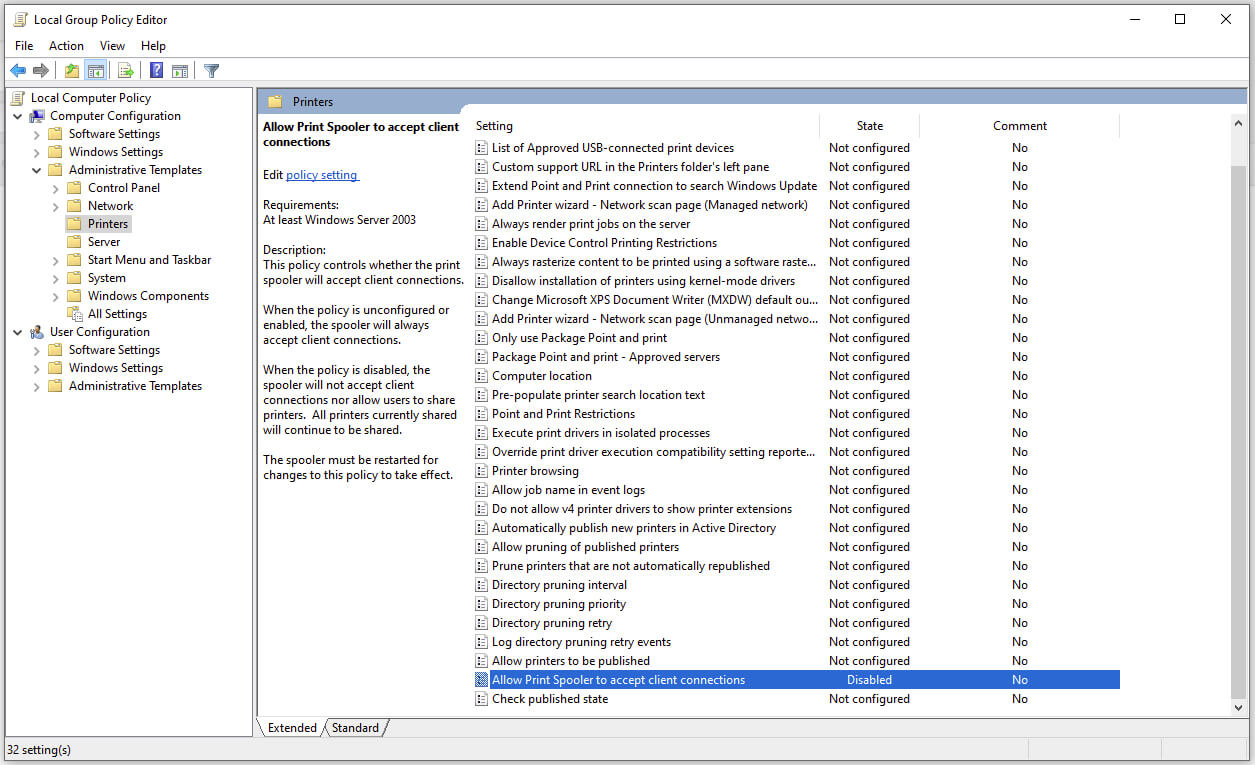
The third time is charm saying goes but not when we are talking about Microsoft. Print spooler is again in focus, in a bad way. This is the third print spooler vulnerability to emerge in just five weeks. While a critical flaw was originally identified and patched in June, a similar flaw came to light shortly after and was subsequently patched (with mixed success). print spoolerMicrosoft is once again advising its customers to disable Windows print spooler after a new vulnerability that allows hackers to execute malicious code on machines has emerged. While a patch fixing the flaw will be released in due course, the most effective workaround currently on the table is to stop and disable the print spooler service entirely.

"An elevation of privilege vulnerability exists when the Windows Print Spooler service improperly performs privileged file operations. An attacker who successfully exploited this vulnerability could run arbitrary code with SYSTEM privileges. An attacker could then install programs; view, change, or delete data; or create new accounts with full user rights."

Stop this service right away or you are risking a potential attack.

  1. Press ⊞ WINDOWS + X to open the hidden menu
  2. Click on Power Shell (admin)
  3. In Power Shell type in the following command to check if spool service is running: Get-Service -Name Spooler followed by ENTER
  4. If spooler service is running type in the next command to stop it: Stop-Service -Name Spooler –Force and press ENTER
  5. Then follow with this command to disable it at startup: Set-Service -Name Spooler -StartupType Disabled followed with ENTER
That’s it, we hope a patch will come soon for all the people that are using network printing and indeed need this service running in order to do work.
Read More
1 2 3 171
Logo
Copyright © 2023, ErrorTools. All Rights Reserved
Trademark: Microsoft Windows logos are registered trademarks of Microsoft. Disclaimer: ErrorTools.com is not affiliated with Microsoft, nor claims direct affiliation.
The information on this page is provided for information purposes only.
DMCA.com Protection Status