Logo

Setting up an FTP Server in Windows

File Transfer Protocol Server, also known as FTP Server, is a private or public service that can host files that can be accessed both locally and globally. It is a quick, flexible and seamless service that allows you to store any kind of files depending on the total size of the server. If you’ve always found an FTP server useful, then the good thing is you can now create your FTP server since Windows 10 now allows it. You can host this server locally and later on make it globally available via the internet. So if you are planning to set up an FTP server on your Windows 10 computer, read on as this post will guide you on how to do so.

To set up the FTP server, you need to configure it first and then configure the Windows Firewall for the connections to go through. For more details, refer to the following steps:

Step 1: You need to configure the FTP server on Windows 10.

  • In the Search box, type in “Turn Windows Features On or Off” to search for it.
  • Then click on the appropriate result which will open a mini window.
  • From this mini window, scroll down to the list and expand “Internet Information Services where you have to expand the FTP Server section.
  • Next, select all the checkboxes to enable all the entries under FTP Server and then click the OK button to apply the changes made.
  • And now, since your computer is now allowed to host an FTP server, you need to configure it. To do so, type “Internet Information Services (IIS) Manager” in the Search box and click on the appropriate entry.
  • Next, right-click on Sites under the navigation bar of Connections and select Add FTP Site. This will open a new window where you have to input some information about your FTP hosting.
  • Now enter the details and click on Next.
  • Upon clicking Next, you will be prompted to give some authentication details. Enter the following details in the screenshot below.
  • Now click on Finish. After that, you will get an FTP Server being hosted on your Windows 10 PC.

And now that you’ve successfully configured the FTP Server, the next thing you have to do is to allow connections from and to the FTP server. Refer to the next step below.

Step 2: Configure the Windows Firewall for FTP connections to pass-through

  • In the Start Search, type “Allow an app or feature through Windows Firewall” and click on the related search result which will open a window with all the settings.
  • From there, click on the Change Settings button. This will display a list where you have to mark all the checkboxes for the FTP server to enable them in both the Private and Public configurations.
  • After that, click OK. This will allow you access to the FTP server on your local network.

Do You Need Help with Your Device?

Our Team of Experts May Help
Troubleshoot.Tech Experts are There for You!
Replace damaged files
Restore performance
Free disk space
Remove Malware
Protects WEB browser
Remove Viruses
Stop PC freezing
GET HELP
Troubleshoot.Tech experts work with all versions of Microsoft Windows including Windows 11, with Android, Mac, and more.

Share this article:

You might also like

Pixel's fast emergency dialer

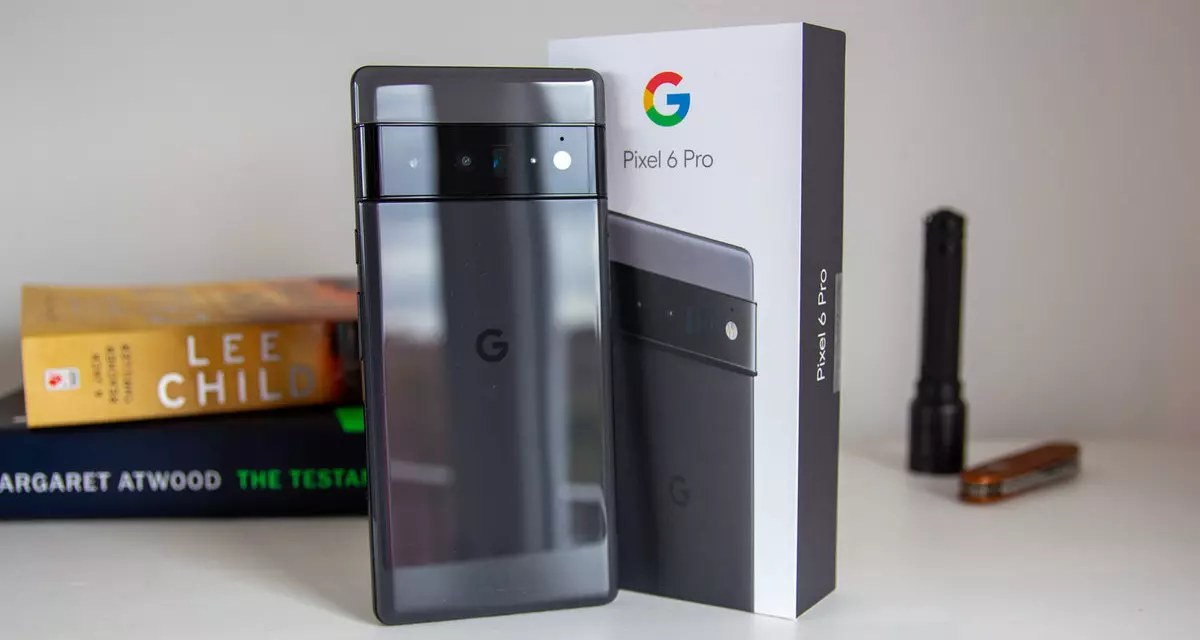
Google's Pixel smartphone is one if not the best Android smartphone on the market. It regularly gets updates and Google is really trying to keep it as a top choice for Android smartphone users. One of the new things that Google has released for its smartphone series is a new emergency dialer.

google pixel 6

With an emergency dialer, you will be able to quickly access local contact information for police, fire, and medical services. This dialer is able to contact before mentioned services even when the phone is locked and when you are traveling.

The idea is to quickly access the default emergency number no matter in which country you are currently in, service will find the appropriate number and set it as default so if you need it there is no delay in searching for the appropriate number and dialing it.

Once the service is enabled on the device you can swipe up and tap Emergency call without unlocking your phone or you can press and hold the power button for five seconds and tap Emergency.

If you have a Pixel smartphone go to the Google support page and follow instructions on how to enable this service. It costs nothing and it could potentially even save your life.

Read More
Fix Windows Sandbox failed to start 0x80070015
As of late, many users reported getting an error in Windows Sandbox that has an error code of 0x80070015. According to users, they encountered this error when they tried to start Windows Sandbox. Based on the error code, it seems that there are some problems with the supporting services of Windows Sandbox that trigger the error. It is possible that these services are misconfigured or that they are outdated and have to be updated. Here’s the complete message of the error:
“Windows Sandbox failed to start. Error 0x80070015. The device is not ready. Would you like to submit feedback about this issue?”
If you are one of the users who encountered this kind of error in Windows Sandbox, then you’ve come to the right place as this post will help you sort this problem out. All you have to do is follow each one of the options provided below.

Option 1 – Make sure that all the supporting processes and services of Windows Sandbox are running properly

If running Windows Sandbox as an administrator didn’t fix the error, you have to ensure that all related processes for Windows Sandbox are running properly. To do that, follow these steps:
  • Tap the Win + R keys to launch the Run utility and type “services.msc” in the field and hit Enter to open the Windows Services Manager.
  • Next, from the list of services, look for the following services in the given order:
    • Network Virtualization Service: (Startup type: Manual)
    • Virtual Disk: (Startup type: Manual)
    • Hyper – V Virtual Machine: (Startup type: Manual)
    • Hyper – V Host Compute Service: (Startup type: Manual)
    • Container Manager Services: (Startup type: Automatic)
  • After you find the aforementioned services, restart each one of them.
  • Once done, try to open the Windows Sandbox again and see if the error is fixed or not.

Option 2 – Try to install any pending Windows Updates

If the second option still didn’t work, then you might want to check Windows Updates on your computer and see if there are any pending Windows Updates you have to install. All you have to do is go to the Windows 10 Settings app and then go to the Windows Updates section and click on the “Check for updates” button to check if there are any pending updates that are needed to be installed. This could fix the Windows Sandbox Error 0x80070015.

Option 3 – Try to run Windows Sandbox as an admin

  • In the Start Menu, scroll down until you see the entry for the Windows Sandbox.
  • Then right-click on it and select More and then select the “Run as administrator” option to open it with admin privileges.
  • Next, if a User Account Control or UAC prompt pops up, just click on Yes to proceed.
  • You should now be able to open the Windows Sandbox without the error. However, if the error persists, proceed to the next given option below.
Read More
Repairing or rebuilding the WMI Repository
There are times when the WMI Repository gets corrupted which results in the Provider Load Failure. To resolve this issue, you need to repair or rebuild the WMI Repository in your Windows 10 computer. In this post, you will be guided on how exactly you can do that. In case you don’t know, the WMI which stands for Windows Management Instrumentation is a set of specifications from Microsoft to consolidate the management of devices and applications in a network. The WMI is a database that stores meta-information and definitions for WMI classes. Using only these, the conditions of the systems can be known. You can find the WMI Repository in %windir%System32WbemRepository. It provides end-users with the status of the local or remote computer system. Keep in mind that you must not use this on the Server 2012 Cluster machine. Although there are command-line tools that can fix or restore the Windows Management Instrumentation repository. However, Microsoft suggests that it’s better if you verify if there is corruption. Here are a list of errors as well as permission issues you might encounter:
  • Unable to connect to root default or rootcimv2 namespaces. It fails with the error code “0x80041002” pointing to “WBEM_E_NOT_FOUND.”
  • 0x80041010 WBEM_E_INVALID_CLASS
  • When you open Computer Management and Right Click on Computer Management (Local) and select Properties, you get the following error: “ WMI: Not Found” or it hangs trying to connect
  • Trying to use wbemtest , and it hangs
  • Schemas/Objects missing
  • Strange connection/operation errors (0x8007054e)
To verify if there is corruption, you can try running the following command in an elevated Command Prompt:
winmgmt /verifyrepository
 After you enter the command, if there is a response saying, “repository is not consistent”, then the repository has an issue. If not, then something else is causing the problem. Since you are certain that corruption exists in the WMI repository, then here are some suggestions you need to check out to repair or rebuild the WMI repository.

Option 1 – Try to reset WMI Repository

  • Type “command prompt” in the Start Search and right-click on Command Prompt from the search results and then select “Run as administrator”.
  • After opening Command Prompt with admin privileges, type and enter this command: winmmgmt /salvagerepository
The command you entered is used when the winmmgmt command performs a consistency check. So if an inconsistency is detected, it will rebuild the repository.
  • Next, execute this command to see if the WMI repository now comes back as consistent: winmgmt /verifyrepository
This command will perform a consistency check on the WMI repository.
  • If it states that the WMI repository is not consistent, then you need to type and enter this command: winmgmt /resetrepository
This command is used to reset the repository to its initial state when the operating system was first installed.

Option 2 – Try to force recover the WMI Repository

The WMI Repository comes with a built-in self-recovery process so when the WMI service restarts or detects any corruption, it will automatically trigger the self-recovery procedure. This can happen in two ways:
  • AutoRestore: This will use the backup images if the Volume Shadow copy or VSS backup is turned on.
  • AutoRecovery: The rebuilding process will generate fresh images of the WMI repository based on the registered MOFs. The MOFs are available in the registry located at HKLMSoftwareMicrosoftWBEMCIMOM: Autorecover MOFs
Note: Autorecover MOFs is a key so double click on it to check its value. On the other hand, if the self-recovery procedure does not work, you can try to use the force-recovery process instead. How? Refer to these steps:
  • First, you need to check the reg key value is empty or not under this registry path: HKLMSoftwareMicrosoftWBEMCIMOMAutorecover MOFs
  • If the reg key value is empty, you have to copy-paste the reg key value from another computer. Just make sure that it’s from the System which is equivalent to the computer in question.
  • Next, type and enter this command: Winmgmt /resetrepository
  • After you enter the command, if you get an error that says, “WMI repository reset failed. Error code:0x8007041B. Facility: Win32”, then you have to stop all the Dependency Services on the WMI service by running the following commands:
    • net stop winmgmt /y
    • Winmgmt /resetrepository
This should fix the problem.

Read More
Quick Fix Guide for Stop Code 0x0000008e

What Is STOP Code 0x0000008e

The STOP Code 0x0000008E is essentially an error code that is displayed on the STOP message. This STOP message is also commonly known as Blue Screen of Death or BSOD for short. When this error occurs, usually messages like, “STOP: 0x0000008E” or “KERNEL_MODE_EXCEPTION_NOT_HANDLED” are displayed to the user.

Solution

Download Available to Completely Repair Error 0x0000008e

Restoro box imageError Causes

These errors are commonly caused by failures of memory hardware. However, viruses, hardware failures or issues with the device drivers may also trigger them. If this error code appears but Windows is successfully able to recover from it, then the message ‘Windows has recovered from an unexpected shutdown’ is displayed to the users. Regardless of what causes these errors, it is of paramount importance that counteractive measures are taken as soon as the error appears.

Further Information and Manual Repair

While this error can be removed in many ways, the most effective ones are listed below as follows.
  • The screen might be a fluke. Restart your system; the blue screen that appears to you may not be what it seems.
  • Have you just modified or installed new hardware or driver? If yes, it is highly likely that the change you have made has triggered the error. If this is the case, it is strongly recommended that you revert back to the original settings and check whether the blue screen appears again or not. If it does, you can fix it by reconfiguring or removing the hardware you have recently installed. You can perform System Restore or you can go back to the previous versions if you have installed a new driver.
  • To keep this error from occurring in the future, it is strongly advised that you test your RAM. Damaged memory or one that’s unable to perform in the usual manner is often the reason this error occurs.
  • Ensure appropriate installation of your system memory. If you have installed memory in a way other than advised by your memory manufacturer that it may lead to STOP 0x0000008E error or other problems.
  • Misconfigured or over-clocked memory settings can cause STOP 0x0000008E errors as well. To remedy this situation, it is best advised to return the BIOS settings to their default level.
  • If you haven’t updated your Windows, apply all the updates you come across. Patches and service packs specifically address such issues.
Read More
Photos app Export or Share is not working
The Photos app in Windows 10 is the default photo viewer. However, there are times when it might encounter some problems while you use it. One of these problems in the Photos app reported recently is where users try to export or share the images and videos from the app but weren’t successful in doing so. This can be really quite a hassle in opening images on your computer, especially since the Photos app is the default photo viewer in Windows 10 and if you don’t have any other photo viewer app installed. This kind of problem in the Photos app can be noticed when you try to use the “Remix” function for both photos and videos. In other words, this problem can occur with just pictures, videos, as well as a combination of both. So if you are trying to watch a video using this app, then you wouldn’t be able to play it. In such a case, the only thing you can hear is the audio but you wouldn’t see anything except for a hazy purple screen that has not export or share option. There are several possible causes for this problem and it could be fixed by updating the display driver/graphics driver or disabling the hardware-accelerated video encoding. You could also try updating or resetting or reinstalling the Photos app. For more details, follow each one of the suggestions provided below.

Option 1 – Try to update the Graphics driver

You can try to update your Graphics card driver using the Device Manager in your computer to resolve the blank dialog boxes problem or you can also go directly to the website of your graphics card manufacturers like NVIDIA, Intel, or AMD and go to the section called Drivers then check if there’s a new available update – if there is, download and install it. To update your Graphics driver via Device Manager, refer to these steps:
  • First, boot your computer into Safe Mode.
  • After that, tap the Win + R keys to launch Run.
  • Type in msc into the box and tap Enter or click OK to open the Device Manager.
  • After that, a list of device drivers will be displayed. From there, look for the Display Adapters and click on them.
  • After that, right-click on each entry under the Display Adapters and select the “Uninstall Device” option from the menu.
  • Now restart your computer.
  • After restarting your computer, go to the Settings app and Check for Updates in the Windows Update section.

Option 2 – Try disabling the hardware-accelerated video encoding

The next thing you can do to fix the problem is to disable the hardware-accelerated video encoding in your computer. To do that, follow these steps:
  • Open the Photos app and click on the visible three dots located in the upper right corner of the app and then select Settings.
  • From there, you should see the version number of the app in the “About this app” section. So if your app is version 2018.18071.****0.0 or greater, you should see the Video section which has a toggle button.
  • Turn that toggle button off to disable hardware-accelerated video encoding in the Photos app. This should fix the problem, if not, simply follow the next given options below.

Option 3 – Try to update the Microsoft Photos app

  • Open the Microsoft Store and click on the three horizontal dots for the menu located on the top right portion of the window to see the options.
  • Next, select Downloads and updates and then click the Get updates button in the top right. This will install any pending updates for all the apps including the Microsoft Photos app using the Microsoft Store.

Option 4 – Try resetting the Photos app

  • To get started in resetting the Photos app, open the Windows 10 Settings.
  • Then go to Apps > Apps & features.
  • After that, scroll down until you see the Photos app option – click on it and open its Advanced options.
  • From there, you will see the Reset button, click on it and click and then click on it once more to confirm.
Note: The process may take a couple of minutes to complete. Once it’s done, open the pictures again using the Photos app.

Option 5 – Try reinstalling the Photos app

If none of the options given above worked, then you might want to consider reinstalling the Photos app. Unlike what most users think, it isn’t really that hard reinstalling preinstalled apps as you have the Windows PowerShell for that. To use this program in reinstalling the Photos app, follow these steps:
  • Open the Windows PowerShell program with admin privileges and key in the following command:
Set-ExecutionPolicy Unrestricted
  • After that, execute this second command to re-register and reinstall the Microsoft Photos app.
Get-AppXPackage -AllUsers | Foreach {Add-AppxPackage -DisableDevelopmentMode -Register "$($_.InstallLocation)AppXManifest.xml"}
Note: In the command given, do not forget to replace the “PackageFullName” with the actual package name for the Photos app. After executing the command, it will uninstall the Photos app from your computer so you need to install it again from the Windows Store by simply looking for it. Once you found it, just click on install to start the installation process.
Read More
How to Fix MULTIPROCESSOR_CONFIGURATION_NOT_SUPPORTED error in Windows 10
If you are using a Windows 10 PC that has different processors clubbed together, chances are you might encounter an error saying, “MULTIPROCESSOR CONFIGURATION NOT SUPPORTED” during a Windows upgrade or software installation. This error is actually caused by a bug check with a value of 0x0000003E. This error also indicates that the processors in your computer are asymmetric in relation to one another. So if you want to upgrade you need to have all the processors of the same type and level. But worry not for this guide will help you in fixing this error. The MULTIPROCESSOR_CONFIGURATION_NOT_SUPPORTED error can occur in several cases such as during an installation of Windows 10, or when the driver is loaded, or when Windows Start or Shutdown and the chances of you getting a blue screen is very much high. To fix this error, refer to the options given below and make sure to follow them carefully.

Option 1 – Try to disable the Hyper-Threading in your BIOS

Hyper-Threading in the BIOS lets a processor (multi-threaded) run various tasks in a simultaneous manner. To disable this, here’s what you have to do:
  • Restart your computer and boot into it right after. To do that, tap the F2 key.
  • Once you’re in the BIOS, locate the Hyper-Threading option which should be located under the Performance section along with other options like Multi-core support, Rapid Start technology, and many more.
  • Disable Hyper-Threading and then make sure to save the changes and exit BIOS.
Note: Although Hyper-Threading is only used when necessary, there are some OEMS that don’t have the option to disable it and if that’s the case, you need to try other options given below.

Option 2 – Try to disable the Virtualization in the BIOS

Virtualization in the BIOS allows users to run a single physical resource such as the server or storage device to appear that it is running as multiple logical resources. It is also properly termed as “HYPER-V”.  To disable it, refer to these steps:
  • Boot into the BIOS as you did earlier.
  • Then look for the Security options.
  • After that, from Security options, look for Virtualization Technology or VTX among the options given.
  • Then turn it off and restart your computer.
Note: Although Windows 10 offers features such as the Device Security for Core Isolation and Memory Integrity, if you turn them off at the software level, it will not help at all. If you’re able to resolve the error, you can do some further research and see what software or hardware you can use to further help you.

Option 3 – Try checking if there are any BIOS updates available for your PC

Updating the BIOS may help you resolve the MULTIPROCESSOR CONFIGURATION NOT SUPPORTED error. You can just go to the OEM’s website as they offer utility software that can download BIOS firmware and update it without any problem. BIOS updates usually offer enhancements and fixes to some issues like this one.
Read More
a New browser from DuckDuckGo is coming
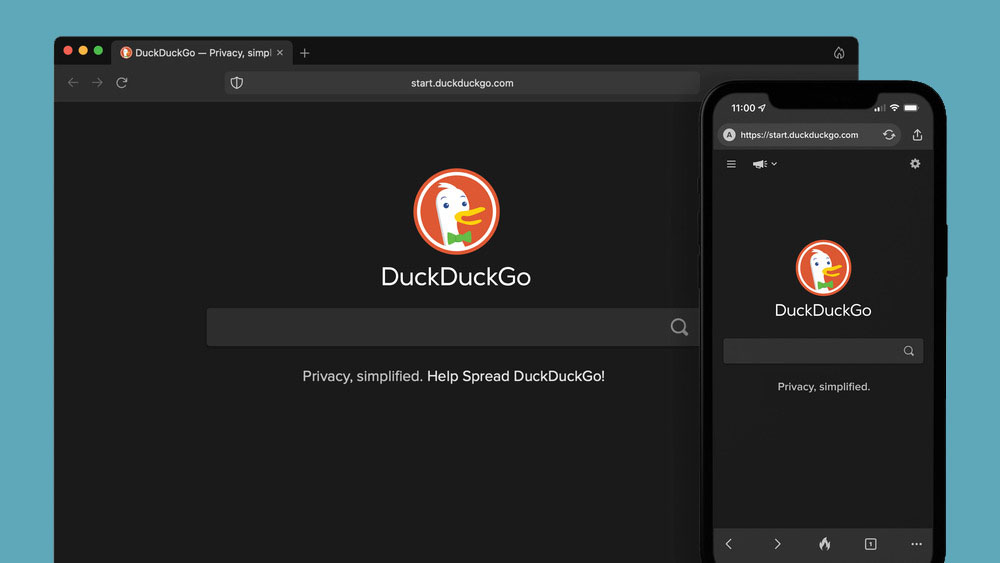
DuckGoGo a popular private search engine is releasing its first browser soon that is focused on privacy like its search engine. duckduckgo browserFrom the recent blog, Gabriel Weinberg, CEO of DuckDuckGo, has stated:

“Like we’ve done on mobile, DuckDuckGo for desktop will redefine user expectations of everyday online privacy,”
From everything that we have learned so far, the browser will be focused on making privacy super easy and simple, eliminating tons of different settings about privacy, and making the whole environment robust privacy protection all set by default. Settings will be applied in all fields, across search, browsing, email, and more. Gabriel also said that aim of the browser is not just a privacy browser, it is meant to be built and used as your everyday browser, for everyday use that protects your privacy as a bonus. One interesting thing that was stated is that browser itself is built upon OS-provided rendering engines instead of typical Chromium. DuckDuckGo says this approach will strip away a lot of the unnecessary cruft and clutter that's accumulated over the years in major browsers. Also, the company stated that when compared to Chrome, the DuckDuckGo app desktop is cleaner, way more private and that early tests have found out that it is significantly faster as well. Is this just corporate advertising or reality? We will see once the browser is released, or once it is released for public testing. Until then take care and happy holidays.
Read More
Cortana is Not Connecting to the Internet
Recently, a number of Windows 10 users reported that they were not able to use Cortana properly because it wasn’t able to connect to the internet. According to these users, Cortana won’t connect to the internet even when their internet connection is stable. According to security experts, this issue is confirmed to occur only with Microsoft accounts. This problem might have something to do with a proxy server that interferes with Cortana. There were reports that this issue was caused by a proxy that was filtering the network connection which also happens to interfere with Cortana’s ability to adapt search results and queries based on the user’s location. It could also be caused by some glitch in the home network or your Microsoft account information is inconsistent or your Microsoft account has to be verified. Here are some suggestions that could help fix the connection issue in Cortana, just start with the first one and work your way down until you encounter an option that fixes the problem.

Option 1 – Restart or reset your modem or router

The first thing you can try is restarting or resetting your modem or router. All you have to do is unplug the power cable of the modem and then plug it back in after a few seconds. You could also use the reset button of the modem at the back if it is one. But before you press the reset button, keep in mind that it will erase all the connection credentials and it will be set back to its default settings. After rebooting the network, you can restart your computer to force your modem or router to reassign an IP address to your computer.

Option 2 – Restart Cortana

Restarting Cortana can help you resolve the issue.
  • To restart Cortana, open the Task Manager, right-click on Cortana and select the “End process” option.
  • Then go to the File tab and select “Run new task”.
  • After that, type in “cortana.exe” and press Enter to restart the process.

Option 3 – Try to remove Proxy

Removing the Proxy might also help you in fixing the connection issue in Cortana. Here’s how you can do it:
  • Tap the Win + R keys to open the Run dialog box.
  • Then type “inetcpl.cpl” in the field and hit Enter to pull up the Internet Properties.
  • After that, go to the Connections tab and select the LAN settings.
  • From there. Uncheck the “Use a Proxy Server” option for your LAN and then make sure that the “Automatically detect settings” option is checked.
  • Now click the OK and the Apply buttons.
  • Restart your PC.
Note: If you are using a third-party proxy service, you have to disable it.

Option 4 – Open another app that uses a Microsoft account

This might seem like an odd fix, however, a couple of users tried doing this and it worked for them as it allowed Cortana to connect to the internet again. In this option, you just have to launch another app that uses your Microsoft account information in the same way as Cortana, for instance, the Store app. Once you open the app, a prompt should appear along with a dialog box that allows you to update your Microsoft account with the information required. After that, restart your computer and check if Cortana is now able to connect to the internet or not.

Option 5 – Verify your Microsoft account

In some cases, Cortana might not be able to connect to the internet because your Microsoft account is no longer verified. This usually happens when you use a two-step authentication system with your Microsoft account. To verify it, just open Settings and click on Accounts. After that, check if you have a Verify hyperlink under your Microsoft account or not then click on Verify. Afterward, follow the next on-screen prompts to verify your Microsoft account. Once your account is verified, restart your computer.

Option 6 – Reset Cortana settings

  • Open Cortana and go to the Settings section where you’ll see the “Turning off Cortana clears what Cortana knows on this device, but won’t delete anything from the Notebook. After Cortana is off, you can decide what you’d like to do with anything still stored in the cloud” option. Turn this option off.
  • Restart your PC.
  • After your computer boots, launch Cortana again and check.
Read More
Delete a Volume or Drive Partition in Windows 10
Operating systems now give users a feature that allows them to create separate partitions out of HDD or SSD-based storage in order to store data in an organized manner. This small yet powerful feature has always been supported by Microsoft. However, there are times when users might fill up on some particular very soon. This may result in the lack of space for that partition which makes the entire process of using PCs slower since there is a large chunk of files that has to be indexed in a smaller partition. If you are one of the users experiencing this dilemma, you need to either delete the other partitions to allocate their storage to the partition that is short on storage or simply recreate the partition so that all the useless data will be deleted and you can start afresh with the overflowing partition. In this post, you will be guided on how you can delete any storage partition from your Windows 10 PC via Disk Management, Command Prompt as well as Windows PowerShell.

Option 1 – Delete storage partition via Disk Management

This is one of the simplest ways you can use to delete a storage partition. Go to the WinX Menu and from there, open Disk Management and then select the Drive you want to get rid of, right-click on it and then select Delete Volume.

Option 2 – Delete storage partition via Command Prompt

  • Tap the Win + X keys or right-click on the Start button and select Command Prompt (Admin) or you could also type in “cmd” in the Cortana search box and right-click on the Command Prompt icon and then select the “Run as Administrator” option from the context menu.
  • Once you have Command Prompt pulled up as admin, type in and enter this command – diskpart
  • After entering this command, the Diskpart Utility will start. Diskpart Utility is a command line-based utility just like Command Prompt but it will get a UAC Prompt after you invoke it so you have to click Yes for the UAC Prompt.
  • After that, type in list volume and tap Enter to see the list of all the partitions created on your PC. This includes both types of partitions that are visible to a normal user in the File Explorer as well as the ones that are created by Windows 10 by default which helps it in storing the boot files and other essential system files.
  • You should see a list of all the partitions made on your computer. Select the partition you want to delete by its Unique Identification number as Volume X where X denotes the Unique Identification Number.
  • Next, type in the select volume number command and hit Enter to select the desired volume.
  • Then delete the volume you’ve selected and type in the delete volume command and hit Enter to delete the volume you just selected and convert it into unallocated space.

Option 3 – Delete storage partition via Windows PowerShell

  • Start by tapping the Win + X keys or simply right click on the Start button and select Windows PowerShell (Admin) or you could also type in “windows powershell” in the Cortana search box and right-click on the Windows PowerShell icon and select the “Run as administrator” option.
  • Once you’ve opened the Windows PowerShell, type in the Get-Volume command and hit Enter to get a list of all the partitions on your PC.
  • Next, select the drive letter you want to delete and then type in the Remove-Partition –DriveLetter command and hit Enter to delete the selected partition. Note that you need to replace the drive letter with the letter of the partition you want to get rid of.
  • After that, it will ask you for confirmation. Just hit the Y key for Yes or hit the A key to say Yes to All. This will delete all the partition you’ve selected and will move them in as unallocated space.
And that’s how you delete a Drive Partition or Volume in Windows 10. Note that you should only follow the last two options given in case the Disk Management is not able to fulfill the user requirements.
Read More
Changing color of START menu in Windows 10
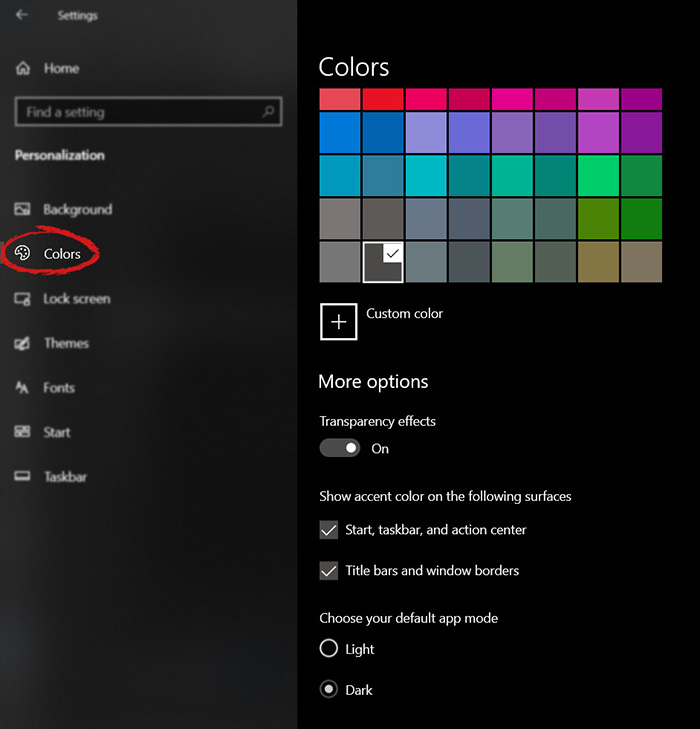
The new Windows 10 update has brought some fixes, improvements, and little things to personalize our computer more. One of these personalization updates we have received is that we can now finally change the color of our START menu and taskbar and it is easy as 1,2,3. In order to change and personalize your START menu and/or title bars all you have to do is click on your windows icon to bring the start menu up and then click on settings. Windows 10 Start menu with marked settings iconOnce you are in setting windows go to personalization settings. Windows 10 settings menu with marked Personalization groupWhen the personalization setting opens go-to color tab on left and scroll down until you find 2 checkboxes under "show accent color on the following surfaces:" Windows 10 Color settings marked with optionscheck ones you wish to apply the effect to and you are done. Now your START menu and/or title bars are using the color scheme of your choice.


Read More
1 2 3 171
Logo
Copyright © 2023, ErrorTools. All Rights Reserved
Trademark: Microsoft Windows logos are registered trademarks of Microsoft. Disclaimer: ErrorTools.com is not affiliated with Microsoft, nor claims direct affiliation.
The information on this page is provided for information purposes only.
DMCA.com Protection Status