Logo

Prevent screen from shutting down in Windows

You left your computer to go to the bathroom or to fetch something to eat, maybe you have to answer the phone or open door to a friend and after some time you get back to your computer see the black screen, you move the mouse and it starts to come from sleep slowly.

I am the kind of person who gets annoyed by this kind of behavior, I like my PC to be ON all time when I want it to be ON and my power plan on best performance so naturally, I have turned this sleep feature OFF. If you are interested to see how you to can turn off your screen sleeping follow this easy guide.

  1. Press ⊞ WINDOWS to open the start menu and click on the settings
    Windows 10 Start menu with marked settings icon
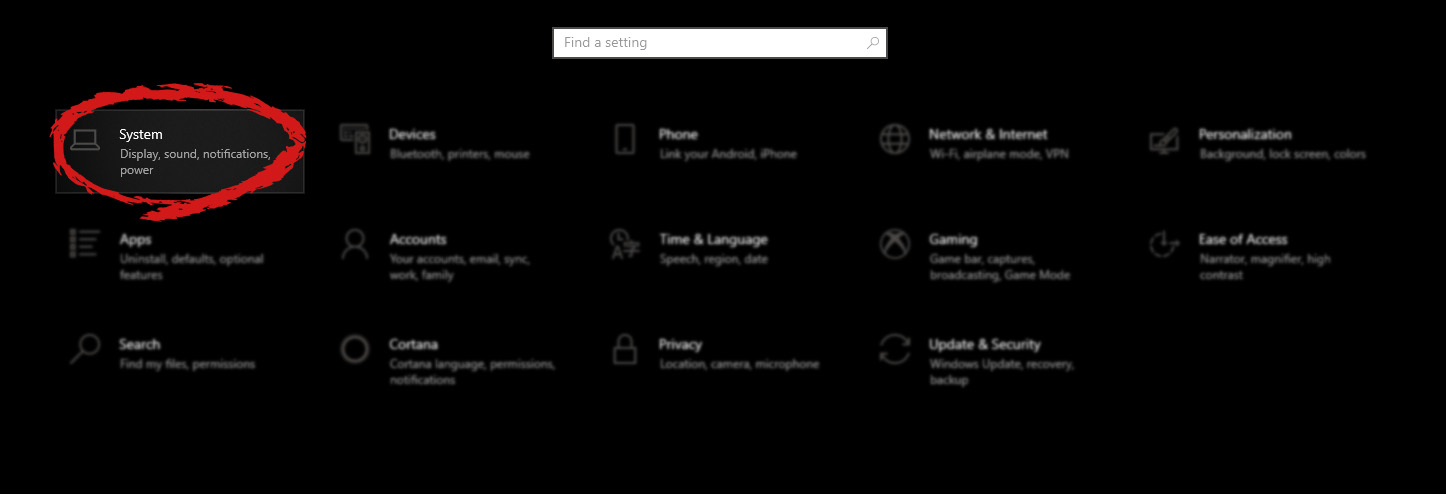
  2. On settings, screen click on system
    Windows settings with System section selected
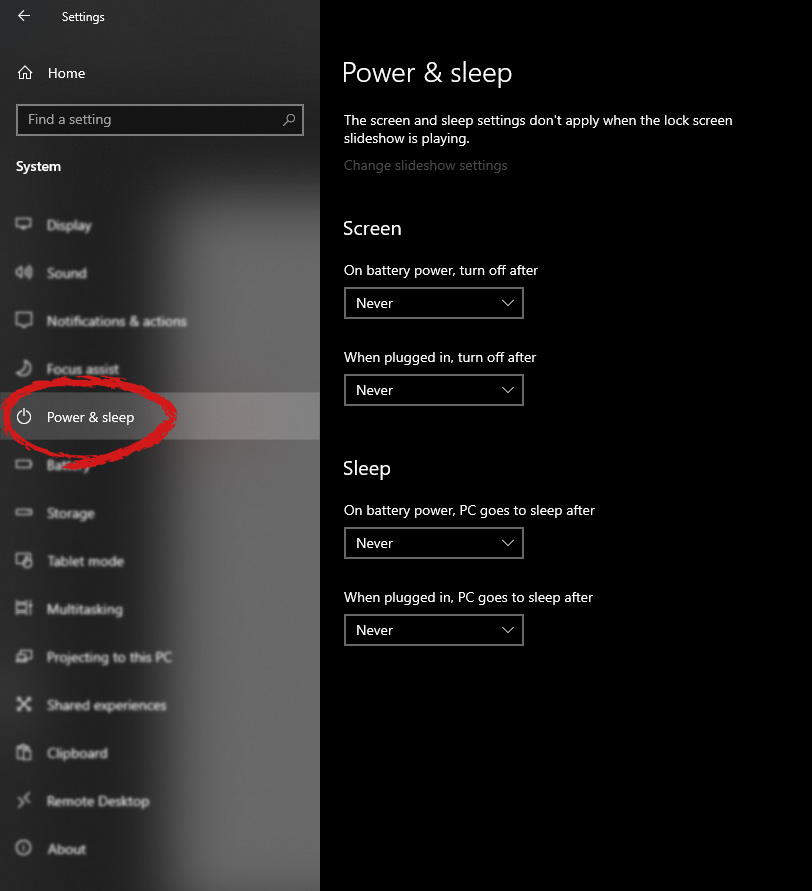
  3. When the system dialog opens go to Power & Sleep and on the right side change all values to never.
    windows settings power and sleep

Please note that after each update Windows tend to reset these settings so you will sadly have to return to this after each major update.

Do You Need Help with Your Device?

Our Team of Experts May Help
Troubleshoot.Tech Experts are There for You!
Replace damaged files
Restore performance
Free disk space
Remove Malware
Protects WEB browser
Remove Viruses
Stop PC freezing
GET HELP
Troubleshoot.Tech experts work with all versions of Microsoft Windows including Windows 11, with Android, Mac, and more.

Share this article:

You might also like

Onscreen keyboard becomes transparent
If you suddenly noticed that your Onscreen keyboard in Windows 10 has become completely white or transparent for some reason, then you’ve come to the right place as this post will guide you on what you can do to resolve this kind of issue in your computer. As you know, the on-screen keyboard is included in Windows 10 and has an executable file named “osk.exe”. The on-screen keyboard is a part of the Ease of Access feature in Windows 10 which allows users to navigate the computer with the help of the mouse instead of the physical keyboard. However, there are times when you might encounter some issues when using the on-screen keyboard. One of the issues reported recently is that the on-screen keyboard becomes transparent or it only displays the borders but there is no way for you to access it. You also won’t be able to move it from the view completely. To fix this problem, there are several suggestions you can check out. You can try to check the Fade button or run the Windows Touch Keyboard troubleshooter. You can also restart its process in the Task Manager. For more details, refer to each one of the given options below.

Option 1 – Try to check the Fade button

The first thing you can do is to check the Fade button on the on-screen keyboard. You can find it at the bottom right corner of the keyboard. If it is enabled, then it’s probably the reason why your on-screen keyboard is transparent as it lets it fade in the background. Thus, you have to disable it to resolve the problem.

Option 2 – Try to run the Windows Touch Keyboard troubleshooter

The next option you can check out is running the Windows Touch Keyboard troubleshooter. This troubleshooter will help you identify the problem and would fix them automatically.

Option 3 – Try to restart the process of the on-screen keyboard via Task Manager

The next thing you can do is to restart the on-screen keyboard’s process in the Task Manager. Just follow the steps below.
  • First, tap the Ctrl + Shift + Esc keys to open the Task Manager.
  • Next, go to the Processes tab and look for the option that says, “Accessibility On-screen Keyboard”.
  • Once you found it, click on the drop-down arrow next to it and right click on the “On-screen Keyboard” option, and select End task to end its process.
  • After that, tap the Win + R keys to launch the Run utility and type “osk.exe” in the field, and then hit Enter to open the on-screen keyboard.
Read More
Fix High CPU usage by IAStorDataSvc in Windows
If your Windows 10 computer is currently experiencing high CPU usage because of the IAStorDataSvc, read on as this post will show you what you can do to resolve the issue. The high CPU usage of IAStorDataSvc is because of the Intel Rapid Storage Technology. It appears as a Service that may not only result in high CPU usage but also high disk and memory usage, as well as slow computer performance and overheating of your PC. This problem usually occurs on HP computers and on any computers that are using the Intel Rapid Storage Technology. You might also notice that your fan runs at high speed each time this issue occurs with the average CPU usage spiking up to 50%. Take note that this service is used to speed up file access. However, if you are not using an SSD on your computer, then it’s not really necessary for you to have the IAStorDataSvc installed. To resolve this issue, here are some options you can try.

Option 1 – Update or reinstall or remove the IAStorDataSvc driver

Before you proceed, you need to decide first if you want to update, reinstall or remove the IAStorDataSvc driver. To make things easier for you, you can try downloading the latest driver from the Intel Download Centre and then install it on your computer. If it works, good, but if not, you might want to consider removing the driver completely and just let the Windows Update look for the right driver for your computer after you restart it. There are times when the drivers installed are incompatible with the latest Windows update which results in issues like high CPU usage.
  • Tap the Win + X + M combination on your keyboard to open the Device Manager.
  • After that, look for the Intel Rapid Storage Technology driver, right-click on it and then select Uninstall.
  • Now restart your computer for the changes to take effect.
Note: You might also have to go to the list of installed programs and uninstall a program that is listed as “Intel Rapid Storage Technology driver”. To do so, refer to these steps:
  • In the Cortana Search box, type “control panel” and from the search results that appear, click on Control Panel.
  • After opening Control Panel, select Programs > Programs and Features which will open the list of installed programs on your computer.
  • From there, look for Intel Rapid Storage Technology and uninstall it.

Option 2 – Try to disable the IAStorDataSvc via Services Manager

  • Tap the Win + R keys to open the Run dialog box.
  • Then type “services.msc” in the field and hit Enter to open Services.
  • Next, look for the Intel Rapid Storage Technology services from the list of services and then double-click it.
  • Then change its Startup type to “Disabled”.
  • After that click on the Apply button and then OK to save the changes made.
  • Now exit the Services window and check if the problem’s resolved.
Read More
How to Stop online tracking in Browsers
It is no longer a secret that websites, social media, and other various places on WEB are tracking you and your messages and emails for keywords that they will later use to promote and serve your specific ads linked to those keywords. Altho the process is fully automated it does feel a little forced and uneasy. That is why we are bringing you this article in which we will show you how to stop website tracking in the most popular and used browsers.

SAFARI

Apple’s Safari browser gives you the option to block cross-site tracking. It also has a Privacy Report that displays all the sites and agencies that are gathering information about you. Before blocking these trackers, you may want to review exactly which sites are tracking you online and gathering information about you. Armed with this information, you may decide that cross-site tracking isn’t a huge issue for your particular browsing habits, or you may decide to avoid certain websites entirely. To access Safari’s Privacy Report:
  1. Launch the Safari web browser.
  2. In the toolbar, select Safari > Privacy Report.
  3. Select the Websites tab. This will display information about all the websites that are profiling you.
  4. Select the Trackers tab. This displays a list of all the trackers that are gathering information about you. This includes the companies that created these trackers and the number of times Safari detected these trackers during your browsing sessions.
You can also check how intrusive a particular website is by navigating to the website in question and then selecting the shield icon that appears alongside Safari’s address bar. You can then select Trackers on This Web Page, and Safari will display a list of all the trackers that are active on this particular webpage. Once you’ve seen all the websites and agencies who are tracking you, if you want to block these trackers:
  1. In the Safari toolbar, select Safari > Preferences …
  2. Select the Privacy tab.
  3. Select the following checkbox: Prevent Cross-Site Tracking.
Safari will now prevent these trackers from following you across the World Wide Web.

CHROME

As you’re browsing the web, Chrome can send a request for websites not to collect or track your browsing data. It’s important to note that this is a request, so there’s no guarantee that every website will honor the request. Frustratingly, Chrome doesn’t provide information about the websites that are tracking you online. However, we still recommend enabling this feature, as it can help minimize the number of websites that are tracking your online movements:
  1. In Chrome’s upper-right corner, select the three-dot menu icon, then Settings.
  2. In the menu on the left, select Privacy and security.
  3. Click Cookies and other site data.
  4. Find the Do not track slider and push it into the On position.
Now Chrome will send a Do Not Track request to every website you visit. Since this is only a request, you may want to take additional steps to protect your online privacy. Ghostery is a Chrome extension that enables you to view and block online trackers. After installing Ghostery, you can view all the trackers that are active on a particular website:
  1. Head to the site in question.
  2. Click the Extensions icon in the Chrome toolbar.
  3. Select Ghostery to see a list of all the trackers this extension has detected.
  4. You can block all of these trackers by selecting the Detailed tab and then clicking Restrict site.
Repeat this process for every site you visit.

MOZILLA FIREFOX

Firefox has an Enhanced Tracking Protection feature that can block all the cross-site trackers identified by Disconnect. This feature can also preserve your online privacy by blocking social media trackers, fingerprints, and crypto miners, making this a great all-arounder for the security-conscious Internet user. Enhanced Tracking Protection should be enabled by default. However, you can verify whether it’s active for your particular Firefox installation by navigating to any website. Next, click the little shield icon that appears alongside Firefox’s address bar and you should see a message confirming that Enhanced Tracking Protection is enabled.
If Enhanced Tracking Protection isn’t enabled, we recommend activating it:
  1. In Firefox’s upper-right corner, select the three-line icon, then Preferences.
  2. In the menu on the left, select Privacy & Security.
  3. You can now select either Standard or Strict. Note that Strict may affect the functionality of certain websites, so it’s recommended you opt for Standard unless you specifically require a greater level of protection.
Similar to Chrome, Firefox can send a Do Not Track request. While you’re in the Privacy & Security menu, you may want to consider activating Mozilla’s Do Not Track feature.

OPERA

When you first installed Opera, it gave you the option to block trackers. If you didn’t take Opera up on the offer then, you can start blocking trackers now:
  1. Along the left side of the Opera browser, click the cog icon. This opens Opera’s settings.
  2. In the menu on the left, select Basic.
  3. Find the Block Trackers slider and push it into the On position.
  4. Blocking trackers can impact the functionality of certain websites. If you start noticing strange behavior on a particular website, you may want to add that site to your Exceptions list. By allowing this site to use trackers, you should be able to resolve any issues you’re experiencing.
To make an exception for one or more websites:
  1. Launch Opera’s settings by clicking the little cog icon.
  2. Navigate to Basic > Manage Exceptions.
  3. Click Add and then type the address of the site where you want to permit trackers.
Repeat for all the sites that you want to add to your exceptions list.

Read More
Run Windows Updates from Command Line
As you know, one of the most highlighted features of Windows 10 is Windows Updates. It was offered to the customers as a service rather than a product with the release of Windows 10 under the scenario of Software as a Service which led to Windows Updates being set by default on Windows 10 and without an option for any users to disable it. Although not all users are happy with what Microsoft did, this is an ultimate step towards the greater good of all its customers since Windows Updates helps users in keeping their computers secured against all kinds of threats as well as provide them with the greatest and latest updates from Microsoft. So if you are one of those users who approved of the Windows Updates service, then read on as this post will guide you in running Windows Updates from Command Line either via Command Prompt or Windows PowerShell. For the complete set of instructions, refer to the options given below.

Option 1 – Run Windows Update via Command Prompt

Command Prompt in the Windows operating system exists for a very long time now compared to the comparatively new Windows PowerShell. That’s why it has similar capabilities to run Windows Updates. However, the highlighting point here is that you don’t have to download any module for Windows Updates. To get started running Windows Updates using Command Prompt, refer to the steps below.
  • First, type “cmd” in the Cortana search box, and from the search results, right-click on Command Prompt and select the Run as Administrator option to open it with Administrator privileges.
  • If a User Account or UAC prompt appears, just click on Yes to proceed.
  • Next, type in the commands listed below, and don’t forget to tap Enter right after you type each one of them.
    • UsoClient StartScan – use this command to start checking for updates.
    • UsoClient StartDownload – use this command to start downloading updates.
    • UsoClient StartInstall – use this command to start installing the downloaded updates.
    • UsoClient RestartDevice – use this command to restart your computer after you install.
    • UsoClient ScanInstallWait – use this command to check, download and install updates.
Note: Keep in mind that the commands in Command Prompt listed above are only meant for Windows 10. On the other hand, if you are using an older Windows version, you can try using the following commands instead:
  • wuauclt /detectnow – use this command to start checking for updates.
  • wuauclt /updatenow – use this command to start installing the updates detected.
  • wuauclt /detectnow /updatenow – use this command to check, download and install updates.

Option 2 – Run Windows Updates via Windows PowerShell

If you run Windows Updates in the Windows PowerShell, it will require you to install the Windows Update module manually. Hence, you have to get the Windows Updates downloaded and install Windows Updates.
  • Search for PowerShell in the Cortana search box and then run it with administrator privileges.
  • Once you’ve opened the Windows PowerShell, type the following command and hit Enter.
    • Install-Module PSWindowsUpdate – use this command to install the Windows Update module for Windows PowerShell.
    • Get-WindowsUpdate – use this command to connect to the servers of Windows Update and download the updates if found.
    • Install-WindowsUpdate – use this command to install the Windows Updates you’ve downloaded to your computer.
Read More
Fix Error 0x80070057 in Windows
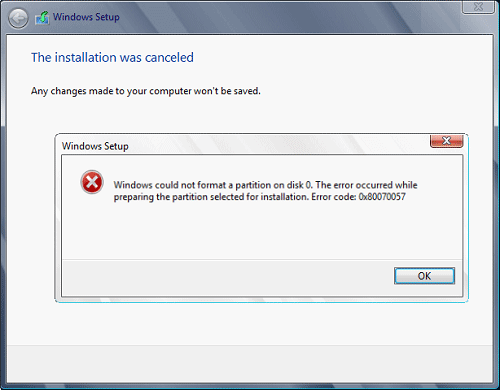
Hello and welcome to another problem-solving tutorial on errortools.com. Today we will be solving error 0x80070057, we could not format the selected partition which occurs during setup and installation when performing a clean install of Windows from a USB drive. So, you have backed up your files and decided to format and do clean WIndows installation, you have your USB ready, you reboot the system, plug in USB, start Windows setup, choose the hard drive on which you want to do a clean install and then this happens. error 0x80070057This error is very frustrating and it annoys pretty much anyone who encountered it but do not worry we have a solution for you. First thing is to confirm the error prompt, Click on the OK button and then on X to exit Windows 10 installation wizard. Click on yes to confirm that you want to exit the setup. You will find yourself in original installation windows. On that screen choose and click on Repair your computer. Choose an option screen that will pop up, click on Troubleshoot. In the advanced options, click on the command prompt. Once you are in command prompts type DISKPART and hit ENTER In the diskpart prompt type LIST DISK and hit ENTER again. type SELECT DISK #, where # is listed disk number where you would like to install Windows. type LIST VOLUME in order to list volumes in the selected disk and hit ENTER You need to select the volume on which you would like to place your WINDOWS, to do this type in SELECT VOLUME #, where # is the listed number of the volume Finally, type FORMAT FS=NTFS and hit ENTER You have successfully formated a given volume, you can now exit DISKPART and return to setup, to exit DISKPART simply type exit and hit ENTER. Leave command prompt as well by again typing exit and hitting ENTER You will be returned to Choose an option screen, click on Turn off your PC. Your drive has been successfully formatted and it is ready for clean Windows installation, you can now restart your Windows 10 installation and the process will complete without errors.
Read More
Different types of computer viruses
Computer viruses are malicious applications that have the ability to self replicate and spread over the system and various devices, just like viruses in organisms. We all know that computer viruses are bad and that you should avoid them however you can. So in this spirit, we are taking a deeper dive into what kind of viruses exist and how they function.

viruses types1. File-infecting Virus

A virus that attached itself to an executable program. It is also called a parasitic virus which typically infects files with .exe or .com extensions. Some file infectors can overwrite host files and others can damage your hard drive’s formatting.

2. Macro Virus

This type of virus is commonly found in programs such as Microsoft Word or Excel. These viruses are usually stored as part of a document and can spread when the files are transmitted to other computers, often through email attachments.

3. Browser Hijacker

This virus targets and alters your browser setting. It is often called a browser redirect virus because it redirects your browser to other malicious websites that you don’t have any intention of visiting. This virus can pose other threats such as changing the default home page of your browser.

4. Web Scripting Virus

A very sneaky virus that targets popular websites. What this virus does is overwrite code on a website and insert links that can install malicious software on your device. Web scripting viruses can steal your cookies and use the information to post on your behalf on the infected website.

5. Boot Sector Virus

These viruses are once common back when computers are booted from floppy disks. Today, these viruses are found distributed in forms of physical media such as external hard drives or USB. If the computer is infected with a boot sector virus, it automatically loads into the memory enabling control of your computer.

6. Polymorphic Virus

This virus has the capability to evade anti-virus programs since it can change codes every time an infected file is performed.

7. Resident Virus

A resident virus stores itself on your computer’s memory which allows it to infect files on your computer. This virus can interfere with your operating system leading to file and program corruption.

8. Multipartite Virus

A type of virus that is very infectious and can easily spread on your computer system. It can infect multiple parts of a system including memory, files, and boot sector which makes it difficult to contain.
Read More
Your password may have expired or ...
There are instances when you have to connect to another Windows 10 PC via remote connection from another Windows 10 PC. However, when you encountered an error saying, “Your password may have expired or the remote pc might not accept blank passwords” while doing so then read on as this post will walk you through how you can fix it. Here is the full content of the error message:
“Your password may have expired, or the remote PC might not accept blank passwords. Try connecting again. If this keeps happening, ask your admin or tech support for help.”
It is unknown what the exact cause of the error message is as it could involve several factors. Even so, there are still various potential fixes you can try to fix this kind of error. You can try to check if your password has expired or troubleshoot any issues with the network. You could also use a remote desktop application or configure the settings of firewall or restart the remote desktop service. For more details, refer to each one of the given options below. But before you proceed, make sure that you have someone to help assist you on the other side to help you troubleshoot the issue.

Option 1 – Try to check if the password has expired

The first thing you can do to fix the problem is to check if the password has expired as it could be the reason why you’re experiencing this problem. You have to make sure that you are using a user account that is on the remote computer and then check if the user account password has not expired yet. And if your PC is not within your access, then you can just ask someone to verify the password for you.

Option 2 – Try to troubleshoot network issues

To troubleshoot network-related issues that might be the one that triggers the error, you need to run the Network Troubleshooter. To get started, refer to these steps:
  • Open the Search bar on your computer and type in “troubleshoot” to open the Troubleshoot settings.
  • Next, scroll down and select the “Network Adapter” option from the right pane.
  • Then click on the Run Troubleshooter” button.
  • After that, your computer will check for any possible errors and will pinpoint the root cause of the problem if possible.
  • Restart your computer.

Option 3 – Try to use a remote desktop software

A number of users reported that the issue occurred when they used the universal app for Remote Desktop and they were able to fix it by switching to the Remote Desktop application. Thus, you can try to switch to the remote desktop software and see if it fixes the problem or not.

Option 4 – Try to configure Firewall settings

You might also want to configure the settings of the Firewall as it could also help in fixing the problem. It is possible that the firewall is blocking the incoming connection on the remote computer. To check if whether the firewall is the culprit or not, follow the steps below.
  • Go to Windows Security and then go to Firewall and network application.
  • Next, click on the Advanced Settings link. This will open the classic Windows Defender Firewall and Advanced Security application.
  • From there, look for the rule named “Remote Desktop – User Mode (TCP-In)” under inbound rules and check if it has been disabled or not.
  • If the rule is disabled, you have to enable it.
  • Once done, check if the error is now fixed or not.

Option 5 – Try to restart the Remote Desktop service

If none of the four given options given above worked, you might want to restart the Remote Desktop service as it can help you in fixing the problem. To do so, follow these steps:
  • Tap the Win + R keys to open the Run dialog box and type “services.msc” in the field and hit Enter to open the Windows Services Manager.
  • Next, from the list of services, look for the Remote Desktop Service and right-click on it, and then click on the Restart option.
  • Once done, check it was able to fix the “Your password may have expired or the remote pc might not accept blank passwords” error or not.
Read More
Clipboard history in Windows 10
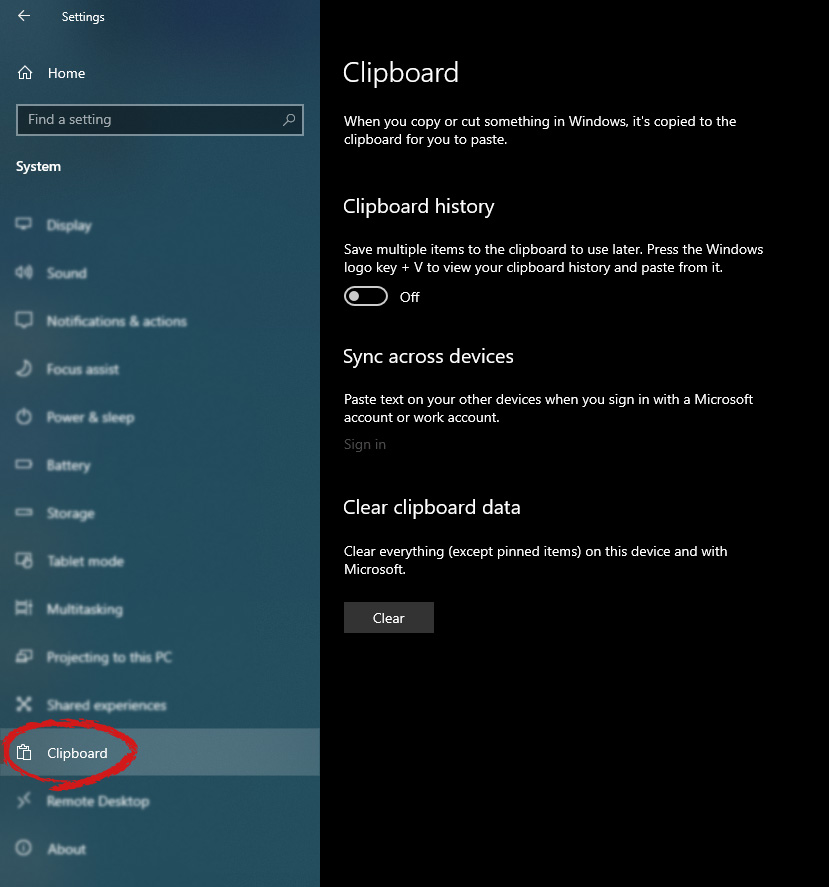
Copy & Paste is an essential part of Operating and working on a computer. We copy and paste a lot of different stuff through our workday, moving stuff from application to application. In an earlier article today we have explored troubleshooting and how to repair copy-paste stopped responses, this time we are going to focus on a little feature of Windows 10 called Clipboard history. Clipboard history is a built-in feature in Windows 10 which lets you store multiple copies of different types and then selectively pasting them into another application. Let's say you have multiple copies of different text from different websites and you then paste everything or just some into a Word processor. If this feature sounds interesting to you then let's turn it on. Press the start button and then on settings. Windows 10 Start menu with marked settings iconIn settings window click on System Windows settings with System section selectedin system dialog click on the clipboard and on the right screen turn ON CLipboard history. Windows settings for Clipboard
Read More
How to Repair Error Code 8007002c in Windows 10

What is Error code 8007002c?

Users when upgrading to Windows 10 operating system from Windows 8/8.1 or Windows 7, often encounter error code 8007002c. This error occurs when there’s an attempt made in performing an overall clean boot procedure. During the installation process, it will reach a certain maximum limit, for instance, 75%, and then reverts to its original state. Sometimes, after installation, users will encounter a black screen issue and there is no cursor visible.

Solution

Restoro box imageError Causes

Misconfigured system files that create registry errors within your operating system normally cause error code 8007002c in Windows 10. This registry error happens when there are new programs being installed over old ones without the old programs uninstalled entirely. Another possible cause could be from some malicious software like spyware, adware, and viruses.

Further Information and Manual Repair

Caution: The following steps are complicated. The risk of being in a no-boot situation or data loss might be encountered. It would be best to be supervised by an experienced user, especially in using the command line.

In order to fix Error code 8007002c occurring in Windows 10 upgrade, you can follow this step-by-step manual repair method. Once the repair method is correctly executed, users will most likely quickly resolve issues such as the Error code 8007002c and be able to upgrade to Windows 10 operating system smoothly.

However, in such cases where there are complex instructions and thus need an expert, seek help from a Windows professional. You may also want to consider making use of an automated tool whenever needed.

There are several ways to fix Error code 8007002c, but here are the most effective and efficient methods:

Method One: Force Windows Update

 To be able to download and install the necessary updates, you may use the force Windows Update tool. See below for the steps:

  1. Browse to C:\Windows\Software\Distribution\Download. Afterward, delete all the files found in that folder.
  2. Press Windows key + X then click on the Command Prompt (Admin). Type exe /updatenow once the Command Prompt window appears then press Enter.
  3. Open the Control Panel. Select Windows Update. At this point, Windows 10 should now start downloading.
  4. Press again on Windows key + X to open the Command Prompt window. In the Command Prompt, Type or Copy and Paste the following commands one at a time:

NOTE: Don’t forget to hit Enter after every command.

 Dism /Online /Cleanup-Image /CheckHealth

Dism /Online /Cleanup-Image /ScanHealth Dism /Online /Cleanup-Image /RestoreHealth
  1. Input a machine name for your computer. Make sure to use a simple name, having at least 8 characters.

Here’s how you can input a machine name:

  • Click on Start and then right-click on Computer. Afterward, select For users with Windows 8 operating system, press on Windows key + X then click on System.
  • Click on Change settings under the Computer name, domain, and workgroup settings.

Method Two: Diagnose RAM Issues

Another reason why Error code 8007002c occurs is when there’s a defective and wrongly installed memory chip. Try using the Windows Memory Diagnostic to diagnose if there are RAM Issues.

  1. Press on the Windows Key + X then select
  2. Type
  3. Select Windows Memory Diagnostic, from that window, select Restart now, and check for problems

Method Three: Use Selective Startup

One more possible cause why Error code 8007002c occurs is due to third-party software. To fix this error, you can try booting up your device with Selective Startup -- a boot type where you can load a limited set of startups and services.

  1. Open the System Configuration tool. On your Taskbar, type MSCONFIG in the Search Box then hit Enter.
  2. Select the General
  3. Select Selective startup option then tick on the Load system services
  4. Ensure that Load startup items check box is unchecked.
  5. Click Apply and

Can’t seem to put up with the long and technical manual repair process? You can still fix this error by downloading and installing a powerful automated tool that will surely get the job done in a jiffy!

Read More
Checking network requirements taking too long
If your Windows 10 computer is having problems connecting to a wireless network and it takes too long to respond and only keeps on displaying the “Checking network requirements”, then you’ve come to the right place as this place will walk you through fixing the problem. There are two things that can happen when your computer connects to a wireless network. Windows can either connect to the wireless network successfully or return an error message that says, “Cannot connect to the network. However, if none of these things happened, and it only remains at the “Checking network requirements” message, then it could be due to obsolete or incompatible drivers in your computer, particularly the network adapter drivers. To fix this problem, you can try to update or reinstall these drivers, reset the TCP/IP, or run the Network Adapter troubleshooter, as well as reset the Network. For more information, refer to the given options below.

Option 1 – Update the Network Adapter drivers

The first thing you can do to resolve the problem is to update the Network Adapter drivers by following these steps:
  • Tap the Win + R keys to launch the Run window and then type in the “devmgmt.msc” command and hit Enter to open the Device Manager window.
  • Under the Device Manager, you will see a list of drivers. From there, look for the Network Adapters and expand them.
  • Look for the Broadcom Network Adapter and right-click on it, as well as other network adapters that have an exclamation icon, and update them all.
  • Restart your PC and see if it helped in fixing the problem.
Note: If updating the network drivers didn’t help in fixing the problem, you can also try to uninstall the very same drivers and restart your Windows 10 PC. After that, the system itself will reinstall the drivers you just uninstalled. Alternatively, you can also download and install the drivers from the manufacturer’s website directly. To reinstall the network adapter drivers, refer to these steps:
  • Open the Devices Manager from the Win X Menu.
  • Then locate the device drivers and right-click on them to open the Properties.
  • After that, switch to the Driver tab and click on the Uninstall Device button.
  • Follow the screen option to completely uninstall it.
  • Finally, restart your computer. It will just reinstall the device drivers automatically.

Option 2 – Try to reset the TCP/IP

As you know, the TCP/IP or the Internet Protocol is the most important thing if you want to use the internet on your computer. That’s why if it ends up getting corrupted, you need to reset the TCP/IP to fix the problem. To reset TCP/IP, refer to these steps:
  • In the Windows start the search, type “command prompt” and right-click on Command Prompt from the search results.
  • Then select the “Run as administrator” option to open Command Prompt with admin privileges.
  • After that, execute this command: netsh int ip reset resettcpip.txt
  • Once it’s done, exit Command Prompt and restart your computer and then check if the error is now fixed.

Option 3 – Run the Network Adapter troubleshooter

To run the Network Troubleshooter, refer to these steps:
  • Open the Search bar on your computer and type in “troubleshoot” to open the Troubleshoot settings.
  • Next, scroll down and select the “Network Adapter” option from the right pane.
  • Then click on the Run Troubleshooter” button.
  • After that, your computer will check for any possible errors and will pinpoint the root cause of the problem if possible.
  • Restart your computer.

Option 4 – Try to perform Network Reset

You can also try to perform a Network Reset to resolve the problem. This will reset the entire network configuration including your IP address. To perform Network Reset, follow these steps:
  • Tap the Win + I keys to open Settings.
  • From there, go to the Network and Internet section.
  • Next, scroll down and look for “Network Reset” under the status pane.
  • After that, click on Network Reset and then on Reset now to start resetting the network configuration. Once done, check if it is able to fix the error or not.
Read More
1 2 3 171
Logo
Copyright © 2023, ErrorTools. All Rights Reserved
Trademark: Microsoft Windows logos are registered trademarks of Microsoft. Disclaimer: ErrorTools.com is not affiliated with Microsoft, nor claims direct affiliation.
The information on this page is provided for information purposes only.
DMCA.com Protection Status