Logo

New focus sessions in Windows 11

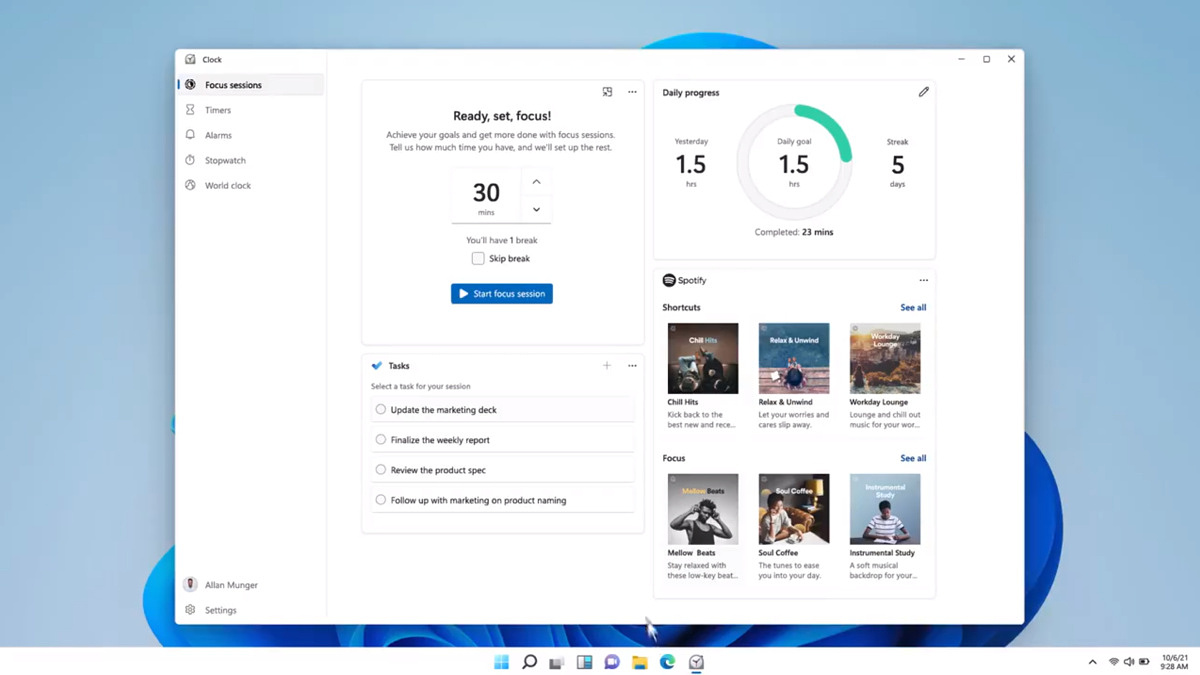
focus sessionWindows and Devices chief Panos Panay has revealed new focus sessions feature that will be in Windows 11 on his Twitter account today. He himself is referring to it as a game-changer especially with Spotify integration.

So what is a focus session?

From the video clip provided on Twitter, we can see that focus session users will be able to choose a specific task from the previously made task list, choose songs that will play in the background while the task is active, and set a timer for the chosen task with breaks.

Maybe the best comparison and explanation would be a desktop google calendar task with music, basically, that’s it. A neat and good organizer inside your Windows 11 operating system. I think that this is generally a good idea and for sure it will find its audience.


Do You Need Help with Your Device?

Our Team of Experts May Help
Troubleshoot.Tech Experts are There for You!
Replace damaged files
Restore performance
Free disk space
Remove Malware
Protects WEB browser
Remove Viruses
Stop PC freezing
GET HELP
Troubleshoot.Tech experts work with all versions of Microsoft Windows including Windows 11, with Android, Mac, and more.

Share this article:

You might also like

What driver to use inside Windows
When clean Windows is installed or when you place new hardware in your computer usually Windows itself detects the device and installs its driver. The question that comes now is, do you keep that driver or do you install the manufacturer's one. In order to answer this question let's analyze what is difference between the two drivers and other factors which could influence your decision.

Difference between drivers

First of all, know that drivers Windows installs are also drivers from the device manufacturer which have gone through Microsoft quality control in order to be included in Windows itself. Now naturally question which occurs, what is the difference, well answer to that would be this: in Windows, you have stripped down driver, just a driver in order for Windows to know what device is plugged and how to use it, meaning that for example if you install printer device, you will be able to print documents and Windows will know it is a printer but ... You will not get the control panel for that printer where you can adjust the printer itself and all of its features like let's say paperweight, etc. So if you need these kinds of features in that case it would be better to install a complete driver suite from the manufacturer and get the whole package. Windows will recognize the RAZER mouse for example but you will not be able to change its colors of program custom buttons on it until you install RAZER drivers. One more important thing to note is that drivers which are in Windows are less updated than drivers from the manufacturer's site. That being said, if you prefer and want to have the latest drivers you will prefer to get them again from the manufacturer.

Conclusion

So it seems that manufacturer's drivers are always in some form of advantage and that you will always want them and most of the time this is true, as a matter of fact, the only time I could think that you could use bare down Windows drivers is when new drivers update breaks something in Windows and device start behaving improperly. in this particular case, it is better to roll back to the previous Windows driver which has passed Microsoft quality control and is working for sure. In any other case, you are better off with the latest manufacturers drivers If you would like to read more helpful articles and tips about various software and hardware visit errortools.com daily.
Read More
Application failed to initialize 0xc0000005
If you suddenly encountered an error saying, “The application failed to initialize properly (0xc0000005)” when you are using an application on your Windows 10 computer, read on as this post will provide you some potential fixes that could help you fix the error. You can encounter the “The application failed to initialize properly (0xc0000005)” error on many applications such as VLC, Chrome, Word, and any other executable files and even the operating system files. When you get this kind of error, you will see the following error message:
“The application failed to initialize properly (0xc0000005). Click on OK to close the application.”
This kind of application error can occur due to several reasons which include damaged installation of the application or system files may have gotten corrupted or damaged. It could also be caused by a malware infection. There are a couple of suggestions provided in this post to help you resolve the error. You can try to run both a System File Checker scan and the DISM tool or reinstall the problematic application or repair-install Windows 10 as well as run a malware scan. Note that the options provided below do not have to be followed in sequence.
Option 1 – Try to run a System File Checker scan

As mentioned, the error could be due to corrupted or damaged system files and one of the ways you can fix that is by running a System File Checker or SFC scan on your computer. To do so, follow these steps:
  • In the Windows Start Search, type “command prompt” and right-click on Command Prompt from the search results, and then select the “Run as administrator” option.
  • After opening Command Prompt with admin privileges, type the “sfc /scannow” and tap Enter to execute it.
  • Once the scan is finished, restart your computer and see if the “The application failed to initialize properly (0xc0000005)” error is fixed or not.

Option 2 – Run the DISM tool

You can try running the Deployment Imaging and Servicing Management or DISM tool to fix the application error. Using this built-in tool, you have various options such as the “/ScanHealth”, “/CheckHealth”, and “/RestoreHealth”.
  • Open the Command Prompt with admin privileges.
  • Then type in the following commands and make sure to hit Enter right after you type each one of them:
    • Dism /Online /Cleanup-Image /CheckHealth
    • Dism /Online /Cleanup-Image /ScanHealth
    • exe /Online /Cleanup-image /Restorehealth
  • Do not close the window if the process takes a while as it will probably take a few minutes to finish.

Option 3 – Try reinstalling the application

You might also want to uninstall the application and download its latest working version and then install it back again. Note that when you do this, you will lose all your app data.

Option 4 – Try to repair install Windows 10

  • First, you have to click this link and then click the Download Tool Now button.
  • Next, click the “Use the tool to create installation media (USB flash drive, DVD, or ISO file)…” option and follow the next given instructions on the screen.
  • Now select the ISO file option in step 5.
  • After that, you should now have an ISO file.
  • Next, go to the location where you’ve downloaded the ISO file.
  • Then right-click on the Windows 10 ISO file and select the Open with option and then select File Explorer.
  • Now click on “setup.exe” and follow the next instructions that appear on the screen. When asked, you have to select either Nothing (clean install) or Keep personal files only option. Take note that you must not select the “Keep personal files, apps, and Windows settings”.

Option 5 – Try scanning your computer using Windows Defender

It is possible that your computer is infected with malware which could be why you’re getting the “The application failed to initialize properly (0xc0000005)” error. Thus, you need to scan your computer using Windows Defender.
  • Tap the Win + I keys to open Update & Security.
  • Then click on the Windows Security option and open Windows Defender Security Center.
  • Next, click on Virus & threat protection > Run a new advanced scan.
  • Now make sure that Full Scan is selected from the menu and then click the Scan Now button to get started.
Read More
Best fitness trackers for your health needs
fitness trackerIf this unfortunate COVID-19 worldwide pandemic has managed to teach us, I would argue it is that our health is the most important thing. So in that spirit, we will continue in this article reviewing some of the best fitness trackers that can be found in the time of writing this article in 2021. Now the market for fitness trackers is not small by any means and offerings are also not small, from no-name manufacturers costing only a few bucks to more serious one’s going slightly over 100 USD there is a fitness tracker for everyone. In this particular article, we will not focus on cheap few dollars no-name ones, instead, we will be offering top ones in the field among some in the middle range simply because we can stand behind them considering quality and precision.

Fitbit Charge 4 fitness and activity tracker

Fitbit is not a pioneer company in the world of fitness trackers and it shows. Charge 4 model offers maybe the best quality, performance, and features for its price. It stands out with implemented GPS meaning that you will need your phone for tracking workouts. It also offers step tracking, sleep tracking, automatic workout-tracking, active zone minutes, etc. It weighs 30g and has 1 inch grayscale OLED. Battery life is said to hold up to 4 days if you use built-in GPS regularly, if you decide to use GPS constantly device will last only 5 hours. Without GPS it can last up to 7 days and it is water-resistant and waterproof up to 50 meters.

Amazfit Band 5

Amazon’s offering of fitness tracker is aimed at beginners and as such, it is lacking some advanced features including an automated working tracker or GPS, also the model does not have replaceable bands so customization is not an option. It does however offer activity and sleep tracking, heart rate monitoring and it is the only model that integrates with Alexa. The manufacturer states that the battery can last up to 15 days depending on usage which places Amazfit Band 5 as a device that has a longer life of use. The device itself is packed with a 1.1-inch color OLED and it weights 12g. It is splash-resistant, not water-resistant.

Xiaomi Mi Band 6

Xiaomi tracker is the best budget version on this list including in it 30 sport modes like running, cycling, yoga, swimming, and more. Battery life is not bad also packing up to 14 days of life but only if the device is not used constantly. It has activity and sleep tracking, a heart rate monitor, sleep tracking, customizable replicable bands and it is water-resistant up to 50m. It comes in a 1.56 inch AMOLED color display and it weighs 63g. The device also has menstrual health tracking making it a great device for women.

Samsung Galaxy Fit 2 fitness tracker

Now we are getting into serious and little more expensive ones. Galaxy Fit 2 is among the top-notch trackers currently on the market. It of course can work along with Samsung’s smartwatches and mobile phones. Packed in the military-grade 1.1-inch casing with color AMOLED and weighing 91g with battery life up to 21 days and water resistance up to 50m this bracelet is an absolute beast. It comes packed with features from standard sleep tracking to automated workout-tracking but it also has a connection to Samsung’s Health mobile app to choose from over 90 workouts, it monitors heart rate and stress levels making it really one of the complete solutions for serious fitness enthusiasts.

Garmin Vivosmart 4 fitness tracker

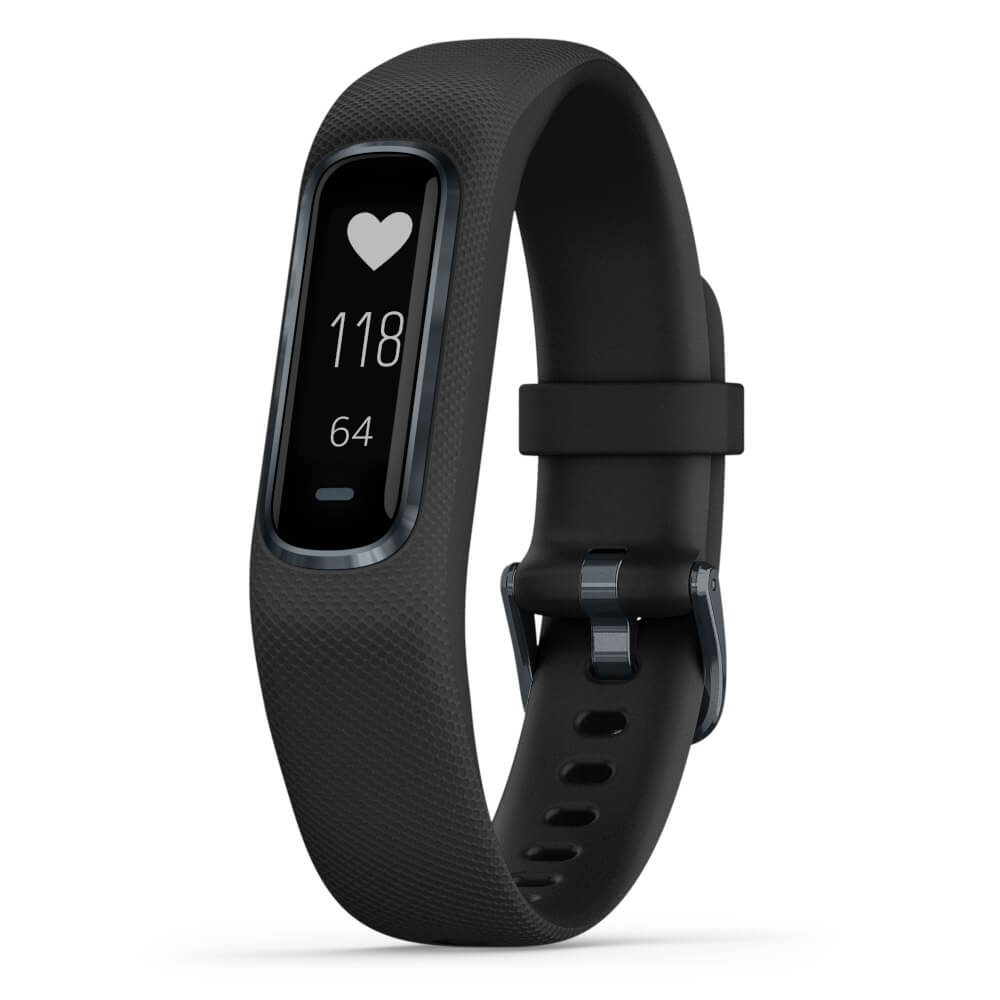
Last on our list is Garmin vivosmart 4. The device itself is not very impressive, 7 days battery life with 0.7 inch OLED display and 17g weight packed with 50m water resistance is nothing spectacular, Samsung’s model is packing better hardware and way more battery life but all of the mentioned devices fall flat if we compare software to Garvin. Garvin’s Vivosmart 4 software is best on the list, it keeps track of your steps, sleep, calories burned, floors climbed, various exercises, and heart rate as standard features but you'll have advanced sleep tracking with REM sleep. It can also gauge blood oxygen saturation levels during the night with its wrist-based Pulse Ox sensor. In addition, a relaxation breathing timer complements the all-day stress tracking feature. Lastly, the "Body Battery" monitor helps optimize your daily activities based on your energy levels making it truly the only complete tracking solution on this list. That's it for our review of fitness trackers of today, be sure to come back each day to find more interesting articles and tips for your everyday digital life.
Read More
0x8019019a when setting up Yahoo Mail
The error code 0X8019019A is shown when a user fails to add his Yahoo account to the Mail app due to the outdated or corrupt installation of the Mail app. Not using an App-specific but a normal Yahoo account password may also result in the error at hand. In this guide, we will show you how to effectively fix this error so you can set up Yahoo mail.
  1. Reboot PC

    Perform a restart of your system to rule out a temporary glitch in the system. Also, check if you can successfully access your email through a web browser using the same credentials as you are using with the Mail app. Additionally, make sure that no VPN or proxy server is being used to access the internet (VPN/proxy may work fine with the web version of Yahoo mail but may hinder the access through a mail client).
  2. Update Windows and the Mail App to the Latest Build

    If your system is not updated to the latest build it can create incompatibility between the OS modules. Updating the Windows and Mail app of your system to the latest build may solve the problem.
  3. Re-add the Yahoo Account to the Mail App

    The Yahoo account issue could be a result of a temporary glitch in the communication modules of the system. The glitch may get cleared if you remove and then re-add the Yahoo account to the Mail app.
  4. Reset the Mail App to the Defaults

    You may fail to add the Yahoo account to the Mail app if the installation of Mail itself is corrupt. In this scenario, resetting the Mail app to the defaults may solve the problem.
  5. Generate an App Password and Use it to Add the Yahoo Account to the Mail App

    Yahoo has implemented tons of security features to its accounts. One such feature is the use of app-specific passwords for less secure apps like the Mail app. If your Yahoo username or password is not working with the Mail app, then using the App-specific password may solve the problem.
Read More
A Guide to Fixing Error 0x8007007e on Windows 10

Error Code 0x8007007e – What is it?

Error code 0x8007007e often occurs when users attempt to use Windows Update but are unable to access updates or webpages. To resolve this issue, you will need to use tools that detect and correct corrupted files as this is usually the main reason for the error.

Solution

Restoro box imageError Causes

Once this error code is encountered, it's a clear indication that your Operating System has malfunctioned. This could be a consequence of an incorrect or failed installation of software. The software might leave invalid entries in the Windows registry. Improper shut down of your system and a malware attack are also causes of error code 0x8007007e. Additionally, someone with little or no technical knowledge might have deleted a system file by accident. Missing system files can also equate to other error codes such as registry error code 19.

You may not always be able to prevent issues from affecting your computer, but proper measures can be taken to limit your risk of experiencing problems like error code 0x8007007e. See the following suggestions below:

  • Ensure proper system maintenance by regularly using your automated tool. This will ensure your system is in good shape and error-free. It will also clean your system regularly leading to a boost in PC performance
  • Keep antivirus software up-to-date. Antivirus software if crucial for the proper functioning of your computer. Keeping your antivirus updated is one of the best ways you can avoid problems with your PC.

Further Information and Manual Repair

Method One: System File Checker

System File Checker is a Windows tool that allows users to check their system for corrupt or bad system files. The utility scans for corrupt files and repairs them as well as files that may have gone missing.

Depending on the type of Windows operating system on your computer, you may need to follow varying instructions. However, note that Windows operating systems including Windows 10 and Windows 8 or 8.1 and Windows Vista all provide access to System File Checker via Command Prompt.

Once you run System File Checker, the tool should be able to repair and replace corrupted files. However, in cases where the repair process does not take place, you can attempt a manual repair by replacing the corrupt file the tool identifies with a good file. The process may require technical knowledge of Command Prompt so consider help from a Windows repair technician or consider contacting Windows for instructions based on your computer’s operating system.

Method Two: Run System Restore Tool

The System Recovery Options menu in Windows contains many tools which can enable users to resolve serious errors. In the case of Error Code 0x8007007e, one of the best tools in this menu is System Restore.

When an error occurs which inhibits users from accessing key functions on their system, System Restore enables the user to restores the computer to an earlier period without causing harm to files, photos, or documents.

However, once you run this tool, you will only be able to access files available within the period to which your computer is restored. For this reason, carefully consider which period is best suited to your purposes. Also, ensure you restore the system to a time when error code 0x8007007e was not present on your machine.

If System Restore does not resolve the error, you may undo the restoration changes. Ensure you have sufficient free space on your machine hard disk before you proceed (300 MB at least for hard drives above 500MB or at least 50 MB for smaller sized disks).

Method Three: Download Automated Software

When it comes to resolving error codes, it can often be a frustrating and tricky venture, especially when you are attempting to fix the problem manually. The Internet is awash with bits and pieces of instruction, some misleading at best with uncertain success rates.

But what if there was a one-stop-shop or better yet a tool that offered solutions for error codes including 0x8007007e?  Download a powerful automated tool that offers easy and effective, user-friendly solutions for users with varying error code problems.

Read More
Fix Memory error 0x0000001A on Windows
One of the hardest issues you can encounter on your Windows computer is the Blue Screen of Death error. There are various kinds of BSOD or Stop errors and one of them is the “Memory Management Error 0x0000001A” error. This kind of Stop error might signify a hardware problem in your computer and is most likely caused by an issue with RAM or hard disk or even malware that takes up all your computer’s memory, thus, making it crash and display a BSOD error like the Memory Management Error 0x0000001A. Moreover, this kind of Stop error can also occur during the Windows upgrading process. So in this post, we’ll show you what you can do to fix the Memory Management error on your Windows 10 PC.

Option 1 – Run the Blue Screen Troubleshooter

The Blue Screen troubleshooter is a built-in tool in Windows 10 that can be found on the Settings Troubleshooters page. To use it, refer to these steps:
  • Tap the Win + I keys to open the Settings panel.
  • Then go to Update & Security > Troubleshoot.
  • From there, look for the option called “Blue Screen” on your right-hand side and then click the “Run the troubleshooter” button to run the Blue Screen Troubleshooter and then follow the next on-screen options. Note that you might have to boot your PC into Safe Mode.

Option 2 – Update the device drivers

  • Tap the Win + R keys to launch Run.
  • Type in devmgmt.msc into the box and tap Enter or click OK to open the Device Manager.
  • After that, a list of device drivers will be displayed. Look for the device driver you and then select either “Update driver” or “Uninstall device”. And if you find any “Unknown device”, you need to update it as well.
  • Select the “Search automatically for updated driver software” option and then follow the instructions to complete the process.
  • If you have chosen to uninstall the driver, follow the screen options to complete the process and then restart your PC.
  • Connect the device and Scan for hardware changes – you can see this option under Device Manager > Action.

Option 3 – Run the Windows Memory Diagnostics Tool to test RAM

Since the issue concerns the memory of your computer, you can also try running the Windows Memory Diagnostics Tool to find out if the RAM module of your computer has become corrupted. To run this tool, follow these steps:
  • Tap the Win + S keys to open Search.
  • Then type “Windows Memory Diagnostics Tool” in the field and hit Enter to open the Windows Memory Diagnostics Tool.
  • After that select any of the following option from the prompt that appears:
    • “Restart now and check for problems (recommended)”
    • “Check for problems the next time I start my computer”
  • After that, if you find that your RAM is corrupted, you might have to purchase a new one or change the motherboard of your computer.

Option 4 – Run the DISM tool

There are cases when the Memory Management Error 0x0000001A error is caused by the Windows System Image so you need to repair it using the DISM or Deployment Imaging and Servicing Management tool. The DISM tool is another command-line tool in the Windows operating system that could help users fix various corrupted system files. To use it, follow these steps:
  • Open the Command Prompt as admin.
  • Then type in this command: Dism /Online /CheckHealth
  • Do not close the window if the process takes a while as it will probably take a few minutes to finish.

Option 5 – Run the SFC scan

  • Tap Win + R to launch Run.
  • Type in cmd in the field and tap Enter.
  • After opening Command Prompt, type in sfc /scannow
The command will start a system scan which will take a few whiles before it finishes. Once it’s done, you could get the following results:
  1. Windows Resource Protection did not find any integrity violations.
  2. Windows Resource Protection found corrupt files and successfully repaired them.
  3. Windows Resource Protection found corrupt files but was unable to fix some of them.

Option 6 – Try using System Restore

You can also try to perform a System Restore as it can also help you fix the BSOD error. You can do this option either by booting into Safe Mode or in System Restore. If you are already in the Advanced Startup Options, just directly select System Restore and proceed with the next steps. And if you have just booted your PC into Safe Mode, refer to the steps below.
  • Tap the Win + R keys to open the Run dialog box.
  • After that, type in “sysdm.cpl” in the field and tap Enter.
  • Next, go to the System Protection tab then click the System Restore button. This will open a new window where you have to select your preferred System Restore point.
  • After that, follow the on-screen instructions to finish the process and then restart your computer and check if the problem is fixed or not.
Read More
Remove CalendarSpark Browser Hijacker

CalendarSpark is a browser extension developed by MindSpark. This extension allows an easy way to print or view calendar templates and make schedulers for a day/week/month/year. This browser extension hijacks your browser home page and search engine, changing them to MyWay.com. While the extension is installed it monitors your browsing activity and collets visited websites, clicked links, and sometimes even personal information, which it later uses to display targeted unwanted ads through your browsing sessions.

While browsing the internet with this extension installed you will see additional sponsored links, ads, and sometimes even pop-up ads on websites that are not supposed to have any of these. Several anti-virus scanners have detected this extension as a Browser Hijacker, and due to its data collecting behavior, it is not recommended to keep it on your computer.

About Browser Hijackers

Browser hijackers (sometimes called hijackware) are a kind of malware that modifies web browser configuration settings without the computer owner’s knowledge or permission. These kinds of hijacks are raising at an alarming rate across the world, and they could be truly nefarious and sometimes harmful too. Browser hijacker malware is created for a number of reasons. These are generally used to force hits to a specific site, manipulating web traffic to generate ad revenue. However, it’s not that harmless. Your online safety is jeopardized and it is also extremely irritating. In a worst-case scenario, your browser could be hijacked to open up your computer system to a host of additional attacks.

Indications of browser hijack

When your browser is hi-jacked, the following could happen: your home page is reset to some unknown webpage; you get redirected to sites you never intended to visit; The default search page of the web browser is changed; unwanted new toolbars are added to your internet browser; you’ll find random pop-ups start showing on a regular basis; your internet browser starts running slowly or exhibits frequent errors; Inability to navigate to certain websites, particularly antivirus as well as other security software sites.

Exactly how browser hijacker finds its way onto your PC

Browser hijackers can enter a PC by some means or other, including via file sharing, downloads, and e-mail as well. They could also be deployed via the installation of an internet browser toolbar, add-on, or extension. A browser hijacker can be installed as a part of freeware, shareware, demoware, and pirated programs. An example of some well-known browser hijacker includes Conduit, Anyprotect, Babylon, DefaultTab, SweetPage, RocketTab, and Delta Search, but the names are regularly changing. Browser hijackers could interrupt the user’s web surfing experience significantly, track the websites visited by users and steal sensitive information, cause problems in connecting to the net, and then finally create stability issues, causing programs and computers to freeze.

Removal

Some kinds of browser hijackers can be quickly removed from the computer by deleting malicious applications or any other recently added freeware. Regrettably, most of the software applications used to hijack an internet browser are intentionally designed to be difficult to remove or detect. Furthermore, manual removals require in-depth system knowledge and therefore can be an extremely difficult job for novice computer users.

What you can do if Virus Stops You From Downloading Antivirus?

Practically all malware is inherently dangerous, but certain types of malware do much more damage to your computer than others. Some malware sits in between your computer and your internet connection and blocks a few or all websites that you would like to check out. It will also block you from the installation of anything on your PC, especially antivirus applications. If you’re reading this article now, you might have perhaps realized that virus infection is the real cause of your blocked net connectivity. So how to proceed when you want to download and install an antivirus application like Safebytes? Although this sort of problem can be tougher to circumvent, there are some steps you can take.

Download the software in Safe Mode with Networking

In Safe Mode, you may change Windows settings, un-install or install some program, and eliminate hard-to-delete viruses and malware. In case the virus is set to load immediately when the PC starts, switching to this mode can prevent it from doing so. To boot into Safe Mode, press “F8” key on the keyboard just before Windows logo screen appears; Or after normal Windows boot up, run MSCONFIG, look over Safe Boot under Boot tab, and then click Apply. After you reboot into Safe Mode with Networking, you could download, install, as well as update the anti-malware program from there. At this point, you can run the anti-malware scan to eliminate viruses and malware without hindrance from another application.

Obtain the antivirus program using an alternate web browser

Some malware only targets particular internet browsers. If this sounds like your situation, utilize another browser as it may circumvent the virus. The best way to avoid this problem is to choose a browser that is well known for its security features. Firefox has built-in Phishing and Malware Protection to help keep you safe online.

Install and run anti-malware from the Thumb drive

Here’s yet another solution which is creating a portable USB antivirus software package that can check your system for malicious software without the need for installation. To run anti-virus from a USB drive, follow these simple steps: 1) Use another virus-free PC to download Safebytes Anti-Malware. 2) Plug in the flash drive to a USB slot on the clean computer. 3) Double-click the executable file to open the installation wizard. 4) When asked, choose the location of the USB drive as the place where you would like to store the software files. Follow activation instructions. 5) Unplug the flash drive. You may now use this portable anti-malware on the affected computer. 6) Run the Safebytes Anti-malware directly from the flash drive by double-clicking the icon. 7) Run Full System Scan to detect and clean-up up all types of malware.

SafeBytes Anti-Malware Benefits

If you are looking to install anti-malware software for your PC, there are numerous tools on the market to consider but you cannot trust blindly to anyone, irrespective of whether it is free or paid software. A few of them are great, some are decent, while some will harm your computer themselves! You need to select one that is dependable, practical, and has a strong reputation for its malware protection. While thinking about the dependable software programs, Safebytes AntiMalware is certainly the strongly recommended one. SafeBytes anti-malware is a trusted tool that not only protects your computer system permanently but is also very user-friendly for people of all ability levels. Once you’ve got installed this software, SafeByte's sophisticated protection system will make sure that absolutely no viruses or malicious software can seep through your personal computer. SafeBytes has a plethora of amazing features that can help you protect your PC from malware attacks and damage. Listed below are some of the great features included in the tool. Optimum AntiMalware Protection: Using a critically acclaimed malware engine, SafeBytes provides multilayered protection that is designed to find and eliminate viruses and malware that are concealed deep in your computer’s operating system. Live Protection: SafeBytes offers a completely hands-free real-time protection that is set to observe, block, and wipe out all computer threats at its very first encounter. It will inspect your computer for suspicious activity regularly and its unparalleled firewall shields your computer from illegal entry by the outside world. Faster Scan: SafeBytes Anti-Malware has got a multi-thread scan algorithm that works up to 5 times faster than any other protection software. Website Filtering: SafeBytes checks and provides a unique safety ranking to each and every site you visit and block access to webpages known to be phishing sites, thus safeguarding you from identity theft, or known to contain malware. Light-weight: The program is light-weight and will work silently in the background, and will not impact your computer efficiency. Premium Support: For any technical inquiries or product assistance, you could get 24/7 professional assistance via chat and email.

Technical Details and Manual Removal (Advanced Users)

To get rid of CalendarSpark manually, navigate to the Add/Remove programs list in the Windows Control Panel and select the program you want to get rid of. For browser extensions, go to your web browser’s Addon/Extension manager and select the add-on you intend to remove or disable. You will probably also want to reset your internet browser. In order to ensure the complete removal, manually examine your hard disk and computer registry for all of the following and remove or reset the values accordingly. But bear in mind, this is a tricky task and only computer professionals can carry it out safely. In addition, certain malicious programs are capable to defend against its deletion. Doing this malware-removal process in Safe Mode is suggested.
Files: calendarspark.dl.myway[1].xml %UserProfile%\Local Settings\Application Data\CalendarSparkTooltab chrome-extension_apfkjcjglfhoemadfobgcacfkdhapiab_0.localstorage-journal %LOCALAPPDATA%\CalendarSparkTooltab http_calendarspark.dl.tb.ask.com_0.localstorage-journal http_calendarspark.dl.tb.ask.com_0.localstorage Calendarspark.exe 310,048 602097e5efa71f01dca1ad60ba108730 %UserProfile%\Local Settings\Application Data\Google\Chrome\User Data\Default\Extensions\lacjhcgjigifchcapcccoippjdnkbagj %LOCALAPPDATA%\Google\Chrome\User Data\Default\Extensions\lacjhcgjigifchcapcccoippjdnkbagj www.calendarspark[1].xml %LOCALAPPDATA%\Google\Chrome\User Data\Default\Local Extension Settings\lacjhcgjigifchcapcccoippjdnkbagj Registry: HKEY_CURRENT_USER\Software\CalendarSpark HKEY_CURRENT_USER\Software\Microsoft\Internet Explorer\LowRegistry\DOMStorage\calendarspark.com HKEY_CURRENT_USER\Software\Microsoft\Internet Explorer\LowRegistry\DOMStorage\calendarspark.dl.myway.com HKEY_CURRENT_USER\Software\Wow6432Node\CalendarSpark HKEY_CURRENT_USER\Software\Google\Chrome\PreferenceMACs\Default\extensions.settings, value: lacjhcgjigifchcapcccoippjdnkbagj HKEY_LOCAL_MACHINE\Software\[APPLICATION]\Microsoft\Windows\CurrentVersion\Uninstall..Uninstaller CalendarSparkTooltab Uninstall Internet Explorer
Read More
How to Fix Error 421

What is the Error 421?

Error 421 is a common SMTP (Simple Mail Transfer Protocol) Outlook error message. MS Outlook is one of the best and popular email applications widely used by PC Windows users for sending and receiving emails within and outside workplaces. It is most commonly used in offices by professionals for faster communication. This error may occur while sending and receiving emails on the server. The error 421 messages is displayed in either of the following formats:
“An unknown error has occurred: Server error 421” "Could not send your message. Error 421" 421 4.2.1 : (DYN:T1) http://postmaster.info.aol.com/errors/421dynt1.html 421 4.3.1 Out of disk space for temp file 421 4.3.2 All server ports are busy 421 Downstream server error 421 Fork failed 421 Greylisting enabled, please try later “An unknown error has occurred. Subject ‘Testing’, Account: ‘pop.charter.net’, Server: ‘mail.charter.net’, Protocol: SMTP, Server Response: ’421 Message rejected’, Port: 25, Secure(SSL): No, Server Error: 421, Error Number: 0x800CCC67”

Solution

Restoro box imageError Causes

Some common causes for this critical Outlook error are:
  • PST storage size exceeds 2GB file size
  • Improper ISP settings
  • Slow internet connection
  • PST file corruption
  • Trojan attack and viral infection
This is a critical Outlook error that should be resolved timely. If you delay, it may cause you a great deal of inconvenience. The error code 421 hampers your ability to access your email account, send and receive emails, add new contacts, view emails, calendar entries, and journals. In other words, it just brings your email activities to a standstill locking you out of the account.

Further Information and Manual Repair

To resolve this error code on your system, you don’t always have to hire a professional or call the network personnel to do the job. It may be a critical error but the good news is that it is quite easy to fix. Even if you don’t have technical expertise, you can still repair it. Here are some of the best methods to repair this issue on your system:

1. Change the Server Settings to its Maximum Limit

Try changing your server settings. Here set the inbound connections limit at the maximum limit.
  • To do this, open the Microsoft Exchange Server Administrator utility. The access path of this utility will vary depending on the installation procedure used to set up Exchange Server.
  • Once you open the MS Exchange Server Administrator utility, click the ‘Connections’ icon in the left side navigation pane. Now double click the internet mail service icon in the right side pane. As you click it, the Properties window will open.
  • Now click the ‘Connections’ tab in the Properties window and then click the ‘Advanced’ button. This will open the configuration window.
  • Here reset the number for ‘Maximum Number of Inbound Connections’ to a high number, its maximum limit. After changing the settings, close all open Exchange Server Administrator program windows to successfully complete the process.
After the process is complete, try accessing your Outlook email account again; if it works, then that’s great the error 421 is resolved. However, if it doesn’t, then the problem could be related to viral infection.

2. Download a PST Repair Tool

If the cause of the error is PST files corruption, then not only will you be locked out of your email account, you are also at risk of losing all the data stored in your email account. However, the best way to resolve the error and ensure full data recovery is to download a reliable PST repair tool. By running a PST repair tool on your system, you can resolve the error 421 right away. It recovers your data, repairs corrupt and damaged PST files.

3. Scan Your PC with Restoro.

If viral infection and Trojans are causing the error 421 to pop up on your system, then it is recommended to download and scan your PC with Restoro. This is an advanced, intuitive, and user-friendly PC fixer. It is not just an antivirus but also a system optimizer and a registry cleaner. Unlike common antivirus software that only removes viruses and simultaneously slows down the system’s speed, Restoro removes all types of malicious software on your PC including malware, spyware, Trojans, and viruses, and also boosts the speed of your PC significantly. It is safe, easy to operate, and a quick fixer. It is compatible with all Windows versions. Click here to download Restoro and resolve error 421 today!
Read More
Samsung Odyssey Neo G9 monitor review
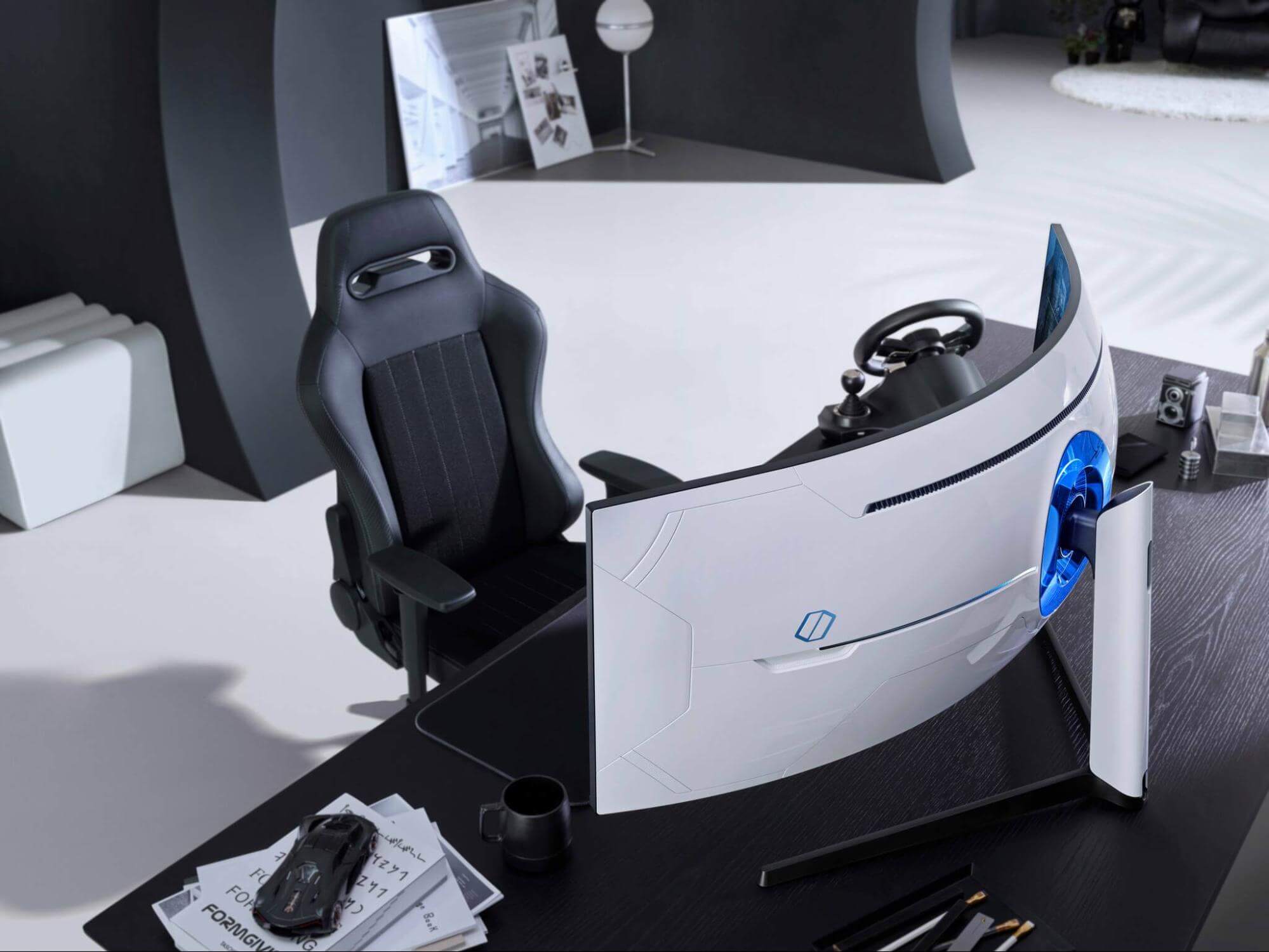
samsung Odyssey Neo G9Odyssey Neo G9 is a successor to Odyssey G9 curved gaming monitor and it is aimed again at the gaming community with its specifications but of course, it can be used for work as well. Gapping at a stunning $2500 USD price it is not really a cheap piece of hardware so it is normal to see what do you get for this kind of price and do features justify it, so let’s dive in.

Size and resolution

The first thing that you can notice about the screen is that it is big and curved, 49 inches big which is pretty big, and with it, I believe you can forget about using 2 or 3 screens because this single one will cover everything you need really. Going as far as 5120 X 1440 resolution is the strange definition, basically, this is 5K which is kind of nice but I do not see the advantage. Sure it is larger than 4K, but for the price of $2500 I expected an 8K monstrosity so if the resolution is not the main price justification then what is? Let’s move on and find out.

Odyssey tech specs

The monitor comes with HDR and 240Hz refresh rate which is very nice and coupled with 1ms pixel response time, adaptive sync, and Variable Refresh Rate you get pretty good other tech specs. All of this is very nice but the monitor's strongest selling point is Mini Led tech. Mini Led is a next-gen tech currently found only in high-end TVs. With this technology, monitors can produce truer blacks sort of speak thanks to a greater number of dimming zones. Odyssey Neo G9 is rated at 2000 nits in the brightness values and local dimming zones go to stunning 2048. It comes also with Quantum HDR that supports 10+, Freesync, and G-Sync capability. In connection, the department monitor comes with a single display 1.4 port and two HDMI 2.1 ports. It also includes a headphone jack along with two USB 3.0 ports.

Conclusion

While the resolution of the monitor is nothing impressive for the given price, its size and the rest of the tech specs surely are. Now I will not lie, the price is still a little too high but if you could afford it easily I think you should.
Read More
How to Fix Remote Desktop Black Screen issues
According to some reports, using RDP or Remote Desktop Protocol on recent versions of Windows 10 results in a black screen. One encounters this issue is when using the Remote Desktop Connection feature on Windows 10. The real causes of this black screen are either the display drivers or some misconfiguration with the Remote Desktop Connection utility. In most cases, the Remote Desktop in Windows 10 will display a black screen and then disconnects afterward. To fix this kind of issue on your Remote Desktop, there are two suggestions you need to check out. First, you can try to disable the persistent bitmap caching, and then you can also try to update your display driver. Follow the given options below for more troubleshooting instructions.

Option 1 – Try to disable Persistent Bitmap caching

The first thing you can do to resolve the black screen issue with the remote desktop is to disable the persistent bitmap caching. All you have to do is follow these steps:
  • First, open the Remote Desktop Connection client.
  • Next, click on the Show Options button to configure the Remote Desktop Connection.
  • After that, go to the Experience tab and uncheck the Persistent bitmap caching option.
  • Once done, you should now be able to connect to the remote computer without the black screen.

Option 2 – Try to update or rollback the Graphics driver

You can try to update your Graphics card driver using the Device Manager in your computer to resolve the blank dialog boxes problem or you can also go directly to the website of your graphics card manufacturers like NVIDIA, Intel, or AMD and go to the section called Drivers then check if there’s a new available update – if there is, download and install it. To update your Graphics driver via Device Manager, refer to these steps:
  • First, boot your computer into Safe Mode.
  • After that, tap the Win + R keys to launch Run.
  • Type in devmgmt.msc into the box and tap Enter or click OK to open the Device Manager.
  • After that, a list of device drivers will be displayed. From there, look for the Display Adapters and click on them.
  • After that, right-click on each entry under the Display Adapters and select the “Uninstall Device” option from the menu.
  • Now restart your computer.
  • After restarting your computer, go to the Settings app and Check for Updates in the Windows Update section.
Note: If updating the Graphics driver didn’t fix the problem, you can also try to roll back to its previous version and see if that helps or you could also try to roll back, update or reinstall the Network Adapter drivers.

Option 3 – Try performing a System Restore

You might also want to perform a System Restore that might help you in fixing the error. You can do this option either by booting into Safe Mode or in System Restore. If you are already in the Advanced Startup Options, just directly select System Restore and proceed with the next steps. And if you have just booted your PC into Safe Mode, refer to the steps below.
  • Tap the Win + R keys to open the Run dialog box.
  • After that, type in “sysdm.cpl” in the field and tap Enter.
  • Next, go to the System Protection tab then click the System Restore button. This will open a new window where you have to select your preferred System Restore point.
  • After that, follow the on-screen instructions to finish the process and then restart your computer and check if the problem is fixed or not.
Read More
1 2 3 171
Logo
Copyright © 2023, ErrorTools. All Rights Reserved
Trademark: Microsoft Windows logos are registered trademarks of Microsoft. Disclaimer: ErrorTools.com is not affiliated with Microsoft, nor claims direct affiliation.
The information on this page is provided for information purposes only.
DMCA.com Protection Status