Logo

Make START menu full screen in Windows 10

Hello and welcome to another great tutorial from errortools.com. Today we will be making Windows START menu full screen.

First introduced in Windows 8.1, the start menu has been shifted from full screen to gadget like in Windows 10 but if you prefer to have it over the entire screen with all of its glory and large icons you can do so and we will be happy to show you how.

Press ⊞ WINDOWS and choose settings.

Windows 10 Star menu with marked settings iconFrom the settings screen, choose Personalization.

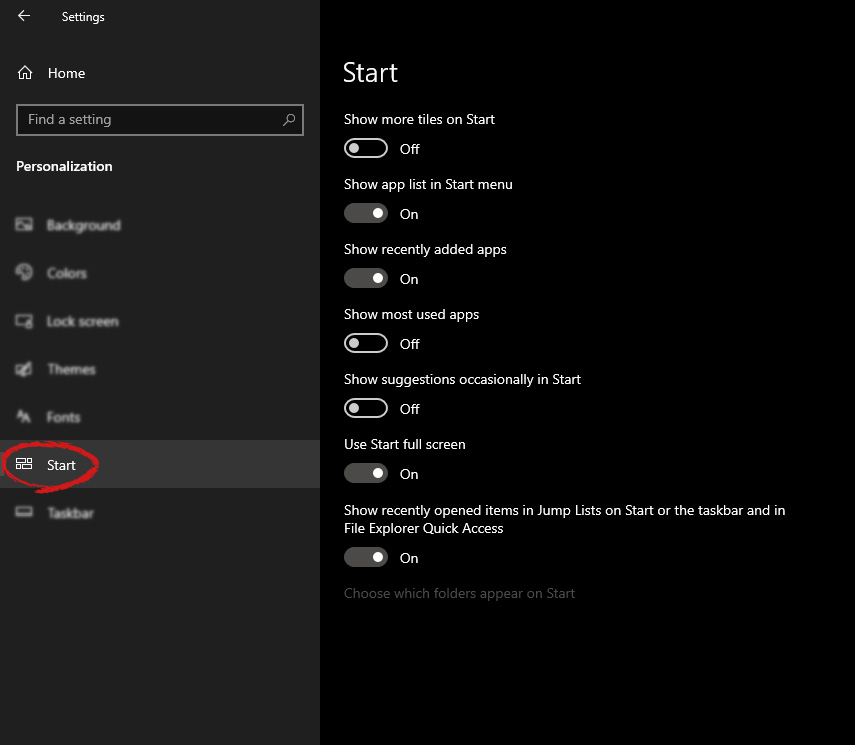
Windows 10 settings menu with marked Personalization groupUnder personalization options click on START.

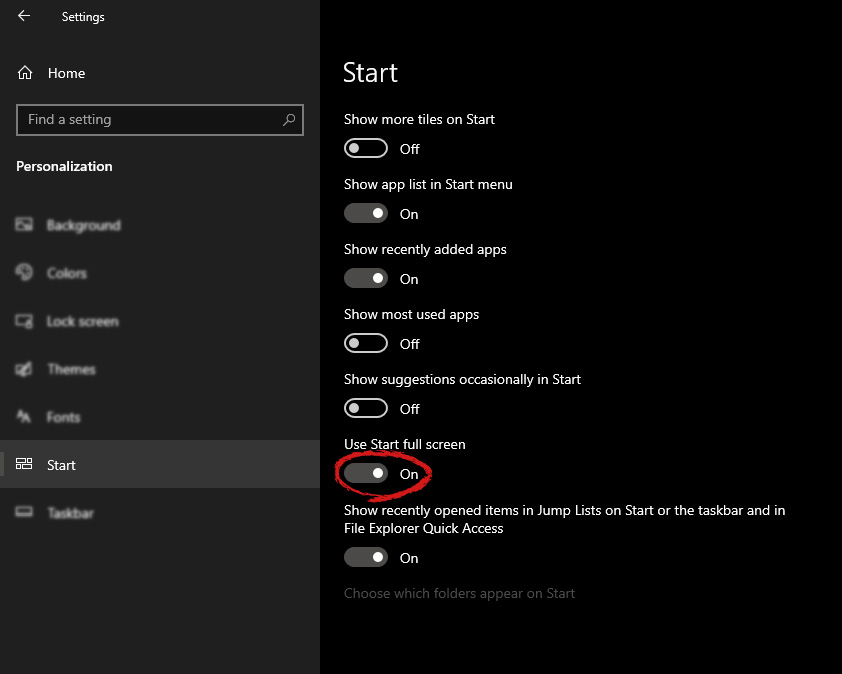
windows settings start screen sectionAnd then on the right part click on the button under Use Start full screen to turn it ON

windows settings start screen switch for full screenThat's it, your start menu is now full screen.

Do You Need Help with Your Device?

Our Team of Experts May Help
Troubleshoot.Tech Experts are There for You!
Replace damaged files
Restore performance
Free disk space
Remove Malware
Protects WEB browser
Remove Viruses
Stop PC freezing
GET HELP
Troubleshoot.Tech experts work with all versions of Microsoft Windows including Windows 11, with Android, Mac, and more.

Share this article:

You might also like

Fix The group or resource is not in the ...
A couple of Windows 10 users recently reported getting an error that says, “The group or resource is not in the correct state to perform the requested operation” while opening UWP Applications as well as accessing the File Explorer. You can encounter this kind of error mostly on File Explorer, Microsoft Store application, and other UWP applications. This indicates that this error occurs during both the Windows Classic Application and the Universal Windows Platform Applications. There are several ways to fix this error. You can try to run a System File Checker scan, or run the DISM tool or the Program Compatibility troubleshooter or Windows Store Apps troubleshooter or try to reset or reinstall Windows 10 or the affected application that's not working. However, before you do any of these troubleshooting tips, you can try to perform System Restore first as it could undo the changes you’ve made in the system which might have caused the error.
  • Tap the Win + R keys to open the Run dialog box.
  • After that, type in “sysdm.cpl” in the field and tap Enter.
  • Next, go to the System Protection tab then click the System Restore button. This will open a new window where you have to select your preferred System Restore point.
  • After that, follow the on-screen instructions to finish the process and then restart your computer and check if the problem is fixed or not.
If System Restore wasn’t able to fix the error, then you can refer to each one of the following options.

Option 1 – Try to use the DISM tool

You might want to repair potentially corrupted files in your system as having them could also trigger the “The group or resource is not in the correct state to perform the requested operation”. To repair these corrupted system files, you can run the DISM commands:
  • Tap the Win + X keys and click on the “Command Prompt (Admin)” option.
  • After that, input each one of the commands listed below sequentially to execute them:
    • Dism /Online /Cleanup-Image /CheckHealth
    • Dism /Online /Cleanup-Image /ScanHealth
    • Dism /Online /Cleanup-Image /RestoreHealth
  • Once you’ve executed the commands given above, restart your computer and check if the DCOM error is now fixed.

Option 2 – Run the System File Checker Scan

Aside from the DISM tool, you can also run a System File Checker scan. It is another built-in command utility that helps in restoring corrupted files as well as missing files. It replaces bad and corrupted system files to good system files that might be the cause why you’re getting the error. To run the SFC command, follow the steps given below.
  • Tap Win + R to launch Run.
  • Type in cmd in the field and tap Enter.
  • After opening Command Prompt, type in sfc /scannow
The command will start a system scan which will take a few whiles before it finishes. Once it’s done, you could get the following results:
  1. Windows Resource Protection did not find any integrity violations.
  2. Windows Resource Protection found corrupt files and successfully repaired them.
  3. Windows Resource Protection found corrupt files but was unable to fix some of them.
  • Reboot your computer.

Option 3 – Try to run the Program Compatibility Troubleshooter

You might also want to run the Program Compatibility Troubleshooter. This built-in troubleshooter is available in the Windows Update & Security section. From there, select Troubleshoot. This will find a list of programs for you and since you have already downloaded the driver files, just click on Not Listed located at the top of the program list. After that, browse and select the driver files and then let the program do its job. In addition, you can try to run the Windows Store apps troubleshooter as it can also help you resolve the problem.

Option 4 – Reset your computer

  • Tap the Win key or click on the Start button located in the Taskbar.
  • Then click on the Power button at the bottom right portion of the screen.
  • Next, press and hold the Shift key on your keyboard and then click on Restart. This will restart your Pc into the Advanced Startup options.
Note: Once you have access to the Advanced Startup options, you have to go to the setting which allows you to Reset your Windows 10 PC. All you have to do is select Troubleshoot > Reset this PC to reach the following screen
  • Afterward, select either the “Keep my files” option and then proceed to the next on-screen instructions that follow to reset your Windows 10 computer without losing your files.
Read More
How to get rid of My Maps Wizard

My Maps Wizard is a browser extension for Google Chrome Developed by Mindspark Inc. This extension offers users access to different websites that offer route planning, map views, and other traveling tools.

While all this might sound interesting and useful, this extension has been marked as a Browser Hijacker by several popular anti-virus applications.

When installed this extension changes your default home page and new tab page to MyWay.com or Ask.com depending on the extension version. It also monitors and records user browsing activity that it later uses to display sponsored / unwanted ads throughout your browsing sessions. While browsing the internet with this extension active and installed you will see additional pop-up ads, sponsored links, and injected ads into search results.

About Browser Hijackers

Browser hijacking is a form of unwanted software, often a browser add-on or extension, which causes modifications in the browser’s settings. There are lots of reasons why you may experience a browser hijack; however commercial, advertising, and marketing are the primary reasons for their creation. It redirects you to the sponsored websites and injects ads on your internet browser that assists its creator to generate earnings. Although it may seem naive, these tools were created by malicious people who always attempt to take full advantage of you, so that hackers can easily earn money from your naive and distraction. Browser hijackers could also allow other harmful programs without your knowledge to further damage your personal computer.

How you can know whether the web browser is hijacked?

There are numerous symptoms of web browser hijacking: 1. you notice unauthorized modifications to your web browser’s homepage 2. you find new unwanted favorites or bookmarks added, usually directed to ad-filled or pornography sites 3. the default search engine and the default web browser settings are altered 4. you find many toolbars on the internet browser 5. never-ending pop-up ads appear and/or your browser pop-up blocker is disabled 6. your browser has instability problems or exhibits frequent errors 7. you can’t visit specific websites such as homepages of anti-malware software.

So how does a PC get infected with a browser hijacker?

There are a number of ways your PC can get infected by a browser hijacker. They generally arrive by way of spam email, via file-sharing websites, or by a drive-by download. They may also originate from any BHO, browser extension, toolbar, add-on, or plug-in with malicious intent. A browser hijacker may also come bundled up with some freeware that you unwittingly download to your PC, compromising your internet security. An example of some infamous browser hijacker includes Conduit, Anyprotect, Babylon, SweetPage, DefaultTab, RocketTab, and Delta Search, however, the names are often changing. Browser hijacking can lead to severe privacy problems and even identity theft, affect your web browsing experience by taking control of outgoing traffic, drastically slows down your personal computer by consuming lots of system resources, and cause system instability as well.

Learn how to remove a browser hijacker

Certain browser hijacking can be quite easily stopped by finding and eliminating the corresponding malware software through your control panel. Having said that, the majority of hijackers are quite tenacious and need specialized tools to remove them. Furthermore, manual removals require in-depth system knowledge and therefore could be a very difficult task for novice computer users. Industry experts always suggest users eliminate any malicious software including browser hijacker by using an automatic removal tool, which is simpler, safer, and quicker than the manual removal solution. One of the best tools for correcting browser hijacker infections is SafeBytes Anti-Malware. It will help you remove any pre-existing malicious software on your system and provides you real-time monitoring and protection against new internet threats. Employ a system optimizer (such as Total System Care) along with your antivirus software to correct various registry issues, eliminate computer vulnerabilities, and boost your computer performance.

What To Do When You Cannot Install Safebytes Anti-Malware?

All malware is bad, but certain types of malware do much more damage to your computer or laptop than others. Certain malware variants modify web browser settings by adding a proxy server or change the PC’s DNS configuration settings. In these instances, you’ll be unable to visit certain or all of the sites, and thus not able to download or install the required security software to eliminate the computer virus. So what to do if malicious software keeps you from downloading or installing Anti-Malware? There are a few actions you can take to get around this issue.

Install the anti-malware in Safe Mode

Safe Mode is actually a unique, basic version of Microsoft Windows in which just bare minimum services are loaded to stop viruses as well as other troublesome applications from loading. If the virus is set to load automatically when PC boots, shifting to this mode may prevent it from doing so. To get into Safe Mode or Safe Mode with Networking, press F8 while the system is starting up or run MSConfig and find the “Safe Boot” options under the “Boot” tab. Once you are in safe mode, you can try to install your antivirus application without the hindrance of malicious software. Now, you are able to run the antivirus scan to remove computer viruses and malware without hindrance from another malicious application.

Download the security software in an alternate browser

Malicious code may exploit vulnerabilities in a particular internet browser and block access to all anti-malware software sites. The best solution to avoid this issue is to go with a browser that is well known for its security features. Firefox contains built-in Malware and Phishing Protection to keep you secure online.

Run antivirus from a pen drive

Another way is to download and transfer anti-malware software from a clean PC to run a virus scan on the affected computer. Try these simple measures to clean up your infected computer by using portable anti-malware. 1) Download Safebytes Anti-Malware or Windows Defender Offline onto a virus-free computer system. 2) Mount the USB drive onto the same computer. 3) Double-click on the downloaded file to open the installation wizard. 4) When asked, select the location of the pen drive as the place where you want to store the software files. Follow activation instructions. 5) Remove the pen drive. You can now utilize this portable antivirus on the infected computer. 6) Double click the Safebytes Anti-malware icon on the flash drive to run the application. 7) Press the “Scan Now” button to begin the malware scan.

Let's Talk About SafeBytes Anti-Malware!

If you’re looking to download an anti-malware application for your PC, there are lots of tools out there to consider however, you cannot trust blindly to anyone, regardless of whether it is paid or free software. A few are very good ones, some are decent, and some are merely fake anti-malware applications that will harm your PC themselves! You must pick one that is efficient, practical and has a good reputation for its malware protection. One of the recommended software programs is SafeBytes Anti-Malware. SafeBytes has a superb history of excellent service, and customers are very happy with it. Safebytes is among the well-established computer solutions firms, which provide this complete anti-malware software. Using its cutting-edge technology, this software will help you remove multiples types of malware like viruses, PUPs, trojans, worms, ransomware, adware, and browser hijackers.

SafeBytes anti-malware provides a plethora of advanced features which sets it aside from all others. The following are some of the features you may like in SafeBytes.

World-class AntiMalware Protection: Built upon a greatly acclaimed anti-virus engine, this malware removal application can identify and get rid of numerous obstinate malware threats such as browser hijackers, potentially unwanted programs, and ransomware that other typical anti-virus programs will miss. Live Protection: SafeBytes offers complete and real-time security for your PC. It’ll constantly monitor your pc for hacker activity and also provides users with superior firewall protection. Safe Browsing: Through its unique safety rating, SafeBytes informs you whether a site is safe or not to visit it. This will make sure that you’re always certain of your online safety when browsing the web. Light-weight Utility: SafeBytes is a lightweight and user-friendly anti-virus and anti-malware solution. As it uses minimum computer resources, this application leaves the computer power exactly where it belongs to: with you. Fantastic Tech Support Team: You can get high levels of support 24/7 if you’re using their paid version. SafeBytes can keep your personal computer safe from the latest malware threats automatically, thus keeping your internet experience secure and safe. You can be sure that your computer system will be protected in real-time once you put this tool to use. If you want advanced forms of protection features & threat detections, buying SafeBytes Anti-Malware could be worth the money!

Technical Details and Manual Removal (Advanced Users)

To remove My Maps Wizard manually, go to the Add/Remove programs list in the Windows Control Panel and select the offending program you want to get rid of. For internet browser extensions, go to your browser’s Addon/Extension manager and select the add-on you would like to remove or disable. You will additionally also want to totally reset your web browser to its default configuration settings. To ensure complete removal, find the following Windows registry entries on your computer and remove them or reset the values appropriately. But bear in mind, this can be a tricky task and only computer professionals could carry it out safely. In addition, some malicious programs are capable to defend against its removal. You’re advised to do this process in Safe Mode.
Registry: [HKEY_LOCAL_MACHINE\Software\Microsoft\Windows\CurrentVersion\explorer\Shell Folders] Common Startup = C:\windows\start menu\programs\startup [HKEY_LOCAL_MACHINE\Software\Microsoft\Windows\CurrentVersion\explorer\User Shell Folders] Common Startup = C:\windows\start menu\programs\startup [HKEY_LOCAL_MACHINE\Software\Microsoft\Windows\CurrentVersion\RunServices] Whatever = c:\runfolder\program.exe

Read More
PDF text disappears when editing or saving
If you are trying to save a file in a PDF format on your Windows 10 computer but then the PDF text content in an Adobe file suddenly disappears, then read on. This post will give you more insight into this issue. This kind of issue is rare and mostly occurs in forms that you can fill upon. In such a case, the text you enter in the form vanishes right after you click the Save button. One of the benefits of working with PDF files is that it has the ability to compress high-quality files to relatively small file sizes. This is really useful especially when you are saving hard drive space and you’re working with limited storage resources. However, these files can contain layered content if they are created from layered documents using applications like Adobe InDesign. Consequently, a single page of the PDF file can contain different layers with different content. So if you try to save or print a PDF file that contains layered content, the elements will disappear from the PDF. To resolve this issue, you can try to merge or flatten the file since it will help keep the changes in the PDF file. On the other hand, you can no longer make any alterations or form data once you flatten the file. Another thing to keep in mind is that merging or flattening the file can’t be undone so you might want to save another copy of the file before you proceed.

Option 1 – Print to PDF

  • First, you have to open the desired PDF file and tap the Ctrl + P keys to open the Print dialog box.
  • After that, select the “Microsoft Print to PDF” option as the printer.
  • Once the action is confirmed, it will regenerate another version of the PDF file with the default settings and merge all the existing layers into a single layer.
  • On the other hand, you can also click on the “File” menu of the PDF file and select Print.
  • From there, click on the Print button and select “PostScript (*.ps)” as the “Save as” type to save a PostScript copy of the original PDF file.
  • Once you’re done, double click on the .ps file to open the file in the Adobe Distiller which will flatten the file automatically and convert it to a PDF file with only one visible layer.

Option 2 – Save the PDF file as an Optimized PDF file

If you are using the Acrobat Reader Pro version such as the Acrobat Pro, Foxit, and so on, you can try to flatten the layers by saving the PDF file as an Optimized PDF file. Refer to these steps to do so:
  • Select File > Save as > Optimized PDF.
  • Next, select the Transparency checkbox from the Settings window that opens.
  • Then click on the Save button to apply and save the changes made. After that, the PDF text content should not disappear when you try to save a file on your Windows 10 computer.
Read More
Fix error code 16 in Windows 10
Access denied error code 16 is tied to websites, it is an error which you will encounter when trying to visit some specific website or if you are unlucky on all of the websites. Lucky for us this error is fixable and in order for us to do this, follow this guide for possible solutions.
  1. Check Date and Time, Incorrect date and time can often interfere with services in your Windows, browsers are not different and this can cause some websites not to be shown. Check your date and time and set it correctly if needed.
  2. Try to access the website from another device. If you manage to open a website on another PC or some other device then keep reading in order to find the solution, if you can not, then the problem is on the website itself.
  3. Turn off Firewall or antivirus. New antivirus and firewall applications can sometimes mark certain websites as malicious and will cut contact with them rendering them unable to be accessed or opened. Try turning the firewall and antivirus temporarily off and then try to access the website.
  4. Try opening web site in another browser. To eliminate browser-specific issues and their configuration, try opening the website in another browser.
  5. Disable PROXI server. Some applications, especially malicious ones can change your proxi setting in LAN. go to your LAN settings and turn off proxi if it is enabled.
  6. Reset your Browser. If this issue is caused by bad data in your browser or by its settings and preferences, resetting the complete browser will solve the issue.
  7. Use VPN. Sometimes the reason for you was not able to access some website might be because the site is not available for your region, to bypass this issue use VPN and reroute your location.
Read More
ERR_SSL_VERSION_OR_CIPHER_MISMATCH
If you encounter an error message saying, “ERR SSL VERSION OR CIPHER MISMATCH” while visiting a website, then it is not primarily your fault as an end-user. In fact, it can happen on any website like Chrome, Edge, Firefox, and even Internet Explorer. Getting this error means that the website you are visiting is using an SSL certificate which your browser seems to be rejected because there is some issue with the certificate. It is also possible that the certificate that’s downloaded on your computer is corrupted or that your computer configuration for TSL/SSL is misconfigured. Here are the complete details of the error message:
“A secure connection cannot be established because this site uses an unsupported protocol, Error code ERR_SSL_VERSION_OR_CIPHER_MISMATCH”
To resolve the ERR_SSL_VERSION_OR_CIPHER_MISMATCH error, refer to the options given below and see which one works for you.

Option 1 – Try to access the website with the only HTTP

The first thing you can do is to try accessing the website using HTTP instead of HTTPS. If you can open the website using HTTP then it means that the problem is in the website itself. And if you are the website owner, you can check the following:
  • Check if your website’s SSL certificate name is mismatched. Here you need to ensure that the name and alias of the websites match with the actual website URL where the certificate is installed.
  • Second, check if your server is using the RC4 Cipher. If it is, then you need to fix that.
On the other hand, you may also check if your CDN also supports SSL since most of the CDN nowadays supports SSL. All you have to do is configure it correctly and it should be good to go.

Option 2 – Try enabling SSL 3 / TLS and disable QUIC Protocol

If you were using Google Chrome when you got the ERR SSL VERSION OR CIPHER MISMATCH error, then you need to follow the protocol fixes for SSL3/TLS and QUIC which are usually some of the reasons that cause the SSL version / Cipher Mismatch. It also has a few fixes for Windows 10 computer where you can clear the certificates and make sure that your computer date and time is in sync with your time zone and so on. If you were using Edge or Internet Explorer when you got the error, then you have to follow the steps below.
  • Type “Internet” in the search box of your browser. After that, you should see the Internet Options from the search results.
  • Next, open the Internet Properties window and switch to the Advanced tab and then scroll down to the Security section.
  • From there, check the “Use TLS 1.1” checkbox as well as the “Use TLS 1.2” checkbox and then click OK to save the changes made.
  • Restart the browser.
On the other hand, if you were using Firefox when you go the error, here’s what you have to do.
  • Open Firefox and in the address bar, type “about:config” and hit Enter.
  • If a warning appears, just click on the “I accept the risk!” button to proceed.
  • Next, type in “TLS” in the search field and hit Enter.
  • Then look for “security.tls.version.min” and double click on it and set its integer value to 3 to force the protocol of TLS 1.3.
  • Now click OK and restart Firefox and do the same thing with SSL.
Read More
Quick Fix Guide to Error 2032

What Is Error 2032?

Error 2032 is essentially the hexadecimal format of the error caused. This error code is actually a code format used by the Windows operating system. Manufacturers use this code to determine the cause behind the problem. This error is usually the result of the issues that arise with different applications. When this error occurs, individuals are not able to view multimedia content on their PC. They may also experience system crashes and this makes it crucial to resolve it.

Solution

Restoro box imageError Causes

Error 2032 is caused by problems in Windows system files. Improper registry entries may also cause this problem. Some of the common causes that trigger Error 2032 are improper deletion of hardware or applications. Similarly, incomplete hardware or application installations or uninstallations may also cause issues. These file errors are actually caused when a computer has recently been attacked by a virus, spyware, or malware or if the system is trying to recover from an unanticipated shutdown. Such activities often result in the corruption or deletion of registry entries in Windows system files. The corrupt files will obviously cause problems and the application will fail to perform correctly.

Further Information and Manual Repair

While there are several ways to solve this problem, some of the most useful and practical solutions are listed below as follows.
  • If you are an advanced user, this workaround is for you. First and foremost, restart your computer and log on to it as the administrator. Now click on the ‘Start’ button.  Now follow this path: All programs ->Accessories-> System Tools->System Restore. Once you choose to perform System Restore, you will come across options where you can select to ‘Restore your computer to an earlier time’. This option will appear in a new window. Click on it and then click Next. Click on the Next button again that appears in the confirmation window. Restart your computer after the restoration is finished. You have just resolved the error.
  • Another easier alternative to fix Error 2032 is for novice users. Download an Error 2032 repair utility. Install this program as you are most likely to come across a Scan button. If there is an option to fix and repair an error, select it after the scan is complete. You can then restart your computer again. Look for the error and you will realize that it has disappeared and that your system is now ready to use.
Read More
Quick Fix for Error Code 100

What is Error Code 100?

Error Code 100?? Whenever a Setup error contains error codes in the message, this indicates what the setup was operating on, let’s say copying files. The text in the error message will determine whether that it is fatal or not. An error code 100 is a system error that is displayed as ‘ERROR_TOO_MANY_SEMAPHORES’ or as a value 0x64. This error means that the system ‘cannot create another system semaphore.’ A semaphore is used in controlling access to parallel programming or a multi-user platform through multiple processes. This error can prevent certain features of your Windows to perform properly, like trying to get a print, copying files, deleting files, or any other routine computer activities.

Solution

Restoro box imageError Causes

Error code 100 can affect a wide range of activities that you normally perform on your PC. This error can occur for a number of reasons, of which some of the common ones include:
  • When the Microsoft SQL Server fails to start the service
  • When the account used for starting AOS does not match the database in SQL Server
  • When the AOS licenses have exceeded their limit
  • When the SQL Server database is incorrectly case sensitive
Though these are the common causes for error code 100, there can be other ways through which this error can occur. To find out the specific cause for error code 100, follow these steps:
  • Go to Start and select All Programs. Go to Administrative Tools and click Even Viewer
  • Click Application in Even Viewer
  • Locate the error message in the right pane by scrolling down
  • Click on the error message and see if the message applies to the error code.

Further Information and Manual Repair

In order to manually repair this error, you will have to work with your Network Administrator as they will have security privileges to take the steps. However, there are more than one ways to resolve this issue, for instance:
  1. Starting SQL Server Service
    • A likely cause of an error code 100 can be that your SQL Server service is not started. To activate it, follow these steps:
    • Got to Start and Click on All Programs, go to Administrative Tools and click on Services
    • Find SQL/MSSQLServer service
    • Right Click on it and click Start to activate the service
  2. Network Resolve
If you are connected to a network, then you can work with your network administrator to fix error code 100. Follow these steps to resolve this error:
  • Got to Start and then Run. Type dcomcnfg and press Enter
  • Locate Default Security and click it
  • Find Default Access Permissions and click Edit Default
  • You should locate System and Interactive, listed in the Allow Access. If they’re not listing, you can add them by clicking Add
  • Find the local computer in the list and click on Allow Access
  • Click Ok on the following three steps
  • Log off the computer and log in again.
Read More
Identify resource hogging applications
Resource hogging is a term when one single application or few of them are taking all system resources for themself causing extreme slow down in the computer and nonresponsiveness. It can be a very frustrating and time-consuming experience and it can cost you money if you can not finish work on time due to this effect. I believe that everyone has experienced at least one slowdown in their IT carrier because of resource-hogging applications and most users do not know how to deal with this. We are here to help you with this issue. Just to be aware that this method shown here is not a method to miraculously speed up your PC or anything similar, this is to be able to detect and recover from extreme slowdowns. Hardware components are still very important and if you can upgrade your computer if it is outdated, please do it because new applications will require a more modern system, and not any kind of tips and tricks will save you from outdated hardware.

Identifying resource hogging app

Now when we got that out of the way let's talk about slowdowns, it is no secret that sometimes an application has bugs and memory leaks that can cause this kind of behavior, and sometimes the application simply takes up too much memory for any other application to work normally. The most simple and straightforward way is to bring up a Windows task manager and inspect running applications and services. You can bring task manager by the key combination of CTRL + SHIFT + ESC If the system is in deep memory deficit you will have to wait for the task manager to open and show itself on-screen. Once opened, click on more details if that view is not opened by default. Once the view expands you will see all running applications with how much RAM memory have they taken and how much CPU they are using.

What to do with app?

Now you are presented with a choice on what to do with the problematic application. If you press the end task button on the bottom right, Windows will kill the application and its processes but any unsaved work inside the application will be lost and unrecoverable in most cases. Or you can try to remove smaller applications running to free up more memory and CPU in order for the computer to catch up. Any choice you make is up to you, but be very careful not to kill Windows essential service by mistake, that will cause immediate system instability with high chances of a system crash.
Read More
Fix NMI_HARDWARE_FAILURE in Windows
If you encounter the NMI_HARDWARE_FAILURE Blue Screen error while using your Windows 10 computer, then read on as this post will guide you in resolving this kind of Blue Screen of Death error. NMI HARDWARE FAILURE or “Non-Maskable Interrupt” Blue Screen error occurs when there is some hardware malfunction in your computer. When you encounter this Blue Screen error, you may get a stop code of 0x00000080 which can randomly occur while you use your computer. However, a lot of users reported encountering this error while they were trying to update or install their Graphics Card drivers. The stop code that you may get for this BSOD error is 0x00000080. The error can occur randomly during your usage of the computer – but a large number of users have reported this error while they are updating or installing their Graphics Card drivers. In this post, we will be covering all the possible fixes for this error. NMI_HARDWARE_FAILURE error on Windows The NMI_HARDWARE_FAILURE bug check has a value of 0x00000080. This bug check indicates that a hardware malfunction has occurred. There are various hardware malfunctions that can cause this kind of Blue Screen error. However, pinpointing the exact cause is quite difficult. Worry no more for the following fixes provided below can help you resolve the NMI_HARDWARE_FAILURE Blue Screen error no matter what the cause of the problem is.

Option 1 – Try removing hardware or drivers that you’ve installed recently

If you have recently installed some hardware or drivers, you might want to disable or remove them since external devices are proven to be one of the factors that trigger Blue Screen errors like NMI_HARDWARE_FAILURE. All you have to do is physically disconnect any external devices that are connected to your computer and then check if it fixes the BSOD error or not.

Option 2 – Try to rollback, update, or disable the Graphics card drivers

Since the NMI_HARDWARE_FAILURE Blue Screen error has something to do with Graphics card drivers, you can either roll back, update or disable them depending on your preference in order to resolve the error.
  • First, boot your computer into Safe Mode.
  • After that, tap the Win + R keys to launch Run.
  • Type in devmgmt.msc into the box and tap Enter or click OK to open the Device Manager.
  • After that, a list of device drivers will be displayed. From there, look for the Display Adapters and click on them.
  • After that, right-click on each entry under the Display Adapters and select the “Uninstall Device” option from the menu.
  • Now restart your computer.
  • After restarting your computer, go to the Settings app and Check for Updates in the Windows Update section.
Note: You also have the option to go directly to the website of your graphics card manufacturers like NVIDIA, Intel, or AMD and go to the section called Drivers then check if there’s a new available update – if there is, download and install it.

Option 3 – Make sure that all memory modules have the same type

This third option is quite technical and tricky. If you often use multiple physical RAMS on your Windows 10 computer, then you have to check first if they are of the same frequency. After that, the first thing you should verify is if the chip is properly compatible or not. And if the sockets are attached using some kind of adapter or non-recommended device, it could cause some issues while giving a performance hit to your computer.  If you were able to find such a setup, you have to undo it or install the proper and recommended as well as compatible hardware.

Option 4 – Try to run the Blue Screen Troubleshooter

As you know, the Blue Screen troubleshooter is a built-in tool in Windows 10 that helps users in fixing BSOD errors like the NMI_HARDWARE_FAILURE error. It can be found on the Settings Troubleshooters page. To use it, refer to these steps:
  • Tap the Win + I keys to open the Settings panel.
  • Then go to Update & Security > Troubleshoot.
  • From there, look for the option called “Blue Screen” on your right-hand side and then click the “Run the troubleshooter” button to run the Blue Screen Troubleshooter and then follow the next on-screen options. Note that you might have to boot your PC into Safe Mode.
Read More
Fix Chrome ERR_BAD_SSL_CLIENT_AUTH_CERT
The Google Chrome browser checks the SSL Security Certificate of the website that you are trying to open. However, if Chrome is not able to check the certificate then you might encounter an error related to the SSL Certificates which you might face when browsing the web. This particular error is the ERR BAD SSL CLIENT AUTH CERT error which is caused by many factors such as the computer’s Time, Cached Data is corrupt, Date is out of sync, as well as third party software installed in your computer is the one that’s blocking the site and many more. The ERR_BAD_SSL_CLIENT_AUTH_CERT error might also be coming from the website’s end. It could be that the server is rejecting the certificate the client website is sending. The certificate might have already expired or the server may not trust its issuer – whichever the case may be, here are some options you can check out to fix the error.

Option 1 – Sync Date and Time

The first thing you can try is to sync the Date and Time of your computer as the wrong Date and Time settings are one of the most common causes of connection problems like the ERR_BAD_SSL_CLIENT_AUTH_CERT error. This is because of the incompatibility between the SSL Certificate validation date and the System Clock. Thus, you have to sync your System Clock. Refer to the steps below to do so.
  • Right-click on the Taskbar and click on the Adjust Date and Time option.
  • Next, click on the Sync Now button to synchronize the Date and Time with the Microsoft Servers.
  • Now make sure that the Time Zone that’s set on the same page is correct.

Option 2 – Try clearing the browser data

There are times when some data in the browser is conflicting with the loading of the website and triggers errors like ERR_BAD_SSL_CLIENT_AUTH_CERT. And so you can try to clear your browser’s data. This might be a very basic solution but oftentimes it works in fixing this kind of error in Google Chrome. Follow the steps below to clear the data in your browser.
  • Open your Google Chrome browser.
  • After that, tap the Ctrl + H keys. Doing so will open a new panel that allows you to delete the browsing history and other data in your browser.
  • Now select every checkbox that you see and click on the Clear browsing data button.
  • Then restart your Chrome browser and check if you can now open any website or not.

Option 3 – Try to check and fix any possible conflicts with third-party programs

Third-party programs like internet protection software could be interrupting the connection and causing the error. For some unknown reason, your antivirus program or firewall might be detecting the webpage you are trying to open as malicious or with less credibility which is why it is blocking the browser from opening the website. To fix that, if you have third-party programs installed like VPN, security software, or any add-on, or firewall, you can disable them temporarily and see if it fixes the problem and you’re able to pull up the website. After a while, you have to enable them back and configure their settings so that the website won’t get blocked again.

Option 4 – Try enabling SSL 3 / TLS and disable QUIC Protocol

If you were using Google Chrome when you got the ERR_BAD_SSL_CLIENT_AUTH_CERT error, then you need to follow the protocol fixes for SSL3/TLS and QUIC which are usually some of the reasons that cause the SSL version / Cipher Mismatch. It also has a few fixes for Windows 10 computer where you can clear the certificates and make sure that your computer date and time is in sync with your time zone and so on. If you were using Edge or Internet Explorer when you got the error, then you have to follow the steps below.
  • Type “Internet” in the search box of your browser. After that, you should see the Internet Options from the search results.
  • Next, open the Internet Properties window and switch to the Advanced tab and then scroll down to the Security section.
  • From there, check the “Use TLS 1.1” checkbox as well as the “Use TLS 1.2” checkbox and then click OK to save the changes made.
  • Restart the browser.
On the other hand, if you were using Firefox when you go the error, here’s what you have to do.
  • Open Firefox and in the address bar, type “about:config” and hit Enter.
  • If a warning appears, just click on the “I accept the risk!” button to proceed.
  • Next, type in “TLS” in the search field and hit Enter.
  • Then look for “security.tls.version.min” and double click on it and set its integer value to 3 to force the protocol of TLS 1.3.
  • Now click OK and restart Firefox and do the same thing with SSL.

Option 5 – Try to update Google Chrome

You might also want to try updating your browser to its latest version and have it installed in your computer. After you install the update, check if you can now open the website you were trying to open earlier.

Option 6 – Get rid of any conflicting browser extensions

  • Open Chrome and press Alt + F keys.
  • Go to More tools and click Extensions to look for any suspicious browser extensions or toolbars.
  • Click the Recycle bin and select Remove.
  • Restart Chrome and press Alt + F keys again.
  • Proceed to On Startup and mark Open a specific page or set of pages.
  • To check if the browser hijacker is still active, click Set pages, if it is active, overwrite the URL.
Note: If removing the browser extensions or toolbars didn’t work, you can also try to reset your Google Chrome browser.
  • Open Google Chrome, then tap the Alt + F keys.
  • After that, click on Settings.
  • Next, scroll down until you see the Advanced option, once you see it, click on it.
  • After clicking the Advanced option, go to the “Restore and clean up option and click on the “Restore settings to their original defaults” option to reset Google Chrome.
  • Now restart Google Chrome.
Read More
1 2 3 171
Logo
Copyright © 2023, ErrorTools. All Rights Reserved
Trademark: Microsoft Windows logos are registered trademarks of Microsoft. Disclaimer: ErrorTools.com is not affiliated with Microsoft, nor claims direct affiliation.
The information on this page is provided for information purposes only.
DMCA.com Protection Status