Logo

Keyboard folder shortcut in Windows 11

If you are visiting a single folder many times during the day it might be beneficial to place its shortcut on the desktop for easy access. But did you know that you can also set a keyboard shortcut for that same folder shortcut making it available simply by clicking desired key combination?

keyboard shortcutIn order to make a keyboard shortcut for the desired folder know that it is available only when you have a shortcut of the desired folder, it cannot be done on the folder itself, only on its shortcut. Now folder shortcut does not need to reside on desktop, you can place it anywhere you like, but it must be a shortcut.

So the first step is of course to make a shortcut of the folder that you wish to have access via keyboard key combination and place it where you wish.

Once you have done this step, right-click on it and choose properties. Inside properties at the top click on the Shortcut tab and then inside Shortcut Key, press the key combination that you wish to associate with this folder. Confirm with OK and start using fast folder access with your desired key combination.

Do You Need Help with Your Device?

Our Team of Experts May Help
Troubleshoot.Tech Experts are There for You!
Replace damaged files
Restore performance
Free disk space
Remove Malware
Protects WEB browser
Remove Viruses
Stop PC freezing
GET HELP
Troubleshoot.Tech experts work with all versions of Microsoft Windows including Windows 11, with Android, Mac, and more.

Share this article:

You might also like

BubbleDock Complete Removal Tutorial

BubbleDock is a software developed by Nosibay. It installs a customizable dock at the top of your screen.

It adds registry entities to allow it to start automatically each time your system is rebooted, as well as installing an update checker that will automatically update the software when an update is available. The software also adds various scheduled tasks to start the application at different times, this ensures that once the application is closed, it is re-launched at a later time, making it very hard to keep the software closed permanently.

While the software is running, it will generate ad links in your browser, display sponsored ads, and collect personal information and deliver it back to it’s ad network. While using this software you may see additional ads, banners, links, pop-up ads, and various other sponsored content while browsing the internet.

About Potentially Unwanted Applications

Have you ever found out an unwanted program running on your computer system and wondered exactly how the heck it got there? A PUA / PUP (potentially unwanted application / potentially unwanted program) is actually a piece of software that comes bundled with freeware and you consent to install it on your computer. These are programs you certainly don’t want on your computer since it does not provide any beneficial service. From a technical standpoint, a PUP isn’t “true” malware. An interesting difference between PUP and malware is distribution. Malware is commonly dropped via vulnerability exploitation whereas PUP gets installed with the consent of the user, who purposefully or unwittingly authorizes the PUP installation on their PC. Although a PUP is not malware by definition, it can still be harmful software and put your computer at risk exactly the same way a computer virus does.

Exactly how do PUPs look like?

PUPs come in many forms; however, most of them are adware, which usually displays irritating adverts and advertising banners on internet pages that you’re surfing. PUPs which come as browser add-ons and toolbars are widely recognizable. These toolbars alter your homepage and your default search engine in the installed web browser, track your internet activities, modify your search results with re-directs and sponsored hyperlinks, and eventually slow down your internet browser and diminish your web browsing experience. Potentially Unwanted Programs occasionally act quite much like viruses or spyware. They will carry dialers, keyloggers, as well as other software built right into them that may monitor you or deliver your sensitive details to 3rd parties. Even if the PUPs are not basically malicious, these applications still do practically nothing good on your personal computer – they’ll take precious system resources, slow your PC, weaken your device’s security, and make your PC more susceptible to viruses.

Preventing PUPs

• Study the fine print to be sure the end-user license agreement (EULA) you are accepting is only for the program you actually intend to download. • Never accept standard, express, default, or other installation settings which are recommended. Always opt for custom installation. • Use a good anti-malware program. Try Safebytes Anti-Malware which will spot PUPs and handle them as malware by flagging them for deletion. • Avoid shareware or freeware wherever possible. Disable or get rid of toolbars and browser extensions you don’t actually need. • Don’t download software from popups, online advertising, file sharing sites, as well as other unreliable sources; look out for any pre-set, unwanted features when downloading the program. Avoid heading to blogs and websites that promote pirated programs.

How To Install Safebytes Anti-Malware On An Infected Computer

Practically all malware is inherently unsafe, but certain kinds of malicious software do a lot more damage to your computer than others. Certain malware goes to great lengths to prevent you from downloading or installing anything on your personal computer, particularly antivirus applications. So what should you do if malicious software keeps you from downloading or installing Anti-Malware? There are some solutions you could try to get around with this particular obstacle.

Install in Safe Mode with Networking

Safe Mode is a unique, simplified version of Microsoft Windows where only the bare minimum services are loaded to stop malware and other troublesome applications from loading. In the event, the malicious software is set to load immediately when the PC starts, switching to this mode can prevent it from doing so. In order to enter into Safe Mode or Safe Mode with Networking, press the F8 key while the PC is starting up or run MSCONFIG and look for the “Safe Boot” options under the “Boot” tab. After you restart the PC into Safe Mode with Networking, you may download, install, as well as update the anti-malware program from there. Now, you can run the anti-virus scan to remove computer viruses and malware without interference from another application.

Switch to some other internet browser

Web-based malware could be environment-specific, aiming for a particular internet browser or attacking specific versions of the web browser. If you’re not able to download the security software program using Internet Explorer, this means the virus may be targeting IE’s vulnerabilities. Here, you must switch over to a different browser like Firefox or Chrome to download Safebytes Anti-malware software.

Create a portable USB antivirus for removing viruses

Here’s yet another solution which is creating a portable USB antivirus software that can scan your computer for malware without needing installation. Abide by these steps to run the anti-virus on the affected computer. 1) Use another virus-free computer to download Safebytes Anti-Malware. 2) Plug the Flash drive into the clean computer. 3) Double-click the Setup icon of the antivirus software to run the Installation Wizard. 4) When asked, select the location of the USB drive as the place where you would like to put the software files. Follow the activation instructions. 5) Now, transfer the USB drive to the infected PC. 6) Double-click the antivirus program EXE file on the flash drive. 7) Hit the “Scan Now” button to start the virus scan.

Benefits and Features of SafeBytes Security Suite

To protect your computer from many different internet-based threats, it’s very important to install an anti-malware application on your laptop. However, with so many antimalware companies in the marketplace, these days it’s tough to decide which one you should obtain for your PC. A few of them are excellent, some are ok types, and some will destroy your computer themselves! You should pick one that is efficient, practical, and has a strong reputation for its malware source protection. While considering the highly regarded software programs, Safebytes Anti-Malware is undoubtedly the highly recommended one. SafeBytes anti-malware is a powerful, highly effective protection application intended to help end-users of all levels of computer literacy in identifying and eliminating harmful threats out of their personal computer. After you have installed this software program, SafeBytes' superior protection system will ensure that no viruses or malicious software can seep through your personal computer. There are numerous great features you’ll get with this security product. Let’s check out a few of them below: Live Protection: Malware programs attempting to get into the computer are identified and stopped as and when detected by the SafeBytes real-time protection shields. They’re very efficient in screening and getting rid of different threats since they’re constantly improved with the latest updates and safety measures. Robust Anti-malware Protection: Built upon a greatly acclaimed anti-virus engine, this malware removal tool is able to identify and get rid of many stubborn malware threats like browser hijackers, potentially unwanted programs, and ransomware that other common antivirus applications will miss. Internet Security: SafeBytes gives an instant safety rating about the web pages you’re about to visit, automatically blocking dangerous sites and ensuring that you are certain of your safety while browsing the net. “Fast Scan” Abilities: Safebytes AntiMalware, with its enhanced scanning engine, provides ultra-fast scanning that will promptly target any active online threat. Lightweight: This program is not “heavy” on the computer’s resources, so you will not find any performance problems when SafeBytes is operating in the background. 24/7 Guidance: Expert technicians are at your disposal 24/7! They will quickly fix any technical issues you may be experiencing with your security software.

Technical Details and Manual Removal (Advanced Users)

If you wish to manually remove BubbleDock without the use of an automated tool, it may be possible to do so by removing the program from the Windows Add/Remove Programs menu, or in cases of browser extensions, going to the browsers AddOn/Extension manager and removing it. You will likely also want to reset your browser. To ensure the complete removal, manually check your hard drive and registry for all of the following and remove or reset the values accordingly. Please note that this is for advanced users only and may be difficult, with incorrect file removal causing additional PC errors. In addition, some malware is capable of replicating or preventing deletion. Doing this in Safe Mode is advised.

The following files, folders, and registry entries are created or modified by BubbleDock

Files: %APPDATA%Nosibay %PROGRAMS%Bubble Dock %PROGRAMFILES%Nosibay Registry: Key: HKCUSoftwareNosibay Key: HKCUSoftwareClassesbubbledock Key: HKCUSoftwareClasses.bubbledock Key: HKCUSoftwareMicrosoftWindowsCurrentVersionUninstallBubble Dock Key: HKLMSOFTWAREGoogleChromeExtensionskbjlipmgfoamgjaogmbihaffnpkpjajp Key: HKLMSOFTWAREMicrosoftWindowsCurrentVersionExplorerBrowser Helper Objects23AF19F7-1D5B-442c-B14C-3D1081953C94 Key: HKLMSOFTWAREClassesNosibay.SurfMatch Key: HKLMSOFTWAREClassesAppIDIESurfMatch.DLL
Read More
Swap between headphones and speakers in 1 sec
Hello and welcome to errortools another tutorial which aims to make your computer life easier and more relaxed. This time we will be talking about how to switch sound output devices in Windows 10 in a matter of seconds between Headphones and external speakers, Between 2 different speakers, or any other audio output device in general. Windows 10 with its updates has really gone from OK to one of the greats, little hacks and shortcuts which every update has introduced have really made life easier. Now, your typical switching from one audio output device to another can be accomplished with your standard go to settings, go to devices, choose audio, pick one which you prefer and click on OK. This way altho nothing wrong with it is a little slow and if you need to switch your output devices several times in a single day often it can be time-consuming as well. Lucky for you we have a quick solution for you.

Switching guide

All right, now in order to be able to actually switch between your audio output devices make sure that all of them are working and that they are plugged in. For example, make sure that both of your headphones and speakers are turned ON and plugged in. Once you have confirmed that everything is in working order:
  1. Click with a left mouse button on a speaker icon located on the right part of your taskbar next to the clock
  2. Click on the small up arrow on the right next to your current audio output device.
  3. The list will open, choose, and left click with the mouse button on your choice.
And that's it, you have changed your default audio output device in a matter of seconds. The good thing about this method is that Windows will remember output audio levels for each device.

Potential issue

If by any chance when switching your audio devices this way freezes volume control just go to the task manager and restart Windows Explorer. To restart Windows explorer:
  1. Press CTRL + ESC to open task manager
  2. Right-click on Windows Explorer
  3. Left-click on restart
Read More
SoftwareUpdater Malware Removal Guide

Software Updater is an ad-supported browser extension hijacker that claims to update your PC programs and drivers. In addition to managing the installation of your selected software, this install manager will make recommendations for additional free software that you may be interested in. Additional software may include toolbars, browser add-ons, game applications, anti-virus applications, and other types of applications. The hijacked homepage, softwareupdater.com, did not have valid legal privacy and disclaimer policies on its website as of publication date.

This software adds a Windows Task Scheduler in order to launch the program at various times, including system startup. The software has access to all installed applications on your PC and can install bundled products with unwanted malware. It is also commonly distributed in bundles with unwanted software. Several anti-virus programs have classified this software as malware and are therefore not recommended.

About Browser Hijackers

Browser hijacking means that a malicious code has control over and modified the settings of your internet browser, without your consent. They’re made to interfere with browser programs for several purposes. The idea is to force users to visit specific sites that are trying to increase their visitor traffic and produce higher ad revenue. It may appear harmless, but most of these sites are not legitimate and could present a severe threat to your online safety. Browser hijackers can even allow other malicious programs without your knowledge to further damage your computer.

How to determine if your web browser is hijacked

The common symptoms that indicate having this malicious software on your computer are: 1. home page is changed 2. you find new unwanted bookmarks or favorites added, typically directed to advertisement-filled or pornography websites 3. the default search engine has been changed and your browser security settings have been lowered without your knowledge 4. you find unwanted new toolbars added 5. you may find many pop-up ads on your computer screen 6. your internet browser has become unstable or starts running sluggishly 7. you can’t go to specific websites such as home pages of anti-malware software.

Exactly how browser hijacker infects computers

Browser hijackers infect PCs in numerous ways, including via a drive-by download, a file-share, or an infected email. Many web browser hijackings come from add-on software, i.e., browser helper objects (BHO), toolbars, or extensions added to web browsers to provide them additional functionality. Also, certain freeware and shareware can put the hijacker in your PC through the “bundling” technique. Some of the well-known hijackers are SoftwareUpdater, Conduit Search, Babylon Toolbar, OneWebSearch, Sweet Page, and CoolWebSearch. Browser hijackers may record user keystrokes to collect potentially valuable information leading to privacy issues, cause instability on systems, drastically disrupt user’s browsing experience, and eventually slow down the computer to a point where it will become unusable.

Browser Hijacker Malware – Removal

Certain hijackers could be removed by just uninstalling the related free software or add-ons through the Add or Remove Programs in the Windows Control Panel. In some cases, it can be a tough task to identify and get rid of the malicious piece because the associated file could be running as part of the operating system process. Besides, browser hijackers might modify the Computer registry so it can be extremely tough to fix manually, especially when you are not a very tech-savvy person.

How To Get Rid Of Malware That Is Preventing Anti-Malware Installation?

Malware can cause many different types of damage to PCs, networks, and data. Some malware is meant to restrict or prevent things that you want to do on your computer system. It may not permit you to download anything from the net or stop you from accessing some or all of the internet sites, especially the anti-virus websites. If you’re reading this now, you’ve perhaps recognized that a malware infection is a reason for your blocked internet traffic. So how to proceed if you need to install an anti-virus software like Safebytes? Even though this type of problem can be difficult to circumvent, there are a few actions you can take.

Install the anti-virus in Safe Mode

In Safe Mode, you can change Windows settings, un-install or install some software, and eliminate hard-to-delete viruses and malware. In the event, the virus is set to load immediately when PC boots, shifting into this particular mode can prevent it from doing so. To start the computer into Safe Mode, hit the “F8” key on your keyboard right before the Windows boot screen comes up; Or after normal Windows boot up, run MSCONFIG, check “Safe Boot” under Boot tab, and click Apply. As soon as you restart into Safe Mode with Networking, you could download, install, as well as update the anti-malware program from there. At this point, you could run the antivirus scan to remove viruses and malware without hindrance from another malicious application.

Switch to an alternate browser

Some malware only targets certain internet browsers. If this sounds like your situation, utilize another browser as it might circumvent the virus. The best solution to avoid this problem is to select a web browser that is well known for its security measures. Firefox contains built-in Malware and Phishing Protection to help keep you secure online.

Install and run anti-malware from your flash drive

To effectively remove the malware, you might want to approach the issue of running anti-virus software on the affected computer system from a different perspective. Adopt these measures to run the antivirus on the affected PC. 1) Download the anti-malware program on a virus-free PC. 2) Mount the USB drive onto the same computer. 3) Run the setup program by double-clicking the executable file of the downloaded application, which has a .exe file extension. 4) Pick a thumb drive as the place when the wizard asks you exactly where you want to install the program. Follow the on-screen instructions to complete the installation. 5) Disconnect the pen drive. You can now use this portable anti-malware on the infected computer. 6) Double-click the anti-malware program EXE file on the flash drive. 7) Run Full System Scan to detect and get rid of all types of malware.

Features of SafeBytes Anti-Malware

Want to install the best anti-malware software for your computer system? You can find many applications available that come in paid and free versions for Windows systems. Some of them do a great job in getting rid of threats while some will affect your PC themselves. You must be careful not to choose the wrong application, especially if you purchase a paid software. Among few good programs, SafeBytes Anti-Malware is the strongly recommended software for the security-conscious individual. SafeBytes anti-malware is really a powerful, highly effective protection application made to assist users of all levels of IT literacy in identifying and eliminating harmful threats from their computers. Through its cutting-edge technology, this software protects your PC against infections brought on by different types of malware and similar threats, including spyware, adware, computer viruses, worms, trojan horses, keyloggers, ransomware, and potentially unwanted program (PUPs). SafeBytes possesses a plethora of great features that can help you protect your laptop or computer from malware attack and damage. The following are some of the best ones: Real-time Active Protection: SafeBytes delivers complete and real-time security for your laptop or computer. They are very efficient in screening and getting rid of different threats because they are constantly revised with new updates and safety measures. Best AntiMalware Protection: This deep-cleaning anti-malware application goes much deeper than most antivirus tools to clean your personal computer. Its critically acclaimed virus engine finds and disables hard to remove malware that conceals deep inside your computer. Safe Browsing: SafeBytes gives an instant safety rating about the web pages you’re about to check out, automatically blocking unsafe sites and make sure that you’re certain of your online safety while browsing the net. Lightweight Tool: SafeBytes is a lightweight and easy-to-use antivirus and antimalware solution. As it uses minimal computer resources, this application leaves the computer’s power exactly where it belongs: with you actually. Premium Support: You may get absolutely free 24/7 technical support from their computer experts on any product queries or computer security issues.

Technical Details and Manual Removal (Advanced Users)

If you wish to manually remove SoftwareUpdater without the use of an automated tool, it may be possible to do so by removing the program from the Windows Add/Remove Programs menu, or in cases of browser extensions, going to the browsers AddOn/Extension manager and removing it. You will likely also want to reset your browser. To ensure the complete removal, manually check your hard drive and registry for all of the following and remove or reset the values accordingly. Please note that this is for advanced users only and may be difficult, with incorrect file removal causing additional PC errors. In addition, some malware is capable of replicating or preventing deletion. Doing this in Safe Mode is advised.

The following files, folders, and registry entries are created or modified by SoftwareUpdater

Files: C:Program FilesSoftware UpdaterSoftwareUpdater.exe C:Program FilesSoftware Updatersuscan.exe C:Program FilesSoftware Updater C:Program FilesSoftware Updater cpprest120_xp_1_4.dll C:Program FilesSoftware Updater cpuidsdk.dll C:Program FilesSoftware Updater DriversHQ.SDK.REST.Win32.dll C:Program FilesSoftware Updater msvcp120.dll

Read More
Fixing the We can’t find a USB flash drive
One of the preferred ways to upgrade Windows 10 is by creating a bootable USB drive. However, you might change your mind when you encounter an error during the Windows 10 Setup that says, “We can’t find a USB flash drive”. Worry not for this error can be fixed using some suggestions that will be provided in this post. The funning thing about this error in Windows setup is that the computer says it’s not there when it’s clearly there. To fix this problem, you need to check if the USB device is accessible on your computer or you can also try a different USB device. In addition, you could check if there are any issues with both the USB 3.0 and USB 2.0 ports as it could be the reason why you’re getting the error or fix the bad sectors in the USB drive as well as see if the USB drive is set as the primary drive.

Option 1 – Try to check if the USB is accessible on your PC

The first thing you can do to resolve the problem is to check if you can access your USB device from your computer. All you have to do is open File Explorer and check if the USB device is listed there or not.

Option 2 – Try to connect a different USB device

The next thing you can do to fix the error is to try connecting a different USB device, specifically the one that has more significant storage space. You also have to make sure that it’s working on a different PC.

Option 3 – Fix any issues with the USB 3.0 and 2.0 ports

Although the USB 3.0 ports are compatible with the USB 2.0 ports, it does not necessarily mean that there wouldn’t be any problem when you use them which is why it’s best to fix any issues in them or better yet, use a compatible drive.

Option 4 – Try to fix the bad sectors in the USB drive via CHKDSK

When it comes to some issues concerning the hard drive or removable devices, there is a utility in Windows that might help which is called “chkdsk”. To use it, follow the steps below.
  • Tap the Win + S keys to open the Search box.
  • Then type “command prompt” in the field and from the search results that appear, right-click on Command Prompt and select “Run as administrator”.
  • After opening an elevated command prompt, copy and paste the following command and hit Enter:
CHKDSK [volume [[path] filename]] [/F] [/V] [/R] [/X] [/C] [: size]]
Note: In the command given above, “[/F]” will try to fix the system errors while “[/R]” will be the one to fix the bad sectors.
  • Now if you are prompted to run CHKDSK after your reboot your PC, just tap Y and reboot your PC.
  • If CHKDSK is not able to find any errors, tap the Win + E keys and navigate the access window. From there, right-click on the concerned drive and click on Properties.
  • After opening Properties, click on the tab Tools and then click on the “Check” button under the Error-checking section.
  • Wait until the process is completed and then restart your computer.

Option 5 – Try checking if the USB is set as the primary drive

You might also want to check if the USB drive is set as the primary drive because if it is, then it won’t appear on the list. It could also be that the USB drive has a primary disk in it. To undo it, you need to use the DISKPART utility.
  • In the Start Search, type “command prompt” and right-click on Command Prompt from the search results, and then select the “Run as administrator” option.
  • Next, execute the “diskpart” command to initiate the DISKPART utility.
  • After that, type the “list disk” command and tap Enter to display the list of disks on the computer. You have to take note of the drive number or letter of the concerned USB drive.
  • Once done, type the “select disk <X>” command where X is the drive letter or number and tap Enter.
  • Then execute the “list partition” command to see the list of all the partitions in your computer. It should be listed as 0, 1, or 2. 0 is the primary partition.
  • Now type the “select partition 0” command and tap Enter and then type “delete partition” to delete the selected partition.
  • You can do the same to the other partitions as well and when you’re done, execute the format command to turn the USB drive into a standard one.
Read More
Resume an Interrupted Download in Chrome
Where all have been there, we are downloading something and for any kind of reason chrome closes, internet breaks, etc. And our download is interrupted and gone forever, and we need to start again. You will be glad to hear that chrome has side a download manager which tracks each download you made and you can use this manager to resume interrupted downloads. Please note that some websites have certain scripts that will prevent you to resume interrupted downloads, in this case, using chrome's download manager will not work and you will have to start the download again. All of this being said, if your download has been interrupted, and went away, pin Chrome press CTRL + J to open download manager, find your interrupted download, and press the resume button. That's it, you have successfully resumed your download.
Read More
Onscreen keyboard becomes transparent
If you suddenly noticed that your Onscreen keyboard in Windows 10 has become completely white or transparent for some reason, then you’ve come to the right place as this post will guide you on what you can do to resolve this kind of issue in your computer. As you know, the on-screen keyboard is included in Windows 10 and has an executable file named “osk.exe”. The on-screen keyboard is a part of the Ease of Access feature in Windows 10 which allows users to navigate the computer with the help of the mouse instead of the physical keyboard. However, there are times when you might encounter some issues when using the on-screen keyboard. One of the issues reported recently is that the on-screen keyboard becomes transparent or it only displays the borders but there is no way for you to access it. You also won’t be able to move it from the view completely. To fix this problem, there are several suggestions you can check out. You can try to check the Fade button or run the Windows Touch Keyboard troubleshooter. You can also restart its process in the Task Manager. For more details, refer to each one of the given options below.

Option 1 – Try to check the Fade button

The first thing you can do is to check the Fade button on the on-screen keyboard. You can find it at the bottom right corner of the keyboard. If it is enabled, then it’s probably the reason why your on-screen keyboard is transparent as it lets it fade in the background. Thus, you have to disable it to resolve the problem.

Option 2 – Try to run the Windows Touch Keyboard troubleshooter

The next option you can check out is running the Windows Touch Keyboard troubleshooter. This troubleshooter will help you identify the problem and would fix them automatically.

Option 3 – Try to restart the process of the on-screen keyboard via Task Manager

The next thing you can do is to restart the on-screen keyboard’s process in the Task Manager. Just follow the steps below.
  • First, tap the Ctrl + Shift + Esc keys to open the Task Manager.
  • Next, go to the Processes tab and look for the option that says, “Accessibility On-screen Keyboard”.
  • Once you found it, click on the drop-down arrow next to it and right click on the “On-screen Keyboard” option, and select End task to end its process.
  • After that, tap the Win + R keys to launch the Run utility and type “osk.exe” in the field, and then hit Enter to open the on-screen keyboard.
Read More
Fix Printer driver issue in Windows
The printer can stop working for many various reasons, some of them are however tied to the printer driver itself. In this guide, we will address issues and provide you with advice on how to get your printer back in working order in no time. All of that being said let us fix your Printer driver issue.
  1. Check to see if the printer is plugged and that it has toner or colors and paper in the tray

    The simplest solutions are the best ones, and most of the time simplest issues are overlooked. To eliminate any basic issues check the printer cable does it has paper in the tray and check the status of toner or colors in it.
  2. Check if Windows troubleshooter will resolve the issue

    Bring up settings and choose devices, under devices click on printers and scanners. On the far right top, you have a link to start the troubleshooter, click on it. Windows built-in tools could resolve issues and fix them for you. If by any chance Windows is not able to find or resolve issues move to the next step.
  3. Check if the Device Manager is reporting an error and update the driver

    If the hardware is functioning properly then the issue might be in Windows not detecting device or driver malfunction. In any case, the Device Manager will be the one who will report this problem. In order to check to see if the driver is properly working press ⊞ WINDOWS + X to open the hidden start menu. keyboard with windows and x marked Once it opens, click on Device Manager to open it, If you have a driver device error inside Windows, you should see it immediately when entering the Device Manager, it will have a yellow exclamation mark beside it. Right-click on it and choose update driver.


  4. Reinstall driver

    If driver update failed or you already have the latest drivers, reinstalling them could fix the issue since drivers might have corrupted during installation of some update or application. Follow steps from point 3 to get to the driver in Device Manager, then right-click on it but instead of update choose to uninstall. Reboot Windows once the driver is uninstalled and Windows will install a new one automatically. If you do not want to update drivers automatically install the latest driver for your device, then reboot.
  5. Check Windows update

    Check to see if the latest Windows update is installed, update your Windows if needed
  6. Fix driver issue with DRIVERFIX

    If everything else fails, get DRIVERFIX, a premium solution for your PC issues, and fix driver errors.
Read More
Make AI images on your local PC

Stable Diffusion is a machine learning model developed by Stability AI to generate digital images from natural language descriptions. The model can be used for different tasks like generating image-to-image translations guided by text prompts and upscaling images.

Unlike competing models like DALL-E, Stable Diffusion is open source and does not artificially limit the images it produces. Stable diffusion was trained on a subset of the LAION-Aesthetics V2 data set. It can run on most consumer hardware equipped with a modest GPU and was hailed by PC World as "the next killer app for your PC".

stable diffusion

Since Stable Diffusion is run locally and not in the cloud, as mentioned there is no limit to the number of images that you can produce but in order to use it you will have to get down a little dirty with setting your PC environment for it since it is not really an application, it is a command line text based descriptor that will use python to generate your images, so there is no install nor GUI.

In this guide, we will show you how to both install and run Stable Diffusion on your local PC so you can start producing some cool images all by yourself.

Hardware and software requirements

Make no mistake, Stable Diffusion will not run on a potato PC, in order to harvest the power of AI-generated imagery this is what you will need:

  • A GPU with at least 4GB of VRAM
  • 10GB of hard disk space
  • Python and libraries (Miniconda3 installer will install everything you need)
  • The Stable Diffusion files
  • Git
  • Any OS (Windows, Linux, macOS)

Installing components

For this tutorial, we are covering the installation and running of Stable Diffusion on Windows PC. The steps presented here are presented in a way that installation can be performed on any operating system but precise instructions will be for Windows OS.

GIT

The first thing to do is to install GIT. It is a tool that will let you easily maintain and install repos from the internet. to install it go to: https://git-scm.com/ and click on download. Follow the instructions for your version of the operating system. If you are a developer you are familiar with GIT and if you already have it installed you can skip this step.

One thing that is important when installing GIT locally is to select to use it via the command line (the second option that says "Git from the command line and also from 3rd-party software").

Miniconda3

Now when we have GIT installed, next thing is to use Miniconda3 to install python and all required libraries that are needed. Get the installer at: https://docs.conda.io/en/latest/miniconda.html

Miniconda3 is basically an easy installer so you do not have to install tons of stuff manually from different websites and sources, it is nicely packaged in the installer that will take care of everything.

Stable Diffusion

After the previous two steps, we are ready now to actually install Stable Diffusion. Go to https://huggingface.co/CompVis/stable-diffusion#model-access and install the latest library (as of the writing of this article currently it is stable-diffusion-v1-4-original, the last one on the right), the library is almost 5GB in size so be prepared for big download.

After installing stable diffusion's latest library it is time to update it to the newest version. You can download ZIP from GIT HUB https://github.com/CompVis/stable-diffusion

Once downloaded click on the Windows start button and type in Miniconda3 and click on open. Create a folder and name it how you want on a drive of your choice. For this example, we will install it all in disk C under folder AI_art, follow the instructions below but use your own names and destination instead. Do not close Minicoda3 after typing commands!!!

cd c:/
mkdir AI_art
cd AI_art 

Extract GitHub files that you have downloaded into your new folder and get back to Minicoda3 and type the next commands:

cd C:\AI_art\stable-diffusion-main
conda env create -f environment.yaml
conda activate ldm
mkdir models\ldm\stable-diffusion-v1

Let the whole process finish, some files are large and it might take a while. After the whole process is finished and completed, copy the checkpoint file that you have downloaded into: C:\AI_art\stable-diffusion-main\models\ldm\stable-diffusion-v1

After the file is copied rename it to model.ckpt and you are finished.

Running Stable Diffusion

The created environment is needed in order to actually use Stable Diffusion to create images. Each time you want to use it you will have to run it, so go into Miniconda3, and inside it type:

conda activate ldm
cd C:\AI_art\stable-diffusion-main

after we are inside the folder call the script with the parameters:

python scripts/txt2img.py --prompt "TXT DESCRIPTION OF IMAGE THAT YOU WANT TO CREATE" --plms --n_iter 5 --n_samples 1

and that's it, your image is created and it is located in C:\AI_art\stable-diffusion-main\outputs\txt2img-samples\samples

Read More
Copy & Paste text between devices
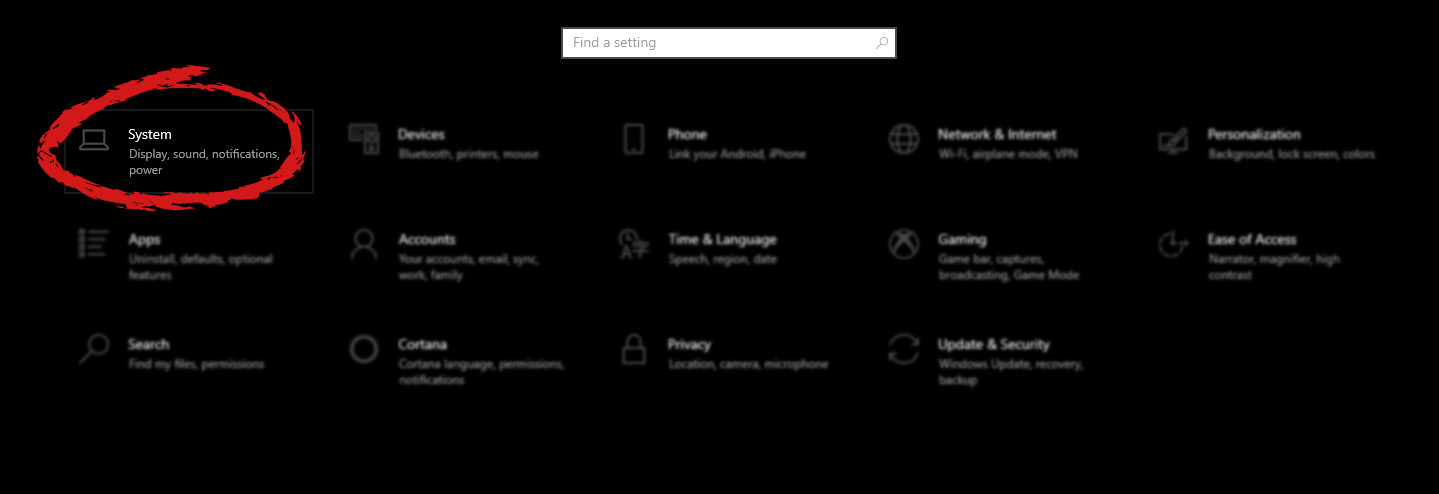
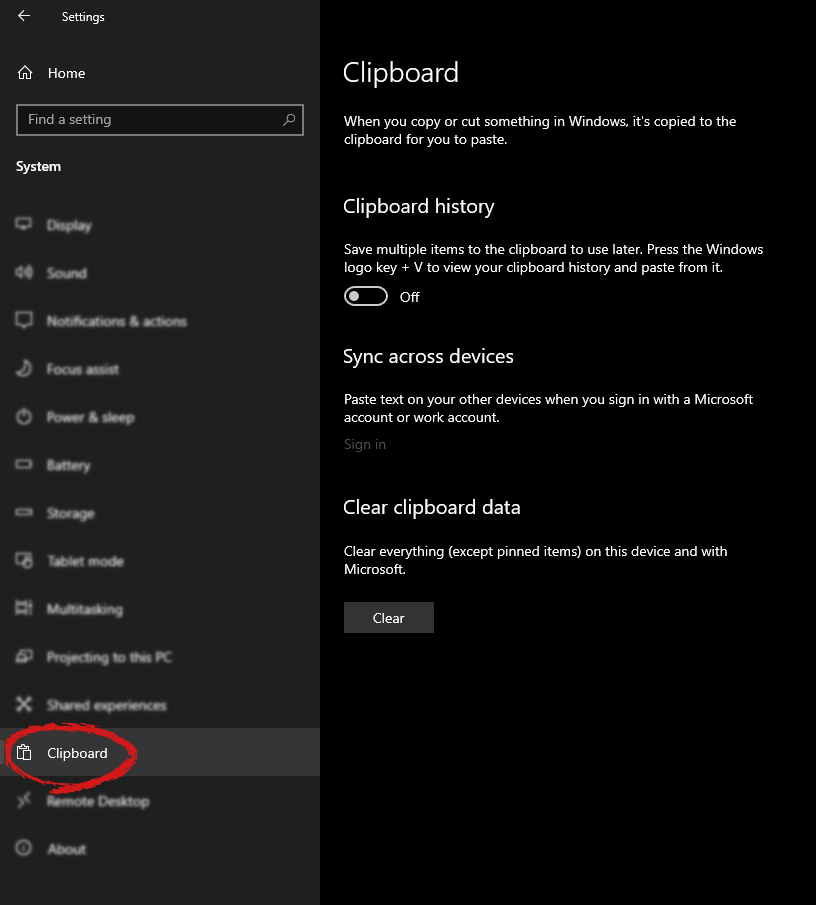
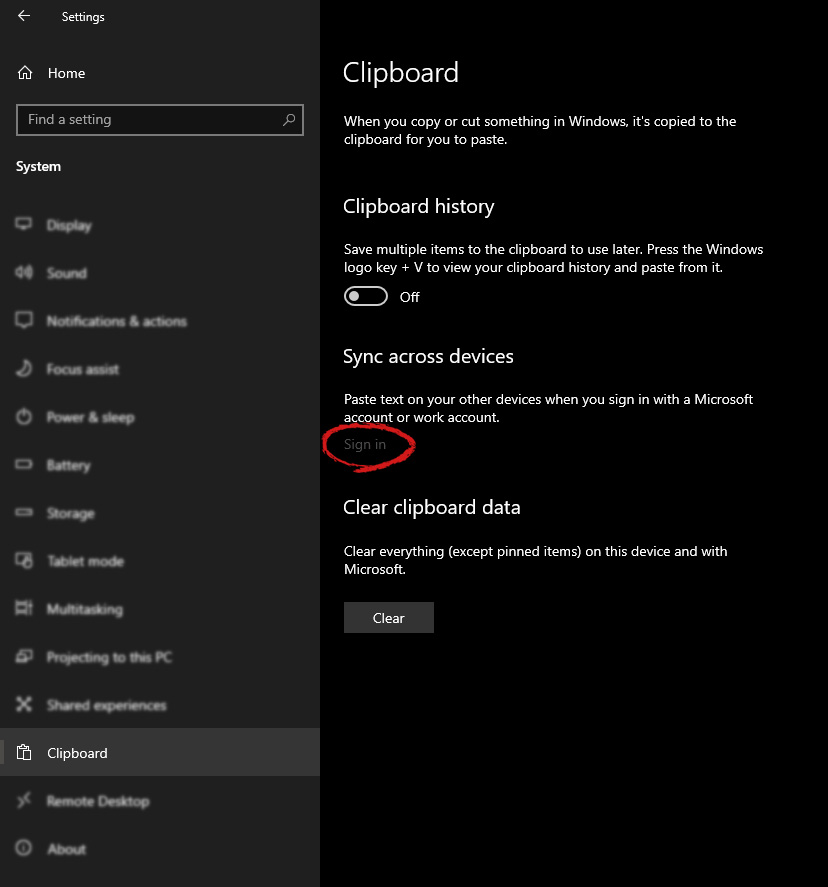
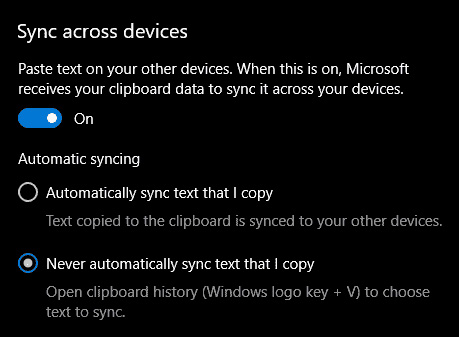
If you have multiple products with Windows on them, Copy & Paste text between them is easy as 1,2,3 and we will be happy to tell you how can you do it. Hello and welcome everyone, today we will see how can we share text information between 2 devices using Windows 10 in instant. In order for you to be able to share text information between devices, there are two prerequisites that you must meet. The first is that all devices must be connected to the internet, the second is that you must have a Microsoft account. If you have both of these things continue with the tutorial, if you do not have a Microsoft account go to Microsoft website and create one for free. Also, know that this option needs to be turned ON on all devices in order to work. So steps we will explain will have to be done on each device, if you already have some device logged in and connected to Microsoft account, you can skip setting it up. Click on ⊞ WINDOWS and click on settings. Windows 10 Star menu with marked settings iconThen click on System. Windows settings system markedOnce you are in the system, on the left tabs find and click on Clipboard. windows settings clipboardIf you are not logged in to your Microsoft account do so on the right panel by locating Sync across devices and click on sign in. clipboard sign inWhen you are signed in click on the option to turn it on. sync across devicesOne option is turned ON, you will be greeted with two choices, to copy everything from the clipboard automatically or to choose text which you want to sync and paste it with ⊞ WINDOWS + V. Choose whatever better suits your needs, and you are done. Repeat these steps for other devices and you are done.

Read More
How to Fix Windows 10 Error 0x80070070

Error Code 0x80070070 - What is it?

Error code 0x80070070 can be presented when there is not enough drive space on the computer to install updates. It is possible to uninstall apps that are not often used, or you may delete or archive files that are no longer needed, you may even add on some removable storage space to free up the internal memory of the computer. The computer needs a significant amount of internal memory in order to be able to update the operating system properly. When the computer fails to have the amount of memory that is needed to perform the update, the error code 0x80070070 will be presented. If this error message is not resolved, your computer might be opened to other error messages, including error code 0x80072EE2.

Common symptoms include:

  • Windows cannot install updates properly.
  • You might not be able to install any additional programs or apps onto the computer.
  • When you check the memory of the computer, it may be very near its full capacity.

Solution

Restoro box imageError Causes

The Windows 10 upgrade error is caused by varying factors including a lack of computer space or resources, malware or virus infestation, or a clogged registry on the computer.  The error code 0x80070070 will present itself when there is not enough free space on the computer to perform the necessary updates on the computer. Too many apps or programs downloaded onto the computer, too many photos, or too much music may also contribute to the lack of storage space on the computer, thus contributing to the error, and the computer not being able to install the updates to the operating system properly.

Further Information and Manual Repair

There is not a lot of information regarding this error code, but there are a few methods to repair it when it does present itself. There are practical and manual steps that can be taken when trying to get the PC up and running. The primary way to solve this problem is to free up disk space and there are several ways to do this. Please do note that if these methods seem confusing or too complicated, do contact a Windows repair technician so that they may properly correct the problem. You will need to know for sure that it is error code 0x80070070 that you are dealing with so that these options are the best bet for fixing it.

Method One: Disk Cleanup

It is important to know how much space there is on the computer to start with prior to trying to free up any space. Use the free program on the computer called the Disk Cleanup tool. This will save time and free up some hard drive space while optimizing the computer to work better.

From the Start menu, browse to the Explore option, and then select This PC. Right-click on the C drive, and then select Properties. Select Disk cleanup. From here, select the options that you would like to clear. Make sure that the recycle bin is emptied of any temporary files or any error logs. Once done, select Okay.

Use this same process to clear the system files after an update from Windows, as they may still have files from the old operating system in place.

Method Two: Remove Unwanted Apps

Go through your computer and remove any unwanted apps that are present. There are sure to be some that you do not use or do not want.

Follow these steps: From the Start menu, select Settings. Then, select System, Apps, and Features. When you have found the program that you would like to uninstall, select it and then select Uninstall. NOTE: some apps that are built into Windows do not have the capability to be uninstalled. Once you have selected Uninstall for the app or program, follow all directions that appear on the screen.

Method Three: Cloud Storage

If there are a lot of media, photos, documents, videos, and the like that are not used on a regular basis, try out cloud storage. These files will still be in your possession and will be able to be accessed from anywhere. There are many applications or websites that cater to this.

Method Four: External Storage Options

If none of the above methods work, add more storage. To acquire more storage, you can incorporate devices such as SD cards, USB flash drives, and even external hard drives.

Method Five: Use An Automated Tool

If you wish to always have at your disposal a utility tool to fix these Windows 10 and other related issues when they do arise, download and install a powerful automated tool.
Read More
1 2 3 171
Logo
Copyright © 2023, ErrorTools. All Rights Reserved
Trademark: Microsoft Windows logos are registered trademarks of Microsoft. Disclaimer: ErrorTools.com is not affiliated with Microsoft, nor claims direct affiliation.
The information on this page is provided for information purposes only.
DMCA.com Protection Status