Logo

How to switch to Dark mode in Windows 11

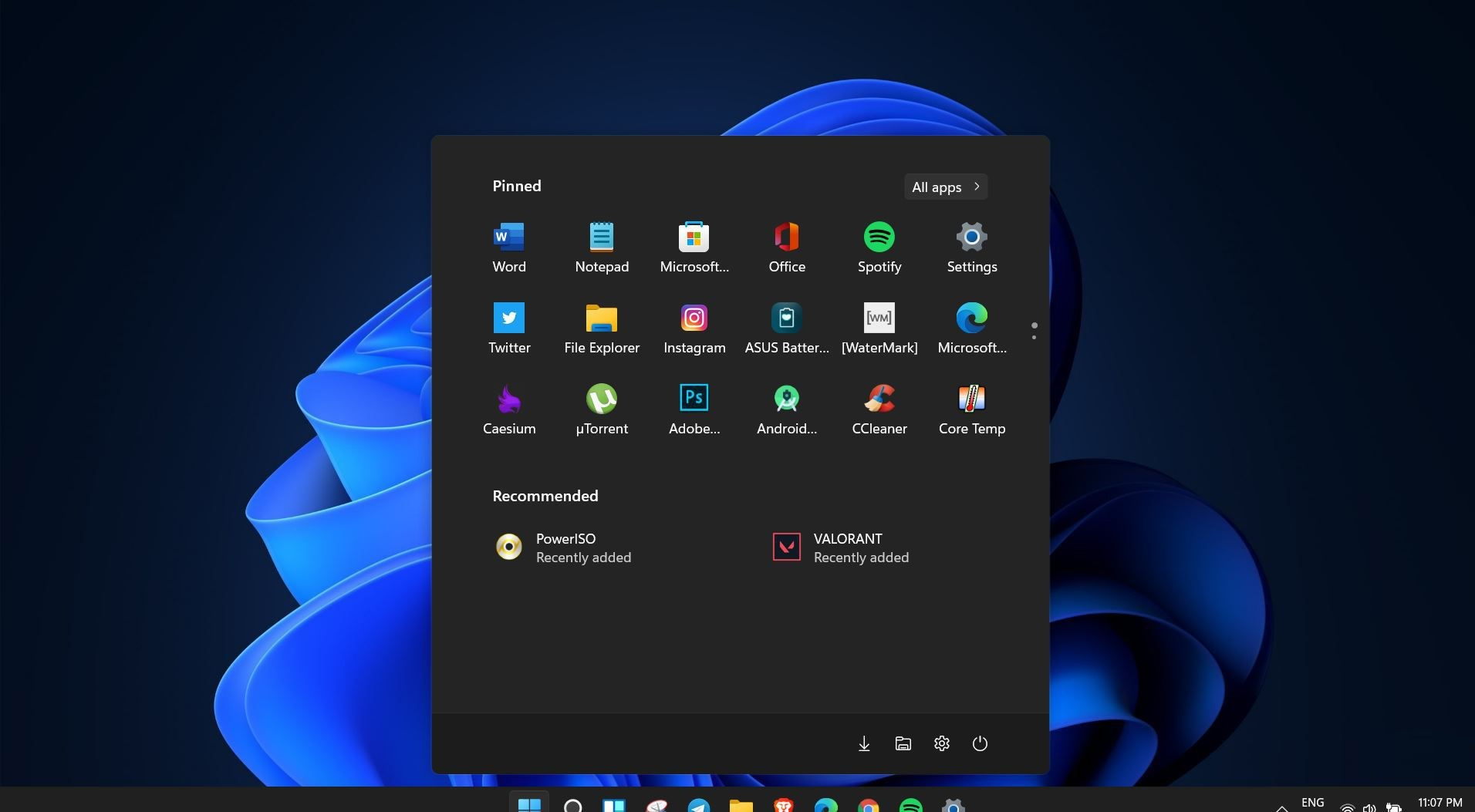
Dark modeWindows 11 is coming soon, from its typical view and color scheme, Windows 11 will natively support dark mode.

The dark mode is very popular in many applications today, some large companies like Adobe, Autodesk, and many more have already adopted a dark color scheme for their software so it is logical for others to follow and Microsoft is aboard for it.

The dark mode itself has its benefits, for people who work on computer for longer period of time dark mode inside applications will throw less white and blue light on their eyes making workhours easier and pleasant on them.

As a person who does indeed spend a lot of time in front of the screen, I would advise you to switch to dark mode regardless of the time that you spend with a computer, your eyes will be grateful.

Switching to Dark mode in Windows 11

  1. Open Windows 11 Settings by pressing ⊞ WINDOWS + I
  2. Click on Personalization on the left sidebar
  3. On the right side click on Color
  4. In color options click on the drop-down menu right next to Choose your color
  5. Select Dark

Your choice will be applied right away and you can safely close settings.

Do You Need Help with Your Device?

Our Team of Experts May Help
Troubleshoot.Tech Experts are There for You!
Replace damaged files
Restore performance
Free disk space
Remove Malware
Protects WEB browser
Remove Viruses
Stop PC freezing
GET HELP
Troubleshoot.Tech experts work with all versions of Microsoft Windows including Windows 11, with Android, Mac, and more.

Share this article:

You might also like

How To Solve The Cyclic Redundancy Check Error

Cyclic Redundancy Check Error - What is it?

To begin with, Cyclic Redundancy Check is basically an error checking technique. This technique is used for data verification. It detects accidental changes in the data. It is used by computers to specifically check the data stored in the hard drive or optical disks (DVD’s and CD’s). The Cyclic Redundancy Check error occurs when the data being verified on the hard drive or optical disks is corrupt. Symptoms for this error code include program lock-ups, slow PC performance, inability to run and execute the desired program, system freeze and shutdown and startup issues.

Error Causes

The Cyclic Redundancy Check error code occurs due to the following reasons:
  • Cluttered hard disk
  • Registry corruption
  • Misconfigured files
  • Unsuccessful program installation
All these causes points towards registry issues and poor PC maintenance. The registry is the main database of the computer. This part of the PC saves practically every activity you perform on it including activities like application installation and deletion and web browsing to name a few. With time and frequent PC usage, the files generated from every activity you execute on your system begin to load the registry. These include even the unnecessary files like junk files, internet files and files of applications that you’ve uninstalled. All these files overload the registry and acquire a lot of hard disk space. And when you don’t remove these files on your system, eventually it leads to file misconfiguration, cluttered disk, and registry corruption. New program versions that you want to install and run on your system also don’t function because the files of the old program version still saved in the registry.

Further Information and Manual Repair

As the Cyclic Redundancy Check Error causes data corruption on the hard disk, it is advisable to fix this error right away. The reason is that it can have serious consequences. It can lead to data loss, fatal crashes, and system failures. When it comes to resolving Cyclic Redundancy Check Error, there are two ways to fix it:

Run the CHKDSK application.

This is a built-in feature in your Windows system. It checks for hard disk damage and attempts to resolve it.
Read More
Copy and Paste feature is not working
One of the most basic and commonly used features in the Windows operating system is the copy and paste feature that helps users accomplish tasks in a faster and easier way. However, if you notice that it’s not working properly for some reason, then this post might be of help as it will provide you with options you can check out to resolve the problem. You can encounter this kind of problem with the copy and paste feature if some system files are corrupted or if there’s some third-party application or process that interferes with this function. Worry not though for there are some options you can check out to fix this. You can try to restart the rdpclip.exe process or the explorer.exe process. You could also try to reinstall the program where you encountered the issue with the Copy and Paste function. In addition, you could try clearing the clipboard history or run the built-in tools like the DISM tool and SFC scan. You could also troubleshoot the problem in a Clean Boot State or use the Refresh Windows tool. For more information, refer to each one of the options below.

Option 1 – Try to restart the rdpclip.exe and the explorer.exe processes

The first thing you can do to resolve the problem is to restart certain processes namely, the rdpclip.exe process and the explorer.exe process via Task Manager.
  • First, right-click on your Taskbar and select the Task Manager.
  • Next, look for the rdpclip.exe process and right-click on it, and select the End process option.
  • After that, click on the File tab > Run new task and then type “rdpclip.exe” and tap Enter.
  • This should help fix the problem. If not, you could also try to restart the explorer.exe process – just look for the explorer.exe process in the Task Manager and right-click on it, and then select the Restart option.

Option 2 – Try reinstalling the concerned program

If you only experience this issue on a particular program, you might want to uninstall this program and install it back again, and then see if it fixed the problem or not.

Option 3 – Try to clear the clipboard history

You could also try clearing the clipboard history as it has been known to help in fixing this kind of issue. You can clear the clipboard history using the command line.
  • Tap the Win + R keys to launch the Run dialog box and type “cmd” in the field and hit Enter to open Command Prompt.
  • Next, execute this command: echo off | clip
  • After that, check if the Copy and Paste function is now working properly or not.

Option 4 – Try running the DISM tool

You can run the DISM tool as well to help fix the “Tile Database is corrupt” error. Using this built-in tool, you have various options such as the “/ScanHealth”, “/CheckHealth”, and “/RestoreHealth”.
  • Open the Command Prompt with admin privileges.
  • Then type in the following commands and make sure to hit Enter right after you type each one of them:
    • Dism /Online /Cleanup-Image /CheckHealth
    • Dism /Online /Cleanup-Image /ScanHealth
    • DISM.exe /Online /Cleanup-image /Restorehealth
  • Do not close the window if the process takes a while as it will probably take a few minutes to finish.
  • Once it’s done, check if it was able to fix the corrupted Start Menu or not.

Option 5 – Try to run System File Checker or SFC scan

  • Tap Win + R to launch Run.
  • Type in cmd in the field and tap Enter.
  • After opening Command Prompt, type in sfc /scannow and hit Enter.
  • Once done, restart your computer.

Option 6 – Restart your computer in a Clean Boot State

If a third party program like antivirus is the one that’s causing the problem, you can try to put your computer in a Clean Boot State to isolate the issue by following these steps:
  • Log onto your PC as an administrator.
  • Type in msconfig in the Start Search to open the System Configuration utility.
  • From there, go to the General tab and click “Selective startup”.
  • Clear the “Load Startup items” check box and make sure that the “Load System Services” and “Use Original boot configuration” options are checked.
  • Next, click the Services tab and select the “Hide All Microsoft Services” check box.
  • Click Disable all.
  • Click on Apply/OK and restart your PC. (This will put your PC into a Clean Boot State. And configure Windows to use the usual startup, just simply undo the changes.)
  • Now try to connect your device or copy the files to your external device again and check if the problem with the Copy and Paste function is fixed.
Read More
How To Fix the I/O System Error
The failure of MS Vista or XP to execute an Input or Output Signal activity is that which we refer to as an  I/O device error. This malfunction takes place when MS Vista is not able to execute activities for example reading and duplication different kinds of information from the disk or drive.

Solution

Restoro box imageError Causes

  • A piece of destroyed hardware equipment: You are getting messages informing you about the I/O device Malfunction when your Computer features an equipment apparatus that Windows is not able to utilize.
  • Broken/Faulty hardware Apparatus: If for whatever reason the equipment hardware is broken at all, or includes a flaw, you will also get such messages suggesting the existence of an I/O device error.
  • Incompatible/Broken Hardware Drivers: Such malfunctions are frequently the result of incompatible or broken equipment drivers.
  • Cable Link Problems: Technicians have determined the existence of link trouble, for instance, a cable that's in a bad situation, as another variable that can also cause these error messages.
  • Terrible/Dusty CD or DVD Disc: Yet another variable that's frequently accountable for the I/O device error is a broken CD or DVD disc. If it has not been cleaned by you, and in case the disc is dirty, prepare yourself to receive such messages often.

Further Information and Manual Repair

You should not stress yourself ill over the I/O Device Malfunction when it occurs on your own Computer. You can really fix it. First, before you spend lots of cash on the problem and sprint off to find a technician, reboot the pc. Subsequently, strive to obtain the push or disc, that you were not able to formerly. Second, clean the disc. Locate a great cleansing agent, and execute this. Utilize another pc to access the disc which you're incapable of using on the present pc. If it opens on another pc, then the disk is functional and should work on your computer as well. Let's assume that you lack another pc, search for a distinct disc, and strive to start it with your current pc. If the problem is not with the computer, the fresh disk should open and you can access the contents. If you fail completely, you're totally within your rights to move searching for a tech to repair the situation, if you attempt every one of the preceding choices. You could also do these aI/O device sections to view if you would repair the problem yourself. a) Network Cable Connections: Clearly, this is really something you can do without requiring a tech. Always check to see whether the networking and computer cables are well-connected. If you believe it's broken in case utilizing an exterior push, you could change the cable with yet another one. For inner cabling, unless you've high-level pc abilities, you shouldn't make an effort to change them. b) Attempt a Clean Boot of the PC: You can do this by yourself. Likely, the driver or software is incompatible together with the drive available on the PC. Clean boot up the pc is similar to configuring MS Windows. If the error is fixed following the preceding action, then it indicates your pc features a driver or software which is incompatible with the rest. c) Recognize the IDE Channel Attributes, and Adjust the Transfer Mode: It's feasible that you, or somebody otherwise, changed the Transfer Mode, which makes it challenging/impossible for the transport of information in the disk of your PC. If you understand the I/O Device right transfer mode, and if this occurred, just change it. Don't attempt a change or alter the Main IDE Channel. d) Check the Condition of Device: Confirming the working nature of the hardware device, which you may do under Device Manager, may inform you if it's operating right or not. e) Search the Manufacturing Company: When the rest fails, and you've likely employed a tech that can't solve the problem, you need to contact the producer, or check out their site, and see when there is an upgrade. It's possible to obtain to resolve the I/O Device Error, once for all through a simple upgrade.
Read More
World of Warcraft lost connection to server
World of Warcraft had been released on November 23, 2004, and even today it is the most successful MMORPG ever made. Some say that it was the right timing, others say it was Blizzard's history and its fans, it is even spoken that marketing team has responsibility for WOW's success. Whatever the reason may be, the fact remains that WOW is a really fun game to play. In this article we will cover the annoying issue of World of Warcraft's lost connection to the game server and how can you fix it. Please be aware that before you try any fixes go to the official World of Warcraft website and check to see if the server maintenance is not underway. If this is the case, you will have to wait for servers to come back online after the maintenance. Keep reading and try provided solutions as they are presented to fix this issue and continue gaming.
Read More
How to get rid of YourTemplateFinder from PC

YourTemplateFinder is a browser extension developed by Mindspark for Google Chrome. This extension allows users to browse and download various templates that can be used for all kinds of occasions.

When installed, it changes your default search engine and home page to MyWay.com. During your browsing sessions, YourTemplateFinder will monitor user activity, recording website visits, user information, product purchases, etc. This data is later used to target better ads to users.

While browsing the internet with this extension active you will see additional ads displayed throughout your browsing sessions. Sponsored content such as links, banners, and pop-up ads will appear on websites sometimes even covering the website content.

This extension has been marked for removal by several anti-virus applications and has been classified as a Browser Hijacker due to its aggressive behavior and ad injections. It is flagged for optional removal.

About Browser Hijackers

Browser hijacking is a common type of online fraud where your web browser settings are altered to make it carry out things you never intend. There are various reasons why you might experience a browser hijack; however commercial, advertising, and marketing are the main reasons for their creation. It redirects you to the sponsored websites and inserts adverts on your web browser that helps its creator generate revenue. However, it is not that innocent. Your online safety is jeopardized and it is also extremely irritating. As soon as the program attacks your PC, it begins to mess things up a whole that slows your system down to a crawl. In the worse case, you may be forced to deal with serious malware threats too.

How to know whether the browser is hijacked?

Symptoms that your internet browser is hi-jacked include: 1. the home page of your browser is changed unexpectedly 2. you observe new unwanted favorites or bookmarks added, typically directed to advertisement-filled or porn sites 3. the default browser settings are changed and/or your default web engine is altered 4. you see unsolicited new toolbars added 5. you’ll find random pop-ups start occurring frequently 6. webpages load slowly and sometimes incomplete 7. you can’t navigate to specific websites, like security software-related sites.

How they infect computer systems

There are a number of ways your computer or laptop could become infected by a browser hijacker. They generally arrive by way of spam e-mail, via file-sharing networks, or by a drive-by-download. They can also come from any BHO, extension, toolbar, add-on, or plug-in with malicious intent. A browser hijacker can also be installed as a part of freeware, demoware, shareware, and fake programs. Well-known examples of browser hijackers include CoolWebSearch, Conduit, RocketTab, OneWebSearch, Coupon Server, Delta Search, Searchult.com, and Snap.do. Browser hijackers can affect the user’s browsing experience greatly, track the websites visited by users and steal personal information, cause problems in connecting to the internet, and eventually create stability problems, causing applications and computers to freeze.

How you can get rid of a browser hijacker

Certain hijackers can be removed by simply uninstalling the corresponding freeware or add-ons through the Add or Remove Programs in the Microsoft Windows Control Panel. However, most browser hijackers are hard to remove manually. Irrespective of how much you try to get rid of it, it could come back over and over. Furthermore, manual removals demand deep system understanding and thus can be a very difficult job for novices. Installing and running anti-malware software on the affected system could automatically erase browser hijackers and also other malicious applications. If you’d like to eliminate persistent hijackers effectively, install the award-winning Anti-Malware program Safebytes Anti-Malware.

Can't Install Safebytes Anti-malware due to the presence of a Virus? Try This!

All malware is bad and the level of the damage will differ greatly depending on the type of infection. Some malware variants modify browser settings by including a proxy server or change the PC’s DNS settings. In such cases, you will be unable to visit some or all sites, and therefore not able to download or install the necessary security software to get rid of the infection. If you’re reading this right now, you have probably realized that virus infection is the reason for your blocked internet traffic. So what to do if you need to download and install an antivirus program such as Safebytes? There are a few solutions you can attempt to get around with this particular obstacle.

Install in Safe Mode with Networking

Safe Mode is actually a special, basic version of Microsoft Windows in which only the bare minimum services are loaded to prevent viruses and also other troublesome applications from loading. In the event the malware is obstructing the internet connection and affecting your computer, running it in Safe Mode will let you download antivirus and run a diagnostic scan while limiting potential damage. To enter into Safe Mode or Safe Mode with Networking, press the F8 key while the system is booting up or run MSConfig and locate the “Safe Boot” options in the “Boot” tab. Once you are in safe mode, you can attempt to download and install your antivirus software program without the hindrance of the virus. Now, you are able to run the antivirus scan to get rid of viruses and malware without interference from another application.

Switch to some other web browser

Malicious code can exploit vulnerabilities in a specific web browser and block access to all anti-virus software sites. In case you suspect that your Internet Explorer has been hijacked by malware or otherwise compromised by cybercriminals, the ideal approach would be to switch to an alternate internet browser like Mozilla Firefox, Google Chrome, or Apple Safari to download your chosen security software – Safebytes Anti-Malware.

Create a portable USB antivirus for eliminating malware

Here’s another solution which is using portable USB anti-virus software that can scan your computer for viruses without the need for installation. Try these simple steps to clean up your infected computer by using a portable antivirus. 1) Make use of another virus-free computer system to download Safebytes Anti-Malware. 2) Insert the USB drive into the uninfected computer. 3) Double-click the Setup icon of the anti-malware program to run the Installation Wizard. 4) Select the USB stick as the destination for saving the file. Follow activation instructions. 5) Now, plug the USB drive into the infected computer. 6) Double-click the antivirus program EXE file on the thumb drive. 7) Simply click “Scan Now” to run a complete scan on the infected computer for malware.

SafeBytes AntiMalware Overview

These days, an anti-malware program can protect the computer from different forms of internet threats. But wait, how to choose the right one among various malware protection software that’s available out there? Perhaps you might be aware, there are lots of anti-malware companies and tools for you to consider. Some are good ones, some are ok types, while some are simply just fake anti-malware programs that could harm your personal computer themselves! You must select one that is efficient, practical, and has a good reputation for its malware source protection. Among few good programs, SafeBytes Anti-Malware is the highly recommended software for the security-conscious individual. SafeBytes anti-malware is a powerful, very effective protection software made to help end-users of all levels of computer literacy in identifying and eliminating malicious threats out of their PC. With its outstanding protection system, this software will quickly detect and remove the majority of the security threats, including adware, viruses, browser hijackers, ransomware, trojans, worms, and PUPs.

SafeBytes anti-malware takes computer protection to a totally new level with its enhanced features. Let us discuss a few of the great ones:

World-class AntiMalware Protection: Safebytes is built on the best virus engine within the industry. These engines can identify and remove threats even during the initial phases of a malware outbreak. Real-time Protection: SafeBytes offers real-time active monitoring and protection against all known computer viruses and malware. It will inspect your computer system for suspicious activity at all times and shields your personal computer from illegal access. Web Security: SafeBytes checks the links present on a webpage for possible threats and informs you if the website is safe to look at or not, through its unique safety rating system. Low CPU and Memory Usage: The program is lightweight and will run silently in the background, and that does not impact your PC efficiency. 24/7 Customer Service: Support service is available 24 x 7 x 365 days via email and chats to answer your queries. SafeBytes has created an amazing anti-malware solution that can help you conquer the latest malware threats and virus attacks. You can rest assured that your PC will be protected in real-time once you put this software program to use. So if you are looking for the best anti-malware subscription for your Windows-based PC, we recommend the SafeBytes Anti-Malware application.

Technical Details and Manual Removal (Advanced Users)

To remove YourTemplateFinder manually, go to the Add or Remove programs list in the Windows Control Panel and select the program you want to remove. For internet browser extensions, go to your web browser’s Addon/Extension manager and select the add-on you intend to remove or disable. You will probably also want to reset your web browser. Finally, examine your hard disk for all of the following and clean your computer registry manually to remove leftover application entries following uninstalls. Please note that only advanced computer users should try to manually edit the registry because removing any single critical system file results in a serious problem or even a system crash. Also, some malware is capable of replicating itself or preventing its removal. You are encouraged to do this process in Windows Safe Mode.
Files: %LOCALAPPDATA%\YourTemplateFinder_br %UserProfile%\Local Settings\Application Data\YourTemplateFinder_br %UserProfile%\Local Settings\Application Data\Google\Chrome\User Data\Default\Extensions\jadhamcfimejpbemfkgoeijaimpciehj %LOCALAPPDATA%\Google\Chrome\User Data\Default\Extensions\jadhamcfimejpbemfkgoeijaimpciehj %PROGRAMFILES%\YourTemplateFinder_br %PROGRAMFILES(x86)%\YourTemplateFinder_br Registry: HKEY_CURRENT_USER\Software\Microsoft\Internet Explorer\SearchScopes\42f6cdef-be6a-48e4-b6ef-bc987c64fed9 HKEY_LOCAL_MACHINE\SOFTWARE\Wow6432Node\Microsoft\Internet Explorer\SearchScopes\42f6cdef-be6a-48e4-b6ef-bc987c64fed9 HKEY_CURRENT_USER\Software\Microsoft\Internet Explorer\DOMStorage\free.yourtemplatefinder.com HKEY_CURRENT_USER\Software\Microsoft\Internet Explorer\Approved Extensions, value: F724FE0B-8C05-4498-B99E-9192CF2AECF4 HKEY_CURRENT_USER\Software\Microsoft\Internet Explorer\Approved Extensions, value: 4D283A70-2D2F-4CBB-81DA-C75B8DF410CC HKEY_CURRENT_USER\Software\Microsoft\Internet Explorer\Approved Extensions, value: 3C417C00-968B-48B7-822E-407A82A47AE1 HKEY_LOCAL_MACHINE\SOFTWARE\Microsoft\Internet Explorer\DOMStorage\yourtemplatefinder.dl.tb.ask.com HKEY_LOCAL_MACHINE\SOFTWARE\Microsoft\Internet Explorer\DOMStorage\yourtemplatefinder.com

Read More
What to do if USB tethering is not working
This post will guide you in what to do if you are trying to share the internet connection from your Android smartphone to your Windows 10 computer but USB tethering is not working. Although you can always connect your Android phone to your computer using a USB cable, you still won’t be able to access the internet. However, if you’ve already enabled the USB tethering option in your smartphone, you should be able to access the internet but if you still can’t then you can fix this issue by reading this post. There are several potential fixes you can check out to fix the USB tethering issue. You can try running both the Internet Connections and Network Adapter troubleshooters or try installing the USB RNDIS adapter or disable any unnecessary network adapters.

Option 1 – Try to run the Internet Connections and Network Adapter troubleshooter

There are various built-in troubleshooters in Windows 10 that can help fix system issues. Since you are dealing with an internet connection problem, you can try running both the Internet Connections and the Network Adapter troubleshooters. To run them, follow these steps:
  • Go to Settings > Update & security > Troubleshoot.
  • From there, you can select the Internet Connections troubleshooter.
  • Click on the Run troubleshooter button to troubleshoot the problem.
  • Wait until the troubleshooter is done identifying and fixing the problem automatically.
  • Then follow the next on-screen instructions that may appear.
  • Once it’s done, check if the USB tethering issue is now fixed.
Note: You can also try to run the Network Adapter troubleshooter. It is also located under the Troubleshoot section. Just scroll down until you see it and then run it.

Option 2 – Try installing or updating the USB RNDIS adapter

RNDIS or Remote Network Driver Interface Specification can also help you resolve the USB tethering problem. If the pre-installed driver does not help you in connecting to the internet, then you can try installing the USB RNDIS driver that is, if it’s not installed yet. If it is already installed, you can try to update it instead.
  • Tap the Win + R keys to open Run and type “devmgmt.msc” in the field and hit Enter to open the Device Manager.
  • Next, expand the Network adapters section and look for the Remote NDIS based Internet Sharing Device. But if you are using a Samsung smartphone, you might see “Samsung” instead of under Network adapters.
  • Right-click on it and then select the “Update driver” option.
  • Then select the “Browse my computer for driver software” option.
  • After that, select the “Let me pick from a list of available drivers on my computer” option.
  • Now uncheck the checkbox for “Show compatible hardware”.
  • From the given list on your left-hand side, look for Microsoft and then select the Remote NDIS based Internet Sharing Device on your right-hand side.
  • Click on Next. A new popup will appear where you have to click on Yes. This will install the driver.
  • Now click on the Close button and restart your computer.

Option 3 – Try disabling any unnecessary network adapters/connections

Assuming that your Ethernet connection is showing ping loss which indicates that the internet is not stable. In such time, if you use the USB tethering functionality, you won’t be able to access the internet connection from your smartphone. The internet connection will be frequently disconnected since your computer gives priority to the Ethernet connection. Thus, you have to disable the Ethernet connection temporarily.
  • Right-click the network icon on your Taskbar and select the option “Network and Sharing Center”.
  • After that, click the network connection. And then click the Disable button from the status box that opens.
  • After that, check if you can now connect to the internet or not.
Read More
Fix AMD driver crashing Windows 10
Graphic cards are essential to our computers but from time to time in the race to make better GPU and to grab a large portion of the market bad drivers get released and can create really unwanted and unpleasant experiences, from Windows freezes to the black screen of death, to AMD driver Windows crashing down and many more. This article will cover basic troubleshooting with AMD drivers and offer you solutions on how to fix them.
  1. Rollback the previous version of the driver.

    Installing the new driver version is the reason for this particular error, so naturally rolling back the previous version which was stable and did not cause issues will solve the problem. To roll back the previous version of drivers follow the next steps: Open Start menu and click on settings, go to system and choose Apps and features Find: AMD Catalyst Install Manager, right-click on it, and choose to uninstall Go to AMD official website and download the previous driver version, install it on your computer Turn off automatic driver updates and reboot your system
  2. Reinstall the driver

    Sometimes it is not a bug in the released driver, it is a corruption of files because of file transfer or any other specific reason. The reinstalling driver will fix an issue if this is the case. To reinstall the driver Press ⊞ WINDOWS + X and choose Device Manager Expand Display adapters, right-click on AMD device and choose to uninstall Go to the official AMD website, download the latest driver and install it Reboot your system
  3. Disable browser extensions

    Some users have reported that error occurs only when they are watching videos online, if this is your case, go to your browser options and disable extensions to see if this will remove the problem.
  4. Remove Lucid Virty MVP

    If by any chance have this relic installed on your system, go to Applications and remove it. It is an old program shipped with old drivers and it is usually present in your Windows that was upgraded from 8.1 to 10. Uninstall it and see if this fixes your issue.
  5. Clean your graphic card

    Sometimes this error can happen due to excessive dust on your GPU, if you have the expertise, clean it or take it somewhere to be cleaned.
Read More
Choosing right LINUX distribution
LINUX has become more than just a dedicated server Operating system, more and more it is gaining ground in home computers as well and as services like Steam and Gog are offering their titles for LINUX it is gaining more and more ground daily.

Why LINUX?

So, what makes LINUX so good? First of all security, no other Operating system has that high level of security like LINUX and that is the reason why it is widely used as a server. Other advantages are it is less resource hungry and its architecture is made in such a way that it does not has applications remains and traces which remain in the system, once an application is deleted from OS, it is deleted and every trace is removed from OS. Apple OS is based on LINUX kernel but made specifically for their hardware.

LINUX popularity

So naturally, the question pops up why LINUX is not more popular? One of the reasons is its difficulty, to work in LINUX you need to have some level of computer knowledge, Windows is more user-friendly and a lot of people prefer the ease of use to features. This is somewhat been fixed sort of speak in last years since we have LINUX distributions which aim to be more simple and user friendly but it is far from easy of use of one Windows. Another big reason was software support. Altho some powerhouse software has its LINUX versions and works just fine, even better than on Windows, your typical user applications lack and games were almost non-existent making LINU users rely on Windows emulation software for simple applications, and often it did not work properly. This has also changed for the better in later years but as with the previous point, it is still far from being Windows wide.

What is LINUX distro?

Linux comes in different versions called distributions. What this means is that the basic core of the Operating system is the same though all LINUX versions and all LINUX drivers and software will work on anyone, they will visually and feature-wise be different. Also, they will be more complex for use or they will have different hardware requirements. Choosing the right LINUX distribution is no easy task and we are here to help you by offering you certain points and guides in hopes to direct you on the right path.

What Do You Need the Distro for?

This might be perhaps the most crucial question when trying to decide which LINUX distribution you want to install. Depending on your preferences and goal like work, games, security, media you will need to consider the best distributions in the field of your preference. A very good place to get this kind of information is on DistroWatch. When on-site, navigate to the Distribution category search filter and choose the option best suited to your needs.

What Kind of Software Will You Be Using?

Like the previous question, this one is also your personal preference but it will make difference if you are planning to use a different type of software. If your plans are gaming for example you will want the latest and greatest LINUX kernel version for maximum hardware compatibility. If you are a regular desktop user you will aim for a distro that is updated constantly so you are working with the latest versions of Chrome or Firefox. In some cases, depending on your software you might want to run older but faster distribution.

What Kind of Hardware Will You Be Using?

If your computer is up to date you can run any distribution that you like but if it is an older rig your options might be a little limited. Now depending on the technical characteristics of your computer and its age it may come down to just a few available distributions which are specially tailored to run on old hardware. These kinds of distributions are lightweight and do not take much space but sadly can not offer you the latest and greatest in software but for usual everyday tasks like web browsing, word processing, email viewing, etc they work perfectly fine. You can have a great office machine with proper lightweight distribution offering you all that you need to be able to work.

How Much do you know about computers?

As stated before, LINUX is not as user-friendly as WIndows and your overall technical knowledge can play a big role in deciding which LINUX you want to adapt. If you are more of a casual user then avoid technical distributions which will require to manually tweak tons of stuff, go for more automated ones. If you are a power user however and enjoy wrestling with each detail then perhaps some distro with more command-oriented nature.

What Kind of Community Are You Looking For?

Now you might ask what does community has to do with the operating systems but the same as Windows, LINUX also can have some issues, and sometimes installing drivers will require certain steps to be taken. How it is much easier to find a solution when having a great community surrounding the project I suggest not dismissing this part when choosing your distro. Every community is helpful, but they’re all helpful in different ways. If you would like to read more helpful articles and tips about various software and hardware visit errortools.com daily.
Read More
Fix FAULTY_HARDWARE_CORRUPTED_PAGE
If you got the FAULTY_HARDWARE_CORRUPTED_PAGE Blue Screen error on your Windows 10 computer then it is most likely caused by various factors. It could be caused by an incomplete installation or uninstallation of some applications or program, or it could also be caused by some exploit that intervenes with the normal functioning of the computer, as well as bad sectors on the hard disk, damaged system files, malfunctioned system drivers, modified Windows Registry files, or a Blue Screen occurrence during a Windows Update and many more. Getting this bug check means that a single-bit error was found on this page. It also indicates that this is a hardware memory error and to resolve it, you need to follow the suggestions laid out below but before that, it is recommended for you to create a System Restore Point first so that if anything goes wrong, you can always go back to the previous state.

Option 1 – Run a Memory Check to test RAM

Since the problem might have something to do with hardware memory, you need to test RAM by running a Memory Check using the Windows Memory Diagnostic. Refer to these steps to do so.
  • Tap the Win + R keys to open the Run dialog box.
  • Then type “mdsched.exe” in the field and hit Enter to open the Windows Memory Diagnostic.
  • After that, the Windows Memory Diagnostic will give out two options such as:
  1. Restart now and check for problems (recommended)
  2. Check for problems the next time I start my computer
  • Select any of the given options. After that, your computer will restart and check for memory-based issues upon the restart. If there are any issues, it will automatically them.

Option 2 – Run the System File Checker

System File Checker or SFC is a built-in command utility that helps in restoring corrupted files as well as missing files. It replaces bad and corrupted system files with good system files that might be the cause why you’re getting the FAULTY_HARDWARE_CORRUPTED_PAGE Blue Screen error. To run the SFC command, follow the steps given below.
  • Tap Win + R to launch Run.
  • Type in cmd in the field and tap Enter.
  • After opening Command Prompt, type in sfc /scannow
The command will start a system scan which will take a few whiles before it finishes. Once it’s done, you could get the following results:
  1. Windows Resource Protection did not find any integrity violations.
  2. Windows Resource Protection found corrupt files and successfully repaired them.
  3. Windows Resource Protection found corrupt files but was unable to fix some of them.

Option 3 – Check for conflicting or incompatible programs by putting your PC in a Clean Boot state

As mentioned, the FAULTY_HARDWARE_CORRUPTED_PAGE Blue Screen error might be caused by some problematic programs that clash with your existing operating system. Several users reported that numerous programs that are supposedly designed to enhance computer performance are causing conflict in the system instead. To identify which program is causing the problem, you need to put your computer in a Clean Boot State. To do so, follow the steps below.
  • Log onto your PC as an administrator.
  • Type in MSConfig in the Start Search to open the System Configuration utility.
  • From there, go to the General tab and click “Selective startup”.
  • Clear the “Load Startup items” checkbox and make sure that the “Load System Services” and “Use Original boot configuration” options are checked.
  • Next, click the Services tab and select the “Hide All Microsoft Services” checkbox.
  • Click Disable all.
  • Click on Apply/OK and restart your PC. (This will put your PC into a Clean Boot State. And configure Windows to use the usual startup, just simply undo the changes.)
  • From there, start to isolate the problem by checking which one of the programs you installed recently is the root cause of the problem.

Option 4 – Update or rollback drivers

If the first few options didn’t work for you, then it’s time to either update or roll back the device drivers. It is most likely that after you updated your Windows computer that your driver also needs a refresh. On the other hand, if you have just updated your device drivers then you need to roll back the drivers to their previous versions. Whichever applies to you, refer to the steps below.
  • Open the Devices Manager from the Win X Menu.
  • Then locate the device drivers and right-click on them to open the Properties.
  • After that, switch to the Driver tab and click on the Uninstall Device button.
  • Follow the screen option to completely uninstall it.
  • Finally, restart your computer. It will just reinstall the device drivers automatically.
Note: You can install a dedicated driver on your computer in case you have it or you could also look for it directly from the website of the manufacturer.
Read More
Change Network from Public to Private error
You have the option to choose to configure the Network to Private or Public when you set it on Windows 10 PC. On the other hand, if the option to change the Network from Public to Private goes missing in Windows Settings then this post will surely help. You can find this setting under Settings > Network and Internet > Ethernet and appears when you click on it. If you are not able to see the option to change the network profile, then you either can’t open the settings, or the option to change it has been disabled. To resolve this issue, you can either use the Registry Editor or Windows PowerShell. Refer to the options given below for more details.

Option 1 – Change the Network Profile via Registry Editor

Changing the Network Profile can be done using the Registry Editor. But before you proceed, make sure that you create a System Restore Point first just in case. Refer to the steps below to do so.
  • Tap the Win + R keys to open the Run dialog box.
  • Then type “Regedit” in the field and hit Enter to open the Registry Editor.
  • After that, navigate to this key: HKEY_LOCAL_MACHINESOFTWAREMicrosoftWindows NTCurrentVersionNetworkListProfiles
  • Now expand the Profiles key folder located in the left pane to see one or more folders.
  • Next, expand each one of these folders and look for the “Description” sub-key which should match the name of your network.
  • After you find the Description sub-key, look for another sub-key named “Category” and double click on it to open it.
  • Now change its value from “0” to “1” to change the Network Profile from Public to Private.

Option 2 – Change the Network Profile via Windows PowerShell

Aside from the Windows Registry, you can also use Windows PowerShell in changing the Network Profile from Public to Private and so on. Take note that you have to use PowerShell with admin privileges. Just refer to the steps below to do so.
  • Tap the Win + X keys and then select the “PowerShell (Admin)” option.
  • Next, click on Yes if the User Account Control prompt appears.
  • After that, execute the commands listed below. Hit Enter right after you key in each one of them.
    • Get-NetConnectionProfile
    • Set-NetConnectionProfile -InterfaceIndex <index number> -NetworkCategory Private
Note: Since every Network Profile has an index number, you can check the label “Name” to identify the network that you want to change.
Read More
1 2 3 171
Logo
Copyright © 2023, ErrorTools. All Rights Reserved
Trademark: Microsoft Windows logos are registered trademarks of Microsoft. Disclaimer: ErrorTools.com is not affiliated with Microsoft, nor claims direct affiliation.
The information on this page is provided for information purposes only.
DMCA.com Protection Status