
Booting Windows 10 in safe mode can solve many issues with your computer since Windows will boot just in its basic core and you can safely maintain it, find a solution for issues, etc.
Before, entering safe mode was easy and pretty straightforward, during Windows evolution, entering safe mode was somewhat complicated and not being made so directly like once it was but do not worry. Starting Windows in safe mode today is even maybe easier than it was before, it is just not so obvious as it once was.
In this article, we will go through several ways how you can boot up Windows in safe mode in order to solve whatever issue is troubling you.
Open Settings by pressing the ⊞ WINDOWS + I or by just clicking on the Start button and clicking Settings.
Go to Update & Security, then Recovery.
In Advanced startup, click Restart now.
Once your PC reboots, click Troubleshoot, then Advanced options. Select Startup Settings then Restart.
Click the Shift on your keyboard while clicking on the Power button on the bottom right corner of the screen.
Once your PC restarts, click on Troubleshoot, then Advanced options.
Select Startup Settings then Restart.
After the reboot, select 4 or the F4 on your keyboard to run in Safe Mode. If you choose to use Safe Mode with Networking, select 5 or F5.
Go to the Windows Recovery Environment by doing the following steps:
Press on the power button to turn off your device.
Press on the button again to turn it on.
Once Windows starts, press the power button again for 10 seconds to turn it off. Then press it on again.
Upon the reboot, hold on to the power button for 10 seconds to turn it off, then turn it on again.
Because you've repeatedly turned on and off your PC, you will be redirected to Windows Recovery Environment.
On the pop-up window, click on Troubleshoot, then Advanced options. Select Startup Settings, then Restart.
After the reboot, select 4 or the F4 on your keyboard to run in Safe Mode. If you choose to use Safe Mode with Networking, select 5 or F5.
On the Windows 10 sign-in screen, hold on the SHIFT on your keyboard.
While pressing on the key, click on the Power button, then choose Restart on the pop-up menu.
Once your PC restarts, click on Troubleshoot, then Advanced options.
Select Startup Settings then Restart.
After the reboot, select 4 or the F4 on your keyboard to run in Safe Mode. If you choose to use Safe Mode with Networking, select 5 or F5
Create a Windows 10 bootable installation media on any external storage media.
Once you do this step, wait for the installation to load.
Select your preferred language and click on Next.
Click on Repair your computer at the bottom left of the menu.
Click on Troubleshoot, then Advanced options.
Select Command Prompt - Use the Command Prompt for advanced troubleshooting options.
Type in the following command on the prompt: bcdedit /set {default} safeboot minimal
Hit Enter and wait for it to tell you that "The operation completed successfully".
Exit Command Prompt and click on Continue.
In the Search bar, type in msconfig.
Select the Boot tab and under the Boot options, put a check beside Safe boot.
Click OK.
Reboot PC
Press SHIFT + F8 when turning on Windows.
This redirects you to Advanced Boot Options Window, then choose to run Windows on Safe Mode
There you have it, 7 different ways to enter safe mode in Windows 10, we hope that any of these tips proved helpful and that you managed to enter the safe mode and fix your Windows issues.






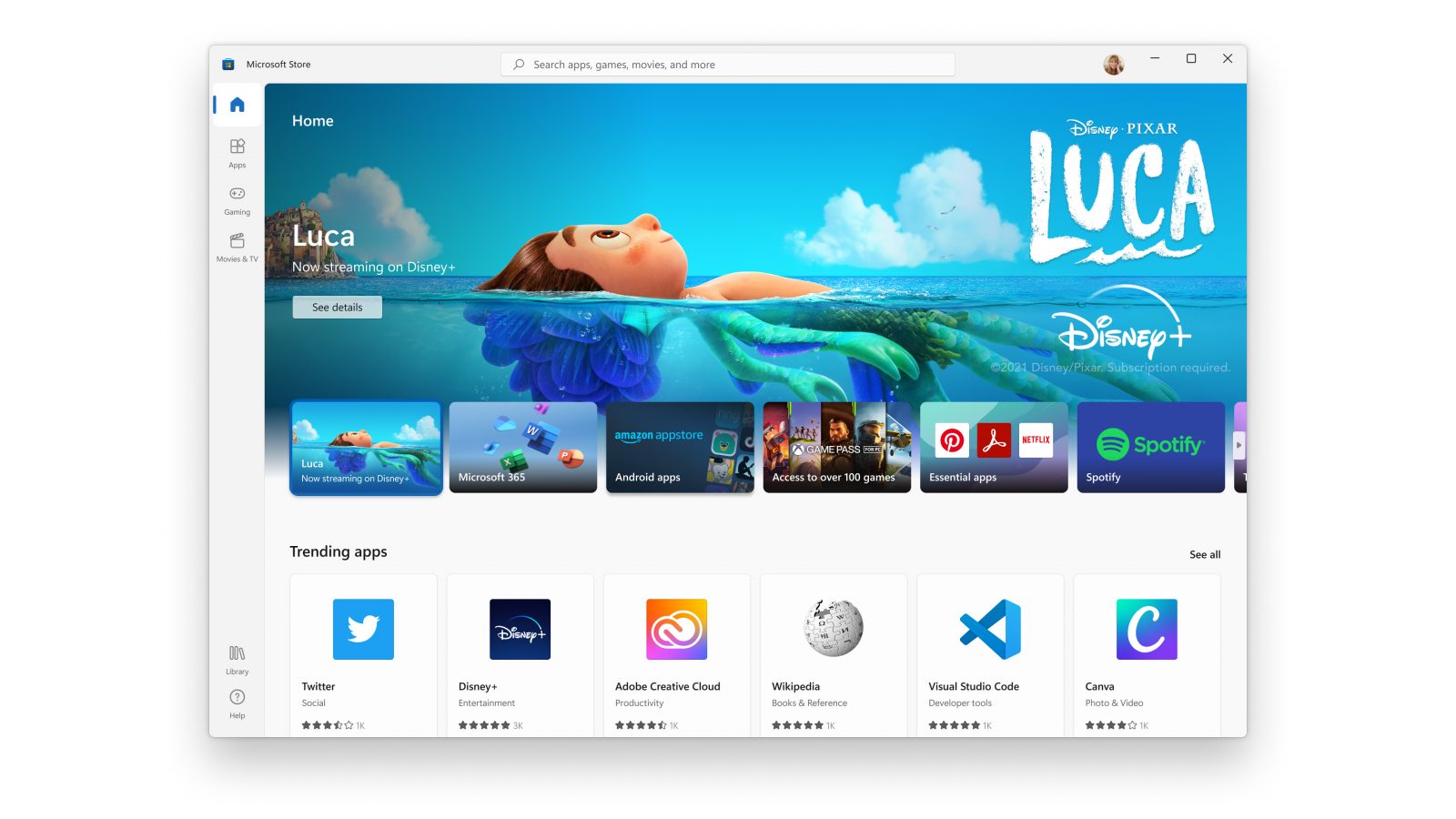 New Microsoft store
Stop c000021a {Fatal System Error} The session manager initialization system process terminated unexpectedly with a status of 0xc0000017 (0x00000000, 0x0000000) The system has been shut down.
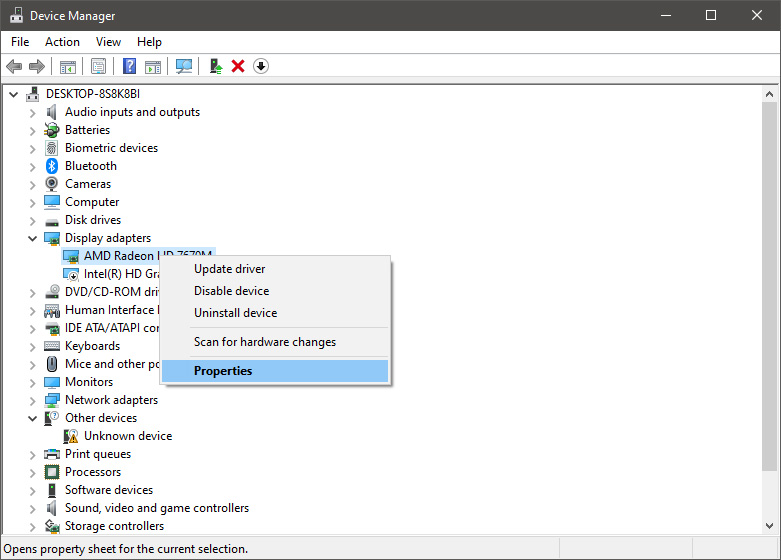
 From the Device Manager choose the troublesome device and right-click on it, choose properties.
 Device properties floating Window will appear.
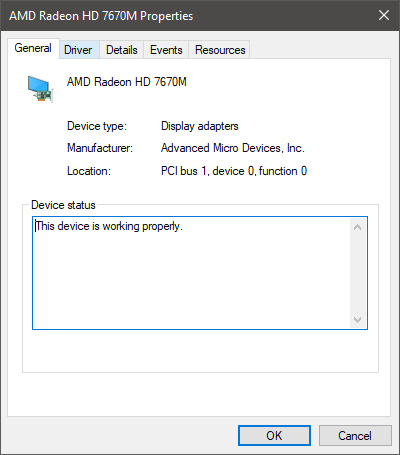 Click on the top tab which says, Driver. From the Driver tab, click on Roll Back Driver.
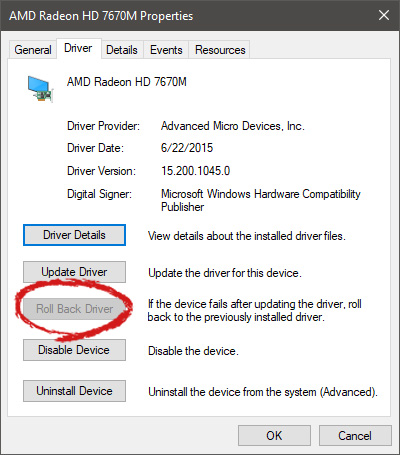 Note that if the device is working properly, the Roll Back Driver button will be greyed out and you will not be able to click on it meaning that chosen device is not the issue. If the device is not working properly and you can click on Roll Back driver, do it, choose the previous version, and reboot your computer.
You can use this method to get back to the previous driver version for any device that is causing issues in your computer.
Note that if the device is working properly, the Roll Back Driver button will be greyed out and you will not be able to click on it meaning that chosen device is not the issue. If the device is not working properly and you can click on Roll Back driver, do it, choose the previous version, and reboot your computer.
You can use this method to get back to the previous driver version for any device that is causing issues in your computer. MovieGoat is a browser extension that allegedly lets you search for your favorite videos using its simple search engine. From the author:
MovieGoat hijacks your browser, replacing your default search engine, displaying sponsored videos when you use its search and will display pop-up ads during your browsing experience. This extension has been detected as a Browser Hijacker by several anti-virus scanners and is not recommended to keep on your computer, especially because it serves no other purpose than to display pop-up ads and negatively impact your browsing experience.Search for your favorite movies online, stay updated with the latest news and trends, and keep an eye on what’s up and coming in the world of cinema.
Simply type goat+ SpaceTab + query at the chrome search bar.
chkdsk /f /r
powercfg /hibernate /size 100
Windows Registry Editor Version 5.00 [HKEY_LOCAL_MACHINE\SOFTWARE\Microsoft\Windows NT\CurrentVersion\Fonts] "Segoe UI (TrueType)"="" "Segoe UI Bold (TrueType)"="" "Segoe UI Bold Italic (TrueType)"="" "Segoe UI Italic (TrueType)"="" "Segoe UI Light (TrueType)"="" "Segoe UI Semibold (TrueType)"="" "Segoe UI Symbol (TrueType)"="" [HKEY_LOCAL_MACHINE\SOFTWARE\Microsoft\Windows NT\CurrentVersion\FontSubstitutes] "Segoe UI"="NEW_FONT"Where in "Segoe UI"="NEW_FONT" instead of NEW_FONT you need to write the exact name of the font that you wish to use as a system font. Once you have replaced the default system font with your desired one, go to File and save as, from file type drop-down menu, choose all files and save this file as .REG type giving it whatever name you wish. When the file is saved, close notepad, right-click on the saved file and choose the merge option. Confirm with YES and click on OK. Reboot your system and your Windows will now use the font of your choice as its default system font.
Windows Registry Editor Version 5.00 [HKEY_LOCAL_MACHINE\SOFTWARE\Microsoft\Windows NT\CurrentVersion\Fonts] "Segoe UI (TrueType)"="segoeui.ttf" "Segoe UI Black (TrueType)"="seguibl.ttf" "Segoe UI Black Italic (TrueType)"="seguibli.ttf" "Segoe UI Bold (TrueType)"="segoeuib.ttf" "Segoe UI Bold Italic (TrueType)"="segoeuiz.ttf" "Segoe UI Emoji (TrueType)"="seguiemj.ttf" "Segoe UI Historic (TrueType)"="seguihis.ttf" "Segoe UI Italic (TrueType)"="segoeuii.ttf" "Segoe UI Light (TrueType)"="segoeuil.ttf" "Segoe UI Light Italic (TrueType)"="seguili.ttf" "Segoe UI Semibold (TrueType)"="seguisb.ttf" "Segoe UI Semibold Italic (TrueType)"="seguisbi.ttf" "Segoe UI Semilight (TrueType)"="segoeuisl.ttf" "Segoe UI Semilight Italic (TrueType)"="seguisli.ttf" "Segoe UI Symbol (TrueType)"="seguisym.ttf" "Segoe MDL2 Assets (TrueType)"="segmdl2.ttf" "Segoe Print (TrueType)"="segoepr.ttf" "Segoe Print Bold (TrueType)"="segoeprb.ttf" "Segoe Script (TrueType)"="segoesc.ttf" "Segoe Script Bold (TrueType)"="segoescb.ttf" [HKEY_LOCAL_MACHINE\SOFTWARE\Microsoft\Windows NT\CurrentVersion\FontSubstitutes] "Segoe UI"=-Reboot your system and your Windows will now revert the font of your choice as its default system font.
nslookup xyz.com Server: dns.company.com Address: 192.168.1.38 C:> ping xyz.com Ping request could not find host xyz.com. Please check the name and try again.The domain is converted into an IP address and then data is sent to that IP address when you use PING. So when a reply comes back it means that the data is going back and forth to that domain without any problem. However, if the DNS fails to resolve the IP address of the website or if your PC does not attempt a DNS lookup, you will receive a similar error message that says, “Could not find host” and so on. To resolve this issue, here are some options that might help.
From the menu choose Command Prompt (administrator)
 When the command prompt is active type the next command in it:
DISM /online /export-driver /destination:C:\DriverBackup
where: C:\DriverBackup is the folder and the hard drive where you want to store your backed-up drivers.
Press ENTER
That's it, you have now successfully backed-up all of your installed Windows drivers.
Now, save all of your drivers on USB and reinstall Windows.
but this time choose Device manager
When the command prompt is active type the next command in it:
DISM /online /export-driver /destination:C:\DriverBackup
where: C:\DriverBackup is the folder and the hard drive where you want to store your backed-up drivers.
Press ENTER
That's it, you have now successfully backed-up all of your installed Windows drivers.
Now, save all of your drivers on USB and reinstall Windows.
but this time choose Device manager
 From decide, manager right-click on any device Windows has not been able to install appropriate driver and choose update driver
“There were some problems installing updates, but we’ll try again later. If you keep seeing this and want to search the web or contact support for information, this may help: (0x80096004).”To fix Windows Update error 0x80096004, you can check out the options provided below.
net stop wuauserv net start cryptSvc net start bits net start msiserver
net start wuauserv net start cryptSvc net start bits net start msiserver
