Logo

How to Repair Windows 10 Upgrade Error Code 0x80070070 – 0x50011

Code 0x80070070 – 0x50011 – What is it?

If you’ve recently tried installing Windows 10, you might have encountered error code 0x80070070 – 0x50011 or its alternatives (error code 0x80070070 – 0x50012 and 0x80070070 – 0x60000). Whatever formats this error code presents itself in, it's usually accompanied by a barrage of other errors, as underscored on Microsoft’s official site. If you’ve encountered this error code, it simply means that your computer system might not have the required or required space to install the upgrade.

Likely, if you’ve experienced error code 0x80070070 – 0x50011, it’ll likely appear in the formats highlighted below:

  • 0x80070070 – 0x50011
  • 0x80070070 – 0x50012
  • 0x80070070 – 0x60000

Solution

Restoro box imageError Causes

At present, this Windows 10 upgrade error is triggered or caused by various factors:

  • Lack of computer resources or space
  • Virus/malware infestation
  • A clogged registry

Further Information and Manual Repair

Whilst new, not much information has been propagated regarding this error. However, there are some manual / practical steps you can take to have your Windows 10 upgrade up and running. Since the primary aspect of solving this problem is to make space on your computer system, here are some ways in which you can do so manually.

Method 1: Get more space

  • Check the current space on your computer  

Before making attempts to create space on your computer, it’s vital that you check to decipher how much free space you have available.

  • Make use of Disk Clean-up 

Since there’s a free service available on your computer to create space, why not use it and save time? If the Disk Cleanup tool is employed regularly, this will free up hard drive space and optimize your computer to work better.

  • Remove unwanted desktop apps 

There are several apps lying around on your computer that you simply don’t use, uninstall those and make space to elude error code 0x80070070 – 0x50011 or its alternatives (Code 0x80070070 – 0x50012, Code 0x80070070 – 0x60000)

  • Remove or archive files  

If you have lots of photos, media, documents (files), videos, etc, that you don’t use or will only need in the future, try cloud storage. You’ll still have those files within your possession but just not in a physical location. However, they’re still accessible. Another suggestion: If you use programs such as One Drive or Google Drive for desktop, limit your use to only the online application.

  • Add more storage

If you’re not able to implement the above steps to clear some space to accommodate your Windows 10 upgrade due to error code 0x80070070 – 0x50011, acquire more storage. This can be expanded by incorporating storage devices such as USB flash drives, CDs, cloud storage, and SD Cards.

Method 2: Scan your computer for virus/malware

If you regularly download stuff, especially software on the Internet from ‘not so secured’ sites, you might have picked up something. You might have downloaded malware or virus (along with other legit programs).

To resolve this issue, it’s advised and very important that you download a powerful antivirus and perform a complete scan of your computer system. After you’ve detected and removed the suspected malware/virus, you’ll then be able to eliminate error code 0x80070070 – 0x50011 and resume with your Windows 10 upgrade.

Method 3: Clean up your computer’s registry

If you do not clean your computer’s registry often, it could become congested or clogged by .XML files, junk files, and cookies. To resolve this problem, clean your registry by using a powerful and user-friendly tool to clean up the problem.

Click here to download Restoro.

Do You Need Help with Your Device?

Our Team of Experts May Help
Troubleshoot.Tech Experts are There for You!
Replace damaged files
Restore performance
Free disk space
Remove Malware
Protects WEB browser
Remove Viruses
Stop PC freezing
GET HELP
Troubleshoot.Tech experts work with all versions of Microsoft Windows including Windows 11, with Android, Mac, and more.

Share this article:

You might also like

Prevent your laptop from overheating

Long working hours on a laptop can have some issues with laptop heating and thus slowing down. Today we will take a look at how can you prevent it from heating and keep it in a normal temperature range so it lasts longer and works better.

laptop on fire

Close unnecessary programs or browser tabs

Usually, the main reason for high laptop temperature is the heavy and constant workload. Of course, the solution is very simple, turn off unnecessary browser tabs or applications running in the background, and less power will be needed for operation thus directly reducing workload and temperature.

Place it on a hard flat surface

Laptops generally have vents on the side and even under them, these vents, of course, are made so hot air is disposed of through them but if they are covered that will create issues. Placing computers on textiles, pillows, and legs can obstruct their venting holes and increase heat also since they are materials that are not taking heat away.

Your best practice should be placing the laptop onto a hard flat surface so air can flow freely and if you need to keep it in your lap there are lap desks made for this purpose.

Clean the laptop

With some good cleaning, the laptop can stop overheating, and generally, it will be cooler. Vents that has for ventilation can get clogged over large periods of time due to dust which is always present. Compressed air can be a quick easy solution to open the vents and redust it. Other methods include a compressor, vacuum, or brush in order to quickly remove any dust clogs. Taking it into service for complete redusting and paste change is also a great option.

Place it on the dedicated pad

There is some disagreement about using dedicated cooling pads for laptops, some say they are not effective at all, and some swear by them but from my experience good paired laptop and pad can indeed help with cooling it down. Usually, cooling pads will come with fans that will take away heat from the laptop itself reducing its overall heat.

Change your Windows power plan

If your laptop is constantly hot but you are not doing much with him check Windows power settings. There is a good chance it is set to run on a high-performance plan and if this is the case switch it back to a balanced power setting. Power plan like high performance will drain more power and more power will mean more heating. Of course, this will affect performance as well but for regular work that excludes some power gaming, video, and picture manipulations and other demanding tasks this power plan will work just fine.

Take control of the fans inside your laptop

Internal cooling is important and sometimes fans are not running to their full capacity so increasing their speed or changing their plan of work can cool down the computer nicely. Some laptops have fans controlling application already on them, especially gaming laptops but most of them do not. If your laptop does not have it, go to your laptop brand website and see if such an application exists for your model, if it does, download and install it but if there is no such application try general free ones like SpeedFan or Argus Monitor.

Reduce voltage of CPU and GPU

How more power means more heat, reducing the power that CPU and/or GPU take can be reduced inside BIOS by lowering voltage of these 2 components. First, go to BIOS and write down the voltage that is currently assigned to your CPU and/or GPU so you can bring it back if ever needed, also take note that reducing voltage and thus power will not affect negatively your components but increasing it thus overclocking can and will so be careful when bringing voltage back not to overdo it. You can always also reset your BIOS settings to bring them back to factory settings.

Do not use the laptop when charging it

When the laptop is placed on the charger in order to be charged and used at the same time, more power is drawn to it, and since the battery is taking electric charge instead of providing it more heat will be generated now since two different sources will be generating it, the battery itself and computer. When you really can not wait for the laptop to be charged, use it, but turn it off and wait to be fully charged if you can.

Read More
Windows installation stuck on Set up a Pin
After you fresh install Windows 10 on your computer, it allows you to set up a PIN just before you can start using it. However, a number of users reported that the Windows 10 installation gets stuck on the “Set up a Pin” phase. If you are one of the users who experience the same thing, then read on as this post will walk you through fixing the problem. As users start to use their newly installed Windows 10 computer, they reported that the screen is still stuck even after they enter the correct PIN twice and there is no way for them to go forward or backward. Note that this is a part of the account setup and that your computer must stay connected to your internet connection before you finalize everything. And even though the PIN works when the computer is offline, the account setup still needs an internet connection, at least for a fresh installation. The solution for this kind of issue is quite easy and there won’t be any problem even if your computer shuts down or restarts since the installation is already complete and all that’s left is the account setup. To fix this problem, follow the steps given below. Step 1: The first thing you have to do is to turn off your internet connection or disable all connectivity from your computer. Note: If you are using either an Ethernet cable or a Wi-Fi switch to connect to the internet, you have to disable or remove them. But if you don’t have any options, just completely turn off your internet connection. Step 2: The next thing you have to do is to force your computer to shut down and then restart your computer. The setup process will eventually pick up exactly where it left off. The only difference is that there is no connection to the internet and your screen will no longer be stuck on the PIN setup screen so you now have the option to skip it and wait until you’re logged in for the first time. Step 3: Once you’re done, you can then you can choose to Setup Pin later on and turn your internet connection back on or connect your computer with an internet connection.
Read More
Moving Start Menu to the Second Monitor
One of the most important User Interface elements in a Windows 10 operating system is the Start Menu. Not too long ago, Microsoft has added some new features and redesigned the Start Menu a couple of times as well. Thus, it is not uncommon for Windows 10 users to use several monitors. That’s why in this post, you will be guided on how you can move the Start Menu to your second monitor in Windows 10. There are a lot of advantages in using more than one monitor like a better and widescreen as well as help in improving and increasing productivity. Usually, the Start Menu and the taskbar is present in the original monitor only. In most cases, it helps users in moving the Start Menu to the second monitor and helps users in segregating tasks, and uses separate monitors for each kind of task. There are two simple steps to move the Start Menu to the second monitor. You have the option to unlock and drag the taskbar, as well as make adjustments in the settings. To get started, refer to each one of the following options to move the Start Menu to the second monitor.

Option 1 – Move the second monitor by unlocking and dragging the taskbar

The first option you can try to move the Start Menu to the second display is to simply unlock and then drag the taskbar. To do so, follow these steps:
  • First, click on the Taskbar and unlock it.
  • Next, uncheck the Lock the taskbar feature in the menu of the Taskbar Settings. This will free the taskbar so you can move or drag it around.
  • After that, push the Start Menu to the furthermost corner of the screen and then transfer it to the second monitor.

Option 2 – Move the second monitor using the keyboard

  • The first thing you have to do is to tap the Windows key to open the Start Menu.
  • Next, close the Start Menu by tapping the Esc key.
  • After that, the controls will shift back to the taskbar.
  • Now open the context menu of the taskbar by tapping the Alt + space bar together. This will move the Start Menu to the second monitor.

Option 3 – Move the Start Menu to the second monitor via Settings

If you find that the Taskbar is moving to the wrong monitor automatically or if the program does not start on the same monitor as the taskbar, then you can try this option.
  • Click on Start first and click Run.
  • Then type “desk.cpl” in the field and click OK.
  • Alternatively, you could also right-click on the desktop and select the Screen Resolution option from the drop-down menu.
  • After that, click on the monitor that you want to use as the primary monitor and select the checkbox labeled “Make this my main display”.
  • Once done, you have to choose the “Show desktop” on only 1 from the drop-down menu of Multiple displays.
  • Now click the Keep Changes option and select the Extend these displays from the Multiple displays drop-down menu and then click on the Apply button to save the changes made.
  • Afterward, click the Keep changes option once the dialog box pops up.
Read More
See if your Data is safe in Facebook breach
It is no secret that a few days ago Facebook has been breach and tons of user accounts have been compromised. These kinds of things are very unpleasant experiences for both users and the company itself. User trust lowers significantly in the company and it can greatly increase the chances of users migrating to another platform. This just shows how much a hacker or security breach can produce damage to the business. Sadly we can not offer you guidance or assistance in recovering your stolen data nor can we provide you with removing your data from the hands of the attacker. What we can do is to provide you with information has your data been stolen. Threat actor released the personal information for 533,313,128 Facebook users on a hacking forum, including mobile numbers, name, gender, location, relationship status, occupation, date of birth, and email addresses. This data was originally sold in private sales after being collected in 2019 using a bug in the 'Add Friend' feature on Facebook. Facebook had closed this vulnerability soon after it was discovered, but threat actors continued to circulate the data until it was finally released practically for free. Since then, Troy Hunt has added the leaked data to his Have I Been Pwned data breach notification service to help users determine if a Facebook member's data was exposed in the leak. Go to the site and enter your email address to check and see if your data has been compromised.
Read More
Fix NO_USER_MODE_CONTEXT in Windows
If you have encountered the NO_USER_MODE_CONTEXT Blue Screen error when using your computer, read on as this post will walk you through a couple of suggestions you can try to resolve this Stop error. This kind of Blue Screen error can occur when a program is trying to leverage the use of a system driver but fails to do so. Some of the common causes of this BSOD error are incompatible or corrupted drivers, incorrect configuration of entries in the Registry, damaged memory locations, malware infection, and many more. In addition, this Stop error does not often occur and indicates that an attempt to enter user mode with no context was made. If this is the first time you’ve restarted your computer after you’ve installed additional hardware, you have to remove the hardware and then restart your computer once again and then check the Microsoft Hardware Compatibility List to confirm that the hardware and its drivers are compatible with your operating system. If it doesn’t help, you can check out the given suggestions below to fix the NO_USER_MODE_CONTEXT Blue Screen error in Windows 10.

Option 1 – Try to update or rollback your device drivers

The first thing you can try to fix the NO_USER_MODE_CONTEXT Blue Screen error is to either update or roll back the device drivers. It is most likely that after you updated your Windows computer that your driver also needs a refresh. On the other hand, if you have just updated your device drivers then you need to roll back the drivers to their previous versions. Whichever applies to you, refer to the steps below.
  • Open the Devices Manager from the Win X Menu.
  • Then locate the device drivers and right-click on them to open the Properties. Note that the main drivers that might be the cause behind the NO_USER_MODE_CONTEXT Blue Screen error will be listed under the “ID ATA/ATAPI controllers” section as well as the “Storage controllers” section.
  • After that, switch to the Driver tab and click on the Uninstall Device button.
  • Follow the screen option to completely uninstall it.
  • Finally, restart your computer. It will just reinstall the device drivers automatically.
Note: You can also directly download the relevant drivers of your computer from the manufacturers’ website. So if you have an SSD, the issue might be due to an old storage driver.

Option 2 – Try running System File Checker or SFC scan

System File Checker or SFC is a built-in command utility that helps in restoring corrupted files as well as missing files. It replaces bad and corrupted system files to good system files. To run the SFC command, follow the steps given below.
  • Tap Win + R to launch Run.
  • Type in cmd in the field and tap Enter.
  • After opening Command Prompt, type in sfc /scannow
The command will start a system scan which will take a few whiles before it finishes. Once it’s done, you could get the following results:
  1. Windows Resource Protection did not find any integrity violations.
  2. Windows Resource Protection found corrupt files and successfully repaired them.
  3. Windows Resource Protection found corrupt files but was unable to fix some of them.
 Reboot your PC.

Option 3 – Try running the Memory Diagnostic Tool

The Memory Diagnostic tool in windows can help resolve the NO_USER_MODE_CONTEXT Blue Screen error by checking and automatically fixing any memory-based issues. To run it, refer to these steps:
  • Tap the Win + R keys to open Run and type exe and hit Enter to open the Windows Memory Diagnostic Tool.
  • After that, it will give two options such as:
    • Restart now and check for problems (Recommended)
    • Check for problems the next time I start my computer
  • Once your computer has restarted, perform a basic scan or you could also go for the “Advanced” options such as “Test mix” or “Pass count”. Simply tap the F10 key to start the test.
Note: After you select your preferred option, your computer will restart and check for memory-based issues. If it finds any issues, it will automatically fix them.

Option 4 – Perform System Restore

  • First, tap the Win + R keys to open the Run dialog box.
  • After that, type in “sysdm.cpl” in the field and tap Enter.
  • Next, go to the System Protection tab then click the System Restore button. This will open a new window where you have to select your preferred System Restore point.
  • After that, follow the on-screen instructions to finish the process and then restart your computer and check if the problem is fixed or not.

Option 5 – Run the Blue Screen Troubleshooter

Troubleshooting Blue Screen of Death errors wouldn’t be complete without the Blue Screen troubleshooter. As you know, it is a built-in tool in Windows 10 that helps users in fixing BSOD errors like NO_USER_MODE_CONTEXT. It can be found on the Settings Troubleshooters page. To use it, refer to these steps:
  • Tap the Win + I keys to open the Settings panel.
  • Then go to Update & Security > Troubleshoot.
  • From there, look for the option called “Blue Screen” on your right-hand side and then click the “Run the troubleshooter” button to run the Blue Screen Troubleshooter and then follow the next on-screen options. Note that you might have to boot your PC into Safe Mode.
Read More
Setting a default printer in Windows 10
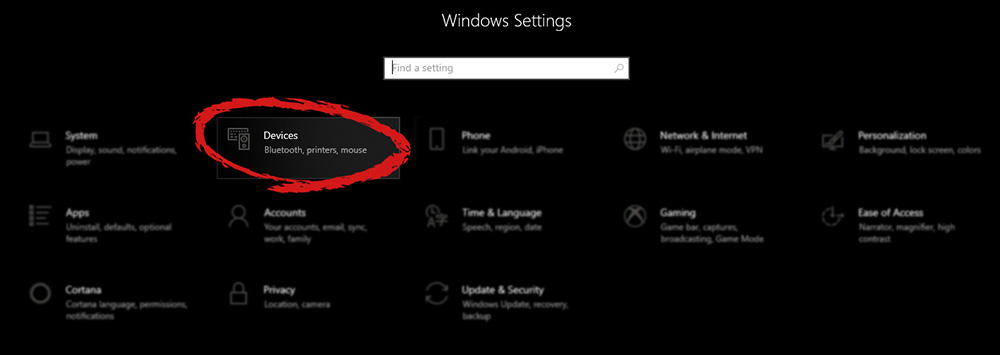
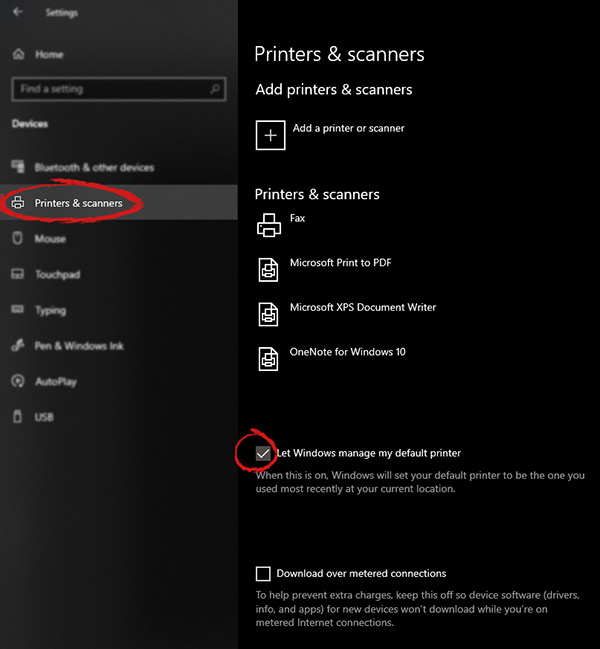
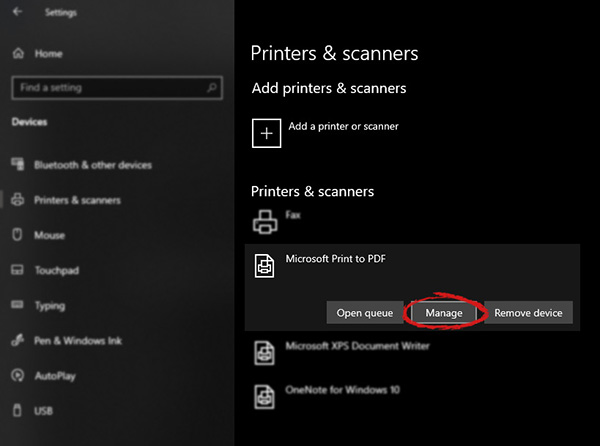
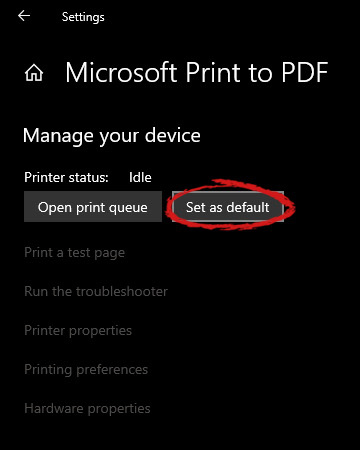
Windows 10 is by far the most personalized Windows so far, most of its personalization comes from him learning our habits on computers and setting future experiences taking them into account. One of these things that Windows likes to set for us is also the default printer. The default printer is set as one which is most used but sometimes we do not want that, we might like to use another printer as default despite Windows choosing one for us. Never worry, setting default printer is easy and this guide will take you to step by step journey of how you can do it in 5 min on your personal computer. Let us begin: First thing is to click on the windows icon on the bottom left and open start menu, from start menu click once on settings. Windows 10 Star menu with marked settings iconWhen the settings window opens, choose DEVICES on it. Windows settings with marked devices sectionOnce the device window opens, click once on printers and scanners, and on the right window go to the bottom and uncheck Let windows manage my default printer. Windows settings for printerUnchecking that box will let Windows know that we do not wish anymore for him to set our default printers according to their use. Once the checkbox is clear go up to your printer list and click on the printer you wish to use as the default one. I will choose Microsoft Print to PDF as my default printer and click on it. Once the printer is clicked option menu will appear. Windows settings manage printerWhen the option menu appears under the printer name, click on Manage which will take you to the printer management screen. When you are on the manage screen, click on the Set as default button, and you are done. Windows settings printer setting
Read More
A Guide to Quick Fixing the Error Code 1723

What is Error 1723?

Error Code 1723 is a peculiar error type common in Windows PC. It is related to the Windows Installer package. This error is displayed in the following format:
"Error 1723- There is a problem with this Windows Installer package. A DLL required for this install could not be run. Contact your support personnel or package vendor...”
You are most likely to come across the error code 1723 if the Java installation is not completed successfully. In other words, the error indicates that the installation process has failed.

Solution

Restoro box imageError Causes

The 1723 error may occur due to several reasons, the most common being:
  • Corrupted installers
  • Files are not extracted successfully
  • Registry problems
  • Missing DLL files

Further Information and Manual Repair

To resolve this issue on your PC, you don’t always have to hire a professional technician and pay hundreds of dollars to get it fixed. The error code 1723 may not be a common Windows PC error but it is easy to fix. Here we have listed some of the best and easiest DIY ways to resolve this error on your system. These solutions are so easy to perform that even if you are not a computer programmer or technically adept, you can work through them and resolve the error in just a few simple clicks. So, let’s get started:

Solution 1: Install the latest Java Version

If the Java version previously installed on your system is not working properly and showing 1723 error messages then it is advisable to install the latest Java version. However, to do this first you will have to uninstall the old version and then download the latest Java version on your PC from a trusted website to ensure it does not contain malicious viruses and malware.

Solution 2: Ensure the Required Files are extracted in the ‘Temp’ Folder for Installers

Another method to resolve the 1723 error code is to check whether the required files are extracted in the temp folder for installers or not. The error may occur if the location is incorrect and the account is not permitted to extract files in the temp folder. In this scenario, the best way to resolve the issue is to change the permissions of the temp folder. This can be done by logging in to your account and opening file explorer or ‘My Computer’. Now copy and paste this link address in the address bar: DL:UsersUSERNAMEAppDataLocal. Please note, here DL is the drive letter of the Windows drive, and in the username insert the username of the account that you are using. Now right-click the ‘temp’ folder. Select properties and click on the Security tab. After that click edit below the list and press add. Again type the username here and click OK. The next step is to select the added account from the list and tick ‘FULL CONTROL’ box under ‘Permissions for Username’. Click OK and then close the properties. Once this process is complete, now try running the installer again. This will most likely resolve the issue. Nonetheless, if the error still persists, then this means the underlying cause of the error is deeper than you think. The error may be related to registry issues. In such situations, try solution 3 to fix the error 1723 on your system.

Solution 3: Download Restoro.

When the error code 1723 is triggered due to registry issues, then it is advisable to scan your PC with Restoro. Registry issues should be resolved immediately because they pose serious threats to your system. It can lead to system failure, crash and valuable data loss. Registry basically saves practically all the information and activities performed on your PC including the unnecessary and obsolete files like junk files, cookies, temporary files, and invalid entries. If these files are not removed they can corrupt the registry, damage dll files and installers thereby generating error codes like 1723 on your system. The easiest way to repair and clean the registry in seconds is to run Restoro on your PC. It is a smart, intuitive, advanced, and multi-functional PC repair tool. It is embedded with multiple powerful utilities and is a one-stop solution for all PC related issues. This software is compatible with all Windows versions. It is deployed with a highly functional registry cleaner that scans and detects all registry issues on your PC and removes them right away. It wipes out the unwanted files, repairs the damaged dll files and restores the registry. Other powerful utilities that are embedded in this software include an antivirus, a system optimizer and Active X controls and class modules. To resolve 1723 error code on your PC today, click here to download Restoro.
Read More
A Quick Guide to Fixing Kernel32.dll Error

Kernel32.dll Error - What is it?

To understand Kernel32.dll error properly, here’s what you need to know first: in the Windows operating system, the system32 directory plays a vital role. Inside this directory, there is an element called Kernel32.dll. A DLL (dynamic link library) is a library that contains codes and data that are used by more than one program at the same time. The role of the Kernel32.dll file is to handle memory management and I/O (input and output) operations. Malfunctioning of this file results in a Kernel32.dll error message which leads to program or application failure.

Error Causes

Kernel32.dll files can be attributed to several reasons like:
  • Missing or damaged Kernel32.dll files
  • Registry corruption
  • .Dll files misconfiguration if programs are installed or uninstalled.
  • Viral infection or malware attack
It is advisable to repair the Kernel32.dll error immediately to avoid inconvenience and serious computer damages like program lockouts, system failure, freeze, and crash.

Further Information and Manual Repair

All causes for the Kernel32.dll error are linked with the registry. The registry is the major database of your system that stores all the activities you perform on your system. It saves both important data and unnecessary files in the RAM (Random Access Memory) including the junk files, temporary internet files, and obsolete files such as files of the deleted/uninstalled programs. These files accumulate a lot of memory space. It leads to disk fragmentation, data overload, missing and damaged DLL files, and eventually registry corruption. Other reasons for registry issues that trigger Kernel32.dll errors on your system could be malicious software like viruses, adware, and malware. These also corrupt the registry and damaged DLL files.

Kernel32.dll Error Solutions

There are two ways to resolve the Kernel32.dll error on your PC, one is to install two separate tools registry cleaner and an antivirus and run them individually to scan your system and repair it. This option is time-consuming and besides if antivirus software is notorious for slowing down systems. So by downloading a separate antivirus you may have to sacrifice your system’s speed.
Read More
Fix HIDCLASS.sys failed Blue Screen Error
If you were trying to print some documents but encounter the HIDCLASS.SYS Blue Screen error instead, then you’ve come to the right place as this post will guide you in fixing any Blue Screen errors related to the HIDCLASS.SYS file. HIDCLASS.SYS is a Windows operating system driver file. HID or Human Interface Device includes Keyboards, mice, and other input devices. HIDCLASS.SYS is a critical system driver file that is responsible for connecting different kinds of devices all over the system, including the functionality where a Word Processor can access the printer to print documents. This file comes under the category of kernel-mode device drivers and if the driver fails, it can result in a Stop Error. There are a lot of Stop errors related to the HIDCLASS.SYS file, such as:
  • KMODE EXCEPTION NOT HANDLED
  • SYSTEM SERVICE EXCEPTION
  • DRIVER POWER STATE FAILURE
  • PAGE FAULT IN A NONPAGED AREA
  • SYSTEM THREAD EXCEPTION NOT HANDLED
  • DRIVER VERIFIER IOMANAGER VIOLATION
  • IRQL NOT LESS EQUAL
The fixes for the Blue Screen errors related to the HIDCLASS.SYS files are pretty simple but before you troubleshoot the problem using these fixes, make sure that you boot your computer into Safe Mode with Networking first. After that, get started on these tips:

Option 1 – Update or rollback or disable concerned device drivers

To fix the HIDCLASS.SYS error, you can also try to roll back, or update, or disable the concerned device drivers.
  • Open the Devices Manager from the Win X Menu.
  • Then locate the device drivers particularly the ones that are under the sections of Keyboard, Mouse, USB, and HID Drivers.
  • Next, right-click on them to open the Properties.
  • After that, switch to the Driver tab and click on the Uninstall Device button.
  • Follow the screen option to completely uninstall it.
  • Finally, restart your computer. It will just reinstall the device drivers automatically.
Note: You can install a dedicated driver on your computer in case you have it or you could also look for it directly from the website of the manufacturer. On the other hand, if you have just updated your device drivers then you need to roll back the drivers to their previous versions or disable them.

Option 2 – Check for any incompatible devices

The next thing you can do to troubleshoot the HIDCLASS.SYS Stop error is to plug in and out each one of the different hardware that is connected to your computer. Doing so will help you determine which one of the hardware is the one that’s triggering the error to pop up. You will also know what hardware drivers or anything else that could be causing this error which includes external devices like mouse, keyboard, printer, as well as internally attached components like the Graphics card and so on.

Option 3 – Try running the ChkDsk utility

Running the ChkDsk utility can also help you resolve any Blue Screen errors related to the HIDCLASS.SYS file. To run this tool, refer to these steps:
  • First, open This PC and right-click on your operating system partition for Windows.
  • Next, click on Properties and navigate to the Tools tab.
  • Then click on Check under the Error Checking section.
  • After that, a new mini window will be opened and from there click on Scan drive and let it scan your disk drive partition for any errors and then restart your computer.

Option 4 – Try checking the Memory for any errors

  • Tap the Win + R keys to open Run and type exe and hit Enter to open the Windows Memory Diagnostic Tool.
  • After that, it will give two options such as:
    • Restart now and check for problems (Recommended)
    • Check for problems the next time I start my computer
  • Once your computer has restarted, perform a basic scan or you could also go for the “Advanced” options such as “Test mix” or “Pass count”. Simply tap the F10 key to start the test.
Note: After you select the option, your PC will restart and check for memory-based issues. If it finds any issues, it will automatically fix them.

Option 5 – Run the System File Checker

System File Checker or SFC is a built-in command utility that helps in restoring corrupted files as well as missing files. It replaces bad and corrupted system files with good system files. To run the SFC command, follow the steps given below.
  • Type “cmd” in the Start search and then right-click on the appropriate search result.
  • Next, select “Run as administrator” to open Command Prompt with admin privileges.
  • After opening Command Prompt, type in sfc /scannow
The command will start a system scan which will take a few whiles before it finishes. Once it’s done, you could get the following results:
  1. Windows Resource Protection did not find any integrity violations.
  2. Windows Resource Protection found corrupt files and successfully repaired them.
  3. Windows Resource Protection found corrupt files but was unable to fix some of them.
  • Now restart your computer and see if the Blue Screen error is fixed or not.
Read More
Completely Remove SafeSearch Guide

SafeSearch is an ad-supported, cross web browser plugin for Internet Explorer and Firefox/Chrome. The browser extension will modify the default or custom settings of the browser including the home page, search settings, and in some cases will modify Internet Explorer’s load time threshold, place a lock file within Firefox to prevent changing settings as well as disable the browser’s Content Security Policy in order to allow for cross-site scripting of the plugin. For these reasons, it has been classified as a browser hijacker.

From the publisher: SafeSearch created by AVSoftware is the unique search engine that filters malicious sites or sites with bad reputations. Every website is weighted on several critical factors – vendor reliability, child safety, privacy issues, user opinions, and ratings.

SafeSearch has been found to be bundled with 3rd party software and malware and therefore is not recommended to keep on your computer.

About Browser Hijackers

Browser hijacking is amongst the internet’s constant problems that target browsers. It’s a kind of malware program that directs web browser requests to some other malicious sites. They’re created to disrupt browser functions for several purposes. Typically, the idea is to force users to visit certain websites that are trying to improve their visitor traffic and produce higher ad revenue. Even though it might seem naive, all browser hijackers are damaging and therefore always regarded as security risks. Furthermore, hijackers can make the entire infected system vulnerable – other dangerous malware and viruses will take hold of these opportunities to intrude into your PC effortlessly. Browser hijacking symptoms There are several signs of web browser hijacking: home-page is changed; you see new unwanted bookmarks or favorites added, usually directed to advertisement-filled or pornography websites; the main web browser settings are altered and undesirable or insecure sites are added to the trusted websites list; you notice many toolbars on your internet browser; unstoppable flurries of pop-up advertisements show up on your PC screen; web pages load very slowly and at times incomplete; you cannot visit specific sites like homepages of security software.

So how does a PC get infected with a browser hijacker?

Browser hijackers infect computers in numerous ways, including via a drive-by download, a file-share, or an infected e-mail. They could be included with toolbars, add-ons, BHO, plugins, or browser extensions. Also, some shareware and freeware can put the hijacker within your computer through “bundling”. An example of some notorious browser hijacker includes Conduit, Anyprotect, Babylon, SweetPage, DefaultTab, Delta Search, and RocketTab, but the names are continually changing.

Browser Hijacker Malware – Removal

Certain hijackers could be removed simply by uninstalling the related freeware or add-ons through the Add or Remove Programs in the Microsoft Windows control panel. However, the majority of hijacking codes are certainly not simple to remove manually, as they go much deeper into the operating system. Moreover, manual removal expects you to perform several time-consuming and intricate procedures that are tough to conduct for novice computer users.

What you can do if Virus Stops You From Downloading Anything?

Malware can cause all kinds of damage once they invade your PC, from stealing your personal information to erasing data files on your PC. Certain malware variants alter internet browser settings by adding a proxy server or modify the computer’s DNS settings. In these instances, you will be unable to visit certain or all of the websites, and thus not able to download or install the necessary security software to eliminate the malware. If you are reading this, you may have got infected by malware that stops you from downloading a computer security program like Safebytes Anti-Malware. Even though this type of issue will be tougher to get around, there are a few actions you can take.

Install antivirus in Safe Mode with Networking

Safe Mode is actually a unique, basic version of Windows where only minimal services are loaded to counteract malware and other troublesome applications from loading. In case the malware is set to load automatically when PC boots, switching into this particular mode may well prevent it from doing so. In order to get into Safe Mode or Safe Mode with Networking, press F8 while the system is booting up or run MSCONFIG and locate the “Safe Boot” options under the “Boot” tab. Once you reboot into Safe Mode with Networking, you can download, install, as well as update anti-malware software from there. At this point, you could run the antivirus scan to remove computer viruses and malware without hindrance from another application.

Switch over to an alternate browser

Malicious program code might exploit vulnerabilities in a particular browser and block access to all anti-malware software websites. If you suspect that your Internet Explorer has been hijacked by a computer virus or otherwise compromised by hackers, the most effective approach is to switch over to an alternate web browser such as Google Chrome, Mozilla Firefox, or Apple Safari to download your favorite security program – Safebytes Anti-Malware.

Install security software on a flash drive

To successfully eliminate the malware, you might want to approach the issue of installing an antivirus software program on the affected PC from a different perspective. Do these simple measures to clean up your infected computer using a portable antivirus. 1) Use another virus-free PC to download Safebytes Anti-Malware. 2) Mount the pen-drive onto the same system. 3) Run the setup program by double-clicking the executable file of the downloaded application, which has a .exe file extension. 4) Select the USB drive as the location when the wizard asks you exactly where you would like to install the application. Follow the on-screen instructions to finish the installation. 5) Transfer the flash drive from the uninfected PC to the infected computer. 6) Double-click the antivirus software EXE file on the thumb drive. 7) Click on the “Scan Now” button to start the virus scan.

Ensure the Safety of Your Computer by Installing SafeBytes Anti-Malware

If you’re looking to install an anti-malware application for your computer, there are numerous tools in the market to consider but you just cannot trust blindly anyone, irrespective of whether it is a free or paid program. Some of them are good but there are several scamware applications that pretend as authentic anti-malware software waiting to wreak havoc on the computer. When searching for an anti-malware program, choose one that provides solid, efficient, and full protection against all known computer viruses and malware. When considering the dependable software programs, Safebytes AntiMalware is certainly the strongly recommended one. SafeBytes can be described as a powerful, real-time anti-spyware application that is made to assist regular computer users in safeguarding their PC from malicious threats. This tool can easily identify, remove, and protect your computer from the latest malware intrusions such as spyware, adware, trojan horses, ransomware, parasites, worms, PUPs, along with other potentially harmful software applications. SafeBytes anti-malware comes with a myriad of enhanced features that sets it aside from all others. Here are a few popular features present in this software: Anti-Malware Protection: By using a critically acclaimed malware engine, SafeBytes gives multi-layered protection which is designed to catch and eliminate threats that are hidden deep inside your computer system. Real-time Active Protection: Malware programs trying to get into the computer are identified and stopped as and when detected by the SafeBytes active protection shields. They’re highly efficient in screening and getting rid of various threats because they are continuously revised with the latest updates and safety measures. Safe Web Browsing: SafeBytes provides an instant safety rating on the web pages you are about to visit, automatically blocking risky sites and ensure that you’re certain of your safety while browsing the net. Low CPU and Memory Usage: This software is lightweight and will work quietly in the background, and will not have an effect on your computer efficiency. 24/7 Customer Service: SafeBytes provides 24/7 technical support, automatic maintenance, and updates for the best user experience.

Technical Details and Manual Removal (Advanced Users)

If you wish to manually remove SafeSearch without the use of an automated tool, it may be possible to do so by removing the program from the Windows Add/Remove Programs menu, or in cases of browser extensions, going to the browsers AddOn/Extension manager and removing it. You will likely also want to reset your browser. To ensure the complete removal, manually check your hard drive and registry for all of the following and remove or reset the values accordingly. Please note that this is for advanced users only and may be difficult, with incorrect file removal causing additional PC errors. In addition, some malware is capable of replicating or preventing deletion. Doing this in Safe Mode is advised.

The following files, folders, and registry entries are created or modified by SafeSearch

Files: C:Program FilesPrimesoftSafeSearchsafesearch.dll C:Program FilesPrimesoftSafeSearch_safesearch.dll C:Program FilesPrimesoftSafeSearchaanyvkcf.exe C:Program FilesPrimesoftSafeSearchsafesearch.exe C:Program FilesPrimesoftSafeSearchrgzcdhtn.exe Registry: HKEY_LOCAL_MACHINESOFTWAREMicrosoftWindowsCurrentVersionRunaanyvkcf HKEY_LOCAL_MACHINESOFTWAREMicrosoftWindowsCurrentVersionRunSafeSearch HKEY_LOCAL_MACHINESOFTWAREMicrosoftWindowsCurrentVersionRunrgzcdhtn HKEY_CURRENT_USERSoftwarePrimeSoft HKEY_CURRENT_USERSoftwareSafeSearch HKEY_CLASSES_ROOT.QSCH HKEY_CLASSES_ROOTQSCH File HKEY_CLASSES_ROOTSafeSearch.SafeSearchBHO HKEY_CLASSES_ROOTSafeSearch.SafeSearchBHO.1 HKEY_CLASSES_ROOTCLSID00000000-0000-0000-0000-000000000001 HKEY_CLASSES_ROOTInterface28E6CCE2-3F2C-4B3D-9CB4-2FC8715A3ECE HKEY_CLASSES_ROOTTypelib82E9DE01-D860-40E4-B9C1-91F0E8272962 HKEY_CLASSES_ROOTTypelibCB5006EE-F57D-4116-B7B6-48EB564FE0F0 HKEY_CLASSES_ROOTmimedatabasecontent typeapplication/x-QSCH HKEY_USERS.defaultSoftwareNetscapeNetscape NavigatorTrusted External Applications%System%aanyvkcf.exe=yes HKEY_USERS.defaultSoftwareNetscapeNetscape NavigatorSuffixesApplication/x-QSCH HKEY_LOCAL_MACHINESoftwareMicrosoftInternet ExplorerToolbar00000000-0000-0000-0000-000000000001 HKEY_LOCAL_MACHINESOFTWAREMicrosoftWindowsCurrentVersionUninstallaanyvkcf HKEY_LOCAL_MACHINESOFTWAREMicrosoftWindowsCurrentVersionUninstallrgzcdhtn

Read More
1 2 3 171
Logo
Copyright © 2023, ErrorTools. All Rights Reserved
Trademark: Microsoft Windows logos are registered trademarks of Microsoft. Disclaimer: ErrorTools.com is not affiliated with Microsoft, nor claims direct affiliation.
The information on this page is provided for information purposes only.
DMCA.com Protection Status