Logo

Fix Windows Update error 0xC1900209

What is Windows Update Error 0xC1900209? Before you can install any updates on your Windows 10 computer, there are a lot of conditions that have to be fulfilled and one of these conditions is software compatibility. It is one of the important factors in installing Windows Updates. So if one of the software in your computer is not compatible with the new Windows Update for your OS, then the Windows 10 setup will not proceed and will block the installation of the new update. This both applies to the cumulative updates and feature updates. In such cases, you will get the following error message when you run Windows Update:

“0xC1900209, Incompatible software is blocking the upgrade process. Uninstall the application and try the upgrade again.”

This error message comes under the umbrella of the Windows 10 pre-upgrade validation using Setup.exe. And for you to identify the incompatible app, you need to grab a Windows 10 install image using the Windows Media Creation tool to download the suitable Windows 10 version and mount it. After that, execute the setup.exe file that’s located in the root folder of the Windows 10 install image. Once you execute the setup file, the upgrade wizard will give you a list of incompatible apps.

Once you have determined which software is not compatible with the Windows Update, there are two options you can try to resolve the Windows Update error 0xC1900209 – you can either try to update the conflicting software or uninstall it. For more details, follow the given options below.

Option 1 – Try to update the conflicting software

If you are using an older version of the software that’s in conflict with the Windows Update, you might want to update it to its latest version and then try to apply the updates again to your Windows 10 computer. You can update the concerned software by visiting the official website of the software or any of its distribution sources. On the other hand, you can also use the Check for updates feature of that particular software if it’s available.

Option 2 – Try to uninstall the conflicting software

If updating the problematic program didn’t work, the next option you can try is to uninstall it. All you have to do is follow these steps to uninstall it successfully:

  • Tap the Win + R keys to open the Run dialog box.
  • Then type “appwiz.cpl” in the field and tap Enter to open the Programs and Features in Control Panel.
  • Next, arrange the list of installed programs in the order of the installation date.
  • After that, look for the problematic program and right-click on it, and then select Uninstall.
  • Once the uninstallation process is done, restart your computer and see if the Windows Update error 0xC1900209 is fixed or not.

Do You Need Help with Your Device?

Our Team of Experts May Help
Troubleshoot.Tech Experts are There for You!
Replace damaged files
Restore performance
Free disk space
Remove Malware
Protects WEB browser
Remove Viruses
Stop PC freezing
GET HELP
Troubleshoot.Tech experts work with all versions of Microsoft Windows including Windows 11, with Android, Mac, and more.

Share this article:

You might also like

NVIDIA driver keeps crashing in Windows
As you know, NVIDIA is one of the topmost graphics cards used and it has been that way for several years already. And in those years, the company has managed to release the best cards on the market. However, there are still times when some things fail and don’t work as expected due to some NVIDIA driver issues. As of late, one of the issues users reported about NVIDIA drivers is that it keeps on crashing on a daily basis. It gets to the point where they aren’t able to play games anymore while some users experience lag and rendering issues. In addition, some users also reported that their computer display tends to freeze sometimes, and then things would seem to go back to normal but only for a short span of time as the crash seems to happen every 10 minutes. This can be extremely annoying as you won’t be able to use your computer properly. If you are one of these users, worry not for there are several ways you can try to resolve the problem in your Windows 10 computer. Make sure to carefully follow the options given below.

Option 1 – Try checking if the NVIDIA graphics card is enabled

Although the problem is quite massive, the fix could be as simple as enabling the NVIDIA graphics card if it turns out to be disabled. There might be some strange reason why your graphics card disables itself. Thus, the best and first option you can try is to check if the NVIDIA graphics card is enabled or not. To do so, follow these steps:
  • Tap the Win + R keys to open the Run dialog box.
  • Then type “devmgmt.msc” in the field and hit Enter to open the Device Manager.
  • After opening the Device Manager, look for the Nvidia graphics card option among the list of device drivers. Once you found it, check if it is enabled or not. If it’s not enabled, you should see a gray arrow pointing downwards. Right-click on the card and select Enabled.
  • Next, right-click on the graphics card once more and click on the Update Driver Software option and then click on the “Search automatically for updated driver software” option.

Option 2 – Try to choose Maximum Performance and disable Vsync

If the first option didn’t work out for you, then you might want to try turning off Vsync and adjust the performance to the maximum. Refer to these steps to disable Vsync and adjust performance to the maximum.
  • The first thing you have to do is right-click on your desktop and select the NVIDIA Control Panel among the options.
  • After opening the NVIDIA Control Panel, select Manage 3D Settings.
  • After that, set Vsync to off, and then in the Power Management Mode, set it to Maximum Performance. That should fix the problem.

Option 3 – Try updating the drivers from the official site of NVIDIA

If both the first and second given options didn’t work, you can also try updating the drivers from the official NVIDIA website. And in case you don’t know the type of Nvidia graphics card that your computer is on, follow the steps below:
  • Tap the Win + R keys to open the Run dialog box.
  • Next type in “dxdiag” in the field and click OK or hit Enter to open the DirectX Diagnostic Tool.
  • From there, you can see what type of Nvidia graphics card that your system is on.
  • Take note of your graphics card information and then look for the best drivers for your operating system. Once you’ve downloaded and installed the file, restart your PC.
Read More
How to Fix Windows 10 Error 0x8000ffff

Error Code 0x8000ffff - What is it?

Error Code 0x8000ffff is an error that is often experienced while attempting to install updates on a Windows machine. It has been found in Windows 10, although the error has been present in the Windows operating systems dating back to Windows Vista.

Common symptoms include:

  • Inability to download updates for the operating system
  • Inability to successfully run updates for the operating system through to completion

There are several basic Windows tools that can be used to attempt to resolve Error Code 0x8000ffff on your machine. While some of these tools may be familiar for basic users, others may require advanced competency in order to be used correctly. If you are unsure of your ability to complete the methods listed below in order to resolve this error code on your system, you may need to get in touch with a computer repair technician who is competent in dealing with Windows Update repairs.

Solution

Restoro box imageError Causes

The most common cause of Error Code 0x8000ffff is that there is a problem within one of the system files or the registry entries on the computer. There are a number of reasons why a device could have an error in these places, from conflicting software commands to updates that were not installed correctly, to bugs within the system, to viruses or malware that have corrupted the necessary files.

Further Information and Manual Repair

There are several common ways that users can attempt to resolve the appearance of Error Code 0x8000ffff on their Windows devices. If you are not sure that you can follow these steps through to completion, you would be well advised to get in touch with a qualified computer repair technician to help you to finish out the repair process.

Here are the best methods to resolve Error Code 0x8000ffff on your Windows machine:

Method One:  Restart Your Computer

It may sound obvious, but one of the most effective ways to resolve Error Code 0x8000ffff on your machine is to simply reboot your computer. In some cases, the error shows up because there are processes that the system believes are still running when they really aren’t. Restarting your machine also allows your system to apply any previous changes that have been made and to mark any installations that have been undertaken as being complete.

Reattempt your update installations after you have restarted your computer to see if you are able to finish them out successfully.

Method Two:  Run the Windows Registry Repair Tool

The Windows Registry Repair tool is an asset that can make it easy for your system to scan for potential problems in the registry and notify you as to their status. In many cases, the Registry Repair tool can fix the problems that it finds all on its own, although in some cases, you may receive a message that states an error was found that could not be resolved through the program.

The simplest way to access the Windows Registry Repair tool is to do a search for it within the search bar in the Start menu. Once you begin to run the Registry Repair tool, it can take a while to complete its scan, so be prepared to wait for some time once you start it.

Once the tool has completed its scan of your system, it’s always a good idea to reboot your computer so that all of the changes that have been made to the system can be applied successfully to the operating system.

Method Three:  Run the Windows Fix It Tool

Another great tool to help in the resolution is the Windows Fix It tool. You can download it directly from the Microsoft website. Once you run it, it will complete a scan of your system to find any potential hang-ups and to attempt to resolve them. After you run the scan, it is a good idea to reboot your computer to allow all changes to be recognized and applied properly.

Method Four: Use An Automated Tool

If you wish to always have at your disposal a utility tool to fix these Windows 10 and other related issues when they do arise, download and install a powerful automated tool.

Read More
Fixing the No such interface supported
If you are using File Explorer but suddenly encountered an error saying, “No such interface supported”, read on as this post will guide you on how to fix the problem. This kind of error occurs due to the corruption in the system files which supports several tasks in the system that works with the Windows File Explorer process or File Explorer. This kind of error can give you a hard time in browsing the files on your computer, or when you open important utilities like the Control Panel, or when you copy files and other inconveniences. Needless to say, it won’t bring you any productivity at all and can only leave you frustrated. To fix this problem, there are several options you can try. You can try to run the System File Checker scan or the DISM tool. You could also try to re-register the potentially corrupted DLL files or fix the User Profile. For more details, refer to each one of the given options below.

Option 1 – Try to run System File Checker

System File Checker or SFC is a built-in command utility that helps in restoring corrupted files as well as missing files. It replaces bad and corrupted system files to good system files that might be the cause why you’re getting the errors 0x8024a11a and 0x8024a112. To run the SFC command, follow the steps given below.
  • Type “cmd” in the Start search and then right-click on the appropriate search result.
  • Next, select “Run as administrator” to open Command Prompt with admin privileges.
  • After opening Command Prompt, type in sfc /scannow
The command will start a system scan which will take a few whiles before it finishes. Once it’s done, you could get the following results:
  1. Windows Resource Protection did not find any integrity violations.
  2. Windows Resource Protection found corrupt files and successfully repaired them.
  3. Windows Resource Protection found corrupt files but was unable to fix some of them.
  • Now restart your computer and see if the problem is fixed or not.

Option 2 – Try to fix the User Profile

The next thing you can do to fix the problem is to fix the User Profile. All you have to do is migrate to a new User Profile in Windows 10 by creating a new User Account and migrating all your personal files from the current user profile folder in the C:/Users location to the new user profile folder which is also located in the same folder.

Option 3 – Run the DISM tool

You can try running the Deployment Imaging and Servicing Management or DISM tool to fix the “No such interface supported” error. Using this built-in tool, you have various options such as the “/ScanHealth”, “/CheckHealth”, and “/RestoreHealth”.
  • Open the Command Prompt with admin privileges.
  • Then type in the following commands and make sure to hit Enter right after you type each one of them:
    • Dism /Online /Cleanup-Image /CheckHealth
    • Dism /Online /Cleanup-Image /ScanHealth
    • exe /Online /Cleanup-image /Restorehealth
  • Do not close the window if the process takes a while as it will probably take a few minutes to finish. Once it’s done, restart your computer.

Option 4 – Try to re-register the problematic DLL file

You may have to re-register the ntdll.dll file using the regsvr32.exe before you can successfully install the program and fix the error. The Regsvr32 tool is a command-line utility that can be used to register and unregister OLE controls like DLL and ActiveX (OCX) controls in the Windows operating system. Follow the steps below to use it.
  • Open Command Prompt as admin from the WinX menu.
  • Next, type the following command in the elevated Command Prompt and hit Enter to execute it. This will re-register the affected DLL file using the Windows operating system tool, regsvr32.exe.
regsvr32 c:windowssystem32actxprxy.dll
  • After you execute the given command, you should see a message saying, “DllRegisterServer in vbscript.dll succeeded” if the Regsvr32 tool was able to run successfully. If it didn’t work, you can try to execute this command instead: FOR /R C: %G IN (*.dll) DO "%systemroot%system32regsvr32.exe" /s "%G"
  • Once it’s done, restart your computer.
Read More
Chrome Roblox malware

Roblox is a very popular online game with millions of gamers playing it each day and as such it will naturally bring a lot of malware and attack on players trying to steal and exploit them for monetary gains. The latest attack and high-profile stealing of currency and assets happened exactly in Roblox.

roblox

Malicious activities have been reported to come from chrome extensions. So far 2 extensions have been identified that have hidden malware inside them but there could be more of them currently undetected. Extensions work as a front while in the back they mine user logins and other data in order to steal stuff from the Roblox platform.

To make things worse some of the malware is within long extensions like SearchBlox. The SearchBlox extension allows you to search quickly for other users if it was legitimate but has been compromised within the last month. There is evidence that people are stealing Roblox currency with the data gathered by the hidden backdoor in it.

SearchBlox extension is still Active in Chrome Web Store, with the primary listing still with the "Featured " badge. Google is actively removing malicious software from its storefront on a regular basis but this one still lingers in it.

If you or your kid have this Chrome extension installed, uninstall it right away and always be careful about which extension you install and give access to your system, keep them updated and check various blogs and article sites to inform yourself when a bad one is found.

Read More
Network License NotAvailable15.570.0 Autodesk
If when trying to start Autodesk applications you receive a Network license not available error then please keep on reading, this guide is for you:

Causes of the error:

  • The license on the License Server is invalid.
  • The port for Autodesk Network License Manager is blocked.
  • The client computer is configured with incorrect license server information.
  • The license request is timing out on the client's computer before the license is obtained.

Solutions for the error:


Verify that the Autodesk License Server is setup with the correct license file.

To set up a license server for Windows, perform the following:

  1. Download and install the Network License Manager for Windows:
  2. Open LMTools and access the System Settings tab. Make a note of the "hostname" and "ethernet address" of the license server.
  3. Generate a Network License File in Autodesk Account.
  4. On the Service/License tab, select Configuration Using Services and LMTOOLS ignores license file path environment variables.
  5. On the Config Services tab, enter a name for the new service in the Service Name field.
  6. Fill the following fields, using the Browse buttons:
    • Path to the lmgrd.exe - Navigate to this file: C:\Autodesk\Network License Manager.
    • Path to the License file - Navigate to the new Autodesk.lic file, typically placed in: C:\Autodesk\Network License Manager\Licenses.
    • Path to the Debug Log file: C:\Autodesk\Network License Manager.
    • If no file is present, create a TXT file in Notepad and rename it “Debug.log.”
  7. Make sure the "Start Server at Power Up" and the "Use Services" boxes are checked. Then click Save Services.
  8. On the Start/Stop/Reread tab, click Start Server.
  9. On the Server Status tab, click Perform Status Enquiry.
  10. Licenses should display as active.

How to set up the Autodesk Network License Manager on a Mac.

Note: The Autodesk License Server Manager (version 11.16.2.0) is supported only on the following Mac operating systems:
  • Apple macOS High Sierra 10.13
  • Apple macOS Sierra 10.12
  • Apple Mac OS X El Capitan 10.11
  1. Download Autodesk Network License Manager version 11.16.2.0 for Mac
    • ​​Download the nlm11.16.2.0_ipv4_ipv6_mac_universal.tar.gz file to the Desktop.
  2. To install the Autodesk Network License Manager:
    • Double click on nlm11.16.2.0_ipv4_ipv6_mac_universal.tar.gz to unpack the installer package.
    • After unpacking nlm11.16.2.0_ipv4_ipv6_mac_universal.pkg, will be /Downloads/adlm/FLEXnet folder.
    • Double click on nlm11.16.2.0_ipv4_ipv6_mac_universal.pkg to start installation and follow the installation wizard.
    • The license server will be installed in /usr/local/flexnetserver/ directory.
  3. Change permissions for /usr/local/flexnetserver/ directory to 777
  • Open Terminal (located in /Applications/Utilities/Terminal) and enter the following command:
sudo chmod -R 777 /usr/local/flexnetserver
  • Note: Administrator password may be asked. While typing no characters are shown, just type out the password and hit return key.
  • Note: To start the license server only with elevated permissions (using sudo command), change permissions to 755 instead of 777.
  1. Create /usr/local/flexnetserver/licenses directory for network license file location
sudo mkdir /usr/local/flexnetserver/licenses
  1. Find the license server Host Name and Host ID.
  2. Generate the Network License File in the Autodesk Account
    • Once the license file is generated, make sure it has a .lic extension (e.g. adsk_license.lic) and is in a plain text format and place it in /usr/local/flexnetserver/licenses directory
Note: In this article we will refer to  adsk_license.lic as network license file name. Feel free to change the actual name of the license file, but make sure to reflect the new name when using the commands below.
  1. Create a debug.log file in the /usr/local/flexnetserver/ directory using the following command:
touch debug.log
  1. To start the Network License Server use the following command:
/usr/local/flexnetserver/lmgrd -c /usr/local/flexnetserver/licenses/adsk_license.lic -l /usr/local/flexnetserver/debug.log
Note: If folder permissions for  /usr/local/flexnetserver/ are set to  775, then use sudo command to start the server. For example:
sudo /usr/local/flexnetserver/lmgrd -c /usr/local/flexnetserver/licenses/adsk_license.lic -l /usr/local/flexnetserver/debug.log
  1. To obtain license server status enquiry:
/usr/local/flexnetserver/lmutil lmstat -a -c /usr/local/flexnetserver/licenses/adsk_license.lic
  1. To stop the license server:
/usr/local/flexnetserver/lmutil lmdown -q -force
  • A​​lternatively, run ps command to obtain process ids for lmgrd and adskflex and then kill those processes:
ps -ax | grep lmgrd
ps -ax | grep adskflex
kill -9
  • (provide process ids obtained by previous commands individually)

How to set up the Autodesk Network License Manager on Linux.

Note: The Autodesk License Manager (11.16.2.0) is supported only on the following Linux distros:
  • Red Hat® Enterprise Linux® 7
  • Red Hat Enterprise Linux 6
  • SUSE Linux Enterprise 12
  • SUSE Linux Enterprise 11
To configure the license manager use the following steps:
  1. Download Autodesk Network License Manager v. 11.16.2 for Linux from this link
    • ​​Download the nlm11.16.2.0_ipv4_ipv6_linux64.tar.gz file to your desktop.
  2. To install the Autodesk Network License Manager run following command as root.
    • tar –zxvf nlm11.16.2.0_ipv4_ipv6_linux64.tar.gz
    • rpm -vhi nlm11.16.2.0_ipv4_ipv6_linux64.rpm
    • The license server will be installed in /opt/flexnetserver/ directory.
  3. Find the license server Host Name and Host ID
  • To obtain the license server system hostid run the following command
/opt/flexnetserver/lmutil lmhostid From the command output note the hostid in quotes, if the system has two active NIC cards, select the first MAC address. lmutil - Copyright (c) 1989-2018 Flexera. All Rights Reserved. The FlexNet host ID of this machine is "000c297949e0"
  • To obtain the license server system hostname run the following command
/opt/flexnetserver/lmutil lmhostid hostname From the command output note the hostname of the license server. mutil - Copyright (c) 1989-2018 Flexera. All Rights Reserved. The FlexNet host ID of this machine is "HOSTNAME=Centos7.localdomain"
  1. Generate your Network License File in Autodesk Account
    • Once the license file is generated, make sure it has .lic extension (e.g. adsk_license.lic) and place it in /opt/flexnetserver/licenses directory.  If the directory doesn't exits, create it with this command: sudo mkdir /opt/flexnetserver/licenses
Note: in this article we will refer by adsk_license.lic your network license file name.
  1. To start the Network License Server
    • /opt/flexnetserver/lmgrd -c /opt/flexnetserver/licenses/adsk_license.lic -l /opt/flexnetserver/server_log.log
  2. To obtain license server status enquiry
    • /opt/flexnetserver/lmutil lmstat -a -c /opt/flexnetserver/licenses/adsk_license.lic
  3. To stop your license server service
    • /opt/flexnetserver/lmutil lmdown -q -force
    • alternatively you can also run ps command to obtain process ids for lmgrd and adskflex and then kill those processes
      • ps -aw | grep lmgrd
      • ps -aw | grep adskflex
      • kill -9 (provide process ids obtained by previous commands individually)
  4. To start the license server automatically after the system reboot
    • Open /etc/rc.d/rc.local script as root and enter license server start up command in it.
touch /var/lock/subsys/local /opt/flexnetserver/lmgrd -c /opt/flexnetserver/licenses/adsk_license.lic -l /opt/flexnetserver/server_log.logNote: To ensure that the script will be executed during boot, run following command as root. chmod +x /etc/rc.d/rc.local
  1. Make sure that all necessary ports are open:
  • lmgrd.exe needs ports 27000 to 27009.
  • adskflex.exe needs port 2080.
Note: Errors may occur if the network license file is corrupt or in the case of a combined network license it has incorrectly combined licenses. To learn more about combining licenses, see Combining License Files for Multiple Autodesk Products. Use the License File Parser to verify that the license contains the appropriate products and FLEXnet feature codes and does not display an error

Verify that TCP ports (2080, 27000-27009) used by Autodesk Network License Manager are not blocked by Firewall.

The FLEXlm® based version uses the following incoming ports:
  • TCP ports 2080 (for the adskflex vendor daemon)
  • TCP ports 27000 to 27009 (for the lmgrd master daemon, which uses the first open port in the range)
Note: If these port addresses are restricted by a router or firewall software, users on the remote side of the router will not have access to licenses controlled by the Network License Manager.

Verify that the client computer is configured with the correct license server name or IP.

Windows:

Clear license server information from the system registry.

  1. Type regedit in the Windows Search box and hit Enter key.
  2. Select the following registry key
  • [HKEY_CURRENT_USER\SOFTWARE\FLEXlm License Manager]
  1. As the key is selected, in right panel ADSKFLEX_LICENSE_FILE will be visible.
  2. Right click on the key and delete it.

Specify the license server in ADSKFLEX_LICENSE_FILE system variable 

  1. Go to Start > Control Panel > System and Security > System.
  2. Select Advanced system settings.
  3. On the System Properties dialog, click Environment Variables.
  4. Under System Variables, click New.
  5. Enter ADSKFLEX_LICENSE_FILE for the variable name and 2080@SERVER_NAME _OR _IP for the variable value.
Note: the license server information most often is recorded in LICPATH.lic file and can be verified there too.  ADSKFLEX_LICENSE_FILE system variable supersedes LICPATH.lic.  Thus, setting the system variable is preferable when this error is seen.

If the license server is on a VPN or a remote network set the FLEXLM_TIMEOUT environment variable:

  1. Go to Start > Control Panel > System and Security > System.
  2. Select Advanced system settings.
  3. On the System Properties dialog, click Environment Variables.
  4. Under System Variables, click New.
  5. Enter FLEXLM_TIMEOUT for the variable name and 5000000 for the variable value.
  6. Click OK to save the setting.
Note: if needed the variable value can be increased to 10000000.

Mac/Linux:

Specify the Autodesk Network License server information in $HOME/.flexlmrc file.

Use a text editor to create a flexlmrc.txt file and save it in Plain text format (In TextEdit on Mac: Format - Make Plain Text) on desktop. The file content should look like this, except with the name or IP address of the license server.
  • ADSKFLEX_LICENSE_FILE=@SERVER_NAME _OR _IP
If the license server is on the same machine as the Autodesk software, use localhost as the license server name.  Thus, the content of flexlmrc file could look like this:
  • ADSKFLEX_LICENSE_FILE=@localhost
Note: On firewall restricted network or when accessing the license server via VPN, need to include TCP port/s (usually 27000 or 2080) into Autodesk License Server service as follows: ADSKFLEX_LICENSE_FILE=2080@SERVER_NAME _OR _IP

Once flexlmrc file is created move it to user's $HOME folder as follows:

  1. Open a Terminal window
  2. Type open ~ (Mac) or nautilus ~ (Linux) to open $HOME folder
  3. Drag and drop flexlmrc.txt file from Desktop to the home folder.
  4. To make the file a configuration file, rename it to .flexlmrc (please note . [DOT] in front of the file name) by running the following command:
  • mv flexlmrc.txt .flexlmrc (Mac)
  • mv flexlmrc .flexlmrc (Linux)

Verify that the license server information registered with the product is correct (versions 2020 and later only)

In versions 2020 and later, the license server information is registered with the AdskLicensing service running locally on the workstation. When changing to a new license server, the old server information may still be registered with AdskLicensing and result in the error above, if this is not appropriately updated. See the below steps to solve this:
  1. Click the Start menu and type cmd.
  2. Right-click on the Command prompt and choose "Run As Administrator."
  3. In the Command prompt, run the following command, followed by ENTER:

"C:\Program Files (x86)\Common Files\Autodesk Shared\AdskLicensing\Current\helper\AdskLicensingInstHelper.exe" change -pk PRODKEY -pv VER.0.0.F -lm "" -ls "" -lt""

Note:

  • Replace PRODKEY with the product key correspondent to your product(s). See Look Up Product Keys for the full list.
  • Replace VER with the version you are using. E.g. 2020 for AutoCAD 2020.
  • Repeat this step for each software you need to reset.
  1. Open Registry Editor (Start > type regedit > ENTER).
  2. Navigate to HKEY_CURRENT_USER\Software\FLEXlm License Manager.
  3. On the right-side, verify of the ADSKFLEX_LICENSE_FILE key exists. If yes, remove it (right-click > Delete).
  4. Run the software again.
  5. Select Multi-user in the Let's Get Started screen.
  6. Follow the steps to connect to your license server.
Read More
Disable password asking in Windows 10
To turn password login in Windows 10 you will need approximately one minute of your time. So let's do it fast and efficient Press ⊞ WINDOWS + X to open the secret menu keyboard with windows and x markedClick on command prompt (admin) Windows menu command prompt adminType in command prompt following:
powercfg /SETDCVALUEINDEX SCHEME_CURRENT SUB_NONE CONSOLELOCK 0
press ENTER
powercfg /SETACVALUEINDEX SCHEME_CURRENT SUB_NONE CONSOLELOCK 0
press ENTER And you are done! Next time when you open your laptop from sleep you will no longer need to type in the password.
Read More
Fix CAS System Was Unable to Initialize in WoW
After so many years World of Warcraft is still among the most played MMORPG games in the world. It is still constantly updated with new content and tweak graphically in order to be relevant and fresh. But even the best or most popular ones can still have some minor issues and bugs from time to time. CAS System Was Unable to Initialize is the error that was reported lately by WOW players all around the globe and it happens in multiple Windows systems. In this guide, we will take with this issue and provide you with solutions on how to fix it so you can get back to enjoying the game itself.
    1. Repair WOW

      In battle.NET launcher select WOW and click on Options Click on Scan and Repair Let the process finish and then launch the game again
    2. Clean Windows registry

      Windows cleaning registry operation is a complex task and we will not cover each possible scenario here, instead of trying manually to find issues and clean registry download and install third party registry cleaner software.
    3. Run WOW with command line argument

      One of the solutions for this particular error is to run WOW with a specific command line switch: Run battle.NET client as administrator by right-clicking on it and choosing run as administrator If you are not signed in, sign in now Click on World of Warcraft to select it Click on options Click on Game settings Check the box associated with Additional command-line arguments When the box is selected you should've able to add inline argument or switch, add -uid wow_engb and confirm Run World of Warcraft
    4. Enable Secondary logon service inside Windows

      It was reported that enabling this service can fix the issue. Press ⊞ WINDOWS + R to open the run dialog Inside run dialog type in services.msc to open services windows Locate the Secondary Logon service Right-click on Properties from the context menu Inside the properties, screen click on the general tab Change the Startup type to Automatic and hit Apply to save the changes Run World of Warcraft
    5. Delete the cache folder

      Both indices and cache folder needs to be deleted in order to reset corrupted data. Make sure that both World of Warcraft and battle.NET are fully closed For this step to work, you will need to go into the folder where you have installed the World of Warcraft game. By default this is in C:/Program Files/World of Warcraft/ but if you have used another folder go there via file explorer. Once you are inside the folder locate the indices folder and delete it After that locate and delete the cache folder as well Restart your computer and start battle.NET
    6. Remove read-only attribute from WoW folder

      Another reason for CAS System Was Unable to Initialize error is because the World of Warcraft folder has been set to read-only and since the client does not have write privileges it will throw this error. To remove the read-only attribute from the folder go to your World of Warcraft installation folder but do not enter it Right-click on it instead and choose properties Under properties uncheck the read-only box and confirm. Run World of Warcraft
Read More
Rollback any driver in Windows 10
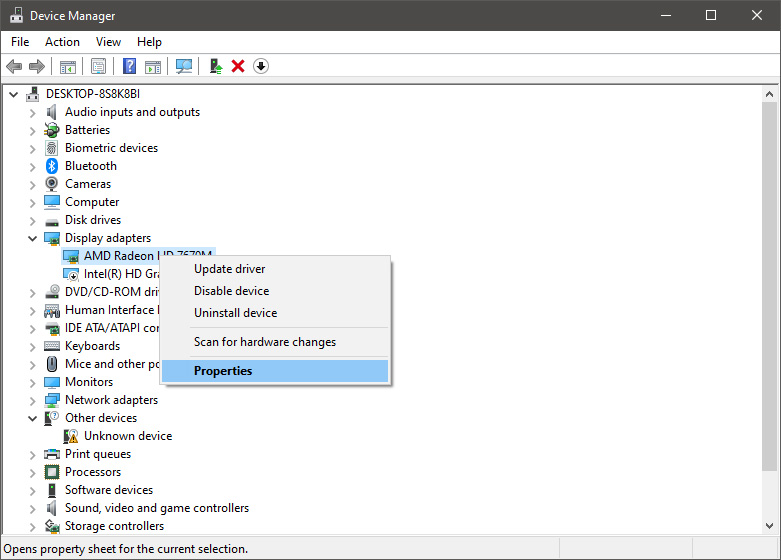
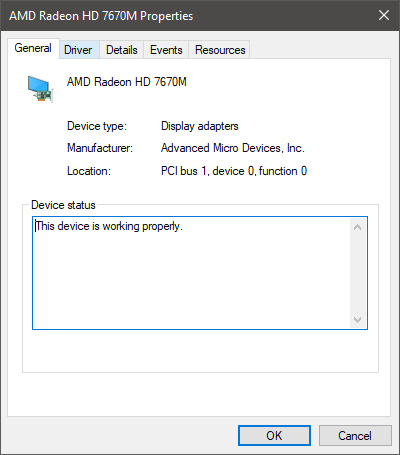
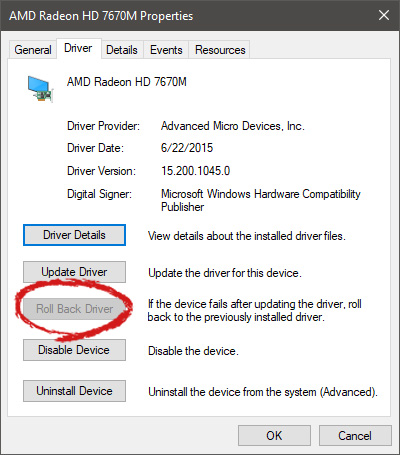
Installing Windows updates, installing a new driver from the manufacturer, or even just installing an application or game can cause sometimes certain components of your computer to stop working properly or introduce issues that were not present just before mentioned installation. Luckily for all of us, Microsoft seems aware of this potential issue and we have the option to roll back an older driver which performed well and had no issues at all. In order to do this first press ⊞ WINDOWS + X to open the hidden start menu and click on Device Manager. keyboard with windows and x markedFrom the Device Manager choose the troublesome device and right-click on it, choose properties. AMD device driver inside device managerDevice properties floating Window will appear. AMD driver properties WindowClick on the top tab which says, Driver. From the Driver tab, click on Roll Back Driver. AMD driver rollback markedNote that if the device is working properly, the Roll Back Driver button will be greyed out and you will not be able to click on it meaning that chosen device is not the issue. If the device is not working properly and you can click on Roll Back driver, do it, choose the previous version, and reboot your computer. You can use this method to get back to the previous driver version for any device that is causing issues in your computer.

Read More
Fix Chrome ERR_BAD_SSL_CLIENT_AUTH_CERT
The Google Chrome browser checks the SSL Security Certificate of the website that you are trying to open. However, if Chrome is not able to check the certificate then you might encounter an error related to the SSL Certificates which you might face when browsing the web. This particular error is the ERR BAD SSL CLIENT AUTH CERT error which is caused by many factors such as the computer’s Time, Cached Data is corrupt, Date is out of sync, as well as third party software installed in your computer is the one that’s blocking the site and many more. The ERR_BAD_SSL_CLIENT_AUTH_CERT error might also be coming from the website’s end. It could be that the server is rejecting the certificate the client website is sending. The certificate might have already expired or the server may not trust its issuer – whichever the case may be, here are some options you can check out to fix the error.

Option 1 – Sync Date and Time

The first thing you can try is to sync the Date and Time of your computer as the wrong Date and Time settings are one of the most common causes of connection problems like the ERR_BAD_SSL_CLIENT_AUTH_CERT error. This is because of the incompatibility between the SSL Certificate validation date and the System Clock. Thus, you have to sync your System Clock. Refer to the steps below to do so.
  • Right-click on the Taskbar and click on the Adjust Date and Time option.
  • Next, click on the Sync Now button to synchronize the Date and Time with the Microsoft Servers.
  • Now make sure that the Time Zone that’s set on the same page is correct.

Option 2 – Try clearing the browser data

There are times when some data in the browser is conflicting with the loading of the website and triggers errors like ERR_BAD_SSL_CLIENT_AUTH_CERT. And so you can try to clear your browser’s data. This might be a very basic solution but oftentimes it works in fixing this kind of error in Google Chrome. Follow the steps below to clear the data in your browser.
  • Open your Google Chrome browser.
  • After that, tap the Ctrl + H keys. Doing so will open a new panel that allows you to delete the browsing history and other data in your browser.
  • Now select every checkbox that you see and click on the Clear browsing data button.
  • Then restart your Chrome browser and check if you can now open any website or not.

Option 3 – Try to check and fix any possible conflicts with third-party programs

Third-party programs like internet protection software could be interrupting the connection and causing the error. For some unknown reason, your antivirus program or firewall might be detecting the webpage you are trying to open as malicious or with less credibility which is why it is blocking the browser from opening the website. To fix that, if you have third-party programs installed like VPN, security software, or any add-on, or firewall, you can disable them temporarily and see if it fixes the problem and you’re able to pull up the website. After a while, you have to enable them back and configure their settings so that the website won’t get blocked again.

Option 4 – Try enabling SSL 3 / TLS and disable QUIC Protocol

If you were using Google Chrome when you got the ERR_BAD_SSL_CLIENT_AUTH_CERT error, then you need to follow the protocol fixes for SSL3/TLS and QUIC which are usually some of the reasons that cause the SSL version / Cipher Mismatch. It also has a few fixes for Windows 10 computer where you can clear the certificates and make sure that your computer date and time is in sync with your time zone and so on. If you were using Edge or Internet Explorer when you got the error, then you have to follow the steps below.
  • Type “Internet” in the search box of your browser. After that, you should see the Internet Options from the search results.
  • Next, open the Internet Properties window and switch to the Advanced tab and then scroll down to the Security section.
  • From there, check the “Use TLS 1.1” checkbox as well as the “Use TLS 1.2” checkbox and then click OK to save the changes made.
  • Restart the browser.
On the other hand, if you were using Firefox when you go the error, here’s what you have to do.
  • Open Firefox and in the address bar, type “about:config” and hit Enter.
  • If a warning appears, just click on the “I accept the risk!” button to proceed.
  • Next, type in “TLS” in the search field and hit Enter.
  • Then look for “security.tls.version.min” and double click on it and set its integer value to 3 to force the protocol of TLS 1.3.
  • Now click OK and restart Firefox and do the same thing with SSL.

Option 5 – Try to update Google Chrome

You might also want to try updating your browser to its latest version and have it installed in your computer. After you install the update, check if you can now open the website you were trying to open earlier.

Option 6 – Get rid of any conflicting browser extensions

  • Open Chrome and press Alt + F keys.
  • Go to More tools and click Extensions to look for any suspicious browser extensions or toolbars.
  • Click the Recycle bin and select Remove.
  • Restart Chrome and press Alt + F keys again.
  • Proceed to On Startup and mark Open a specific page or set of pages.
  • To check if the browser hijacker is still active, click Set pages, if it is active, overwrite the URL.
Note: If removing the browser extensions or toolbars didn’t work, you can also try to reset your Google Chrome browser.
  • Open Google Chrome, then tap the Alt + F keys.
  • After that, click on Settings.
  • Next, scroll down until you see the Advanced option, once you see it, click on it.
  • After clicking the Advanced option, go to the “Restore and clean up option and click on the “Restore settings to their original defaults” option to reset Google Chrome.
  • Now restart Google Chrome.
Read More
Fix Unsupported video type/invalid file path
The MP4 MIME-type is a video type that is mainly configured in IIS or Internet Information console. It is the one that instructs a web browser to use the default video application when running MP4 files from websites. MIME which stands for Multipurpose Internet Mail Extensions which offers a way to identify files on the Internet-based on their format and nature. For example, when a content-type header value like MP4 is defined in an HTTP response, the browser can be configured to open the file with the proper plugin. However, there are some servers that don’t have an associated MIME type to support MP4 files and so they fail to play these files. In such cases, you will encounter the “Unsupported video type or invalid file path” error, especially when you use the Internet Explorer browser in Windows 10. To fix this problem, you may have to configure the MP4 MIME type in IIS but you might find that IIS is not enabled in Windows 10 which is why you need to turn it on or enable it first. For more details, refer to the following instructions below.

Step 1 – Enable IIS:

  • Open Control Panel and go to Programs > Programs and Features.
  • From there, select “Turn Windows features on or off” to mark its checkbox.
  • After that, select “Web Management Tools” and expand its menu and look for “IIS Management Console”.
  • Click the OK button and then wait for a couple of seconds to allow Windows to successfully apply the changes made.

Step 2 – Configure the MP4 MIME type in IIS:

  • Go to Control Panel and from there, access Administrative Tools.
  • Next, click “Internet Information Services Manager” from the list of given options.
  • Once confirmed, it will open the IIS console where you have to click the name of your IIS Server located on the left panel. This will enable several options in the central details section.
  • Now double click on the icon with the label “MIME Types”.
  • After that, you should see an “Add” link option on the right panel. Click on the link to open a configuration dialog box.
  • Then type “.mp4” in the File Name Extension field and enter “video/mp4” in the textbox of the MIME Type.
  • Click the OK button to save the changes made. This should fix the “Unsupported video type or invalid file path” error on your Windows 10 computer.

Step 3 – Reset your browsers:

Mozilla Firefox

  • Open Firefox and click the icon that looks like three stacked lines located at the top-right section of the browser.
  • Next, select the question mark icon from the drop-down menu.
  • Then select “Troubleshooting information” from the slide-out menu.
  • After that, click on the “Reset Firefox” button located at the top-right section of the newly opened web page.
  • Now select “Reset Firefox” in the confirmation pop-up window that appears.

Google Chrome

  • Open Google Chrome, then tap the Alt + F keys.
  • After that, click on Settings.
  • Next, scroll down until you see the Advanced option, once you see it, click on it.
  • After clicking the Advanced option, go to the “Restore and clean up option and click on the “Restore settings to their original defaults” option to reset Google Chrome.
  • Now restart Google Chrome.

Internet Explorer

  • Launch Internet Explorer.
  • Next, click the wrench icon for Settings.
  • Then click Internet Options.
  • After that, go to the Advanced tab.
  • From there, click the Reset button. This will reset Internet Explorer’s settings to their default condition.
  • Now click OK to save the changes made.
Read More
1 2 3 171
Logo
Copyright © 2023, ErrorTools. All Rights Reserved
Trademark: Microsoft Windows logos are registered trademarks of Microsoft. Disclaimer: ErrorTools.com is not affiliated with Microsoft, nor claims direct affiliation.
The information on this page is provided for information purposes only.
DMCA.com Protection Status