Logo

The boot configuration data store can not open

The Boot Configuration Data or BCD files have the instructions required by the Windows operating system in order to properly boot the computer. So if you experience any trouble when you boot your computer, then it is possible that it is due to some misconfiguration or even corrupted Boot Configuration Data files. And if you also encounter an error saying,

“The boot configuration data store could not be opened”

while you try to carry out any command on the bcedit.exe, then you’ve come to the right place as this post will guide you on how you can fix this error in Windows 10.

This kind of error could pop up if the system is not able to locate the specified file. It is also possible that the requested system device can’t be found or that the boot configuration data store could not be opened. In addition, when you open the System Configuration or MSConfig, you might notice that there is no Boot data, and according to the reports, is that when you try to dual boot the computer, the installer will replace the default bootloader.

Explanation

In case you don’t know, Windows’ earlier versions were stored in the “Boot.ini” file. You can find the entry in the EFI firmware boot manager of the EFI-based operating system which is located at EFIMicrosoftBootBootmgfw.efi.

Whatever the cause of the error is, there are several suggestions you can check out to resolve the problem. You can try to set an entry option value in BCD or enable the Advanced options menu, as well as rebuild the BCD. Before you proceed with the troubleshooting options provided below, make sure that you boot your computer into the Advanced Recovery Mode first since that’s where you can find Command Prompt under the Advanced Options. In addition, you also have to suspend or disable BitLocker and Secure Boot on your PC.

Option 1 – Try to set an entry option value in BCD

  • Once you’re in the Advanced Options, select Command Prompt.
  • Next, execute this command to set an entry point: bcdedit /set {current} Description "TheNameYouWant"
  • After the command has been executed, it will enable the system to trust a version of Windows that is not trusted by default. This should fix the problem, if not, follow the next given options below.

Option 2 – Try to specify the BCD file

  • In the elevated Command Prompt, execute this command: bcdedit /store c:BootBCD
  • Once done, the command will give you a list of options and then execute this next command: bcdedit /store c:BootBCD /set bootmenupolicy legacy
  • After that, restart your computer and select your Windows and then tap the F8 key right away.

Note: When you select the legacy option, the Advanced Options menu will be available during the computer boot up and then you can select into which operating system you can boot your computer into.

Option 3 – Try to rebuild the BCD files

The first thing you can do to resolve the issue is to Rebuild Boot Configuration Data or BCD files.

  • You can start by booting into the installation environment for Windows 10 from an installation media.
  • After that, click on Repair your computer and on the blue screen, select Troubleshoot and then select the Advanced options menu.
  • From there, select Command Prompt and once you open it, enter each one of the commands given below by sequence.
    • bootrec /FixMbr
    • bootrec /FixBoot
    • bootrec /ScanOS
    • bootrec /RebuildBcd
  • Once you’re done executing the commands given above, type “exit” to close the Command Prompt window and then restart your computer and see if it fixed error code 0xc000014c.

Do You Need Help with Your Device?

Our Team of Experts May Help
Troubleshoot.Tech Experts are There for You!
Replace damaged files
Restore performance
Free disk space
Remove Malware
Protects WEB browser
Remove Viruses
Stop PC freezing
GET HELP
Troubleshoot.Tech experts work with all versions of Microsoft Windows including Windows 11, with Android, Mac, and more.

Share this article:

You might also like

Repair Windows 10 Error 0xC1900101, 0x4000D

Error Code 0xC1900101, 0x4000D - What Is It?

Error Code 0xC1900101, 0x4000D is not very common among the many error codes emerging when updating to Windows 10. It is specific to Windows 7 users who try to upgrade to Windows 10 system.

This error hinders Windows 7 users to install the Windows 10 update. Once the update is launched, the process will go smoothly until a certain percentage (normally upon hitting 70% or more) and then it gets stuck. The user will then see a notification stating: “The installation failed in the SECOND_BOOT phase with an error during MIGRATE_DATA operation.”

You’ll be able to get past the error after a while. The error message will disappear and continue with the configuration process. But, not for long as it will reoccur at around 90% of installation with another error message saying: “The installation failed in the SECOND_BOOT phase with an error during PRE_OOBE operation.”

Solution

Restoro box imageError Causes

You’re most likely to encounter Error Code 0xC1900101 – 0x4000D when you upgrade to Windows 10 using a USB drive. There are several reasons why this update-related error happens such as wrong update, incompatibility with an antivirus program, or incompatibilities with some software.

Further Information and Manual Repair

In attempting to fix error code-related problems, it is best to do manual repair methods. Employing repair methods manually can help users pinpoint the root causes of the issues they are encountering and apply permanent solutions to fix the problem.

While every Windows user can do most manual repair methods, there are certain cases where help from a Windows expert is needed. If you’re not confident in employing the manual repair methods yourself, you can always consider seeking help from a professional Windows technician who is equipped with enough knowledge to address any issues you are facing or you can just simply use a powerful automated tool.

In fixing Error Code 0xC1900101 – 0x4000D, you can try doing any of the following manual repair methods:

Method One: Disable Background Applications

Error Code 0xC1900101-0x4000D probably occurs when there are programs running in the background of the system as you are in the process of updating. On that note, you must ensure that any programs running in the background must be disabled through Task Manager.

  1. Press Ctrl+Alt+Del then choose Task Manager.
  2. Right-click on all background applications then chooses End Task to close the apps.

NOTE: If there are any processes you are unfamiliar with, you can always right-click that process then “search online.” Be careful not to end “Windows process” tasks under the “Type” column as it might cause further problems.

  1. Restart your device then proceed to Windows 10 system upgrading.

Method Two: Uninstall Anti-Malware Tools

Anti-malware tools normally trigger problems since they consist of files that are possibly incompatible with some software. If Error Code 0xc1900101-0x4000d is caused by incompatibility with an antivirus program, follow the following steps:

  1. Open the Control Panel then choose System and Security.
  2. Select Windows Solution Center.
  3. Click Security to locate your antivirus.
  4. Once you’ve located your antivirus, click on it then choose
  5. Restart your device then check if it eliminates the problem.

Method Three: Install System Updates

  1. Click on the Start menu then select System and Security – Windows Updates.
  2. Choose Check for updates.
  3. If there are any required updates detected by the system, select them all then choose Install Updates.
  4. Restart your device.

Method Four: Check System For Any Incompatibilities

In doing this method, you need to use the System Readiness tool.

  1. Download System Update Readiness Tool for Windows 7 for x64-based Systems (KB947821).
  2. Once the download is finished, open Windows 6.1-KB947821-v34-x64.msu
  3. Run the program to check for any incompatibilities in your system.

NOTE: The process might take a while depending on the speed of your device.

  1. If there are no results found, you can now try updating again to Windows 10. However, if there are any issues found, you need to have them fixed first.

Method Five: Download A Powerful Automated Tool

Can’t seem to put up with the long and technical manual repair process? You can still fix this error by downloading and installing a powerful automated tool that will surely get the job done in a jiffy!

Read More
Windows keyboard shortcuts for easy life
Hello everyone and welcome to our useful tips and tricks and problem-solving article blog. This time we are doing something different, instead of solving issues this time we are focusing on some quality of life tips like keyboard shortcuts in your Windows 10.
Shortcut Keys Description
Windows Key Opens/closes the Start menu.
Windows Key + Up Arrow Maximizes the selected window.
Windows Key + Down Arrow Reduces the window size. (Restore down.)
Windows Key + M Minimizes all open windows.
Windows Key + Shift + M Opens minimized windows.
Windows Key + Tab Shows Task View.
Windows Key + L Locks the screen.
Windows Key + A Opens the Action Center.
Windows Key + V Opens Clipboard History.
Windows Key + I Opens the Settings menu.
Windows Key + F Opens the Feedback hub.
Windows Key + H Opens the dictation toolbar.
Windows Key + P Opens the projection settings.
Windows Key + . (Windows Key + ;) Opens the emoji panel.
Windows Key + C Opens Cortana in listening mode.
Windows Key + C (Windows Key + Q) Opens Windows Search.
Windows Key + G Opens the Xbox game bar.
Windows Key + X Opens the secondary start menu.
Windows Key + <number> Opens the app in the taskbar relative to the number input. For example, if Chrome is the fourth app on the taskbar, using Windows Key + 4 will open Chrome.
Windows Key + Alt + <number> Opens the right-click menu for the app in the taskbar relative to the number input. For example, if Chrome is the fourth app on the taskbar, using Windows Key + Alt + 4 will open Chrome’s right-click menu.
Windows Key + D Shows/hides open apps on the desktop.
Windows Key + E Opens File Explorer.
Windows Key + U Opens Ease of Access in the Settings menu.
Windows Key + Print Screen Takes a screenshot of the desktop.
Windows Key + Control + F Opens the Find Computers window.
Windows Key + Control + D Creates a virtual desktop.
Windows Key + Control + Left Arrow Switches to the virtual desktop on the left.
Windows Key + Control + Right Arrow Switches to the virtual desktop on the right.
Windows Key + Control + F4 Closes the active virtual desktop.
Windows Key + Space Switches between installed languages (for writing text).
Read More
PUP - Driver Pro complete removal guide

Driver Pro Description

DriverPro is a program developed by PC Utilities Pro. This program is often found bundled in other installations.

From the author: PC Utilities Pro is a leading software development company founded in 2009. As a group of young enthusiastic programmers, we constantly strive in creating powerful, yet easy-to-use solutions that would enable even the most basic computer users to keep their PCs running like new.

When installed, DriverPro will add registry entries for the current user that allow it to run each time to computer is started. It will also add a scheduled task in Windows, that allows it to run at various times. The optimizing nature of the application allows it to access any file and information on your computer without your knowledge.

Multiple anti-virus programs have marked this application as a Potentially Unwanted Program, and it is not recommended to keep it on your computer.

About Potentially Unwanted Applications

Have you ever discovered an unwanted program running on your PC and wondered exactly how the heck it got there? A PUA / PUP (potentially unwanted application / potentially unwanted program) is a software program that comes bundled with freeware/shareware and you agree to install on your computer. These are programs you certainly don’t want on your computer since it doesn’t provide any useful service. Despite being regarded very dangerous, PUPs aren’t necessarily computer viruses or malware What makes a PUP different from malware is the fact that whenever you download one, you are doing it with your consent – though in most instances unwittingly and unwillingly. PUPs might not be malware but still, they’re harmful programs to your computer. At best, these unwanted applications provide hardly any benefit, and at worst, they could be quite damaging to your computer.

What do PUPs do on your computer, really?

Most Potentially Unwanted Programs will come in the form of adware, which typically aims to exhibit numerous irritating pop-up ads, banners, coupons, and bargains on websites you go to. PUPs that come as browser add-ons and toolbars are readily identifiable. They’ll track your online activities, redirect your search results to unsafe websites where spyware and adware can be downloaded, hijack your home page, and slow your internet browser down to a crawl. PUPs load up a dangerous bite if kept unchecked. They will often include things like information gathering program code which could gather and send your sensitive information back to 3rd parties. These are programs that don’t really do anything good for you; in addition to occupying space on the hard drive, they also slow down your PC, often alter settings without your authorization, the list of annoying features goes on and on.

Great tips on protecting yourself from unwanted software

• When setting up anything on your computer system, always study the fine print, like the license agreement. Don’t accept terms of use that are for bundled programs. • Only Use the “custom” or “manual” install method – and never blindly click Next, Next, Next. • Use an advert blocker/pop-up blocker; Install anti-malware products such as Safebytes Anti-malware. These software programs could establish a wall between the computer and cybercriminals. • Think twice before you decide to download any type of freeware or shareware. Just before adding a plug-in or web browser extension, think about whether it is really necessary. • Only download programs from the original providers’ websites. Avoid download portals because they use their very own download manager to pack extra programs along with the initial download.

Help! Malware Blocking Anti-virus Installation And Access To The Web

All malware is bad, but certain kinds of malicious software do a lot more damage to your computer than others. Some malware is meant to hinder or block things that you wish to do on your computer. It may well not allow you to download anything from the net or it will stop you from accessing some or all websites, particularly the anti-malware sites. So what you should do if malware prevents you from downloading or installing Safebytes Anti-Malware? Do as instructed below to get rid of the malware in alternate ways.

Get rid of malware in Safe Mode

The Windows operating system has a special mode known as “Safe Mode” where just the bare minimum required programs and services are loaded. In the event, the virus is set to load automatically when the PC starts, shifting to this mode may well prevent it from doing so. To start the computer into Safe Mode, press the “F8” key on the keyboard just before the Windows boot screen appears; Or right after normal Windows boot up, run MSConfig, check the Safe Boot under the Boot tab, and click Apply. After you restart into Safe Mode with Networking, you could download, install, and update the anti-malware program from there. Now, you are able to run the anti-virus scan to eliminate computer viruses and malware without any interference from another malicious application.

Switch to some other internet browser

Web-based viruses could be environment-specific, aiming for a particular internet browser or attacking particular versions of the browser. If you appear to have malware attached to Internet Explorer, then switch over to a different internet browser with built-in safety features, such as Firefox or Chrome, to download your favorite antivirus program – Safebytes.

Run anti-virus from your USB drive

Another way is to download and transfer an anti-malware program from a clean computer to run a scan on the affected system. Adopt these measures to run the anti-malware on the infected computer system. 1) On a clean computer, download and install Safebytes Anti-Malware. 2) Plug the pen drive into the uninfected computer. 3) Run the setup program by double-clicking the executable file of the downloaded application, which has a .exe file format. 4) Select the USB flash drive as the location when the wizard asks you where you intend to install the software. Follow the activation instructions. 5) Remove the flash drive. You may now utilize this portable antivirus on the infected computer. 6) Run the Safebytes Anti-malware directly from the flash drive by double-clicking the icon. 7) Press the “Scan” button to run a full system scan and remove viruses automatically.

Detect And Remove Viruses With SafeBytes Anti-Malware

Want to download the very best anti-malware software for your laptop or computer? There are many applications available that come in paid and free versions for Microsoft Windows computers. A few are worth your money, but many aren’t. You need to pick a company that creates industry-best antimalware and has earned a reputation as reliable. Among few good programs, SafeBytes Anti-Malware is the strongly recommended software for the security-conscious end user. Safebytes is one of the well-established PC solutions firms, which provide this complete anti-malware software program. This software program can easily detect, remove, and protect your computer from the most advanced malware intrusions such as adware, spyware, trojan horses, ransomware, parasites, worms, PUPs, along with other potentially harmful software applications. SafeBytes anti-malware offers a plethora of advanced features that set it apart from all others. The following are some of the good ones: Real-time Protection: SafeBytes provides complete and real-time security for your personal machine. It will regularly monitor your computer for hacker activity and also gives users superior firewall protection. Best AntiMalware Protection: This deep-cleaning anti-malware program goes much deeper than most antivirus tools to clean out your computer system. Its critically acclaimed virus engine finds and disables hard to remove malware that hides deep within your PC. Web Protection: SafeBytes gives an instant safety rating about the web pages you are about to check out, automatically blocking unsafe sites and ensuring that you are certain of your safety while browsing the world wide web. Fast Scan: SafeBytes Anti-Malware has a multi-thread scan algorithm that works up to 5x faster than any other antivirus software. Very Low CPU and RAM Usage: This software program is not “heavy” on your computer’s resources, so you’ll not notice any overall performance problems when SafeBytes is operating in the background. Fantastic Tech Support Team: You will get 24/7 technical assistance to promptly resolve any issue with your security application.

Technical Details and Manual Removal (Advanced Users)

To remove Driver Pro manually, navigate to the Add/Remove programs list in the Control Panel and choose the offending program you want to get rid of. For web browser plug-ins, go to your web browser’s Addon/Extension manager and select the add-on you want to remove or disable. You may also want to reset your web browser settings, as well as clear your web browser cache and cookies. Lastly, check your hard disk for all of the following and clean your registry manually to remove leftover application entries after uninstalls. Please note that only professional computer users should try to manually edit the system files mainly because removing any single vital registry entry leads to a major problem or even a computer crash. Also, certain malware is capable of replicating itself or preventing its removal. Carrying out this in Safe Mode is suggested.
Files: %Program Files%\Driver Pro\Driver Pro.exe %UserProfile%\Desktop\Driver Pro.lnk %UserProfile%\Start Menu\Driver Pro\Driver Pro.lnk %UserProfile%\Start Menu\Driver Pro\Help.lnk %UserProfile%\Start Menu\Driver Pro\Registration.Lnk Registry: HKEY_CURRENT_USER\Software376694984709702142491016734454 HKEY_CURRENT_USER\Software\Microsoft\Windows\CurrentVersion\Run 13376694984709702142491016734454
Read More
Enable or disable Full-screen optimizations
In case you don’t know, there is a feature in Windows 10 computers that allows them to function a lot better. This feature is called Full-Screen optimization and it is enabled by default for several applications such as games and video players. If enabled, the Full-Screen optimization feature enhances the video playback and gaming by simply putting the CPU and GPU process as a priority. However, there are times when it can also result to a drop in the frame rate or FPS while in full-screen mode. And of course, the obvious solution to this dilemma is by disabling the Full-Screen optimization feature which is why Microsoft took action and removed this feature themselves in the recent Windows 10 Update releases. However, there is another way for you to enable it back or disable it yourself if you haven’t installed the recent updates yet and there are plenty of ways you can do both. All you have to do is follow the options given below carefully.

Option 1 – Try using Windows 10 Settings

If you haven’t installed the recent updates yet and all you have are the earlier releases, then this method would suit you.
  • Open the Windows 10 Settings app.
  • Next, navigate to System > Display > Graphics Settings or Advanced graphics settings.
  • From there, uncheck the “Enable Fullscreen optimization” option if you want to disable the feature, else just keep it checked.

Option 2 – Try using the Registry Editor

  • Tap the Win + R keys to open the Run dialog box and then type “Regedit” in the field and hit Enter to open the Registry Editor.
  • Afterward, if a User Account Control or UAC prompt appears, click on Yes.
  • Once the Registry Editor is pulled up, navigate to this registry key: HKEY_CURRENT_USERSystemGameConfigStore
  • Next, right-click on Explorer and select New > DWORD (32-bit) Value and then name it to “GameDVR_DSEBehavior and tap Enter to save it.
  • Now double click on the newly created GameDVR_DSEBehavior DWORD and set its value to “2” if you want to disable it, or “0” if you want to enable it.
  • Once you entered the value, close the Registry Editor and restart your computer to successfully apply the changes made.

Option 3 – Try running the application in Compatibility Mode

If the first two options didn’t work, the next thing you can do is to run the application in a Compatibility Mode. Follow the steps below to do so:
  • Go to the location of the application or game on which you need to disable or enable the Full-Screen optimization feature.
  • After that, right-click on it and select Properties.
  • Next, switch to the Compatibility tab where you can see the “Disable fullscreen optimization” option to disable the feature and vice versa.
  • Now click on the Apply and OK buttons to apply the changes made in the application’s settings.
Read More
10 Worst Computer Viruses in history
Computers viruses, worms, ransomware, etc. are kinds of malicious software that no user should take lightly. On several occasions, we have touched upon security steps that each user should take in order to protect its identity and data. Sadly sometimes even when all precautions are taken some malware can still slip through and wreak havoc. Today we are looking at some of the worst or the best, depending on your view that has indeed wreaked plenty of havoc.

viruses10 worst computer viruses in history

In the list of the 10 most famous computer viruses below, we show the costs, dates, reach, and other key facts. First a note about terms: we use the words “virus” and “worm” interchangeably because most readers search for them that way. But there’s a subtle difference that we explain after the list.

1. Mydoom – $38 billion

The worst computer virus outbreak in history, Mydoom caused estimated damage of $38 billion in 2004, but its inflation-adjusted cost is actually $52.2 billion. Also known as Novarg, this malware is technically a “worm,” spread by mass emailing. At one point, the Mydoom virus was responsible for 25% of all emails sent. Mydoom scraped addresses from infected machines, then sent copies of itself to those addresses. It also roped those infected machines into a web of computers called a botnet that performed distributed denial of service (DDoS) attacks. These attacks were intended to shut down a target website or server. Mydoom is still around today, generating 1% of all phishing emails. That’s no small feat considering the 3.4 billion phishing emails sent each day. By that figure, Mydoom has taken on a life of its own, infecting enough poorly-protected machines to send 1.2 billion copies of itself per year, 16 years after its creation. Though a $250,000 reward was offered, the developer of this dangerous computer worm was never caught. Wondering what makes the world’s most secure computers so safe? See the Tech@Work guide: Upgrade to the World's Most Secure and Manageable PC

2. Sobig – $30 billion

The 2003 Sobig computer virus is actually another worm. It is second only to the Mydoom virus in its scope. The $30 billion figure is a worldwide total, including Canada, the U.K., the U.S., mainland Europe, and Asia. Several versions of the worm were released in quick succession, named Sobig.A through Sobig.F, with Sobig.F being the most damaging. This cybercriminal program masqueraded as legitimate computer software attached to emails. It disrupted ticketing at Air Canada and interfered with countless other businesses. Despite its widespread damage, the creator of the successful bug was never caught.

3. Klez – $19.8 billion

Klez is a close third on the list of the worst computer viruses ever created. With nearly $20 billion in estimated damages, it infected about 7.2% of all computers in 2001, or 7 million PCs. The Klez worm sent fake emails, spoofed recognized senders and, among other things, attempted to deactivate other viruses. As with other viruses and worms, Klez was released in several variants. It infected files, copied itself, and spread throughout each victim’s network. It hung around for years, with each version more destructive than the last. Windows has come a long way since most of the computer viruses on this list hit the web. Thankfully, built-in protection with Microsoft Defender is always on the watch.

4. ILOVEYOU – $15 billion

The year 2000’s ILOVEYOU virus worked by sending a bogus “love letter” that looked like a harmless text file. Like Mydoom, this attacker sent copies of itself to every email address in the infected machine’s contact list. Shortly after its May 4 release, it had spread to more than 10 million PCs. The virus was created by a college student in the Philippines named Onel de Guzman. Lacking funds, he wrote the virus to steal passwords so he could log into online services he wanted to use for free. He reportedly had no idea how far his creation would spread. This virus is also known as Loveletter. Need to up your remote work security game before there’s another entry on the list of most deadly computer viruses? See our guide: How to Work Remotely and Securely

5. WannaCry – $4 billion

The 2017 WannaCry computer virus is ransomware, a virus that takes over your computer (or cloud files) and holds them hostage. The WannaCry ransomware ripped through computers in 150 countries, causing massive productivity losses as businesses, hospitals, and government organizations that didn’t pay were forced to rebuild systems from scratch. The malware raged like wildfire through 200,000 computers worldwide. It stopped when a 22-year-old security researcher in the U.K. found a way to turn it off. Computers with out-of-date operating systems were hit especially hard. That’s why security experts always recommend updating your systems frequently.

Ransomware strikes again

In September 2020, one of the potentially largest computer virus attacks in medical history hit Universal Health Services. The U.S. hospital chain, which has more than 400 locations, was reportedly struck by damaging ransomware. The attack forced the cancellation of surgeries and made healthcare workers switch to paper records.

6. Zeus – $3 billion

The Zeus computer virus is an online theft tool that hit the web in 2007. A whitepaper by Unisys three years later estimated that it was behind 44% of all banking malware attacks. By then, it had breached 88% of all Fortune 500 companies, 2,500 organizations total, and 76,000 computers in 196 countries. The Zeus botnet was a group of programs that worked together to take over machines for a remote “bot master.” It originated in Eastern Europe and was used to transfer money to secret bank accounts. More than 100 members of the crime ring behind the virus, mostly in the U.S., were arrested in 2010. It’s not as prominent today, but some of the virus’ source code lives on in newer botnet viruses and worms. Zeus caused documented damage of $100 million. But the real cost in terms of lost productivity, removal, and undocumented theft is undoubtedly much higher. A $3 billion estimate, adjusted for inflation, puts this virus at a cost of $3.7 billion in today’s dollars.

7. Code Red – $2.4 billion

First observed in 2001, the Code Red computer virus was yet another worm that penetrated 975,000 hosts. It displayed the words “Hacked by Chinese!” across infected web pages, and it ran entirely in each machine’s memory. In most cases it left no trace in hard drives or other storage. Financial costs are pegged at $2.4 billion. The virus attacked websites of infected computers and delivered a distributed denial of service (DDoS) attack on the U.S. White House’s website, www.whitehouse.gov. In fact, the White House had to change its IP address to defend against Cod Red. Can your printer get a virus? See our cool infographic: The State of Printer Security

8. Slammer – $1.2 billion

The SQL Slammer worm cost an estimated $750 million across 200,000 computer users in 2003. This computer virus randomly selected IP addresses, exploiting vulnerabilities and sending itself on to other machines. It used these victim machines to launch a DDoS attack on several internet hosts, significantly slowing internet traffic. The Slammer worm hit banks in the U.S. and Canada especially hard, taking ATMs offline in many locations. Customers of Toronto’s Imperial Bank of Commerce found themselves unable to access funds. The attack reared its ugly head again in 2016, launching from IP addresses in Ukraine, China, and Mexico.

9. CryptoLocker – $665 million

Thankfully, ransomware attacks like the 2013 CryptoLocker virus have dipped since their 2017 peak. This malware attacked upwards of 250,000 machines by encrypting their files. It displayed a red ransom note informing users that “your important files encryption produced on this computer.” A payment window accompanied the note. The virus’ creators used a worm called the Gameover Zeus botnet to make and send copies of the CryptoLocker virus. According to a report by security firm Sophos, the average ransomware attack costs a business $133,000. If we estimate that CryptoLocker hit 5,000 companies, that would put its total cost at $665 million. Where will cybersecurity go next? See our guide: The Future of Cybersecurity

10. Sasser – $500 million

The Sasser worm was written by a 17-year-old German computer science student named Sven Jaschan. He was arrested at the age of 18 in 2004 after a $250,000 bounty was posted for the computer virus’ creator. A friend of Jaschan’s tipped authorities that the youth had penned not only the Sasser worm but also the damaging Netsky.AC attack. Jaschan was given a suspended sentence after it was found he was a minor when he wrote the malware. The Sasser worm crashed millions of PCs, and though some reports put damages at $18 billion, the relatively low infection rate suggests a more likely cost of $500 million. Other notable viruses The top 10 worst computer viruses above are just the ugly tip of a gargantuan digital iceberg. With a million new malware programs popping up every 3 years, we may miss the forest for a few outstanding trees. Here are just a few more viruses that have wreaked havoc over the years: Mimail: This worm tried to harvest data from infected machines to launch a string of DDoS attacks, but was relatively easy to remove. Yaha: Yet another worm with several variants, thought to be the result of a cyber-war between Pakistan and India. Swen: Written in C++, the Swen computer worm disguised itself to look like a 2003 OS update. Its financial cost has been pegged at $10.4 billion, but not reliably. Storm Worm: This worm showed up in 2007 and attacked millions of computers with an email about approaching bad weather. Tanatos/Bugbear: A 2002 keylogger virus that targeted financial institutions and spread to 150 countries. Sircam: A computer worm from 2001 that used counterfeit emails with the subject line, “I send you this file in order to have your advice.” Explorezip: This worm used fake emails to spread to every machine on thousands of local networks. Melissa: The most dangerous computer virus in 1999, Melissa sent copies of itself that looked like NSFW pics. The U.S. FBI estimated cleanup and repair costs at $80 million. Flashback: A Mac-only virus, Flashback infected over 600,000 Macs in 2012 and even infected Apple’s home base in Cupertino, Calif. In 2020, there’s now more malware on Macs than on PCs. Conficker: This 2009 virus still infects many legacy systems and could do significant damage if it ever activates. Stuxnet: This worm is reported to have destroyed Iranian nuclear centrifuges by sending damaging instructions.

Read More
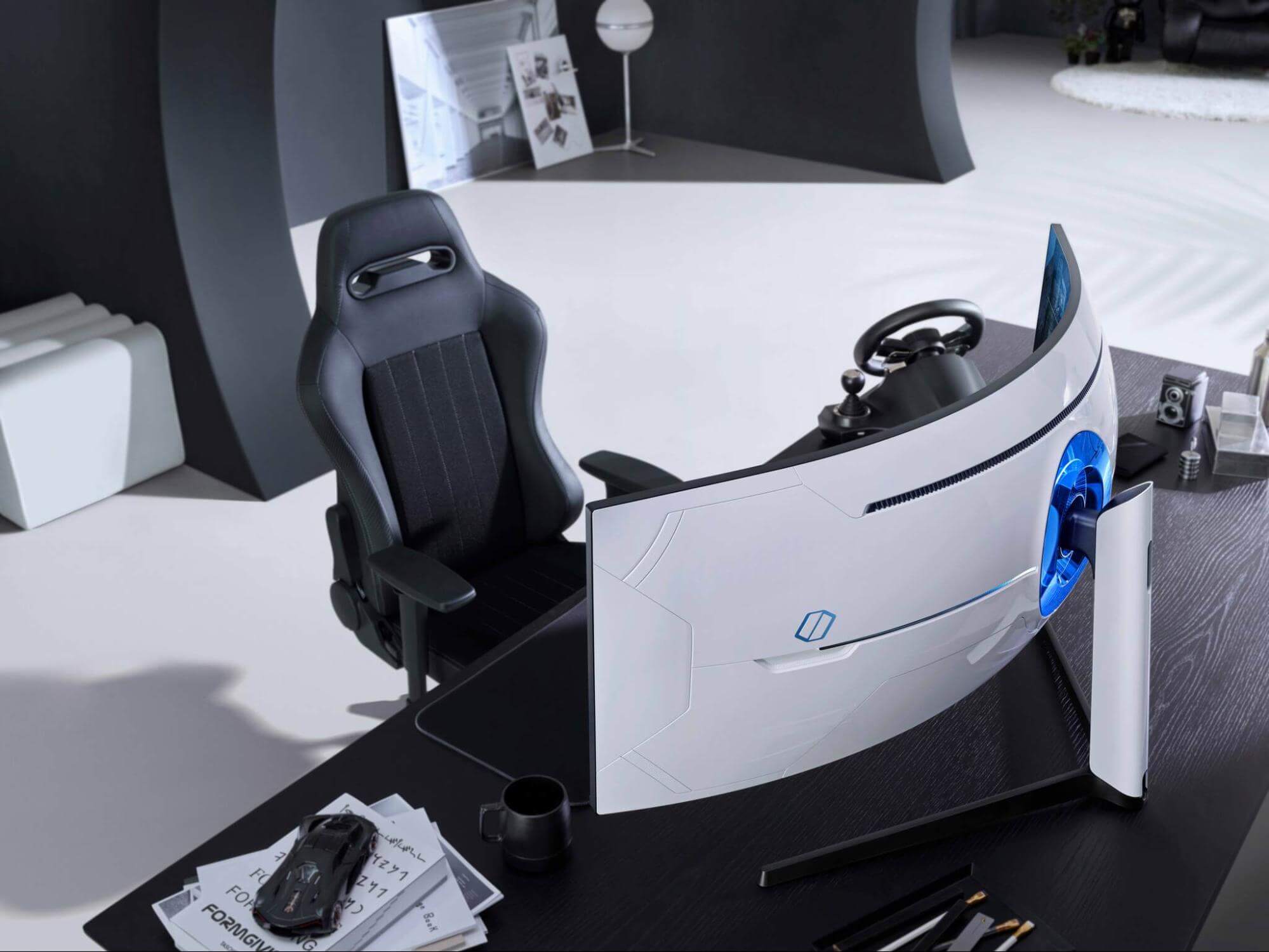
Samsung Odyssey Neo G9 monitor review
samsung Odyssey Neo G9Odyssey Neo G9 is a successor to Odyssey G9 curved gaming monitor and it is aimed again at the gaming community with its specifications but of course, it can be used for work as well. Gapping at a stunning $2500 USD price it is not really a cheap piece of hardware so it is normal to see what do you get for this kind of price and do features justify it, so let’s dive in.

Size and resolution

The first thing that you can notice about the screen is that it is big and curved, 49 inches big which is pretty big, and with it, I believe you can forget about using 2 or 3 screens because this single one will cover everything you need really. Going as far as 5120 X 1440 resolution is the strange definition, basically, this is 5K which is kind of nice but I do not see the advantage. Sure it is larger than 4K, but for the price of $2500 I expected an 8K monstrosity so if the resolution is not the main price justification then what is? Let’s move on and find out.

Odyssey tech specs

The monitor comes with HDR and 240Hz refresh rate which is very nice and coupled with 1ms pixel response time, adaptive sync, and Variable Refresh Rate you get pretty good other tech specs. All of this is very nice but the monitor's strongest selling point is Mini Led tech. Mini Led is a next-gen tech currently found only in high-end TVs. With this technology, monitors can produce truer blacks sort of speak thanks to a greater number of dimming zones. Odyssey Neo G9 is rated at 2000 nits in the brightness values and local dimming zones go to stunning 2048. It comes also with Quantum HDR that supports 10+, Freesync, and G-Sync capability. In connection, the department monitor comes with a single display 1.4 port and two HDMI 2.1 ports. It also includes a headphone jack along with two USB 3.0 ports.

Conclusion

While the resolution of the monitor is nothing impressive for the given price, its size and the rest of the tech specs surely are. Now I will not lie, the price is still a little too high but if you could afford it easily I think you should.
Read More
Fix HAL INITIALIZATION FAILED Error 0x0000005C
When your computer boots up or when it just woke up from sleep but it suddenly encounters a Blue Screen of Death error, saying, “HAL INITIALIZATION FAILED error with STOP CODE 0x0000005C”, then read on as this post will give you some fixes that might help in resolving the problem. You will see the following error message on your computer’s screen when this error pops up:
“Your PC ran into a problem and needs to restart. We’re just collecting some error info, and then we’ll restart for you. If you’d like to know more, you can search online later for this error: HAL_INITIALIZATION_FAILED HAL INITIALIZATION FAILED 0x0000005C”
This kind of Blue Screen error indicates that there is a hardware or device driver problem in your PC. Aside from that, it also signifies that the initialization of the Hardware Abstraction Layer or HAL has failed. This happens only during the relatively short period that the Windows operating system is being initialized, specifically during phase 4 of Windows startup. What’s worse about this kind of Stop error is that it does not just go away after a computer reboot. You may have to boot your computer into Safe mode with Networking using the Advanced startup options which you can access by tapping the F2 or F8 key. Once you’ve accessed the Advanced startup options, follow the fixes prepared below.

Option 1 – Run CHKDSK command to repair hard disk errors

Running the Chkdsk utility could help you resolve the HAL INITIALIZATION FAILED error with STOP CODE 0x0000005C. If your hard drive has issues with integrity, the update will really fail as the system will think that it’s not healthy and that’s where the Chkdsk utility comes in. The Chkdsk utility repairs hard drive errors that might be causing the problem.
  • After you access the Advanced Startup options, select Command Prompt by using the arrow keys on your keyboard.
  • After opening Command Prompt, execute the following command and hit Enter:
chkdsk /f /r
  • The command you entered will scan the hard disk for any errors and will automatically fix it if it finds some issues. Wait for the process to be completed and then restart your computer.

Option 2 – Run the DISM tool

If the first option didn’t work, then running the Deployment Imaging and Servicing Management tool can help you resolve the HAL INITIALIZATION FAILED error as it will repair the Windows System Image as well as the Windows Component Store in Windows 10.
  • After you access the Advanced Startup options, select Command Prompt by using the arrow keys on your keyboard.
  • Next, type in this command: DISM /Online /Cleanup-Image /RestoreHealth
  • Do not close the window if the process takes a while as it will probably take a few minutes to finish.

Option 3 – Update the Device drivers

  • Tap the Win + R keys to launch Run.
  • Type in msc into the box and tap Enter or click OK to open the Device Manager.
  • After that, a list of device drivers will be displayed. Look for the device driver you and then select either “Update driver” or “Uninstall device”. And if you find any “Unknown device”, you need to update it as well.
  • Select the “Search automatically for updated driver software” option and then follow the instructions to complete the process.
  • If you have chosen to uninstall the driver, follow the screen options to complete the process and then restart your PC.
  • Connect the device and Scan for hardware changes – you can see this option under Device Manager > Action.

Option 4 – Try removing any external hardware

You might also want to remove any connected devices and external hardware in your computer as it might help in fixing the BSOD error.

Option 5 – Disable Fast Start-up

If you want your computer to boot faster, then you might have enabled Fast Start-up. This feature is ideal for computers that are using a hard disk drive. However, turning on this feature also means that when the computer boots, it might lag some drivers that are loaded when it initially boots up. Thus, it might be the potential cause of the UNEXPECTED STORE EXCEPTION BSOD error. Thus, you need to disable Fast Start-up. To do that, follow these steps:
  • Boot your PC into Safe Mode.
  • Then tap the Win + R keys to open the Run dialog box.
  • Next, type in “control” to open Control Panel.
  • After that, select Hardware and Sound and click on Power Options.
  • Select “Choose what the power buttons do” from the left side menu pane and click on Change settings that are currently unavailable.
  • Afterward, uncheck the “Turn on fast startup (Recommended)” entry and click on Save Changes.
  • Now restart your PC for the changes to take effect and then check if the problem’s fixed afterward.

Option 6 – Disable your antivirus program

There are times when the antivirus program installed in your computer blocks file access and even disk access. Thus, disabling the antivirus program or any security software installed in your computer is always a good idea you can try when the Windows Update process does not go smoothly. So before you try updating your computer again, make sure to disable the antivirus or security program and once the Windows Update is done, don’t forget to enable the antivirus program back again.

Option 7 – Perform a Clean Boot

There are some instances that some conflicting programs installed in your computer might be the one that’s causing the HAL INITIALIZATION FAILED error. To identify which program is causing the problem, you need to put your computer in a Clean Boot State. To do so, follow the steps below.
  • Log onto your PC as an administrator.
  • Type in MSConfig in the Start Search to open the System Configuration utility.
  • From there, go to the General tab and click “Selective startup”.
  • Clear the “Load Startup items” check box and make sure that the “Load System Services” and “Use Original boot configuration” options are checked.
  • Next, click the Services tab and select the “Hide All Microsoft Services” check box.
  • Click Disable all.
  • Click on Apply/OK and restart your PC. (This will put your PC into a Clean Boot State. And configure Windows to use the usual startup, just simply undo the changes.)
  • From there, start to isolate the problem by checking which one of the programs you installed recently is the root cause of the problem.
Read More
Best online learning websites for everything
Building your skill set could be a very important thing, especially in today’s world, and what’s the best way other than online learning classes. You are not exposing yourself to pandemics, staying safe in the warmth of your home and most of the courses are free. Presented here are sites that I believe will and can help you with your goal of learning desired material whatever that might be. Sites are listed in no particular order with a description of what each has to offer.

Coursera

https://www.coursera.org/ courseraCoursera was one of the pioneers when it comes to college education online. When it started all courses were free and offered certificates if the taker has done tasks with a passing grade. Today not everything is free but still, there are tons of free courses that can help you to learn something new and to advance in your work or hobby. Google is using the Coursera platform to deliver its courses to the audience and besides google a lot of academic professors from Princeton, Stanford, John Hopkins and many more are presently offering their course material.

edX

https://www.edx.org/ edx online learningedX has evolved from MITx, MIT’s free initiative to place some free academic lectures from its classrooms free into the world. Since it was rebranded into edX it started including other big university names like Berkeley, University of Texas System, Harvard, and many more. Since its infant days, edX has expanded and included many areas that it offers coursework from arts to science. Certificated today are mostly not free but course videos are, so if you care to learn and not wave certificates around this is a great place to do it.

Udemy

https://www.udemy.com/ udemyUdemy has a little different approach to course material than previously mentioned websites. Teachers on Udemy are mostly people that are working in a given field. Programmers will teach programming, fitness instructors will teach training, etc. There are vas variety of topics even on lifestyle, hobbies even gaming to more serious ones like software developing hardware, etc. There are free courses but mostly are one-time purchases with unlimited access to course material and with frequent discounts udemy might be a good place to look if you can find anything interesting.

Alison

https://alison.com/ alisonAlison is kind of Udemy if we are talking about course material and who is teaching, the difference however is that it has more free content and it is one of the rare websites on this list that has Language courses. Courses vary from beginner level to more advanced ones.

Udacity

https://www.udacity.com/ udacity online learningUdacity was also one of the earlier websites to offer free courses, in today’s world it still has free material but there is also paying one. The big difference from other competitors is that Udacity focuses mostly on programming, data science, and web development and it is very strong in this field. There are no courses about art. Music or similar, mostly IT stuff is covered here. If this is something that interests you, make a free account and give it a go.

Codecademy

https://www.codecademy.com/ codecademyCodecademy is a website mainly focused on teaching you how to code. Pro plan is there but there are a lot of basic and free courses on the mentioned subject. The curriculum is really wide covering Python, R, Java, JavaScript, SQL, Ruby, C#, C++, Swift, PHP, HTML, CSS and more so I am sure that if you are interested in coding this would be a pretty good place to find things. Besides pure language coding courses site offers also, Cybersecurity, Web design, Data science, web development, Game Development, Mobile Development, and many more courses on provided subjects.

Academic Earth

https://academicearth.org/ academic earthAcademic Earth has been built with one simple premise: Everyone deserves access to education. Lead by this kind of mindset on Academic Earth you will find well, academic courses similar to ones found on edX and Coursera, but from mentioned sites here all courses are free and you will find only academic ones, there are no entrepreneur or expert courses here, just pure academic ones. If you wish to see and learn something the way it is taught in Harvard, Berkeley, MIT, etc this is the place for you.

Khan Academy

https://www.khanacademy.org/ khan academyKhan academy is completely free and it is offering courses matching certain grades for children. It is offering courses for all 8 years of elementary school, math courses for high school and college with some coursework on topics like science, arts & humanities, reading, life skills, etc. Despite not being on the same level as some university courses presented on other mentioned websites Khan Academy is a good place to learn a lot of basic skills that you could build upon later.

Conclusion

I hope that I have helped you in some way to expand your skill set and learn something new with provided sources and I hope to see you again on errortools.com
Read More
How to Fix the Sysfader iexplore.exe Application Error

The Sysfader iexplore.exe Application Error - What is it?

To understand Sysfader iexplore.exe application error, first, it is important to learn what is Sysfade.exe file. Sysfader.exe is basically an IE (Internet Explorer) application file that provides cool animation effects. These animation effects include fading menus in and out, animated windows and etc. It is responsible for the graphical enhancements for animated pages. The Sysfader iexplore.exe application error occurs when this file fails to execute properly and open animated websites on Internet Explorer. The error code is displayed in the following format:

“SysFader: iexplore.exe – Application Error The instruction at “0×00000000″ referenced memory at “0×00000000″. The memory could not be “read”.”

Solution

Restoro box imageError Causes

The Sysfader iexplorer.exe application error may be triggered due to many causes. These include:
  • Sysfader.exe file corrupted by malware and spyware
  • Recently upgraded Internet Explorer which resulted in the Sysfader iexplorer.exe application error due to incompatibility issues with the system program.
  • Issues with IE configuration
  • Damaged registry files
  • Damaged DLL files
  • Obsolete and bad registry entries
Due to Sysfader iexplorer.exe application error, your Internet Explorer browser may crash. Furthermore if the error is not fixed timely, it may result in even more severe PC problems like system slowdown, system crash and failure. This happens especially when Sysfader iexplorer.exe application error is related to the registry. The registry saves all the activities performed on the computer. This also includes junk files, invalid registry entries, bad registry keys, cookies, temporary internet files, and files of the programs uninstalled. If the registry is not cleaned frequently, these obsolete files overload the RAM causing great deal of damage to the registry. When you try to upgrade your browser, the installation fails and results in browser incompatibility issues because of the previous files of the uninstalled program saved in the registry. Furthermore, the error code may also pop up due to the Sysfader.exe file corrupted by malicious software like spyware and adware on your system if you don’t run an antivirus on your system regularly.

Further Information and Manual Repair

To prevent IE web browser and your PC from coming crashing, here are some solutions that you can try to resolve the Sysfader iexplorer.exe application error:
  1. Repair and restore the registry by changing the configuration settings in the Registry Editor Window. This is accessible by typing ‘Regedit’ in the Run window. However, to edit the configuration settings manually and restore the registry, you should be technically sound. If not then making the changes would be slightly complex and time-consuming for you.
  2. However, another alternative to this is to download Restoro. Restoro is a powerful, advanced, and highly functional PC repair tool that includes multiple utilities such as a registry cleaner and a system optimizer. The registry cleaning feature scans your entire PC for registry issues triggering error codes like Sysfader iexplorer.exe.It wipes out all the unnecessary and obsolete files and fixes the damaged dll files thus simultaneously restoring the registry. The antivirus utility scans for and removes viruses and spyware from your PC which as we explained earlier could be the reason for Sysfader error code.
With Restoro, it takes only a few seconds to resolve this error and repair the registry. If you have system slowdown issues, it takes care of that too. It has simple navigations and a user-friendly interface which makes it very easy to operate even if you are not technically sound. It is safe, efficient, and compatible on all Windows versions including Vista, XP, Windows 7, 8, 8.1, and 10. Click here to download Restoro and resolve Sysfader iexplorer.exe application error on your PC today!
Read More
FindGoFind Browser Hijacker Removal Guide

FindGoFind is a browser extension for Google Chrome.Developers present findgofind.com as an improved Internet search engine that supposedly enhances the Internet browsing experience by generating better search results. These claims often trick users into believing that findgofind.com is legitimate and useful. In fact, developers promote this site using deceptive software download/installation set-ups that hijack web browsers and modify various options without permission. Furthermore, findgofind.co continually records various data relating to users’ Internet browsing activity.

While this extension is installed, users will see additional unwanted ads throughout their browsing sessions. Furthermore, this extension changed the default search engine to FindGoFind to easier display Sponsored content.

About Browser Hijackers

Browser hijackers (also known as hijackware) are a type of malicious software that modifies web browser configuration settings without the computer owner’s knowledge or approval. These hijacks are raising at an astonishing rate across the world, and they can be truly nefarious and sometimes harmful too. Browser hijackers can do a variety of things on your computer. These are typically used to force hits to a specific site, manipulating web traffic to earn ad revenue. Many people believe that the browser hijacker is just a harmless website but that is incorrect. Almost every browser hijacker poses an actual threat to your online safety and it’s vital to categorize them under privacy risks. When the malware attacks your computer, it begins to mess things up a whole lot that slows your PC down to a crawl. In the worse case, you will be pushed to tackle serious malware threats too.

How one can know if your browser is hijacked

The typical signs that signify having this malicious software on your PC are: 1. the home page of the browser is changed all of a sudden 2. you see new unwanted favorites or bookmarks added, usually directed to advertisement-filled or porn websites 3. the default browser configurations are changed and/or your default web engine is altered 4. you’ll see multiple toolbars in your internet browser 5. you see lots of pop-ups on your screen 6. your internet browser has become unstable or starts running slowly 7. you can’t navigate to certain websites, like security software-related sites.

Exactly how they infect computer systems

Browser hijackers may use drive-by downloads or file-sharing websites or even an e-mail attachment to reach a targeted computer. They also come from add-on programs, also known as browser helper objects (BHO), web browser plug-ins, or toolbars. Also, certain freeware and shareware can put the hijacker in your PC through “bundling”. Some of the most well-known hijackers are FindGoFind, Babylon Toolbar, Conduit Search, Sweet Page, OneWebSearch, and CoolWebSearch.

How you can get rid of a browser hijacker

Some hijackers can be simply removed by uninstalling the free software they came with or by deleting any add-ons you have recently added to your system. In some cases, it can be a difficult job to find and delete the malicious program because the associated file might be running as part of the operating system process. Apart from that, manual removal expects you to perform several time-consuming and complicated actions that are tough to do for new computer users. Industry experts always recommend users to eliminate any malware including browser hijacker with an automatic malware removal tool, which is easier, safer and faster than the manual removal method. SafeBytes Anti-Malware can counter relentless hijackers and provide you with proactive PC protection against all kinds of malware.

What you can do if Virus Prevents You From Downloading Anti-virus?

Malware may cause several kinds of damage to computers, networks, and data. Some malware sits in between the computer and your net connection and blocks a few or all internet sites that you want to visit. It will also block you from adding anything to your system, particularly the anti-virus program. So what to do if malicious software keeps you from downloading or installing Anti-Malware? There are a few actions you can take to get around this issue.

Download the application in Safe Mode with Networking

If the malware is set to load at Windows startup, then booting in Safe Mode should prevent it. Just the minimum required programs and services are loaded when you start your computer in Safe Mode. To start your Windows XP, Vista, or 7 computers in Safe Mode with Networking, do as instructed below. 1) At power on/start-up, hit the F8 key in one-second intervals. This will conjure up the Advanced Boot Options menu. 2) Select Safe Mode with Networking with arrow keys and press Enter. 3) When this mode loads, you will have the internet. Now, use your browser to download and install Safebytes Anti-malware. 4) Following installation, run a complete scan and let the software delete the threats it detects.

Use an alternate web browser to download an antivirus application

Some malware may target vulnerabilities of a particular browser that obstruct the downloading process. If you’re not able to download the anti-malware software program using Internet Explorer, it means the virus is targeting IE’s vulnerabilities. Here, you need to switch over to a different browser like Firefox or Chrome to download Safebytes Anti-malware software.

Make a bootable USB anti-virus drive

Another option would be to make a portable antivirus program onto your USB thumb drive. Adopt these measures to use a flash drive to fix your infected computer system. 1) Download the anti-malware program on a virus-free PC. 2) Connect the USB flash drive to a USB port on the uninfected computer. 3) Double click on the downloaded file to run the installation wizard. 4) Pick a USB flash drive as the place when the wizard asks you exactly where you intend to install the application. Follow the activation instructions. 5) Transfer the pen drive from the clean PC to the infected PC. 6) Run the Safebytes Anti-malware directly from the pen drive by double-clicking the icon. 7) Hit the “Scan” button to run a full computer scan and remove viruses automatically.

Protect your PC against Malware With SafeBytes Security Suite

If you are looking to download an anti-malware application for your PC, there are several tools out there to consider nonetheless, you should not trust blindly anyone, no matter whether it is free or paid software. A few are good ones, some are decent, and some are merely fake anti-malware software that will harm your PC themselves! You need to be very careful not to select the wrong product, particularly if you buy a paid application. When considering commercial application options, the majority of people select well-known brands, like SafeBytes, and are very happy with them. SafeBytes anti-malware is trustworthy software that not only secures your PC permanently but is also very easy to use for people of all ability levels. Once you have installed this software, SafeByte's sophisticated protection system will ensure that no viruses or malicious software can seep through your personal computer.

SafeBytes has excellent features when compared to other anti-malware programs. Listed below are some of the features you may like in SafeBytes.

Robust Anti-malware Protection: With a critically acclaimed anti-malware engine, SafeBytes offers multilayered protection which is made to find and get rid of viruses and malware that are hidden deep in your computer’s operating system. Real-Time Protection: SafeBytes gives complete and real-time security for your PC. It’ll inspect your personal computer for suspicious activity at all times and its unparalleled firewall protects your PC from illegal access by the outside world. High-Speed Malware Scanning Engine: SafeBytes Anti-Malware has got a multi-thread scan algorithm that works up to 5 times faster than any other antivirus software. Safe Web Browsing: SafeBytes provides an instant safety rating on the web pages you are going to check out, automatically blocking unsafe sites and making sure that you’re certain of your online safety while browsing the web. Lightweight: The program is lightweight and can run silently in the background, and that does not impact your PC efficiency. Premium Support: For any technical queries or product guidance, you can obtain 24/7 professional assistance through chat and e-mail. To sum it up, SafeBytes has created a meaningful anti-malware solution that is aimed to protect your computer against all manner of malware. There is no doubt that your PC will be protected in real-time as soon as you put this software program to use. You’ll get the best all-around protection for the money you pay on SafeBytes Anti-Malware subscription, there’s no question about it.

Technical Details and Manual Removal (Advanced Users)

If you wish to carry out the removal of FindGoFind manually instead of employing an automated tool, you may follow these simple steps: Navigate to the Windows Control Panel, click the “Add or Remove Programs” and there, select the offending program to remove. In case of suspicious versions of browser plug-ins, you can actually remove it via your browser’s extension manager. You’ll likely also want to reset your browser. If you opt to manually delete the system files and Windows registry entries, use the following list to make sure you know precisely what files to remove before performing any actions. Please remember that this is for experienced users only and might be challenging, with wrong file removal resulting in additional system errors. In addition, some malicious programs have the capability to defend against its deletion. Doing this malware-removal process in Safe Mode is recommended.
Registry: HKEY_LOCAL_MACHINE\SOFTWARE\Microsoft\Windows\FindGoFind.comTT0-F49X-LPA01-3150QB HKEY_LOCAL_MACHINE\SOFTWARE\Microsoft\Windows\CurrentVersion\FindGoFind.comWG9-L33B-ZSH05-1418OI HKEY_LOCAL_MACHINE\SOFTWARE\Microsoft\Windows\Shell\FindGoFind.comRegistry: HKEY_LOCAL_MACHINE\SOFTWARE\Microsoft\Windows\FindGoFind.comTT0-F49X-LPA01-3150QB HKEY_LOCAL_MACHINE\SOFTWARE\Microsoft\Windows\CurrentVersion\FindGoFind.comWG9-L33B-ZSH05-1418OI HKEY_LOCAL_MACHINE\SOFTWARE\Microsoft\Windows\Shell\FindGoFind.com%#MANIFEST#%PH1-S39W-JGS29-6268LL HKEY_CURRENT_USER\Software\Microsoft\Windows\CurrentVersion\Run [random].exe HKEY_CURRENT_USER\Software\AppDataLow\Software\FindGoFind.com HKEY_LOCAL_MACHINE\SOFTWARE\Microsoft\Windows\CurrentVersion\Uninstall\ FindGoFind.com HKEY_LOCAL_MACHINE\SOFTWARE\Microsoft\Windows\CurrentVersion\Explorer\BrowserHelperObjects\[random numbers]PH1-S39W-JGS29-6268LL HKEY_CURRENT_USER\Software\Microsoft\Windows\CurrentVersion\Run [random].exe HKEY_CURRENT_USER\Software\AppDataLow\Software\FindGoFind.com HKEY_LOCAL_MACHINE\SOFTWARE\Microsoft\Windows\CurrentVersion\Uninstall\ FindGoFind.com HKEY_LOCAL_MACHINE\SOFTWARE\Microsoft\Windows\CurrentVersion\Explorer\BrowserHelperObjects\[random numbers]
Read More
1 2 3 171
Logo
Copyright © 2023, ErrorTools. All Rights Reserved
Trademark: Microsoft Windows logos are registered trademarks of Microsoft. Disclaimer: ErrorTools.com is not affiliated with Microsoft, nor claims direct affiliation.
The information on this page is provided for information purposes only.
DMCA.com Protection Status