




Logo

SYSTEM_THREAD_EXCEPTION_NOT_HANDLED CMUSBDAC.sys

If you encounter a Blue Screen error that points out to the CMUDA.sys, read on as this post will guide you in fixing it. The CMUDA.sys file is a Windows operating system driver file that is related to the USB Device Audio capabilities of a computer. There are times when this file causes Blue Screen error due to some conflicts in RAM or some incompatible firmware or hard disk issues, corrupted drivers or malware infection, and so on.

There are various Blue Screen errors that are related to the CMUDA.sys file such as:

  • KMODE EXCEPTION NOT HANDLED
  • PAGE FAULT IN A NONPAGED AREA
  • IRQL NOT LESS OR EQUAL
  • SYSTEM THREAD EXCEPTION NOT HANDLED (CMUSBDAC.sys)

In most cases, the CMUDA.sys file usually triggers the SYSTEM_THREAD_EXCEPTION_NOT_HANDLED Blue Screen error. Although this Blue Screen error may seem complicated, its workarounds are straightforward so you won’t have any problems in following them.

Option 1 – Try to update or rollback your device drivers

If the first option didn’t work for you, then it’s time to either update or roll back the device drivers. It is most likely that after you updated your Windows computer that your driver also needs a refresh. On the other hand, if you have just updated your device drivers then you need to roll back the drivers to their previous versions. Whichever applies to you, refer to the steps below.

  • Open the Devices Manager from the Win X Menu.
  • After opening the Device Manager, locate the device drivers that are marked with a small yellow exclamation mark icon and right-click on each one to open their Properties. On the other hand, you can also look for sub-entries under Sound, video, and game controllers like the C-Media USB Audio Class
  • After that, switch to the Driver tab and click on the Uninstall Device button.
  • Follow the screen option to completely uninstall it.
  • Finally, restart your computer. It will just reinstall the device drivers automatically.

Note: You can install a dedicated driver on your computer in case you have it or you could also look for it directly from the website of the manufacturer. You can download the as C-Media USB Audio Class driver from the cmedia.com website.

Option 2 – Try to recreate the CMUDA.sys file

The first thing you can try is to recreate the CMUDA.sys file. Every time your Windows 10 PC boots up, it looks for all the system drivers in place and if it is unable to find them, it tries to create them. Which is why if you remove your corrupt driver file, chances are, you might get a fixed file recreated just for you. How? Refer to the steps below.

  • Boot your Windows 10 PC in Safe Mode.
  • Then open File Explorer and navigate to this location: C:/Windows/System32/drivers
  • From there, look for the file named sys and rename it to CMUDA.old.

Note: As you can see, the file’s extension has changed from .sys to .old.

  • Now restart your computer and check if the CMUDA.sys Blue Screen error is now fixed.

Option 3 – Run the Blue Screen Troubleshooter

The Blue Screen troubleshooter is a built-in tool in Windows 10 that helps users in fixing BSOD errors. It can be found on the Settings Troubleshooters page. To use it, refer to these steps:

  • Tap the Win + I keys to open the Settings panel.
  • Then go to Update & Security > Troubleshoot.
  • After that, look for the option called “Blue Screen” on your right-hand side and then click the “Run the troubleshooter” button to run the Blue Screen Troubleshooter and then follow the next on-screen options. Note that you might have to boot your PC into Safe Mode.

On the other hand, you can also try running the online Windows 10 Blue Screen troubleshooter from Microsoft. It is a wizard that could help you fix any Stop errors related to the CMUDA.sys file and will offer you helpful links as you use it.

Option 4 – Try running the DISM tool

You can try running the Deployment Imaging and Servicing Management or DISM tool to fix the Wdf01000.sys Blue Screen error. Using this built-in tool, you have various options such as the “/ScanHealth”, “/CheckHealth”, and “/RestoreHealth”.

  • Open the Command Prompt with admin privileges.
  • Then type in the following commands and make sure to hit Enter right after you type each one of them:
    • Dism /Online /Cleanup-Image /CheckHealth
    • Dism /Online /Cleanup-Image /ScanHealth
    • exe /Online /Cleanup-image /Restorehealth
  • Do not close the window if the process takes a while as it will probably take a few minutes to finish.

Option 5 – Run System Restore

Running System Restore might also help in fixing Blue Screen errors related to the CMUDA.sys file.

  • Tap the Win + R keys to open the Run dialog box.
  • After that, type in “sysdm.cpl” in the field and tap Enter.
  • Next, go to the System Protection tab then click the System Restore button. This will open a new window where you have to select your preferred System Restore point.
  • After that, follow the on-screen instructions to finish the process and then restart your computer and check if the problem is fixed or not.

Do You Need Help with Your Device?

Our Team of Experts May Help
Troubleshoot.Tech Experts are There for You!
Replace damaged files
Restore performance
Free disk space
Remove Malware
Protects WEB browser
Remove Viruses
Stop PC freezing
GET HELP
Troubleshoot.Tech experts work with all versions of Microsoft Windows including Windows 11, with Android, Mac, and more.

Share this article:

You might also like

Everything You Need to Know About Disk Partitioning

Disk partitioning is a concept that’s been around for so long, but is still only familiar to few. If done right, it can help get your computer in perfect order. 

Today we bring you a simple definition of disk partitioning, its pros and cons, and a quick tip on how to do it properly to reap its full benefit!

Definition and purpose

The simplest way to define disk partitioning would be: it’s exactly what it sounds like. It means taking a hard disk drive and separating it into different segments. These segments are called partitions. You can visualize it as cutting a cake into smaller pieces - not necessarily of the same size, though. 

So what is the purpose of these pieces?

Well, when you first get a hard drive, it’s basically just a bunch of unallocated storage space. Until there’s at least one partition, this space is unusable to your operating system. Once you create a partition, your OS will recognize it as usable storage space. 

You can choose to create a single partition and use it for all your files, from program files to personal data. A lot of off-the-shelf computers come with one primary partition like this and a small secondary one reserved for recovery purposes. 

Whether or not you want to split your disk into more than one segment is up to you. We would generally recommend it, though. The whole point of partitioning is for each segment to have its own purpose.

So treating all your storage space as a single unit containing different file types would be like constructing an office building with only one massive room for everything - day-to-day work, conferences, interviews, etc. And all of this for different departments of the company. You can see how this might get a little messy.

Creating multiple partitions eliminates the task of running several different types of files from the same place. This takes a heavy load off the entire process of accessing data.

Disk partitioning also brings a ton of other benefits to the table. An important disclaimer, though: there are disadvantages too. We will walk you through both sides to help you get an objective idea and make an informed decision.
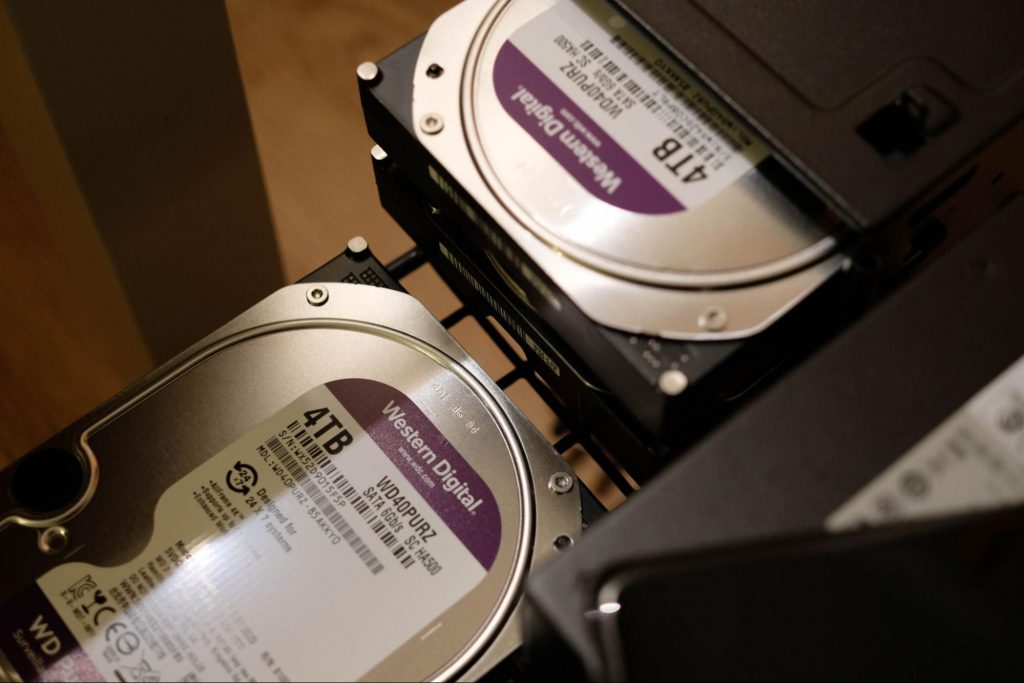
Several 4TB hard disks in a unit.
Source: Kina on Unsplash

What are the benefits of disk partitioning?

1. Better file organization

This is the most obvious and perhaps the biggest advantage of partitioning your hard drive. 

As we already mentioned, partitioning allows you to create separate segments for different file and data types. You wouldn’t want to use the same partition for your system files and for games, would you? 

If organization and time management are important to you, then multiple partitions are the right solution. Searching for specific files will be much easier overall. Say you have one hard drive, but three partitions: C for the system files alone, D for multimedia files and documents, and E for games and apps. Your computer loads the system from C without interference from the other two, and you know exactly where to look when searching for a file.

2. Easy reinstallation

File management isn’t the only thing made faster and simpler thanks to partitioning. If you opt for creating multiple segments on your drive, reinstalling Windows will be easy peasy. 

That’s because all you need to do is format the partition your system is on. Then you reinstall the OS on it, and there you go. Now you have a clean installation, with all your files saved on other partitions intact. You can even make a copy of your system partition, so you can revisit the exact same installation in the future if you want. And the whole time your pictures, music, documents stay exactly where you left them. 
A laptop with list of apps on a desk.
Source: Andrew M on Unsplash

3. Possibility of using multiple file systems

By now you’ve understood that partitions function completely separately. This means that, if for some reason you need multiple file system capabilities, partitioning will allow that.

One segment could be used for, say, an NTFS file system, while another could run ext or APFS.

4. Running different OSes

You’re an avid Windows user but need to use Linux on the side? No problem. You don’t need to buy a separate computer or anything. The possibility of running different file systems also means you can use partitioning to run multiple operating systems.

Doesn’t that sound enticing? One machine for multiple totally different uses!

5. Backup and recovery made simple

Data loss can happen on any disk, partitioned or not. However, it’s much easier to get it back on a partitioned one. You know where you stored what, and each partition can be backed up exactly as it is. It’s also a lot faster to back up single partitions than entire hard drives.

Ultimately this also means a faster path to recovery. If you lose or accidentally delete important files and data, you might want to use a recovery tool like Recuva to scan for them and get them back. Recuva is even powerful enough to recover data from damaged hard drives. But no matter how powerful, scanning a whole drive is strenuous for any recovery tool. Scanning independent partitions is a lot more convenient than that, and will get you to your goal more efficiently.

6. Optimized performance

Now, let’s keep in mind that computer performance is influenced by a number of factors. Partitioning alone isn’t what makes it better or worse. However, it can contribute to optimization. It’s easier for your computer to scan, say, a 40 GB partition to fetch the system file it needs than scanning the entire capacity of your drive.

7. Improved security (possibly*)

Separate partitions can help make your system more secure. Firstly, they minimize file corruption. If one partition gets corrupted, the others should remain unaffected. And keeping in mind the previous point about backup and recovery, ‘fixing’ the damaged partition would be much easier than fixing the entire hard drive. 

Partitioning also improves security in terms of malware protection. A malicious attack on one partition is easier to deal with than malware on the whole drive. If your system partition gets infected, you can simply reinstall your OS and that should do the trick.

*Do keep in mind that partitioning can’t defend you against more advanced attacks. So make sure not to give in to a false sense of security.

What are the disadvantages of partitioning?

1. Data is still vulnerable

Yes, it’s easier to back up and recover data from independent partitions. And yes, partitioning may help protect separated files and data to a higher degree. But remember: everything is still on a single physical drive. So while digital errors and issues may be easier to deal with on partitioned drives, physical damage obviously won’t be.

If your hard drive is destroyed in some way, all data on it will be gone. That’s why, if you have crucial files on your PC, it’s important to give them the proper backup treatment before it’s too late.

2. Disbalance of space

Allocating storage space on separate partitions may be a little more tricky than you think. You may fill up one partition a lot faster than another. So on one side you’re struggling with space, and on another you have too much of it to spare. Imagine nearly filling up your system partition and then it turns out you need a lot more space for its updates than you thought.

That’s why you really have to be sure you actually have enough files of different types that you need help managing efficiently. Otherwise you’ll just create a struggle and disbalance in terms of storage.

3. Increased risk of error

If done incorrectly, partitioning can lead to more harm than good. Aside from space disbalance, there is an increased risk of incorrect partition sizes and formatting. Plus, human error is also a factor: in a moment of distraction, you may erase one partition when you meant another. Undoing such mistakes will definitely be tedious and time-consuming.

4. SSDs eliminate the need of partitioning

SSDs (solid-state drives) don’t function in the same way that HDDs do. They have faster read times and can organize files on their own. This quite literally eliminates the need for organization on your part.

Partitioning: yes or no?

The bottom line is that multiple partitions might not be necessary for the average user. But if you’re planning on storing many file types or different file and operating systems on the same PC, then you should give it a shot. It’s also an excellent solution for businesses, of course.

And if our pros and cons list isn’t enough to help you decide, you can always send us a message and we’ll help you make the right choice.

Decided to partition your hard drive?

If you’ve decided to give it a go, you definitely should make sure to do it right. 

The two most effective and reliable ways to partition are using the built-in options on Windows or investing in a dedicated partitioning tool, like the EaseUS Partition Master. Which one you'll opt for depends on your specific needs. 

Option 1 may be more suitable for users with at least some level of experience. In this case, you’d have to know exactly which steps to take without making errors. This is done in Disk Management on Windows 10/11. From there, you can select the partitions you’d like to split into different volumes of selected sizes.

If this is your first time partitioning, we highly suggest you either consult professionals for this or move on to option 2. The EaseUS partitioning software is specifically designed for beginners, with an intuitive interface helping you succeed in the process. All you need to do is pick the Partition Master package tailored to your needs and follow their guide

Each package offers technical support as well, and even free upgrades (to varying degrees based on your subscription). Plus, all of this is valid for not one, but two PCs.

It’s the perfect solution for a smooth and error-free partitioning process. If you want to organize your hard drives efficiently and make the most of all your space without doing irreparable damage, it’s definitely worth the investment.
Read More
Check if your data has been stolen for free

Website breaches and stealing user data is nothing new in the world of the internet. Although a very unpleasant experience it still happens even on some high-quality websites. In this article, we will not focus on how can you not be the target of this kind of attack, because you really cannot. Weel you can kind of if you decide not to have your data on websites at all, but let's just say that is not something you are willing to do.

stolenSo, in this case, you have some social, forum, or gaming accounts but you heard that service has been breached and that your email or password might be stolen. Well in this case all you need to do is of course to login into the service and change your password. But, what happens if you are not aware at all that service has been compromised?


Mozilla foundation has asked themselves this same question it seems and they have decided to help us out. They have placed a free online service where you can just by typing in your email address find out if your email or data has been compromised in any way.

Go to https://monitor.firefox.com/ and check it out, if you find out that there is some website that you did not know was breached, change your password right away, and if you have used the same password for anything else (I hope not), change them as well.

Read More
Fix Call of Duty 4 crashes in Windows 10
Call of Duty is a fun and good game, a great time killer with a squad of friends, however sometimes the game crashes, and fun is interrupted. In this guide, we will address and solve this unpleasant issue.
  1. Scan game files

    inside launcher choose options and under them, choose scan and repair game files This process can take 5-30 minutes, as the game is 60GB large. This will look through all your game files and make sure they’re all valid and that none are corrupted, which may cause crashes. When it’s complete, you’ll get a notification that the game is now playable. Try again and see if your crashes continue.
  2. Update drivers

    Keeping drivers updated is crucial for the game to run smoothly, GPU drivers are possibly important. Go to your GPU manufacturer's website and get the latest drivers.
  3. Lower graphic settings

    Intensive graphic requirements can overload GPU and cause crashes, try lowering details in-game and see if this will fix the issue.
  4. Disable overlays

    If you’re using a program like Discordthat has an overlay, you’ll want to disable it as it may be causing the graphic error
Read More
Premiere Download Manager removal guide for Windows PC

Premiere Download Manager is a Browser Extension that comes bundled with Premiere Download Manager Potentially unwanted program, and other unwanted applications and extensions. This program was developed by Mindspark Interactive and offers users the ability to download files off the internet through the Download Manager provided. It also changes the home page and defaults the search engine to Myway.com.

This bundle monitors the user’s activity, and while the extension has access to your browsing activity, clicked links, visited pages, etc. the application itself has access to all the files that you downloaded, and have on your computer. This gathered data is later sent back to Mindspark’s servers where it is used to better target ads for users.

While installed, you will run into additional, sponsored links, and even pop-up ads while browsing the internet. Though it is not considered malware, it contains many behaviors disliked by users and is labeled as potentially unwanted. This bundle has been marked as a Browser Hijacker by several anti-virus applications and is therefore recommended to remove from your PC.

About Browser Hijackers

Browser hijacking is actually a form of unwanted software program, commonly a browser add-on or extension, which causes modifications in web browser’s settings. Browser hijacker malware is designed for many different reasons. Often, hijackers will force hits to sites of their preference either to increase web traffic producing higher ad revenue, or to obtain a commission for each and every user visiting there. Although it may seem naive, these tools are made by malicious people who always attempt to take full advantage of you, so that they can earn money from your naivety and distraction. Some browser hijackers are designed to make particular modifications beyond the web browsers, like changing entries in the computer registry and permitting other types of malware to further damage your computer.

Key symptoms that your internet browser has been hijacked

There are numerous symptoms that indicate your web browser is highjacked: the home page of the browser is changed all of a sudden; your browser is constantly being redirected to pornography sites; the default web engine has been changed and the browser security settings have been lowered without your knowledge; you’re getting browser toolbars you have never noticed before; you find lots of pop-up ads on your screen; your browser gets slow, buggy, crashes very often; You can’t access certain sites, in particular anti-virus websites.

Exactly how they get into your computer or laptop

There are several ways your computer or laptop can become infected by a browser hijacker. They generally arrive through spam email, via file-sharing networks, or by a drive-by download. They may also originate from any BHO, extension, toolbar, add-on, or plug-in with malicious purpose. Sometimes you may have mistakenly accepted a browser hijacker as part of an application bundle (usually freeware or shareware). Browser hijackers could affect the user’s web browsing experience significantly, monitor the websites frequented by users and steal financial information, cause difficulty in connecting to the net, and then finally create stability issues, making applications and computers freeze.

Removing browser hijackers

Certain browser hijacking can be quite easily reversed by finding and removing the corresponding malware application through your control panel. However, many hijackers are extremely tenacious and require specialized applications to eradicate them. Also, browser hijackers might modify the Computer registry therefore it could be very hard to restore all of the values manually, especially when you are not a very tech-savvy person. Installing and running antivirus applications on the affected system could automatically delete browser hijackers and also other unwanted applications. SafeBytes Anti-Malware discovers all types of hijackers – including Premier Download Manager – and removes every trace efficiently and quickly.

What To Do When You Cannot Install Safebytes Anti-Malware?

All malware is bad and the degree of the damage will differ greatly with regards to the type of malware. Certain malware variants modify internet browser settings by including a proxy server or modify the computer’s DNS configurations. When this happens, you’ll be unable to visit certain or all of the internet sites, and thus unable to download or install the required security software to get rid of the infection. If you are reading this article now, you have probably realized that virus infection is the cause of your blocked internet connectivity. So what to do when you want to download and install an anti-virus program such as Safebytes? There are some options you could try to get around with this particular issue.

Make use of Safe Mode to resolve the issue

In Safe Mode, you may change Windows settings, uninstall or install some applications, and get rid of hard-to-delete viruses and malware. In case the malware is set to load automatically when the computer starts, shifting into this mode could prevent it from doing so. To boot into Safe Mode, hit the “F8” key on the keyboard right before the Windows boot screen comes up; Or right after normal Windows boot up, run MSConfig, check the Safe Boot under the Boot tab, and click Apply. Once you are in Safe Mode, you can try to install your antivirus program without the hindrance of the malware. At this point, you can actually run the anti-malware scan to get rid of viruses and malware without interference from another application.

Switch to some other web browser

Some malware only targets certain internet browsers. If this sounds like your situation, employ another web browser as it can circumvent the computer virus. If you’re not able to download the anti-malware program using Internet Explorer, it means malware is targeting IE’s vulnerabilities. Here, you should switch over to a different internet browser like Chrome or Firefox to download Safebytes software.

Make a bootable USB anti-virus drive

Another option is to create a portable antivirus program onto your USB stick. To run anti-malware using a pen drive, follow these simple steps: 1) Download the anti-malware on a virus-free computer. 2) Plug the pen drive into the uninfected computer. 3) Double click on the downloaded file to run the installation wizard. 4) When asked, choose the location of the pen drive as the place where you want to store the software files. Do as instructed on the computer screen to finish up the installation process. 5) Transfer the USB drive from the clean computer to the infected PC. 6) Double-click the antivirus software EXE file on the USB flash drive. 7) Hit the “Scan Now” button to start the malware scan.

SafeBytes Anti-Malware: Lightweight Malware Protection for Windows PC

In order to protect your PC from many different internet-based threats, it is important to install anti-malware software on your computer system. But with countless numbers of anti-malware companies out there, nowadays it is hard to decide which one you should buy for your personal computer. Some of them are good and some are scamware applications that pretend as legit anti-malware software waiting around to wreak havoc on your computer. You have to be careful not to pick the wrong application, particularly if you buy a premium application. While considering the highly regarded applications, Safebytes AntiMalware is certainly the highly recommended one. SafeBytes anti-malware is a very effective and user-friendly protection tool that is suitable for end-users of all levels of computer literacy. Through its cutting-edge technology, this software will help you protect your personal computer against infections caused by different types of malware and similar threats, including adware, spyware, trojans, worms, computer viruses, keyloggers, ransomware, and potentially unwanted program (PUPs).

SafeBytes has great features when compared to other anti-malware programs. The following are a few of the great ones:

Active Protection: SafeBytes gives you round-the-clock protection for your personal computer limiting malware intrusions in real-time. It will regularly monitor your pc for hacker activity and also gives users sophisticated firewall protection. Antimalware Protection: With its advanced and sophisticated algorithm, this malware elimination tool can detect and get rid of the malware threats hiding in your computer system effectively. High-Speed Malware Scanning Engine: Safebytes AntiMalware, with its enhanced scanning engine, offers extremely fast scanning which can immediately target any active internet threat. Website Filtering: SafeBytes checks and gives a unique safety ranking to every website you visit and block access to webpages known to be phishing sites, thus protecting you from identity theft, or known to contain malicious software. Low CPU Usage: SafeBytes gives you complete protection from online threats at a fraction of the CPU load due to its advanced detection engine and algorithms. 24/7 Support: You could get high levels of support around the clock if you’re using their paid version. SafeBytes will keep your computer safe from the latest malware threats automatically, thus keeping your online experience safe and secure. Once you’ve downloaded and installed SafeBytes Anti-Malware, you will no longer have to bother about malware or other security concerns. So if you’re looking for the best anti-malware subscription for your Windows-based PC, we highly recommend SafeBytes Anti-Malware software.

Technical Details and Manual Removal (Advanced Users)

If you wish to carry out the removal of Premier Download Manager manually instead of employing an automated tool, you may follow these simple steps: Go to the Windows Control Panel, click the “Add or Remove Programs” and there, select the offending program to remove. In cases of suspicious versions of web browser plug-ins, you can easily get rid of it through your web browser’s extension manager. It is also suggested to reset your web browser to its default state to fix corrupt settings. Lastly, examine your hard drive for all of the following and clean your computer registry manually to remove leftover application entries following an uninstallation. Having said that, editing the registry is usually a difficult task that only experienced computer users and professionals should attempt to fix it. Also, certain malware is capable of replicating itself or preventing its deletion. It is advised that you do the removal process in Safe Mode.
Files: C:\Program Files\PremierDownloadManager_agEI\Installr.bin\NPagEISb.dl_ C:\Program Files\PremierDownloadManager_agEI\Installr.bin\NPagEISb.dll C:\Program Files\PremierDownloadManager_agEI\Installr.bin\agEIPlug.dl_ C:\Program Files\PremierDownloadManager_agEI\Installr.bin\agEIPlug.dll C:\Program Files\PremierDownloadManager_agEI\Installr.bin\agEZSETP.dl_ C:\Program Files\PremierDownloadManager_agEI\Installr.bin\agEZSETP.dll %PROGRAM FILES%\PREMIERDOWNLOADMANAGER\PDMANAGER_IE.DLL: %PROGRAM FILES%\PREMIERDOWNLOADMANAGER\PDMANAGER_IE.DLL Malware %PROGRAM FILES%\PREMIERDOWNLOADMANAGER\PDMANAGER_IE.DLL Dangerous %PROGRAM FILES%\PREMIERDOWNLOADMANAGER\PDMANAGER_IE.DLL High Risk %program files%\premierdownloadmanager\pdmanager_ie.dll %PROGRAM FILES%\PREMIERDOWNLOADMANAGER\PDMANAGER_IE.DLL %PROGRAM FILES%\PREMIERDOWNLOADMANAGER\PDM.ICO %PROGRAM FILES%\PREMIERDOWNLOADMANAGER\PDMANAGER.EXE %PROGRAM FILES%\PREMIERDOWNLOADMANAGER\PDMANAGER_IE.DLL %PROGRAM FILES%\PREMIERDOWNLOADMANAGER\PDMANAGER_IE.TLB %PROGRAM FILES%\PREMIERDOWNLOADMANAGER\REGASM.EXE Registry: key HKLM\Software\Classes\CLSID\819D045F-E9A2-39E0-B495-D615AD1A9471\InprocServer32.0.0.1\CodeBase: file:///C:/Program Files/PremierDownloadManager/PDManager_ie.DLL key HKLM\Software\Classes\CLSID\819D045F-E9A2-39E0-B495-D615AD1A9471\InprocServer32\CodeBase: file:///C:/Program Files/PremierDownloadManager/PDManager_ie.DLL key HKLM\Software\Classes\CLSID\87D1BD5F-0174-4AB2-FFC4-9E3A451F17EB\InprocServer32.0.0.1\CodeBase: file:///C:/Program Files/PremierDownloadManager/PDManager_ie.DLL key HKLM\Software\Classes\CLSID\87D1BD5F-0174-4AB2-FFC4-9E3A451F17EB\InprocServer32\CodeBase: file:///C:/Program Files/PremierDownloadManager/pdmanager_ie.dll key HKLM\Software\Classes\Record\EDF1D497-05B5-37F6-AAAC-3EB5E67D4DC2.0.0.1\CodeBase: file:///C:/Program Files/PremierDownloadManager/PDManager_ie.DLL key HKCU\SOFTWARE\PREMIERDOWNLOADMANAGER\INTERNET EXPLORER: %PROGRAM FILES%\PREMIERDOWNLOADMANAGER\PDMANAGER_IE.DLL
Read More
How to Fix Windows Update Error 0x80070103

What is error code 0x80070103?

When visiting the Windows Update Website or the Microsoft Update Website to download the latest update for hardware drives, you could possibly receive Error Code 0x80070103 when clicking on the update driver. This error code occurs when Windows tries to download a piece of identical hardware for a second time. It could also occur when Windows tries to update a currently installed driver to an unsuitable version of that driver.

Solution

Restoro box imageFurther Information and Manual Repair

There aren’t many ways to handle this issue. Below are two methods of fixing Error Code 0x80070103.

Method 1:

  • Visit the Microsoft Update Website
  • After the "scan for updates" is complete, click the Welcome or Custom page.
  • Next, click Hardware, in the navigation panel, and then on the tab for "optional hardware Updates", the Update client will display the available updates.
  • For the graphics card, scan the second update after which you'll click to select the option that says "do not show this update again".
  • Hit the "Review and install updates" button.
  • Confirm that the second update for the graphics card is not present, then move on the installing the updates.
  • Click on the start button, go to All Programs, and then click on Windows Update.
  • Hit the "Check for updates" tab.
  • After the "scan for updates" is over, click the"Optional updates" link.
  • In the "Select the updates you want to install" section, right-click the update that is not needed and hide them.
  • Hit the OK button.
  • To install any additional updates that are selected, click "Install Updates". Close Windows Update if no other updates are selected,
  • For touch screens, swipe in from the right edge of the screen, tap Search (or point to the upper-right corner of the screen if you're using a mouse, moving the pointer down, before clicking Search). Enter "Windows Updates" in the search box, click Settings, and then click "Check for updates".
  • After the scan is complete, click the"Optional updates are available" link.
  • Right-click or Tap and hold the update you want to hide, select"Hide update", and then select OK.
  • If any other updates are available, save all work in "other programs", then restart the computer to the install updates; otherwise, opt out of the Windows Update window.
Open the search window and type “Windows Update” in the search box.

Method 2:

When trying to repair error code 0x80070103, if you find method one hard to follow, can contact Microsoft directly. Call up the help center number listed on their website, and a technician will be able to walk you through the process of ensuring the updater is not attempting to download multiple copies of hardware or trying to install unusable updates on your computer. Because the Windows Updater is set to a generic method of searching for updates, it may not be set to optimize the personal computer's settings. This is why you must select all of the optional update options and why this process is so long. It may be made easier by having a computer repairs technician walk you through it. However, if you want to automate the process of getting that problem solved, you can use a powerful tool to get the job done.
Read More
Get public IP address inside Windows 10
There are a lot of online services and a lot of ways to get your public IP address. One of them being typing whats my IP in Google search and you will get immediate results. But there is a way to get the same information inside Windows 10 which could be very useful if for any reason you can not connect to mentioned services. By checking public IP directly inside your windows you can make sure that the issue for not being able to open some websites is not due to your public IP. In order to use this Windows feature, we will be checking our public IP using Windows PowerShell. To open Power Shell in Windows first press ⊞ WINDOWS + R to open the run dialog keyboard with windows and r markedInside run dialog type Powershell and press ENTER In the Powershell type in the following command and press ENTER

(Invoke-WebRequest -uri "http://ifconfig.me/ip").Content
When the command finishes you will see what is your public IP address, if you wish to know more about your connection type in and press ENTER:
Invoke-RestMethod -Uri ('https://ipinfo.io/')
This command will provide you with further information like city, region, country, and others.
Read More
Best Free Stock Photo WEB sites of 2021
The Internet has become an essential human right as stated in many countries around the world. Among many benefits that the internet offers are various sites selling Stock photographs for all of your needs. No matter are you working in the design industry or just want to make something for yourself there is a high chance that you will eventually need some photos for your work. Stock photo workIn this article we are going to go through the best Stock Photo sites BUT, we will focus on ones that give you royalty-free Photos, so no paying stuff here, just the best of the free world.

Adobe Stock free collection

https://tracker.tradedoubler.com In the last year of 2020, Adobe has made more than 70000 photos, videos, illustrations, and templates completely free. You are free to use provided material for personal, commercial, and creative work. Since this is adobe’s collection, well part of it, all of the given material is of high quality. You can also upload pictures to do a visual search to find similar ones.

Unsplash

https://unsplash.com/ Unsplash is a place where you will go if you want to find free-quality pictures. Since a lot of photographers are donating their selected work there you will find always consistently high-quality work there. Unsplash also has applications for Android and iOS so you can go through their stock on your mobile device as well. Photos are organized into categories that make searching much easier.

Pixabay

https://pixabay.com/ Pixabay is maybe well known due to its huge collection of both images and illustrations. There are tons and tons of stuff in there all royalty-free for use. The bad side is due to its strongest one, since there are so many images on its site, quality is not always top-notch like on Unsplash for comparison but you might find stuff here that you will not be able to do it anywhere else.

Pexels

https://www.pexels.com/ This is a great choice for web or app developers since you can find various UI ideas and designs on it. Many UI ideas ready for implementation will be found here and a decent amount of photos as well. The overall site is great for that purpose but please do read the license on each image since some of them are limited in use and cannot be used in commercial projects.

Pikwizard Stock

https://www.pikwizard.com/ Stock photography from Pikwizard is a place where you will go if you need high-quality pictures of people. There are a lot of images of people in natural poses doing things, nothing cheesy or unnatural, just pure and great-looking ones. Among other things is also a vast selection of cityscapes. Sadly as in the case of Pexels, not all pictures have the the same license so make sure to check terms of use before using one.

Gratisography Stock photos

http://gratisography.com/ Last on our list is a Stock site with a strange name and if you visit it you will see that it is not just the name that is strange. Gratisography is a stock site that aims to provide you with high-quality photographs but in different take from another site. These images are more artistic and surreal than other competitor sites. Images are uploaded almost on daily basis but since thematic is somewhat niche collection itself is relatively small.

Conclusion

That’s it, we hope that we have helped you in any way to find some material for your next project and I hope to see you soon back on errortools.com. Take care and all the best.
Read More
Setting a default printer in Windows 10
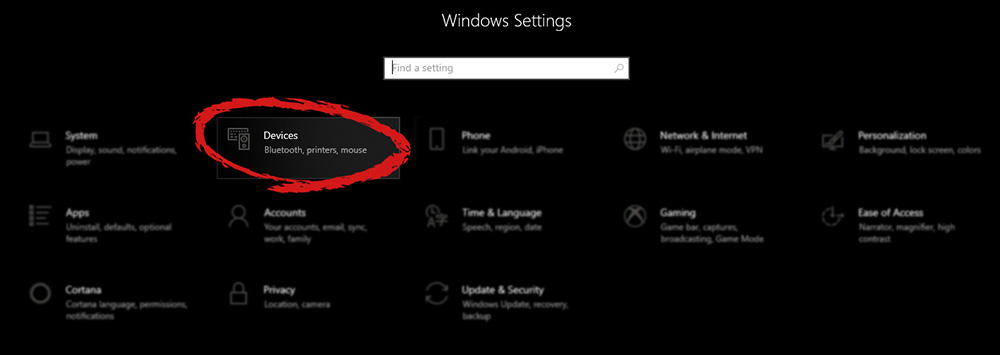
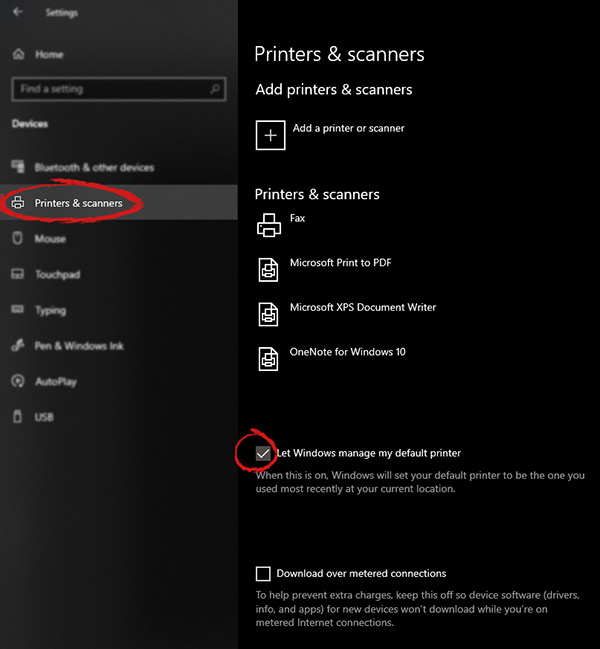
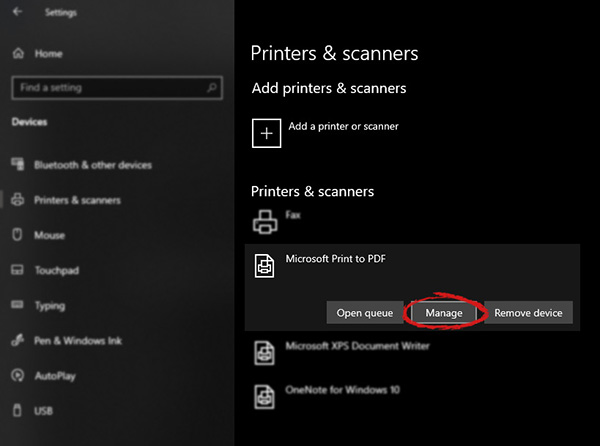
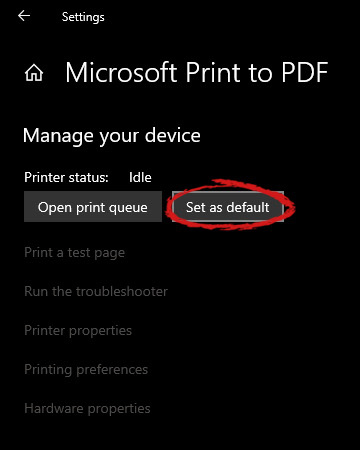
Windows 10 is by far the most personalized Windows so far, most of its personalization comes from him learning our habits on computers and setting future experiences taking them into account. One of these things that Windows likes to set for us is also the default printer. The default printer is set as one which is most used but sometimes we do not want that, we might like to use another printer as default despite Windows choosing one for us. Never worry, setting default printer is easy and this guide will take you to step by step journey of how you can do it in 5 min on your personal computer. Let us begin: First thing is to click on the windows icon on the bottom left and open start menu, from start menu click once on settings. Windows 10 Star menu with marked settings iconWhen the settings window opens, choose DEVICES on it. Windows settings with marked devices sectionOnce the device window opens, click once on printers and scanners, and on the right window go to the bottom and uncheck Let windows manage my default printer. Windows settings for printerUnchecking that box will let Windows know that we do not wish anymore for him to set our default printers according to their use. Once the checkbox is clear go up to your printer list and click on the printer you wish to use as the default one. I will choose Microsoft Print to PDF as my default printer and click on it. Once the printer is clicked option menu will appear. Windows settings manage printerWhen the option menu appears under the printer name, click on Manage which will take you to the printer management screen. When you are on the manage screen, click on the Set as default button, and you are done. Windows settings printer setting
Read More
Malware Guide: How to remove OpenCandy

What is OpenCandy?

OpenCandy is an application that downloads and installs software, including other Internet Browsers to a computer system. Used as a bundle, this application installs additional programs that you may knowingly or unknowingly agree to install. Since most users don’t accept the challenge of reading the EULA in its entirety, they tend to download bundled applications unknowingly.

Assessment of OpenCandy PUP

During the initial assessment of OpenCandy, I was a little skeptical about what to look out for or expect. In fact, I had to install the OpenCandy.exe file twice to discern its behavior. I’m not sure how this application got its name but I do believe it has something to do with the fact that it supposedly helps Internet users open a new world of Internet browsing. That conclusion was arrived at after realizing that OpenCandy.exe installed mostly Internet browsers along with a tune-up tool on the test computer. However, as a result of the system requirements, there was a pop-up message indicating that Internet Explorer 8 was not compatible with the computer system in question. In comparison to the malware I’ve encountered since I started researching malware, OpenCandy is everything but malicious. In fact, this application is only categorized as malware because of its’ subtle covert nature of installing bundled programs unsolicited by the user. Additionally, OpenCandy coerces users into changing their Internet Browsers by installing those unrequested by the user. In fact, it’s no shock that OpenCandy chose to install the Internet Browser ‘Opera’ as a part of this bundle since it’s one of the least used browsers according to the Federal Government. Clearly, this was a smoothly disguised advertisement or promotion to force users into using the Opera Browser, along with Internet Explorer 8.0. While these aforementioned browsers in themselves aren’t malicious and are in no way considered malware, they were installed as a promotional tool and without the request of the user. Despite being mentioned within the EULA, advertisers are capitalizing on this since most users do not bother to read the agreements when installing a program. Furthermore, OpenCandy, like most other bundled applications I’ve dealt with, threw in a tune-up tool as a part of the promotion. I found this tune-up application annoying since I had to hassle my way into getting it to close from the computer screen. I can only imagine the hassle users would go through trying to remove this software. Image 7: Depiction of a scan performed by Tuneup Utilities. The scan detected that several areas on the test PC could be optimized/tuned up. Image 8: After a scan was completed using the Tuneup utility program, I was given an option to buy the full version. Nothing is wrong with this marketing strategy. In fact, most utility tools if not all will scan your computer to detect threats or loopholes, but they won't exactly allow you to fix those problems unless you buy the full version. It's not unfair, it's just business. Programs installed during the installation of OpenCandy include:
  • Web Companion: Developed by Lavasoft, Web Companion is said to be an application that serves as a security defense for your Internet browsers by preventing unauthorized changes (see image below)
  • Tuneup Utilities: Tuneup Utilities does exactly as it says. It cleans up a computer system, whereby preventing unused programs from slowing it down.
  • Opera Stable 30.01.1835.88: Opera is a fast, simple, and effective Internet browser that allows users to get around on the web.
All in all, the intent of installing an application such as OpenCandy is to unleash a world of promotion or advertisements on your computer. They are pretty annoying and in some cases difficult to remove. Furthermore, as a user, you want to control what gets installed on your computer without being dictated to or coerced in some EULA that you probably overlook. To completely remove OpenCandy PUP from your computer, click here to download and install Spyhunter.
Read More
What to do if the Windows Wireless Service in Windows 10 is not running
When experiencing internet connection problems, most users run the built-in troubleshooter to fix the problem. However, you might come across another problem when instead of fixing the problem, the troubleshooter throws up an error message saying, “The Windows Wireless Service is not running on this computer”. After displaying this error message, the troubleshooter would exit. Usually, this kind of error indicates that Windows has failed to initialize the wireless service so it can start searching for broadcast signals and try to connect to them. So in this post, we have prepared some workarounds that might help you resolve the issue.

Option 1 – Try to check the WLAN Status

You have to make sure that the wireless service is enabled in your computer before you proceed to the other troubleshooting options below as this error could occur for a simple reason as the wireless capability is turned off from your PC either on some built-in settings or physically. This is why you need to make sure that Wireless is enabled. And if it turns out that it is disabled, you need to turn it back on and then reconnect to the wireless network again. You should now be able to connect to the internet without any issue.

Option 2 – Try to check the WLAN AutoConfig Service

The WLAN AutoConfig service is the one that provides the logic and functionality required to discover, connect and configure wireless networks with your PC. Aside from that, it also contains the module that allows your PC to be discoverable to other systems on a network. Thus, you need to verify if the WLAN AutoConfig service is on or not.
  • Tap the Win + R keys to open the Run dialog box.
  • And in the field, type in “services.msc” and hit Enter to open Services.
  • After opening the Services window, look for the entry named “WLAN AutoConfig” and then right-click on it and select Properties from the context menu.
  • Next, click on the Start button to turn on the service and then set the startup type as “Automatic”.
  • Then try to connect to your Wireless network again and check if the issue has been resolved.

Option 3 – Try to reset the Network Configurations

Resetting the Network Configurations can also help you in fixing the Windows Wireless service as the network settings often get disrupted or corrupted in a variety of different cases every now and then. Note that this module will reset all the network settings stored on your computer.
  • Tap the Win + S keys to open Search and then type in “command prompt” in the field.
  • From the search results that appear, right-click on Command Prompt and select the “Run as administrator” option.
  • After opening Command Prompt, copy and paste the following command and hit Enter to execute it:
netsh winsock reset
  • The command given will reset the Winsock data. Once it is executed, restart your PC for the changes to take effect and then check if the internet connection is now fine.
Note: Do make sure that the WiFi drivers are up to date. To do that, follow these steps:
  • Tap the Win + R keys to launch Run.
  • Type in devmgmt.msc into the box and tap Enter or click OK to open the Device Manager.
  • After that, a list of device drivers will be displayed. If you see a red or yellow sign that shows up against the driver, right-click on the driver’s name and select “Update Driver Software” or “Uninstall”. And if you find any “Unknown device”, you need to update it as well.
  • Select the “Search automatically for updated driver software” option and then follow the instructions to complete the process.
  • Restart your PC.
Note: You also have the option to go directly to the website of your graphics card manufacturer and check if there’s a new update – if there is, download it.

Option 4 – Perform System Restore

Recently, a lot of issues have resurfaced after users installed the latest Windows update. So the wireless service issue might also be related to it. To fix the problem, you can perform System Restore to roll back your Windows to the last time when it was working just fine. It automatically creates backups in time whenever you install a new update or periodically. Follow the steps below to perform System Restore.
  • Tap the Win + S keys to open Search and then type in “restore” in the field and select the topmost result.
  • Once you’ve opened the restore settings, click on System Restore located at the beginning of the window under the System Protection tab.
  • After that, a wizard will appear that will guide you through all the steps needed to restore the system. You can choose either the recommended restore point or a different one.
  • After you select the restore point, click Next to proceed to the next on-screen instructions.
  • Then select the restore point where the Windows Update was installed on your computer. If you have more than one restore point, you can just select the latest restore point and check the functionality from there. If it doesn’t work, you can just try another restore point.
  • Another prompt will appear and will ask you to confirm your actions. Click OK and wait for the system to be restored. Once it’s done, check if the problem’s now fixed.
Read More
1 2 3 171
Logo
Copyright © 2023, ErrorTools. All Rights Reserved
Trademark: Microsoft Windows logos are registered trademarks of Microsoft. Disclaimer: ErrorTools.com is not affiliated with Microsoft, nor claims direct affiliation.
The information on this page is provided for information purposes only.
DMCA.com Protection Status
