Logo

Fix Screen Aspect Ratio issues in Windows

There are times when you upgrade or install Windows 10 on an old computer and the Aspect Ratio of the screen is in a mess. This issue occurs when a new Windows version does not support the GPU or the driver does not work in Windows 10. And in such cases, Windows uses a generic driver which does not support all the resolution as well as the correct aspect ratio. So in this post, you will be guided on how you can fix the issues with the screen aspect ratio in Windows 10.

It could be that your screen has an aspect ratio of 16:9 but after the upgrade, you changed to screen resolution, and is now set to 16:!0. And later on, you found that you are unable to go back to the previous aspect ratio. Thus, you will notice that everything on the screen might look stretched. You might be wondering if it’s possible to change the aspect ratio in Windows 10 directly even if the GPU does not have the compatible driver, well it really isn’t. However there is another way to resolve the problem. Refer to the options given below to get started.

Option 1 – Try using the Compatibility Mode

The first thing you can do is to run the driver in a Compatibility Mode. Follow the steps below to do so:

  • You need to download the driver and place it on your desktop.
  • After that, right-click on it and select Properties.
  • Next, switch to the Compatibility tab where you should see two options:
    • Compatibility troubleshooter, and let Windows figure out what works best for you. If it fails, follow the next.
    • Manually choose the version of Windows it was correctly working.
  • You also have the option to change the DPI settings and see if that helps. Then click the Apply and OK buttons.
  • Now right-click on the file and select the “Run as administrator” option to install. After that, you should now be able to change your screen aspect ratio to what you were using early on.

Note: If you have other programs that won’t work on the existing version of Windows, then make sure to run the program in a Compatibility mode.

Option 2 – Try to run the Program Compatibility Troubleshooter

You might also want to run the Program Compatibility Troubleshooter. This built-in troubleshooter is available in the Windows Update & Security section. From there, select Troubleshoot. This will find a list of programs for you and since you have already downloaded the driver files, just click on Not Listed located at the top of the program list. After that, browse and select the driver files and then let the program do its job.

Option 3 – Update or rollback your device drivers

If the first option didn’t work for you, then it’s time to either update or roll back the device drivers. It is most likely that after you updated your Windows computer that your driver also needs a refresh. On the other hand, if you have just updated your device drivers then you need to roll back the drivers to their previous versions. Whichever applies to you, refer to the steps below.

  • Open the Devices Manager from the Win X Menu.
  • Then locate the device drivers and right-click on them to open the Properties.
  • After that, switch to the Driver tab and click on the Uninstall Device button.
  • Follow the screen option to completely uninstall it.
  • Finally, restart your computer. It will just reinstall the device drivers automatically.

Note: You can install a dedicated driver on your computer in case you have it or you could also look for it directly from the website of the manufacturer.

Do You Need Help with Your Device?

Our Team of Experts May Help
Troubleshoot.Tech Experts are There for You!
Replace damaged files
Restore performance
Free disk space
Remove Malware
Protects WEB browser
Remove Viruses
Stop PC freezing
GET HELP
Troubleshoot.Tech experts work with all versions of Microsoft Windows including Windows 11, with Android, Mac, and more.

Share this article:

You might also like

What to do if the Windows 10 Control Panel is not opening
The Control Panel is one of the most important tools in Windows which allows users to control and change various settings. However, there are cases when it experiences some problems like when users aren’t able to open it. Recently, a lot of users complained about not being able to open the Control Panel. To be more specific, users were able to open it but only lasted for a second, and then it’s gone. This is not just some issue you can ignore as this will prevent you from accessing some major settings in your computer and you won’t be able to perform some important task without it. According to security experts, this issue is most likely caused by a bug in the Windows Update. If you have installed an update recently, then it’s most likely the culprit. Aside from the Windows Update, there are also other things that can cause this issue. Some of them are the IDT audio panel and a control panel file that causes conflicting issues with the control panel that leads to this problem. Aside from these aforementioned cases, the Windows Error reporting services could also be one of the causes of this issue. As you can see, since there are a lot of possible causes for this problem, this post prepared a lot of options as well which you have to check out. Follow each one of them and see which one worked best for you.

Option 1 – Try updating your Windows 10 PC

If you haven’t updated your PC to the latest version of Windows 10, then you should. A lot of users found that the issue with the Control Panel was fixed right after they updated their Windows 10 PCs. This is probably because Microsoft has probably released a fix on one of the latest updates.

Option 2 – Try uninstalling the IDT Audio Panel

For some users, uninstalling the IDT Audio Panel from their PCs did the trick. You can also try doing the same thing to fix the vanishing Control Panel. According to these users. The IDT audio panel was the one that’s causing the issue. To uninstall the IDT audio panel, here’s what you have to do:
  • Tap the Win + R keys at the same time to open the Run dialog box.
  • Then type in “appwiz.cpl” in the field and tap Enter to open the “Uninstall or change a program” screen of the Control Panel.
  • From there, look for the IDT audio panel, select it and then select the Uninstall option and follow the next on-screen instructions that appear.
Note: If you are unable to locate the IDT audio panel or you simply can’t access the Uninstall or change program screen or you can’t keep Control Panel open for a long time, here’s what you can do:
  • Tap the Win + R keys at the same time once again to open the Run dialog box.
  • And in the field, type in “devmgmt.msc” and hit Enter to open the Device Manager.
  • After opening the Device Manager, look for the “Sound, video and game controllers” option and double-click on it.
  • From there, locate the IDT audio panel or “IDT High Definition CODEC” and select Uninstall and follow the next instructions that appear.

Option 3 – Try deleting or renaming IDTNC64.cpl

IDTNC64.cpl is a control file in the control panel. However, it might be the one that’s causing the problem as it could be conflicting with the control panel. As a result, the control panel crashes after a second or more. Many users have fixed the problem by either renaming or deleting this file – the safer option would be is renaming it.
  • Tap the Win + E keys to open File Explorer.
  • In the address bar located at the top, type in “C:\Windows\System32” and tap Enter to open this folder.
  • From there, look for the IDTNC64.cpl file, right-click on it and select the Rename option.
  • You can name the file anything you want but it’s better if you rename it to “oldcpl”.
  • After you rename the file, try opening the Control Panel again. It should work fine now.

Option 4 – Try to disable the Windows Error Reporting Service

As mentioned earlier, the Windows Error Reporting Service is also known to cause the issue so some users disable it and got the issue fixed.
  • Tap the Win + R keys.
  • In the field, type in “MSConfig” and hit Enter to open System Configuration.
  • After opening System Configuration, go to the Services tab and look for the Windows Error Reporting Service and uncheck its checkbox.
  • Click the Apply button and click OK. You should now see a date in the Disable Date column. Then check if the Control Panel is now working properly if not, restart your computer and check once more. That should fix the problem.

Option 5 – Try opening Control Panel via Run

This option is more of a workaround than a solution as it does not really fix the issue with the Control Panel but rather helps you in accessing the controls at the very least.
  • Tap the Win + R keys to open Run.
  • Type in “appwiz.cpl” in the field and tap Enter to open the Uninstall or change program screen of the Control Panel.
  • Next, copy and paste “Control panel all control panel items” on the address bar located at the top-mid part of your screen. You must not type the given address and simply copy and paste it. After that, you will see a list of control panel controls you can use.
Read More
Quick Fix For 0x80004005 Outlook Error

What Is 0x80004005 Outlook Error?

0x80004005 Outlook is an error that users commonly encounter while attempting to send or receive emails on Outlook.

The message that appears usually states “This message could not be sent. Try sending the message again or contact your network administrator."

The client operation failed. Error is [OX80004005- 0X0004B9-OXOO501].

Error Causes

This error is usually caused by a problem in the Local Area Network or LAN. What actually happens is that signals with the wireless LAN are lost or a connection problem occurs within the network cable.

As a result, the 0x80004005 Outlook error is triggered while sending or receiving an email. Sometimes the problem goes away on its own. However, if it recurs after a few hours, it shows that some problem exists within the network.

Also, it is important to understand that different factors can affect the quality of wireless connections in a network.

For instance, garage door openers, microwave ovens, and Bluetooth devices can easily become obstacles, disrupting the connection and causing the quality to degrade. Other causes are listed below as follows.

  • Missing, corrupt, or damaged registry keys
  • Existence of viruses
  • Outdated drivers

It is a must to fix this error otherwise potential risks associate with this error such as permanent damage and blue screens.

Further Information and Manual Repair

There are two ways to fix this error and both are listed below as follows.

  • One solution is to disable script blocking in Norton Antivirus. Most users encountering this problem have Norton Antivirus installed on their PCs. To correct this problem, simply turn off the ‘Enable Script Blocking’ feature. However, there is a downside associated with this solution. Enabling script blocking will make your network or computer vulnerable to viruses and malware. That’s why it is not advised to implement this solution.
  • The alternative solution is to simply disable the new-mail notification feature offered in Outlook. To disable notifications of any new emails, the steps go as follows. Open Outlook and go to the Tools menu. Here you will come across ‘Options’.Click on it and then select the ‘Preferences’ tab. Here you will find the ‘Email Options’. Click on it and then uncheck the checkbox against the option, ‘Display a notification message when new mail arrives’. Click Ok two times.

Both these workarounds will work. Therefore, it is advised that you employ any one of them as per your needs.

Read More
Fix ATTEMPTED_WRITE_TO_READONLY_MEMORY
This post will help you fix the ATTEMPTED_WRITE_TO_READONLY_MEMORY Blue Screen issue with an error code 0x000000BE. If you encounter this kind of BSOD error when you try to boot into your Windows 10 computer, note that there are various possible causes for this error. It could be caused by an error with a device driver, hardware issues, or some error in the BIOS of your computer. The ATTEMPTED_WRITE_TO_READONLY_MEMORY Blue Screen error with a bug check of 0x000000BE appears when a driver tries to write a read-only memory segment. You’ll be able to see the name of the driver in the Blue Screen error if the driver that’s causing the error can be identified. You can also see it in memory at the location (PUNICODE_STRING) KiBugCheckDriver. In most cases, this kind of error is usually caused by various files such as iusb3hub.sys, ntkrnlpa exe or vhdmp.sys, ntoskrnl.exe, ntfs.sys, dxgkrnl.sys, tcpip.sys, atikmdag.sys, and win32k.sys. There are several possible fixes you can try to fix this issue but the main issue lies within booting into Windows since the error occurs as soon as you boot into your Windows 10 computer. Refer to each one of the options provided below to resolve the ATTEMPTED_WRITE_TO_READONLY_MEMORY Blue Screen error.

Option 1 – Try to rollback, update or disable drivers

The first thing you can do to fix the ATTEMPTED_WRITE_TO_READONLY_MEMORY Stop error is to roll back, or update, or disable device drivers. It is most likely that after you updated your Windows computer that your driver also needs a refresh. On the other hand, if you have just updated your device drivers then you need to roll back the drivers to their previous versions. Whichever applies to you, refer to the steps below.
  • Open the Devices Manager from the Win X Menu.
  • Then locate the device drivers and right-click on them to open the Properties.
  • After that, switch to the Driver tab and click on the Uninstall Device button.
  • Follow the screen option to completely uninstall it.
  • Finally, restart your computer. It will just reinstall the device drivers automatically.
Note: You can install a dedicated driver on your computer in case you have it or you could also look for it directly from the website of the manufacturer.

Option 2 – Try running the Memory Diagnostic Tool

The Memory Diagnostic tool in windows can help resolve the ATTEMPTED_WRITE_TO_READONLY_MEMORY Blue Screen error by checking and automatically fixing any memory-based issues. To run it, refer to these steps:
  • Tap the Win + R keys to open Run and type exe and hit Enter to open the Windows Memory Diagnostic Tool.
  • After that, it will give two options such as:
    • Restart now and check for problems (Recommended)
    • Check for problems the next time I start my computer
  • Once your computer has restarted, perform a basic scan or you could also go for the “Advanced” options such as “Test mix” or “Pass count”. Simply tap the F10 key to start the test.
Note: After you select your preferred option, your computer will restart and check for memory-based issues. If it finds any issues, it will automatically fix them and if there’s no issue found, then it’s most likely not a memory-based issue so you should try the other options given below.

Option 3 – Try to update the BIOS

Updating the BIOS can help you fix the ATTEMPTED_WRITE_TO_READONLY_MEMORY BSOD error but as you know, BIOS is a sensitive part of a computer. Even though it is a software component, the functioning of the hardware depends on it largely. Thus, you must be careful when modifying something in the BIOS. So if you don’t know much about it, it’s best if you skip on this option and try the other ones instead. However, if you are well-versed in navigating the BIOS, then follow the steps below.
  • Tap the Win + R keys to open the Run dialog box.
  • Next, type “msinfo32” in the field and press Enter to open System Information.
  • From there, you should find a search field on the bottom where you have to search for the BIOS version and then press Enter.
  • After that, you should see the developer and version of the BIOS installed on your PC.
  • Go to your manufacturer’s website and then download the latest version of BIOS on your computer.
  • If you are using a laptop, make sure that you keep it plugged in until you have updated the BIOS.
  • Now double click on the downloaded file and install the new BIOS version on your computer.
  • Now restart your computer to apply the changes made.

Option 4 – Try disabling BIOS Memory Options

Disabling the BIOS Memory options such as Caching and Shadowing can help you in fixing the ATTEMPTED_WRITE_TO_READONLY_MEMORY Stop error. All you have to do is enter the BIOS first and then use the Arrow and Enter keys to select your choices. And if you can’t seem to find it, look for specific instructions from your OEM or you could also look out for instructions from the manufacturer of your motherboard.

Option 5 – Try running the Blue Screen Troubleshooter

The Blue Screen troubleshooter is a built-in tool in Windows 10 that helps users in fixing BSOD errors like ATTEMPTED_WRITE_TO_READONLY_MEMORY. It can be found on the Settings Troubleshooters page. To use it, refer to these steps:
  • Tap the Win + I keys to open the Settings panel.
  • Then go to Update & Security > Troubleshoot.
  • From there, look for the option called “Blue Screen” on your right-hand side and then click the “Run the troubleshooter” button to run the Blue Screen Troubleshooter and then follow the next on-screen options. Note that you might have to boot your PC into Safe Mode.
Read More
BuzzDock Removal Guide

What is BuzzDock?

Buzzdock is a browser extension. Buzzdock will be automatically enabled on IE and Chrome following installation, and you may begin using Buzzdock with no further action required. If you elect to optimize Buzzdock performance, the settings preferences of your browser may be adjusted after installation. This browser extension changes your default search provider to Buzzdock.com custom search. It displays additional unwanted ads, banners & sponsored links on web pages that you visit, and it hijacks your browser home page. This browser extension has been flagged as malware by many anti-virus scanning programs.

About Browser Hijackers

Browser hijackers (sometimes called hijackware) are a type of malicious software that modifies web browser configuration settings without the user’s knowledge or consent. These hijacks are rising at an alarming rate worldwide, and it could be actually nefarious and sometimes dangerous too. They’re created to interfere with web browser programs for many different reasons. In most cases, hijackers are made for the benefit of online hackers often through income generation from forced ad clicks and site visits. Nonetheless, it’s not that harmless. Your online safety is jeopardized and it is extremely irritating. They not only screw up your browsers, but browser hijackers can even modify the computer registry, leaving your PC susceptible to other attacks.

Symptoms of browser hijacker malware

There are several signs that indicate the web browser is hijacked: 1. the home page of your browser is changed unexpectedly 2. you find new unwanted bookmarks or favorites added, typically directed to ad-filled or porn sites 3. The default search page of your web browser is changed 4. you see unsolicited new toolbars added 5. you notice a lot of pop-ups on your computer screen 6. your web browser gets slow, buggy crashes frequently 7. you are prohibited access to specific web pages, including the site of an anti-malware software firm like SafeBytes. Exactly how browser hijacker finds its way onto your computer system Browser hijackers infect computer systems in numerous ways, including through a file-share, a drive-by download, or an infected email. They are usually included with toolbars, BHO, add-ons, plug-ins, or browser extensions. Browser hijackers sneak to your computer along with free software downloads also that you unknowingly install alongside the original. Some of the most well-known hijackers are BuzzDock, Babylon Toolbar, Conduit Search, Sweet Page, OneWebSearch, and CoolWebSearch. Browser hijacking can cause severe privacy problems and even identity theft, affect your web browsing experience by taking command over outbound traffic, substantially slows down your computer by consuming lots of resources, and result in system instability as well.

The best ways to get rid of browser hijackers

Certain browser hijacking can be quite easily corrected by discovering and removing the corresponding malware application from your control panel. However, most hijackers are hard to remove manually. No matter how much you try to get rid of it, it may keep returning over and over again. You should consider doing manual fixes only if you’re a tech-savvy person because there are potential risks associated with fiddling around with the system registry and HOSTS file. Browser hijackers could be effectively removed by installing and running anti-malware software on the affected PC. Safebytes Anti-Malware can counter relentless browser hijackers and provide you proactive computer protection against all kinds of malware. Together with anti-malware, a system optimizer program, similar to Safebytes Anti-Malware, can help you correct registry errors, remove unwanted toolbars, secure online privacy, and enhance overall system performance.

Find Out How to Get rid of Malware that is Blocking Websites or Preventing Downloads

Malware could cause all sorts of damage when they invade your computer, starting from stealing your personal information to erasing files on your PC. Some malware sits in between the computer and the internet connection and blocks a few or all internet sites which you want to visit. It might also block you from adding anything to your system, especially anti-malware applications. So what should you do when malicious software prevents you from downloading or installing Safebytes Anti-Malware? There are a few fixes you can attempt to get around with this problem.

Boot Windows in Safe Mode

The Windows OS includes a special mode called “Safe Mode” where only the minimum required programs and services are loaded. In the event, the malicious software is set to load automatically when the computer starts, shifting to this mode may well prevent it from doing so. To get into Safe Mode or Safe Mode with Networking, press the F8 key while the computer is booting up or run MSCONFIG and find the “Safe Boot” options in the “Boot” tab. After you restart the PC into Safe Mode with Networking, you could download, install, as well as update anti-malware software from there. Right after installation, run the malware scanner to eliminate standard infections.

Use an alternate internet browser to download the anti-malware application

Malicious program code might exploit vulnerabilities in a specific browser and block access to all antivirus software sites. In case you suspect that your Internet Explorer has been hijacked by malware or otherwise compromised by online hackers, the best plan of action would be to switch to an alternate internet browser like Mozilla Firefox, Google Chrome, or Apple Safari to download your favorite computer security program – Safebytes Anti-Malware.

Create a portable USB antivirus for removing malware

Another way is to download and transfer an anti-malware program from a clean PC to run a scan on the affected computer. Adopt these measures to run the antivirus on the affected computer. 1) Download Safebytes Anti-Malware or Windows Defender Offline onto a clean computer. 2) Plug the Thumb drive into the uninfected computer. 3) Double-click the executable file to run the installation wizard. 4) Pick a USB flash drive as the location when the wizard asks you where you intend to install the software. Follow the directions to finish the installation process. 5) Transfer the thumb drive from the uninfected computer to the infected PC. 6) Run the Safebytes Anti-malware directly from the pen drive by double-clicking the icon. 7) Run Full System Scan to identify and clean-up up all types of malware.

A Look at the Best AntiMalware Program

If you’re looking to download an anti-malware application for your PC, there are various tools out there to consider however, you just cannot trust blindly anyone, irrespective of whether it is free or paid software. Some of them are excellent, some are ok types, and some will harm your PC themselves! You need to pick a tool that has gained a good reputation and detects not just computer viruses but other types of malware as well. Amongst few good programs, SafeBytes Anti-Malware is the highly recommended program for the security-conscious individual. SafeBytes anti-malware is a trustworthy tool that not only secures your PC completely but is also quite user-friendly for people of all skill levels. This software could easily detect, remove, and protect your computer from the latest malware threats including spyware, adware, trojan horses, ransomware, worms, PUPs, along with other possibly damaging software programs. There are numerous great features you will get with this security product. The following are some of the great features included in the software. Robust Anti-malware Protection: With its advanced and sophisticated algorithm, this malware removal tool can find and eliminate the malware threats hiding within your PC effectively. Live Protection: SafeBytes gives real-time active monitoring and protection against all known computer viruses and malware. This software will continuously monitor your PC for any suspicious activity and updates itself regularly to keep current with the constantly changing threat landscape. Website Filtering: Safebytes assigns all websites a unique safety score that helps you to get an idea of whether the webpage you are going to visit is safe to view or known to be a phishing site. Low CPU and Memory Usage: SafeBytes is really a lightweight application. It consumes an extremely small amount of processing power as it runs in the background so you’re free to use your Windows-based PC the way you really want. 24/7 Online Tech Support: For any technical issues or product support, you could get 24/7 expert assistance through chat and email. To sum it up, SafeBytes Anti-Malware offers great protection combined with an acceptable low system resources usage with both great malware detection and prevention. You now may understand that this particular software does more than just scan and delete threats from your PC. For optimum protection and the best value for your money, you can’t get better than SafeBytes Anti-Malware.

Technical Details and Manual Removal (Advanced Users)

If you wish to manually remove BuzzDock without the use of an automated tool, it may be possible to do so by removing the program from the Windows Add/Remove Programs menu, or in cases of browser extensions, going to the browsers AddOn/Extension manager and removing it. You will likely also want to reset your browser. To ensure the complete removal, manually check your hard drive and registry for all of the following and remove or reset the values accordingly. Please note that this is for advanced users only and may be difficult, with incorrect file removal causing additional PC errors. In addition, some malware is capable of replicating or preventing deletion. Doing this in Safe Mode is advised. The following files, folders, and registry entries are created or modified by BuzzDock
Files: File at $COMMONPROGRAMSBuzzdockBuzzdock Support Site.lnk. File at $COMMONPROGRAMSBuzzdockBuzzdock.lnk. File at $COMMONPROGRAMSBuzzdockUninstall.lnk. File at $PROGRAMFileSBuzzdockBuzzdock Support.url. File at $PROGRAMFileSBuzzdockBuzzdock.ico. File at $PROGRAMFileSBuzzdockBuzzdock.url. File at $PROGRAMFileSBuzzdockBuzzdockIEClient.dll. File at $PROGRAMFileSBuzzdockUninstall.url. Directory at $COMMONPROGRAMSBuzzdock. Directory at $LOCALAPPDATAGoogleChromeUser DataDefaultExtensionsejaodgecffaefnnoggjpogblnlpejkma.1.5_0. Directory at $LOCALAPPDATAGoogleChromeUser DataDefaultExtensionsejaodgecffaefnnoggjpogblnlpejkma. Directory at $PROGRAMFileSBuzzdock. Registry: A key in HKEY_CLASSES_ROOT named BuzzdockIEClient.Api.1 A key in HKEY_CLASSES_ROOT named BuzzdockIEClient.Api A key in HKEY_CLASSES_ROOT named BuzzdockIEClient.Layers.1 A key in HKEY_CLASSES_ROOT named BuzzdockIEClient.Layers Key 220EB34E-DC2B-4B04-AD40-A1C7C31731F2 at HKEY_LOCAL_MACHINESOFTWAREMicrosoftWindowsCurrentVersionUninstall. Key 435D09AA-DDE4-4B40-9129-08F025ECA349 at HKEY_CLASSES_ROOTCLSID. Key 435D09AA-DDE4-4B40-9129-08F025ECA349 at HKEY_LOCAL_MACHINESOFTWAREMicrosoftWindowsCurrentVersionExplorerBrowser Helper Objects. Key 4A3DEECA-A579-44BC-BCF3-167F4B9E8E4C at HKEY_CLASSES_ROOTCLSID. Key 83C58580-EC6E-48CD-9521-B95874483BEB at HKEY_CLASSES_ROOTCLSID. Key BE3A76AC-F071-4C7F-9B7A-D974B4F52DCA at HKEY_CLASSES_ROOTAppID. Key C8C107B2-28C2-472D-9BD4-6A25776841D1 at HKEY_CLASSES_ROOTTypeLib. Key BuzzdockIEClient.DLL at HKEY_CLASSES_ROOTAppID. Key ejaodgecffaefnnoggjpogblnlpejkma at HKEY_LOCAL_MACHINESOFTWAREGoogleChromeExtensions.

Read More
Blue Screen of Death in Windows

Symptoms of Blue Screen of Death Errors

Symptoms of a blue screen of death problem are easy to identify: if you have a blue screen error, then your computer will display a blue screen. Also known as the infamous “Blue Screen of Death”, this screen will pop up when something goes horribly wrong with your computer. The screen displays cryptic information about the problem before automatically restarting the system.

Bluescreen Of Death Errors Solution

Download Available To Completely Repair Blue Screen of Death Errors

Recommended: Download the Automatic Repair Utility to correct this and other PC performance issues.

Restoro box imageBluescreen Error Causes

This one can be a bit more complex: blue screens are caused by hundreds of different things. In fact, any miscommunication between the hardware and software of the computer can lead to the dreaded Blue Screen of Death, blue screens reference a communication problem between the Windows operating system and the hardware in your PC.

Why do computer blue screens of death errors occur?

Most computer users have experienced a blue screen of death at least once in their life. But have you ever stopped to wonder why they occur? Blue screens of death can occur for a number of different reasons, but the most common reason is that your PC’s hardware failed to properly communicate with its software, resulting in a fatal error. If your video card, processor, hard drive, or any other vital system component encountered a serious communication error with your operating system, then your PC may automatically display the blue screen and shut down for its own safety. Blue screens can also occur as a self-protection mechanism if the PC is overheated.

Further Information and Manual Repair

Where do Windows blue screen errors come from?

Blue screen errors come from many different sources on your computer. However, the majority of blue screen errors seem to come from the Windows Registry, which contains important configuration information about the programs, data, and personal files on your PC. Windows constantly rely on the registry in order to operate normally, but since the registry is incredibly complex (it holds hundreds of thousands of files), errors naturally develop over time. Fortunately, registry errors are fixable. They can be repaired using special registry cleaning software. During a scan, registry cleaning software looks for any registry entries that have errors. Once these entries are found, the software automatically repairs each entry. In many cases, this can permanently repair the blue screen error and prevent blue screens from ever appearing again.

Blue screen Windows 7

Windows 7, despite being Microsoft’s most popular operating system to date, is not immune to blue screen errors. It’s more stable than previous versions of Windows, although many users will inevitably encounter blue screen errors in Windows 7. No matter which version of Windows you’re currently using, the error remains the same: the hardware on your computer has trouble communicating with the software, forcing the system to display the blue error message we all love to hate.

“Blue Screen of Death”

There’s a reason this error message is famously called the “blue screen of death.” Immediately after displaying a blue screen, the Windows computer will ‘die’, which means that it restarts itself. Another reason why the error could be called the blue screen of death is that it is often displayed at the end of a PC’s life cycle. As PCs get older and their hardware starts to fail, blue screen errors become more and more common. In real life, death isn’t reversible. In the computer world, blue screens of death certainly are. With the right software support – like Restoro – even the most novice computer technician can fix their blue screen errors and restore their PC to healthy working conditions.

Benefits Of Using Restoro, BSOD Error Codes

Restoro is one of the world’s most popular PC optimization programs. Used by professional PC technicians around the world, Restoro is a feature-rich software suite that has helped many PC users breathe new life into an old PC. Restoro optimizes computer performance in hundreds of different ways. It looks through the registry and repairs any erroneous entries it finds. It also hunts down and eliminates malware and goes to work with the press of a button. And most importantly for you – it’s also amazingly effective at repairing blue screen errors. Ready to experience the Restoro difference? Here are a few more advantages of our favorite software program:
  • Easy for anyone to use: A few years ago, only the most tech-savvy individuals could optimize their computer’s performance.  Everybody else had to pay for expensive tech support or simply buy a new computer. Thankfully, the software development community has come up with innovations like Restoro which are easy for anyone to use. Just click a button and your computer will be clean within minutes. The process could not be easier.
  • Surprisingly fast: There are hundreds of thousands of files in the Windows Registry. In spite of that fact, Restoro goes to work incredibly quickly. It scans the depths of your PC in an effort to uncover whatever is causing your blue screen errors. The entire scan is complete within just a few minutes, making it easy for anyone to scan their computer on a regular basis.
  • Free trial: It’s good to be skeptical. And if you don’t think Restoro will fix any of the errors your computer is experiencing, then that’s okay. However, when you download the free Restoro, you can instantly scan your computer for errors. If any errors are found during this scan, then you can repair these problems with the click of a button.
  • Fixes frustrating errors: Blue screen errors are incredibly frustrating. You can’t get any work done on your computer when experiencing a blue screen problem. For that reason, Restoro helps alleviate some of the most frustrating PC problems in the world today.
  • More than just blue screen repairs: Sure, blue screens are annoying. But they’re only one of many different errors that a PC can develop over time. Fortunately, Restoro does more than just fix blue screen errors. The software also identifies and repairs other problem areas on your PC, making it easy to optimize performance.
Ready to get rid of your blue screen errors – permanently? Restoro today!
Read More
Configuring Snapping feature in Windows 11
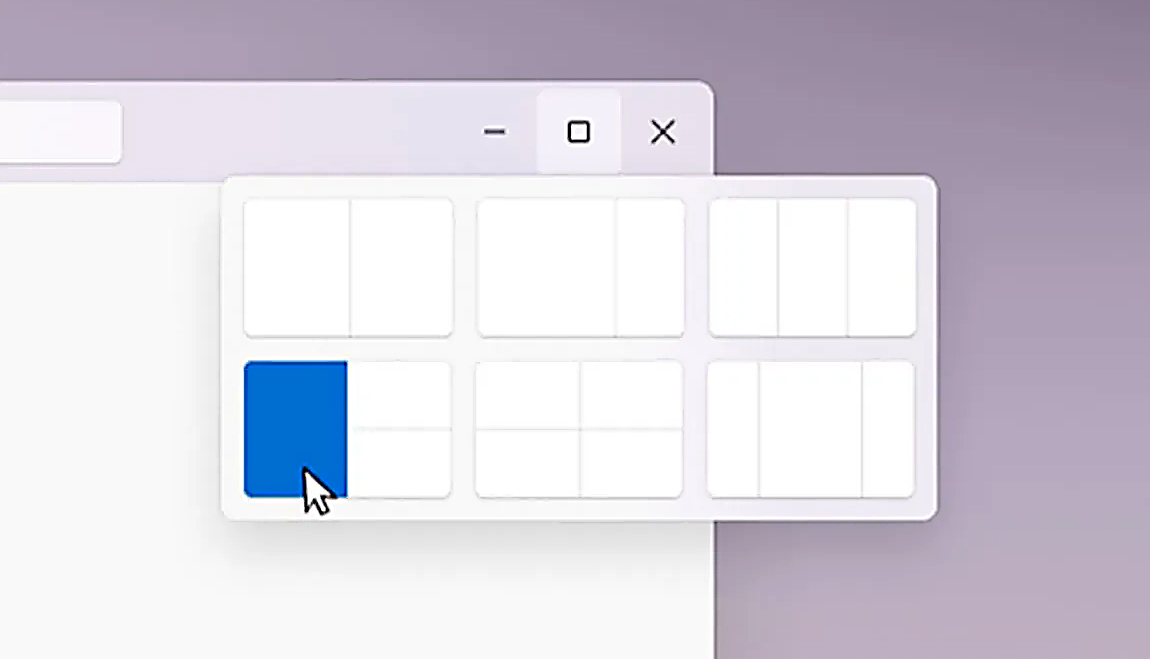
The Snapping feature was introduced as an essential part of Windows 11 and I like it very much, it lets you organize your opened windows much faster and with more control. However, some people do not like the feature, worry not because you can turn it off, or if you prefer you can just remove the showing layout option that is shown when hovering over Minimize/Maximize button.

Snapping feature windows 11Removing options all together

To completely turn off Snap layout in Windows 11 follow these steps
  1. Open Windows 11 settings by pressing ⊞ Windows + I
  2. Select System on the left part of the screen
  3. In System options select Multitasking
  4. At the top of Multitasking Click on the switch next to Snap Windows
  5. Close settings
Changes will be automatically applied and you will no longer have Snap layout functionality.

Removing layout graphic from Snapping feature

If you like the snap Layouts feature but are not very fond of the layout graphic that is popping up each time you hover over Minimize/Maximize button do not worry, there is an option to turn just that off and keep the feature itself.
  1. Open Windows 11 settings by pressing ⊞ Windows + I
  2. Select System on the left part of the screen
  3. In System options select Multitasking
  4. Click on the Snap Windows menu
  5. Deactivate Show Snap Layouts When I Hover over a Window’s Maximize button
  6. Close settings
Now you will be able to use the Snap Layout feature without layout graphics showing. If you want to reverse any of these options and go back to standard-setting, just follow the steps and turn features ON.
Read More
Guide to Correcting Error Code 46

Error Code 46 – What is it?

Error Code 46 is a device driver error that occurs when Windows fails to access the connected peripheral device to the computer as Windows is in a process of shutting down.

Users experience this error on any Windows 2000 and later operating system versions and usually see a pop-up with the following message:

“Windows cannot gain access to this hardware device because the operating system is in the process of shutting down. (Code 46)”

Solution

driverfix boxError Causes

Error Code 46 is caused when there is a temporary problem with windows system files which prompts that the system is undergoing a shut down when in fact is it not.

This prevents access to the connected devices. This error may also be caused by a registry issue in which case it has either become corrupted or damaged.

Further Information and Manual Repair

Unlike all other Windows error codes, code 46 is relatively easy to fix with the right knowledge and does not pose any serious threat to the well-being of your PC. Here is how you can do it.

Method 1 – Restart your PC

The simplest method to resolve Error Code 46 is to run a restart of your computer.

The error is most commonly a temporary registry glitch that prevents you from accessing the device connected to your computer. Upon restarting your computer, it will resume working properly as before.

There is no need to run a troubleshooting wizard, use system restore, or run anti-virus software to scan and remove malware or spyware. A simple restart is all that is needed.

Method 2 – Install DriverFIX

Although the error code can be resolved upon restarting the computer, there’s a possibility of damaged or corrupted Windows registry files. This can be fixed by using a program like DriverFIX.

DriverFIX, with its user-friendly approach to help you fix your PC issues, comes with an integrated database that detects which drivers you need to reconfigure within just a few seconds and downloads it automatically.

It further ensures that your drivers are installed in their entirety leaving no room for any corrupted or damaged registry.

Error Code 46 may not be much of an issue, however, to prevent any risk of a Windows system corruption can be disastrous for your computer.

DriverFIX helps you fix your PC registry and device driver problems with user-friendly software and an integrated database. The database which consists of detailed information on what device driver needs to be installed will automatically download the required device driver without you need to refer to your hardware instruction manual.

Registry problems resulting from incomplete program installations and viruses such as malware and spyware damaged registry files. This affects your PC in serious ways.

DriverFIX further has an automatic backup and restoration system that helps create system ‘checkpoints’ which allow you to roll back to a healthier state and resume operations. This can help you avert any Windows error codes in the future.

Click here to download DriverFIX now!

Read More
Can the Adobe.Dll Error Be Fixed?
Adobe.DLL is one of the numerous Dll files you are going to encounter on your Personal Computer. This isn't a system-established service and is usually the consequence of the sort of applications you install on your own Personal Computer. Because adobe.dll is a low-program process, in the event that you find it present on your pc, you can easily end it. It isn't required for the normal working of your OS but might trigger permanent harm if left unchecked. Don't forget that the Computer uses the AdobePDF.dll file for assorted tasks, and you need to make sure it's installed correctly.

Solution

Restoro box imageError Causes

When the adobe.dll is left un-fixed, you may shortly have to deal with sluggishness on your Computer. Simply put, this impedes the standard and amount of work you do while using your PC and impacts your productivity. Sometimes, adobe.dll happens because your computer experiences an overload. As a result, while resolving the malfunction, you've got to look for methods of decreasing the system overload. It's possible that lots of processes are functioning on your PC concurrently. Quit these processes. Lousy setup of the adobe.dll file causes this error too. Check and fix the files and settings that Adobe.Dll requires to run and you may not have to content with these error anymore.

Further Information and Manual Repair

Even though the adobe.dll may severely influence the functioning of your Computer, it is really a trouble or malfunction that one can fix manually.
  • Permanently Un-Installing the Adobe.dll Component is one of the better methods for repairing the malfunction.
Yes, you are able to completely eliminate the adobe.dll issue. The thing you really need to do is un-install it from your own computer fully, and for good.
  • Quit the many processes operating on your Computer and you may get rid of the adobe.dll malfunction.
Adobe.dll regularly happens due to system overload. Thus, the first thing you need to assess is if several processes are operating on the device. If they're, search for methods to stop them, and you'll not have to worry about the adobe.dll error anymore.
  • Utilize Microsoft System Configuration Utility
The MS System-Configuration Utility will settle the system overload problem, thus freeing up space for your programs to run smoothly and possibly avoid malfunctions, including adobe.dll. The Microsoft System-Configuration Utility manually locates and eliminates all running processes.
  • Perform Scans On Your Computer
Running scans on your own Computer may enhance or increase its operation. This technique may also aid in examining your Computer for adobe.dll, or such associated malfunctions, and resolve them forever.
  • Repair Adobe.Dll Files and Settings' Errors.
Considering that the adobe.dll malfunctions can be a result of the existence of malfunctions on your own PC's files and options, fix these properly. Begin by fixing the settings on the files and options utilized by your Computer to perform the adobe.dll, and you may have removed this issue completely. Finally, establish the source of the error message to effectively solve it. Once you do that and fix it, your PC will resume normal operations and even boost your work and productivity.
Read More
A Quick Guide to Resolving Error 1713

Error 1713 - What is it?

If you use Microsoft-developed programs, then you might experience this error code on your PC. It indicates programming limitations. This error, Error 1713 may pop up during the installation of 2007 or 2010 Microsoft Office Suite. The error message appears in the format stated below:
“Error 1713: Microsoft Office has encountered a problem and needs to close. We are sorry for the inconvenience.”
Common symptoms for error 1713 include system crashes, system freeze and sometimes you may feel your Windows running sluggishly.

Solution

Restoro box imageError Causes

Error 1713 may be triggered due to many reasons. However, common causes for this error occurrence include:
  • Corrupt Microsoft Office Software
  • Corrupt Windows Registry
  • Malware
  • Deleted Microsoft Office Related Files

Further Information and Manual Repair

No matter, what the cause of this error is, it is advisable to resolve it immediately without any delays. This error may pose serious threats to your PC is not repaired timely and also cause you a great deal of inconvenience limiting you from using Microsoft software programs. Here are some of the best and easy DIY methods that you can try to resolve this issue. To work around these methods you don’t have to be a technical whiz or a computer programmer. Let’s get started:

Method 1 - Use System Restore to Undo Changes Made Recently

During any program deletion, you may have accidentally deleted Microsoft related files because of which you may be experiencing error 1713 on your PC. In such an event, the best way to resolve is to undo recent system changes. To do this, use Windows System Restore Utility. This is inbuilt in Windows. To access System Restore Utility, simply press start and type System Restore in the search box and press enter. Now follow the steps in the Wizard to choose a restore point. Once you select, reboot your PC to activate changes.

Method 2 - Update Drivers

One of the many causes of error 1713 is hardware failure. Hardware failure indicates driver issues. To resolve the problem it is advisable to delete the outdated drivers and update new versions on your PC.

Method 3 - Scan for Malware

Malware can also trigger such error codes on your system and corrupt important files. Therefore remove malware immediately from your PC by running an antivirus. Antivirus will detect and delete all malicious programs in no time.

Method 4 - Repair the Registry

Broken entries, junk files, and invalid registry keys corrupt the registry thereby generating error codes. To resolve you first need to clean the registry and repair it. For this download Restoro. It is a PC Fixer deployed with a registry cleaner. The registry cleaner removes all bad entries stored in the registry, cleans it and repairs the damaged files in just a few clicks. Click here to download Restoro.
Read More
Change Windows 10 Lock Screen Background
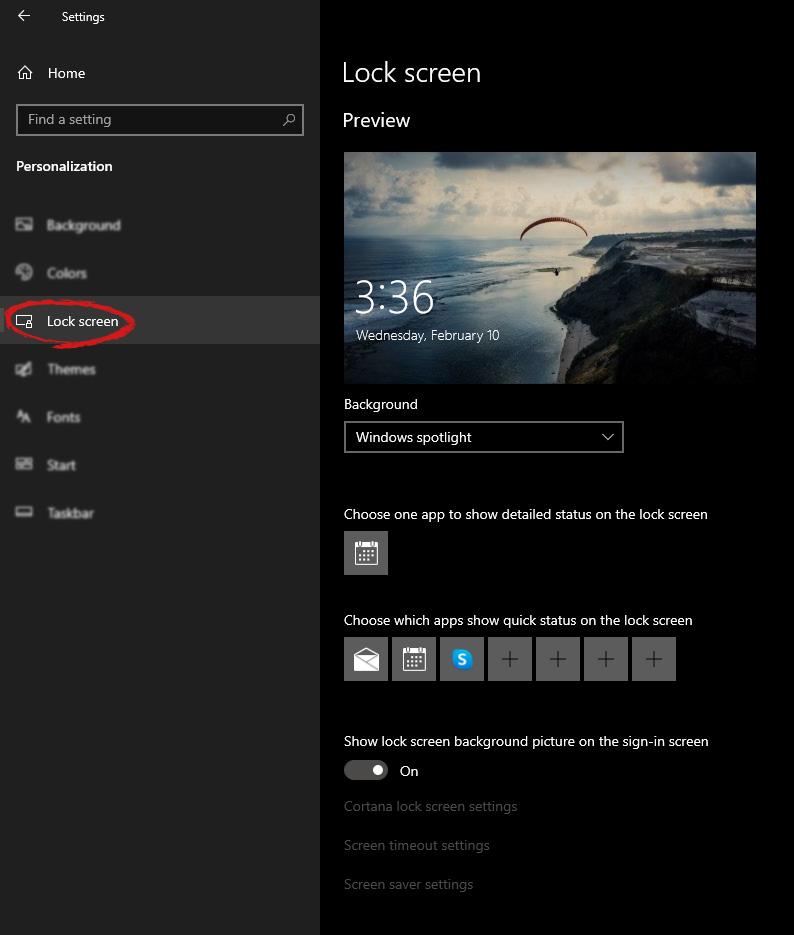
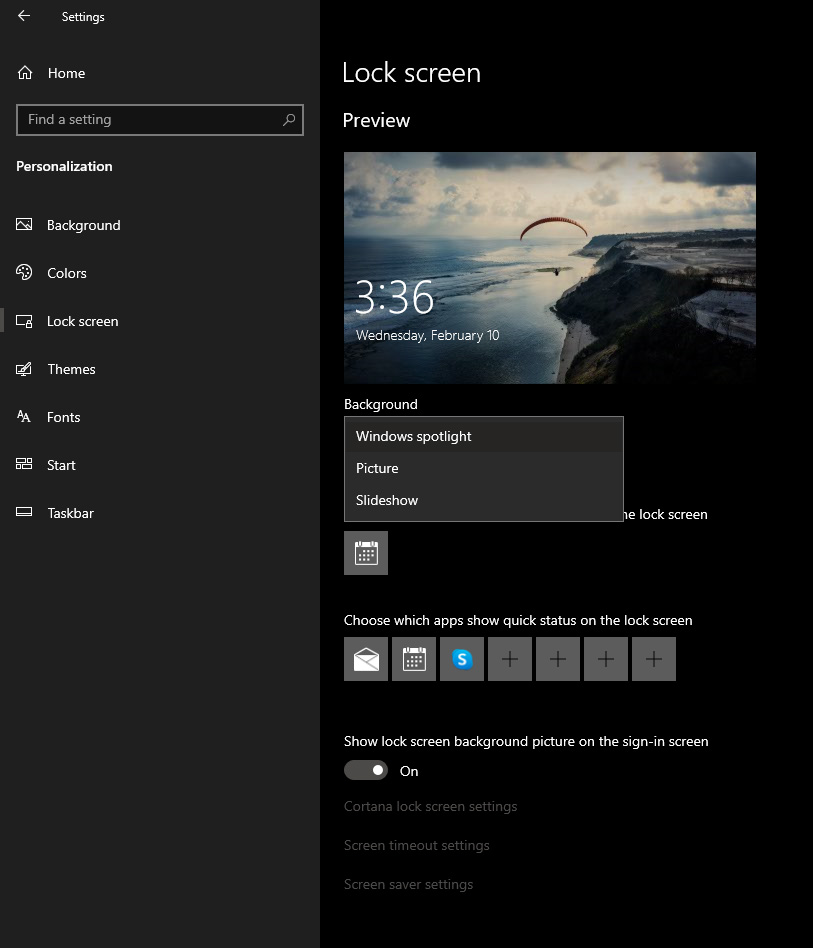
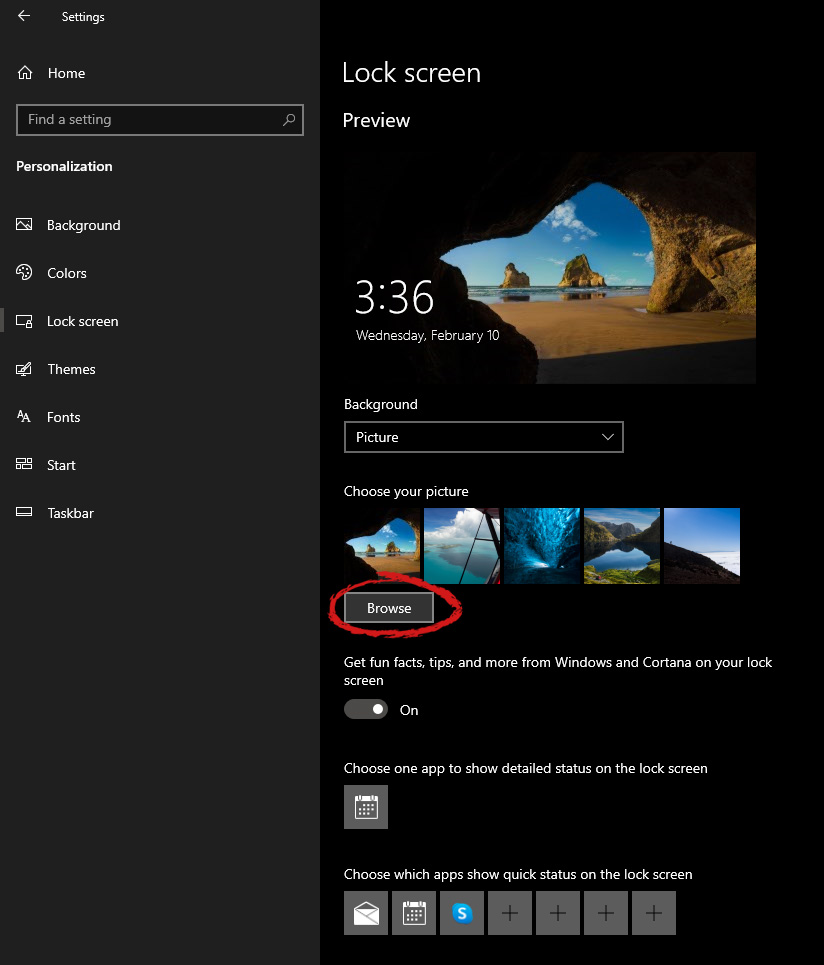
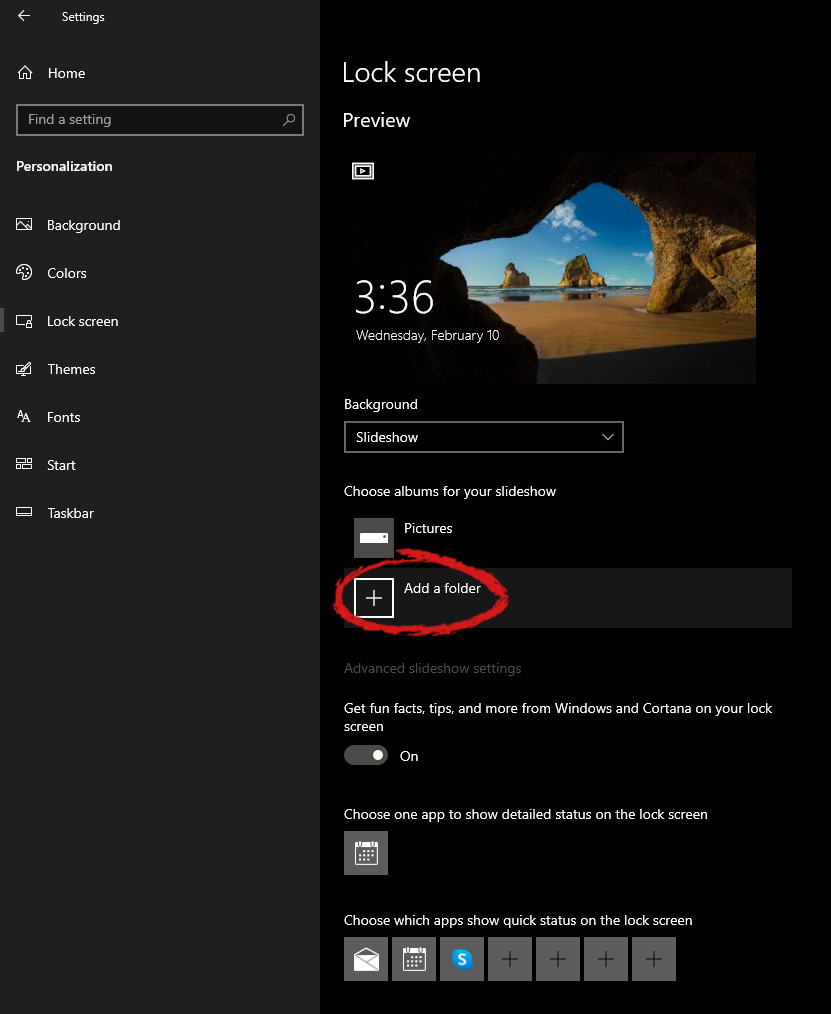
Hello everyone, I hope you are all doing well. Today we will be changing the Windows Lock Screen background. Changing the lock screen background is a very easy task and it can be done in a very short time. So let's jump right into it. The first thing you need to do is to press the Windows start button on the bottom left and then press settings. Windows 10 Star menu with marked settings iconOnce the settings screen appears, choose and click on Personalization. Windows 10 settings menu with marked Personalization groupInside personalization, click on the Lock Screen tab. Windows settings lock screenOn the right screen, under the picture, you will find Windows spotlight, click on it to bring a drop-down menu up. lock screen drop down menuYour choice is presented as a single picture for background or slideshow, a series of pictures that are going to be looped in a given time interval. If you would like just a single picture for your background, choose that and click on it. lock screen browse for picturesOnce you are in choose picture dialog, click on the browse button and navigate to the picture on your storage which you would like to have as a background. If however, you fancy slideshow as your lock screen background, click on the background drop-down menu and choose the slideshow. Next, click on add a folder and navigate to a folder where you have pictures that you would like to have as a slideshow for your Windows lock screen. lock screen add a folder option

Read More
1 2 3 171
Logo
Copyright © 2023, ErrorTools. All Rights Reserved
Trademark: Microsoft Windows logos are registered trademarks of Microsoft. Disclaimer: ErrorTools.com is not affiliated with Microsoft, nor claims direct affiliation.
The information on this page is provided for information purposes only.
DMCA.com Protection Status