Logo

Fix Origin Error when loading the webpage

If you encounter a blank page with an error message saying, “Origin Error” when you try to load a webpage, then this post will surely help you resolve this error. As you can see, this error is a very uncommon one and it is not about the popular game known as Origin where all you have to do is reinstall the client.

Although this error message is a very uncommon one, you will see a blank page with a message saying, “Origin Error” when you attempt to load a webpage. To fix this error, this post will provide you some potential fixes that might help. Follow the fixes given below carefully and see which one fixes the problem.

Option 1 – Use Ctrl + F5 keys to clear browser cache

The first thing you can try is to “Hard Refresh” to clear the cache of your browsers. You can do that by using the Ctrl + F5 keys on your keyboard. On the other hand, you can also clear the cache manually for Chrome, Edge, and Firefox.

Option 2 – Remove the Proxy

You might also want to try removing the Proxy as it could also help you in fixing the Origin error. Here’s how you can do it:

  • Tap the Win + R keys to open the Run dialog box.
  • Then type “inetcpl.cpl” in the field and hit Enter to pull up the Internet Properties.
  • After that, go to the Connections tab and select the LAN settings.
  • From there. Uncheck the “Use a Proxy Server” option for your LAN and then make sure that the “Automatically detect settings” option is checked.
  • Now click the OK and the Apply buttons.
  • Restart your PC.

Note: If you are using a third-party proxy service, you have to disable it.

Option 3 – Try to flush the DNS, reset Winsock and the TCP/IP

You might also want to flush the DNS and reset Winsock as well as reset TCP/IP as it could help in fixing the Origin error. To do so, refer to these steps:

  • Click the Start button and type in “command prompt” in the field.
  • From the search results that appear, right-click on Command Prompt and select the “Run as administrator” option.
  • After opening Command Prompt, you have to type each one of the commands listed below. Just make sure that after you type each command, you hit Enter
    • ipconfig /release
    • ipconfig /all
    • ipconfig /flushdns
    • ipconfig /renew
    • netsh int ip set dns
    • netsh winsock reset

After you key in the commands listed above, the DNS cache will be flushed and the Winsock, as well as the TCP/IP, will reset.

  • Now restart your computer and open Google Chrome then try opening the website you were trying to open earlier.

Option 4 – Try using Google Public DNS

You might want to try changing your current DNS to the Google Public DNS. All you have to do is change the DNS settings explicitly on your operating system by using the DNS IP addresses. Here’s are the steps to do that:

  • The first thing you have to do is right-click on the network icon in the Taskbar and select Network and Sharing Center.
  • Next, click on the “Change Adapter Settings” option.
  • After that, search for the network connection that you are using to connect to the internet. Note that the option might be “Wireless Connection” or “Local Area Connection”.
  • Right-click on your network connection and click on Properties.
  • Then select the new window to choose the “Internet Protocol 4 (TCP/IPv4)” option.
  • After that, click on the Properties button and click the checkbox in the new window for the option “Use the following DNS server addresses”.
  • Type in “8.8.8” and “8.8.4.4” and click OK and exit.

Do You Need Help with Your Device?

Our Team of Experts May Help
Troubleshoot.Tech Experts are There for You!
Replace damaged files
Restore performance
Free disk space
Remove Malware
Protects WEB browser
Remove Viruses
Stop PC freezing
GET HELP
Troubleshoot.Tech experts work with all versions of Microsoft Windows including Windows 11, with Android, Mac, and more.

Share this article:

You might also like

A Quick Guide to Fixing Ntdll.dll Error Code

Ntdll.dll Error - What is it?

Ntdll.dll is a type of DLL (Dynamic Link Library) error. DLL errors are some of the most common but complicated errors to troubleshoot and resolve by PC users. The Ntdll.dll error message is displayed in the following formats:
  • "STOP: 0xC0000221 unknown hard error C:WinntSystem32Ntdll.dll
  • "NTDLL.DLL Error!"
  • "STOP: C0000221 unknown hard error SystemRootSystem32ntdll.dll"
  • "[PROGRAM NAME] caused a fault in module NTDLL.DLL at [ANY ADDRESS]"
  • "AppName: [PROGRAM NAME] ModName: ntdll.dll"
  • "Crash caused in ntdll.dll!"
  • "Unhandled exception at [ANY ADDRESS] (NTDLL.DLL)"
You may come across the ‘Ntdll.dll error’ pop-up either when you try to run a program or after using it or while the program is running. It may also appear when Windows starts or shutdowns or even during Windows installation.

Solution

Restoro box imageError Causes

The Ntdll.dll error code can be triggered due to numerous reasons such as:
  • DLL file corruption due to hard drive bad entries
  • Missing DLL files
  • Corrupt hardware drivers
  • Viruses
  • DLL file misconfiguration
It is recommended to resolve this error code immediately on your PC to avoid inconvenience and serious PC damages like program lockouts, system failure, freeze, and crash

Further Information and Manual Repair

All the causes for ‘Ntdll.dll’ are linked with the registry. The registry is the main database of your system. It saves all the activities and files on your PC including the important data file and unnecessary files such as the junk files, temporary internet files, and obsolete files, files of the programs installed, bad entries, invalid registry keys, and cookies. These files take up also hard drive space thereby causing dll file damage, disk fragmentation, and data overload. Ntdll.dll error may also occur to due viral infection and malware attack. There are 2 ways to resolve the Ntdll.dll error. One is to install 2 separate tools, the registry cleaner, and antivirus, and run them separately to scan for errors. This option is time-consuming and running an antivirus can also slow down the speed of your computer. Therefore we recommend that you opt for the second alternative that is to download Restoro.

Why Restoro.

  • This is an advanced, innovative, and multi-functional PC repair tool embedded with several powerful PC repair utilities like a registry cleaner, an antivirus, and a system optimizer. This is a one-stop solution for all your PC errors.
  • It is user-friendly, safe, efficient, and compatible with all Windows versions. The registry cleaning feature scans for all registry issues.
  • It wipes out all the unnecessary files from the hard drive, repairs the damaged dll files, and restores the registry, thereby resolving the Ntdll.dll error code right away.
  • The privacy error utility functions like an antivirus. It detects and removes all the malicious software like viruses, malware, Trojans, and spyware. Simultaneously, the system optimizer feature boosts the PC speed.
Click here to download Restoro and resolve the Ntdll.dll error on your PC today!
Read More
Bluetooth A2dp Source not working Code 52
A number of users have recently reported that they were going through an issue with their Bluetooth devices on their Windows 10 computers. This issue involves an error saying,
“Windows cannot verify the digital signature for the drivers required for this device. A recent hardware or software change might have installed a file that is signed incorrectly or damaged, or that might be malicious software from an unknown source. (Code 52).”
If you are one of the users who encountered this kind of error on your Windows 10 computer, read on as this post will guide you on how you can fix this Bluetooth error. According to security experts, the key to fixing this error is to sign the Bluetooth A2DP files with the built-in tool, System File Checker. Apart from that, you could also run the Hardware and Devices troubleshooter or perform System Restore, as well as update or reinstall the concerned drivers. For more details, refer to each one of the options provided below.

Option 1 – Try to check Bluetooth-related services

In Services, there is a Bluetooth-related service that helps users use Bluetooth so if that particular service suddenly malfunctions for some reason, you will most likely get the “Windows was unable to connect with your Bluetooth network device” error message. That’s why you need to check Services and to do that, refer to these steps:
  • Tap Win + R keys to open Run prompt and type in “services.msc” then tap Enter to open Services.
  • Next, look for the Bluetooth Support Service and double click on it to open Properties.
  • From there, verify if the Service status is showing “Running” or “Stopped”. If it’s the latter, you have to click the Start button.
  • Lastly, check if the Startup type is set to Manual.

Option 2 – Try running System File Checker or SFC scan

You could also run System File Checker or SFC scan to fix the Bluetooth error. It is a built-in command utility that helps in restoring corrupted files as well as missing files. It replaces bad and corrupted system files with good system files. To run the SFC command, follow the steps given below.
  • Tap Win + R to launch Run.
  • Type in cmd in the field and tap Enter.
  • After opening Command Prompt, type in sfc /scannow
The command will start a system scan which will take a few whiles before it finishes. Once it’s done, you could get the following results:
  1. Windows Resource Protection did not find any integrity violations.
  2. Windows Resource Protection found corrupt files and successfully repaired them.
  3. Windows Resource Protection found corrupt files but was unable to fix some of them.
  • Reboot your PC.

Option 3 – Try to perform System Restore

You might also want to perform System Restore as the error might be caused by system modifications. Thus, to undo them, you can use System Restore. Run it using these steps:
  • First, tap the Win + R keys to open the Run dialog box.
  • After that, type in “sysdm.cpl” in the field and tap Enter.
  • Next, go to the System Protection tab then click the System Restore button. This will open a new window where you have to select your preferred System Restore point.
  • After that, follow the on-screen instructions to finish the process and then restart your computer and check if the problem is fixed or not.

Option 4 – Try running the Hardware and Devices Troubleshooter

The next thing you can do to fix the problem is to run the Hardware and Devices troubleshooter. Although it won’t make much of a difference, there’s still a possibility that it could automatically fix the Bluetooth error. To use it, refer to these steps:
  • The first thing you need to do is click on Start and then on the gear-like icon to pull up the window for Settings.
  • After opening Settings, look for the Update and Security option and select it.
  • From there, go to the Troubleshoot option located on the left-hand side of the list.
  • Next, select Hardware and Devices from the list and open the Troubleshooter and run it. Once it is doing its job, wait for it to complete the process and then restart the system.
  • After the system restarts, check if the problem’s now fixed. If not, refer to the next option given below.

Option 5 – Try to reinstall or update the Bluetooth driver

The issue might have something to do with the Bluetooth drivers. It could be that it is outdated and needs to be updated or that you recently updated it and since then you have trouble removing the Bluetooth devices and so to fix the issue, you can update, roll back or uninstall the Bluetooth drivers. How? Follow the steps below.
  • Tap the Win + X keys to open the Device Manager.
  • Next, look for the Bluetooth device and right-click on it.
  • Select the option “Update driver”.
  • After that, a new popup window will appear. In there, select the option, “Search automatically for updated driver software”.
Note: Checking the update may take a few minutes so you’ll have to wait until it finishes. If it is able to find an update, you must install it. And if you want to reinstall the Bluetooth driver, just select the “Uninstall driver” option and follow the next on-screen instructions that follow.
Read More
A Patch for Windows Code 44 Error

Error Code 44 – What is it?

Error Code 44 is a device driver error that users encounter when using Windows 2000 operating system and later versions.

It is when the peripheral device that is connected to the computer, such as a printer or a fax machine, cannot be accessed as the programs required for operation interfere with other software on the computer. The error code will pop up with the following message:

“An application or service has shut down this hardware device. (Code 44)”

Solution

driverfix boxError Causes

Error Code 44 is caused when the program that you are using shuts down the peripheral device installed on your system. It is triggered by the following:
  • Corrupted system registry entries
  • Device driver files are outdated
  • Device driver files are missing
It is critical to fix the Error Code 44 as it can pose serious risks to the wellbeing of your PC.

Further Information and Manual Repair

While bothersome, like other error codes, error code 44 to is relatively easy to fix. Here are ways to help resolve the error.

Method 1 – Restart your PC

The easiest method you can use to solve your PC error code is to simply run a restart of your Windows system. It may be that the error prompted upon connecting the device you have connected is merely a temporary problem, and upon restart, will resume functioning smoothly.

Method 2 – Run the Troubleshooting Wizard

If restarting your PC does not help, you will have to find the exact nature of the problem by running the troubleshooting wizard for the device and address the problem accordingly. To do this, proceed with the following steps:

  • Run Device Manager on your PC
  • Click on the program under the installed programs that are creating problems for you
  • Click on the ‘General’ Tab
  • Click ‘Troubleshoot’
  • Upon opening, the Troubleshooting Wizard will ask a series of questions regarding the error. Answer the questions and follow its directions for solving the error code.

After following the directions of the Troubleshooting wizard, make sure to restart your PC for the changes to take effect. Then check if your device is still causing problems.

Method 3 – Manually uninstall and reinstall the device driver

If troubleshooting does not work, you may have to resort to manually uninstalling and then reinstalling the device driver causing the problem.

This would be necessary since the remaining incomplete files due to a partial removal or installation of programs is what contributes to the error code. A fresh install, after uninstallation of the previous drivers, would lead to the completion of the files.

You can do this by firstly logging in as Administrator and opening Device Manager. Select the device that is causing the problem and double click it and make sure that the peripheral is connected properly to the PC.

Upon opening, click on the ‘Driver’ tab and then select ‘Update Driver’. Make sure to refer to the system documentation that you received with your PC or computer to check for the motherboard details and driver specifics.

Method 4 – Use software to automatically download the driver

Manually uninstalling and reinstalling the driver will do the trick, however, it may be time-consuming especially when you would have to resort to your hardware user manual.

Therefore, using a program such as DriverFIX can save you a lot of time and frustration in having your device work properly on your computer.

Driver Assist, with its user-friendly approach to help you fix your PC issues, comes with an integrated database that detects which drivers you need to reconfigure within just a few seconds and downloads it automatically.

It further ensures that your drivers are installed in their entirety leaving no room for any incomplete files to remain that create Error Code 38.

It also has the added advantage of being able to backup and restores your files should there be the slightest possibility of system file damage. DriverFIX is the answer to fixing your PC error codes accurately and quickly.

Click here to download DriverFIX to fix Error Code 44 quickly and effectively!

Read More
Apple M2 Chip review

Direct replacement for Apple M1 Chip is near. There were some M1 Chips versions like M1 MAX and M1 ULTRA that were upgrades of the existing M1 chip, but the new and upcoming M2 is something different and it is aiming to replace M1 completely.

apple m2 chip

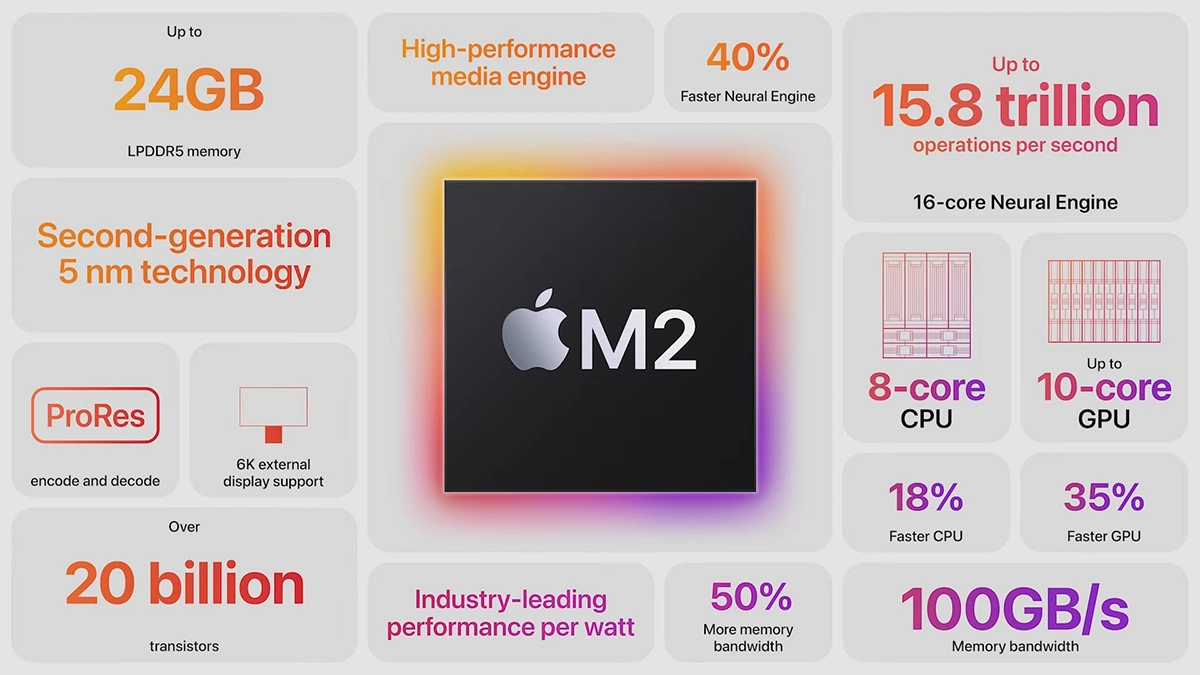
Made in a 5-nanometer design, with 20 billion transistors and 100GB/s of unified memory bandwidth is meant to increase performance over M1. It has the same M1 8 core design with 4 high-efficiency cores and 4 high-performance ones.

All CPU and GPU cores are faster than their M1 equivalents and Apple states that when running M1 and M2 at the same power level M2 will perform 25% faster. The first version of the chip will place focus on power efficiency so if you are more on side of being a power user wait for the MAX or ULTRA version of M2.

Tech details of M2

M2 system on a chip like its predecessor M1 combines both CPU and GPU on a single chip with shared memory in order to increase performance compared to systems that have separate CPU and GPU. M2 so far has been only announced for MacBook Air and the 13-inch MacBook Pro that suppose to hit the market somewhere around July this year. Of course, we expect that M2 is included in future iPad series or Mac Mini series as well.

  • CPU Cores: 8
  • GPU Cores: Up to 10
  • Unified Memory: Up to 24 GB
  • Neural Engine Cores: 16
  • Number of Transistors: 20 billion
  • Process: Second Generation 5nm
Read More
Restoring accidentally deleted system files
There are times when we delete a system files without meaning to on your Windows 10 computer. This happens a lot for users sometimes mistake a system file for a malware-laden file or junk file when it’s actually a system file from the System32 or SysWOW64 folder. In such cases, it could affect your computer. For instance, you might not be able to reboot your PC or open Settings. If you have removed system files from any of these folders by accident and you desperately want to restore them, read on, as this post will guide you in resolving the problem. Restoring them isn’t actually hard, just make sure that you have system admin access. The good thing is that there exists Windows Resource Protection which protects registry keys and folders and even critical system files. So if there are any detected changes to a protected system file, the modified file is restored from a cached copy located in the Windows folder. However, if the Windows Resource Protection program fails to restore these files, you need to check out the given fixes below.

Option 1 – Run System File Checker scan

To restore the system files you deleted, you can try running System File Checker or SFC scan. System File Checker is a command utility built into your computer that helps restore corrupted files and missing files. Refer to the following steps to run it:
  • Boot your PC into Safe Mode.
  • Hit the Win + R keys to launch Run.
  • Type in cmd in the field and tap Enter.
  • After opening Command Prompt, type in sfc /scannow
The command will start a system scan which will take a few while before it finishes. Once it’s done, you could get the following results:
  1. Windows Resource Protection did not find any integrity violations.
  2. Windows Resource Protection found corrupt files and successfully repaired them.
  3. Windows Resource Protection found corrupt files but was unable to fix some of them.
  • Reboot your computer.

Option 2 – Try to run the DISM tool

Aside from System File Checker, you can also run the DISM or Deployment Imaging and Servicing Management Tool as it could help in restoring the system files on your Windows 10 computer. Using this built-in tool, you have various options such as the “/ScanHealth”, “/CheckHealth”, and “/RestoreHealth” which could help you resolve the problem.
  • Open the Command Prompt with admin privileges.
  • Then type in the following commands and make sure to hit Enter right after you type each one of them:
    • Dism /Online /Cleanup-Image /CheckHealth
    • Dism /Online /Cleanup-Image /ScanHealth
    • exe /Online /Cleanup-image /Restorehealth
  • Do not close the window if the process takes a while as it will probably take a few minutes to finish.

Option 3 – Try performing a System Restore

Running System Restore can also help you bring back the system files. You can do this option either by booting into Safe Mode or in System Restore. If you are already in the Advanced Startup Options, just directly select System Restore and proceed with the next steps. And if you have just booted your PC into Safe Mode, refer to the steps below.
  • Tap the Win + R keys to open the Run dialog box.
  • After that, type in “sysdm.cpl” in the field and tap Enter.
  • Next, go to the System Protection tab then click the System Restore button. This will open a new window where you have to select your preferred System Restore point.
  • After that, follow the on-screen instructions to finish the process and then restart your computer and check if the problem is fixed or not.

Option 4 – Try to run Automatic or Startup Repair

Startup Repair, previously known as Automatic Repair, is an advanced tool in Windows that can help you diagnose various system issues, including this one. This tool will scan system files, configuration settings, registry settings, and so on in order to fix the problem on its own. To run Startup Repair, all you have to do is boot into the Advanced Startup Options and then go to Troubleshoot > Advanced option > Startup Repair and then run it. This will resolve the problem if you have deleted any system file that’s essential to your Windows 10 PC.

Option 5 – Reset your computer

  • Tap the Win key or click on the Start button located in the Taskbar.
  • Then click on the Power button at the bottom right portion of the screen.
  • Next, press and hold the Shift key on your keyboard and then click on Restart. This will restart your Pc into the Advanced Startup options.
Note: Once you have access to the Advanced Startup options, you have to go to the setting which allows you to Reset your Windows 10 PC. All you have to do is select Troubleshoot > Reset this PC to reach the following screen Afterward, select either the “Keep my files” option and then proceed to the next on-screen instructions that follow to reset your Windows 10 computer without losing your files.
Read More
5 ways to open task manager in Windows 11
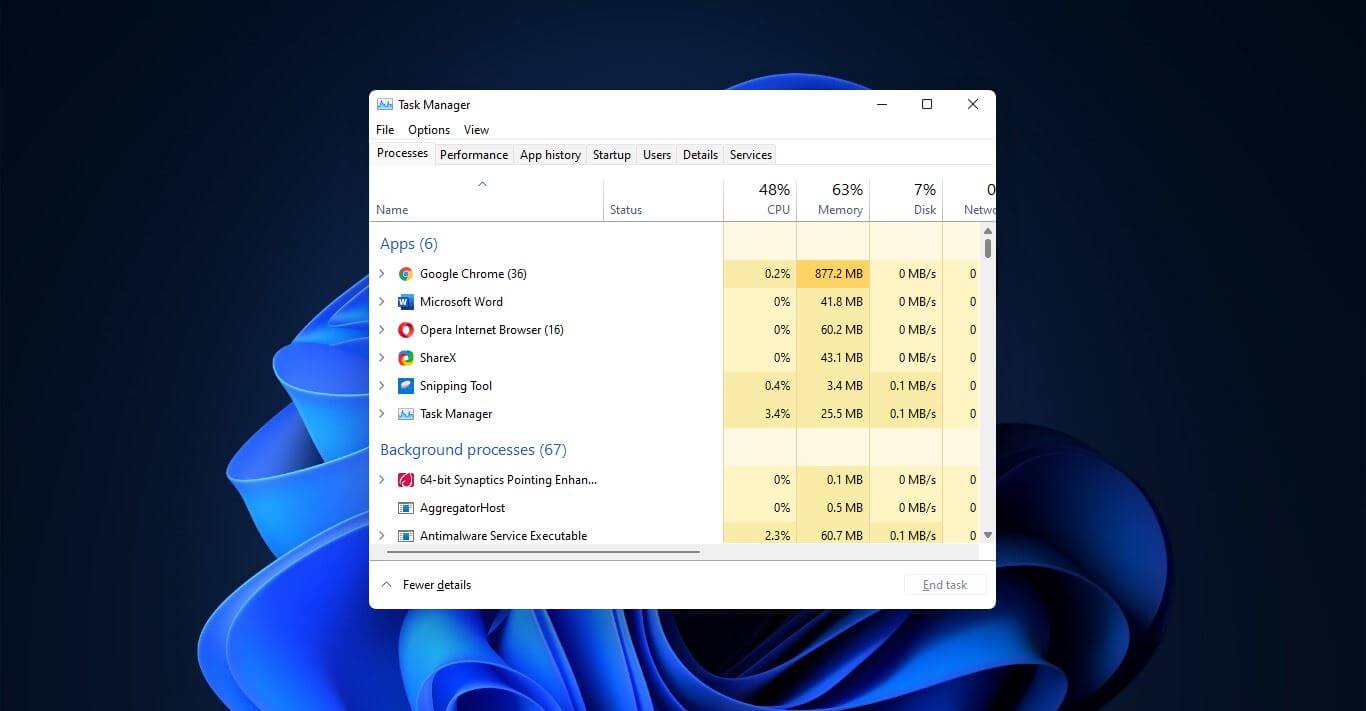
Something we are used to doing in a certain way inside Windows 10 is slightly changed in Windows 11. One of those things is how you open task manager, well kind of. task managerOption to right-click on the taskbar and launch task manager is gone but do not worry there are other same and simple ways you can launch it.
  1. Press CTRL + SHIFT + ESC or CTRL + ALT + DEL
  2. Right-click on the START button
  3. Type task manager in start search on top in the start menu
  4. Type taskmgr in command prompt
  5. Press ⊞ WINDOWS + R to open run dialog and type in taskmgr
And that’s it, now depending on your situation, you might use different methods to evoke task manager.
Read More
How to Fix Sysdata.xml Error Code on Your PC

Sysdata.xml Error Code - What is it?

To develop a good understanding of the Sysdata.xml error code, it is first important to learn what is sysdata.xml file and its function. Sysdata.xml is a type of XML file. The .XML file extension is an Extensible Markup Language file. XML-based formats have now become the default for many office productivity tools including Microsoft Office and LibreOffice. Furthermore, it has also come into common use for the interchange of data over the internet. Sysdata.xml error code usually pops up when .XML based applications are unable to run and crash while loading. This is a type of BSoD (Blue Screen of Death) error code. Common symptoms include:
  • System freeze
  • The screen turns blue
  • Sudden system shut down

Solution

Restoro box imageError Causes

The Sysdata.xml error code is triggered due to multiple reasons such as:
  • Faulty hardware
  • Malware or viral infection
  • Registry issues
No matter what the reason may be, it is advisable to fix this error code right away without any delays. This is a fatal error and can result in a system crash and loss of data. And recovering valuable lost data is the hardest.

Further Information and Manual Repair

Here are some of the effective and easy do it yourself methods to resolve this error on your system:

Method 1: Fix Faulty Hardware

Hardware issues may arise due to many reasons like manufacturing issues or voltage fluctuations. Electrical storms can cause power surges which may affect the hardware causing it to fail. The best way to resolve this is to download the latest drivers for the problematic devices or alter the device configuration in the BIOS setup program.
  • To reconfigure the BIOS simply restart your PC and before Windows starts, press Del Key to access your BIOS.
  • Now find the factory reset option.
  • Select the option and press the button to load your factory defaults.
  • After that save changes and confirm your selection.
  • Reboot your PC to activate the changes.

Method 2: Scan for Viruses

Sometimes viruses and malware can disguise themselves in the .XML files which can cause them to get corrupted. To resolve the issue, it is advisable to download a powerful antivirus and scan your entire PC for viruses. Remove the detected viruses to resolve the Sysdata.xml error on your system.

Method 3: Repair the Registry

If the registry is not cleaned frequently, it loads with unnecessary and obsolete files like the junk files and cookies. These files clutter and damage the registry and eventually corrupt it and the important files like .XML files stored in it. To resolve the issue it is recommended to download Restoro. It is a user-friendly and powerful PC Fixer embedded with a registry cleaner. It scans your entire PC for registry-related errors and removes them immediately. It cleans the cluttered registry and restores the damaged files thereby repairing the issue right away. Click here to download Restoro.
Read More
Microsoft Office Windows 11 edition
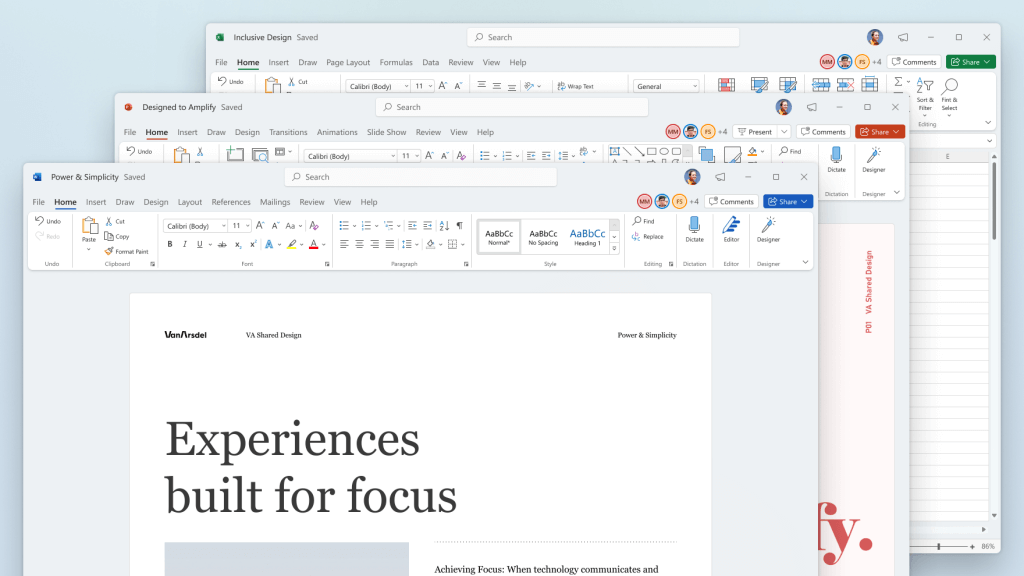
Microsoft has officially announced details about the newest upgrades to its office 365 suite moving forward along with its new OS release. It seems that Microsoft has listened to its user base and feedback since Word, Excel, and PowerPoint are getting much-needed redesign taking into account many suggestions from the community. The new office should feel more like an application suite guiding focus on the interconnection of applications themselves providing users with a much more natural experience of using them.

The new office features so far

From Microsoft themselves:
“This Office visual refresh is based on feedback from customers who asked for a more natural and consistent experience within and between your applications, specifically on Windows. With this update, we deliver an intuitive, coherent, and familiar user interface, using the Fluent Design principles, across all your applications: Word, Excel, PowerPoint, OneNote, Outlook, Access, Project, Publisher, and Visio. We aligned this visual refresh with the design of Windows 11 to provide seamless experiences on your PC.”
It is always refreshing to hear when a company listens to its user base and actually does what is needed instead of trying to invent the wheel.

office appsHow to switch

Since beta is already rolling and if you have an active 365 subscription to office suite visual refresh will be automatically available to all Office insiders running beta channel builds. It can be turned on and off using the coming soon feature in the top right corner of the menu in any application. Just click on the megaphone icon to open the coming soon pane and apply settings to all office apps. Note that The Coming Soon feature is not available in Access, Project, Publisher, or Visio. If you turn on the visual refresh in any of the 4 apps mentioned above (Work Excel, PowerPoint, or OneNote), it will also be available in these 4 apps.

Difference themselves

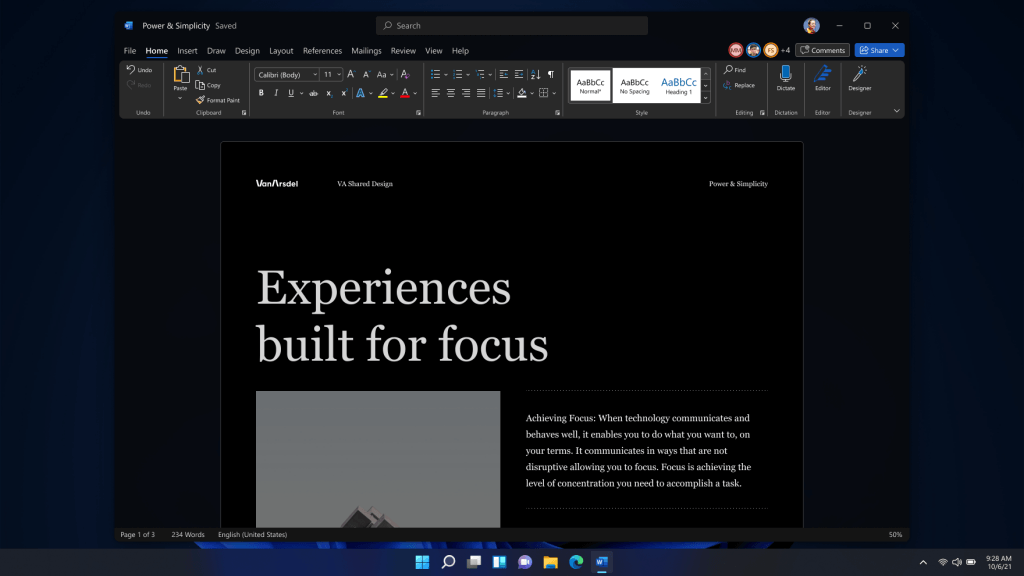
The Home tab menu still has a familiar look with a few tweaks. For example, accessing frequently used Word commands will be a lot easier. By navigating to Designer > Show Quick Access Toolbar, users can add a customizable shortcut ribbon to Word that houses conveniently placed options. Also, the office will not match your Windows operating system color theme so if you have a dark theme enabled, the office will also have a dark color theme. Color palettes are more neutral, corners are a bit softer but customizable ribbons are a win here for me.

office dark modeConclusion

There was not much said other than visual upgrades and small tweaks that were supposed to make your life easier but then again Windows 11 itself is in the same boat. I am not sure if this is a great update offering just some visual tweaks and focus on workflow mechanics or just being plain lazy and trying to cash in visuals as a completely new product.
Read More
Disabling Windows 10 startup delay
First time when your computer is turned ON and when Windows is booting it will wait 10 seconds before starting your startup applications. This 10 second is used to load all of Windows services so everything is running smoothly. If by any chance you do not want to wait for this startup delay and wish to start applications right away then keep on reading and follow this guide precisely. This guide will require you to play ad tweak with the registry of Windows, it is always recommended to make a registry backup before attempting any tweaks. Also, it is imperative to follow the guide as it is presented step by step. be aware that this guide will eliminate a 10-second delay for all of your starting applications, there is no way currently to remove delay for only one or a few.
  1. Press ⊞ WINDOWS + R to open the run dialog
  2. In run dialog type Regedit and press ENTER
  3. Locate HKEY_CURRENT_USER\SOFTWARE\Microsoft\Windows\CurrentVersion\Explorer\Serialize
  4. If the key does not exist, make a new one,  Go to HKEY_CURRENT_USER\SOFTWARE\Microsoft\Windows\CurrentVersion\Explorer\, right-click on the explorer and choose new > key. Name it Serialize
  5. Right-click on Serialize and choose New > DWORD (32-bit) Value
  6. Name the value StartupDelayInMSec
  7. Double click on StartupDelayInMSec and locate Value data
  8. Set the value to 0
  9. Save changes and Exit Registry editor
  10. Reboot
If you want to reverse changes and enable delay again, go back to the Registry Editor and delete the StartupDelayInMSec value.
Read More
Completely Remove SweetIM From Computer

SweetIM Toolbar for Internet Explorer is a browser add-on which adds various shortcuts to your browsers for easy access. This toolbar also changes your homepage to home.sweetim.com. The toolbar is typically bundled with the free Sweet Instant Messenger program and does not necessarily get uninstalled when Instant Messenger is removed from the user’s PC. Additionally, if the home page and search settings were modified by this toolbar, they need to be manually reverted back by the user.

This extension injects various ads into your browser search results and changes your default search engine. While you are browsing the internet, this software records your website surfing data, clicks, and possibly private information. Several Anti-virus programs have classified SweetIM Toolbar as a potentially unwanted application and are not recommended to keep.

About Browser Hijackers

Browser hijacking means that a malicious program code has power over and modified the settings of your web browser, without your approval. They are made to disrupt browser functions for many different reasons. Generally, the idea would be to force users to visit particular sites that are looking to increase their visitor traffic and produce higher ad revenue. Most people assume that such websites are legitimate and harmless but that is incorrect. Nearly every browser hijacker poses an actual threat to your online safety and it is vital to categorize them under privacy dangers. On top of that, hijackers can make the whole infected system vulnerable – other harmful malware and viruses would grab these opportunities to intrude into your system effortlessly.

Major signs that an internet browser has been highjacked

The common signs that indicate having this malicious software on your PC are: the home page of your respective browser is changed unexpectedly; bookmark and the new tab are also modified; the default search engine and the default web browser settings are altered; discover new toolbars that you didn’t add; you find lots of pop-up ads on your computer screen; web pages load very slowly and sometimes incomplete; Inability to navigate to particular sites, particularly antivirus and also other computer security software websites.

Exactly how they get into your computer or laptop

There are several ways your computer can get infected with a browser hijacker. They usually arrive by way of spam e-mail, via file sharing websites, or by a drive-by download. Many browser hijackings originate from add-on software, i.e., toolbars, browser helper objects (BHO), or extensions added to browsers to give them additional features. A browser hijacker may also come bundled up with some freeware that you unwittingly download to your computer system, compromising your internet security. A good example of some notorious browser hijackers includes Anyprotect, Conduit, Babylon, SweetPage, DefaultTab, RocketTab, and Delta Search, but the names are continually changing. Browser hijackers can record user keystrokes to gather potentially invaluable information that leads to privacy concerns, cause instability on systems, severely disrupt the user experience, and eventually slow down the PC to a stage where it becomes unusable.

Removal

Some browser hijacking could be quite easily corrected by identifying and removing the corresponding malware application through your control panel. But, many browser hijackers are hard to eliminate manually. Regardless of how much you attempt to remove it, it may keep returning over and over. You should consider doing manual repairs only if you are a tech-savvy person, as there are risks associated with tinkering around with the computer registry and HOSTS file. Browser hijackers could be effectively removed by installing the anti-malware application on the affected computer. One of the finest tools for repairing browser hijacker malware is Safebytes Anti-Malware. It will help you get rid of any pre-existing malware on your computer and gives you real-time monitoring and protection from new internet threats. Along with the antivirus tool, a PC optimizer will help you in getting rid of all related files and modifications in the registry automatically.

Can't Install Safebytes Anti-malware because of Malware? Do This!

Viruses could potentially cause a great deal of damage to your personal computer. Certain malware variants alter browser settings by including a proxy server or change the computer’s DNS settings. In such cases, you will be unable to visit certain or all internet sites, and thus unable to download or install the necessary security software to remove the infection. If you’re reading this, chances are you’re stuck with a virus infection that is preventing you to download or install Safebytes Anti-Malware software on your system. Although this kind of issue will be difficult to get around, there are some actions you can take.

Eliminate malware in Safe Mode

The Windows-based PC has got a special mode referred to as “Safe Mode” in which only the minimum required programs and services are loaded. If the malware is blocking access to the internet and affecting your computer, launching it in Safe Mode enables you to download anti-virus and run a diagnostic scan while limiting potential damage. To boot into Safe Mode, hit the “F8” key on the keyboard just before the Windows logo screen shows up; Or after normal Windows boot up, run MSCONFIG, check the Safe Boot under the Boot tab, and then click Apply. As soon as you restart the PC into Safe Mode with Networking, you can download, install, and update the anti-malware program from there. At this point, you can actually run the anti-virus scan to remove computer viruses and malware without any hindrance from another malicious application.

Switch over to an alternate browser

Malicious code could exploit vulnerabilities on a specific internet browser and block access to all antivirus software sites. If you appear to have malware attached to Internet Explorer, then switch over to an alternate internet browser with built-in safety features, such as Firefox or Chrome, to download your preferred antivirus program – Safebytes.

Make a bootable USB anti-virus drive

Another solution is to create a portable antivirus program onto your USB thumb drive. Follow these steps to run the anti-virus on the affected PC. 1) On a clean computer, install Safebytes Anti-Malware. 2) Mount the USB drive onto the same computer. 3) Double-click the Setup icon of the anti-malware software to run the Installation Wizard. 4) Pick a USB flash drive as the place when the wizard asks you exactly where you want to install the application. Follow activation instructions. 5) Disconnect the USB drive. You may now utilize this portable antivirus on the infected computer. 6) Double-click the EXE file to open the Safebytes program from the thumb drive. 7) Click “Scan Now” to run a complete scan on the infected computer for viruses.

Overview of SafeBytes Anti-Malware

Nowadays, an anti-malware program can protect your laptop or computer from different forms of online threats. But wait, how do choose the best one amongst plenty of malware protection applications that’s available on the market? You may be aware, there are numerous anti-malware companies and tools for you to consider. A few of them are good, some are ok types, and some will affect your computer themselves! You should go with a product that has gained a strong reputation and detects not just viruses but other kinds of malware as well. On the list of highly recommended applications by industry, analysts are SafeBytes Anti-Malware, a well-known security application for Windows computers. SafeBytes anti-malware is a trusted software that not only protects your system completely but is also very user-friendly for people of all ability levels. Once you’ve got installed this application, SafeBytes advanced protection system will ensure that absolutely no viruses or malicious software can seep through your PC. There are many great features you’ll get with this security product. Listed below are some of the great ones: Active Protection: SafeBytes offers complete and real-time security for your laptop or computer. This tool will constantly monitor your PC for suspicious activity and updates itself regularly to keep current with the latest threats. Antimalware Protection: With its advanced and sophisticated algorithm, this malware elimination tool can identify and remove the malware threats hiding within your computer system effectively. Web protection: Through its unique safety score, SafeBytes informs you whether a site is safe or not to visit it. This will make sure that you’re always certain of your safety when browsing the net. Lightweight Tool: This program is not “heavy” on the computer’s resources, so you’ll not see any overall performance difficulties when SafeBytes is operating in the background. 24/7 Live Expert Support: Support service is available 24 x 7 x 365 days via chat and email to answer your concerns.

Technical Details and Manual Removal (Advanced Users)

If you wish to manually remove SweetIM without the use of an automated tool, it may be possible to do so by removing the program from the Windows Add/Remove Programs menu, or in cases of browser extensions, going to the browsers AddOn/Extension manager and removing it. You will likely also want to reset your browser. To ensure the complete removal, manually check your hard drive and registry for all of the following and remove or reset the values accordingly. Please note that this is for advanced users only and may be difficult, with incorrect file removal causing additional PC errors. In addition, some malware is capable of replicating or preventing deletion. Doing this in Safe Mode is advised.

The following files, folders, and registry entries are created or modified by SweetIM

Files: File %COMMONAPPDATASweetIMMessengerconfusersmain_user_config.xml. File %COMMONAPPDATASweetIMMessengerdatacontentdbcache_indx.dat. File %PROGRAMFILESSweetIMMessengerdefault.xml. File %PROGRAMFILESSweetIMMessengermgYahooMessengerAdapter.dll. File %PROGRAMFILESSweetIMMessengermsvcp71.dll. File %PROGRAMFILESSweetIMMessengermsvcr71.dll. File %PROGRAMFILESSweetIMMessengerresourcesimagesAudibleButton.png. File %PROGRAMFILESSweetIMMessengerresourcesimagesDisplayPicturesButton.png. File %PROGRAMFILESSweetIMMessengerresourcesimagesEmoticonButton.png. File %PROGRAMFILESSweetIMMessengerresourcesimagesGamesButton.png. File %PROGRAMFILESSweetIMMessengerresourcesimagesKeyboardButton.png. File %PROGRAMFILESSweetIMMessengerresourcesimagesNudgeButton.png. File %PROGRAMFILESSweetIMMessengerresourcesimagesSoundFxButton.png. File %PROGRAMFILESSweetIMMessengerresourcesimagesWinksButton.png. File %PROGRAMFILESSweetIMMessengerSweetIM.exe. File %PROGRAMFILESSweetIMToolbarsInternet Explorerdefault.xml. File %PROGRAMFILESSweetIMToolbarsInternet Explorerresourcesabout.html. File %PROGRAMFILESSweetIMToolbarsInternet Explorerresourcesaffid.dat. File %PROGRAMFILESSweetIMToolbarsInternet Explorerresourcesbasis.xml. File %PROGRAMFILESSweetIMToolbarsInternet Explorerresourcesbing.png. File %PROGRAMFILESSweetIMToolbarsInternet Explorerresourcesclear-history.png. File %PROGRAMFILESSweetIMToolbarsInternet Explorerresourcescontent-notifier.js. File %PROGRAMFILESSweetIMToolbarsInternet Explorerresourcescontent-notifier-anim.gif. File %PROGRAMFILESSweetIMToolbarsInternet Explorerresourcescontent-notifier-anim-over.gif. File %PROGRAMFILESSweetIMToolbarsInternet Explorerresourcesdating.png. File %PROGRAMFILESSweetIMToolbarsInternet Explorerresourcesdictionary.png. File %PROGRAMFILESSweetIMToolbarsInternet Explorerresourcese_cards.png. File %PROGRAMFILESSweetIMToolbarsInternet Explorerresourceseye_icon.png. File %PROGRAMFILESSweetIMToolbarsInternet Explorerresourceseye_icon_over.png. File %PROGRAMFILESSweetIMToolbarsInternet Explorerresourcesfind.png. File %PROGRAMFILESSweetIMToolbarsInternet Explorerresourcesfree_stuff.png. File %PROGRAMFILESSweetIMToolbarsInternet Explorerresourcesgames.png. File %PROGRAMFILESSweetIMToolbarsInternet Explorerresourcesglitter.png. File %PROGRAMFILESSweetIMToolbarsInternet Explorerresourcesgoogle.png. File %PROGRAMFILESSweetIMToolbarsInternet Explorerresourceshelp.png. File %PROGRAMFILESSweetIMToolbarsInternet Explorerresourceshighlight.png. File %PROGRAMFILESSweetIMToolbarsInternet Explorerresourceslocales.xml. File %PROGRAMFILESSweetIMToolbarsInternet Explorerresourceslogo_16x16.png. File %PROGRAMFILESSweetIMToolbarsInternet Explorerresourceslogo_21x18.png. File %PROGRAMFILESSweetIMToolbarsInternet Explorerresourceslogo_32x32.png. File %PROGRAMFILESSweetIMToolbarsInternet Explorerresourceslogo_about.png. File %PROGRAMFILESSweetIMToolbarsInternet Explorerresourcesmore-search-providers.png. File %PROGRAMFILESSweetIMToolbarsInternet Explorerresourcesmusic.png. File %PROGRAMFILESSweetIMToolbarsInternet Explorerresourcesnews.png. File %PROGRAMFILESSweetIMToolbarsInternet Explorerresourcesoptions.html. File %PROGRAMFILESSweetIMToolbarsInternet Explorerresourcesphotos.png. File %PROGRAMFILESSweetIMToolbarsInternet Explorerresourcessearch-current-site.png. File %PROGRAMFILESSweetIMToolbarsInternet Explorerresourcesshopping.png. File %PROGRAMFILESSweetIMToolbarsInternet ExplorerresourcesSmileySmile.png. File %PROGRAMFILESSweetIMToolbarsInternet ExplorerresourcesSmileyWink.png. File %PROGRAMFILESSweetIMToolbarsInternet Explorerresourcessweetim_text.png. File %PROGRAMFILESSweetIMToolbarsInternet Explorerresourcestoolbar.xml. File %PROGRAMFILESSweetIMToolbarsInternet Explorerresourcesversion.txt. File %PROGRAMFILESSweetIMToolbarsInternet Explorerresourcesvideo.png. File %PROGRAMFILESSweetIMToolbarsInternet Explorerresourcesweb-search.png. File %PROGRAMFILESSweetIMToolbarsInternet Explorerresourcesweb-toolbar.js. File %PROGRAMFILESSweetIMToolbarsInternet Explorerresourcesyahoo.png. Registry: Directory %COMMONAPPDATASweetIMMessengerconfusers. Directory %COMMONAPPDATASweetIMMessengerconf. Directory %COMMONAPPDATASweetIMMessengerdatacontentdb. Directory %COMMONAPPDATASweetIMMessengerdata. Directory %COMMONAPPDATASweetIMMessengerlogs. Directory %COMMONAPPDATASweetIMMessengerupdate. Directory %COMMONAPPDATASweetIMMessenger. Directory %COMMONAPPDATASweetIMToolbarsInternet Explorercache. Directory %COMMONAPPDATASweetIMToolbarsInternet Explorer. Directory %COMMONAPPDATASweetIMToolbars. Directory %COMMONAPPDATASweetIM. Directory %PROGRAMFILESSweetIMMessengerresourcesimages. Directory %PROGRAMFILESSweetIMMessengerresources. Directory %PROGRAMFILESSweetIMMessenger. Directory %PROGRAMFILESSweetIMToolbarsInternet Explorerconf. Directory %PROGRAMFILESSweetIMToolbarsInternet ExplorerMicrosoft.VC90.CRT. Directory %PROGRAMFILESSweetIMToolbarsInternet Explorerresources. Directory %PROGRAMFILESSweetIMToolbarsInternet Explorer. Directory %PROGRAMFILESSweetIMToolbars. Directory %PROGRAMFILESSweetIM. Key HKEY_CLASSES_ROOT named SWEETIE.IEToolbar.1, plus associated values. Key HKEY_CLASSES_ROOT named SWEETIE.IEToolbar, plus associated values. Key HKEY_CLASSES_ROOT named SweetIM_URLSearchHook.ToolbarURLSearchHook.1, plus associated values. Key HKEY_CLASSES_ROOT named SweetIM_URLSearchHook.ToolbarURLSearchHook, plus associated values. Key HKEY_CLASSES_ROOT named Toolbar3.SWEETIE.1, plus associated values. Key HKEY_CLASSES_ROOT named Toolbar3.SWEETIE, plus associated values. Key 4D3B167E-5FD8-4276-8FD7-9DF19C1E4D19 at HKEY_CLASSES_ROOTTypeLib. Key 82AC53B4-164C-4B07-A016-437A8388B81A at HKEY_CLASSES_ROOTCLSID. Key A4A0CB15-8465-4F58-A7E5-73084EA2A064 at HKEY_CLASSES_ROOTCLSID. Key EEE6C35B-6118-11DC-9C72-001320C79847 at HKEY_CLASSES_ROOTCLSID. Key EEE6C35C-6118-11DC-9C72-001320C79847 at HKEY_CLASSES_ROOTCLSID. Key EEE6C35C-6118-11DC-9C72-001320C79847 at HKEY_LOCAL_MACHINESOFTWAREMicrosoftWindowsCurrentVersionExplorerBrowser Helper Objects. Key EEE6C35D-6118-11DC-9C72-001320C79847 at HKEY_CLASSES_ROOTCLSID. Key EEE6C35E-6118-11DC-9C72-001320C79847 at HKEY_CLASSES_ROOTTypeLib. Key EEE6C35F-6118-11DC-9C72-001320C79847 at HKEY_CLASSES_ROOTTypeLib. Key EEE6C360-6118-11DC-9C72-001320C79847 at HKEY_CURRENT_USERSoftwareMicrosoftInternet ExplorerSearchScopes. Key EEE6C360-6118-11DC-9C72-001320C79847 at HKEY_LOCAL_MACHINESOFTWAREMicrosoftInternet ExplorerSearchScopes. Key 878E59AD181B66344A3316549572708A at HKEY_CLASSES_ROOTInstallerProducts. Key E54D4DC11584D69448F0C2E257E2FC7B at HKEY_CLASSES_ROOTInstallerProducts. Key Install at HKEY_CURRENT_USERSoftwareSweetIM. Key Messenger at HKEY_LOCAL_MACHINESOFTWARESweetIM. Key SweetIM.exe at HKEY_LOCAL_MACHINESOFTWAREMicrosoftWindowsCurrentVersionApp Paths. Key SweetIM at HKEY_CURRENT_USERSoftware. Key SweetIM at HKEY_LOCAL_MACHINESOFTWARE. Key Toolbars at HKEY_CURRENT_USERSoftwareSweetIM. Key Toolbars at HKEY_LOCAL_MACHINESOFTWARESweetIM. Value (Default) at HKEY_LOCAL_MACHINESOFTWAREMicrosoftWindowsCurrentVersionApp PathsSweetIM.exe. Value EEE6C35B-6118-11DC-9C72-001320C79847 at HKEY_CURRENT_USERSoftwareMicrosoftInternet ExplorerToolbarWebBrowser. Value EEE6C35B-6118-11DC-9C72-001320C79847 at HKEY_LOCAL_MACHINESOFTWAREMicrosoftInternet ExplorerToolbar. Value EEE6C35D-6118-11DC-9C72-001320C79847 at HKEY_CURRENT_USERSoftwareMicrosoftInternet ExplorerURLSearchHooks. Value Path at HKEY_LOCAL_MACHINESOFTWAREMicrosoftWindowsCurrentVersionApp PathsSweetIM.exe. Value simapp_id at HKEY_CURRENT_USERSoftwareSweetIM. Value simapp_id at HKEY_LOCAL_MACHINESOFTWARESweetIM.

Read More
1 2 3 171
Logo
Copyright © 2023, ErrorTools. All Rights Reserved
Trademark: Microsoft Windows logos are registered trademarks of Microsoft. Disclaimer: ErrorTools.com is not affiliated with Microsoft, nor claims direct affiliation.
The information on this page is provided for information purposes only.
DMCA.com Protection Status