Logo

Fix Operating System Loader has no signature

Booting up your Windows 10 computer does not always go smoothly as it is a complex process and you may encounter some issues along the way. There are various files that get loaded and executed while the Windows 10 operating system is loaded. You might encounter a page that displays the following error message:

“Operating System Loader has no signature. Incompatible with SecureBoot. All bootable devices failed Secure Boot verification.”

There are two main causes for this error – it could be that your computer is using a bad unauthentic Boot Image File or the Windows operating system is installed in the BIOS Mode. To fix this error, you can try performing a “cold” boot or reset the BIOS or reset your Windows 10 computer.

Option 1 – Try to perform a Cold Boot

To perform a cold boot, all you have to do is press and hold the power button of your CPU until it goes off. Once it’s off, boot your computer normally and then check if the problem is now fixed.

Option 2 – Try resetting the BIOS

If performing a cold boot did nothing to fix the problem, you can try to reset the BIOS instead.

  • Start your computer and tap the F10 key during the booting process to enter the BIOS. If it does not work, you can try tapping the F1 or F2 key as well as the Del key.
  • Once you’re already in the BIOS, tap the F9 key to get the prompt to RestoreLoad default configuration now for the BIOS.
  • Next, click on Yes and then follow the next on-screen instructions that appear to set the BIOS back to its default settings.
  • Once you’re done restoring the default settings of the BIOS, restart your computer and then check if it now boots properly.

Option 3 – Try to change the Boot Sequence

You could also try to change the Boot Sequence to fix the error. To change the Boot Sequence, follow these steps:

  • Open Windows Settings and then go to Update & Security > Recovery Advanced Startup and then click on Restart Now.
  • Once your computer has restarted, you should see the Advanced Options.
  • Next, select Troubleshoot > Advanced Options. This will offer another set of options and from there, select the UEFI Firmware Settings and it will let your restart your computer.
  • After the restart, it will take you to the Firmware settings and from there, switch to the Boot tab where you’ll see the “Boot Priority” which contains the list of the connected hard drive, CD/DVD, ROM, and USB drive.
  • Use the arrow keys on your keyboard to change the boot sequence.
  • Once you’re done, save and exit.

Option 4 – Reset your computer

  • Tap the Win key or click on the Start button located in the Taskbar.
  • Then click on the Power button at the bottom right portion of the screen.
  • Next, press and hold the Shift key on your keyboard and then click on Restart. This will restart your Pc into the Advanced Startup options.

Note: Once you have access to the Advanced Startup options, you have to go to the setting which allows you to Reset your Windows 10 PC. All you have to do is select Troubleshoot > Reset this PC to reach the following screen

  • Afterward, select either the “Keep my files” option and then proceed to the next on-screen instructions that follow to reset your Windows 10 computer without losing your files.

Do You Need Help with Your Device?

Our Team of Experts May Help
Troubleshoot.Tech Experts are There for You!
Replace damaged files
Restore performance
Free disk space
Remove Malware
Protects WEB browser
Remove Viruses
Stop PC freezing
GET HELP
Troubleshoot.Tech experts work with all versions of Microsoft Windows including Windows 11, with Android, Mac, and more.

Share this article:

You might also like

How to Fix Sndvol32.exe Error

What Is Sndvol32.exe Error?

Sndvol32.exe is actually an important part of the Windows operating system. Responsible for managing the sound-card volume and running programs properly, the problem occurs when error messages appear. The user will be unable to listen to music on the system. Usually, Windows XP users encounter the Sndvol32.exe error.

Solution

Restoro box imageError Causes

Sndvol32.exe error can be caused by any one or several of the reasons listed below.
  • Accidental deletion of the DLL file from the system
  • Damage to the DLL file due to spyware or virus infection
  • Improper removal of software
  • Unintentional overwriting on the DLL file by a mismatched version
  • Obsolete hardware drivers
  • Several obsolete/invalid registry entries
  • Corrupt registry entries
Regardless of what triggers the Sndvol32.exe error, it is of utmost importance to take immediate measures to fix the problem and to keep it from occurring again.

Further Information and Manual Repair

If you are looking for ways to fix this error manually, the Windows functionality of System Restore will come into play in this particular scenario. In case the error is caused by a damaged or corrupt file, performing System Restore is an ideal choice as it will allow you to not only get a fresh copy of the operating system, it will be possible for you to remove the error at the same time as well. The procedure for performing System Restore is outlined below as follows.
  • Click on the Start menu and type ‘System Restore’ in the search box.
  • When the icon for ‘System Restore’ appears, click on it.
  • Now type ‘Restore’ in the search box that appears on the start menu.
  • The window for the System Restore center will now appear.
  • Now you have two options. You can either opt for “Recommend Restore” which is the case where the system itself will choose a restore point for you or you can select “Choose a different restore point”. Users are advised to choose the latter option as it is more customizable.
  • Users can now select from a list of restore points that have been created before. If you observe closely, you will realize that one of the restore points is prior to the occurrence of the Sndvol32.exe error.
  • Click on the restore point. Once you have confirmed your selection, your system will restart and it will roll back to its previously selected restore point.
One recommendation is to perform the system restore in Windows Safe Mode. This is just to ensure that the System Restore is performed smoothly and any potential problems are kept at bay.
Read More
A Guide to Fixing Error Code 39

Code 39 - What is it?

Code 39 is a device driver error code that pops up when the Windows operating system cannot load the driver for the hardware you want to use.

This hampers your ability to use the hardware properly. The error code is almost always presented in the following format:

“Windows cannot load the device driver for this hardware. The driver may be corrupted or missing.” Code 39

Error Causes

A device driver is a software program that tells the operating system how to control a particular hardware device. Each hardware device has a different driver.

There are separate device drivers for printers, CD-ROM readers, and keyboards, to name a few.

Many device drivers are already built into the operating system. But sometimes you will need to install a new device driver when you want to use a new piece of hardware device that the operating system is not familiar with, or does not anticipate.

Regardless of whether or not the drivers are already integrated into the operating system, you may still experience code 39, typically because of the corrupted or outdated drivers.

Outdated and corrupted drivers cause hardware malfunction and failure, which trigger device driver error codes like code 39. Other causes include incorrect registry values.

Further Information and Manual Repair

Below are some of the easiest and most effective methods to resolve Device Manager error code 39 on your PC.

To follow and implement these methods, you don’t require any technical knowledge or expertise. Simply follow these instructions to fix the error right away.

Method 1 - Fix with a Simple Reboot

There is a possibility that the error code 39 is caused by some fluke within the Device Manager or your BIOS.

If that’s the reason, then a simple PC reboot can resolve the issue immediately. Therefore, before you try anything, it is advisable to restart your system.

If it works, then that is great, but if it doesn’t, then don’t worry, try other methods given below to fix this problem successfully.

Method 2 - Uninstall and Reinstall Drivers

If the error code 39 is generated due to faulty or outdated drivers, then simply uninstall and remove them and then reinstall new driver versions. There are two ways to remove faulty drivers.

Method One

  • One is, to go to the start menu, click on Control Panel, and then Add/Remove Programs.
  • Remove the program and the driver you think is causing problems. This will thoroughly remove all traces of the faulty driver.
  • To reinstall, follow the same steps but this time install the new device driver version.

Method Two

  • The other way is to go to the start menu, type Device Manager in the search bar, and then press enter to continue.
  • In the Device Manager, find and locate the problematic device.
  • After that, double-click the category of device that you wish to uninstall. Let’s say, Windows is unable to load the graphics card driver.
  • This means you will have to click on the Display Adapter category in the Device Manager to uninstall the graphics card.
  • After you have successfully uninstalled, Windows will prompt you to confirm device removal.
  • Simply click OK to confirm and proceed. To activate the changes, restart your PC.
  • To reinstall, go to the Device Manager, click on the Action tab and then select the option ‘Scan for Hardware Changes.’

This method, although effective in resolving error code 39,  can be time-consuming. To avoid the hassle and save time, try method 3.

Method 3 - Update Drivers Automatically with DRIVERFIX

If you would like to read more helpful articles and tips about various software and hardware visit errortools.com daily.
Read More
Microsoft Office Windows 11 edition
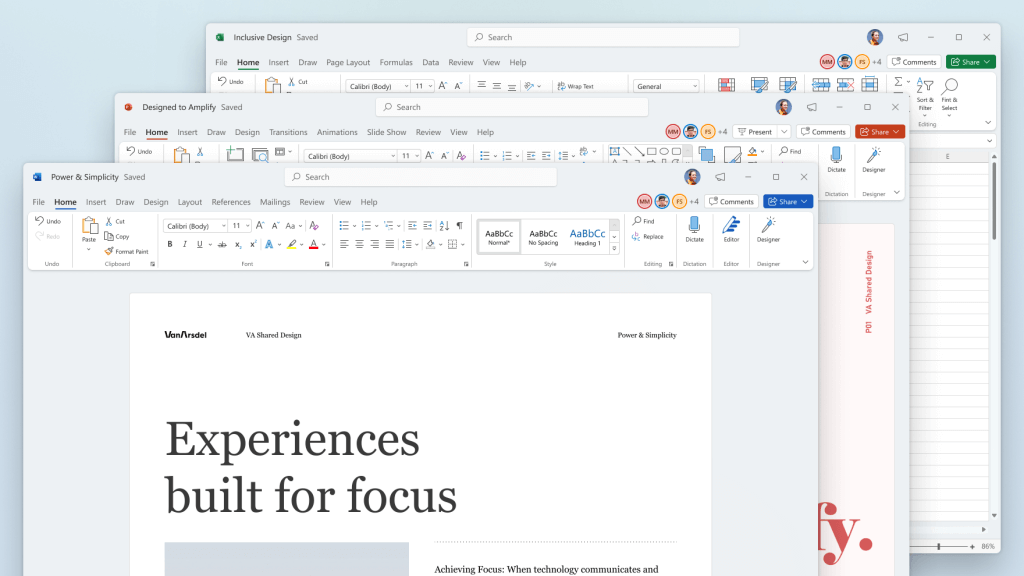
Microsoft has officially announced details about the newest upgrades to its office 365 suite moving forward along with its new OS release. It seems that Microsoft has listened to its user base and feedback since Word, Excel, and PowerPoint are getting much-needed redesign taking into account many suggestions from the community. The new office should feel more like an application suite guiding focus on the interconnection of applications themselves providing users with a much more natural experience of using them.

The new office features so far

From Microsoft themselves:
“This Office visual refresh is based on feedback from customers who asked for a more natural and consistent experience within and between your applications, specifically on Windows. With this update, we deliver an intuitive, coherent, and familiar user interface, using the Fluent Design principles, across all your applications: Word, Excel, PowerPoint, OneNote, Outlook, Access, Project, Publisher, and Visio. We aligned this visual refresh with the design of Windows 11 to provide seamless experiences on your PC.”
It is always refreshing to hear when a company listens to its user base and actually does what is needed instead of trying to invent the wheel.

office appsHow to switch

Since beta is already rolling and if you have an active 365 subscription to office suite visual refresh will be automatically available to all Office insiders running beta channel builds. It can be turned on and off using the coming soon feature in the top right corner of the menu in any application. Just click on the megaphone icon to open the coming soon pane and apply settings to all office apps. Note that The Coming Soon feature is not available in Access, Project, Publisher, or Visio. If you turn on the visual refresh in any of the 4 apps mentioned above (Work Excel, PowerPoint, or OneNote), it will also be available in these 4 apps.

Difference themselves

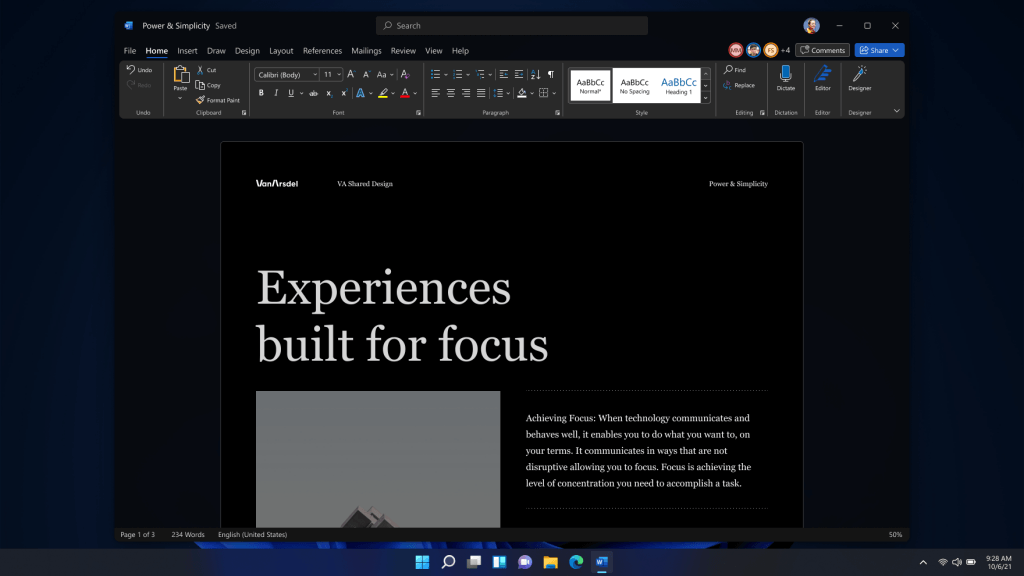
The Home tab menu still has a familiar look with a few tweaks. For example, accessing frequently used Word commands will be a lot easier. By navigating to Designer > Show Quick Access Toolbar, users can add a customizable shortcut ribbon to Word that houses conveniently placed options. Also, the office will not match your Windows operating system color theme so if you have a dark theme enabled, the office will also have a dark color theme. Color palettes are more neutral, corners are a bit softer but customizable ribbons are a win here for me.

office dark modeConclusion

There was not much said other than visual upgrades and small tweaks that were supposed to make your life easier but then again Windows 11 itself is in the same boat. I am not sure if this is a great update offering just some visual tweaks and focus on workflow mechanics or just being plain lazy and trying to cash in visuals as a completely new product.
Read More
How to remove GetCouponsFast.com from PC

The Get Coupons Fast Toolbar is a Browser Extension for Google Chrome developed by Mindspark Inc. This extension allows quick access to the most popular coupon websites available. While this might look like a good useful idea, keep in mind that it has been classified as a Browser Hijacker by Several anti-virus applications.

When installed this extension will hijack your new tab page, changing it to a customized version of Search.MyWay.com. While active It records user browser activity, this data is later used to better target ads. While browsing the internet with this extension installed you will see additional pop-up ads, sponsored content, and injected ads into your browser search results and pages. GetCouponsFast usually comes bundled with other PUP-s or Browser Hijackers that may harm your computer and it is recommended you remove it from your PC.

About Browser Hijackers

Browser hijacking means that a malicious code has taken control over and altered the settings of your internet browser, without your permission. They are created to disrupt browser functions for various reasons. It redirects you to the sponsored sites and inserts ads on your internet browser that assists its developer to generate revenue. While it might seem harmless, these tools were created by malicious people who always look to take advantage of you, so that they could make money from your naivety and distraction. They did not just ruin your browsers, but browser hijackers can also modify the system registry, making your computer or laptop susceptible to various other types of attacks.

Signs of browser hijacker infection

There are plenty of signs that indicate the web browser has been highjacked: 1. you notice unauthorized modifications to your web browser’s home-page 2. you find re-directed to internet sites you never intended to visit 3. the default browser configurations have been modified and/or your default web engine is altered 4. you’ll see many toolbars on your browser 5. you might see never-ending pop-up adverts on your computer screen 6. your browser has become unstable or starts running slowly 7. you are blocked to access the websites of antivirus solution providers.

How does a computer get infected with a browser hijacker?

Browser hijackers might use drive-by downloads or file-sharing networks or an email attachment in order to reach a targeted computer system. They could also come from add-on applications, also known as browser helper objects (BHO), web browser extensions, or toolbars. Some internet browser hijackers spread in user’s computers using a deceptive software distribution method called “bundling” (often through freeware and shareware). Browser hijackers will affect the user’s web browsing experience severely, monitor the websites visited by users and steal sensitive information, cause difficulty in connecting to the web, and eventually create stability problems, making programs and systems freeze.

Removal

Some hijackers can be simply removed by deleting the free software they were included with or by deleting any add-ons you have recently added to your browser. Unluckily, the majority of the software applications utilized to hijack an internet browser are deliberately designed to be difficult to detect or get rid of. And there is no denying the very fact that manual repairs and removal can certainly be a difficult task for a novice PC user. Moreover, there are various risks connected with tinkering around with the system registry files. Installing and running anti-malware software on the affected computer will automatically erase browser hijackers as well as other unwanted programs. In order to get rid of persistent browser hijackers effectively, install the award-winning Anti-Malware tool Safebytes Anti-Malware. Employ a pc optimizer (such as Total System Care) along with your anti-malware to repair various computer registry problems, remove computer vulnerabilities, and improve your computer performance.

How To Get Eliminate Virus That Is Blocking Antivirus Downloads?

Malware could cause all sorts of damage once they invade your computer, starting from stealing your private details to erasing data files on your computer system. Some malware is created to hinder or block things that you wish to do on your PC. It may not permit you to download anything from the net or it will prevent you from accessing a few or all of the websites, in particular the anti-virus sites. If you are reading this article right now, you may have perhaps realized that a malware infection is a reason for your blocked internet connectivity. So what to do if you want to download and install an anti-virus application like Safebytes? There are some steps you can take to circumvent this problem.

Boot Windows in Safe Mode

Safe Mode is actually a unique, simplified version of Windows in which just bare minimum services are loaded to prevent malware and also other troublesome programs from loading. If the malicious software is set to load automatically when the PC starts, shifting into this mode may prevent it from doing so. In order to enter into Safe Mode or Safe Mode with Networking, press the F8 key while the system is booting up or run MSCONFIG and find the “Safe Boot” options under the “Boot” tab. Once you are in safe mode, you can attempt to install your anti-malware program without the hindrance of the malicious software. Right after installation, run the malware scanner to remove standard infections.

Use an alternate web browser to download security software

Web-based malware can be environment-specific, aiming for a particular browser or attacking particular versions of the browser. The best solution to avoid this issue is to choose an internet browser that is known for its security features. Firefox contains built-in Malware and Phishing Protection to keep you secure online.

Run anti-virus from a pen drive

Another option would be to make a portable anti-malware program onto your USB flash drive. To run anti-virus using a pen drive, follow these simple measures: 1) Download Safebytes Anti-Malware or Windows Defender Offline onto a virus-free PC. 2) Plug the USB drive into the clean computer. 3) Double-click the Setup icon of the anti-malware program to run the Installation Wizard. 4) Select thumb drive as the place when the wizard asks you where you wish to install the application. Follow the directions to complete the installation process. 5) Unplug the flash drive. Now you can utilize this portable anti-virus on the infected computer. 6) Double click the Safebytes Anti-malware icon on the pen drive to run the application. 7) Click the “Scan Now” button to start the virus scan.

SafeBytes Anti-Malware Overview

Want to download the best anti-malware application for your desktop? There are many applications on the market that comes in free and paid versions for Windows systems. Some are very good ones, some are ok types, while some are just fake anti-malware programs that will damage your personal computer themselves! While looking for an antimalware program, pick one that offers reliable, efficient, and total protection against all known viruses and malware. On the list of recommended software is SafeBytes AntiMalware. SafeBytes has a good history of quality service, and customers appear to be happy with it. Safebytes is among the well-established PC solutions companies, which provide this all-inclusive anti-malware application. With its outstanding protection system, this tool will automatically detect and remove most of the security threats, which include adware, viruses, browser hijackers, PUPs, trojans, worms, and ransomware.

SafeBytes possesses a variety of wonderful features that can help you protect your computer from malware attacks and damage. Listed below are a few of the great ones:

Real-time Protection: SafeBytes provides round-the-clock protection for your computer restricting malware intrusions in real-time. They are very efficient in screening and getting rid of numerous threats because they’re regularly improved with new updates and alerts. Robust Anti-malware Protection: Built on a highly acclaimed antivirus engine, this malware removal tool has the capacity to find and remove various stubborn malware threats such as browser hijackers, PUPs, and ransomware that other common antivirus programs will miss. Web protection: SafeBytes checks the hyperlinks present on a webpage for possible threats and tells you if the website is safe to explore or not, through its unique safety rating system. Minimal CPU and Memory Usage: SafeBytes is a lightweight and simple to use antivirus and anti-malware solution. As it utilizes very low computer resources, this software leaves the computer power exactly where it belongs: with you. 24/7 Customer Service: Support service is available 24 x 7 x 365 days via chat and email to answer your queries. Overall, SafeBytes Anti-Malware is a solid program since it has lots of features and could identify and remove any potential threats. Now you may realize that this tool does more than just scan and delete threats on your computer. So when you need advanced forms of protection features and threat detections, purchasing SafeBytes Anti-Malware could be well worth the dollars!

Technical Details and Manual Removal (Advanced Users)

If you don’t want to use malware removal software and prefer to eliminate GetCouponsFast manually, you could do so by going to the Windows Add/Remove Programs menu in the control panel and deleting the offending program; in cases of browser extensions, you can remove it by visiting the browser’s Add-on/Extension manager. Additionally, it is advised to reset your web browser settings to their default state. Lastly, check your hard disk for all of the following and clean your registry manually to remove leftover application entries after uninstallation. Please keep in mind that only advanced users should attempt to manually edit the system files since deleting any single vital registry entry results in a serious problem or even a PC crash. Moreover, certain malicious programs are capable to defend against its removal. It is recommended that you do the removal process in Windows Safe Mode.
Files: %LOCALAPPDATA%\Google\Chrome\User Data\Default\Extensions\iadmakoacmnjmcacmhlcjcameijgcopj %UserProfile%\Local Settings\Application Data\Google\Chrome\User Data\Default\Extensions\iadmakoacmnjmcacmhlcjcameijgcopj %UserProfile%\Local Settings\Application Data\GetCouponsFastTooltab %LOCALAPPDATA%\GetCouponsFastTooltab Registry: HKEY_LOCAL_MACHINE\Software\[APPLICATION]\Microsoft\Windows\CurrentVersion\Uninstall..Uninstaller

Read More
Fix One Drive Error: This is not a valid file name
As you know, Microsoft’s consumer cloud storage platform is none other than OneDrive. It is where users can save any of their files albeit it’s mostly used to store common files like documents and photos. However, there are times when you might encounter some problems when saving these files. Recently, some users reported that they had problems saving Word documents to OneDrive and if you experience the same issue, then you’ve come to the right place as this post will guide you on how to resolve it. According to users who encountered the problem, when they try to save Word documents on OneDrive, an error message appears instead stating, “This is not a valid file name”. This kind of error only occurs when the file is opened from within OneDrive for saving in a different folder. In other words, if the file is saved in the same folder, the error won’t pop up but if it is saved in a separate folder, that’s when the error appears. Worry not though for fixing this error is not complicated and won’t take too long. It seems that this error is due to the 259-character limitation when creating and saving files as far as the Office products are concerned. To resolve it, there are several workarounds you can check out. Before you proceed with these workarounds, make sure that you have a stable internet connection.

Option 1 – Try renaming the file with a shorter name

The first thing you can do to fix the problem is to rename the file with a shorter name. Just right-click on the file and select the Rename option from the menu and then type in the new name and click OK or tap Enter to rename the file.

Option 2 – Try renaming the folders where the file is located

Like what you did in the first given option, all it takes is a right-click but this time on a folder. Rename the folder with a different name and save the changes made and then check if you can now save the Word document on OneDrive.

Option 3 – Try moving the file to a folder with a shorter path

If the first two options didn’t work, you can try moving the file to a folder with a shorter path. Note that it is not the same as doing it locally on a Windows 10 computer so you have to right-click on the file and select the “Move to” option. After that, locate the folder where you want to move the file and select it and then click on the Move button to complete the task.

Option 4 – Try making some changes in the document

You could also try to make some modifications to the document. Once you’ve done that, click the File tab and select the Save As option and then go to the folder where you want to save the file and tap enter.
Read More
Configuring Snapping feature in Windows 11
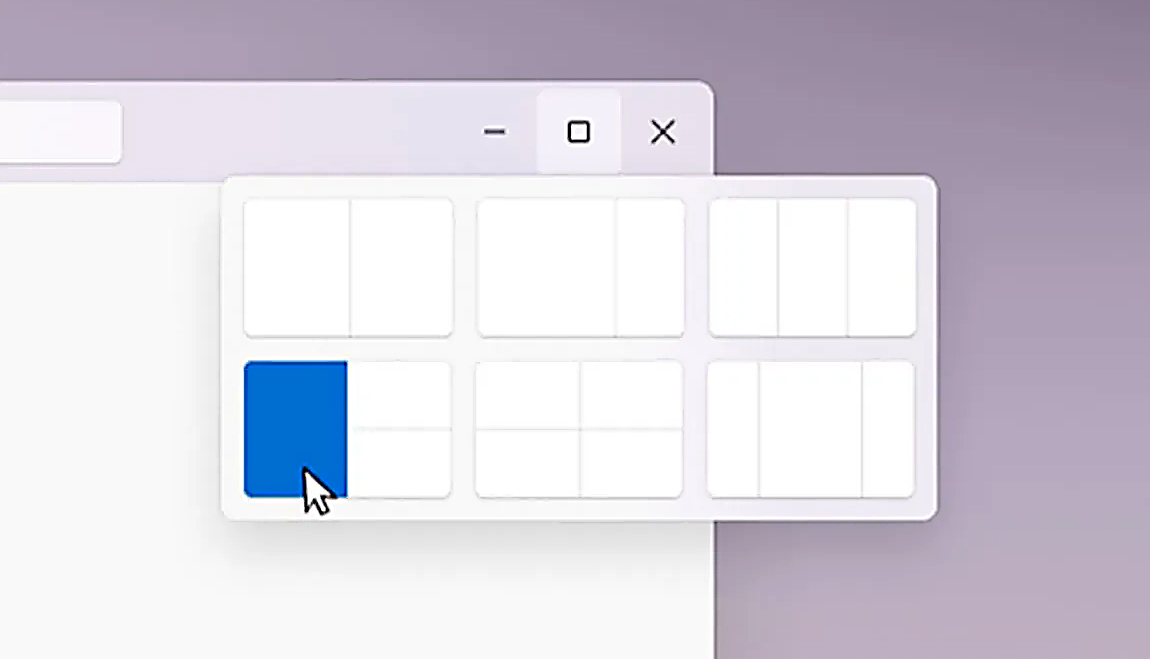
The Snapping feature was introduced as an essential part of Windows 11 and I like it very much, it lets you organize your opened windows much faster and with more control. However, some people do not like the feature, worry not because you can turn it off, or if you prefer you can just remove the showing layout option that is shown when hovering over Minimize/Maximize button.

Snapping feature windows 11Removing options all together

To completely turn off Snap layout in Windows 11 follow these steps
  1. Open Windows 11 settings by pressing ⊞ Windows + I
  2. Select System on the left part of the screen
  3. In System options select Multitasking
  4. At the top of Multitasking Click on the switch next to Snap Windows
  5. Close settings
Changes will be automatically applied and you will no longer have Snap layout functionality.

Removing layout graphic from Snapping feature

If you like the snap Layouts feature but are not very fond of the layout graphic that is popping up each time you hover over Minimize/Maximize button do not worry, there is an option to turn just that off and keep the feature itself.
  1. Open Windows 11 settings by pressing ⊞ Windows + I
  2. Select System on the left part of the screen
  3. In System options select Multitasking
  4. Click on the Snap Windows menu
  5. Deactivate Show Snap Layouts When I Hover over a Window’s Maximize button
  6. Close settings
Now you will be able to use the Snap Layout feature without layout graphics showing. If you want to reverse any of these options and go back to standard-setting, just follow the steps and turn features ON.
Read More
How to Fix Plugin.dll Error

Plugin.dll Error - What is it?

Plugin.dll is a dynamic link library file associated with Adobe Photoshop CC powered by Adobe Systems Incorporated for the Windows Operating System. DLL are small programs similar to ‘exe’ files which allow multiple software programs to share the same functionality. It is used to call commands, load applications, and successfully execute applications. Plugin.dll error messages may appear during program installation, while a plugin.dll related software program (Adobe Photoshop CC) is running, during startup and shutdown.

Solution

Restoro box imageError Causes

Plugin.dll errors may occur due to multiple reasons such as:
  • Missing or corrupt Plugin.dll files
  • Viral infection
  • Issues in the Windows registry
  • Broken registry keys
Plugin.dll errors may appear on a Windows-based computer as the following:
  1. “Plugin.dll not found."
  2. “The file Plugin.dll is missing."
  3. “Cannot register Plugin.dll."
  4. "Cannot start Adobe Photoshop CC. A required component is missing: Plugin.dll. Please install Adobe Photoshop CC again."
All the causes of the plugin.dll error code are associated with the registry. It is advisable to repair this error before it causes serious damages to your system.

Further Information and Manual Repair

To repair the plugin.dll error on you system, you don’t have to hire a technician or be adept at computer programming. The best way to resolve this error code is to download Restoro. This is a new, innovative, high and multi-functional PC fixer integrated with powerful and performance-driven multiple utilities. It includes a registry cleaner, and system stability scanner. So, whether the cause of the error code Plugin.dll error on your system is missing DLL files or even broken registry keys, Restoro can help you repair all these issues in no time. It is user-friendly and can be operated by users of all levels. Dll files go missing and registry gets corrupt because of the data overload in the RAM/the hard disk. This happens due to poor PC maintenance. The registry tends to save all the activities performed on the PC this includes even the junk files, invalid registry entries and files from uninstalled programs. If the registry is not cleaned regularly, such files accumulate a lot of disk space which leads to registry malfunctioning. It damages .dll files and eventually corrupts the registry. By scanning your PC with a powerful registry cleaner, you can easily wipe out the files cluttering your PC and clear your disk space. Additionally, it also repairs the damaged plugin.dll files, fragmented disk and corrupt registry.  Thereby restoring your PC to its normal condition and resolving the plugin.dll error code on your system. Besides this, you can also run Restoro on your PC to resolve speed issues and Active X and class errors. It is safe, efficient and compatible with all Windows versions. Click here to download Restoro and resolve the plugin.dll error.
Read More
Windows 10 Power Toys detailed guide
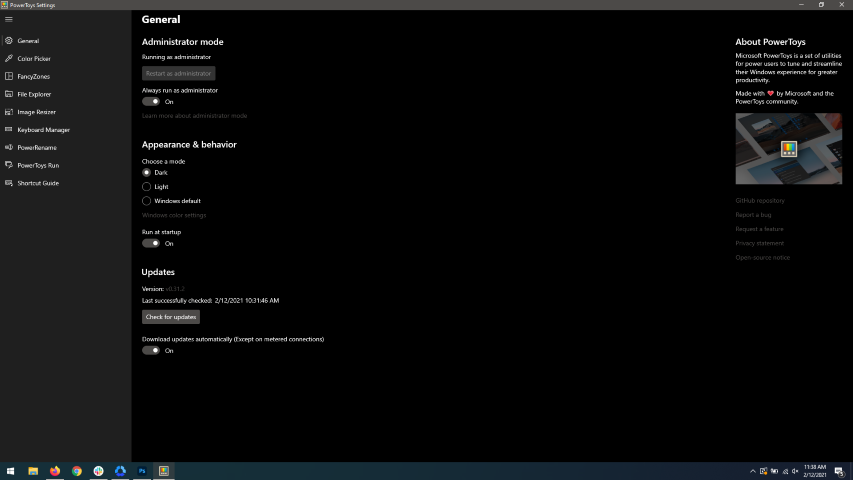
Hello and welcome everyone, today we will be talking about power toys, a great, completely free, open-source, Microsoft-supported Windows project which aims to provide Windows itself with powerful features not found natively in it. We will explore power toys completely here and explain each module and its features. The first thing is of course to download power toys themselves. You can find them here. After you download them, double click on the downloaded file and install. Start power toys, you will find them at the bottom of the taskbar, note that power toys need to be active in order to use their features. power toysWhen opened you will be greeted with general settings window. These are settings for power toys themselves, Here you can check for updates, change the looks of power toys, run it on system startup and run them as administrator. Set them up so they best suit your needs.
Color Picker

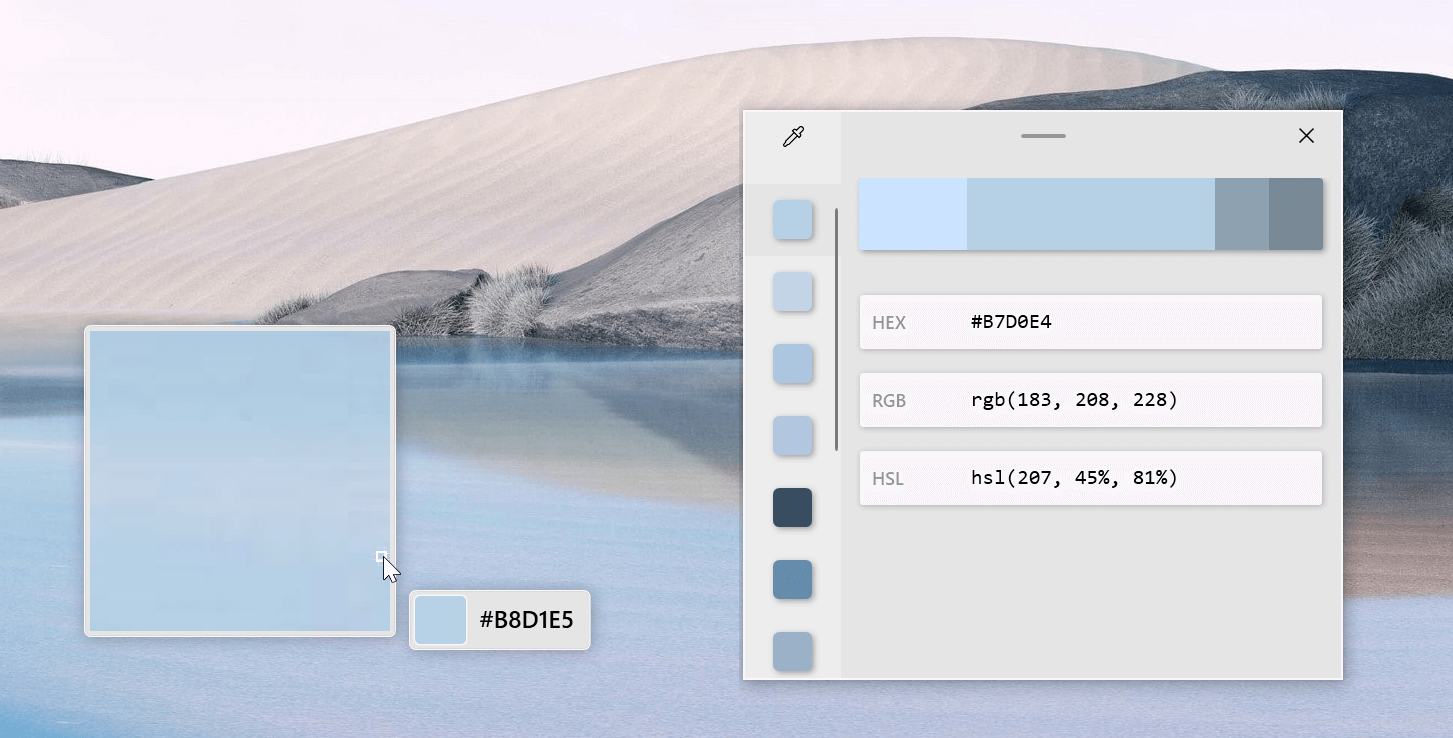
Moving down next tab we have is Color picker. power toys colorpicker hex editorThe color picker will let you as the name suggests pick colors, it will sample colors from running applications and windows, snap their values, and place them in the clipboard. A useful application if you are working as a graphic designer, want to create some cool word document, or just want to compare the difference between colors. After the Color Picker is activated, hover your mouse cursor over the color you would like to copy and left-click the mouse button to select a color. If you want to see the area around your cursor in more detail, scroll up to zoom in. The copied color will be stored in your clipboard in the format that is configured in the settings (HEX by default). The editor lets you see the history of picked colors (up to 20) and copy their representation in any predefined string format. You can configure what color formats are visible in the editor, along with the order that they appear. This configuration can be found in PowerToys settings. The editor also allows you to fine-tune any picked color or get a new similar color. Editor previews different shades of currently selected color - 2 lighter and 2 darker ones. Clicking on any of those alternative color shades will add the selection to the history of picked colors (appears on the top of the colors history list). Color in the middle represents your currently selected color from the history of the colors. By clicking on it, the fine-tuning configuration control will appear, which will let you change the HUE or RGB values of the current color. Pressing OK will add newly configured color into the history of the colors.
Fancy Zones

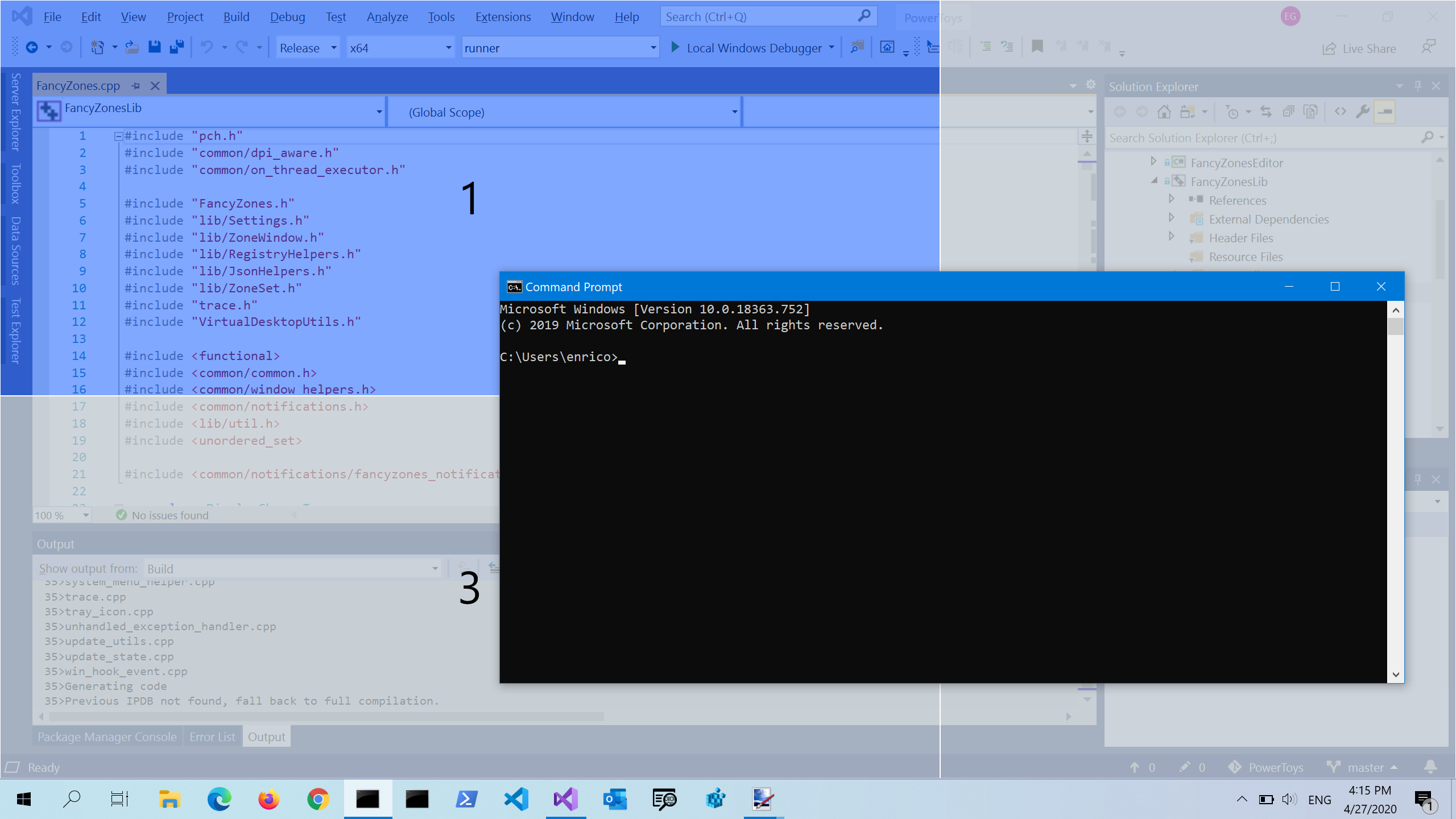
Moving down, we have fancy zones. power toys fancy zonesFancyZones is a window manager utility for arranging and snapping windows into efficient layouts to improve the speed of your workflow and restore layouts quickly. FancyZones allows the user to define a set of window locations for a desktop that are drag targets for windows. When the user drags a window into a zone, the window is resized and repositioned to fill that zone. When first launched, the zones editor presents a list of layouts that can be adjusted by how many windows are on the monitor. Choosing a layout shows a preview of that layout on the monitor. The selected layout is applied automatically.
File Explorer

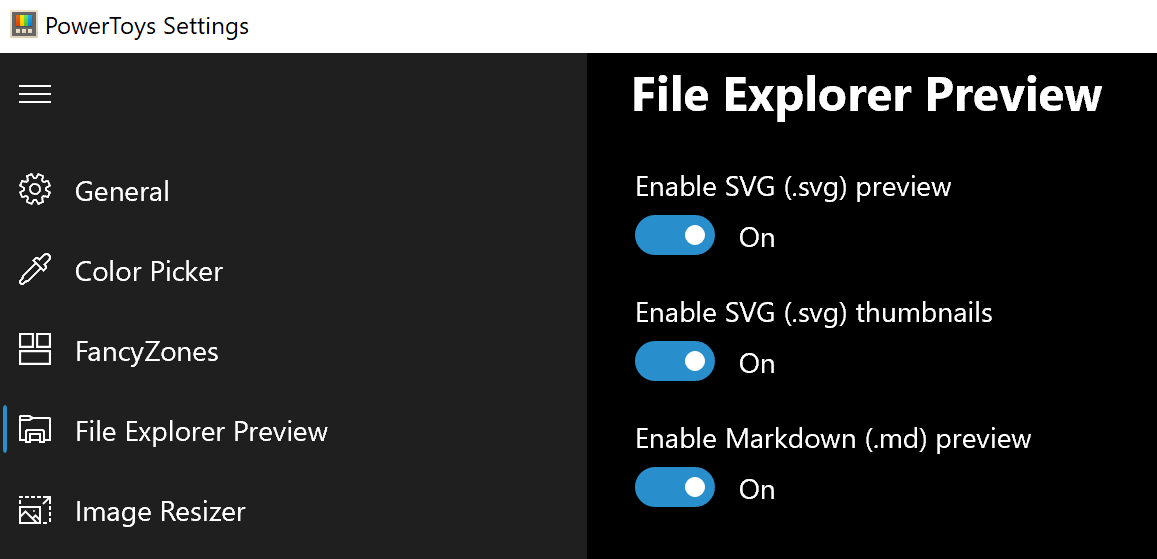
Next, File Explorer. power toys settings file explorerOnly 3 options here but maybe some are important to you. This extension lets you enable SVG file preview in File Explorer, enable Markdown preview, and enable SVG thumbnails. Turn on each one you might need.
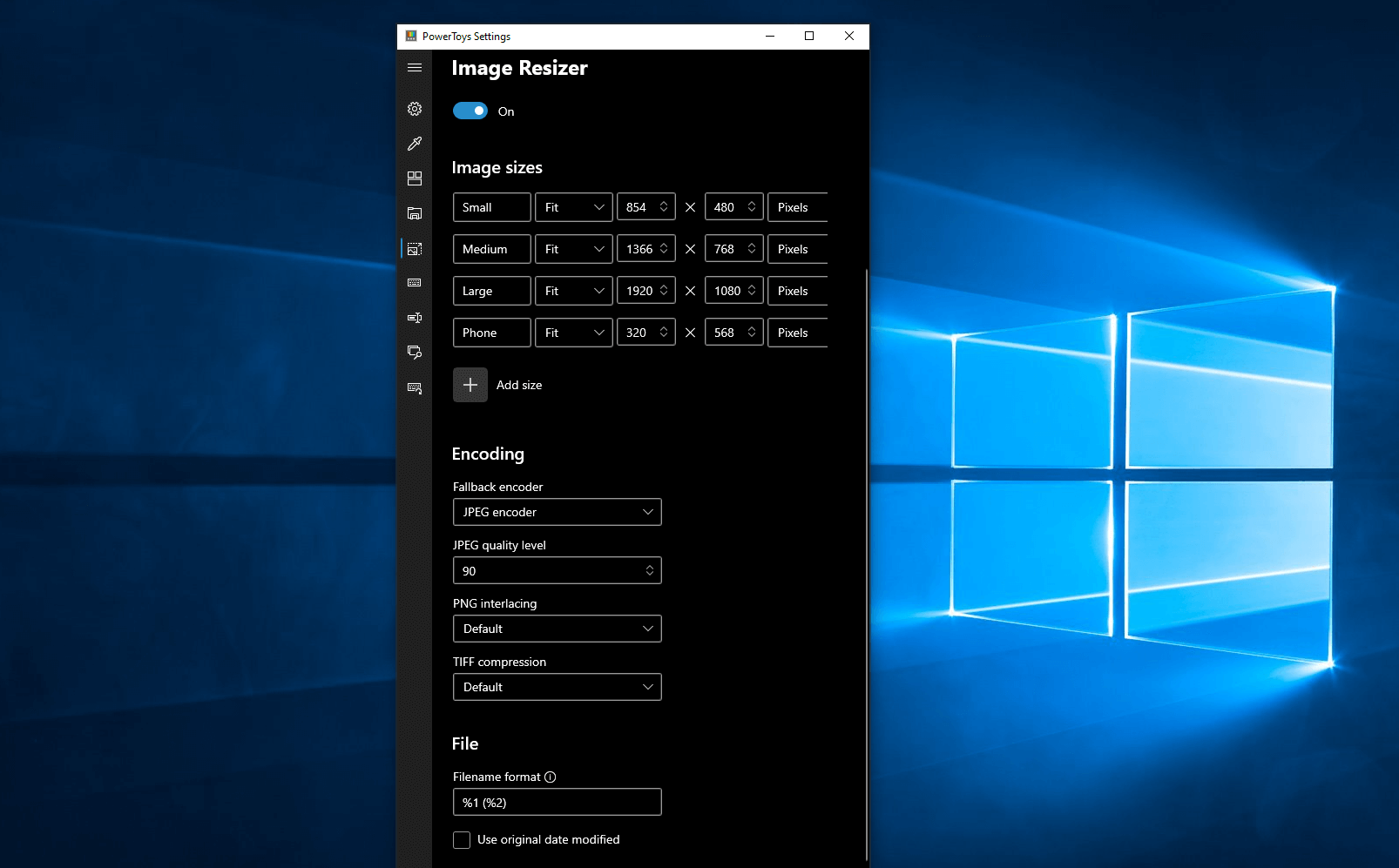
Image Resize

Next down the line, we have Image resize. power toys image resizeImage Resizer is a Windows shell extension for bulk image-resizing. After installing PowerToys, right-click on one or more selected image files in File Explorer, and then select Resize pictures from the menu. You can specify your own sizes if you want, you can resize when dragging files, you can overwrite files or make new copies of new sizes, and many more options. A very useful tool I am sure plenty of users can use since this eliminates the need for pictures or any other image application for common resizing tasks.
Keyboard Manager

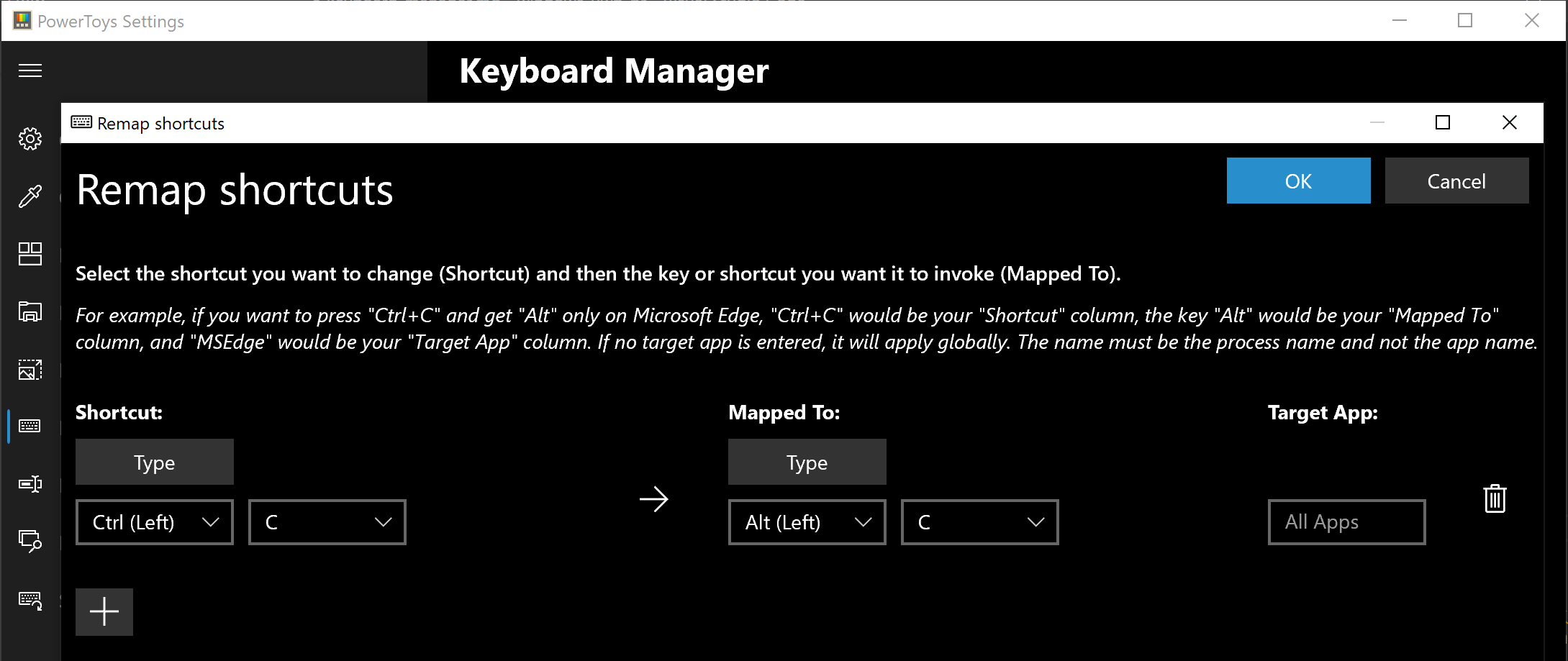
The keyboard manager is the next tab in power toys. power toys keyboard shortcutsThe PowerToys Keyboard Manager enables you to redefine keys on your keyboard. For example, you can exchange the letter A for the letter D on your keyboard. When you select the A key, a D will display. You can also exchange shortcut key combinations. For example, the shortcut key, Ctrl+C, will copy the text in Microsoft Word. With the PowerToys Keyboard Manager utility, you can exchange that shortcut for ⊞ Win+C). Now, ⊞ Win+C) will copy text. If you do not specify a targeted application in PowerToys Keyboard Manager, the shortcut exchange will be applied globally across Windows. PowerToys Keyboard Manager must be enabled (with PowerToys running in the background) for remapped keys and shortcuts to be applied. If PowerToys is not running, key remapping will no longer be applied.
Power Rename

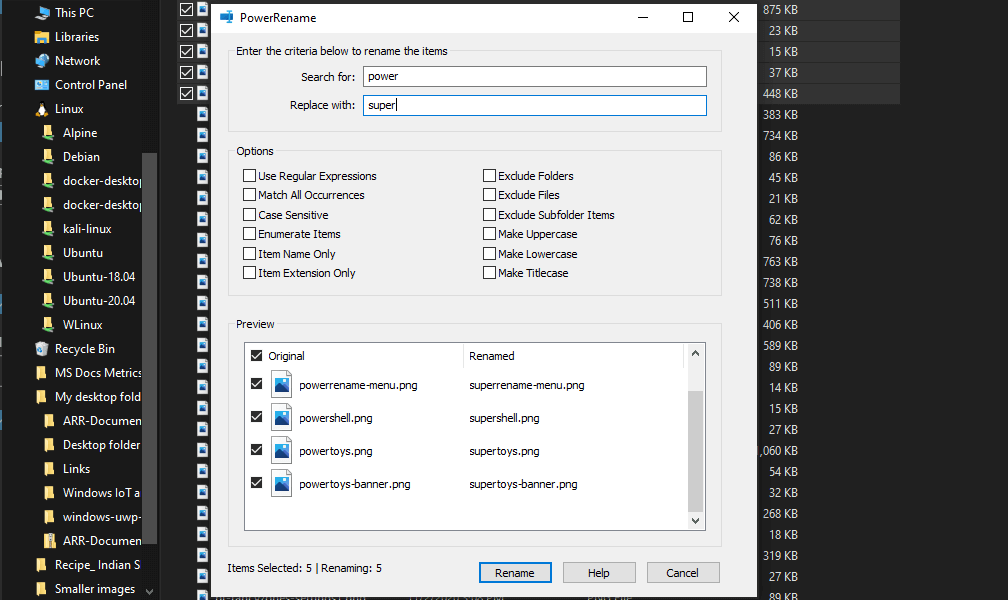
Nex we have a very cool and powerful Power Rename power toys power renamePowerRename is a bulk renaming tool that enables you to:
  • Modify the file names of a large number of files (without renaming all of the files with the same name).
  • Perform a search and replace on a targeted section of file names.
  • Perform a regular expression rename on multiple files.
  • Check expected rename results in a preview window before finalizing a bulk rename.
  • Undo a rename operation after it is completed.

Run Utility

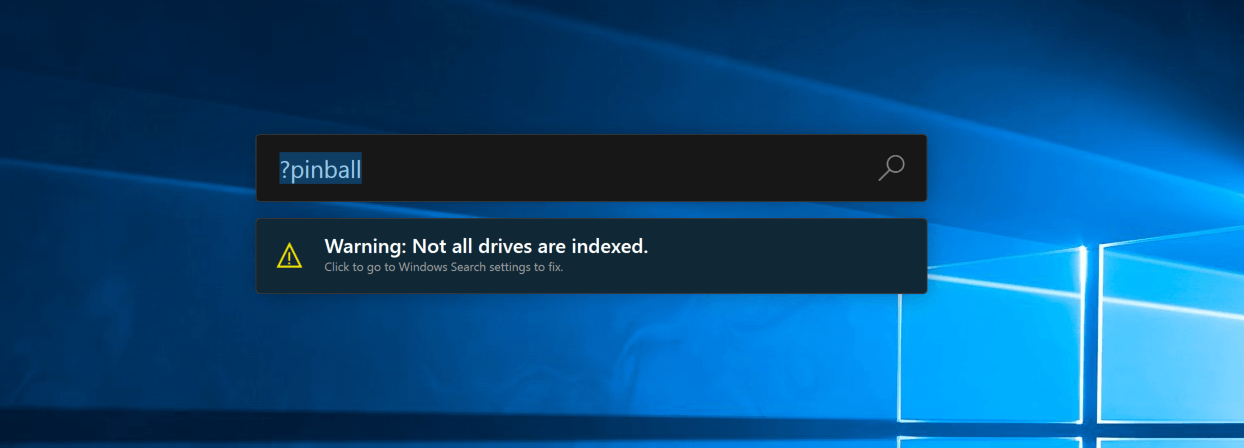
Power Toys Run utility follows next. power toys run warningPowerToys Run is a quick launcher for power users that contains some additional features without sacrificing performance. PowerToys Run features include:
  • Search for applications, folders, or files
  • Search for running processes (previously known as WindowWalker)
  • Clickable buttons with keyboard shortcuts (such as Open as the administrator or Open containing folder)
  • Invoke Shell Plugin using > (for example, > Shell:startup will open the Windows startup folder)
  • Do a simple calculation using the calculator

Shortcut Guide

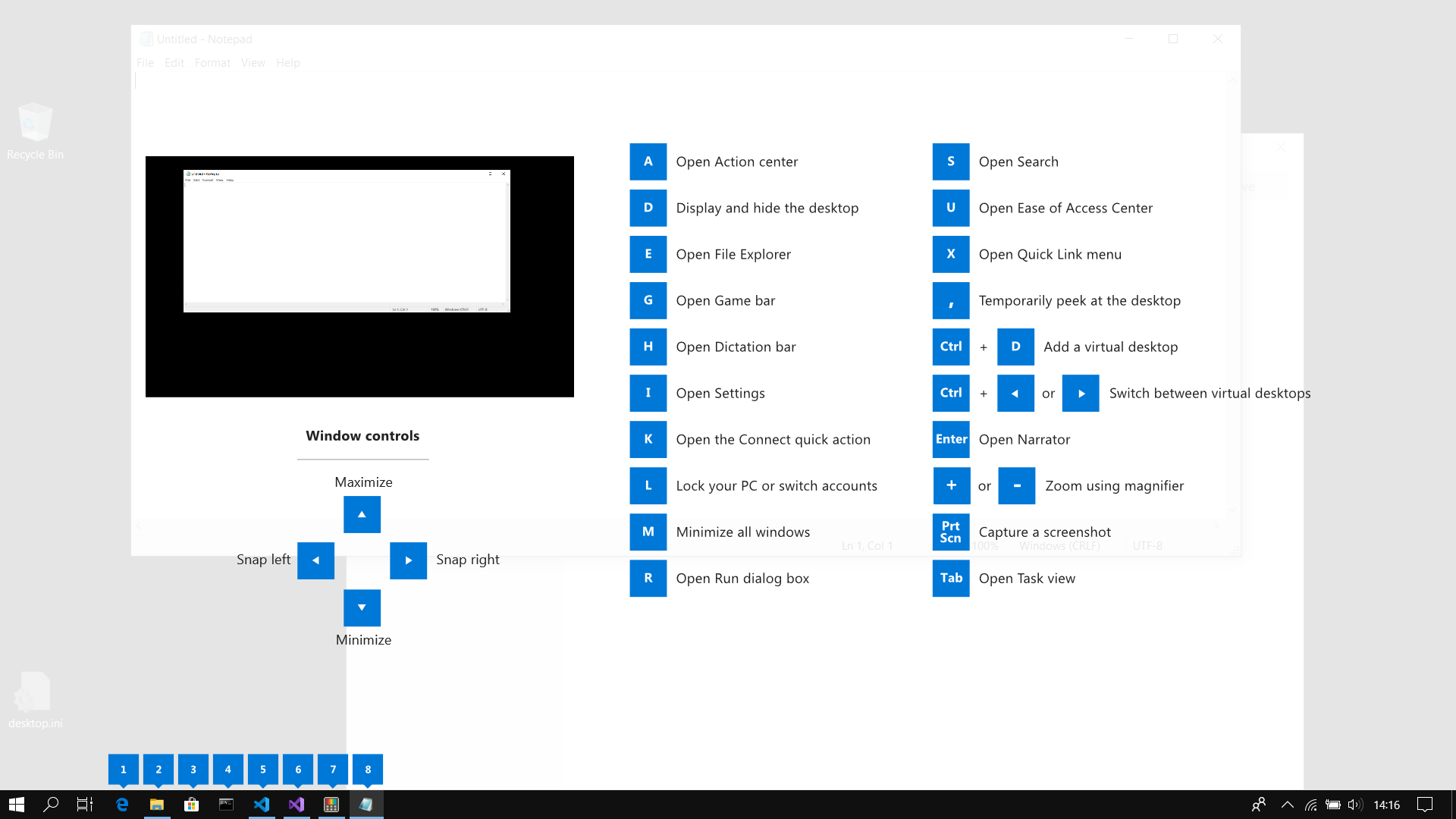
Last but not least we have a Shortcut guide. power toys shortcut guide largeThis guide uses PowerToys to display common keyboard shortcuts that use the Windows ⊞ key. Windows key keyboard shortcuts can be used while the guide is being shown and the result of those shortcuts (active window moved, arrow shortcut behavior changes, etc) will be displayed in the guide. Releasing the Windows ⊞ key will make the overlay disappear. Tapping the Windows ⊞ key will display the Windows Start menu. Hey, you made it till the end, thank you for reading and I hope to see you soon.

Read More
0x3D55: Family App information is corrupted
What is 0x3D55? As you know, Windows 10 is loaded with various Universal Windows Platform or UWP apps such as the Microsoft News, Weather, Calculator, Windows Mail, and many other applications that are based on the modern UWP platform of Microsoft that was introduced in Windows 10. Each one of these apps has a shared piece of code in the kernel for them to be able to get executed across any device that runs the Windows 10 OS which includes laptops, PCs, 2-in-1 devices, mobile phones, mixed reality headsets, and many more. However, there are times when the runtime information for these apps ends up getting corrupted which causes them not to function as expected and throws errors like the error 0x3D55. This kind of error can be pinned down when the UWP app malfunctions and you can also find an error message in the Event Log that reads, “0x3D55: Package family <App name with ID> runtime information is corrupted”. So if you encounter this error, read on for this post will walk you through fixing it. There are three suggestions you need to check out to fix this error – first, you can try to reset the Microsoft Store cache, second, you can try to re-register or reinstall the problematic app and lastly, run the Windows Store App troubleshooter.

Option 1 – Try to reset the Microsoft Store cache

Just like browsers, Microsoft Store also caches as you view apps and games so it is most likely that the cache is no longer valid and must be removed. To do so, follow the steps below.
  • Right-click on the start button and click on Command Prompt (administrator).
  • Next, type in the command, “wsreset.exe” and tap Enter. Once you do, the command will clear the cache for the Windows Store app.
  • Now restart your PC and afterward, try opening Microsoft Store again and then try to install your app or update your computer again.

Option 2 – Run the Microsoft Store Apps troubleshooter

The Microsoft Store Apps Troubleshooter will help you in fixing the error 0x3D55. This is a great built-in tool from Microsoft that helps users fix any app installation issues. So this is worth a try to solve the problem. This built-in tool also helps you fix the Windows 10 Store if it isn’t working. To use the Windows Store Troubleshooter, follow the steps below.
  1. Tap Win + I keys again to open the Windows Settings panel.
  2. Go to Update & Security and then go to Troubleshoot.
  3. On your right-hand side, scroll down to find the Windows Store Apps and then click on the Run the troubleshooter option and see if it fixes the problem.

Option 3 – Try to re-register the UWP app via PowerShell

  • First, type “command prompt” in the Start Search and right-click on Command Prompt and then select the “Run as administrator” option.
  • Next, navigate to this location in the command line utility: C:/Users/<Insert Username>/AppData/Local/Packages
  • After that, execute the “DIR” command to view the list of all the directories in the given location.
  • Once the list appears, look for the ID of the problematic app and take note of it.
  • Now tap the Win + X key combination or right-click on the Start button and click on the Windows PowerShell (Admin) option.
  • If a User Account Control or UAC prompt appears, just click on Yes to proceed and open the Windows PowerShell window.
  • Next, type in or copy-paste the following command to re-register the Microsoft Store app and tap Enter:
PowerShell -ExecutionPolicy Unrestricted -Command "& {$manifest = (Get-AppxPackage Microsoft.<YOUR APP ID HERE>).InstallLocation + 'AppxManifest.xml' ; Add-AppxPackage -DisableDevelopmentMode -Register $manifest}"
  • Wait for the process to be completed and then restart your computer.
Read More
Deleting a User Account in Windows
There are instances when there are multiple accounts which is the result when there are a lot of users who use the computer. Some may use it more often, while others may seldom use it. Having multiple accounts can be quite confusing and inconvenient especially if it takes a lot of space. Thus, in this post, you will be guided on how you can delete a User Account on your Windows 10 computer, as well as how you can create a backup of the existing profile data and files. All the data of user accounts can be found at C:/Users, where its folder name will be exactly the same as the name of the user. You can check the exact user’s name by simply using the “net user” command either via Command Prompt or Windows PowerShell. Once you delete a user account, its folder, along with its files, will also be deleted. You can also create a backup for user files and the best way to do that is by copying the folder to other partitions or to an external drive. Here are two methods you can check out to delete a user account in Windows 10 – you can do it via Windows Account settings or via the command line. For more details, follow each one of the options provided below.

Option 1 – Delete the user account using Windows Account settings

  • First, go to Settings > Accounts > Family & other users.
  • Next, select the account you want to delete and click on the Remove button. This will open a confirmation window along with a warning message and two buttons that say, “Delete account & data” and “Cancel”.
  • Click on the Delete account & data button to delete the user account.
Note: Once you remove a user account, it will also remove all its corresponding data such as items like Documents, Photos, Music, Desktop, and other related folders. Thus, if you have not created a backup, then you won’t be able to recover those files.

Option 2 – Delete the user account using the command line

If you want to delete several user accounts, then doing it via Command Prompt or Windows PowerShell is a lot quicker. To get started, follow these steps:
  • In the Start Search, type “command prompt” and from the search results that appear, right-click on Command Prompt and select the “Run as administrator” option.
  • Next, type the “net user” command and hit Enter to execute it. This will show you the exact usernames on the computer.
  • After that, type the “net user <username> /delete” command and hit Enter to execute it. This will delete the account and all of its data without any warning. You have to replace “<username>” with the name of the user account.
Read More
1 2 3 171
Logo
Copyright © 2023, ErrorTools. All Rights Reserved
Trademark: Microsoft Windows logos are registered trademarks of Microsoft. Disclaimer: ErrorTools.com is not affiliated with Microsoft, nor claims direct affiliation.
The information on this page is provided for information purposes only.
DMCA.com Protection Status