Logo

Fix GeForce Experience error code 0x0001

The GeForce Experience on graphics card manufactured by NVIDIA is an advantage for users who loves gaming as it makes enhances users’ gaming experience. However, there are times when it may also encounter some problems. One of the problems users may encounter is the error code 0x0001. This kind of error occurs when users open the NVIDIA GeForce Experience utility. Here’s the full content of the error message:

“Something went wrong, try rebooting your PC and then launch GeForce Experience, ERROR CODE: 0x0001.”

Errors like this one diminish the overall experience of users due to the fact that when this error occurs, the NVIDIA GeForce experience wouldn’t even start which renders its features useless. There are several potential fixes you can check out to resolve this error but before you check them out, you can try to restart your computer first and then open the NVIDIA GeForce Experience once again, if you still encounter the error, then you need to check the NVIDIA Display Driver Services or update your NVIDIA display drivers or switch to the BETA release. You could also try to install and reinstall the NVIDIA display drivers or perform System Restore and see if it helps. For detailed instructions, follow the given options below.

Option 1 – Try to check the NVIDIA Display driver services

  • Tap the Win + R keys to open Run and then type “services.msc” in the field and hit Enter to open the Services Manager.
  • From there, look for the following NVIDIA services and make sure that their Startup types are as follows:
    • NVIDIA Display Container LS – Automatic
    • NVIDIA NetworkService Container – Manual
    • NVIDIA LocalSystem Container – Automatic
    • NVIDIA LocalSystem Container – Automatic
    • NVIDIA GeForce Experience Service – Automatic (Delayed Start)
    • NVIDIA Geforce Experience Backend Service – Automatic (Delayed Start)
    • NVIDIA Telemetry Container service – Automatic
  • Next, double click on each one of the services and go to Properties. Here, check if the service is running. If it’s not, just click on the Start button. On the other hand, if they’re already running, just click on Stop and then click on Start again.

Option 2 – Try to update the NVIDIA Display drivers

You can also try updating the NVIDIA display drivers as it might help in fixing the error. To update them, follow the steps below.

  • Tap the Win + R keys to open the Run dialog box.
  • Next type in “dxdiag” in the field and click OK or hit Enter to open the DirectX Diagnostic Tool.
  • From there, you can see what type of NVIDIA graphics card that your system is on.
  • Take note of your graphics card information and then look for the best drivers for your operating system. Once you’ve downloaded and installed the file, restart your PC.

Note: If you want to try out the beta release of the NVIDIA display drivers, click on this link. Beware though that the beta software is unstable and buggy and may cause some different bugs.

Option 3 – Try to roll back the driver to the previous version

If updating the NVIDIA display drivers didn’t work for you, then it’s time to roll back the device drivers. It is most likely that after you updated your Windows computer that your driver also needs a refresh.

  • Tap the Win + R keys to launch the Run window and then type in the “msc” command and hit Enter to open the Device Manager window.
  • Under the Device Manager, you will see a list of drivers. From there, look for the NVIDIA Drivers and expand it.
  • Next, select the driver entries that are labeled appropriately.
  • Then select each one of them and double click to open a new mini window.
  • After that, make sure that you’re on the Driver tab and if you are not, just navigate to it then click the Roll Back Driver button to switch back to the previous version of the NVIDIA Drivers.
  • Now restart your computer to successfully apply the changes made.

Option 4 – Try to run System Restore

You could also run System Restore as it might help fix the error code 0x0001 in NVIDIA GeForce Experience.

  • Tap the Win + R keys to open the Run dialog box.
  • After that, type in “sysdm.cpl” in the field and tap Enter.
  • Next, go to the System Protection tab then click the System Restore button. This will open a new window where you have to select your preferred System Restore point.
  • After that, follow the on-screen instructions to finish the process and then restart your computer and then check if the error code 0x0001 in GeForce Experience is now fixed.

Option 5 – Do a clean install on the NVIDIA driver

  • Before you do a clean install on the NVIDIA driver, you have to download the latest version of the Display Driver first.
  • Boot your Windows 10 PC into Safe Mode.
  • After that, double click on the executable file of the Display Driver Uninstaller to run and install it.
  • After the installation, open the program. Once you do, you should see the following window on your screen:
  • In the program window, click on the “Clean and restart” button.
  • After your PC has rebooted, download the NVIDIA drivers.
  • Then select your Product Type, Product Series, Product, Operating System, and Language appropriate for your hardware specifications as well as personal requirements.
  • Next, click on Search to display the latest available driver as per the information you entered.
  • And click on Agree and Download to start downloading the latest driver executable file.
  • Run the executable file after you finished downloading the latest driver executable file and then select Custom and click on Next.
  • Afterward, select “Clean Install” and proceed. Doing so would install the latest driver on your PC.
  • Restart your PC and check if the error’s now fixed. If not, you can try installing an older version of the driver instead.

Do You Need Help with Your Device?

Our Team of Experts May Help
Troubleshoot.Tech Experts are There for You!
Replace damaged files
Restore performance
Free disk space
Remove Malware
Protects WEB browser
Remove Viruses
Stop PC freezing
GET HELP
Troubleshoot.Tech experts work with all versions of Microsoft Windows including Windows 11, with Android, Mac, and more.

Share this article:

You might also like

How to Fix The Rtl70.bpl Error on Your System

Rtl70.bpl Error - What is it?

To understand Rt170.bpl error code, it is important to have a good understanding of .bpl files first. BPL is the abbreviation of Borland Package Library. BPL is a developer file format used by Borland. It contains dynamic link libraries which are used for constructing Borland programs. BPL files are most commonly used for Borland Delphi programs. Delphi competes with Visual Basic as an offering for an object-oriented visual programming approach to application development. There are many programs/applications on your system that use rtl70.bpl file format to run successfully on Windows PC. The rtl70.bpl error occurs when this file gets damaged or corrupted. It fails to execute the command and run the application on your system. When your computer experiences this problem with this file, the following error messages are likely to appear:
  • rtl70.bpl is not responding
  • Runtime error: rtl70.bpl
  • Symantec User Session has encountered a problem and needs to close. We are sorry for the inconvenience. Application Name: rtl70.bpl
This error code exposes you to system freeze, crash, abrupt system shutdowns, blue screen of death errors, and it also reduces your PC performance.

Solution

Restoro box imageError Causes

The potential causes of rtl70.bpl error code includes:
  • DLL file was damaged due to viral infection or spyware
  • DLL file was overwritten by an incompatible version
  • Poor program installation
  • Too many invalid and obsolete registry entries stored in the RAM
  • Related Registry entries are corrupt

Further Information and Manual Repair

Here are some of the best yet simple solutions for you to resolve rtl70.bpl error on your PC:

1. Reboot Your PC

Sometimes this error can be resolved by simply restarting your system. Try rebooting your system and running .bpl supported program. If the program runs after you reboot your PC, then that’s great! But you should keep in mind that this is a temporary solution. The error may reappear anytime soon. So, it is advisable to consider a long-term solution for repairing the error code for the longest time.

2. Uninstall and then Reinstall the Program Causing the Error

If the error occurred after a certain program installed on your system,  it is advisable to uninstall it and then reinstall the program. Simply go to the control panel, select Add/Remove program option and uninstall the program that you recently installed that could be triggering the rtl70.bpl error code. Now reinstall and run it on your system. If the error is resolved, then this means the poor installation was the cause. If not, then this means the cause of the error is related to the registry.

3. Registry Restore to Fix rt170.bpl error

There are two ways to go about it. The first one is to click on the start menu, type registry editor, and press run. This will open the registry editor. Now click on the computer option then click file and import. This helps restore the registry but it is possible that the problem might persist. The error code may pop up again. Also, if the registry is damaged due to viral infection, then this solution may not work and you may still experience the error on your system. Then you will also have to download an antivirus which may further reduce the speed of your PC. However, the best way to restore the registry and to get rid of the error code for the longest time is to download Restoro. This is a new, user-friendly, high and multi-functional repair tool that functions as a registry cleaner and a system optimizer. It cleans the registry by scanning and removing all the unnecessary and obsolete files saved in RAM such as junk files, internet history, invalid registry entries, and more. It also repairs the damaged dll files and restores the registry thereby resolving the rtl70.bpl error. Restoro is easy to use, safe, efficient, and compatible on all Windows versions. To get started and resolve the rtl70.bpl error code in just a few seconds on your system click here and download Restoro.
Read More
Fix fatal device hardware error on Windows
This post will help you fix the request that failed due to a fatal device hardware error on your Windows 10 PC. You can encounter this error when that hard drive/SSD on your computer is damaged physically and the system is either unable to access or perform read/write operations in it. Aside from hard drive/SSD, this error can also happen to removable drives. This kind of error is not uncommon and in most cases, the hardware is physically damaged due to which you are not able to perform operations. However, there are a couple of fixes that you can try to resolve the problem before you go ahead and back up your data and move them to a different drive. What exactly causes this error? It’s actually self-explanatory and it gives you an idea that the drive is either corrupted or in a bad state. To resolve the error, follow the given options below carefully and see which one worked best for you.

Option 1 – Verify the hard drive using SMART attributes

In case you don’t know, Windows has a built-in feature of SMART analysis which analyzes the hard drive/SSD and checks all the parameters by performing some minor operations. To use it, follow these steps:
  • Tap the Win + S keys and type “command prompt” in the field then right-click on the related search result and select the “Run as administrator” option.
  • After opening Command Prompt as admin, type the “wmic diskdrive get status” command and hit Enter.
  • You should get a result after that, and if you see that it’s “normal”, proceed to the next option below.

Option 2 – Use the CHKDSK utility

When it comes to some issues concerning the hard drive or removable devices, there is a utility in Windows that might help which is called “chkdsk”. This error check utility can help with several issues in the system.
  • Tap the Win + S keys to open the Search box.
  • Then type “command prompt” in the field and from the search results that appear, right-click on Command Prompt and select “Run as administrator”.
  • After opening an elevated command prompt, copy and paste the following command and hit Enter:
CHKDSK [volume [[path] filename]] [/F] [/V] [/R] [/X] [/C] [: size]]
Note: In the command given above, “[/F]” will try to fix the system errors while “[/R]” will be the one to fix the bad sectors.
  • Now if you are prompted to run CHKDSK after your reboot your PC, just tap Y and reboot your PC.
  • If CHKDSK is not able to find any errors, tap the Win + E keys and navigate the access window. From there, right-click on the concerned drive and click on Properties.
  • After opening Properties, click on the tab Tools and then click on the “Check” button under the Error-checking section.
  • Wait until the process is completed and then restart your computer.

Option 3 – Format your drive

You can try formatting your drive since this problem also occurs on removable hard drives. In addition, if your drive is not properly initialized, this error will really pop up. Thus, you need to make sure that the hard drive is initialized and that the correct partition style is selected.
  • To get started formatting your drive, tap the Win + E keys and then go to the access page of the drive.
  • Next, right-click on the drive and select Format.
  • After that, uncheck the “Quick Format” option and then format your drive properly.
  • Now once the formatting process is finished, unplug the drive and plug it back in afterward.
  • Check if the error is already fixed. If the drive is not initialized, tap the Win + R keys and hit Enter.
  • After opening the Run dialog box, type “diskmgmt.msc” and hit Enter to open Disk Management.
  • From there, right-click on the drive volume and select Initialize Disk.
  • Next, select the correct partition type and proceed.
That should fix the problem, if not, follow the next advanced option below.
Read More
Turn On or Off the Recommended Troubleshooting
For a while now, Microsoft has been working hard to add various built-in troubleshooters in Windows 10. In fact, there is a troubleshooter for almost every standard or common error in Windows 10. And now with the newly released Windows 10 v1903, Microsoft has added the Recommended Troubleshooting which allows Windows 10 to automatically fix a lot of critical issues on your computer, and in this post, you will be guided on how you can turn on or off the Recommended Troubleshooting in Windows 10. The Microsoft Diagnostic & Feedback data only provides two settings – Basic and Full. So if you want to turn off the Recommended Troubleshooting for some reason, the only way to do so is to stop it from collecting complete data from your PC. And to turn it on or off, you can choose to switch between them. To do that, navigate to Settings > Privacy > Diagnostics & feedback and from there, select Basic under the Diagnostic Data section. After that, go back to Settings and go to Update & security > Troubleshoot. Once you’re there, you should see a warning message saying, “Share Full Diagnostic data to get additional troubleshooting recommendations”. Based on the message, Microsoft will only offer the recommended troubleshooting based on the Full Diagnostic data which it collects from your computer. On the other hand, if you know how to navigate and use the Windows Registry, then you can enable or disable the Recommended Troubleshooting via Registry Editor but before you proceed, make sure that you create a System Restore point. Once that’s covered, follow these steps:
  • Tap the Win + R keys to open the Run dialog box and type “regedit” in the field and tap Enter to open the Registry Editor.
  • Next, navigate to this registry path: HKEY_LOCAL_MACHINESOFTWAREMicrosoft
  • From there, look for the key named “WindowsMigration”. If you can’t find it, just right-click on the left pane and create a new key and then name it “WindowsMigration”.
  • After that, create a DWORD “UserPreference” and double click on it to set its value to “0” if you want to turn it off or “1” if you want to turn it on.
  • Exit the Registry Editor and restart your computer to apply the changes made.
Note: The Recommended Troubleshooting functionality can look into the error logs sent back to the Microsoft team and use an algorithm to set up a solution for you and they’re nothing but Diagnostics and Feedback data that Windows collects and sends back to Microsoft. Moreover, the recommendations are only visible if you are connected to the internet, else it will show the same message.
Read More
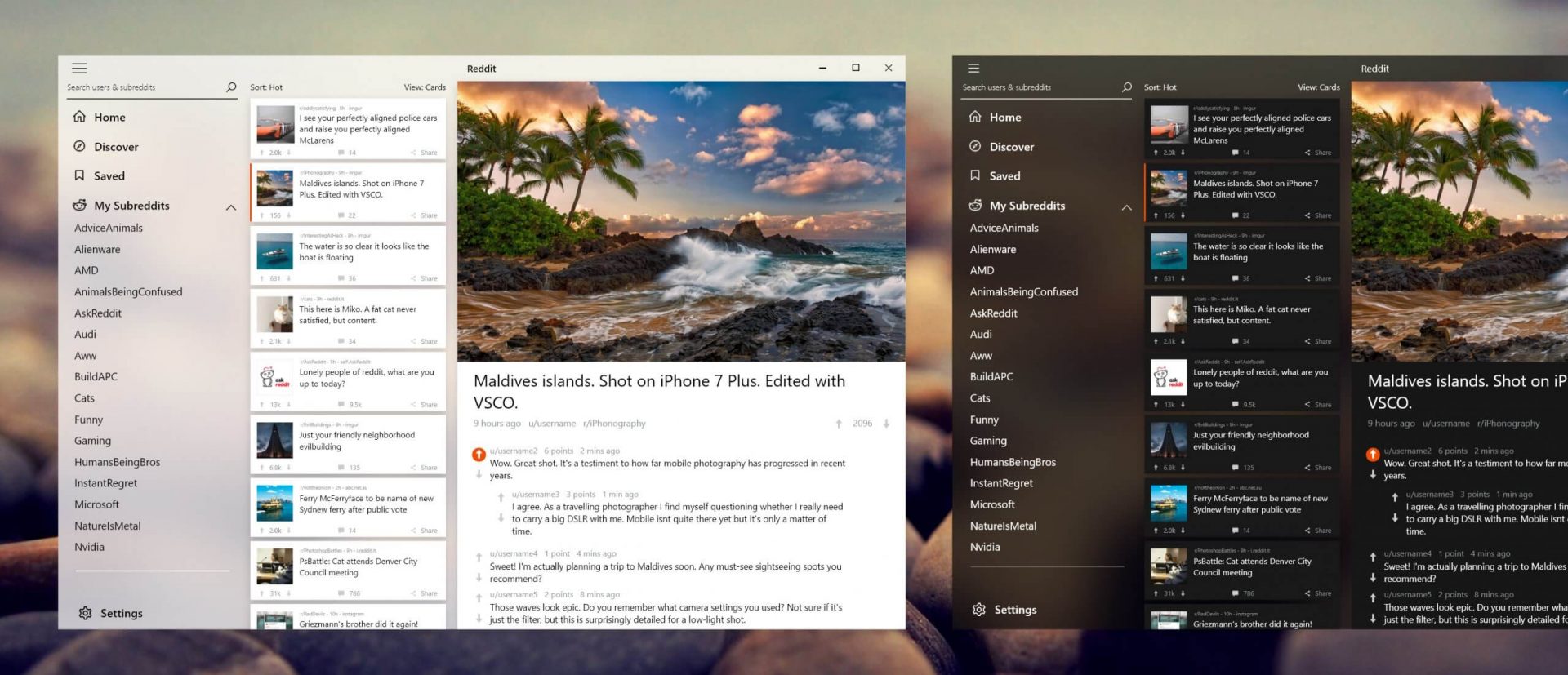
Reddit released the application in MS store
Reddit appReddit is one of the most popular websites in the world and how Microsoft is opening doors to everyone in its new store Reddit took a logical step and made a Progressive web application and placed it in it. Being a Progressive web app makes it more familiar and feels like a home experience using it for a lot of Reddit users. Reddit itself has a large community and active topics discussions all the time about anything. Bringing it to Windows as an application is, in my opinion, a great move since as an application it is independent, more light-weighted, and offering some other advantages specifically tied to being a standalone windows application. Everyone familiar with and using the Reddit website will feel right at home in this app and you can start using it right away.
Read More
Telnet not recognized as internal/external
In case you don’t know, a teletype network, also known as Telnet, is a protocol that is meant for internet or LAN communication which is used primarily to control other computers effortlessly. And it is available as a command-line utility in Windows and helps users in opening a command-line interface for the remote computer. However, a lot of users have reported an error that states, “Telnet is not recognized as an internal or external command, operable program, or batch file” when you try to use it. If you are one of these users, then you’ve come to the right place as this post will guide you on how to fix this error in Windows 10. This kind of error means that the Telnet utility is not installed on your computer but Telnet is a default feature in Windows 10 so the protocol mainly is not enabled yet. The Telnet client is disabled by default in Windows 10 and to fix this error, you can try to enable the Telnet Client via Programs and Features or try to install Telnet using an elevated Command Prompt.

Option 1 – Try to enable the Telnet Client via Programs and Features

The first thing you can do is to enable the Telnet client using Programs and Features since it is disabled by default. To do that, follow the steps below.
  • Tap the Win + R keys to open the Run dialog box and type “appwiz.cpl” in the field and hit Enter to open the Programs and Features window.
  • Next, select the “Turn Windows features on or off” from the options given on the left-hand side.
  • After that, look for the Telnet client from the list and check the checkbox next to it and then click on OK to save the changes made.
  • Now restart your computer.

Option 2 – Try to install Telnet via an elevated Command Prompt

If enabling the Telnet client using Programs and Features didn’t work, then you can try to do it using Command Prompt instead. To get started, follow the steps given below.
  • In the Windows Search bar, type “command prompt” in the field and right-click on Command Prompt from the search results, and select the “Run as administrator” option.
  • Next, execute this command to enable the Telnet client: dism /online /Enable-Feature /FeatureName:TelnetClient
  • Once the command has been executed, close the Command Prompt and restart your computer.
Read More
8 Android Apps that threaten your security
Security on your PC and on your accounts is the important thing. Security on your phone device is also very very important. That is why we are bringing you a list of 8 applications that are marked by the cybersecurity team as ones that could be used to steal data from you. If you have by any chance any of these applications installed, uninstall them immediately.

List is as follows:

  • Cake VPN (com.lazycoder.cakevpns)
  • Pacific VPN (com.protectvpn.freeapp)
  • eVPN (com.abcd.evpnfree)
  • BeatPlayer (com.crrl.beatplayers)
  • QR/Barcode Scanner MAX (com.bezrukd.qrcodebarcode)
  • Music Player (com.revosleap.samplemusicplayers)
  • tooltipnatorlibrary (com.mistergrizzlys.docscanpro)
  • QRecorder (com.record.callvoicerecorder)
If you would like to read more helpful articles and tips about various software and hardware visit errortools.com daily.
Read More
PrivacyAssistant Malware Removal Tutorial

PrivacyAssistant is a browser extension developed by SearchAssistant.net. These extensions allegedly offer users a safer way to browse the internet and some other tools to customize the home page with background wallpapers and one-click links that can be added. While all this may sound appealing, PrivacyAssistant also monitors your browser activity, search quarries, clicks, visits, and possibly personal information.

This extension changes your default home page to SearchAssistant.com and rerouting all searches through its search portal, displaying sponsored links instead of your typical search results. While active you may see unwanted ads and even pop-up ads appearing while browsing the internet.

Several anti-virus programs have classified this extension as a Browser Hijacker, and are, therefore, for security reasons, not recommended to keep on your computer.

About Browser Hijackers

Browser hijacking is amongst the web’s constant risks that target internet browsers. It’s a kind of malicious software that alters your internet browser’s configuration settings and redirects you to websites or pages that you had no intention of checking out. They are created to disrupt browser functions for many different reasons. Usually, hijackers will force hits to internet sites of their choice either to increase traffic producing higher advertisement earnings, or to gain a commission for each and every user visiting there. Most people believe that these kinds of websites are legitimate and harmless but that is not the case. Almost every browser hijacker poses an existent threat to your online safety and it’s important to categorize them under privacy dangers. When the program attacks your PC, it starts to mess things up a whole that slows your computer down to a crawl. In the worst-case scenario, you might be forced to deal with serious malware threats as well.

How one can recognize a browser hijack

There are numerous symptoms that point to a browser hijacking: your browser’s home page is suddenly different; you get re-directed to sites you never meant to visit; the default web engine has been changed and your web browser security settings have been lowered without your knowledge; find new toolbars that you simply did not add; you might find many pop-up ads on your computer screen; your web browser starts running slowly or displays frequent errors; you have prohibited entry to certain web pages, for example, the website of an antivirus software developer like SafeBytes.

So how exactly does a browser hijacker infect a PC

Browser hijackers may use drive-by downloads or file-sharing websites or perhaps an email attachment in order to reach a targeted computer system. They can also originate from any BHO, extension, toolbar, add-on, or plug-in with malicious intent. Other times you might have unintentionally accepted a browser hijacker as part of a software program bundle (generally freeware or shareware). A good example of some popular browser hijackers includes Conduit, Anyprotect, Babylon, DefaultTab, SweetPage, Delta Search, and RocketTab, however, the names are constantly changing. Browser hijacking can lead to serious privacy problems and even identity theft, disrupt your browsing experience by taking control over outgoing traffic, considerably slows down your personal computer by consuming lots of system resources, and result in system instability at the same time.

How to repair a browser hijack

Some hijackers can be removed by uninstalling the free software they were included with or by deleting any extension you’ve recently added to your browser. But, the majority of hijackers are extremely tenacious and require specialized applications to eradicate them. Furthermore, manual removal requires you to execute many time-consuming and tricky procedures which are hard to carry out for inexperienced computer users.

How To Get Rid Of Virus That Is Preventing Antivirus Installation?

Viruses can cause a great deal of damage to your computer system. Some malware sits in between the computer and your net connection and blocks some or all sites that you really want to visit. It will also prevent you from installing anything on your computer, especially anti-malware software. So what to do if malicious software keeps you from downloading or installing Safebytes Anti-Malware? Although this sort of problem can be difficult to circumvent, there are some actions you can take.

Make use of Safe Mode to resolve the problem

In Safe Mode, you can actually change Windows settings, un-install or install some software, and eliminate hard-to-delete malware. In case the malware is set to load immediately when PC boots, switching into this mode may well prevent it from doing so. To enter into Safe Mode or Safe Mode with Networking, press F8 while the system is starting up or run MSCONFIG and look for the “Safe Boot” options in the “Boot” tab. Once you’re in safe mode, you can try to install your anti-malware program without the hindrance of the malicious software. Following installation, run the malware scanner to remove most standard infections.

Switch over to some other web browser

Some malware mainly targets specific browsers. If this is your situation, use another internet browser as it can circumvent the malware. In the event you suspect that your Internet Explorer has been hijacked by a computer virus or otherwise compromised by cybercriminals, the best approach is to switch over to a different internet browser like Mozilla Firefox, Google Chrome, or Apple Safari to download your favorite computer security program – Safebytes Anti-Malware.

Run anti-virus from a USB drive

Another solution is to create a portable anti-malware program on your USB thumb drive. Try these simple actions to clean up your affected PC using a portable antivirus. 1) Download Safebytes Anti-Malware or Microsoft Windows Defender Offline onto a clean computer system. 2) Plug the pen drive into the uninfected PC. 3) Run the setup program by double-clicking the executable file of the downloaded application, which has a .exe file format. 4) Choose the flash drive as the location for saving the file. Follow the on-screen instructions to complete the installation process. 5) Transfer the pen drive from the uninfected computer to the infected computer. 6) Double-click the EXE file to open the Safebytes tool from the pen drive. 7) Click “Scan Now” to run a scan on the infected computer for viruses.

A Look at the Best AntiMalware Program

If you are looking to download an anti-malware application for your computer, there are several tools out there to consider nonetheless, you cannot trust blindly anyone, no matter whether it is paid or free software. Some are really worth your money, but many aren’t. While looking for an anti-malware program, choose one that offers solid, efficient, and complete protection against all known computer viruses and malware. One of the highly recommended software is SafeBytes AntiMalware. SafeBytes carries a very good track record of quality service, and customers appear to be happy with it. SafeBytes anti-malware is really a powerful, very effective protection tool created to assist users of all levels of IT literacy in finding and eliminating malicious threats out of their PC. Once you’ve got installed this software, SafeByte's state-of-the-art protection system will make sure that no viruses or malicious software can seep through your PC. SafeBytes anti-malware comes with a plethora of enhanced features which sets it aside from all others. Listed below are some of the highlighted features included in the tool. Robust Anti-malware Protection: This deep-cleaning anti-malware software goes much deeper than most anti-virus tools to clean your computer. Its critically acclaimed virus engine finds and disables hard to remove malware that conceals deep inside your personal computer. Active Protection: SafeBytes gives round-the-clock protection for your PC limiting malware attacks in real-time. They’re extremely effective in screening and removing various threats since they’re constantly improved with the latest updates and alerts. Web protection: SafeBytes checks the links present on a web page for possible threats and alerts you whether the website is safe to explore or not, through its unique safety ranking system. Light-weight: The program is lightweight and will work quietly in the background, and that does not impact your computer efficiency. 24/7 Premium Support: Support service is readily available for 24 x 7 x 365 days through email and chats to answer your queries.

Technical Details and Manual Removal (Advanced Users)

If you wish to manually remove PrivacyAssistant without the use of an automated tool, it may be possible to do so by removing the program from the Windows Add/Remove Programs menu, or in cases of browser extensions, going to the browsers AddOn/Extension manager and removing it. You will likely also want to reset your browser. To ensure the complete removal, manually check your hard drive and registry for all of the following and remove or reset the values accordingly. Please note that this is for advanced users only and may be difficult, with incorrect file removal causing additional PC errors. In addition, some malware is capable of replicating or preventing deletion. Doing this in Safe Mode is advised.

The following files, folders, and registry entries are created or modified by PrivacyAssistant

Registry: HKLMSOFTWAREClassesAppID.exe HKEY_CURRENT_USERsoftwareMicrosoftInternet ExplorerMainStart Page Redirect=http://.com HKEY_LOCAL_MACHINESOFTWAREMicrosoftWindows NTCurrentVersionvirus name HKEY_CURRENT_USERSoftwareMicrosoftWindows NTCurrentVersionWinlogon Shell = %AppData%.exe HKEY_CURRENT_USERSoftwareMicrosoftWindowsCurrentVersionRun Random HKEY_LOCAL_MACHINESoftwareMicrosoftWindows NTCurrentVersionRandom HKEY_LOCAL_MACHINESOFTWAREsupWPM HKEY_LOCAL_MACHINESYSTEMCurrentControlSetServicesWpm HKEY_CURRENT_USERSoftwareMicrosoftWindowsCurrentVersionUninstallPrivacyAssist HKEY_LOCAL_MACHINESOFTWAREMicrosoftWindows NTCurrentVersionImage File Execution Optionsmsseces.exe HKLMSOFTWAREClassesAppIDrandom.exe HKEY_CURRENT_USERSoftwareMicrosoftInternet ExplorerMain Default_Page_URL

Read More
Access Denied, You don’t have permission
When you try to open a website but instead encounter an “Access Denied, You don’t have permission to access on this server” error message along with the ULR which you aren’t able to access with a reference number, then it is most likely caused by some network-related issue in your browser. Note that this error mostly occurs on Firefox browsers. The “Access Denied” error appears when your Mozilla Firefox browser uses a different proxy setting or VPN instead of what’s really set on your Windows 10 PC. Thus, when a website detected that there is something wrong with your browser cookies or your network, it blocks you which is why you can’t open it. To resolve this error, here are some suggestions you can try. And if you got the same error message on a different browser, you can still follow the possible solutions given below.

Option 1 – Try clearing everything about the website

  • Open your browser and tap the Ctrl + H keys on your keyboard.
  • After that, look for the listing of the website from your browser history and right-click on it.
  • Then select the “Forget about this site” option. This will get rid of all the data such as browsing history, cache, cookies, and passwords. Thus, if you have a password saved or other important data of the website, you have to save it first before you tap the Ctrl + H keys.

Option 2 – Try disabling the VPN

As pointed out earlier, if you are using VPN, this could be the reason why you’re getting the “Access Denied” error so the most obvious thing to do is for you to turn off the VPN and try to run the Windows Update once more. And if you use a VPN software that works using their software, you can just completely exit or log-off from its account. On the other hand, if you are using a built-in Windows 10 VPN, you can simply turn it off or delete all the settings you have created there.

Option 3 – Uninstall the VPN service you are using or use a different provider

If you disabling the VPN service worked in fixing the “Access Denied” error, you might want to uninstall it. As mentioned, website administrator blocks IP ranges if they notice any malicious activities and because of this, your IP address might fall into the banned range even if you didn’t do anything at all. To uninstall the VPN service, follow the steps below.
  • Tap the Win + R keys to open the Run dialog box
  • Then type “appwiz.cpl” in the field and hit Enter to open the Programs and Features in Control Panel.
  • From there, look for the VPN service you are using, select it and then click on Uninstall to remove it.
  • After that, restart your computer and try to install the latest version of the program again. It should work now. If not, proceed to the next available option below.

Option 4 – Try disabling the proxy server for your LAN

If your PC was just attacked by some adware or malware as of late, it is possible that it has changed the network settings in the system and might display spam advertisements. Thus, you have to disable the proxy server for your LAN. To do that, refer to these steps:
  • Tap the Win + R keys to open the Run dialog box.
  • Then type “inetcpl.cpl” in the field and hit Enter to pull up the Internet Properties.
  • After that, go to the Connections tab and select the LAN settings.
  • From there. Uncheck the “Use a Proxy Server” option for your LAN and then make sure that the “Automatically detect settings” option is checked.
  • Now click the OK and the Apply buttons.
  • Restart your PC.
Note: If you are using a third-party proxy service, you have to disable it.
Read More
Fixing Windows 10 stuck at “Preparing Security Options”
There are cases when your Windows 10 PC can encounter an issue where it gets stuck and will display a message that says, “Preparing Security Options”. If this is happening to your Windows 10 PC, you won’t be able to use your keyboard or even mouse and your screen will only be stuck on the screen as mentioned above. As your computer is still stuck, you will be left with no choice but to shut it down and restart it. Tap the F11 key as soon as your PC powers on. This will take you to the Advanced Startup options where you can carry out some steps. If it still didn’t work, you have to boot your Windows 10 PC into Safe Mode and then try out the troubleshooting options below.

Option 1 – Try using System Restore

You can do this option either by booting into Safe Mode or in System Restore. If you are already in the Advanced Startup Options, just directly select System Restore and proceed with the next steps. And if you have just booted your PC into Safe Mode, refer to the steps below.
  • Tap the Win + R keys to open the Run dialog box.
  • After that, type in “sysdm.cpl” in the field and tap Enter.
  • Next, go to the System Protection tab then click the System Restore button. This will open a new window where you have to select your preferred System Restore point.
  • After that, follow the on-screen instructions to finish the process and then restart your computer and check if the problem is fixed or not.

Option 2 – Uninstall the Windows Updates you’ve installed recently

The issue could be caused by Windows Updates so you need to check if it’s indeed the case. The best way you can do so is via Safe Mode.
  • Boot your PC into Safe Mode and then tap the Win + I keys to open Settings.
  • After that, click on Update and Security and then select Windows Update from the left side menu column.
  • Next, select the “View installed update history” option on the right-side column and click on Uninstall Updates which will open a window that will show the list of all the installed updates on your PC.
  • From there, select the update you want to uninstall and click the Uninstall button located in the lower right corner of the window.

Option 3 – Try disabling the Fast Startup

  • Boot your PC into Safe Mode.
  • Then tap the Win + R keys to open the Run dialog box.
  • Next, type in “control” to open Control Panel.
  • After that, select Hardware and Sound and click on Power Options.
  • Select “Choose what the power buttons do” from the left side menu pane and click on Change settings that are currently unavailable.
  • Afterward, uncheck the “Turn on fast startup (Recommended)” entry and click on Save Changes.
  • Now restart your PC and check if the problem’s fixed.

Option 4 – Try running both the SFC scan and CHKDSK utility

You can do both SFC and CHKDSK using Safe Mode and Advanced Startup options. For Advanced Startup options, click on the Command Prompt option and proceed with the steps. And if you have booted your computer into Safe Mode, follow these steps:
  • Tap the Win + X keys or right-click on the Start button and click Command Prompt (admin).
  • After that, type in this command and tap Enter to run the System File Checker or SFC – “Sfc /scannow”.
  • Alternatively, you can use this command instead if the previous command didn’t work – “sfc /scannow /offbootdir=c: /offwindir=c:windows”.
  • Wait until the SFC scan is done with the process and then restart your PC.
  • Next, run the CHKDSK utility and once it’s done checking your disk for errors and then reboot your PC to save the changes made.

Option 5 – Try resetting Windows 10

You can reset your Windows 10 PC using either the Advanced Startup Options or by booting into Safe Mode.
  • Tap the Win + I keys and go to Update and Security > Recovery.
  • Then click on Get Started under the Reset this PC section.
  • After that, follow the on-screen instructions with how you want to reset your PC and what files and settings you want to revert.
  • Then it will reset your PC by reinstalling it

Option 6 – Try to rename the SoftwareDistribution folder

In this option, the Command Prompt is supposed to be like the one in option 4. You can use both ways there to open the Command Prompt.
  • Open an elevated Command Prompt as admin and type in the commands below and tap Enter right after you typed in each one of them
  • net stop wuauserv
  • net stop bits
  • rename c:windowsSoftwareDistribution SoftwareDistribution.bak
  • net start wuauserv
  • net start bits
Note: You can also rename the SoftwareDistribution folder to “SoftwareDistribution.bak” or “SoftwareDistribution.old” after you boot your PC into Safe Mode.

Option 7 – Try rebuilding BCD

Rebuilding the BCD can help you in fixing the stuck Windows 10.
  • You can start by booting into the installation environment for Windows 10 from an installation media.
  • After that, click on Repair your computer and on the blue screen, select Troubleshoot and then select the Advanced options menu.
  • Next, select Command Prompt and type in the commands below one by one, and tap Enter right after you do so.
  • exe /FixMbr
  • exe /FixBoot
    • exe /RebuildBcd

Read More
Troubleshoot Error 651 on Your PC

Error 651 - What is it?

Are you a Windows 7 PC user? Are you experiencing error 651? If yes, then read on. We will discuss what is this error, the causes, and easy DIY solutions to help you resolve this issue immediately. Error 651 is a common Windows 7 error. This error occurs when you try to connect using your PPPoE connections. The error message is displayed in the following format:
“Error 651: The Modem (or other connecting device) has reported an error.”

Solution

Restoro box imageError Causes

The error code 651 occurs due to multiple reasons. However, some of the most common error causes include:
  • The raspppoe.sys file saved in the wrong location
  • IP setting  issues
  • Registry issues

Further Information and Manual Repair

Here are some of the best and easiest solutions to resolve the error code 651 on your system immediately. These solutions are so easy to perform that you don’t need any technical expertise or knowledge to get started. So here we go!

Solution 1: Reset TCP/IP Settings

To reset TCP/IP settings on your PC, here’s what you need to do. Simply replace the RAS PPPoE driver. First open a command prompt, then write the following command in the command prompt:  TAKEOWN /F"C:Windowssystem32driversraspppoe.sys" ICACLS "C:Windowssystem32driversraspppoe.sys" /grant administrators:F. After that, press enter to continue. Now close the command prompt and go to the folder C:\Windows\system32\drivers, here rename the raspppoe.sys file to raspppoe2.sys. Now right click on save the link as Vista RAS PPPoE Driver and save it in the C:\Windows\system32\drivers folder. Once this process is complete, to activate changes made, restart your PC. This is most likely to resolve the error code 651 on your system.

Solution 2: Try Power Cycling your Modem and your Router

This is another way to resolve error 651. However, before you try this solution, it is recommended that you save all your work on your system, close all your open applications, and then shut down your PC. After that first turn your router off and wait for about 2 minutes. Then turn off your modem too. Now disconnect all the Ethernet cables that are connected to your modem, router and your system. Reconnect them again and make sure that the connections are not loose. After reconnecting the cables, reboot your PC and switch on the modem first. After your modem gets initialized, turn on the router. See if this procedure works. If it does, then that’s great the issue is resolved. However, if the error persists, then this indicates deeper problems. The error message is triggered due to registry issues.

Solution 3: Clean and Repair the Registry

Sometimes the underlying cause of error 651 is a corrupt and damaged registry. Registry is the database where operating system stores all the information associated with installed programs and activities performed on your PC. Registry issues typically result due to poor PC maintenance. When you don’t clean the registry the unnecessary and obsolete files accumulate and acquire a lot space. It damages the registry and DLL files. This often leads to disk fragmentation and files are then saved in segments in different locations. This also slows down your PC performance. This could also be the reason for why the raspppoe.sys file is saved in the wrong location. Though you can repair the registry manually but it may be complex for you especially if you are not technically sound. And besides, it is also slightly time-consuming.

Restoro - Premier Registry Cleaner

Therefore, to resolve errors like 651 triggered by the registry issues on your system in seconds, it is advisable to download Restoro. Restoro is a cutting-edge and multi-functional PC Fixer. It is deployed with a powerful intuitive algorithm and multiple highly functional utilities designed to resolve practically all types of PC errors. It includes utilities like a registry cleaner, an antivirus, and a system optimizer. The registry cleaning feature scans for all types of registry issues and errors and resolves them instantly. It wipes out unnecessary and redundant files like cookies, internet history, junk files, and bad/ invalid registry entries. It cleans the registry freeing up space. Furthermore, it also repairs the damaged files and restores the registry back to normal.

Restoro Special Features

Other features include an antivirus that removes all types of malicious software hiding in your PC including viruses, Trojans, spyware, malware, and adware. The system optimizer feature ensures that your computer performs at its optimal level at all times. Restoro is safe and bug-free. Its user-friendly interface and simple navigations makes it quite easy for users to operate it without any difficulty. Furthermore, compatibility is not an issue with this software. You can download it on any Windows version. Click here to download Restoro and fix error 651 on your PC today!
Read More
1 2 3 171
Logo
Copyright © 2023, ErrorTools. All Rights Reserved
Trademark: Microsoft Windows logos are registered trademarks of Microsoft. Disclaimer: ErrorTools.com is not affiliated with Microsoft, nor claims direct affiliation.
The information on this page is provided for information purposes only.
DMCA.com Protection Status