Logo

How to Fix ISDone.dll Error in Windows

As you know, games with good graphics and fast play are definitely resource-intensive and can consume a lot of storage space on your computer. Because of that, they have to be compressed before it gets downloaded to your computer and then unpacked to the hard drive before it gets installed. However, if an error occurs in your computer’s RAM during the installation process or if your hard disk does not have enough memory to handle the process, then you might encounter the isDone.dll error which states:

“An error occurred when unpacking, Unarc.dll returned error code -1, ERROR: archive data corrupted (decompression fails).”

If you encounter the isDone.dll error message on your Windows 10 computer, then read on as this post will show you how you can fix it. This error has something to do with the incomplete installation of PC games or files of larger size.

The ISDone.dll error appears due to faulty

Unarc.dll file residing in the System32 folder on 32-bit operating systems and the SysWOW64 folder on 64-bit systems. So, if you see this error message, then, it means your computer was not able to read installation archive files.

What is Unarc.dll file?

Unarc.dll is a dynamic link library for Windows. Some applications or games require this file to function properly. So, if it goes missing or, an error occurs when you start a game or an application, you may get various kinds of errors.

ISDone.dll error while playing games on PC

Option 1 – Try to reinstall the game

The isDone.dll error could also be caused by the installation of an unknown application. Or it could also be caused by an outdated or corrupted application. In other words, if the game you are trying to install is broken or corrupted, then it’s no wonder why you’re getting the isDone.dll error. To fix this, make sure that you download the latest updated version of the game and then try to install it again and see if the problem is resolved or not.

Option 2 – Try to re-register the .dll file using the Regsvr32 tool

  • The first thing you have to do is to locate the DLL file named dll on your computer and rename it to Unarc-bak.dll.
  • Next, copy the Unarc.dll file from another well-functioning computer and save it on your desktop.
  • After that, move the DLL file you just copied to the System32 folder if you are using a 32-bit operating system, or the SysWOW64 folder if you are using a 64-bit operating system.
  • Now you have to register the new DLL file and you can do that using Windows PowerShell.
  • Open Windows PowerShell and then execute this command if you have placed the DLL file in the System32 folder: regsvr32 %systemroot%System32unarc.dll
  • On the other hand, if you have placed the DLL file in the SysWOW64 folder, then execute this command: regsvr32 %systemroot%SysWOW64unarc.dll
  • Once you’re done, a message will be displayed saying that the DLL file was registered.
  • Restart your computer and check if the problem is now fixed.

Option 3 – Troubleshoot the isDone.dll error in a Clean Boot State

You can also troubleshoot the isDone.dll error in a Clean Boot state. It could be that there are some third-party applications in your computer that're preventing the application from getting installed and to isolate this possibility, you need to boot your computer in a Clean Boot State and then try installing the program again. Putting your computer in this state can help you identify which program is the culprit and thus isolates the problem. In a Clean Boot state, your computer will start using only the pre-selected minimal set of drivers and startup programs. Note that you have to disable and enable one process at a time.

  • Log onto your PC as an administrator.
  • Type in MSConfig in the Start Search to open the System Configuration utility.
  • From there, go to the General tab and click “Selective startup”.
  • Clear the “Load Startup items” check box and make sure that the “Load System Services” and “Use Original boot configuration” options are checked.
  • Next, click the Services tab and select the “Hide All Microsoft Services” check box.
  • Click Disable all.
  • Click on Apply/OK and restart your PC. (This will put your PC into a Clean Boot State. And configure Windows to use the usual startup, just simply undo the changes.)
  • After you’ve set your computer into a Clean Boot State, make sure that you’re signed in as administrator and then try to install the application again.

Option 4 – Try updating or reinstalling your Graphics drivers

Updating or reinstalling the Graphics drivers in your computer can also help in resolving compatibility issues between the operating system and the driver that might have caused the isDone.dll error.

  • First, boot your computer into Safe Mode.
  • After that, tap the Win + R keys to launch Run.
  • Type in devmgmt.msc into the box and tap Enter or click OK to open the Device Manager.
  • After that, a list of device drivers will be displayed. From there, look for the Display Adapters and click on them.
  • After that, right-click on each entry under the Display Adapters and select the “Uninstall Device” option from the menu.
  • Now restart your computer.
  • After restarting your computer, go to the Settings app and Check for Updates in the Windows Update section.

Note: You also have the option to go directly to the website of your graphics card manufacturers like NVIDIA, Intel, or AMD and go to the section called Drivers then check if there’s a new available update – if there is, download and install it.

Option 5 – Try scanning your computer using Windows Defender

The isDone.dll error might also be infected with malware or virus and to eliminate it, you have to scan your computer using security programs like Windows Defender.

  • Tap the Win + I keys to open Update & Security.
  • Then click on the Windows Security option and open Windows Defender Security Center.
  • Next, click on Virus & threat protection > Run a new advanced scan.
  • Now make sure that Full Scan is selected from the menu and then click the Scan Now button to get started.


Do You Need Help with Your Device?

Our Team of Experts May Help
Troubleshoot.Tech Experts are There for You!
Replace damaged files
Restore performance
Free disk space
Remove Malware
Protects WEB browser
Remove Viruses
Stop PC freezing
GET HELP
Troubleshoot.Tech experts work with all versions of Microsoft Windows including Windows 11, with Android, Mac, and more.

Share this article:

You might also like

How to Fix Error 400

Error 400 - What is it?

Error 400 is a bad request error that displays in the internet browser like a web page. It pops up when the web page you’ve requested cannot be found. Error 400 may be displayed in one of the following formats on the computer screen:
  • ‘400 Bad Request’
  • Bad Request - Invalid URL"
  • "HTTP Error 400 - Bad Request"
  • "Bad Request. Your browser sent a request that this server could not understand.”
  • "HTTP Error 400. The request hostname is invalid."
  • "400 - Bad request. The request could not be understood by the server due to malformed syntax. The client should not repeat the request without modifications."

Solution

Restoro box imageError Causes

Error 400 can be generated due to multiple reasons. These include:
  • Wrong URL
  • Browser cookies
  • Outdated DNS cache
Though this error code is not fatal like the blue screen of death and runtime errors nonetheless it is still advisable to fix it to access your desired website without any inconvenience.

Further Information and Manual Repair

Here are some of the best ways to fix error 400 on your PC without any professional help. Try these methods to resolve error 400:

Method 1

This might come to you by surprise that the most common cause for a 400 Bad Request error is because the URL of the website was typed wrong. So, first things first make sure the URL you’ve inserted is correct. If the URL typed is correct, then try other methods illustrated below.

Method 2

Sometimes error 400 may pop up due to outdated DNS records. DNS cache stores the location (IP addresses) of web servers that contain pages that you’ve viewed recently. You are unable to access the site if the location of the webserver changes before the entry in your DNS cache updates. If this is the error cause then simply clear your DNS cache to resolve. Follow these steps to clear the DNS cache on Windows 8.
  • Press Win+X to open the WinX menu.
  • Now ‘right click’ on command prompt and select RUN as Administrator. Enter the following command:
  • ipconfig /flushdns
If the command was successful, you will see the following message: Windows IP configuration successfully flushed the DNS Resolver Cache. This method will hopefully repair error 400 on your computer screen.

Method 3

Another reason for error 400 can be browser cookies. Many sites report error 400 when a cookie it reads is corrupt or too old. In such a situation it is advisable to clear your browser cookies. You can do it manually but it can be time-consuming virtually because the steps involved in deleting cookies differ considerably depending on what web browser you’re using. So, to avoid the hassle it is advisable to download Reimage to remove browser cookies immediately. This is a user-friendly PC Fixer deployed with a powerful registry cleaner. It removes all obsolete and unnecessary files from your PC including junk files, internet history, and cookies in seconds. Click here to download Restoro.
Read More
Guide to Fixing 0x80040600 Error

What Is 0x80040600 Error?

The 0x80040600 error is a common error that becomes particularly distressing for Outlook users. This error prevents users from sending or receiving emails through Microsoft Outlook. Users may also encounter this problem while altering an entry on the calendar or adding a new contact. There is no obvious message that is displayed to the user when this error occurs. However, Outlook displays a vague message that includes the code 0x80040600.

Solution

Download available to recover all lost Outlook data

Restoro box imageError Causes

The primary cause of this error is a problem with the PST file. When the PST file is corrupt, missing, or damaged, this error occurs at once. The PST file is essentially an important file that stores crucial and personal information of an individual’s accounts. Sometimes this error is because the file is corrupt while at other times, the reason that it occurs is that the file is too full to accommodate any further information. Irrespective of the causes of this problem, it is important that this error is promptly fixed to ensure the proper and uninterrupted functioning of Outlook in the future.

Further Information and Manual Repair

The error occurs because the Outlook application encounters problems while attempting to receive, send or read emails. Some solutions that can work wonders and help you get rid of the problem are outlined below.
  • As soon as the error appears, the first solution is to restart the system. This is the first thing that must be done because a lot of times, these errors can be removed by simply restarting the system. This will, hence, save the user the inconvenience of manually fixing this problem.
If restarting the system doesn’t resolve the problem and the error message displays again, it is advised the user makes use of the ‘Inbox Repair Tool’. This is the most commonly used and effective approach to fixing a corrupt PST file. The procedure to remedy this Personal Storage Table file or PST file is listed below.
  • Go to the start menu. Type Run and launch the Inbox Repair Tool by typing the following path:  drive name: Program FilesCommon FilesSystemMapiLocale IDscanpst.exe. Now click Ok. A pop-up message will appear. Enter the file name and path of the damaged PST file. Now click on the Start button. Here it is important to mention that the inbox repair tool may take a long time depending upon the file size and the amount of data that has to be recovered. However, it is the most effective way of fixing this problem.
Read More
How to Fix Error Code 0x8007007B on Your PC

Error Code 0x8007007B (Code 0x8007007B) – What is it?

Error code 0x8007007B (Code 0x8007007B) is an error that occurs when you attempt to activate Windows 10, as well as Windows Server 2008, Windows Vista, Windows 7, Windows 8, or Windows Server 2012.

Common symptoms include:

  • You will see an error message like this: “Error 0x8007007B 'The filename, directory name, or volume label syntax is incorrect”.
  • If you are using volume-licensed media to install: Windows 7, Windows 8, Windows Vista Business, Windows Vista Enterprise, Windows Server 2008 R2, Windows Server 2008, Windows Server 2012, Windows 10.
  • Your computer is not connecting the activation wizard to a Key Management Service (KMS) host computer.

Solution

Restoro box imageFurther Information and Manual Repair

Error Code 0x8007007B usually occurs when a product key has been activated too many times. Blocking activation aids in avoiding abuse of the key. If abuse of the key is not the case, it is possible to get the key reset, or you may receive a new key altogether. When you are not sure that you can complete these methods yourself, as they do contain advanced steps, it would be wise to consult a computer repair technician to avoid making the problem any worse.

Generally, the solution can be simple; it is just dependent on how comfortable you are with getting technical in your computer. Volume licensed media means that the media has a preset number of times that it is allowed to be activated. This helps to avoid misuse of the product. Some people install the Windows 10 program multiple times on their computer if they are software developers or do certain types of software testing. It is important to know the cause in order to effectively find the solution.

Method One:

  1. From the desktop screen, press the Windows key and S, type “Command Prompt”. Then, right-click on Command Prompt in the results. Select Run as Administrator.  Click Yes when asked about requesting permission.
  2. In the Command Prompt box, enter the command: slmgr.vbs -ipk xxxxx-xxxxx-xxxxx-xxxxx-xxxxx
  3. The x's represent the product key. Replace these with your unique product key.
  4. Type in the following command into the “Command Prompt” window: slmgr.vbs -ato
  5. Click Enter
  6. Restart your computer and try to activate windows again. It should not show the error code anymore.

Method Two:

  1. While on the desktop, press the Windows key and R.
  2. A window saying Run should open.
  3. Type in the following command: Slui 3
  4. Press ENTER and a window should appear.
  5. This window asks for you to enter the operating system activation product key.
  6. Enter this key in the space provided.
  7. After entering this, click Activate.
  8. Restart your computer now.
  9. Check for activation. The Error code should be gone now.

Method Three:

  1. Open the Command Prompt with access as administrator just as in Method One, and enter the following command: sfc /scannow
  2. The command will complete the tasks. This will take some time so just let the computer do its thing and work. Let the sfc finish the scan.
  3. When the scan is complete, restart the computer.
  4. Check for the activation. The error code should be gone at this point.
  5. If it is gone, revisit Method One or move on the Method Four.

Method Four:

Call the Microsoft Support Team and explain the problem in as much detail as you can give. Give the team the error code 0x8007007B and ask to have a different product key. When they give you the new product key, repeat Method 2. The Microsoft Support Team will either change your product key, or they will reset your current product key so that it can be used for activation again.

Read More
How to create a public VPN Server on Windows
As you know, a Virtual Private Network or VPN is used to access a particular network from another network which is why it is also referred to as a mini-internet. Moreover, you can use it in two ways. One, you can use it to get you access to a closed server which means that you would not be getting access to the internet. Second, you can also use it to access a set of resources while at the same time get access to the internet. However, what if you want to access your resources at home even when you’re away? And what if you want to use the private server at home or at your office even when you’re away? This is where the callout for a VPN server for yourself comes in. And so in this post, you will be guided in how you can create a public VPN server on your Windows 10 computer. Follow each one of the given steps below to get started. Step 1: Find your IP address. This step is rather simple since all you have to do is open Control Panel > Network and Internet > Network and Sharing Center. From there, click on “Local Area Connection” and then click on Details where you’ll see your IP address next to “Autoconfiguration IPv4 Address”. Step 2: Next, set up port forwarding on your router. In this step, you will have to configure port forwarding in your router so that you would be able to connect to the VPN server through a public network like the internet.
  • Log in to the Admin Panel of your router. You have to do this since your router will be the gateway for your access to the network.
  • After you’re logged in, look for the “Port Forwarding” or “Applications and Gaming” or “NAT/QoS” menu tab and other similar names.
  • Now you need to set the port number to 1723 for connections based on Point to Point Tunneling Protocol.
  • Then save the configuration and reboot your router.
Step 3: Set up a VPN server on Windows 10.
  • In the Cortana search box, type “ncpa.cpl” and click on the related entry from the search results.
  • After that, tap the Alt + F keys to bring down the File Menu and then select New Incoming Connection which will open a mini window where you can allow the user accounts on the particular machine to access the VPN connection.
  • On the other hand, you can also click the “Add someone” button so that you can add someone else to the whitelist that can access the connection.
  • Now click on Next and you’ll see an option to select how people will connect to the network. Check the checkbox for the “Through the Internet” option.
  • After that, you will see a page where you have to configure the network. Just select IPv4 and then click on Properties.
  • From there, you will be asked to continue some additional settings like letting users access your Local Area Network or how IP addresses will be allocated to these users. Click on OK to save the changes you’ve made.
  • Click on Allow Access after you configure the network. And if you want to, you have the option to print this information for future reference or for the client machine.
  • Now click on Close to exit the configuration process.
Step 4: Allow the VPN Connections through the firewall In this step, you will have to allow the VPN connections through the firewall.
  • In the Cortana search box, type “Allow an app through Windows Firewall” and click on the related search result to open the intended Windows Firewall settings.
  • Next, click on Change Settings.
  • Then scroll down to check if Routing and Remote Access is Enabled for both the Public and Private networks and click on OK.
Step 5: Set up a VPN connection on Windows 10 Now all that’s left for you to do is to set up a VPN connection on Windows 10.
  • Go to Settings > Network and Internet.
  • From the list of options given, click on VPN located on the left pane to see the related settings.
  • After that, click on the “+” icon to add a VPN connection.
  • Next, select Windows Default under VPN Provider and under the Connection Name, input your VPN’s name, and then enter the IP address you got from the VPN service provider under the Server name or address section.
  • Now select PPTP under VPN type since it is the most commonly used protocol for VPNs.
Read More
Disabling Absolute Volume in Windows 10
As you know, Bluetooth headphones allow users to connect to their mobile devices wirelessly. This allows you to talk on your mobile device or listen to music without having to connect any cords or wires. Additionally, it even allows you to adjust the volume of a left or right speaker. However, Bluetooth headphones in Windows 10 are another story as their scope is limited. For instance, the left and right pieces can’t have different volume levels. But if you still want to change the dual control of the volume of headphones separately in Windows 10. And in this post, you will be guided on how exactly you can do that. In addition, in this post, you will also be guided on what you can do if the Windows Update messed with the Bluetooth volume control and what you can do to disable the absolute volume in Windows 10. In case you don’t know, the Absolute Volume feature is actually incompatible with a number of Bluetooth devices which can result in the inability of the Bluetooth device to adjust its volume. Thus, if you experience this kind of issue, you’ll notice that the volume slider in the taskbar and the device volume control neither have any effect in adjusting the volume. And each time you try to adjust the volume level for one speaker, the volume of another speaker also automatically changes. In such a case, it would be difficult for you to separately change the dual volume control headphones. Worry not for there is an easy registry tweak you can try to make this possible to do. But before you proceed with the instructions provided below, make sure that you create a System Restore first. Once you have that covered, follow the steps below carefully. Step_1: Tap the Win + R keys to open the Run dialog box and type “Regedit” in the field and hit Enter to open the Registry Editor. Step_2: Next, navigate to this registry path: HKEY_LOCAL_MACHINESYSTEMControlSet001ControlBluetoothAudioAVRCPCT Step_3: After that, look for the entry named “DisableAbsoluteVolume” which should be located in the right pane. But if you’re unable to find this entry, you can just create it by right-clicking on the CT key and selecting New > DWORD (32-bit) value, and then assign “DisableAbsoluteVolume” as its name. Step_4: Once done, double click on the “DisableAbsoluteVolume” DWORD and set its value from 0 to 1. Step_5: Now exit the Registry Editor and restart your computer. On the other hand, you can also disable or enable the Absolute Volume feature by executing a command in the Command Prompt.
  • If you want to disable the Absolute Volume feature, just execute this command: reg add HKLMSYSTEMControlSet001ControlBluetoothAudioAVRCPCT /v DisableAbsoluteVolume /t REG_DWORD /d 1 /f
  • If you want to enable the Absolute Volume feature, just execute this command: reg add HKLMSYSTEMControlSet001ControlBluetoothAudioAVRCPCT /v DisableAbsoluteVolume /t REG_DWORD /d 0 /f
After you execute the command, just restart your computer.

After your computer restarts.

Once you’re done executing the given instructions above, you have to right-click on the speaker icon located in the system tray and select Open Sound Settings and click on Manage device settings – the same controls will be visible to you like earlier. Now when you change the volume level for one speaker, the other speaker should now remain as it is and won’t change alongside the speaker.
Read More
Brave and Vivaldi are blocking google FLoC
FLoC is Google’s alternative to third-party cookies and is based on machine learning. This will allow the browser, any browser, to anonymously study how users are browsing and then group them into ‘cohorts’. Following this, you will be served ads based on your cohort and not on your individual data. So, you are still going to be targeted with ads but in a more anonymous manner. Google claims that this will improve user privacy since this “federated learning” happens on the user’s device and artificial intelligence-based learning involves sharing lesser users than what happens with third-party cookies. If something like this gets widely adopted by ad companies and services, it should “protect users” from tracking methods that are more intrusive than third-party cookies, like browser fingerprinting.

Who is against it?

Privacy-focused browsers DuckDuckGo, Brave, and Vivaldi have all warned users against FLoC and have said that they are going to block it on their end. Brave says that Google FLoC has a design that does not respect the customer’s privacy and consent. It has been designed to provide browsing behavior and interest data with any website that users may interact with, and this process does not involve fully informed consent. Vivaldi, another popular Chromium-based web browser, has also made its stance clear regarding the status of FLoC. The company said in a Reddit thread that the FLoC experiment does not work in Vivaldi. It happens because for FLoC to work, some features need to be enabled under the hood, but Vivaldi does not provide those options. The company also added that it plans to stop the entire FLoC component from being a part of the browser, regardless of how Google may implement it. Considering that Brave and Vivaldi have been privacy-focused browsers since their beginnings, the decision to stay away from FLoC is not surprising.
Read More
Protestware, what it is, and why it is a bad thing

The author of the famous software library mode-ipc that gets over a million downloads per week found that it has some questionable code inside. The code itself behaves like this: if it finds out that your location is within Russia or Belarus it will try to replace the contents of all files on the computer with a heart emoji.

One important thing is that we here are not supporting the current Ukrainian situation and are against any type of violence or war but we also do not support this kind of behavior as well. If we look at this only from a technical perspective, we would then classify the mode-ipc library as malware and a harmful piece of code no matter the motivation behind it.

code block

So this so-called protestware is well basically malware, but not always, it will protest when certain conditions are met. The issue with this is that companies and users should not be placed under harm if they do not share the personal view of the code author. Imagine if, for example, I would publish code to delete all pictures from your computer if my code found out that you do not like metal music. I guess you not liking metal music and war in Ukraine are two very different things but the source is the same, unreliable code that invades your privacy in order to serve one purpose, punishment for disagreeing with my personal views and that should not be allowed.

Not all protestware are equal, some will not harm your computer on purpose, they will just annoy you with some messages like viruses did in their infancy stages, others might place some developer sanctions but no matter the outcome basic principle is the same, it does something without user consent and without informing the user that something like that might happen.

On the internet, many blog posts and discussions were open about this issue and its morality. Discussion is still active with different takes on the situation and how to prevent it. Our take on this matter is that professional developers should have standards and not submit to doing harm for the sake of personal views and feelings.

In the long run, this kind of behavior and practice can only harm developers involved in this kind of entanglement. Infected libraries will in time stop being used since people would not trust them and authors will have a stain on their name as impulsive or not trustworthy.

Read More
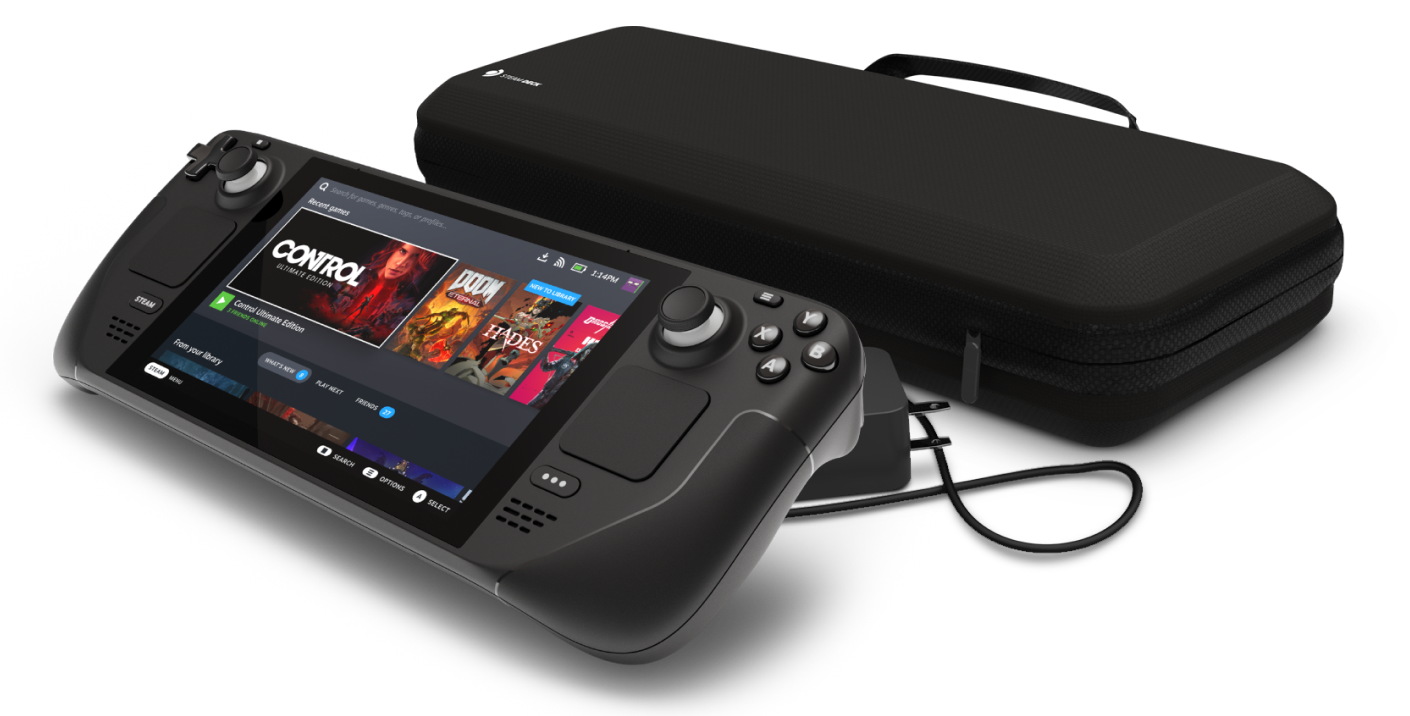
Steam Deck will be able to dual boot
Steam Deck release is almost upon us and more news comes to light. The Latest officially confirmed technical detail is that the user will have access to device's BIOS and that dual booting will be officially supported. steam deckThis, of course, means that you will be able to have both Proton and Windows on your device letting you play anything that you wish if the hardware is strong enough. Valve also said that you can launch OS from an SD card! This of course will save space available for games themselves, especially for entry models with less than one available. All of this information really pushes Deck into the territory of a handheld PC and not just another console and I must admit that this announcement left a smile on my face.

Read More
DiskPart has encountered an error
As you know, Diskpart is a useful utility that helps in managing the disks in a computer. It is a very useful tool that even when the GUI-based disk management tools in Windows 10 operating system fails, the Diskpart utility still tends to work. However, it also does not mean that this utility does not experience issues as it still does, from time to time. One of the issues you may encounter when using the Diskpart utility is when you encounter an error message that says, “DiskPart has encountered an error, Access is denied”. This kind of error in the Diskpart utility could be caused by a number of factors. For one, it could be that the Write-Protection is enabled on the drive where the operating is being performed or it could also be that the Command Prompt terminal does not have administrator-level permissions to carry out the command. Thus, you can try to run the Diskpart utility again but this time with admin privileges or you could also remote the Write-Protection from the concerned drive. For more details, refer to the instructions given below.

Option 1 – Try running Command Prompt with Administrator-level permissions

  • In the Start Search, type “command prompt” and from the search results that appear, look for Command Prompt.
  • Once you found it, right-click on it and select the “Run as administrator” option.
  • After that, try to execute the Diskpart operation once again and see if you still encounter the same error.

Option 2 – Try to remove the Write Protection from the drive

As mentioned, removing the Write-Protection on the concerned drive could also help you fix the problem and there are two ways to get rid of the write protection – you can either use the Diskpart utility or the Registry Editor. How? Refer to the following steps.

Via Diskpart utility:

  • Open Command Prompt with admin privileges and then type the “diskpart” command and tap Enter to execute it.
  • Next, type “list disk” and tap Enter to get the list of all the Disk connects or all the partitions that are formed on those disks.
  • After that, you need to choose one command depending on the list of commands you entered. Type “select disk #” and tap Enter to select the disk or partition you want to select.
  • Then type “attribute disk clear readonly” and tap Enter to Disable the Write Protection on the selected disk or partition.

Via Registry Editor:

  • Tap the Win + R keys to open the Run utility and type “Regedit” in the field and then tap Enter to open the Registry Editor.
  • Next, navigate to the following registry key:
ComputerHKEY_LOCAL_MACHINESYSTEMCurrentControlSetControlStorageDevicePolicies
  • After that, look for the DWORD named “WriteProtect” and double click on it, and then set its Value Data to “0”.
  • Now restart your computer and see if the problem is now fixed or not.
Read More
A Quick Guide to Resolving Error 0x80070571

Error 0x80070571 - What is it?

If you are a Windows 7 user and you also have a Maxtor One Touch 4 external hard drive installed on your PC, then you may come across the error code 0x80070571. The error code is displayed in the following format:
"The disk structure is corrupt and unreadable. Error 0×80070571"

Solution

Restoro box imageError Causes

Here are some of the common causes of the error 0×80070571:
  • Changed Windows files or settings
  • Maxtor 750G driver damaged or corrupt
  • Damaged or corrupt registry keys
  • System files are missing or broken
In short, the error code 0×80070571 indicates an unhealthy system and is a surefire sign of poor PC maintenance. It is advisable to repair and resolve the error immediately especially if the underlying cause of the error is related to the registry. Such errors can expose your PC to serious threats like system failure, crashes, and valuable data loss. And retrieving data is often the hardest.

Further Information and Manual Repair

To resolve the error 0×80070571 on your system, you don’t need to be a computer programmer or hire a technician either. We have listed down the best and simplest ways to fix this error on your system. These solutions are so easy to follow and execute that it requires no technical expertise whatsoever. So, let’s get started:

Solution 1: Update The Maxtor 750G Driver

The best way to fix the error 0×80070571 on your system is to update the Maxtor 750G driver. This can be easily done by either contacting the manufacturer or downloading the updated version from Maxtor’s official website.

Solution 2: Update Windows

For the smooth running of the PC, it is crucial to keep Windows updated. Therefore, update Windows on your PC. To do this, go to the Windows Update option in the control panel. This will show your updated status. Turn it on and click on update.

Solution 3: Clean the Registry

The registry basically stores all the activities and information on your PC. This includes both important and unimportant data including the junk files, cookies, internet history, bad registry keys and invalid entries. Such files if not removed, take up a lot of disk space. It corrupts the registry and damages the system files as well. Furthermore, it also leads to disk fragmentation because of which new files are stored in fragments in different locations and this is exactly why it takes a long time to call system files. The registry damage and corruption then generates various errors on your PC and one of them is error 0×80070571. The best way to clean and restore the registry is to download Restoro. This is a highly functional and next-generation registry cleaner. It is embedded with a smart algorithm that detects and scans all registry issues and errors on your system in seconds. It removes all the unnecessary and obsolete files accumulated and cluttering your PC. Furthermore, it fixes the damaged system files and restores the registry right away. It has a sophisticated and an easy to use interface that enables users to work around it without any hassle or technical expertise. It is compatible with all Windows versions. In addition to this, this tool is also deployed with several other value-added utilities such as an antivirus, a system optimizer and Active X controls, and a class ID scanner. It is safe and efficient. Click here to download Restoro on your PC and repair error 0×80070571 today!
Read More
1 2 3 171
Logo
Copyright © 2023, ErrorTools. All Rights Reserved
Trademark: Microsoft Windows logos are registered trademarks of Microsoft. Disclaimer: ErrorTools.com is not affiliated with Microsoft, nor claims direct affiliation.
The information on this page is provided for information purposes only.
DMCA.com Protection Status