Logo

How to fix 502 Bad Gateway error in Windows

Browsing the internet doesn’t always go smoothly, you might encounter ads, pop-ups, viruses, malware, and even errors. In this post, we’ll walk you through how you can fix the 502 Bad Gateway error that you might encounter in browsing the internet. This kind of error suggests the server which is the one that’s acting as a gateway to facilitate in taking your request to the server and bring some response back has received an invalid response or even no response at all. It could be that the connection is broken or that there is an issue on the server-side that returns an invalid response. Even though the 502 Bad Gateway error is a server-related error, there are still a few things you can try that might help resolve it, if tapping the Ctrl + F5 keys does not resolve the problem.

Keep in mind that it doesn’t matter what website you open as this error can appear on any website. To resolve the problem, you need to follow the options prepared below.

Option 1 – Check the network cable connections and restart your router

As with other connection problems, this is the most basic thing to do before you try other troubleshooting options because the root cause of the problem might be as simple as a cable not connected properly or a router that just needs to be restarted. Thus, checking the network cable connection to see if there is anything out of order can help as well as restarting your router.

Option 2 – Reset Winsock, TCP/IP & Flush DNS

Resetting Winsock, TCP/IP, and flushing DNS might help you resolve the issue. To do so, follow these steps:

  • Right-click on the Start button and click on Command Prompt (administrator) so you can pull up an elevated Command Prompt.
  • After that, execute each one of the commands listed below. And after you typed in one after the other, you have to hit Enter.
  1. netsh winsock reset – type in this command to reset Winsock
  2. netsh int ip reset resettcpip.txt – type in this command to reset TCP/IP
  3. ipconfig /flushdns– type in this command to flush the DNS cache
  • Next, restart your PC and check if the problem’s fixed.

Option 3 – Change the DNS

Changing the DNS server for your network can also help you fix the 502 Bad Gateway error. You can use a public DNS like the Google Public DNS, Open DNS, Yandex DNS, Comodo Secure DNS, and many more. All you have to do is to override the default DNS settings on your PC so that you can specify which DNS server is used as well as which IP address should be used for a specific domain.

Option 4 – Try updating the Network Adapter Driver

Follow the steps below to update your Network Adapter Driver:

  • Tap the Win + R keys to launch the Run window and then type in the “devmgmt.msc” command and hit Enter to open the Device Manager window.
  • From there, expand the list of all the network drives and update each one of them.

Note: If updating the network drivers didn’t help in fixing the problem, you can also try to uninstall the very same drivers and restart your Windows 10 PC. After that, the system itself will reinstall the drivers you just uninstalled. Alternatively, you can also download and install the drivers from the manufacturer’s website directly.

Option 5 – Try a Network Reset

When all else fails, you might have to consider resetting your entire network settings. Simply follow the steps below to do so.

  • Click on the Start button and then click on the gear-like icon for Settings to open it.
  • Next, select Network and Internet.
  • Then scroll down and look for “Network Reset” – click on it and then click on the Reset now button.


Do You Need Help with Your Device?

Our Team of Experts May Help
Troubleshoot.Tech Experts are There for You!
Replace damaged files
Restore performance
Free disk space
Remove Malware
Protects WEB browser
Remove Viruses
Stop PC freezing
GET HELP
Troubleshoot.Tech experts work with all versions of Microsoft Windows including Windows 11, with Android, Mac, and more.

Share this article:

You might also like

How to Fix Camera app Error code 0xa00f4243
Windows 10 has a UWP app for its Camera that you can use to take pictures and videos. However, if you suddenly encounter an error code 0xa00f4243 while using the Camera UWP app, then you’ve come to the right place as this post will provide some potential fixes that you can use to fix the problem. This kind of error could be due to an outdated or corrupted driver or a third-party program. When this error appears on the Camera UWP app, you will see the following error message:
“Close other apps. It looks as though another app is already using the camera. If you need it, here’s the error code: 0xA00F4243 (0xC00D3704)”
To fix the error code: 0xA00F4243 (0xC00D3704) in the Camera UWP app, you can try to run the Windows Store Apps troubleshooter or reset the Camera app or update or reinstall the driver or apply some tweaks in the Registry Editor. In addition, you can also try checking the Windows Services or run the System File Checker.

Option 1 – Try to run the Windows Store Apps troubleshooter

The Windows 10 Store Apps Troubleshooter will help you in fixing the Camera UWP app error code: 0xA00F4243 (0xC00D3704). This is a great built-in tool from Microsoft that helps users fix any app installation issues. So this is worth a try to solve the problem. This built-in tool also helps you fix the Windows 10 Store if it isn’t working. To use the Windows Store Apps Troubleshooter, follow the steps below.
  • Tap Win + I keys again to open the Windows Settings panel.
  • Go to Update & Security and then go to Troubleshoot.
  • Under the Troubleshoot section, on your left-hand side, scroll down to find Window Store Apps.
  • Then click on the Run the troubleshooter option and follow the on-screen instructions and then see if it fixes the problem.

Option 2 – Try to reset the Camera app to fix

As pointed out earlier, you can also reset the Camera app to fix the error. To do so, follow the steps below.
  • The first thing you have to do is go to the My Pictures folder under the C: drive of the File Explorer and then delete the Camera Roll folder.
  • Once you’re done, right-click on an empty area on your screen and create a new folder and name it “Camera Roll”.
  • Then from the Start menu open the Settings app and select System.
  • From there, navigate to the Apps and features section.
  • Now go to Camera and click on the Advanced Options and click the Reset button.

Option 3 – Try to reinstall the drivers for the Camera app

You might want to reinstall the Camera drivers as it could resolve the problem. To do so, refer to these steps:
  • First, boot your computer into Safe Mode.
  • After that, tap the Win + R keys to launch Run.
  • Type in devmgmt.msc  into the box and tap Enter or click OK to open the Device Manager.
  • After that, a list of device drivers will be displayed. From there, look for the driver listed under the Camera section and then, right-click on each entry of the device drivers and select the “Uninstall Device” option from the menu.
  • Now restart your computer.
  • After restarting your computer, go to the Settings app and Check for Updates in the Windows Update section.

Option 4 – Try to use the Registry Editor

  • Tap the Win + R keys to open the Run utility and type “Regedit” in the field and hit Enter to open the Registry Editor.
  • After that, navigate to this registry key: ComputerHKEY_LOCAL_MACHINESOFTWAREWOW6432NodeMicrosoftWindows Media FoundationPlatform
  • Here, look for a DWORD named “EnableFrameServerMode” and if you can’t see it, just create a new DWORD by right-clicking on any empty space.
  • Then select New > DWORD (32-bit) Value and name it as “EnableFrameServerMode”.
  • Double click on the newly created DWORD and set its Value data to “0” and click on OK.
  • Restart your computer and see if it fixes the Camera UWP app error code: 0xA00F4243 (0xC00D3704).

Option 5 – Try checking the Windows Services

Note that this option only applies to computers with Intel Hardware for the Camera.
  • Tap the Win + R keys to open the Run dialog box and type “services.msc” and hit Enter to open the Services Manager.
  • Next, look for the “Intel(R) RealSense(TM) Depth” service from the list of services and double click on it to open its Properties.
  • After that, change its Startup Type to “Automatic” and make sure it’s running and then click on the Apply and OK buttons to save the changes made.
  • Restart your computer and check if the problem has been resolved.

Option 6 – Try running System File Checker or SFC scan

System File Checker or SFC is a built-in command utility that helps in restoring corrupted files as well as missing files. It replaces bad and corrupted system files to good system files. To run the SFC command, follow the steps given below.
  • Tap Win + R to launch Run.
  • Type in cmd in the field and tap Enter.
  • After opening Command Prompt, type in sfc /scannow
The command will start a system scan which will take a few whiles before it finishes. Once it’s done, you could get the following results:
  1. Windows Resource Protection did not find any integrity violations.
  2. Windows Resource Protection found corrupt files and successfully repaired them.
  3. Windows Resource Protection found corrupt files but was unable to fix some of them.
  • Reboot your PC.
Read More
How to Add Safe Mode to Windows 10 Boot Menu Options
In any Windows operating system, Safe Mode is definitely a special environment used for troubleshooting issues as well as system diagnostics. Safe Mode allows you to remove any malware in your computer and troubleshoot issues that can’t be fixed when you’re in desktop mode. This is why Microsoft made sure that the Safe Mode option is not available directly and can only be accessed by pressing function keys such as F2, F8 (depends on what PC you are using) or via MSConfig. To make it easier for you to access Safe Mode, this post will guide you on how you can add Safe Mode to the Boot Menu options in Windows 10. As you know, Windows 10 now has Advanced Startup options that allow you to boot directly into Safe Mode without having to restart your PC and then tapping the special key a couple of times. However, if you really have to always use Safe Mode, it’s best to add it in the Boot Menu options. To do that, simply follow the steps below.
  • Select Command Prompt (Admin) option from the WinX menu to open Command Prompt with administrator privileges.
  • After opening Command Prompt, type the bcdedit /copy {current} /d "Safe Mode" command and hit Enter.
  • Once the command is executed, you will see a message saying, “The entry was successfully copied to {74a93982-9486-11e8-99df-00270e0f0e59}”. This message indicates that Safe Mode was successfully added in the Boot menu option which means that you can now directly access it and boot your Windows 10 PC in that mode.
To check if Safe Mode was really added in the Boot menu options, you have to open Msconfig. From there, you will also have to use it to configure the boot settings for the Safe Mode entry. To do so, follow the given steps below.
  • Tap the Win + R keys to open the Run dialog box.
  • Then type “MSConfig” in the field and click OK.
  • Next, go to the Boot tab and find the Safe Mode option which should be located under the default Windows 10 mode.
  • Afterward, you need to select the Sage boot option and Minimal. You also have to select the Make all boot settings permanent option.
  • Make sure to increase the timeout to at least 10 seconds which will ensure that the menu does not disappear right away.
Note: In similar steps as above, you can add the Safe Mode with Networking and Safe Mode with Command Prompt entries as well. Just simply select “Network” for Safe Mode with Networking and “Alternate Shell” for Safe Mode with Command Prompt. Once you’re done adding any of them, click on Apply and restart your PC. In addition, if you wish to remove the entry, you just have to open MSConfig again and select the entry you want to remove, and then click Delete.
Read More
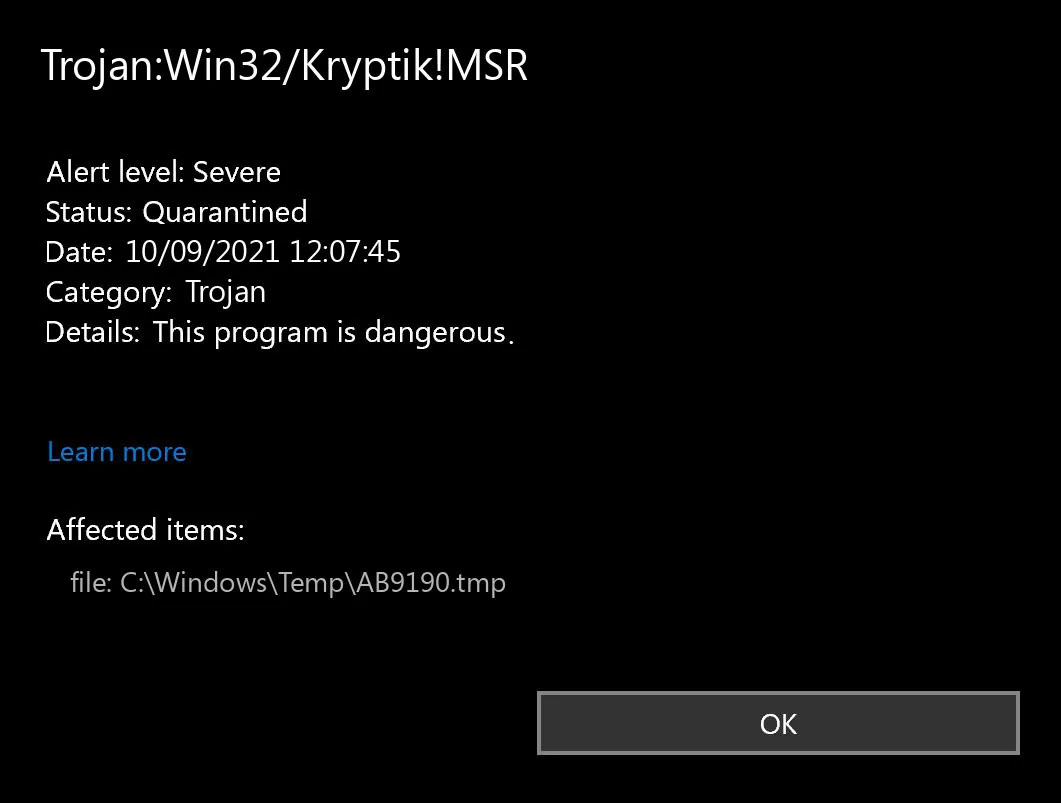
What is Trojan Kryptik and what does it do
Trojan. Kryptik is a malicious computer infection known as a Trojan horse. Trojan. Kryptik can load at startup and recreate itself which makes it difficult to manually remove from the infected computer. Trojan. Kryptik can compromise the infected system by allowing a remote hacker to gain access without the user's permission or knowledge. Trojan. Kryptik can also lead to the infection of other unknown malware parasites.

trojan krypticTrojan.Kryptik creates the following registry entry or registry entries:
Directory %ALLUSERSPROFILE%\windrivgr 19.7 %LOCALAPPDATA%\DsHcaJnIIz File name without path scaalqtw.exe Regexp file mask %ALLUSERSPROFILE%\sqldump.exe %APPDATA%\b[NUMBERS].exe %APPDATA%\Microsoft\Windows\Start Menu\Programs\Startup\[RANDOM CHARACTERS].com.url %APPDATA%\Origin\update.vbe %APPDATA%\Stanfind.exe %APPDATA%\vpn gui.exe %LOCALAPPDATA%\Microsoft\Windows\Symbols\wvfilters.sys %TEMP%\nvc.exe %TEMP%\system.exe %TEMP%\winsrvcs32.exe
Read More
Fix 0xd00000e5, 0x8007139f, 0x80090030 PIN
The quickest and easiest way to log into your computer is when you use the PIN feature in Windows 10. Even though it is a bit slower compared to biometric logins such as Fingerprint and Iris scanning that comes under Windows Hello, the PIN feature is definitely less complicated. However, just like any other module of the software, it is also prone to some errors. In this post, you will be guided in fixing several PIN errors such as 0xd00000e5, 0x8007139f, and 0x8009003. These errors could be caused at different points in time like when you change or create a PIN or when you log into your computer. To fix the 0xd00000e5, 0x8007139f and 0x8009003 PIN errors, there are various solutions you can try. You may empty the contents of the NGC folder or remove and change the PIN or the password. You could also use the Group Policy Editor or reset the ACLs in the NGC folder as well as run built-in tools like System File Checker and the DISM tool.

Option 1 – Take ownership of the NGC folder and delete its contents

  • Boot your computer first into Safe Mode.
  • Next, you need to take ownership of the Ngc folder first and you can do that using Command Prompt.
  • Type “command prompt” in the Windows Search bar and then right-click on the relevant search result and select “Run as administrator”.
  • After that, if a User Account Control or UAC prompt appears, just click on Yes to proceed.
  • Next, type and enter this command: TAKEOWN /F C:WindowsServiceProfilesLocalServiceAppDataLocalMicrosoftNgc
  • Note that the <path> is the location of the folder or file in File Explorer.
  • Now type and enter this second command: ICACLS C:WindowsServiceProfilesLocalServiceAppDataLocalMicrosoftNgc /grant administrators:F
  • Finally, once the command has been executed, restart your computer.
  • Once your computer has restarted, delete all the contents in the Ngc folder and check if the error is now fixed.

Option 2 – Try to remove and change the PIN or password

The 0xd00000e5, 0x8007139f, and 0x8009003 PIN errors could be caused by some conflicting issues with the PIN or password you have set for the User Account of your computer. Thus, you have to remove or change the PIN or password to fix these PIN errors.
  • Remove the PIN by going to Settings > Accounts > Sign-in options.
  • From there, go to the PIN section and click on the Remove button.
  • You will be asked to verify your account to proceed in removing the PIN, enter your credentials.
  • Restart your computer and then set up a new PIN.
  • Once you’re done, restart your computer and check if the error is gone now.

Option 3 – Try to use the Group Policy Editor

  • Tap the Win + R keys to open the Run utility and type “gpedit.msc” in the field and tap Enter to open the Group Policy Editor.
  • Next, navigate to this policy setting: Computer Configuration > Administrative Templates > System > Logon
  • After that, double click on the “Turn on convenience PIN Sign-in” option located on the right-side panel.
  • Then set its radio button to Enabled. You will see the following description when you do so:
“This policy setting allows you to control whether a domain user can sign in using a convenience PIN. If you enable this policy setting, a domain user can set up and sign in with a convenience PIN. If you disable or don’t configure this policy setting, a domain user can’t set up and use a convenience PIN. Note: The user’s domain password will be cached in the system vault when using this feature. To configure Windows Hello for Business, use the Administrative Template policies under Windows Hello for Business.”
  • After setting the radio button to Enabled, it will turn on the Logins in your computer using the PIN.
  • Close the Group Policy Editor and restart your computer for the changes to take effect.

Option 4 – Try to reset the ACLs in the Ngc folder

  • Type “command prompt” in the Windows Search bar and then right-click on the relevant search result and select “Run as administrator”.
  • After opening Command Prompt with admin privileges, execute this command: C:/Windows/Service/Profiles/Local/Service/AppData/Local/MicrosoftNgc /T /Q /C /RESET
  • The command you entered will start checking for errors and fix them automatically.

Option 5 – Run the System File Checker scan and the DISM tool

System File Checker:

  • Tap Win + R to launch Run.
  • Type in cmd in the field and tap Enter.
  • After opening Command Prompt, type in sfc /scannow
The command will start a system scan which will take a few whiles before it finishes. Once it’s done, you could get the following results:
  1. Windows Resource Protection did not find any integrity violations.
  2. Windows Resource Protection found corrupt files and successfully repaired them.
  3. Windows Resource Protection found corrupt files but was unable to fix some of them.
  • Now restart your computer.

DISM tool:

  • Open Command Prompt.
  • Then type in the following commands and make sure to hit Enter right after you type each one of them:
    • Dism /Online /Cleanup-Image /CheckHealth
    • Dism /Online /Cleanup-Image /ScanHealth
    • Dism /Online /Cleanup-image /Restorehealth
  • After that, wait until the process is finished and do not close the window as the process will probably take a couple of minutes.
  • Once it’s done, restart your computer.
Read More
Firefox shows wrong or no bookmark favicon
If you have just updated your Mozilla Firefox browser as of late and you noticed that it’s showing wrong or no bookmark favicon at all, then read on as this post will provide you with potential solutions that can help you resolve the problem. The basic thing you can do to fix it is to either refresh or reset the cache for favicon and then force restart the favicon service. However, if you’ve already tried this and it didn’t work, then there are still other options you can try. You can try to rebuild the configuration file for the favicon or restart the favicon service. You could also try disabling all the add-ons on your browser or scan your computer for adware. For more details, refer to each one of the options laid out below.

Option 1 – Try to rebuild the favicon configuration file

Mozilla Firefox actually creates a file each time you bookmark a webpage and this is called “favicons.SQLite”. This file is located on your computer and for you to fix the issue in Firefox, you need to rebuild this file and in order to do that, follow these steps:
  • First, you need to unhide the hidden files in your computer by enabling the “Show hidden files” option so that you’ll be able to see the hidden files in your computer.
  • After that, navigate to this path: C:Usersyour_usernameAppDataLocalMozillaFirefoxProfilesyour_profile_name
  • From there, you need to find the “favicons.SQLite” file and once you found it, delete it.
  • Next, you have to open the Firefox browser and create the same favicon configuration file which should be automatically created.
  • Now check if you can now see bookmark favicons on your Firefox browser or not.

Option 2 – Try to restart the favicon service

If the first option didn’t work, you can try to restart the favicon service instead. Restarting the favicon service can help if you do not see the correct bookmark favicon on your Firefox browser. To restart this service, follow the steps below.
  • You need to first open the Firefox browser and in the address bar, type “about:config” and tap Enter.
  • After that, you will see a page that displays a warning message. On that page, you need to click the “I accept the risk!” button to proceed.
  • Next, using the search box on the page, look for the “devtools.chrome.enabled” option. The value for this option should be set to “False” by default.
  • Double click on this option to set its value to “True”.
  • Once done, go to Menu > Web Developer > Browser Console or you could also tap the Ctrl + Shift + J keys, alternatively.
  • Afterwards, paste this command in the pop-up window that appears and then tap the Enter button: var fS = Components.classes["@mozilla.org/browser/favicon-service;1"] .getService(Components.interfaces.nsIFaviconService); fS.expireAllFavicons();
  • Once you’re done, restart your Firefox browser to check if it fixes the problem or not.

Option 3 – Try to disable all the add-ons in Firefox

The next option you can try to fix the problem is to disable all the installed add-ons in Firefox. More often than not, add-ons can cause issues in the browser so it is possible that one of the add-ons in Firefox is causing it to show incorrect or no bookmark favicon. To resolve this problem, you have to disable all the add-ons by opening Firefox and then going to Menu > Add-ons or you could also tap the Ctrl + Shift + A keys. After that, go to the Extensions section and click on the respective Disable buttons for each one of the add-ons. Once done, restart your computer and check if you can now see the bookmark favicons or not.

Option 4 – Try scanning your computer using Windows Defender

It is possible that the bookmark favicon problem is caused by some adware in the Firefox browser so you have to scan your computer to check by using security programs like Windows Defender.
  • Tap the Win + I keys to open Update & Security.
  • Then click on the Windows Security option and open Windows Defender Security Center.
  • Next, click on Virus & threat protection > Run a new advanced scan.
  • Now make sure that Full Scan is selected from the menu and then click the Scan Now button to get started.
Read More
Fix Windows can not find STEAM.EXE in Windows
If you are getting this error even if STEAM.EXE is present on your system then follow the easy guide to solve the issue.
  1. Scan your system for malware

    Scan your complete system for viruses and other malware. If all the scans come negative then move to the next step.
  2. Disable your anti-virus software

    Some anti-virus and anti-malware software can detect steam as a potential threat and block it. Turn off your protection software and try to run Steam once all your protection is disabled. If this works you will need to either place Steam in the applications exception list or to move to another protection software.
  3. Remove administrator privileges from steam client

    Right-click on steam.exe and choose properties, go to the compatibility tab, and uncheck run this program as administrator. Try to run Steam again.
  4. Delete Steam registry value

    If everything else failed try deleting the registry value for steam. Open registry editor and locate key: HKEY_LOCAL_MACHINE\SOFTWARE\Microsoft\Windows NT\CurrentVersion\Image File Execution Options Double click on Image File Execution, find steam on left, right-click on it, and choose delete. Save and exit the registry editor.
Read More
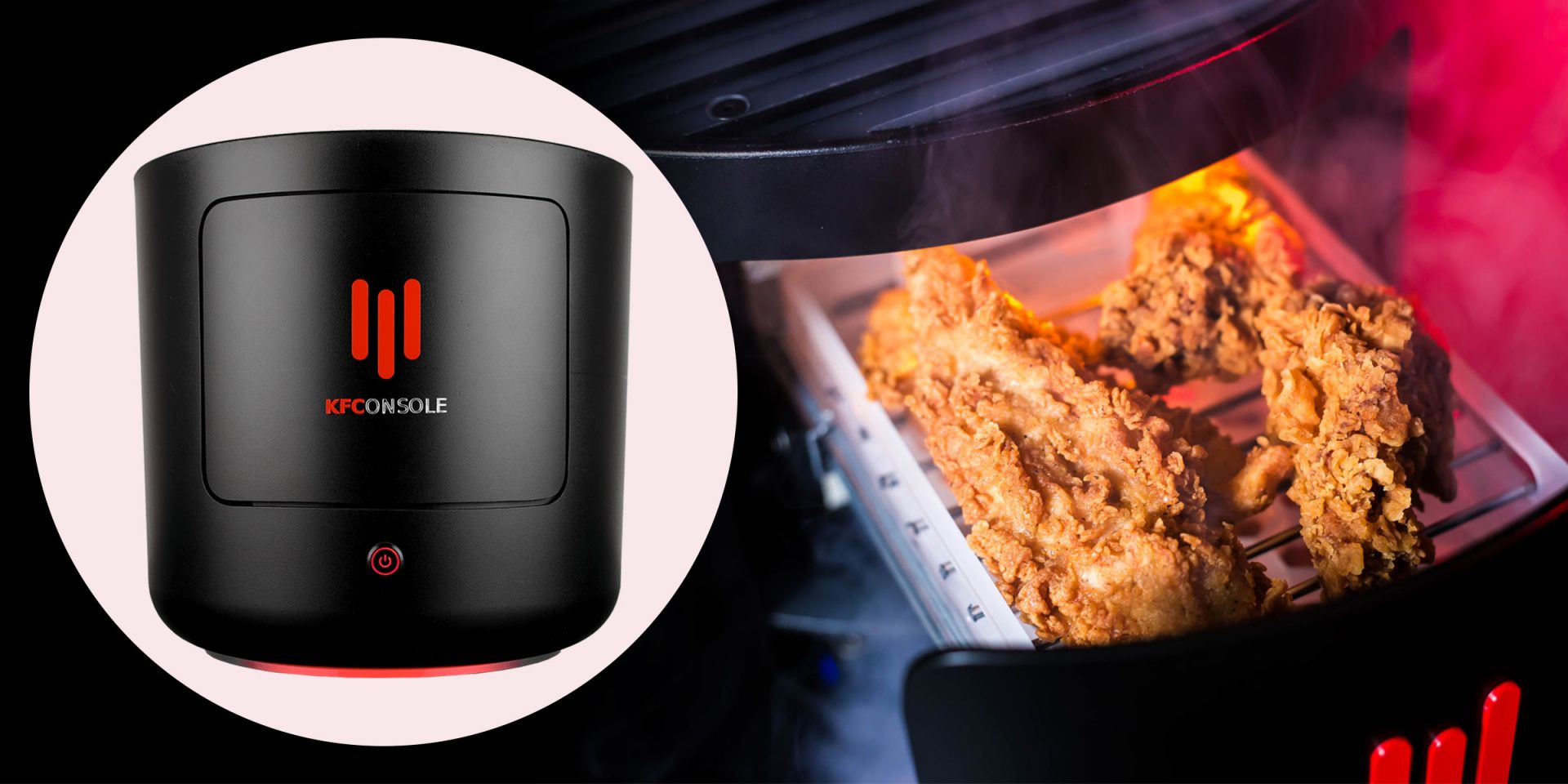
KFConsole enters the console competition
Yes, you read that right, KFC is making a console partnered with Cooler Master. Bizzare at it sounds, it is even more bizarre that the console is designed to keep your food warm!!! You can pull out the drawer from the console out on its top and place some food there in order to keep it warm. kfconsole drawerThe console itself is coming in cylindrical shape powered by Intel CPU and ASUS GPU of the unknown chipset. It has Seagate Baraccuda 1TB SSD and it is VR-ready. The console will have raytracing and will be 4K ready.

My thoughts

Well, my thoughts are somewhat strange, on one side I am not really sold on food heating gimmicks and without specific hardware specifications, it is difficult to say how much power the console will have. Price is also not leaked so that is also a stumbling stone for making an informed opinion. I am a little puzzled and concerned about this whole heating food thing because personally, I can see 2 issues: Console overheating and fat dripping on inside hardware, I am sure they have somehow eliminated this but I would be very interested to see how.
Read More
What to do if you cannot switch between Programs on Taskbar in Windows 10
It is common to run multiple programs and applications at the same time and it’s important to be able to switch between them using their Taskbar icons or using the usual Alt + Tab shortcut. However, there are times when you might suddenly find that neither of the aforementioned methods worked and you will no longer be able to switch between programs in the Windows Taskbar. To fix this issue, refer to the options given in this post. For instance, when you have multiple instances of Microsoft Edge running and every time you press the Alt + Tab combo nothing happens so you are left with no choice but to minimize everything and then hover your mouse on the icon and switch between the instances of Edge. You will also notice that the right-click on the taskbar won’t respond back and will only keep on showing the loading circle icon. Here are a few tips you can follow to fix the issue with the Windows 10 Taskbar.

Option 1 – Try to restart the Windows Explorer

This is one of the basic things you can try as restarting Windows Explorer helps in refreshing the user interface and makes most of the things work in relation to the user interface.
  • To get started, tap the Alt + Ctrl + Del keys to pull up the Windows Task Manager.
  • After opening Task Manager, look for “explorer.exe” under the list of programs.
  • Once you find the explorer.exe, right-click on it and click Restart.

Option 2 – Try changing the Foreground Lock Time

Aside from restarting Windows Explorer, you could also try changing the Foreground Lock Time to fix the issue with the Taskbar.
  • Tap the Win + R keys to open the Run dialog box.
  • Then type in regedit in the field and tap Enter to open the Registry Editor.
  • Next, go to this registry key – HKEY_CURRENT_USERControl PanelDesktop
  • Next, change the ForegroundLockTimeout value from200000 to 0. After that, it will make sure that no other application will take away the focus from your current program or application. It could be that some other application has taken away the focus and even when you try to actually switch, the focus gets back to the old one. Anyhow, since you already changed the value of ForegroundLockTimeout, it will ensure that the focus is not switched.
Note: If you are running some Full-Screen applications there are some devices especially the gaming ones, disable the Windows key to make sure that you won’t be able to switch. If this is the case, you need to make some modifications to the Full-Screen games.
Read More
Edge DevTools An error occurred while ...
In case you don’t know, Microsoft Edge, the new default browser of Windows 10, is equipped with the essential tools that are needed to help web developers in testing their websites in the Edge browser. However, it is not without its flaws as there are instances when you could also encounter some errors when using DevTools. One of these errors is the “An error occurred while starting the profiling session” error. You can see this error message in the DevTools Memory Panel, worry not for this post will help you resolve it. A memory panel is one that primarily measures your memory resource usage and compares heap snapshots in different states of code execution. The Memory panel also provides profiling of three different types, such:
  • Head Snapshot
  • Record Allocation timeline
  • Record Allocation profiles
Using a memory panel, you can find issues that affect the page performance in the most common scenarios like bloats and memory leaks. There are two steps you need to carry out to fix this error that’s associated with the Memory Panel of Microsoft Edge (Chromium) DevTools. First, you need to access the Microsoft (R) Diagnostics Hub Standard Collector Service. Second, you need to restart this service. For detailed steps, follow the instructions provided below. Step 1: Access the Microsoft (R) Diagnostic Standard Collector Service To access the Microsoft (R) Diagnostic Standard Collector Service, follow these steps:
  • Tap the Win + R keys to open the Run dialog box.
  • Then type “services.msc” in the field and hit Enter or click OK.
  • This will open the Services Manager. Here, look for the Microsoft (R) Diagnostic Service from the Services panel that opens on the right-hand side.
Step 2: Now restart the Microsoft (R) Diagnostic Hub Standard Collector Service
  • After accessing the Microsoft (R) Diagnostic Standard Collector Service, right-click on it and select the Restart option.
  • Once it’s done, exit the Microsoft Edge Developer Tools as well as the tab.
  • Next, open a new tab and navigate to your page and tap the F12 key.
  • Now, try to check if profiling begins.
Read More
uTorrent is not responding on Windows
As you probably know, uTorrent is one of the best software you can use to download torrents over the web. It has been around for many years now and is trusted by lots of users despite having competition here and there. Over the years, uTorrent has changed as it is now packed with tons of features. What’s more, is that this program is no longer the smallest client when it comes to file size. However, just like other software, it is not always working smoothly as there are instances when it’s not responding even when it’s already running. The first thing you can do is to close all the processes of uTorrent and then try opening it again. There are various reasons why your uTorrent program fails to respond. However, it is most likely caused by some virus that was brought on by the file you’ve just downloaded. On the other hand, it could also be caused by other factors as well but whichever the case is, here are some fixes you can check out to resolve the uTorrent issue.

Option 1 – Delete the file you’ve downloaded

As pointed out earlier, uTorrent might have failed to respond due to some file you’ve just downloaded which is why you have to delete it since there really is no point in keeping a file that’s causing this kind of issue. After deleting the file, try opening uTorrent again and see if it now works or not.

Option 2 – Allow uTorrent to run via Windows Defender Firewall

  • Click on the Cortana or the Start button and type “firewall” in the field.
  • From the search results that appear, click on the “Allow an app through Windows firewall”.
  • After that, a new window will pop up and from there, you will see a list of apps that can be allowed or disallowed using a Windows firewall. From this list, you have to search for uTorrent and once you find it, set it to Publick if you are on a public network or Private if you’re in a private network.

Option 3 – Uninstall or reinstall uTorrent software

You can also try to completely uninstall uTorrent from your computer and then reinstall it right back. to do so, follow the steps below.
  • In the search box, type in “control” and then click on Control Panel (desktop app) among the search results.
  • After that, select Programs and Features from the list which will give you a list of all the programs installed on your computer.
  • From there, look for uTorrent and select it and then uninstall it.
  • Once uTorrent is uninstalled, go to uTorrent’s official website and download its latest version.

Option 4 – Try scanning your computer using Windows Defender

  • Tap the Win + I keys to open Update & Security.
  • Then click on the Windows Security option and open Windows Defender Security Center.
  • Next, click on Virus & threat protection > Run a new advanced scan.
  • Now make sure that Full Scan is selected from the menu and then click the Scan Now button to get started.
Read More
1 2 3 171
Logo
Copyright © 2023, ErrorTools. All Rights Reserved
Trademark: Microsoft Windows logos are registered trademarks of Microsoft. Disclaimer: ErrorTools.com is not affiliated with Microsoft, nor claims direct affiliation.
The information on this page is provided for information purposes only.
DMCA.com Protection Status