Logo

Fix boot into the next phase of installation

There are various complex tasks that take place under the hood while you upgrade or clean install the Windows operating system on a computer. Because of its complexity, there are times when you might encounter some errors when you upgrade or clean install Windows 10. One of the errors you could encounter is the error that states, “Windows could not prepare the computer to boot into the next phase of installation. To install Windows, restart the installation”.

This error does not only occur in Windows 10 as it could also occur on the other versions of Windows. There are a lot of possible causes for this error. It could be due to incompatible BIOS, corrupted system files, improper installation media or it could also be due to excessive hardware plugged into your computer and so on. Whatever the cause is, here are some potential fixes you need to check out to fix the problem.

Option 1 – Try to disconnect or disable newly installed hardware

In this option, you will have to disable or remove the hardware you’ve just installed recently since external devices could be the one that’s causing the Blue Screen of Death error to appear. To do that, just disconnect any external device that’s connected to your computer physically and then check if it fixes the error.

Option 2 – Try to update the BIOS

As you know, the BIOS is a sensitive part of a computer. Even though it is a software component, the functioning of the hardware depends on it largely. Thus, you must be careful when modifying something in the BIOS. So if you don’t know much about it, it’s best if you skip on this option and try the other ones instead. However, if you are well-versed in navigating the BIOS, then follow the steps below.

  • Tap the Win + R keys to open the Run dialog box.
  • Next, type “msinfo32” in the field and press Enter to open System Information.
  • From there, you should find a search field on the bottom where you have to search for the BIOS version and then press Enter.
  • After that, you should see the developer and version of the BIOS installed on your PC.
  • Go to your manufacturer’s website and then download the latest version of BIOS on your computer.
  • If you are using a laptop, make sure that you keep it plugged in until you have updated the BIOS.
  • Now double click on the downloaded file and install the new BIOS version in your computer.
  • Now restart your computer to apply the changes made.

Option 3 – Try to reconfigure all the created partitions

You could also try to reconfigure the partitions by deleting and recreating all the available partitions on your computer and then see if it fixes the problem.

Option 4 – Make a proper bootable USB Drive/Stick

To make a proper bootable USB drive, you need to use the Windows Media Creation tool. The Media Creation tool in Windows allows you to use the ISO installation file to make a bootable device that you can use to install Windows on your PC. Note that this is kind of different from the usual installation process as it could erase your computer’s current settings and data on the primary drive. Thus, before you proceed, you need to backup all your data into some removable drive and then use the Media Creation Tool to make a bootable drive.

  • After making the bootable drive, you need to plug it into your computer and then reboot.
  • Next, tap the F10 or Esc key to open the boot options.
  • Now set the boot priority of the removable drive the highest. Once the setup comes forth, follow the next onscreen instructions and install Windows without any problems.

Do You Need Help with Your Device?

Our Team of Experts May Help
Troubleshoot.Tech Experts are There for You!
Replace damaged files
Restore performance
Free disk space
Remove Malware
Protects WEB browser
Remove Viruses
Stop PC freezing
GET HELP
Troubleshoot.Tech experts work with all versions of Microsoft Windows including Windows 11, with Android, Mac, and more.

Share this article:

You might also like

New focus sessions in Windows 11
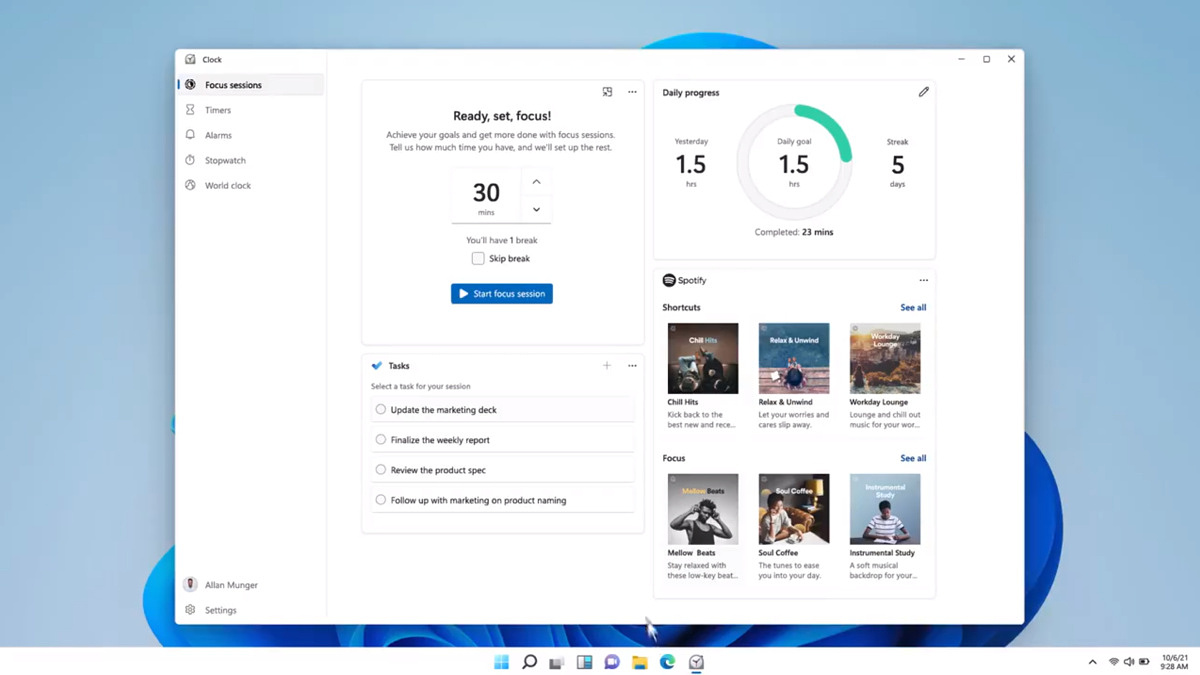
focus sessionWindows and Devices chief Panos Panay has revealed new focus sessions feature that will be in Windows 11 on his Twitter account today. He himself is referring to it as a game-changer especially with Spotify integration.

So what is a focus session?

From the video clip provided on Twitter, we can see that focus session users will be able to choose a specific task from the previously made task list, choose songs that will play in the background while the task is active, and set a timer for the chosen task with breaks. Maybe the best comparison and explanation would be a desktop google calendar task with music, basically, that’s it. A neat and good organizer inside your Windows 11 operating system. I think that this is generally a good idea and for sure it will find its audience.
Read More
Install Remote Server Administration Tools
RSAT or Remote Server Administration Tools for Windows 10 is a collection of programs for IT experts. It helps in managing Servers from a Windows 10 PC and starting with the Windows 10 v1809 or the October 2018 update, users have to install the Remote Server Administration Tools for Windows 10 as Features on Demand or as Optional Features. The program includes the Microsoft Management Console or MMC snap-ins, Server Manager, consoles, Windows PowerShell cmdlets, and providers as well as command-line tools for managing roles and features that run on the Windows Server. So if you have updated your Windows 10 pc to v1809 or later then the RSAT tool has to be installed as a set of Features on Demand right from Windows 10. You can install RSAT Tools on Windows 10 Enterprise or Windows 10 Professional and once you install it, make sure that you do not install RSAT tools from the Microsoft Download page directly. Step 1: Open Settings and then go to Apps > Apps & Features. Step 2: Next, click on Manage Optional Features. Step 3: After that, click on Add a Feature which will load all the optional features one can install. Step 4: Now scroll to find the listing of all 18 RSAT tools and depending on what you need, click and install them. Step 5: Then go back to where you should see the progress of the installation. Click on the Manage Optional Features page to check the status. Note: If you are well-versed with the command line or automation, you can also install Remote Server Administration Tools for Windows 10 via DISM /add-capability. And when you install anything via Features on Demand, they stay across Windows 10 version upgrades. On the other hand, if you feel that you don’t need a particular RSAT feature, you have the option to uninstall it using the Manage Option Features. However, bear in mind that some tools depend on one another which means that if you uninstall anything that has a dependency, it will only fail that’s why you need to be careful.

To uninstall an RSAT feature, here’s what you have to do:

Step 1: Go to Settings > Apps > Manage Optional Features. Step 2: After that, look for the list of installed feature that appears before this. Step 3: Now select the feature you want to uninstall and go back. If you have some system-related issues that need to get fixed, there is a one-click solution known as [product-name] you could check out to resolve them. This program is a useful and efficient tool that could repair corrupted registries and optimize your PC’s overall performance. Aside from that, it also cleans out your computer for any junk or corrupted files that help you eliminate any unwanted files from your system. This is basically a solution that’s within your grasp with just a click. It’s easy to use as it is user-friendly. For the complete set of instructions in downloading and using it, refer to the steps below.
Read More
VirtualBox displays Black screen
If VirtualBox suddenly displays a black screen without any text or mouse cursor when you are trying to boot a guest operating system, then read on as this post will guide you in fixing such an issue. This black screen occurs when Windows 10 failed to provide a specific setting that VirtualBox requires. Consequently, you will not be able to install or use any guest operating system in VirtualBox even if your PC has virtualization support, the best thing you can do now is to fix this black screen issue. There are two ways you can fix this black screen in VirtualBox, you can either try to disable Hyber-V or disable 3D Acceleration. For more details, refer to each one of the given options below.

Option 1 – Try to disable Hyper-V

Hyper-V is a built-in virtualization tool available in Windows that helps users in creating a virtual machine as well as install a guest operating system without using any third-party tool like VMware, VirtualBox, and many more. However, the problem with this virtualization tool is that some systems cannot run it and VirtualBox simultaneously which is most likely why the screen abruptly turns into black. Thus, you have to disable Hyper-V to resolve the problem. How? Refer to these steps:
  • In the Start Search, type “Turn Windows features on or off” and then click on it from the results.
  • Once you’ve opened the Windows Features window, remove the checkmark from the Hyper-V box.
  • Click the OK button and then restart your computer.
  • Now try to use VirtualBox again and see if the problem is fixed.

Option 2 – Try to disable 3D Acceleration

The guest operating system will use the host computer’s GPU to render 3D graphics if you enable the 3D Acceleration for the virtual machine. To simply put it, it will enhance the graphics of the virtual machine and will let you use 3D graphics. Although it may seem nice, it can actually cause the black screen to appear as well so you might have to disable it to isolate the problem. In fact, a lot of operating systems have failed to use the 3D Acceleration for the guest operating system because of this black screen issue. To disable it, follow these steps:
  • Open VirtualBox on your computer and select the virtual machine.
  • Next, click on the Settings button and go to the Display section.
  • After that, look for a checkbox named “Enable 3D Acceleration” located on your right-hand side and then uncheck it.
  • Save the changes you’ve made and reboot your PC and see if you can now run the virtual machine without any problem.
Read More
Fix Microsoft Edge Error 0x80200070
As you know, any software needs sufficient CPU power when it downloads, updates and installs so if you encounter an error code 0x80200070 when you tried to install or update the Microsoft Edge browser on your Windows 10 computer, then read on as this post will guide you on how to fix it. This kind of error occurs when the Edge browser installation does not get enough CPU power to update or install and the only way to fix it is to kill programs that are consuming a lot of PC resources as well as stop or remove any unnecessary programs that are running in the background. This kind of error can also be encountered in the new Microsoft Edge Chromium. For more details, follow each one of the options provided below.

Option 1 – Try to kill applications that consume high resources

  • Tap the Ctrl + Shift + Esc keys to open the Task Manager.
  • Go to the Performance tab and sort by CPU usage.
  • Next, close a few additional programs that are consuming maximum CPU power.
  • After that, try to update or install Microsoft Edge again and check if the error is fixed. If not, try to restart your computer and then start the installation or update again.

Option 2 – Try to remove or stop unnecessary programs and services

If the applications or processes that are consuming a lot of CPU resources reappear even after you kill them or end their processes, then you can try the following suggestions to remove or stop these unnecessary programs and processes.
  • The first thing you can do is to stop the Service. If the program happens to be a service, then you have the option to disable the Windows Service. All you have to do is open the Services Manager and stop the service. How? Refer to these steps:
    • Tap the Win + R keys to launch the Run utility and type “services.msc” in the field and tap Enter to open the Services Manager.
  • After that, identify which service is consuming a lot of power and then stop it temporarily.
  • The next thing you can do is to uninstall the problematic program. If the one that consumes a lot of resources is not a service but a program, then you can try to uninstall the program for the meantime until you’ve updated or installed the Edge browser. Once you’ve uninstalled the program, try to update or install Edge again.
  • You can also try booting your computer into Safe Mode and then update or install Microsoft Edge. This will make sure that all the unnecessary programs and services won’t consume a lot of CPU resources as well as memory.
Read More
How to Fix ACPI.sys Blue Screen Error
If, while using your computer, you encounter the ACPI.sys Blue Screen error, read on as this post will guide you in fixing the problem. The ACPI.sys file is a Windows operating system file that is related to the MSDN 2939. ACPI.sys, the Windows ACPI driver, is an inbox component of the Windows operating system. It is the one that supports the power management as well as the Plug and Play or PnP device enumeration. And so if this file ends up getting corrupted, it is known to cause a Blue Screen error. Another possible cause for the ACPI.sys Blue Screen error includes RAM issues, incompatible firmware, hard disk issues, corrupted drivers or malware infection, and so on. Here are some Blue Screen errors that can be triggered by the ACPI.sys file:
  • KMODE EXCEPTION NOT HANDLED
  • PAGE FAULT IN A NONPAGED AREA
  • SYSTEM THREAD EXCEPTION NOT HANDLED
  • IRQL NOT LESS OR EQUAL
  • KERNEL DATA INPAGE
  • SYSTEM SERVICE EXCEPTION
To fix the Blue Screen error associated with the ACPI.sys file, refer to the instructions provided below.

Option 1 – Try to recreate the ACPI.sys file

If the first option didn’t work, the next thing you can do is to recreate the ACPI.sys file. Every time your Windows 10 PC boots up, it looks for all the system drivers in place and if it is unable to find them, it tries to create them. This is why if you remove your corrupt driver file, chances are, you might get a fixed file recreated just for you. How? Refer to the steps below.
  • Boot your Windows 10 PC in Safe Mode.
  • Then open File Explorer and navigate to this location: C:/Windows/System32/drivers
  • From there, look for the file named ACPI.sys and rename it to ACPI.old.
Note: As you can see, the file’s extension has changed from .sys to .old.
  • Now restart your computer and check if the ACPI.sys Blue Screen error is now fixed.

Option 2 – Try to update or rollback the ACPI Driver

The first thing you can try to fix the Storport.sys Blue Screen error is to either update or roll back the device drivers. It is most likely that after you updated your Windows computer that your driver also needs a refresh. On the other hand, if you have just updated your device drivers then you need to roll back the drivers to their previous versions. Whichever applies to you, refer to the steps below.
  • Tap the Win + X keys to open the Win X menu and from there, select the Device Manager.
  • After opening the Device Manager, look for the ACPI.sys driver and right-click on it, and then select Properties.
  • Next, go to the Driver section. Note that the rollback option would only be available if you’ve recently updated the ACPI.sys driver. So if you can’t see it then click on the Update Driver button.
  • After that, Windows will automatically check for the problems that could be related to the Blue Screen error.
  • Finally, restart your computer. It will just reinstall the device drivers automatically.
Note: You can also directly download the relevant drivers of your computer from the manufacturers’ website. So if you have an SSD, the issue might be due to an old storage driver. On the other hand, if updating the ACPI driver, didn’t work, you can also try to copy the ACPI.sys system driver file from the System32 folder of another computer that’s functioning properly and runs the same Windows OS version. Afterward, place it on your problematic computer and check if it fixes the BSOD error or not.

Option 3 – Run System File Checker or SFC scan

System File Checker or SFC is a built-in command utility that helps in restoring corrupted files as well as missing files. It replaces bad and corrupted system files with good system files. To run the SFC command, follow the steps given below.
  • Tap Win + R to launch Run.
  • Type in cmd in the field and tap Enter.
  • After opening Command Prompt, type in sfc /scannow
The command will start a system scan which will take a few whiles before it finishes. Once it’s done, you could get the following results:
  1. Windows Resource Protection did not find any integrity violations.
  2. Windows Resource Protection found corrupt files and successfully repaired them.
  3. Windows Resource Protection found corrupt files but was unable to fix some of them.
 Reboot your PC.

Option 4 – Run the Blue Screen Troubleshooter

Troubleshooting Blue Screen of Death errors wouldn’t be complete without the Blue Screen troubleshooter. As you know, it is a built-in tool in Windows 10 that helps users in fixing BSOD errors like ACPI.sys. It can be found on the Settings Troubleshooters page. To use it, refer to these steps:
  • Tap the Win + I keys to open the Settings panel.
  • Then go to Update & Security > Troubleshoot.
  • From there, look for the option called “Blue Screen” on your right-hand side and then click the “Run the troubleshooter” button to run the Blue Screen Troubleshooter and then follow the next on-screen options. Note that you might have to boot your PC into Safe Mode.

Option 5 – Run System Restore

  • Tap the Win + R keys to open the Run dialog box.
  • After that, type in “sysdm.cpl” in the field and tap Enter.
  • Next, go to the System Protection tab then click the System Restore button. This will open a new window where you have to select your preferred System Restore point.
  • After that, follow the on-screen instructions to finish the process and then restart your computer and check if the problem is fixed or not.
Read More
Diablo 3 lost connection to the game server
Diablo has changed how action RPG games are made and has placed homework for many developers. Diablo 3 is 3rd continuation in the series and to the joy of many players worldwide it has brought some interesting things in the genre like teaming up with other friends to slay demon hordes together introducing much needed multiplayer element. Sadly sometimes we get the error that Diablo 3 can not connect or that the connection to the game server has been lost. Keep reading and try provided solutions as they are presented to fix this issue and continue gaming.
Read More
Upcoming comic book movies with release dates
upcoming comic moviesThe World of Superhero movies has gone through some interesting variations, from good ones to bad ones, from big-budget ones to small ventures, even from large well-known characters to niche ones. No matter what you think of some of them no one would disagree that since the release of Iron Man and starting Marvel cinematic universe superheroes movies exploded in popularity. Following the Superhero craze, let’s see what is coming up in comic books transferred to big screens with their release dates.

List of upcoming movies

Shang-Chi and the Legend of the Ten Rings, Sept. 3, 2021 Trailer Venom: Let There Be Carnage, Oct. 15, 2021 Trailer Eternals, Nov. 5, 2021 Trailer Spider-Man: No Way Home, Dec. 17, 2021 Trailer Morbius, Jan. 28, 2022 Trailer The Batman, March 4, 2022 Trailer Doctor Strange in the Multiverse of Madness, March 25, 2022 Thor: Love and Thunder, May 6, 2022 DC League of Super-Pets, May 22, 2022 Black Panther: Wakanda Forever, July 8, 2022 Black Adam, July 29, 2022 Trailer Spider-Man: Into the Spider-Verse 2, Oct. 7, 2022 The Flash, Nov. 4, 2022 The Marvels, Nov. 11, 2022 Aquaman and the Lost Kingdom, Dec. 16, 2022
Read More
Fix Invalid file handle Error during ...
If you encounter an error saying, “Invalid file handle” when you try to rename, copy, delete a file or other operations in your Windows 10 computer, then read on as this post will guide you in what you can do to fix it. This kind of error pops up when the operating system tries to carry out an operation on a folder or file using the following words:
CON, PRN, AUX, NUL, COM1, COM2, COM3, COM4, COM5, COM6, COM7, COM8, COM9, LPT1, LPT2, LPT3, LPT4, LPT5, LPT6, LPT7, LPT8, and LPT9
When you rename or create a folder or file using the reserved words given above, you could encounter an error that says, “The specified device name is invalid”. This occurs since these words are Windows system reserved words that you can’t use, unlike any other words. Thus, if you have a folder or file which contains any of the reserved words on another computer that runs a non-Windows operating system and you try to copy or rename it Windows, then it’s no wonder why you’re getting this error message. In such cases, you can always click on the Skip button to stop the operation. However, if there are various folders or files, you can just use the Command Prompt to carry out the task. All it takes is a simple command that will get rid of the folder as well as the files in it. How? Refer to the instructions given below. Step 1: Tap the Win + R keys to open the Run utility. Step 2: Next, type “cmd” in the field and then tap Enter to open Command Prompt. Step 3: After opening Command Prompt, execute the following command:
rd \.file-folder-path /S /Q
Note: The “rd” command will remove the directory or the folder while the “\.” command will select the current computer. The “/S” command, on the other hand, helps you in removing all the sub-directories and the files that are in the CON folder. The “/Q” command is not really mandatory since it helps you remove everything silently without any confirmation message. For example, if you have a folder named “CON” located on your Desktop, the path will be like this “C:/Users/<username>/Desktop/CON”. In this case, the command should be like this:
rd \.C:Users<username>DesktopCON /S /Q
However, if the error pops up for a whole different reason, you could use the following command instead to remove the reparse point extended functionality. Once you’ve entered the given command below, you should now be able to delete the file.
FSUTIL reparsepoint delete C:Users<username>DesktopFileName DEL C:Users<username>DesktopFileName
Read More
How to remove CrazyForCrafts From Your PC

CrazyForCrafts is a Browser Extension from Mindspark Interactive. This Toolbar Extension allegedly offers users tons of DIY crafting guides and tricks, however all that it does is point you in the right direction. It links you back to some of the most popular DIY Crafting websites on the internet that you can find at any time by a simple search.

While this may look useful and faster than looking around the internet for good DIY projects, remember that this extension injects itself into your browser, changing your new tab page to Search.MyWay.com and records your browsing habits, can view your internet history, and know whatever you are looking for or viewing online.

While using this extension you will see additional pop-up ads, sponsored content, and injected ads throughout your browsing sessions.

Due to its behavior this extension has been marked for removal by several anti-virus scanners, and it is recommended to remove it from your computer to prevent data leaks.

About Browser Hijackers

Browser hijackers (sometimes called hijackware) are a type of malicious software that alters web browser configuration settings without the computer owner’s knowledge or permission. These hijacks appear to be increasing at an worrying rate around the world, and it can be really nefarious and sometimes dangerous too. They’re designed to disrupt browser functions for many different reasons. These are typically used to force visitors to a specific website, manipulating web-traffic to earn ad revenue. Although it might appear naive, all browser hijackers are damaging and therefore always classified as security threats. In a much worst case, your internet browser could be hijacked to download malware that will do a great deal of damage to your computer or laptop.

How one can know whether the browser is hijacked?

Symptoms that a web browser is hi-jacked include: the browser’s homepage is changed; new bookmarks pointing to pornographic sites have been added to your favorite pages; the essential web browser settings are modified and unwanted or insecure sites are added to the trusted websites listing; you are finding new toolbars you have never found before; you might see numerous pop-up ads on your computer screen; your browser has become unstable or starts running sluggishly; Inability to navigate to certain sites, especially antivirus as well as other computer security software websites.

How browser hijacker infects computers

Browser hijackers may use drive-by downloads or file-sharing websites or perhaps an e-mail attachment to reach a targeted PC. They also come from add-on software, also called browser helper objects (BHO), browser extensions, or toolbars. Also, certain freeware and shareware can put the hijacker in your PC through “bundling”. Examples of well-known browser hijackers are Fireball, CoolWebSearch. GoSave, Ask Toolbar, RocketTab, and Babylon Toolbar. The presence of any browser hijacker on your system might substantially diminish the web browsing experience, track your online activities that result in serious privacy concerns, develop system stability problems and eventually cause your computer to slow down or to an almost unusable condition.

How to remove a browser hijacker

Some hijackers can be easily removed by uninstalling the free software they were included with or by removing any extension you’ve recently added to your browser. But, most hijacking codes are certainly not very easy to get rid of manually, as they go much deeper into your operating system. You should consider performing manual repairs only if you’re a tech-savvy person, as potential risks are associated to tinkering with the system registry and HOSTS file. Browser hijackers could be effectively removed by installing anti-malware software on the affected system. SafeBytes Anti-Malware can counter relentless browser hijackers and provide you with proactive PC protection against all kinds of malware. In addition to anti-virus software, a system optimizer software, like Total System Care, will help you correct Windows registry errors, remove unwanted toolbars, secure online privacy, and stabilize software programs installed on your PC.

Virus Blocking Access To Safebytes Website And Anti-Malware Downloads - What You Should Do?

Malware can cause all kinds of damage once they invade your PC, ranging from stealing your private details to deleting files on your PC. Some malware is meant to interfere with or prevent things that you wish to do on your PC. It may well not allow you to download anything from the net or it will stop you from accessing a few or all internet sites, especially the anti-malware sites. If you’re reading this, odds are you’re stuck with a malware infection which is preventing you to download or install Safebytes Anti-Malware program on your system. Although this type of issue will be difficult to get around, there are a few steps you can take.

Get rid of malware in Safe Mode

The Windows-based PC has a special mode referred to as “Safe Mode” in which only the minimum required applications and services are loaded. In the event the malware is blocking access to the internet and affecting your computer, starting it in Safe Mode enables you to download antivirus and run a scan while limiting potential damage. To enter into Safe Mode or Safe Mode with Networking, press the F8 key while the computer is booting up or run MSCONFIG and locate the “Safe Boot” options under the “Boot” tab. As soon as you restart the PC into Safe Mode with Networking, you may download, install, as well as update anti-malware software from there. Following installation, run the malware scanner to eliminate standard infections.

Obtain the antivirus software using an alternate web browser

Malicious code could exploit vulnerabilities on a particular browser and block access to all anti-virus software websites. If you appear to have a virus attached to Internet Explorer, then switch over to a different browser with built-in safety features, such as Firefox or Chrome, to download your favorite anti-malware program – Safebytes.

Make a bootable USB anti-virus drive

Here’s yet another solution which is using a portable USB anti-malware software package that can check your computer for malicious software without needing installation. To run anti-malware using a USB drive, follow these simple steps: 1) Download the anti-malware on a virus-free PC. 2) Plug the Flash drive into the uninfected computer. 3) Double click on the exe file to run the installation wizard. 4) Choose the drive letter of the pen drive as the place when the wizard asks you where you would like to install the antivirus. Follow activation instructions. 5) Remove the pen drive. You can now utilize this portable anti-malware on the affected computer system. 6) Run the Safebytes Anti-malware directly from the pen drive by double-clicking the icon. 7) Click “Scan Now” to run a complete scan on the infected computer for malware.

Features of SafeBytes Anti-Malware

If you are planning to buy anti-malware for your computer system, there are lots of brands and packages for you to consider. A few of them are great, some are ok types, and some will destroy your computer themselves! You have to be careful not to select the wrong application, especially if you buy a paid software. Amongst few good applications, SafeBytes Anti-Malware is the highly recommended tool for security-conscious people. SafeBytes antimalware is a very effective and easy to use protection tool which is designed for end-users of all levels of computer literacy. With its cutting edge technology, this software will help you get rid of multiples types of malware which includes viruses, worms, PUPs, trojans, adware, ransomware and browser hijackers.

SafeBytes anti-malware takes PC protection to a whole new level with its enhanced features. A few of them are given as below:

Real-time Threat Response: SafeBytes offers complete and real-time security for your personal machine. This utility will constantly keep track of your PC for any suspicious activity and updates itself regularly to keep abreast of the latest threats. World-class AntiMalware Protection: Using its advanced and sophisticated algorithm, this malware elimination tool can identify and get rid of the malware threats hiding in your computer effectively. Web protection: SafeBytes checks the hyperlinks present on a web page for possible threats and alerts you if the website is safe to view or not, through its unique safety rating system. Lightweight: SafeBytes is lightweight software. It use up a very small amount of processing power as it works in the background so you’re free to use your Windows-based PC the way you would like. 24/7 Support: You can get totally free 24/7 technical assistance from their computer experts on any product queries or computer security issues. Overall, SafeBytes Anti-Malware is a solid program since it has plenty of features and could detect and remove any potential threats. Now you may realize that this tool does more than just scan and delete threats from your PC. For the best protection and the best value for money, you can’t get better than SafeBytes Anti-Malware.

Technical Details and Manual Removal (Advanced Users)

To get rid of CrazyForCrafts manually, navigate to the Add/Remove programs list in the Control Panel and choose the offending program you want to get rid of. For web browser plug-ins, go to your web browser’s Addon/Extension manager and select the plug-in you want to remove or disable. It is also suggested to reset your browser to its default condition to fix corrupt settings. If you choose to manually delete the system files and registry entries, use the following checklist to make sure you know exactly what files to remove before undertaking any actions. Please keep in mind that this is for skilled users only and might be challenging, with incorrect file removal leading to additional system errors. Additionally, certain malicious programs have the capability to defend against its deletion. Completing this task in Safe Mode is advised.
Registry: HKEY_LOCAL_MACHINESYSTEMCurrentControlSetServicesWpm HKEY_CURRENT_USERSoftwareMicrosoftInternet ExplorerMain Default_Page_URL HKEY_LOCAL_Machine\Software\Classes\[adware name] HKEY_CURRENT_USER\Software\Microsoft\Windows\CurrentVersion\Run .exe HKCU\Software\Microsoft\Windows\CurrentVersion\Internet Settings\random HKEY_LOCAL_MACHINE\SOFTWARE\Microsoft\Windows\CurrentVersion\run\random HKEY_CURRENT_USER\Software\Microsoft\Windows\CurrentVersion\Internet Settings CertificateRevocation = 0
Read More
How To Fix the I/O System Error
The failure of MS Vista or XP to execute an Input or Output Signal activity is that which we refer to as an  I/O device error. This malfunction takes place when MS Vista is not able to execute activities for example reading and duplication different kinds of information from the disk or drive.

Solution

Restoro box imageError Causes

  • A piece of destroyed hardware equipment: You are getting messages informing you about the I/O device Malfunction when your Computer features an equipment apparatus that Windows is not able to utilize.
  • Broken/Faulty hardware Apparatus: If for whatever reason the equipment hardware is broken at all, or includes a flaw, you will also get such messages suggesting the existence of an I/O device error.
  • Incompatible/Broken Hardware Drivers: Such malfunctions are frequently the result of incompatible or broken equipment drivers.
  • Cable Link Problems: Technicians have determined the existence of link trouble, for instance, a cable that's in a bad situation, as another variable that can also cause these error messages.
  • Terrible/Dusty CD or DVD Disc: Yet another variable that's frequently accountable for the I/O device error is a broken CD or DVD disc. If it has not been cleaned by you, and in case the disc is dirty, prepare yourself to receive such messages often.

Further Information and Manual Repair

You should not stress yourself ill over the I/O Device Malfunction when it occurs on your own Computer. You can really fix it. First, before you spend lots of cash on the problem and sprint off to find a technician, reboot the pc. Subsequently, strive to obtain the push or disc, that you were not able to formerly. Second, clean the disc. Locate a great cleansing agent, and execute this. Utilize another pc to access the disc which you're incapable of using on the present pc. If it opens on another pc, then the disk is functional and should work on your computer as well. Let's assume that you lack another pc, search for a distinct disc, and strive to start it with your current pc. If the problem is not with the computer, the fresh disk should open and you can access the contents. If you fail completely, you're totally within your rights to move searching for a tech to repair the situation, if you attempt every one of the preceding choices. You could also do these aI/O device sections to view if you would repair the problem yourself. a) Network Cable Connections: Clearly, this is really something you can do without requiring a tech. Always check to see whether the networking and computer cables are well-connected. If you believe it's broken in case utilizing an exterior push, you could change the cable with yet another one. For inner cabling, unless you've high-level pc abilities, you shouldn't make an effort to change them. b) Attempt a Clean Boot of the PC: You can do this by yourself. Likely, the driver or software is incompatible together with the drive available on the PC. Clean boot up the pc is similar to configuring MS Windows. If the error is fixed following the preceding action, then it indicates your pc features a driver or software which is incompatible with the rest. c) Recognize the IDE Channel Attributes, and Adjust the Transfer Mode: It's feasible that you, or somebody otherwise, changed the Transfer Mode, which makes it challenging/impossible for the transport of information in the disk of your PC. If you understand the I/O Device right transfer mode, and if this occurred, just change it. Don't attempt a change or alter the Main IDE Channel. d) Check the Condition of Device: Confirming the working nature of the hardware device, which you may do under Device Manager, may inform you if it's operating right or not. e) Search the Manufacturing Company: When the rest fails, and you've likely employed a tech that can't solve the problem, you need to contact the producer, or check out their site, and see when there is an upgrade. It's possible to obtain to resolve the I/O Device Error, once for all through a simple upgrade.
Read More
1 2 3 171
Logo
Copyright © 2023, ErrorTools. All Rights Reserved
Trademark: Microsoft Windows logos are registered trademarks of Microsoft. Disclaimer: ErrorTools.com is not affiliated with Microsoft, nor claims direct affiliation.
The information on this page is provided for information purposes only.
DMCA.com Protection Status