Logo

Fixing the No Audio Output Device is Installed

If you suddenly encountered an error that says, “No Audio Output Device is installed” on your Windows 10 computer, worry not for this post will guide you on how exactly you can fix the problem. There are several possible reasons why this error pops up. It could be due to a recent Windows 10 update you’ve installed, or it could be due to a corrupted or outdated audio driver, and so on.

There are several potential solutions to this error. You can try running the built-in Audio Playing troubleshooter or update or uninstall the Audio driver. You could also try to update the Intel Smart Sound Technology Audio Control driver, as well as contact support for your laptop or computer. For more details, refer to each one of the provided options below.

Option 1 – Try to run the Playing Audio Troubleshooter

Since the Windows 10 operating system has the Playing Audio Troubleshooter, you can use this troubleshooter to try and fix the problem with the “No Audio Output Device is installed” error. You can access this tool in the Control Panel or in the Taskbar Search and even on the Troubleshooters page of Windows 10.

Run this troubleshooter and see if it can fix the issue or not.

Option 2 – Try to update the Audio driver

If the error has something to do with software, chances are it might be related to the audio driver – it could be that the newest version of your Windows 10 does not work well with the old version of the driver. This is why you have to update your audio driver to the newest available version.

  • Tap the Win + R keys to open the Run dialog box and then type in MSC and tap Enter or click OK to open the Device Manager.
  • Expand the section of the Sound, video, and Game Controllers.
  • And then from the drop-down menu, select the Update Driver option and follow the on-screen instructions to install the latest version of the driver.
  • Then also click on the option, “Search automatically for updated driver software.
  • Restart your PC after the installation.

Note: If updating the Audio driver didn’t work, you can go to the website of your PC manufacturer and look for the support section where you can download the drivers for your computer. You just need to take note of your PC’s correct model and model number so you can find the appropriate driver.

Option 3 – Try removing and reinstalling the sound card

If option 1 didn’t work, you can also try to remove and reinstall the sound card of your computer to fix the high-pitched sound coming from your computer’s speakers.

  • To get started, tap on the Windows key + R to pull up the Run box.
  • Next, type in “MSC” in the box to open the Device Manager.
  • After opening the Device Manager, go to the “Sound, video, and game controllers” option then right-click on the sound card.
  • Finally, click on Uninstall and tick the box with a label that says, “Delete the driver software for this device” and close the Device Manager.
  • Restart your computer and check if the problem’s fixed or not.

Note: After you restart your computer, the system should reinstall the speaker automatically. But if it does not reinstall, you can follow the aforementioned steps again to go to the Device Manager. From there, go back to “Sound, video, and Game Controllers” and right-click on the sound card. After that, enabling the sound card and restart your computer once more. That should fix the problem.

Option 4 – Try updating the Intel Smart Sound Technology Audio Control driver

If the three options given above didn’t fix the error, you might want to try updating the Intel Smart Sound Technology Audio Control driver. To do so, follow these steps:

  • Tap the Win + X keys and select the Device Manager option from the menu.
  • Next, scroll down and click on the System Devices option and select the “Intel Smart Sound Technology Audio Control” option.
  • Then right-click on it and select the “Update driver” option.
  • After a couple of seconds, the wizard will look for an available driver and will automatically update it.
  • Restart your computer and see if the error is now fixed.

Do You Need Help with Your Device?

Our Team of Experts May Help
Troubleshoot.Tech Experts are There for You!
Replace damaged files
Restore performance
Free disk space
Remove Malware
Protects WEB browser
Remove Viruses
Stop PC freezing
GET HELP
Troubleshoot.Tech experts work with all versions of Microsoft Windows including Windows 11, with Android, Mac, and more.

Share this article:

You might also like

Fix Sechost.dll missing error in Windows 10
If you are facing a missing sechost.dll error in your Windows 10, welcome, you have come to the right place to solve it and get back your computer in working order. Sechost.dll is a file that allows other programs to function and complete their tasks as well as control and change the behavior of other programs. The file is found in Windows subfolder System32, it is a completely safe file and should not be deleted. Sometimes however various other reasons can corrupt it or delete it. This guide will lead you to common solutions on how to get file back up and running.
  1. Update device driver

    Have you installed a new device and all of a sudden you get the error message that Sechost is missing? Update device driver, it is possible that the file has been corrupted or replaced with an older version and therefore reported as missing. Update device driver to lastest version and issue should run away.
  2. Re-register file via command prompt

    If Sechost got corrupted re-registering will solve the issue, press ⊞ WINDOWS + X and choose Command prompt (administrator), click on it. type regsvr32 sechost.dll and press ENTER Reboot your PC
  3. Reinstall application

    Usually, Sechost gone bad or missing is due to the installation of another application that corrupts the file. Reinstall the application to try to solve errors. In order to properly reinstall the application first use the control panel to remove it completely from the system and then install it again, hopefully, this time correct version of Sechost.dll will be installed in the system.
  4. Check your hard drive

    In some cases, a hard drive malfunction can cause several files to be corrupted or gone missing. To eliminate hard drive malfunction run check disk from Windows on C drive to check it and find if there are any errors.
  5. Uninstall Windows update

    Same as with some application, even Windows update could corrupt some files due to update not being properly downloaded. Try uninstalling the latest update and revert to the previous Windows state, then update it again.
Read More
Why you should upgrade your 60Hz Screen

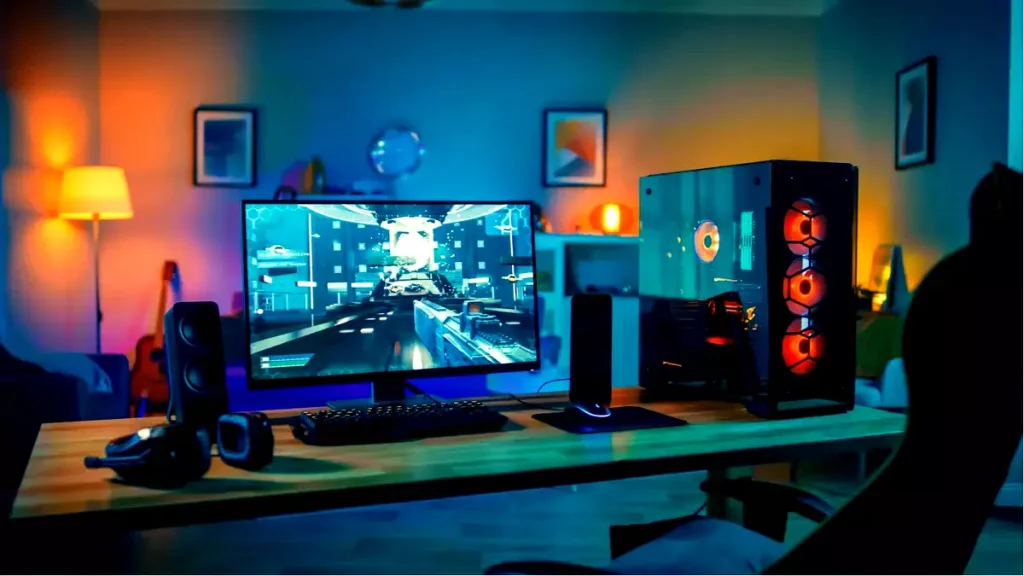
The number of Hertz is the number of how many images your screen draws in one second. So monitor with a refresh rate of 60Hz will draw 60 images each second on your screen. To most users, this will look fine and enough but actually, if you would place them in front of a 120Hz screen difference will be visible right away.

high refresh rate monitor setup

Benefits of higher refresh rates

In most simple words just looking at a screen that has a higher refresh rate will produce a more natural feel of things, although some people would argue that flickering can not be seen on 60Hz monitors and that should be enough, I would argue that they never watched the movie, played the game or used high refresh rate screen when they can state something like that.

Yes, 60Hz might be enough to look at the web page or read some documents but long exposure to 60Hz can have a tiring effect on the eyes in the long run. 120Hz and above just feel more relaxed and it is far less demanding on the eyes. Watching movies also is much better on a higher refresh screen, with way much less motion blur in fast scenes giving the overall experience a greater natural feel.

Gaming is perhaps an area where a refresh rate of 120Hz and above will show its best. Having a higher refresh rate will be easier on your eyes and can even give you a competitive edge. When for example you have twice more images per second on your screen than your opponent his movement will be more fluid and predictable because of that and overall precision will be much higher when moving the cursor in the game since more frames per second means more precision and smoother movement.

The dark side of high refresh rates

After all the positive things that were said about the advantages of high refresh rates, it is just fair to look at some negatives or in this case only negative one and that is Computer power. As said in the previous section having a 120Hz refresh rate means having 120 frames displayed on the screen per single second. Having even higher monitors like 360Hz means even more frames per second and in order to actually see all of that frames you will need to have enough computer power to back it up. Having for example screen with a refresh rate of 240Hz means nothing if your GPU and rest of the computer are able only to push 150 frames per second, in this case, you will still have 150 frames in one second despite the monitor being able to go to 240.

Conclusion

Generally and with all of my heart I would recommend moving away from 60Hz monitors, yes they are cheaper and more affordable but at the end of the day if you are someone like me who spends most of his daily time in front of the computer you would be grateful to have higher refresh rate screen and save your eyes, and after all, why not enjoy some smoother and better movie and game experience as well as saving your eyesight.

Read More
An Easy Guide to Resolving Code 18

Code 18 - What is it?

Code 18 is a typical Device Manager error code that occurs when the device driver is damaged. Device Manager is an important tool that allows Windows PC users to have an overall look at the connected hardware.

Furthermore, it also allows diagnostic testing. It is vital too and errors associated with the Device Manager such as error code 18 should and must be resolved quickly.

Error code 18 is usually presented in the following formats:

“The drivers for this device are not installed. (Code 18)” Or “Reinstall the drivers for this device.”

Solution

driverfix boxError Causes

Error code 18 may be triggered due to several reasons such as:

  • Outdated drivers
  • Corrupted drivers
  • Improperly configured drivers

Error code 18 may cause a great deal of inconvenience. It may hamper your ability to use certain devices on your PC.

For example, if code 18 pops up due to a corrupted or improperly configured keyboard driver, then it may hamper your ability to use your keyboard and work on your PC.

Further Information and Manual Repair

The good news is that Device Manager error codes like error code 18 are easy to resolve. Below are some of the easiest and effective methods to repair error code 18 on your PC. Try one of these methods to repair error code 18 in no time:

Method 1 - Uninstall and Reinstall Device Drivers

One of the easiest ways to repair error code 18 and to ensure that this error doesn’t pop up on your PC again is to uninstall the problematic driver. For this, simply:

  • Go to the start menu
  • Type Device Manager and press enter
  • Now click on the device whose driver you want to uninstall.
  • Press right-click and then click on uninstall. Windows will prompt you to confirm the removal of the driver.
  • Click OK to confirm and then reboot your PC to activate changes.
  • Now scan for new hardware and follow the same process to reinstall the uninstalled device driver.

Method 2 - Update Drivers Automatically

Finding problematic drivers and then updating them individually can be frustrating and a time-consuming process. It can take a lot of time to perform updates and resolve the error code on your PC.

If you have projects to work on with pressing deadlines, then updating drivers on your PC separately can cause you a great deal of inconvenience and waste your precious time.

However, to avoid this situation, we advise you to set your drivers to update automatically. Automatic update installation requires only a few seconds.

And to update drivers automatically, it is recommended you download DriverFIX.

As the name suggests, this software is designed to assist programmers to upgrade device drivers automatically. In just a few clicks, you can update all your outdated drivers and repair error code 18.

DriverFIX is easy to use and an advanced program that is smoothly integrated with an intelligent programming system. This system identifies and detects all the problematic drivers on your PC and then updates each driver automatically to their latest versions.

It continues to update drivers regularly ensuring that you never come across device driver problems on your system.

Click here to download DriverFIX and repair error code 18 today!

Read More
Best graphic design software for 2022

2021 is nearing toward the end and with just a couple of days remaining in this year, we are happy to look forward to the next year. So in large anticipation of what will next year bring us, we are taking a good design look at this one and making a list for you of what graphic design software you should learn and use in the upcoming 2022.

graphic design softwareBefore we dive into it in more detail and predictions please be aware that this article is based upon my personal opinion drawn from the research of current trends and standards. That being said let's dive right into details.

Adobe Photoshop

Whether you like it or not, Adobe has cemented itself with its flagship application Photoshop and how things are looking this situation will not change any time soon. Photoshop is an extraordinary pixel manipulation software that has the ability to work with both animations and vector graphics as well making it a great single application for all-around design needs. It has been industry-standard design software for the web, print, and all other kinds of design all over the globe and this will not change in near future. With its constant updates and expansion of its abilities, this is a must-have tool in your design tool belt. If you are looking to find work as a designer you will have to know how to work with photoshop.

Adobe illustrator

Many will tell you that is photoshop for raster graphics, the illustrator is for vectors. First started as illustrator 88 on Mac right away it took first place for vector graphics from FreeHand and it continued on its path of vector dominance. After some time and more integration with photoshop Adobe managed to overthrow Corel Draw as well winning the title for best vector editing software with illustrator. Same as with photoshop, if you are planning to work in a serious industry you will need to know the illustrator.

Adobe InDesign

We are still in Adobe train and it is moving hard, InDesign is graphic design software aimed for paper publications. If you need to create and prepare any kind of professional publication for printing InDesign is the application to go to. With its specific print aimed features it is a must-have for any graphic designer.

Corel Draw Graphic Suite

Once the king of vector and print design but dethroned by Adobe Corel Draw still has some punches to stay relevant in the field. With some cool features like symmetry and long shadows, it stands out from its competitors for its ease of use. Corel was always focused on easy to learn, and difficult to master and it is still following that kind of thinking. Granted not many employers will require you to be a master of Corel Draw but some of them will request that you are familiar with the application. One of perhaps the greatest advantages of Corel over Adobe is not locking you into a subscription making Draw suit a great choice for freelancers and designers that want to own software, not rent it.

Affinity Designer

The first software from Affinity was Photo, made as a cheap version one-time purchase competitor for photoshop. Later it has released Designer, also a one-time purchase competitor for illustrators. If we are going to take a good look into a feature for feature comparison, both Adobe and Corel will win over Affinity but if we take a look at a price that is a one-time purchase Affinity will win over easily. Priced only at $54.99 it is a steal, and taking into account that many designers will not require any very advanced features found in Corel or Adobe applications Affinity is the way to go.

Inkscape & GIMP

Speaking of price, nothing beats free, and both Inkscape and GIMP are completely free. offering very decent and competitive features applications will require you to get used to their own specific UI and workflow, but once you get a grasp of them, you will be able to do most design work in them. One of the downsides of using these free open source apps is their limited export options but if all that is required from you is to deliver a typical SVG, JPG, EPS, PNG, or PDF file you are good to go.

Colorcinch

Free with basic functionality with the option to purchase more advanced features Colorcinch is a great application if you are on quickly developing and creating graphics for social media posts. Add quickly text or filters, quickly do the color adjustment and save for social apps. The application also within its basic boundaries can work directly on the website without you requiring to even install it making it one of a kind. Go try it at the official site and enjoy yourself.

Conclusion

If you have followed the graphic design scene you will notice that nothing has changed and it will not change in near future. This just speaks about how much industry is defined and how little change is there over time. I advise if you can to get and learn adobe suite since it is industry standard and is required from almost every employer today. Rest applications on the list are great alternatives and can bring you income and offer you a way to finish your project.

Read More
a New browser from DuckDuckGo is coming
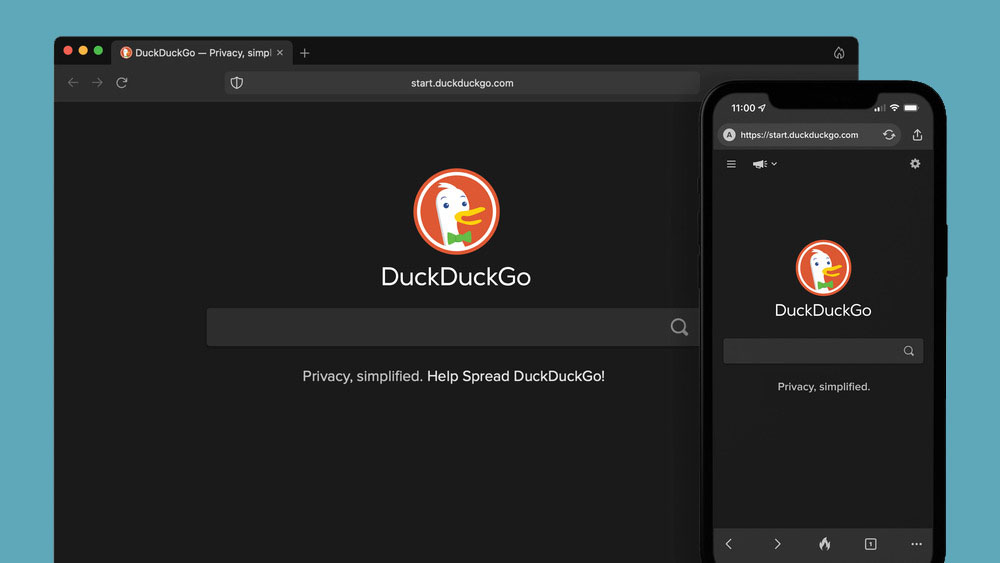
DuckGoGo a popular private search engine is releasing its first browser soon that is focused on privacy like its search engine. duckduckgo browserFrom the recent blog, Gabriel Weinberg, CEO of DuckDuckGo, has stated:
“Like we’ve done on mobile, DuckDuckGo for desktop will redefine user expectations of everyday online privacy,”
From everything that we have learned so far, the browser will be focused on making privacy super easy and simple, eliminating tons of different settings about privacy, and making the whole environment robust privacy protection all set by default. Settings will be applied in all fields, across search, browsing, email, and more. Gabriel also said that aim of the browser is not just a privacy browser, it is meant to be built and used as your everyday browser, for everyday use that protects your privacy as a bonus. One interesting thing that was stated is that browser itself is built upon OS-provided rendering engines instead of typical Chromium. DuckDuckGo says this approach will strip away a lot of the unnecessary cruft and clutter that's accumulated over the years in major browsers. Also, the company stated that when compared to Chrome, the DuckDuckGo app desktop is cleaner, way more private and that early tests have found out that it is significantly faster as well. Is this just corporate advertising or reality? We will see once the browser is released, or once it is released for public testing. Until then take care and happy holidays.
Read More
New Chrome update brings surveillance debate
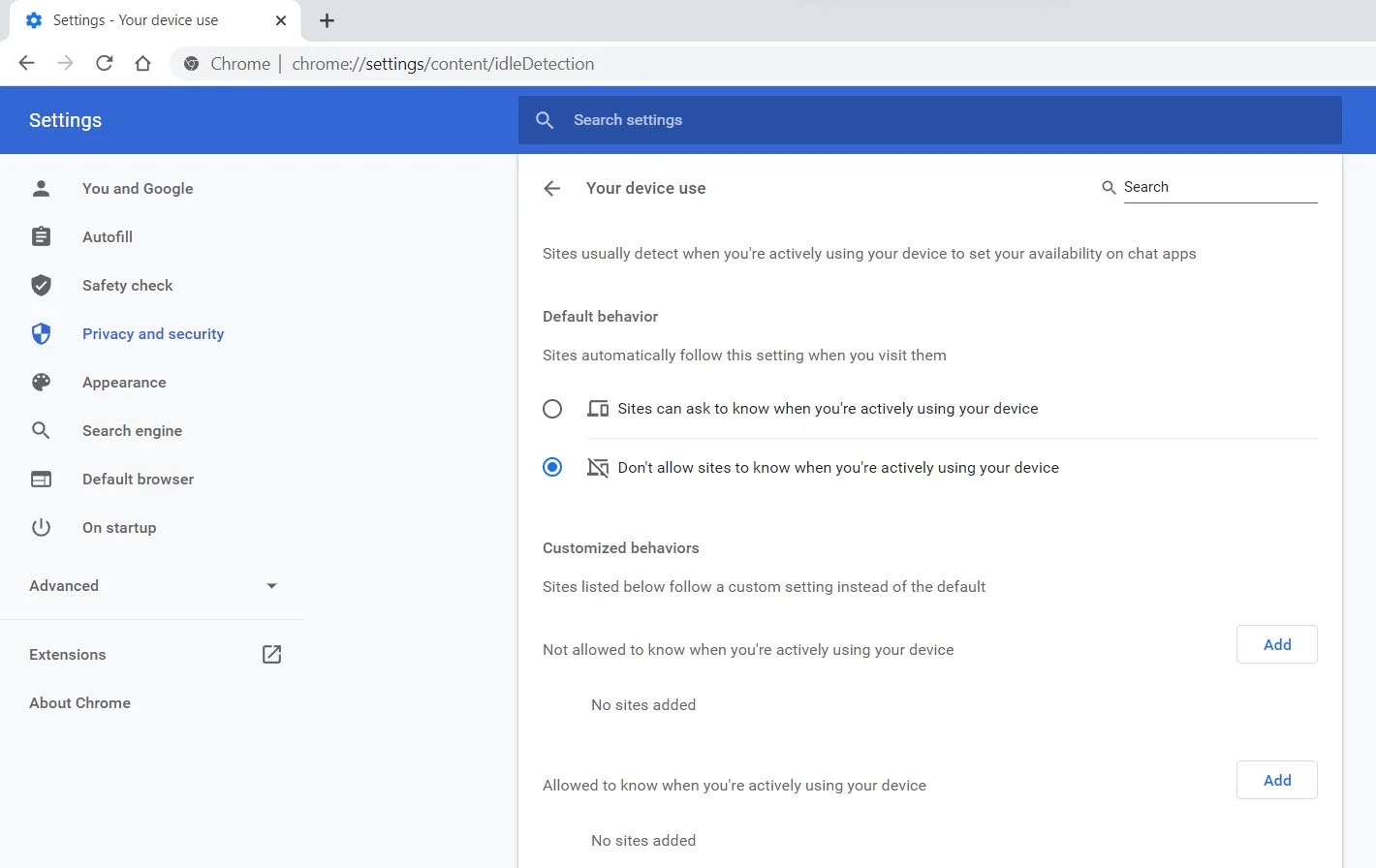
Google Chrome 94 is here and it has introduced a controversial idle detection API. For those people that do not know what idle detection API is, well basically Chrome can be asked by a website to report when a user of the site has a site open and is idle on the device. The issue that people have with this is that this particular feature can be used to report when the user is not using a computer at all. chrome idle detection featureGood thing is that website or web application will prompt you to allow it to use this feature like when a site/application wants to use your microphone or web camera. Developers are on board with this feature since it can provide them with more telemetric data on how users are interacting with their website/application but there are some that are strongly voicing against this. Tantek Çelik, Mozilla Standards Lead, commented on GitHub, saying:
As it is currently specified, I consider the Idle Detection API too tempting of an opportunity for surveillance capitalism motivated websites to invade an aspect of the user’s physical privacy, keep long-term records of physical user behaviors, discerning daily rhythms (e.g. lunchtime), and using that for proactive psychological manipulation (e.g. hunger, emotion, choice)… Thus I propose labeling this API harmful and encourage further incubation, perhaps reconsidering simpler, less-invasive alternative approaches to solve the motivating use-cases.
Others who have spoken against this feature are people from the WebKit development team inside Apple. Ryosuke Niwa, an Apple software engineer who works on WebKit said:
That doesn’t seem like a strong enough use case for this API. For starters, there is no guarantee that the user won’t immediately come back to the device. Also, who is such a service supposed to know what another device user might be using at any given point? We’re definitely not going to let a website know all the devices a given user might be using at any given point. That’s a very serious breach of the said user’s privacy. It seems to me that such a suppression/distribution mechanism is best left for the underlying operating systems/web browsers to handle.
Of course, technology itself as always can be used for good or for bad and time will tell if this feature has brought good stuff or it has paved another brick in surveillance and privacy manipulation. As said for now option will prompt for agreement and let's hope that it will be used for good causes from this day into the future.
Read More
How to Unmerge the User folder in Windows 10
The Windows 10 system allows users to change the default location of the User folders to another drive. This is probably to make sure that the files stay safe in case the system suddenly crashes. However, in some cases, while changing the path to another drive, for instance, the D drive or any folder, the Windows system recognized it as a hard drive as well so even though the files will be saved on that folder, it will appear as a hard drive in the Windows Explorer or look merged with another folder. It could also be that you had dragged and dropped a user folder to another user folder by accident. So if you’re wondering how you can unmerge the User folders, read on as this post will guide you on how exactly you can do that. Take note that even if you try to use the File History to restore the User folders, it still won’t work and you won’t be able to move them back to their previous locations nor restore the folders back to their previous versions and it would only state that they are not available. In the instructions given below, we are using the Downloads folder as an example.
  • Step 1: Tap the Win + R keys to open the Run dialog box.
  • Step 2: Next, type “Regedit” in the field and hit Enter to open the Registry Editor.
  • Step 3: After opening the Registry Editor, navigate to the following registry key:
ComputerHKEY_CURRENT_USERSoftwareMicrosoftWindowsCurrentVersionExplorerUser Shell Folders
  • Step 4: Then double-click on the multi-string value {374DE290-123F-4565-9164-39C4925E467B} located in the right hand pane. And in the Value Data, copy and paste the following value:
%USERPROFILE%Downloads
  • Step 5: Now click OK and close the Registry Editor.
Note: Look close enough and you’ll see that the multi-string values belong to each one of the folders. From there, you have a Desktop, Favorites, Skydrive, Music, Pictures, and many more.
  • Step 6: Restart your computer. After that, the operating system will pick up the new folder location during the startup. Here are the values for the other folders:
Music – {1CF1260C-4DD0-4ebb-811F-33C572699FDE} Pictures – {3ADD1653-EB32-4cb0-BBD7-DFA0ABB5ACCA} Videos – {A0953C92-50DC-43bf-BE83-3742FED03C9C} Documents – {A8CDFF1C-4878-43be-B5FD-F8091C1C60D0} Desktop – {B4BFCC3A-DB2C-424C-B029-7FE99A87C641}
  • Step 7: Now all you have to do is to change the location correctly. Start by tapping the Win + E keys to open the Windows File Explorer.
  • Step 8: After that, right-click on the Downloads folder located in the right-hand pane.
  • Step 9: Then click on Properties and go to the Location tab then type “D:\Downloads” in the location box.
  • Step 10: Click the Apply button and then the OK button to save the changes made. Doing so would ensure that not only the Downloads folder is restored but also that it does not stay merged to another folder or appear as a drive.
Read More
A Guide to Fixing Error 0x8007007e on Windows 10

Error Code 0x8007007e – What is it?

Error code 0x8007007e often occurs when users attempt to use Windows Update but are unable to access updates or webpages. To resolve this issue, you will need to use tools that detect and correct corrupted files as this is usually the main reason for the error.

Solution

Restoro box imageError Causes

Once this error code is encountered, it's a clear indication that your Operating System has malfunctioned. This could be a consequence of an incorrect or failed installation of software. The software might leave invalid entries in the Windows registry. Improper shut down of your system and a malware attack are also causes of error code 0x8007007e. Additionally, someone with little or no technical knowledge might have deleted a system file by accident. Missing system files can also equate to other error codes such as registry error code 19.

You may not always be able to prevent issues from affecting your computer, but proper measures can be taken to limit your risk of experiencing problems like error code 0x8007007e. See the following suggestions below:

  • Ensure proper system maintenance by regularly using your automated tool. This will ensure your system is in good shape and error-free. It will also clean your system regularly leading to a boost in PC performance
  • Keep antivirus software up-to-date. Antivirus software if crucial for the proper functioning of your computer. Keeping your antivirus updated is one of the best ways you can avoid problems with your PC.

Further Information and Manual Repair

Method One: System File Checker

System File Checker is a Windows tool that allows users to check their system for corrupt or bad system files. The utility scans for corrupt files and repairs them as well as files that may have gone missing.

Depending on the type of Windows operating system on your computer, you may need to follow varying instructions. However, note that Windows operating systems including Windows 10 and Windows 8 or 8.1 and Windows Vista all provide access to System File Checker via Command Prompt.

Once you run System File Checker, the tool should be able to repair and replace corrupted files. However, in cases where the repair process does not take place, you can attempt a manual repair by replacing the corrupt file the tool identifies with a good file. The process may require technical knowledge of Command Prompt so consider help from a Windows repair technician or consider contacting Windows for instructions based on your computer’s operating system.

Method Two: Run System Restore Tool

The System Recovery Options menu in Windows contains many tools which can enable users to resolve serious errors. In the case of Error Code 0x8007007e, one of the best tools in this menu is System Restore.

When an error occurs which inhibits users from accessing key functions on their system, System Restore enables the user to restores the computer to an earlier period without causing harm to files, photos, or documents.

However, once you run this tool, you will only be able to access files available within the period to which your computer is restored. For this reason, carefully consider which period is best suited to your purposes. Also, ensure you restore the system to a time when error code 0x8007007e was not present on your machine.

If System Restore does not resolve the error, you may undo the restoration changes. Ensure you have sufficient free space on your machine hard disk before you proceed (300 MB at least for hard drives above 500MB or at least 50 MB for smaller sized disks).

Method Three: Download Automated Software

When it comes to resolving error codes, it can often be a frustrating and tricky venture, especially when you are attempting to fix the problem manually. The Internet is awash with bits and pieces of instruction, some misleading at best with uncertain success rates.

But what if there was a one-stop-shop or better yet a tool that offered solutions for error codes including 0x8007007e?  Download a powerful automated tool that offers easy and effective, user-friendly solutions for users with varying error code problems.

Read More
Stopping automatic redirects in Browsers
As you know, the internet has changed the world immensely. Nowadays, JavaScript is pushing the modern web ahead. One of the things that make these experiences with the internet seamless and with less clutter is redirection. It is often used on web pages and there are times when a user is prompted about them and most of the time, we barely notice them. However, there are also instances when things can go wrong with redirects as they could become a loop that could mess things up. And since the browser takes a lot of system resources, redirection can result in a poor user experience. That’s why in this post, you will be guided on how you can stop these automatic redirects on browsers such as Microsoft Edge, Google Chrome, and Mozilla Firefox, on your Windows 10 computer. To get started, refer to each one of the options provided below to stop automatic redirects in Microsoft Edge, Google Chrome, and Mozilla Firefox.

Option 1 – Configure the browsers to stop pop-ups and deceptive contents

There are a lot of browsers with built-in settings that allow users to stop pop-ups and deceptive content. To configure these settings, refer to these steps:
  • Microsoft Edge:

    • Click on the three horizontal dots icon or the menu button.
    • Next, click on Settings and select Privacy & Security from the left side navigation.
    • After that, scroll down on the right-side panel and look for Block pop-ups and Windows Defender SmartScreen and then turn their toggle buttons to On.
  • Google Chrome:

    • Open Google Chrome and click on the three vertical dots icon for the menu located in the top right corner of the browser.
    • Next, click on Settings and scroll down until you see the Advanced option. Click on it to open the Advanced Settings.
    • Now scroll down until you reach the Privacy and Security section and look for the Safe browsing option and turn its toggle button to On.
  • Mozilla Firefox

    • Open Mozilla and click on the three horizontal lines icon for the menu button located in the top right corner of the browser and click on Options.
    • Next, go to the Settings section and click the Privacy & Security tab and scroll down and then click on Permissions.
    • From there, make sure that the Block pop-up windows checkbox is checked.
    • Finally, scroll down until you reach the Security section and make sure that the checkbox for the Block dangerous and deceptive content is checked.

Option 2 – Try to reset Winsock, TCP/IP & Flush DNS

To stop redirects, you can also reset Winsock and the TCP/IP as well as flush the DNS cache. To do so, follow these steps:
  • Right-click on the Start button and click on Command Prompt (administrator) so you can pull up an elevated Command Prompt.
  • After that, execute each one of the commands listed below. And after you typed in one after the other, you have to hit Enter.
  1. netsh winsock reset – type in this command to reset Winsock
  2. netsh int ip reset resettcpip.txt – type in this command to reset TCP/IP
  3. ipconfig /flushdns – type in this command to flush the DNS cache
  • Next, restart your PC and check if the problem’s fixed.

Option 3 – Edit your Hosts File

  • Tap the Win + R keys to open then type in %WinDir% and then click OK.
  • Go to System32/drivers/etc.
  • Open the host file using Notepad.
  • Delete all the suspicious entries.
  • After that, save the changes you’ve made and close the file.
Read More
Best online learning websites for everything
Building your skill set could be a very important thing, especially in today’s world, and what’s the best way other than online learning classes. You are not exposing yourself to pandemics, staying safe in the warmth of your home and most of the courses are free. Presented here are sites that I believe will and can help you with your goal of learning desired material whatever that might be. Sites are listed in no particular order with a description of what each has to offer.

Coursera

https://www.coursera.org/ courseraCoursera was one of the pioneers when it comes to college education online. When it started all courses were free and offered certificates if the taker has done tasks with a passing grade. Today not everything is free but still, there are tons of free courses that can help you to learn something new and to advance in your work or hobby. Google is using the Coursera platform to deliver its courses to the audience and besides google a lot of academic professors from Princeton, Stanford, John Hopkins and many more are presently offering their course material.

edX

https://www.edx.org/ edx online learningedX has evolved from MITx, MIT’s free initiative to place some free academic lectures from its classrooms free into the world. Since it was rebranded into edX it started including other big university names like Berkeley, University of Texas System, Harvard, and many more. Since its infant days, edX has expanded and included many areas that it offers coursework from arts to science. Certificated today are mostly not free but course videos are, so if you care to learn and not wave certificates around this is a great place to do it.

Udemy

https://www.udemy.com/ udemyUdemy has a little different approach to course material than previously mentioned websites. Teachers on Udemy are mostly people that are working in a given field. Programmers will teach programming, fitness instructors will teach training, etc. There are vas variety of topics even on lifestyle, hobbies even gaming to more serious ones like software developing hardware, etc. There are free courses but mostly are one-time purchases with unlimited access to course material and with frequent discounts udemy might be a good place to look if you can find anything interesting.

Alison

https://alison.com/ alisonAlison is kind of Udemy if we are talking about course material and who is teaching, the difference however is that it has more free content and it is one of the rare websites on this list that has Language courses. Courses vary from beginner level to more advanced ones.

Udacity

https://www.udacity.com/ udacity online learningUdacity was also one of the earlier websites to offer free courses, in today’s world it still has free material but there is also paying one. The big difference from other competitors is that Udacity focuses mostly on programming, data science, and web development and it is very strong in this field. There are no courses about art. Music or similar, mostly IT stuff is covered here. If this is something that interests you, make a free account and give it a go.

Codecademy

https://www.codecademy.com/ codecademyCodecademy is a website mainly focused on teaching you how to code. Pro plan is there but there are a lot of basic and free courses on the mentioned subject. The curriculum is really wide covering Python, R, Java, JavaScript, SQL, Ruby, C#, C++, Swift, PHP, HTML, CSS and more so I am sure that if you are interested in coding this would be a pretty good place to find things. Besides pure language coding courses site offers also, Cybersecurity, Web design, Data science, web development, Game Development, Mobile Development, and many more courses on provided subjects.

Academic Earth

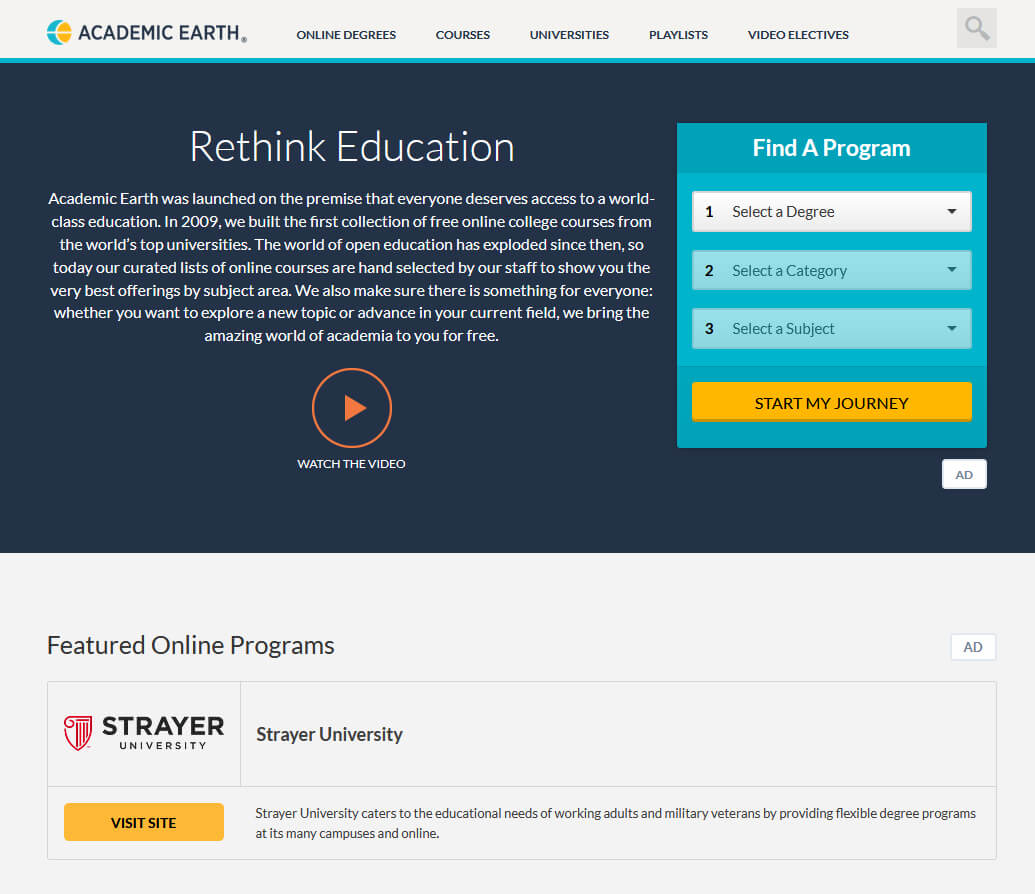
https://academicearth.org/ academic earthAcademic Earth has been built with one simple premise: Everyone deserves access to education. Lead by this kind of mindset on Academic Earth you will find well, academic courses similar to ones found on edX and Coursera, but from mentioned sites here all courses are free and you will find only academic ones, there are no entrepreneur or expert courses here, just pure academic ones. If you wish to see and learn something the way it is taught in Harvard, Berkeley, MIT, etc this is the place for you.
Khan Academy

https://www.khanacademy.org/ khan academyKhan academy is completely free and it is offering courses matching certain grades for children. It is offering courses for all 8 years of elementary school, math courses for high school and college with some coursework on topics like science, arts & humanities, reading, life skills, etc. Despite not being on the same level as some university courses presented on other mentioned websites Khan Academy is a good place to learn a lot of basic skills that you could build upon later.

Conclusion

I hope that I have helped you in some way to expand your skill set and learn something new with provided sources and I hope to see you again on errortools.com

Read More
1 2 3 171
Logo
Copyright © 2023, ErrorTools. All Rights Reserved
Trademark: Microsoft Windows logos are registered trademarks of Microsoft. Disclaimer: ErrorTools.com is not affiliated with Microsoft, nor claims direct affiliation.
The information on this page is provided for information purposes only.
DMCA.com Protection Status