Logo

Fixing the Java Error Code 1603 in Windows 10

You might have experienced a situation where you’re trying to install or update your Java application on your Windows 10 computer but were not able to do so for some reason. One of the problems you can encounter while updating or installing Java is Error Code 1603.

There are two ways you can install Java – you have the option to choose where to get Java either from the online download or offline download. There are times when before you can install Java, you might have to disable the firewall first as it may interrupt the Java online installation. And while doing so, if you are getting the “Java Update or Install did not complete – Error Code 1603” error message, read on as this post will show you what you can do to fix it.

At the time of writing, the exact cause of this error is still unknown. On the other hand, you must still check if you have fulfilled all the system requirements needed to install Java. You have to make sure that your Windows 10 PC has sufficient disk space available for the Java installation or update. In addition, you also have to make sure that you meet all the hardware requirements and you are using a popular web browser for the installation, and that you have administrative privileges for download and installation.

To fix the “Java Update or Install did not complete – Error Code 1603” error, here are some suggestions you can try.

Option 1 – Restart your computer before you install the new Java package

You might have to restart your computer if you got the error code 1603 while installing Java through an offline download.

  • Restart your computer.
  • Next, download and install the offline installer of the Java package from the official site of Java and not some third-party source.
  • In the prompt box that appears while downloading the Java package, select the option Save in and save the package in your preferred folder.
  • After that, navigate to the saved, downloaded package on your computer and then double click on the file to begin the installation process.

After that, if it didn’t fix the problem and you’re still getting the error code 1603, follow the next given option below.

Option 2 – Uninstall the old versions of Java before you install the new package

  • Open the Control Panel.
  • After that, click on Programs and features.
  • Then select the old Java package and click on Uninstall.
  • Restart your computer and then try installing the new Java package again from its official site.

Option 3 – Disable the Java content in the browser you’re using via Java Control Panel and reinstall Java

  • Open the Control Panel again.
  • And then click on the Java icon to open the Java Control Panel.
  • Next, navigate to the Security tab and then uncheck the “Enable Java content in the browser” option.
  • Then click on Apply and then Ok to save the changes made.
  • Now install the new Java package again after you download it from its official website.
  • Once the installation is completed, re-enable the “Enable Java content in the browser” option in the Java Control Panel as it is essential especially if you are running Java content in your browser.

Do You Need Help with Your Device?

Our Team of Experts May Help
Troubleshoot.Tech Experts are There for You!
Replace damaged files
Restore performance
Free disk space
Remove Malware
Protects WEB browser
Remove Viruses
Stop PC freezing
GET HELP
Troubleshoot.Tech experts work with all versions of Microsoft Windows including Windows 11, with Android, Mac, and more.

Share this article:

You might also like

Reddit released the application in MS store
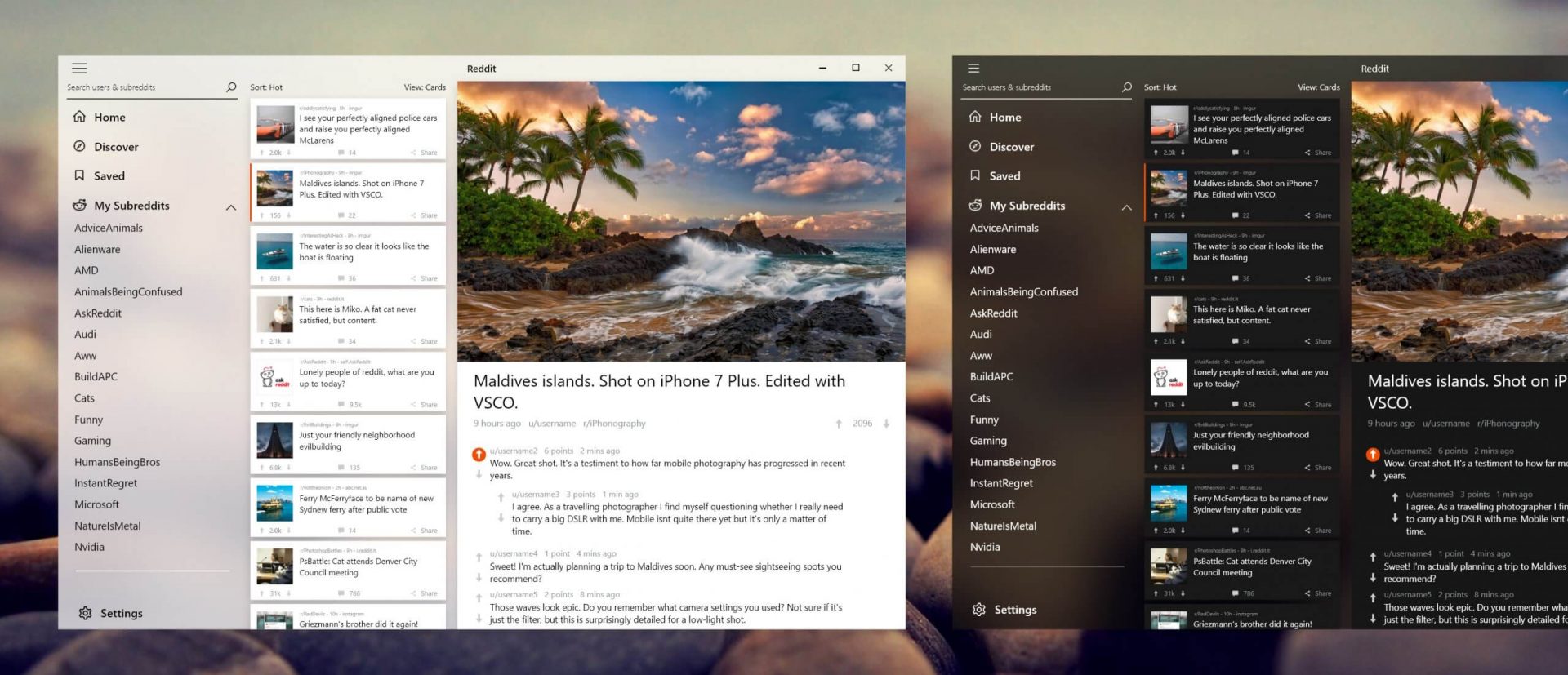
Reddit appReddit is one of the most popular websites in the world and how Microsoft is opening doors to everyone in its new store Reddit took a logical step and made a Progressive web application and placed it in it. Being a Progressive web app makes it more familiar and feels like a home experience using it for a lot of Reddit users. Reddit itself has a large community and active topics discussions all the time about anything. Bringing it to Windows as an application is, in my opinion, a great move since as an application it is independent, more light-weighted, and offering some other advantages specifically tied to being a standalone windows application. Everyone familiar with and using the Reddit website will feel right at home in this app and you can start using it right away.
Read More
DigiSmirkz Removal Tutorial For Windows

DigiSmirkz is a Browser Extension by Mindspark Inc. This extension offers users the ability to enrich their emails or chats with tons of new emojis. When installed it will replace your default new tab page with a variety of search.myway.com, hosted at hp.myway.com. This search engine uses information about you, collected by the extension to display unwanted targeted ads by Mindspark Partners and Ad Networks.

While surfing the internet with this extension installed and enabled, you will see additional pop-up ads, inserted ads into search results and sponsored content on web pages.

Several anti-virus applications have marked this extension as a Browser Hijacker and is therefore recommended to be removed from the Computer.

About Browser Hijackers

Browser hijackers (sometimes referred to as hijackware) are a kind of malicious software that modifies web browser settings without the computer owner’s knowledge or consent. These hijacks appear to be rising at an alarming rate worldwide, and it could be really nefarious and often harmful too. Browser hijacker malware is created for a variety of reasons. Typically, hijackers will force hits to sites of their choice either to get more traffic generating higher ad earnings or to obtain a commission for every user visiting there. Although it may seem harmless, these tools were created by vicious people who always look to take advantage of you, so that they can easily make money from your naive and distraction. They not only ruin your internet browsers, but browser hijackers can even modify the computer registry, making your PC vulnerable to other types of attacks.

Major signs that an internet browser has been hijacked

There are many symptoms that indicate your browser is highjacked: 1. your homepage is reset to some unfamiliar webpage 2. your internet browser is constantly being redirected to porn websites 3. the default web engine and/or the default browser settings are modified 4. unsolicited new toolbars are added to your web browser 5. your internet browser will display constant pop-up windows 6. your web browser starts running slowly or presents frequent errors 7. you can’t navigate to particular webpages, like security software-related websites.

How they get into your PC

Browser hijackers can enter a PC by some means or other, for example via file sharing, downloads, and e-mail too. They may also come from any BHO, extension, add-on, toolbar or plug-in with malicious purpose. A browser hijacker could also be installed as a part of freeware, shareware, demoware and fake programs. Some of the most popular hijackers are DigiSmirkz, Conduit Search, Babylon Toolbar, Sweet Page, OneWebSearch, and CoolWebSearch. Browser hijackers can interrupt the user’s web surfing experience severely, track the websites frequented by users and steal private information, cause difficulty in connecting to the web, and eventually create stability issues, causing applications and system to crash.

How you can fix a browser hijack

Certain hijackers could be removed simply by uninstalling the related freeware or add-ons through the Add or Remove Programs in the Windows control panel. But, many browser hijackers are hard to get rid of manually. Irrespective of how much you attempt to get rid of it, it may keep returning over and over again. You should think of undertaking manual repairs only if you are a tech-savvy person, as there are possible risks associated with tinkering around with the computer registry and HOSTS file. Industry experts always suggest users remove any malicious software including browser hijacker by using an automatic malware removal tool, which is better, safer, and faster than the manual removal method. To remove any type of browser hijacker from your system, you can download this particular top-notch malware removal software – SafeBytes Anti-Malware.

Virus Blocking Internet And All Antivirus Software? Do This!

Practically all malware is bad and the degree of the damage will vary greatly with regards to the type of infection. Certain malware types alter internet browser settings by adding a proxy server or change the PC’s DNS configurations. When this happens, you will be unable to visit some or all sites, and thus not able to download or install the necessary security software to clear out the computer virus. If you are reading this article, chances are you’re stuck with a malware infection which is preventing you to download and/or install Safebytes Anti-Malware program on your system. Follow the instructions below to get rid of malware by alternate ways.

Make use of Safe Mode to resolve the issue

If any malware is set to load immediately when Windows starts, stepping into safe mode may block this attempt. Since only the bare minimum programs and services start-up in Safe Mode, there are rarely any reasons for issues to happen. Below are the steps you should follow to take out viruses in Safemode. 1) Tap the F8 key repeatedly as soon as your system boots, however, before the big Windows logo or black screen with white texts appears. This should bring up the Advanced Boot Options menu. 2) Use the arrow keys to choose Safe Mode with Networking and press ENTER. 3) When you are into this mode, you will have an internet connection once again. Now, get the malware removal software you want by utilizing the browser. To install the software, follow the guidelines in the installation wizard. 4) Once the software is installed, let the scan run to eliminate viruses and other malware automatically.

Switch to an alternative browser

Malicious program code might exploit vulnerabilities in a specific internet browser and block access to all anti-virus software sites. The most effective solution to avoid this problem is to choose a web browser that is renowned for their security measures. Firefox has built-in Malware and Phishing Protection to keep you safe online.

Run anti-virus from a pen drive

Another solution is to create a portable anti-malware program on your USB stick. Adopt these measures to run the anti-malware on the affected computer. 1) Use another virus-free PC to download Safebytes Anti-Malware. 2) Mount the USB drive on the same system. 3) Run the setup program by double-clicking the executable file of the downloaded software, which has an .exe file format. 4) Select USB flash drive as the location when the wizard asks you where you want to install the application. Follow the on-screen instructions to complete the installation process. 5) Transfer the USB drive from the clean PC to the infected computer. 6) Run the Safebytes Anti-malware directly from the USB drive by double-clicking the icon. 7) Click the “Scan” button to run a full system scan and remove viruses automatically.

Protect Your Computer Against Malware and Viruses With SafeBytes Anti-Malware

If you are looking to purchase anti-malware for your computer system, there are lots of brands and packages for you to consider. Some of them are great while some are scamware applications that pretend as legitimate anti-malware software waiting around to wreak havoc on the computer. You need to select a company that creates industry-best anti-malware and it has got a reputation as reliable. On the list of highly recommended software programs is SafeBytes Anti-Malware. SafeBytes has a good track record of excellent service, and clients are very happy with it. SafeBytes anti-malware is a trustworthy software that not only secures your computer system completely but is also very user-friendly for people of all ability levels. Through its cutting-edge technology, this software protects your PC against infections brought on by various kinds of malware and similar internet threats, including spyware, adware, trojans, worms, computer viruses, keyloggers, potentially unwanted program (PUPs), and ransomware.

There are many wonderful features you will get with this particular security product. These are some of the highlighted features included in the product.

World-class AntiMalware Protection: This deep-cleaning antimalware application goes much deeper than most antivirus tools to clean out your personal computer. Its critically acclaimed virus engine detects and disables hard to remove malware that conceals deep inside your personal computer. Live Protection: SafeBytes provides real-time active checking and protection against all of known viruses and malware. This utility will always monitor your PC for any suspicious activity and updates itself regularly to keep current with the latest threats. Web Protection: Safebytes allots all sites a unique safety rating that helps you to have an idea of whether the webpage you are going to visit is safe to view or known to be a phishing site. Faster Scanning: SafeBytes’s very fast malware scanning engine reduces scan times and extends battery life. Simultaneously, it will effectively detect and remove infected files or any online threat. Low CPU and RAM Usage: SafeBytes gives you total protection from internet threats at a fraction of the CPU load because of its advanced detection engine and algorithms. Fantastic Tech Support Team: You can obtain absolutely free 24/7 technical assistance from their computer experts on any product queries or PC security issues. SafeBytes will keep your computer safe from latest malware threats automatically with hardly any input needed from you again. You now may realize that this particular tool does more than just scan and eliminate threats from your PC. You will get the very best all-around protection for the money you spend on SafeBytes Anti-Malware subscription, there is no doubt about it.

Technical Details and Manual Removal (Advanced Users)

If you want to do the removal of DigiSmirkz manually rather than employing an automated software tool, you can follow these simple steps: Go to the Windows Control Panel, click on the “Add or Remove Programs” and there, select the offending program to remove. In case of suspicious versions of web browser extensions, you can actually remove it through your browser’s extension manager. You may also want to reset your home page and search engine providers, and also clear your web browser cache and cookies. In order to ensure complete removal, manually examine your hard drive and registry for all of the following and remove or reset the values accordingly. Please note that only advanced computer users should try to manually edit the registry because removing any single critical system file leads to a serious problem or perhaps a computer crash. Moreover, certain malware keeps replicating which makes it tough to remove. Doing this malware-removal process in Safe Mode is suggested.
Files: %UserProfile%\Local Settings\Application Data\Google\Chrome\User Data\Default\Extensions\fhibenoomgnppdhbjaephephkddnokof %LOCALAPPDATA%\DigiSmirkzTooltab Registry: HKEY_CURRENT_USER\SOFTWARE\DigiSmirkz HKEY_CURRENT_USER\SOFTWARE\Wow6432Node\DigiSmirkz HKEY_CURRENT_USER\SOFTWARE\Microsoft\Internet Explorer\LowRegistry\DOMStorage\digismirkz.dl.myway.com HKEY_LOCAL_MACHINE\Software\Microsoft\Internet Explorer\DOMStorage\digismirkz.dl.myway.com HKEY_LOCAL_MACHINE\Software\[APPLICATION]\Microsoft\Windows\CurrentVersion\Uninstall..Uninstaller DigiSmirkzTooltab Uninstall Internet Explorer
Read More
Fixing Upside Down Screen in Windows 10
As you know, Windows 10 comes with a pre-packed feature that allows you to rotate the screen at different angles, and to facilitate this feature, there are keyboard shortcuts you can use as well. However, from time to time, no matter how useful this feature is, users still experience a handful of issues. One of which is that they suddenly find their screen rotated or Upside Down even when they didn’t do a thing or adjust the setting. You may have pressed the shortcut on the keyboard by accident or some other program changed the setting on your computer without your permission – whichever the case is, this post will show you what you can do to fix the upside-down screen on your Windows 10 PC using the options laid out below.

Option 1 – Try using hotkeys

As mentioned earlier, Windows have hotkeys in the UI that changes the orientation of the display. So the first thing you need to do is to make sure that these hotkeys are enabled and if they are, you can use the keyboard shortcut to adjust the orientation of your screen.
  • Right-click on an empty part of your Desktop and then select the Graphic options.
  • Next, select “Hot Keys” > “Enable”. After verifying that the hotkeys are enabled, you can tap the Ctrl + Alt + Up arrow keys to change your computer screen’s orientation.
  • Alternatively, you can also tap the Ctrl + Alt + Right or Left or Down arrow keys to change the direction the other way.

Option 2 – Try using the Graphics Properties

You will probably see the “Graphics Properties” option if you use the Intel HD Graphics every time you click on your Desktop. Note that this option has all the graphics driver properties and helps you in changing the configurations as well as control several options like refresh rate, resolution, color-depth and many more. You have to navigate to these options to see if the orientation is changed in these properties. To do so, follow the steps below.
  • Right-click on any empty space on your Desktop and then select Graphics Properties or Intel Graphics Settings.
  • After that, select Display from the list of sub-options that appears.
  • From there, you will see the rotation of the screen under the “Display settings” option where you have to make sure that the slider is set to “0”.
  • Click the Apply button to save the changes made and then click on Exit. The orientation of your screen should automatically change.

Option 3 – Try using the Windows Display Settings

Since the Windows Settings have a section where you can manage the display settings of your computer, you can use them to help control the resolution of your PC’s display without any trouble. There is a possibility that the settings are changed there so that’s probably why your screen is turned upside down all of a sudden.
  • Tap the Win + S keys to open search and then type in “settings” in the field and then hit Enter to open Settings.
  • After opening Settings, click on System and then on Display using the left navigation bar and then scroll to the end and select the Advanced display settings.
  • Next, click on the Display adapter properties and click on Intel HD Graphics control panel.
  • Now change the rotation to 0 Degrees. Afterward, the display should revert back to its original form automatically.

Option 4 – Check your monitor’s physical controls

There are monitors that have buttons in them that allows users to shift the rotation of the screen to 90 degrees. It could be that your monitor has these buttons without you knowing and you suddenly pressed them by mistake which caused your screen to rotate. Thus, you have to check your monitor for any physical buttons on the side and if you see a menu, navigate to its options and check if there are screen rotation options. To make it easier for you, you can simply search your monitor’s model online and see if these buttons exist. You could also go over your monitor’s manual if you still have it as it contains details with regards to screen rotation.

Option 5 – Update your Graphics drivers

  • Tap the Win + R keys to open the Run dialog box and then type in devmgmt.msc and tap Enter or click OK to open the Device Manager.
  • Expand the section for the outdated device drivers.
  • And then select the outdated driver(s) and right-click on it/them.
  • From the drop-down menu, select the Update Driver option if you wish to update the driver or select the Uninstall device if you want to uninstall the driver and then follow the on-screen instructions to install the latest version of the driver.
  • Restart your PC after the installation to allow the system to reinstall the driver.
Read More
Linkury Smartbar Engine Removal Guide for Windows

Linkury Smartbar Engine is a Brower Toolbar for Internet Explorer. Upon investigation, we discovered that this toolbar does not work with the latest versions of Internet Explorer.

From the Author:

What the Smartbar does: – Changes the default search engine in your web browser’s built-in search box. – Changes the default home page of your web browser. – Adds alternative “page not found” functionality. – Enable search from the address bar of your web browser. – Allows software updates of the application once a new version is released. – Adds, removes, or modifies components interacting with search input fields.

While installed, users may see additional unwanted ads throughout their browsing sessions.

Several anti-virus applications have marked this toolbar as a Browser Hijacker, and it is not recommended to keep it on your computer, especially if you are using a newer version of internet explorer that renders this toolbar useless.

About Browser Hijackers

Browser hijacking means a malicious program code has taken control over and modified the settings of your browser, without your permission. Browser hijackers will do a number of things on a computer. These are typically used to force visitors to a particular site, manipulating web traffic to earn ad revenue. It may appear naive, but the majority of these sites are not legitimate and may pose a serious threat to your online safety. They did not just screw up your web browsers, but browser hijackers can also modify the system registry, leaving your computer susceptible to other attacks.

How you can determine if your browser is hijacked

When your browser is hijacked, the following could happen: home-page is changed; you see new unwanted favorites or bookmarks added, usually directed to advertisement-filled or pornography sites; the default browser settings are changed and/or your default web engine is altered; you find unsolicited new toolbars added; never-ending pop-up adverts appear and/or your web browser pop-up blocker is disabled; your web browser starts running slowly or exhibits frequent errors; you can’t visit specific websites like home pages of security software.

Precisely how browser hijacker infects computer systems

Browser hijackers could use drive-by downloads or file-sharing websites or perhaps an e-mail attachment in order to reach a targeted computer. They may also come from any BHO, browser extension, add-on, toolbar, or plug-in with malicious intent. A browser hijacker can be installed as a part of freeware, shareware, demoware, and fake programs. A good example of a well-known browser hijacker is the latest Chinese malware called “Fireball”, which has infected 250 million PCs across the world. It works as a hijacker but can be turned into a fully functioning malware downloader afterward. The existence of any browser hijacker malware on your system could substantially diminish the web browsing experience, monitor your internet activities that lead to serious privacy concerns, create system stability problems and ultimately cause your PC to slow down or to a nearly unusable state.

Removing browser hijackers

Some kinds of browser hijackers can be removed from your computer by deleting malicious software applications or any other recently added freeware. At times, it could be a tough job to find and eliminate the malicious program since the associated file could be running as part of the operating system process. Also, manual removals require in-depth system understanding and thus can be a very difficult job for novice computer users. Browser hijackers could be effectively removed by installing and running an anti-malware program on the affected PC. To eradicate any kind of browser hijacker from your laptop or computer, you could download this certified malware removal application – SafeBytes Anti-Malware. Utilize a system optimizer together with your anti-malware software to fix various computer registry problems, eliminate computer vulnerabilities, and enhance your computer's overall performance.

Help! Malware Blocking Anti-virus Installation And Access To The Web

Practically all malware is bad, but certain kinds of malware do a lot more damage to your computer than others. Some malware sits in between the computer and your net connection and blocks some or all websites that you really want to check out. It would also block you from installing anything on your machine, especially anti-virus software. If you are reading this now, you have probably recognized that a malware infection is the real cause of your blocked web traffic. So how to proceed if you need to download and install an anti-malware application such as Safebytes? There are some steps you can take to circumvent this issue.

Eliminate viruses in Safe Mode

If the malware is set to load at Windows start-up, then booting in Safe Mode should prevent it. Only the minimum required applications and services are loaded whenever you start your laptop or computer in Safe Mode. You need to do the following to remove malware in Safe mode. 1) After switching on the computer, hit the F8 key before the Windows splash screen starts to load. This should bring up the Advanced Boot Options menu. 2) Select Safe Mode with Networking using arrow keys and hit ENTER. 3) As soon as this mode loads, you will have an internet connection. Now, utilize your web browser normally and navigate to https://safebytes.com/products/anti-malware/ to download and install Safebytes Anti-Malware. 4) Right after installation, run a complete scan and let the program get rid of the threats it detects.

Switch over to some other browser

Web-based malware can be environment-specific, aiming for a particular web browser or attacking particular versions of the web browser. The best solution to overcome this issue is to choose a browser that is well known for its security features. Firefox has built-in Phishing and Malware Protection to help keep you safe online.

Install antivirus on a USB drive

To successfully remove the malware, you will need to approach the issue of installing an antivirus program on the infected computer system from a different angle. To run antivirus using a thumb drive, follow these simple measures: 1) On a virus-free computer, install Safebytes Anti-Malware. 2) Plug the Thumb drive into the clean computer. 3) Double click on the exe file to run the installation wizard. 4) Choose a USB drive as the location when the wizard asks you where you wish to install the software. Follow activation instructions. 5) Transfer the pen drive from the clean PC to the infected PC. 6) Double-click the antivirus software EXE file on the USB flash drive. 7) Simply click “Scan Now” to run a scan on the affected computer for malware.

SafeBytes Anti-Malware Features

In order to protect your personal computer from many different internet-based threats, it’s important to install anti-malware software on your PC. But with so many anti-malware companies in the market, these days it’s challenging to decide which one you should purchase for your laptop. Some are really worth your money, but most aren’t. You must choose one that is efficient, practical, and has a strong reputation for its malware protection. While considering the trustworthy applications, Safebytes Anti-Malware is undoubtedly the strongly recommended one. SafeBytes anti-malware is really a powerful, highly effective protection application created to assist users of all levels of IT literacy in identifying and eliminating harmful threats from their PC. With its most advanced virus detection and repair technology, this software protects your PC against infections caused by different kinds of malware and similar internet threats, including adware, spyware, viruses, worms, trojans, keyloggers, potentially unwanted program (PUPs), and ransomware.

SafeBytes anti-malware offers a myriad of advanced features that sets it aside from all others. Here are some of the best ones:

Most Reliable AntiMalware Protection: Built upon a highly acclaimed antivirus engine, this malware removal application can detect and get rid of the most stubborn malware threats like browser hijackers, PUPs, and ransomware that other common anti-virus programs will miss. Real-time Threat Response: SafeBytes provides totally hands-free live protection and is set to check, block, and get rid of all computer threats at its very first encounter. They’re extremely efficient in screening and getting rid of numerous threats since they’re constantly revised with the latest updates and alerts. Web Protection: SafeBytes checks the links present on a web page for possible threats and notifies you whether the site is safe to browse or not, through its unique safety rating system. “Fast Scan” Features: Safebytes AntiMalware, using its enhanced scanning engine, gives super-fast scanning that can quickly target any active internet threat. Light-weight: This program is lightweight and can work silently in the background, and will not have an effect on your PC efficiency. 24/7 Online Support: Support service is accessible 24 x 7 x 365 days via email and chats to answer your concerns. To sum it up, SafeBytes has developed a meaningful anti-malware solution that is aimed to protect you against various malware. You can be sure that your PC will be protected in real-time once you put this software to use. So when you want advanced forms of protection features & threat detections, buying SafeBytes Anti-Malware could be worth the money!

Technical Details and Manual Removal (Advanced Users)

If you do not wish to use an automated tool and prefer to eliminate Linkury Smartbar Engine manually, you might do so by going to the Add/Remove Programs menu in the control panel and removing the offending program; in cases of web browser plug-ins, you may uninstall it by visiting the browsers Add-on/Extension manager. You’ll likely also want to reset your web browser. To be certain of complete removal, find the following Windows registry entries on your system and eliminate them or reset the values appropriately. Please note that this is for advanced users only and might be difficult, with wrong file removal leading to additional system errors. Furthermore, certain malware is capable of replicating itself or preventing deletion. Carrying out this in Safe Mode is suggested.
Files: %LOCALAPPDATA%\Smartbar\Application\Lrcnta.exe %LOCALAPPDATA%\Linkury\Application\Linkury.exe %LOCALAPPDATA%\Smartbar\Application\QuickShare.exe %USERPROFILE%\Local\AppData\Smartbar\Application\Delta.exe %ALLUSERSPROFILE%\WCService\WCService.exe %LOCALAPPDATA%\Smartbar\Application\Luckysave.exe %LOCALAPPDATA%\Smartbar\Application\Muvic.exe %LOCALAPPDATA%\Linkury\Application\Smartbar.exe %LOCALAPPDATA%\Smartbar\Application\SavePass.exe %LOCALAPPDATA%\Smartbar\Application\SafeFinder.exe %LOCALAPPDATA%\Smartbar\Application\WhiteSmoke.exe %LOCALAPPDATA%\Smartbar\Application\BrowserHelper.exe %LOCALAPPDATA%\Smartbar\Application\SnapDo.exe %LOCALAPPDATA%\Smartbar\Application\ProductsRemovalTool.exe %LOCALAPPDATA%\Smartbar\Application\MagicBox.exe Registry: HKEY_LOCAL_MACHINE\SOFTWARE\Microsoft\Tracing\Linkury_RASMANCS HKEY_LOCAL_MACHINE\SOFTWARE\Microsoft\Tracing\Linkury_RASAPI32 HKEY_LOCAL_MACHINE\SOFTWARE\Wow6432Node\Microsoft\Tracing\Linkury_RASMANCS HKEY_LOCAL_MACHINE\SOFTWARE\Wow6432Node\Microsoft\Tracing\Linkury_RASAPI32 HKEY_CURRENT_USER\Software\Microsoft\Internet Explorer\Main\FeatureControl\FEATURE_BROWSER_EMULATION, value: Linkury.exe HKEY_CURRENT_USER\Software\Microsoft\Installer\Products\C5670CA607D1C7C4AA305DE018401AA3 HKEY_CURRENT_USER\Software\Microsoft\Installer\Features\C5670CA607D1C7C4AA305DE018401AA3 HKEY_CURRENT_USER\Software\Linkury HKEY_LOCAL_MACHINE\SOFTWARE\Microsoft\Shared Tools\MSConfig\startupreg\Browser Infrastructure Helper HKEY_LOCAL_MACHINE\SOFTWARE\Classes\LinkurySmartBar.LinkurySmartBarBandObject HKEY_LOCAL_MACHINE\SOFTWARE\Classes\LinkurySmartBar.LinkuryMenuForm HKEY_LOCAL_MACHINE\SOFTWARE\Classes\LinkurySmartBar.DockingPanel HKEY_LOCAL_MACHINE\SOFTWARE\Classes\LinkurySmartBar.BandObjectAttribute HKEY_LOCAL_MACHINE\SOFTWARE\Microsoft\Windows\CurrentVersion\Run, value: Linkury Chrome Smartbar HKEY_LOCAL_MACHINE\SOFTWARE\Microsoft\Tracing\Mntz_Installer_RASAPI32 HKEY_LOCAL_MACHINE\SOFTWARE\Microsoft\Tracing\Mntz_Installer_RASMANCS HKEY_LOCAL_MACHINE\SOFTWARE\Wow6432Node\Microsoft\Tracing\Mntz_Installer_RASAPI32 HKEY_LOCAL_MACHINE\SYSTEM\CurrentControlSet\services\sulpnar HKEY_LOCAL_MACHINE\SYSTEM\ControlSet002\Services\Stpro HKEY_LOCAL_MACHINE\SYSTEM\ControlSet001\Services\Stpro HKEY_LOCAL_MACHINE\SOFTWARE\mtPlusdax HKEY_LOCAL_MACHINE\SOFTWARE\Wow6432Node\mtPlusdax

Read More
Happy New Year from ErrorTools.com!!!
As we are on the last day of 2021, our team here at errortools.com would like to express their great gratitude to you all for being with us all this time and would also want to wish you error-free 2022!!! Thank you for being part of this community, we wish you all the best in the upcoming 2022 and hope that we will see you again From all members of errotools, HAPPY NEW YEAR!!! new year christmass tree
Read More
Steam 2021 Winter sale official date
Each year Steam makes a couple of large sales, and each year there are speculations and leaks on the date when the sale is going to happen and when it is starting. It seemed that Steam has become aware that these leaks will not stop and that store really cannot hide that kind of important date from the public so in the latest news Steam Purley has just given the date of this year's big winter sale. steam winter saleProbably tired of even trying to hide it, Steam has released that this year's big Steam Winter sale is officially starting on December 22nd, 2021, and closing on January 5th, 2022. So if you have someone to buy a gift or just want to drop a few great games in your library at a low price this is the time when you should do it.
Read More
Fix “Diskpart failed to clear disk attributes”
If you encounter the “Diskpart failed to clear disk attributes” error when you try to change the read-only state of a storage device using the Diskpart application and the request is denied, worry not for this post will give you a couple of fixes to resolve the problem. As you know, Diskpart is used for resolving read-only storage devices by changing their attribute via the command line. So if it is not able to change the attribute of the storage device, then you will most likely encounter an error such as this one. This kind of error is not uncommon and as long as there are no damaged physical attributes, you can resolve it right away. There are tons of reasons why you’re getting this error while using Diskpart, it could be that the storage device has a physical write-protected switch or the disk is hidden or has bad sectors. It could also be because the storage drive might be in RAW format or that you are running the Diskpart application without admin privileges. Whatever the cause may be, here are some options you can try to fix the problem but before you proceed, make sure that you log on to your PC as an administrator.

Option 1 – Check if there is a physical switch on the storage device

There are some USB devices and SD card readers that have a write-protected physical switch that disables all the writable options on the storage device and so if it is turned on, Diskpart won’t be able to change the disk attribute to writable. To check, simply look for the physical switch on both sides of the device and once you found it, make sure that it is toggled off and then plug the storage device back in then try running Diskpart once again.

Option 2 – Modify the WriteProtected key in the Registry Editor

Before you proceed, you have to create a System Restore Point first.
  • Tap the Win + R keys to open Run and type “Regedit” in the field and hit Enter to open the Registry Editor.
  • Next, navigate to the following path:
HKEY_LOCAL_MACHINESYSTEMCurrentControlSetControlStorageDevicePolicies
  • After that, look for the “WriteProtect” registry entry which is located on the left side of the window, and then double click on it.
  • Change its value to “0” and click OK to save the changes made and exit the Registry Editor.

Option 3 – Run CHKDSK to check the drive for errors

When it comes to some issues concerning the hard drive or removable devices, there is a utility in Windows that might help which is called “chkdsk”. This error check utility can help with several issues in the system including the “Diskpart failed to clear disk attributes” error.
  • Tap the Win + S keys to open the Search box.
  • Then type “command prompt” in the field and from the search results that appear, right-click on Command Prompt and select “Run as administrator”.
  • After opening an elevated command prompt, copy and paste the following command and hit Enter:
CHKDSK [volume [[path] filename]] [/F] [/V] [/R] [/X] [/C] [: size]]
Note: In the command given above, “[/F]” will try to fix the system errors while “[/R]” will be the one to fix the bad sectors.
  • Now if you are prompted to run CHKDSK after your reboot your PC, just tap Y and reboot your PC.
  • If CHKDSK is not able to find any errors, tap the Win + E keys and navigate the access window. From there, right-click on the concerned drive and click on Properties.
  • After opening Properties, click on the tab Tools and then click on the “Check” button under the Error-checking section.
  • Wait until the process is completed and then restart your computer.

Option 4 – Clear the attributes on RAW

  • Tap the Win + S keys then type “diskpart” in the field.
  • Click the Diskpart application and if a User Account Control dialog box pops up, click Yes to proceed.
  • After opening an elevated Command Prompt, type in the commands listed below and make sure to tap Enter right after you key in one command after the other.
    • list volume
    • select volume ‘n’ (In this command, you have to replace ‘n’ with the volume number of the drive)
    • format fs=fat32 quick (In this command you also have the flexibility to change the format to ‘ntfs’ or ‘exfat’)
  • After executing the commands given, unplug the removable storage device and wait for a couple of seconds and then plug it back in.
  • Now try any normal write operations and see if the error no longer appears.

Option 5 – Try checking the hardware components

On the other hand, it is also possible that the issue has something to do with a hardware problem and so you need to check the hardware components on your computer to determine that.
Read More
How to run old applications in Windows 10
Having the latest applications is often preferred for most users but sometimes we have some old applications which have not been updated or simply we just want to run oldie on our computer because it does everything we need and we do not want to upgrade in order to save some money. The issue is presented sometimes when we try to run an old application in Windows 10 and some components are missing in Windows itself or the application is simply coded in a way to work on older Windows versions. If by any chance you have this issue then this guide is for you since we are going to show you how to run old applications in Windows 10. This guide is made in a way to takes into account that the application itself is completely installed on your Windows 10 machine if you can not even install the application you will need to search solution for that particular application since that can not really be generalized and pinpointed issue, every application is different.

Running old applications using the compatibility option

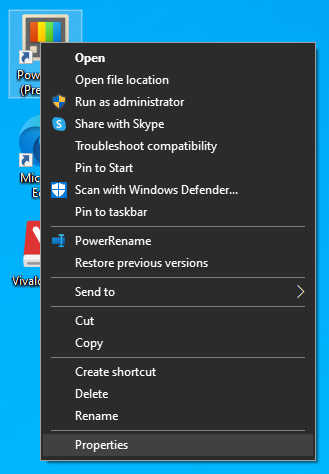
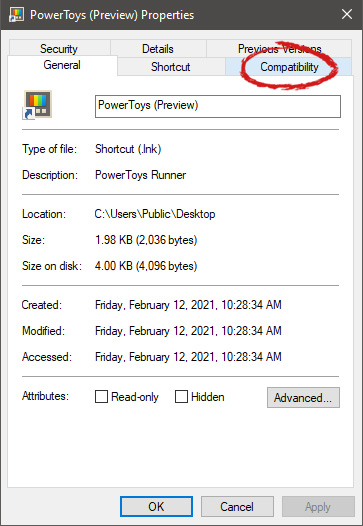
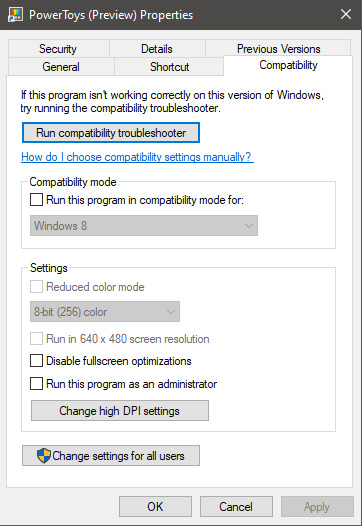
All of that being said, let's start that old app you have. First thing is to locate an executable file or shortcut of the desired application. Once it is located, right-click on it to bring up the menu, and all the way to the bottom you will find properties. Left-click on properties. file properties drop down menuThe application settings screen will open, in upper tabs locate Compatibility and left-click on it. file properties compatibility tab markedAfter the click, you will find yourself in application compatibility settings. File properties compatibility optionsIn this window, you will face different options to run the chosen application in various modes in order to make it run. How settings are self-explanatory and different applications will need different settings sadly we can not cover them all but your safest bet is to run them in an environment where they have worked. For example, if the application was working fine in Windows XP and required administrator privileges, check Run this program as an administrator and Run this program in compatibility mode for Windows XP.

Read More
How to Fix Error Code 0xC004C020

Error Code 0xC004C020 (Code 0xC004C020) – What is it?

Error code 0xC004C020 (Code 0xC004C020) is an error that occurs when you attempt to activate a copy of Windows 7 with a key, but the key has already been activated multiple times. When receiving this error code, it means that you are trying to exceed the number of times that the Windows 7 key is allowed to be activated. Common symptoms include:
  • Attempting to install Windows 7 with a key and a dialog box with the code 0xC004C020 is displayed.
  • The computer is unable to install Windows 7 with the key.
  • Certain features will refrain from working until the correct key has been entered.

Solution

Restoro box imageError Causes

Error Code 0xC004C020 occurs when you are not able to install Windows 7 using a previously purchased key code that has been installed numerous times previously on the same computer.
  • You are not able to use your previously used key to install Windows 7.
  • You have used the Windows 7 key the maximum number of times allowed.
Error code 0xC004C020 simply means that the Windows 7 code that you are trying to use to install Windows 7 has already been used the maximum number of times allowed, even when installing it on the same computer that it was previously used on. This would indicate that the key is what is known as a volume key- meaning that there is a cap on the number of uses.

Further Information and Manual Repair

Many people encounter this problem when they are doing software development or testing and need to reinstall Windows 7. Some people might also encounter this error code when installing Windows 7 with a key that was used too many times previously. It should be noted that there are several ways to fix this problem, but if nothing is working, you should contact a computer repair technician.

Method One

Activate by phone- the long method.
  1. Click the start button, right-click Computer, click Properties, and then click Activate Windows.  This will open Windows Activation.
  2. Click on “Show me other ways to activate”.
  3. Find and enter the Windows 7 key, then click Next.
  4. Click on “Use the automated phone system”. If you are prompted for an administrator password or a confirmation, confirm or type the password now.
  5. Select the location nearest to you and then click the Next button.
  6. There will be a list of available phone numbers, choose one and call it. There will be an automated system that will guide the activation process.
  7. Enter the installation ID when prompted, it will be listed on your computer screen.
  8. The phone system will give you a confirmation ID, write this down.
  9. Type this confirmation ID into the space that is provided by step 3. This will be in the activation dialogue. Then, click NEXT and follow the instruction.
  10. If this is not successful, stay on the line and be transferred to a customer service representative that will assist you.

Method Two

Activate by phone- this is a much simpler method.
  1. Click on Start, type: slui.exe 4 into the Search box
  2. Press Enter on the keyboard.
  3. Pick your country.
  4. Choose the Phone Activation option; stay on hold to speak with a customer service representative.

Method Three

Error code 0xC004C020 occurs if you have used your Windows 7 activation key on multiple computers, or multiple times on the same computer. You are not allowed to exceed the uses of the key—you should consider purchasing a new key if this is the case. A Windows 7 key is available for purchase online through the Microsoft website, in the shop section. The new product key must then be activated within 30 days, or it becomes no longer valid. It can be activated online or through the telephone. If it is not activated on time, features will stop working until the new key has been activated. This should be the last resort method, as you should not have to purchase a new Windows 7 key code if it is not necessary. If you wish to always have at your disposal a utility tool to fix these Windows 10 and other related issues when they do arise, download and install a powerful automated tool.
Read More
Cannot save media from Microsoft Photos
The Microsoft Photos app is a useful tool that allows users to view, edit, as well as create videos on their Windows 10 computers. Although it works just fine most of the time, there are some instances when you might encounter some issues when using it. One of these issues is when you cannot save media from the Photos app after you’ve edited an image. This is most likely related to a permission issue. However, according to some users, they got the error where the edited media file can’t be saved. When you encounter this kind of error, you will see the following error in your Photos app:
“It looks like you don’t have permission to save changes to this file. Try saving a copy instead.”
There are several options you can explore to resolve this error. You can try updating the Microsoft Photos app or verify the ownership of the destination folder. You can also re-register and reinstall the app. For more detailed instructions, make use of the options provided below.

Option 1 – Try to update the Microsoft Photos app

The first thing you can do to fix the problem is to update the Microsoft Photos app.
  • Open the Microsoft Store and click on the three horizontal dots for the menu located on the top right portion of the window to see the options.
  • Next, select Downloads and updates and then click the Get updates button in the top right. This will install any pending updates for all the apps including the Microsoft Photos app using the Microsoft Store.

Option 2 – Try to verify the ownership of the destination folder

The next thing you can do to fix the error is to verify the ownership of the folder because chances are, the location where you’re trying to save the file might not have enough permissions to read and write the file to the disk. Thus, you need to take ownership of the folder by following these steps:
  • Type “command prompt” in the Windows Search bar and then right-click on the relevant search result and select “Run as administrator”.
  • After that, if a User Account Control or UAC prompt appears, just click on Yes to proceed.
  • Next, type and enter this command: TAKEOWN /F <path>
  • Note that the <path> is the location of the folder or file in File Explorer.
  • Now type and enter this second command: ICACLS <path> /grant administrators:F
  • Finally, once the command has been executed, restart your computer and then see if you can now access the folder or file.

Option 3 – Try resetting the Photos app

If the first option of restarting the background process of the Photos app didn’t work for you, you can try to reset the Photos app so that it will use the default factory settings. Note that this option works when you are experiencing this issue after making a couple of changes in the Photos app.
  • To get started in resetting the Photos app, open the Windows 10 Settings.
  • Then go to Apps > Apps & features.
  • After that, scroll down until you see the Photos app option – click on it and open its Advanced options.
  • From there, you will see the Reset button, click on it and click and then click on it once more to confirm.
Note: The process may take a couple of minutes to complete. Once it’s done, open the pictures again using the Photos app.

Option 4 – Try reinstalling the Photos app

If none of the first two options given above worked, then you might want to consider reinstalling the Photos app. Unlike what most users think, it isn’t really that hard reinstalling preinstalled apps as you have the Windows PowerShell for that. To use this program in reinstalling the Photos app, follow these steps:
  • Open the Windows PowerShell program with admin privileges and key in the following command:
Set-ExecutionPolicy Unrestricted
  • After that, execute this second command to re-register and reinstall the Microsoft Photos app.
Get-AppXPackage -AllUsers | Foreach {Add-AppxPackage -DisableDevelopmentMode -Register "$($_.InstallLocation)AppXManifest.xml"}
Note: In the command given, do not forget to replace the “PackageFullName” with the actual package name for the Photos app. After executing the command, it will uninstall the Photos app from your computer so you need to install it again from the Windows Store by simply looking for it. Once you found it, just click on install to start the installation process.
Read More
1 2 3 171
Logo
Copyright © 2023, ErrorTools. All Rights Reserved
Trademark: Microsoft Windows logos are registered trademarks of Microsoft. Disclaimer: ErrorTools.com is not affiliated with Microsoft, nor claims direct affiliation.
The information on this page is provided for information purposes only.
DMCA.com Protection Status