Logo

Fixing SYNTP.SYS Blue Screen error in Windows

What is SYNTP.SYS file? it is a system file created by Synaptics Touchpad drivers that are responsible for all the gestures and tracking users’ touch on the Touchpad. However, what happens when this driver fails? Well, it’s either that your touchpad will partially stop working or it will completely stop working at all. And in such cases, you will encounter the SYNTP.SYS Blue Screen error along with any of the following error codes:

  • IRQL_NOT_LESS_EQUAL
  • KMODE_EXCEPTION_NOT_HANDLED
  • INVALID_PROCESS_ATTACH_ATTEMPT

To resolve the problem, use the instructions given below as a reference.

Option 1 – Run the Memory Diagnostic Tool to check for Memory leaks

  • Tap the Win + R keys to open Run and type exe and hit Enter to open the Windows Memory Diagnostic Tool.
  • After that, it will give two options such as:
    • Restart now and check for problems (Recommended)
    • Check for problems the next time I start my computer
  • Once your computer has restarted, perform a basic scan or you could also go for the “Advanced” options such as “Test mix” or “Pass count”. Simply tap the F10 key to start the test.

Note: After you select the option, your PC will restart and check for memory-based issues. If it finds any issues, it will automatically fix them and if there’s no issue found, then it’s most likely not a memory-based issue so you should try the other options given below.

Option 2 – Try reinstalling the Synaptics Driver

You might want to reinstall the Synaptics driver to resolve the SYNTP.SYS Blue Screen error.

  • Tap the Win + R keys to open the Run dialog box.
  • After that, type “appwiz.cpl” in the field and hit Enter to open the Programs and Features section in the Control Panel.
  • Next, you have to look for the “Synatics Point Device driver” and right-click on it, and then click on Uninstall to remove it from your computer.
  • Restart your PC and then check for updates under the Windows Update section.
  • After that, it will find the latest available and stable Synaptics driver and then install it.
  • Then click the “Check or Updates” under the Windows update section and it will automatically look for the latest available Synaptic driver and install it for you.
  • Now restart your PC and for the changes to take effect.

Option 3 – Try to run a System File Checker scan

You can also try to run a System File Checker or SFC scan in order to scan your computer for corrupted files that might be the cause behind the Error 0x80000003. Once it finds any corrupted system files, it will automatically fix them. To run System File Checker, here’s what you have to do:

  • Tap Win + R to launch Run.
  • Type in cmd in the field and tap Enter.
  • After opening Command Prompt, type in sfc /scannow

The command will start a system scan which will take a few whiles before it finishes. Once it’s done, you could get the following results:

  1. Windows Resource Protection did not find any integrity violations.
  2. Windows Resource Protection found corrupt files and successfully repaired them.
  3. Windows Resource Protection found corrupt files but was unable to fix some of them.
  • Restart your computer after the scan is completed.

Option 4 – Perform a System Restore

Performing System Restore might help you in fixing the SYNTP.SYS Blue Screen error. You can do this option either by booting into Safe Mode or in System Restore. If you are already in the Advanced Startup Options, just directly select System Restore and proceed with the next steps. And if you have just booted your PC into Safe Mode, refer to the steps below.

  • Tap the Win + R keys to open the Run dialog box.
  • After that, type in “sysdm.cpl” in the field and tap Enter.
  • Next, go to the System Protection tab then click the System Restore button. This will open a new window where you have to select your preferred System Restore point.
  • After that, follow the on-screen instructions to finish the process and then restart your computer and check if the problem is fixed or not.

Option 5 – Try to run the CHKDSK utility

Running the CHKDSK utility might also help you resolve the SYNTP.SYS errors. If your hard drive has issues with integrity, the update will really fail as the system will think that it’s not healthy and that’s where the CHKDSK utility comes in. The CHKDSK utility repairs hard drive errors that might be causing the problem.

  • Open Command Prompt with admin privileges.
  • After opening Command Prompt, execute the following command and hit Enter:

chkdsk /f /r

  • Wait for the process to be completed and then restart your computer.

Option 6 – Use the Blue Screen Troubleshooter

The Blue Screen troubleshooter is a built-in tool in Windows 10 that helps users in fixing BSOD errors like SYNTP.SYS Blue Screen error. It can be found on the Settings Troubleshooters page. To use it, refer to these steps:

  • Tap the Win + I keys to open the Settings panel.
  • Then go to Update & Security > Troubleshoot.
  • From there, look for the option called “Blue Screen” on your right-hand side and then click the “Run the troubleshooter” button to run the Blue Screen Troubleshooter and then follow the next on-screen options. Note that you might have to boot your PC into Safe Mode.

Do You Need Help with Your Device?

Our Team of Experts May Help
Troubleshoot.Tech Experts are There for You!
Replace damaged files
Restore performance
Free disk space
Remove Malware
Protects WEB browser
Remove Viruses
Stop PC freezing
GET HELP
Troubleshoot.Tech experts work with all versions of Microsoft Windows including Windows 11, with Android, Mac, and more.

Share this article:

You might also like

How to remove CrazyForCrafts From Your PC

CrazyForCrafts is a Browser Extension from Mindspark Interactive. This Toolbar Extension allegedly offers users tons of DIY crafting guides and tricks, however all that it does is point you in the right direction. It links you back to some of the most popular DIY Crafting websites on the internet that you can find at any time by a simple search.

While this may look useful and faster than looking around the internet for good DIY projects, remember that this extension injects itself into your browser, changing your new tab page to Search.MyWay.com and records your browsing habits, can view your internet history, and know whatever you are looking for or viewing online.

While using this extension you will see additional pop-up ads, sponsored content, and injected ads throughout your browsing sessions.

Due to its behavior this extension has been marked for removal by several anti-virus scanners, and it is recommended to remove it from your computer to prevent data leaks.

About Browser Hijackers

Browser hijackers (sometimes called hijackware) are a type of malicious software that alters web browser configuration settings without the computer owner’s knowledge or permission. These hijacks appear to be increasing at an worrying rate around the world, and it can be really nefarious and sometimes dangerous too. They’re designed to disrupt browser functions for many different reasons. These are typically used to force visitors to a specific website, manipulating web-traffic to earn ad revenue. Although it might appear naive, all browser hijackers are damaging and therefore always classified as security threats. In a much worst case, your internet browser could be hijacked to download malware that will do a great deal of damage to your computer or laptop.

How one can know whether the browser is hijacked?

Symptoms that a web browser is hi-jacked include: the browser’s homepage is changed; new bookmarks pointing to pornographic sites have been added to your favorite pages; the essential web browser settings are modified and unwanted or insecure sites are added to the trusted websites listing; you are finding new toolbars you have never found before; you might see numerous pop-up ads on your computer screen; your browser has become unstable or starts running sluggishly; Inability to navigate to certain sites, especially antivirus as well as other computer security software websites.

How browser hijacker infects computers

Browser hijackers may use drive-by downloads or file-sharing websites or perhaps an e-mail attachment to reach a targeted PC. They also come from add-on software, also called browser helper objects (BHO), browser extensions, or toolbars. Also, certain freeware and shareware can put the hijacker in your PC through “bundling”. Examples of well-known browser hijackers are Fireball, CoolWebSearch. GoSave, Ask Toolbar, RocketTab, and Babylon Toolbar. The presence of any browser hijacker on your system might substantially diminish the web browsing experience, track your online activities that result in serious privacy concerns, develop system stability problems and eventually cause your computer to slow down or to an almost unusable condition.

How to remove a browser hijacker

Some hijackers can be easily removed by uninstalling the free software they were included with or by removing any extension you’ve recently added to your browser. But, most hijacking codes are certainly not very easy to get rid of manually, as they go much deeper into your operating system. You should consider performing manual repairs only if you’re a tech-savvy person, as potential risks are associated to tinkering with the system registry and HOSTS file. Browser hijackers could be effectively removed by installing anti-malware software on the affected system. SafeBytes Anti-Malware can counter relentless browser hijackers and provide you with proactive PC protection against all kinds of malware. In addition to anti-virus software, a system optimizer software, like Total System Care, will help you correct Windows registry errors, remove unwanted toolbars, secure online privacy, and stabilize software programs installed on your PC.

Virus Blocking Access To Safebytes Website And Anti-Malware Downloads - What You Should Do?

Malware can cause all kinds of damage once they invade your PC, ranging from stealing your private details to deleting files on your PC. Some malware is meant to interfere with or prevent things that you wish to do on your PC. It may well not allow you to download anything from the net or it will stop you from accessing a few or all internet sites, especially the anti-malware sites. If you’re reading this, odds are you’re stuck with a malware infection which is preventing you to download or install Safebytes Anti-Malware program on your system. Although this type of issue will be difficult to get around, there are a few steps you can take.

Get rid of malware in Safe Mode

The Windows-based PC has a special mode referred to as “Safe Mode” in which only the minimum required applications and services are loaded. In the event the malware is blocking access to the internet and affecting your computer, starting it in Safe Mode enables you to download antivirus and run a scan while limiting potential damage. To enter into Safe Mode or Safe Mode with Networking, press the F8 key while the computer is booting up or run MSCONFIG and locate the “Safe Boot” options under the “Boot” tab. As soon as you restart the PC into Safe Mode with Networking, you may download, install, as well as update anti-malware software from there. Following installation, run the malware scanner to eliminate standard infections.

Obtain the antivirus software using an alternate web browser

Malicious code could exploit vulnerabilities on a particular browser and block access to all anti-virus software websites. If you appear to have a virus attached to Internet Explorer, then switch over to a different browser with built-in safety features, such as Firefox or Chrome, to download your favorite anti-malware program – Safebytes.

Make a bootable USB anti-virus drive

Here’s yet another solution which is using a portable USB anti-malware software package that can check your computer for malicious software without needing installation. To run anti-malware using a USB drive, follow these simple steps: 1) Download the anti-malware on a virus-free PC. 2) Plug the Flash drive into the uninfected computer. 3) Double click on the exe file to run the installation wizard. 4) Choose the drive letter of the pen drive as the place when the wizard asks you where you would like to install the antivirus. Follow activation instructions. 5) Remove the pen drive. You can now utilize this portable anti-malware on the affected computer system. 6) Run the Safebytes Anti-malware directly from the pen drive by double-clicking the icon. 7) Click “Scan Now” to run a complete scan on the infected computer for malware.

Features of SafeBytes Anti-Malware

If you are planning to buy anti-malware for your computer system, there are lots of brands and packages for you to consider. A few of them are great, some are ok types, and some will destroy your computer themselves! You have to be careful not to select the wrong application, especially if you buy a paid software. Amongst few good applications, SafeBytes Anti-Malware is the highly recommended tool for security-conscious people. SafeBytes antimalware is a very effective and easy to use protection tool which is designed for end-users of all levels of computer literacy. With its cutting edge technology, this software will help you get rid of multiples types of malware which includes viruses, worms, PUPs, trojans, adware, ransomware and browser hijackers.

SafeBytes anti-malware takes PC protection to a whole new level with its enhanced features. A few of them are given as below:

Real-time Threat Response: SafeBytes offers complete and real-time security for your personal machine. This utility will constantly keep track of your PC for any suspicious activity and updates itself regularly to keep abreast of the latest threats. World-class AntiMalware Protection: Using its advanced and sophisticated algorithm, this malware elimination tool can identify and get rid of the malware threats hiding in your computer effectively. Web protection: SafeBytes checks the hyperlinks present on a web page for possible threats and alerts you if the website is safe to view or not, through its unique safety rating system. Lightweight: SafeBytes is lightweight software. It use up a very small amount of processing power as it works in the background so you’re free to use your Windows-based PC the way you would like. 24/7 Support: You can get totally free 24/7 technical assistance from their computer experts on any product queries or computer security issues. Overall, SafeBytes Anti-Malware is a solid program since it has plenty of features and could detect and remove any potential threats. Now you may realize that this tool does more than just scan and delete threats from your PC. For the best protection and the best value for money, you can’t get better than SafeBytes Anti-Malware.

Technical Details and Manual Removal (Advanced Users)

To get rid of CrazyForCrafts manually, navigate to the Add/Remove programs list in the Control Panel and choose the offending program you want to get rid of. For web browser plug-ins, go to your web browser’s Addon/Extension manager and select the plug-in you want to remove or disable. It is also suggested to reset your browser to its default condition to fix corrupt settings. If you choose to manually delete the system files and registry entries, use the following checklist to make sure you know exactly what files to remove before undertaking any actions. Please keep in mind that this is for skilled users only and might be challenging, with incorrect file removal leading to additional system errors. Additionally, certain malicious programs have the capability to defend against its deletion. Completing this task in Safe Mode is advised.
Registry: HKEY_LOCAL_MACHINESYSTEMCurrentControlSetServicesWpm HKEY_CURRENT_USERSoftwareMicrosoftInternet ExplorerMain Default_Page_URL HKEY_LOCAL_Machine\Software\Classes\[adware name] HKEY_CURRENT_USER\Software\Microsoft\Windows\CurrentVersion\Run .exe HKCU\Software\Microsoft\Windows\CurrentVersion\Internet Settings\random HKEY_LOCAL_MACHINE\SOFTWARE\Microsoft\Windows\CurrentVersion\run\random HKEY_CURRENT_USER\Software\Microsoft\Windows\CurrentVersion\Internet Settings CertificateRevocation = 0

Read More
Changing color of START menu in Windows 10
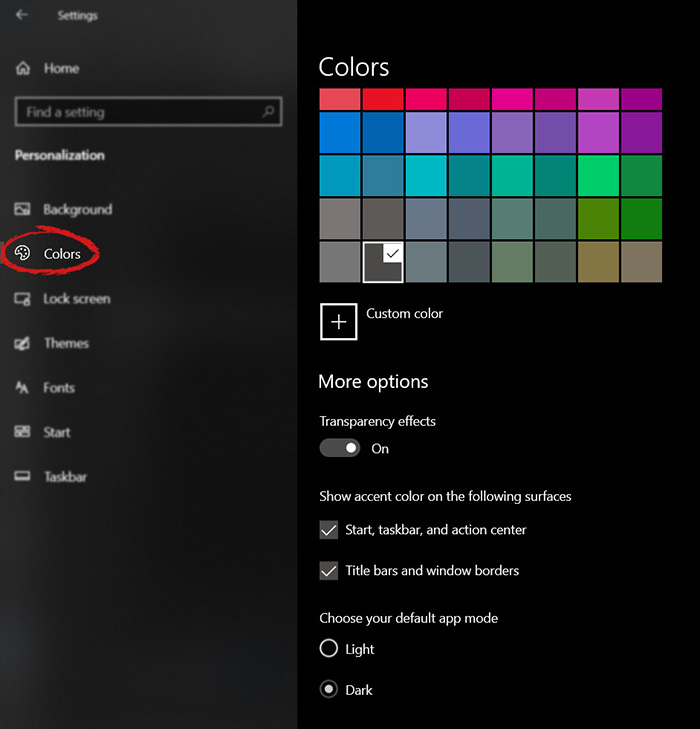
The new Windows 10 update has brought some fixes, improvements, and little things to personalize our computer more. One of these personalization updates we have received is that we can now finally change the color of our START menu and taskbar and it is easy as 1,2,3. In order to change and personalize your START menu and/or title bars all you have to do is click on your windows icon to bring the start menu up and then click on settings. Windows 10 Start menu with marked settings iconOnce you are in setting windows go to personalization settings. Windows 10 settings menu with marked Personalization groupWhen the personalization setting opens go-to color tab on left and scroll down until you find 2 checkboxes under "show accent color on the following surfaces:" Windows 10 Color settings marked with optionscheck ones you wish to apply the effect to and you are done. Now your START menu and/or title bars are using the color scheme of your choice.


Read More
A required device isn’t connected
If you are currently facing the “A required device isn’t connected or cannot be accessed” error with codes 0xc0000185, 0xc0000225, 0xc0000001, 0xc00000f, and 0xc000000e on your Windows 10 computer, worry not for this post will help you resolve this problem. All these error codes point out the same thing – your computer needs to be repaired. Some of these error codes are related to the “winload.efi” file which means that you are using the UEFI system. This file also loads up important drivers in order to start the Windows Kernel. And if you got a remark from any of these error codes indicating that there is a hardware failure or that the driver configuration is incorrect, then you must physically check if the wires are connected properly. This kind of error occurs mostly when your computer wasn’t able to locate the system files that are needed to boot up your computer. Thus, the only way to fix this problem is to correct the boot record. It is recommended that you utilize the “/RebuildBCD” option in order to rebuild the BCD files. To do so, follow these steps:
  • You can start by booting into the installation environment for Windows 10 from an installation media.
  • After that, click on Repair your computer and on the blue screen, select Troubleshoot and then select the Advanced options menu.
  • From there, select Command Prompt and once you open it, enter each one of the commands given below by sequence.
    • bootrec /FixMbr
    • bootrec /FixBoot
    • bootrec /ScanOS
    • bootrec /RebuildBcd
  • Once you’re done executing the commands given above, type “exit” to close the Command Prompt window and then restart your computer and see if it fixed error code 0xc000014c.
On the other hand, if rebuilding the BCD using the /RebuildBCD option didn’t help, you can try a crude way to rebuild the boot record from scratch. You can do that by following the given steps below which will export and delete/backup the BCD available in the system.
  • Go to the Advanced Recovery Mode.
  • From there, go to Command Prompt and execute the commands given below and make sure to enter them one after the other.
    • bcdedit /export C:BCD_Backup
    • c:
    • cd boot
    • attrib bcd -s -h –r
    • ren c:bootbcd bcd.old
    • bootrec /RebuildBcd
If it still didn’t help, then troubleshoot the problem further with the help of the following instructions.

Option 1 – Disable the Secure Boot in the BIOS

Disabling the Secure Boot in the BIOS settings is definitely recommended to resolve the error. To disable Secure Boot, here’s what you have to do:
  • First, boot your computer into Windows 10.
  • Next, go to Settings > Windows Update. From there, check if there is anything that you have to download and install if you see any available updates. Usually, OEMs send and update the list of trusted hardware, drivers, and operating systems for your computer.
  • After that, go to the BIOS of your computer.
  • Then go to Settings > Update & Security > Advanced Startup options. If you click on Restart Now, it will restart your computer and give you all the advanced options.
  • Next, select Troubleshoot > Advanced Options. As you can see, this screen offers you further options including System restore, Startup repair, Go back to the previous version, Command Prompt, System Image Recovery, and UEFI Firmware Settings.
  • Select the UEFI Firmware Settings which will take you to the BIOS.
  • From there, go to the Security > Boot > Authentication tab where you should see Secure Boot. Note that every OEM has its own way of implementing the options so it varies.
  • Next, set Secure Boot to Disabled and set Legacy Support to On or Enabled.
  • Save the changes made and exit. Afterward, your computer will reboot.

Option 2 – Run System File Checker

You could also run a System File Checker or SFC scan. All you have to do is select Command Prompt from the Advanced Options. Once you’ve opened Command Prompt, type the “sfc /scannow” command and tap Enter to execute it.

Option 3 – Disable the Early Launch Anti-Malware Protection

  • You need to restart your computer in the Start Menu first while holding down the Shift key on your keyboard.
  • After that, it will restart your computer to Startup Settings.
  • Now ensure that the 8th option is labeled as “Disable early launch anti-malware protection.
  • Then tap the F8 key since the aforementioned option above is listed at number 8. This should launch and load Windows on your PC with the Early Anti-malware protection disabled for that session only when you try to carry out the same task and then check if the error related to the Winload.efi file is now fixed.

Option 4 – Try to run Automatic Startup Repair

In this option, you need to boot your computer into the Advanced Startup Options and from there, run the Automatic Startup Repair and then wait until the process is completed.

Option 5 – Try to reset the BIOS or the UEFI Settings

If updating the BIOS didn’t help in fixing the error, you can try to reset the BIOS instead.
  • Start your computer and tap the F10 key during the booting process to enter the BIOS. If it does not work, you can try tapping the F1 or F2 key as well as the Del key.
  • Once you’re already in the BIOS, tap the F9 key to get the prompt to RestoreLoad default configuration now for the BIOS.
  • Next, click on Yes and then follow the next on-screen instructions that appear to set the BIOS back to its default settings.
  • Once you’re done restoring the default settings of the BIOS, restart your computer and then check if it now boots properly.

Option 6 – Try to physically check the hardware

You should also check the physical status of the hardware in your computer. You can clean the dust off the hardware components like the Network Card of the computer. You might want to use a small blower or you could also use a soft cloth and run the components gently. Make sure that you don’t damage any parts with moisture or cause harm to any circuits while you carry out this task.
Read More
How to Fix Windows 10 Error 8024402C

Error Code 8024402C – What is it?

When upgrading to Microsoft Windows 10, some users may encounter Error Code 8024402C. This error, while attempting to update, is a result of five possible issues. The error code itself is not a critical concern, yet while the error is occurring, users will not be able to upgrade their Windows software. As with any Microsoft error code, even if it is not critical, it is recommended that the error be addressed sooner rather than later. An insignificant error now could lead to a larger, more catastrophic error later on. Common symptoms include:
  • A dialog box appears with the Error Code 8024402C when attempting to upgrade to Microsoft Windows 10.
  • Your current version of Windows is unable to recognize the need for an update to Microsoft Windows 10.

Solution

Restoro box imageError Causes

As previously stated, there are five major reasons why error code 8024402C occurs.
  • An erroneous character in the proxy override settings
  • A wrongly configured firewall is preventing the update from taking place.
  • Attempting to access the Windows 10 update through a VPN (Virtual Private Network) connection.
  • Workstations that operate behind a corporate ISA server.
  • A corporate network system that does not have auto proxy enabled.
The sooner these known causes are addressed, the sooner you will be able to successfully upgrade to Microsoft Windows 10.

Further Information and Manual Repair

Microsoft Support posits four different resolutions to these known error code 8024402C issues. Some of these methods will be more comfortable for at-home users than others. If you are experiencing this issue in a corporate or business setting, it may be better to have your IT tech or department attempt the methods.

Method 1:  When your firewall is causing the issue.

  1. Access your firewall software.
  2. Specifically, look into the settings associated with your firewall.
  3. Make sure that the following three websites are listed as exceptions to your firewall or proxy.
  • https://*.windowsupdate.microsoft.com
  • http://download.windowsupdate.com
  • http://*.windowsupdate.microsoft.com
  1. If any of these websites are missing from your firewall list, add them to the list.
  2. Restart your Microsoft Windows 10 update.

Method 2: For an erroneous character in the proxy override settings.

  1. Open internet explorer, if you use another program to access the internet, you will still need to use internet explorer for this solution.
  2. Open your internet explorer tools window.
  3. Click on internet options.
  4. Choose the connections tab.
  5. Select LAN settings.
  6. Choose the Advanced option.
  7. Delete anything that appears in the exceptions section.
  8. Closeout of internet explorer.
  9. Click on your start button.
  10. Select RUN and type CMD into the field, press ENTER.
  11. This will access the command prompt screen. Type “proxycfg -d” and press ENTER.
  12. Type the command “net stop wuauserv” and press ENTER.
  13. Finally, type “net start wuauserv” and press ENTER.
  14. Now you have cleared your proxy cache. Access the Microsoft Windows 10 update again to download.

Method 3: If a VPN connection is causing error code 8024402C.

  1. Disconnect from your VPN connection, thus connecting directly to the internet without a proxy or network.
  2. Retry the Microsoft Windows 10 update.
  3. After the update is successful, reconnect to the VPN network.

Method 4: Use this is an ISA server is in place at your networked business site.

  1. Access the ISA firewall client option. From here your goal is to initiate the ISA server automatic detection feature.
  2. From the control panel, select the firewall client option.
  3. Choose the configure option.
  4. Check the box next to “automatically detect firewall server”.
  5. Select the “update now” button.
  6. Click the OK button.
  7. Restart your Microsoft Windows 10 update.
Again, not all of these methods are meant for computer users who do not usually explore and change software settings of this nature. If you do not feel comfortable with any of these methods, you can opt to download and install a powerful automated tool to repair Windows error code 8024402C.
Read More
RealOnlineRadio removal Guide

RealOnlineRadio is a Browser Extension for Google Chrome. This extension offers users the ability to listen to radio stations across the web. From the Author: Real Online Radio is different, as it is a simple radio aggregator. This means Real Online Radio puts together thousands of independent radio stations from all parts of the world in a browser extension that is free and easy to use. It is made for people, who want to have control over their radio streaming. With our simple radio widget, you can get an overview of thousands of radio stations both from your hometown and from the rest of the world. With Real Online Radio, you can listen to your favorite radio station or get an impression of all styles and sorts of music – without being guided in a specific direction by anybody – or anything (such as those radio bots). Real Online Radio returns the control to you, to discover exactly the kind of music that you love.

While this may look useful, this extension changed your default search engine and hijacks your home page. While this extension is active, all your searches are redirected through fileupsticks.com, where a database of your search queries is kept to better server ads that are later delivered through the Yahoo search engine.

About Browser Hijackers

Browser hijackers (also known as hijackware) are a type of malware that changes internet browser configurations without the user’s knowledge or approval. These kinds of hijacks happen to be rising at an astonishing rate across the world, and they can be truly nefarious and sometimes harmful too. Nearly all browser hijackers are created for marketing or advertising purposes. These are generally used to force visitors to a specific website, manipulating web traffic to generate ad revenue. Even though it might appear naive, these tools are designed by vicious individuals who always attempt to take full advantage of you, so that they could make money from your naive and distraction. Browser hijackers can also allow other vicious programs without your knowledge to further damage your PC.

Signs of browser hijacker malware

Below are some signs and symptoms that indicate your internet browser has been hijacked: your browser’s home page has been reset to some mysterious site; you find redirected to websites you never intended to visit; the default web browser settings are changed and/or your default search engine is altered; you find multiple toolbars on the browser; you’ll find random pop-ups start showing regularly; your internet browser starts running sluggishly or displays frequent glitches; you can’t visit certain sites such as homepages of antivirus software.

How it infects the computer

Browser hijackers can get into a computer by some means or other, including via file sharing, downloads, and e-mail as well. They may also be deployed via the installation of an internet browser toolbar, add-on, or extension. A browser hijacker could also be installed as a part of freeware, shareware, demoware, and fake programs. An example of some infamous browser hijackers includes Babylon, Anyprotect, Conduit, SweetPage, DefaultTab, Delta Search, and RocketTab, however, the names are continually changing. The presence of any browser hijacker malware on your system can substantially diminish the web browsing experience, record your online activities that lead to serious privacy concerns, develop system stability issues and finally cause your PC to slow down or to a nearly unusable condition.

Browser Hijacker Malware – Removal

The one thing you could try to eliminate a browser hijacker is to locate the malicious software in the “Add or Remove Programs” list in the Microsoft Windows Control Panel. It might or might not be there. If it is, try and uninstall it. However, the majority of hijacking codes are certainly not very easy to get rid of manually, as they go deeper into the operating system. Also, browser hijackers can modify the Computer registry so it could be very tough to restore all the values manually, particularly if you are not a tech-savvy person. You can go for automatic browser hijacker removal by just installing and running a reliable anti-malware application. SafeBytes Anti-Malware will counter persistent browser hijackers and provide you real-time PC protection against all types of malware.

Can't Install Safebytes Anti-malware due to the presence of Malware? Try This!

Practically all malware is detrimental and the level of the damage will differ greatly in accordance with the type of infection. Certain malware goes to great lengths to stop you from installing anything on your computer, especially anti-virus software programs. If you’re reading this, odds are you’re stuck with a malware infection that is preventing you to download and/or install the Safebytes Anti-Malware program on your computer system. There are some actions you can take to get around this problem.

Install anti-malware in Safe Mode with Networking

If the virus is set to load automatically when Microsoft Windows starts, stepping into safe mode could very well block the attempt. Only the bare minimum required applications and services are loaded when you start your personal computer into Safe Mode. You need to do the following to get rid of malware in Safe mode. 1) After switching on the computer, hit the F8 key before the Windows splash screen begins to load. This will conjure up the “Advanced Boot Options” menu. 2) Choose Safe Mode with Networking with arrow keys and press Enter. 3) As soon as this mode loads, you will have the internet. Now, obtain the malware removal software you need by utilizing the web browser. To install the application, follow the directions in the installation wizard. 4) Immediately after installation, run a complete scan and allow the software to delete the threats it detects.

Download the security program using an alternate web browser

Certain viruses may target vulnerabilities of a specific browser that block the downloading process. If you’re not able to download the security application using Internet Explorer, this means the virus is targeting IE’s vulnerabilities. Here, you should switch to an alternate web browser like Chrome or Firefox to download Safebytes Anti-malware software.

Install and run anti-malware from the Thumb drive

To successfully get rid of the malware, you have to approach the issue of installing an anti-virus software program on the infected computer system from a different perspective. Adopt these measures to run the antivirus on the affected computer system. 1) Download the anti-malware software on a virus-free computer. 2) Put the USB drive into the clean computer. 3) Double-click the executable file to open the installation wizard. 4) When asked, select the location of the USB drive as the place where you would like to put the software files. Follow the on-screen instructions to complete the installation. 5) Transfer the flash drive from the clean PC to the infected computer. 6) Double click the Safebytes Anti-malware icon on the USB drive to run the software. 7) Hit the “Scan Now” button to start the virus scan.

Overview of SafeBytes Anti-Malware

These days, anti-malware software can protect your laptop or computer from various kinds of internet threats. But exactly how to choose the right one amongst countless malware protection application that’s available out there? As you may be aware, there are several anti-malware companies and products for you to consider. Some are really worth your money, but most aren’t. When searching for an anti-malware program, choose one that gives dependable, efficient, and total protection against all known computer viruses and malware. One of the recommended software programs is SafeBytes AntiMalware. SafeBytes carries a good track record of excellent service, and customers seem to be happy with it. SafeBytes anti-malware is a trustworthy tool that not only protects your computer completely but is also extremely user-friendly for people of all ability levels. With its outstanding protection system, this tool will instantly detect and remove the majority of the security threats, which include browser hijackers, viruses, adware, PUPs, trojans, worms, and ransomware. There are many great features you’ll get with this security product. Listed here are some of the great ones: Real-time Active Protection: Malware programs trying to enter the system are discovered and stopped as and when detected by the SafeBytes real-time protection shields. This tool will always keep track of your computer for any suspicious activity and updates itself regularly to keep abreast of the constantly changing threat situation. Best AntiMalware Protection: Using a critically acclaimed malware engine, SafeBytes offers multilayered protection that is made to find and remove threats that are concealed deep in your computer’s operating system. Safe Web Browsing: Safebytes assigns all websites a unique safety rating that helps you to have an idea of whether the webpage you are about to visit is safe to view or known to be a phishing site. Low CPU/Memory Usage: This software is lightweight and will work quietly in the background, and will not have an effect on your computer efficiency. Fantastic Tech Support: You will get 24/7 technical assistance to quickly resolve any concern with your security application. SafeBytes has put together a wonderful anti-malware solution that can help you conquer the latest malware threats and virus attacks. Malware issues will become a thing of the past when you put this tool to use. If you want sophisticated forms of protection features and threat detections, purchasing SafeBytes Anti-Malware could be worth the dollars!

Technical Details and Manual Removal (Advanced Users)

If you would like to carry out the removal of RealOnlineRadio manually instead of utilizing an automated software tool, you may follow these steps: Navigate to the Windows Control Panel, click the “Add or Remove Programs” and there, select the offending program to remove. In cases of suspicious versions of browser plugins, you can actually get rid of it via your browser’s extension manager. You will probably also want to reset your internet browser. Finally, check your hard drive for all of the following and clean your registry manually to remove leftover application entries following uninstalls. However, this is often a tricky task and only computer professionals could perform it safely. In addition, some malicious programs have the capability to defend against its removal. Doing this in Safe Mode is recommended.
Read More
User account control notifications in Windows
Hello and welcome to our user account notifications in Windows 10 tutorial where we will dive a little more into how you can control notification and behavior settings for your or someone else's user account in your Windows 10. If you are annoyed with confirmation windows each time you start a new application or install one please keep reading and I am sure you will find just the right setting for you. User account options are a little hidden and not so obvious, well at least not in Windows 10 compared to previous Windows versions. Since we will not be able to find them under typical and standard settings we will need to do few tricks in order to get to them.

Opening control panel

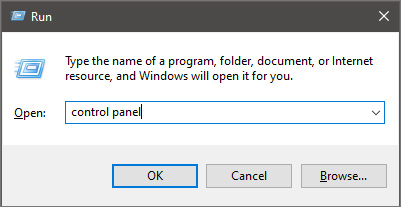
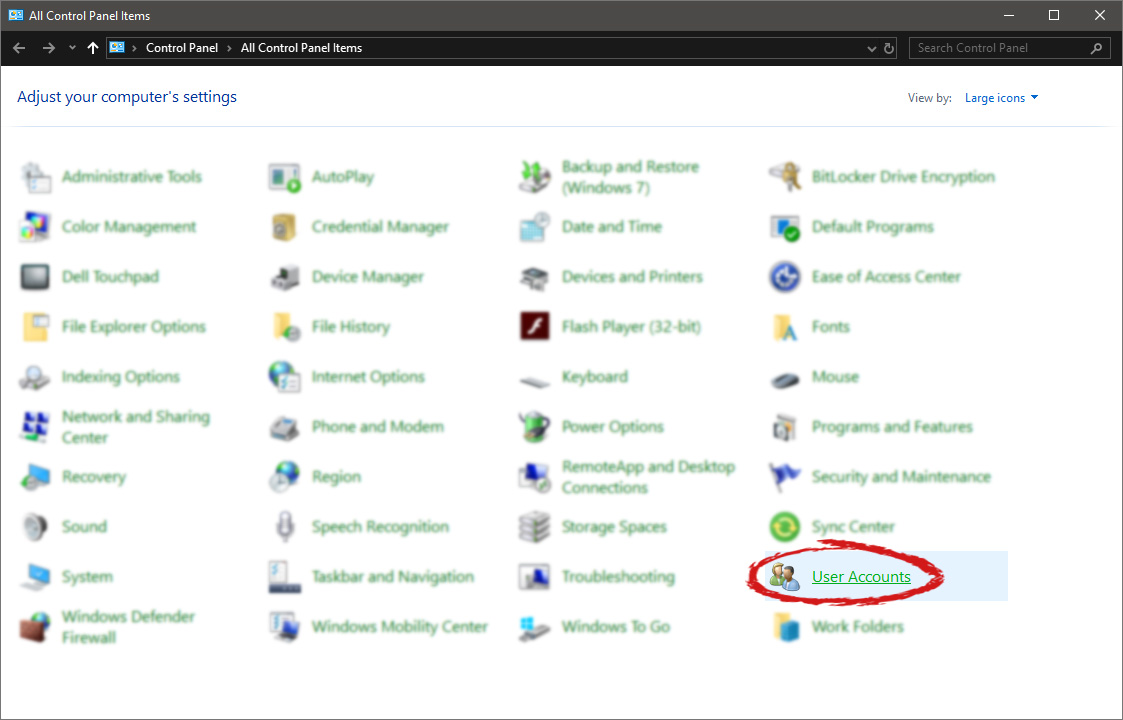
First thing is to press ⊞ WINDOWS + R on your keyboard so the run dialog window pops up on your desktop. keyboard with windows and r markedOnce run dialog is shown type in it control panel as shown in the picture and press OK run dialog with control panel typed inIf you have followed the steps precisely, you should be now in the control panel of Windows 10. Click on the top-right view and choose large icons. The Control panel will switch to a grid-like view, in the current view go to the far-right and almost bottom icon where it says User Accounts and click on it.
control panel with user account selectedUser account settings

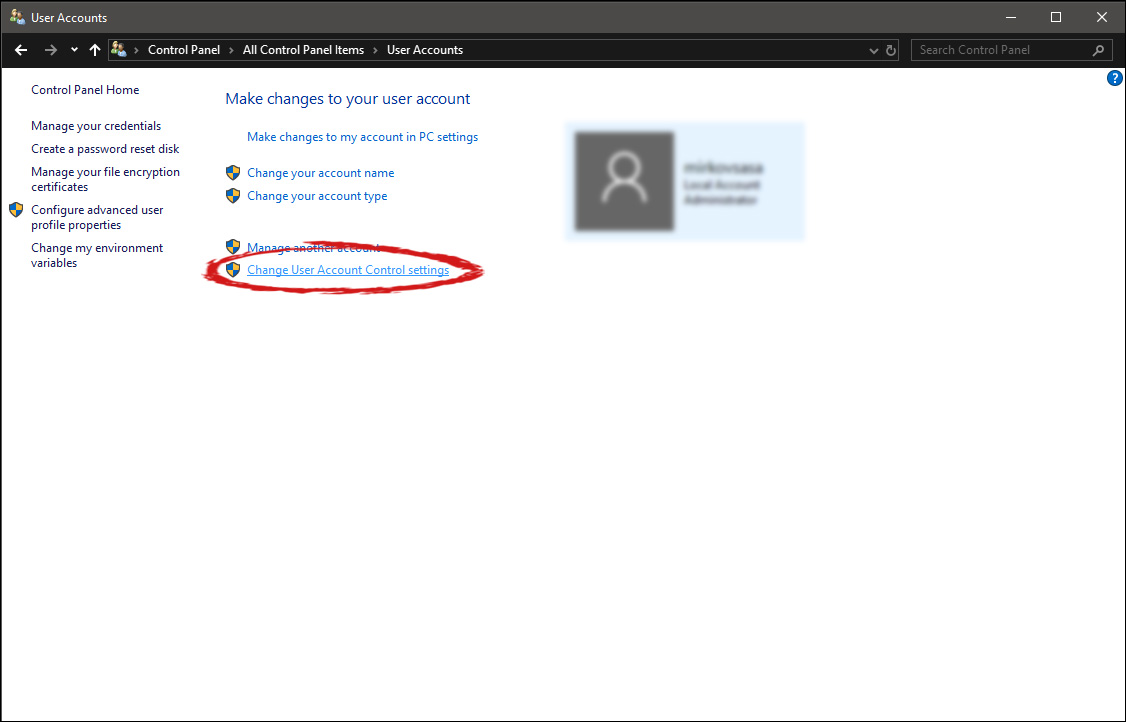
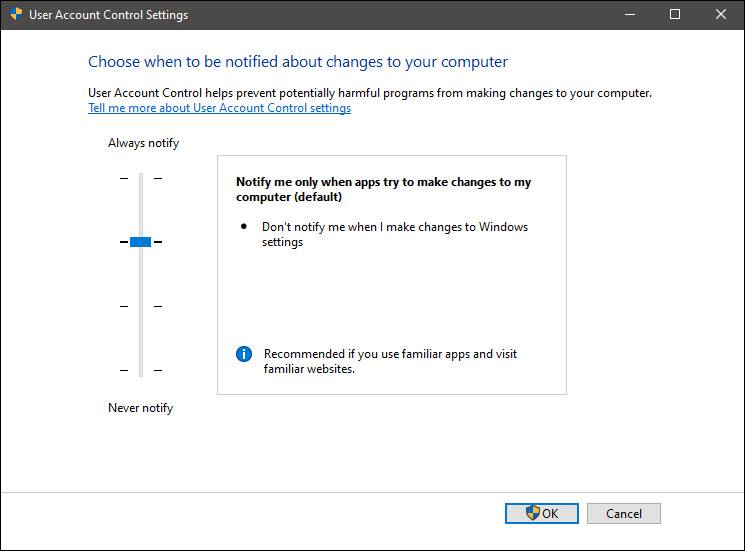
Once the user account opens click on the bottom link which says Change User Account Control settings. Please note that you will need to be logged in as an administrator or have administrator privileges in order to change this setting. user account change user accountOnce you click on the link you will be presented with a User account control slider on the left and a brief explanation on the right user account settingsHere in the picture, we see Windows default setting and an explanation of when and how he will notify you. If you wish to turn all notifications linked to programs changing computer or you making windows changes, click on the left slider and bring it all the way to the bottom where it says never notify me. If you prefer some notifications try to find which of the remaining 3 settings best suit your needs. Once you are done and satisfied with your choice click on OK.

Read More
Fix ATTEMPTED_WRITE_TO_READONLY_MEMORY
This post will help you fix the ATTEMPTED_WRITE_TO_READONLY_MEMORY Blue Screen issue with an error code 0x000000BE. If you encounter this kind of BSOD error when you try to boot into your Windows 10 computer, note that there are various possible causes for this error. It could be caused by an error with a device driver, hardware issues, or some error in the BIOS of your computer. The ATTEMPTED_WRITE_TO_READONLY_MEMORY Blue Screen error with a bug check of 0x000000BE appears when a driver tries to write a read-only memory segment. You’ll be able to see the name of the driver in the Blue Screen error if the driver that’s causing the error can be identified. You can also see it in memory at the location (PUNICODE_STRING) KiBugCheckDriver. In most cases, this kind of error is usually caused by various files such as iusb3hub.sys, ntkrnlpa exe or vhdmp.sys, ntoskrnl.exe, ntfs.sys, dxgkrnl.sys, tcpip.sys, atikmdag.sys, and win32k.sys. There are several possible fixes you can try to fix this issue but the main issue lies within booting into Windows since the error occurs as soon as you boot into your Windows 10 computer. Refer to each one of the options provided below to resolve the ATTEMPTED_WRITE_TO_READONLY_MEMORY Blue Screen error.

Option 1 – Try to rollback, update or disable drivers

The first thing you can do to fix the ATTEMPTED_WRITE_TO_READONLY_MEMORY Stop error is to roll back, or update, or disable device drivers. It is most likely that after you updated your Windows computer that your driver also needs a refresh. On the other hand, if you have just updated your device drivers then you need to roll back the drivers to their previous versions. Whichever applies to you, refer to the steps below.
  • Open the Devices Manager from the Win X Menu.
  • Then locate the device drivers and right-click on them to open the Properties.
  • After that, switch to the Driver tab and click on the Uninstall Device button.
  • Follow the screen option to completely uninstall it.
  • Finally, restart your computer. It will just reinstall the device drivers automatically.
Note: You can install a dedicated driver on your computer in case you have it or you could also look for it directly from the website of the manufacturer.

Option 2 – Try running the Memory Diagnostic Tool

The Memory Diagnostic tool in windows can help resolve the ATTEMPTED_WRITE_TO_READONLY_MEMORY Blue Screen error by checking and automatically fixing any memory-based issues. To run it, refer to these steps:
  • Tap the Win + R keys to open Run and type exe and hit Enter to open the Windows Memory Diagnostic Tool.
  • After that, it will give two options such as:
    • Restart now and check for problems (Recommended)
    • Check for problems the next time I start my computer
  • Once your computer has restarted, perform a basic scan or you could also go for the “Advanced” options such as “Test mix” or “Pass count”. Simply tap the F10 key to start the test.
Note: After you select your preferred option, your computer will restart and check for memory-based issues. If it finds any issues, it will automatically fix them and if there’s no issue found, then it’s most likely not a memory-based issue so you should try the other options given below.

Option 3 – Try to update the BIOS

Updating the BIOS can help you fix the ATTEMPTED_WRITE_TO_READONLY_MEMORY BSOD error but as you know, BIOS is a sensitive part of a computer. Even though it is a software component, the functioning of the hardware depends on it largely. Thus, you must be careful when modifying something in the BIOS. So if you don’t know much about it, it’s best if you skip on this option and try the other ones instead. However, if you are well-versed in navigating the BIOS, then follow the steps below.
  • Tap the Win + R keys to open the Run dialog box.
  • Next, type “msinfo32” in the field and press Enter to open System Information.
  • From there, you should find a search field on the bottom where you have to search for the BIOS version and then press Enter.
  • After that, you should see the developer and version of the BIOS installed on your PC.
  • Go to your manufacturer’s website and then download the latest version of BIOS on your computer.
  • If you are using a laptop, make sure that you keep it plugged in until you have updated the BIOS.
  • Now double click on the downloaded file and install the new BIOS version on your computer.
  • Now restart your computer to apply the changes made.

Option 4 – Try disabling BIOS Memory Options

Disabling the BIOS Memory options such as Caching and Shadowing can help you in fixing the ATTEMPTED_WRITE_TO_READONLY_MEMORY Stop error. All you have to do is enter the BIOS first and then use the Arrow and Enter keys to select your choices. And if you can’t seem to find it, look for specific instructions from your OEM or you could also look out for instructions from the manufacturer of your motherboard.

Option 5 – Try running the Blue Screen Troubleshooter

The Blue Screen troubleshooter is a built-in tool in Windows 10 that helps users in fixing BSOD errors like ATTEMPTED_WRITE_TO_READONLY_MEMORY. It can be found on the Settings Troubleshooters page. To use it, refer to these steps:
  • Tap the Win + I keys to open the Settings panel.
  • Then go to Update & Security > Troubleshoot.
  • From there, look for the option called “Blue Screen” on your right-hand side and then click the “Run the troubleshooter” button to run the Blue Screen Troubleshooter and then follow the next on-screen options. Note that you might have to boot your PC into Safe Mode.
Read More
A Guide to Fixing Error 101

Error 101 - What is it?

Error 101 is a Google Chrome error. You may experience this error if you browse the internet using Google Chrome. This error results when the existing HTTP connection between Chrome and the website is broken. The error is displayed in the following format: “Error 101 (net::ERR_CONNECTION_RESET): The connection was reset.”

Solution

Restoro box imageError Causes

The cause of Google Chrome error 101 cannot be narrowed down. This error can be triggered on your PC due to multiple reasons. These include:
  • The inability of the Google Chrome installer to create a temporary directory on your PC during the installation process
  • Enabled DNS Prefetching
  • Firewall
  • Viral Infection
  • Bad Registry Entries
  • Poor Internet Connection
Though this error code is not fatal, nonetheless it is advisable to fix it to ensure you are able to browse the internet using Google Chrome.

Further Information and Manual Repair

The good news is that this error is quite easy to resolve. Even if you are not a technical whiz you can still manage to fix it by trying these easy and effective DIY methods we have listed below:

Method 1: Reload the Website link on Chrome or Check Your Internet Connection

Sometimes refreshing the webpage can resolve the issue easily. Try doing it. Reload the link by pressing Ctrl +R. This will refresh the webpage. If it starts working then that’s great but if it doesn’t then it is advisable to check your internet connection. Disable and Enable the connection and then try browsing on Chrome again. If websites are accessible then the problem is resolved. If the error persists then try other methods.

Method 2: Disable DNS Pre-fetching

Sometimes this error may occur due to enabled DNS pre-fetching. To resolve the issue, open Chrome, then click on the wrench key. Go to setting and under the bonnet and Privacy section, look for the DNS perfecting option. If it is enabled, then uncheck it to disable DNS Pre-fetching. Save the changes and then close the browser. Now open it again and try browsing on Chrome. If error 101 does not appear and you are able to access websites then the issue is fixed.

Method 3: Scan for Viruses

Another way to fix this is to download and run a powerful antivirus. Scan and remove viruses to fix the problem.

Method 4: Check the permission for your temporary folder

As mentioned above, another underlying reason for error 101 can be Google Chrome installer was unable to create a temporary directory on your system during the installation process. To resolve it, check the permission for your temporary folder. Here’s how to do it: First go to the start menu and type Run. Now enter one of the following directories in the text fields 1. Windows XP: %USERPROFILE%Local Settings 2. Windows Vista: %USERPROFILE%AppDataLocal After that press OK. This will open a new window. In the Window that opens, right-click the temp folder. Now select properties and press the security tab to continue. In the group and user names section, select your user profile name. In the permissions, section verify that the checkboxes for READ, WRITE, and READ  & EXECUTE permissions in the DENY column are not selected. After you have verified, click apply and then ok. Now try reinstalling the Google Chrome browser again on your system.

Method 5: Remove Bad Entries by Cleaning the Registry

Bad entries and cookies saved in the registry can also lead to error 101. You can remove them manually but that will take a great deal of time and can be slightly difficult if you are not technically sound. Therefore, it is advisable to download Restoro. This is a user-friendly PC Fixer integrated with a registry cleaner that scans and removes all registry issues in a few clicks. It removes all the bad entries and junk files cluttering the registry and repairs it instantly. Click here to download Restoro.
Read More
Disabling Auto Update in Chrome & Firefox
As you know, all the web browsers come with the support of auto-updates which include both Google Chrome and Mozilla Firefox. However, with these updates, the browser comes with the support of a new web APIs and better rendering. Although there could be a lot of problems that may arise due to these updates. These problems consist of depreciation of features, incompatibility with some websites, to name a few. It includes incompatibility with some websites, depreciation of features, and more. This might push someone to stop the auto-updates of these web browsers. So, in this guide, we will be checking out how to stop auto-update in Google Chrome and Mozilla Firefox on Windows 10. Thus, if you want to be rid of these issues, then you can disable the Chrome & Firefox auto-update and you can do that by either using the Windows Services Manager and the System Configuration utility.

Option 1 – Disable Chrome & Firefox auto-update via Windows Services Manager

The first thing you can do to disable the Chrome auto-update is through the Windows Services Manager. To do so, follow these steps:
  • First, tap the Win + R keys to open the Run dialog box.
  • Next, type “services.msc” in the field and hit Enter to open the Windows Services Manager.
  • After that, you will see a list of services and from there, look for the Google Update Services (gupdate) and Google Update Service (gupdatem).
  • Once you find these services, right-click on each one of them and select Properties and then make sure that the Service Status is set to be Stopped.
  • You should also select the Startup Type to Disabled and click on the Apply and OK buttons.
  • Now restart your computer. This should stop the automatic update of the Chrome browser.

Option 2 – Disable Chrome & Firefox auto-update via System Configuration utility or MSConfig

  • Tap the Win + R keys to open the Run utility and type “msconfig” in the field and tap Enter to open the System Configuration.
  • After that, go to the Services tab and uncheck the two entries, namely Google Update Service (gupdate) and Google Update Service (gupdatem).
  • Next, click on the Apply and OK buttons to save the changes made.
  • Restart your computer.
Note: Now that you’ve stopped the auto-update in Firefox, it’s time for you to stop the auto-update in Mozilla Firefox. To get started, follow the steps below.
  • Open the Mozilla Firefox browser and click on the hamburger menu located on the top-right portion of the screen.
  • After that, select Options and under the General panel and then go to the Firefox Updates section.
  • Next, click on the radio button for updates but select the option to let you install them.
  • You also have to uncheck the options named “Use a background service to install updates” and “Automatically update search engines”.
  • Once done, restart the Firefox browser. This should stop the automatic update.
Read More
Activision Blizzard Sued by California
blizzard hqFollowing a two-year investigation by the California Department of Fair Employment and Housing, the state has filed a lawsuit against Activision Blizzard for fostering a "frat boy" culture in which female employees are allegedly subjected to unequal pay and sexual harassment. As reported by Bloomberg, Activision Blizzard is being accused by the state of California of discriminating against female employees at nearly all levels of employment, including in regards to compensation, promotion, assignments, and termination. The state alleges Activision Blizzard’s leadership has failed to address any of these outstanding issues or prevent them from occurring within the workplace. You can read the full details of the lawsuit here. The suit, filed Tuesday in the Los Angeles Superior Court, says Activision Blizzard, which is made up of about 20 percent women, assigns women, and women of color, to "lower paid and lower opportunity levels" with lower starting pay for similar work as their male counterparts. The documents also accuse Activision Blizzard of fostering a "pervasive 'frat boy' workplace culture in the office. Male employees are said to drink "copious amounts of alcohol" as they make their way through cubicles and "often engage in inappropriate behavior toward female employees." Male employees are said to come to work hungover, play video games during work "while delegating their responsibilities to female employees, engage in banter about their sexual encounters, talk openly about female bodies, and joke about rape." The lawsuit also cites one particular incident where a female employee, who was already subjected to intense sexual harassment at the company, committed suicide during a work trip with a male supervisor who allegedly brought inappropriate, sexual items with him on the trip. The lawsuit is asking for an injunction that will force Activision Blizzard to comply with workplace protections, as well as deliver unpaid wages, pay adjustments, back pay, and lost wages and benefits for female employees.

An Activision Blizzard spokesperson sent the following statement in response to the allegations:

We value diversity and strive to foster a workplace that offers inclusivity for everyone. There is no place in our company or industry, or any industry, for sexual misconduct or harassment of any kind. We take every allegation seriously and investigate all claims. In cases related to misconduct, the action was taken to address the issue. The DFEH includes distorted, and in many cases false, descriptions of Blizzard’s past. We have been extremely cooperative with the DFEH throughout their investigation, including providing them with extensive data and ample documentation, but they refused to inform us what issues they perceived. They were required by law to adequately investigate and to have good faith discussions with us to better understand and to resolve any claims or concerns before going to litigation, but they failed to do so. Instead, they rushed to file an inaccurate complaint, as we will demonstrate in court. We are sickened by the reprehensible conduct of the DFEH to drag into the complaint the tragic suicide of an employee whose passing has no bearing whatsoever on this case and with no regard for her grieving family. While we find this behavior to be disgraceful and unprofessional, it is, unfortunately, an example of how they have conducted themselves throughout the course of their investigation. It is this type of irresponsible behavior from unaccountable State bureaucrats that are driving many of the State’s best businesses out of California. The picture the DFEH paints is not the Blizzard workplace of today. Over the past several years and continuing since the initial investigation started, we’ve made significant changes to address company culture and reflect more diversity within our leadership teams. We’ve updated our Code of Conduct to emphasize a strict non-retaliation focus, amplified internal programs and channels for employees to report violations, including the “ASK List” with a confidential integrity hotline, and introduced an Employee Relations team dedicated to investigating employee concerns. We have strengthened our commitment to diversity, equity, and inclusion and combined our Employee Networks at a global level, to provide additional support. Employees must also undergo regular anti-harassment training and have done so for many years. We put tremendous effort into creating fair and rewarding compensation packages and policies that reflect our culture and business, and we strive to pay all employees fairly for equal or substantially similar work. We take a variety of proactive steps to ensure that pay is driven by non-discriminatory factors. For example, we reward and compensate employees based on their performance, and we conduct extensive anti-discrimination training including for those who are part of the compensation process. We are confident in our ability to demonstrate our practices as an equal opportunity employer that fosters a supportive, diverse, and inclusive workplace for our people, and we are committed to continuing this effort in the years to come. It is a shame that the DFEH did not want to engage with us on what they thought they were seeing in their investigation.

Conclusion

We will see how things work out, but I am not too optimistic for Activision Blizzard, truth to be told these reports are really bringing up some disturbing news on the sunlight. I just hope that all responsible will be brought to justice.
Read More
1 2 3 171
Logo
Copyright © 2023, ErrorTools. All Rights Reserved
Trademark: Microsoft Windows logos are registered trademarks of Microsoft. Disclaimer: ErrorTools.com is not affiliated with Microsoft, nor claims direct affiliation.
The information on this page is provided for information purposes only.
DMCA.com Protection Status