Logo

Bluetooth A2dp Source not working Code 52

A number of users have recently reported that they were going through an issue with their Bluetooth devices on their Windows 10 computers. This issue involves an error saying,

“Windows cannot verify the digital signature for the drivers required for this device. A recent hardware or software change might have installed a file that is signed incorrectly or damaged, or that might be malicious software from an unknown source. (Code 52).”

If you are one of the users who encountered this kind of error on your Windows 10 computer, read on as this post will guide you on how you can fix this Bluetooth error. According to security experts, the key to fixing this error is to sign the Bluetooth A2DP files with the built-in tool, System File Checker. Apart from that, you could also run the Hardware and Devices troubleshooter or perform System Restore, as well as update or reinstall the concerned drivers. For more details, refer to each one of the options provided below.

Option 1 – Try to check Bluetooth-related services

In Services, there is a Bluetooth-related service that helps users use Bluetooth so if that particular service suddenly malfunctions for some reason, you will most likely get the “Windows was unable to connect with your Bluetooth network device” error message. That’s why you need to check Services and to do that, refer to these steps:

  • Tap Win + R keys to open Run prompt and type in “services.msc” then tap Enter to open Services.
  • Next, look for the Bluetooth Support Service and double click on it to open Properties.
  • From there, verify if the Service status is showing “Running” or “Stopped”. If it’s the latter, you have to click the Start button.
  • Lastly, check if the Startup type is set to Manual.

Option 2 – Try running System File Checker or SFC scan

You could also run System File Checker or SFC scan to fix the Bluetooth error. It is a built-in command utility that helps in restoring corrupted files as well as missing files. It replaces bad and corrupted system files with good system files. To run the SFC command, follow the steps given below.

  • Tap Win + R to launch Run.
  • Type in cmd in the field and tap Enter.
  • After opening Command Prompt, type in sfc /scannow

The command will start a system scan which will take a few whiles before it finishes. Once it’s done, you could get the following results:

  1. Windows Resource Protection did not find any integrity violations.
  2. Windows Resource Protection found corrupt files and successfully repaired them.
  3. Windows Resource Protection found corrupt files but was unable to fix some of them.
  • Reboot your PC.

Option 3 – Try to perform System Restore

You might also want to perform System Restore as the error might be caused by system modifications. Thus, to undo them, you can use System Restore. Run it using these steps:

  • First, tap the Win + R keys to open the Run dialog box.
  • After that, type in “sysdm.cpl” in the field and tap Enter.
  • Next, go to the System Protection tab then click the System Restore button. This will open a new window where you have to select your preferred System Restore point.
  • After that, follow the on-screen instructions to finish the process and then restart your computer and check if the problem is fixed or not.

Option 4 – Try running the Hardware and Devices Troubleshooter

The next thing you can do to fix the problem is to run the Hardware and Devices troubleshooter. Although it won’t make much of a difference, there’s still a possibility that it could automatically fix the Bluetooth error. To use it, refer to these steps:

  • The first thing you need to do is click on Start and then on the gear-like icon to pull up the window for Settings.
  • After opening Settings, look for the Update and Security option and select it.
  • From there, go to the Troubleshoot option located on the left-hand side of the list.
  • Next, select Hardware and Devices from the list and open the Troubleshooter and run it. Once it is doing its job, wait for it to complete the process and then restart the system.
  • After the system restarts, check if the problem’s now fixed. If not, refer to the next option given below.

Option 5 – Try to reinstall or update the Bluetooth driver

The issue might have something to do with the Bluetooth drivers. It could be that it is outdated and needs to be updated or that you recently updated it and since then you have trouble removing the Bluetooth devices and so to fix the issue, you can update, roll back or uninstall the Bluetooth drivers. How? Follow the steps below.

  • Tap the Win + X keys to open the Device Manager.
  • Next, look for the Bluetooth device and right-click on it.
  • Select the option “Update driver”.
  • After that, a new popup window will appear. In there, select the option, “Search automatically for updated driver software”.

Note: Checking the update may take a few minutes so you’ll have to wait until it finishes. If it is able to find an update, you must install it. And if you want to reinstall the Bluetooth driver, just select the “Uninstall driver” option and follow the next on-screen instructions that follow.

Do You Need Help with Your Device?

Our Team of Experts May Help
Troubleshoot.Tech Experts are There for You!
Replace damaged files
Restore performance
Free disk space
Remove Malware
Protects WEB browser
Remove Viruses
Stop PC freezing
GET HELP
Troubleshoot.Tech experts work with all versions of Microsoft Windows including Windows 11, with Android, Mac, and more.

Share this article:

You might also like

How to deal with Windows random freezes
Random freezing in a Windows in the middle of work can be a very frustrating experience and can even cost us the loss of work. From time delays to sometimes complete crashes this behavior is something that every PC user wants to avoid or at least have very little of. In this article, we will cover solutions on what to do and how to fix the random freezing of computers.
  1. Run a virus scan on your computer.

    Viruses and other malware can cause freezes and other issues in your computer, run a complete system scan for any kind of viruses and malware and if needed remove them.
  2. Uninstall applications that you are not using

    Besides taking your hard drive space some applications can have and require to have some services always running on your computer which can cause some issues, if an application is not needed and it is not used, removing it might solve freezing issues.
  3. Increase RAM memory

    Sometimes the problem with freezing is not a software issue, having less RAM memory than the application requires can cause the application not to work properly and it can cause freezing of the entire system since precious RAM can not be allocated to the required application.
  4. Run system checker

    Corrupted Windows system files can cause freezing of the entire system, to fix this, start the command prompt in administrator mode and type sfc /scannow
  5. Keep running applications to a minimum

    Having too many applications running in the background can drain system resources and can cause system freezes because of lack of memory. Close applications that are running in the background and keep them minimal.
  6. Delete files and folders which you are not using

    Having many files and/or folders on the hard drive can cause a lot of system resources to be wasted, from indexing size to less free space for caching. If you have files that you no longer need, removing them will free up space and can increase performance and introduce the stability.
  7. Run memory check

    Memory issues could lead to system freezing. When an application needs to write or read to a corrupted memory cluster, freezing will occur since it can not. To check memory bring up run dialog and type in ti mdsched.exe, click on restart now and let the memory test finish.
  8. Update all drivers

    Hardware issues can cause freezing of applications and having the latest drivers can make a world of difference. Make sure that you have all device drivers to the latest versions.
  9. Optimize Disk drives and check for errors

    Windows 10 has built-in tools to check hard drives for errors and to optimize them, use them in order to see if this issue is causing freezes.
  10. Clean your registry

    A Clean registry is a happy registry and Windows is appreciating it. Make sure that you do not have any keys which you do not need in the registry and that long-forgotten application trails are deleted for good.
  11. Upgrade SSD firmware

    Like updating drivers, updating firmware is also important, and having the latest firmware for your SSD can help a lot, newer firmware can eliminate freezing if the issue was in Windows not using SSD properly.
  12. Update BIOS

    Like updating SSD firmware can help so it can update Firmware on your BIOS. Make sure that you have the latest firmware version and freezing can go away if that was the issue.
Read More
Middle mouse button is not working
If you suddenly find the middle mouse button not working as you use it on your Windows 10 computer, then you’ve come to the right place as this post will provide some suggestions that can help you fix the issue. This kind of problem can affect your experience in using your computer as the middle mouse button helps you in scrolling through long web pages and screens with a lot of data. So if that stops, you will end up using your keyboard instead which is kind of a hassle compared to using the middle mouse button. It is possible that this problem could have something to do with either the hardware or software. To isolate the possibility of a hardware failure, you can try to connect the mouse to a different computer and see if it works just fine there or if it still has the same problem. If the mouse works properly on a different computer, then the issue is software-related. It is possible that a software update, especially gaming software, could have been misconfigured in a way that the middle button does not respond like it’s supposed to. To resolve the problem, you might want to try reinstalling or updating the mouse drivers or run the Hardware and Devices troubleshooter. You can also install OEM-specific mouse drivers or modify some entries in the Windows Registry.

Option 1 – Reinstall or update the Mouse driver

The problem may be caused by a corrupted or an outdated mouse driver. To fix it, you have to update or reinstall the mouse driver. How? Follow these steps:
  • Open the Devices Manager from the Win X Menu.
  • Then locate the Mouse and other pointing devices and right-click on the mouse driver to open the Properties.
  • After that, switch to the Driver tab and click on the Uninstall Device button.
  • Follow the screen option to completely uninstall it.
  • Finally, disconnect the mouse and plug it back in to reinstall the mouse driver.
Note: You can install a dedicated driver on your computer in case you have it or you could also look for it directly from the website of the manufacturer.

Option 2 – Try running the Hardware Troubleshooter

The next thing you can do to fix the problem is by running the Hardware Troubleshooter. Although it won’t make much of a difference, there’s still a possibility that it could automatically fix the problem with these function keys. To use it, refer to these steps:
  • The first thing you need to do is click on Start and then on the gear-like icon to pull up the window for Settings.
  • After opening Settings, look for the Update and Security option and select it.
  • From there, go to the Troubleshoot option located on the left-hand side of the list.
  • Next, select Hardware and Devices from the list and open the Troubleshooter and run it. Once it is doing its job, wait for it to complete the process and then restart the system.
  • After the system restarts, check if the problem’s now fixed. If not, refer to the next option given below.

Option 3 – Try to install OEM specific mouse drivers

Aside from updating or reinstalling the mouse drivers, you might also want to try installing OEM-specific mouse drivers. When you install Windows, it will use a generic driver for all its components. The disadvantage of generic drivers for the mouse is that it limits its functionality. In fact, some also configure the middle mouse button to respond to specific action which does not work without the correct drivers. In such cases, you need to visit the website of your computer’s manufacturers to download and install the latest drivers and then open the software and configure it the way it was before. Keep in mind that some OEMs also offer gestures, so you also have to check on that.

Option 4 – Try to modify some entries in the Registry

If a Windows Update is the one that caused the problem, you could correct it by making some modifications in the Registry but before you proceed, make sure that you create a System Restore point first.
  • Tap the Win + R keys to open the Run utility.
  • Then type “Regedit” in the field and hit Enter to open the Registry Editor.
  • Next, navigate to this registry path: HKEY_CURRENT_USERControl PanelDesktop
  • After that, double click on the “WheelScrollLines” entry on the right pane to open its Properties.
  • Now change its value data to “3” and exit the Registry Editor and then see if the issue with the middle mouse button is fixed or not.
Read More
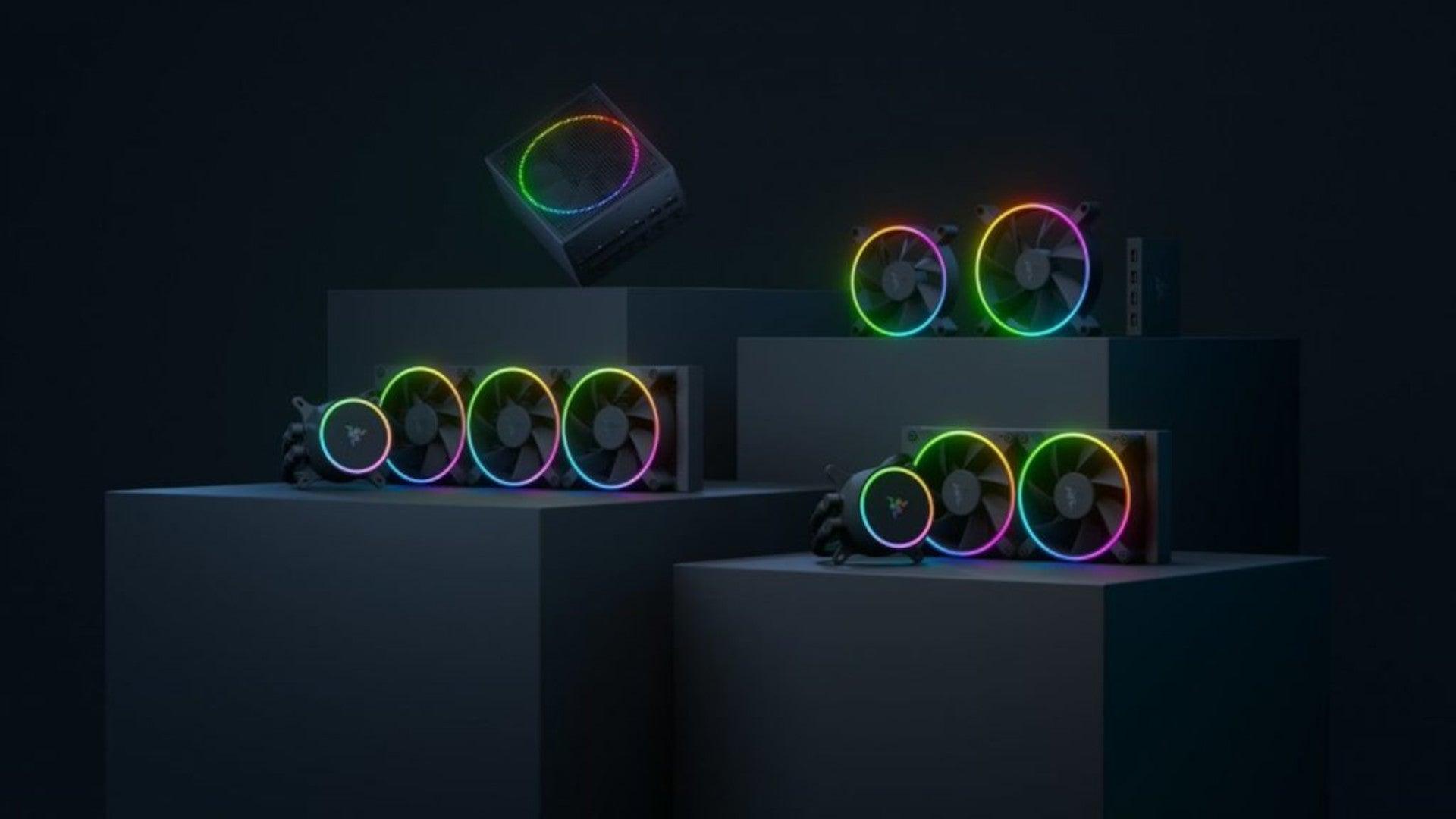
Razer unveils their first internal PC hardware
razer pc hardware componentsRazer is a well-known brand among PC gamers and users, it started as a peripheral manufacturer focused on keyboards and mouse but after years passed Razer expanded its inventory offerings. It soon started offering headphones and lately has branched into wider product lines like gaming chairs and protection masks. It is not a big surprise that Razer is expanding into other branches of the PC industry. This time, however, it has revealed not one but three new hardware for your PC. Case fans, all in one liquid cooler and power supply. There are not many details about the products themselves but one thing is one hundred percent confirmed, they come with Razer Chroma, all of them, even the fans.

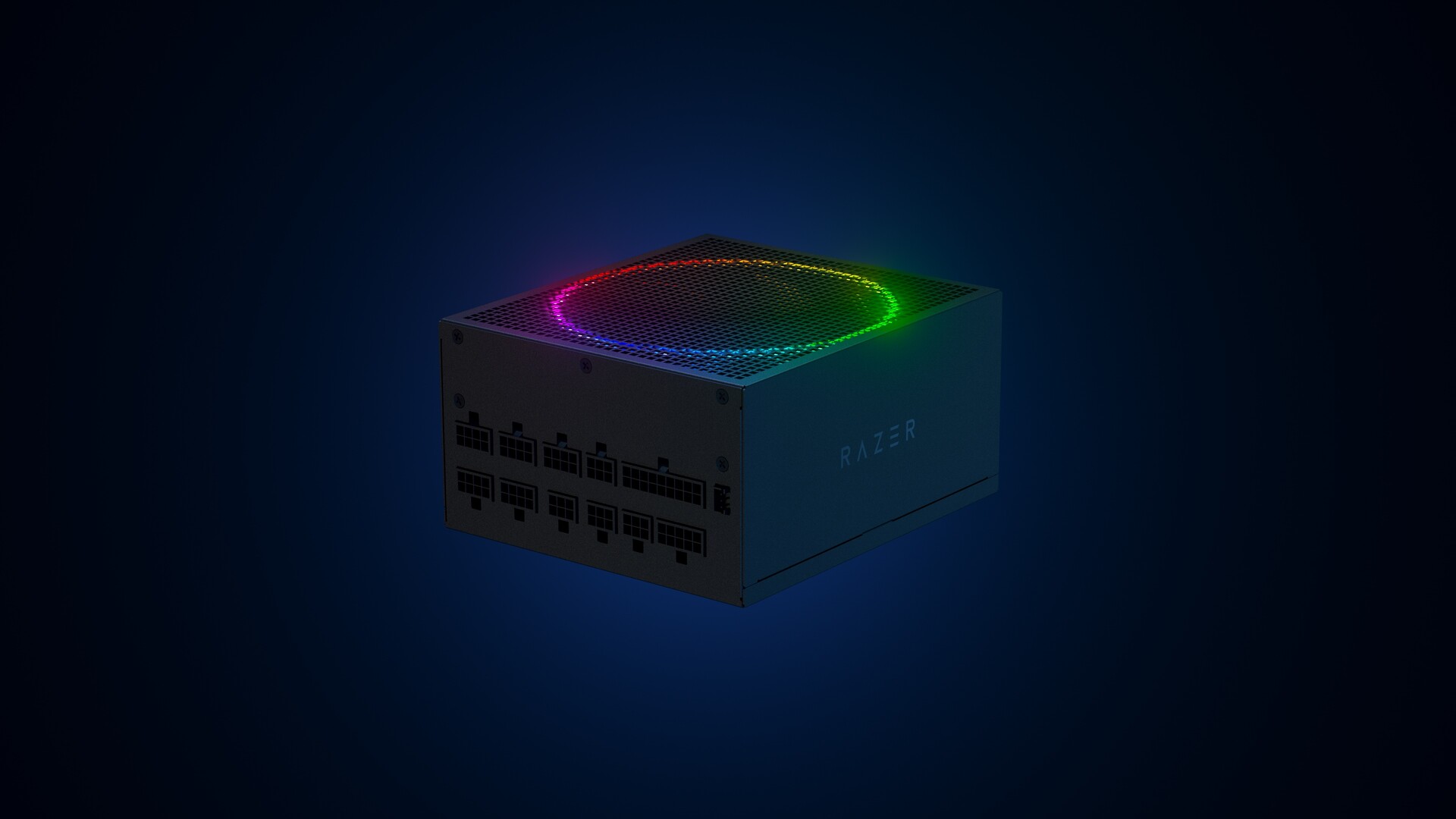
Katana Chroma ATX PSU

razer power supplyMost interesting for me personally is Razers Katana, the power supply unit. It is a modular power supply ranging from 750W to 1200W with the additional option of Titanium rated one with an impressive 1600W of power. Power supply will start shipping in early 2022 and at the time of writing this article no price range has been released.

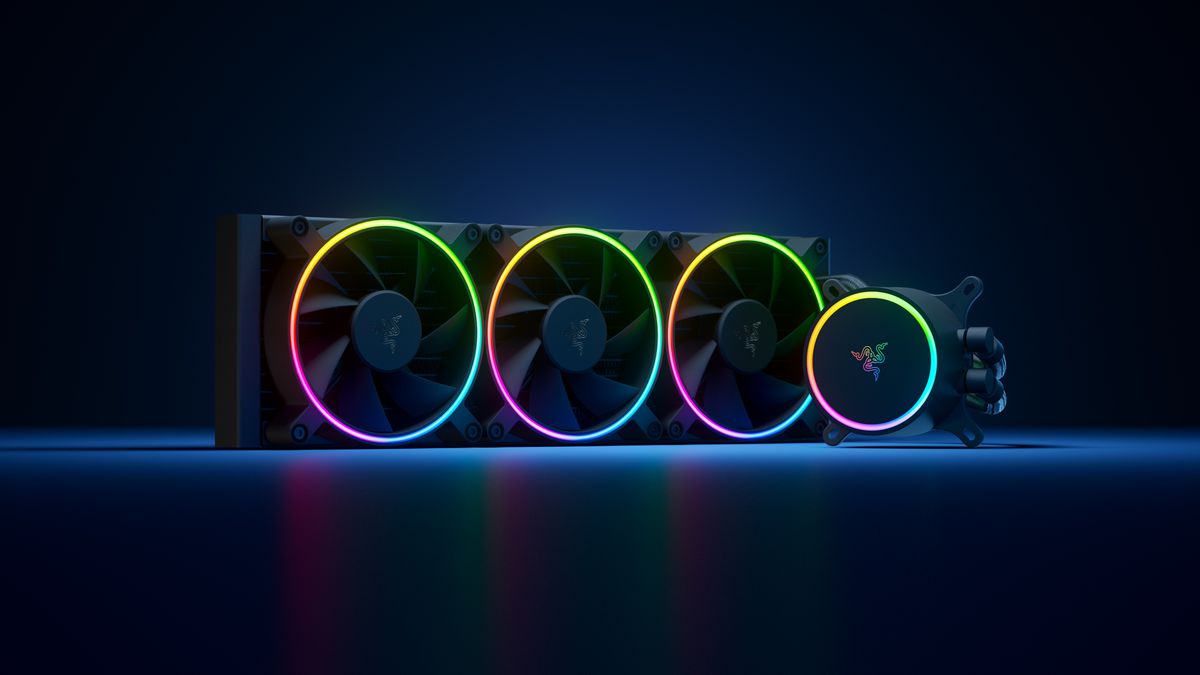
Razer Hanbo AIO

razer water coolingHanbo liquid cooler will feature an optimized intake design so it can ensure greater heat transfer and fluid dynamic for improved reliability and silent operation. Radiator comes in 240mm size with two fans and a larger one of 360mm with three fans. The pump will be able to rotate in any direction of full 360 degrees so it can fit in any case. Hanbo will be released in November this year but no pricing has been released so far.

Razer Kunai Chroma case fans

razer case fansKunai fans will boast high static pressure performance with lowered noise. They will go as far as 2200rpm for the 120mm version where the 140mm version will go up to 1600rpm. They will come with addressable LEDs and up to eight fans will be able to be connected to Razer’s PWM fan controller that will come with a magnet at the back for easy attachment to any steel part of PC casing. PWM will use Razer’s Synapse software to customize pulse width modulation in order to improve airflow and noise. PWM will be priced at $49.99 in the Razer Store and it is available for preorder. Fans are priced at $44.99 for one 120mm or $129.99 for a three-pack of 120mm. One 140mm will go for $49.99 and a three-pack will be $129.99.
Read More
How to remove AnytimeAstrology

AnytimeAstrology is a browser extension for Google Chrome developed by Mindspark Inc. When installed, this extension will change your default new tab page to a custom search provider called MyWay (search.myway.com).

While browsing the internet with this extension installed, you will see additional ads through your browsing sessions, including but not limited to Sponsored Content, Injected Ads and Pop-up Ads.

While AnytimeAstrology is active it will monitor your browsing habits, recording website visits, clicked links, viewed products, etc. This information is later sent back to Mindspark Ad network servers where it is used to better target additional injected ads into your web pages.

Several anti-virus applications have marked this extension as a Browser Hijacker and it is recommended to remove it from your computer.

About Browser Hijackers

Browser hijackers (also known as hijackware) are a kind of malicious software that modifies web browser configuration settings without the computer owner’s knowledge or approval. These hijacks are raising at an alarming rate globally, and it can be actually nefarious and often harmful too. Browser hijackers could do more than just changing homepages. In most cases, hijackers are created for the benefit of online hackers usually through income generation that comes from forced ad clicks and site visits. While it might seem harmless, these tools are made by malicious people who always try to take advantage of you, so that they can earn money from your naive and distraction. Browser hijackers can also permit other vicious programs without your knowledge to further damage your computer.

Key symptoms that your browser has been hijacked

The following are some symptoms that indicate you’ve been hijacked: 1. your homepage has been reset to some unfamiliar site 2. your browser is constantly being redirected to porn sites 3. default internet search engine is modified 4. you find unwanted new toolbars added 5. you observe a lot of pop-up ads on your screen 6. your browser has become unstable or starts running slowly 7. you can’t visit certain websites such as homepages of antivirus software.

How browser hijacker finds its way to your computer

Browser hijackers could use drive-by downloads or file-sharing websites or perhaps an e-mail attachment in order to reach a targeted computer. They could also come from add-on software, also referred to as browser helper objects (BHO), web browser extensions or toolbars. Browser hijackers sneak into your computer along with free software downloads that you unwittingly install along with the original. An example of some well known browser hijacker includes Conduit, Anyprotect, Babylon, SweetPage, DefaultTab, RocketTab, and Delta Search, but the names are constantly changing. The existence of any browser hijacker on your computer might considerably diminish the web browsing experience, monitor your internet activities that result in serious privacy issues, produce system stability issues and ultimately cause your PC to slowdown or to an almost unusable condition.

The best ways to remove a browser hijacker

Some hijackers can be simply removed by deleting the free software they came with or by eliminating any extension you have recently added to your system. The sad thing is, the majority of the software applications used to hijack a internet browser are deliberately built to be hard to eliminate or detect. Novice computer users should never attempt for the manual form of removal methods, since it calls for thorough computer knowledge to carry out repairs on the computer registry and HOSTS file. Installing and running anti-malware application on the affected system will automatically erase browser hijackers and other unwanted applications. SafeBytes Anti-Malware could counter persistent hijackers and give you proactive computer protection against all kinds of malware. Together with the anti-virus tool, a system optimizer, such as SafeBytes’s Total System Care, could help you in removing all linked files and modifications in the registry automatically.

How to Get rid of Malware that is Blocking Websites or Preventing Downloads

Malware could potentially cause a great deal of damage to your PC. Some malware sits in between the computer and the internet connection and blocks some or all websites that you really want to visit. It might also prevent you from adding anything to your PC, especially anti-malware software. If you’re reading this article, you may have got affected by a virus that prevents you from installing a security software like Safebytes Anti-Malware. Follow the instructions below to get rid of malware through alternate methods.

Eliminate malware in Safe Mode

If the malware is set to run immediately when Windows starts, entering safe mode could very well block the attempt. Just the minimum required programs and services are loaded when you start your PC in Safe Mode. To launch your Windows XP, Vista or 7 computer in Safe Mode with Networking, do as instructed below. 1) At power-on/startup, press the F8 key in 1-second intervals. This will invoke the Advanced Boot Options menu. 2) Select Safe Mode with Networking using arrow keys and press ENTER. 3) Once this mode loads, you will have an internet connection. Now, use your internet browser normally and navigate to https://safebytes.com/products/anti-malware/ to download Safebytes Anti-Malware. 4) As soon as the software program is installed, allow the scan run to eliminate trojans and other threats automatically.

Use an alternate web browser to download an antivirus application

Some malware mainly targets particular internet browsers. If this is your case, make use of another browser as it might circumvent the computer virus. If you suspect that your Internet Explorer happens to be hijacked by a virus or otherwise compromised by online hackers, the best plan of action is to switch to a different browser such as Mozilla Firefox, Google Chrome, or Apple Safari to download your favorite security application – Safebytes Anti-Malware.

Make a bootable USB anti-virus drive

To successfully eliminate the malware, you will need to approach the problem of running antivirus program on the affected PC from a different angle. Follow these steps to employ a USB flash drive to fix your infected PC. 1) Download the anti-malware program on a virus-free PC. 2) Insert the pen drive on the same system. 3) Run the setup program by double-clicking the executable file of the downloaded application, which has an .exe file extension. 4) When asked, select the location of the USB drive as the place where you want to put the software files. Follow the onscreen instructions to finish the installation. 5) Remove the pen drive. You can now use this portable antivirus on the affected computer. 6) Double-click the antivirus program EXE file on the thumb drive. 7) Run Full System Scan to detect and clean-up up all types of malware.

Protect Your Computer Against Viruses and Malware With SafeBytes Anti-Malware

Would you like to download the best anti-malware software program for your desktop? There are numerous applications in the market that comes in free and paid versions for Microsoft Windows computers. Some are good ones, some are ok types, while some are simply just bogus anti-malware software which will damage your personal computer themselves! You must pick one that is dependable, practical and has a strong reputation for its malware protection. On the list of recommended software programs is SafeBytes AntiMalware. SafeBytes has a really good history of excellent service, and customers appear to be very happy with it. SafeBytes antimalware is a highly effective and easy-to-use protection tool which is created for users of all levels of IT literacy. Through its cutting-edge technology, this software will help you protect your PC against infections brought on by different kinds of malware and similar threats, including adware, spyware, computer viruses, worms, trojan horses, keyloggers, potentially unwanted program (PUPs), and ransomware.

There are plenty of amazing features you will get with this security product. Listed below are some of the great features included in the application.

World-class AntiMalware Protection: This deep-cleaning antimalware program goes much deeper than most antivirus tools to clean out your computer system. Its critically acclaimed virus engine detects and disables hard to remove malware that conceals deep within your personal computer. Active Protection: SafeBytes delivers complete and real-time security for your computer system. They are highly effective in screening and removing numerous threats since they’re continuously improved with new updates and alerts. Safe Web Browsing: Through its unique safety ranking, SafeBytes tells you whether a site is safe or not to visit it. This will ensure that you’re always certain of your online safety when browsing the web. Faster Scanning: SafeBytes’s virus scan engine is among the fastest and most efficient within the industry. It's targeted scanning considerably increases the catch rate for malware that is embedded in various PC files. Lightweight Application: SafeBytes is a lightweight application. It consume a really small amount of processing power as it works in the background so you’re free to use your Windows-based PC the way you really want. 24/7 Premium Support: You can get absolutely free 24/7 technical support from their IT experts on any product queries or PC security concerns. SafeBytes has created a fantastic anti-malware solution to help you conquer the latest malware threats and virus attacks. You can be sure that your computer system will be protected in real-time as soon as you put this software to use. So if you are searching for the best anti-malware subscription for your Windows-based PC, we suggest the SafeBytes Anti-Malware application.

Technical Details and Manual Removal (Advanced Users)

If you wish to manually get rid of AnytimeAstrology without the use of an automated tool, it may be possible to do so by removing the program from the Windows Add/Remove Programs menu, or in cases of web browser plug-ins, going to the browser’s AddOn/Extension manager and removing it. You will most probably also want to totally reset your browser to its default configuration settings. Finally, examine your hard disk for all of the following and clean your computer registry manually to get rid of leftover application entries after uninstallation. Please remember that this is for professional users only and may be difficult, with wrong file removal leading to additional system errors. Additionally, some malicious programs have the capability to defend against its removal. You are urged to do this procedure in Windows Safe Mode.
Folders: C:\USERS\username\APPDATA\LOCAL\AnytimeAstrologyTooltab C:\Users\username\AppData\Local\Google\Chrome\User Data\Default\Extensions\bdcnkkhncapfcngcjkmfkikanomkgnmb\

Read More
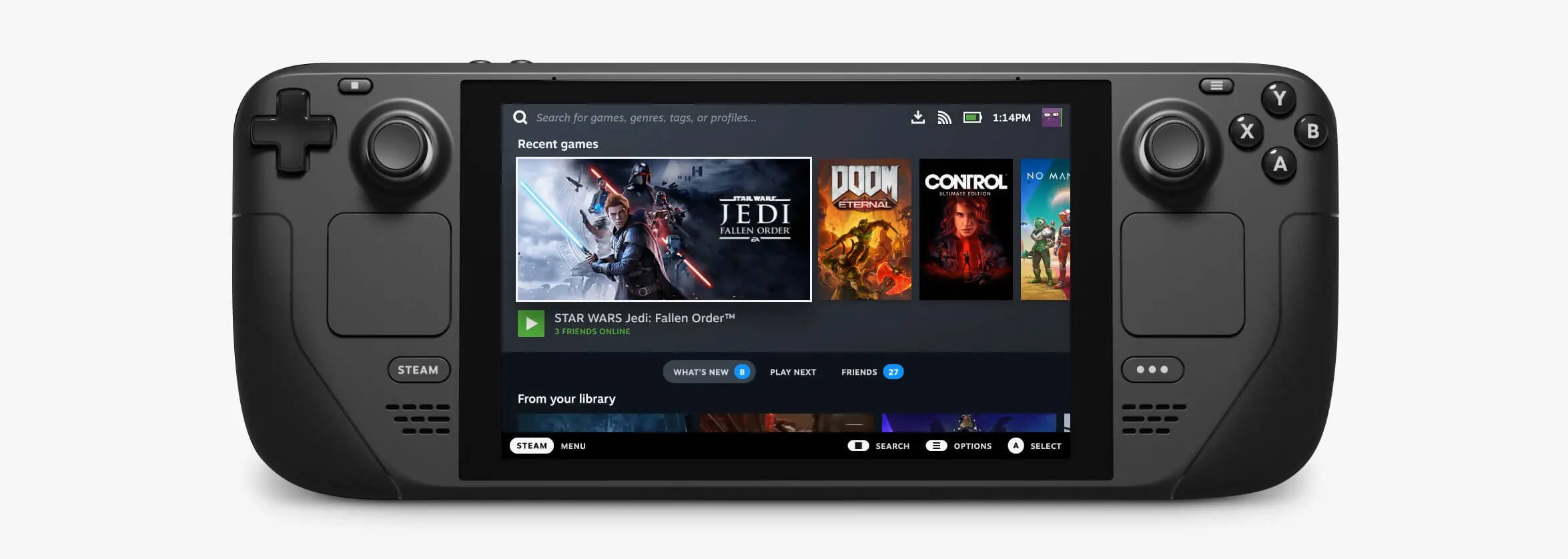
Valve Steam Deck is Compatible with Windows 11
Steam DeckValve has officially announced that Steam Deck will be compatible with Windows 11 despite TPM 2.0 Microsoft requirements. From the beginning, Deck was announced like a mini handheld PC device. Powered with new Steam OS 3.0 based on Linux. However, besides out-of-the-box OS it was also stated that Deck will be a personal device meaning that other PC-based operating systems could be installed on it and even run your typical applications in it. Since Microsoft announced Windows 11 hardware requirements, specifically the TPM 2.0 requirement many users voiced concern that Steam Deck will not be able to connect to Windows 11 TPM 2.0 is something that Microsoft requires for every internal and hardware component that is to connect on a Windows 11 device. This is to ensure that only trusted devices would be included in the array of a PC setup and avoid any problems like malicious hardware injecting software into a system. This would also minimize the compromise Windows would have, as unverified or untrusted devices connect to a Windows PC. However, Valve and AMD are ensuring us that Deck will not have any issue connecting to a PC running Windows 11 or even if you wish to transform Deck itself into a Device running Windows 11.
Read More
Prevent your laptop from overheating

Long working hours on a laptop can have some issues with laptop heating and thus slowing down. Today we will take a look at how can you prevent it from heating and keep it in a normal temperature range so it lasts longer and works better.

laptop on fire

Close unnecessary programs or browser tabs

Usually, the main reason for high laptop temperature is the heavy and constant workload. Of course, the solution is very simple, turn off unnecessary browser tabs or applications running in the background, and less power will be needed for operation thus directly reducing workload and temperature.

Place it on a hard flat surface

Laptops generally have vents on the side and even under them, these vents, of course, are made so hot air is disposed of through them but if they are covered that will create issues. Placing computers on textiles, pillows, and legs can obstruct their venting holes and increase heat also since they are materials that are not taking heat away.

Your best practice should be placing the laptop onto a hard flat surface so air can flow freely and if you need to keep it in your lap there are lap desks made for this purpose.

Clean the laptop

With some good cleaning, the laptop can stop overheating, and generally, it will be cooler. Vents that has for ventilation can get clogged over large periods of time due to dust which is always present. Compressed air can be a quick easy solution to open the vents and redust it. Other methods include a compressor, vacuum, or brush in order to quickly remove any dust clogs. Taking it into service for complete redusting and paste change is also a great option.

Place it on the dedicated pad

There is some disagreement about using dedicated cooling pads for laptops, some say they are not effective at all, and some swear by them but from my experience good paired laptop and pad can indeed help with cooling it down. Usually, cooling pads will come with fans that will take away heat from the laptop itself reducing its overall heat.

Change your Windows power plan

If your laptop is constantly hot but you are not doing much with him check Windows power settings. There is a good chance it is set to run on a high-performance plan and if this is the case switch it back to a balanced power setting. Power plan like high performance will drain more power and more power will mean more heating. Of course, this will affect performance as well but for regular work that excludes some power gaming, video, and picture manipulations and other demanding tasks this power plan will work just fine.

Take control of the fans inside your laptop

Internal cooling is important and sometimes fans are not running to their full capacity so increasing their speed or changing their plan of work can cool down the computer nicely. Some laptops have fans controlling application already on them, especially gaming laptops but most of them do not. If your laptop does not have it, go to your laptop brand website and see if such an application exists for your model, if it does, download and install it but if there is no such application try general free ones like SpeedFan or Argus Monitor.

Reduce voltage of CPU and GPU

How more power means more heat, reducing the power that CPU and/or GPU take can be reduced inside BIOS by lowering voltage of these 2 components. First, go to BIOS and write down the voltage that is currently assigned to your CPU and/or GPU so you can bring it back if ever needed, also take note that reducing voltage and thus power will not affect negatively your components but increasing it thus overclocking can and will so be careful when bringing voltage back not to overdo it. You can always also reset your BIOS settings to bring them back to factory settings.

Do not use the laptop when charging it

When the laptop is placed on the charger in order to be charged and used at the same time, more power is drawn to it, and since the battery is taking electric charge instead of providing it more heat will be generated now since two different sources will be generating it, the battery itself and computer. When you really can not wait for the laptop to be charged, use it, but turn it off and wait to be fully charged if you can.

Read More
Deleting a User Account in Windows
There are instances when there are multiple accounts which is the result when there are a lot of users who use the computer. Some may use it more often, while others may seldom use it. Having multiple accounts can be quite confusing and inconvenient especially if it takes a lot of space. Thus, in this post, you will be guided on how you can delete a User Account on your Windows 10 computer, as well as how you can create a backup of the existing profile data and files. All the data of user accounts can be found at C:/Users, where its folder name will be exactly the same as the name of the user. You can check the exact user’s name by simply using the “net user” command either via Command Prompt or Windows PowerShell. Once you delete a user account, its folder, along with its files, will also be deleted. You can also create a backup for user files and the best way to do that is by copying the folder to other partitions or to an external drive. Here are two methods you can check out to delete a user account in Windows 10 – you can do it via Windows Account settings or via the command line. For more details, follow each one of the options provided below.

Option 1 – Delete the user account using Windows Account settings

  • First, go to Settings > Accounts > Family & other users.
  • Next, select the account you want to delete and click on the Remove button. This will open a confirmation window along with a warning message and two buttons that say, “Delete account & data” and “Cancel”.
  • Click on the Delete account & data button to delete the user account.
Note: Once you remove a user account, it will also remove all its corresponding data such as items like Documents, Photos, Music, Desktop, and other related folders. Thus, if you have not created a backup, then you won’t be able to recover those files.

Option 2 – Delete the user account using the command line

If you want to delete several user accounts, then doing it via Command Prompt or Windows PowerShell is a lot quicker. To get started, follow these steps:
  • In the Start Search, type “command prompt” and from the search results that appear, right-click on Command Prompt and select the “Run as administrator” option.
  • Next, type the “net user” command and hit Enter to execute it. This will show you the exact usernames on the computer.
  • After that, type the “net user <username> /delete” command and hit Enter to execute it. This will delete the account and all of its data without any warning. You have to replace “<username>” with the name of the user account.
Read More
The quick demise of the BRAVE browser
Brave browser has gained popularity very rapidly and many websites have gone into the territory of recommending it. Sadly although the browser kind of offered better performance, it seems that so much advertised privacy and security was a lie. Several months ago, Brave was involved in a “scandal”. Unfortunately, this incident did not get much media attention, and it’s hard to search for and discover as of today. There is an article on the Android police website explaining this issue in detail, you can check it here: https://www.androidpolice.com/2020/06/07/brave-browser-caught-adding-its-own-referral-codes-to-some-cryptcurrency-trading-sites/ But to sum things up and keep them short if you do not want to go through the full article, Brave had been injecting their affiliate codes into popular crypto-currency websites. This means that they had been intercepting your traffic, which they promised was secure by the way, and modifying it. This means Brave Software has access to all of your information on those crypto-currency sites as well. They can see your payments/purchases, and your activity on the websites (through affiliate statistics). Now some people might point out that they are not interested in crypto or have been visiting some of the sites but the issue still remains and that is they did all of this, without telling the user. They intentionally didn’t tell the user because they knew it would cause backlash and disruption. They knew one hundred percent what they were doing, and they knew it was unethical. And the point remains if something like this was already done, who knows what will come up in the future. Personal recommendation is to avoid Brave and go back to other browsers.
Read More
Toggle to turn Bluetooth On or Off is missing
Support for Bluetooth hardware has always been included in the Windows 10 operating system for a long time now. And it just keeps getting better especially now with the support for the latest version of Bluetooth 5.0 LE. However, there are still times when Bluetooth experiences a couple of issues one of which is users were not able to turn on or off Bluetooth on their Windows 10 Pc since the option to turn Bluetooth off or on is missing in the Windows 10 settings app and even in the Action Center. So if you are one of the users who experience the same problem, read on as this post will guide you in resolving the issue. To resolve this Bluetooth issue, here are some suggestions that could help:

Option 1 – Try running the Bluetooth Troubleshooter

As you know, Windows 10 has various troubleshooters with user-friendly interfaces where you can utilize them to fix issues in your PC. And since you’re dealing with some Bluetooth problem, you have to run the Bluetooth Troubleshooter.
  • Open the Windows 10 Settings.
  • Then go to Update & Security > Troubleshoot.
  • You should find the option for Bluetooth on your right-hand side – click on it then click on the “Run the troubleshooter” option.
  • Now follow the next screen options.

Option 2 – Try to reinstall or update the Bluetooth driver

The issue might have something to do with the Bluetooth drivers. It could be that it is outdated and needs to be updated or that you recently updated it and since then you have trouble removing the Bluetooth devices and so to fix the issue, you can update, roll back or uninstall the Bluetooth drivers. How? Follow the steps below.
  • Tap the Win + X keys to open the Device Manager.
  • Next, look for the Bluetooth device and right-click on it.
  • Select the option “Update driver”.
  • After that, a new popup window will appear. In there, select the option, “Search automatically for updated driver software”.
Note: Checking the update may take a few minutes so you’ll have to wait until it finishes. If it is able to find an update, you must install it. And if you want to reinstall the Bluetooth driver, just select the “Uninstall driver” option and follow the next on-screen instructions that follow.

Option 3 – Configure the Bluetooth Services

If the first two options didn’t work, the next thing you can do is configure Bluetooth Services. How? Simply follow these steps:
  • Tap the Win + R key combination to open the Run dialog box.
  • After that, type “services.msc” in the field and hit Enter to open the Windows Services Manager.
  • You will then see a list of services and from there, look for the following services and make sure that their default values are set as follows:
    • Bluetooth Handsfree Service – Manual (Triggered)
    • Bluetooth Audio Gateway Service – Manual (Triggered)
    • Bluetooth Support Service – Manual (Triggered)
    • Bluetooth User Support Service – Manual (Triggered)
  • Now click on the Start button to start all the aforementioned services and then check if you can now see the option to turn Bluetooth on or on.
Read More
3 Methods To Fix Qtcore4.dll Error

Qtcore4.dll Error - What is it?

Qtcore4.dll is a dynamic link library file that helps Microsoft Windows in loading several key components of the system. The Qtcore4.dll error occurs when the Qtcore4.dll file cannot be loaded to run the application supported by this .dll file. The Qcore4.dll missing error message may occur while booting your system or launching a certain program. It is a blue screen of death error type. The Qtcore4.dll error code is often displayed as:

BLUE SCREEN ERROR - QtCore4.dll Not Found

Filei386QtCore4.dll could not be loaded. The error code is 7. Setup cannot continue. Press any key to exit.

Solution

Restoro box imageError Causes

This error code is triggered by a variety of reasons such as:
  • Windows file allocation file gets damaged
  • Your computer BIOS (Basic Input/Output System) are misconfigured
  • The Qtcore4.dll file gets corrupt
  • Registry gets damaged and corrupt
  • Non-Microsoft program not running in tandem with Windows
  • Malware attack
  • Improper hardware driver software
It is advisable to fix the Qtcore4.dll error code immediately as this error can pose serious threats to your system. Qtcore4.dll error can lead to system breakdown.

Further Information and Manual Repair

Here are some ways of fixing the Qtcore4.dll error on your system:

1. Re-install the Program Causing Qtcore4.dll error message to pop up

As dll files are shared files sometimes due to program deletion and installation .dll file settings can get misconfigured, damaged, and corrupt. In such a scenario, you can try reinstalling the program that is causing Qtcore4.dll error message to appear on the screen.

2. Reconfigure your Mis-configured BIOS

If BIOS misconfiguration is the cause of this error code on your system, then try reconfiguring your system’s misconfigured BIOS.
  • To do this boot the computer and then press the BIOS designated keys to enter the BIOS. The keys may vary from manufacture to manufacture but typically, the setup keys are F2, F10, F12, and Del.
  • Once you figure out the setup keys, press them rapidly when booting the computer.
  • After successfully hitting the setup keys, the BIOS will load and you will see the BIOS setting menu on your screen. Adjust settings. Go to SATA Operation and change RAID AHCI to RAID ATA. Save changes and then exit.

3. Scan Your PC with a Registry Cleaner and an Antivirus

However, after adjusting the BIOS if the error still pops up on your screen, then this indicates the problem is bigger than you think. It triggers either malware attack or registry corruption. If these are the underlying causes for the Qtcore4.dll error on your system then you need to scan your PC with a registry cleaner and an antivirus. Registry is the main database of your system; if this gets corrupt it is most likely to result in system failure and valuable data loss. And as for malware, the biggest concern is data security threats. Today’s advanced and lethal malware like viruses and spyware can give easy access to hackers to enter your system from a remote location, browse through your confidential and private data and manipulate it to their advantage. This has led to a surge in various types of cyber crime, data breaches, and identity theft cases over the years. To avoid all this while resolving the error code Qtcore4.dll on your PC, registry cleaning and repair and antivirus scan are needed. You can either download 2 separate tools on your system to scan your PC which by the way will take a lot of time and increase your chances of the system slow down or you can download Restoro.

Why Restoro?

  • Total System Care is an advanced, user-friendly, high, and multi-functional repair.
  • It is deployed with a powerful and intuitive registry cleaner. It also functions as a system optimizer. It spares you from downloading numerous tools to address and resolve different errors on your PC.
  • It is your one-stop solution for not only Qtcore4.dll problems but practically all PC-related issues.
  • The registry cleaner utility detects all the malicious, unnecessary, and obsolete files overloading and corrupting your RAM.
  • This includes junk and temporary files. It wipes them out thus clearing your disk space. Simultaneously, it also repairs the damaged and misconfigured dll files including the Qtcore4.dll file, and fixes the corrupt registry.
  • The privacy error utility has the properties of an antivirus. It detects and removes malware, viruses adware, and spyware from your system in seconds.
  • Total System Care resolves the Qtcore4.dll error on your system and boosts the performance of your system. It has a simple and neat interface which makes it quite easy for users to operate it, even those who are not technically adept.
  • It is compatible with all Windows versions
Click here to download Restoro and repair the Qtcore4.dll error on your PC.
Read More
1 2 3 171
Logo
Copyright © 2023, ErrorTools. All Rights Reserved
Trademark: Microsoft Windows logos are registered trademarks of Microsoft. Disclaimer: ErrorTools.com is not affiliated with Microsoft, nor claims direct affiliation.
The information on this page is provided for information purposes only.
DMCA.com Protection Status