Logo

Installation failed, ended prematurely

If you are trying to install or reinstall a program on your Windows 10 computer but encountered an error instead that says, “Fatal error, Installation fails, Installation ended prematurely because of an error”, then you’ve come to the right place as this post will guide you how you can fix it.

This kind of error is most likely caused by some files that may have been left behind by the previous installation of the program. Each time a program is uninstalled, it leaves behind its files and if the uninstallation process wasn’t completed properly, then it would result in errors like the

“Fatal error, Installation fails, Installation ended prematurely because of an error”.

Moreover, this kind of error is a generic one that can also occur with any software reinstallation or installation. And to fix this error, there are several suggestions you must check out. You can try to install or reinstall the program in a Clean Boot State or restart the Windows Installer Service. You could also try to re-register the Windows Installer Service or re-register the VBScript.dll file.

Option 1 – Install or reinstall the program in a Clean Boot State

It is possible that there are some third-party applications in your computer that are preventing the program from getting installed and to isolate this possibility, you need to boot your computer in a Clean Boot State and then try installing the program again. Putting your computer in this state can help you identify which program is the culprit and thus isolates the problem. In a Clean Boot state, your computer will start using only the pre-selected minimal set of drivers and startup programs. Note that you have to disable and enable one process at a time.

  • Log onto your PC as an administrator.
  • Type in MSConfig in the Start Search to open the System Configuration utility.
  • From there, go to the General tab and click “Selective startup”.
  • Clear the “Load Startup items” checkbox and make sure that the “Load System Services” and “Use Original boot configuration” options are checked.
  • Next, click the Services tab and select the “Hide All Microsoft Services” checkbox.
  • Click Disable all.
  • Click on Apply/OK and restart your PC. (This will put your PC into a Clean Boot State. And configure Windows to use the usual startup, just simply undo the changes.)
  • After you’ve set your computer into a Clean Boot State, make sure that you’re signed in as administrator and then try to install the program again.

Option 2 – Try to restart the Windows Installer Service

The next thing you can do to fix the problem is to restart the Windows Installer Service. To do this, follow these steps:

  • Tap the Win + R keys to launch the Run utility and type “services.msc” in the field and then hit Enter to open the Windows Services Manager.
  • Next, look for the Windows Installer service among the list of services shown.
  • Once you found it, right-click on it and open its Properties.
  • From there, click on the Stop button and then click on the Start button.
  • But if it isn’t running, then just click on the Start button.

Option 3 – Try to unregister and re-register the Windows Installer Module

  • Tap the Win + R keys to open the Run dialog box.
  • Then type the “msiexec /unregister” command and hit Enter to unregister the Windows Installer Module.
  • Next, type the “msiexec /regserver” command and hit Enter to re-register the Windows Installer Module.
  • Now restart your computer and see if unregistering and re-registering the Windows Installer Module fixed the problem or not.

Option 4 – Try to re-register the vbscript.dll file

You may have to re-register the vbscript.dll file using the regsvr32.exe before you can successfully install the program and fix the error. The Regsvr32 tool is a command-line utility that can be used to register and un-register the OLE controls like DLL and ActiveX (OCX) control in the Windows operating system. Follow the steps below to use it.

  • Open Command Prompt as admin from the WinX menu.
  • Next, type regsvr32.exe vbscript.dll in the elevated Command Prompt and hit Enter to execute the command. This will re-register the affected DLL file using the Windows operating system tool, regsvr32.exe.
  • You should see a message saying, “DllRegisterServer in vbscript.dll succeeded” if the Regsvr32 tool was able to run successfully. After that, try to install the program again and see if it now works.

Do You Need Help with Your Device?

Our Team of Experts May Help
Troubleshoot.Tech Experts are There for You!
Replace damaged files
Restore performance
Free disk space
Remove Malware
Protects WEB browser
Remove Viruses
Stop PC freezing
GET HELP
Troubleshoot.Tech experts work with all versions of Microsoft Windows including Windows 11, with Android, Mac, and more.

Share this article:

You might also like

NVIDIA Control Panel is not opening
Users who constantly use graphic-intensive applications like games or any video-rendering software need to control how their graphics card is used. There are some who always toggle their Graphic Quality settings to get the Frames Per Second or FPS up. While some tend to adjust the size, orientation, scaling, and other display settings in order to use their PCs in a more efficient way or to simply work better. And in all of that, that’s where the NVIDIA Graphics Card comes into the picture. Take note that this software only works on PCs which has NVIDIA Graphics Card attached to them. Thus, if you use another Graphics Card then this post is not for you, otherwise, proceed reading to know what you can do if the NVIDIA Control Panel is not opening on your Windows 10 PC. Here are a couple of things you can try if the NVIDIA Control Panel is not opening, not responding, or not working:
  • Restart the process of the NVIDIA Control Panel
  • Restart the NVIDIA Display Driver Service
  • Update your NVIDIA Display Drivers
For more details, refer to the instructions provided below.

Option 1: Restart the process of the NVIDIA Control Panel.

  • Tap the Ctrl + Shift + Esc keys to open the Task Manager.
  • After opening the Task Manager, look for the process named NVIDIA Control Panel Application.
  • Once you found it, expand it and right-click on the NVIDIA Control Panel sub-process, and click on End Task.
  • Now try opening the NVIDIA Control Panel from the Start Menu and see if it now works fine or not.

Option 2: Restart the NVIDIA Display Driver Service

  • Tap the Win + R keys to open the Run dialog box.
  • Then type “services.msc” in the field and hit Enter to open the Windows Services Manager.
  • After opening the Services window, you will see a list of services. From there, look for services named “NVIDIA Display Container LS” and double click on it to open its Properties.
  • Now make sure that the service is Started. If it isn’t, you need to start it, otherwise, you need to Stop it and Start It again. You also have to make sure that the Startup Type is set to Automatic.
  • Do the same for the NVIDIA LocalSystem Container service.
  • Restart your computer and check if the problem’s fixed.

Option 3: Try updating the drivers from the official site of NVIDIA

If both the first and second given options didn’t work, you can also try updating the drivers from the official NVIDIA website. And in case you don’t know the type of Nvidia graphics card that your computer is on, follow the steps below:
  • Tap the Win + R keys to open the Run dialog box.
  • Next type in “dxdiag” in the field and click OK or hit Enter to open the DirectX Diagnostic Tool.
  • From there, you can see what type of Nvidia graphics card that your system is on.
  • Take note of your graphics card information and then look for the best drivers for your operating system. Once you’ve downloaded and installed the file, restart your PC.
Read More
Easy Methods of Fixing Error 1706

What is Error 1706?

Error 1706 is a Windows PC error. It occurs when you insert a Microsoft CD-ROM either to repair an Office or to install a feature set to Installed on First Use. The error message is displayed in the following format: Error 1706. Setup cannot find the required files. Check your connection to the network, or CD-ROM drive. For other potential solutions to this problem, see C:\Program Files\Microsoft Office\Office101033\Setup.hlp.

Solution

Restoro box imageError Causes

Error 1706 may occur due to several reasons. These include:
  • You originally installed MS Office from a network administrative installation
  • You are trying to use Office CD-ROM when the error is prompted by the Windows Installer for an Office source location
  • Viral Infection

Further Information and Manual Repair

The good news is that this error code is not fatal. However, to avoid inconvenience, it is recommended to resolve the error right away. To fix the problem you don’t have to be a computer programmer or hire one. In fact, this error code can be resolved quite easily. Here are some of the best and easiest do it yourself methods to resolve error 1706 on your PC:

Method 1

To resolve this issue find a different administrative installation for the Office source file location. To do this, go to the start menu and then click run. In the open box, simply type this command line new network pathSetup.exe /fvm package name.msi and press OK to continue and update changes. Once the update is complete and finished press OK to save and proceed. Please note after you follow these steps, the Windows Installer uses this new server location whenever it needs to reinstall, repair, or add a feature to your Office Installation.

Method 2

Another alternative method to resolve this method is to use CD-ROM for the Office Source Location. To do this you will have to remove Office and then re-install Office from the CD-ROM. Here are the steps to remove the Office program. First, quit all Office programs.
  1. Go to the Control Panel then click on the Program and Features option.
  2. Now double click the Add/Remove programs and remove the entry for the Microsoft Office 2003 or Microsoft Office XP product installed on your PC.
  3. After that, click on the Maintenance Mode Options dialog box, select Uninstall Office, and then click Next to proceed.
  4. Click Yes to confirm changes.
  5. Now insert Office 2003 or Office XP CD-ROM and follow the setup dialog boxes to reinstall the program on your system from CD-ROM.

Download Restoro to Correct Registry Errors

However, to ensure the installation is successful this time around, it is advisable to clean the registry and ensure the uninstalled program is not located in the registry. To do this, download Restoro and run it on your computer. This is a powerful PC Fixer integrated with a registry cleaner. The registry cleaner wipes out all the unnecessary files and uninstalled program files saved in the registry. Once the registry is cleaned, try reinstalling MS Office again. This will resolve the error 1706. Click here to download Restoro and repair error 1706.
Read More
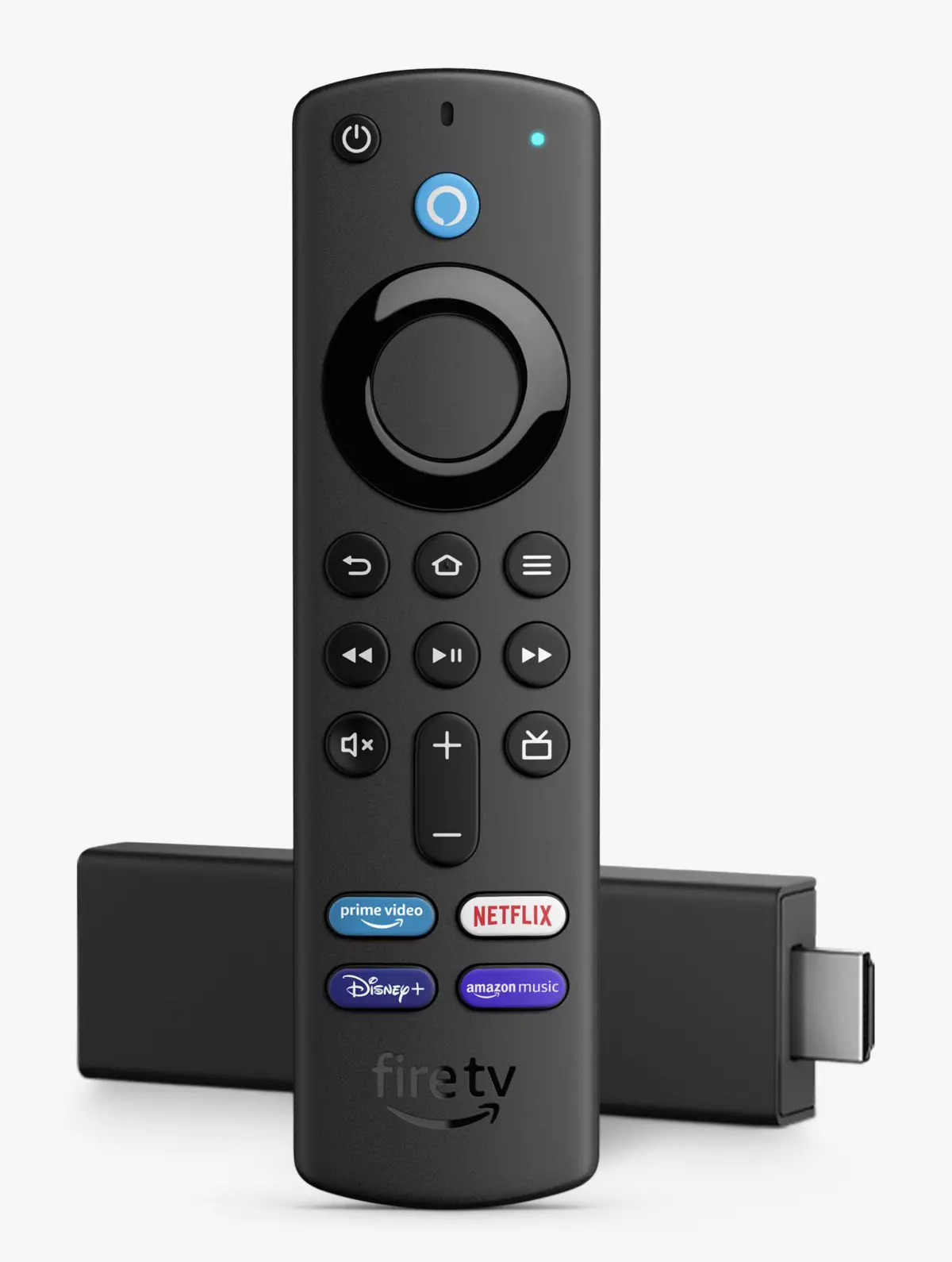
Jailbreak Amazon Fire TV stick

Sometimes we need and want some apps that are not part of the official Amazon Appstore but having their Fire TV stick prevents us from installing anything that's not in their store, or does it?

amazon tv stick

You can quickly "jailbreak" given stick and unlock additional installations via different providers. Although the term jailbreaking is associated with illegal and hacker activities rest assured that in this case there is nothing illegal about this procedure and that you are entirely safe.

Jailbreaking process

In order to do this procedure firstly you will have to allow the installation of apps obtained from outside the Amazon Appstore. To do this open the settings menu on your Fire TV Stick and inside settings choose My Fire TV. On the My Fire TV page select Developer Options and inside select Apps From Unknown Sources. The prompt screen will open, choose Turn On to activate the option.

APK installation is enabled now and the next step is to download an app like Downloader that will allow you to get your favorite apps. Downloader is free to download manager fully available on the Amazon Appstore and with it, you can download any kind of file to your device including APKs.

Once installed open the Downloader app and type in the URL or search term in order to find your application of choice but please do get all of your APK from trusted sources in order to avoid exploits and getting malware.

Read More
Error Code 0x80d02002: How to Fix It In Windows 10

Error Code 0x80d02002? - What Is It?

Error Code 0x80d02002 is one of the common errors encountered by Windows users upgrading to Windows 10 or installing new Windows updates. This error results in program lock-ups, system crashes, and freezes, or slow PC performance. It can also cause possible loss of private data on your device.

Some of the common error messages involving Error Code 0x80d02002 include:

  • Something went wrong, Please try again later. Windows update error dt_000 – 0x80d02002
  • Error(s) found: Code 0x80d02002 Windows update encountered an unknown error. Windows update ran into a problem.
  • Windows Update Cannot Check For Updates – 0x80d02002
  • 0x80d02002 – Windows could not search for new updates. An error occurred while checking for new updates for your computer. Some updates were not installed.
  • There were some problems installing updates, but we’ll try again later If you keep seeing this and want to search the web or contact support for information, this may help – 0x80d02002
While upgrading to Windows 10, depending on the state of your computer, you might encounter other error messages, including error code 0xc000021a

Solution

Restoro box imageError Causes

Error Code 0x80d02002 normally occurs when a user updates their system, upgrades to Windows 10 from Windows 7 or Windows 8/8.1, or installs new Windows updates. There are several reasons why this error happens which includes:
  • Internet connection problems
  • Blocked system ports
  • Conflict on system level

Further Information and Manual Repair

In trying to fix Error Code 0x80d02002, you can employ manual repair methods to effectively and efficiently solve the issue. However, keep in mind that one tiny error made in using the command prompt can result in data loss or put your computer in a no-boot situation. In such cases, you can seek help from a Windows professional or consider using an automated tool whenever necessary.

You can try doing the following manual repair methods in an attempt to fix Error Code 0x80d02002:

Method One: Reset Windows Update Components

In trying to fix Error Code 0x80d02002, you may try resetting manually and check the Windows update components by doing the following steps:

  1. Right-click on the Start button then select Command Prompt (Admin) from the list to open a Command Prompt window.
  2. Once the Command Prompt window appears, type or copy and paste the following commands all at once then hit Enter:
net stop wuauserv net stop cryptSvc net stop bits net stop msiserver ren C:WindowsSoftwareDistribution SoftwareDistribution.old ren C:WindowsSystem32catroot2 catroot2.old net start wuauserv net start cryptSvc net start bits net start msiserver pause
  1. Exit the Command Prompt then check if the issue is resolved.

Method Two: Check If The Region Is Correct

  1. On the Start screen, type Region. Afterward, click on Settings then hit
  2. Under the Format tab, choose English (United Kingdom).
  3. Select Language Preferences then click on Add a language. Afterward, add “your language.”
  4. After you’ve added your preferred language, choose it then click on Move Up to make it the first language. Close now the Language window.
  5. On the Region window, select Additional Settings and see if the values are the same.
  6. Select the Location tab then change the Home Location to “your country,” then hit

Method Three: Perform an SFC Scan

Check if there are system files that need to be repaired by running an SFC Scan. Follow the steps below:

  1. Type CMD in the search bar then right-clicks on it. Select Run as Administrator. This will open a Command Prompt window in elevated mode.
  2. In the next window, select
  3. Once the Command Prompt window appears, type the command: sfc /scannow
  4. Leave the Command Prompt window open and wait for the process to complete. This might take a while depending on how fast or slow your device is.
  5. When everything’s fine, the message saying “Windows Resource Protection did not find any integrity violations” will appear.

 Method Four: Disable Skype or Antivirus

There are times when Skype or your installed antivirus can conflict in updating your system. You can disable first your antivirus or Skype as you update your system and enable them once again when you successfully update your system.

Method Five: Download A Powerful Automated Tool 

Can’t seem to put up with the long and technical manual repair process? You can still fix this error by downloading and installing a powerful automated tool that will surely get the job done in a jiffy!

Read More
How To Fix the D3dx9_43.dll Error Code

D3dx9_43.dll – What is it?

D3dx9_43.dll is a type of dynamic link library. This is one of the many files contained in the DirectX software collection which is used to load and run most of the Windows PC based games and advanced graphics programs. D3dx9_43.dll error message is displayed when any one of the Microsoft games fails to load. The error message is displayed in either of the following formats:
“D3dx9_43.DLL Not Found" "The file d3dx9_43.dll is missing" "File d3dx9_43.dll not found" "D3dx9_43.dll not found. Reinstalling might help fix this."

Solution

Restoro box imageError Causes

D3dx9_43.dll error may occur due to multiple reasons. These include:
  • D3dx9_43.dll files get corrupt or damaged
  • Missing Microsoft DirectX file
  • Viruses and malware on your system
  • Driver issues
  • Registry overloaded with invalid entries
If the D3dx9_43.dll error is not fixed timely, it not only causes you a great deal of inconvenience as it hampers your ability to play Microsoft games but since the underlying causes of the error are critical, it can result in serious PC damages like system failure, system crash, and data loss. Therefore to avoid it, it is advisable to resolve the error code immediately.

Further Information and Manual Repair

Though this is a critical PC error but the good thing is that it is easy to resolve. To fix it, you don’t always have to pay hundreds of dollars to a professional technician or be technically sound. Here are some of the best ways to repair and resolve D3dx9_43.dll error on your system:

Check the Recycle Bin

If you get the error message "The file d3dx9_43.dll is missing" then the best method to resolve this error from your system is to check your recycle bin. The Microsoft Direct X file could be there especially if you recently uninstalled a gaming program. Here’s why: dll files are shared by multiple programs. So, it is possible that the program you deleted from your PC also shared the same file to load and run. And because of this reason, the file also got removed from your PC when you uninstalled that particular program. Therefore, check your recycle bin. If you find the d3dx9_43.dll in there, restore it and try running the desired Microsoft game again. See if it works.

Re-Download DirectX

Nonetheless, if you can’t relocate it, try installing the latest version of DirectX on your system. This can be done by downloading the DirectX End-User Runtimes Web Installer on your system from the official Microsoft website.

Update Your Drivers

If the error is related to video card driver, then it is advisable to update the driver. By updating the driver for your video card you can fix the D3dx9_43.dll error instantly.

Repair the Registry

Other reasons for the D3dx9_43.dll error could be corrupt and damaged dll files. It triggers registry issues and sometimes even malware infections. DLL files often get corrupt when the registry overloads with too many files these include mostly unnecessary and obsolete files like junk files, cookies, temporary internet history, invalid and bad registry entries. As the clutter and overload the registry, the important files like dynamic link libraries get damaged. Here cleaning and restoring of the registry is the best way to resolve the error pop-ups like D3dx9_43.dll. You can repair the registry manually however, it is time consuming and somewhat technical. But if you are looking for a simple and a quick fix, then download Restoro.

Try Restoro.

Restoro is a next-generation and multi-functional PC repair tool. It is embedded with a variety of PC fixing and performance-boosting utilities all in one. It includes a registry cleaner with an intuitive algorithm that detects all types of registry issues on your system and resolves them in seconds. It cleans the registry, restores the damaged D3dx9_43.dll files, and repairs the registry. Furthermore, Restoro also includes utilities like an antivirus, Active X controls and class detector. With the help of the in-built antivirus you can scan for viruses and malware infecting your system and remove them right away. It also functions as a system optimizer boosting the speed of your PC dramatically. It is safe, efficient, and compatible with all Windows versions. Click here to download Restoro, resolve the D3dx9_43.dll error, and resume enjoying Microsoft games on your PC.

Read More
How to Fix Error Code 1627

Error Code 1627 - What is it?

Error Code 1627 is a type of HP printer installation error. It usually occurs when you try to install an HP printer on your PC. The error code 1627 pop-up hampers your ability to install an HP printer successfully. This error code is usually displayed in the following format:
Installation Error: Call to Driver Package Install returned error 1627 for package C:ProgramFilersHPHP deskjet 2510 seriesDriver storePipelinehpvplog.inf

Solution

Restoro box imageError Causes

Like every device installed on your PC, printers also need software called drivers to function on Windows Operating System. Although Windows supports several computer devices since many drivers are already installed in Windows but there are some devices that do need additional software to get started and operate smoothly on Windows such as Hewlett-Packard HP printers. Installing a Hewlett-Packard printer driver is slightly more time-consuming and complex than any other driver. Causes for HP printer installation usually include:
  • Driver issues
  • Bad Registry Keys
Though this is not a fatal error, it is still advisable to fix it right away to avoid inconvenience.

Further Information and Manual Repair

To resolve this error on your PC, you don’t necessarily have to hire a professional and spend hundreds of dollars in repair. The good news is that HP Installation error code 1627 is quite easy to fix. Here are some of the best and proven DIY methods to resolve error code 1627:

Method 1 - Uninstall and then Reinstall HP Printer Driver

HP printer installation errors can occur due to driver issues.  If the driver is not installed properly or is outdated, you will never be able to install an HP printer on your PC successfully. Therefore to solve this issue, first, make sure the driver used for printer installation is up to date. If it is outdated, then update it. On the other hand, if the printer driver is up to date but not installed properly then reinstall it. In both situations, first, you must uninstall the driver. Uninstalling the previous installation will help you clean the system. Once the system is clean you can reinstall the HP drivers again. To uninstall, go to the start menu and then the control panel. Now go to the Add/Remove program option and uninstall the driver. To activate changes, reboot your PC. Now install the updated version again.

Method 2 - Clean the Registry

If the printer software installation fails while updating, then this means the removal of the failed software was not successful. It may not show up in the Control Panel program list. This means the entries of the failed software are still present in the registry of your PC. In this scenario, you need to clean the registry and remove the bad entries from there to successfully install the HP printer driver on your system. Though this can be done manually this can be both time-consuming and slightly challenging if you are not technically sound. Therefore, to remove bad entries from the registry in seconds in just a few clicks download Restoro. This is a user-friendly PC Repair Tool deployed with a powerful registry cleaner. The registry cleaner scans your entire PC, detects and removes all bad entries and files corrupting the registry right away. Once the registry is cleaned, you can try installing the printer driver again. This is most likely to resolve the issue. Click here to download Restoro.

Method 3: Locate and Install the Driver

As was pointed out, you might need to reinstall the printer driver again. Using DriverFIX, you'll be able to automatically update your computer system and install the drivers your computer needs to operate smoothly.
Read More
How to Fix CPU Not Compatible Error Message On Windows 10

CPU Not Compatible – What Is It

Some users wanting to upgrade to Windows 10 from Windows 7 or Windows 8.1 experienced errors with installation. One of these errors is CPU Not Compatible. When you click and run the “Get Windows 10” from your system tray bar, you’ll receive the “CPU is not compatible with Windows 10” error. When this happens, it might be good to check if there’s a bug or if your NX feature (a requirement for the Windows 10 installation) is enabled.

Solution

Restoro box imageError Causes

The “CPU is not compatible with Windows 10” error normally occurs when:

  • NX feature is not enabled
  • You experienced the Windows 10 bug

Further Information and Manual Repair

To successfully upgrade to Windows 10, your CPU must support Physical Address Extension (PAE), SSE2, and NX features. If any of these features are not activated on your system, it’ll cause the CPU not compatible error. However, some users still reported experiencing this error even though their CPU has these features activated. Normally, this is due to the bug that Windows acknowledged.

If any of these two scenarios apply to your computer, the following methods will help you fix the problem:

Method 1 – Check for bugs

The bug applies to some Windows 7 and Windows 8.1 systems. The bug occurs when the “Get Windows 10” app fails to recognize CPUs as being compatible. This produces a false negative result with a message, “Here’s why Windows 10 cannot be installed on this PC: The CPU isn’t supported”. To fix this bug, Microsoft released an update.

Unfortunately, the patch update (KB2976978 for Windows 8/8.1 and KB2952664 for Windows 7 SP1) to fix the bug may not be automatically downloaded to your computer. If this is the case, you need to verify first if the patch was installed correctly. To do this, follow the steps below:

  1. Click ‘Start’ and type in View Installed Updates. The “View installed updates” icon should appear. Click the icon.
  1. Go to the Search bar (Top right portion) then type the patch name for your system. Make sure that you type the correct patch name for your system since Windows 7 and Windows 8/8.1 have different names. If you find the patch, it means it’s already installed. You can now upgrade to Windows 10 without the CPU not-compatible error.
  1. But, if you can’t find it you need to install the patch manually.
  1. Go to Windows Update then click the “Check for Updates” button.
  1. Browse through the available updates and look for KB2976978 for Windows 8/8.1 or KB2952664 for Windows 7 SP1
  1. Download the right patch. You may need to reboot your system once it’s done.
  1. The downloaded patch should be applied after a day or two with the Windows Task Scheduler. Once the patch is applied, you can now upgrade to Windows 10.

Method 2 – Check CPU features and activate them if needed

A major requirement for Windows 10 upgrade is for the CPU to have Physical Address Extension (PAE), SSE2, and NX features enabled on your system. If you receive the CPU not compatible error, one possible cause is that any of the mentioned features are not available OR not enabled on your system. Here’s how you can fix this:

  1. Verify if your CPU supports the three instruction sets. You can use software that provides information like this. If all three are available, proceed to the next step.
  1. Go to your computer’s BIOS. To do this, reboot your computer. You will need to press a key specific to your computer’s manufacturer (usually it’s F12, F8, F2, or DEL).
  1. Look for the NX (No Execute Bit) settings. This is normally found in the “Advanced Configuration” menu, or something similar to this. Just take note that the NX setting can be named differently in BIOS. Some other names include EDB (Execute Disabled Bit), EVP (Enhanced Virus Protection), Execute Disabled Memory Protection or No Excuse Memory Protect.
  1. Once you’re in the NX settings, make sure that it’s enabled.
  1. Exit the BIOS and SAVE your changes.
  1. Boot your computer normally, then try upgrading to Windows 10 again through the “Get Windows 10” app found in the system tray.

Method 3 – Force enabling NX Bit

If changing the settings in your BIOS doesn’t do the trick, your final option is to force enable the NX bit in your Windows system. However, this is only applicable IF and ONLY IF your CPU does support it. To force enable NX bit, do the following:

  1. Click Start and go to command prompt (Type “cmd” – no quotes) and press enter.
  1. Copy and paste the text below to the command prompt.bcdedit.exe /set {current} nx AlwaysOn
  1. Execute the command. You will need to reboot your computer once this is done.
  1. Download and install Windows 10

Method 4 – Use a trusted automated tool

If you still experience the error after doing the methods above, you might want to try a powerful and trusted automated tool to fix the job.
Read More
Fix Shell Infrastructure Host stopped working
The Windows 10 operating system supports the logging in of multiple users at the same time. Aside from that, it also allows administrators to create a Guest Account that has limited rights. However, there are some instances when you could encounter an error when you use the Guest Account. The error may state:
“Shell Infrastructure Host has stopped working. A problem caused the program to stop working correctly. Please close the program”.
This error indicates that the Shell Infrastructure Host or SiHost.exe process that is used for handling graphical elements, has crashed. And to fix this error, there are several options you can check out. You can try to reinstall the Microsoft Redistributable Packages or run a System File Checker scan. In addition, you can also use a new Guest Account or troubleshoot the problem in a Clean Boot State.

Option 1 – Try to install or repair Microsoft Visual C++ Redistributable 2013

A corrupted Microsoft Visual C++ Redistributable package or the absence of it can trigger the “Shell Infrastructure Host has stopped working” error – so if you do not have this package yet, you have to install it but if you already have it, follow the steps below to repair it.
  • Open Control Panel and proceed to Program and Features.
  • Under Programs and Features, look for Microsoft Visual C++ Redistributable package among the list.
  • Then right-click on it and click the Change button.
  • Next, you should see the Repair option – click on it to repair the installation of the Microsoft Visual C++ Redistributable package.
  • The process may take a couple of minutes before it finishes so once it does, you have to restart your PC.
After doing all these steps and you still encounter the problem, you might have to uninstall this package and download it directly from Microsoft’s website. However, if you are using Windows 10, you might not be able to do so since it only supports Windows versions up to Windows 8.1 so just proceed to the next option below.

Option 2 – Try to run a System File Checker scan

  • In the Windows Start Search, type “command prompt” and right-click on Command Prompt from the search results, and then select the “Run as administrator” option.
  • After opening Command Prompt with admin privileges, type the “sfc /scannow” and tap Enter to execute it.
  • Once the scan is finished, restart your computer and see if the Windows Script Host error.

Option 3 – Try using a new Guest Account

You might want to use a new Guest Account as it could help get rid of the error. All you have to do is have your admin delete the old Guest Account and create a new one and see if it helps in fixing the error.

Option 4 – Try troubleshooting the problem in a Clean Boot State

Setting your computer in a Clean Boot State can help you diagnose and later troubleshoot the problems in your computer. During this state, the system will start with a minimal number of drivers and startup programs that help in isolating the problem with the interfering software. To put your computer in a Clean Boot State, follow the given steps below.
  • Log onto your computer as an administrator.
  • Type in MSConfig in the Start Search to open the System Configuration utility.
  • From there, go to the General tab and click “Selective startup”.
  • Clear the “Load Startup items” check box and make sure that the “Load System Services” and “Use Original boot configuration” options are checked.
  • Next, click the Services tab and select the “Hide All Microsoft Services” check box.
  • Click Disable all.
  • Click on Apply/OK and restart your PC. (This will put your PC into a Clean Boot State. And configure Windows to use the usual startup, just simply undo the changes.)
  • From there, start to isolate the problem by checking which one of the programs you installed recently is the root cause of the problem.
Read More
How to Fix Error Code 1309

What is Error Code 1309?

Error code 1309 is an error code that occurs when installing either Microsoft Office 2003 or Microsoft Office Project 2003. This error code may hamper your ability to run and use applications associated with Microsoft Office. To ensure installation is successful, it is first advisable to fix this error code. Error 1309 is displayed in any one of the two formats illustrated below. When installing Microsoft Office Project 2003, the error message may pop up as:
Error 1309. Error reading from file:    pathfilename.cab. Verify that the file exists and that you can access it.
When installing Microsoft Office 2003, the error message may appear in the following format: Fatal Error During Installation

Solution

Restoro box imageError Causes

Error code 1309 message may appear during Microsoft Office installation due to several reasons. These include:
  • Problems in the Oclncore.opc file. Project 2003 uses this version of the file for program installation.
  • Lack of adequate use permission
  • The requested file was not found
  • Setup registry entries are modified in an unacceptable manner
To avoid inconvenience and access Microsoft Office 2003 or Microsoft Office Project 2003, it is recommended to fix the error immediately.

Further Information and Manual Repair

To resolve this error you don’t need to be a technical whiz. Here are some of the best, easiest, and proven do-it-yourself methods to resolve error 1309 on your computer screen instantly.

Method 1 - Change CacheLevel Settings

If the problem is related to Oclncore.opc file then try changing CacheLevel settings. Follow these steps to work around this method.
  1. First, locate the PRJPRO*.XML file in the FILESSETUP folder of the Project 2003 installation source and then open this file in the Notepad.
  2. Also, make sure that you do not open the file as read-only and make sure that a checkmark is not displayed next to Word Wrap on the Format menu.
  3. The next step is to search the file for the following text string: OCLNCORE.OPC_1033.
  4. Now on the line where this string is located, change the CacheLevel=’1’ setting to the following CacheLevel=’3’ save the file back to the original location, and then quit Notepad.
After the changes are activated, try installing the software again on your system. If it installs successfully, then this means error 1309 is resolved. If the error still persists then try other given methods.

Method 2 - Configure security settings to get full permission

When the cause of error 1309 on your PC is related to lack of adequate permission issues, then configure security settings to resolve. To do this, simply locate the folder on your installation drive. Then right-click the folder and click Properties. On the Security tab, click edit and now make sure your user name is added to the list. Grant required security permissions and then click OK to save changes. After this, try installing Microsoft Office 2003 again on your system.

Method 3 - Copy the requested file from another source

If the error 1309 pops up because the requested file was not found, then try this method. Simply copy the file specified in the error to the destination directory. For example, if the error shows data1.cab was not found, then copy this file from another source and paste it into the directory specified in the error description.

Method 4- Remove bad registry entries

Bad registry entries are responsible for registry setup modification. If this is the reason for error code 1309, then download Restoro. This is a user-friendly PC Repair Tool embedded with a powerful registry cleaner. It scans and removes all bad and invalid entries accumulated in the registry. It cleans and repairs the registry resuming it back to its normal function. Click here to download Restoro and repair error 1309 today.
Read More
Hearthstone lost connection to the game server
Since its release, Hearthstone has changed and innovated how digital card games are played. From its cross-platform matchmaking to interesting random mechanics and making the game free to play from day 1 have paved the road to Hearthstone's success. If you by any chance get lost connection to game server error and find yourself unable to play please stay awhile and listen Keep reading and try provided solutions as they are presented to fix this issue and continue gaming.
Read More
1 2 3 171
Logo
Copyright © 2023, ErrorTools. All Rights Reserved
Trademark: Microsoft Windows logos are registered trademarks of Microsoft. Disclaimer: ErrorTools.com is not affiliated with Microsoft, nor claims direct affiliation.
The information on this page is provided for information purposes only.
DMCA.com Protection Status