Logo

CHKDSK cannot open volume for direct access

One of the most useful built-in tools in Windows 10 is the Check Disk or CHKDSK utility. It is the one that maintains the integrity of the disk that’s connected to a computer which can be launched using the GUI or graphical user interface and using the command line.

There are a lot of things that warrant the running of this built-in utility and one of these things is the readability of the disk. Recently, a number of users reported that they encountered an error when they tried to run the CHKDSK utility – the error states, “Cannot open volume for direct access”. This kind of error in CHKDSK appears each time the command line is launched according to the affected users.

As per the users who encountered this issue, they receive the following error messages when they tried running a ChkDsk command:

“C:WINDOWSsystem32>chkdsk /f g:
Cannot open volume for direct access.

C:WINDOWSsystem32>chkdsk /f f:
The type of the file system is NTFS. Volume label is 0529357401.”

To fix the “Cannot open volume for direct user access” error, here are some suggestions that might help. Follow them carefully.

Option 1 – Try running the CHKDSK utility on Boot

On the other hand, you can also try to run the CHKDSK utility on Boot so you can fix the error and recover any damaged segments of the drive.

  • Open an elevated Command Prompt and enter this command: chkdsk /x /f /r
  • After that, you will a message that says, “Chkdsk cannot run because the volume is in use by another process. Would you like to schedule this volume to be checked the next time the system restarts? (Y/N)”
  • Type Y and tap Enter to schedule a CHKDSK scan once your computer reboots next time.

Option 2 – Try to run the Primary Hard Disk Self Test

The next thing you can do to fix the problem is to run the Primary Hard Disk Self Test by following the steps below.

  • You need to boot your computer into the BIOS first.
  • After that, go to the Diagnostics tab and select the “Primary Hard Disk Self Test” option. Note that it may be different depending on the motherboard with different manufacturers but they should imply the same thing.
  • Now, wait until the test is completed, and then boot your computer normally.

Option 3 – Try to check the hard drive’s health

The next thing you can do to resolve the issue is to check the health of your hard drive using the WMIC utility in the Windows Command Prompt. This utility will check if your hard drive has any problems which resulted in the “Cannot open volume for direct user access” error.

Option 4 – Try to disable various restrictions on your hard drive

You might also want to disable the various restrictions on your hard drive since it is possible that it is encrypted or restricted which explains why you are unable to perform any operations in it and throws the “Cannot open volume for direct user access” error instead. For instance, if you have BitLocker, you can try to disable it and see if it fixes the error or not.

Option 5 – Try to uninstall or disable the Drive Locking feature on your hard drive

You could also look for any Drive Locking feature on your hard drive that tricks disk changes as it might be the root cause of the problem. Thus, if you find one, you need to either uninstall or disable it and then execute a check disk command to resolve the problem.

Option 6 – Try to disable the application service

Disabling the application service can also help you fix the problem. How? Refer to these steps:

  • Tap the Win + R keys to launch the Run utility and type “services.msc” in the field and then hit Enter to open the Services Manager.
  • Next, scroll down among the list of services and look for the service related to the security software or disk checker software.
  • Once you find it, right-click on that service and select Properties.
  • After that, change its Startup type to Disabled and click on the OK and Apply buttons to save the changes made.
  • Now restart your computer and don’t forget to enable the service back once the disk check is completed.

Option 7 – Try to use Repair Volume via Windows PowerShell

You could also try to use the Repair Volume using Windows PowerShell. All you have to do is open PowerShell as admin and type the “repair-volume -drive letter <DRIVE LETTER>” command and then tap Enter to run Repair Volume. This should resolve the error.

Do You Need Help with Your Device?

Our Team of Experts May Help
Troubleshoot.Tech Experts are There for You!
Replace damaged files
Restore performance
Free disk space
Remove Malware
Protects WEB browser
Remove Viruses
Stop PC freezing
GET HELP
Troubleshoot.Tech experts work with all versions of Microsoft Windows including Windows 11, with Android, Mac, and more.

Share this article:

You might also like

The system found unauthorized changes
If your Windows computer is not booting up and displays Secure Boot Violation – The system found unauthorized changes on the firmware, operating system, or UEFI drivers error message on the screen, then you can follow this tutorial to troubleshoot the problem. When you encounter this kind of problem on your computer, you will get the following error message on your screen:
“Secure Boot Violation The system found unauthorized changes on the firmware, operating system, or UEFI drivers. Press [OK] to run the next boot device or enter directly to BIOS Setup if there are no other boot devices installed. Go to BIOS Setup > Advanced > Boot and change the current boot device into other secured boot devices.”
This kind of error message pops up due to the Secure Boot that protects your computer from running any non-OEM signed boot software during startup. In other words, the Secure Boot firmware is the one that scans for non-signed boot software each time your computer boots up and if it detects anything strange, it will block the boot and will display the error message. To fix this error, there are two things you can try. You can try to disable the Secure Boot or try using a System Restore Point. For more detailed instructions, refer to each one of the options provided below.

Option 1 – Disable the Secure Boot in the BIOS

Disabling the Secure Boot in the BIOS settings is definitely recommended to resolve the issue. To disable Secure Boot, here’s what you have to do:
  • First, boot your computer into Windows 10.
  • Next, go to Settings > Windows Update. From there, check if there is anything that you have to download and install if you see any available updates. Usually, OEMs send and update the list of trusted hardware, drivers, and operating systems for your computer.
  • After that, go to the BIOS of your computer.
  • Then go to Settings > Update & Security > Advanced Startup options. If you click on Restart Now, it will restart your computer and give you all the advanced options.
  • Next, select Troubleshoot > Advanced Options. As you can see, this screen offers you further options including System restore, Startup repair, Go back to the previous version, Command Prompt, System Image Recovery, and UEFI Firmware Settings.
  • Select the UEFI Firmware Settings which will take you to the BIOS.
  • From there, go to the Security > Boot > Authentication tab where you should see Secure Boot. Note that every OEM has its own way of implementing the options so it varies.
  • Next, set Secure Boot to Disabled and set Legacy Support to On or Enabled.
  • Save the changes made and exit. Afterward, your computer will reboot.

Option 2 – Try running System Restore in Advanced Startup Options

Since you probably can’t boot into your Windows 10 computer, you can try to run System Restore again in the Advanced Startup Options.
  • Boot your computer into the Advanced Startup Options screen.
  • From there, you will see some options to troubleshoot when you can’t log in to Windows in the usual way.
  • Now select Troubleshoot > Advanced Options > Command Prompt.
  • After that, type “rstrui” and hit Enter to execute the command which will start the System Restore process.

Option 3 – Make a proper bootable USB Drive/Stick

To make a proper bootable USB drive, you need to use the Windows Media Creation tool. The Media Creation tool in Windows allows you to use the ISO installation file to make a bootable device that you can use to install Windows on your PC. Note that this is kind of different from the usual installation process as it could erase your computer’s current settings and data on the primary drive. Thus, before you proceed, you need to backup all your data into some removable drive and then use the Media Creation Tool to make a bootable drive.
  • After making the bootable drive, you need to plug it into your computer and then reboot.
  • Next, tap the F10 or Esc key to open the boot options.
  • Now set the boot priority of the removable drive the highest. Once the setup comes forth, follow the next onscreen instructions and install Windows without any problems.
Read More
Run Windows 10 from your USB drive
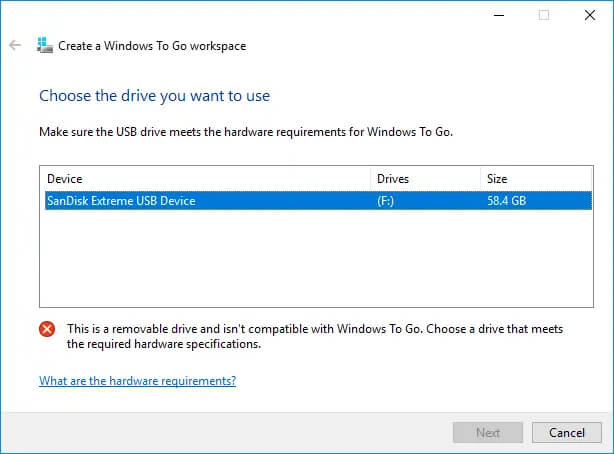
Windows 10 to goMany Linux users if not all of them can run their distros from a USB drive but did you know you can run Windows 10 from a USB drive as well? Microsoft has introduced all the way back to Windows 8 one feature called Windows To Go and it kept it in Windows 8.1 and in Windows 10 as well. This feature is intended as a convenient way for workers to carry their corporate environments with them, but having your own copy of Windows on a thumb drive could be handy for backup purposes, too, or if you frequently use public machines that lack your preferences/applications or that have a restricted OS.

What you will need?

In order to actually make Windows 10 run from a USB drive you will need the following things:
  1. USB drive with a minimum size of 20GB
  2. Working computer with Windows 10 running on it
  3. Rufus or another ISO to UBS tool, get Rufus here: https://rufus.ie/en_US/
  4. Windows 10 ISO file

Making Windows 10 UBS drive

Install Rufus on your Windows 10 and run it. Stick USB in PC and open Rufus. On the screen that follows choose your Windows 10 ISO image and under Image options choose Windows To Go. Click on ready and you are finished, that’s it. After Rufus finishes you have now fully working Windows 10 bootable drive which you can use on another PC for whatever reason.
Read More
Windows 11 android apps update

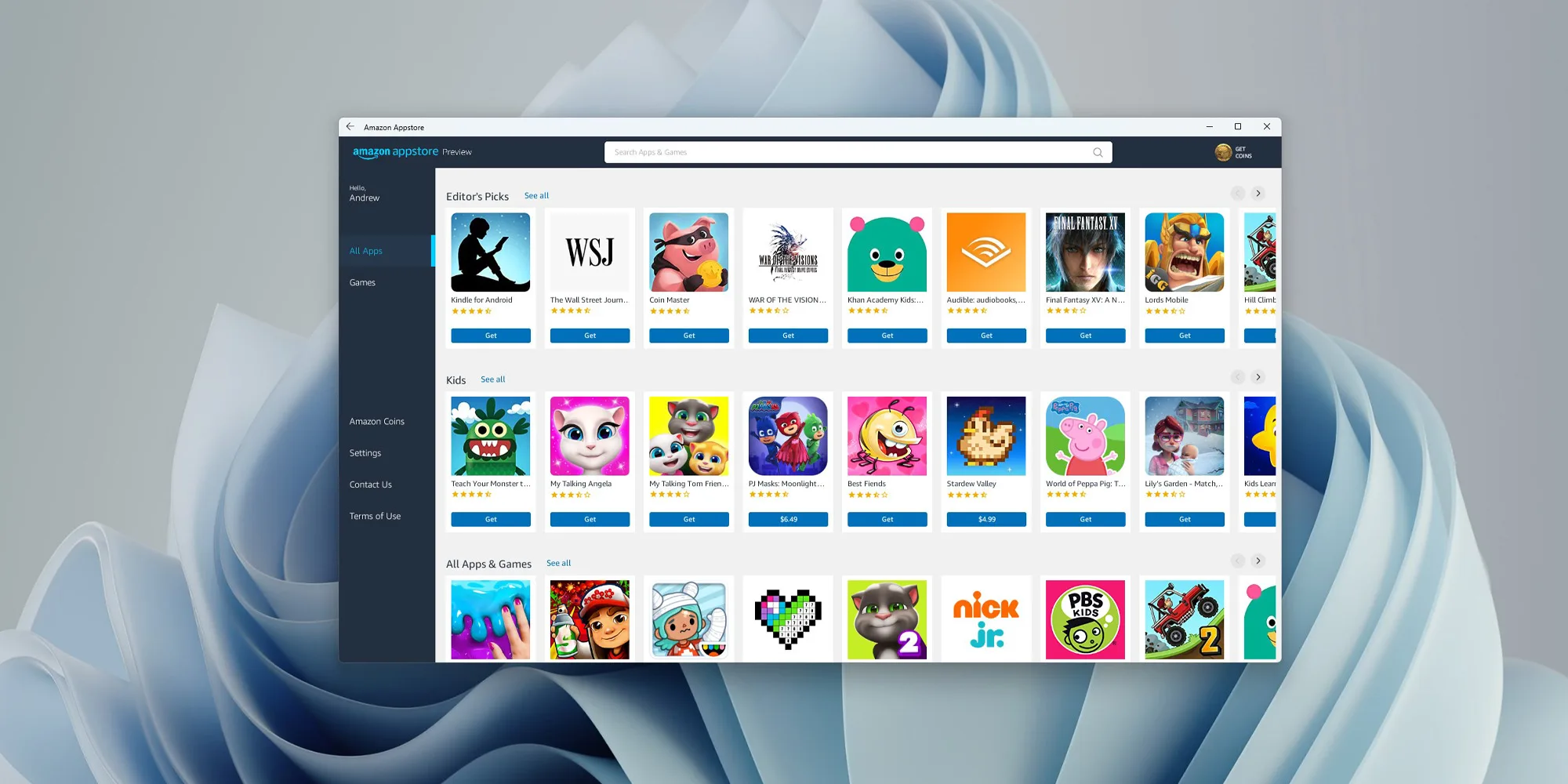
One of the selling points of Windows 11 was the ability to run Android apps natively in it without the need for any third-party software. It is not a big surprise that even after its release Microsoft is evolving and expanding Windows 11 and its features.

Windows 11 Android apps

Microsoft is now rolling out an update for the Windows Subsystem for Android on the Dev Channel of the Windows Insiders program. The new version upgrades the core operating system from Android 11 to Android 12.1 (also known as Android 12L), which means the new system and app features in Android 12 and 12.1 are now available on Windows for the first time. However, not the new features in those updates apply to the modified version that runs on top of Windows. For example, one of the main improvements in 12.1 was a dual-pane notification panel for larger screens, but Android app notifications on Windows just show up in the Windows notification panel.

The upgrade also improves how Android apps integrate into Windows. The Windows taskbar will now show which Android apps are currently using the microphone, location, and other system services — similar to many native Windows applications. Toasts messages (the small popups that some apps use for temporary messages) are now displayed as Windows notifications, and the titlebar on Android apps will use the current activity name for the title.

Full changelog

  • Windows Subsystem for Android updated to Android 12.1
  • Advanced networking on by default for newer x64 Windows builds
  • Updated Windows Subsystem for Android Settings app: redesigned UX and diagnostics data viewer added
  • Simpleperf CPU profiler recording now works with Windows Subsystem for Android
  • Windows taskbar now shows which Android apps are using microphone and location
  • Improvements to Android app notifications appearing as Windows notifications
  • Reduced flicker when apps are restored from minimized state
  • Apps are not restarted when devices come out of connected standby on recent Windows builds
  • New video hardware decoding (VP8 and VP9)
  • Fixes for on-screen keyboard in apps
  • Fixes for full-screen Android apps and auto-hidden Windows taskbar
  • Windows Subsystem for Android updated with Chromium WebView 100
  • Added support for Android NetworkLocationProvider in addition to GpsLocationProvider
  • Improved general stability, performance, and reliability

The new update is limited to Windows Insiders for now, but once Microsoft fixes all the bugs, it should start rolling out to everyone on Windows 11 that has the Android Subsystem enabled.

Read More
Fix Windows 0x8007002C – 0x400D Error
In Installing or upgrading your Windows 10, there really is no guarantee that everything will go smoothly as there are times you encounter errors like the “ We couldn’t install Windows 10, 0x8007002C - 0x400D ” error message among other Windows update/upgrade errors. When you encounter this particular error message you will the following message on your screen:
 “We’ve set your PC back to the way it was right before you started installing Windows 10. 0x8007002C-0x400D The installation failed in the SECOND_BOOT phase with an error during MIGRATE-DATA operation”
This kind of Windows upgrade error indicates that some of the files needed for the installation are locked out for some reason and that Windows was not able to migrate them to a new version. It could be that your computer does not have sufficient space for those files. Thus, no matter how many times you try to upgrade your computer, you always end up going back to the previous version of Windows. To fix the “0x8007002C – 0x400D, The installation failed in the SECOND_BOOT phase with an error during MIGRATE-DATA operation” error, here are some suggestions that might help:

Option 1 – Disable your antivirus program

There are times when the antivirus program installed in your computer blocks file access and even disk access. Thus, disabling the antivirus program or any security software installed in your computer is always a good idea you can try when the Windows Update process does not go smoothly. So before you try updating your computer again, make sure to disable the antivirus or security program and once the Windows Update is done, don’t forget to enable the antivirus program back again.

Option 2 – Perform a Disk Cleanup to free up disk space

Chances are, some unnecessary files in your computer might be interrupting the installation process which explains why you’re getting the “0x8007002C – 0x400D, The installation failed in the SECOND_BOOT phase with an error during MIGRATE-DATA operation” error instead so you need to perform a Disk Cleanup in order to fix the problem.
  • In the Cortana Search box, type “disk cleanup” and click on the related search result.
  • Then select the disk you want to clean and click OK.
  • Wait for the process to be completed and then restart your PC and try to install the Windows upgrade again.

Option 3 – Get rid of any file protection software

The Windows setup migrates the folder from one version to another during the upgrade. However, if some of your folders, if not all, are protected using some file protection software, then Windows won’t succeed in moving the folder and you will encounter this Windows upgrade error instead. Thus, you need to unlock all those protected files or better yet uninstall the file protection software after you remove the locked files. After that, try installing the upgrade again.

Option 4 – Rename the SoftwareDistribution folder

The Software Distribution folder in the Windows operating system is a folder that can be found in the Windows directory and is used to store files temporarily which might be required to install the Windows Update on your PC. Thus, it is required by the Windows Update and maintained by WUAgent. Aside from that, it also contains all the Windows Update History files and once you delete them, you will most likely lose the Update history. As a result, the next time you run the Windows Update, it may result in a longer detection time.
  • Open the WinX Menu.
  • From there, open Command Prompt as admin.
  • Then type in the following command – don’t forget to hit Enter right after typing each one of them.
net stop wuauserv net stop bits rename c:windowsSoftwareDistribution SoftwareDistribution.bak
  • After entering these commands, it will stop the Windows Update Service, the Background Intelligent Transfer Service, and rename the SoftwareDistribution folder.
  • Next, got to the C:\Windows\SoftwareDistribution folder and get rid of all the folders and files thereby tapping the Ctrl + A keys to select them all and then click on Delete. Note that if the files are in use, you won’t be able to delete them.
  • Once all the contents in the Software Distribution folder are deleted, restart your PC and then go back to Command Prompt and input the following commands again.
net start wuauserv net start bits
Since the folder has already been flushed, it will be populated afresh the instant your restart your computer and open Windows Update.

Option 5 – Run the DISM tool

As mentioned, the “0x8007002C – 0x400D, The installation failed in the SECOND_BOOT phase with an error during MIGRATE-DATA operation” error might also be caused by corrupted files in the computer. Thus, you can try using the DISM tool to repair them. Running the DISM tool can repair the Windows System Image and Windows Component Store in Windows 10.
  • Open the Command Prompt as admin.
  • Then type in this command: DISM /Online /Cleanup-Image /RestoreHealth
  • Do not close the window if the process takes a while as it will probably take a few minutes to finish.

Option 6 – Run the Windows Update Troubleshooter

Running the built-in Windows Update troubleshooter could also help you resolve this particular Windows upgrade error. To run it, go to Settings and then select Troubleshoot from the options. From there, click on Windows Update and then click the “Run the troubleshooter” button.

Option 7 – Try running Microsoft’s online troubleshooter

You also have the option to run Microsoft’s online troubleshooter which could help you fix Windows Update errors including the “0x8007002C – 0x400D, The installation failed in the SECOND_BOOT phase with an error during MIGRATE-DATA operation” error.
Read More
Breath new life in your laptop

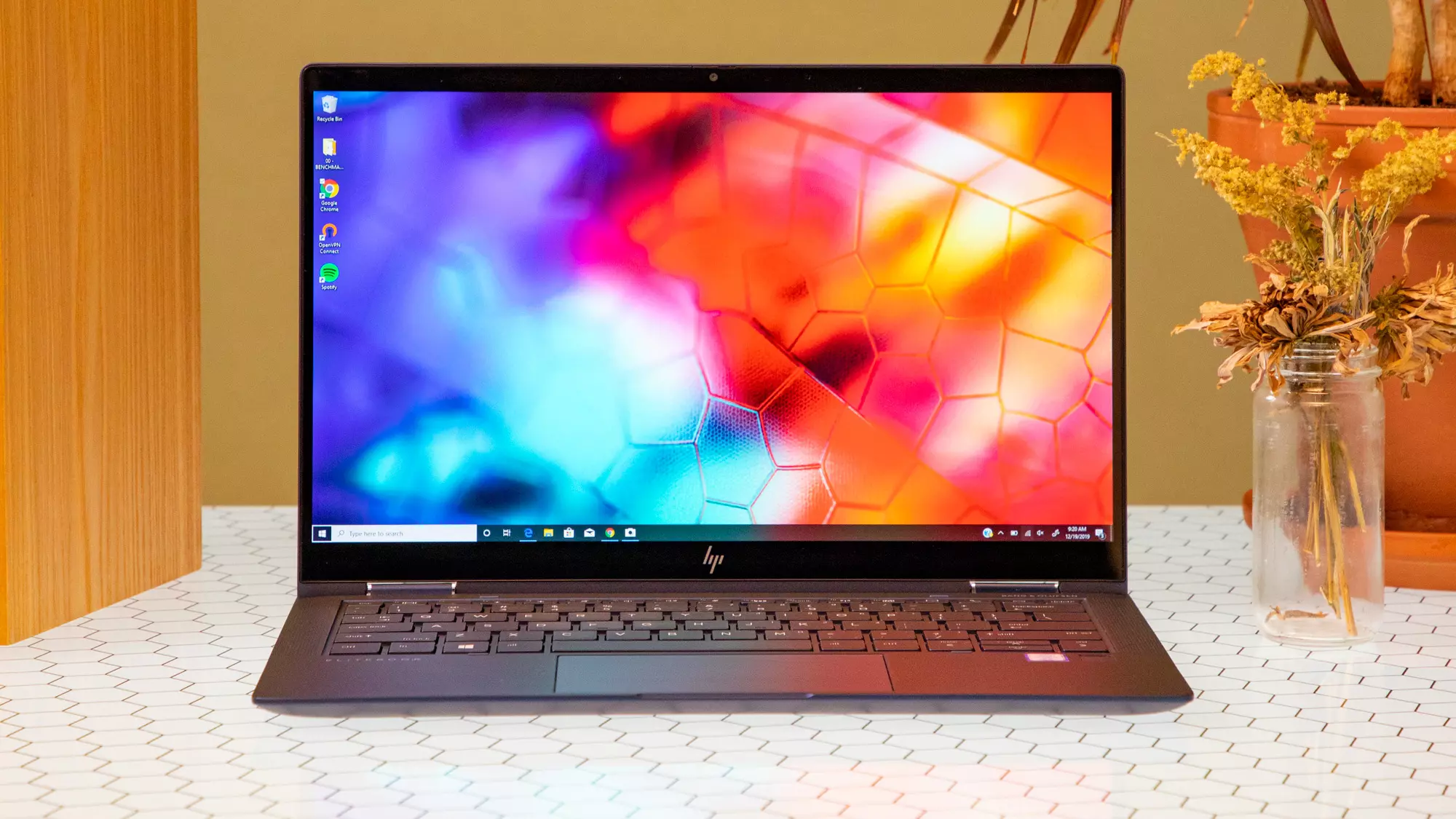
If you have a laptop that is slowing down and some usual tasks are sluggish you probably mean that it is time to change it and get a new one. Altho it is a good solution and it will guarantee that you will be able to do your tasks with more speed and comfort, straight purchasing is not always the best thing to do.

laptop

There are things you can do and some upgrades that are cheaper and will bring your laptop back into the game and extend its usage for a few more years.

1. Clean it

The most common issue for slowing down of computer is dust and dirt that accumulates over time and usage. If the laptop has not been properly cleaned in a while, cleaning it and placing new thermal paste on the CPU can do wonders. If you are not keen on doing this yourself or do not possess the required skillset take it to your local IT center for cleaning.

2. Uninstall software that you are not using

Various software can have speeding effects on computers, it can have some services running in the background and thus take precious resources slowing the whole system. If you are not using software, uninstall it.

3. Do not install the latest software

If you are using your computer for basic tasks there is no really need to install the latest and best. A lot of new software will require new hardware and things that offer are not so much better nor even required to justify the upgrade. Let us take office, for example, if you are using it to just write some text and not using any advanced options there is really no need to switch to a newer version, the old one will do just fine tasks that you are in need of.

4. Replace HD

Now this fits in the domain of upgrading your hardware but still it is much cheaper than replacing the whole laptop. Windows 10 works much better with SSD and SSD itself is faster than your standard HD, especially if it is slower model spinning in only 5400RPM. Operation of HD replacement is simple and straightforward and anyone can do it but the benefits of replacement will be visible right away. With a new SSD instead of an old mechanical one, you will have the feeling that you actually bought a new laptop.

5. Add more RAM

This is basically the last thing you can do in order to speed up your old laptop that will not break your bank account. Upgrading RAM was always the thing that can push your computer to have more power and to behave better while you are doing tasks. One important thing here is to first see how much RAM you have in your computer. If you are packing already 8GB then upgrading will not do much but if you have only 4GB, raising it to 6GB or 8GB will be beneficial. Also, check if the model of the laptop supports more RAM in the first place.

Conclusion

We have covered here a vast array of options in order to get your laptop back into the game with variability between hardware upgrades to taking care of your software. Whatever option you choose to do it will speed up your computer but among all of them, replacing the hard drive will do the most.

Read More
Gigabit internet showing as 100MB in Windows
In today's world setting up a LAN network or internet connection is no longer a daunting task that will require having a bachelor's degree in computer science nor a specialized technician. But even in the present-day environment issues and problems can occur. One of these problems is detecting or running a network at a slower 100MB speed instead of 1GB. Troubleshooting of this nature is somewhat more complex than your typical troubleshooting issue because several things including hardware could be involved in this particular problem but do not worry, we are here to back you up and guide you Setting up a home or small office network no longer requires a specialist technician to constantly monitor and optimize the LAN routers and connected PCs. As Windows networking has improved and new features have become available on the hardware, configuring a 1GB network should be as simple as connecting the LAN to a router that came with this capability. If however the network’s rated speed only gives 100MB, troubleshooting the issue is more complex. To find the problem, you’ll need to check the hardware devices, cable connections, and the software you are using to connect and manage the network.

Hardware checks

If you are using the switch in your LAN configuration check its hardware details as well to see if it can handle 1GB speeds.
The next step is network cables, some cables are not designed and their copper can not transfer 1GB of flow, check to see if your cable is classified for the desired speed. To visually check cables do the following
  1. Check both connection jacks to see if it has any loose or frayed wires. If any of the wires are loose, it can be the cause of the performance issue. You should replace the cable if you discover damage to the connectors.
  2. Inspect the entire length of the cable and check if the harness shows any clear signs of damage. A bent or damaged cable can reduce the amount of information it’s capable of transferring between the PC and LAN router. If you find any damage to the cable, replace it to restore your network speed.
  3. Is the cable capable of transferring 1GB speeds? Different network cables support different network speeds. A Cat-5 cable will only provide 100MB transfers, while a Cat-5e or Cat-6 can support up to 10GB transfers. Check the cable’s labels to make sure you are using a Cat-5e or higher-rated data cable.

Now when the hardware issue is out of the way we can focus a little more on the software part.

Let's try the first easy solution, run Windows built-in troubleshooter

  1. Click the Windows button and type Control Panel. Then select the top result.
  2. If your Control Panel shows the Category View, change it to display Small Icons instead.
  3. From the list of available applications, select Network and Sharing Center.
  4. In your Network and Sharing Center, you can see the active network, set up a new network connection, troubleshoot problems, or change your adapter settings. Before making changes to your device properties, you can let Windows run a troubleshooter on your adapters to see if it can automatically fix your connection issues.
  5. Click on Troubleshoot Problems from the Change Your Network Settings section.
  6. In the Troubleshooter Application, scroll down and find the Network Adapter option.
  7. Click on Run Troubleshooter to let Windows check your network adapter’s configuration for any issues.
  8. Select the Ethernet Adapter you’re currently using from the list and click Next to proceed.
  9. Wait for the process to complete and check the results. If Windows detects any issues, it will recommend a fix. However, if the configuration of your network adapters does not have any problems, you’ll see a message that Windows couldn’t detect any problems.
  10. If there are any issues with the cable, the troubleshooter will detect the connection issue and request you replace the cable and connect it to your PC.
  11. It can occur that even after inspecting the cable and you didn’t find any visible damage on the housing or connectors, it could still be faulty. Replace the cable with a new one and rerun the troubleshooter to see if the cable is working as required.

If the troubleshooter finished and you received a Windows Couldn’t Detect Any Issues result, you’ll need to verify your adapter’s speed settings.

  1. In your Network and Sharing Center, select the Change Adapter Settings option from the left menu.
  2. On the list of adapters, choose the one you’re using and click the Right Mouse Button to open the context menu.
  3. Select Properties from the Context Menu to access your adapter’s settings.
  4. On the Ethernet Properties window, you can enable or disable different features and install additional protocols. To change the device settings, click on Configure to continue.
  5. This will open the Device Controller Properties window where you can check the status, make changes to the settings, find out information about the driver, or check historical events on the device. Select the Advanced tab to access the device settings.
  6. On the Advanced tab, locate the Speed and Duplex setting.
  7. The Auto-Negotiation option may cause network performance issues on certain Ethernet adapters and routers. The setting allows your adapter to change the speed settings according to the LAN configuration you connect to your PC. If you connect to different LAN networks regularly with different speeds, it can occur that the setting doesn’t update from 100MB to 1GB while switching.
  8. Change the Value to match the network speed of the LAN you’re connecting to your PC and use the manual speed setting.
  9. Click OK to apply the setting and test your network performance. If your adapter doesn’t have the 1GB setting available but you know the rating should go up to that speed, it could indicate that you aren’t using the right driver for the device.

If you don’t have the setting available or the device still only provides 100MB speeds after changing the Speed setting to a manual value, you may have to update the driver for the device.

  1. On the Ethernet Properties Window, once again click on Configure to access the Device Properties Window. Then select the Driver Tab to access your driver details.
  2. Select Update Driver from the available options.
  3. On the Update Driver window, select the option to let Windows Search Automatically for Updated Driver Software.
  4. Windows will connect to the internet and search for the latest drivers online. If a newer driver exists, Windows will download and install the driver for you. If you’re using the latest driver, Windows will inform you that no updated drivers are available.
Read More
Guide for Removing SMSFromBrowser Malware

What is SMSFromBrowser

SMSFromBrowser is a Browser Extension developed by MindSpark. This extension usually comes bundled up with other software or via online advertising. Allegedly this extension allows you to send SMS messages from your computer, however, all it does is point you to other websites that offer this service. While active this extension monitors your browsing behavior, it records your website visits, clicks, links, and sometimes even private information, in order to use this data to better serve additional ads. During your browsing sessions, you may encounter additional unwanted ads, sponsored links, and sometimes even pop-up ads. Several anti-virus scanners have detected this extension as a potentially unwanted extension / Browser Hijacker, and due to its privacy mining behavior, it is not recommended to keep it on your computer.

Browser hijackers (sometimes referred to as hijackware) are a kind of malicious software that modifies web browser settings without the computer owner’s knowledge or permission. These hijacks appear to be increasing at an astonishing rate around the world, and they could be actually nefarious and sometimes harmful too. Browser hijackers are capable of doing more than just modifying homepages. These are typically used to force hits to a specific site, manipulating web traffic to generate ad revenue. Though it might seem naive, these tools are made by vicious people who always try to take advantage of you, so that they can easily make money from your naive and distraction. As soon as the program attacks your laptop or computer, it starts to mess things up a whole lot that slows your system down to a crawl. In the worst-case scenario, you will be forced to deal with serious malware threats as well.

Indications of browser hijack

There are many signs of web browser hijacking: 1. home page is changed 2. your browser is constantly being redirected to porn sites 3. the default online search engine and the default browser settings are altered 4. discover new toolbars that you simply didn’t add 5. you notice numerous ads pop up on the browsers or computer screen 6. your browser gets sluggish, buggy crashes very often 7. you can’t go to specific sites such as homepages of anti-malware software.

How it infects your personal computer

A browser hijacker can be installed on your computer or laptop when you visit an infected site, click on an e-mail attachment, or download something from a file-sharing website. They can be included with toolbars, BHO, add-ons, plug-ins, or browser extensions. Some internet browser hijackers spread in user’s PC by using a deceptive software distribution technique known as “bundling” (often through freeware and shareware). A good example of a notorious browser hijacker is the most recent Chinese malware known as “Fireball”, which has attacked 250 million PCs worldwide. It acts as a hijacker but could be turned into a fully functioning malware downloader afterward. Browser hijackers could interrupt the user’s web surfing experience greatly, keep track of the websites visited by users and steal financial information, cause difficulty in connecting to the web, and eventually create stability problems, making applications and computers freeze.

Removal

Some types of browser hijackers can be effortlessly removed from your PC by deleting malicious applications or any other recently added freeware. Many times, it could be a tough job to discover and get rid of the malicious program because the associated file will be running as part of the operating system process. And there’s no denying the very fact that manual repairs and removal methods can be a difficult job for an amateur computer user. Also, there are several risks associated with fiddling around with the pc registry files. Browser hijackers could be effectively removed by installing and running an anti-malware application on the affected computer. To remove any browser hijacker from your PC, you can download the following professional malware removal program – Safebytes Anti-Malware. And utilize a system optimizer, such as Safebytes Anti-Malware, to erase all associated files in the registry and repair browser problems. All malware is detrimental and the degree of the damage may vary greatly according to the type of infection. Certain malware types alter web browser settings by adding a proxy server or modify the computer’s DNS configuration settings. In such cases, you will be unable to visit some or all internet sites, and thus unable to download or install the required security software to eliminate the infection. If you’re reading this article, odds are you’re stuck with a virus infection that is preventing you to download or install the Safebytes Anti-Malware program on your system. Follow the instructions below to get rid of the malware by alternative methods.

Install the anti-virus in Safe Mode

If the malware is set to run automatically when Microsoft Windows starts, entering Safe Mode could very well block the attempt. Just bare minimum required programs and services are loaded whenever you boot your PC into Safe Mode. To start your Windows XP, Vista, or 7 PCs in Safe Mode with Networking, follow the instructions below. 1) Tap the F8 key continuously as soon as your PC boots, however, before the large Windows logo shows up. This would invoke the “Advanced Boot Options” menu. 2) Use the arrow keys to choose Safe Mode with Networking and press ENTER. 3) Once this mode loads, you should have an internet connection. Now, get the malware removal application you need by using the web browser. To install the program, follow the guidelines in the installation wizard. 4) Right after the software is installed, let the diagnostic scan run to eliminate trojans and other malware automatically. Use an alternate internet browser to download an antivirus application Some malware only targets specific web browsers. If this sounds like your situation, employ another browser as it might circumvent the virus. The best way to avoid this problem is to opt for an internet browser that is known for its security measures. Firefox has built-in Phishing and Malware Protection to help keep you secure online.

Create a bootable USB anti-virus drive

Another option is to store and run an antivirus software program completely from a Flash drive. To run anti-malware from a flash drive, follow these simple steps: 1) On a virus-free PC, download and install Safebytes Anti-Malware. 2) Insert the pen drive on the same PC. 3) Run the setup program by double-clicking the executable file of the downloaded software, which has a .exe file extension. 4) Choose the USB flash drive as the destination for saving the software file. Follow the directions to complete the installation process. 5) Now, transfer the thumb drive to the infected computer system. 6) Double click the Safebytes Anti-malware icon on the pen drive to run the application. 7) Press the “Scan” button to run a full computer scan and remove malware automatically.

Benefits and Features of SafeBytes Anti-Malware

These days, an anti-malware tool can protect your computer or laptop from various types of internet threats. But wait, how to select the best one amongst plenty of malware protection applications that are available on the market? You may be aware, there are several anti-malware companies and products for you to consider. Some of them are good, some are ok types, and some will ruin your PC themselves! You need to be very careful not to select the wrong application, particularly if you purchase a premium application. When it comes to commercial antimalware tool options, many people opt for well-known brands, like SafeBytes, and they are quite happy with it. SafeBytes can be described as a powerful, real-time anti-malware application that is created to assist the average computer end user in safeguarding their computer from malicious internet threats. Through its cutting-edge technology, this software will help you protect your PC against infections caused by various kinds of malware and other threats, including spyware, adware, computer viruses, worms, trojan horses, keyloggers, ransomware, and potentially unwanted program (PUPs).

SafeBytes has excellent features when compared to various other anti-malware programs. A few of them are given as below:

Real-time Active Protection: SafeBytes gives you round-the-clock protection for your personal computer limiting malware attacks instantly. They are extremely effective in screening and removing various threats because they’re continuously revised with new updates and alerts. Robust, Anti-malware Protection: Safebytes is made on the best virus engine within the industry. These engines will detect and get rid of threats even during the early stages of a malware outbreak. Internet Security: SafeBytes inspects the hyperlinks present on a webpage for possible threats and informs you if the website is safe to visit or not, through its unique safety rating system. Low CPU Usage: SafeBytes is a lightweight and user-friendly anti-virus and anti-malware solution. Since it uses minimum computer resources, this application leaves the computer power exactly where it belongs to: with you actually. 24/7 Online Tech Support: You may get absolutely free 24/7 technical support from their computer experts on any product queries or computer security concerns. SafeBytes will keep your personal computer safe from the latest malware threats automatically with almost no input needed from you again. Once you have downloaded and installed this software, you will no longer have to bother about malware or any other security concerns. You will get the best all-around protection for the money you pay on SafeBytes anti-malware subscription, there isn’t any doubt about it.

Technical Details and Manual Removal (Advanced Users)

If you wish to manually remove SMSFromBrowser without the use of an automated tool, it may be possible to do so by removing the program from the Windows Add/Remove Programs menu, or in cases of browser extensions, going to the browsers AddOn/Extension manager and removing it. You will likely also want to reset your browser. To ensure the complete removal, manually check your hard drive and registry for all of the following and remove or reset the values accordingly. Please note that this is for advanced users only and may be difficult, with incorrect file removal causing additional PC errors. In addition, some malware is capable of replicating or preventing deletion. Doing this in Safe Mode is advised. The following files, folders, and registry entries are created or modified by SMSFromBrowser
Files: %ALLUSERSPROFILE%MicrosoftWindowsStart MenuProgramsSMSfromBrowser %ALLUSERSPROFILE%Start MenuProgramsSMSfromBrowser %LOCALAPPDATA%SMSfromBrowserTooltab %UserProfile%Local SettingsApplication DataSMSfromBrowserTooltab Registry: HKEY_CURRENT_USERSoftwareWow6432NodeMicrosoftWindowsCurrentVersionexplorerBrowser Helper ObjectsFFE35078-94B2-4FC0-990D-BF8289BC25E4 HKEY_CURRENT_USERSoftwareMicrosoftWindowsCurrentVersionexplorerBrowser Helper ObjectsFFE35078-94B2-4FC0-990D-BF8289BC25E4 HKEY_CURRENT_USERSoftwareWow6432NodeMicrosoftWindowsCurrentVersionexplorerBrowser Helper Objects3188EEFD-9259-445D-8CCD-B99D6296AD1A HKEY_CURRENT_USERSoftwareMicrosoftWindowsCurrentVersionExtStats3188EEFD-9259-445D-8CCD-B99D6296AD1A HKEY_CURRENT_USERSoftwareMicrosoftWindowsCurrentVersionExtSettingsFFE35078-94B2-4FC0-990D-BF8289BC25E4 HKEY_CURRENT_USERSoftwareMicrosoftWindowsCurrentVersionExtSettingsB1D7EA4A-79CA-454E-897F-F5A052E467F6 HKEY_CURRENT_USERSoftwareMicrosoftWindowsCurrentVersionExtSettings3188EEFD-9259-445D-8CCD-B99D6296AD1A HKEY_CURRENT_USERSoftwareMicrosoftInternet ExplorerApproved Extensions, value: 3188EEFD-9259-445D-8CCD-B99D6296AD1A HKEY_CURRENT_USERSoftwareMicrosoftInternet ExplorerApproved Extensions, value: B1D7EA4A-79CA-454E-897F-F5A052E467F6 HKEY_CURRENT_USERSoftwareMicrosoftInternet ExplorerApproved Extensions, value: FFE35078-94B2-4FC0-990D-BF8289BC25E4 HKEY_CURRENT_USERSoftwareMicrosoftInternet ExplorerToolbar, value: B1D7EA4A-79CA-454E-897F-F5A052E467F6 HKEY_CURRENT_USERSoftwareWow6432NodeMicrosoftTracingSMSfromBrowser_RASMANCS HKEY_CURRENT_USERSoftwareMicrosoftTracingSMSfromBrowser_RASMANCS HKEY_CURRENT_USERSoftwareWow6432NodeMicrosoftTracingSMSfromBrowser_RASAPI32 HKEY_CURRENT_USERSoftwareMicrosoftTracingSMSfromBrowser_RASAPI32 HKEY_CURRENT_USERSoftwareAppDataLowHKEY_CURRENT_USERSoftwareSMSfromBrowser_f7 HKEY_CURRENT_USERSoftwareMicrosoftInternet ExplorerDOMStoragesmsfrombrowser.dl.myway.com HKEY_CURRENT_USERSoftwareSMSfromBrowser HKEY_LOCAL_MACHINEHKEY_CURRENT_USERSoftware[APPLICATION]MicrosoftWindowsCurrentVersionUninstall..Uninstaller

Read More
PowerShell script Error 0xFFFD0000 in Windows
If you like to schedule different tasks on your Windows 10 computer and automate them, then you would find the Windows Task Scheduler very useful. It is commonly used by a lot of users to schedule various tasks like scheduling periodic execution of scripts and some programs to make sure that the intended tasks are automatically carried out. Apart from being a preinstalled application, the Task Scheduler is already available on your computer. However, there are times when you might encounter some errors while using it. One of these errors is error 0xFFFD0000. You can encounter this error while executing some PowerShell scripts. It can occur to any tasks as well especially to the ones that have a file executed using a particular program. And just like the PowerShell script, files also use PowerShell to be executed. To fix Error 0xFFFD0000, you need to follow the instructions provided below carefully. Step 1: In the Start Search, type “task scheduler” and click on Task Scheduler from the results to open it. Step 2: After opening Task Scheduler, right-click on the task that’s giving you the error and then click on Properties. Step 3: After that, navigate to the Actions tab in the new mini window that appears. Step 4: From there, select the action for the task and click on the Edit button which will open another mini window. Step 5: Next, make sure that the path to the executing program is properly typed inside the field of Program/script. Note that it should be set to the executable file for that particular program. For instance, you have to set it to “C:WindowsSystem32WindowsPowerShellv1.0powershell.exe” for the Windows PowerShell program. Step 6: You can also utilize the Browse button and navigate through Windows Explorer to locate that particular executable file for the program. Step 7: Now make sure to use the file argument in the Add arguments field followed by the path of the file to be executed. It should look like this:
-file "C:/Users/Ayush/Desktop/Powershell Script Sample.ps1"
Step 8: Once done, click on OK to save the changes made and see if the task is still giving you an error or not. On the other hand, if you are still getting the same error, you can try to repair the Task Scheduler by deleting corrupted tasks. Note that a single corrupted file can cause big problems so this option is quite important. And for you to delete a corrupted task or any task from the Task Scheduler, you have to use the Registry Editor if you are not able to use the Task Scheduler interface. To do so, follow these steps:
  • Tap the Win + R keys to open the dialog box for Run.
  • Next, type in regedit and click on OK or tap Enter to open the Registry Editor.
  • Then navigate to this path: ComputerHKEY_LOCAL_MACHINESOFTWAREMicrosoftWindows NTCurrentVersionScheduleTaskCacheTree
Note: In this path, you can see all the tasks that are currently set in the Task Scheduler. And since it would be hard to tell which one of them is corrupted, you have to delete the latest one in Task Scheduler last. But before you do so, make sure that you take a note of the ID of the tasks. And for you to get the ID, you have to select the task you wish to delete and double click on the ID string located on your right-hand side, and then copy it in the Notepad.
  • Right-click on the task name and then delete it.
  • After that, delete the very same GUID which you have copied earlier from these folders:
  • ComputerHKEY_LOCAL_MACHINESOFTWAREMicrosoftWindows NTCurrentVersionScheduleTaskCacheBoot
  • ComputerHKEY_LOCAL_MACHINESOFTWAREMicrosoftWindows NTCurrentVersionScheduleTaskCacheLogon
  • ComputerHKEY_LOCAL_MACHINESOFTWAREMicrosoftWindows NTCurrentVersionScheduleTaskCacheMaintenance
  • ComputerHKEY_LOCAL_MACHINESOFTWAREMicrosoftWindows NTCurrentVersionScheduleTaskCachePlain
  • ComputerHKEY_LOCAL_MACHINESOFTWAREMicrosoftWindows NTCurrentVersionScheduleTaskCacheTasks
Note: You might not see the same GUID from these folders but if you see it, delete it right away.
  • Next, navigate to this location: C:WindowsSystem32Tasks
  • Delete the very same tasks you just deleted from the Registry Editor.
  • Restart your PC and check if the Task Scheduler is back to its normal state or not.
Read More
Resolve Error 0x80240020 in Windows 10

Error Code 0x80240020 – What is it?

Error code 0x80240020 is a Windows 10 upgrade error code that affects users who attempt to upgrade their Windows operating system. This may occur due to a particular program that blocks the upgrade from completing. It can also result when other PC issues interfere with the upgrade process by disrupting the ability of Windows Update to download updates on one’s machine. Common symptoms of error code 0x80240020 include the following:

  • Message box detailing the presence of error code 0x80240020
  • Inability to complete Windows 10 upgrade process

Solution

Restoro box imageError Causes

Upgrade error codes occur when Windows users experience upgrade failure while using Windows Update, the Microsoft Windows Update website, the Microsoft Update website, or the Windows Server Update Services (WSUS) server. Disruption may cause this process to fail, for instance, due to system file corruptions or problems related to the Windows Update services.

Further Information and Manual Repair

To correct issues related to error codes, it is often best to apply manual repair methods. These help Windows users determine the root causes of the error code and provide solutions that permanently fix these issues. For instance, if error code 0x80240020 on your machine is due to an issue within the Windows Update tool, you will need to first verify that this is the problem by using a troubleshooter option found within your machine’s settings. The troubleshooter will detect and fix the issue.

Most of these manual repair methods can be implemented by any Windows user, regardless of their background, technical abilities, or lack thereof. However, in certain cases, technical skills are required. If you have trouble implementing the procedures highlighted below or in any other error code article found on this site, consider getting help from a Windows repair technician or use a powerful automated tool.

Below are details regarding the manual repair methods for fixing error code 0x80240020. Ensure you follow the instructions correctly. After all, any error you make will likely cause further problems on your machine and prevent you from resolving error code 0x80240020 in Windows 10.

Method One: Run Windows Update Troubleshooter

One way to fix error code 0x80240020 is to troubleshoot Windows Update. To do this you will need to access Settings within your machine then simply select the relevant troubleshooting options available. Follow the instructions below:

  • Step one: Type Settings within search box near Start button then press Enter
  • Step two: In the search box within Settings, type Troubleshooting
  • Step three: Select the troubleshooting option
  • Step four: Under System and Security, select Fix problems with Windows Update
  • Step five: Under Windows Update, select Resolve problems that prevent you from updating Windows.
  • Step six: Click Next and wait for the troubleshooter to detect and fix problems

If there are problems with Windows Update, the troubleshooter will be able to fix them. Once this process is complete, restart your PC and then reopen Windows Update. Attempt to upgrade your Windows operating system. If Windows Update completes the process and your machine downloads and runs the upgrade, you have successfully resolved error code 0x80240020.

If, however, there is another upgrade failure and the message box detailing the presence of error code 0x80240020 in Windows 10 appears, you will need to apply another manual repair procedure. Please see below for further details regarding manual repair method two.

Method Two: Use SFC to Scan and Fix Corrupted System Files

Corrupted or missing system files may interfere with your machine’s ability to successfully download an upgrade. For this reason, scan and fix any problems related to system files on your machine using Command Prompt. This manual repair method is often called a System File Check/ Checker (SFC).

  • Step one: Right-click Start Menu
  • Step two: Select Command Prompt (Admin)
  • Step three: Type sfc /scannow

To ensure you follow this procedure correctly, enter the command as it is written above, with a space between “sfc” and “/scannow”. Once missing, corrupted or damaged files are present on your machine, the SFC command will enable Command Prompt to scan and fix these issues.  Wait until the process is complete then reboot your PC.

With your system successfully rebooted, reattempt the Windows 10 upgrade process in Windows Update or on the Windows Update website. If the issue causing error code 0x80240020 was related to problems with system files, you should be able to complete the upgrade after using the SFC tool.

Method Three: Download an Automated Tool

If you wish to always have at your disposal a utility tool to fix these Windows 10 and other related issues when they do arise, download and install a powerful automated tool.

Read More
An Easy Guide to Fixing Error Code 12

Error Code 12 - What is it?

Error code 12 is a typical Device Manager error code. It usually pops on the computer screen when the computer experiences device driver problems or system resource conflicts.

Error code 12 is mostly displayed on the computer screen in the following format:

‘This device cannot find enough free resources that it can use. If you want to use this device, you will need to disable one of the other devices on this system.’

Solution

driverfix boxError Causes

The error code 12 occurs when 2 devices installed on your PC are accidentally assigned the same I/O (input/output) ports or the same direct memory access channel.

This assignment is known to be made either by BIOS (Basic Input/output system) or by the operating system. It can sometimes be assigned by a combination of the two. Also, code 12 can also appear on your monitor screen if the BIOS didn’t allocate enough resources to the device.

Although this error code is not fatal, it is nonetheless advisable to fix it immediately to avoid inconvenience and hassle. This error is most likely to lower and hamper the performance of your system.

Further Information and Manual Repair

Here are some of the easiest and most effective do-it-yourself methods to resolve error code 12 on your PC. To perform these fixes, you don’t have to be technically sound or a computer programmer for that matter. Simply follow the steps to fix the problem right away.

Method 1 - Use the Troubleshooting Wizard to identify the Conflict

To repair error code 12, simply go to the start menu and type Device Manager in the search box. Now go to the Device Properties dialog box. After that click on the ‘General Tab’ and now access Troubleshoot to start the Troubleshooting Wizard.

The Wizard will ask you some questions and provide you a solution accordingly. Follow the instructions and resolution steps provided by the troubleshooting wizard to repair error code 12 on your PC.

Method 2 - Disable the Device to Resolve

By disabling the problematic device in the Device Manager, Windows will ignore that piece of hardware. Once disabled, Windows will then no longer assign system resources to that device and no driver/software will be able to use that device.

To disable, go to the Device Properties in the Device Manager and then click the Driver tab. Click disable located at the bottom of the window. Then you will be prompted with a message stating ‘Disabling this device will cause it to stop functioning. Do you wish to disable it?’ Click yes to continue and then click OK to save changes.

Method 3 - Restore Your PC to its Previous State

Another method to resolve error code 12 is to restore your PC to its previous state when it was working properly.

For this, it is important to backup all your data first to avoid data loss issues that are likely to occur during this process. Creating backups manually can be a time-consuming and tedious task. To save time and quicken the process, it is best to install a program like DriverFIX.

DriverFIX is a user-friendly and intuitive device driver management software that helps backup all your data automatically and efficiently, while simultaneously restores your PC back to its previous state before you encountered problems.

Click here to download DriverFIX on your system to resolve error code 12

Read More
1 2 3 171
Logo
Copyright © 2023, ErrorTools. All Rights Reserved
Trademark: Microsoft Windows logos are registered trademarks of Microsoft. Disclaimer: ErrorTools.com is not affiliated with Microsoft, nor claims direct affiliation.
The information on this page is provided for information purposes only.
DMCA.com Protection Status