Logo

Fix We couldn’t install some updates

If you encounter the “We couldn’t install some updates because the PC was turned off” while trying to run Windows Update on your Windows 10 computer, then read on as this post will give you a couple of suggestions you can use as a reference to fix this error. Make sure to follow the options given below carefully.

Option 1 – Perform basic computer troubleshooting

If you get the “We couldn’t install some updates because the PC was turned off” error on your laptop, then it’s recommended that you connect your laptop to a power source and then try clicking the Update button again. In addition, you also have to make sure that your computer stays awake until the Windows Update process is completed. This will ensure that your computer does not go into an idle state and interfere with the process.

Option 2 – Try deleting the files from the SoftwareDistribution folder and resetting the Catroot2 folder

The downloaded Windows Updates are placed in a folder called “SoftwareDistribution”. The files downloaded in this folder are automatically deleted once the installation is completed. However, if the files are not clean up or if the installation is still pending, you can delete all the files in this folder after you pause the Windows Update service. For complete instructions, refer to the steps below.

  • Open the WinX Menu.
  • From there, open Command Prompt as admin.
  • Then type in the following command – don’t forget to hit Enter right after typing each one of them.

net stop wuauserv

net start cryptSvc

net start bits

net start msiserver

  • After entering these commands, it will stop the Windows Update Service, Background Intelligent Transfer Service (BITS), Cryptographic and the MSI Installer
  • Next, go to the C:/Windows/SoftwareDistribution folder and get rid of all the folders and files thereby tapping the Ctrl + A keys to select them all and then click on Delete. Note that if the files are in use, you won’t be able to delete them.

After resetting the SoftwareDistribution folder, you need to reset the Catroot2 folder to restart the services you just stopped. To do that, follow these steps:

  • Type each one of the following commands.

net start wuauserv

net start cryptSvc

net start bits

net start msiserver

  • After that, exit Command Prompt and restart your computer and then try to run Windows Update once more.

Option 3 – Try restarting the Windows Update Services

  • Open the Services Manager.
  • From there, make sure that you set the following services and Startup types:
    • Background Intelligent Transfer Service: Manual
    • Cryptographic Service: Automatic
    • Windows Update Service: Manual (Triggered)

Option 4 – Try to run the Windows Update Troubleshooter

Running the built-in Windows Update troubleshooter could also help you resolve the “We couldn’t install some updates because the PC was turned off” error. To run it, go to Settings and then select Troubleshoot from the options. From there, click on Windows Update and then click the “Run the troubleshooter” button. After that, follow the next on-screen instructions and you should be good to go.

Option 5 – Try to install the Windows Updates manually

As mentioned, the error might be because Windows missed installing a particular update which is why you are not able to proceed with the current update. So to resolve the issue, you need to install the update that wasn’t installed by downloading it from the Microsoft Update Catalog website. You also have to make sure that you didn’t turn off the Windows update or have it delayed.

Option 6 – Run Microsoft’s online troubleshooter

Running Microsoft’s online troubleshooter might also help you fix the Windows update error. This online troubleshooter is known to help in fixing Windows Update errors, it scans your computer for issues that might be causing the problem and then fixes them automatically.

Do You Need Help with Your Device?

Our Team of Experts May Help
Troubleshoot.Tech Experts are There for You!
Replace damaged files
Restore performance
Free disk space
Remove Malware
Protects WEB browser
Remove Viruses
Stop PC freezing
GET HELP
Troubleshoot.Tech experts work with all versions of Microsoft Windows including Windows 11, with Android, Mac, and more.

Share this article:

You might also like

An Easy Guide to Fixing Error 115

Error 115 - What is it?

Error 115 is a type of GameGuard redundant execution error.  If you have GameGuard installed on your PC, then you will most likely experience this error code. GameGuard is basically an anti-cheating robot toolkit developed by INCA Internet. It is installed to block possibly malicious applications and common methods of cheating on multiplayer online role-playing games. But at the same time, this software is infamous for error pop-ups. Error 115 is displayed on the Windows screen when a game has been executed multiple times or you have left the game running without logging out. Error 115 is displayed in the following format:
GameGuard Execute Error: 115 ‘There are multiple events of game execution or GameGuard is already running. Close the game then try again.’

Solution

Restoro box imageError Causes

The error 115 may appear on your Windows screen due to multiple reasons. These include:
  • Multiple executions of the game
  • Antivirus Conflict
  • Firewall Conflict
  • Registry Overloaded with Bad and Invalid Entries
This error may cause a great deal of inconvenience to you if you love to play multi-player role-playing games over the web like Blood Feud, 9Dragons, Phantasy Star Universe, and Alliance of Valiant Arms. To avoid such inconvenience, it is advisable to fix this error immediately.

Further Information and Manual Repair

Here are some easy do-it-yourself methods to resolve the error 115 on your PC. These methods require no technical expertise.

Method 1 - Terminate the Game Already Running on Your System

To resolve the issue, hit ‘Ctrl+Shift+Esc’ to launch Task Manager. Here you will find a list of applications running on your system, terminate the gaming application to resolve error 115.  If this doesn’t work, then restart your PC.

Method 2 - Disable Antivirus Programs or Firewall Temporarily

Sometimes this error may appear on your computer screen because of antivirus or Firewall security conflict. These programs often block gaming applications and software like GameGuard and because of that, you are unable to play online games on your system. To fix the issue, try disabling these programs on your PC temporarily.

Method 3 - Clean and Repair the Registry

The error 115 may also occur because of the registry issue with Symantec. Follow these steps to enable the game to run:
  • Go to your start menu then find Run then write Regedit.
  • Find HKEY_LOCAL_MACHINE. To proceed, go to SYSTEM then CurrentControlSet, and then Services.
  • Look in the list for SysPlant and click it. Then look for the word 'Start', right-click on Start, and select rename.
  • Rename 'start' to 'DWORD: 00000004’ then close Regedit and reboot your PC to activate changes.

Method 4 - Download and Run Total System Care.

This process can be slightly tricky and a bit time-consuming. Therefore it is advisable to download Restoro. This is a cutting-edge, easy-to-use PC Fixer deployed with a powerful registry cleaner. It removes all the unnecessary files cluttering the registry like bad and invalid registry entries. It fixes the damaged registry and enables it to resume back to its normal functioning. Click here to download Restoro.
Read More
Every new movie & show on Netflix in September
netflixNetflix was one that made streaming service standard and even after some stumbles even today it is still a respected service. So in that spirit, we are bringing you the list of all new and old movies and TV series releasing to NETFLIX this September.

September 1

Turning Point: 9/11 and the War on Terror — NETFLIX DOCUMENTARY How to Be a Cowboy — NETFLIX ORIGINAL Agatha Christie’s Crooked House (2017) Anjaam (1994) Barbie: Big City Big Dreams (2021) Brave Animated Series (Season 1) Crocodile Dundee in Los Angeles (2001) Green Lantern (2011) House Party (1990) El Patron, radiografia de un crimen / The Boss: Anatomy of a Crime (2014) HQ Barbers (Season 1) Letters to Juliet (2010) Level 16 (2018) Los Carcamales / Oldsters (Season 1) Kid-E-Cats (Season 2) Kuroko’s Basketball (Season 3) Marshall (2017) Welcome Home: Roscoe Jenkins (2008)

September 2

Afterlife of the Party — NETFLIX FILM Q-Force — NETFLIX ORIGINAL The Guardian

September 3

Dive Club (Season 1) — NETFLIX ORIGINAL Money Heist (Season 5) — NETFLIX ORIGINAL Sharkdog (Season 1) — NETFLIX FAMILY Worth (2021) — NETFLIX ORIGINAL

September 5

Bunk’d (Season 5)

September 6

Countdown: Inspiration 4 Mission to Space (Season 1 – Episodes 1 & 2) — NETFLIX DOCUMENTARY Shadow Parties (2021)

September 7

Kid Cosmic (Season 2) — NETFLIX ORIGINAL Octonauts: Above & Beyond (Season 1) — NETFLIX ORIGINAL On The Verge (Season 1) — NETFLIX ORIGINAL UNTOLD: Breaking Point — NETFLIX DOCUMENTARY If I Leave Here Tomorrow: A Film About Lynyrd Skynyrd (2018)

September 8

Into the Night (Season 2) — NETFLIX ORIGINAL JJ + E — NETFLIX FILM The Circle (Season 3) — NETFLIX ORIGINAL Show Dogs (2018)

September 9

Blood Brothers: Malcolm X & Muhammad Ali — NETFLIX DOCUMENTARY The Women and the Murderer (2021) — NETFLIX DOCUMENTARY

September 10

Firedrake the Silver Dragon (2021) — NETFLIX ORIGINAL Metal Shop Masters — NETFLIX ORIGINAL Kate — NETFLIX FILM Pokemon Master Journey: The Series (Part 1) — NETFLIX ANIME Prey — NETFLIX FILM Lucifer (Season 6) — NETFLIX ORIGINAL Lucifer season 6 poster cast

September 13

Crime Stories: India Detectives (Season 1) — NETFLIX DOCUMENTARY

September 14

You vs. Wild: Out Cold — NETFLIX FILM The World’s Most Amazing Vacation Rentals — NETFLIX ORIGINAL

September 15

Countdown: Inspiration4 Mission to Space (Season 1 – Episodes 3 & 4) — NETFLIX DOCUMENTARY Too Hot to Handle Latino — NETFLIX ORIGINAL Nailed It! — NETFLIX ORIGINAL Schumacher — NETFLIX DOCUMENTARY

September 16

Safe House (2012) Birth of the Dragon (2017) He-Man and the Masters of the Universe (Season 1) — NETFLIX ORIGINAL My Heroes Were Cowboys (2021) — NETFLIX DOCUMENTARY

September 17

Chicago Party Aunt — NETFLIX ORIGINAL Sex Education (Season 3) — NETFLIX ORIGINAL Tayo and Little Wizards (Season 1) — NETFLIX FAMILY The Stronghold (2020) — NETFLIX FILM

September 22

Dear White People (Season 4) — NETFLIX ORIGINAL Confessions of an Invisible Girl — NETFLIX FILM

September 23

A StoryBots Space Adventure (2021) — NETFLIX ORIGINAL

September 24

Ganglands (Season 1) — NETFLIX ORIGINAL Midnight Mass — NETFLIX ORIGINAL My Little Pony: New Generation — NETFLIX FAMILY

September 28

Aba Twist, Scientist — NETFLIX FAMILY

September 29

Sounds Like Love — NETFLIX FILM
Read More
How to Fix Windows Upgrade error 0xa0000400
If you encounter an error code of 0xa0000400 while trying to upgrade your Windows 10 computer using the Windows 10 Upgrade Assistant or the Windows 10 Media Creation Tool, then you might find this post useful as it will guide you in resolving this problem. When you get this error, you will see the following error message:
“Something went wrong You can contact Microsoft support for help with this error. Here is the error code 0xa0000400.”
As you know, keeping your computer up to date with all the Windows Updates is important and is imperative especially if you are experiencing a couple of issues like the Windows Upgrade error 0xa0000400. At the time of writing, there is no specific cause that has been found for this error. However, there are some potential fixes that might help you. You can try to recreate the Windows 10 installation USB and get the ISO files or you could also get a newer version of the Windows Media Creation Tool, or turn off your internet connection at a specific time or run the Windows Update troubleshooter. For more details, refer to the options given below.

Option 1 – Try to recreate the Windows 10 installation USB

Recreating the Windows 10 installation USB might help in fixing the problem. You can use a USB drive to do so but make sure that it has a great read-write speed. Follow the steps below to recreate Windows 10 installation USB”
  • Click this link and then click the Download Tool Now button.
  • Next, click the “Use the tool to create installation media (USB flash drive, DVD, or ISO file)…” option and follow the next given instructions on the screen.
  • Now select the ISO file option in step 5.
  • After that, you should now have an ISO file.
  • Next, go to the location where you’ve downloaded the ISO file.
  • Then right-click on the Windows 10 ISO file and select the Open with option and then select File Explorer.
  • Now click on “setup.exe” and follow the next instructions that appear on the screen. When asked, you have to select either Nothing (clean install) or Keep personal files only option. Take note that you must not select the “Keep personal files, apps, and Windows settings since it doesn’t really work.

Option 2 – Try turning off the Internet connection at a specific time

You might want to turn off your internet connection at a specific time. This option can be quite tricky so what you need to do is to disconnect the internet connection when the update is downloaded using the Windows Upgrade tool. It’s actually okay since all the files you need would be downloaded safely and the Windows Upgrade tool will be the one to install the newer updates using those files.

Option 3 – Try to get a newer version of the Windows Media Creation tool

You can also fix the Windows Upgrade error 0xa0000400 by using the latest version of the Windows Media Creation tool. And so if what you have is an older version, you need to update it in order to resolve the error and upgrade your Windows 10 computer.

Option 4 – Run the Windows Update Troubleshooter

Running the built-in Windows Update troubleshooter is one of the things you can first check out as it is known to automatically resolve any Windows Update or upgrade errors like error code 0x800701E3. To run it, go to Settings and then select Troubleshoot from the options. From there, click on Windows Update and then click the “Run the troubleshooter” button. After that, follow the next on-screen instructions and you should be good to go.

Option 5 – Try running Disk Cleanup

You might want to run the Disk Cleanup utility as it is a useful tool that could delete temporary and useless files in your computer.
  • Tap the Win + R keys to open the Run dialog box and then type “cleanmgr” in the field and hit Enter to open the Disk Cleanup window.
  • After that, select the drive you want to clean.
  • Now click OK to clean the disk and restart your computer.
Read More
A Simple Guide to Fixing Error Code 0x80070424

Error Code 0x80070424 - What is it?

The error code 0x80070424 is a Windows PC error. It may occur when using Windows Update, Microsoft Update or while trying to change Windows Firewall settings. This error does not allow you to enable or disable the Firewall on your PC. It is quite common on Windows 7 and Vista. Symptoms of error code 0x80070424 include Windows Firewall may not be listed on Services.msc, inability to change Windows Firewall settings and you may come across this error message when restarting your PC, “Base Filtering Engine Service could not be found in the system”.

Solution

Restoro box imageError Causes

Some of the common causes of the error code 0x80070424 include:
  • Base Filtering Engine Service file corruption
  • Registry issues
When you encounter this error code on your system, it is recommended to fix it immediately as this error can lead to serious PC damages.

Further Information and Manual Repair

To resolve the error code 0x80070424 here are some of the best DIY solutions for you. By following these solutions, you can fix the error all by yourself. These are simple, easy, and quick PC fixers that require no technical expertise. Just follow the simple steps and the error will be resolved in the shortest time.

Re-Install Windows Firewall & Filtering Engine

If the underlying cause of the error 0x80070424 is Base Filtering Engine Service file corruption, then the best way to resolve it is to download the Firewall and register file from a reliable website. Once you download it extract the zip on your desktop.
  • Double click on both files one by one to confirm their installation on your PC. Once installed, restart your PC and click on the start button. Search file type and run and then press enter.
  • When the Run window opens, type REGEDIT and click OK. After that, from the left sidebar navigate to HKEY_LOCAL_MACHINESYSTEMCurrentControlSetservicesBFE.
  • Now simply right-click on BFE folder and choose permission. Once that’s done, click on add button and type everyone then press OK to confirm settings.  Here you will see the ‘everyone’ added field.
  • After that in the below permission panel, tick the box that says Full Control and confirm. Now close the window and go to the menu and type services MSC.
This will open the service window. From the list search for ‘Base Filtering engine file’ right-click on it. Now search for Windows Firewall and see if you can change the settings. This procedure is most likely to resolve the error code 0x80070424 on your PC. It is time-consuming but worth it.

Use a Registry Cleaner

None the less, if the error is triggered by registry issues, then it is advisable to download Restoro. This is an advanced and highly functional PC fixer integrated with multiple utilities including a powerful registry cleaner. The registry cleaner utility detects all registry issues on your system and fixes them in seconds. It wipes out the excess, unnecessary, and obsolete registry entries and files corrupting your system cleans, and restores the registry. It is user-friendly and compatible with all Windows versions. So whether you are using Windows 7, 8, XP or Vista, you can run it on all versions with ease and resolve the error code 0x80070424 generated by registry issues. This software also includes other functional and value-added features like antivirus and a system optimizer. Click here to download Restoro and resolve error code 0x80070424  on your PC today!
Read More
USB Keeps Connecting and Disconnecting
External hard drives have become essential these days as they tend to be very useful to many users. They are usually used for storing system images like system backups, Windows installation media, or for personal use. However, if you are not able to utilize your external drivers for some reason then that could be a huge problem. One of the common issues with hard drives is when your USB device or external hard drive just keeps connecting and disconnecting. This kind of issue could be caused by a faulty USB port, some issues with the USB drivers, your computer’s Power Options, corrupted or damaged system files, and many other factors. The connecting and disconnecting issue with USB devices and external hard drives isn’t really new and has been experienced by many users for years now. Although this issue has somewhat decreased in Windows 10, there are still some users who encounter it every now and then. Worry not though for there are fixes that you can try to resolve the problem. Refer to the following straightforward solutions to resolve the issue with your USB device or external hard drive.

Option 1 – Plug your external device on a different port

If your USB device keeps on connecting and disconnecting then the first thing you can do is to try connecting it to a different port. This will help you isolate the problem. In some cases, the port where the USB is connected can be malfunctioning or obsolete so you need to check that possibility by plugging your USB device into a different USB port.

Option 2 – Update or reinstall your USB drivers

As mentioned earlier, the problem could be due to some issues with the USB drivers. It could be that it has to be updated or you need to reinstall it. To do that, follow these steps:
  • First, click the Start button and type “device manager”.
  • Then click on the “Device Manager” from the search results to open it.
  • From there, look for the “Universal Serial Bus controllers” option and then right-click on each one of the USB drivers and select the Update Driver from the menu.
  • Restart your PC and then click the “Search automatically for updated driver software” option.
You also have the option to update the motherboard and the USB driver from the manufacturer’s official website.

Option 3 – Try turning on the USB External drive

There are times when your system turns off some drives in order to conserve your computer’s power, etc. as a result, the driver that’s required to run your external hard drive properly ends up getting disabled. To fix this, you can prevent your system from turning off your external USB drive by following these steps:
  • You need to make sure that the external drive is connected to your system first.
  • Next, go to the Start Menu and type “device manager” in the field, and click on the appropriate result to open the Device Manager.
  • After opening the Device Manager, expand the category of the Universal Serial Bus controllers.
  • Then double click on your USB Mass Storage device and take note that the name might be different on your system.
  • Now go to the Power Management tab and uncheck the checkbox for the “Allow the computer to turn off this device to save power” option and click OK to save the changes made.

Option 4 – Turn off USB Selective Suspend

Another thing you can try is to turn off USB Selective Suspend especially when the issue has something to do with the Power Options. There are certain systems that are configured to disable USB devices after some time which could be the root cause of the problem. Thus, you need to turn off USB Selective Suspend. Here’s how you can do it:
  • In the Start Menu, search for “control panel” and open the related search result.
  • Then go to Power Options and click on the “Change plan settings” option.
  • Next, select “Change advanced power settings” and look for the USB settings and then expand it.
  • From there, you will see the USB Selective Suspend setting. Disable it and click OK.
  • Now restart your computer and check if it resolves the problem or not.

Option 5 – Format your drive

  • To get started formatting your drive, tap the Win + E keys and then go to the access page of the drive.
  • Next, right-click on the drive and select Format.
  • After that, uncheck the “Quick Format” option and then format your drive properly.
  • Now once the formatting process is finished, unplug the drive and plug it back in afterward.
  • Check if the error is already fixed. If the drive is not initialized, tap the Win + R keys and hit Enter.
  • After opening the Run dialog box, type “diskmgmt.msc” and hit Enter to open Disk Management.
  • From there, right-click on the drive volume and select initialize disk.
  • Next, select the correct partition type and proceed.
Read More
Fix 0x0000007c (ERROR_INVALID_LEVEL) in W11
0x0000007c error inside Windows 11 is a printer error that is manifested when Windows users are trying to connect to a shared network remote printer. Error is displayed by the message:
Windows cannot connect to the printer. Operation failed with error 0x0000007c.
If you are experiencing this type of annoyance, fear now we are providing you with several solutions to this problem.

0x0000007c (ERROR_INVALID_LEVEL)Update Windows 11

  1. Open the Start menu, click on the settings app
  2. Select Windows update tab
  3. Click on Check for updates
  4. Click on Advanced options
  5. Inside select Optional updates
  6. If there are optional updates click on Download & Install

Run the printer troubleshooter

  1. Press ⊞ WINDOWS + I to open settings
  2. Click on Troubleshoot navigation on the system tab
  3. Select Other trouble-shooters
  4. Click on the Run for printer troubleshooter
  5. If the error is found click on Apply this fix

Restart the Print Spooler Service

  1. Right-click on the Start button
  2. Click on RUN
  3. Type in services.msc and press OK
  4. Right-click on Printer Spooler service and select Restart

Clear the Print Spooler

  1. Open services like in the previous step
  2. Right-click Print Spooler and select STOP
  3. Open File explorer
  4. Navigate to: C:\Windows\System32\spool\drivers\x64\3 (64-bit Platform) C:\Windows\System32\spool\drivers\W32X86\3 (32-bit Platform)
  5. Delete everything inside folders
  6. Go back to services, right-click on Print Spooler and select RESTART

Reinstall Driver for printer

  1. Right-click on Start and select device manager
  2. Double click on the Print queues category
  3. Right-click on the printer and select Uninstall device
  4. Click on Uninstall on prompt
  5. Right-click on the Print queues category and select Scan for hardware Changes
Read More
Disabling Security Questions in Windows
We’ve already covered disabling Security Questions If you want to disable Security Questions on your Windows 10 computer then you’ve come to the right place as this post will guide you in doing exactly that. In this post, you will be disabling Security Questions using a PowerShell script. This PowerShell script is called “Update-AllUsersQA”. It is designed to remove or disable the security questions and answers for local users on a Windows 10 computer. It lets administrators take control of the security questions in the environment and at the same time minimizes the risk that comes with them. If a user has a Microsoft account that’s configured to sign in to Windows 10 then he will not probably notice the Password Recovery questions. On the other hand, if he has a chosen local account for installing Windows, he will e prompted to create three security questions that can be used to reset the password and log into the Windows 10 account in case there is any misfortune. However, if you do not have much use for these Security Questions, then you can definitely have them disabled using a simple PowerShell script which you can download from GitHub. For more details on how to disable security questions in a Windows 10 machine, refer to the steps provided below. Step 1: You need to first download the .ps1 file from the GitHub repository. Step 2: Once you’ve downloaded the file, open the PowerShell window with admin privileges. Step 3: After that, navigate to the folder where you had saved the .ps1 file. Then copy the address of the folder location. Step 4: Next, change the directory by using the following command:
cd "folder location address"
Step 5: After that, enter the following script to disable the security questions:
Update-AllUsersQA
Once you’ve completed the steps above, the Security Questions should be disabled and you will be notified with a message stating that the feature has been disabled. On the other hand, if you have a change of heart and you want to enable the Security Questions back, here are some steps you need to take: Step 1: First, open the PowerShell window as admin. Step 2: Next, run the same script with one more parameter such as:
Update-AllUsersQA -answer SecretAnswer
Step 3: And that’s about it. Do not forget to replace the Secret Answer with your preferred one and once you’re done, it will be set as the answer for all the Security Questions. Step 4: Now all that’s left to do is go to the Settings app to change the answer to the questions and you should be good to go.
Read More
Fix Intel Wireless AC 9560 errorcode 10 in W11
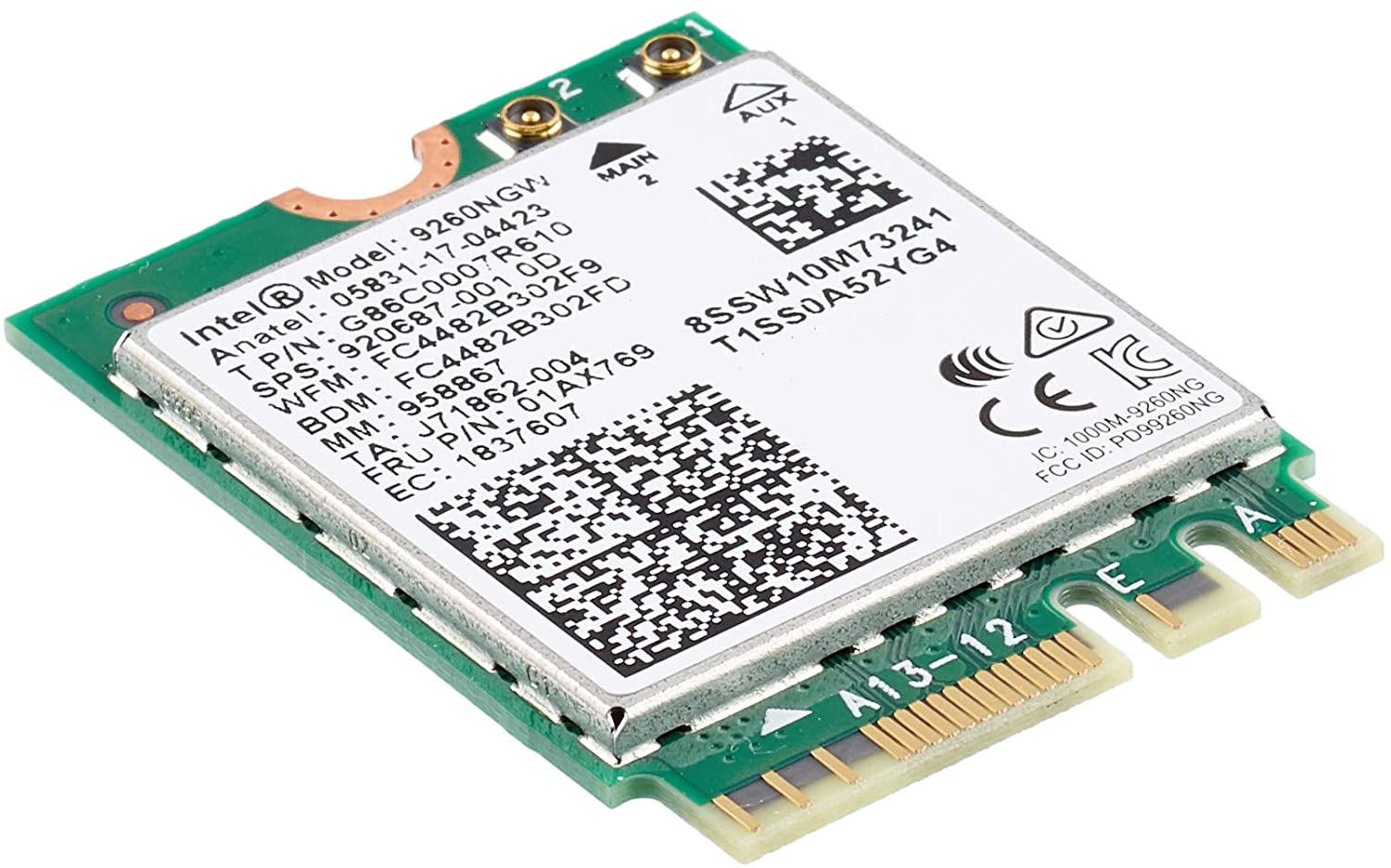
Error code 10, device manager code occurs when Bluetooth or Wi-Fi cannot be enabled. Inside device manager beside device would be yellow exclamation sign and if you go into device properties status would be: This device cannot start. Intel Wireless AC 9560Following are proven solutions that will resolve the issue and provide you with a working device.

Reboot PC, check for switch

This simple solution can usually work in most cases, first thing is to check if by any chance hardware switch for Wi-Fi or Bluetooth is OFF (laptops have a small switch that can turn the device On or OFF), then if you do not have a switch or you made sure it is ON, reboot your system.

Run Network Adapter Troubleshooter

If previous simple step solutions have not proven to be effective run Network Adapter Troubleshooter
  1. Press WINDOWS + I to open settings
  2. Go to System > Troubleshoot > Other troubleshooters
  3. Inside Find Network Adapter
  4. Click on Run to start the troubleshooters

Disable and then re-enable Adapter

If the previous solution has not fixed the issue try disabling the adapter and then re-enabling it back.

Update network adapter

Go to the intel website and download the latest driver package. After the download is finished install the latest driver.

Turn ON the WLAN AutoConfig service

  1. Press Windows key + R to invoke the Run dialog.
  2. In the Run dialog box, type services.MSC and hit Enter to open Services.
  3. In the Services window, scroll and locate the WLAN AutoConfig service.
  4. Double-click on the entry to edit its properties.
  5. In the properties window, click the drop-down on the Startup type and select Automatic.
  6. Next, make sure the Service status is started and running.
  7. Click Apply > OK to save changes.
  8. Exit Services console.
  9. Restart PC.
Read More
Best gaming headphones in 2021
Gaming has come a long way since its infant days and grown from spending some free time between coding to full e-sport events watched worldwide. As have some basic peripherals been upgraded like gaming keyboards and gaming mouse so have headsets been receiving similar treatments. In today's article, we are presenting you with some of the best headsets specifically designed and made for gaming purposes. If you are looking for headphones for music listening look elsewhere, these bad boys are all made for replicating precise audio positioning and similar technology specifically tailored for games.

SteelSeries Arctis 7P/7X
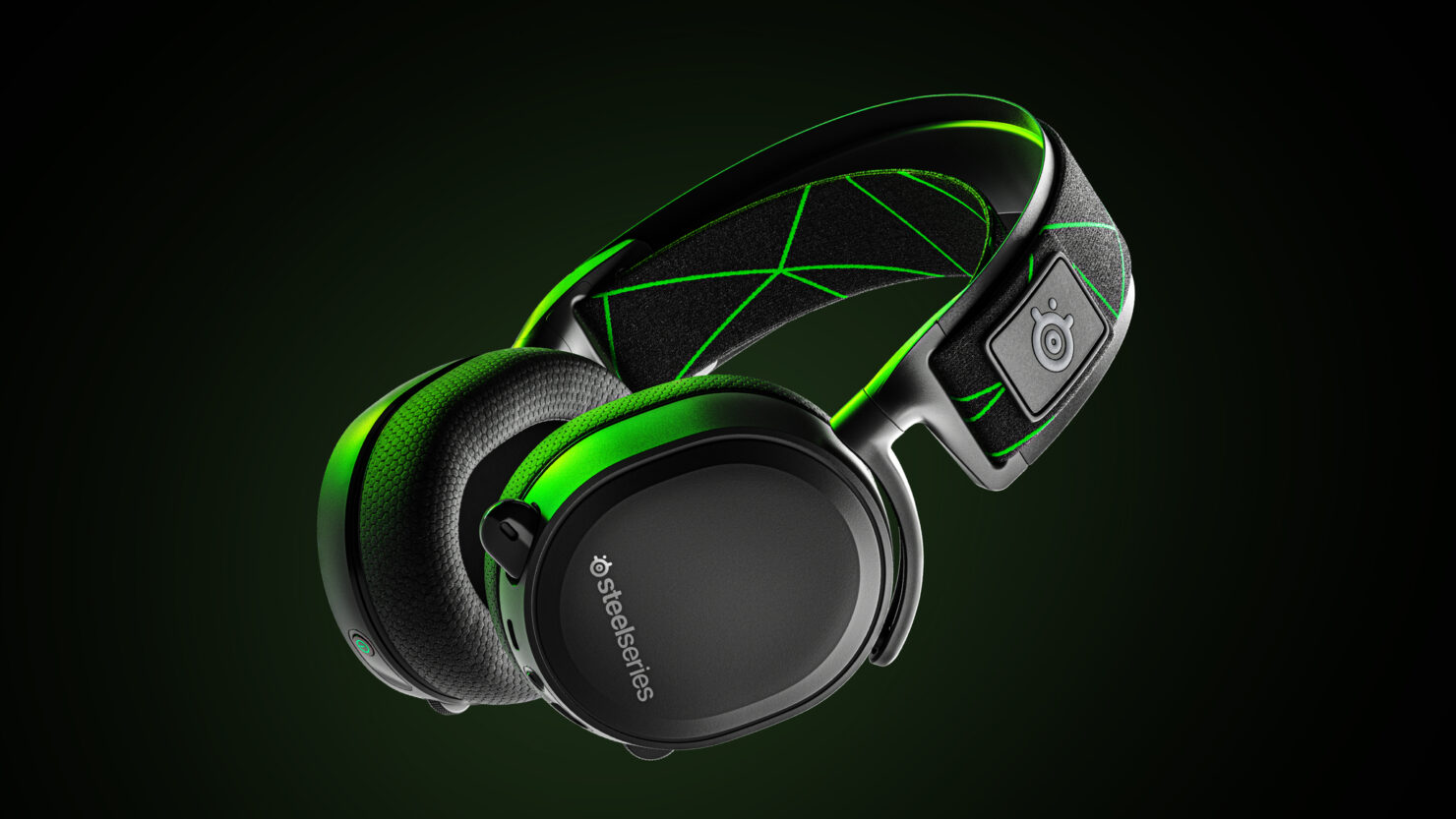
steelseries arctis 7p headphonesThe best gaming headset overall for PC, PS5, PS4, Xbox Series X/S, Xbox One, Switch, Android The SteelSeries Arctis 7P/7X is the best gaming headset overall, offering great sound, consistent wireless performance, and a comfy, attractive design at a reasonable price. The headset’s 2.4-GHz wireless connectivity keeps you glued to your game without any lag or interference. Even better: Thanks to its USB-C dongle and USB-A adapter, you can enjoy wireless performance with any system, from a PS5 to a Nintendo Switch in handheld mode, to an Android phone.

Razer Blackshark V2
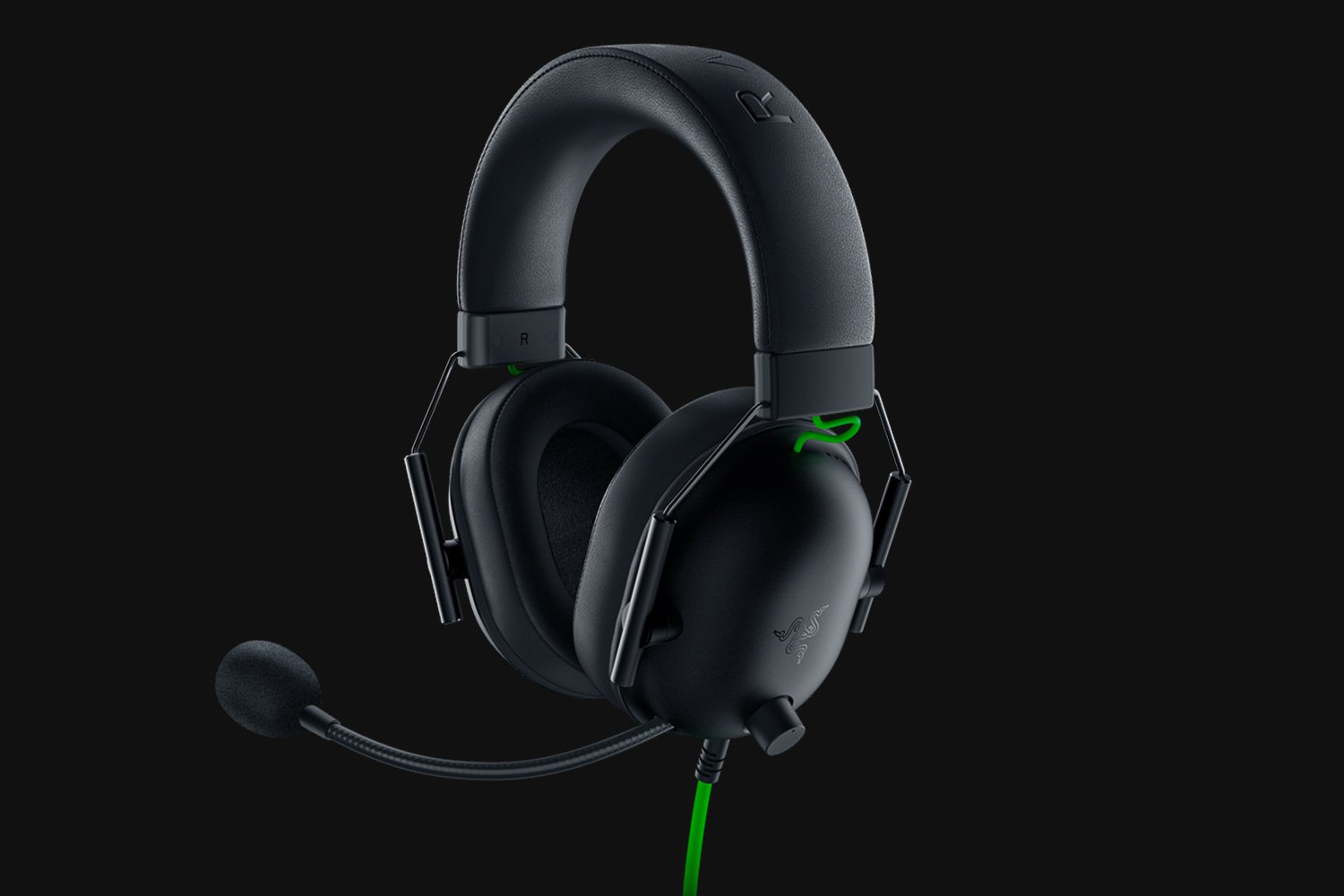
Razer Blackshark V2Razer's best headset yet for PC, PS5, PS4, Switch, Xbox One The Razer Blackshark V2 is probably the best headset that Razer has ever made. This mid-range wired headset provides fantastic sound for both games and music, particularly thanks to its innovative THX profiles. The famous film audio company has lent its expertise to make the Blackshark V2's surround sound realistic and nuanced, especially for a handful of games like Apex Legends and Sekiro: Shadows Die Twice, which have their own optimized profiles.

Logitech G Pro X
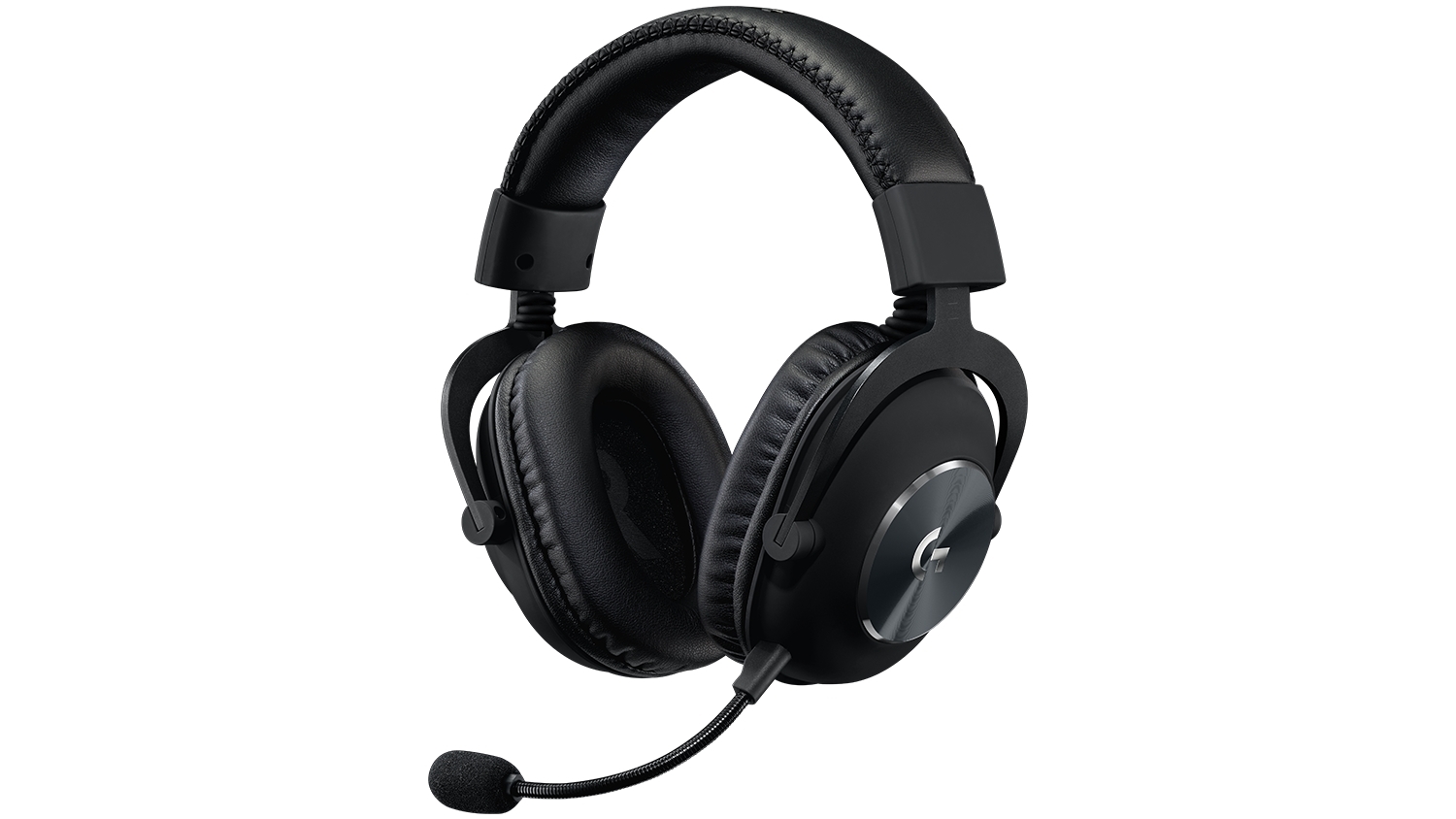
Logitech G Pro XBuilt for tournament play for PC, PS5, PS4, Xbox One, Switch The Logitech G Pro X delivers tournament-grade performance for a reasonable price. The headset's distinguished black design sets itself apart from the competition, in no small part thanks to its flexible headband and supremely comfortable foam and leatherette earcup options. The Go Pro X delivers rich, direction-accurate sound out of the box whether you're playing on PC or console. It's also the first gaming headset to sport a built-in Blue microphone, allowing for extra-crisp voice chat whether you're practicing with your Apex Legends squad or streaming to your online fans

SteelSeries Arctis Pro
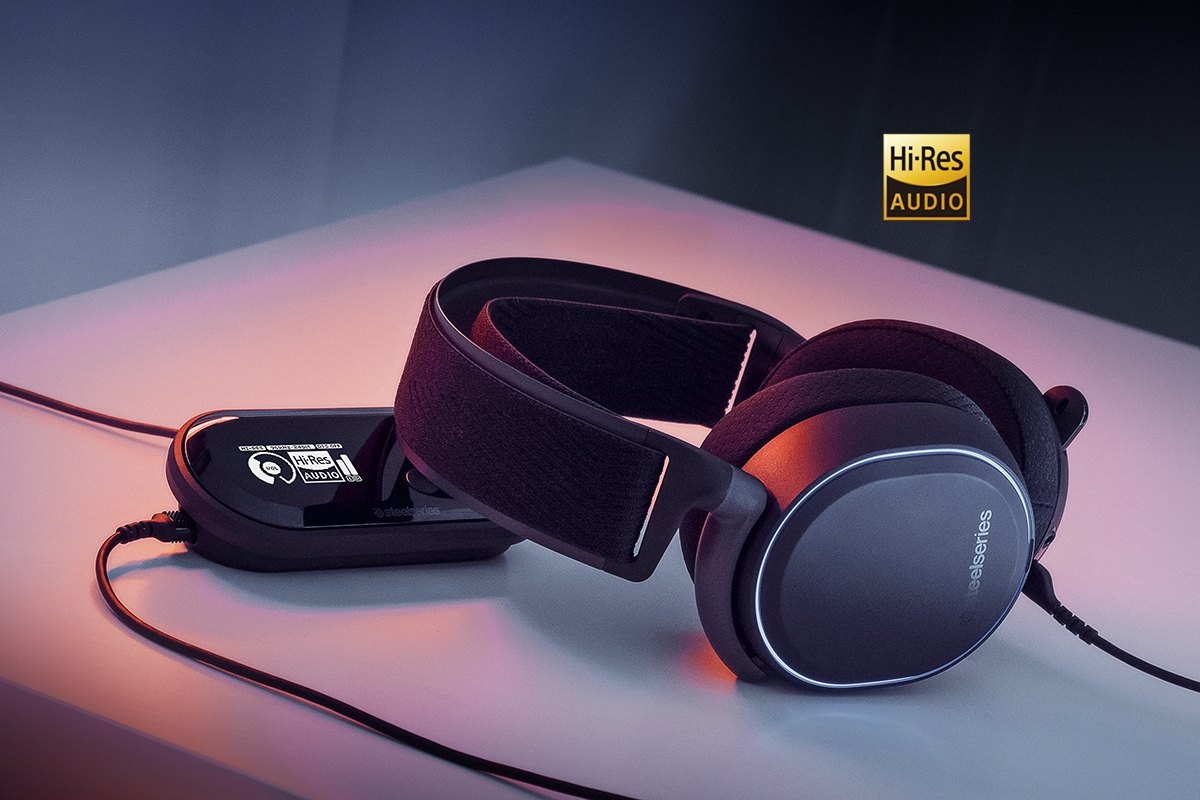
SteelSeries Arctis ProAudiophile sound for gamers made for PS4, PC (with GameDAC), Xbox One, Switch, mobile (analog) SteelSeries’ Arctis Pro + GameDAC brings audiophile-grade features to the already excellent Arctis design. This headset includes a DAC (digital-to-analog converter), which allows it to deliver high-resolution 96-kHz/24-bit audio. The GameDAC also allows for a wealth of customization options, whether you want to fine-tune sound via an equalizer or customize the headset’s subtle RGB lighting.

HyperX Cloud Stinger
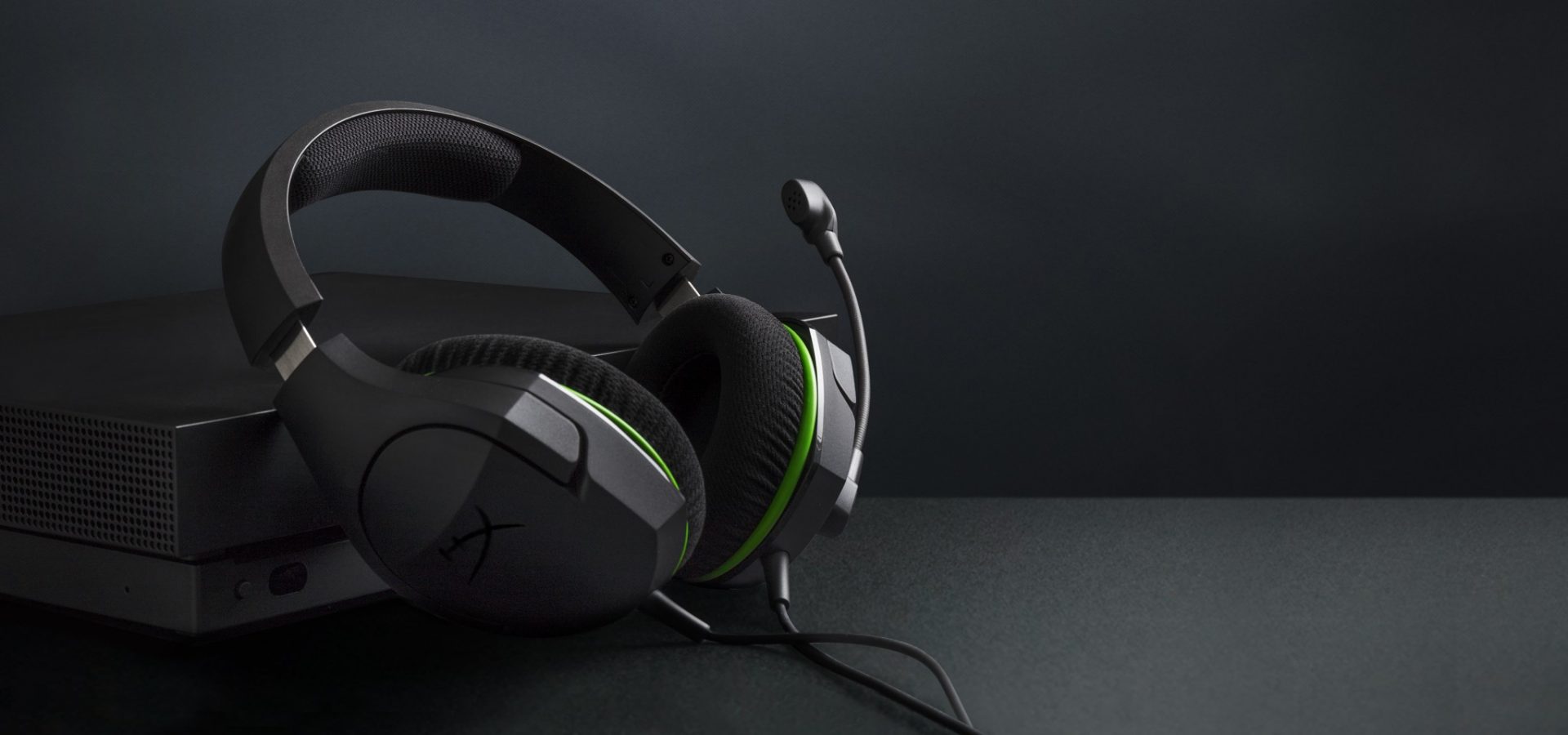
HyperX Cloud StingerBig sound on a budget for PS, PS5, PS4, Xbox Series X/S, Xbox One, Switch, mobile The Stinger’s sturdy, feather-light frame and soft, faux-leather earcups make for one of the best gaming headsets on a budget, and its handy on-ear controls and solid microphone certainly don’t hurt either. Finding a comfortable fit is arguably the most important thing you can look for in a gaming headset, and the Cloud Stinger doesn’t disappoint on that front. The Stinger also offers very solid audio quality for the price, though things can get a bit blown out at max volume

Corsair Virtuoso RGB Wireless XT
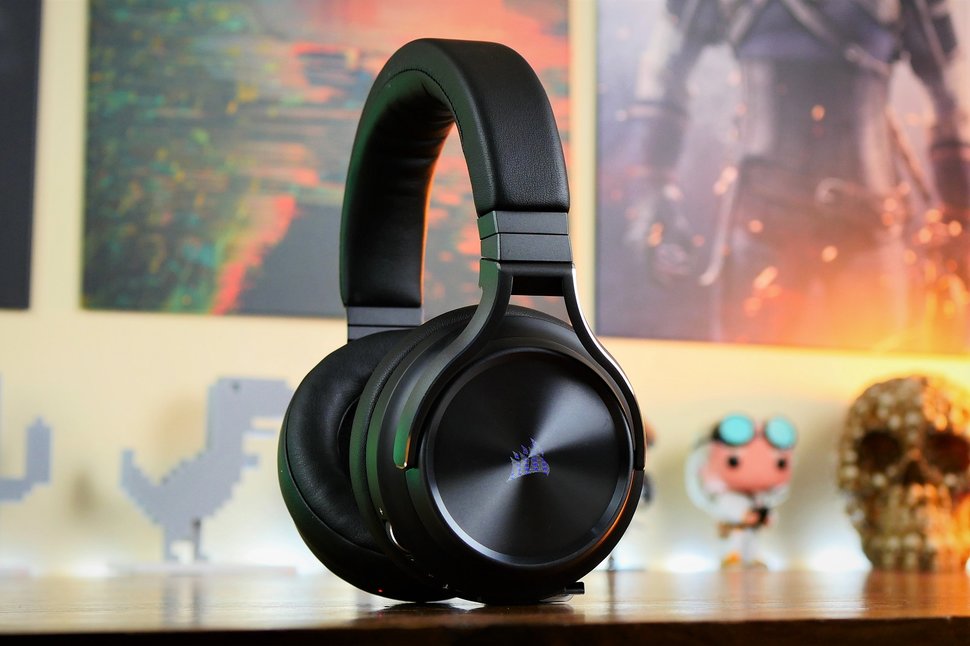
Corsair Virtuoso RGB Wireless XTThe best gaming headset with Bluetooth for PC, PS4, PS5, Xbox One, Xbox Series X/S, Switch (handheld), mobile The Corsair Virtuoso RGB Wireless XT is one of the best gaming headsets that Corsair has ever made. Not only is this headset extremely comfortable, but it also provides excellent sound quality. It works wirelessly with PCs and PlayStation consoles via USB, as well as mobile devices, streaming players, and smart TVs via Bluetooth. You can connect it to a Switch, Xbox controller, or older system via a 3.5 mm audio cable. There's very little that the Virtuoso RGB Wireless XT can't do.

Xbox Wireless Headset
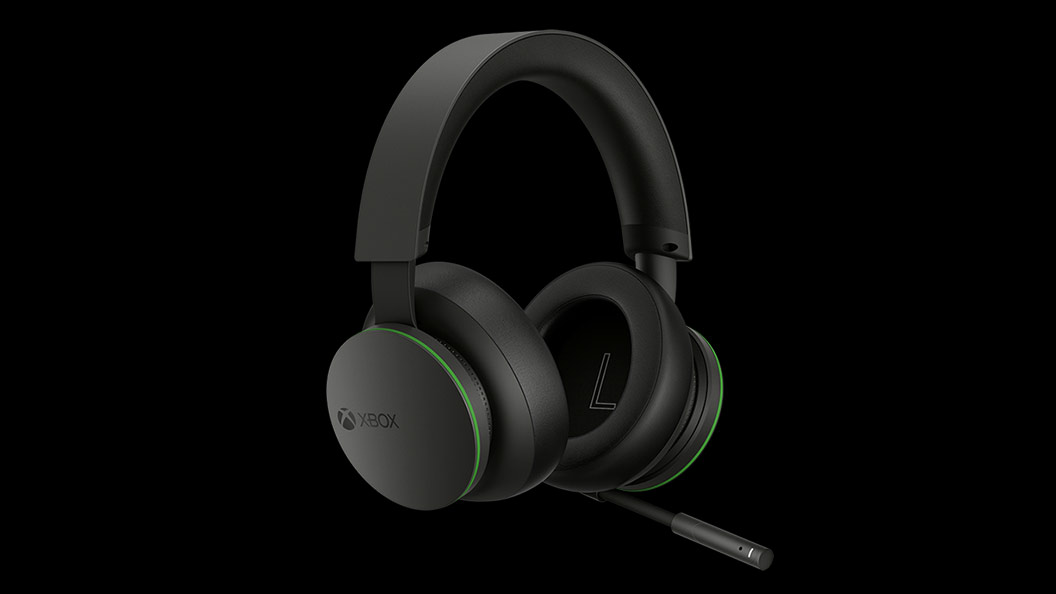
Xbox Wireless HeadsetThe best Xbox affordable headset for Xbox Series X/S, Xbox One, PC, mobile The Xbox Wireless Headset is exactly what the name suggests: a wireless headset that works particularly well with Xbox consoles. Whether you have an Xbox Series X, an Xbox Series S, an Xbox One, or a Windows 10 PC with an Xbox controller adapter, this headset can provide fantastic sound with a simple pairing procedure. Not only that: the Xbox Wireless Headset supports Bluetooth as well, meaning that you can listen to music or take calls on your phone while you game.

Razer Kaira Pro
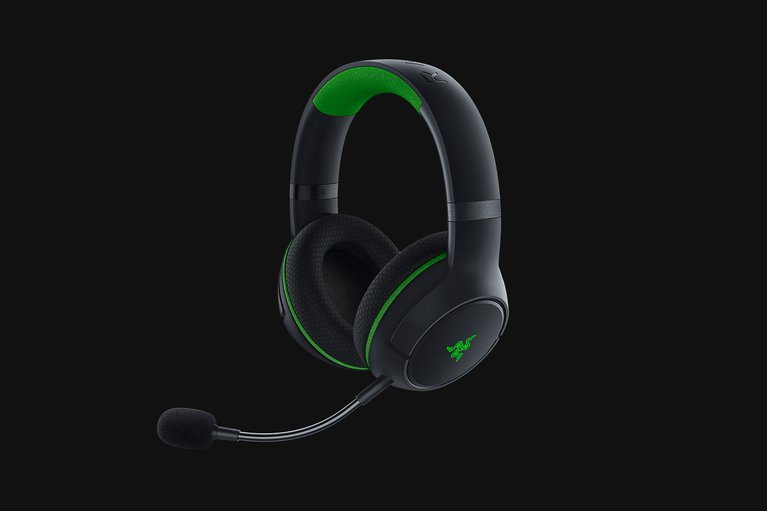
Razer Kaira ProThe best Xbox Series X wireless headset for Xbox Series X/S, Xbox One, PC, mobile Debuting alongside the Xbox Series X, the Razer Kaira Pro is arguably one of the best gaming headsets for Microsoft's next-gen console. This sleek, lightweight wireless headset pairs with Xbox consoles right out of the box. But you can also use it with PCs and mobile devices, thanks to built-in Bluetooth capabilities. The Kaira Pro is not terribly expensive, and the sound quality is excellent, particularly for video games.

SteelSeries Arctis 1 Wireless
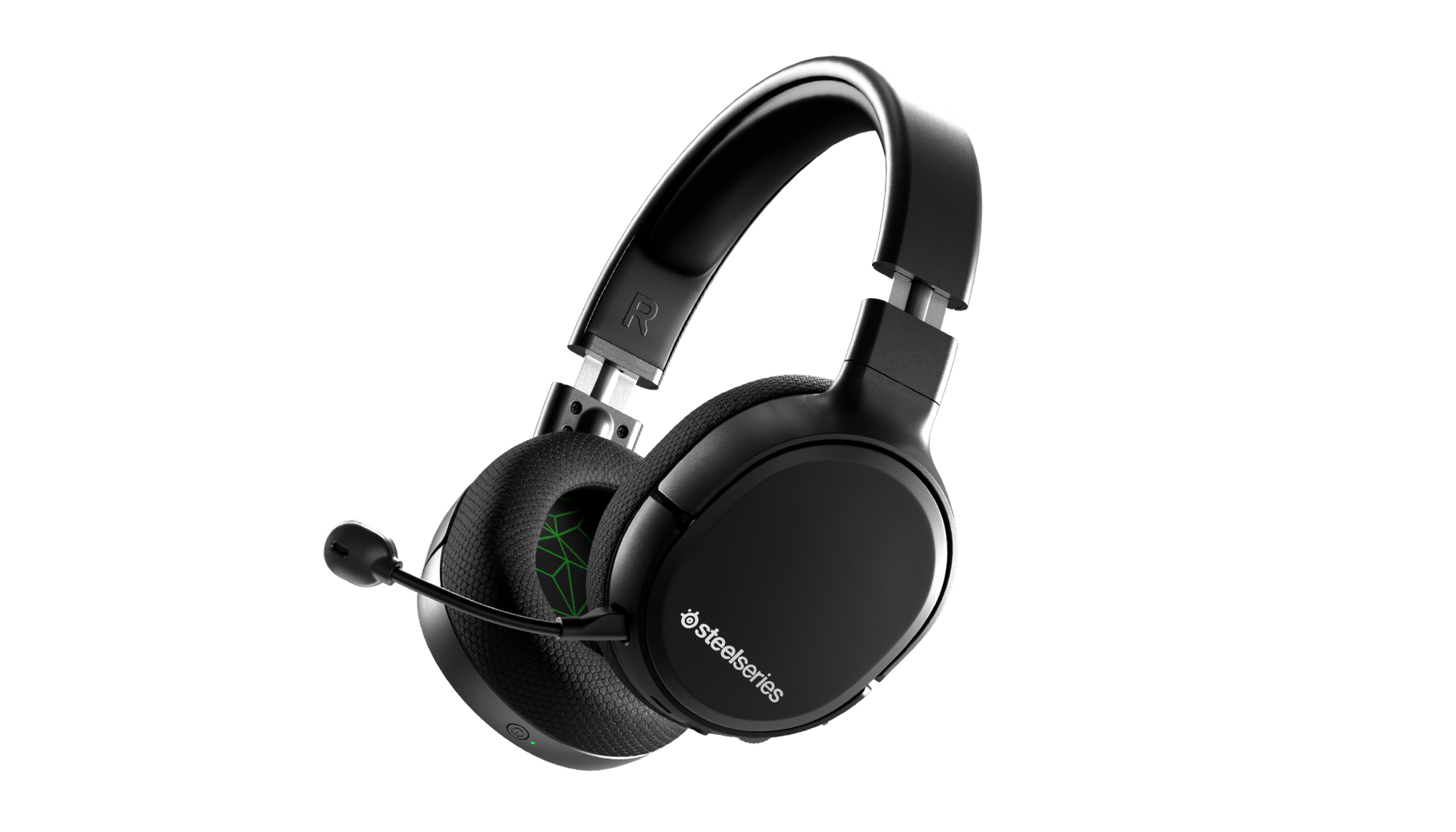
SteelSeries Arctis 1 WirelessAffordable wireless for PC, PS5, PS4, Switch, Mobile (USB-C wireless), Xbox One (wired) Getting good wireless performance has never been this seamless, or affordable. Thanks to its high-speed, discrete USB-C dongle, the SteelSeries 1 Arctis Wireless allows you to instantly enjoy wireless game audio from your Nintendo Switch, Android phone, PS4, or gaming PC, with none of the convoluted pairing or interference that comes with Bluetooth-based headsets. It’s worth mentioning the Nintendo Switch functionality again, as it’s hard to get a wireless headset for Nintendo’s handheld hybrid.

Turtle Beach Elite Atlas Aero
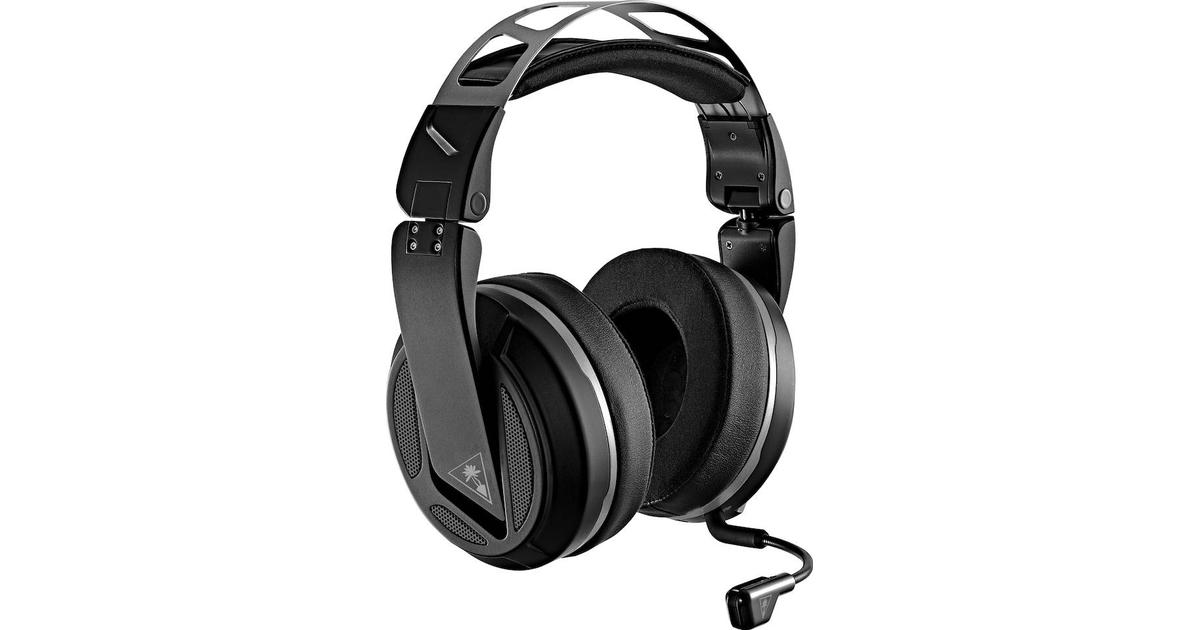
Turtle Beach Elite Atlas AeroAbsolute best in wireless for PC, PS4 (Wireless); Xbox One, Nintendo Switch, Mobile (Wired) The highly customizable high-end headset that's especially ideal for PC, the new Turtle Beach Elite Atlas Aero is one of the best gaming headsets out there. This premium headset packs an incredibly comfortable pair of gel-infused ear cushions, which are also designed to play well with glasses. The Aero's 50mm speakers sound great out of the box, and it comes with a solid noise-canceling microphone to boot.

HyperX Cloud Alpha
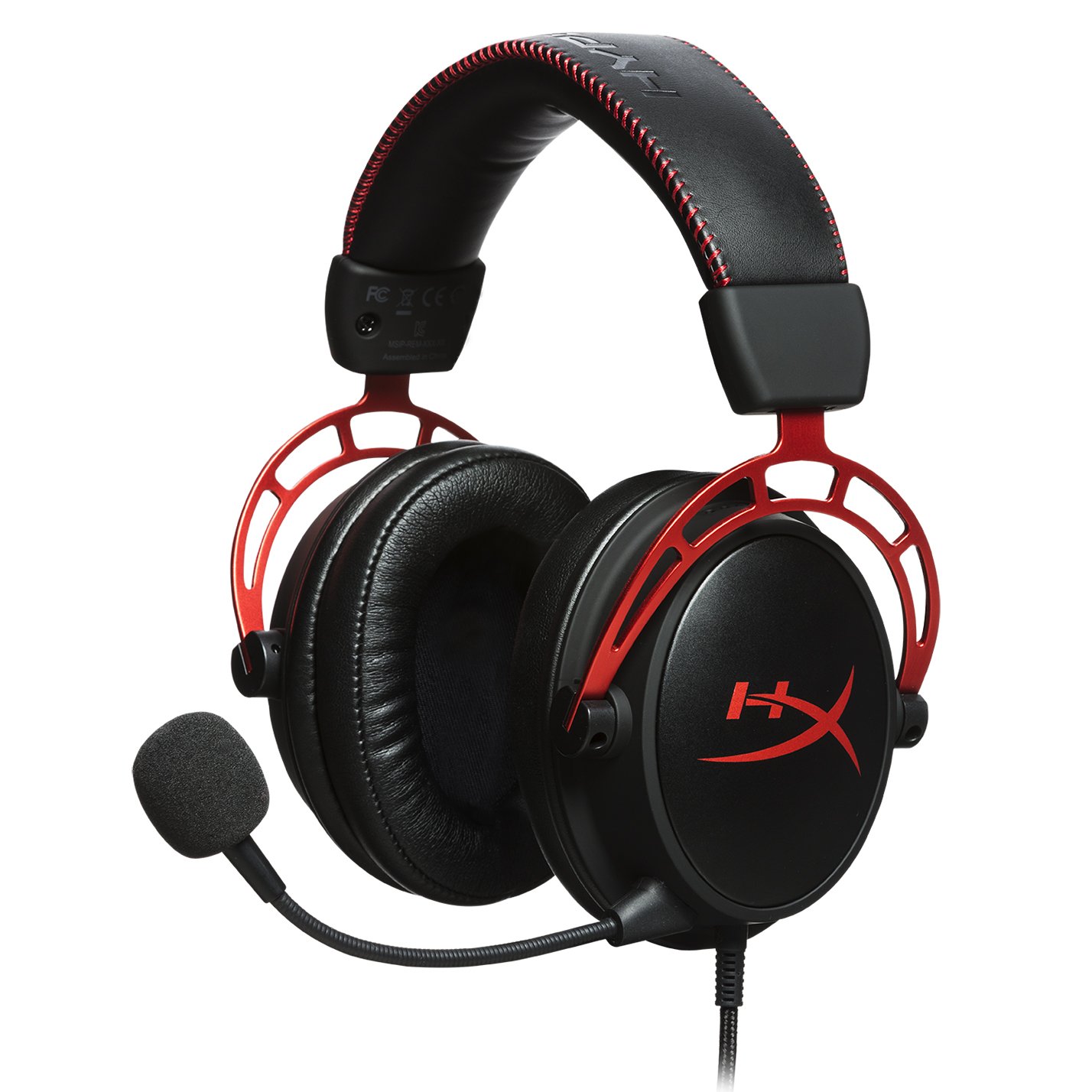
HyperX Cloud AlphaSuperior style, sound, and value for PC, PS4, PS5, Xbox One, Switch, mobile Thanks to a sturdy metal frame, a slick red-and-black paint job, and some of the most comfortable leatherette earcups this headset is really a steal for its price. This is a headset that you can transport with you anywhere and connect to almost any system, without ever having to worry about it breaking.

Turtle Beach Stealth 700 Gen 2
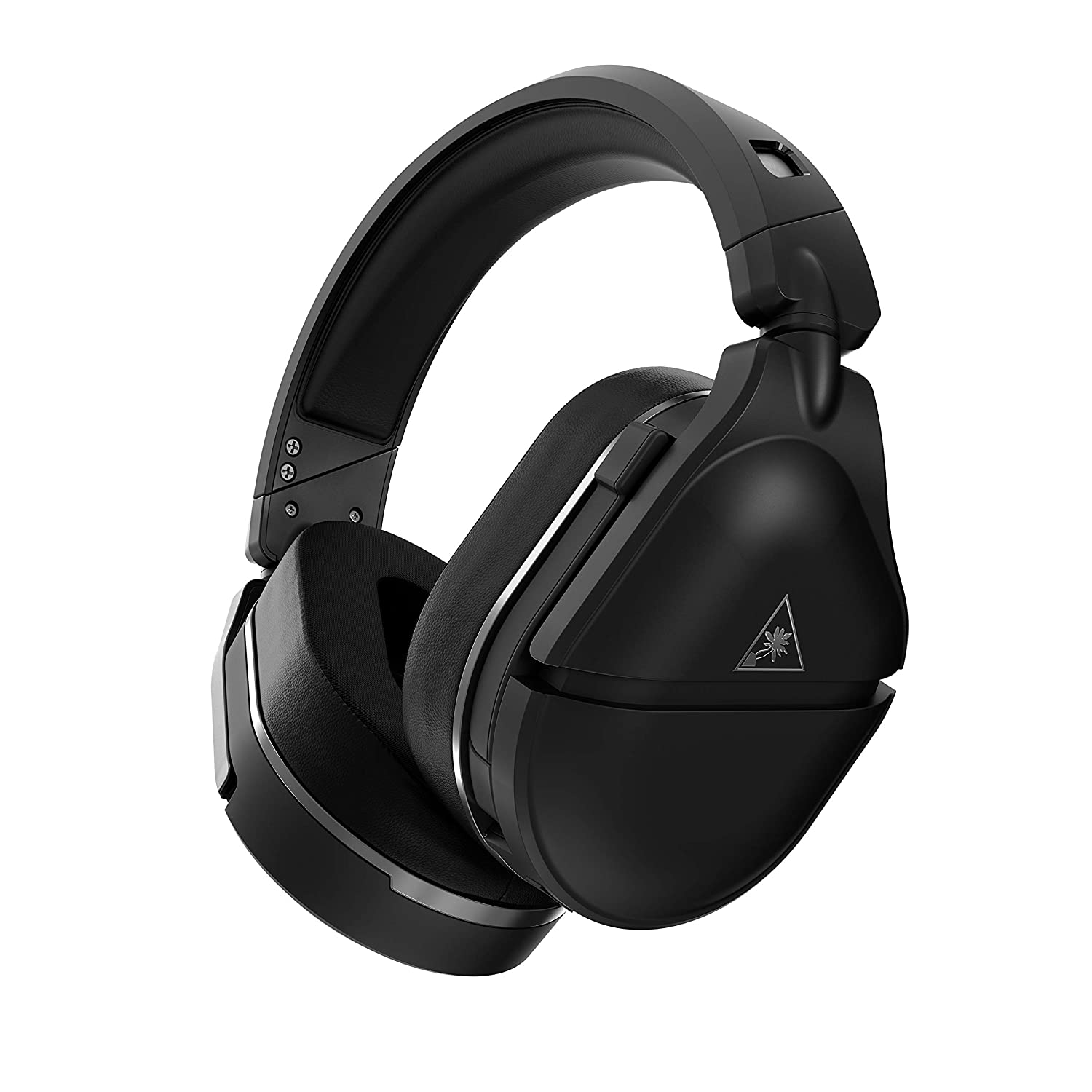
Turtle Beach Stealth 700 Gen 2Console-centric wireless sound with Bluetooth for PC, PS4, Switch, Xbox One, mobile The Turtle Beach Stealth 700 Gen 2 is one of the best console headsets on the market, particularly if you want a wireless model. This peripheral boasts great sound, plush earcups, and two kinds of wireless functionality. The PS4 version can connect to either PS4 or PC via a USB dongle; the Xbox One version can connect to the Xbox One right out of the box. Both versions can connect to mobile devices and PCs via Bluetooth. It's an extremely convenient feature, especially since very few gaming headsets offer Bluetooth functionality.

Astro A20 Gaming Headset Gen 2
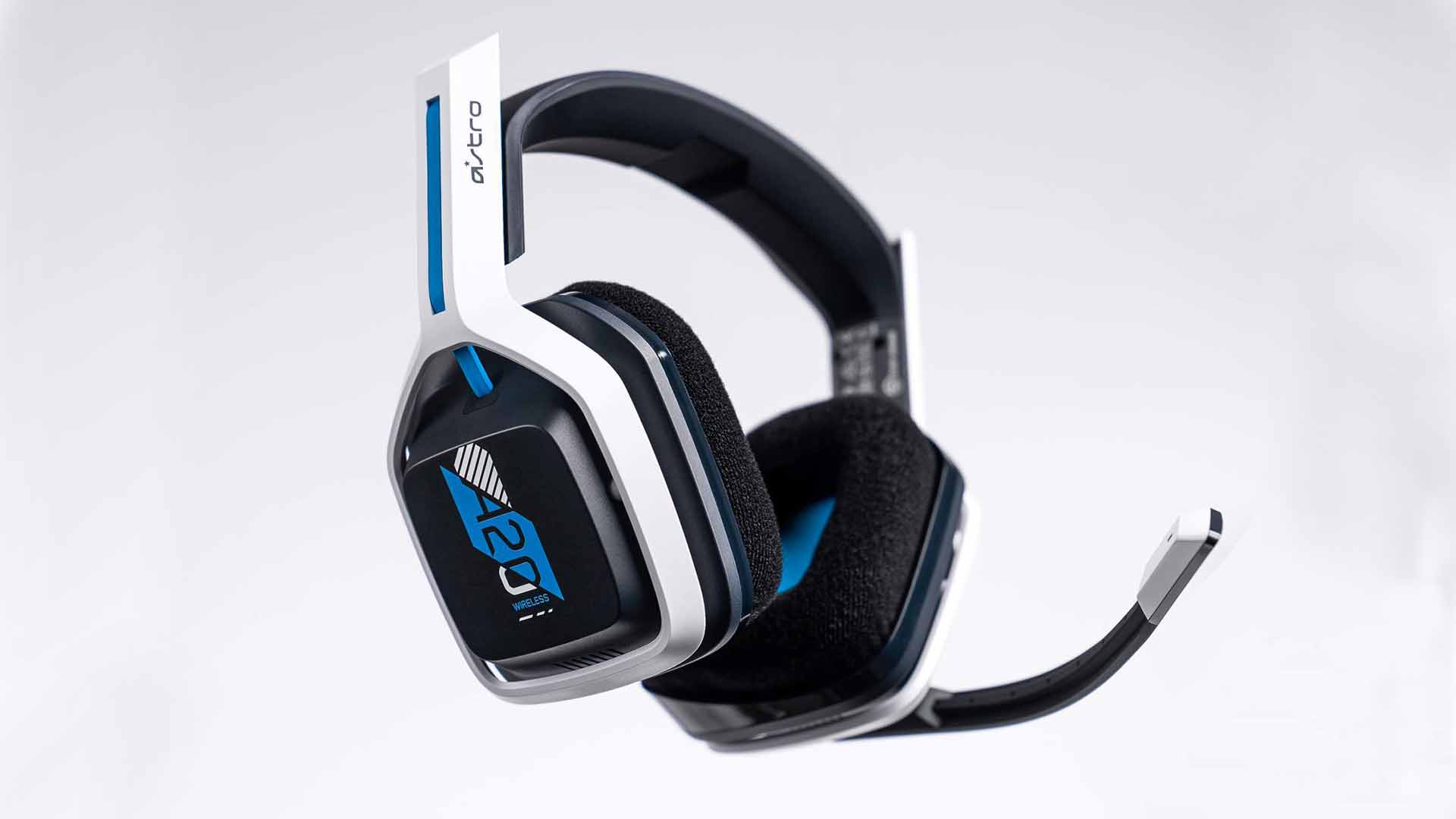
Astro A20 Gaming Headset Gen 2Wireless headset for both PS5 and Xbox Series X and PC, PlayStation, Xbox, Switch, mobile The Astro A20 Gaming Headset Gen 2 is an ambitious and full-featured headset from one of the most trusted manufacturers on the market. This wireless peripheral offers excellent sound quality and a comfortable fit. More than that, though, the Astro A20 can also connect wirelessly to both the PS5 and the Xbox Series X, which is a rare feat, even among the best gaming headsets.

Razer Barracuda X
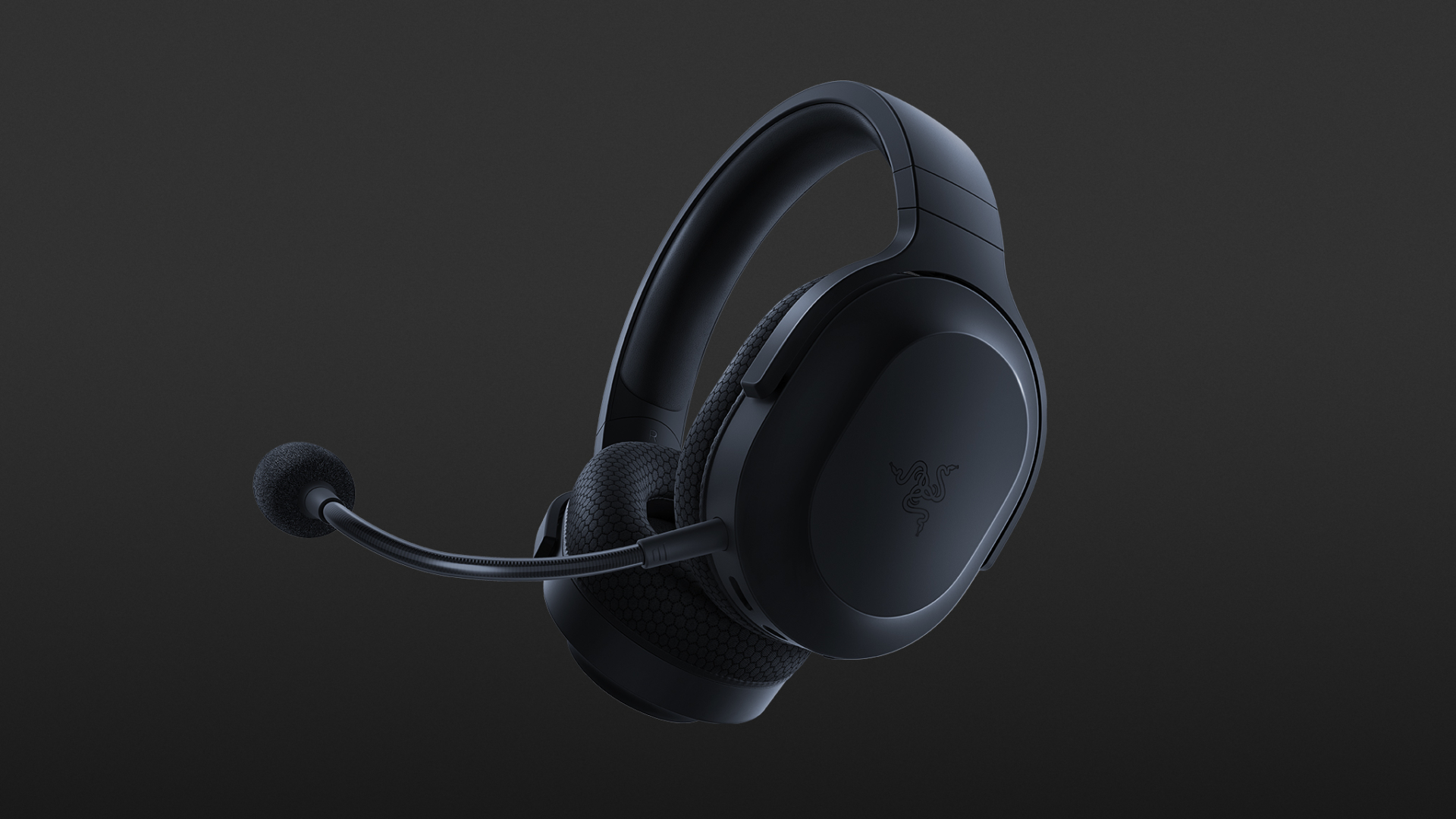
Razer Barracuda XThe best wireless Switch headset also for PC, PS4, PS5, Switch, mobile The Razer Barracuda X is a wireless gaming headset that's ideal for the Nintendo Switch and mobile platforms. Thanks to its small USB-C dongle, it can connect wirelessly o the Switch in handheld mode, a rarity among gaming headsets. However, it also comes with a USB-A adapter, which means you can connect it to just about any other system you like, from PC to PS4, to Switch in docked mode. The USB-C dongle also fits neatly into a PS5.

Read More
How to get rid of DailyProductivityTools

The DailyProductivityTools Toolbar is packed as a browser extension that claims to increase your productivity with access to free online tools and developed by Mindspark Inc. This extension may seem handy at first, however, while browsing the internet with it active you will experience additional ads, sponsored content, and pop-up ads throughout your browsing sessions and search results.

When installed DailyProductivityTools changed your default new tab page to Search.MyWay.com disguising as a ‘Enhanced Google Search Engine’. This extension monitors your browsing activity, visited websites and links, then uses this information to better target Ads.

DailyProductivityTools has been marked as a Potentially Unwanted Program, and is recommended for removal by many anti-virus applications.

About Browser Hijackers

Browser hijacking is a type of unwanted software, often a web browser add-on or extension, which causes modifications in the browser’s settings. Browser hijacker malware is designed for a variety of reasons. Generally, the idea is to force users visit certain sites that are aiming to increase their site visitor traffic and produce higher ad revenue. Many people believe that the browser hijacker is only a harmless website but that is incorrect. Almost every browser hijacker pose an actual threat to your on-line safety and it is important to classify them under privacy risks. What’s more, hijackers can make the entire infected system vulnerable – other harmful malware and viruses will grab these opportunities to intrude into your computer system very easily.

How one can identify a browser hijack

The following are some symptoms that suggest you have been hijacked: you find unauthorized modifications to your internet browser’s homepage; your internet browser is constantly being redirected to adult sites; the default web browser configurations have been modified and/or your default search engine is altered; you find many toolbars on the web browser; you see lots of pop-ups on your computer screen; your browser has become unstable or starts running slowly; you’re blocked to access those sites of antivirus solution providers.

So how does a PC get infected with a browser hijacker?

A browser hijacker can be installed on your computer if you check out an infected site, click on an email attachment, or download something from a file-sharing site. They could also come from add-on programs, also known as browser helper objects (BHO), browser plug-ins, or toolbars. Browser hijackers sneak into your pc along with free software downloads also that you unwittingly install alongside the original. Examples of popular browser hijackers are Fireball, Ask Toolbar, GoSave, CoolWebSearch, RocketTab and Babylon Toolbar. Browser hijacking can lead to severe privacy problems and even identity theft, disrupt your browsing experience by taking control of outbound traffic, considerably slows down your PC by consuming lots of resources, and lead to system instability also.

Browser Hijacker Malware – Removal

Certain browser hijacking can be easily corrected by finding and removing the corresponding malware program through your control panel. But, many hijackers will be more difficult to locate or remove since it might get itself connected with certain important computer files that enable it to operate as a necessary operating system process. Novice PC users shouldn’t ever attempt for the manual form of removal, as it demands comprehensive system knowledge to do repairs on the system registry and HOSTS file. Professionals always recommend users remove any malicious software including browser hijacker by using an automatic malware removal tool, which is better, safer, and faster than the manual removal method. Among the best tools for repairing browser hijacker malware is SafeBytes Anti-Malware. It can help you eliminate any pre-existing malware on your computer and provides you real-time monitoring and protection against new internet threats. Along with anti-virus software, a system optimizer program, similar to Total System Care, can help you repair Windows registry errors, eliminate unwanted toolbars, secure your internet privacy, and stabilize software programs installed on your computer.

Malware Blocking Access To Safebytes Site And Anti-Malware Downloads - What To Do?

Malware can cause many kinds of damage to computer systems, networks, and data. Some malware types modify internet browser settings by including a proxy server or modify the PC’s DNS settings. In such cases, you’ll be unable to visit certain or all of the websites, and therefore unable to download or install the necessary security software to eliminate the malware. If you are reading this article, chances are you’re stuck with a virus infection that is preventing you to download and install Safebytes Anti-Malware program on your PC. Although this kind of issue will be tougher to get around, there are a few actions you can take.

Install in Safe Mode

In the event the malware is set to run at Windows start-up, then booting in Safe Mode should prevent it. Since only the minimum applications and services start-up in safe mode, there are hardly any reasons for conflicts to take place. The following are the steps you should follow to remove viruses in Safemode. 1) After switching on the computer, hit the F8 key while the Windows splash screen begins to load. This would invoke the “Advanced Boot Options” menu. 2) Select Safe Mode with Networking with arrow keys and press ENTER. 3) When this mode loads, you should have the internet. Now, utilize your internet browser normally and go to https://safebytes.com/products/anti-malware/ to download Safebytes Anti-Malware. 4) Immediately after installation, run a full scan and allow the software to get rid of the threats it detects.

Switch over to an alternate internet browser

Certain viruses may target vulnerabilities of a specific browser that block the downloading process. In case you suspect that your Internet Explorer has been hijacked by a virus or otherwise compromised by online hackers, the best course of action is to switch over to a different web browser like Firefox, Chrome, or Safari to download your favorite security software – Safebytes Anti-Malware.

Run anti-malware from your USB drive

Here’s yet another solution which is using a portable USB antivirus software that can scan your system for malicious software without needing installation. Follow these steps to run the anti-malware on the infected computer. 1) On a clean computer, download and install Safebytes Anti-Malware. 2) Plug in the USB flash drive to a USB slot on the clean computer. 3) Run the setup program by double-clicking the executable file of the downloaded application, with an .exe file extension. 4) When asked, choose the location of the USB drive as the place where you would like to store the software files. Follow the instructions on the screen to finish off the installation process. 5) Now, transfer the flash drive to the infected PC. 6) Run the Safebytes Anti-malware directly from the pen drive by double-clicking the icon. 7) Run Full System Scan to detect and clean-up up all kinds of malware.

SafeBytes Anti-Malware: Light-weight Malware Protection for Windows Computer

Nowadays, anti-malware software can protect your computer from different types of online threats. But how to select the best one amongst many malware protection application that’s available in the market? Perhaps you might be aware, there are many anti-malware companies and tools for you to consider. Some of them are good, some are ok types, while some will affect your PC themselves! It is important to choose a company that creates industry-best anti-malware and it has attained a reputation as reliable. On the list of highly recommended software programs is SafeBytes Anti-Malware. SafeBytes carries a superb reputation for quality service, and clients seem to be happy with it. SafeBytes antimalware is a highly effective and user-friendly protection tool which is suitable for users of all levels of computer literacy. Using its cutting-edge technology, this software will help you eradicate several types of malware including computer viruses, PUPs, trojans, worms, adware, ransomware, and browser hijackers.

SafeBytes has got a variety of wonderful features that can help you protect your PC from malware attack and damage. Some of them are listed as below:

Antimalware Protection: This deep-cleaning antimalware software goes much deeper than most antivirus tools to clean your computer system. Its critically acclaimed virus engine finds and disables hard to remove malware that hides deep inside your personal computer. Real-time Active Protection: SafeBytes gives round the clock protection for your computer restricting the malware attacks instantly. This software will continuously monitor your PC for suspicious activity and updates itself continuously to keep current with the latest threats. Web Filtering: SafeBytes gives instant safety rating about the pages you’re going to check out, automatically blocking harmful sites and make sure that you’re certain of your online safety while browsing the internet. Low CPU Usage: SafeBytes is well known for its low influence on computer resources and great detection rate of diverse threats. It runs silently and efficiently in the background so you are free to use your computer at full power all the time. 24/7 Customer Support: SafeBytes provides you with 24/7 technical support, automatic maintenance and updates for best user experience. SafeBytes has come up with a wonderful anti-malware solution that can help you conquer the latest computer threats and virus attacks. There is no doubt that your computer system will be protected in real-time as soon as you put this software to use. So if you’re searching for the very best malware removal application out there, and if you don’t mind paying out some dollars for it, opt for SafeBytes Anti-Malware.

Technical Details and Manual Removal (Advanced Users)

If you’d like to carry out the removal of DailyProductivityTools manually instead of using an automated tool, you may follow these simple steps: Navigate to the Windows Control Panel, click the “Add/Remove Programs” and there, choose the offending program to uninstall. In case of suspicious versions of web browser plug-ins, you can actually get rid of it through your web browser’s extension manager. You will likely also want to reset your internet browser. If you opt to manually delete the system files and Windows registry entries, utilize the following checklist to make sure you know exactly what files to remove before carrying out any actions. But bear in mind, this can be a difficult task and only computer experts can perform it safely. Furthermore, certain malicious programs have the capability to defend against its removal. It is advisable that you carry out the removal procedure in Safe Mode.
Files: %UserProfile%\Local Settings\Application Data\DailyProductivityToolsTooltab %LOCALAPPDATA%\DailyProductivityToolsTooltab %UserProfile%\Local Settings\Application Data\Google\Chrome\User Data\Default\Sync Extension Settings\difcnlhbpohkmlhkpkimihocbagbijii %LOCALAPPDATA%\Google\Chrome\User Data\Default\Sync Extension Settings\difcnlhbpohkmlhkpkimihocbagbijii %UserProfile%\Local Settings\Application Data\Google\Chrome\User Data\Default\Local Extension Settings\difcnlhbpohkmlhkpkimihocbagbijii %LOCALAPPDATA%\Google\Chrome\User Data\Default\Extensions\difcnlhbpohkmlhkpkimihocbagbijii Registry: HKEY_LOCAL_MACHINESoftware\Wow6432Node\DailyProductivityTools HKEY_LOCAL_MACHINESoftware\DailyProductivityTools HKEY_LOCAL_MACHINESoftware\Microsoft\Internet Explorer\DOMStorage\dailyproductivitytools.dl.myway.com HKEY_LOCAL_MACHINE\Software\[APPLICATION]\Microsoft\Windows\CurrentVersion\Uninstall..Uninstaller DailyProductivityToolsTooltab Uninstall Internet Explorer
Read More
1 2 3 171
Logo
Copyright © 2023, ErrorTools. All Rights Reserved
Trademark: Microsoft Windows logos are registered trademarks of Microsoft. Disclaimer: ErrorTools.com is not affiliated with Microsoft, nor claims direct affiliation.
The information on this page is provided for information purposes only.
DMCA.com Protection Status