Logo

How to Repair Error Code 0xC190010, 0x30018 in Windows 10

Error Code 0xC1900101, 0x30018? - What is it?

Users, when upgrading to Windows 10 from Windows 7 or Windows 8/8.1, or when upgrading to a new version, build, service pack, or major update of Windows 10, can encounter error code 0xC1900101, 0x30018. Windows 10 installation fails and stops or hangs. During the installation process, it will reach a certain maximum limit (normally at 6% or 32%) then reverts back to the previous version of the operating system and displays the following message:

We couldn’t install Windows 10. We’ve set your PC back to the way it was right before you started installing Windows 10.

0xC1900101 – 0x30018
The installation failed in the FIRST_BOOT phase with the error during the SYSPREP operation.

Solution

Restoro box imageError Causes

In attempting to fix Error Code 0xC1900101-0x30018, it is vital to know what causes this issue. The most probable causes of this error are:

  • Incompatible hardware or driver
  • Incompatible security programs or antivirus or incompatible utility software
  • A device driver possibly stopped responding to setup.exe while on the installation process.

In some cases, you might be opened to other error messages when attempting to update to Windows 10, including error code 8007002c.

Further Information and Manual Repair

In fixing issues related to error codes, it is best to employ manual repair methods. Using these methods helps users pinpoint the root causes of the issue and apply solutions permanently to fix the issues.

While most manual repair methods can be done by every Windows user, even those without technical abilities, there are certain cases where help from a Windows professional is needed. If you’re not up to facing risks in implementing manual methods yourself, consider getting help from a professional Windows technician or you can use a powerful automated tool.

In fixing Error Code 0xC1900101-0x30018, you can repeat the same steps used for 0xc000021a (Method One) or you can try doing the following:

  • Disable or uninstall your Antivirus program before proceeding to upgrade the system
  • Ensure that the machine name is simple (having at least 8 characters) with no special characters like hyphens or dashes.
  • Restart the device a few times then try again.
  • Disable General USB Devices such as the Smart Card Reader.
  • If you use an SCSI hard disk, ensure that you have available drivers you can use for your storage such as a thumb drive and make sure that it is connected. During the Windows 10 setup, select the Custom Advanced Option and use the Load Driver command to be able to load the suitable driver for the SCSI drive. If this fails, try switching to an IDE-based hard disk.
  • You can now perform a clean boot. Restart your device then try again.
  • If you are using the .ISO file for upgrading the system, you need to disconnect from the Internet first before proceeding to the setup. If you are connected to Wi-Fi or by Ethernet (LAN), make sure to disable both connections then you can proceed to set up again.
  • If you’re performing the update through Windows Update, once the download reaches 100%, disconnect from the Internet, and then proceed with the installation.

NOTE: If this fails, if possible, you can try using the .ISO file in upgrading.

  • Switch to a local account if the device is connected to a domain.
  • Disconnect all external devices attached to the computer such as gaming controllers, printers, or USB keys.

If you’re using Windows Update in installing Windows 10, you can implement the following:

  1. Open the Command Prompt window by pressing Windows Key + X. Select Command Prompt (Admin) from the menu.
  2. Stop the BITS, Cryptographic, MSI Installer, and the Windows Update Services. In order to do this, Type or Copy and Paste the following commands one at a time:

NOTE: Don’t forget to hit Enter after every command.

net stop wuauserv

net stop cryptSvc

net stop bits

net stop msiserver

  1. Rename the Catroot2 and SoftwareDistribution In order to do this, Type or Copy and Paste the following commands one at a time:

NOTE: Don’t forget to hit Enter after every command.

                        ren

C:WindowsSoftwareDistribution SoftwareDistribution.old

                          ren

C:WindowsSystem32catroot2 Catroot2.old

  1. Restart the BITS, Cryptographic, MSI Installer, and the Windows Update Services. In order to do this, Type or Copy and Paste the following commands one at a time:

NOTE: Don’t forget to hit Enter after every command.

net start wuauserv

net start cryptSvc

net start bits

net start msiserver

  1. Type Exit in the Command Prompt then close the Command Prompt window then restart the computer.

Can’t seem to put up with the long and technical manual repair process? You can still fix this error by downloading and installing a powerful automated tool that will surely get the job done in a jiffy!

Do You Need Help with Your Device?

Our Team of Experts May Help
Troubleshoot.Tech Experts are There for You!
Replace damaged files
Restore performance
Free disk space
Remove Malware
Protects WEB browser
Remove Viruses
Stop PC freezing
GET HELP
Troubleshoot.Tech experts work with all versions of Microsoft Windows including Windows 11, with Android, Mac, and more.

Share this article:

You might also like

Disable Facebook face recognition
Facebook has an algorithm inside it that can recognize your face in pictures and videos which is meant to help people tag friends when they upload media into Facebook. It is a neat feature meant to help all Facebook users but what if we do not want to be detected in pictures and videos? What if we do not want to be tagged? If you are one of the Facebook users that do not wish to be detected and recognized by Facebook in media keep on reading to find out how you can disable this option.
  1. Open the Facebook website and log into your account.
  2. Click on the arrow visible in the top menu bar.
  3. Select the Settings & privacy option.
  4. Click on the Settings option.
  5. Switch to the Face recognition tab on the left-hand side.
  6. Click the Edit button.
  7. Select No from the drop-down list.
And you are done, you do not need to log out or restart facebook in order for changes to have an effect. Now you are free from face recognition and detection.
Read More
A Quick Way to Fixing Error 0x8007045D

What Does 0x8007045D Error Code Mean?

The 0x8007045D error code is an I/O (input and output) error that is associated with the registry. It indicates that the Windows operating system has become overloaded with invalid system references in the registry. This may prevent you from executing reading and writing to and from devices successfully.

Error Causes

Registry is the main database of your PC. This portion of your computer saves all the activities that you perform on your PC including the junk files, temporary internet files, invalid entries, bad registry keys, and more. This clutters the hard disk. If the unnecessary files are not removed from the registry, it may lead to I/O errors like 0x8007045D. On the hard drive, some parts of the drive may fail to function. If this is not fixed on the time it may lead to serious disk damage and registry corruption eventually resulting in system failure. System failure can make you lose all the valuable data saved on your system for good.

How to Fix the Error Code 0x8007045D?

Error codes on your PC are like warnings. These codes indicate that your PC has some issue. Therefore ignoring it is not wise. To spare yourself from such serious PC damages, it is advisable to take correct measures timely instead of prolonging and making the situation go from bad to worse.
Read More
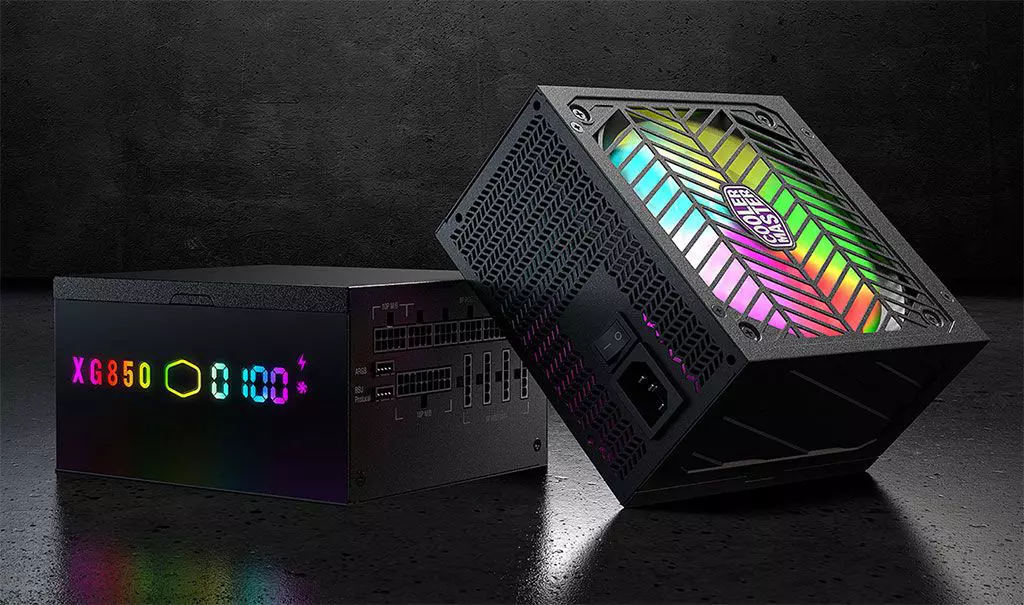
Cooler Master XG850 PLUS PLATINUM

Enter Cooler Master XG850 PLUS PLATINUM, a new, in-house designed power supply from Cooler Master. I will admit that in last years I was a big fan of Cooler Master and their components, well not all but power supply and PC cases were always products from them that I liked and used. The latest power supply from them does not disappoint and I must say that I like it very much, it is hi-quality, it is silent, it has a large LCD display where you can see its current state and also has some RGB lights so it looks cool in your case.

cooler master power supply XG850 PLUS PLATINUM

Technical specifications

So without further detours here are the technical specifications and then we will talk a little about it.

Model: MPG-8501-AFBAP-X
ATX Version: Intel ATX 12V Ver. 2.53
PFC: Active PFC
Input Voltage: 100-240V
Input Current: 12-6A
Input Frequency: 50-60Hz
Dimensions (L x W x H): 160 x 150 x 86 mm
Fan Size: 135mm
Fan Speed: 1800 RPM
Noise Level @ 100%: ≤ 25 dBA
Efficiency: ≥ 92% @ Typical Load
80 PLUS Rating: 80 PLUS Platinum
ErP 2014 Lot 3: Yes
Operating Temperature: 0-50°C
Power Good Signal: 100 - 150 ms
Hold Up Time: ≥ 16ms
MTBF: >100,000 Hours
Protections: OPP, OVP, OCP, UVP, SCP, OTP, Surge, and Inrush Protection
Regulatory: TUV, cTUVus, CE, BSMI, FCC, CCC, EAC, UKCA
ATX 24 Pin Connectors: 1
EPS 4+4 Pin Connectors: 1
EPS 8 Pin Connector: 1
SATA Connectors: 12
Peripheral 4 Pin Connectors: 4
PCI-e 6+2 Pin Connectors: 6
USB Protocol 10P: 1
Series: XG Series
80 Plus: Platinum
Modular: Full Modular
Wattage: Above 750W

Opinion about Cooler Master XG850 PLUS PLATINUM

If we put aside the technical characteristics of the power supply itself we are left with visual and real working experience. Now real working experience will not be covered here since yea it is working great but it needs some time and a long period of testing in order to be able to say that it is indeed reliable and great but considering I have never had any issues personally with power supplies from Cooler Master I will assume that this one is also very reliable and hi-quality.

That leaves us basically with looks and feels of supply itself and I must say that I like it, and I mean I like it a lot. It feels hi-quality and it looks hi-quality. The LCD display is very good looking and it is very crisp and readable. With power supply some proprietary software so you can choose what you want on display on the screen and also you can control RGB and display colors with it.

I have not opened the power supply to see how it looks inside but from what I could see I think this would be my new power supply if I were building a new PC now. I recommend it and if you decide to get it I hope it will serve you long long time.

Thank you for reading and I hope to see you next time.

Read More
Windows 10 Power Toys detailed guide
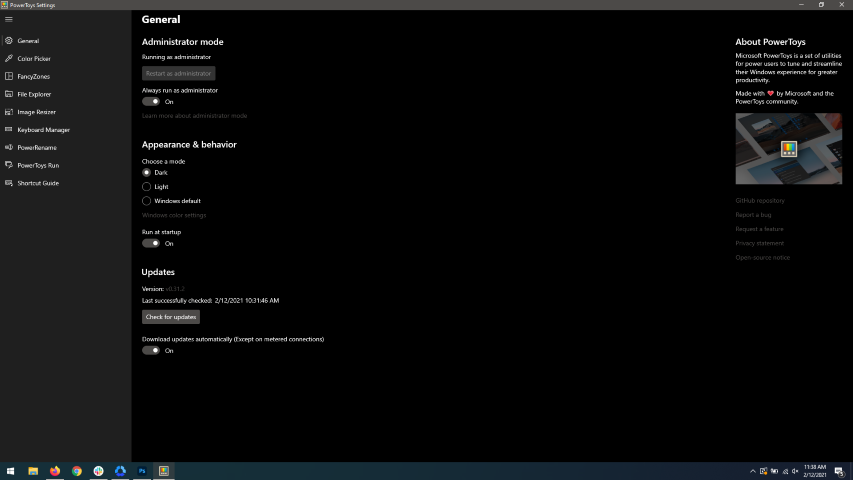
Hello and welcome everyone, today we will be talking about power toys, a great, completely free, open-source, Microsoft-supported Windows project which aims to provide Windows itself with powerful features not found natively in it. We will explore power toys completely here and explain each module and its features. The first thing is of course to download power toys themselves. You can find them here. After you download them, double click on the downloaded file and install. Start power toys, you will find them at the bottom of the taskbar, note that power toys need to be active in order to use their features. power toysWhen opened you will be greeted with general settings window. These are settings for power toys themselves, Here you can check for updates, change the looks of power toys, run it on system startup and run them as administrator. Set them up so they best suit your needs.

Color Picker

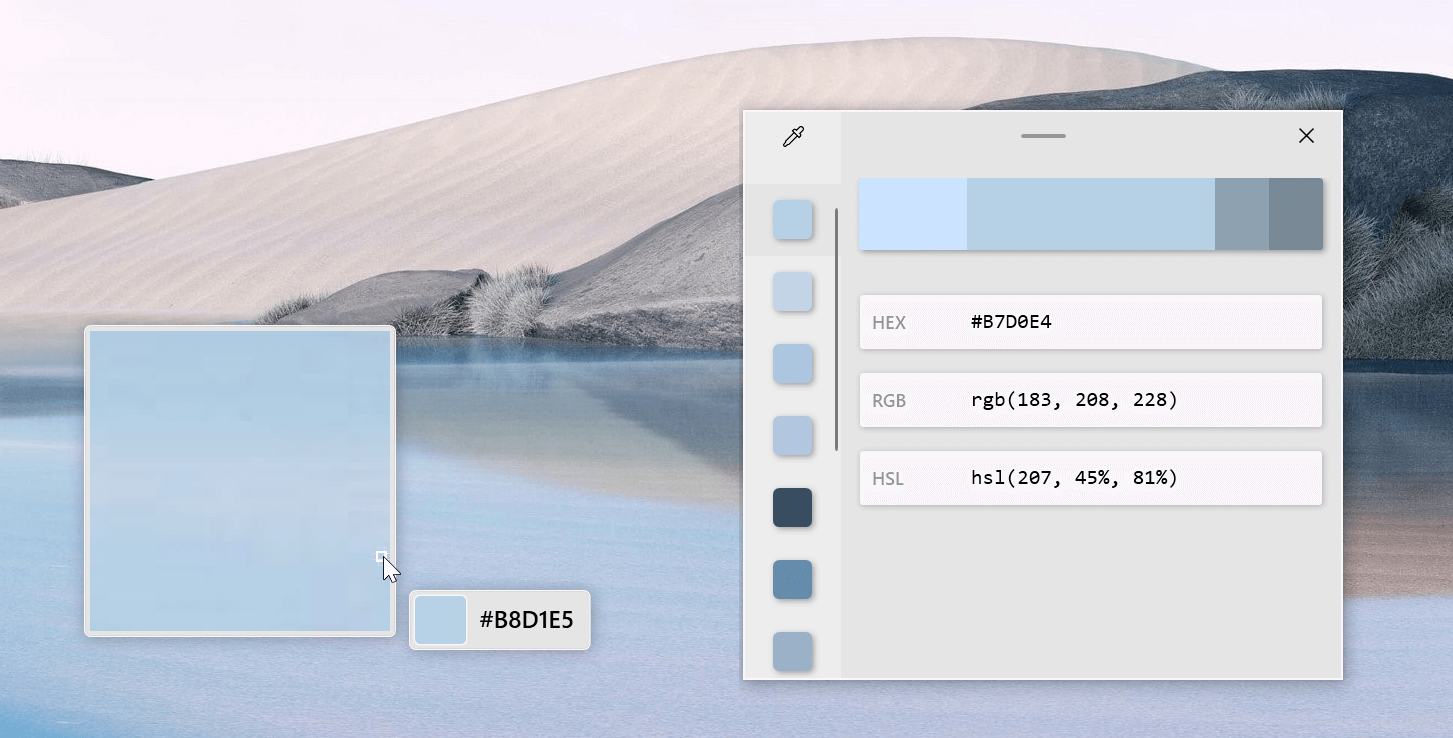
Moving down next tab we have is Color picker. power toys colorpicker hex editorThe color picker will let you as the name suggests pick colors, it will sample colors from running applications and windows, snap their values, and place them in the clipboard. A useful application if you are working as a graphic designer, want to create some cool word document, or just want to compare the difference between colors. After the Color Picker is activated, hover your mouse cursor over the color you would like to copy and left-click the mouse button to select a color. If you want to see the area around your cursor in more detail, scroll up to zoom in. The copied color will be stored in your clipboard in the format that is configured in the settings (HEX by default). The editor lets you see the history of picked colors (up to 20) and copy their representation in any predefined string format. You can configure what color formats are visible in the editor, along with the order that they appear. This configuration can be found in PowerToys settings. The editor also allows you to fine-tune any picked color or get a new similar color. Editor previews different shades of currently selected color - 2 lighter and 2 darker ones. Clicking on any of those alternative color shades will add the selection to the history of picked colors (appears on the top of the colors history list). Color in the middle represents your currently selected color from the history of the colors. By clicking on it, the fine-tuning configuration control will appear, which will let you change the HUE or RGB values of the current color. Pressing OK will add newly configured color into the history of the colors.

Fancy Zones

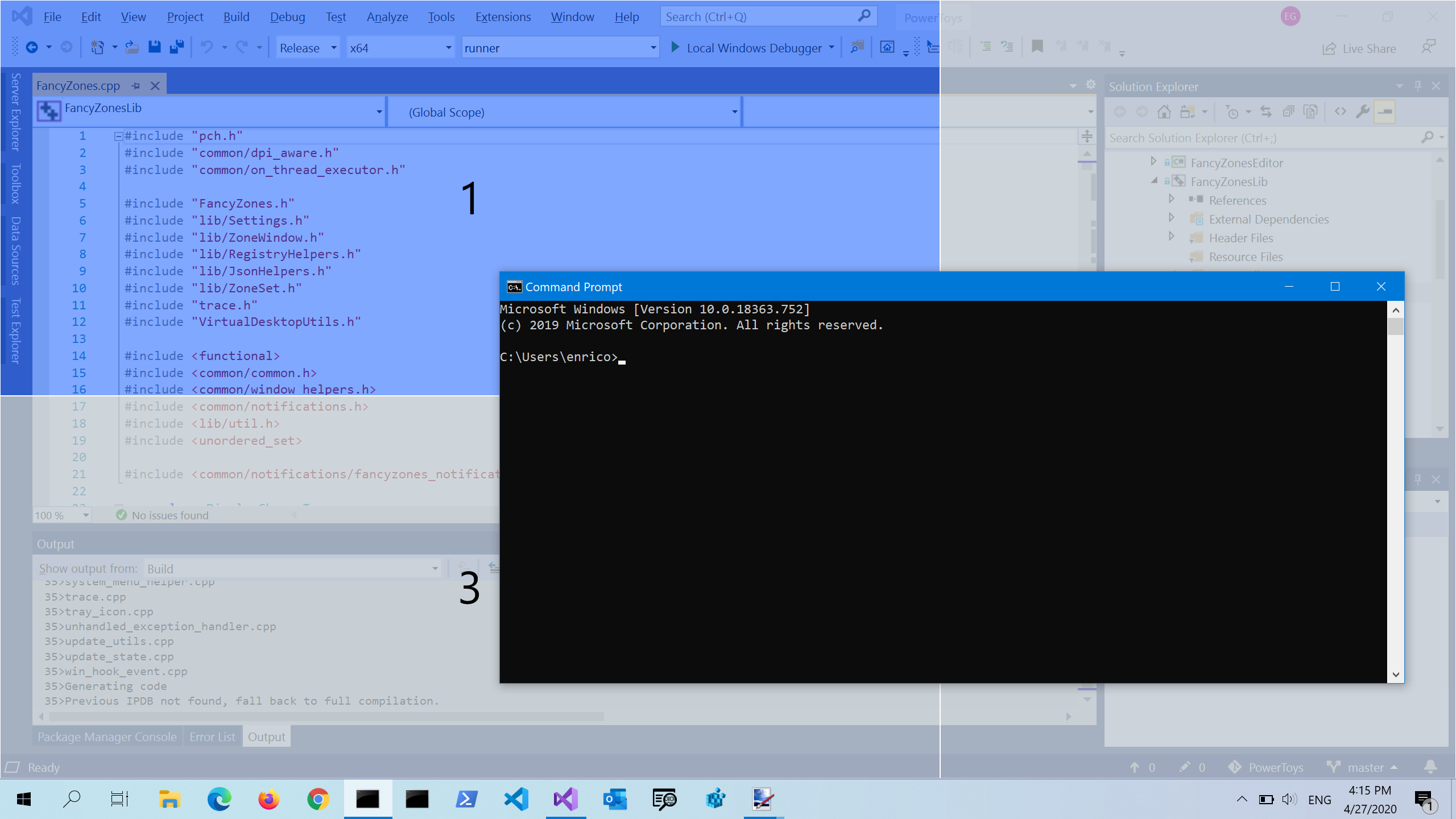
Moving down, we have fancy zones. power toys fancy zonesFancyZones is a window manager utility for arranging and snapping windows into efficient layouts to improve the speed of your workflow and restore layouts quickly. FancyZones allows the user to define a set of window locations for a desktop that are drag targets for windows. When the user drags a window into a zone, the window is resized and repositioned to fill that zone. When first launched, the zones editor presents a list of layouts that can be adjusted by how many windows are on the monitor. Choosing a layout shows a preview of that layout on the monitor. The selected layout is applied automatically.

File Explorer

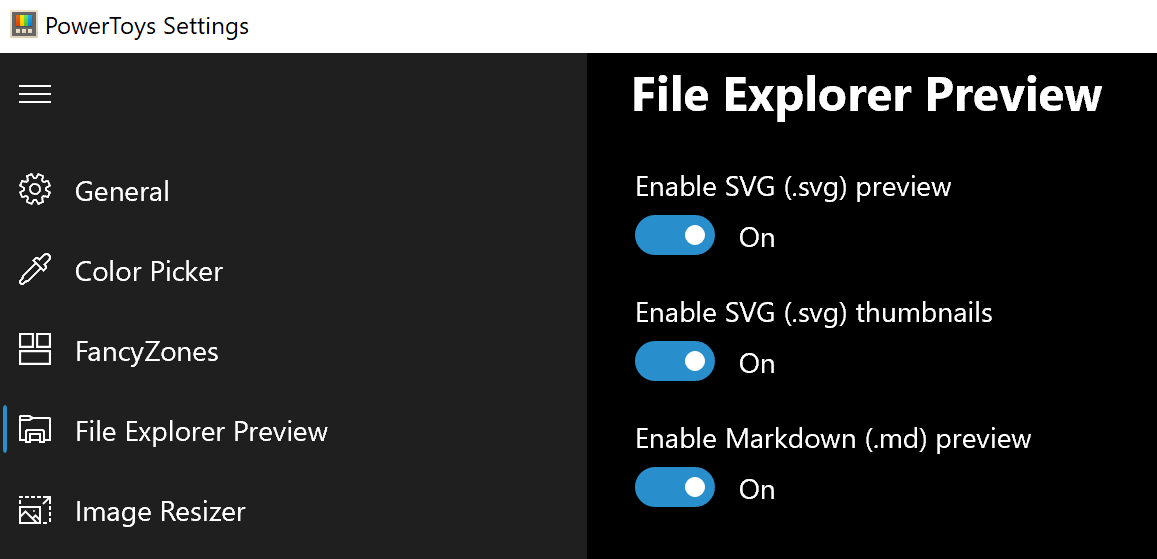
Next, File Explorer. power toys settings file explorerOnly 3 options here but maybe some are important to you. This extension lets you enable SVG file preview in File Explorer, enable Markdown preview, and enable SVG thumbnails. Turn on each one you might need.

Image Resize

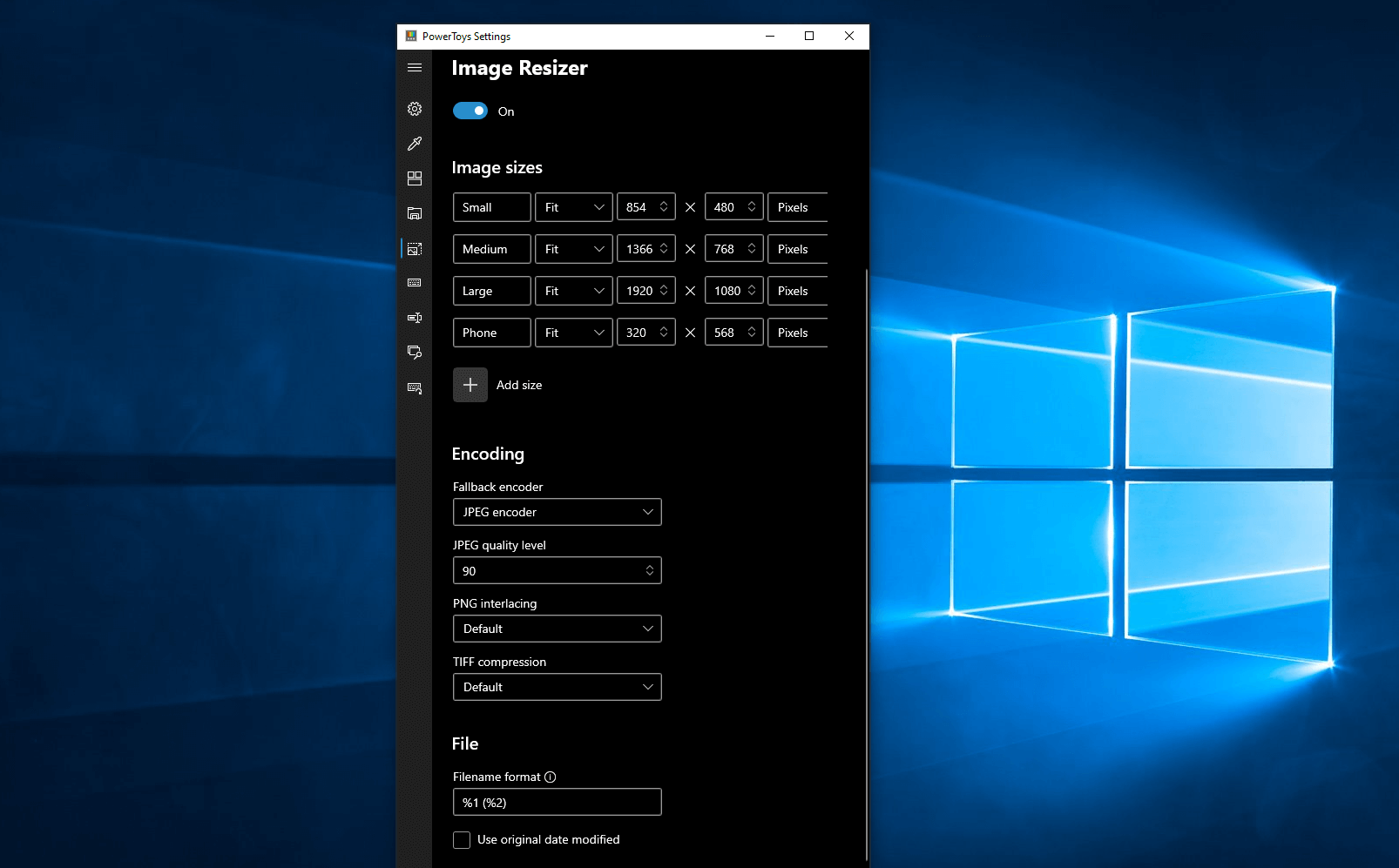
Next down the line, we have Image resize. power toys image resizeImage Resizer is a Windows shell extension for bulk image-resizing. After installing PowerToys, right-click on one or more selected image files in File Explorer, and then select Resize pictures from the menu. You can specify your own sizes if you want, you can resize when dragging files, you can overwrite files or make new copies of new sizes, and many more options. A very useful tool I am sure plenty of users can use since this eliminates the need for pictures or any other image application for common resizing tasks.

Keyboard Manager

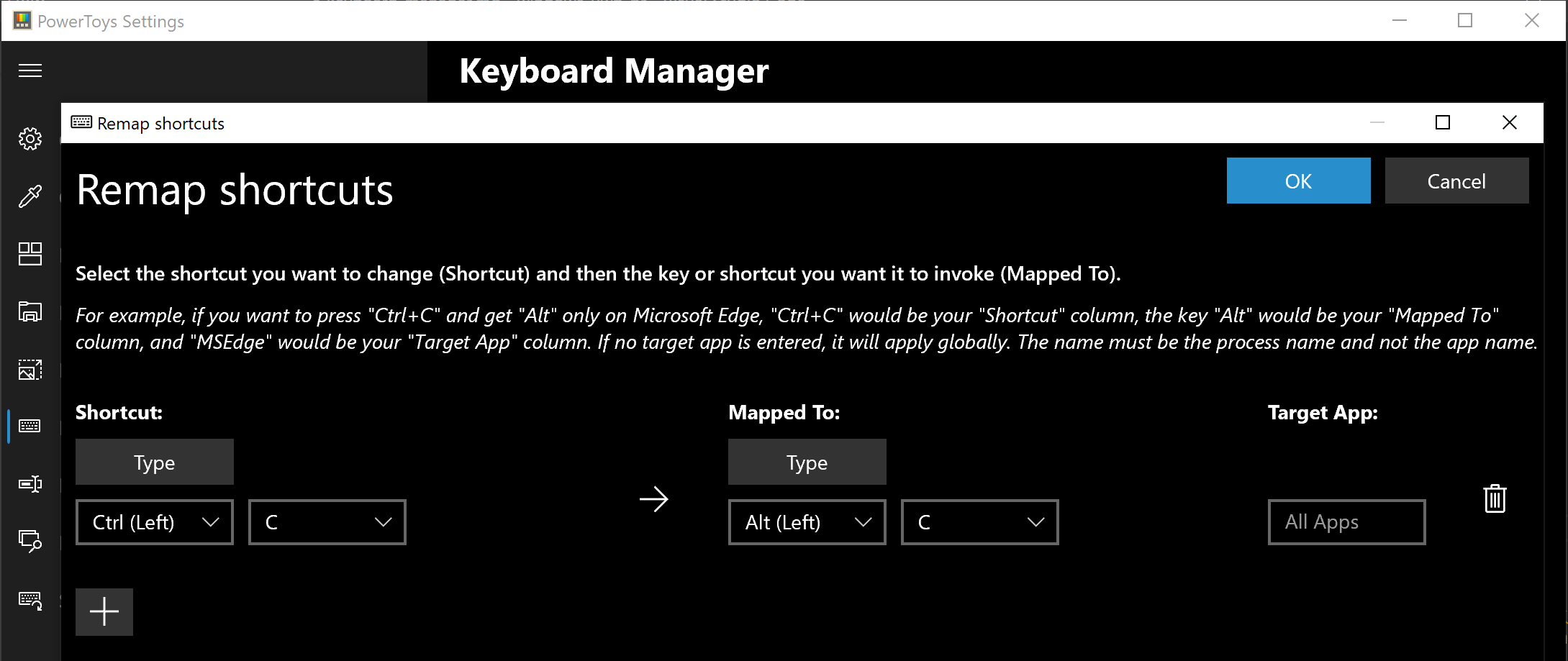
The keyboard manager is the next tab in power toys. power toys keyboard shortcutsThe PowerToys Keyboard Manager enables you to redefine keys on your keyboard. For example, you can exchange the letter A for the letter D on your keyboard. When you select the A key, a D will display. You can also exchange shortcut key combinations. For example, the shortcut key, Ctrl+C, will copy the text in Microsoft Word. With the PowerToys Keyboard Manager utility, you can exchange that shortcut for ⊞ Win+C). Now, ⊞ Win+C) will copy text. If you do not specify a targeted application in PowerToys Keyboard Manager, the shortcut exchange will be applied globally across Windows. PowerToys Keyboard Manager must be enabled (with PowerToys running in the background) for remapped keys and shortcuts to be applied. If PowerToys is not running, key remapping will no longer be applied.

Power Rename

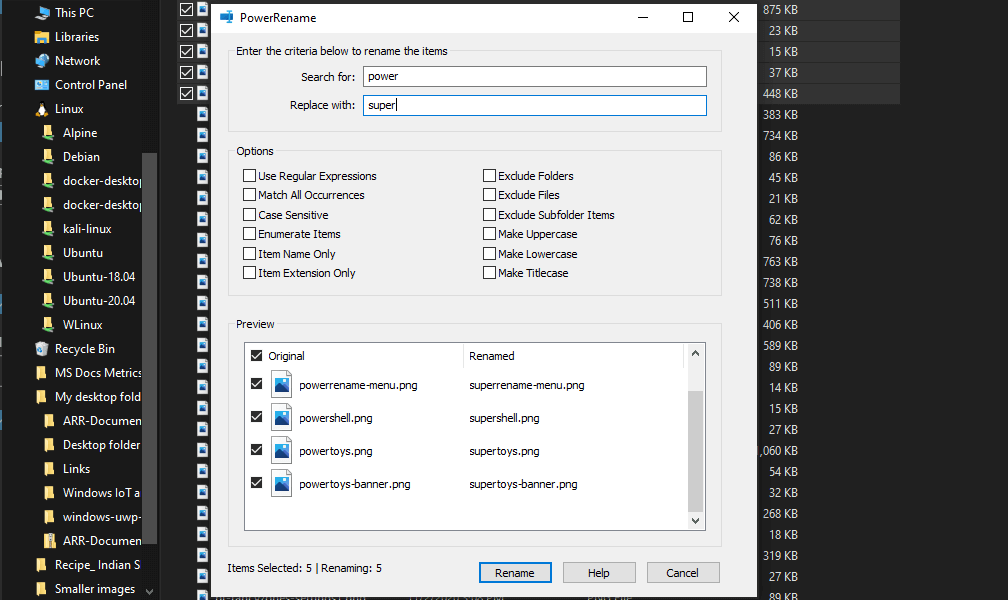
Nex we have a very cool and powerful Power Rename power toys power renamePowerRename is a bulk renaming tool that enables you to:
  • Modify the file names of a large number of files (without renaming all of the files with the same name).
  • Perform a search and replace on a targeted section of file names.
  • Perform a regular expression rename on multiple files.
  • Check expected rename results in a preview window before finalizing a bulk rename.
  • Undo a rename operation after it is completed.

Run Utility

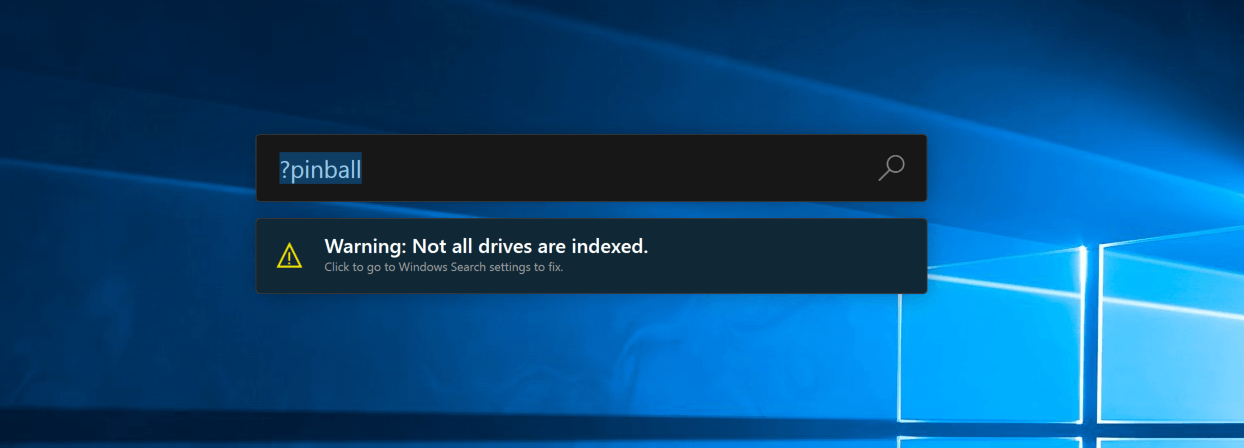
Power Toys Run utility follows next. power toys run warningPowerToys Run is a quick launcher for power users that contains some additional features without sacrificing performance. PowerToys Run features include:
  • Search for applications, folders, or files
  • Search for running processes (previously known as WindowWalker)
  • Clickable buttons with keyboard shortcuts (such as Open as the administrator or Open containing folder)
  • Invoke Shell Plugin using > (for example, > Shell:startup will open the Windows startup folder)
  • Do a simple calculation using the calculator

Shortcut Guide

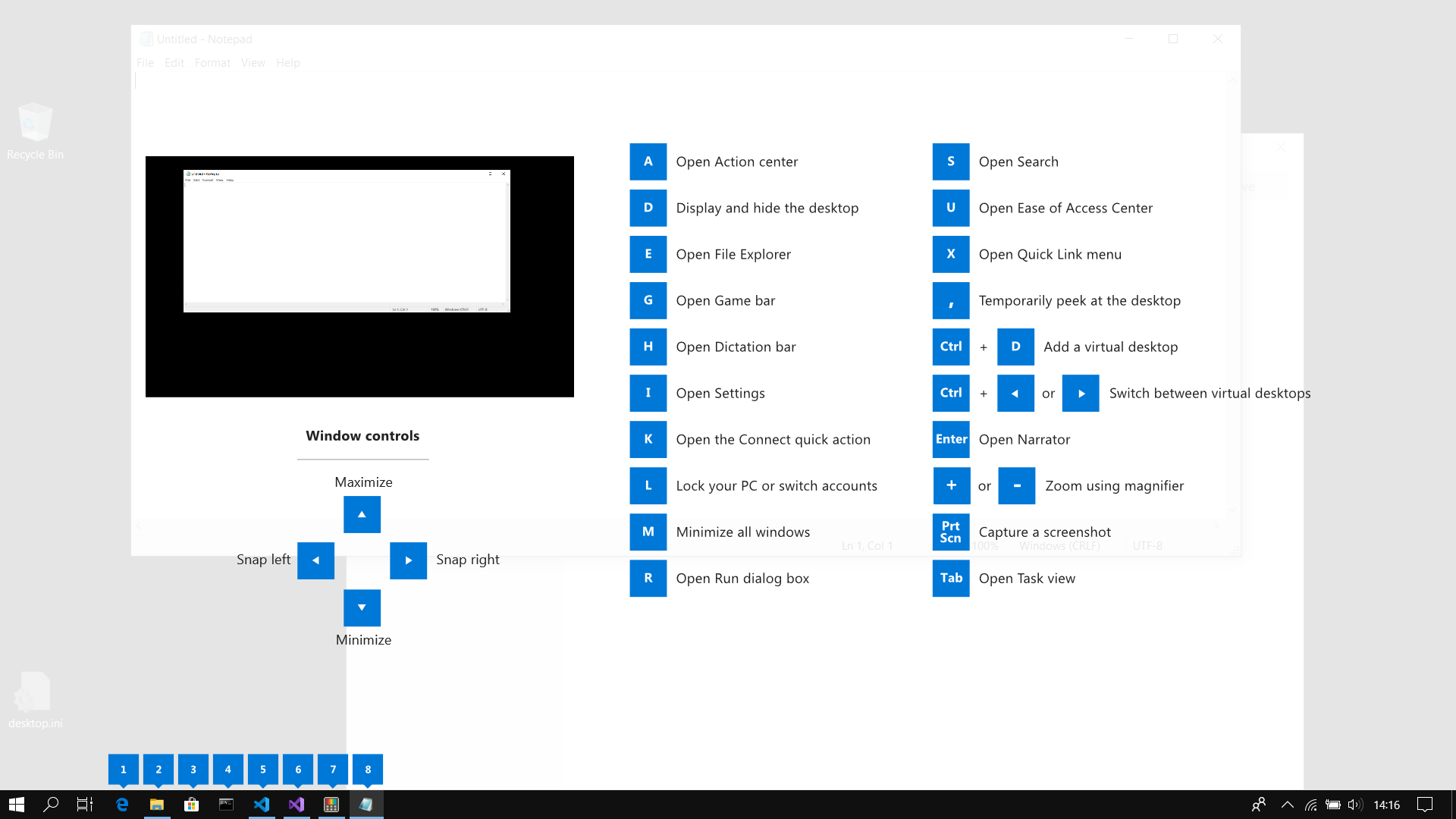
Last but not least we have a Shortcut guide. power toys shortcut guide largeThis guide uses PowerToys to display common keyboard shortcuts that use the Windows ⊞ key. Windows key keyboard shortcuts can be used while the guide is being shown and the result of those shortcuts (active window moved, arrow shortcut behavior changes, etc) will be displayed in the guide. Releasing the Windows ⊞ key will make the overlay disappear. Tapping the Windows ⊞ key will display the Windows Start menu. Hey, you made it till the end, thank you for reading and I hope to see you soon.
Read More
Removing TranslationBuddy from your PC

TranslationBuddy is a browser extension developed by MindSpark Inc. for Google Chrome. This extension allegedly offers users the ability to translate any text to any language. From the Author: Now enjoy immediate access to the FREE web, email, and text translations, Multilanguage Virtual Keyboards, words of the day, and more! This extension configures your New Tab page to TranslationBuddy™ to provide these features.

Get FREE translations instantly. An easy way to translate web pages, texts, and emails.

Unfortunately, this extension hijacks your browser's new tab page, and default search engine, changing it to MyWay. While installed, it monitors browser activity such as visited websites, clicked links, downloaded information, and sometimes even personal information that it later uses to display additional unwanted ads in your browser.

About Browser Hijackers

Browser hijacking is a type of unwanted program, usually a web browser add-on or extension, which then causes modifications in the web browser’s settings. Browser hijackers are capable of doing a number of things on your PC. Generally, browser hijacking is used for earning advertising revenue from forced advert clicks and site visits. Though it might appear harmless, these tools are made by vicious people who always try to take advantage of you, so that hackers can earn money from your naivety and distraction. Some browser hijackers are designed to make particular modifications beyond the browsers, like altering entries in the system registry and letting other malware further damage your machine.

Indications of browser hijack

There are several symptoms that point to a browser hijacking: you see unauthorized modifications to your Internet browser’s home page; bookmark and the new tab are likewise modified; The default search page of browser is modified; unwanted new toolbars are added to your web browser; unstoppable flurries of popup advertisements appear on your computer screen; your web browser gets sluggish, buggy, crashes very often; you’re blocked to access the websites of computer security solution providers.

Exactly how they invade computer systems

Browser hijackers can enter a PC by some means or other, for example via file sharing, downloads, and email also. They may also come from any BHO, browser extension, toolbar, add-on or plug-in with malicious intent. Some internet browser hijackers spread in user’s computers using a deceptive software distribution strategy called “bundling” (commonly through shareware and freeware). Browser hijacking may lead to severe privacy problems and even identity theft, affect your web browsing experience by taking control over outbound traffic, substantially slows down your computer or laptop by deleting lots of resources, and cause system instability at the same time.

Removing browser hijackers

Some hijackers could be removed by deleting the free software they came with or by deleting any add-ons you’ve recently added to your computer system. Having said that, many hijackers are extremely tenacious and require specialized applications to remove them. Inexperienced PC users shouldn’t ever attempt the manual form of removal, as it demands thorough system knowledge to perform fixes on the system registry and HOSTS file. You might opt for automatic browser hijacker removal methods by simply installing and running an efficient anti-malware program. One of the recommended tools for fixing browser hijacker infections is SafeBytes Anti-Malware. It will help you remove any pre-existing malicious software in your system and provides you real-time monitoring and protection from the latest internet threats. Together with the anti-malware tool, a system optimizer could help you in deleting all associated files and modifications in the registry automatically.

How To Get Remove Virus That Is Preventing Anti-Malware Downloads?

Malware can cause all kinds of damage when they invade your system, from stealing sensitive details to deleting data files on your PC. Certain malware variants modify browser settings by adding a proxy server or modify the computer’s DNS configurations. In these cases, you’ll be unable to visit certain or all websites, and thus unable to download or install the required security software to eliminate the malware. If you are reading this article now, you might have perhaps realized that virus infection is the reason behind your blocked net connectivity. So how to proceed if you want to download and install an antivirus program such as Safebytes? Refer to the instructions below to remove malware through alternative ways.

Install the antivirus in Safe Mode

In Safe Mode, you are able to modify Windows settings, uninstall or install some programs, and eliminate hard-to-delete viruses. In the event, the malicious software is set to load automatically when the PC starts, switching to this mode may prevent it from doing so. In order to get into Safe Mode or Safe Mode with Networking, press F8 while the system is booting up or run MSConfig and look for the “Safe Boot” options under the “Boot” tab. Once you’re in safe mode, you can try to install your anti-malware software application without the hindrance of the malware. After installation, run the malware scanner to eliminate most standard infections.

Switch to an alternate internet browser

Malicious code may exploit vulnerabilities on a particular internet browser and block access to all antivirus software sites. If you seem to have a virus attached to Internet Explorer, then switch over to an alternate browser with built-in safety features, such as Firefox or Chrome, to download your preferred anti-malware program – Safebytes.

Make a bootable USB anti-virus drive

Another approach is to download and transfer an anti-malware application from a clean PC to run a scan on the infected computer. Adopt these measures to run the antivirus on the affected computer system. 1) On a virus-free PC, download and install Safebytes Anti-Malware. 2) Plug the Flash drive into the clean computer. 3) Double-click the Setup icon of the antivirus software to run the Installation Wizard. 4) Select the USB flash drive as the location for saving the file. Follow the directions to complete the installation process. 5) Disconnect the pen drive. Now you can use this portable anti-malware on the infected computer system. 6) Double-click the EXE file to run the Safebytes tool from the pen drive. 7) Hit the “Scan” button to run a full system scan and remove malware automatically.

Let's Talk About SafeBytes Security Suite!

Today an anti-malware program can protect your computer from various kinds of internet threats. But wait, how to choose the right one amongst the many malware protection software that’s available out there? As you might be aware, there are numerous anti-malware companies and tools for you to consider. A few of them do a good job in getting rid of malware threats while some will damage your PC themselves. You need to be careful not to choose the wrong product, especially if you purchase a premium program. Among few good programs, SafeBytes Anti-Malware is the highly recommended software program for the security-conscious individual. SafeBytes anti-malware is really a powerful, very effective protection application made to assist users of all levels of computer literacy in finding and removing malicious threats out of their PC. Using its cutting-edge technology, this application can assist you to eliminate several types of malware which include viruses, worms, PUPs, trojans, adware, ransomware, and browser hijackers. SafeBytes anti-malware takes computer protection to a totally new level with its enhanced features. Below are some typical features found in this software: Real-time Threat Response: SafeBytes provides complete and real-time security for your laptop or computer. This utility will constantly monitor your computer for any suspicious activity and updates itself continuously to keep abreast of the newest threats. Anti-Malware Protection: This deep-cleaning anti-malware program goes much deeper than most antivirus tools to clean out your personal computer. Its critically acclaimed virus engine finds and disables hard to remove malware that hides deep inside your computer. “Fast Scan” Features: SafeBytes Anti-Malware has a multi-thread scan algorithm that works up to 5 times faster than any other protection software. Web Protection: Safebytes allots all websites a unique safety ranking that helps you to have an idea of whether the website you are about to visit is safe to browse or known to be a phishing site. Light-weight: SafeBytes provides total protection from online threats at a fraction of the CPU load because of its enhanced detection engine and algorithms. 24/7 Online Support: You could get high levels of support around the clock if you’re using their paid software. To sum it up, SafeBytes Anti-Malware offers great protection combined with very low system resource usage with both great malware prevention and detection. Now you may know that this tool does more than just scan and remove threats from your PC. So if you are looking for the best anti-malware subscription for your Windows-based PC, we suggest SafeBytes Anti-Malware software.

Technical Details and Manual Removal (Advanced Users)

If you wish to carry out the removal of TranslationBuddy manually rather than using an automated software tool, you may follow these steps: Proceed to the Windows Control Panel, click on the “Add/Remove Programs” and there, select the offending application to uninstall. In case of suspicious versions of web browser plugins, you can easily get rid of them via your web browser’s extension manager. Additionally, it is recommended to factory reset your browser to its default condition to fix corrupt settings. To ensure the complete removal, manually examine your hard drive and registry for all of the following and eliminate or reset the values accordingly. But bear in mind, this is often a challenging task and only computer professionals could carry it out safely. Furthermore, certain malware is capable of replicating or preventing deletion. It is recommended that you carry out the removal process in Windows Safe Mode.
Files: %PROGRAMFILES(x86)%\TranslationBuddy_5eEI952%PROGRAMFILES%\TranslationBuddy_5eEI943 %UserProfile%\Local Settings\Application Data\Google\Chrome\UserData\Default\Extensions\pdokjdabepficcifddlfndkildpcgdne934 %LOCALAPPDATA%\Google\Chrome\User Data\Default\Extensions\pdokjdabepficcifddlfndkildpcgdne925chrome-extension_pdokjdabepficcifddlfndkildpcgdne_0.localstorage746chrome-extension_pdokjdabepficcifddlfndkildpcgdne_0.localstorage-journal737http_translationbuddy.dl.tb.ask.com_0.localstorage-journal728http_translationbuddy.dl.tb.ask.com_0.localstorage719translationbuddy.dl.tb.ask1.xml7010 %UserProfile%\Local Settings\Application Data\Translation BuddyTooltab1311%LOCALAPPDATA%\Translation BuddyTooltab12 Registry: HKEY_CURRENT_USER\Software\TranslationBuddy_5e HKEY_LOCAL_MACHINE\SOFTWARE\Microsoft\Windows\CurrentVersion\Run, value: TranslationBuddy AppIntegrator 32-bit HKEY_LOCAL_MACHINE\SOFTWARE\Microsoft\Windows\CurrentVersion\Run, value: TranslationBuddy AppIntegrator 64-bit HKEY_LOCAL_MACHINE\SOFTWARE\Microsoft\Windows\CurrentVersion\Run, value: TranslationBuddy EPM Support HKEY_LOCAL_MACHINE\SOFTWARE\Microsoft\Windows\CurrentVersion\Run, value: TranslationBuddy Search Scope Monitor HKEY_LOCAL_MACHINE\SOFTWARE\Wow6432Node\Microsoft\Internet Explorer\Toolbar, value: a3c5f699-f046-47e7-8011-06269bc6ed24 HKEY_LOCAL_MACHINE\SOFTWARE\Microsoft\Internet Explorer\Toolbar, value: a3c5f699-f046-47e7-8011-06269bc6ed24 HKEY_LOCAL_MACHINE\SOFTWARE\Wow6432Node\Microsoft\Windows\CurrentVersion\Run, value: TranslationBuddy EPM Support HKEY_LOCAL_MACHINE\SOFTWARE\Wow6432Node\Microsoft\Windows\CurrentVersion\Run, value: TranslationBuddy Search Scope Monitor HKEY_LOCAL_MACHINE\SYSTEM\CurrentControlSet\services\TranslationBuddy_5eService HKEY_LOCAL_MACHINE\SYSTEM\ControlSet001\services\TranslationBuddy_5eService HKEY_LOCAL_MACHINE\SYSTEM\ControlSet002\services\TranslationBuddy_5eService HKEY_CURRENT_USER\Software\AppDataLow\Software\TranslationBuddy_5e HKEY_LOCAL_MACHINE\SOFTWARE\Wow6432NodeTranslation Buddy HKEY_LOCAL_MACHINE\SOFTWARE\Translation Buddy HKEY_CURRENT_USER\Software\Microsoft\Internet Explorer\DOMStorage\translationbuddy.dl.myway.com HKEY_CURRENT_USER\Software\Microsoft\Internet Explorer\DOMStorage\translationbuddy.dl.tb.ask.com HKEY_LOCAL_MACHINE\Software\APPLICATION\Microsoft\Windows\CurrentVersion\Uninstall..Uninstaller Translation BuddyTooltab Uninstall Internet Explorer

Read More
How to block websites in Windows
There are a lot of reasons to ban or block different websites in your Windows. From wanting to limit yourself from distraction to block certain sites for sake of kids not going into them. Whatever your reason might be, keep reading in order to find out how you can block any website inside Windows for all browsers. The technique I am going to share with you is universal and not tied to Windows versions, they will work in any Windows from XP onward. Also, the technique will block desired websites on any browser, already installed or even ones that will be installed after doing the trick. And we will also be looking at applications that can help you in this task if you do not wish to do it manually.

Block websites using dedicated software

A small free application called Focal Filter which can be found here: https://www.focalfilter.com/ is a software solution for your needs. It is a pretty straightforward and easy-to-understand application and not really much can be said here about it. You simply download and install it, set your websites, and you are done, the app does rest.

Blocking manually via host file

Another method besides mentioned one using the dedicating application is to manually set site addresses inside the Windows host file. The first thing, of course, is to open the host file, run a notepad with administrator privileges, go to file open, and navigate to c:\windows\system32\drivers\etc\hosts. Once the file is opened go all the way down and add: 127.0.0.1 SITENAME For example: 127.0.0.1 www.youtube.com or 127.0.0.1 www.facebook.com This way each time user on a PC tries to access a listed website computer will reroute it to the given address which is your PC's local address and asked website will not be able to load.
Read More
How to Fix Windows 8 Error Code 0x8007007e

Error Code 0x8007007e – What is it?

Error code 0x8007007e occurs in Windows 8 or 8.1 when users attempt to, but fail to successfully use Windows Update. When this occurs, Windows 8 or 8.1 users will not be able to access updates or certain web pages. This error manifests itself via the following common symptoms:

  • Inability to complete tasks via Windows Update
  • Message box displaying error code 0x8007007e message

Solution

Restoro box imageError Causes

Error code 0x8007007e is usually caused by a malfunction within your system. This malfunction may be due to several issues such as malware on your device, or the accidental removal of a registry entry or system file.

Further Information and Manual Repair

To correct issues related to error code 0x8007007e in Windows 8.1, users may need to employ one or several manual repair methods. Users will not necessarily need technical skills to accomplish this task. However, if you are uncertain of your skills or you are unable to resolve the issue after completing the tasks below, consult a Windows repair technician or use an automated tool.

Method one: System File Checker

System File Checker (SFC) enables users to check their system for corrupt or missing system files. You will need to use Command Prompt. To access System File Checker on Windows 8 or 8.1, follow the instructions below.

  • Step one: Tap or use the mouse to click Search
  • Step two: Type Command Prompt in the Search box
  • Step three: Select Command Prompt, and then click Run as administrator
  • Step four: Type password if prompted by Command Prompt to do so or simply click Allow

Whether you run Windows 8 or 8.1 operating system on your computer, System File Checker will begin to find and repair missing or corrupted system files. If, however, you are unable to successfully complete the task via Command Prompt, repeat the steps above. You may also consider help from a professional or simply move to the next manual repair method listed below.

Method two: Perform a Clean Boot

A Clean Boot will help users determine if error code 0x8007007e in Windows 8.1 is caused by a problem associated with startup programs. Problems may arise when there is conflict among programs that run in the background when users turn on their device. To run a clean boot, follow the steps below:
  • Step one: Click the Start button and type msconfig in the search box
  • Step two: Click Services tab
  • Step three: Click Hide all Microsoft Services box then select Disable All
  • Step four: Click Startup tab
  • Step five: Select Disable All, then OK
  • Step six: Restart the computer then check if you can now update the system

If the Clean Boot is successful, you will be able to successfully update your system without receiving error code 0x8007007e. However, if the error code reappears while you attempt to access updates or web pages, proceed to the next manual repair method below.

Method three: Scan for Malware

Since error code 0x8007007e in Windows 8 or 8.1 can be caused by issues related to malware, it’s important for users to check their system using a powerful antivirus or anti-malware software. If you do not have one on your system, you will need to download such software as soon as possible.

Once you have the software on your PC, run a scan to check if your computer has been infected. If malware is indeed on your device, remove it using the anti-malware tool.

Method four: Run System Restore Tool

Another effective manual repair method relates to System Restore. This tool enables Windows users to restore their computer to an earlier period of time in which the error code was not present. When done properly, it can effectively resolve error code 0x8007007e. Before running this tool, however, be sure you select a time in which all important files and programs are present so as not to lose them.

Method Five: Use an Automated Tool

If you wish to always have at your disposal a utility tool to fix these Windows 8 and other related issues when they do arise, download and install a powerful automated tool.
Read More
ERR_CERT_COMMON_NAME_INVALID error in Chrome
In case you don’t know, when you visit a website that uses HTTPS, it also offers an SSL certificate to the browser in order to verify the website’s identity. Although it may contain lots of things inside it, one of them is the URL of the website. So if the certificate does not match the URL to what you entered, you will most likely get the “Server’s certificate does not match, ERR CERT COMMON NAME INVALID” error which indicates that the connection is not private and the site may try to steal your data but worry not, as this post will guide you in resolving this issue. To fix the ERR_CERT_COMMON_NAME_INVALID error, here are some suggestions that might help.

Option 1 – Check the website’s certificate

If you own the website where you’re getting the error, then you might have to check if the website’s certificate is installed properly and configured on the server as it could be the reason why you’re suddenly getting the error.

Option 2 – Check the Windows Host file

You can also try to cross-check the Windows Hosts file to find out if the website you are trying to open has been blocked, because if it is, then it’s no wonder why you’re getting the ERR_CERT_COMMON_NAME_INVALID error. There are instances when some third-party application modifies the file and adds some websites to the blocklists. So if the website is indeed blocked, you need to remove it from the list.

Option 3 – Use the Google Public DNS

You might want to change your DNS to Google Public DNS as it could also help you in fixing the ERR_CERT_COMMON_NAME_INVALID error in Chrome. To do so, follow the steps below.
  • The first thing you have to do is right-click on the network icon in the Taskbar and select Network and Sharing Center.
  • Next, click on the “Change Adapter Settings” option.
  • After that, search for the network connection that you are using to connect to the internet. Note that the option might be “Wireless Connection” or “Local Area Connection”.
  • Right-click on your network connection and click on Properties.
  • Then select the new window to choose the “Internet Protocol 4 (TCP/IPv4)” option.
  • After that, click on the Properties button and click the checkbox in the new window for the option “Use the following DNS server addresses”.
  • Type in “8.8.8.8” and “8.8.4.4” and click OK and exit.

Option 4 – Run the built-in Malware Scanner and Cleanup Tool in Chrome

In case you don’t know, there is actually a built-in malware scanner and cleanup tool in Chrome that helps you get rid of any unwanted ads, pop-ups, and even malware, as well as unusual startup pages, toolbars, and other things that could affect the performance of the browser. In addition, this built-in tool in Chrome might also help in fixing the ERR_CERT_COMMON_NAME_INVALID error.

Option 5 – Reset Chrome

Resetting Chrome can also help you get rid of the error. Resetting Chrome means restoring its default settings, disabling all the extensions, add-ons, and themes. Aside from that, the content settings will be reset as well and the cookies, cache, and site data will also be deleted. To reset Chrome, here’s what you have to do:
  • Open Google Chrome, then tap the Alt + F keys.
  • After that, click on Settings.
  • Next, scroll down until you see the Advanced option, once you see it, click on it.
  • After clicking the Advanced option, go to the “Restore and clean up option and click on the “Restore settings to their original defaults” option to reset Google Chrome.
  • Now restart Google Chrome.
Read More
Fix Windows Update Error 0x800F0922
A lot of users connect to the internet are using VPN on their Windows 10 computers which means that their regions could be different from the actual region of their Windows 10 computers. Thus, if you are facing some issues in updating your computer in this kind of environment, specifically the Windows Update error 0x800F0922, you need to follow the tips given in this guide to help you resolve the issue. When you encounter this kind of Windows Update error, you might see either of the following error messages on your screen:
“Windows could not search for updates, Code 0x800F0922 Windows Update encountered an unknown error” Or: “Windows failed to install the update with error 0x800F0922”
This issue might be caused by two possible reasons such as:
  1. VPN issues
  2. Not enough space on the System Reserved partition
To resolve the problem, here are some tips that might help:

Option 1 – Try disabling the VPN

As mentioned, if you are using VPN, this could be the reason why you’re getting the Windows Update error 0x800F0922 so the most obvious thing to do is for you to turn off the VPN and try to run the Windows Update once more. And if you use a VPN software that works using their software, you can just completely exit or log-off from its account. On the other hand, if you are using a built-in Windows 10 VPN, you can simply turn it off or delete all the settings you have created there. Although it’s understandable that you might have to use a VPN connection to connect to the work network, you really have to disable it at least until the Windows Update is no longer stuck in the error 0x800F0922. It would be best if you do this when you are not working.

Option 2 – Try to free up space in the System Reserved partition

The System Reserved partition is a part of the hard disk created when Windows is first installed on it. It is where the Boot Configuration Database, Boot Manager Code, Windows Recovery Environment, and the reserves space for the startup files are stored. And as mentioned early on, the error might be due to some insufficient space in the System Reserved partition so the next thing you can do is to increase the space in this partition. Note that it is a complex process so you need to make sure that you have made backups to all your data on the computer. So if ever something goes out of hand, at least you have copies of your important files in case you aren’t able to boot into the system at all.
Read More
Fatal error occurred while trying to sysprep
There are several kinds of errors you could encounter when you are running Windows 10 on a virtual machine. The Windows OS knows the difference between booting up in a standalone computer or in a virtual machine. This is why some specific drivers and system capabilities are used while emulating the Windows OS on software and during this phase, there are times when the System Preparation may throw up an error that says, “A fatal error occurred while trying to sysprep the machine”. This kind of error arises due to a race condition wherein the Sysprep command tries to stop the Microsoft Distributed Transaction Coordinator or MSDTC service and the VMware tool tries to start the MSDTC service. You may also see the following messages logged in the Setuperr.log file:
  • [0x0f0082] SYSPRP LaunchDll:Failure occurred while executing ‘C:Windowssystem32msdtcprx.dll,SysPrepDtcCleanup’, returned error code -2146434815[gle=0x000000b7]
  • [0x0f0070] SYSPRP RunExternalDlls:An error occurred while running registry sysprep DLLs, halting sysprep execution. dwRet = -2146434815[gle=0x000000b7]
  • [0x0f00a8] SYSPRP WinMain:Hit failure while processing sysprep cleanup providers; hr = 0x80100101[gle=0x000000b7]
To fix the 0x0f0082, 0x0f0070, 0x0f00a8 Sysprep errors, you can check out two potential fixes. First, you have to check the status of the MSDTC service and the second one is to check the settings in the Windows Registry. Note that these fixes are proven to be effective on many users and apply to several versions of Windows, including Windows 10.

Option 1 – Check the status of the MSDTC service via Command Prompt

As mentioned, the error could be caused by the malfunctioning of the MSDTC service or it. Thus, you have to uninstall and reinstall the MSDTC service to resolve the problem and you can do that using Command Prompt. Follow the steps below.
  • In the Start Search, type “command prompt” and from the results, right-click on Command Prompt and then select the “Run as administrator” option to open it with admin privileges.
  • If a User Account Control or UAC prompt appears, just click on Yes to proceed.
  • Once you’ve opened Command Prompt, execute this command: msdtc –uninstall
  • The command you just entered will uninstall the MSDTC service. After that, you need to execute this second command to reinstall the service: msdtc –install
  • Now exit Command Prompt and check if the error is now fixed.

Option 2 – Check the Registry settings

  • Tap the Win + R keys to open the Run dialog box and type “Regedit” in the field and click OK or hit Enter to open the Registry Editor.
  • After opening the Registry Editor, navigate to this registry path: HKEY_LOCAL_MACHINESOFTWAREMicrosoftWindows NTCurrentVersionSoftwareProtectionPlatform
  • From there, look for a DWORD value that’s named “SkipRearm” and double click on it.
  • Then change its value data to “1”.
  • Restart your computer to apply successfully apply the changes made and check if it was able to fix the error.
Read More
1 2 3 171
Logo
Copyright © 2023, ErrorTools. All Rights Reserved
Trademark: Microsoft Windows logos are registered trademarks of Microsoft. Disclaimer: ErrorTools.com is not affiliated with Microsoft, nor claims direct affiliation.
The information on this page is provided for information purposes only.
DMCA.com Protection Status