Logo

Fix 0x800F0825 update error in Windows 10

Windows updates have become a regular occurrence in our digital lives. They are frequent and have become quite necessary. Most of the time they bring us quality content like fixed security, resolved bugs, and even new features but from time to time update itself can be not downloaded properly or it can have some issues when installing. Windows Update Error 0x800F0825 is one of these update errors that will be reported seemingly after applying the update.

Altho annoying error it is nothing system breaking and can be easily resolved.

Hello and welcome everyone, today we will provide you with solutions on how to resolve error 0x800F0825 when trying to complete a Windows update.

Run Windows troubleshooter

Built-in Windows troubleshooter can help a lot in resolving these issues and we will try it as a first solution because of its simplicity and ease of use.

  • Click on START
  • Click on settings
    Windows 10 Start menu with marked settings icon
  • Navigate to Update & Security > Troubleshoot > Additional Troubleshooter > Windows Update
  • Click on Run the troubleshooter
  • Follow onscreen instructions and let the troubleshooter try to solve the issue

Clear contents of SoftwareDistribution & Catroot2 folders

Altho SoftwareDistribution and Catroot2 folders are essential for the update process it can happen that badly downloaded updates or similar corruption can be stored there and thus producing this error.

  • Open file explorer and locate these two folders, go inside and delete content inside them
  • Try updating again to see if corruption inside folders was the issue.

Update manually

If the previous two solutions have not produced a result and the error is still present then go to the official Microsoft Update Catalog and download the update manually

The catalog is here.

Search for updates from the Windows Update Catalog In the Search box, type your search terms. You can carry out a full-text search, using a keyword, KB article, MSRC bulletin, driver manufacturer, driver model, driver version, product, and a classification. Select the appropriate version of Windows. Search or click on Advanced Search if you want to refine your search. A list will be displayed. Select the updates that you want to download. Click Add for each selection to add it to the download basket.

  • Download the updates. You may be asked to install an Active-X download control to be able to download files from this site
  • Double-click on the downloaded updates to install them

Administrators can download updates from the Microsoft Download Center or the Windows Update Catalog to deploy to multiple computers
If you are running Windows Server Update Services (WSUS) 3.0, System Center Essentials (SCE), or System Center Configuration Manager (SCCM) you can import updates directly into these applications. Security updates, critical updates, service packs, update rollups, definition updates, and critical drivers can be configured to synchronize with your server automatically. You can still import these updates into your application by using Microsoft Update Catalog; however, depending on how you configure WSUS, SCE, and SCCM, you may not need to import the updates.

Disable system protection

In some rare cases, antivirus or firewall could interfere with both downloads and execution of certain files. If each previous solution failed disable temporarily your security software and try executing the update again.

Do You Need Help with Your Device?

Our Team of Experts May Help
Troubleshoot.Tech Experts are There for You!
Replace damaged files
Restore performance
Free disk space
Remove Malware
Protects WEB browser
Remove Viruses
Stop PC freezing
GET HELP
Troubleshoot.Tech experts work with all versions of Microsoft Windows including Windows 11, with Android, Mac, and more.

Share this article:

You might also like

How to remove GetCouponsFast.com from PC

The Get Coupons Fast Toolbar is a Browser Extension for Google Chrome developed by Mindspark Inc. This extension allows quick access to the most popular coupon websites available. While this might look like a good useful idea, keep in mind that it has been classified as a Browser Hijacker by Several anti-virus applications.

When installed this extension will hijack your new tab page, changing it to a customized version of Search.MyWay.com. While active It records user browser activity, this data is later used to better target ads. While browsing the internet with this extension installed you will see additional pop-up ads, sponsored content, and injected ads into your browser search results and pages. GetCouponsFast usually comes bundled with other PUP-s or Browser Hijackers that may harm your computer and it is recommended you remove it from your PC.

About Browser Hijackers

Browser hijacking means that a malicious code has taken control over and altered the settings of your internet browser, without your permission. They are created to disrupt browser functions for various reasons. It redirects you to the sponsored sites and inserts ads on your internet browser that assists its developer to generate revenue. While it might seem harmless, these tools were created by malicious people who always look to take advantage of you, so that they could make money from your naivety and distraction. They did not just ruin your browsers, but browser hijackers can also modify the system registry, making your computer or laptop susceptible to various other types of attacks.

Signs of browser hijacker infection

There are plenty of signs that indicate the web browser has been highjacked: 1. you notice unauthorized modifications to your web browser’s home-page 2. you find re-directed to internet sites you never intended to visit 3. the default browser configurations have been modified and/or your default web engine is altered 4. you’ll see many toolbars on your browser 5. you might see never-ending pop-up adverts on your computer screen 6. your browser has become unstable or starts running slowly 7. you are blocked to access the websites of antivirus solution providers.

How does a computer get infected with a browser hijacker?

Browser hijackers might use drive-by downloads or file-sharing networks or an email attachment in order to reach a targeted computer system. They could also come from add-on applications, also known as browser helper objects (BHO), web browser extensions, or toolbars. Some internet browser hijackers spread in user’s computers using a deceptive software distribution method called “bundling” (often through freeware and shareware). Browser hijackers will affect the user’s web browsing experience severely, monitor the websites visited by users and steal sensitive information, cause difficulty in connecting to the web, and eventually create stability problems, making programs and systems freeze.

Removal

Some hijackers can be simply removed by deleting the free software they were included with or by deleting any add-ons you have recently added to your browser. Unluckily, the majority of the software applications utilized to hijack an internet browser are deliberately designed to be difficult to detect or get rid of. And there is no denying the very fact that manual repairs and removal can certainly be a difficult task for a novice PC user. Moreover, there are various risks connected with tinkering around with the system registry files. Installing and running anti-malware software on the affected computer will automatically erase browser hijackers as well as other unwanted programs. In order to get rid of persistent browser hijackers effectively, install the award-winning Anti-Malware tool Safebytes Anti-Malware. Employ a pc optimizer (such as Total System Care) along with your anti-malware to repair various computer registry problems, remove computer vulnerabilities, and improve your computer performance.

How To Get Eliminate Virus That Is Blocking Antivirus Downloads?

Malware could cause all sorts of damage once they invade your computer, starting from stealing your private details to erasing data files on your computer system. Some malware is created to hinder or block things that you wish to do on your PC. It may not permit you to download anything from the net or it will prevent you from accessing a few or all of the websites, in particular the anti-virus sites. If you are reading this article right now, you may have perhaps realized that a malware infection is a reason for your blocked internet connectivity. So what to do if you want to download and install an anti-virus application like Safebytes? There are some steps you can take to circumvent this problem.

Boot Windows in Safe Mode

Safe Mode is actually a unique, simplified version of Windows in which just bare minimum services are loaded to prevent malware and also other troublesome programs from loading. If the malicious software is set to load automatically when the PC starts, shifting into this mode may prevent it from doing so. In order to enter into Safe Mode or Safe Mode with Networking, press the F8 key while the system is booting up or run MSCONFIG and find the “Safe Boot” options under the “Boot” tab. Once you are in safe mode, you can attempt to install your anti-malware program without the hindrance of the malicious software. Right after installation, run the malware scanner to remove standard infections.

Use an alternate web browser to download security software

Web-based malware can be environment-specific, aiming for a particular browser or attacking particular versions of the browser. The best solution to avoid this issue is to choose an internet browser that is known for its security features. Firefox contains built-in Malware and Phishing Protection to keep you secure online.

Run anti-virus from a pen drive

Another option would be to make a portable anti-malware program onto your USB flash drive. To run anti-virus using a pen drive, follow these simple measures: 1) Download Safebytes Anti-Malware or Windows Defender Offline onto a virus-free PC. 2) Plug the USB drive into the clean computer. 3) Double-click the Setup icon of the anti-malware program to run the Installation Wizard. 4) Select thumb drive as the place when the wizard asks you where you wish to install the application. Follow the directions to complete the installation process. 5) Unplug the flash drive. Now you can utilize this portable anti-virus on the infected computer. 6) Double click the Safebytes Anti-malware icon on the pen drive to run the application. 7) Click the “Scan Now” button to start the virus scan.

SafeBytes Anti-Malware Overview

Want to download the best anti-malware application for your desktop? There are many applications on the market that comes in free and paid versions for Windows systems. Some are very good ones, some are ok types, while some are just fake anti-malware programs that will damage your personal computer themselves! While looking for an antimalware program, pick one that offers reliable, efficient, and total protection against all known viruses and malware. On the list of recommended software is SafeBytes AntiMalware. SafeBytes has a good history of quality service, and customers appear to be happy with it. Safebytes is among the well-established PC solutions companies, which provide this all-inclusive anti-malware application. With its outstanding protection system, this tool will automatically detect and remove most of the security threats, which include adware, viruses, browser hijackers, PUPs, trojans, worms, and ransomware.

SafeBytes possesses a variety of wonderful features that can help you protect your computer from malware attacks and damage. Listed below are a few of the great ones:

Real-time Protection: SafeBytes provides round-the-clock protection for your computer restricting malware intrusions in real-time. They are very efficient in screening and getting rid of numerous threats because they’re regularly improved with new updates and alerts. Robust Anti-malware Protection: Built on a highly acclaimed antivirus engine, this malware removal tool has the capacity to find and remove various stubborn malware threats such as browser hijackers, PUPs, and ransomware that other common antivirus programs will miss. Web protection: SafeBytes checks the hyperlinks present on a webpage for possible threats and tells you if the website is safe to explore or not, through its unique safety rating system. Minimal CPU and Memory Usage: SafeBytes is a lightweight and simple to use antivirus and anti-malware solution. As it utilizes very low computer resources, this software leaves the computer power exactly where it belongs: with you. 24/7 Customer Service: Support service is available 24 x 7 x 365 days via chat and email to answer your queries. Overall, SafeBytes Anti-Malware is a solid program since it has lots of features and could identify and remove any potential threats. Now you may realize that this tool does more than just scan and delete threats on your computer. So when you need advanced forms of protection features and threat detections, purchasing SafeBytes Anti-Malware could be well worth the dollars!

Technical Details and Manual Removal (Advanced Users)

If you don’t want to use malware removal software and prefer to eliminate GetCouponsFast manually, you could do so by going to the Windows Add/Remove Programs menu in the control panel and deleting the offending program; in cases of browser extensions, you can remove it by visiting the browser’s Add-on/Extension manager. Additionally, it is advised to reset your web browser settings to their default state. Lastly, check your hard disk for all of the following and clean your registry manually to remove leftover application entries after uninstallation. Please keep in mind that only advanced users should attempt to manually edit the system files since deleting any single vital registry entry results in a serious problem or even a PC crash. Moreover, certain malicious programs are capable to defend against its removal. It is recommended that you do the removal process in Windows Safe Mode.
Files: %LOCALAPPDATA%\Google\Chrome\User Data\Default\Extensions\iadmakoacmnjmcacmhlcjcameijgcopj %UserProfile%\Local Settings\Application Data\Google\Chrome\User Data\Default\Extensions\iadmakoacmnjmcacmhlcjcameijgcopj %UserProfile%\Local Settings\Application Data\GetCouponsFastTooltab %LOCALAPPDATA%\GetCouponsFastTooltab Registry: HKEY_LOCAL_MACHINE\Software\[APPLICATION]\Microsoft\Windows\CurrentVersion\Uninstall..Uninstaller
Read More
What to do if Google Drive Unable to Connect
As you know, the Google Drive service is a Backup and Synchronization service provided by Google. It was launched way back in April 2012 which provides users with the options to synchronize, store and share files by uploading them to Google’s servers where they stay until they are deleted personally by the users and can be accessed anywhere using the Google Account that’s used to upload them. Recently, a lot of users reported that they were unable to connect to Google Drive from their Windows 10 computers. This kind of problem has been noticed in the middle of the upload process and can be seen at times after the app launches. If you also experience the same issue, then you’ve come to the right place as this post will guide you in fixing it. There are a lot of possible reasons why this kind of problem occurs. It could be that the app was not able to launch properly or the internet got disconnected when the app was about to launch. It is also possible that the Firewall has blocked the app from connecting to the internet or that the antivirus program is preventing the app from making contact with its database. Aside from that, it is possible that the account you are using on your computer is preventing Google Drive from connecting to the internet due to some configuration errors. Follow the suggestions provided below to fix the connection issue with Google Drive.

Option 1 – Configure the Firewall

As mentioned, the Windows Firewall might be blocking the app from contacting its database so, in this option, you have to allow Google Drive through the Firewall. To do so, follow these steps:
  • In the Windows Start Search, type “firewall” and click on the “Allow an app or feature through Windows Firewall” option from the search results.
  • After that, you will see a list of apps, and here, click on the “Change Settings” button.
  • Next, scroll down and make sure to check both the “Public” and “Private” options for Google Drive.
  • Now click on Ok to save the changes made and then try to launch Google Drive again.

Option 2 – Try to launch Google Drive again

Google Drive might have not launched properly that’s why it can’t connect to its servers so you can try to launch it again and see if it helps.
  • Tap the Ctrl + Shift + Esc keys to open the Task Manager.
  • Next, go to the Processes tab and click on the “View” option located at the top.
  • After that, uncheck the “Group by Type” option and click on the “Google Drive Sync” from the list of processes.
  • Then click on the “End Task” option and close the Task Manager.
  • Launch Google Drive again and see if the issue is now resolved.

Option 3 – Temporarily disable third-party antivirus

Aside from Firewall, antivirus programs, especially the third party ones, are also known to block files applications the instant it detects a threat to the system. Thus, your antivirus program might be the reason why you can’t download anything on your Windows 10 computer. To fix this, you can try to disable the antivirus program on your computer in the meantime and then try to launch Google Drive again. Do not forget to enable them again as disabling them can leave your computer vulnerable to cyber threats.

Option 4 – Try to create a new account

There are times when a certain configuration for a user account might be blocking some elements of the Google Drive app. In such cases, you can try to create a new account to fix the problem.
  • Click on the Windows key and then click on the icon for Settings.
  • From there, click on the Accounts button and select the “Family & Other People” option from the left pane.
  • Next, click the “Add someone else to this PC” option.
  • After that, click on the “I don’t have this person’s sign-in information” option and select the “Add a user without a Microsoft Account” setting.
  • Type in the credentials for the new account you are creating and click on Next.
  • After the account is created, click on the account and then select the “Change account type” option.
  • Click on the drop-down menu and select the “Administrator” option and then click on OK.
  • Now sign out of the current account and sign in to the new one and then open Google Drive again.
Read More
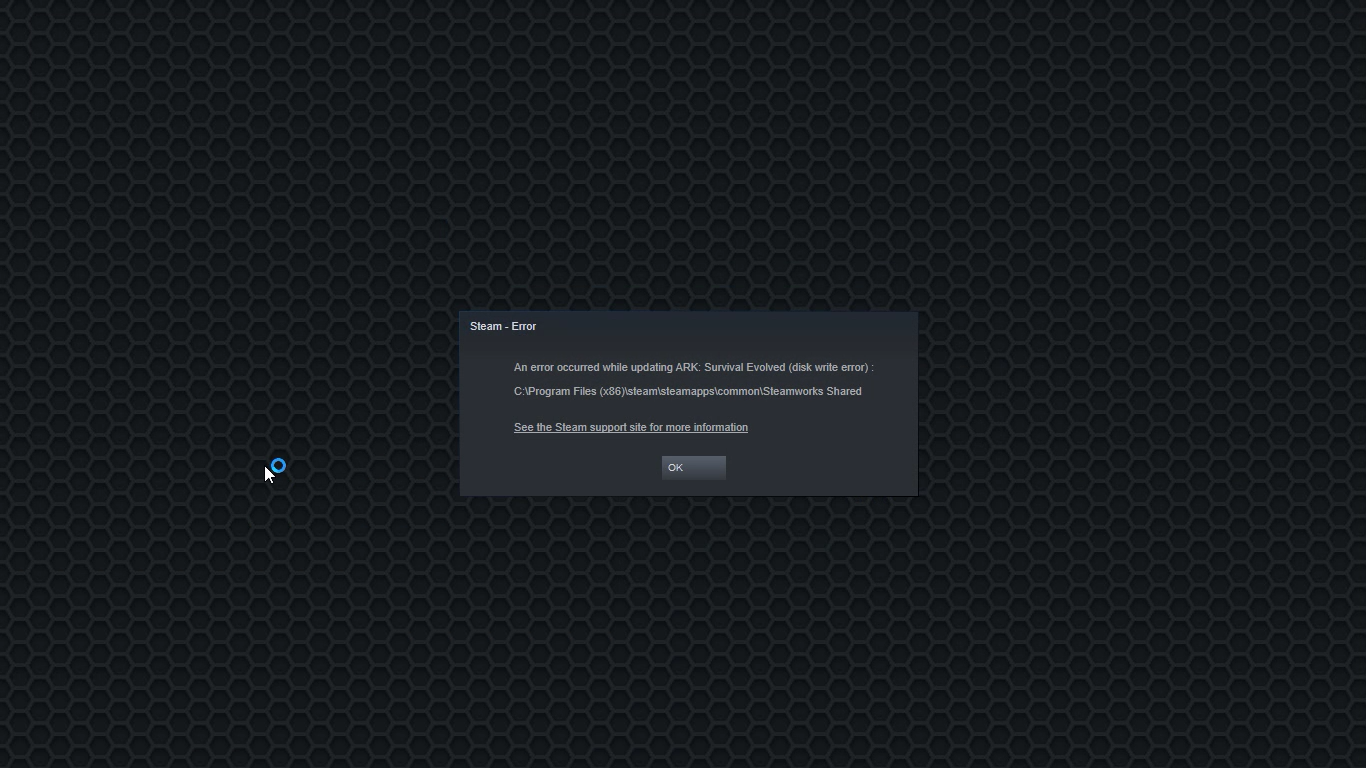
Fix a Steam Disk Write error

Disk Write Error in Steam is thrown at you while you try to download or update the game in your library. If you are an unfortunate user of Steam that has encountered this error do not sweat, the error is usually tied to permission in windows or file corruption and not to hardware issues and can be easily resolved.

In this guide, we will go through solutions for this specific error and it is advisable to go through solutions as they are presented since they go from the easiest and most common issues.

steam disk write error

Restart PC and Steam

The easiest and quickest way of resolving this issue is just a simple restart of the Steam client. Just completely quit Steam and they run it again, if this has not solved the issue try rebooting your PC. In most cases, this can solve the issue since this error is known to be introduced with some communication issues with OS (Windows)

Set Write permissions

Disk write permissions could also cause this error because if by any chance the Steam library folder has been set or changed to the read-only client would be unable to write anything in it. To easily solve this issue completely exit the Steam client and rerun it as administrator. Just right-click on it and select Run as Administrator. If this has solved your issue run Steam always as an administrator.

To run always as an administrator right click on the steam executable, go to properties, and inside properties go to the compatibility tab. In the compatibility tab check run as administrator and click on OK.

Clear download cache

If for any reason cache has become corrupted there is a big chance that this might be an issue why there is a disk drive error in Steam. To clear download, cache goes into your client, and on top drow down menu click on steam. Find and open settings and inside go to the downloads tab. Locate a clear download cache and immediately you will be prompted to restart Steam. After restart, you will be asked to login into steam and the issue with disk write should be gone.

Repair library folder

Library folder issues can also be the source of disk write annoyance so let's repair them. Click steam in the top left and go to the settings. Locate and click on Downloads and then go to Steam library folders. You will be here shown all disk drivers you are using for steam games and all of the games that are downloaded.

Select the game you are getting errors with and click on three dots on the far right. From the menu choose the repair folder option. Take note that the more games you have installed, the more time the repair process will need.

Change download server

Sometimes the issue is not at your end at all, servers can experience problems and outrages and this can directly reflect at your end with a disk write error. If any of the previous solutions have not resolved the issue this is the next logical step to try. If the server is facing issues then changing the download server will resolve the issue at your end.

Click on settings in the top drop-down menu and then click on the Steam library folder. Find the downloads page and then click on download region, Choose another server than one nearest to your location since that's what will Steam choose by default.

Read More
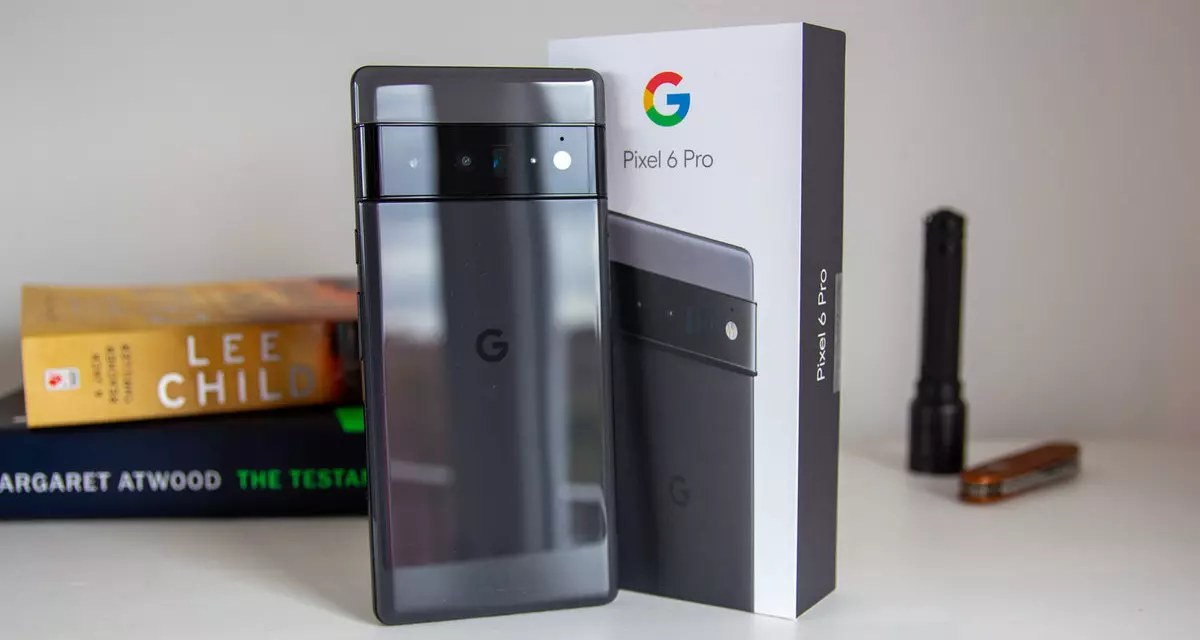
Pixel's fast emergency dialer

Google's Pixel smartphone is one if not the best Android smartphone on the market. It regularly gets updates and Google is really trying to keep it as a top choice for Android smartphone users. One of the new things that Google has released for its smartphone series is a new emergency dialer.

google pixel 6

With an emergency dialer, you will be able to quickly access local contact information for police, fire, and medical services. This dialer is able to contact before mentioned services even when the phone is locked and when you are traveling.

The idea is to quickly access the default emergency number no matter in which country you are currently in, service will find the appropriate number and set it as default so if you need it there is no delay in searching for the appropriate number and dialing it.

Once the service is enabled on the device you can swipe up and tap Emergency call without unlocking your phone or you can press and hold the power button for five seconds and tap Emergency.

If you have a Pixel smartphone go to the Google support page and follow instructions on how to enable this service. It costs nothing and it could potentially even save your life.

Read More
Fix “We couldn’t find any drives” Error
If you encountered an error message saying, “We couldn’t find any drives, To get a storage driver, click Load driver” when you try to install Windows in a VirtualBox machine, then you’ve come to the right place as this post will guide you in fixing this error. This error message is displayed on the screen where you have to choose a partition to install the guest operating system. This error is most likely due to the lack of correct settings as well as a corrupted virtual disk. To fix this error, you have to remove existing storage devices, create a new storage device and select the correct ISO file.

For complete instructions, follow the given steps below.

Step_1: The first thing you have to do is remove all the existing Storage devices and since this option is already available in VirtualBox by default, there is no need for you to install any third-party software. Step_2: After that, open VirtualBox and select the virtual machine and then click the Settings button. Step_3: Next, switch to the Storage section and on your right-hand side, you will see “Controller: SATA” and two other sub-labels. From there, select Controller: SATA and then click on the red cross button that says, “Remove selected storage controller”. Step_4: Now click on the Add new storage controller icon and select the “Add SATA Controller” option from the given list. Step_5: Afterwards, click the “Add hard disk” button and select the “Create new disk” option, and then you have to create a new virtual disk for your virtual machine. Step_6: Verify if you have selected Dynamically allocated while you create the virtual hard disk. Once the process is completed, you will get a “.vdi” file in the list. Step_7: Next, click on the “Add optical drive” button and select the “Choose disk” option. Here, you have to select the ISO file and if you can find an ISO file in the given list, select it from there, else, you have to click the Add button and navigate to the folder where the ISO file is located. Step_8: Once you’re done, click the OK button and boot your virtual machine. You should see options instead of the “We couldn’t find any drives, To get a storage driver, click Load driver” error message. If you see the options, you can now create a new partition and start the installation process of the Windows operating system in the VirtualBox machine without any problem.
Read More
Easy Remove SpeedItUp Tutorial

SpeedItUp is a potentially unwanted application made by MicroSmarts LLC. The program claims to optimize RAM, clean the registry, and boost internet connection speed. It is designed to speed up your computer by removing some background processes. While not malicious itself, SpeedItUp Free and its variations are often installed via third-party installer bundles, causing many users to unwittingly install the program. Aliases of the program include CheckMeUp, SpeedCheck, SpeedChecker, SpeedItUp Free, Speeditup-Checkup, and Speeditup-Nova. While intended to speed up the performance, its background processes and startup tasks may actually slow PCs down in some cases. Some versions of SpeedItUp also include a browser extension.

About Browser Hijackers

Browser hijacking is a type of unwanted software program, usually a web browser add-on or extension, which causes modifications in the browser’s settings. Browser hijacker malware is designed for a number of reasons. Typically, browser hijacking is used for earning advertising revenue that comes from forced advert mouse clicks and website visits. Though it might seem naive, these tools are designed by vicious individuals who always attempt to take full advantage of you, so that hackers can make money from your naive and distraction. On top of that, hijackers can make the whole infected system vulnerable – other destructive malware and viruses would grab these opportunities to get into your computer effortlessly.

Symptoms of browser hijack

There are many symptoms that could indicate a browser hijacking: your web browser’s homepage is suddenly different; your web browser is constantly being redirected to adult sites; the default online search engine has been changed and your browser security settings have been brought down without your knowledge; discover new toolbars which you did not add; your internet browser displays endless pop-up windows; your internet browser has become unstable or starts running slowly; Inability to navigate to certain websites, particularly anti-malware as well as other security software sites.

How they infect computer systems

A browser hijacker can be installed on your computer or laptop if you check out an infected site, click an email attachment, or download something from a file-sharing site. They may also originate from any BHO, browser extension, add-on, toolbar, or plug-in with the malicious objective. A browser hijacker can also come bundled up with some freeware that you inadvertently download to your PC, compromising your internet security. An example of some notorious browser hijacker includes Babylon, Anyprotect, Conduit, DefaultTab, SweetPage, Delta Search, and RocketTab, but the names are regularly changing.

The best ways to remove a browser hijacker

Certain kinds of browser hijackers can be removed from the computer by deleting malicious applications or any other recently added shareware. Often, it can be a challenging task to discover and get rid of the malicious piece because the associated file could be running as part of the operating system process. Moreover, manual removals demand deep system knowledge and thus can be quite a difficult job for novice computer users. Experts always recommend users remove any malware including browser hijackers by using an automatic malware removal tool, which is better, safer, and quicker than the manual removal method. One of the greatest tools for repairing browser hijacker malware is Safebytes Anti-Malware. It will help you remove any pre-existing malicious software in your system and provides you real-time monitoring and protection from the latest threats. Together with the anti-virus tool, a PC optimizer will help you in deleting all associated files and modifications in the computer registry automatically.

Virus Blocking Internet And All Antivirus Software? Do This!

Every malware is detrimental and the effects of the damage will vary based on the specific type of malicious software. Some malware goes to great lengths to stop you from installing anything on your computer, particularly anti-virus software programs. If you are reading this article, you probably have got affected by a virus that prevents you from installing a computer security program such as Safebytes Anti-Malware. Refer to the instructions below to remove malware through alternative ways.

Install antivirus in Safe Mode with Networking

If the virus is set to load immediately when Microsoft Windows starts, getting into safe mode could block this attempt. Since only the minimum applications and services launch in Safe Mode, there are seldom any reasons for conflicts to occur. Listed here are the steps you have to follow to start into the Safe Mode of your Windows XP, Vista, or 7 computers (go to Microsoft site for instructions on Windows 8 and 10 computers). 1) At power on/start-up, tap the F8 key in 1-second intervals. This would conjure up the “Advanced Boot Options” menu. 2) Use the arrow keys to select Safe Mode with Networking and hit ENTER. 3) As soon as this mode loads, you should have an internet connection. Now, make use of your internet browser normally and navigate to https://safebytes.com/products/anti-malware/ to download Safebytes Anti-Malware. 4) After the software is installed, allow the diagnostic scan run to remove trojans and other malware automatically.

Obtain the anti-malware software in a different internet browser

Some malware mainly targets particular web browsers. If this is your situation, utilize another internet browser as it could circumvent the virus. When you suspect that your Internet Explorer happens to be hijacked by a trojan or otherwise compromised by cybercriminals, the most effective plan of action would be to switch to a different web browser such as Chrome, Firefox, or Safari to download your favorite computer security program – Safebytes Anti-Malware.

Run antivirus from a pen drive

To successfully eliminate the malware, you might want to approach the issue of running an antivirus software program on the affected computer from a different angle. Adopt these measures to employ a flash drive to clean your corrupted computer. 1) Download Safebytes Anti-Malware or MS Windows Defender Offline onto a clean PC. 2) Insert the USB drive onto the same system. 3) Double click on the exe file to open the installation wizard. 4) Select the USB stick as the destination for saving the software file. Follow the on-screen instructions to complete the installation process. 5) Unplug the pen drive. You may now use this portable antivirus on the infected computer system. 6) Run the Safebytes Anti-malware directly from the USB drive by double-clicking the icon. 7) Press the “Scan” button to run a full computer scan and remove viruses automatically.

Protect Your PC & Privacy With SafeBytes Anti-Malware

Do you want to install the very best anti-malware application for your computer system? There are several applications available that come in paid and free versions for Microsoft Windows computers. Some of them do a good job in eliminating malware threats while many will damage your computer themselves. You must opt for a company that builds industry-best anti-malware and has gained a reputation as reliable. When considering the reliable software programs, Safebytes Anti-Malware is certainly the highly recommended one. SafeBytes can be described as a powerful, real-time antivirus application that is designed to assist everyday computer users in protecting their computer from malicious threats. With its outstanding protection system, this tool will automatically detect and get rid of most of the security threats, which include viruses, adware, browser hijackers, ransomware, PUPs, and trojans. SafeBytes anti-malware takes PC protection to a whole new level with its advanced features. Let’s have a look at some of them below: Active Protection: SafeBytes provides 100 % hands-free real-time protection which is set to monitor, prevent and get rid of all computer threats at its very first encounter. They are very effective in screening and getting rid of numerous threats because they are continuously revised with the latest updates and alerts. Antimalware Protection: This deep-cleaning anti-malware software goes much deeper than most anti-virus tools to clean out your PC. Its critically acclaimed virus engine locates and disables hard to remove malware that hides deep inside your PC. SuperSpeed Scanning: SafeBytes’s very fast malware scanning engine lessens scanning times and extends battery life. At the same time, it will effectively identify and eliminate infected files or any online threat. Web Security: SafeBytes provides an instant safety rating about the web pages you are about to visit, automatically blocking dangerous sites and make sure that you’re certain of your online safety while browsing the net. Lightweight Utility: This program is not “heavy” on the computer’s resources, so you’ll not notice any performance difficulties when SafeBytes is operating in the background. Premium Support: Support service is readily available for 24 x 7 x 365 days through chat and email to answer your questions.

Technical Details and Manual Removal (Advanced Users)

If you wish to manually remove SpeedItUp without the use of an automated tool, it may be possible to do so by removing the program from the Windows Add/Remove Programs menu, or in cases of browser extensions, going to the browsers AddOn/Extension manager and removing it. You will likely also want to reset your browser. To ensure the complete removal, manually check your hard drive and registry for all of the following and remove or reset the values accordingly. Please note that this is for advanced users only and may be difficult, with incorrect file removal causing additional PC errors. In addition, some malware is capable of replicating or preventing deletion. Doing this in Safe Mode is advised.

The following files, folders, and registry entries are created or modified by SpeedItUp

Files: C:DOCUME1USER1LOCALS1Tempinproc.temp C:DOCUME1USER1LOCALS1Temptmp1.tmp C:DOCUME1USER1LOCALS1Temptmp2.tmp C:DOCUME1USER1LOCALS1Temptmp3.tmp C:DOCUME1USER1LOCALS1Temptmp4.tmp C:DOCUME1USER1LOCALS1Temptmp5.tmp C:DOCUME1USER1LOCALS1Temptmp6.tmp c:autoexec.bat C:DOCUME1USER1LOCALS1Temptmp1.tmp C:DOCUME1USER1LOCALS1Temptmp2.tmp C:DOCUME1USER1LOCALS1Temptmp4.tmp C:DOCUME1USER1LOCALS1TemptmpA.tmp C:DOCUME1USER1LOCALS1TemptmpE.tmp C:DOCUME1USER1LOCALS1TemptmpF.tmp C:DOCUME1USER1LOCALS1Tempsearchprotect_w_prechecker.exe C:WINDOWSsystem32rsaenh.dll C:WINDOWSRegistrationR000000000007.clb C:DOCUME1USER1LOCALS1Tempinproc.temp C:DOCUME1USER1LOCALS1Temptmp1.tmp C:DOCUME1USER1LOCALS1Temptmp2.tmp C:DOCUME1USER1LOCALS1Temptmp3.tmp C:DOCUME1USER1LOCALS1Temptmp4.tmp C:DOCUME1USER1LOCALS1Temptmp5.tmp C:DOCUME1USER1LOCALS1Temptmp6.tmp C:DOCUME1USER1LOCALS1Temptmp7.tmp C:DOCUME1USER1LOCALS1Tempsearchprotect_w_prechecker.exe C:DOCUME1USER1LOCALS1Tempwajam_validate.exe C:DOCUME1USER1LOCALS1Temptmp1.tmp C:DOCUME1USER1LOCALS1Temptmp2.tmp C:DOCUME1USER1LOCALS1Temptmp3.tmp C:DOCUME1USER1LOCALS1Temptmp4.tmp C:DOCUME1USER1LOCALS1Temptmp5.tmp C:DOCUME1USER1LOCALS1Temptmp6.tmp C:DOCUME1USER1LOCALS1Temptmp7.tmp C:DOCUME1USER1LOCALS1TemptmpA.tmp C:DOCUME1USER1LOCALS1Tempsearchprotect_w_prechecker.exe C:DOCUME1USER1LOCALS1Tempwajam_validate.exe File %COMMONDESKTOPSpeedItup Free.lnk. File %COMMONPROGRAMSSpeedItup Free.lnk. File %COMMONPROGRAMSSpeedItup FreeSpeedItup Free.lnk. File %COMMONPROGRAMSSpeedItup FreeUninstall SpeedItup Free.lnk. File %COMMONSTARTMENUSpeedItup Free.lnk. File %LOCALSETTINGSTempspuad0.exe. File %LOCALSETTINGSTempspuad1.exe. File %PROGRAMFILESDisplay Offerdelayexec.exe. File %PROGRAMFILESDisplay Offerwait.exe. File %PROGRAMFILESSpeedItup Freedelayexec.exe. File %PROGRAMFILESSpeedItup Freespdfrmon.exe. File %PROGRAMFILESSpeedItup Freespeeditupfree.exe. File %SYSDRIVEProgram Files (x86)SpeedItup Freeupgradepath.ini. File %WINDIRSpeedItup Freeuninstall.exe. Directory %COMMONPROGRAMSSpeedItup Free. Directory %PROGRAMFILESDisplay Offer. Directory %PROGRAMFILESSpeedItup Free. Directory %SYSDRIVEProgram Files (x86)SpeedItup Free. Directory %WINDIRSpeedItup Free. Registry: Key HKEY_CLASSES_ROOT named spdfrmon.Gate.1, plus associated values. Key HKEY_CLASSES_ROOT named spdfrmon.Gate, plus associated values. Key 0142D788-C4FC-4ED8-2222-D654E27AF7F8 at HKEY_CLASSES_ROOTInterface. Key A1011E88-B997-11CF-2222-0080C7B2D6BB at HKEY_CLASSES_ROOTTypeLib. Key A1843388-EFC2-49C9-2222-FC0C403B0EBB at HKEY_CLASSES_ROOTInterface. Key A19F8F88-F91E-4E49-2222-BD21AB39D1BB at HKEY_CLASSES_ROOTAppID. Key A19F8F88-F91E-4E49-2222-BD21AB39D1BB at HKEY_CLASSES_ROOTCLSID. Key A1D87888-DEAA-4971-2222-5D5046F2B3BB at HKEY_CLASSES_ROOTInterface. Key A245B088-41FA-478E-8DEA-86177F1394BB at HKEY_CLASSES_ROOTAppID. Key spdfrmon.exe at HKEY_CLASSES_ROOTAppID. Key spdfrmon at HKEY_LOCAL_MACHINESYSTEMControlSet001Services. Key spdfrmon at HKEY_LOCAL_MACHINESYSTEMControlSet002Services. Key spdfrmon at HKEY_LOCAL_MACHINESYSTEMControlSet003Services. Key SpeeditupFree at HKEY_LOCAL_MACHINESoftwareMicrosoftWindowsCurrentVersionUninstall.

Read More
NewTabAid Malware Removal Guide

New Tab Aid is an extension for Google Chrome. It is published by Spigot Inc. It is classified as a potentially unwanted browser hijacker as it injects Yahoo search into your new tab windows. This extension also adds recently viewed tabs under the search bar. It also redirects all your searches to Yahoo instead of your default browser search engine. It is often found bundled with other software found on the internet and not installed directly by the user. For these reasons, numerous anti-malware utilities flag New Tab Aid as potentially unwanted or malicious.

About Browser Hijackers

Browser hijackers (sometimes called hijackware) are a kind of malicious software that changes internet browser configurations without the user’s knowledge or permission. These types of hijacks appear to be increasing at an alarming rate around the world, and they could be actually nefarious and often harmful too. Browser hijackers could do more than just modifying homepages. The idea is to force users to visit specific websites that are looking to improve their website visitor traffic and produce higher ad earnings. Even though it may seem naive, all browser hijackers are damaging and therefore always regarded as security risks. Browser hijackers can even allow other vicious programs without your knowledge to further damage your personal computer.

Major signs that your web browser has been hijacked

There are numerous signs of browser hijacking: 1. the home page of your respective web browser is changed all of a sudden 2. you see new unwanted bookmarks or favorites added, typically directed to advertisement-filled or pornography sites 3. the default web browser settings are changed and/or your default web engine is altered 4. unwanted new toolbars are added to your browser 5. you observe numerous ads show up on your browsers or computer screen 6. your web browser gets sluggish, buggy crashes regularly 7. Inability to navigate to particular websites, particularly anti-malware and other security software sites.

How does a browser hijacker infect a computer?

Browser hijackers might use drive-by downloads or file-sharing networks or even an email attachment in order to reach a targeted computer. Many web browser hijackings come from add-on applications, i.e., toolbars, browser helper objects (BHO), or plug-ins added to browsers to provide them additional features. Browser hijackers sneak into your computer in addition to free software application downloads also that you unintentionally install alongside the original. Popular examples of browser hijackers include Conduit, CoolWebSearch, Coupon Server, OneWebSearch, RocketTab, Searchult.com, Snap.do, and Delta Search. Browser hijacking can result in severe privacy issues and also identity theft, affect your browsing experience by taking control of outgoing traffic, substantially slows down your personal computer by consuming a lot of resources, and cause system instability also.

How to fix a browser hijack

Certain browser hijacking could be quite easily stopped by discovering and eliminating the corresponding malware software through your control panel. However, most hijackers are hard to get rid of manually. No matter how much you attempt to remove it, it may come back again and again. Moreover, browser hijackers could modify the Windows registry therefore it can be very hard to repair manually, particularly when you’re not a very tech-savvy individual.

Virus Blocking Access To Safebytes Site And Preventing Anti-Malware Downloads - What To Do?

Malware can cause all kinds of damage if they invade your computer, from stealing sensitive information to deleting files on your computer system. Certain malware goes to great lengths to stop you from installing anything on your computer system, especially anti-malware software programs. If you’re reading this, you probably have affected by malware that prevents you from installing a computer security application like Safebytes Anti-Malware. Although this sort of issue will be tougher to get around, there are a few actions you can take.

Eliminate malware in Safe Mode

If any malware is set to load immediately when Microsoft Windows starts, getting into Safe Mode could block this attempt. Just minimal required applications and services are loaded whenever you start your personal computer into Safe Mode. The following are the steps you need to follow to take out viruses in Safemode. 1) Tap the F8 key repeatedly as soon as your PC boots, however, before the large Windows logo shows up. This should bring up the Advanced Boot Options menu. 2) Select Safe Mode with Networking with arrow keys and hit ENTER. 3) When this mode loads, you should have the internet. Now, obtain the malware removal application you want by using the web browser. To install the software, follow the directions within the installation wizard. 4) Once the application is installed, let the diagnostic scan run to eliminate viruses and other threats automatically.

Switch over to an alternate browser

Malicious program code may exploit vulnerabilities on a particular browser and block access to all anti-malware software sites. The most effective solution to avoid this issue is to choose a browser that is well known for its security measures. Firefox contains built-in Malware and Phishing Protection to keep you safe online.

Install and run antivirus from your USB drive

Another way is to download and transfer an antivirus application from a clean computer to run a scan on the affected system. Do these simple measures to clean up your affected computer using a portable antivirus. 1) Download the anti-malware program on a virus-free computer. 2) Insert the USB drive on the same system. 3) Double-click the exe file to open the installation wizard. 4) When asked, select the location of the pen drive as the place in which you want to put the software files. Follow the instructions on the computer screen to finish off the installation process. 5) Now, transfer the USB drive to the infected computer. 6) Double-click the Safebytes Anti-malware icon on the pen drive to run the software. 7) Run Full System Scan to detect and get rid of all sorts of malware.

Ensure the Safety of Your PC by Installing SafeBytes Anti-Malware

These days, anti-malware software can protect your computer from various types of internet threats. But exactly how to decide on the best one among many malware protection application that is available on the market? As you might be aware, there are several anti-malware companies and products for you to consider. Some of them are good, some are ok types, and some will destroy your computer themselves! When searching for antimalware software, pick one that provides reliable, efficient, and full protection against all known viruses and malware. One of the highly recommended software by industry experts is SafeBytes Anti-Malware, the most dependable program for Microsoft Windows. SafeBytes anti-malware is a powerful, very effective protection tool designed to assist end-users of all levels of computer literacy in detecting and eliminating malicious threats out of their computer. This program could easily detect, remove, and protect your computer from the most advanced malware attacks including spyware, adware, trojan horses, ransomware, parasites, worms, PUPs, along with other possibly damaging software programs. SafeBytes has excellent features when compared to various other anti-malware programs. Let’s look into some of them below: Active Protection: Malware programs trying to get into the computer are discovered and stopped as and when detected by the SafeBytes real-time protection shields. This tool will constantly monitor your computer for any suspicious activity and updates itself continuously to keep current with the latest threats. Antimalware Protection: With its enhanced and sophisticated algorithm, this malware removal tool can identify and remove the malware threats hiding in your PC effectively. Web Security: Safebytes allots all websites a unique safety rating that helps you to get an idea of whether the webpage you’re about to visit is safe to browse or known to be a phishing site. Lightweight: SafeBytes is well known for its minimal impact on computer resources and great detection rate of diverse threats. It operates quietly and efficiently in the background so you are free to utilize your personal computer at full power all of the time. 24/7 Customer Service: For any technical concerns or product assistance, you can get 24/7 professional assistance through chat and email.

Technical Details and Manual Removal (Advanced Users)

If you wish to manually remove NewTabAid without the use of an automated tool, it may be possible to do so by removing the program from the Windows Add/Remove Programs menu, or in cases of browser extensions, going to the browsers AddOn/Extension manager and removing it. You will likely also want to reset your browser. To ensure the complete removal, manually check your hard drive and registry for all of the following and remove or reset the values accordingly. Please note that this is for advanced users only and may be difficult, with incorrect file removal causing additional PC errors. In addition, some malware is capable of replicating or preventing deletion. Doing this in Safe Mode is advised.

The following files, folders, and registry entries are created or modified by NewTabAid

Files: C:windowssystem32services.exe C:Windowswinsxsamd64_microsoft-windows-s..s-servicecontroller_31bf3856ad364e35_6.1.7600.16385_none_2b54b20ee6fa07b1services.exe C:WindowsInstallerbbee3ba2-89af-930c-bb78-1fb4e17db3cc C:DOCUME~1USER~1LOCALS~1Tempnsw1.tmp C:c0b5e060b7e0becc89a6b6111a8644db7612072dc9a02f5bd32dc25dc459d7 C:DOCUME~1USER~1LOCALS~1Tempnsw2.tmp C:DOCUME~1USER~1LOCALS~1Tempnsg3.tmp C:DOCUME~1USER~1LOCALS~1Tempnsg3.tmpSM.dll C:WINDOWSRegistrationR000000000007.clb C:WINDOWSsystem32rsaenh.dll C:c0b5e060b7e0becc89a6b6111a8644db7612072dc9a02f5bd32dc25dc459d7 C:DOCUME~1USER~1LOCALS~1Tempnsw2.tmp C:WINDOWSRegistrationR000000000007.clb C:WINDOWSsystem32rsaenh.dll c:autoexec.bat C:WINDOWSsystem32cmd.exe C:DOCUME~1USER~1LOCALS~1Temp~sp4.tmp.exe C:DOCUME~1USER~1LOCALS~1Tempnsb6.tmp C:DOCUME~1USER~1LOCALS~1Tempnsw2.tmp C:DOCUME~1USER~1LOCALS~1Tempnsg3.tmpSM.dll C:DOCUME~1USER~1LOCALS~1Tempnsg3.tmpSystem.dll C:DOCUME~1USER~1LOCALS~1Tempnsg3.tmp.dll C:DOCUME~1USER~1LOCALS~1Tempnsg3.tmpNSISdl.dll C:DOCUME~1USER~1LOCALS~1Tempnsg3.tmppixel C:DOCUME~1USER~1LOCALS~1Temp~sp4.tmp.exe C:DOCUME~1USER~1LOCALS~1Tempnsb6.tmp C:DOCUME~1USER~1LOCALS~1Tempnsb7.tmpSystem.dll C:DOCUME~1USER~1LOCALS~1Tempnsb7.tmpSM.dll C:DOCUME~1USER~1LOCALS~1Tempnsw1.tmp C:DOCUME~1USER~1LOCALS~1Tempnsg3.tmp C:DOCUME~1USER~1LOCALS~1Tempnsg3.tmpNSISdl.dll C:DOCUME~1USER~1LOCALS~1Tempnsg3.tmppixel C:DOCUME~1USER~1LOCALS~1Tempnsg3.tmpSM.dll C:DOCUME~1USER~1LOCALS~1Tempnsg3.tmpSystem.dll C:DOCUME~1USER~1LOCALS~1Temp~sp4.tmp C:DOCUME~1USER~1LOCALS~1Tempnsr5.tmp C:DOCUME~1USER~1LOCALS~1Tempnsb7.tmp C:DOCUME~1USER~1LOCALS~1Tempnsb7.tmpSM.dll Registry: HKEY_LOCAL_MACHINESOFTWAREWow6432NodeMicrosoftWindowsCurrentVersionRunRandom.exe HKCUSOFTWAREMicrosoftWindowsCurrentVersionRunRandom.exe HKEY_LOCAL_MACHINEsoftwaremicrosoftwindowscurrentversionpoliciesexplorerEnableShellExecuteHooks= 1 (0x1) HKEY_LOCAL_MACHINESOFTWAREMicrosoftWindowsCurrentVersionpoliciesExplorerrunRandom.exe
Read More
There is No Sleep Option in Power Menu
If the Sleep option is missing from the Power Menu then this could be caused by the power settings, local group policy configuration, etc. in your computer. Based on the reports of users who experience the same problem, the issue occurred after they’ve updated or upgraded their Windows 10 computers. As you know, the sleep mode is quite useful in certain cases and is utilized by most users. If you put your computer in sleep mode, it actually minimizes the power usage of your computer while at the same time keeps your current session running. So if sleep mode is suddenly missing, then that could be a problem but worry not for this post will give you possible fixes to resolve the issue. Make sure to follow each one of them carefully to achieve good results.

Option 1 – Check the Power settings

As mentioned, one of the reasons why the Sleep option is missing could be the power settings in your computer. To check this possibility, make sure that you’ve enabled the sleep mode in the Power options setting window. How? Refer to these steps:
  • First, go to the Start menu, and from there open Control Panel.
  • Next, set the View by Large icons and select the Power Options.
  • After that, click on the “Choose what the power buttons do” option on the left-hand side.
  • Then click on the “Change settings that are currently unavailable” option and make sure that Sleep is checked under the Shutdown settings.
  • Afterward, click on Save changes.

Option 2 – Modify the Local Group Policy

If the Power setting isn’t the cause of the problem, then you might want to check the Local Group Policy and modify it. There is a dedicated policy for showing the sleep option in the power menu and if this policy is disabled, then it’s no wonder why you don’t see the sleep option in the power menu. To change this policy, refer to the steps below.
  • Tap the Win + R keys to open the Run dialog box.
  • Then type “gpedit.msc” in the field and hit Enter to open the Group Policy Editor.
  • Next, navigate to this path: Computer Configuration -> Administrative Templates -> Windows Components -> File Explorer
  • Look for the “Show sleep in the power options menu” option from the right-hand side pane and double click on it.
  • Now change it to Enabled and click on the Apply and OK buttons to save the changes made and restart your computer.

Option 3 – Try to turn on Standby

Standby, also known as InstantGo, is a feature in Windows 8 and 10 that allows users to maintain network connectivity after a computer has been put into sleep mode. Thus, if this feature is disabled, it can cause the Sleep option to disappear from the power menu. To turn it on, follow these steps:
  • Tap the Win + R keys to open Run.
  • And type “Regedit” in the field and tap Enter to open the Registry Editor.
  • Next, navigate to this path: HKEY_LOCAL_MACHINESYSTEMCurrentControlSetControlPower
  • From this path, look for the “CsEnabled” key on the right-hand side of the pane and double-click on it.
  • Set its value to “1” and click OK to save the changes made.
  • Now reboot your PC.
Note: If you were not able to find the CsEnabled key, then this indicates that your computer does not support the Standby feature. And if that’s the case, proceed to the next given option below.

Option 4 – Try to install a Video Card driver

On the other hand, some users reported that the problem was caused by the video card driver. And if your computer lacks the video adapter driver, it can also cause the same problem. Windows 10 typically install the video card driver on its own, however, there are rare cases when it doesn’t which is why you have to do it yourself manually. All you have to do is go to your manufacturer’s website and look for the video card driver, download it and then install it. Once you’ve installed the video card driver, reboot your computer and check if it has fixed the problem.
Read More
The Steam Autumn sale is coming!

Oh, gamers rejoice, the Steam autumn sale is just around the corner!!!

The sale starts on November 22nd and lasts until November 29th. A great deal for any gamer, especially for ones that have plenty on their wishlist. Speaking of wishlists now would be a good time to place some interesting titles on them so you can be notified about discounts on them.

If you by any chance are unavailable to participate in the Autumn sale, do not worry, Steam winter sale is coming on December 22nd and it will last until January the 5th so you can save for it.

The best tactic for sale is not to jump on the train right away, it is best to wait until a few days, maybe even until the last 2 days since some games can go even lower on discount in the last days of the sale. Also, there might be also some packages that include games you wish to buy but are packed with other ones in a bundle and even with a higher discount.

So get prepared for the upcoming sale and treat yourself to something nice!

steam sale
Read More
How to Fix QTCF.dll Error

What is QTCF.dll Error?

Sometimes you may experience QTCF.dll error on your computer either during installation or while upgrading applications like iTunes and QuickTime. This error indicates that the installation or the upgrading of the desired application was unsuccessful. The QTCF.dll error is recognized by the Apple Support Community and they have provided a solution to fix this error easily.

Solution

Restoro box imageError Causes

QTCF.dll error occurs because the computer overloads with too much data which corrupts and damages registry files. And therefore the desired program fails to download and start on your PC. When this happens you see a pop up on your screen and the QTCF.dll error message that is usually displayed as:
  • QTCF.dll not found
  • QTCF.dll file is missing
Such message display hinders your ability to use iTunes or QuickTime applications on your PC. Furthermore, it also slows the performance of your system and you may encounter startup and shutdown problems. Therefore, it is advisable to repair the problem and fix the QTCF.dll error right away.

Further Information and Manual Repair

The good news is that you don’t need to go to a professional or be an IT expert in order to fix the QTCF.dll error. Since this error means that the installation or the attempt to upgrade the system was unsuccessful therefore you need to reinstall the fresh copy of the application. Here’s how you can easily fix the problem by yourself and install a fresh copy of the application: Step 1: First close all the applications running on your computer. Step 2: Now uninstall the application that you were trying to install such as iTunes or QuickTime.  To do this, go to the start menu, click on settings, control panel, and programs. Now click on the application you want to remove. Step 3: Once the application is uninstalled and removed from your computer, then restart it again. Step 4: Now download a fresh version of the application (iTunes or QuickTime) from Apple’s official website http://www.apple.com/quicktime/download/. Step 5: Run the installer. If reinstalling doesn’t work, then it is advisable to download the QTCF.dll repair tool. This repair tool will scan your PC for errors in seconds. Once the scanning is complete, click on the ‘fix all’ button to repair your computer. Once the error is fixed, restart your computer and then try reinstalling the desired application one more time.

A Word of Advice

For regular PC users, it is advisable to install an anti-virus and malware scanner and run it every time you use your computer. This helps you keep informed about the viruses or errors that your computer might be exposed to. And you can take timely actions before you experience file corruption and damage.
Read More
1 2 3 171
Logo
Copyright © 2023, ErrorTools. All Rights Reserved
Trademark: Microsoft Windows logos are registered trademarks of Microsoft. Disclaimer: ErrorTools.com is not affiliated with Microsoft, nor claims direct affiliation.
The information on this page is provided for information purposes only.
DMCA.com Protection Status