Logo

Desktop widgets in Windows 10

Windows 7 was an operating system that had one thing which no other Windows had, even today. Official Microsoft desktop widgets.

With an attractive design, users loved to exploit the adequacy and neatness of these gadgets. However, Microsoft had to discontinue these gadgets as they posed a serious security threat to the Operating System. It was believed that a potential attacker could even use a gadget to take complete control of your PC.

With Windows 10, things have changed big time. You have all the fantastic apps and live tiles at your disposal providing a more native experience.

Despite all this, if you still have a fondness for fancy gadgets, we have just the right tool for you to get started with similar “Widgets” on Windows 10. Win10 Widgets is a tool that places the most important information right in front of you, on your desktop.

Win10 Widgets

Win10 Widgets is a desktop app package provided by Rainmeter which is an effective system customization engine for Windows. It brings some informative widgets to Windows 10 which look almost native with their intuitive and sleek design. You can pin them on your desktop to keep an eye on various system figures like CPU usage, data storage, battery usage, detailed computer performance, etc.

Native looking Widgets for Windows 10

These widgets are designed in such a way that it looks totally indigenous to the Windows 10 UI. With a similar design language, visual style, accent color, and even font settings, these widgets almost look like an inseparable system component.

You can choose between different size variants to pin on your desktop and arrange them in an orderly fashion to make the most of it.

Highly customizable desktop gadgets

Apart from the default size variants, you can configure several other parameters pertaining to the look and appearance of any widget. As Rainmeter is an open-source program, you are provided with the .ini configuration files which you can customize as per your wish. You can make adjustments to the widget coordinates, position and transparency as well. You can even create your own skins (.rmskin package) using the built-in Skin Packager and publish them for general usage through Rainmeter.

Illustro Skins

Over and above the cool widgets, Rainmeter also contains Illustro, a simple collection of skins that shows the range of Rainmeter’s capabilities. You can load the skins on your desktop for a brief look at your system internals. You can also start editing these skins to make them yours by taking advantage of the Rainmeter manual and forum link provided on the Welcome screen.

Win10 Widgets is a great tool if you like widgets or gadgets on your Desktop. It blends into the background and puts the important piece of information right on your desktop without you having to look somewhere else. If you already have the Rainmeter application, you can download the Win10 Widgets .rmskin file from here, else you can download the combined bundle for both Rainmeter and Win10 Widgets from here.

Do You Need Help with Your Device?

Our Team of Experts May Help
Troubleshoot.Tech Experts are There for You!
Replace damaged files
Restore performance
Free disk space
Remove Malware
Protects WEB browser
Remove Viruses
Stop PC freezing
GET HELP
Troubleshoot.Tech experts work with all versions of Microsoft Windows including Windows 11, with Android, Mac, and more.

Share this article:

You might also like

4 Methods of Fixing Error Code 49

Error Code 49 – What is it?

Error Code 49 is a common device driver error that users encounter on any Windows 2000 and later operating system versions. The error occurs when the connected peripheral devices fail to function properly due to an overload of the system hive’s size. The error when prompted pops up on your screen with the following message:
"Windows cannot start new hardware devices because the system hive is too large (exceeds the Registry Size Limit). (Code 49)”
The error causes unattached devices to be displayed on the system hive list.

Solution

driverfix boxError Causes

Error Code 49 mainly results from problems in Windows registry system files; the system hive in the Windows registry exceeds its size limit. The system hive is part of the Windows registry and it is where files regarding devices are contained along with user preferences and applications. The devices will not work until the system hive size is brought back to normal levels.

Further Information and Manual Repair

There are several ways you can use to fix your error code. Here are the following.

Method 1 – Uninstall unused devices

One of the best ways to address the error code is to uninstall the unused devices which are listed on your computer’s system hive. To do this:
  • Log in using an Administrator account
  • Click the Start button and then click ‘Run’
  • In the box, enter the command:
  • "set devmgr_show_nonpresent_devices=1 cd%SystemRoot%System32 exit" and click enter
  • Open Device Manager, click ‘View’, and then choose ‘Show hidden devices’ to see unused devices.
  • When you can see the list, click on the device you want to uninstall by selecting the ‘Driver’ tab and then select ‘Uninstall’.
  • After uninstall is complete, restart your computer.

Method 2 – Use System Restore

If the error still persists, you can use system restore to eliminate the problem. Here is how you can do so:
  1. Log in using an Administrator account
  2. Click ‘Start’ button and select All Programs > Accessories > System Tools > System Restore
  3. Click ‘Restore my computer to an earlier time’ and click ‘Next’
  4. Select the last Windows restore point from the ‘On this list, click a restore point’ list, and click ‘Next’
  5. Click ‘Next’ on the confirmation window to proceed
  6. Restart your PC after restoration is complete
By restoring the system via a last saved system checkpoint, you can obtain undamaged Windows system files that can help avert the error code.

Method 3 – Manually uninstall and reinstall the device driver

If using system restore does not work in resolving the error code either, you may have to resort to manually uninstalling and then reinstalling the device driver causing the problem. This would be necessary since the remaining incomplete files due to a partial removal or installation of programs is what results in the error code. By uninstall and reinstalling the device driver program, it would lead to the completion of the files. You can do this by firstly logging in as Administrator and open Device Manager. Select the device that is causing the problem and double click it and make sure that the peripheral is connected properly to the PC. Upon opening, click on the ‘Driver’ tab and then select ‘Update Driver’. Make sure to refer to the system documentation that you received with your PC or computer to check for the motherboard details and driver specifics.

Method 4 – Use software to automatically download the driver

Manually uninstalling and reinstalling the driver will do the trick; however, it may be time-consuming, especially when you would have to resort to your hardware user manual. Therefore, using a program such as DriverFIX can save you a lot of time and frustration in having your device work properly on your computer. DriverFIX, with its user-friendly approach to help you fix your PC issues, comes with an integrated database that detects which drivers you need to reconfigure within just a few seconds and downloads it automatically. It further ensures that your drivers are installed in their entirety leaving no room for any incomplete files to remain that create Error Code 49. It also has the added advantage of being able to backup and restore your files should there be the slightest possibility of system file damage. DriverFIX is the answer to fixing your PC error codes accurately and quickly. Click here to download DriverFIX to fix Error Code 49 quickly and effectively!
Read More
Checking the Bluetooth Battery level
In case you don’t know, Windows 10 now allows users to check the Bluetooth battery level of devices. More often than not, the accessories or peripherals users use for their Windows 10 devices are connected to it using Bluetooth technology. This high-speed low-powered wireless technology is designed to link mobile devices, computers, and other network devices over a short distance wirelessly. Monitoring the battery level of a device where Bluetooth is enabled isn’t an easy task as most of these devices do not support the Bluetooth battery monitor or the battery level display. And even when on devices that do, you still have to install additional software to find it. However, Windows 10 eliminates this requirement and all you have to do is add a Bluetooth device and connect that Bluetooth device. How? Follow the instructions provided below. Step 1: Adding a Bluetooth Device The easiest way to get your Bluetooth device battery to be displayed on your Windows 10 screen is to simply add a Bluetooth device. To do so, follow these sub-steps:
  • First, turn on the Bluetooth mode on your device.
  • Next, go to Windows Settings > Devices > Bluetooth & other devices.
  • From there, click on the “+” button next to the ‘Add Bluetooth or other devices” option and select the type of device you want to add.
Step 2: Connecting the Bluetooth Device Once you’ve added the device, it will be visible under the “Add a device” screen.
  • Now select the newly added Bluetooth device and click the “Done” button.
  • After that, it will now be connected. Go back to the “Bluetooth & other devices” window and scroll down to the section of “Mouse, Keyboard, and Pen”.
  • From there, move the cursor alongside the connected device to display its battery level.
Keep in mind that there are several ways in which you can display the battery information of the Bluetooth device. However, Windows 10 understands only one of them per se. So if your device is not a Bluetooth Low Energy device, Windows 10 won’t be able to show its battery information and won’t display its battery level.
Read More
Fix False Notifications in Action Center
There is a central location in Windows 10 that allows users to view all the notifications from its Action Center. Aside from viewing notifications, users can also manage them and take necessary actions in just one single place. Notifications in Windows 10 look similar to a message icon but can be at variance in function. However, recently, a number of users reported that even though they receive notifications about new actions but when opening them, they see nothing. In other words, the notification is false, and to fix this, read on as this post will provide you a couple of workarounds. The Windows 10 Notifications and Action Center notification messages might show a mismatch. For instance, Windows 10 may say that you have some notifications but when you open Action Center, you find it empty and there are actually no notifications there. Take the case of the following screenshot, the Windows 10 Notification says that there are 6 new notifications available for viewing but the Action Center says otherwise. Before you troubleshoot the problem, you might want to run System Restore especially if you’ve made some changes in your computer prior to this issue which might have messed with the Windows 10 Notifications and Action Center. To perform System Restore, refer to these steps:
  • First, press the Win + R keys to open the Run dialog box.
  • After that, type in “sysdm.cpl” in the field and tap Enter.
  • Next, go to the System Protection tab then click the System Restore button. This will open a new window where you have to select your preferred System Restore point.
  • After that, follow the on-screen instructions to finish the process and then restart your computer and check if the problem is fixed or not.
If the problem wasn’t fixed and you’re still getting false notifications, you might want to troubleshoot the problem further using the options given below.

Option 1 – via Windows PowerShell

  • In the Start search, type “PowerShell” in the field and hit Enter to pull up the Windows PowerShell window.
  • Next, copy and paste this command and hit Enter to execute it: Get-AppxPackage | % { Add-AppxPackage -DisableDevelopmentMode -Register “$($_.InstallLocation)AppxManifest.xml” -verbose }
  • After that, reboot your computer and check if the false notifications are now gone.

Option 2 – Try renaming the Usrclass.dat file

DAT errors like the ones that are associated with the Usrclass.dat file, most likely occur during computer startup, program startup, or while you try to use a specific function in your program. Even so, it can easily be fixed. How? Refer to the given steps below.
  • Tap the Win + R keys to open the Run dialog box.
  • Then type %localappdata%MicrosoftWindows and hit Enter to get to the location of the UsrClass.dat file.
  • After that, look for a file named UsrClass.dat and once you’ve found it, right-click on it and select the Rename option.
  • Now rename the file to UsrClass.old.dat and then restart your computer and see if the problem is now fixed or not.
Read More
Android apps inside Windows 11
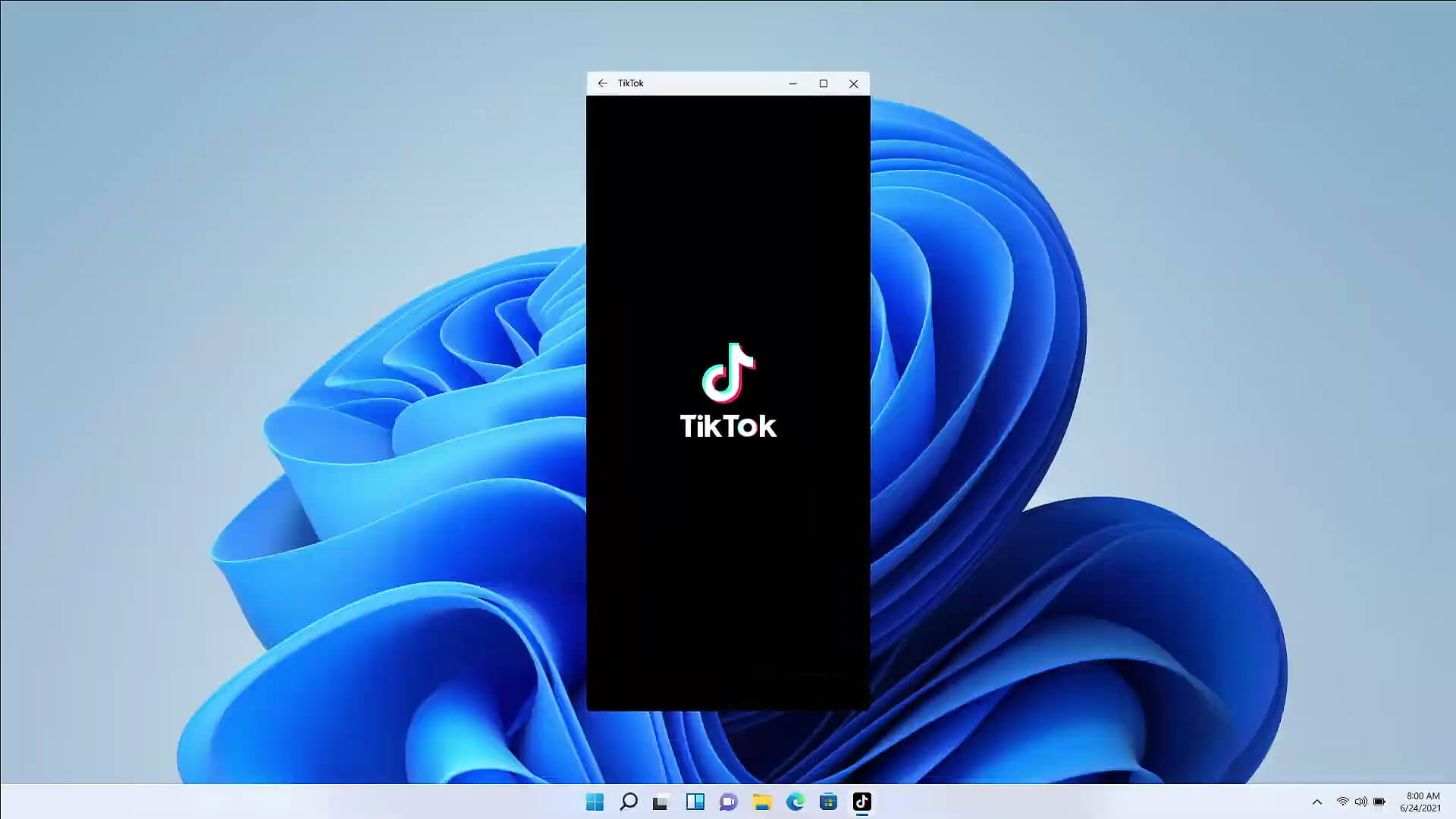
Android apps inside Windows 11The euphoria around Windows 11 is not dying and reveal that Android apps will work natively inside Windows 11 has raised many emotions and questions. So, Microsoft has announced that Android apps will run natively inside Windows 11 OS and that they will reside alongside your other installed ones as icons, etc. It is no secret that many users have been using emulation software to run Android apps inside Windows so far, so what is the difference?

It is still emulation

Whatever you would like to believe it is still emulation and Android apps are at the end of the day still Android apps running inside emulated environment. This time we will not need third-party emulation software running inside Windows, we will have third-party emulation services running inside Windows. Intel has teamed up with Microsoft in order to integrate Intel bridge algorithms in order to run Android apps, meaning that yea, pretty much we have emulation services running in order to run the application. The problem with this kind of approach is that well emulation software is running and consuming system resources only when we start it, this kind of service is always running and always consuming resources and for someone who really does not care about Android apps at all, this is just a waste of resources.

Android store

The store is another issue here, instead of the Google play store we will have the Amazon app store integrated inside the new Microsoft store. This means that any kind of for example game progress or login information from Google store cannot be transferred into Windows 11, add to that information that in the Amazon app store there are tons of missing applications like SLACK, TRELLO, BitWarden, etc and we might have a serious question here about the use of this feature.

Android apps that do not use Android services

If you even look past that it is still emulation and that it is available on the Amazon app store there is still concern about applications not using Google services for their running. Many Android apps are relying on Google services like location or optimize their use of on-device resources, handle in-app purchases, etc. that cannot be found on this system. Uber is a prime example that uses Google location service to determine your location and for its mapping data, with that application, is useless. Other like Guardian will even pop up message that says Google play service is required in order to even work.

Android apps without Eero system

Amazon Eero system for enhanced internet access is not even yet available in its own app store which brings us to missing some key players like Bank of America, Chase mobile, Bueller, etc. And across the board, the apps that are present in the Amazon Appstore are often as good as abandoned. Lots of titles are numerous versions behind their up-to-date Play Store counterparts, and plenty of programs you encounter in the Amazon environment clearly haven't been touched in years.

Conclusion

Many new Windows 11 features are quality features that I personally consider good but although this one seems innovative and good I simply cannot stand back it up. Android apps were already inside Windows with emulation software which used google services and was working just fine, this was not needed in my opinion.
Read More
Fix 0xC000007B STATUS INVALID IMAGE FORMAT
If you are trying to open a program or a game but you suddenly see a dialog box with a message stating that the application was unable to start correctly along with the Error Code 0xC000007B , STATUS INVALID IMAGE FORMAT then this indicates that the application is not compatible with the architecture of your Windows 10 computer or is missing dependencies. Although error code 0xC000007B can also occur with other various programs, the STATUS_INVALID_IMAGE_FORMAT error code also means that when you try to run an application that’s designed to run on a 64-bit system and hence gets into a termination state. In addition, if you are also pointed to the NTStatus.h file then it means that the error might be caused by some file corruption. Here’s the full context of the error message:
“0xC000007B | STATUS_INVALID_IMAGE_FORMAT | {Bad Image} %hs is either not designed to run on Windows or it contains an error. Try installing the program again using the original installation media or contact your system administrator or the software vendor for support.”
When you see this error message, the first thing you can do is to click on OK to close the application and then try installing the media again to see if it fixes the issue. If not, then you can check out the suggestions given below.

Option 1 – Try installing the application with admin privileges

The first thing you can do to fix the error is to restart your Windows 10 computer and then try installing the application again and this time with admin privileges. Just right-click on the application and select the “Run as Administrator” option. And if your account is a regular one, you need to make sure to ask an admin to help you in installing the application by entering the password when you are prompted to do so.

Option 2 – Install and update Dependencies

There are times when programs and applications need to have drivers and supporting software installed for them to properly work. Although the installation usually takes care of it, it’s time for you to do some manual checks especially if you are getting this issue of abnormal program termination.

1. Install some qualified drivers

A number of high-end games and applications need to have correct and valid drivers for them to work. They just don’t work with general drivers though. Microsoft has this Windows Hardware Quality Labs testing also known as WHQL testing which makes sure that drivers meet the correct experience and pass through the proper testing before certification. Thus, when installing drivers, you need to ensure that they are qualified drivers for your Windows 10 PC.

2. Download and install or update DirectX

As you know, Microsoft DirectX is a suite of technologies developed by Microsoft to provide hardware acceleration for heavy multimedia applications like HD videos and 3D games. Since you are using Windows 10, you have the DirectX 12 version while the earlier Windows versions use the DirectX 11 version.

3. Install the Microsoft DirectX End-user runtime

The Microsoft DirectX end-user runtime gives updates to version 9.0c as well as previous versions of DirectX. To install it, click on this link and download it.

4. Update or install the .NET framework

The .NET framework is used by games and applications during development which means that without the runtime files that are installed in your computer, it definitely won’t work. Thus, you need to install or update this framework. You can also use the .NET setup verification tool to verify it.

Option 3 – Try running the System File Checker Scan

The SFC or System File Checker scan could detect and automatically repair damaged system files that could be causing the Error Code 0xC000007B , STATUS INVALID IMAGE FORMAT error. SFC is a built-in command utility that helps in restoring corrupted files as well as missing files. It replaces bad and corrupted system files with good system files. To run the SFC command, follow the steps given below.
  • Tap Win + R to launch Run.
  • Type in cmd in the field and tap Enter.
  • After opening Command Prompt, type in sfc /scannow
The command will start a system scan which will take a few whiles before it finishes. Once it’s done, you could get the following results:
  1. Windows Resource Protection did not find any integrity violations.
  2. Windows Resource Protection found corrupt files and successfully repaired them.
  3. Windows Resource Protection found corrupt files but was unable to fix some of them.
Read More
Logitech G Cloud gaming handheld

Logitech announced the Logitech G CLOUD gaming handheld, somewhat of a STEAM Deck competitor. Somewhat, because the reason is that not like Deck this device is not packing huge power in order to run locally PC games, instead it is made with one goal in mind to connect to Cloud gaming and let you play games in that way.

Logitech G cloud gaming handheld

The device is packed with a 7-inch display featuring 1080p resolution in a 16:9 ratio with a refresh rate of 60Hz, an analog thumbstick, a D-pad, 4 action buttons, and triggers. Inside the device beats Snapdragon 720G (CPU used in most Android phones), 4GB of LPDDR4X RAM & 64GB of internal storage. As seen hardware is way less impressive than one that is packed inside the STEAM deck but as stated this handheld is not meant to run natively PC games so this hardware will suffice for its purpose.

Logitech has partnered with both Nvidia and Microsoft to add GeForce now and Xbox Cloud Gaming access to its device. If you have an account on either one of these services you can fully use them on the Logitech G Cloud gaming handheld. You can also play some Android games via the Google play store but the main goal is Cloud gaming.

The price of 350$ USD is not very impressive since STEAM Deck which is a way more capable device is running for 400$ USD, for the difference of only 50$ USD Deck has an advantage, and the price itself is a hard point for selling and if we place into this mix som retro handhelds that go as low as 100$ USD Logitech is in an awkward position. Note that Nintendo Switch is 300$ USD.

Read More
No usable free extent could be found
One of the most useful and efficient command-line disk management tools is the DISKPART utility. It can be used to manage, delete or create new hard drive partitions. However, despite its efficiency, there are still times it could face some errors like the “No usable free extent could be found”. You can encounter this error when you create a partition. This error could be due to insufficient disk space which is why it is not able to carry out the operation. It is also possible that the disk is not recognized by the system. And since there are only four recognized primary partitions, when you try creating a fifth one, you will get this error. In addition, this error could also occur if the disk has been partitioned using the MBR disk partitioning format. To fix the “No usable free extent could be found” error, here are some suggestions you can follow.

Option 1 – Free up disk space using Storage Sense

The error could be caused by insufficient disk space in your computer and so you need to free up disk space using Storage Sense to fix the problem.
  • Open Setting > System > Storage from the WinX Menu.
  • From there, you will see a list of all the local and connected storage devices along with the details on the free space. Make sure that Storage Sense is on.
  • Next, find a link that says “Free Up Space” and click it to open.
  • After that, a screen which is the built-in program in Windows 10 will appear and will scan your computer for the following junk files so you can free up disk space:
    • Windows Upgrade Log Files
    • The system created Windows Error Reporting Files
    • Thumbnails
    • Temporary Internet Files
    • Previous Windows Installation Files
    • Delivery Optimisation Files
    • DirectX Shader Cache
  • Choose the files you want to get rid of and then click on the remove files option. Note that you’ll have an idea of the total size as you select any of the junk files listed above.
  • Now go to the “Free Up Space Now” section and click the Clear Now button. This will get rid of all the temporary or junk files in your computer and should hopefully fix Error 1310.
Note: You can also run the Disk Cleanup tool to free up disk space.

Option 2 – Try to run DISKPART in Command Prompt with administrator permissions

The next thing you can do to resolve the error is to run the DISKPART utility with admin privileges.
  • In the Start Search, type “command prompt” and from the search results that appear, look for Command Prompt.
  • Once you found it, right-click on it and select the “Run as administrator” option.
  • After that, try to execute the Diskpart operation once again. Note that you also have to specify different size & offset values for the partitioning and then see if you still encounter the same error.

Option 3 – Try to execute the DISKPART clean command

The next thing you can try is to execute the clean command in DISKPART to fix any issues in the disk.
  • Open Command Prompt with admin privileges.
  • Then execute this command: diskpart
  • The command you entered will initiate the DISKPART utility. Now execute this second command to view all the disk connects or all the partitions on those disks formed: list disk
  • After that, you need to select one command depending on the list command you executed and then execute this third command: select disk #
  • The third command you just executed will select the disk or partition you want to select. Now execute this fourth command: clean
  • The command you entered will remove all the volumes or partitions formatting the disk in focus.
  • Once it’s done, try to carry out the DISKPART operation you were trying to execute.

Option 4 – Try to update the USB drivers

Outdated USB drivers can also be the reason why you’re getting the error. Thus, you must update them from time to time. You can install the latest version of the USB driver for your system. But you need to check the manufacturer’s website or guidelines to update the driver according to your system. If it happens that the drivers might not be compatible with the version of the system your laptop is using which is unlikely, you can run the driver software in Compatibility Mode in that kind of situation. To update your USB drivers, follow these steps:
  • Tap the Win + R keys to launch Run.
  • Type in devmgmt.msc into the box and tap Enter or click OK to open the Device Manager.
  • After that, look for the USB Serial Bus controllers from the list of device drivers displayed. If you see a red or yellow sign that shows up against the driver, right-click on the driver’s name and select “Update Driver Software”. And if you find any “Unknown device”, you need to update it as well.
  • Select the “Search automatically for updated driver software” option and then follow the instructions to complete the process.

Option 5 – Run the Hardware and Devices troubleshooter or the USB troubleshooter

You can find the Hardware and Devices troubleshooter under the Troubleshooters section of the Windows Settings panel on your Windows 10 PC. You can use this troubleshooter to fix common hardware and external device-related issues without exerting too much effort. If you don’t know where to find it, follow these steps:
  • Tap the Win + I keys to open the Windows Settings.
  • Next, navigate to Update & Security > Troubleshoot.
  • You should see the option for Hardware and Devices on your right-hand side where you can also find the “Rub the troubleshooter” button – click on it to get started.
  • Follow the next on-screen instructions to fix the basic issues of common hardware and external device.
Note: If you want to, you can also use the USB Troubleshooter to fix the problem just go back to the Troubleshoot page where you can find it.
Read More
How to Fix Error 126

Error 126 - What is it?

Error 126 is a Windows PC error that mostly occurs either during program installation or removal. It is commonly experienced by Vista, XP and Windows 7 users. When the error 126 is generated, it usually terminates the program installation process, immediately. It is advisable to take corrective error repair measures immediately to ensure that you are easily able to install your desired program and you don’t encounter the error again.

Solution

Restoro box imageError Causes

There are multiple reasons for the occurrence of the error code 126 including. The reasons are listed below:
  • Dll file corruption
  • Missing or damaged dll files
  • Corrupt and misconfigured system files
  • Improper program installation
  • Viral infection
  • Corrupt registry
  • Improper hardware

Further Information and Manual Repair

To resolve the error 126 on your PC, you don’t always have to hire a technician or be a computer programmer yourself. Though this error is critical the good news is that it is very easy to resolve. You can fix the error even if you are not technically sound. Try the solutions that we have listed below to help you resolve error 126 immediately:

Solution 1: Disable Firewall Protection

Sometimes Firewall protection may stop you from installing new programs on your PC successfully and this may display the error 126 on your PC. In such a scenario, disable Firewall protection and then try installing the desired program again. See if it works.

Solution 2: Restore Points

Sometimes dll files can go missing due to program removals and you may come across the error 126. To resolve it, restore points. This will help you restore your PC back to the way it was functioning before you removed a program and will also help you recover the lost and missing dll files.
  • This can be done, by clicking the start menu.
  • Now go to all programs, then accessories, and then system tools.
  • Here you will see the ‘System Restore’ option. Simply click on it.
  • This will help you open a new window. Here select the option ‘Restore My Computer to an Earlier Time’ point.
  • As you select it, it will show you a list of restore points.
  • Choose the latest restore point you see in the list and click ‘Next’ to continue. Now confirm to finish restoration.
  • Restart your PC to activate the changes.

Solution 3: Scan for Viruses

The underlying cause for the error could also be related to viruses on your PC. To remove the viruses, you will have to download a powerful antivirus and scan your entire PC. Please note, anti-viruses are notorious for slowing down system performance, so you might have to compromise on the speed of your PC.

Solution 4: Run a Hardware Diagnostic

To find out which hardware is causing the error message to pop up, you will have to run a hardware diagnostic. For this, simply go to the start menu, type Memory Diagnostic in the search bar. Now access this tool and click on Diagnose your Memory problems. As you click on it, it will ask you to perform the check by either restarting the PC immediately or on the next restart. Select the immediate one to get going. The system will carry a scan on the memory and show you the list of problematic errors detected during the scan. To resolve this error then all you have to do is replace the piece of faulty hardware. Nonetheless, if no faulty hardware is detected, this means the error is related to the registry.

Solution 5: Clean and Restore the Registry

The error 126 is also sometimes generated due to poor PC maintenance which leads to registry issues. The registry basically saves and stores all the data and activities performed on the PC. This also includes junk files, invalid registry entries, bad keys, temporary files, internet history, and cookies. This accumulates a lot of disk space. If not removed, they damage the registry and corrupt other important files like system and dll files, thereby generating PC-related error codes like error 126. The best way to resolve this error on your PC in seconds is to download Restoro on your PC. This is an advanced and multi-functional PC repair tool embedded with multiple powerful utilities including an intuitive registry cleaner, an antivirus, and a system optimizer. The registry cleaning feature detects all registry issues and errors. It wipes out all the unnecessary and obsolete files cluttering the system, fixes the damaged dll files, and restores the registry back to normal. Simultaneously, the antivirus utility scans for all privacy errors and malicious software infecting your system. This includes malware, adware, spyware, and Trojans. The system optimizer feature ensures your PC performance does not slow down. It boosts the speed of your PC to its optimum level. This PC fixer is safe, user-friendly, and efficient. It can be downloaded on any Windows version. Click here to download Restoro on your system and resolve error 126 right away!

Read More
Network License NotAvailable15.570.0 Autodesk
If when trying to start Autodesk applications you receive a Network license not available error then please keep on reading, this guide is for you:

Causes of the error:

  • The license on the License Server is invalid.
  • The port for Autodesk Network License Manager is blocked.
  • The client computer is configured with incorrect license server information.
  • The license request is timing out on the client's computer before the license is obtained.

Solutions for the error:


Verify that the Autodesk License Server is setup with the correct license file.

To set up a license server for Windows, perform the following:

  1. Download and install the Network License Manager for Windows:
  2. Open LMTools and access the System Settings tab. Make a note of the "hostname" and "ethernet address" of the license server.
  3. Generate a Network License File in Autodesk Account.
  4. On the Service/License tab, select Configuration Using Services and LMTOOLS ignores license file path environment variables.
  5. On the Config Services tab, enter a name for the new service in the Service Name field.
  6. Fill the following fields, using the Browse buttons:
    • Path to the lmgrd.exe - Navigate to this file: C:\Autodesk\Network License Manager.
    • Path to the License file - Navigate to the new Autodesk.lic file, typically placed in: C:\Autodesk\Network License Manager\Licenses.
    • Path to the Debug Log file: C:\Autodesk\Network License Manager.
    • If no file is present, create a TXT file in Notepad and rename it “Debug.log.”
  7. Make sure the "Start Server at Power Up" and the "Use Services" boxes are checked. Then click Save Services.
  8. On the Start/Stop/Reread tab, click Start Server.
  9. On the Server Status tab, click Perform Status Enquiry.
  10. Licenses should display as active.

How to set up the Autodesk Network License Manager on a Mac.

Note: The Autodesk License Server Manager (version 11.16.2.0) is supported only on the following Mac operating systems:
  • Apple macOS High Sierra 10.13
  • Apple macOS Sierra 10.12
  • Apple Mac OS X El Capitan 10.11
  1. Download Autodesk Network License Manager version 11.16.2.0 for Mac
    • ​​Download the nlm11.16.2.0_ipv4_ipv6_mac_universal.tar.gz file to the Desktop.
  2. To install the Autodesk Network License Manager:
    • Double click on nlm11.16.2.0_ipv4_ipv6_mac_universal.tar.gz to unpack the installer package.
    • After unpacking nlm11.16.2.0_ipv4_ipv6_mac_universal.pkg, will be /Downloads/adlm/FLEXnet folder.
    • Double click on nlm11.16.2.0_ipv4_ipv6_mac_universal.pkg to start installation and follow the installation wizard.
    • The license server will be installed in /usr/local/flexnetserver/ directory.
  3. Change permissions for /usr/local/flexnetserver/ directory to 777
  • Open Terminal (located in /Applications/Utilities/Terminal) and enter the following command:
sudo chmod -R 777 /usr/local/flexnetserver
  • Note: Administrator password may be asked. While typing no characters are shown, just type out the password and hit return key.
  • Note: To start the license server only with elevated permissions (using sudo command), change permissions to 755 instead of 777.
  1. Create /usr/local/flexnetserver/licenses directory for network license file location
sudo mkdir /usr/local/flexnetserver/licenses
  1. Find the license server Host Name and Host ID.
  2. Generate the Network License File in the Autodesk Account
    • Once the license file is generated, make sure it has a .lic extension (e.g. adsk_license.lic) and is in a plain text format and place it in /usr/local/flexnetserver/licenses directory
Note: In this article we will refer to  adsk_license.lic as network license file name. Feel free to change the actual name of the license file, but make sure to reflect the new name when using the commands below.
  1. Create a debug.log file in the /usr/local/flexnetserver/ directory using the following command:
touch debug.log
  1. To start the Network License Server use the following command:
/usr/local/flexnetserver/lmgrd -c /usr/local/flexnetserver/licenses/adsk_license.lic -l /usr/local/flexnetserver/debug.log
Note: If folder permissions for  /usr/local/flexnetserver/ are set to  775, then use sudo command to start the server. For example:
sudo /usr/local/flexnetserver/lmgrd -c /usr/local/flexnetserver/licenses/adsk_license.lic -l /usr/local/flexnetserver/debug.log
  1. To obtain license server status enquiry:
/usr/local/flexnetserver/lmutil lmstat -a -c /usr/local/flexnetserver/licenses/adsk_license.lic
  1. To stop the license server:
/usr/local/flexnetserver/lmutil lmdown -q -force
  • A​​lternatively, run ps command to obtain process ids for lmgrd and adskflex and then kill those processes:
ps -ax | grep lmgrd
ps -ax | grep adskflex
kill -9
  • (provide process ids obtained by previous commands individually)

How to set up the Autodesk Network License Manager on Linux.

Note: The Autodesk License Manager (11.16.2.0) is supported only on the following Linux distros:
  • Red Hat® Enterprise Linux® 7
  • Red Hat Enterprise Linux 6
  • SUSE Linux Enterprise 12
  • SUSE Linux Enterprise 11
To configure the license manager use the following steps:
  1. Download Autodesk Network License Manager v. 11.16.2 for Linux from this link
    • ​​Download the nlm11.16.2.0_ipv4_ipv6_linux64.tar.gz file to your desktop.
  2. To install the Autodesk Network License Manager run following command as root.
    • tar –zxvf nlm11.16.2.0_ipv4_ipv6_linux64.tar.gz
    • rpm -vhi nlm11.16.2.0_ipv4_ipv6_linux64.rpm
    • The license server will be installed in /opt/flexnetserver/ directory.
  3. Find the license server Host Name and Host ID
  • To obtain the license server system hostid run the following command
/opt/flexnetserver/lmutil lmhostid From the command output note the hostid in quotes, if the system has two active NIC cards, select the first MAC address. lmutil - Copyright (c) 1989-2018 Flexera. All Rights Reserved. The FlexNet host ID of this machine is "000c297949e0"
  • To obtain the license server system hostname run the following command
/opt/flexnetserver/lmutil lmhostid hostname From the command output note the hostname of the license server. mutil - Copyright (c) 1989-2018 Flexera. All Rights Reserved. The FlexNet host ID of this machine is "HOSTNAME=Centos7.localdomain"
  1. Generate your Network License File in Autodesk Account
    • Once the license file is generated, make sure it has .lic extension (e.g. adsk_license.lic) and place it in /opt/flexnetserver/licenses directory.  If the directory doesn't exits, create it with this command: sudo mkdir /opt/flexnetserver/licenses
Note: in this article we will refer by adsk_license.lic your network license file name.
  1. To start the Network License Server
    • /opt/flexnetserver/lmgrd -c /opt/flexnetserver/licenses/adsk_license.lic -l /opt/flexnetserver/server_log.log
  2. To obtain license server status enquiry
    • /opt/flexnetserver/lmutil lmstat -a -c /opt/flexnetserver/licenses/adsk_license.lic
  3. To stop your license server service
    • /opt/flexnetserver/lmutil lmdown -q -force
    • alternatively you can also run ps command to obtain process ids for lmgrd and adskflex and then kill those processes
      • ps -aw | grep lmgrd
      • ps -aw | grep adskflex
      • kill -9 (provide process ids obtained by previous commands individually)
  4. To start the license server automatically after the system reboot
    • Open /etc/rc.d/rc.local script as root and enter license server start up command in it.
touch /var/lock/subsys/local /opt/flexnetserver/lmgrd -c /opt/flexnetserver/licenses/adsk_license.lic -l /opt/flexnetserver/server_log.logNote: To ensure that the script will be executed during boot, run following command as root. chmod +x /etc/rc.d/rc.local
  1. Make sure that all necessary ports are open:
  • lmgrd.exe needs ports 27000 to 27009.
  • adskflex.exe needs port 2080.
Note: Errors may occur if the network license file is corrupt or in the case of a combined network license it has incorrectly combined licenses. To learn more about combining licenses, see Combining License Files for Multiple Autodesk Products. Use the License File Parser to verify that the license contains the appropriate products and FLEXnet feature codes and does not display an error

Verify that TCP ports (2080, 27000-27009) used by Autodesk Network License Manager are not blocked by Firewall.

The FLEXlm® based version uses the following incoming ports:
  • TCP ports 2080 (for the adskflex vendor daemon)
  • TCP ports 27000 to 27009 (for the lmgrd master daemon, which uses the first open port in the range)
Note: If these port addresses are restricted by a router or firewall software, users on the remote side of the router will not have access to licenses controlled by the Network License Manager.

Verify that the client computer is configured with the correct license server name or IP.

Windows:

Clear license server information from the system registry.

  1. Type regedit in the Windows Search box and hit Enter key.
  2. Select the following registry key
  • [HKEY_CURRENT_USER\SOFTWARE\FLEXlm License Manager]
  1. As the key is selected, in right panel ADSKFLEX_LICENSE_FILE will be visible.
  2. Right click on the key and delete it.

Specify the license server in ADSKFLEX_LICENSE_FILE system variable 

  1. Go to Start > Control Panel > System and Security > System.
  2. Select Advanced system settings.
  3. On the System Properties dialog, click Environment Variables.
  4. Under System Variables, click New.
  5. Enter ADSKFLEX_LICENSE_FILE for the variable name and 2080@SERVER_NAME _OR _IP for the variable value.
Note: the license server information most often is recorded in LICPATH.lic file and can be verified there too.  ADSKFLEX_LICENSE_FILE system variable supersedes LICPATH.lic.  Thus, setting the system variable is preferable when this error is seen.

If the license server is on a VPN or a remote network set the FLEXLM_TIMEOUT environment variable:

  1. Go to Start > Control Panel > System and Security > System.
  2. Select Advanced system settings.
  3. On the System Properties dialog, click Environment Variables.
  4. Under System Variables, click New.
  5. Enter FLEXLM_TIMEOUT for the variable name and 5000000 for the variable value.
  6. Click OK to save the setting.
Note: if needed the variable value can be increased to 10000000.

Mac/Linux:

Specify the Autodesk Network License server information in $HOME/.flexlmrc file.

Use a text editor to create a flexlmrc.txt file and save it in Plain text format (In TextEdit on Mac: Format - Make Plain Text) on desktop. The file content should look like this, except with the name or IP address of the license server.
  • ADSKFLEX_LICENSE_FILE=@SERVER_NAME _OR _IP
If the license server is on the same machine as the Autodesk software, use localhost as the license server name.  Thus, the content of flexlmrc file could look like this:
  • ADSKFLEX_LICENSE_FILE=@localhost
Note: On firewall restricted network or when accessing the license server via VPN, need to include TCP port/s (usually 27000 or 2080) into Autodesk License Server service as follows: ADSKFLEX_LICENSE_FILE=2080@SERVER_NAME _OR _IP

Once flexlmrc file is created move it to user's $HOME folder as follows:

  1. Open a Terminal window
  2. Type open ~ (Mac) or nautilus ~ (Linux) to open $HOME folder
  3. Drag and drop flexlmrc.txt file from Desktop to the home folder.
  4. To make the file a configuration file, rename it to .flexlmrc (please note . [DOT] in front of the file name) by running the following command:
  • mv flexlmrc.txt .flexlmrc (Mac)
  • mv flexlmrc .flexlmrc (Linux)

Verify that the license server information registered with the product is correct (versions 2020 and later only)

In versions 2020 and later, the license server information is registered with the AdskLicensing service running locally on the workstation. When changing to a new license server, the old server information may still be registered with AdskLicensing and result in the error above, if this is not appropriately updated. See the below steps to solve this:
  1. Click the Start menu and type cmd.
  2. Right-click on the Command prompt and choose "Run As Administrator."
  3. In the Command prompt, run the following command, followed by ENTER:

"C:\Program Files (x86)\Common Files\Autodesk Shared\AdskLicensing\Current\helper\AdskLicensingInstHelper.exe" change -pk PRODKEY -pv VER.0.0.F -lm "" -ls "" -lt""

Note:

  • Replace PRODKEY with the product key correspondent to your product(s). See Look Up Product Keys for the full list.
  • Replace VER with the version you are using. E.g. 2020 for AutoCAD 2020.
  • Repeat this step for each software you need to reset.
  1. Open Registry Editor (Start > type regedit > ENTER).
  2. Navigate to HKEY_CURRENT_USER\Software\FLEXlm License Manager.
  3. On the right-side, verify of the ADSKFLEX_LICENSE_FILE key exists. If yes, remove it (right-click > Delete).
  4. Run the software again.
  5. Select Multi-user in the Let's Get Started screen.
  6. Follow the steps to connect to your license server.
Read More
How to Fix Error Code 0xc0000142

What is Error 0xc0000142?

Error 0xc0000142 can occur in any of the Windows versions and usually occurs when an application fails to properly initialize.

This error can be critical for a computer as it signifies that the system is unstable. Error 0xc0000142 can cause slow performance in a PC, system freeze, startup and shutdown issues, blue screen and errors in installation.

Solution

Restoro box imageError Causes

Windows/Application Error 0xc0000142 can occur because of a number of reasons.

When a computer is an overload with data, or when system files get broken or missing, this error can occur and will result in startup and shutdown issues as well as the blue screen. Another reason, and one which is quite common, is improper computer maintenance.

This will cause a PC to perform slow, system freezes, and installation errors. This error displays ‘failed to initialize’ on either a Windows error box or the blue screen of death.

Further Information and Manual Repair

Error 0xc0000142 can occur at any time, but there are many ways to resolve it. For instance:

1) Clean the Registry

A corrupted registry is one of the major reasons why this error occurs. The registry is used by Windows to store information and settings on the computer, which is why it has a large database.

This database contains emails, wallpapers, saved passwords and much more in ‘file path references’. These allow Windows to run the common files in your system. A registry cleaner can fix any errors in the registry database.

2) Malware Scan

Viruses can cause certain applications to not function properly. Hence, download a strong antivirus and run a deep scan on your system and remove any potential infections and spyware.

3) Reinstall Applications

Non-critical applications in a computer are those that are installed by the user. If error 0xc0000142 displays in any of your installed programs, then you should reinstall these programs. Often applications have damaged or corrupted files which can slow them down. To resolve this, follow these steps:

  • From Start, click on Control Panel
  • Go to Add/Remove Programs and uninstall the programs
  • Restart your PC and reinstall the program

The third step is not recommended in case the error is caused by cmd.exe

4) Repair Windows

If the error is still on display despite following the previous steps, then you can repair Windows. This process allows Windows to retain all your data and information by simply replacing the program files and settings with fresh ones. This can stop error 0xc0000142 by allowing the programs access to use necessary files smoothly and effectively.

If you cannot resolve the error in any of these steps, then there is another way to do so if you have a computer that runs the Microsoft Internet Security and Acceleration (ISA) Server 2000. Follow these steps in order to resolve it:

  • Make sure that in Program Files and Microsoft ISA Server, a Clients folder exists. The ISA Server service will run on this folder
  • Confirm that Administrators and SYSTEM have Full Control assigned in the Program Files/Microsoft ISA Server/Clients folder
  • Confirm that Msplat.txt file is in the Clients folder. You can copy this file from other ISA Server computers if it is missing
  • If the Clients folder is damaged or is missing, or if you can’t copy the Msplat.tct file from another ISA Server computer, then reinstall the ISA Server 2000
Read More
1 2 3 171
Logo
Copyright © 2023, ErrorTools. All Rights Reserved
Trademark: Microsoft Windows logos are registered trademarks of Microsoft. Disclaimer: ErrorTools.com is not affiliated with Microsoft, nor claims direct affiliation.
The information on this page is provided for information purposes only.
DMCA.com Protection Status