Logo

Cleaning your PC for better performance

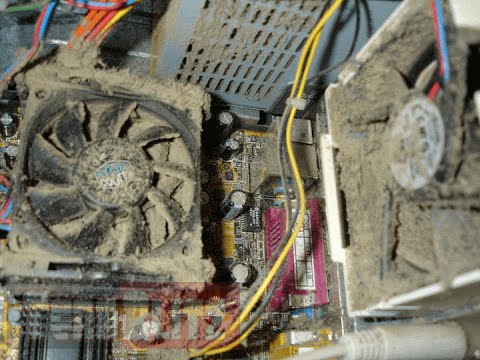
Hello everyone, last time we were talking about disk cleanup and its benefits, but as you need to keep your System clean you should also clean and keep your hardware clean as well. Many system issues could be traced and could happen due to dirty PC. In this article, we will give you tips on how to perform safely cleaning on your computer and hopefully point good sides to it so you can develop a healthy habit of regularly cleaning it and keeping it tidy.

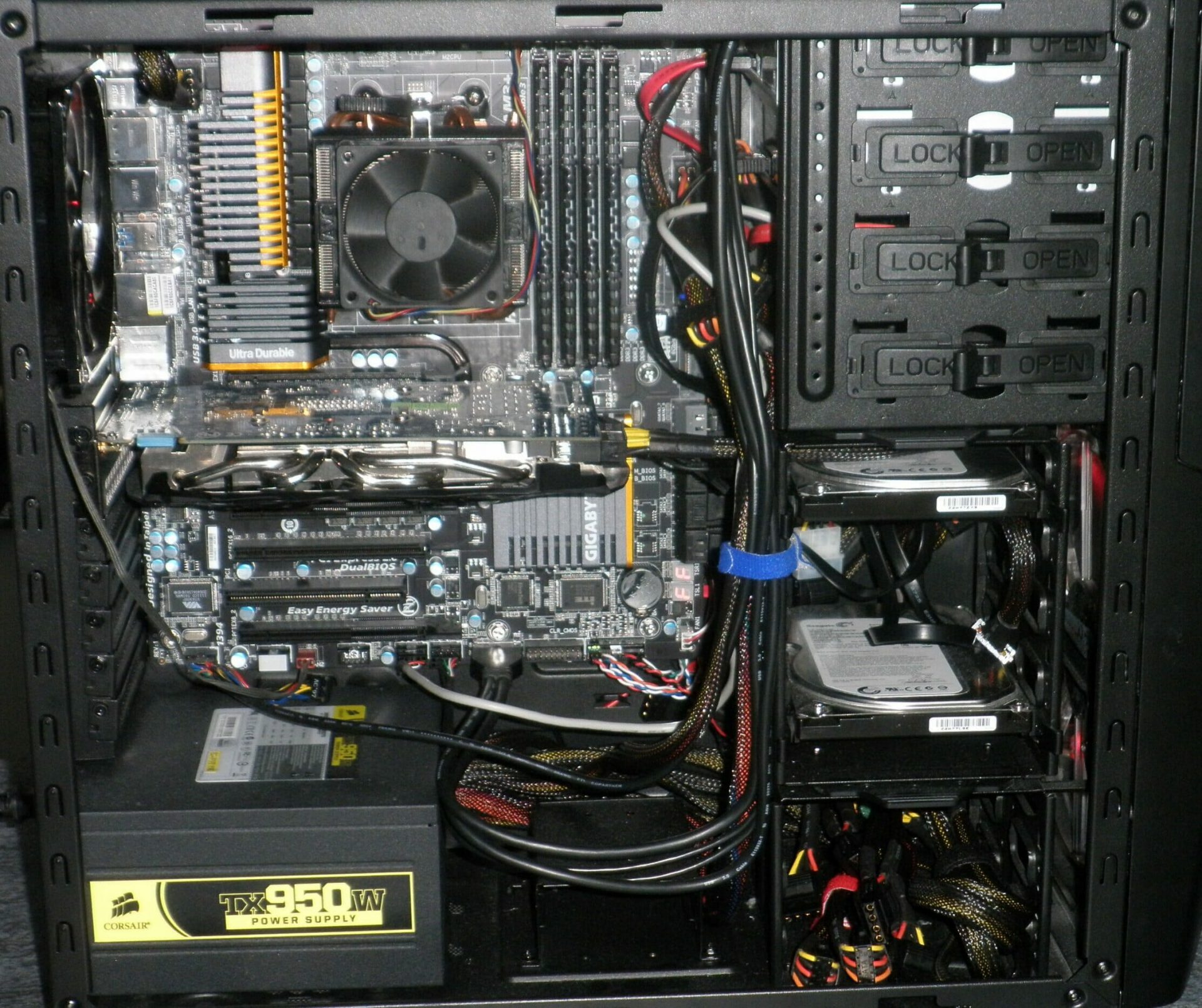
dirty PC that needs cleaningKeeping your PC clean is not rocket science and you can do it with things you already and probably have in your house. One thing that I would recommend tho to purchase is antistatic gloves since they could prevent any kind of electrostatic discharges thus protecting your electric components.

If you have the option to disconnect your PC and get it outdoors, I would highly recommend this approach since all the dust will be dusted outside and not in the room where your computer is. If you can not it is still ok, but since some portion of dust will be set in the room, you might need to dust your room after cleaning your computer.

Cleaning outside case & redusting inside

The first thing after disconnecting your computer is to dust it from outside, here you will need a vacuum cleaner and a brush, gently brush outside dust from your casing and vacuum it with your vacuum cleaner. You can use dustcloth for larger parts but use the brush for fans and connectors.

After you have done cleaning the outside part, open the side of your computer casing, put on your antistatic gloves, and get a fine and soft brush, repeat dusting and vacuuming of the inner parts of your computer. If your computer is not regularly been cleaned this part will take a little longer since there would be excess dust inside and it will take a longer time to vacuum it all but keep going until you are left with no dirt.

Cleaning it inside

Fans are troublesome to clean since they will rotate when brushed and that could make you miss certain sports, in order to battle this get a tape and stick the fan into one position, brush areas that you can reach, then unstick it, rotate the head, stick it again in another position and dust off remaining areas which you could not reach before.

If your computer is very dirty and some hard dirt is at bottom of the connectors, disconnect desired component and clean the connection properly. plug it back in immediately after cleaning to avoid connecting it somewhere else.

Harder stains that could not be dusted could be cleaned with little alcohol. Get your dustcloth just a little wet with alcohol, just a corner, and gently wipe out sticky dust or spills if they are present. Leave it 10 minutes for alcohol to evaporate before plugging it back into an electric socket.

Thermal paste and cable management

If you have money and expertise, every 2 years would be a good idea to change the thermal paste on your processor, all you need to do is buy it from your local computer store online, remove the CPU fan clean the CPU and bottom of the fan and apply new thermal paste, place fan back and lock it. If you do not have expertise in this area, call someone who has to show you how it is done.

When cleaning it would be a good idea if you do not have any cable management to do it now, nice and tidy cables not only look good, they also improve your air circulation inside your casing making your computer cooling better.

once you are done with it, close back the casing side and plug it back in the wall.

Peripherals

When you are cleaning your computer, do yourself a favor and clean your keyboard, mouse, and screen as well. the keyboard can be quickly cleaned with compressed air in the can and screen and mouse with dustcloth.

That's it, remember, keep your PC clean and tidy and enjoy the benefits of non-hardware malfunctions caused by dirt and dust.

cleaned PC

Do You Need Help with Your Device?

Our Team of Experts May Help
Troubleshoot.Tech Experts are There for You!
Replace damaged files
Restore performance
Free disk space
Remove Malware
Protects WEB browser
Remove Viruses
Stop PC freezing
GET HELP
Troubleshoot.Tech experts work with all versions of Microsoft Windows including Windows 11, with Android, Mac, and more.

Share this article:

You might also like

Driver Power State Failure Error in Windows
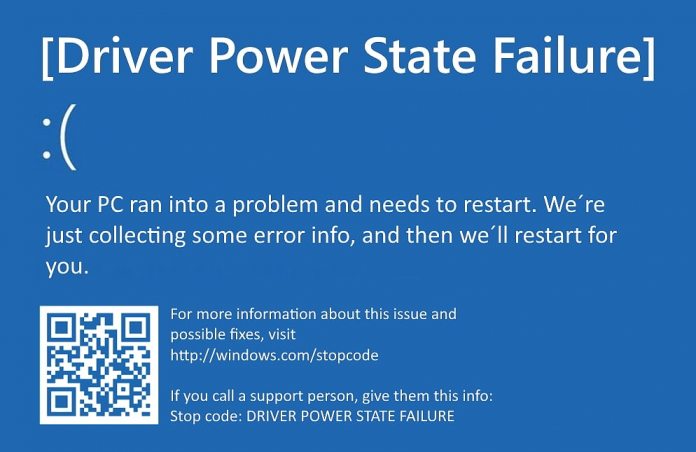
Driver state power failure error can be linked to three things happening in your computer. Incorrect power settings, driver issues, or incompatible hardware. Sadly when this error happens you only receive a blue screen of death with this message: Blue screen of death driver power state failureSadly receiving this blue screen does not really explain which of the three cases is the correct one and causing the unwanted issue. That being said, this article will not offer you a direct solution this time, it will be more like a guide on what to check and to do in order to remove this error, reason for this is the nature of the error itself. If your computer is booting properly and you can enter Windows without issues the first thing you can try is going into power options and set it to high performance, if you are on a laptop set high performance both ways, when plugged and when on battery. Power performance settings can reflect on some hardware and can cause mayhem. After setting reboot the computer and see if the error repeats itself. If the error persists go to the device manager and see if there is hardware that has any kind of warning beside it. If there is, update the driver or remove the driver of the device to see if this fixes the issue. If all of the previous two things fail there is another thing you could try. Turn off your computer and disconnect all hardware except the most basic one. Now, this may take a long period of time but boot your computer and then repeat this process but each time add a new piece of hardware to eliminate and find which one is causing the issue. When found try to see if it is repairable through driver updates or get a new device.
Read More
How to game on a low budget

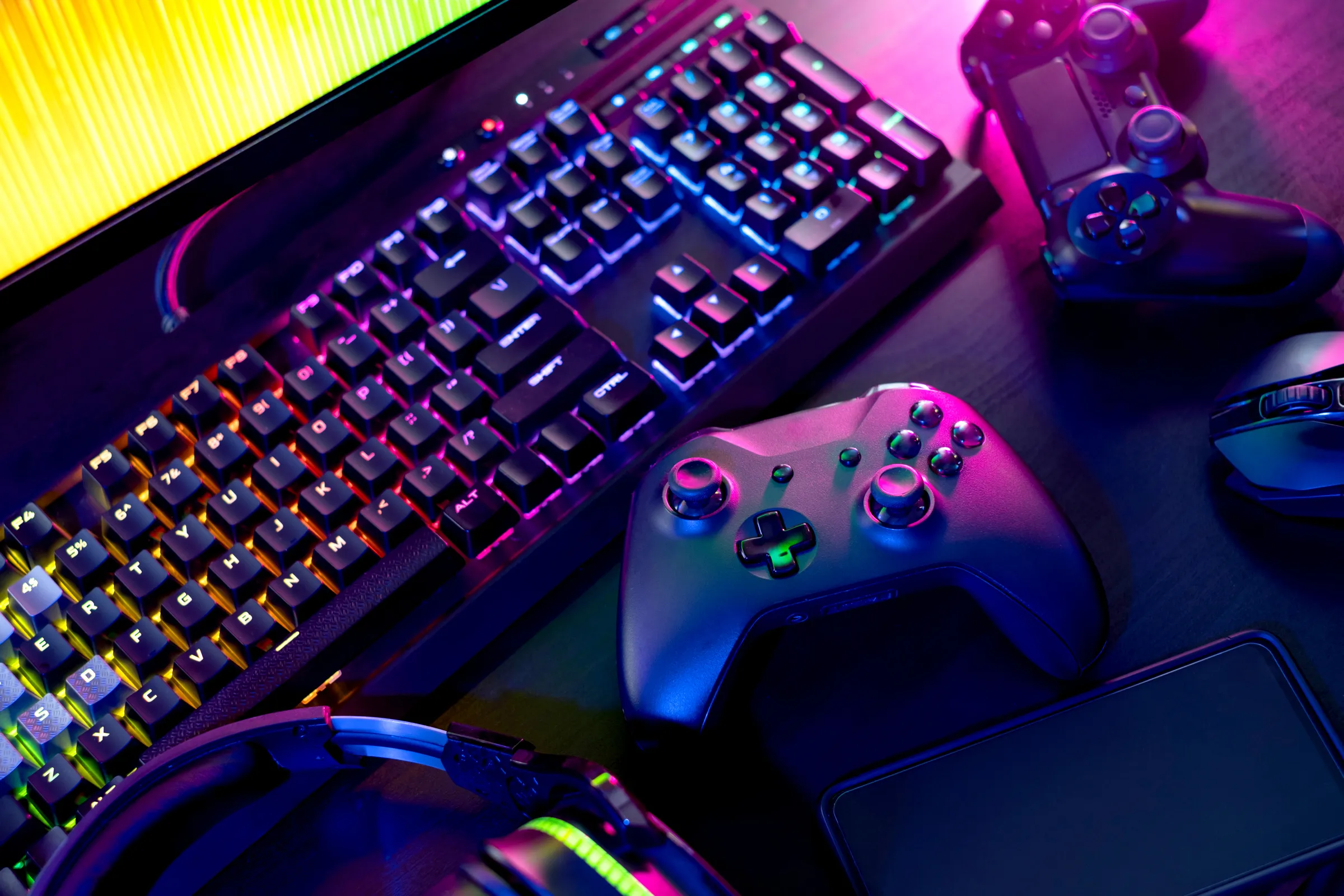
If you are following the latest gaming trends and spend a lot of time on social media, watching streams, etc. you might be under impression that gaming as a hobby is very expensive. If you plan to play the latest games on a very large screen in their highest setting that might be true but if you do not care about that you can still play games and spend much less money on them.

gaming on a budget

That being said we are here to share with you some tips and tactics on how to play good games with minimum money spent.

Do not buy games the moment when they are released

Buying a game on its launch date is maybe the worst and most expensive thing you can do. Games have their highest price on launch day but sadly with the current state of the industry, they are in their worst state as well. Games eventually became better over time after patches are released but so does their price drops after the hype has calmed down. So if you really must have some specific game on its launch day, go for it but know that by doing so you are getting the worst version of the game for its higher price.

Wishlist games and wait for the sale

All services today have a wishlist, very good and money-saving tactic is to wishlist interesting titles and wait for them to be on the sale. Services will usually have the option of sending you an email once your wishlist titles are on sale so you will be notified once they do. A good tactic as well is to wait for large sales like for example summer, winter, easter sales, or many other seasonal ones.

Get free games

Some online stores are offering free games from time to time and some are always offering some titles as gifts in order to get customers to their platform. EPIC has become famous for gifting some great titles over the past years completely for free and there are a lot of free-to-play games on each platform that you can play.

Get second-hand PC

Having a new computer is great but if your budget is tight you might consider getting your PC as a second hand instead of the new one. Hardcore games will switch components more frequently than your typical users and usually the components will be sold cheaper and be more affordable.

Play games on some older devices in general

Many games today are available on many platforms not only just on your typical PC. Same titles are available on your mobile phones, tablets, and even on your Android TV. Many titles will not even require the latest technology or monster of a computer in order to run them. You can also lower game settings and play many games on lower hardware if you do not mind not having top graphics settings.

Play over the cloud streaming

If you are very tight on budget but want to enjoy new games in their full glory there is always the option to play games via a cloud streaming service, it is not exactly a mega cheap option since it has a monthly fee but it is cheaper than some high-end gaming computer. If you combine this with the game pass you can enjoy the latest games with high-quality settings and pay it on a monthly basis.

Read More
Fixing corrupted bootres.dll file in Windows 10
In this post, we will discuss what the “ bootres.dll ” file is in the Windows 10 operating system and where it’s also located. In addition, you will also be guided on how you can replace or fix a corrupt bootres.dll file which may prevent you from booting to your Windows desktop and will display an error message instead saying, “Boot critical file resourcescustombootres.dll is corrupt”. There are times when this error might also boot your PC to the Automatic Repair screen. DLL files, also known as Dynamic Link Libraries are external parts of applications that run on Windows as well as other operating systems. Almost all applications are not complete in themselves and store code in different files so if there is a need for the code, the related file being called by a certain application is loaded into memory and used. If the software or the operating system is unable to find the concerned DLL file or if the DLL file ends up getting corrupted, you will most likely get an error message. In case you don’t know, the bootres.dll file is a critical system OS file, size 90KB, and can be found in the Windows folder. It is a part of the Boot Resource Library and portrays an important role in making sure that your PC boots properly. So if it ends up getting corrupted, your PC may fail to boot correctly and you’ll get an error message instead. To resolve this problem, here are some suggestions that might help. If your PC automatically boots to the Automatic Repair screen, you need to click on that option to run the Automatic Repair. If it doesn’t work, you have to boot into the Advanced Startup options to manually access and run the Automatic Repair. Once you’re in the Advanced Options, you will be able to:
  • Run Automatic Repair
  • Use System Restore
  • Start Windows from an external device
  • Access Command Prompt
  • And use the System Image Recovery to restore Windows from a Factory image.
If the Automatic Repair fails to fix the problem, you may have to use System Restore or the Command Prompt to carry out further troubleshooting steps. Refer to the guide below to use these tools.

Option 1 – Try running the System File Checker in Safe Mode

Running the System File Checker is the safest way to fix DLL file missing or corrupted errors are thrown up by the Windows operating system as it could give you better results. System File Checker or SFC is a built-in command utility that helps in restoring corrupted files as well as missing files. It replaces bad and corrupted system files with good system files that might be causing the Machine Check Exception BSOD error. To run the SFC command, follow the steps given below.
  • Boot your PC into Safe Mode.
  • Tap Win + R to launch Run.
  • Type in cmd in the field and tap Enter.
  • After opening Command Prompt, type in sfc /scannow
The command will start a system scan which will take a few whiles before it finishes. Once it’s done, you could get the following results:
  1. Windows Resource Protection did not find any integrity violations.
  2. Windows Resource Protection found corrupt files and successfully repaired them.
  3. Windows Resource Protection found corrupt files but was unable to fix some of them.

Option 2 – Try running the DISM tool to repair the System Image

To repair the System Image, you need to use the DISM or Deployment Imaging and Servicing Management tool. The DISM tool is another command-line tool in the Windows operating system that could help users fix various corrupted system files. To use it, follow these steps:
  • Open the Command Prompt as admin.
  • Then type in this command: Dism /Online /Cleanup-Image /RestoreHealth
  • Do not close the window if the process takes a while as it will probably take a few minutes to finish.
Note: The command you executed will check for Windows component store corruption and will restore its good health. The scan might take up to 15 minutes. Once it is done, you have to restart your computer.

Option 3 – Try to repair the MBR and rebuild BCD

To repair the MBR and rebuild BCD, follow these steps: The problem might boil down to the Master Boot Records since the previous case has already been isolated. There are times when the Master Boot Records can get corrupted and even though it is a serious issue, it can still be rectified by repairing the Master Boot Record.
  • Tao the F8 key while booting the system to go into the Windows Recovery Menu.
  • Next, click on Troubleshoot.
  • Then click on the Advanced options to get into the Automatic Repair menu.
  • After that, you have to use the bootrex.exe tool, so click on the command prompt and type in the following commands, one after the other:
  • bootrec /RebuildBcd
  • bootrec /fixMbr
  • bootrec /fixboot
  • Exit and then go ahead and restart your PC.

Option 4 – Try running the ChkDsk utility

One of the best options you must try is running chkdsk as it will check the disk for any errors and repair them automatically. To use it, follow these steps:
  • Boot your PC to the Advanced Options menu and click on Command Prompt.
  • Once you’ve opened an elevated Command Prompt, type in the following command and tap Enter to execute it:
chkdsk C: /f /x /r
Note: “C” is the drive root drive so it could be changed if you’re using a different one.

Option 5 – Try resetting your PC

Go to the Advanced Options > Troubleshoot > and select the Reset This PC option from the menu and then select Keep my files.
Read More
Remove EliteUnzip from your computer

EliteUnzip is a program developed by Mindspark Interactive. This program lets you compress and extract all the popular archive types.

From the Author:

Elite Unzip is a program for creating and extracting archive files; it has support for over 20 file formats. This application downloads onto your computer in two parts: one for your desktop, and one for your browser. They both work together to make packing and unpacking archive files easy.

While EliteUnzip itself is not a threat, it comes bundled with other software that might cause a problem to your computer.

Due to its bundled nature, several anti-virus scanners have marked EliteUznip as a Potentially Unwanted Program and is therefore not recommended to keep on y our computer, especially because there are other free programs that do the same functions without the additional bundled software.

About Potentially Unwanted Applications

Precisely what is a Potentially Unwanted Program (PUP)?

Have you ever found out an unwanted program running on your computer and wondered how the heck it got there? These unwanted programs, which are known as Potentially Unwanted Programs, or PUPs in short, often tag along as a software bundle when downloading the program and can result in major problems for computer users. It’s clear by the name – unwanted programs – but did not really constitute “malware” in the traditional sense. The reason for this is that the majority of PUPs enter into users’ computers not because they exploit security weaknesses, for instance, but mainly because the users give consent to download it – unknowingly in many instances. No matter whether it is regarded as malware or otherwise, PUPs are almost always bad for a computer owner as they might bring on adware, spyware, keystroke logging, and other nasty “crapware” features on your PC.

What do PUPs do on your computer, precisely?

Most Potentially Unwanted Programs comes in the form of adware, which generally aims to exhibit lots of annoying pop-up ads, banners, coupons, and deals on websites you explore. PUPs that come in the form of browser add-ons and toolbars are widely identifiable. They may track your online activities, redirect your search results to risky sites where adware and spyware can be downloaded, hijack your home page, and slow your browser down to a crawl. PUPs carry a dangerous bite if left behind unchecked. The worst part of setting up a PUP is the spyware, adware, and keystroke loggers that could hide inside. These are programs that don’t do anything good for you; in addition to taking over space on the hard disk, they will also slow down your PC, often change settings without your permission, and the list of bothersome features goes on and on.

Protect yourself from unwanted programs

• When installing anything on your desktop, always read the fine print, like the license agreement. Don’t accept terms of use that are for bundled applications. • Normally, when installing a software program you get two options, ‘Standard Installation’ and ‘Custom Installation’. Don’t opt for ‘Standard’ as unwanted programs might automatically be installed that way! • Use good anti-malware software. Try Safebytes Anti-malware which can spot PUPs and treat them as malware by flagging them for deletion. • Be alert when you download and install freeware, open-source programs, or shareware. Nowadays ‘freeware’ isn’t actually freeware – but crapware bundling nonsense. • Only use official product sites for downloading applications. Steer clear of download websites altogether since most websites compel users to download the program with their own download manager, which is often bundled up with some kind of PUPs.

Virus Blocking Access To Safebytes Site And Preventing Anti-Malware Downloads – What You Should Do?

All malware is inherently unsafe, but certain kinds of malicious software do a lot more damage to your computer or laptop than others. Some malware variants alter browser settings by adding a proxy server or change the computer’s DNS configuration settings. When this happens, you will be unable to visit some or all of the sites, and therefore unable to download or install the necessary security software to eliminate the malware. If you are reading this, chances are you’re stuck with a virus infection that is preventing you to download and install Safebytes Anti-Malware software on your computer. There are some actions you can take to circumvent this issue.

Install in Safe Mode

In the event the malware is set to run at Windows start-up, then booting in safe mode should avoid it. Since only the minimal applications and services start-up in safe mode, there are hardly any reasons for conflicts to happen. The following are the steps you should follow to start your computer into the Safe Mode of your Windows XP, Vista, or 7 computers (go to Microsoft site for directions on Windows 8 and 10 computers). 1) Tap the F8 key continuously as soon as your computer boots, however, before the large windows logo comes up. This should bring up the Advanced Boot Options menu. 2) Make use of the arrow keys to select Safe Mode with Networking and press ENTER. 3) Once you get into this mode, you should have internet access once again. Now, obtain the malware removal software you need by using the web browser. To install the program, follow the guidelines in the setup wizard. 4) Following installation, run a full scan and let the program eliminate the threats it finds.

Download the antivirus software in a different internet browser

Some malware mainly targets particular browsers. If this sounds like your case, make use of another internet browser as it may circumvent the virus. If you appear to have malware attached to Internet Explorer, then switch over to a different browser with built-in safety features, such as Firefox or Chrome, to download your favorite anti-malware program – Safebytes.

Install antivirus on a thumb drive

Here’s yet another solution which is utilizing a portable USB anti-malware software package that can check your system for malware without needing installation. Adopt these measures to use a flash drive to clean your infected system. 1) Download the anti-malware on a virus-free computer. 2) Plug the pen drive into the uninfected computer. 3) Double click on the exe file to open the installation wizard. 4) When asked, select the location of the pen drive as the place where you want to store the software files. Follow the directions to complete the installation process. 5) Transfer the thumb drive from the uninfected computer to the infected PC. 6) Double-click the anti-malware software EXE file on the thumb drive. 7) Click on “Scan Now” to run a scan on the affected computer for viruses.

Benefits and Features of SafeBytes Anti-Malware

If you are looking to purchase anti-malware for your PC, there are various brands and applications for you to consider. A few of them are great and some are scamware applications that pretend as authentic anti-malware software waiting to wreak havoc on your computer. You need to pick a tool that has gained a good reputation and detects not only computer viruses but other types of malware as well. When considering commercial application options, many people opt for popular brands, such as SafeBytes, and are very happy with them. SafeBytes anti-malware is really a powerful, highly effective protection application intended to help users of all levels of IT literacy in finding and removing harmful threats out of their computer. This application could easily identify, remove, and protect your computer from the most advanced malware intrusions such as adware, spyware, trojan horses, ransomware, worms, PUPs, as well as other possibly damaging software applications.

There are lots of great features you’ll get with this security product. Below are a few of the best ones:

Real-Time Protection: SafeBytes provides real-time active monitoring service and protection against all known computer viruses and malware. It will monitor your personal computer for suspicious activity regularly and shields your personal computer from unauthorized access. Best AntiMalware Protection: Safebytes is built on the very best virus engine in the industry. These engines will find and remove threats even during the early phases of a malware outbreak. Fast Multi-threaded Scanning: SafeBytes’s virus scan engine is one of the quickest and most efficient in the industry. It's targeted scanning substantially increases the catch rate for viruses that are embedded in various PC files. Web Protection: SafeBytes inspects the links present on a webpage for possible threats and tells you whether the website is safe to view or not, through its unique safety rating system. Light-weight: SafeBytes is well known for its minimal impact on computer resources and great detection rate of numerous threats. It operates quietly and efficiently in the background so you’re free to make use of your PC at full power all of the time. Premium Support: SafeBytes gives you 24/7 technical support, automatic maintenance, and upgrades for the best user experience. SafeBytes has created a wonderful anti-malware solution to help you conquer the latest malware threats and virus attacks. Once you have downloaded and installed SafeBytes Anti-Malware, you will no longer have to bother about malware or other security concerns. So if you want sophisticated forms of protection features & threat detections, purchasing SafeBytes Anti-Malware will be worth the money!

Technical Details and Manual Removal (Advanced Users)

To remove EliteUnzip manually, go to the Add/Remove programs list in the Control Panel and choose the program you want to get rid of. For internet browser plug-ins, go to your browser’s Addon/Extension manager and select the plug-in you want to remove or disable. You will additionally also want to totally reset your internet browser to its default settings. To make sure of complete removal, find the following Windows registry entries on your system and remove it or reset the values appropriately. However, this is often a tricky task and only computer professionals could perform it safely. Also, certain malware is capable of replicating itself or preventing its deletion. Carrying out this malware-removal process in Safe Mode is suggested.
Files: %PROGRAMFILES%\EliteUnzip_aa\bar.bin\aaSrcAs.dll %PROGRAMFILES(x86)%\EliteUnzip_aa\bar.bin\aabar.dll %PROGRAMFILES%\EliteUnzip_aa\bar.bin\aaHighIn.exe %PROGRAMFILES(x86)%\EliteUnzip_aa\bar.bin\CrExtPaa.exe %USERPROFILE%\Application Data\EliteUnzip_aa %USERPROFILE%\AppData\LocalLow\EliteUnzip_aa %UserProfile%\Local Settings\Application Data\Google\Chrome\User Data\Default\Extensions\gaklecphgkijookgheachpgdkeminped %LOCALAPPDATA%\EliteUnzip_aa %USERPROFILE%\Meus documentos\Downloads\EliteUnzipSetup.EliteUnzip_aa.ffjcmnpnoopgilmnfhloocdcbnimmmea.ch.exe %PROGRAMFILES(x86)%\aaUninstall Elite Unzip.dll %USERPROFILE%\Downloads\EliteUnzipSetup.exe C:\Program Files\EliteUnzip\EliteUnzip.exe Search And Delete: RebootRequired.exe IAC.UnifiedLogging.dll DesktopSdk.dll IAC.Helpers.dll UnifiedLogging.dll SevenZipSharp.dll 7z.dll 7z64.dll LogicNP.FileView.WPF.dll LogicNP.FolderView.WPF.dll LogicNP.ShComboBox.WPF.dll lua5.1.dll Registry: HKEY_CURRENT_USER\Software\AppDataLow\Software\EliteUnzip_aa HKEY_LOCAL_MACHINE\SOFTWARE\Microsoft\Windows\CurrentVersion\Run, value: EliteUnzip EPM Support HKEY_LOCAL_MACHINE\SOFTWARE\Microsoft\Windows\CurrentVersion\Run, value: EliteUnzip Search Scope Monitor HKEY_CURRENT_USER\Software\EliteUnzip_aa HKEY_LOCAL_MACHINE\SOFTWARE\Wow6432Node\Microsoft\Internet Explorer\Toolbar, value: ef55cb9f-2729-4bff-afe5-ee59593b16e8 HKEY_LOCAL_MACHINE\SOFTWARE\Wow6432Node\Microsoft\Windows\CurrentVersion\Run, value: EliteUnzip AppIntegrator 64-bit HKEY_LOCAL_MACHINE\SOFTWARE\Wow6432Node\Microsoft\Windows\CurrentVersion\Run, value: EliteUnzip EPM Support HKEY_LOCAL_MACHINE\SOFTWARE\Wow6432Node\Microsoft\Windows\CurrentVersion\Run, value: EliteUnzip Search Scope Monitor HKEY_LOCAL_MACHINE\SOFTWARE\Microsoft\Windows\CurrentVersion\Run, value: EliteUnzip AppIntegrator 32-bit HKEY_LOCAL_MACHINE\SOFTWARE\Microsoft\Windows\CurrentVersion\Run, value: EliteUnzip AppIntegrator 64-bit HKEY_LOCAL_MACHINE\SYSTEM\CurrentControlSet\services\EliteUnzip_aaService HKEY_LOCAL_MACHINE\SYSTEM\ControlSet001\services\EliteUnzip_aaService HKEY_LOCAL_MACHINE\SYSTEM\ControlSet002\services\EliteUnzip_aaService HKEY_LOCAL_MACHINE\SOFTWARE\Microsoft\Windows\CurrentVersion\RunOnce, value: EliteUnzip_aabar Uninstall HKEY_LOCAL_MACHINE\SOFTWARE\Wow6432Node\EliteUnzip_aa HKEY_LOCAL_MACHINE\SOFTWARE\Wow6432Node\Mindspark\EliteUnzip HKEY_LOCAL_MACHINE\SOFTWARE\Mindspark\EliteUnzip
Read More
How to Fix Modem Error 633
Modem Error 633 error is a dial-up error that usually occurs when using a USB modem with a Windows computer. The Modem Error 633 error message is displayed as the following:

“Error 633: The Modem is already in use or not configured properly.”

Solution

Restoro box imageError Causes

This error can be triggered due to several reasons such as:
  • A software program conflicts with the USB modem
  • The modem is not configured properly
  • The Telephon.ini file is missing or damaged
  • There is some issue with the way Windows is managing the communication (COM) ports on your computer.

Further Information and Manual Repair

If you experience the Modem Error 633 on your PC, you don’t have to panic. Though this error does not pose any major threats like data loss, it may hamper your ability to use the internet therefore it is advisable to resolve the error. Repairing the Modem Error 633 is quite easy. There are a number of ways to fix this error. So, let’s get started:

Solution 1: Delete Incompatible Software and Non-Present Modems

  • Click on the start menu and go to the ‘Control Panel’. Now choose the option ‘Phone and Modem’.
  • Here you will see three tabs, the dialing rules, modems, and advanced. Choose the tab ‘Modems’. As you click on it, you will see modems installed on your PC. To repair the Modem Error 633, select and remove all the incompatible software and modems that are not present and click ‘OK’.
  • Now to bring the changes into effect, restart your system with the modem plugged in and try connecting to the internet again.

Solution 2: Change the Communication Ports

If the error occurs because the modem is not properly configured, then this solution is possibly the best way to resolve this error. Here’s what you need to do:
  • Click on the Start menu and choose My Computer.
  • Now click on the option ‘Manage’ to open the Computer Management Window.
  • Once it opens, click the option ‘Device Manager and then expand the option modems. Click on Properties, then the Advanced tab, and the Advanced Port Settings button.
  • As you click on the Advanced Port Settings, then click on the COM Port Number drop-down box.
  • Choose a new Communication Port. However, make sure it is not already in use.
  • Once you make changes, click ‘OK’ and then restart your PC.
  • Now Open Device Manager again. Open the Modern Properties Window and then Click the Diagnostics tab.
  • After that view the command response window to verify if the error is fixed. If yes, then create a new dial-up connection and connect to the internet with ease.

Solution 3: Disable the Startup items

  • Another way to resolve Modem Error 633 on your PC is to go to the start menu and type ‘msconfig’ into the search box and then press ‘enter’.
  • Open the misconfig.exe program. As you open it, you will see 4 tabs, General, Boot, Service, Start-up, and Tools.
  • Now click on the ‘Start-up’, ‘Disable All’, and then press Apply.
  • After you press Apply, a window will pop up asking to restart the computer.
  • Confirm it and click restart.
  • Once the computer restarts now try connecting to the internet again. This will hopefully resolve the Modem Error 633.
Read More
How to Rectify Error 0xC1900101, 0x20017 in Windows 10

Error Code 0xC1900101, 0x20017 – What is it?

Error code 0xC1900101, 0x20017 in Windows 10 occurs when Windows users attempt to upgrade to Windows 10 but fail to complete the installation process. This Windows error code may occur due to issues with a third-party antivirus program or problems related to a driver or hardware. When this occurs users will receive an error message and their machine will automatically revert to the original operating system on the device. Common symptoms of the error code include the following:

  • Error code 0xC1900101-0x20017 message box
  • Inability to complete Windows 10 upgrade

Solution

Restoro box imageError Causes

Like many other error codes affecting Windows 10 users, 0xC1900101-0x20017 may result due to several different reasons. Oftentimes, error code 0xC1900101 -0x20017 affects users who attempt to upgrade their operating system but have incompatible drivers or hardware as well as antivirus or other security systems which prevent the upgrade from occurring. If this error message is not resolved, it could give birth to other error messages such as error code 0x80070652

Further Information and Manual Repair

To fix this particular error code affecting Windows 10 devices, you will need to employ at least one manual repair method mentioned within this article. Manual repair methods offer effective solutions as they seek to address the root causes related to Windows error codes. When the manual repair methods are implemented correctly, users are usually able to quickly overcome issues that cause Windows error codes and can thereafter access all the benefits Windows has to offer to its users.

Note, however, that in a few cases where technical skills are required, the need for a Windows repair technician may present itself. In such a case, resort to Windows forums and other resources to access help from a certified Windows professional. Also, consider using an automated tool where necessary.

Method One: Temporarily Disable or Uninstall Third-party Security Software

Some third-party security programs or antivirus software may interfere with the installation process when Windows users attempt to upgrade to Windows 10. To verify if this is the issue causing error code 0xC1900101-0x20017 on your device, temporarily uninstall or disable these applications. You may easily do so by checking the settings of these programs or visiting Settings within the Windows Start Menu.

Once you have disabled these programs on your device, reboot your machine and attempt to update to Windows 10. If the issue was caused by a third-party app, error code 0xC1900101-0x20017 will no longer occur and your machine will successfully upgrade to the version of Windows 10 you attempt to download.

However, in the case where error code 0xC1900101-0x20017 in Windows 10 reoccurs during the installation process, you will need to resort to another manual repair method listed below.

Method Two: Disable Firewall Software

Like method one, this manual repair method can be effective in combating issues related to 0xC1900101-0x20017. This is of course, dependent on whether or not the error code is due to an incompatible security program.

Temporarily disable your firewall by adjusting its settings. Once this step is complete, reboot your machine and attempt to install the latest version of Windows 10. If you are able to complete the process, this means the problem was due to an issue with your firewall. You can then enable the firewall you previously disabled or download another program as its replacement.

If the error code reoccurs, however, consider implementing the next manual repair method on this list.

Method Three: Use Command Prompt to Check for Damaged System Files

Command Prompt can be very effective in helping regular as well as technically skilled users repair issues with their PC. In the case of error code 0xC1900101-0x20017 in Windows 10, access Command Prompt using the following instructions.

  • Step one: Right-click Start Menu
  • Step two: Select Command Prompt (Admin)
  • Step three: Type sfc /scannow

Be sure to enter the command as it is written above, with a space between “sfc” and “/scannow”. Wait until the scan is complete. If there are any errors related to system files, i.e. if any system files are damaged, corrupted, or missing, your machine will begin to fix it. Once the process is complete, reboot your PC then reattempt the Windows 10 upgrade process via Windows Update. If you are successful, it means that you have rectified error code 0xC1900101-0x20017. Otherwise, you may need to contact a Windows repair technician.

Method Four: Download an Automated Tool

If you wish to always have at your disposal a utility tool to fix these Windows 10 and other related issues when they do arise, download and install a powerful automated tool.

Read More
Show more/less details when copying/moving
When we initiate the copy or move files command we get a dialog that shows us the progress of the current operation, under that bar we can click on the little arrow to expand the bar into so-called more details view where we get more information like which file is being copied, more detailed graph, etc. Windows will remember the last option we had and next time when we start the same process it will open the last view. But what if we want to only have one view always open as default, even if we change it? Let's say that we always want to have a detailed view opened always as our default even if we switch to a minimal one? Well with some tweaks in the registry of Windows we can. Note that this guide will require changing things in the registry of Windows itself, it is always smart and recommended to make a safe backup of your registry, just in case.

FOR ALWAYS SHOW MORE DETAILS FOLLOW THIS GUIDE:

open notepad and paste the following code inside: Windows Registry Editor Version 5.00 [HKEY_CURRENT_USER\Software\Microsoft\Windows\CurrentVersion\Explorer\OperationStatusManager] "EnthusiastMode"=dword:00000001 Go to File > Save as... and once the file save dialog opens choose at the bottom all files under file type. Save the file with extension .REG naming it whatever you want. Right-click on file and choose Merge, confirm with YES and you are done, now each time when you start copy or move operation details view will be open.

FOR ALWAYS SHOW FEWER DETAILS FOLLOW THIS GUIDE:

open notepad and paste the following code inside: Windows Registry Editor Version 5.00 [HKEY_CURRENT_USER\Software\Microsoft\Windows\CurrentVersion\Explorer\OperationStatusManager] "EnthusiastMode"=dword:00000000 Go to File > Save as... and once the file save dialog opens choose at the bottom all files under file type. Save the file with extension .REG naming it whatever you want. Right-click on file and choose Merge, confirm with YES and you are done, now each time when you start copy or move operation minimal details view will be open.
Read More
Delete a Volume or Drive Partition in Windows 10
Operating systems now give users a feature that allows them to create separate partitions out of HDD or SSD-based storage in order to store data in an organized manner. This small yet powerful feature has always been supported by Microsoft. However, there are times when users might fill up on some particular very soon. This may result in the lack of space for that partition which makes the entire process of using PCs slower since there is a large chunk of files that has to be indexed in a smaller partition. If you are one of the users experiencing this dilemma, you need to either delete the other partitions to allocate their storage to the partition that is short on storage or simply recreate the partition so that all the useless data will be deleted and you can start afresh with the overflowing partition. In this post, you will be guided on how you can delete any storage partition from your Windows 10 PC via Disk Management, Command Prompt as well as Windows PowerShell.

Option 1 – Delete storage partition via Disk Management

This is one of the simplest ways you can use to delete a storage partition. Go to the WinX Menu and from there, open Disk Management and then select the Drive you want to get rid of, right-click on it and then select Delete Volume.

Option 2 – Delete storage partition via Command Prompt

  • Tap the Win + X keys or right-click on the Start button and select Command Prompt (Admin) or you could also type in “cmd” in the Cortana search box and right-click on the Command Prompt icon and then select the “Run as Administrator” option from the context menu.
  • Once you have Command Prompt pulled up as admin, type in and enter this command – diskpart
  • After entering this command, the Diskpart Utility will start. Diskpart Utility is a command line-based utility just like Command Prompt but it will get a UAC Prompt after you invoke it so you have to click Yes for the UAC Prompt.
  • After that, type in list volume and tap Enter to see the list of all the partitions created on your PC. This includes both types of partitions that are visible to a normal user in the File Explorer as well as the ones that are created by Windows 10 by default which helps it in storing the boot files and other essential system files.
  • You should see a list of all the partitions made on your computer. Select the partition you want to delete by its Unique Identification number as Volume X where X denotes the Unique Identification Number.
  • Next, type in the select volume number command and hit Enter to select the desired volume.
  • Then delete the volume you’ve selected and type in the delete volume command and hit Enter to delete the volume you just selected and convert it into unallocated space.

Option 3 – Delete storage partition via Windows PowerShell

  • Start by tapping the Win + X keys or simply right click on the Start button and select Windows PowerShell (Admin) or you could also type in “windows powershell” in the Cortana search box and right-click on the Windows PowerShell icon and select the “Run as administrator” option.
  • Once you’ve opened the Windows PowerShell, type in the Get-Volume command and hit Enter to get a list of all the partitions on your PC.
  • Next, select the drive letter you want to delete and then type in the Remove-Partition –DriveLetter command and hit Enter to delete the selected partition. Note that you need to replace the drive letter with the letter of the partition you want to get rid of.
  • After that, it will ask you for confirmation. Just hit the Y key for Yes or hit the A key to say Yes to All. This will delete all the partition you’ve selected and will move them in as unallocated space.
And that’s how you delete a Drive Partition or Volume in Windows 10. Note that you should only follow the last two options given in case the Disk Management is not able to fulfill the user requirements.
Read More
Disable Windows insider in Windows 10
In their search for making Windows, a better operating system Microsoft has come up with an insider program that will collect telemetry and send it to Microsoft in order to provide enough information to make a better OS. Being in an insider program is per choice basis and it is not forced to anyone. This guide will cover how to turn off the insider program since its constant updates and telemetry can slow down the internet. So if you decided that you no longer want to be part of this program here is how to turn it off.
  • Press ⊞ WINDOWS + R to open the run dialog keyboard with windows and r marked
  • Type in dialog gpedit.msc and press ENTER
  • You will find yourself in the Local Group Policy Editor Window. Inside windows find: Computer Configuration > Administrative Templates > Windows Component > Windows Update > Windows Update for Business
  • Move to the right pane and double-click on the Manage Preview Builds option
  • Inside the Manage Preview Builds window, check the Enabled radio button
  • Go to the Options section, and using the drop-down menu, set the preferred release channel
  • Select Apply and then OK
Read More
How to choose default applications in Windows
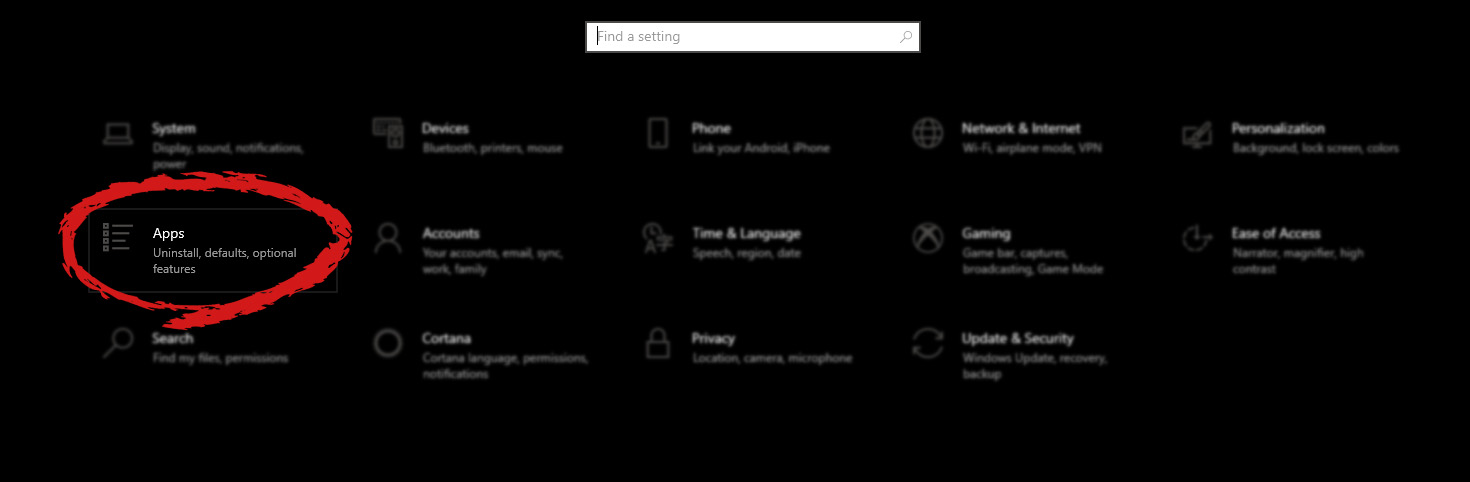
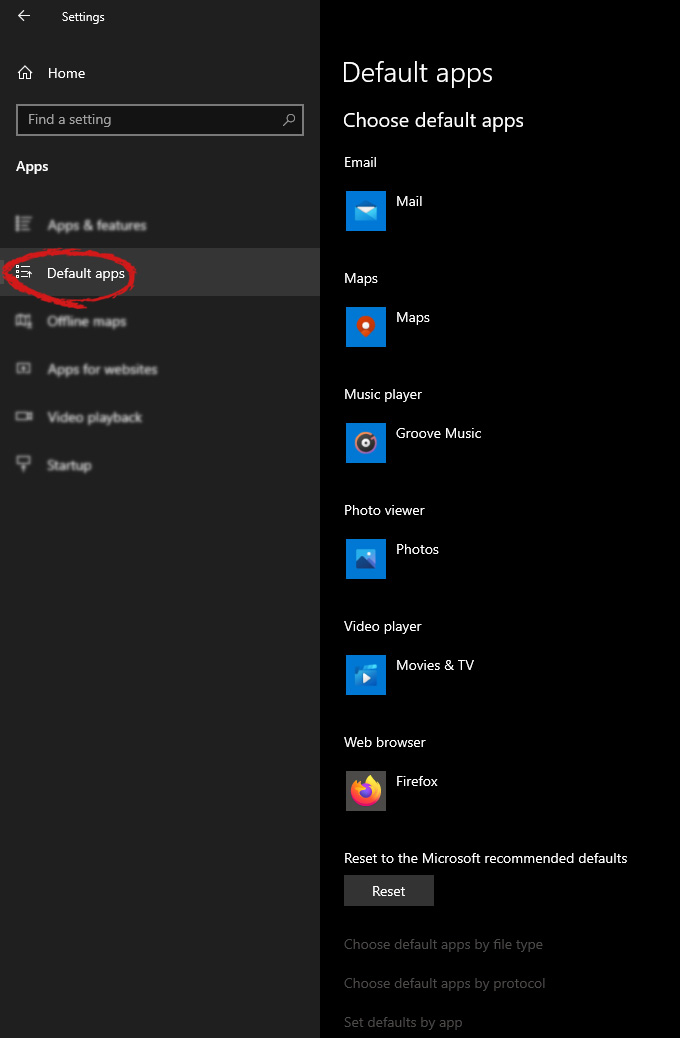
Hello everyone and welcome to another tutorial on errortools.com, Windows itself when it is installed has a general idea about certain file types and how to open them, for example, image files would be opened with application photos, web links with the edge, etc. So when we double click on the known file type, Windows will start the default application for that type and open the file in it. But what if we do not want to open files in applications Microsoft thinks we should? What if we want to open the website in firefox or images in photoshop, or whatever. Luckily we can easily change which application Windows uses for which file type. Click on ⊞ WINDOWS to open the start menu and choose settings. Windows 10 Star menu with marked settings iconOn the settings screen, choose Apps. Windows settings apps section markedWhen the Apps screen opens on the left click on Default apps. Windows settings default apps markedOn right, you will get a list of Windows default applications for certain types of files. Click on any application you would like to change and choose from the drop-down list a new one. Click on it and you are done.

Read More
1 2 3 171
Logo
Copyright © 2023, ErrorTools. All Rights Reserved
Trademark: Microsoft Windows logos are registered trademarks of Microsoft. Disclaimer: ErrorTools.com is not affiliated with Microsoft, nor claims direct affiliation.
The information on this page is provided for information purposes only.
DMCA.com Protection Status