Logo

Change date and time inside Windows 11

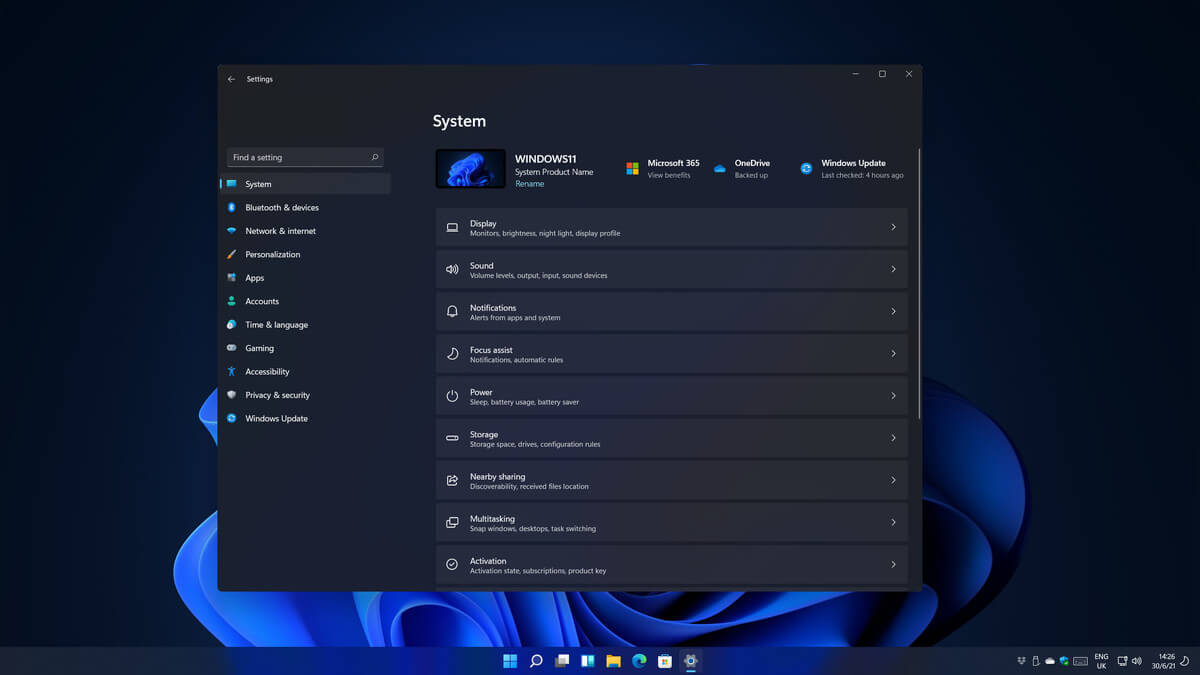
date and time windows 11Same as Windows 10, Windows 11 also keeps track of date and time using an internet time server. But in a case that you need to change the date or time for any kind of reason here is a guide for that process:

  1. Press ⊞ WINDOWS + I to open settings
  2. Click on Time & Language in Taskbar
  3. Inside Time & Language click on Date & Time
  4. Turn off Set Time Automatically by clicking on the switch next to it
  5. Below find Set the date and time manually and click on Change
  6. Inside, Change Date and Time window use the drop-down menu to set desired date and time

Do You Need Help with Your Device?

Our Team of Experts May Help
Troubleshoot.Tech Experts are There for You!
Replace damaged files
Restore performance
Free disk space
Remove Malware
Protects WEB browser
Remove Viruses
Stop PC freezing
GET HELP
Troubleshoot.Tech experts work with all versions of Microsoft Windows including Windows 11, with Android, Mac, and more.

Share this article:

You might also like

Fix mfewfpk.sys, Epfwwfp.sys Errors in Windows
If you suddenly encounter a Blue Screen error that points out to either the mfewfpk.sys and epfwwfp.sys files, then this post might help. Both of these files are created by third-party software. The mfewfpk.sys file is created by the McAfee security software while the epfwwfp.sys is created by the ESET Antivirus. These files are residual files and sometimes it blocks upgrading Windows 10. Aside from blocking Windows 10 upgrade/update, these files can also cause a Blue Screen error after an upgrade which leaves your Windows 10 computer useless. When you get a Blue Screen error caused by any of these files, you will see an accompanying error message that states, “DRIVER IRQL NOT LESS OR EQUAL”. To fix this Blue Screen error, you can check out the suggestions laid out below but before you do that, you need to create a System Restore point first as it can help you undo any unwanted changes. In addition, make sure to also boot your computer into Safe Mode with Networking before you troubleshoot.

Option 1 – Try to remove the epfwwfp.sys file

You can try to remove the epfwwfp.sys file using Command Prompt. To do so, refer to the following steps:
  • Right-click on the Start button and click on Command Prompt (Admin) from the menu to open Command Prompt with admin privileges.
  • Next, type the following command and hit Enter to delete the epfwwfp.sys file:
DEL /F /S /Q /A “%systemroot%System32driversepfwwfp.sys”
  • After the scan is completed, restart your computer and see if it fixed the Blue Screen error.
Note: You can also use the ESET AV Remover tool to uninstall Eset security software to remove the epfwwfp.sys file.

Option 2 – Try to remove the mfewfpk.sys file

The same with the first option, you can remove the mfewfpk.sys file using CMD.
  • First, right-click on the Start button and click on Command Prompt (Admin) from the menu to open Command Prompt with admin privileges.
  • After, type the following command and hit Enter to delete the epfwwfp.sys file:
DEL /F /S /Q /A “%systemroot%System32driversmfewfpk.sys”
  • Once the scan is completed, restart your computer and see if it fixed the Stop error.

Note: You also have the option to remove the mfewfpk.sys file using McAfee Product Removal tool to uninstall the McAfee security software. All you have to do is download the McAfee Product Removal tool and run it and then follow the onscreen instructions to install it. Once it is installed, click on Next. After you select the radio button to agree to the terms of use, click on Next once again. Finally, restart your computer and check if it is able to resolve the problem or not.

Option 3 – Run the Blue Screen Troubleshooter

Troubleshooting Blue Screen of Death errors wouldn’t be complete without the Blue Screen troubleshooter. As you know, it is a built-in tool in Windows 10 that helps users in fixing BSOD errors. It can be found on the Settings Troubleshooters page. To use it, refer to these steps:
  • Tap the Win + I keys to open the Settings panel.
  • Then go to Update & Security > Troubleshoot.
  • From there, look for the option called “Blue Screen” on your right-hand side and then click the “Run the troubleshooter” button to run the Blue Screen Troubleshooter and then follow the next on-screen options. Note that you might have to boot your PC into Safe Mode.

Option 4 – Try running the DISM tool

You can try running the Deployment Imaging and Servicing Management or DISM tool to fix the Blue Screen error. Using this built-in tool, you have various options such as the “/ScanHealth”, “/CheckHealth”, and “/RestoreHealth”.
  • Open the Command Prompt with admin privileges.
  • Then type in the following commands and make sure to hit Enter right after you type each one of them:
    • Dism /Online /Cleanup-Image /CheckHealth
    • Dism /Online /Cleanup-Image /ScanHealth
    • exe /Online /Cleanup-image /Restorehealth
  • Do not close the window if the process takes a while as it will probably take a few minutes to finish.
Read More
Hot to get rid of DiscoverAncestry from your PC

DiscoverAncestry is a Browser Extension for Google Chrome developed by Mindspark Inc that presents itself as a web tool to discover the origins or meanings of particular family names. When installed this extension changes your default new tab page to search by MyWay, as well as your default search engine to Search.MyWay.com

While active, DiscoverAncestry logs user browsing information, recording clicked links, visited websites and viewed products. This information is later used to better target personal ads. Browsing the internet with this extension active will result in injection of additional ads, sponsored content and even pop-up ads throughout the browsing sessions.

DiscoverAncestry is usually found bundled with other potentially unwanted software, this combined alongside its aggressive ad injection is why DiscoverAncestry has been marked as a Browser Hijacker, and it is recommended to remove it from your computer.

About Browser Hijackers

Browser hijacking is regarded as the web’s constant risks that target web browsers. It’s a type of malware program that redirects web browser requests to other suspicious websites. Basically, most browser hijackers are made for advertising or marketing purposes. It redirects you to the sponsored websites and inserts adverts on your internet browser which helps its developer generate income. It might seem naive, but the majority of such websites aren’t legitimate and can pose a significant risk to your on-line safety. In a much worst case, your internet browser could be hi-jacked to download malware that will do a lot of damage to your computer.

Browser hijacking signs and symptoms

There are several symptoms that could indicate a browser hijacking: 1. your homepage is reset to some unknown site 2. bookmark and the new tab are also changed 3. default online search engine is modified 4. you’re getting browser toolbars you haven’t witnessed before 5. you will find random pop-ups start showing regularly 6. your internet browser has instability issues or exhibits frequent errors 7. you are blocked to access the websites of antivirus solution providers.

How does a computer get infected with a browser hijacker?

Browser hijackers can get into a computer by some means or other, for instance via file sharing, downloads, and email also. Many web browser hijackings originate from add-on applications, i.e., toolbars, browser helper objects (BHO), or extensions added to web browsers to give them extra features. A browser hijacker may also come bundled-up with some free application that you inadvertently download and install, compromising your PC security. Common examples of browser hijackers include CoolWebSearch, Conduit, Coupon Server, OneWebSearch, RocketTab, Snap.do, Delta Search, and Searchult.com. Browser hijackers may record user keystrokes to gather potentially valuable information leading to privacy issues, cause instability on systems, drastically disrupt user’s browsing experience, and eventually slow down the computer to a stage where it becomes unusable.

Removal

Some browser hijacking can be simply reversed by discovering and eliminating the corresponding malware software through your control panel. However, many hijackers are really tenacious and need specialized applications to remove them. Also, manual removals demand deep system understanding and thus can be quite a difficult task for novices. Professionals always suggest users eliminate any malicious software including browser hijackers by using an automatic malware removal tool, which is easier, safer, and faster than the manual removal procedure. To remove any kind of browser hijacker from your laptop or computer, you should download the following certified malware removal tool – SafeBytes Anti-Malware. Along with anti-virus software, a system optimizer tool, similar to Total System Care, will help you repair Windows registry errors, get rid of unwanted toolbars, secure your online privacy, and stabilize programs installed on your computer.

Learn How to Get rid of Malware that is Blocking Websites or Preventing Downloads

Viruses may cause a lot of damage to your computer. Some malware sits in between your PC and the internet connection and blocks some or all internet sites that you really want to visit. It will also prevent you from adding anything to your PC, particularly antivirus applications. If you’re reading this article, you probably have affected by a virus that prevents you from downloading a security program like Safebytes Antimalware on your PC. There are some actions you can take to circumvent this issue.

Install anti-malware in Safe Mode with Networking

In the event the malware is set to run at Windows start-up, then booting in safe mode should avoid it. Just bare minimum required programs and services are loaded when you boot your PC in Safe Mode. Here are the steps you need to follow to start into the Safe Mode of your Windows XP, Vista, or 7 computers (check out the Microsoft website for instructions on Windows 8 and 10 computers). 1) At power on, press the F8 key while the Windows splash screen begins to load. This should bring up the Advanced Boot Options menu. 2) Choose Safe Mode with Networking using arrow keys and hit Enter. 3) Once you get into this mode, you will have an internet connection again. Now, obtain the malware removal program you need by utilizing the web browser. To install the program, follow the directions within the setup wizard. 4) Right after installation, do a complete scan and allow the software eliminate the threats it finds.

Utilize an alternate browser to download antivirus software

Some malware only targets certain browsers. If this sounds like your situation, utilize another internet browser as it can circumvent the malware. The ideal way to avoid this problem is to opt for a internet browser that is known for their security features. Firefox contains built-in Phishing and Malware Protection to keep you safe online. Create a portable USB antivirus for removing viruses Another method is to download and transfer an anti-malware application from a clean PC to run a virus scan on the infected computer. To run antivirus using a USB drive, follow these simple measures: 1) Make use of another virus-free computer system to download Safebytes Anti-Malware. 2) Plug the USB drive into the clean computer. 3) Double-click the executable file to open the installation wizard. 4) When asked, choose the location of the USB drive as the place where you want to store the software files. Follow the on-screen instructions to finish the installation. 5) Transfer the flash drive from the clean computer to the infected computer. 6) Double-click the anti-malware software EXE file on the pen drive. 7) Run Full System Scan to identify and clean-up up all sorts of malware.

SafeBytes Anti-Malware: Lightweight Malware Protection for Windows Computer

If you are looking to purchase anti-malware for your desktop, there are numerous brands and packages for you to consider. A few are well worth your money, but most aren’t. When looking for an antivirus tool, select one which provides dependable, efficient, and comprehensive protection against all known computer viruses and malware. On the list of highly recommended applications by industry leaders is SafeBytes Anti-Malware, well-known security software for Windows computers. SafeBytes is a powerful, real-time anti-spyware application that is made to assist everyday computer users in safeguarding their computers from malicious threats. Once you’ve got installed this software, SafeBytes advanced protection system will make sure that absolutely no viruses or malicious software can seep through your PC.

There are lots of amazing features you’ll get with this security product. The following are some typical features present in this software program:

Active Protection: Malware programs aiming to get into the system are discovered and stopped as and when detected by the SafeBytes real-time protection shields. This utility will always keep track of your computer for any suspicious activity and updates itself continuously to keep current with the latest threats. World-class AntiMalware Protection: Built upon a highly acclaimed antivirus engine, this malware removal tool can find and get rid of various obstinate malware threats such as browser hijackers, PUPs, and ransomware that other typical anti-virus applications will miss. Fast Multi-threaded Scanning: SafeBytes’s virus scan engine is one of the fastest and most efficient within the industry. It's targeted scanning tremendously increases the catch rate for viruses which is embedded in various computer files. Web Protection: SafeBytes provides instant safety rating about the webpages you’re about to visit, automatically blocking dangerous sites and to make sure that you’re certain of your online safety while browsing the net. Lightweight Utility: This software is lightweight and will work silently in the background, and will not impact your PC efficiency. 24/7 Customer Service: You can obtain totally free 24/7 technical support from their IT experts on any product queries or computer security issues. SafeBytes has created a wonderful anti-malware solution to help you conquer the latest computer threats and virus attacks. Now you may realize that this particular software does more than just scan and eliminate threats from your computer. So if you are searching for the best anti-malware subscription for your Windows-based computer, we strongly recommend SafeBytes Anti-Malware software.

Technical Details and Manual Removal (Advanced Users)

If you don’t want to use an automated tool and prefer to eliminate DiscoverAncestry manually, you might do so by going to the Windows Add/Remove Programs menu in the control panel and deleting the offending software; in cases of web browser plug-ins, you can remove it by visiting the browsers Add-on/Extension manager. You might even want to reset your web browser settings, and also delete temporary files, browsing history, and cookies. To ensure complete removal, manually check your hard disk and registry for all of the following and remove or reset the values accordingly. Please remember that this is for skilled users only and may be challenging, with wrong file removal leading to additional system errors. Furthermore, certain malware keeps replicating which makes it tough to eliminate. You are suggested to do this process in Windows Safe Mode.
Files: %USERPROFILE%\Application Data\DiscoverAncestry_chIE %USERPROFILE%\AppData\LocalLow\DiscoverAncestry_chIE %USERPROFILE%\Application Data\DiscoverAncestry_ch %USERPROFILE%\AppData\LocalLow\DiscoverAncestry_ch %PROGRAMFILES(x86)%\DiscoverAncestry_chEI %PROGRAMFILES%\DiscoverAncestry_chEI %LOCALAPPDATA%\Google\Chrome\User Data\Default\Local Extension Settings\icmiidhlbncmcphhngimjmggjiionjpe %UserProfile%\Local Settings\Application Data\Google\Chrome\User Data\Default\Local Extension Settings\icmiidhlbncmcphhngimjmggjiionjpe %LOCALAPPDATA%\Google\Chrome\User Data\Default\Sync Extension Settings\icmiidhlbncmcphhngimjmggjiionjpe %UserProfile%\Local Settings\Application Data\Google\Chrome\User Data\Default\Sync Extension Settings\icmiidhlbncmcphhngimjmggjiionjpe %UserProfile%\Local Settings\Application Data\Google\Chrome\User Data\Default\Extensions\pakhopeeieecchbhooipmmgjkfajbpkl %LOCALAPPDATA%\Google\Chrome\User Data\Default\Extensions\pakhopeeieecchbhooipmmgjkfajbpkl Registry: HKEY_LOCAL_MACHINE\Software\Microsoft\Internet Explorer\Approved Extensions, value: 8EAFF39E-95FA-48E7-B465-74F985754E6C HKEY_LOCAL_MACHINE\Software\Microsoft\Internet Explorer\Approved Extensions, value: D9712913-5FE6-4956-B291-7A6689170736 HKEY_CURRENT_USER\SOFTWARE\Wow6432Node\Microsoft\Windows\CurrentVersion\explorer\Browser Helper Objects\8eaff39e-95fa-48e7-b465-74f985754e6c HKEY_CURRENT_USER\SOFTWARE\Microsoft\Windows\CurrentVersion\explorer\Browser Helper Objects\8eaff39e-95fa-48e7-b465-74f985754e6c HKEY_CURRENT_USER\SOFTWARE\Wow6432Node\Microsoft\Windows\CurrentVersion\explorer\Browser Helper Objects\d9712913-5fe6-4956-b291-7a6689170736 HKEY_CURRENT_USER\SOFTWARE\Microsoft\Windows\CurrentVersion\explorer\Browser Helper Objects\d9712913-5fe6-4956-b291-7a6689170736 HKEY_CURRENT_USER\SOFTWARE\Wow6432Node\Microsoft\Internet Explorer\Toolbar, value: 6ffa4cac-5ad4-42f5-bd18-7cd228761d1a HKEY_CURRENT_USER\SOFTWARE\Wow6432Node\Microsoft\Windows\CurrentVersion\Run, value: DiscoverAncestry EPM Support HKEY_CURRENT_USER\SOFTWARE\Wow6432Node\Microsoft\Windows\CurrentVersion\Run, value: DiscoverAncestry Search Scope Monitor HKEY_CURRENT_USER\SOFTWARE\Microsoft\Windows\CurrentVersion\Run, value: DiscoverAncestry Search Scope Monitor HKEY_CURRENT_USER\SOFTWARE\Microsoft\Windows\CurrentVersion\Run, value: DiscoverAncestry EPM Support HKEY_CURRENT_USER\SOFTWARE\Microsoft\Windows\CurrentVersion\Run, value: DiscoverAncestry AppIntegrator 64-bit HKEY_CURRENT_USER\SOFTWARE\Microsoft\Windows\CurrentVersion\Run, value: DiscoverAncestry AppIntegrator 32-bit HKEY_CURRENT_USER\SYSTEM\CurrentControlSet\services\DiscoverAncestry_chService HKEY_CURRENT_USER\SYSTEM\ControlSet001\services\DiscoverAncestry_chService HKEY_CURRENT_USER\SYSTEM\ControlSet002\services\DiscoverAncestry_chService HKEY_LOCAL_MACHINE\Software\Microsoft\Internet Explorer\Toolbar\WebBrowser, value: 6FFA4CAC-5AD4-42F5-BD18-7CD228761D1A HKEY_CURRENT_USER\SOFTWARE\Wow6432Node\DiscoverAncestry_ch

Read More
Bluetooth Headset in Windows gets disconnected
Many Windows 10 users use a Bluetooth headset as these kinds of Audio devices, as you know, lack wires since wires tend to get entangled and break which could get quite inconvenient. This is why using a wireless headphone is more preferable since it’s much simpler, however, using a wireless headphone also means it comes with a charging requirement and if it fails to charge, there is no music or audio or anything that you need a Bluetooth headphone for. However, wireless headphones are also susceptible to problems as you might encounter some problems when connecting your wireless headphone to your Windows 10 computer. One of these problems include when you try to get sound from the wireless device but nothing happened. This indicates that the Bluetooth headphone is disconnected in some way for some unknown reason even if you’ve already plugged it in. Thus, if you encounter this scenario, then there are several options you need to check out to fix the problem. To start troubleshooting the problem, here are the options you need to use as a reference.

Option 1 – Try turning off the device and turning it back on

The first thing you can do to resolve the problem is to turn off your wireless audio device and wait for a couple of seconds before you turn it back on. In most cases, this should fix the problem. In fact, you can also try to unpair and pair the Bluetooth audio device and see if it fixes the problem or not.

Option 2 – Try to set the headphone as the default device manually

There are times when you plug a headphone, it does not toggle the default audio device. Thus, to fix this issue, you have to set the default audio device to the headphones manually. To do that, follow these steps:
  • First, right-click on the volume icon located on the system tray.
  • Next, select the Open sound settings option to open the Sound section in the Windows 10 Settings app.
  • After that, go to the Output section and select Headphones for the “Choose your output device” option. This should fix the problem for you.

Option 3 – Try running the Bluetooth Troubleshooter

As you know, Windows 10 has various troubleshooters with user-friendly interfaces where you can utilize them to fix issues in your PC. And since you’re dealing with some Bluetooth problem, you have to run the built-in Bluetooth Troubleshooter. To do this, follow these steps:
  • Open the Windows 10 Settings.
  • Then go to Update & Security > Troubleshoot.
  • You should find the option for Bluetooth on your right-hand side – click on it then click on the “Run the troubleshooter” option.
  • Now follow the next screen options.

Option 4 – Try to update or reinstall the Bluetooth driver

The issue might have something to do with the Bluetooth drivers. It could be that it is outdated and needs to be updated or that you recently updated it and since then you have trouble in removing the Bluetooth devices and so to fix the issue, you can update, roll back or uninstall the Bluetooth drivers. How? Follow the steps below.
  • Tap the Win + X keys to open the Device Manager.
  • Next, look for the Bluetooth device and right-click on it.
  • Select the option “Update driver”.
  • After that, a new popup window will appear. In there, select the option, “Search automatically for updated driver software”.
Note: Checking the update may take a few minutes so you’ll have to wait until it finishes. If it is able to find an update, you must install it. And if you want to reinstall the Bluetooth driver, just select the “Uninstall driver” option and follow the next on-screen instructions that follow.
Read More
Windows SmartScreen can’t be reached right now
SmartScreen is a cloud-based anti-phishing and anti-malware component that’s come packed in all Windows 8 (8.1) and Windows 10 versions. This security component is also used in several browsers and programs like Internet Explorer, Microsoft Edge and Outlook.com. Although this program is quite useful, there’ve been reports that SmartScreen is apparently blocking Microsoft’s own apps from opening. According to some users, they only get the “Windows SmartScreen can’t be reached right now” error message every time they try to open apps from the built-in Windows suite like Photos, Mail, Alarms, Maps, etc. Whenever Windows SmartScreen is either down or unreachable on an end-user PC, your computer won’t be able to download anything in both official and unofficial channels. This error might be due to a corrupted Windows account, or it could be that SmartScreen is disabled from the Windows Defender Security Center or it might be down due to an MS issue. In addition, the error might also be caused by a proxy entry.

Option 1 – Make sure that SmartScreen is enabled

Before anything else, the first thing you must do is to check if SmartScreen is even enabled as it might be the reason why you’re getting the error. You can verify this by simply going to the Windows Defender Security Center. To do so, follow the steps below.
  • Tap the Win + R keys to open the Run dialog box.
  • Next, type “ms-settings:windowsdefender” in the field and hit Enter to open the Windows Defender Security Center.
  • After that, click on the Open Windows Defender Security Center button located under Windows Security.
  • Then click on App & browser control.
  • From there, make sure that the Check apps and files toggle is set to Warn and then check the same thing for Microsoft Edge and SmartScreen for Microsoft Store apps.
  • If it turns out that SmartScreen is indeed disabled, you have to restart your computer after making some changes and then check if the issue is fixed upon the next startup.

Option 2 – Check if SmartScreen is down for maintenance

Another possible reason why SmartScreen is not working is that it might be scheduled for maintenance. When SmartScreen is scheduled for maintenance, it will become unreachable for a lot of users at the same time and so before you go over unnecessary troubleshooting steps, you need to verify if SmartScreen is down for maintenance or not.

Option 3 – Try to disable the proxy server

If applicable, you can try to disable the proxy server to fix SmartScreen. There are some users who reported that they’ve fixed the problem after they’ve disabled the use of a proxy server using the built-in way. In some instances, certain proxy servers can interfere with the SmartScreen component and cause it to become unusable. However, if you are not using a proxy server, just skip this option and proceed to the next one, otherwise, follow the steps below to disable the proxy server.
  • Tap the Win + R keys to open the Run dialog box.
  • Next, type “ms-settings:network-proxy” in the field and hit Enter to open the Proxy tab under Settings.
  • After that, scroll down to the Manual proxy setup and make sure that the toggle button of the “Use a proxy server” option is turned off.
  • Now restart your PC and check if the problem is fixed upon the next startup.

Option 4 – Try to create a new Windows user account

There are some users who were able to fix the problem by simply creating a new Windows user account. Although this solution will make you lose a couple of settings enforced through your user account, it’s actually effective in circumventing the “Windows SmartScreen can’t be reached right now” error. To create a new Windows user account, here’s what you have to do:
  • Tap the Win + R keys to open the Run dialog box.
  • And then type “ms-settings:otherusers” in the field and hit Enter to open the Family & other people tab under the Accounts menu.
  • After that, click on the “Add someone else to this PC” option and then click on “I don’t have this person’s sign-in information.
  • Next, insert the user credentials like emails, password, birth date, etc., and then click Next. Take note that if you want to create a new local user account, just click on Add a user without a Microsoft account.
  • After you’re done creating the new Windows user account, click the start icon and then click the account icon and choose to Sign out.
  • After you’re logged in, check if SmartScreen now works properly or not.
Read More
IW Unicorn and Scorpion PC Chair cockpits
Recently on errortools.com, we were talking about Cooler Master’s Orb X gaming chair that is an absolute beast and an amazing product. One downside of Orb X is its price. IW product line is somewhat competing with Orb X with a much more affordable price aiming to probably take customer base with lower income but offering them a great experience as well. The first thing you will notice is a different design and somewhat feeling of cheaper quality if you compare it to Orb X but that is quite reasonable considering the chair itself is around 3.5 times cheaper than Orb X which really puts it in range of everyone can get it. But does a much cheaper price means low quality? Let’s explore.

IW Unicorn

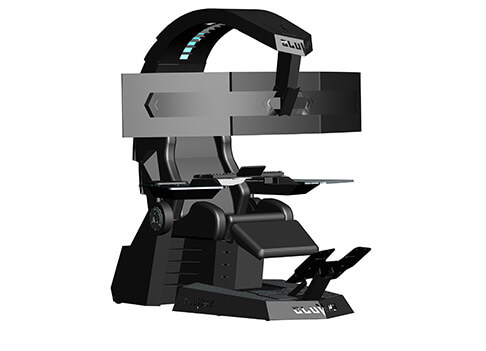
IW unicornThe 2021 CLUVENS BRAND newly issued model UNICORN has fully electrical tilting capabilities to 160 degrees, Reading light-two LED & RGB illumination lighting, manual open/close keyboard tray, and armrests. This model is suitable for home and office, and also gaming computer work environments. It offers functions that enable the user to experience unprecedented comfort and quasi total immersion through strategically positioned 1-3 monitors, audio systems, and accessories. The result is a complete computer office, ergonomically optimized, with a minimal footprint that improves overall performance and productivity and health and comfort. Sitting on a chair can help a lot for relieving health problems like lower back pain, herniated discs, sciatica, and neck pain and also enhance performance and viewing effects.
More Luxury and More comfortable:

Equipped with Luxury feeling reclining Gaming chair made with high-density Mold Shaping Foam and superior quality PU leather with very comfortable texture, electrical recline to 128 degrees, and more to 160 degrees for the flat position for the user.

More High-End Setting and more High-tech:

Manual push for open / close of big sized (87x34cm) Self-Balancing Keyboard tray, adjustable with 20cm distance range with Electrical control for the height of roof arm & monitors. Electrical control for reclining Zero Gravity position or even flat position, Manual adjusted Feet pedal for a more comfortable position for feet. Using a High-Quality PU leather Gaming chair that has Heat/Massage functions with it! The IW-Unicorn monitor mounts allow the use of a single monitor up to Ultra-wide 49” or 43” in size or triple monitor setups up to 3 x 29” other monitors configurations are available upon request. (VESA standard)

IW Scorpion

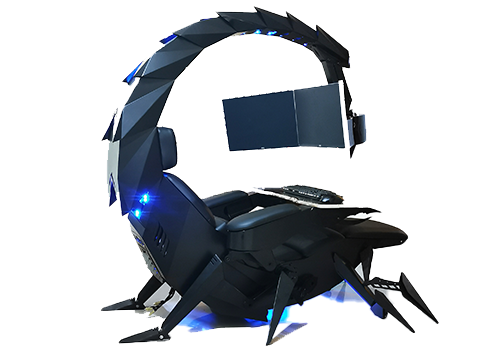
IW scorpionScorpion is basically a premium version of Unicorn with being able to hold more weight, having cup holders on the armrest, etc. The look is also similar with Scorpion being more sinister-looking but overall Steel frame and chair are the same.


Conclusion

Sadly I have not personally experienced neither of these products including Orb X but from all information I have found and looked over, I would say these products are not trying to compete with each other. Although Products are similar in nature, Orb X is aimed at hi end-users focusing on privacy and robustness while IW is filling the gap of users that would like an advanced chair but are not willing or ready to shell hi amount of money for it offering advanced chairs with advanced features in somewhat affordable price.
Read More
MMC.exe has been blocked for your protection
When trying to run Computer Management, or when running mmc.exe or compmgmt.msc from a command prompt you get the error that the application has been blocked for your protection then keep reading in order to solve the issue. This is a permission issue where if a regular user tries to run such system tools will result in saying that it has been blocked. Along with this, you may have a Group Policy issue. This can be fixed, but you will need admin permission to achieve it. It’s because when they are run from the command prompt with elevated privileges, it works.
  1. Change Group Policy Settings

    If your account is an admin account, and you are still facing the issue, then change the group policy settings: Open Group Policy Settings by typing gpedit.msc in the run prompt followed by pressing ENTER Navigate to User Configuration > Administrative Templates > Windows Components > Microsoft Management Console > Restricted/Permitted snap-ins Locate Computer Management policy, and double click to open it Enable it, exit Group Policy. When Enabled: The snap-in is permitted and can be added into the Microsoft Management Console or run from the command line as a standalone console. When Disabled: The snap-in is prohibited and cannot be added into the Microsoft Management Console or run from the command line as a standalone console. An error message is displayed stating that the policy is prohibiting the use of this snap-in.
  2. Temporarily disable UAC

    UAC is the user access control panel, and if you need to run the command right away, you can choose to disable it for some time. Click on the Start button, and then type UAC to find the User Account Control Settings. Click to open, and then slide down the notification setting at the bottom. It will temporarily allow launching the application as there is no check. However, make sure to switch to default once you are done.
Read More
How to remove GetCouponsFast.com from PC

The Get Coupons Fast Toolbar is a Browser Extension for Google Chrome developed by Mindspark Inc. This extension allows quick access to the most popular coupon websites available. While this might look like a good useful idea, keep in mind that it has been classified as a Browser Hijacker by Several anti-virus applications.

When installed this extension will hijack your new tab page, changing it to a customized version of Search.MyWay.com. While active It records user browser activity, this data is later used to better target ads. While browsing the internet with this extension installed you will see additional pop-up ads, sponsored content, and injected ads into your browser search results and pages. GetCouponsFast usually comes bundled with other PUP-s or Browser Hijackers that may harm your computer and it is recommended you remove it from your PC.

About Browser Hijackers

Browser hijacking means that a malicious code has taken control over and altered the settings of your internet browser, without your permission. They are created to disrupt browser functions for various reasons. It redirects you to the sponsored sites and inserts ads on your internet browser that assists its developer to generate revenue. While it might seem harmless, these tools were created by malicious people who always look to take advantage of you, so that they could make money from your naivety and distraction. They did not just ruin your browsers, but browser hijackers can also modify the system registry, making your computer or laptop susceptible to various other types of attacks.

Signs of browser hijacker infection

There are plenty of signs that indicate the web browser has been highjacked: 1. you notice unauthorized modifications to your web browser’s home-page 2. you find re-directed to internet sites you never intended to visit 3. the default browser configurations have been modified and/or your default web engine is altered 4. you’ll see many toolbars on your browser 5. you might see never-ending pop-up adverts on your computer screen 6. your browser has become unstable or starts running slowly 7. you are blocked to access the websites of antivirus solution providers.

How does a computer get infected with a browser hijacker?

Browser hijackers might use drive-by downloads or file-sharing networks or an email attachment in order to reach a targeted computer system. They could also come from add-on applications, also known as browser helper objects (BHO), web browser extensions, or toolbars. Some internet browser hijackers spread in user’s computers using a deceptive software distribution method called “bundling” (often through freeware and shareware). Browser hijackers will affect the user’s web browsing experience severely, monitor the websites visited by users and steal sensitive information, cause difficulty in connecting to the web, and eventually create stability problems, making programs and systems freeze.

Removal

Some hijackers can be simply removed by deleting the free software they were included with or by deleting any add-ons you have recently added to your browser. Unluckily, the majority of the software applications utilized to hijack an internet browser are deliberately designed to be difficult to detect or get rid of. And there is no denying the very fact that manual repairs and removal can certainly be a difficult task for a novice PC user. Moreover, there are various risks connected with tinkering around with the system registry files. Installing and running anti-malware software on the affected computer will automatically erase browser hijackers as well as other unwanted programs. In order to get rid of persistent browser hijackers effectively, install the award-winning Anti-Malware tool Safebytes Anti-Malware. Employ a pc optimizer (such as Total System Care) along with your anti-malware to repair various computer registry problems, remove computer vulnerabilities, and improve your computer performance.

How To Get Eliminate Virus That Is Blocking Antivirus Downloads?

Malware could cause all sorts of damage once they invade your computer, starting from stealing your private details to erasing data files on your computer system. Some malware is created to hinder or block things that you wish to do on your PC. It may not permit you to download anything from the net or it will prevent you from accessing a few or all of the websites, in particular the anti-virus sites. If you are reading this article right now, you may have perhaps realized that a malware infection is a reason for your blocked internet connectivity. So what to do if you want to download and install an anti-virus application like Safebytes? There are some steps you can take to circumvent this problem.

Boot Windows in Safe Mode

Safe Mode is actually a unique, simplified version of Windows in which just bare minimum services are loaded to prevent malware and also other troublesome programs from loading. If the malicious software is set to load automatically when the PC starts, shifting into this mode may prevent it from doing so. In order to enter into Safe Mode or Safe Mode with Networking, press the F8 key while the system is booting up or run MSCONFIG and find the “Safe Boot” options under the “Boot” tab. Once you are in safe mode, you can attempt to install your anti-malware program without the hindrance of the malicious software. Right after installation, run the malware scanner to remove standard infections.

Use an alternate web browser to download security software

Web-based malware can be environment-specific, aiming for a particular browser or attacking particular versions of the browser. The best solution to avoid this issue is to choose an internet browser that is known for its security features. Firefox contains built-in Malware and Phishing Protection to keep you secure online.

Run anti-virus from a pen drive

Another option would be to make a portable anti-malware program onto your USB flash drive. To run anti-virus using a pen drive, follow these simple measures: 1) Download Safebytes Anti-Malware or Windows Defender Offline onto a virus-free PC. 2) Plug the USB drive into the clean computer. 3) Double-click the Setup icon of the anti-malware program to run the Installation Wizard. 4) Select thumb drive as the place when the wizard asks you where you wish to install the application. Follow the directions to complete the installation process. 5) Unplug the flash drive. Now you can utilize this portable anti-virus on the infected computer. 6) Double click the Safebytes Anti-malware icon on the pen drive to run the application. 7) Click the “Scan Now” button to start the virus scan.

SafeBytes Anti-Malware Overview

Want to download the best anti-malware application for your desktop? There are many applications on the market that comes in free and paid versions for Windows systems. Some are very good ones, some are ok types, while some are just fake anti-malware programs that will damage your personal computer themselves! While looking for an antimalware program, pick one that offers reliable, efficient, and total protection against all known viruses and malware. On the list of recommended software is SafeBytes AntiMalware. SafeBytes has a good history of quality service, and customers appear to be happy with it. Safebytes is among the well-established PC solutions companies, which provide this all-inclusive anti-malware application. With its outstanding protection system, this tool will automatically detect and remove most of the security threats, which include adware, viruses, browser hijackers, PUPs, trojans, worms, and ransomware.

SafeBytes possesses a variety of wonderful features that can help you protect your computer from malware attacks and damage. Listed below are a few of the great ones:

Real-time Protection: SafeBytes provides round-the-clock protection for your computer restricting malware intrusions in real-time. They are very efficient in screening and getting rid of numerous threats because they’re regularly improved with new updates and alerts. Robust Anti-malware Protection: Built on a highly acclaimed antivirus engine, this malware removal tool has the capacity to find and remove various stubborn malware threats such as browser hijackers, PUPs, and ransomware that other common antivirus programs will miss. Web protection: SafeBytes checks the hyperlinks present on a webpage for possible threats and tells you if the website is safe to explore or not, through its unique safety rating system. Minimal CPU and Memory Usage: SafeBytes is a lightweight and simple to use antivirus and anti-malware solution. As it utilizes very low computer resources, this software leaves the computer power exactly where it belongs: with you. 24/7 Customer Service: Support service is available 24 x 7 x 365 days via chat and email to answer your queries. Overall, SafeBytes Anti-Malware is a solid program since it has lots of features and could identify and remove any potential threats. Now you may realize that this tool does more than just scan and delete threats on your computer. So when you need advanced forms of protection features and threat detections, purchasing SafeBytes Anti-Malware could be well worth the dollars!

Technical Details and Manual Removal (Advanced Users)

If you don’t want to use malware removal software and prefer to eliminate GetCouponsFast manually, you could do so by going to the Windows Add/Remove Programs menu in the control panel and deleting the offending program; in cases of browser extensions, you can remove it by visiting the browser’s Add-on/Extension manager. Additionally, it is advised to reset your web browser settings to their default state. Lastly, check your hard disk for all of the following and clean your registry manually to remove leftover application entries after uninstallation. Please keep in mind that only advanced users should attempt to manually edit the system files since deleting any single vital registry entry results in a serious problem or even a PC crash. Moreover, certain malicious programs are capable to defend against its removal. It is recommended that you do the removal process in Windows Safe Mode.
Files: %LOCALAPPDATA%\Google\Chrome\User Data\Default\Extensions\iadmakoacmnjmcacmhlcjcameijgcopj %UserProfile%\Local Settings\Application Data\Google\Chrome\User Data\Default\Extensions\iadmakoacmnjmcacmhlcjcameijgcopj %UserProfile%\Local Settings\Application Data\GetCouponsFastTooltab %LOCALAPPDATA%\GetCouponsFastTooltab Registry: HKEY_LOCAL_MACHINE\Software\[APPLICATION]\Microsoft\Windows\CurrentVersion\Uninstall..Uninstaller
Read More
How to Fix Windows 10 Error 0x800488AB

Code 0x800488AB – What is it?

The Error Code 0x800488AB will appear when a user is in the Windows 10 Mail app and has provided an Outlook.com e-mail address. The mail app will give a message that the “account information is out of date” and it does provide an option to fix the issue. After clicking the Fix button, this error code will show up to the user. Common symptoms include:
  • A dialog box will appear with the Error Code 0x800488AB
  • Microsoft Windows 10 Mail App will not retrieve (or subsequently send) mail
  • User cannot delete and re-add the Outlook email account in the Windows 10 Mail app
  • User can still access and log in to various Microsoft websites, including logging into the Outlook Mail website

Solution

Restoro box imageError Causes

This error can be caused by a few different actions of the user when they have changed a password or a PIN number to access their Outlook mail. This error does have a relatively easy fix after the cause is determined and where the break-in information has occurred. A few of the causes may be:
  • If the user changes their password on the Microsoft website and uses the alternative PIN login method to access the Mail App.
  • The log-in information on the Microsoft website does not match the login information on the Windows 10 App.
  • The login information was changed on the Microsoft website and was not updated to reflect on the Windows 10 Mail app.
The Microsoft website and Microsoft Mail app do not share the knowledge of the change in login credentials, therefore the log-in credentials appear to be incorrect when trying to access the Microsoft Mail app. It should be noted that a user may bypass the password option if they log in to the Microsoft Mail app while using the alternative PIN log-in method, thus still leaving the password undetected.

Further Information and Manual Repair

As is the case with all new technology and having a few wrinkles, the release of Microsoft Windows 10 is not left out. There have been a few discussions of errors and bugs, including Error Code 0x800488AB. As of right now, there are three different methods that can be utilized by any at-home user. These methods are rather simple and make sense when the problem has been identified.

Method 1:

Run the built-in Windows Store Apps troubleshooter:
  1. Press the Windows Key and then type ‘troubleshoot’ and hit Enter
  2. Select “View all” on the left panel and run the “Windows Store Apps” troubleshooter from the list displayed and see if it works.

Method 2:

Use the System File Checker tool to repair corrupted or missing system files:
  1. Click Start.
  2. Type cmd, and then press CTRL+SHIFT+ENTER to open the elevated command prompt (I.e. Command prompt with administrative rights).
  3. The User Account Control window should appear, be sure that the action it exhibits is correct, and then press the Continue button.
  4. Type or copy-paste the below command line into it without quotes:
“Sfc /scannow”

Method 3:

  1. Press the Windows Key
  2. Search for "Credentials Manager"
  3. Click on Windows Credentials
  4. Look for any reference to your windows account (generally your @outlook.com is listed)
  5. Delete them.
  6. Then select your account at the top of the start menu and select Log Out.
  7. If using a Pin Code, switch to type input and put your password into the box.
When you go to Mail, and select "Fix Issues" it will detect your password and your account should sync with new emails. In some cases, depending on why this particular error code was caused, you may have to use a powerful automated tool to have it resolved.
Read More
Fix This device is currently in use, USB Error
USB storage devices, peripherals, and other devices are almost used on a daily basis. And as you know, when removing the USB storage devices, it is recommended to always use the “Safely remove the USB storage device” option in order to prevent data corruption in the USB storage device. However, there are times when you may see the following error message after you use the “Safely remove the USB storage device” option:
“Problem ejecting USB Mass Storage – This device is currently in use, close any programs or windows that might be using this device, and then try again.”
This kind of error message occurs when the device is still interacting with the operating system in the background. There are several ways you can fix this error but before you check them out below, you need to close all the open windows and programs that may be using the USB storage device and then wait for a couple of seconds and then try safely removing it again. However, if you are still getting the same error message, then here are some tips you should try:

Option 1 – Try to use the Task Manager

  • Tap the Ctrl + Shift + Esc keys on your keyboard to open the Task Manager.
  • After that, look for the running processes and programs hogging on your USB Storage device. The error could be due to a program or process that’s using the USB device. This program or process will hog onto some Disk or CPU while transferring data and interacting with the device.
  • Once you find the culprits, right-click on each one of them and select End Process or End Task. You could also try to restart the process for “Explorer.exe” and see if it fixes the problem.

Option 2 – Try using DISKPART

The next thing you can try to resolve the issue is to use DISKPART. Refer to the given steps below to do so.
  • Tap the Win + R keys to launch Run and then type “cmd” in the field and tap Enter or click OK to open an elevated Command Prompt.
  • Next, type and enter this command to execute it: diskpart
  • The command you entered will initiate the DISKPART utility. After that, type and enter this second command: list disk
  • Next, type and enter this third command: list volume
  • The commands you just executed will help you in either listing all the Disk connects or all the partitions on those disks formed and from there, you need to select one command depending on the “list” command you entered. You can execute either of the two following commands:
    • select disk #
    • select volume #
  • After that, it will select the Disk or Partition you want to select.
  • Now type either one of the following commands:
    • offline disk #offline volume #
  • The command you entered will mark the selected disk is Offline. Afterward, try to safely remove your USB Storage device. Just remember that when you plug it back in again, you have to carry out the same method except for the last given command as this time you will have to enter either of these commands in order to get your USB storage device back online:
    • online disk #
    • online volume #

Option 3– Try using the Disk Management utility

  • Tap the Win + R keys to open Run.
  • Then type “diskmgmt.msc” in the field and hit Enter to open the Disk Management utility.
  • Next, look for the entry for your USB Storage device and once you’ve found it, right-click on it and select Offline.
  • After that, try to safely remove your USB Storage device again and see if the error is fixed. Note that you need to go over the same steps again if you want to plug your USB Storage device back in but make sure to select the Online option instead of Offline to get your device back online.
Read More
Guide to Quick Fix Error 0x0000007B,0xF78524

0X0000007B (0xF78d2524) - What is it?

If you are a laptop or a notebook user and you are trying to install Windows XP on it, you might come across 0x0000007B (0xF78524) error message. This error is a popular blue screen of death error and very similar to the error 0x0000007B.

Solution

Restoro box imageError Causes

The common causes of 0x0000007B (0xF78524) error code on your laptop might be:
  • File Corruption
  • Device Configuration Issues
  • Adware/spyware invasion
  • Incomplete Installations
  • Problem with your computer’s hard drive controller

Further Information and Manual Repair

Many people panic when they experience 0x0000007B (0xF78524) error on their laptops and notebooks simply because it is a blue screen of death error. The BSoD has this whole persona of being deadly computer errors that can almost cripple systems. If you have also experienced this error on your laptop, remain calm and follow the solutions given below to ensure you fix the error quickly without any hassle. Here are various ways to fix and resolve the BSOD error code 0x0000007B (0xF78524):
  1. Whether you have Lenovo IdeaPad Y550 or Dell Latitude E4300 or any other laptop for that matter, if device driver configuration is the cause of the error 0x0000007B (0xF78524), then all you need to do is start up your laptop and press F2 to enter BIOS. Now expand the ‘Drives’ section. After doing so, go to ‘SATA Operation’. SATA is the abbreviation for Serial Advanced Technology Attachment which enables mass storage devices like hard drives and optical drives to communicate with the motherboard by using a high-speed serial cable. For successful communication between devices, you need to configure SATA controller mode. Once you go to the ‘SATA Operation’ mode, change this from RAID AHCI to RAID ATA. Save changes and exit BIOS. This helps resolve the error 0x0000007B (0xF78524) in no time.
  2. Another way to fix this error is to download and install the 0x0000007B (0xF78524) repair tool. Once this tool is installed on your laptop, click the scan button. Once the scan is complete, you will see a list of errors; click the ‘Repair’ button to fix the errors found and then restart.
  3. The 0x0000007B (0xF78524) error may also occur due to the boot volume corruption. In such an event, it is advisable to run chkdsk command on the hard drive. This is recovery console command is used to check the hard drive, repair and recover data on the drive successfully.
Read More
1 2 3 171
Logo
Copyright © 2023, ErrorTools. All Rights Reserved
Trademark: Microsoft Windows logos are registered trademarks of Microsoft. Disclaimer: ErrorTools.com is not affiliated with Microsoft, nor claims direct affiliation.
The information on this page is provided for information purposes only.
DMCA.com Protection Status