Logo

Add app shortcut on the context menu

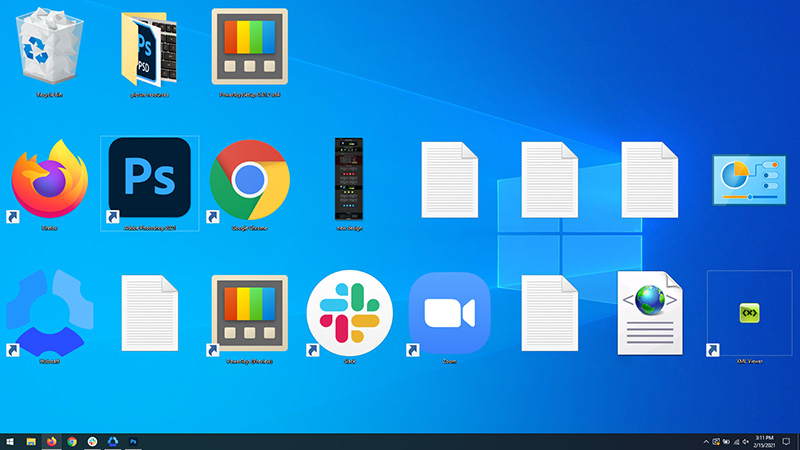
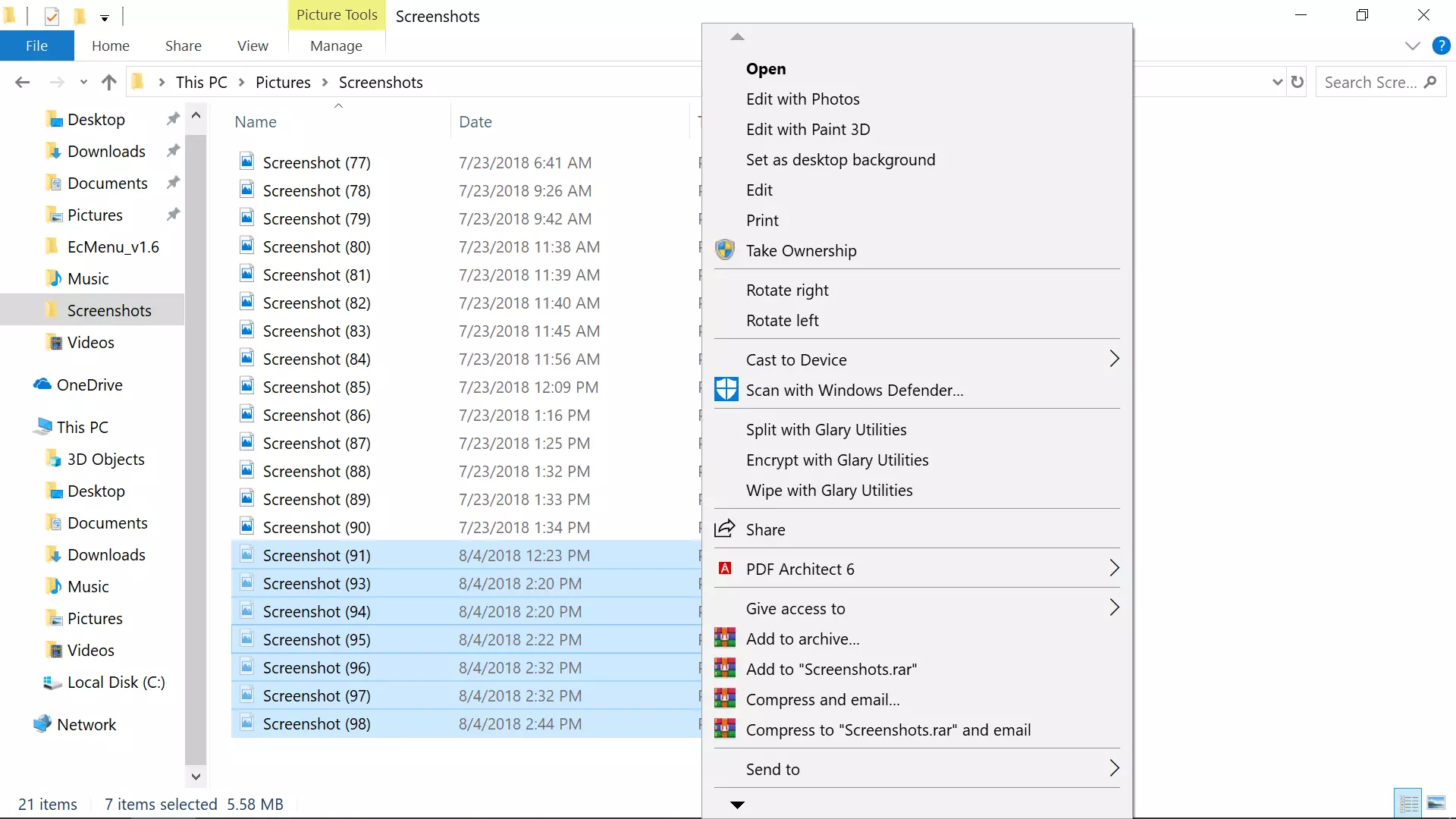
Sometimes, some applications after they are installed will put their shortcut in the context menu (right-click on desktop) for easy access, most of the time these are some system tied applications like AMD and Nvidia control panels or archives like WinRAR or 7ZIP but it can happen even for some usual application to do this.

Windows contex menu

There are some applications that you use frequently and they could be worth putting in the context menu, if you want to avoid clutter on the desktop or in the taskbar this is the third place that you should consider placing shortcuts.

Doing this will require some playing and tweaking in the Windows registry editor so be careful when editing the registry since bad entries can lead to system crash or instability. Follow step-by-step instructions.

Adding apps to the context menu in the registry

Creating entry

Open the registry editor by searching Regedit and pressing enter than inside of the registry editor search for the next key:

HKEY_CLASSES_ROOT\Directory\Background\shell

Select shell and right-click on it, hover over New and in the submenu click on Key. In the next step, you need to name a key, this name will be the thing that will be shown in the context menu when you right-click on a desktop so type in the name that you would like or the name of the application that you wish to add to the menu.

If you wish you can even add a keyboard shortcut to launch this specific application. To do this select entry that you have created and edit the default value, inside the edit string in the Value data field type first & and after that key that you would like as a shortcut. Now after right click if you hit your shortcut key app will be launched right away.

Adding command

The next task is to create a command key that will actually hold the command to launch the application. Right-click on the entry that you have created, hover over New, and click on Key.

Next, you’ll need to create the command key that will actually hold the command used to launch the application. Right-click on the new Notepad key, and then choose New \ Key from the menu. Name this key 'command', all in lower case and without hyphens.

Now in order to finish setting the launcher, you need the full path of the file that you would like to run. Locate your file in file explorer or in another tool and copy its path by SHIFT + right-clicking on the file itself and choosing copy as path option.

Now click on the command key and double click on the default key on right to edit it, inside the field value data paste your path to executable. close and save the registry and you are done.

Do You Need Help with Your Device?

Our Team of Experts May Help
Troubleshoot.Tech Experts are There for You!
Replace damaged files
Restore performance
Free disk space
Remove Malware
Protects WEB browser
Remove Viruses
Stop PC freezing
GET HELP
Troubleshoot.Tech experts work with all versions of Microsoft Windows including Windows 11, with Android, Mac, and more.

Share this article:

You might also like

Fix Libmysql.dll is Missing Error in Windows
Libmysql.dll is missing or not found error appears in Windows when the user is trying to open and run the application. In this guide, we will offer you solutions on how to fix and remove this annoying error.
  1. Check recycle bin

    Some applications or purely by accident itself libmysql.dll gets deleted. If you have not turned recycle bin off go to it and check to see if the file is by any chance there. If you find it, right-click on it, choose restore, the error will be gone.
  2. Update drivers

    Press ⊞ WINDOWS + X to open the Windows menu and click on Device manager In device manager locate device which has alert mark next to it Right-click on it and choose update driver Reboot your computer
  3. Run SFC scan

    Press ⊞ WINDOWS + X and choose command prompt (admin) In command prompt type in sfc /scannow and press ENTER wait for the operation to complete and Reboot your system
  4. Reinstall application

    if you are getting an error only on one application or an error has started to appear after the installation of a particular application go to Windows applications, uninstall it and then install it again. There is a chance that the file has been corrupted during the installation process.
Read More
Mail and Calendar not working with Cortana
Mail and Calendar not working with Cortana? As you know, Cortana was first launched way back in 2014 with an emphasis on its tight integration with both the Windows Mail and Calendar apps. This integration has been one of the highlighting features of this Personal Digital Assistant. However, there are some users who reported that the Calendar and Mail integration with Cortana is not working on their Windows 10 computers. This kind of problem could be due to several factors like the loose integration between the services, incompatible versions of the components, and many more. According to the users who experienced the issue, the features affected are the syncing of calendar appointments, sending emails via Cortana, and so on. To fix this problem, there are several options you can try. You can try to restart Cortana’s processor run the Windows Store Apps troubleshooter. You could also try to relink your Microsoft account or reinstall the Mail and Calendar apps, as well as reinstall Cortana.  For more details, follow the suggestions given below.

Option 1 – Restart Cortana’s process in the Task Manager

Restarting Cortana’s process in the Task Manager could also help you resolve the problem. Refer to the steps given below to do so.
  • Tap the Ctrl + Alt + Del keys to open the Security options window.
  • From there, look for the Task Manager in the given list and open it.
  • Next, look for the process of Cortana and right-click on it, and then select the End Task option to end its process.
  • After that, the Cortana process will restart by itself and re-initialize.

Option 2 – Run the Windows Store App troubleshooter

The Windows 10 Store Apps Troubleshooter will help you in fixing the Web Preview problem in Cortana. This is a great built-in tool from Microsoft that helps users fix any app issues. To use the Windows Store Apps Troubleshooter, follow the steps below.
  • Tap Win + I keys again to open the Windows Settings panel.
  • Go to Update & Security and then go to Troubleshoot.
  • Under the Troubleshoot section, on your left-hand side, scroll down to find Window Store Apps.
  • Then click on the Run the troubleshooter option and follow the on-screen instructions and then see if it fixes the problem.

Option 3 – Try to relink your Microsoft Account

You might also want to relink your account in Microsoft using the Windows 10 Settings app.
  • Open the Windows 10 Settings app.
  • Next, navigate to Accounts > Email & Accounts and from there, go to the section of Accounts used by Email, Calendar, and Contacts.
  • After that, select your email account and select Manage.
  • Once done, a new panel will come up where you have to click on the “Delete account from this device” link.
  • Once you get a confirmation, select Delete and then relink the same account. This should resolve the problem.

Option 4 – Try to reinstall or update the Mail and Calendar apps

  • Open Windows PowerShell as admin.
  • Next, execute this command: Get-AppxPackage *windowscommunicationsapps* | Remove-AppxPackage
  • Once done, restart your computer and go to the Microsoft Store page to get the latest updates for both Windows Mail and Calendar apps.

Option 5 – Try to reset Cortana via Settings

  • Launch the Windows 10 Settings app and go to Apps > Apps & Features.
  • Next, look for the entry of Cortana on the right-side panel and select it.
  • After that, select the Advanced options and then select the Terminate button under the Terminate section.
  • Once done, click on the Reset button under the Reset section.
  • Restart your PC.
  • After your computer boots, launch Cortana again and check.

Option 6 – Try to reinstall Cortana

If none of the options given above works, you must consider reinstalling Cortana.
  • First, right-click on the Taskbar and select the Task Manager.
  • Next, select File menu > Run new task and type “Powershell” in the field and then select the “Create this task with administrative privileges” option.
  • Click on OK to open the PowerShell console.
  • After that, type the following command and hit Enter to execute it:
Get-AppXPackage -Name Microsoft.Windows.Cortana | Foreach {Add-AppxPackage -DisableDevelopmentMode -Register "$($_.InstallLocation)AppXManifest.xml"}
  • Restart your computer and check if the problem is now fixed.
Read More
Add names of applications in the taskbar
Microsoft is trying to make Windows into a personalized OS, more and more features and parts can be customized to user liking. From larger things to smaller ones nowadays you can almost personalize every detail of Windows itself. In this article, we will tackle how to bring back the names of running applications on the taskbar. Placing names beside icons on the taskbar is a pretty simple and straightforward task easily done. First, right-click the Taskbar and select Taskbar settings. In Taskbar settings, click the menu labeled Combine taskbar buttons. Select Never. That's it, now all of your running applications have a name beside them. If you change your mind, you can always undo it by selecting Always hide labels in the Combine taskbar buttons menu.
Read More
How to Fix Error 1007

Error Code 1007 - What is it?

This is a typical system error.  This error means the requested operation cannot be performed in full-screen mode. It hampers your ability to run your desired program on Windows PC. It is displayed on computer screens in the following format:
"ERROR_FULLSCREEN_MODE" and/or as the hexadecimal value 0x3EF.”

Solution

Restoro box imageError Causes

The system error code 1007 can be triggered due to several reasons. This includes but is not limited to:
  • Windows registry damage or corruption
  • Device driver conflicts
  • Spyware or viral infection
  • Hardware malfunction
  • Software file damage or corruption
Unlike the blue screen of death error codes, this error is not fatal. But it may hamper your ability to run and work on your desired program. To avoid the inconvenience, it is advisable to fix it immediately.

Further Information and Manual Repair

Try these easy and effective do it yourself methods to repair the system error code 1007 on your PC:

Method 1 - Scan Your System for Viruses

If the underlying cause of error 1007 on your system is viral and spyware infection, then it is advisable to download a powerful antivirus and scan your entire PC. An antivirus not only detects but also removes all types of viruses including spyware, Trojans and adware. Once removed, try running your desired program again, if the program runs successfully, this means the error is resolved.

Method 2 - Update the Drivers

When the error code 1007 occurs due to driver conflict, then it is advisable to update the drivers. To do so simply use the driver update wizard from within Device Manager. The wizard will guide you through the entire driver update process, making it extremely simple for you to update the drivers in minutes.

Method 3 - Clean and Repair the Registry

You may experience the error 1077 because of registry damage or corruption. If this is the reason, then it is suggested you download Restoro. This is a user-friendly and multi-functional PC Fixer deployed with a powerful registry cleaner. It scans your entire system for registry related errors and issues, removes all unnecessary and obsolete files like cookies, junk files and bad registry entries, notorious for registry corruption. In addition to this, it also repairs the registry and damaged system files, thereby resolving the system error code 1007 immediately. Click here to download Restoro on your PC and fix system error code 1007 today!
Read More
Display driver nvlddmkm stopped responding
Users are reporting that randomly their screen will just go black for a second and come back. When this happens, it usually distorts any video currently on the screen; sometimes, they can resume working on the PC normally. However, when they view the event logs, they see the error message Display driver nvlddmkm stopped responding and has successfully recovered. In this article, we will address solutions to this issue and how to not have it again.
  1. Remove Aura iCUE plugin (applies to only ASUS motherboards)

    Some PC users discovered that iCue adds an Aura plugin for ASUS MOBOs. That, combined with EVGA Precision X1, was causing the error it seems – this was determined when the screen would turn off and on when opening EVGA x1 software. In this case, the issue was resolved by removing the Aura iCUE plugins.
  2. Change Power Management mode

    Right-click the battery icon on the notification area on the right of the Taskbar. Select Power Options. In the Power Options window, locate your current Power Plan. Select High performance, if that’s not your current power plan. Now, click on Change plan settings next to it. Now click on Change advanced power settings. Expand PCI Express section. Expand Link State Power Management. Now set power saving to Off for both On battery and Plugged in state. This would fix any issues caused by the low power of the video card. Click Apply > OK to save changes.
  3. Update graphics driver

    Go into device manager Expand display adapter section Right-click on adapter Click on update driver Reboot
  4. Rollback graphics driver

    Go into device manager Expand display adapter section Right-click on adapter Click on Roll back driver Reboot
  5. Uninstall and reinstall graphics card driver

    Go into device manager Expand display adapter section Right-click on adapter Click on Uninstall device Reboot
  6. Replace the graphics card

    If everything else failed, replace the graphic card
Read More
Fix Windows Update Error 0x80240020
There are instances when the Windows 10 installation needs interaction before it reaches the file process. And so if you suddenly encounter the Windows Update Installation Failure 0x80240020 error under the Windows Update History, then you need to get it fixed. When you encounter this kind of Windows Update Error, you will see an error message that says, “The operation did not complete because there is no logged-on interactive user”. This error also indicates the “WU_E_NO_INTERACTIVE_USER” code. To resolve this issue, in this post we’ll walk you through a couple of steps but before you get started, know that you don’t have to run any troubleshooter or delete any file just to fix this error since all you have to do is enable one option that can automatically login with your account and complete the installation for you. With that said, just make sure to only try running Windows Update once you’re told to do so. There are two ways you can enable the option that could resolve the Windows Update Installation Failure 0x80240020 error. One is via Settings while the second one is via Registry Editor.

Option 1 – via Settings

Step 1: Go to Settings > Accounts > Sign-in Options. Step 2: From there, toggle on the “Use my sign-in info to automatically finish setting up my device and reopen my apps after an update or restart” option. Step 3: After that, it will make sure that the interaction part is removed from the Windows Update process. Note: If your device is joined in a domain or if some work or email policies are applied to your device by your company or organization, then you wouldn’t be able to see this option in Settings and that’s where the Registry Editor comes in. Just make sure that you’re logged in as an administrator and that you create a System Restore Point first since registry hacks are sensitive and could highly impact how your computer behaves or functions. Once you have that covered, follow the steps below.

Option 2 – via Registry Editor

Step 1: In the Start search, type “Regedit” and hit Enter to open the Registry Editor. Step 2: Navigate to the following registry key:
HKEY_LOCAL_MACHINESOFTWAREMicrosoftWindowsCurrentVersionWindowsUpdateOSUpgrade
Note: If the above-given registry key does not exist, you can simply create it. All you have to do is right-click on the WindowsUpdate key and then select the New Key option and type “OSUpgrade” as its name. Afterward, create a new DWORD (32-bit) Value and name it “AllowOSUpgrade” and set its value to 0x00000001. Step 3: Restart your computer and check if the error is now fixed. And then try to update your Windows 10 computer again and while you’re at it, make sure that you’re around your computer to interact with the prompts needed to complete the installation process.
Read More
How to Resolve Error Code 0x800704c7 in Windows 8

Error Code 0x800704c7 – What is it?

Error code 0x800704c7 occurs when Windows users attempt but fail to update their system. It affects various Windows users including those using Windows 8 and 8.1. This error code has common symptoms such as the following:

  • Inability to upgrade your Windows operating system
  • Message box that includes error code 0x800704c7 message

Solution

Restoro box imageError Causes

Error code 0x800704c7 in Windows 8 often occurs due to a poorly maintained system. It can occur when system files become corrupted or missing. It may also occur when malware infects your system. To resolve this error code, Windows users will need to select at least one of the manual repair methods listed below and follow the instructions given.

Further Information and Manual Repair

Manual repair methods enable users to address the underlying issues causing error code 0x800704c7. These repair methods are not very technical. However, you may need to get help from an IT professional if you find them to be difficult or if your attempts to implement these instructions fail to fix the error code.

Method One: Scan Your System for Missing or Corrupt System Files

The System File Checker Tool (SFC) enables Windows users to check their system for missing or corrupt system files. This utility tool is present on all Windows 8 systems and even other versions of the Windows operating system. Run this tool by following the steps below:

  • Step one: Go to Start and type Command Prompt or CMD.
  • Step two: Run as Administrator
  • Step three: Type sfc /scannow.

After running these procedures, check if the error code has been resolved by reattempting to update your system. If you are unable to complete the process and the error message reoccurs, try the next manual repair method below.

Method two: Use Powerful Antimalware Tool

Various forms of malware, including viruses, can infect your system, causing error codes to occur or even more serious problems. That’s why you’ll need to ensure you have a powerful antimalware program installed on your device. Once this is present on your system, start scanning for viruses, worms, and Trojan horses so as to resolve error code 0x800704c7 in Windows 8.

If the issue causing error code 0x800704c7 on your device is a virus or worm, cleaning your system with a powerful antimalware program will successfully resolve the error code. However, if the error code remains unresolved after completing this manual repair method, proceed to the next method below.

Method three: Restore your System

System Restore is a simple method that users can implement to resolve error code 0x800704c7. This enables users to restore their system to a period of time in which their device was not affected by the error code. If done correctly, it can enable users to successfully complete the update process. Follow the steps below.

  • Step one: Click the Start button and type Control Panel in the search box
  • Step two: Select Control Panel, then Recovery
  • Step three: Select System Restore, then Next
  • Step four: Select a restore point before appeared on your Windows8 system
  • Step five: Select Next, then Finish

Method Four: Use an Automated Tool

If you wish to always have at your disposal a utility tool to fix these Windows 8 and other related issues when they do arise, download and install a powerful automated tool.
Read More
A Quick Guide to Resolving Photoviewer.dll Error

Photoviewer.dll Error - What is it?

Photoviewer.dll is a shared library for SampleRes.dll and x3daudio1_1.dll in computers installed with Microsoft Windows 7, 8, Vista, and XP including 32 bit and 64 bit operating systems. Photoviewer.dll is associated with 1728000 system files. The Photoviewer.dll error occurs when you upgrade your Windows operating system to a new version like Windows 7 or 8 on which this shared library is used. Once you upgrade the Windows and you right-click on JPG images, the Photoviewer.dll error pops up. This error message is displayed as the following:
  1. Photoviewer.dll missing/not found
  2. Photovewer.dll entry point not found/application can’t initiate

Solution

Restoro box imageError Causes

Photoviewer.dll error can pop up due to several reasons. These include:
  • Modification of .dll files during Windows installation
  • Infection of Trojan virus
  • Photoviewer.dll missing /broken
  • Photo Gallery was earlier your default image editor before you upgraded your system
It is advisable to repair this issue timely to avoid inconvenience and serious PC threats especially if the cause of this issue is viral infection or registry damage.

Further Information and Manual Repair

Here are some of the best ways to help you resolve Photoviewer.dll error on your system:

1. Rebuild the Windows Photo Gallery

If you were previously using Vista and then you upgraded your system to Windows 7, then try this:
  • Go to the Start menu, click on the control panel and go to the folder options.
  • Then select the view tab option. Here you’ll find the Advanced setting window, select the show hidden files and folders tab.
  • Now click Ok to continue. Navigate to the following folder( %user% is the name of the account with the problem) C:\Usersusername\AppData\Local\Microsoft\Windows\Photo Gallery.
  • Then copy files to another location as a backup and delete them from the Windows Photo directory. Once the files have been deleted, try to start Windows Photo Gallery again. If this seems difficult, install Windows Photo Gallery application from the internet on your system.

2. Repair Broken Photoviewer.dll files and Remove Malware

Another way to fix the photoviewer.dll error is to download Restoro. This is an advanced, user-friendly, and multi-functional PC fixer smoothly integrated with a registry cleaner. By running it on your system you can resolve all Photoviewer.dll error causes in seconds. Restoro has an easy-to-use interface and a neat layout. It is safe, efficient, and bug-free. In addition to this, it is compatible with all Windows versions. The registry cleaning utility is deployed with an automated algorithm that scans your entire PC and detects Photoviewer.dll file errors in seconds. It fixes damaged, misconfigured, and broken Photoviewer.dll files, clears up disk space from unnecessary and obsolete files like the files from the uninstalled Windows programs which could be generating Photoviewer.dll error on your system. It repairs the registry and modifies the registry keys to their correct configuration thus repairing the Photoviewer.dll error on your PC. The powerful privacy error detector is integrated with all the properties and characteristics of an anti-virus. It scans for malware and viruses like Trojans and removes them from your system right away. Besides these utilities, other features integrated into this repair tool include a system stability scanner and Active X and class error detector. It resolves Photoviewer.dll error while optimizing your computer’s speed and performance. Click here to download Total System Care on your system to resolve the Photoviewer.dll file error today!
Read More
Resize icons on desktop quickly in Windows 10
Resize icons on desktop in Windows 10 in a matter of seconds! Hello everyone and welcome to today's quick tip. If you have ever been dissatisfied with icon size on your desktop and any of the default sizes like small, medium large, etc have not been appropriate know that there is a quick way to resize icons on your desktop in between sizes. All that you have to do in order to use this built-in feature is: Press and hold CTRL and scroll with the mouse. That's it! Find your appropriate size for icons and enjoy. icons on desktop
Read More
How to Fix the Low Disk Space Notification on Windows 10
As you know, Microsoft constantly releases new updates with the main goal of fixing bugs as well as deliver users with new and exciting features. However, there are times when the latest update comes with an unwanted bug. One of these bugs is an error message saying, “Low Disk Space. You are running out of disk space on Local Disk (G:). Click here to see if you can free space on this drive.” So if you have recently installed a Windows 10 update, then you’ll most likely see a completely new drive on your computer which will appear right after the installation of the update and you’ll also start seeing the aforementioned error message. It gets irritating as this error message keeps on popping up even if you still have a lot of free space on your other drivers. Obviously, the main reason why this error message pops up all the time is the bug brought along by the Windows Update. This bug unhides the recovery partition drive and allocates it a drive letter which is why you are seeing a new drive in your computer. Thus, you can get rid of the pesky error message by simply removing the letter of the new drive. Just remember that you must not delete anything from the recovery partition drive nor format the drive. Formatting or deleting the recovery partition drive can heavily affect the recovery of Windows since the data on the drive is used by the Windows Recovery Environment or your system’s manufacturer. A lot of users have reported that removing the drive letter has resolved the issue. And if you worry that removing the drive letter will delete the drive, you are mistaken. This solution is basically harmless and is proven effective to make the notifications go away. Carefully follow the instructions below to get rid of the Low Disk Space notification by removing the drive letter.
  • Step 1: Tap the Windows key once.
  • Step 2: Next. In the Windows Start Search, type in “command prompt” and right-click on Command Prompt from the search results and select the “Run as administrator” option or you could simply tap Win + R keys and then input “cmd” and hit Enter to open Command Prompt.
  • Step 3: After opening Command Prompt, type in “diskpart” and tap Enter.
  • Step 4: Next, type in “list volume” and tap Enter. After that, you will see a list of drives.
  • Step 5: Take note of the letter associated with the newly created drive.
  • Step 6: Afterwards, type in “select volume <drive letter>” and tap Enter. Take note that you must replace the <drive letter> with the drive letter you’ve found in Step 5.
  • Step 7: Now type in “remove letter=<drive letter>” and then tap Enter. Once again, replace the <drive letter> with the letter you took note of in Step 5.
Read More
1 2 3 171
Logo
Copyright © 2023, ErrorTools. All Rights Reserved
Trademark: Microsoft Windows logos are registered trademarks of Microsoft. Disclaimer: ErrorTools.com is not affiliated with Microsoft, nor claims direct affiliation.
The information on this page is provided for information purposes only.
DMCA.com Protection Status