Best Browsers in 2021 with browser description

In today's digital life, when we access the internet daily, browsers are essential almost as our operating system, after all, we do access all of the internet data via them, and having a good, reliable, and personal browser tailored for our needs can make all the difference in the world.

In today's article, we will introduce you to the five greatest browsers of today, we will point their advantages and disadvantages and why should you pick one or another. As with each piece of software, there is not an ultimate browser, better than anything else and we will not favor anyone on this list, the decision which you should use is solely up to you, we are here to provide you with an objective opinion on each one.

All of this being said, let's begin with the countdown in no particular order.
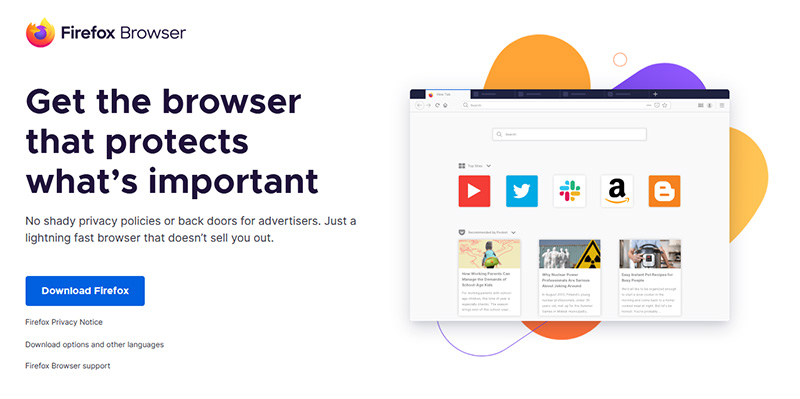
  1. Mozilla firefox.

    firefox browser
    If you consider yourself a power user or you value your privacy then firefox is the browser for you. It is open source and is packed with great features like reporting when your email has been used for a known data breach, it stops annoying pop-up notifications, stops browser fingerprinting, and many more. Firefox is also a cross-platform browser making it a great choice if you want to transfer and use your data across multiple devices with one account. The downside of firefox however is its speed, this browser is the slowest on this list, I guess features and advantages took their tool in the speed department, but if that is not a concern for you and you feel like the positives outweigh some slower speed, grab it here.
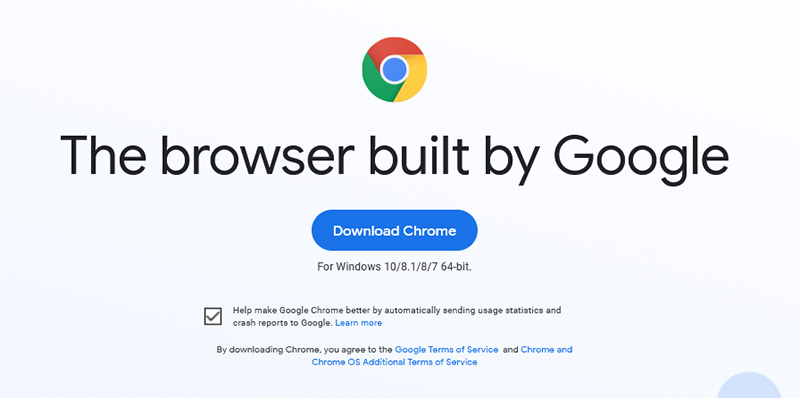
  2. Google Chrome

    chrome browser
    Chrome browser has been a game-changer when it was released and even today some of its features are still great and needed. It is packed with some great features like tab freezing, for example, it is cross-platform meaning that also as firefox you can change data between browsers on different devices. it is a very expandable browser with tons of extensions and its speed performance is very very good. The downside of Chrome are two things sadly, one of them is its hunger for RAM, the browser takes a big chunk of RAM once it is active and on some older computer with limited RAM it performs slowly, another is telemetry which its sending, in other words, other browsers don’t come with the lingering fear that Google’s just a little bit too involved in all of our lives. But if downsides do not trouble you and you have a decent amount of RAM in your system chrome might be the best solution for you, grab it here and check it out.

  3. Microsoft Edge

    edge browser
    Or should I say Microsoft edge 2.0 since this new Edge is completely recoded and rethought, a completely new browser based on chromium. The first version of the edge was an inhouse attempt from Microsoft and it was a disaster, I guess the lesson was learned, and this new edge we have today is a great Browser, it is lightning fast and packed with some great features with one among them standing out I just love, that is the ability to save web pages as applications and truth to be told you have to try this in order to see al great advantages it offers. A very interesting feature is that edge itself wins the speed race from all of the 5 contestants here which is a great surprise. Of course, the downside of annoying Microsoft pushing it to be your default is, well it's Microsoft, as chrome is tied to Google so is edge tied to Microsoft, and the same dreaded feeling that big MS is watching you. If however, you do not concern yourself with these kinds of things, since it is already part of Windows 10, give it a spin and try it, I am sure you will at least love its blazing speed.
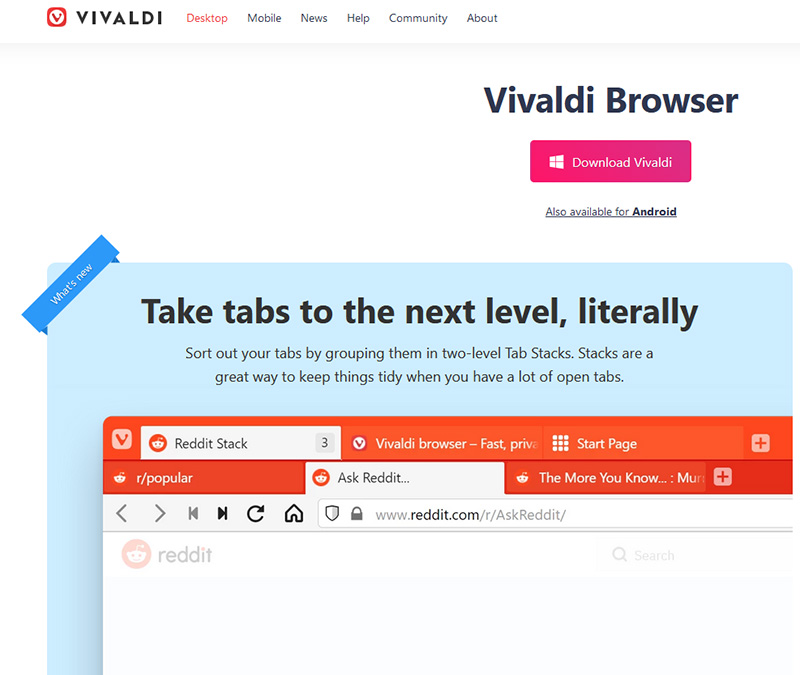
  4. Vivaldi

    vivaldi browser
    A new kid on the block, relatively unknown Browser Vivaldi offers some great customizable features no other one on this list offers, a very unique and down to each detail customization option, you can literally tweak each and every aspect of this browser making it best customizable and personal browser ever. How it is also based o chromium, every chrome extension works in it naturally. It is very good in speed and constantly updated and developed. The downside, well if you are anything like me, you could spend ages trying to customize it, ages, it has tons of features, and making it really feel and tick as you want can consume a really lot of time. If this thing does not bother you at all, grab Vivaldi here.

  5. Opera

    opera browser
    Last but not least, we have another relic of the old browser age, the Opera browser. Packed with great security and great in-house features like a built-in VPN, built-in ad blocker, built-in crypto wallet, etc this browser seems like a swiss army knife. Opera is full of features and it shows once you start using it. The downside of opera is that its look and feel are specifically tailored to a certain type of user and not everyone will find that appealing or attractive, add some great but hidden and hard to come by features and it may go unnoticed. However, I think you should really give it a go since it definitely deserves more attention than it gets. Grab it here and check it out.

That's it, 5 great browsers to look up, I hope that you have enjoyed the read and I hope to see you again here for more articles.

If you would like to read more helpful articles and tips about various software and hardware visit errortools.com daily.


Do You Need Help with Your Device?

Our Team of Experts May Help
Troubleshoot.Tech Experts are There for You!
Replace damaged files
Restore performance
Free disk space
Remove Malware
Protects WEB browser
Remove Viruses
Stop PC freezing
GET HELP
Troubleshoot.Tech experts work with all versions of Microsoft Windows including Windows 11, with Android, Mac, and more.

Share this article:

You might also like

Fix Bugcode 0xA – IRQL_NOT_LESS_OR_EQUAL
Interrupts are designed so that the resource requests don’t get into a headlock when it comes to the hardware level. To simply put it, it is used to break a loop that never ends. Aside from that, developers also designed levels in order to prioritize interrupts. It is also known as “Interrupt Request Level” or IRQL. And if you suddenly encounter a “Bugcode 0xA –IRQL_NOT_LESS_OR_EQUAL” error, this means that a driver has accessed a memory location illegally while NT is operating at a specific IRQL. The Bugcode 0xA –IRQL_NOT_LESS_OR_EQUAL is a fatal driver coding error and as an end-user, there isn’t much that you can do to resolve it but if you’re a developer, then this means that your code is trying to access an invalid memory location. You could check on different parameters such as memory location that was referenced and code addressed which referenced memory. The technical parameters are:
  • a memory location that was referenced
  • IRQL at time of reference
  • 0 = read, 1 = write
  • code addressed which referenced memory
As mentioned earlier, if you are an end-user, there is nothing much that you can do to resolve this problem, but worry not for there are still possible solutions that could help you in fixing it. Refer to the suggestions laid out below to fix Bugcode 0xA –IRQL_NOT_LESS_OR_EQUAL error.

Option 1 – Try running the Hardware and Devices Troubleshooter

The first thing you can do to fix the problem is by running the Hardware Troubleshooter. Although it won’t make much of a difference, there’s still a possibility that it could automatically fix the problem. To use it, refer to these steps:
  • The first thing you need to do is click on Start and then on the gear-like icon to pull up the window for Settings.
  • After opening Settings, look for the Update and Security option and select it.
  • From there, go to the Troubleshoot option located on the left-hand side of the list.
  • Next, select Hardware and Devices from the list and open the Troubleshooter and run it. Once it is doing its job, wait for it to complete the process and then restart the system.
  • After the system restarts, check if the problem’s now fixed. If not, refer to the next option given below.

Option 2 – Try to update or rollback your device drivers

If the first option didn’t work for you, then it’s time to either update or roll back the device drivers. It is most likely that after you updated your Windows computer that your driver also needs a refresh. On the other hand, if you have just updated your device drivers then you need to roll back the drivers to their previous versions. Whichever applies to you, refer to the steps below.
  • Open the Devices Manager from the Win X Menu.
  • Then locate the device drivers and right-click on them to open the Properties.
  • After that, switch to the Driver tab and click on the Uninstall Device button.
  • Follow the screen option to completely uninstall it.
  • Finally, restart your computer. It will just reinstall the device drivers automatically.
Note: You can install a dedicated driver on your computer in case you have it or you could also look for it directly from the website of the manufacturer.

Option 3 – Run the Memory Diagnostic Tool to check for Memory leaks

  • Tap the Win + R keys to open Run and type exe and hit Enter to open the Windows Memory Diagnostic Tool.
  • After that, it will give two options such as:
    • Restart now and check for problems (Recommended)
    • Check for problems the next time I start my computer
  • Once your computer has restarted, perform a basic scan or you could also go for the “Advanced” options such as “Test mix” or “Pass count”. Simply tap the F10 key to start the test.
Note: After you select the option, your PC will restart and check for memory-based issues. If it finds any issues, it will automatically fix them and if there’s no issue found, then it’s most likely not a memory-based issue so you should try the other options given below.
Read More
How To Fix Error 0x00000bcb

What is 0x00000bcb PC Windows Error?

The 0x00000bcb is a PC Windows error code that occurs when Windows cannot connect to the printer successfully thus hampering the installation of your system.

Solution

Restoro box imageError Causes

Like any other computer hardware device, printers also need additional software to function called the driver. Unsuccessful installation of driver software leaves behind locked files in the registry information that causes the next installation to fail as well. And so eventually, when you try to connect the printer with your system, you see a 0x00000bcb error message pop up on your screen. To ensure you fix this error code for good you need to make sure the printer software installation is carried successfully the next time you do it. And for that, you need to get rid of the locked files and bad registry keys that are preventing successful printer software installation.

Further Information and Manual Repair

The inability to install the printer support software countless times can be frustrating and cause inconvenience as it can prevent you from getting printouts. To resolve this error code, many people pay hundreds of dollars to technicians. Nonetheless, there is a way to resolve this issue on your PC without hiring a professional or having technical expertise. Wondering how? Restoro is your answer. This is a two in one highly functional system optimizer and registry cleaner PC repair tool. It includes multiple utilities allowing PC users to fix practically all types of PC errors in seconds. To use Restoro, you don’t need to be technically sound. It is simple and very easy to operate. The powerful registry cleaning utility integrated into Restoro enables PC users facing error code 0x00000bcb messages to clean up the registry in no time and ensure quick and successful printer software install. With this helper, you can swiftly clean up unnecessary and locked files and bad registry keys. The advanced registry cleaner scans for all junk files, invalid entries, bad keys, and corrupt files accumulated in your system. Once the files causing the 0x00000bcb error are scanned all you have to do is click on the fix button to repair. It’s that easy! It cleans up the registry, wipes out the clutter, and clears up the disk space in seconds. Once the registry is cleaned, you can then try installing the printer software again. And once the printer software is installed successfully, your system will be able to connect to your printer without displaying 0x00000bcb error messages. In addition to this, you will also experience a great difference in the speed and performance of your PC. Here's how to Install and use Restoro to Fix PC Errors Restoro also includes other utilities like privacy error fixer, Active X and Class detector, and system stability repair. So along with registry issues, you can also scan your system for privacy errors like viruses and malware, thus keeping your PC secure from data breaches and system security issues. This multi-functional tool is worth downloading. It is safe, efficient, useful, and utility load. With this helper, Windows compatibility is not an issue. Restoro is compatible with all PC Windows versions. So, no matter what Windows version you are using, you can run this repair tool with ease. So, what are you waiting for? Download it now to resolve the 0x00000bcb error code and ensure a successful printer connected to your computer. Click here to install Restoro on your system.
Read More
A Guide to Fixing 0x80042109 Error Code

0x80042109 - What is it?

0x80042109 is a Microsoft Outlook error. The 0x80042109 error code occurs mostly while sending emails. The error message is often displayed in the following format:

“Sending reported error (0×80042109): Outlook cannot connect to your outgoing (SMTP) e-mail server.”

Solution

Restoro box imageError Causes

It is not easy to narrow down the cause for the error code 0x80042109. This error can occur due to many reasons. This includes:
  • Corrupt emails and PST files
  • Incorrect Outlook account settings
  • Unavailability of the mail server
  • Incomplete Outlook installation
  • Spyware or viral infection

Further Information and Manual Repair

To resolve the 0x80042109 error code on your PC, here are some easy and effective DIY solutions you can try:

Method 1 - Check Mail Settings

Check your mail settings to see if your outgoing server SMTP is selected or not. If it is not, then it could be the reason for the issue. To check mail settings and select the option, here’s what you need to do:
  1. Click Tools, select Account Settings, and then POP 3 account and click change.
  2. Now check your name field and email address.
  3. Check the incoming and outgoing mail server fields and make sure that it is correct.
  4. Now click on the outgoing server and make sure that the option ‘My Outgoing Server (SMTP) requires Authentication is selected.
  5. After that, click Advanced and tick the option that says ‘This server requires an encrypted connection (SSL).
  6. Now click OK to confirm settings.

Method 2 - Reinstall Outlook on your PC

The error may also occur due to incorrect Outlook installation. Therefore reinstall it on your PC. To do this first you will have to uninstall the software and then re-install it. Once the software is reinstalled try sending the email again. If it is sent successfully, then this means the error is related to incomplete installation. However, if the error still persists then it is advisable to restore the points by going to the System Restore option and choosing the option ‘Restore My Computer to an Earlier Time’ point. This will revert the changes.

Method 3 - Try Disabling Firewall

If you have firewall program installed on your PC, then try disabling it and then send an email through your Outlook account.

Method 4 - Scan for Viruses

Another way to resolve the error code is to scan for viruses. Viral infection and spyware and also affect your Outlook account and activities. However, installing an antivirus on your PC may slow down its performance as such programs are notorious for doing that. Therefore, it is advisable to download Restoro. Restoro is a next generation and a highly advanced PC Fixer embedded with powerful and multiple utilities including an antivirus and a system optimizer. Its intuitive algorithm enables it to scan your entire PC and remove all kinds of malicious software affecting your system including malware, adware, spyware, viruses and Trojans. The system optimizer utility works simultaneously and ensures your PC performs at its optimum speed. It is safe, bug-free, and efficient. It has a user-friendly interface which makes it simple and very easy to operate. You can download it on all Windows versions. Click here to download Restoro to resolve error 0x80042109 today!
Read More
Software review series:CodeTwo QR Code Desktop

What is a QR Code

QR code or if you want to be more technical Quick Response code is a two-dimensional code made of square dots creating a pattern that can be scanned via QR scanner and then interpreted. Usually, they are present on product packaging, on business cards, websites, etc. When you decode a QR code you can get a link to a website or link to a file or whatever, you can get text, image, email, contact information, etc.

QR Code Desktop Reader & Generator sample code

How to decode a QR Code? You can scan it with your mobile devices like iPhone, iPad, Android or Blackberry equipped with additional software for scanning QR Codes. You might want to check out tools like Barcode Scanner or Red Laser. If you don’t have a mobile device or you need to scan a barcode on your PC, simply use CodeTwo QR Code Desktop Reader & Generator.

How this program works

QR Code reading

CodeTwo QR Code Desktop Reader & Generator is a free tool that will let you quickly scan any QR Code from your screen – be it a part of the website, email, banner, or document. Simply run the program and hit From the screen on the top menu. Your standard mouse cursor will change into a cross to help you make a selection on your screen. Simply select an area with a QR Code and the program will automatically scan it. You can scan QR codes from websites, documents, movie files – you name it. You can also select an image file that contains a QR Code and the program will locate it automatically and decode it. To do that, simply click From file on the top menu of the program and select the desired image from your hard drive. If you have a file copied to your clipboard, or if you make a screenshot of a QR Code, QR Code Desktop Reader & Generator will let you decode those QR codes in one click. Just click From clipboard and the program will automatically locate and decode the QR code for you. That is not all, you can also use your camera to scan QR codes. If you have more than one camera, the program will let you choose which one to use. To use this option, simply click From webcam, and you will be able to scan QR codes with your recording device.

QR Code generation

  • CodeTwo QR Code Desktop Reader & Generator also acts as a QR code generator. Creating QR codes is as easy as reading them. Here is how to generate a QR code:
  • In the top menu, click Generate mode on and enter the text you want to translate into QR Code
  • Choose if you want to copy it to the clipboard or save it in a file. The QR Code will be scaled automatically, but you can resize it in the Size settings tab.
  • The resulting QR code can be used however you like. To name just a few options, you can:
  • Upload it to your blog/website which is especially useful for mobile users.
  • Print it on a poster, providing easily accessible links with more information on your event.
  • Send it in newsletters, or include it in your email signature.

QR Codes in email signatures

Inserting QR codes in email signatures lets mobile users quickly grab your contact details, or provides them with links so that they can get more information on your company or topic you were discussing. You can also provide your recipients with a link to QR Code Desktop Reader & Generator. This will help them easily decode QR codes when they open your email on a PC.

QR code

If you want to include a QR code automatically in email signatures throughout a whole organization, try CodeTwo central email signature management solution. It is a very useful tool, which enables you to unify email signatures on Exchange Server and Office 365 (Microsoft 365).
Read More
Malware Guide: How to Remove WidgiToolbar

What is WidgiToolbar?

The WidgiToolbar is an unscrupulous application designed to advertise other applications as a part of a bundle, steal financial information and penetrate the security of a computer system, making it open to other threats. In most cases, WidgiToolbar claims to center its installs on toolbars but that’s not always the case. Technical details about WidgiToolbar Malware include:
Digital Publisher: GreenTree Applications srl Product Version: YTD Video Downloader 4.8.9.7 Original File Name: YTDStub.exe Entry Point:  0x0000323C

Assessment of WidgiToolbar

Created by GreenTree Applications/ Spigot Inc., the WidgiToolbar is a list of nested toolbars. This application was in fact a bundle, installing several other applications upon installation. For this installation, WidgiToolbar installed only the YouTube Downloader toolbar and several other applications. Thereafter, the application appeared pretty harmless but is intended on distributing advertisements over the user’s computer, often without the user’s discretion. It’s all in the ads. Additionally, based on evaluations made by Security Analysts, the WidgiToolbar application is used for extracting personal and financial information from a user’s computer system. Financial information encapsulates banking and credit card details. Your passwords and other highly confidential information might be detected by the WidgiToolbar application if care is not taken. Overall, the WidgiToolbar installs and collects information from your computer system without your knowledge and permission. Furthermore, WidgiToolbar leaves a computer system vulnerable and susceptible to other threats and malware. The application is known for opening a portal or door into your computer system. This implies that other software can be installed on your computer via this avenue, once again without your knowledge. Responsible for wreaking havoc on your computer, it’s then pertinent that you remove it altogether. Manually removing the WidgiToolbar is not an option. Why? A manual removal procedure will not be able to remove the software in its entirety. An automated tool is the best option. Like all other programs offered as a bundle, several other programs were installed. These include:
  1. MS Build
  2. Reference Assemblies
  3. PRO PC Cleaner
Soon after the installation of WidgiToolbar was completed, there were a total of four (4) new applications installed on the computer. These were all found in the computer's Local Drive. After WidgiToolbar was installed, the application attempted to change the default search provider to search.yahoo.com. This was a clear indication that this was a promotion to get more Internet users to use the Yahoo search engine.

Why Use Spyhunter to Remove WidgiToolbar?

As a result of its nature, the WidgiToolbar is difficult to remove. You might be able to remove other programs that were manually installed within the bundle, but to remove WidgiToolbar completely; an automated tool is a necessity. This is to ensure that specific registry keys installed by WidgiToolbar are found and removed. To completely remove WidgiToolbar from your computer, click here to download and install Spyhunter. After a scan was done with Spyhunter, there were 330 threats detected. Spyhunter was able to remove all 330 threats with ease and success.
Read More
Keyboard shortcuts and hotkeys are not working
This post will guide you on what to do if your keyboard shortcuts or hotkeys are not working on your Windows 10 computer. A lot of users use hotkeys as they make things easier for them as they use their computer. However, there are instances when these hotkeys suddenly stop working. It’s actually one of the most common problems with keyboards. And so to resolve this problem, you can try out some suggestions prepared on this post.

Option 1 – Clean the keyboard keys physically

Your keyboard might not be working properly due to some dirt or other corrosion. First, you need to shut down your computer and then unplug the keyboard if you are using a desktop computer and then prepare it for cleaning. After that, use a small cotton ear cleaning tool to get between the creases and clean them. You can dip it slightly in alcohol to make it more efficient in cleaning dust and dirt. And if you can, you have the option to pull apart the keyboard completely and then wipe away all the corrosion from the inside. Once you’re done, put the keyboard back together and then plug it back into your PC. Now turn your PC on and check if the hotkeys are now working.

Option 2 – Try running the Hardware and Devices Troubleshooter

The first thing you can do to fix the problem is by running the Hardware Troubleshooter. Although it won’t make much of a difference, there’s still a possibility that it could automatically fix the problem with these function keys. To use it, refer to these steps:
  • The first thing you need to do is click on Start and then on the gear-like icon to pull up the window for Settings.
  • After opening Settings, look for the Update and Security option and select it.
  • From there, go to the Troubleshoot option located on the left-hand side of the list.
  • Next, select Hardware and Devices from the list and open the Troubleshooter and run it. Once it is doing its job, wait for it to complete the process and then restart the system.
  • After the system restarts, check if the problem’s now fixed. If not, refer to the next option given below.

Option 3 – Try connecting the keyboard to a different USB port

The problem might have something to do with the USB port that’s currently in use by your keyboard. It could be that it’s not working so it makes sense to unplug it and attach it to another USB port. You can also clean the USB port on both ends to ensure that they are not affected by corrosion.

Option 4 – Uninstall previously installed keyboard software

If you have been previously using another keyboard, it might be better if you make sure that the software for the old device has been removed since there are instances when multiple software can cause problems due to similarities in actions.

Option 5 – Update the keyboard driver

You can also update the keyboard driver to fix the problem. There are cases when an outdated or corrupted driver can fix the problem. To do so, follow the steps below.
  • Tap the Win + R keys to open the Run dialog box.
  • Then type “devmgmt.msc” in the field and hit Enter to open the Device Manager.
  • From there, look for the keyboard driver and click on it.
  • Next, right-click on the keyboard driver and select the Update driver option.
  • After that, click the “Search automatically for updated driver software” option to proceed.

Option 6 – Reinstall the keyboard driver

If updating the keyboard driver didn’t help, then you might want to reinstall it. How? Follow the steps below.
  • Tap the Win + R keys to launch Run.
  • Type in MSC into the box and tap Enter or click OK to open the Device Manager.
  • After that, a list of device drivers will be displayed. Look for keyboard driver, right-click on it and then select “Uninstall device”.
  • After that, unplug the device and restart your PC.
  • Then plug your device back in. Assuming your device is connected to your PC, open the Device Manager again.
  • Next, click on the Action button and click the Scan for hardware changes button. That should fix the problem.
Note: You could also completely uninstall the driver and go directly to the manufacturer’s website and download the latest driver for your hardware and then install it.

Option 7 – Enable Human Interface Device (HID) Service

Another thing to consider is the Human Interface Device Service. If this service is disabled, then no wonder why your hotkeys are not working. Thus, you need to enable this service. Refer to the following steps to do that:
  • Tap the Win + R key to launch the Run dialog box.
  • Then type “services.msc” in the field and hit Enter to open Services.
  • After opening Services, scroll down until you see the Human Interface Device service.
  • Double click on HID and make sure that its Startup Type is set to “Automatic” and then click OK.
  • Restart your PC and check if the hotkeys are now working or not.

Option 8 – Try resetting the keyboard

You might also want to try resetting the keyboard as it can also help in fixing the problem. Setting it back to its default state will surely help.
Read More
Fix Error 0x8024a11a or 0x8024a112
What is Error 0x8024a11a or 0x8024a112 ? If you are trying to update your Windows 10 computer and just when you were done downloading the feature update and about to install it, you encounter an error message saying:
“We’re having trouble restarting to finish the install, Error 0x8024a11a, 0x8024a112, 0x80070005 or 0x80070032”
And so to fix this problem, this post will give you a couple of possible solutions. Refer to the options given below to get started.

Option 1 – Restart your computer many times

This is the first thing you can try since there are instances when the Windows Update process gets stuck for a minor thing and restarting the computer usually helps in resolving the issue. All you have to do is click the Restart now button. However, if it does not work, you can use the Power buttons from the Start Menu or WinX Menu. Aside from that, you can also use your power buttons such as Alt + Ctrl + Del to restart your computer. And during the boot process, it is recommended that you restart your computer in Safe Mode or even in a Clean Boot State. After that, you can restart your computer in normal mode. This will make sure that no third-party processes will be able to interfere with the Windows Update process. To put your PC in a Clean Boot State, here’s what you have to do:
  • Log onto your PC as an administrator.
  • Type in MSConfig in the Start Search to open the System Configuration utility.
  • From there, go to the General tab and click “Selective startup”.
  • Clear the “Load Startup items” check box and make sure that the “Load System Services” and “Use Original boot configuration” options are checked.
  • Next, click the Services tab and select the “Hide All Microsoft Services” check box.
  • Click Disable all.
  • Click on Apply/OK and restart your PC. (This will put your PC into a Clean Boot State. And configure Windows to use the usual startup, just simply undo the changes.)
  • After that, try to install the Windows Updates or upgrade again.

Option 2 – Try running the Windows Module Installer

The Windows Module Installer is a built-in service in the Windows operating system that could help you resolve the Windows update error 0x8024a11a or 0x8024a112. You need to make sure that this service is Started and that its Startup type is set to Automatic – you can do this via Services Manager or by executing the command given below in an elevated Command Prompt.
  • Tap the Win + R keys to open the Run dialog box.
  • Then type “command prompt” in the field and hit Enter to open Command Prompt.
  • And in the elevated Command Prompt type in the following command and hit Enter:
SC config trustedinstaller start=auto
  • After executing the command successfully, you should see the “[SC] ChangeServiceConfig SUCCESS” message on the Command Prompt window.

Option 3 – Run the DISM tool

You can also run the DISM Tool as it helps in repairing the Windows System Image as well as the Windows Component Store in Windows 10. Using this built-in tool, you have various options such as the “/ScanHealth”, “/CheckHealth”, and “/RestoreHealth” which could help in fixing the Windows update error 0x8024a11a or 0x8024a112.
  • Open the Command Prompt with admin privileges.
  • Then type in the following commands and make sure to hit Enter right after you type each one of them:
    • Dism /Online /Cleanup-Image /CheckHealth
    • Dism /Online /Cleanup-Image /ScanHealth
    • exe /Online /Cleanup-image /Restorehealth
  • Do not close the window if the process takes a while as it will probably take a few minutes to finish.

Option 4 – Run the System File Checker

System File Checker or SFC is a built-in command utility that helps in restoring corrupted files as well as missing files. It replaces bad and corrupted system files to good system files that might be the cause why you’re getting the errors 0x8024a11a and 0x8024a112. To run the SFC command, follow the steps given below.
  • Tap Win + R to launch Run.
  • Type in cmd in the field and tap Enter.
  • After opening Command Prompt, type in sfc /scannow
The command will start a system scan which will take a few whiles before it finishes. Once it’s done, you could get the following results:
  1. Windows Resource Protection did not find any integrity violations.
  2. Windows Resource Protection found corrupt files and successfully repaired them.
  3. Windows Resource Protection found corrupt files but was unable to fix some of them.

Option 5 – Run the Windows Update Troubleshooter

Running the built-in Windows Update troubleshooter could also help you resolve the Windows update error 0xca00a000. To run it, go to Settings and then select Troubleshoot from the options. From there, click on Windows Update and then click the “Run the troubleshooter” button. After that, follow the next on-screen instructions and you should be good to go.

Option 6 – Run Microsoft’s online troubleshooter

Running Microsoft’s online troubleshooter might also help you fix the Windows update error 0x8024a11a or 0x8024a112. This online troubleshooter is known to help in fixing Windows Update errors, it scans your computer for issues that might be causing the problem and then fixes them automatically.
Read More
Chrome automatically opens a new tab
Recently, a number of users reported that their Google Chrome browsers keep on opening new tabs no matter what they do. This issue could be due to lots of reasons but the main ones are corrupt installation, background applications, adware, dubious browser extensions, malware, and so on. Although there are a lot of possible causes for this particular issue in Chrome, its potential fixes are straightforward so you should not have any problem following the given options below.

Option 1 – Get rid of any conflicting browser extensions

As mentioned, shady browser extensions can cause unusual behavior in a browser. Chances are, these extensions or toolbars might be conflicting with the loading of the website. Thus, you have to get rid of these unwanted extensions and toolbars to fix the issue.
  • Open Chrome and press Alt + F keys.
  • Go to More tools and click Extensions to look for any suspicious browser extensions or toolbars.
  • Click the Recycle bin and select Remove.
  • Restart Chrome and press Alt + F keys again.
  • Proceed to On Startup and mark Open a specific page or set of pages.
  • To check if the browser hijacker is still active, click Set pages, if it is active, overwrite the URL.

Option 2 – Try to disable applications from running in the background

  • Open Google Chrome and then click on the menu button located in the top-right corner.
  • From the drop-down, select Settings and then scroll down until you see the Advanced button. Click on it.
  • Next, turn off the toggle for “Continue running background apps when Google Chrome is closed” under the System section.
  • Now restart Chrome and check if it is working properly.

Option 3 – Try to configure the search settings of Chrome

  • Open Google Chrome and type any search query in the address bar and then tap Enter.
  • After that, it will open the Google search engine. From the top-right corner, click the Settings button.
  • Next, select Search settings from the drop-down menu.
  • Then scroll down to the new page that appears and make sure that the “Open New Window for each result” option is set to Uncheck.
  • Once you’re done, save the changes made and restart Google Chrome.

Option 4 – Reset Chrome

Resetting Chrome can also help you fix the error. This means that you will be restoring its default settings, disabling all the extensions, add-ons and themes. Aside from that, the content settings will be reset as well and the cookies, cache, and site data will also be deleted. To reset Chrome, here’s what you have to do:
  • Open Google Chrome, then tap the Alt + F keys.
  • After that, click on Settings.
  • Next, scroll down until you see the Advanced option, once you see it, click on it.
  • After clicking the Advanced option, go to the “Restore and clean up option and click on the “Restore settings to their original defaults” option to reset Google Chrome.
  • Now restart Google Chrome.

Option 5 – Try to clean reinstall Chrome

There are instances when programs leave files behind after you’ve uninstalled them and the same thing can happen to Chrome so before you reinstall Chrome, you have to make sure that you have deleted the User Data folder. To do so, refer to the following steps:
  • Hit the Win + R keys to open the Run dialog box.
  • Next, type “%LOCALAPPDATA%GoogleChromeUser Data” in the field and hit Enter to open the User Data folder.
  • From there, rename the default folder and name it something else, e.g. “Default.old”.
  • After that, install Google Chrome again and check if the issue is now fixed.

Option 6 – Try scanning your computer using Windows Defender

As mentioned, the error when accessing the security settings or properties of a folder or file might be due to a virus or malware. It could be that it had made some modifications that prevents you from accessing security settings or properties. To eliminate it, you have to scan your computer using security programs like Windows Defender.
  • Tap the Win + I keys to open Update & Security.
  • Then click on the Windows Security option and open Windows Defender Security Center.
  • Next, click on Virus & threat protection > Run a new advanced scan.
  • Now make sure that Full Scan is selected from the menu and then click the Scan Now button to get started.
Read More
A Quick Guide to Fixing Files.exe Error

Files.exe Error - What is it?

To understand what Files.exe Error code is, it is first important for you to know what EXE stands for, and EXE files function. EXE is the abbreviation for Executable. It is a file extension for an executable file format. This file contains a program that is a particular file type capable of being executed or run as a program. The Windows Operating System contains literally thousands of executable files. Every program that you have installed on your PC runs because the .exe application files execute the tasks. Files.exe are also used by websites that are not entirely static to display properly. There are thousands and thousands of exe files on your PC that are supported by millions of Dynamic Link Library (DLL) files. It is advisable to run executable files from publishers you trust because these files can potentially change your computer settings and harm your PC. The files Exe error code occurs when you are unable to open and run executable files. The error message is often displayed in either of the following formats:
  • ‘Access Deny’, ‘Runtime error ‘
  • Windows cannot find FileName.exe
  • Windows cannot find FileName.exe. This program is needed for opening files of type "ProgramName".
  • Windows cannot find ProgramName. Make sure you typed the name correctly

Solution

Restoro box imageError Causes

The files Exe error code can be triggered due to multiple causes:
  • Corrupt registry
  • Viral infection- This changes the default configuration for running exe files
  • Missing files
  • Invalid registry entries
If this error occurs on your PC, it is advisable to fix it immediately to ensure your desired programs run smoothly. Also, if not fixed timely it can lead to serious PC damages like system failure, registry corruption and also put you at risk of privacy errors if the cause of this error is viral infection and spyware.

Further Information and Manual Repair

To resolve the files.exe error on your PC, try the solutions given below:

Clean and Restore the Registry Manually

If the files.exe error occurs on your system due to registry corruption, then to resolve it you need to clean it and restore it back. You can do this manually and automatically. The manual way is slightly time-consuming and tricky. If you are not a computer programmer and don’t have sound technical expertise, then you may find the manual procedure of cleaning the registry complex. However, we’ll be discussing both methods one by one. The registry is the main database of the PC. It saves all the files on your system including both important and unnecessary files and obsolete files like bad keys, invalid registry entries, temporary files, cookies, internet history, and junk files. It is important to delete these files from the registry because they take up a lot of disk space and also damage and corrupt the registry. And when this happens, you start experiencing file.exe errors. To clean and repair the registry manually, here’s what you should do:- First, go to the start menu and then click run.
  • Now type ‘command.com’ and press enter.
  • After this, type the following commands: “cd” press enter then “cd windows” press enter.
  • Type copy ‘regedit.exe regedit.com” and press enter again.
  • After that type ‘start regedit.com” and press enter. Now navigate to and select the key: HKEY_CLASSES_ROOTexefileshellopencommand.
  • Once you select the key, in the right pane double click the default value.
  • Delete the current value data and simply insert “%1”%*.
  • Close the Regedit (registry editor) utility. Now try running your desired program; it is most likely to resolve the error if it occurred due to registry corruption.

Clean & Restore Registry Automatically with Restoro

To clean and restore the registry automatically in seconds, run a deep Registry system scan using Restoro. This is a powerful registry cleaner deployed with intuitive algorithms that scan for all types of registry issues on the system. It wipes out all the unnecessary files in seconds, clearing up the cluttered disk, and also simultaneously repairs and restores the registry. In just a few simple clicks the error is resolved.

Run an Antivirus

If the files.exe error code is triggered by viral infection and spyware, then to resolve it install and run an antivirus. However, once you install an antivirus, your PC speed may slow down dramatically. This is often compromise users have to make to keep viral infection and malware away from their systems. But you don’t have to make this compromise if you download Restoro. This tool is more than just a powerful registry cleaner. It is embedded with multiple utilities that help remove practically all types of PC-related issues. These utilities include antivirus and a system optimizer. The antivirus utility scans and removes all malicious software on your system and while the system optimizer module boosts your system’s speed. Total System Care is safe, multi-functional, and efficient software. It is compatible with all Windows versions. To resolve files.exe error on your PC, click here to download Restoro NOW!
Read More
Windows 11 was released in beta for all
windows 11 betaMicrosoft has released Windows 11 as a public beta release for all the people that are not willing to be in the insider program. Beta release as of this moment is identical to Insider Preview build 22000.100. and updates will not roll so fast as in insider preview and it is marked as unstable release, same as insider build. I would not install Windows 11 beta on the main PC since some drivers still have issues and may lead to some blue screens. Be aware that the beta build will have all Windows 11 system requirements including TPM 2.0. This is a big difference from insider build which can be installed on systems lacking official requirements. So basically if you have a spare PC that could run Windows 11 install it so you can see what it brings and feel it so you can make a decision will upgrade once it is released later this year.
Read More
1 2 3 171
Logo
Copyright © 2023, ErrorTools. All Rights Reserved
Trademark: Microsoft Windows logos are registered trademarks of Microsoft. Disclaimer: ErrorTools.com is not affiliated with Microsoft, nor claims direct affiliation.
The information on this page is provided for information purposes only.
DMCA.com Protection Status