Logo

Windows 10 exploit using App installer

Scammers have decided to target Windows’s 10 App installer process in order to infect your computer and steal your data.

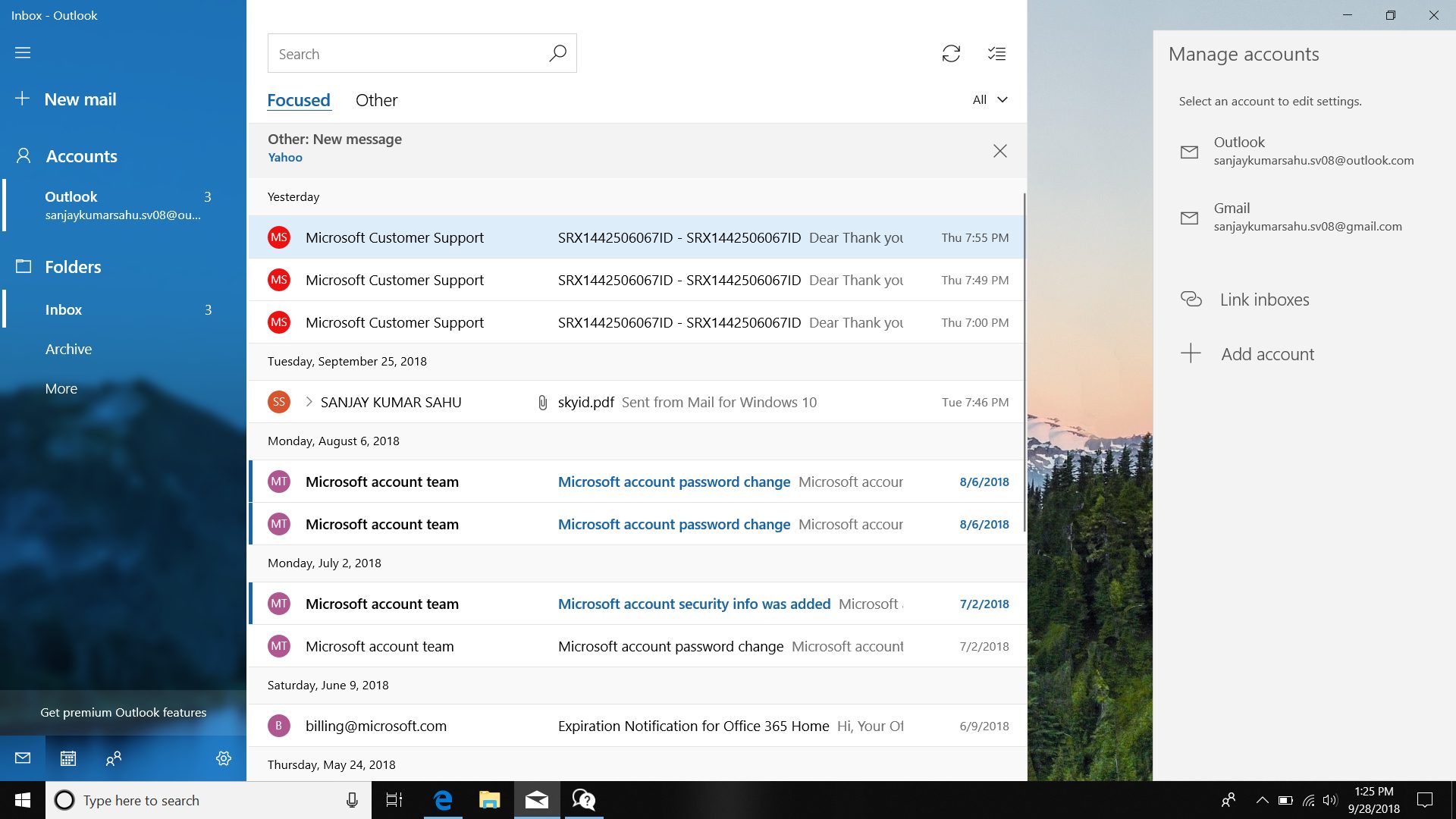
windows 10 mail exploitAs in most usual online scams, everything starts with a strange email containing threats and other poorly written and composed speech. At the end of the given email, there would be a link claiming that you, of course, need to read it and follow instructions about the threat, if you click the link it will open a web page where you will have an innocent-looking PDF file with more information about the threat itself.

If you click on a seemingly innocent PDF file it will summon Windows 10's AppInstaller.exe tool, kickstarting a download-and-run process that'll put you in a bad place very quickly. From there, you'll have to deal with the dangers of malware BazarBackdoor, including data and credential theft.

This kind of scam is nothing new but the interesting thing here is that it uses App installer and by clicking on a link you are opening and giving permission for a malicious crook to use it. So, stay safe and do not click on any links from unknown emails no matter what.

Do You Need Help with Your Device?

Our Team of Experts May Help
Troubleshoot.Tech Experts are There for You!
Replace damaged files
Restore performance
Free disk space
Remove Malware
Protects WEB browser
Remove Viruses
Stop PC freezing
GET HELP
Troubleshoot.Tech experts work with all versions of Microsoft Windows including Windows 11, with Android, Mac, and more.

Share this article:

You might also like

Error Code 0xc00000e9
If Error Code 0xc00000e9 appears on your screen, there is no cause to panic yet as there are different ways to fix this. Here, I will list down different methods to get your computer back on track:
  1. Check peripheral connections
  2. Check your SATA cables
  3. Check your hard drive
  4. Check your BIOS settings

Quick Fix 1. Check Peripheral Connections

  1. Turn off your computer.
  2. After the computer has been shut down, take off all the peripherals or the USB cables that are connected to your USB ports. This includes even the keyboard and the mouse. We just need to have only the monitor plugged in for this one.
  3. Turn on your computer and see if it starts as it normally does.
  4. If it does, try connecting back your external devices or peripherals one by one until you find the one that causes the error.
  5. Once you trace the device that’s causing the error, you will have to change its USB cable and update its driver to support your operating system.

Quick Fix 2. Check your SATA cables

It is possible that what causes a barrier between your operating system and your hard drive from communicating is the SATA cable used. For example, if you’re using an older SATA with a SATA III port, there might not be adequate support for the transfer of data from one another. Or, the problem might be a loose SATA cable which would still require you to buy a new one to replace your loose or damaged cable. To check if your SATA cables are causing the error, simply follow these steps:
  1. Turn off your computer.
  2. Carefully open its case.
  3. Check the hard drive and the SATA port where it’s connected.
  4. Try to use a newer cable and connect it to your SATA port. (If you used a SATA II cable, you can see if a SATA III cable is more compatible.)
  5. Replace your SATA cable with a newer one if Step 4 proves to be successful.

Quick Fix 3. Check your hard drive.

  1. Try to use a different hard drive and see if error code 0xc00000e9 still appears.
  2. If it works out just fine, then the problem might be physical damage to your hard drive and would need to be repaired depending on the case. Just simply take it to a technician and let him know about the issue.

Quick Fix 4. Check your BIOS settings

  1. Restart your computer.
  2. Once your computer starts, press and hold the ESC, F2, F12, or DEL key to go to BIOS settings.
  3. You will then be redirected to the BIOS Setup Utility screen. From here, go to Boot options.
  4. In the Boot Options, see if your first boot device is your hard drive. If it isn’t, press the arrow key to select the hard drive and move it to the top of the boot device list.
  5. Save the settings.
  6. Reboot your computer.
Note: If all the methods above do not work, the problem might be on your drivers and you might need to update them. You can update your driver in two ways: Manual driver update and Automatic driver update. You can find procedures online in updating your drivers.
Read More
Fix Update Error 0x800705B3 in Windows
Some Windows users are encountering the 0x800705b3 error code after failing to install a pending update on Windows 10. Most commonly this particular issue is reported to occur with Integrated webcam drivers updates and Bluetooth adapter driver updates. Follow the guide below in order to fix the issue and update your Windows successfully

Running the Windows Update Troubleshooter

The majority of users that were dealing with this issue reported that the issue was fixed after they ran the Windows Update Troubleshooter and applied the recommended fix.
  1. Open a Run dialog box by pressing ⊞ WINDOWS + R. Inside the text box, type ‘ms-settings:troubleshoot’ and press ENTER to open up the Troubleshooting menu. Opening the Troubleshooting tab on Windows 10
  2. Once you’re inside the Troubleshooting tab, move over to the right-hand section of the screen and click on Windows Update (under Get up and Running). Next, from the context menu that just appeared, click on Run the Troubleshooter.
  3. Once you’re inside the Windows Update troubleshooter, wait until the initial scan is complete and see if a viable repair strategy is found.
  4. If the scan has identified a strategy with the potential to fix your ongoing issue, click on Apply this fix and wait until the procedure is complete. Applying the fix Note: Depending on the type of fix that was recommended, you might need to follow an additional set of instructions before the fix will be properly imposed.
  5. After you’ve done this, reboot your computer and wait for the next startup to complete.
  6. Open Windows Update once again and see if the installation of this pending update is now successful.

Installing the pending Update Manually

Whether you’re experiencing this issue with an integrated webcam driver or with anything else, chances are you’ll be able to circumvent the apparition of the 0x800705b3 error by using the Microsoft Update Catalog to find, download and install the pending update manually.
  1. Open your default browser and navigate to the root web page of the Microsoft Update Catalog.
  2. Once you’re inside the Microsoft Update Catalog, use the search function (top-right corner of the screen) to search for the update that is failing.
  3. After the search is completed and you get the list of results, look for an updated driver version that is compatible with your Windows version and CPU architecture.
  4. Once you manage to identify the correct Windows Update, click on the hyperlink associated with the update that you want to install, then click the Download button and wait for the process to complete.
  5. After the download is complete, use File Explorer to navigate to the location where you previously downloaded the update.
  6. When you get to the correct location, right-click on the .inf file and choose Install from the context menu that just appeared. Note: If you have multiple failing updates with the same 0x800705b3, repeat the instructions above with every Windows Update that you’re having trouble installing.
  7. At the end of this operation, reboot your computer and see if the problem is fixed at the next computer startup.

Enabling the Windows Installer Service

The Windows installer service is responsible for installing pending updates that get downloaded by the Windows Update component. If this service is disabled on your configuration, none of the updates waiting to get installed will get completed.
  1. Press ⊞ WINDOWS + R to open up a Run dialog box. Inside the text box, type ‘services.msc’ and press ENTER to open up the Services utility.
  2. Once you’re inside the Services screen, move over to the right-hand tab of the screen, scroll down through the list of services and locate the Windows Installer service. When you find it, right-click on it and choose Properties from the context menu that just appeared.
  3. Once you are inside the Properties screen of the Windows Installer services, access the General tab, click on the Start button to force-start the service. Note: If you can, also change the Startup type to Automatic via the associated drop-down menu. However, depending on your administrator settings, this might not be possible.
  4. Restart your computer and wait for the next startup to complete. Once your PC boots back up, attempt to reinstall the driver that was previously triggering the 0x800705b3 error and see if the issue is now fixed.

Performing a Winsock Reset

In case the 0x800705b3 error is related to some kind of network inconsistency (TCP or IP related), you might see Windows Updates failing due to bad data that forces the Windows to abort the installation of new pending updates. In this case, you should proceed by doing a complete Winsock reset procedure to fix the majority of the socket and temporary data-related issues that might cause this behavior. Several affected users have confirmed that this method was the only thing that allowed them to finally fix the Windows Update issue and install pending updates normally. Here are some step-by-step instructions that will walk you through the process of performing Winsock Reset:
  1. Open up a Run dialog box by pressing ⊞ WINDOWS + R. Inside the text box, type ‘cmd’, then press CTRL + SHIFT + ENTER to open up an elevated Command Prompt. Accessing an elevated CMD prompt Note: When prompted by the UAC (User Account Control) prompt, click Yes to grant admin access.
  2. Inside the elevated CMD prompt, type and taste the following commands in order and press ENTER after each one to effectively reset the TCP and IP data that might be responsible for the apparition of the 0x800705b3 error code:
    nbtstat -R
    nbtstat -RR
    netsh int reset all
    netsh int ip reset
    netsh winsock reset
  3. Once every command above is processed successfully, you can go ahead and close the elevated Command Prompt and reboot your computer.
  4. After the next startup is complete, repeat the installation of the Windows Update that was previously failing and see if the issue is now fixed.

Performing SFC and DISM Scans

If none of the ‘superficial’ causes have worked in your case, you should start considering some type of system corruption that might affect your computer’s ability to complete pending updates that are currently waiting to be installed. In case you find yourself in this particular scenario, you should run a couple of built-in utilities capable of fixing corrupted instances that might be currently affecting the Windows Update component. Our recommendation is to start with a simple System File Checker scan. An SFC scan will cross-check every Windows File against a local archive that maintains healthy copies. In case corrupted instances are found, this utility will swap the corrupted instance with the healthy equivalent.

Performing an SFC scan

Once the SFC scan is complete, reboot your computer and wait for the next startup to complete. After your computer boots back up, initiate a DISM scan. This utility works differently in the sense that it relies on a sub-component of Windows Update to download healthy copies for the corrupted Windows files that need to be replaced. Because of this, it’s important to make sure that you have a reliable Internet connection before initiating this operation.

Doing a DISM scan

After the DISM scan is complete, reboot your computer one final time and see if the issue is fixed once the next startup is complete.

Read More
Fix Windows Update error 0xc1900130
If you suddenly encountered Error Code 0xc1900130 while trying to update your Windows 10 computer, read on for this post will help you fix the problem. This kind of Windows Update error may occur when the network connection between the Windows Update server and the client machine is interrupted and the install can’t continue since the instance hash was not found. In such cases, you will see the following error message in Settings:
“Failed install attempt – 0xc1900130”
Here are the technical details of the error:
“Error Code: 0XC1900130 Message: MOSETUP_E_INSTALL_HASH_MISSING Description: The install cannot continue because the instance hash was not found.”
If you are currently facing this problem when you tried to install a Feature Update, you might have to check your internet connection and then try to install the Windows Update again. However, if it didn’t work, then you can refer to each one of the given options below to fix the error.

Option 1 – Reset the Windows Update components

If by any chance that the second option didn’t work, resetting the Windows Update components could also help you resolve the problem. How? Refer to the following steps:
  • Open Command Prompt with admin privileges.
  • After that, type each one of the following commands and hit Enter after you key in one after the other.
    • net stop wuauserv
    • net stop cryptsvc
    • net stop bits
    • net stop msiserver
Note: The commands you entered will stop the Windows Update components such as Windows Update service, Cryptographic services, BITS, and MSI Installer.
  • After disabling WU components, you need to rename both the SoftwareDistribution and Catroot2 folders. To do that, type each one of the following commands below, and don’t forget to hit Enter after you type one command after the other.
    • ren C:WindowsSoftwareDistribution SoftwareDistribution.old
    • ren C:WindowsSystem32catroot2 Catroot2.old
  • Next, restart the services you’ve stopped by entering another series of commands. Don’t forget to hit Enter after you key in one command after the other.
    • net start wuauserv
    • net start cryptsvc
    • net start bits
    • net start msiserver
  • Close Command Prompt and reboot your PC.

Option 2 – Try configuring the Windows Update-related Services

  • Tap the Win + R keys to open the Run dialog box.
  • Then type “cmd” in the field and tap Enter to open an elevated Command Prompt.
  • Next, execute the following commands. Note that you have to type and enter each command one after the other.
    • SC config wuauserv start= auto
    • SC config bits start= auto
    • SC config cryptsvc start= auto
    • SC config trustedinstaller start= auto
  • The commands you executed will make sure that the Windows Update-related services are available. Once it’s done, restart your computer and see if the Windows Update error is now fixed.

Option 3 – Try downloading and installing the Windows Updates manually

Windows Upgrade Error Code 0xc1900130 might be due to a Windows Update that has failed. So if it is not a feature update and only a cumulative update, you can download the Windows Update and install it manually. But first, you need to find out which update has failed, and to do so, refer to the following steps:
  • Go to Settings and from there go to Update and Security > View Update History.
  • Next, check which particular update has failed. Note that Updates that have failed to install will be displayed under the Status column which has a label of “Failed”.
  • After that, go to the Microsoft Download Center and look for that update using its KB number and once you find it, download and then install it manually.
Note: You can also use the Microsoft Update Catalog, a service from Microsoft that provides a list of software updates that can be distributed over a corporate network. With the help of this service, it can be easier for you to find Microsoft software updates, drivers as well as fixes.

Option 4 – Try to run the Windows Update troubleshooter

Windows 10 have various troubleshooters that can help you resolve many system issues. So if you’re dealing with Windows Update errors like Error Code 0xc1900130, you can run the Windows Update troubleshooter to resolve it. To run it, go to Settings and then select Troubleshoot from the options. From there, click on Windows Update and then click the “Run the troubleshooter” button. After that, follow the next on-screen instructions and you should be good to go.

Option 5 – Try to flush the DNS cache

You could also try to flush the DNS cache as it might fix the problem. To do so, follow these steps:
  • Right-click on the Start button and click on Command Prompt (administrator) so you can pull up an elevated Command Prompt.
  • After that, execute the following command to flush the DNS cache
ipconfig /flushdns
  • Next, restart your PC and check if the problem’s fixed.
Note: You might also check your internet connection or reboot your router or plug out and then plug in your Ethernet connection manually to verify the reliability of your internet connection since intermittent connection could also cause Windows Update errors like Error Code 0xc1900130.
Read More
Almost complete List of Cortana commands
Cortana is your personal digital assistant fully integrated into Windows 10 designed to help you make your life easier. The more you use it, the more Cortana can learn about you, and the experience becomes more personalized and accurate. It can perform a variety of tasks, and it's full of handy tricks, but perhaps one of the best features is the advanced speech recognition that enables Cortana to understand the context of a natural voice conversation. On Windows 10, and across platforms with the Cortana app on iPhone and Android, the assistant can understand virtually any voice command and perform tasks. For example, by just speaking you can find facts, create reminders and manage your calendar, launch applications, change settings, and a lot more. Now, if you're looking for an official list of all the voice commands Cortana supports, you'll never find it because it doesn't exist. Cortana can understand natural language and context, there's no particular set of commands to make things happen. In a sort of way, you are speaking to Cortana as you would to any other person.

Invoking Cortana

Before using voice commands, it's important to know the ways in which you can invoke Cortana using natural language:
  • You can click the microphone icon in the taskbar next to the Start menu.
  • You can use the Shift + ⊞ Windows + C keyboard shortcut to open Cortana in listening mode.
  • You can use the Hey Cortana feature, which lets you invoke the assistant by simply saying Hey Cortana followed by the command. For example, Hey Cortana: How's the weather?.
  • On Windows 10 Mobile devices, you can press and hold the search button to open Cortana in listening mode.

Comprehensive list of Cortana voice commands

The following list of commands are examples you can use to learn how to control Cortana with voice commands. Keep in mind that there isn't a specific way to speak the commands. For example, Hey Cortana: Let me listen to some tunes is the same as asking for a more systematic command like Hey Cortana: Play music.

Cortana basic voice commands:

Getting the time for any location:

  • "What time is it?"
  • "What time is in New York?" or "What time is in Greece?"

Getting weather information for any location:

  • "What's the weather like?"
  • "What's the weather in Madrid?" or "What's the weather in Slovakia?"
  • "When does the sun set?"
  • "Is it hot in Hawaii?"
  • "How's the weather looking for tomorrow/next week?"

Opening (Store and desktop) apps and websites:

  • "Open Photoshop" or "Go to Firefox"
  • "Open errortools.com."

Getting news information:

  • "Show me top headlines."
  • "Show me the latest news."
  • "Show me weather news."
  • "Show me Blizzard stock."
  • "Show me bitcoin exchange rate."
  • "What was the score of the last Brazil football game."

Creating a note:

  • "Create a note."
  • "Create Shopping note."
  • "Create Shopping note: Buy a basket of eggs"
  • "Take a note."
  • "Draft a note."
  • "Write a note."

Translating to a different language:

  • "Translate."
  • "Translate Hello to German"
  • "Translate Where is the nearest park? to Spain"

Doing math:

  • "What's 34% or $764.89?"
  • "What's 43 times 59?"
  • "What the square root of 26509?"
  • "What's 29 times 6 divided by 12?"
  • "Convert 6.9 cups to fluid ounces."
  • "How many miles are in 89 Kilometers?"

Defining a word:

  • "Define Space."

Tracking packages:

  • "Where is my package?"
  • "Show me my packages."

Cortana search voice commands:

Finding documents, photos, videos:

  • "Find photos from August 1998."
  • "Find cat videos."
  • "Find document called Collection of poems."

Searching the web:

  • "Search the web for Heroes of Might and magic."

Finding facts:

  • "How tall is Mount Everest?"
  • "Who is Steve Jobs?"
  • "When Arnold Schwarzenegger was born?"
  • "Who is Mercedes CEO?"
  • "When does spring begin?"
  • "What's the capital of Zimbabwe?"
  • "When is Thanksgiving?"
It's important to note that Cortana is capable of conversational understanding, which means that you can also ask follow-up questions without having to be very specific. For example, if you ask Cortana: "Who is the president of the United States", you can then ask a follow-up question, such as "Who is his wife?" or "When was he born?" and the assistant should be able to answer those questions accurately.

Discovering food places nearby:

  • "Find food places near me."
  • "Find restaurants near me."
  • "Find bars near me."
  • "What's a good restaurant near me?"
  • "What's interesting nearby?"
  • "Show me Chinese restaurants near me."
  • "Show me Italians restaurants in Los Angeles."

Cortana health and fitness voice commands:

  • "How was my sleep last night?"
  • "What was my step count yesterday?"
  • "How many calories did I burn today?"
These commands require a tracking device, such as the Microsoft Band 2 to enable your fitness and health activities, and you need to connect Cortana with the Microsoft Health (Microsoft Band) service.

Cortana settings voice commands:

Opening the Settings app:

  • "Open Settings."
  • "Open Action Center."

Controlling settings:

  • "Turn on/off Bluetooth"
  • "Turn on/off Wi-Fi"
  • "Turn on/off Airplane Mode"

Cortana reminders voice commands:

Creating reminders:

  • "Remind me to wash the car."

Creating location-based reminders:

  • "Remind me to buy CDs next time I go to Walmart."

Creating person-based reminders:

  • "Remind me to ask for vacation time next time I talk to Goran."

Creating time-based reminders:

  • "Remind me to watch the basketball game at 6 PM."
  • "Remind me to buy the food for the d&d session on Sunday at 3 PM."

Viewing reminders:

  • "Show me my reminders."

Cortana calendar voice commands:

Viewing calendar events:

  • "How's my schedule looking today?"
  • "Show me my appointments for next week."
  • "When is my dentist appointment?"

Adding new calendar events:

  • "Add dental appointment for Monday at 2 PM."

Moving calendar events:

  • "Move dental appointment to Friday at 5 PM."

Cortana alarms voice commands:

Creating alarms:

  • "Set an alarm for next Monday at 5:30 AM."
  • "Set an alarm for Saturdays at 9 AM."

Viewing alarms:

  • "Show my alarms"

Removing alarms:

  • "Cancel alarm for Saturdays at 9 AM."

Cortana timer voice commands:

Creating a timer:

  • "Set a timer for 5 minutes."
You can only start a one-timer at one point in time. If there is a timer already running, Cortana will ask you to restart it at a new time.

Viewing timer:

  • "Show timer."
  • "How much time is left on the timer?"

Canceling timer:

  • "Stop timer."

Cortana location voice commands:

Knowing your exact location:

  • "Tell me where am I?"

Cortana messaging voice commands:

Sending text messages:

  • "Send a text to Milan: I'll be late for lunch today."

Sending quick emails:

  • "Send email to Milena: See you later tonight."
  • "Send email to John and Claudia: How is the project coming along?"

Cortana location voice commands:

Getting directions:

  • "What's the traffic like on the way home?"
  • "How do I get home."
  • "How long would it take to drive to Madison Square Garden?"
  • "Get me directions to Port Authority."
  • "How do I get from my location to Long Beach, New York?"
  • "How far away is the moon?"
  • "Show me walking directions to the nearest gas station."
  • "Show me public transit to 11 Times Sq, New York, NY 10036."
  • "Show me the map of San Francisco."

Tracking flights:

  • "Track flight 1056."
  • "Is my flight delayed?"
  • "Is my flight on time?"

Cortana entertainment voice commands:

Controlling music:

  • "Play Metallica."
  • "Put some Symphonic music."
  • "Shuffle music."
  • "Play and Justice for all by Metallica."
  • "Stop music"
  • "Pause music"
  • "Pause song."
  • "Play next"
  • "Next track"
  • "Skip track."

Identifying what's playing:

  • "What is this song?"
  • "What's playing?"

Movies & TV:

  • "What's Blade Runner run time?"
  • "Who was the director of Gladiator?"
  • "What movies are playing near me?"
  • "What are the showtimes for Star Trek lower decks?"

Cortana technical support voice commands:

  • "How do I install a printer?"
  • "How do I project my screen?"
  • "How do I change my background?"
  • "How do I update Windows?"
  • "How do I make a backup?"
  • "How do I change default apps?"
  • "How do I change Privacy?"
  • "How do I connect a wireless device?"
Sometimes asking a "How to do I" question will result in a web search response.

Cortana phone voice commands:

  • "Call wife on speakerphone."
  • "Call David at home."
  • "Call Goran."
  • "Redial."
  • "Send a photo to my PC."

Cortana random voice commands:

  • "Tell me a joke."
  • "Tell me a riddle."
  • "Tell me something interesting."
  • "Tell me something funny."
  • "Tell me a scary story."
  • "Sing me a song."
  • "Surprise me."
  • "Do an impression."
  • "What do you look like?"
  • "Which is the best smartphone?"
  • "What is love?"
  • "Which is better, Google or Bing?"
  • "Why should I buy this phone?"
  • "What do you think about Google?"
  • "Do you like Google?"
  • "What do you think about Yahoo?"
  • "Do you like Windows 10?"
  • "Play the movie game."
  • "Are you better than Siri?"
  • "Where is Clippy?"
  • "What do you think about Clippy?"
  • "Heads or tails?"
  • "Rock, paper, scissors."
  • "Roll a dice."
Read More
See if your Data is safe in Facebook breach
It is no secret that a few days ago Facebook has been breach and tons of user accounts have been compromised. These kinds of things are very unpleasant experiences for both users and the company itself. User trust lowers significantly in the company and it can greatly increase the chances of users migrating to another platform. This just shows how much a hacker or security breach can produce damage to the business. Sadly we can not offer you guidance or assistance in recovering your stolen data nor can we provide you with removing your data from the hands of the attacker. What we can do is to provide you with information has your data been stolen. Threat actor released the personal information for 533,313,128 Facebook users on a hacking forum, including mobile numbers, name, gender, location, relationship status, occupation, date of birth, and email addresses. This data was originally sold in private sales after being collected in 2019 using a bug in the 'Add Friend' feature on Facebook. Facebook had closed this vulnerability soon after it was discovered, but threat actors continued to circulate the data until it was finally released practically for free. Since then, Troy Hunt has added the leaked data to his Have I Been Pwned data breach notification service to help users determine if a Facebook member's data was exposed in the leak. Go to the site and enter your email address to check and see if your data has been compromised.
Read More
Windows computer shuts down instead of Sleep
As you know the Windows 10 operating system is has a lot of features and some of them are related to turning off your computer in different ways in order to save power at different levels. These particular features are Shut down, Restart, Hibernate, and Sleep. However, there are times when you might encounter some issues when using any of the aforementioned features. One of these issues is when your computer shuts down instead of going to Sleep. This issue could be caused by several factors including a bug related to the Intel Management Engine Interface or IMEI driver as well as any misconfiguration in the power settings of the BIOS or UEFI. If your computer is going through this problem, read on as this post will guide you in fixing it. There are several potential fixes you can try to fix the problem. You can try to check the Sleep Advanced Settings or run the built-in Power troubleshooter or run the Power Efficiency Diagnostic Report. In addition, you can also try to troubleshoot the problem in a Clean Boot State or reset or update the BIOS.

Option 1 – Check the Sleep Advanced Settings

  • Click on the Windows key and type “control panel” in the field and select the related search result.
  • Next, select the Security and Maintenance option and click on the Power Options.
  • After that, you have to select the Change Plan Settings but keep in mind that this option is barely readable so you need to read each option carefully.
  • Now click on the Change advanced power settings button and a new window will appear.
  • Then look for the “Sleep” option and expand it. Make sure that the “Allow hybrid sleep” option is on.
  • Reboot your computer and check if your computer now functions properly. If it still didn’t work, you may have to reverse the changes you’ve made.

Option 2 – Try to run the Power troubleshooter

The next thing you can do is to run the Power troubleshooter. To do so, follow these steps:
  • Go to Settings and navigate to Update & Security > Troubleshoot.
  • After that, look for the “Power” option from the given list of built-in troubleshooters and click on it.
  • Next, click on the “Run the troubleshooter” button to run the Power troubleshooter.
  • Once the troubleshooter is done identifying the problems, follow the next on-screen instructions to resolve the problem.

Option 3 – Troubleshoot Sleep Mode issue in a Clean Boot State

The issue with Sleep Mode might be caused by some third-party programs installed on your computer. This program might be the one that puts your computer to sleep and so to isolate this possibility, you have to put your PC in a Clean Boot State using the steps below.
  • Log onto your PC as an administrator.
  • Type in MSConfig in the Start Search to open the System Configuration utility.
  • From there, go to the General tab and click “Selective startup”.
  • Clear the “Load Startup items” check box and make sure that the “Load System Services” and “Use Original boot configuration” options are checked.
  • Next, click the Services tab and select the “Hide All Microsoft Services” check box.
  • Click Disable all.
  • Click on Apply/OK and restart your PC. (This will put your PC into a Clean Boot State. And configure Windows to use the usual startup, just simply undo the changes.)
  • After that, try to put your computer to sleep again.

Option 4 – Try to run the Power Efficiency Diagnostics Report

You could also try to run the Power Efficiency Diagnostics Report to fix the problem. This tool is helpful and will help you analyze the status of the battery but note that this can be quite overwhelming especially if you’re not well-versed in this matter.

Option 5 – Try to update the BIOS

Updating the BIOS can help you fix the ATTEMPTED_WRITE_TO_READONLY_MEMORY BSOD error but as you know, BIOS is a sensitive part of a computer. Even though it is a software component, the functioning of the hardware depends on it largely. Thus, you must be careful when modifying something in the BIOS. So if you don’t know much about it, it’s best if you skip on this option and try the other ones instead. However, if you are well-versed in navigating the BIOS, then follow the steps below.
  • Tap the Win + R keys to open the Run dialog box.
  • Next, type “msinfo32” in the field and press Enter to open System Information.
  • From there, you should find a search field on the bottom where you have to search for the BIOS version and then press Enter.
  • After that, you should see the developer and version of the BIOS installed on your PC.
  • Go to your manufacturer’s website and then download the latest version of BIOS on your computer.
  • If you are using a laptop, make sure that you keep it plugged in until you have updated the BIOS.
  • Now double click on the downloaded file and install the new BIOS version on your computer.
  • Now restart your computer to apply the changes made.
Note: If updating the BIOS didn’t help, you might want to consider resetting it instead.
Read More
dxgkrnl.sys Blue Screen Error in Windows
Dxgkrnl.sys is a file related to the Microsoft DirectX driver – a suite of technologies developed by Microsoft to provide hardware acceleration for heavy multimedia applications like 3D games as well as HD videos. However, there are times when you encounter Blue Screen errors for this system file which is quite a lot. So when you encounter a Blue Screen error that’s related to this file, then it could be that the dxgkrnl.sys file is infected with some virus or malware and this might go unnoticed since antivirus programs regard dxgkrnl.sys as a system file. Here are some Blue Screen errors related to the dxgkrnl.sys file:
  • SYSTEM_SERVICE_EXCEPTION .
  • BAD_POOL_HEADER
  • STOP 0x0000000A: IRQL_NOT_LESS_OR_EQUAL.
  • STOP 0x0000001E:
KMODE_EXCEPTION_NOT_HANDLED
  • STOP 0x00000050:
PAGE_FAULT_IN_NONPAGED_AREA
To fix the dxgkrnl.sys Blue Screen error, here are some suggestions you have to check out.

Option 1 – Try running the DirectX Diagnostic Tool

Since the dxgkrnl.sys error has something to do with the DirectX Graphics APIs, you can run the DirectX Diagnostic tool to resolve the problem.

Option 2 – Try updating or re-installing DirectX

If the DirectX Diagnostic tool didn’t work, you can try to update or reinstall DirectX instead. This can help in fixing the problem because when you reinstall or update DirectX, it will replace the incompatible or corrupted components of DirectX from your computer.

Option 3 – Try to run the DISM commands

You might want to repair potentially corrupted files in your system as having them could also trigger the dxgkrnl.sys Blue Screen error. To repair these corrupted system files, you can run the DISM commands:
  • Tap the Win + X keys and click on the “Command Prompt (Admin)” option.
  • After that, input each one of the commands listed below sequentially to execute them:
    • Dism /Online /Cleanup-Image /CheckHealth
    • Dism /Online /Cleanup-Image /ScanHealth
    • Dism /Online /Cleanup-Image /RestoreHealth
  • Once you’ve executed the commands given above, restart your computer and check if the dxgkrnl.sys Blue Screen error is now fixed.

Option 4 – Try updating or reinstalling your Graphics drivers

Updating or reinstalling the Graphics drivers in your computer can also help in resolving compatibility issues between the operating system and the driver that also cause this kind of BSOD error.
  • First, boot your computer into Safe Mode.
  • After that, tap the Win + R keys to launch Run.
  • Type in devmgmt.msc into the box and tap Enter or click OK to open the Device Manager.
  • After that, a list of device drivers will be displayed. From there, look for the Display Adapters and click on them.
  • After that, right-click on each entry under the Display Adapters and select the “Uninstall Device” option from the menu.
  • Now restart your computer.
  • After restarting your computer, go to the Settings app and Check for Updates in the Windows Update section.
Note: You also have the option to go directly to the website of your graphics card manufacturers like NVIDIA, Intel, or AMD and go to the section called Drivers then check if there’s a new available update – if there is, download and install it.

Option 5 – Try to run the Blue Screen Troubleshooter

As you know, the Blue Screen troubleshooter is a built-in tool in Windows 10 that helps users in fixing BSOD errors like dxgkrnl.sys. It can be found on the Settings Troubleshooters page. To use it, refer to these steps:
  • Tap the Win + I keys to open the Settings panel.
  • Then go to Update & Security > Troubleshoot.
  • From there, look for the option called “Blue Screen” on your right-hand side and then click the “Run the troubleshooter” button to run the Blue Screen Troubleshooter and then follow the next on-screen options. Note that you might have to boot your PC into Safe Mode.

Option 6 – Try disabling the SLI Technology in NVIDIA Control Panel

In case you don’t know, there is a technology called SLI that comes with the NVIDIA graphics cards. With the help of this technology, the usage of various GPUs is allowed on a computer and hence helps in triggering the Alternate Frame Rendering and boosts the Graphics Performance directly. This is why this option to disable the SLI technology is suitable in fixing the problem if you are using an NVIDIA Graphics card.
  • Search for NVIDIA Control Panel in the Cortana Search box and then click on the related search result or you can also right-click on the NIVIA icon located in the system tray and then select the NVIDIA Control Panel to open it.
  • After that, navigate to the 3D settings section.
  • Then select the “Set SLI Configuration” option and click on the “Do Not Use SLI Technology” option.
  • Now click on Apply located at the bottom-right corner of the window to save the changes made.
  • Restart your computer.

Option 7 – Try turning off NVIDIA Surround

Note that this option is only applicable if your computer is using the NVIDIA Graphics card.
  • In the Cortana Search box, search for NVIDIA Control Panel and click on the related search result.
  • After opening the NVIDIA Control Panel, go to 3D Settings > Configure Surround, PhysX.
  • Now uncheck the “Span displays with Surround” option and then click on the Apply and OK buttons to save the changes made.
  • Restart your computer.
Read More
Show more/less details when copying/moving
When we initiate the copy or move files command we get a dialog that shows us the progress of the current operation, under that bar we can click on the little arrow to expand the bar into so-called more details view where we get more information like which file is being copied, more detailed graph, etc. Windows will remember the last option we had and next time when we start the same process it will open the last view. But what if we want to only have one view always open as default, even if we change it? Let's say that we always want to have a detailed view opened always as our default even if we switch to a minimal one? Well with some tweaks in the registry of Windows we can. Note that this guide will require changing things in the registry of Windows itself, it is always smart and recommended to make a safe backup of your registry, just in case.

FOR ALWAYS SHOW MORE DETAILS FOLLOW THIS GUIDE:

open notepad and paste the following code inside: Windows Registry Editor Version 5.00 [HKEY_CURRENT_USER\Software\Microsoft\Windows\CurrentVersion\Explorer\OperationStatusManager] "EnthusiastMode"=dword:00000001 Go to File > Save as... and once the file save dialog opens choose at the bottom all files under file type. Save the file with extension .REG naming it whatever you want. Right-click on file and choose Merge, confirm with YES and you are done, now each time when you start copy or move operation details view will be open.

FOR ALWAYS SHOW FEWER DETAILS FOLLOW THIS GUIDE:

open notepad and paste the following code inside: Windows Registry Editor Version 5.00 [HKEY_CURRENT_USER\Software\Microsoft\Windows\CurrentVersion\Explorer\OperationStatusManager] "EnthusiastMode"=dword:00000000 Go to File > Save as... and once the file save dialog opens choose at the bottom all files under file type. Save the file with extension .REG naming it whatever you want. Right-click on file and choose Merge, confirm with YES and you are done, now each time when you start copy or move operation minimal details view will be open.
Read More
Changing the Ownership of a File or Folder
There are many times when you have to change the ownership of a folder or a file so that other users can use them as well or if you want to transfer files to them, or an old account has been removed and all the files need to be assigned to a new user. Windows 10 keeps all these files locked under the account by default which created a folder or file. So unless a user is an admin or if the file belongs to that particular user, other users won’t be able to access or edit the file. So if you want to change the ownership of a folder or a file, then you’ve come to the right place as this post will guide you on how exactly you can do that.

To get started, make sure to follow the instructions provided below carefully.

Step 1: First, you need to open File Explorer by tapping the Win + E keys. Once you’ve opened it, navigate to the folder or file that you want to change the ownership. Step 2: Right-click on the folder or file and click on Properties and then go to the Security tab. Step 3: From there, click on the Advanced button located at the bottom right part of the window to open the Advanced Security Settings of the folder or file. Step 4: As you can see, the current owner will be listed with the Change link available next to the “Owner” label. Now click on this link to open the Select User or Group window. Step 5: After that, click on the Advanced button once again and click on the “Find Now” button to see the list of all the users as well as groups that are available in the computer. Step 6: Then select the user you want to give ownership to and click on the OK button and then click the OK button once more to save the changes made. Step 7: This will take you back to the Advanced Security Settings window but this time, the owner will be changed to whoever user you’ve selected. But you’re not done yet as you still have to check two additional options to help you completely transfer the ownership of the sub-folders as well as the files. You have to check the checkbox of the following options:
  • Replace owner on sub-containers and objects
  • Replace all child permission entries with inheritable permission entries from the object.
Step 8: After that, you need to click the Apply and OK buttons to confirm and save the changes made. This will completely transfer the ownership of the file. However, there is still one last thing you have to do – you have to go back to the Advanced Security Settings window to remove the access of any other user on the folder or file. Once you’re there, remove the existing user to make sure that the only assigned user has the access to the folder or file.
Read More
How to Fix Explorer.exe System call failed
One of the most critical processes in the Windows 10 operating system is the Explorer.exe. And there are times when you might encounter an error that says, “System call failed”. You can encounter this error when you try to launch File Explorer, and in such case when the File Explorer does not work, it could cause issues in accessing folders and files on your computer. This kind of error pops up when the explorer.exe system file has become corrupted or if there is some process that interferes with its smooth functioning. To fix this error, you can try to restart the explorer.exe process, run both the System File Checker scan and DISM tool. You could also put your computer in a Clean Boot State or uninstall any programs you’ve installed recently. For more details, follow each one of the given suggestions below.

Option 1 – Try to restart the Explorer.exe process

The first thing you can do is try to restart the Explorer.exe process. To do so, refer to these steps:
  • First, right-click on the Taskbar and select the Task Manager.
  • Next, expand the Task Manager window to see all the active processes.
  • From there, look for the Windows Explorer process, right-click on it and select Restart.
  • After that, check if the error is now fixed.

Option 2 – Run System File Checker scan

If restarting the explorer.exe process didn’t work, you can also try running the System File Checker or SFC scan to fix the error. System File Checker is a command utility built into your computer that helps restore corrupted files and missing files. Refer to the following steps to run it:
  • Hit the Win + R keys to launch Run.
  • Type in cmd in the field and tap Enter.
  • After opening Command Prompt, type in this command: sfc /SCANFILE=c:windowsexplorer.exe
Note: If you are using a 64-bit Windows operating system, enter the “sfc /SCANFILE=C:WindowsSysWow64explorer.exe” command instead.
  • Wait until the process is completed and then restart your computer.

Option 3 – Run the DISM tool

You might also want to run the DISM tool. This tool is known to repair potentially corrupted files in your system as having them could also system issues like the “System call failed” error. To repair these corrupted system files, you can run the DISM commands:
  • Tap the Win + X keys and click on the “Command Prompt (Admin)” option.
  • After that, input each one of the commands listed below sequentially to execute them:
    • Dism /Online /Cleanup-Image /CheckHealth
    • Dism /Online /Cleanup-Image /ScanHealth
    • Dism /Online /Cleanup-Image /RestoreHealth
  • Once you’ve executed the commands given above, restart your computer and check if the problem is now fixed.

Option 4 – Try running the Check Disk utility

  • In the Windows Search box, type “command prompt” and from the search results, right-click on Command Prompt and select “Run as administrator”.
  • After opening Command Prompt, type this command and tap Enter: chkdsk c: /f /r
  • The command you entered will start to check for errors and fix them automatically. Else, it will throw an error message saying, “Chkdsk cannot run because the volume is in use by another process. Would you like the schedule this volume to be checked the next time the system restarts? (Y/N)”.
  • Tap the Y key to schedule Disk Check the next time your computer restarts.

Option 5 – Put your computer in a Clean Boot State

As pointed out, there are some instances that some conflicting programs installed in your computer might be the one that triggers the “System call failed” error to appear when you try to open File Explorer. To identify which program is causing the problem, you need to put your computer in a Clean Boot State. To do so, follow the steps below.
  • Log onto your PC as an administrator.
  • Type in MSConfig in the Start Search to open the System Configuration utility.
  • From there, go to the General tab and click “Selective startup”.
  • Clear the “Load Startup items” check box and make sure that the “Load System Services” and “Use Original boot configuration” options are checked.
  • Next, click the Services tab and select the “Hide All Microsoft Services” check box.
  • Click Disable all.
  • Click on Apply/OK and restart your PC. (This will put your PC into a Clean Boot State. And configure Windows to use the usual startup, just simply undo the changes.)
  • Once your computer has restarted in a Clean Boot State, perform your scan again and see if it now works, and then start to isolate the problem by checking which one of the programs you installed recently is the root cause of the problem.

Option 6 – Try to uninstall the programs you’ve installed recently

In case you don’t know, freeware software packages aren’t always free as some of them could contain malicious software that can cause serious damage to your computer. Thus, if you have installed a program recently prior to getting the “System call failed” error, then you have to uninstall that program.
  • Tap the Win + R keys to open the Run dialog box.
  • Then type “appwiz.cpl” in the field and tap Enter to open the Programs and Features in Control Panel.
  • Next, arrange the list of installed programs in the order of the installation date.
  • After that, look for the problematic program and right-click on it, and then select Uninstall.
  • Once the process is done, restart your computer and see if the error is fixed.
Read More
1 2 3 171
Logo
Copyright © 2023, ErrorTools. All Rights Reserved
Trademark: Microsoft Windows logos are registered trademarks of Microsoft. Disclaimer: ErrorTools.com is not affiliated with Microsoft, nor claims direct affiliation.
The information on this page is provided for information purposes only.
DMCA.com Protection Status