Logo

How to Fix Error Code 0x800ccc0f

Error code 0x800ccc0f - What is it?

Error code 0x800ccc0f is an error that occurs when users attempt to send/receive emails in Outlook or Outlook Express. Though information regarding the error is limited and sometimes difficult to decipher to those unfamiliar with error code issues, the following are possible symptoms users can expect when this error occurs:

  • Unexpected termination of the connection
  • Inability to access email messages sent to one’s account
  • Inability to send email messages

Solution

Restoro box imageError Causes

Errors in Outlook or Outlook Express may occur due to a multiplicity of reasons. It may be due to a problem with your network connection or the server. You may also encounter this problem after an extended period of inactivity.

Since the error could be due to one of many issues, several solutions are recommended. However, note that these suggestions require you to make changes that come with various risks. Be sure to implement these instructions correctly to avoid causing more problems to occur.

If you are not confident that you will be able to successfully implement the solutions below, get help from a certified Windows technician or IT professional.

Further Information and Manual Repair

As with other error codes, manual procedures are available which users can take to correct the problem. To implement manual repair, follow the methods suggested below:

Method one: Troubleshoot your Internet Connection

Since error code 0x800ccc0f may manifest itself due to an issue with your network, you can seek to rectify the problem by first checking your connection. To do this, open an Internet browser. Type a valid web address in the address bar and click Enter.

If you are unable to access the website, you may then seek to fix the Internet connectivity issue by using Microsoft Automated Troubleshooting Services. These free tools are available for download on Microsoft’s website.

Not only can these tools fix your Windows Firewall – if this is the cause of your connectivity issues. These automated troubleshooting tools can also resolve other issues related to your Internet browser or network.

However, if after downloading and running these tools error code 0x800ccc0f still persists in Outlook or Outlook Express, implement the solution below.

Method two: Verify your Network Connection

Verifying your network connection is another way you can resolve your Outlook issues, i.e. once the issue is in fact a network-based problem.

To verify your network connection, make sure your computer’s network devices are turned on and fully functioning. Also ensure that the cables that connect your computer to a network are secure. You may also contact your Internet Service Provider (ISP) to verify your connection.

If there is no issue with your network and error code 0x800ccc0f persists, you will need to implement method three.

Method three: Check your Firewall or Router Settings

Problems with sending or receiving email messages based on the 0x800ccc0f error code could also be due to configuration issues for individuals who connect using a router. If this is a misconfiguration issue, you may be able to resolve the problem by bypassing the router and connecting through your modem.

Before doing this, however, be sure to check if your firewall is turned on as connecting directly can leave your machine vulnerable. Prevent attacks by checking your Windows Firewall setting. After making adjustments where necessary to ensure the firewall is turned on, test your connectivity to ensure you can access a connection. Also, check Outlook to see whether the error message has been resolved. If the error persists, consider the next solution.

Method four: Disable Third-party Security Apps

Third-party apps like anti-virus software can sometimes cause interference, leading to errors. For this reason, check if the antivirus on your device is the source of the issue. Start by disabling the antivirus software. You may also turn off the software’s email scanning feature to verify whether or not that is the cause of the error.

Note that disabling your antivirus is only a temporary solution as it is not recommended that you use your computer without such protection in place. Consider replacing your antivirus or uninstalling and reinstalling for a permanent fix if indeed your issue with error code 0x800ccc0f was caused by interference from third-party apps.

Method five: Automated Tool

Also, consider downloading a powerful automated tool to protect your machine from possible errors in the future.

Do You Need Help with Your Device?

Our Team of Experts May Help
Troubleshoot.Tech Experts are There for You!
Replace damaged files
Restore performance
Free disk space
Remove Malware
Protects WEB browser
Remove Viruses
Stop PC freezing
GET HELP
Troubleshoot.Tech experts work with all versions of Microsoft Windows including Windows 11, with Android, Mac, and more.

Share this article:

You might also like

Fix Something went wrong with the projection
As you know, Windows 10 is created with the goal of developing an operating system that caters to users’ needs and enhances productivity. That’s why modern computers that are running the Windows 10 OS have the capabilities to project their screen to an external display wirelessly. That said, Microsoft has a dedicated and pre-installed app called Connect which helps another device to project their screen on the computer. However, this feature is kind of delicate and won’t work unless it’s properly configured. So if some configuration does not work out well, it will throw an error message that says
“Something went wrong with the projection”.
This kind of error is caused by some issues with the Display driver, hardware, corrupted or damaged system files, and so on. And to fix it, there are several methods you can check out. You can try to update, roll back or reinstall the Display drivers. You could also run the Network Adapter troubleshooter or the Video Playback troubleshooter as well as run System Restore to undo any recent changes that might have triggered the error or reset your Windows 10 computer without deleting any files. For more details, refer to each one of the options provided below.

Option 1 – Try to update or rollback the Graphics driver

You can try to update your Graphics card driver using the Device Manager in your computer to resolve the blank dialog boxes problem or you can also go directly to the website of your graphics card manufacturers like NVIDIA, Intel, or AMD and go to the section called Drivers then check if there’s a new available update – if there is, download and install it. To update your Graphics driver via Device Manager, refer to these steps:
  • First, boot your computer into Safe Mode.
  • After that, tap the Win + R keys to launch Run.
  • Type in MSC into the box and tap Enter or click OK to open the Device Manager.
  • After that, a list of device drivers will be displayed. From there, look for the Display Adapters and click on them.
  • After that, right-click on each entry under the Display Adapters and select the “Uninstall Device” option from the menu.
  • Now restart your computer.
  • After restarting your computer, go to the Settings app and Check for Updates in the Windows Update section.
Note: If updating the Graphics driver didn’t fix the problem, you can also try to roll back to its previous version and see if that helps or you could also try to roll back, update or reinstall the Network Adapter drivers.

Option 2 – Try to run the Network Adapter troubleshooter

To run the Network Troubleshooter, refer to these steps:
  • Open the Search bar on your computer and type in “troubleshoot” to open the Troubleshoot settings.
  • Next, scroll down and select the “Network Adapter” option from the right pane.
  • Then click on the Run Troubleshooter” button.
  • After that, your computer will check for any possible errors and will pinpoint the root cause of the problem if possible.
  • Restart your computer.

Option 3 – Try to run the Video Playback troubleshooter

If the Network Adapter troubleshooter didn’t work in fixing the problem, you can try to run the Video Playback troubleshooter instead. To run it, simply go to Settings > Update & security > Troubleshoot. From there, scroll down until you see the Video Playback option and then click on the “Run the troubleshooter” button to get started. This troubleshooter will detect and automatically fix any problems related to video playback so it should help fix the error.

Option 4 – Try performing a System Restore

You might also want to perform a System Restore that might help you in fixing the error. You can do this option either by booting into Safe Mode or in System Restore. If you are already in the Advanced Startup Options, just directly select System Restore and proceed with the next steps. And if you have just booted your PC into Safe Mode, refer to the steps below.
  • Tap the Win + R keys to open the Run dialog box.
  • After that, type in “sysdm.cpl” in the field and tap Enter.
  • Next, go to the System Protection tab then click the System Restore button. This will open a new window where you have to select your preferred System Restore point.
  • After that, follow the on-screen instructions to finish the process and then restart your computer and check if the problem is fixed or not.

Option 5 – Reset your computer

  • Tap the Win key or click on the Start button located in the Taskbar.
  • Then click on the Power button at the bottom right portion of the screen.
  • Next, press and hold the Shift key on your keyboard and then click on Restart. This will restart your Pc into the Advanced Startup options.
Note: Once you have access to the Advanced Startup options, you have to go to the setting which allows you to Reset your Windows 10 PC. All you have to do is select Troubleshoot > Reset this PC to reach the following screen Afterward, select either the “Keep my files” option and then proceed to the next on-screen instructions that follow to reset your Windows 10 computer without losing your files.
Read More
Fix update error 0x8024ce0e in Windows 10
The Windows update error 0x8024ce0e can happen as a result of improper installation, a virus, or due to file corruption. Follow this guide to easily fix errors and continue with your work.
  1. Restart Windows

    As awkward as it seems this method actually works most of the time. Click on the start button and restart your system.
  2. Check hard disk space

    Of course, when installing updates there should be enough disk space for updates to be downloaded and installed. Check your disk space to see if there is sufficient available space.
  3. Disconnect external components

    External components can interfere sometimes with the update process, disconnect external hard drives, USB, and other devices, leaving only the keyboard, mouse, and core ones.
  4. Check devices in the device manager

    Open device manager and visually check to see if there is a device with a yellow exclamation sign next to it. If there is such a device, right-click on it and choose update driver.
Read More
What to do when you can't format SD card
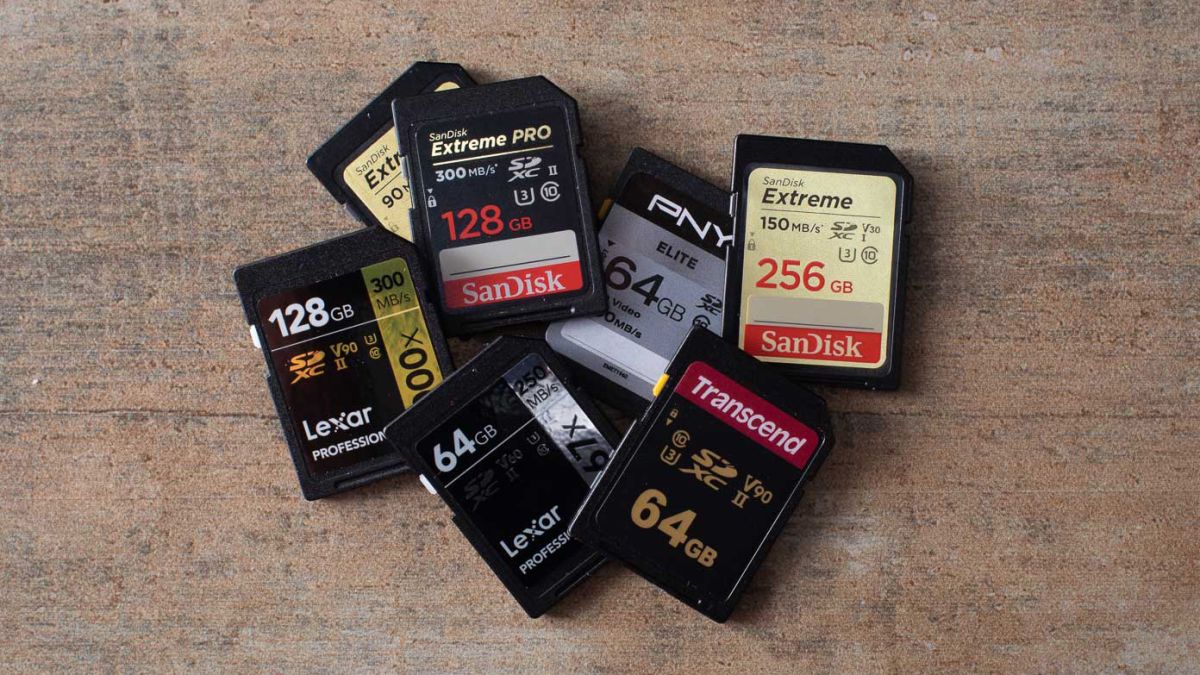
SD memory cards have surfaced as standard cards for digital cameras and microSD as phone standard memory cards. Most people have and use at least one daily, so naturally copying files and even formatting SD cards is a natural thing to do, but what if you cannot copy files or format SD cards? SD cardsFear not because we had this issue and tried several things in order to overcome the problem and after some time here is a list of what can you do if you are facing this exact issue. The list is written from most simple solutions to more complex ones and it is advisable to follow it as presented. That being said, let's dive into solving the problem.

1. Remove Write Protection on SD card

First and in my experience the most usual thing preventing deleting, copying files, and formating SD card is due to write protection. Take an SD card out of the laptop, camera, or card reader and visually inspect it. On side of almost every SD card, there is a hardware lock switch and mark where it needs to be positioned in order to be locked. Even if the switch is positioned on unlocked state, switch it to locked and then back to unlocked. Sometimes this easy moving of switch can resolve some contact issues and the card will start working normally. Another type of lock that could be turned ON is a software one. If for any kind of reason data protection has been turned ON, you will need to turn it off in order to be able to format an SD card. In order to do this follow this guide:
  1. Press ⊞ WINDOWS + R to open the Run dialog
  2. In run dialog type in diskpart and press ENTER
  3. Once diskpart is opened in command prompt type in: list disk and press ENTER
  4. Locate your SD card and type in select disk x, where x is disk number followed by ENTER
  5. After the SD card is selected type in: attributes disk clear read-only and press ENTER
This process will clear the software lock on the SD card, after following this method try to format the card again, if the problem still exists go to the next solution.

2. Format SD card using Command prompt

Command prompt is a great tool and can perform some commands that are not been able to be completed using file explorer or another tool inside Windows.
  1. In the taskbar search box, search for cmd and select the Command prompt
  2. On the right part select run as administrator
  3. If needed click on YES on UAC prompt
  4. Inside command prompt type in diskpart and press ENTER
  5. type in list disk followed by ENTER
  6. Select your SD card by locating its number in the list and typing select disk X, where is X SD cards number in list and press ENTER
  7. Once SD card is selected type in format fs=ntfs quick and press ENTER
This should format SD card but if for reason even this step is provided as unproductive, go to the next solution.

3. Format your card with the Disk Management tool

  1. Go into the taskbar and search for Disk Management and open it
  2. Select SD card partition that you wish to format
  3. Right-click on the partition and select format
  4. After the format is done, enter the volume label, file system, and allocation unit size. Confirm with OK
  5. Press OK again to confirm the formatting process.
If you have not managed to format your SD card even with this method go to the next solution.

4. Repartition card with Disk part

If all previous solutions have failed there is a chance that the SD card has bad sectors on it. If this is the case that we will need to partition cards in order to isolate bad sectors and use healthy ones.
  1. Press ⊞ WINDOWS + R to open the Run dialog
  2. In run dialog type in diskpart and press ENTER
  3. Once diskpart is opened in command prompt type in: list disk and press ENTER
  4. Locate your SD card and type in select disk x, where x is disk number followed by ENTER
  5. Type in Clean and press ENTER
  6. Type in Create partition primary and press ENTER
  7. To select a new partition type select partition 1 followed by ENTER
  8. Make partition active by typing active and pressing ENTER
  9. Format the drive by typing format fs=ntfs label=SDCard quick followed with ENTER
  10. Assign a letter to drive by typing assign letter=h followed with ENTER
  11. Type exit to close Command prompt followed again by ENTER and open File Explorer to check if the drive is active

5. Try a dedicated SD card formating fool

If anything failed so far, one last thing you could do is to download and try a dedicated SD card formatting tool. One that I would recommend is SD Memory Card Formatter, which is free software make specifically for formatting SD memory cards.
Read More
Calculator is not working in Windows
As you know, one of the basic apps in the Windows 10 operating system is the calculator and it can even be extended to a scientific calculator which makes it really useful for users. However, there are instances when you might encounter some issues while using this app. One of the issues about the Calculator app that’s been reported recently is that the Calculator app is not working. If you encounter the same problem, then you’ve come to the right place as this post will guide you on what you can do to fix the problem. Based on the reports, users claimed that the issue with the Calculator app occurred right after they’ve installed a feature update, while other users claimed that the Calculator app never really worked on their computers and there are also cases where the app opens but it either freezes or crashes. According to researchers, the main causes of the problem include a feature update that could’ve altered the settings. It could also be due to problems with the login account or corrupted and missing files, or the problem could also with the calculate app itself. To resolve this problem, here are some suggestions you can follow.

Option 1 – Run the System File Checker Scan

System File Checker or SFC is a built-in command utility that helps in restoring corrupted files as well as missing files. It replaces bad and corrupted system files to good system files that might be the reason why the calculator app is not working properly. To run the SFC command, follow the steps given below.
  • Tap Win + R to launch Run.
  • Type in cmd in the field and tap Enter.
  • After opening Command Prompt, type in sfc /scannow
The command will start a system scan which will take a few whiles before it finishes. Once it’s done, you could get the following results:
  1. Windows Resource Protection did not find any integrity violations.
  2. Windows Resource Protection found corrupt files and successfully repaired them.
  3. Windows Resource Protection found corrupt files but was unable to fix some of them.
  • Reboot your computer.

Option 2 – Run the DISM tool

You can also run the DISM Tool as it helps in repairing the Windows System Image as well as the Windows Component Store in Windows 10. Using this built-in tool, you have various options such as the “/ScanHealth”, “/CheckHealth”, and “/RestoreHealth” that could help in fixing the Calculator app.
  • Open the Command Prompt with admin privileges.
  • Then type in the following commands and make sure to hit Enter right after you type each one of them:
    • Dism /Online /Cleanup-Image /CheckHealth
    • Dism /Online /Cleanup-Image /ScanHealth
    • Dism (.)exe /Online /Cleanup-image /Restorehealth
  • Do not close the window if the process takes a while as it will probably take a few minutes to finish.

Option 3 – Try logging into your computer using a different User Account

You might want to try logging into a different User Account since it is possible that the issue could have something to do with your log-in account. Thus, you can isolate this possibility by logging into a different user account. If you don’t have any other user account, simply create a new one by clicking on the Start icon and then go to Settings > Account > Family & other users. From there, go to the Other user's section and click on the Add someone else to this PC option, and then inputs all the needed information and restarts your computer. Once your computer has restarted, log into your computer using the newly created user account.

Option 4 – Try to reset or reinstall the Calculator app

If the first three given options didn’t work, you might want to reset or reinstall the Calculator app. To do that, follow these steps:
  • Click on the Start button and go to Settings > Apps > Apps and features.
  • Next, look for the Calculator app from the app list and click on it to see its other options.
  • After that, select the Advanced options and go to the Reset section and then click on the Reset button to reset the Calculator app.
Note: You also have the option to reinstall the Calculator app. All you have the option to visit Microsoft Store and from there, uninstall the Calculator app.
Read More
How to change system font in Windows 11

Windows 11 is a good-looking operating system but people love to make things personal and to their liking so we decided to help you in this mission with small customization of changing default system fonts inside Windows 11.

Since there is no really easy way to just switch the font windows is using for itself we will have to tweak a registry a little so before we start please do make a backup of the registry file and follow the steps as they are presented in order to avoid any errors and break the system.

windows 11 transparency off

So, if all precautions are made and you are ready to change your Windows appearance let's dive right into it:

Find and/or install the font that you wish to use

There are vast free font sites on the internet where you can find fonts that you like and wish to use but be very careful with your desired font selection. The font that you choose needs to be a complete typeface, meaning that it has to contain all glyphs, large and small font sizes, all special characters, etc or you will experience that in certain areas nothing will be displayed.

Once you have found the font that you like and made sure it is a complete font, install it on your system (you can skip this step if you just want to change the system font with one already installed on your system)

Create REG file

Open notepad or a similar plain text editor in order to create a file that will apply changes directly into the registry and create a new file. Inside the file paste this text:

Windows Registry Editor Version 5.00

[HKEY_LOCAL_MACHINE\SOFTWARE\Microsoft\Windows NT\CurrentVersion\Fonts]
"Segoe UI (TrueType)"=""
"Segoe UI Bold (TrueType)"=""
"Segoe UI Bold Italic (TrueType)"=""
"Segoe UI Italic (TrueType)"=""
"Segoe UI Light (TrueType)"=""
"Segoe UI Semibold (TrueType)"=""
"Segoe UI Symbol (TrueType)"=""

[HKEY_LOCAL_MACHINE\SOFTWARE\Microsoft\Windows NT\CurrentVersion\FontSubstitutes]

"Segoe UI"="NEW-FONT"

All the way to the bottom where it says: "Segoe UI"="NEW-FONT", change NEW-FONT with the font name that you have chosen or installed in the previous step. For example: "Segoe UI"="Ubuntu".

Now go to File > Save As and name your file however you want but give it REG extension so it looks like: my_new_windows_font.REG

Apply changes

Now that you have your registry entry saved, locate it and double-click on it, at this stage Windows warning will probably pop up, you can just ignore it and click on YES since you wrote the file and know what it is. After registry entry is applied reboot your PC in order for changes to take effect.

Rolling back

If you want to change the font to another one, just repeat this procedure again. If you want to roll back to using the default Windows font, repeat the process but with this code instead of the one provided in the REG file:

Windows Registry Editor Version 5.00

[HKEY_LOCAL_MACHINE\SOFTWARE\Microsoft\Windows NT\CurrentVersion\Fonts]
"Segoe UI (TrueType)"="segoeui.ttf"
"Segoe UI Black (TrueType)"="seguibl.ttf"
"Segoe UI Black Italic (TrueType)"="seguibli.ttf"
"Segoe UI Bold (TrueType)"="segoeuib.ttf"
"Segoe UI Bold Italic (TrueType)"="segoeuiz.ttf"
"Segoe UI Emoji (TrueType)"="seguiemj.ttf"
"Segoe UI Historic (TrueType)"="seguihis.ttf"
"Segoe UI Italic (TrueType)"="segoeuii.ttf"
"Segoe UI Light (TrueType)"="segoeuil.ttf"
"Segoe UI Light Italic (TrueType)"="seguili.ttf"
"Segoe UI Semibold (TrueType)"="seguisb.ttf"
"Segoe UI Semibold Italic (TrueType)"="seguisbi.ttf"
"Segoe UI Semilight (TrueType)"="segoeuisl.ttf"
"Segoe UI Semilight Italic (TrueType)"="seguisli.ttf"
"Segoe UI Symbol (TrueType)"="seguisym.ttf"
"Segoe MDL2 Assets (TrueType)"="segmdl2.ttf"
"Segoe Print (TrueType)"="segoepr.ttf"
"Segoe Print Bold (TrueType)"="segoeprb.ttf"
"Segoe Script (TrueType)"="segoesc.ttf"
"Segoe Script Bold (TrueType)"="segoescb.ttf"

[HKEY_LOCAL_MACHINE\SOFTWARE\Microsoft\Windows NT\CurrentVersion\FontSubstitutes]
"Segoe UI"=-
Read More
How to get rid of DailyBibleGuide

Daily Bible Guide is a browser extension developed by Mindspark Inc. for Google Chrome Browser. This extension offers users a fast and easy way to find Bible passages, view daily verses, study the Bible and view the current weather. When installed, this extension changes your default search engine and your home page to MyWay.

When installed this extension gathers user browsing information such as visited websites, search queries, clicked links, and other information. This information is later used to better target ads.

While active, you may encounter additional unwanted ads and sponsored links throughout your browsing sessions. Daily Bible Guide was marked as a Browser Hijacker by several anti-virus scanners, and due to its information mining behavior, it is considered a security risk and it is not recommended to keep on your computer; being flagged for optional removal.

About Browser Hijackers

Browser hijackers (sometimes known as hijackware) are a kind of malware that alters internet browser settings without the computer owner’s knowledge or approval. These kinds of hijacks are rising at a worrying rate around the globe, and it could be actually nefarious and sometimes dangerous too. There are plenty of reasons why you might experience an internet browser hijack; but commercial, advertising, and marketing are definitely the key reasons for their creation. Generally, the idea would be to force users to visit particular sites which are looking to improve their site visitor traffic and produce higher advertisement revenue. While it might seem harmless, these tools were created by malicious individuals who always attempt to take full advantage of you, so that they could make money from your naivety and distraction. Furthermore, hijackers can make the entire infected system vulnerable – other destructive malware and viruses will grab these opportunities to intrude into your computer effortlessly.

Signs of browser hijacker infection

The typical symptoms that signify having this malware on your computer are: home page is modified; you find new unwanted favorites or bookmarks added, typically directed to ad-filled or porn websites; the default search engine is modified; discover new toolbars which you did not add; you may see random pop-ups start occurring frequently; your internet browser has instability issues or exhibits frequent errors; you cannot visit specific websites like home pages of antivirus software.

So how does a PC get infected with a browser hijacker?

Browser hijackers attack computer systems via malicious email attachments, downloaded infected files, or by visiting infected sites. They sometimes are included with toolbars, add-ons, BHO, plugins, or browser extensions. A browser hijacker can also come bundled up with some free application that you inadvertently download to your computer, compromising your internet security. A good example of a popular browser hijacker is the most recent Chinese malware named “Fireball”, which has infected 250 million PCs throughout the world. It works as a hijacker but could be changed into a fully functioning malware downloader afterward. Browser hijackers will interrupt the user’s browsing experience significantly, keep track of the websites frequented by users and steal private information, cause difficulty in connecting to the net, and ultimately create stability problems, causing software programs and computers to crash.

Browser Hijacker Malware – Removal

Certain browser hijacking can be quite easily reversed by identifying and removing the corresponding malware program through your control panel. However, the majority of hijackers are extremely tenacious and need specialized tools to eradicate them. Additionally, manual removals require deep system knowledge and thus can be quite a difficult task for inexperienced computer users. Installing and running anti-malware programs on the affected computer could automatically delete browser hijackers and other malicious programs. Safebytes Anti-Malware features a cutting-edge anti-malware engine that will help you prevent browser hijacking in the first place, and clean up any pre-existing issues. In addition to anti-malware, a PC optimizer software, for example, Total System Care, will help you fix Windows registry errors, remove unwanted toolbars, secure online privacy, and stabilize software programs installed on the computer.

Malware Blocking Internet And All Antivirus Software? Do This!

Malware can cause a lot of damage to your PC. Some malware variants modify internet browser settings by including a proxy server or change the PC’s DNS settings. When this happens, you will be unable to visit some or all of the websites, and therefore not able to download or install the necessary security software to clear out the infection. If you’re reading this right now, you’ve perhaps recognized that virus infection is a reason behind your blocked internet connectivity. So how to proceed when you want to download and install an anti-malware program like Safebytes? Although this sort of issue will be difficult to get around, there are some steps you can take.

Install in Safe Mode

If the malware is set to run at Windows startup, then booting in safe mode should avoid it. Only minimal required programs and services are loaded when you start your PC into Safe Mode. You will have to do the following to remove malware in Safe mode. 1) At power-on/startup, press the F8 key in 1-second intervals. This will invoke the Advanced Boot Options menu. 2) Choose Safe Mode with Networking with arrow keys and press Enter. 3) As soon as this mode loads, you should have an internet connection. Now, obtain the malware removal program you want by using the browser. To install the software, follow the directions within the installation wizard. 4) Once the software is installed, let the scan run to eliminate viruses and other malware automatically.

Switch over to some other web browser

Web-based viruses could be environment-specific, aiming for a specific web browser or attacking particular versions of the web browser. If you are not able to download the security software using Internet Explorer, it means the virus may be targeting IE’s vulnerabilities. Here, you should switch to an alternate internet browser such as Chrome or Firefox to download the Safebytes application.

Create a portable USB antivirus for removing viruses

To effectively remove the malware, you should approach the issue of running an anti-malware program on the affected computer from a different perspective. To run anti-malware using a USB flash drive, follow these simple steps: 1) Download the anti-malware on a virus-free PC. 2) Mount the USB drive onto the same system. 3) Double-click the Setup icon of the anti-malware program to run the Installation Wizard. 4) Choose the drive letter of the USB drive as the location when the wizard asks you exactly where you would like to install the anti-virus. Do as instructed on the screen to finish off the installation process. 5) Now, transfer the flash drive to the infected PC. 6) Double click the Safebytes Anti-malware icon on the USB drive to run the application. 7) Run Full System Scan to detect and clean-up up all types of malware.

SafeBytes Anti-Malware - More Protection For You Personally

These days, an anti-malware tool can protect your computer from different kinds of online threats. But exactly how to select the best one among plenty of malware protection software that’s available on the market? You may be aware, there are many anti-malware companies and tools for you to consider. Some are worth your money, but many aren’t. You must be careful not to choose the wrong application, especially if you purchase a paid program. While thinking about the highly regarded software programs, Safebytes AntiMalware is undoubtedly the strongly recommended one. SafeBytes anti-malware is a powerful, very effective protection application designed to assist users of all levels of computer literacy in detecting and eliminating harmful threats out of their PC. Once you’ve got installed this tool, SafeByte's state-of-the-art protection system will make sure that absolutely no viruses or malware can seep through your computer.

SafeBytes anti-malware takes computer protection to a whole new level with its advanced features. Listed below are some of the great ones:

Anti-Malware Protection: This deep-cleaning anti-malware software goes much deeper than most antivirus tools to clean out your personal computer. Its critically acclaimed virus engine finds and disables hard to remove malware that hides deep inside your computer. Real-time Threat Response: Malware programs attempting to get into the computer are identified and stopped as and when detected by the SafeBytes real-time protection shields. It’ll inspect your personal computer for suspicious activity regularly and its unparalleled firewall shields your PC from illegal access by the outside world. “Fast Scan” Features: SafeBytes’s virus scan engine is among the fastest and most efficient in the industry. It's targeted scanning highly increases the catch rate for viruses which is embedded in various PC files. Web Protection: SafeBytes gives an instant safety rating to the web pages you are going to visit, automatically blocking dangerous sites and ensuring that you are certain of your safety while browsing the world wide web. Light-weight: SafeBytes is a lightweight and user-friendly antivirus and antimalware solution. As it uses very little computer resources, this tool leaves the computer’s power exactly where it belongs to: with you. 24/7 Guidance: SafeBytes provides 24/7 technical support, automatic maintenance, and software upgrades for the best user experience. To sum it up all, SafeBytes Anti-Malware offers great protection combined with very low system resource usage with both great malware prevention and detection. Malware trouble will become a thing of the past when you put this application to use. If you’re looking for the very best malware removal application out there, and when you don’t mind shelling out some money for it, opt for SafeBytes Anti-Malware.

Technical Details and Manual Removal (Advanced Users)

If you’d like to manually remove Daily Bible Guide without using an automated tool, it might be possible to do so by deleting the program from the Windows Add/Remove Programs menu, or in cases of browser extensions, going to the browsers AddOn/Extension manager and uninstalling it. You will probably also want to reset your internet browser. If you choose to manually remove the system files and Windows registry entries, utilize the following list to ensure that you know exactly what files to remove before performing any actions. Please remember that only experienced users should try to manually edit the system files simply because removing any single critical registry entry results in a major problem or even a PC crash. In addition, certain malicious programs have the capability to defend against its removal. It is advisable that you carry out the removal process in Safe Mode.
Files: Search and Delete: 2vauxstb.dll 2vbar.dll 2vbarsvc.exe 2vbprtct.dll 2vbrmon.exe 2vbrstub.dll 2vdatact.dll 2vdlghk.dll 2vdyn.dll 2vfeedmg.dll 2vhighin.exe 2vhkstub.dll 2vhtmlmu.dll 2vhttpct.dll 2vidle.dll 2vieovr.dll 2vimpipe.exe 2vmedint.exe 2vmlbtn.dll 2vmsg.dll 2vPlugin.dll 2vradio.dll 2vregfft.dll 2vreghk.dll 2vregiet.dll 2vscript.dll 2vskin.dll 2vsknlcr.dll 2vskplay.exe 2vSrcAs.dll 2vSrchMn.exe 2vtpinst.dll 2vuabtn.dll AppIntegrator64.exe AppIntegratorStub64.dll BOOTSTRAP.JS 2vffxtbr.jar CHROME.MANIFEST CREXT.DLL CrExtP2v.exe DPNMNGR.DLL EXEMANAGER.DLL Hpg64.dll LOGO.BMP NP2vStub.dll T8EXTEX.DLL T8EXTPEX.DLL T8HTML.DLL T8RES.DLL T8TICKER.DLL VERIFY.DLL s_pid.dat 2vEIPlug.dll 2vEZSETP.dll NP2vEISb.dll 00082350.exe files.ini Folders: %APPDATA%\DailyBibleGuide\ %PROGRAMFILES%\DailyBibleGuide\ %PROGRAMFILES%\DailyBibleGuideEI\ Registry: HKLM\SOFTWARE\Microsoft\Windows\CurrentVersion\Run\ Value: DailyBibleGuide Browser Plugin Loader Key HKLM\SOFTWARE\Microsoft\Windows\CurrentVersion\Run\ Value: DailyBibleGuide Search Scope Monitor Key HKCU\Software\DailyBibleGuide Key HKLM\SOFTWARE\DailyBibleGuide Key HKLM\SOFTWARE\MozillaPlugins\@DailyBibleGuide.com/Plugin Key HKLM\SOFTWARE\Microsoft\Windows\CurrentVersion\Uninstall\DailyBibleGuidebar Uninstall Internet Explorer Key HKLM\SOFTWARE\Microsoft\Windows\CurrentVersion\Uninstall\DailyBibleGuidebar Uninstall Firefox Key HKLM\SOFTWARE\Microsoft\Windows\CurrentVersion\Explorer\Browser Helper Objects\beea7fa9-d1f4-49a2-9b1f-6fb7a2d9bc2a Key HKLM\SOFTWARE\Microsoft\Windows\CurrentVersion\Explorer\Browser Helper Objects\0631bff0-6846-48ca-982d-d62d7f376e97 Key HKLM\SOFTWARE\Classes\DailyBibleGuide.XMLSessionPlugin Key HKLM\SOFTWARE\Classes\DailyBibleGuide.UrlAlertButton Key HKLM\SOFTWARE\Classes\DailyBibleGuide.ToolbarProtector Key HKLM\SOFTWARE\Classes\DailyBibleGuide.ThirdPartyInstaller Key HKHKLM\SOFTWARE\Classes\DailyBibleGuide.SkinLauncherSettings Key HKLM\SOFTWARE\Classes\DailyBibleGuide.SkinLauncher Key HKLM\SOFTWARE\Classes\DailyBibleGuide.SettingsPlugin Key HKLM\SOFTWARE\Classes\DailyBibleGuide.ScriptButton Key HKLM\SOFTWARE\Classes\DailyBibleGuide.RadioSettings Key HKLM\SOFTWARE\Classes\DailyBibleGuide.Radio Key HKLM\SOFTWARE\Classes\DailyBibleGuide.PseudoTransparentPlugin Key HKLM\SOFTWARE\Classes\DailyBibleGuide.MultipleButton Key HKLM\SOFTWARE\Classes\DailyBibleGuide.HTMLPanel Key HKLM\SOFTWARE\Classes\DailyBibleGuide.HTMLMenu Key HKLM\SOFTWARE\Classes\DailyBibleGuide.FeedManager Key HKLM\SOFTWARE\Classes\DailyBibleGuide.DynamicBarButton

Read More
Fix 0x800f0982, PSFX E MATCHING COMPONENT
If you encounter an error saying, “0x800f0982 – PSFX_E_MATCHING_COMPONENT_NOT_FOUND”, when you try to install a Windows 10 cumulative update, then you’ve come to the right place as this post will help you sort this problem out. According to the reports, computers with Asian language packs installed are the ones that are mostly affected by this error. In fact, the same error code was also found with two KB4493509, KB4495667 and KB4501835. These cumulative updates are released as part of Patch Tuesday. However, it appears that it brought on issues. Thus, to fix the error, you can try to uninstall and reinstall any language packs you’ve added recently. You can also try to uninstall older KB updates or delay Windows Update, as well as reset Windows 10.

Option 1 – Try to uninstall and reinstall the language packs you’ve recently added

If you have installed a language pack recently, you have to uninstall it, restart your computer, and then reinstall it.
  • Go to the Settings app and select Time & Language.
  • Next, click on the Language option and select the language you have to uninstall.
  • After selecting the language, it will enable two-button namely the Options and Remove buttons.
  • Click on the Remove button and then reboot your PC.
  • Once your computer has restarted, install the language pack again.

Option 2 – Try to uninstall the KB updates

Microsoft has actually offered a solution, an odd one which is to install the April 2019 cumulative update. You have to uninstall the older KB4495667 and KB4501835 update from your Windows 10 computer. And after you’ve uninstalled them, click on the Update button and then install the April 2019 cumulative update.
  • Go to Settings and select Update and Security > Windows Update.
  • From there, click on the “View update history” option and then click on the “Uninstall Updates” option.
  • This will open a new window that contains the list of installed Windows Updates.
  • Now right click on the Windows Update you wish to uninstall and click Uninstall.
  • Once you’ve uninstalled the update, click the Update button and install the April 2019 cumulative update.

Option 3 – Try to delay Windows Update

If you have not installed the Windows 10 cumulative update KB4493509 yet and the Asian language is a must for you, then you have to delay or pause the Windows Update for at least a couple of days.

Option 4 – Reset your computer

  • Tap the Win key or click on the Start button located in the Taskbar.
  • Then click on the Power button at the bottom right portion of the screen.
  • Next, press and hold the Shift key on your keyboard and then click on Restart. This will restart your Pc into the Advanced Startup options.
Note: Once you have access to the Advanced Startup options, you have to go to the setting which allows you to Reset your Windows 10 PC. All you have to do is select Troubleshoot > Reset this PC to reach the following screen
  • Afterward, select either the “Keep my files” option and then proceed to the next on-screen instructions that follow to reset your Windows 10 computer without losing your files.
Read More
How to Resolve Internal Error 2753

Internal Error 2753 - What is it?

Internal error 2753 is associated with Windows Installer failure. The Windows Installer is basically an in-built software program in Windows 7 and 8. It installs all programs on the system smoothly, saves the program in the computer program files and in the Windows Registry. Though this can be carried manually Windows Installer makes the installation process much easier. However, internal error 2753 can cause a great deal of distress and frustration during program installation. This error prevents you from installing your desired program successfully.

Solution

Restoro box imageError Causes

The 2 known causes for Internal Error 2753 are:
  • Viral infection
  • Windows Installer not properly registered

Further Information and Manual Repair

To resolve internal error 2753 on your system, try the methods discussed below. These methods are easy and require no technical expertise. Let’s get started:

Method 1 - Remove All Malicious Programs

Malicious programs like viruses, malware, adware, Trojan and spyware can corrupt programs on your PC like Windows Installer. If this is the underlying cause of error code 2753, then simply download a powerful antivirus on your system. Run it to scan for all such malicious programs and remove them. Once your PC is clean, try installing your desired program. This will hopefully resolve the issue. If the error still pops up then try method 2.

Method 2 - Register Windows Installer Properly

To do this, go to the start menu and then open Run and type ‘cmd’ in the box, and press OK. This will open the DOS command window. In the command prompt type "regsvr32 vbscript.dll" and then press Enter to proceed. After that, you will see a message that will read as "DllRegisterServer in vbscript.dll succeeded." This means Window Installer files have been successfully registered on your PC.  Now you can try installing your desired program again. If the installation begins and completes successfully, then the error is resolved.

Method 3 - Undo Recent Changes

If nothing works, then use the Windows System Restore Utility tool to undo recent changes. This will bring back your PC in the former state before you experienced the error 2753 on your PC. To access System Restore Utility, press Start and type System Restore in the search box. Now follow the steps in the Wizard to choose a restore point. Once you select the point, reboot your system to activate changes.
Read More
What is Windows 10X and do you need it

What is Windows 10X

Windows 10X is a new version of Windows that has been built from the ground up for new PCs and will begin shipping on hardware in 2021. It's built on top of a new modern version of Windows called 'Windows Core OS' that guts legacy components and features in favor of contemporary user experiences and enhanced security. This means everything from the Windows Shell to the underlying OS has been rebuilt with modern technologies.

As a result, Windows 10X does not support legacy Win32 applications at launch. Windows 10X PCs in 2021 will be able to run Microsoft Edge, UWP, and web apps. Legacy Win32 application support will arrive at a later date, however. When it does, Win32 applications will run in a secure container by default, meaning those legacy applications cannot affect system performance and battery life when closed. Windows 10X is a much more secure and stable OS as a result of this, as there's no opportunity for legacy apps to cause bitrot.

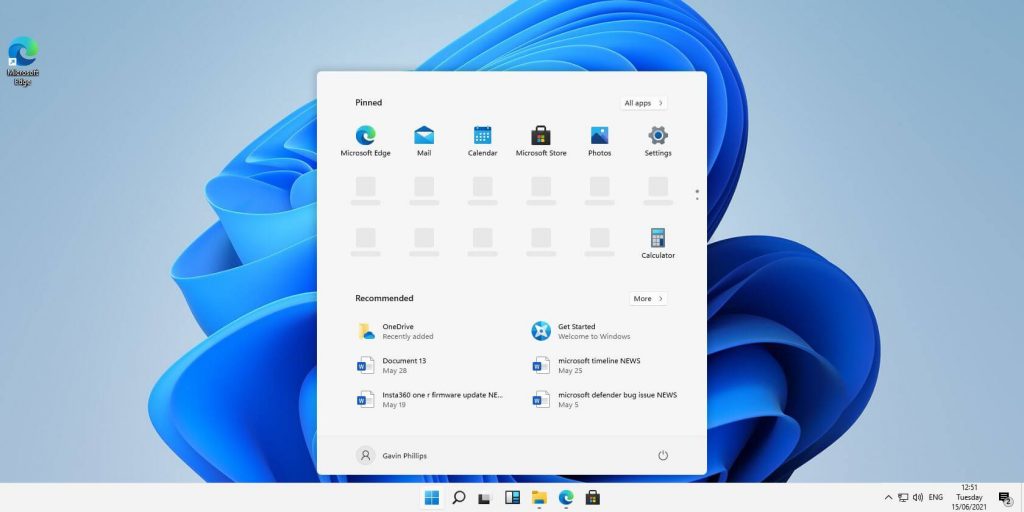
Windows 10X features a new shell of the user interface that has been built with modern technologies. It's an adaptive user experience that can adjust depending on the "posture" of your device. For example, with a foldable PC, the user might want to use it in several different ways; as a laptop, or tablet, or in tent mode for movies. Because of this, the user interface must adapt to provide the best experience no matter which way your device is being used. This also means that legacy shell elements, such as the Control Panel, File Explorer, and error dialogs and icons are gone on Windows 10X. As Microsoft has rebuilt the entire shell, it doesn't include any of the legacy things that make Windows 10 so inconsistent when it comes to UI. The Windows Shell on Windows 10X should be much more consistent. At launch, Windows 10X will only be available on traditional clamshell PCs aimed primarily at the education and enterprise markets. The platform will eventually ship on the new devices from factors such as foldable PCs, but that won't be happening in 2021.

Start menu

Microsoft is redesigning the Start menu experience on Windows 10X with a focus on productivity. It features a system-wide search bar along the top that can also search the web and a grid of installed apps below that in place of live tiles. It also has a "recent activities" area that dynamically updates with things the user might want to jump straight into, such as recent Office documents and visited websites. The apps list can be customized, with the ability for users to rearrange which apps show up in the first few rows.

Taskbar

Windows 10X also has a new adaptive Taskbar that features a centered design. The Start and Task View buttons appear in the center, with running and pinned apps appearing between the two. When you open an app, the Start and Task View buttons gently spread apart, giving the Taskbar a much more fluid appearance. There are some new animations; the Start and Task View buttons have their own animations when clicked on, and there's a subtle bounce to app icons when you minimize running apps to the Taskbar. In addition to the new design, there are also up to three different Taskbar sizes: Small, medium, and large. Large is great for tablets, while medium and small mimic the usual sizes we already have today on Windows 10. On tablets, users can now swipe up anywhere on the Taskbar to access the Start menu, making it easier for touch users to access their apps list. You no longer have to hit the specific Start button to access your Start menu.

Action center

In addition to the new Start and Taskbar experiences, there's also a new Action Center to compliment them. This new Action Center puts more emphasis on quick actions, with the ability to jump into specific quick actions for further control without leaving the Action Center at all. It's also designed in such a way that mimics a control center, with notifications housed above it in a separate box. This new Action Center includes things like volume controls, power options, and battery percentage. There's also a new music control UI that appears in the Action Center when music is playing from a supported app.

State separation feature

Unlike Windows 10, Windows 10X features something called "state separation" which is how the OS lays itself out on a drive. Windows 10 today installs everything into a single partition, which means the user can access system files, as can apps and potential attackers. On Windows 10X, everything goes into its own read-only partition. So OS files are locked away, as are app files, as are drivers, and the registry. The only thing the user and applications can access is the user partition. This means that malware or viruses can't get in and affect the system because those programs are only able to operate in a single partition, and that assumes they're able to get outside of the app container system Microsoft has built. All apps on Windows 10X run in a container and need explicit permissions to access things that are outside that container. This is already how UWP apps work on Windows 10, and Microsoft will be extending that to Win32 apps on Windows 10X when support for Win32 apps arrives.

Launch date and info

Windows 10X will launch this spring first for commercial markets. Commercial markets include education and enterprise industries looking for sub-$600 PCs for students in the classroom or first-line workers. Windows 10X won't be launching on consumer PCs in 2021, meaning you won't find it on a flagship Dell or HP device. It's also only for clamshell PCs, with foldable, tablets, and other form factor support coming in 2022 and beyond. Windows 10X will launch without an in-box Mail and Calendar app. It's been removed from the first version of Windows 10X because the platform is aimed at commercial markets that will likely use Outlook Web or stream Outlook via Windows Virtual Desktop. Users can opt to reinstall the Mail and Calendar apps from the Microsoft Store if they wish. Windows 10X for mainstream markets won't happen until 2022 when Win32 app support among other features comes to the OS as part of the Windows 10 "Nickel" release scheduled for the first half of 2022. Because Windows 10X is a new operating system, it will not be released as an update for existing Windows 10 PCs. Users won't be able to install Windows 10X on a device that didn't come with Windows 10X, to begin with. There won't be any official ISO media and you won't be able to buy Windows 10X on its own to install on your existing device. It's for new PCs only. If you would like to read more helpful articles and tips about various software and hardware visit errortools.com daily.
Read More
What is Trojan Kryptik and what does it do
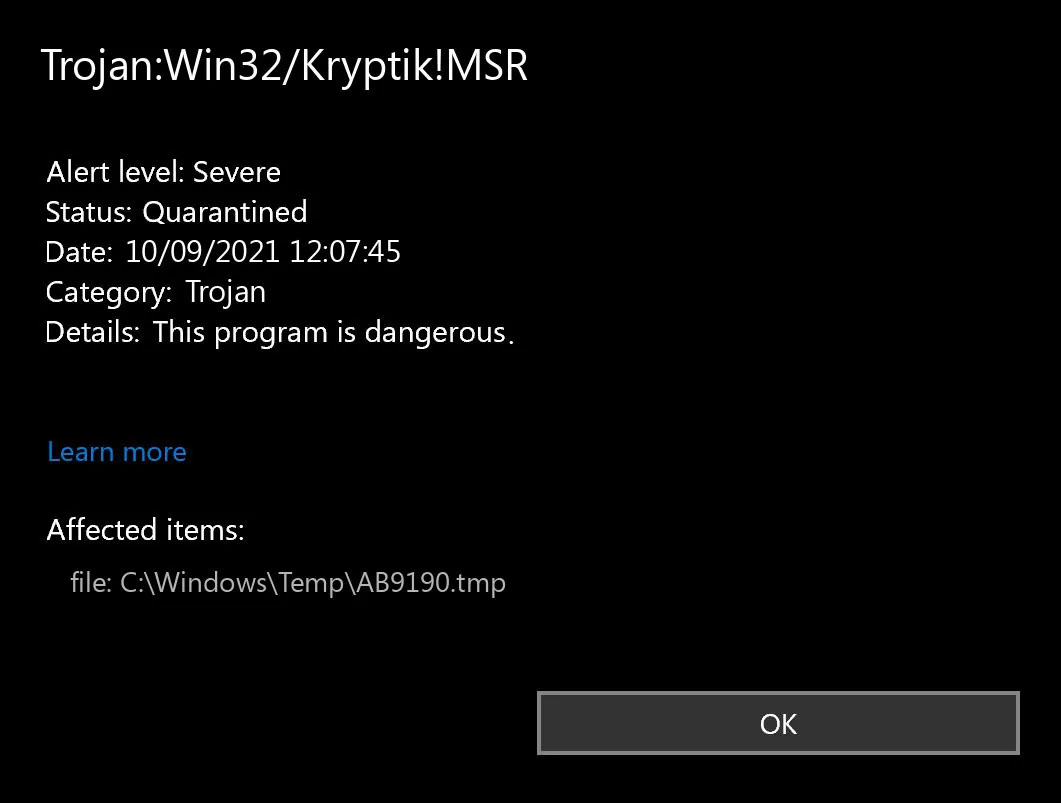
Trojan. Kryptik is a malicious computer infection known as a Trojan horse. Trojan. Kryptik can load at startup and recreate itself which makes it difficult to manually remove from the infected computer. Trojan. Kryptik can compromise the infected system by allowing a remote hacker to gain access without the user's permission or knowledge. Trojan. Kryptik can also lead to the infection of other unknown malware parasites.

trojan krypticTrojan.Kryptik creates the following registry entry or registry entries:

Directory %ALLUSERSPROFILE%\windrivgr 19.7 %LOCALAPPDATA%\DsHcaJnIIz File name without path scaalqtw.exe Regexp file mask %ALLUSERSPROFILE%\sqldump.exe %APPDATA%\b[NUMBERS].exe %APPDATA%\Microsoft\Windows\Start Menu\Programs\Startup\[RANDOM CHARACTERS].com.url %APPDATA%\Origin\update.vbe %APPDATA%\Stanfind.exe %APPDATA%\vpn gui.exe %LOCALAPPDATA%\Microsoft\Windows\Symbols\wvfilters.sys %TEMP%\nvc.exe %TEMP%\system.exe %TEMP%\winsrvcs32.exe
Read More
1 2 3 171
Logo
Copyright © 2023, ErrorTools. All Rights Reserved
Trademark: Microsoft Windows logos are registered trademarks of Microsoft. Disclaimer: ErrorTools.com is not affiliated with Microsoft, nor claims direct affiliation.
The information on this page is provided for information purposes only.
DMCA.com Protection Status