Logo

Remove ChatZum from Windows

ChatZum is a Potentially Unwanted Program that installs a Toolbar into your browser. This program allegedly allows users to zoom in on photos without clicking on them, however, upon further research, it was discovered that this function does not work on the latest version of browsers.

From the Author: ChatZum is a Browser add-on (toolbar) that enables its users to hover over images in Major Social network's websites and view a larger version of an image.

While installing this toolbar will track user web browsing sessions and will record website visits, clicks, and sometimes even personal information. This information is later used to display targeted ads to the user. To allow easier user tracking, the program changes the browser home page and default search engine to Nation Search Advanced, which injects additional advertisements and tracks user activity.

Several anti-virus applications have marked this program as Potentially Unwanted, and it is not recommended to keep it on your computer, especially considering the fact it will most likely not work on your browser.

About Potentially Unwanted Applications

If you have ever installed a free application or shareware, chances are high that the computer will get installed with a bunch of unwanted applications. A Potentially Unwanted Program, also called PUP, in short, is actually software that contains adware, installs toolbars, or has got other hidden objectives. These types of programs are generally bundled up with a free application that you download from the internet or may also be bundled inside the custom installers of many download websites.

PUPs aren’t always viewed as “pure” malware in the strictest sense. A fundamental difference between PUP and malware is distribution. Malware is normally dropped by silent installation vectors like drive-by downloads while PUP gets installed with the consent of the computer user, who knowingly or unknowingly approves the PUP installation on their computer system. But, there is no doubt that PUPs remain bad news for PC users as it could be quite dangerous to your computer in many ways.

The damage PUPs can do

The unwanted programs after installation display numerous annoying pop-up ads, trigger fake alerts, and sometimes even forces a computer owner to pay for the software. PUPs that come as browser add-ons and toolbars are commonly recognizable. These toolbars alter your homepage and your search engine in the installed web browser, track your web activities, modify your search results with redirects and sponsored links, and eventually slow down your browser and diminish your browsing experience.

Potentially unwanted programs use aggressive distribution methods to get onto your computer. The worst part of setting up a PUP is the adware, spyware, and keystroke loggers that could lurk inside. Even if the PUPs really aren’t inherently malicious, these applications still do practically nothing good on your PC – they’ll take valuable system resources, slow down your PC, weaken your computer security, making your PC more vulnerable to malware.

How to avoid ‘crapware’

• Read the EULA thoroughly. Look for clauses that state that you have to accept advertising and pop-ups or bundled applications from the company.
• Always opt for the custom if you’re offered an option between “Custom” and “Recommended” Installations – never ever click Next, Next, Next thoughtlessly.
• Use a good anti-malware application. Try Safebytes Anti-malware which can find PUPs and treat them as malware by flagging them for deletion.
• Be alert if you download and install freeware, open-source applications, or shareware. Do not ever install software applications that seem shady or malicious.
• Always download applications from the original website. The majority of PUPs find their way onto your laptop or computer is via download portals, so steer clear of it altogether.

Remember the fact that even though PUPs could potentially cause damage and hinder the proper functioning of the PC, they can’t enter into your system without your consent, so be alert not to provide them with it.

How One Can Get rid of Malware that is Blocking Websites or Preventing Downloads

Malware could potentially cause many kinds of damage to PCs, networks, and data. Some malware goes to great lengths to stop you from downloading or installing anything on your computer, especially antivirus software. If you’re reading this article, odds are you’re stuck with a malware infection that is preventing you to download or install the Safebytes Anti-Malware program on your PC. Even though this sort of problem can be tougher to circumvent, there are some steps you can take.

Make use of Safe Mode to resolve the issue

If the malware is set to run automatically when Microsoft Windows starts, stepping into safe mode could block the attempt. Just minimal required programs and services are loaded when you boot your computer in Safe Mode. To launch your Windows XP, Vista, or 7 computers in Safe Mode with Networking, do as instructed below.

1) Tap the F8 key repeatedly as soon as your PC boots, however, before the big Windows logo or black screen with white texts come up. This would invoke the Advanced Boot Options menu.
2) Choose Safe Mode with Networking with arrow keys and hit ENTER.
3) When this mode loads, you should have the internet. Now, obtain the malware removal program you want by utilizing the web browser. To install the program, follow the guidelines in the installation wizard.
4) Right after installation, do a full scan and allow the software program to get rid of the threats it detects.

Switch to an alternate internet browser

Some malware mainly targets certain browsers. If this is your situation, employ another internet browser as it might circumvent the computer virus. When you suspect that your Internet Explorer has been hijacked by a trojan or otherwise compromised by online hackers, the best thing to do is to switch over to an alternate internet browser such as Mozilla Firefox, Google Chrome, or Apple Safari to download your chosen security program – Safebytes Anti-Malware.

Create a portable USB antivirus for eliminating viruses

Another technique is to download and transfer an antivirus application from a clean computer to run a scan on the infected computer. Follow these steps to run the anti-malware on the affected computer.
1) Download the anti-malware on a virus-free PC.
2) Connect the flash drive to a USB slot on the clean computer.
3) Double click on the exe file to run the installation wizard.
4) Choose the USB stick as the location for saving the file. Follow the instructions on the screen to finish off the installation process.
5) Now, transfer the flash drive to the infected computer.
6) Run the Safebytes Anti-malware directly from the USB drive by double-clicking the icon.
7) Click the “Scan Now” button to start the virus scan.

Protect your PC from Malware With SafeBytes Security Suite

If you are looking to install an anti-malware program for your PC, there are lots of tools in the market to consider nonetheless, you just cannot trust blindly anyone, regardless of whether it is a paid or free program. A few of them are great but there are several scamware applications that pretend as authentic anti-malware programs waiting around to wreak havoc on your PC. You have to pick a company that develops industry-best anti-malware and it has earned a reputation as reliable. One of the highly recommended applications by industry analysts is SafeBytes Anti-Malware, the safest program for Microsoft Windows.

SafeBytes can be described as a highly effective, real-time antivirus application that is made to assist the average computer user in protecting their PC from malicious internet threats. Through its cutting-edge technology, this software will help you protect your computer against infections brought on by various kinds of malware and other internet threats, including spyware, adware, trojans, worms, computer viruses, keyloggers, ransomware, and potentially unwanted program (PUPs).

There are many wonderful features you’ll get with this particular security product. Listed below are some of the features you will like in SafeBytes.

Active Protection: SafeBytes offers a completely hands-free active protection and is set to observe, block, and kill all computer threats at its very first encounter. It will check your PC for suspicious activity at all times and its unrivaled firewall shields your computer from illegal entry by the outside world.

Robust, Anti-malware Protection: Using a critically acclaimed malware engine, SafeBytes offers multilayered protection which is made to catch and remove threats that are concealed deep inside your PC.

Web Security: Safebytes allots all sites a unique safety ranking that helps you to get an idea of whether the webpage you’re just about to visit is safe to view or known to be a phishing site.

Extremely Speed Scanning: SafeBytes’s virus scan engine is among the fastest and most efficient in the industry. It's targeted scanning significantly increases the catch rate for viruses which is embedded in various computer files.

Lightweight: SafeBytes is really lightweight software. It consumes an extremely small amount of processing power as it runs in the background which means you will not observe any computer performance difficulties.

24/7 Support: For any technical concerns or product assistance, you may get 24/7 expert assistance via chat and email.

To sum it up, SafeBytes Anti-Malware offers outstanding protection combined with an acceptable low system resources usage with both great malware detection and prevention. You now may realize that this particular tool does more than just scan and remove threats from your computer. You will get the best all-around protection for the money you pay on SafeBytes AntiMalware subscription, there’s no question about it.

Technical Details and Manual Removal (Advanced Users)

If you wish to do the removal of ChatZum manually rather than using an automated software tool, you can follow these simple steps: Navigate to the Windows Control Panel, click the “Add/Remove Programs” and there, choose the offending application to remove. In case of suspicious versions of web browser plug-ins, you can easily get rid of it through your web browser’s extension manager. You might also want to reset your home page and search providers, as well as delete browsing history, temporary files, and cookies.

If you choose to manually remove the system files and Windows registry entries, use the following list to make sure you know exactly what files to remove before undertaking any actions. Please note that only advanced users should try to manually edit the system files mainly because removing any single vital registry entry results in a serious problem or even a PC crash. In addition, certain malware is capable of replicating itself or preventing its removal. Doing this malware-removal process in Safe Mode is recommended.


Files:
Search And Delete:

tbcore3.dll
arrow_refresh.png
basis.xml
chatzum.dll
info.txt
inst.tmp
loaderie.js
suggestion_plugin.dll
TbCommonUtils.dll
tbcore3.dll
tbhelper.dll
TbHelper2.exe
uninstall.exe
uninstaller.exe
update.exe

Folders:
C:\Program Files\ChatZum Toolbar\
C:\Documents and Settings\username\Application Data\Mozilla\Firefox\Profiles\gb5e8gtn.default\extensions\staged\ADFA33FD-16F5-4355-8504-DF4D664CFE83

Registry:
Key HKLM\SOFTWARE\ChatZum Toolbar
Key HKLM\SOFTWARE\Microsoft\Windows\CurrentVersion\Uninstall\ChatZum Toolbar

Do You Need Help with Your Device?

Our Team of Experts May Help
Troubleshoot.Tech Experts are There for You!
Replace damaged files
Restore performance
Free disk space
Remove Malware
Protects WEB browser
Remove Viruses
Stop PC freezing
GET HELP
Troubleshoot.Tech experts work with all versions of Microsoft Windows including Windows 11, with Android, Mac, and more.

Share this article:

You might also like

Enable or Disable Optional Windows Features
As you know, Windows operating system comes with tons of features. Some of which are not intended to be used by normal customers or users directly which means that only a small percentage of the huge user base of the operating system leverages the use of such features. However, they’ve added some major value to the feature list of the operating system. You can find these features under the “Turn Windows Features on and off” option. This indicates that if you want to, you can just type in “Turn Windows Features on and off” in the search box and then enable any feature that you want to enable. Aside from that, there are other ways you can disable or enable the optional Windows Features in your Windows 10 computer.

Option 1 – via Control Panel

  • Open Control Panel and select Uninstall a Program.
  • After that, select the “Turn Windows features On or Off” option on the left side.

Option 2 – via Command Prompt

  • Tap the Win + X combination on your keyboard or right-click on the Start button and then click on Command Prompt (Admin). Alternatively, you can also type “cmd” in the Cortana search box and right-click on the Command Prompt icon, and select the “Run as administrator” option.
  • If a User Account Control or UAC prompt appears, click on Yes.
  • Next, type in the following command to see the list of the available features.
DISM /online /get-features /format:table | more
  • Now all you have to do is copy the name of the feature that you want to enable and for you to do that, you need to execute the following command:
DISM /online /enable-feature /featurename:[Enter the name of the feature here] –All
Note: Now if you want to disable a feature that’s already enabled in your computer, refer to these sub-steps:
  • First, you need to check what features are enabled, and for you to find out, enter this command: DISM /online /get-features /format:table | find “Enabled" | more
  • And if you want to check the detailed information about a particular feature, you can enter this command: DISM /online /get-featureinfo/featurename:[Enter the name of the feature here]

Option 3 – via Windows Powershell

As you know, the Windows Powershell is a very important tool in Windows 10, and a powerful one at that since you can do a lot of things using this command line. So while you use this tool you need to populate the list of available features first and then you have to download the feature your desired feature.
  • Search for PowerShell in the Cortana search box and then run it with administrator privileges.
  • Next, type in the following command to populate the list of available features:
Get-WindowsOptionalFeature –Online
  • After that, enter the following command to install any feature you want to enable from the list of available features:
Get-WindowsOptionalFeature -Online -FeatureName *Type feature name*
  • Now enter the following command to enable your desired feature:
Enable-WindowsOptionalFeature -Online -FeatureName “Type feature name” –all
  • And if you want to disable any enabled feature, just enter the following command:
Disable-WindowsOptionalFeature -Online -FeatureName “Type feature name”

Option 4 – via an external installation source

You also have the option to fetch the latest features from an updated offline source. The source could be an ISO any other type of image or just a folder. So you need to decide if you want to use Windows Powershell or Command Prompt.
  • If you want to use Command Prompt, just enter this command: exe /online /enable-feature /featurename:< /All /Source:<Enter the path of the feature here>
  • If you want to use Windows Powershell, use this command: Install-WindowsFeature –Source “<Enter the path of the feature here>”
Note: If you want to get the latest features, you need to get the latest version of the image of the operating system that you are trying to install the feature from.
Read More
How to Fix ‘Your Computer is Low on Memory’ Error
Low on Memory is a Windows PC memory leak error. You may come across it out of the blue however, there are various underlying reasons for this PC error. It is like a warning sign that indicates memory/RAM issues on your system. The ‘Your Computer is Low on Memory’ error means that your PC does not have enough memory space for all the activities you are trying to perform. Due to this error, your Windows and programs can also stop working. If this error is not fixed timely it can lead to serious PC threats like valuable data loss and hard disk corruption. Along with this memory error, you may also come to experience other types of signs including PC poor performance, speed issues, out-of-memory notifications, and display problems.

Solution

Restoro box imageError Causes

The ultimate and the underlying cause of low memory error is data overload in the RAM which triggers registry issues. To understand this better, here is a comprehensive explanation. The computer has 2 types of memory, RAM (Random Access Memory) and virtual memory. All programs and activities that you do on your computer are saved by the registry in the RAM. This includes obsolete and unnecessary files too like junk files, cookies, internet history, temporary files, invalid registry entries, and bad registry keys. Due to poor PC maintenance practices, these files accumulate in the RAM, thereby overloading it. Also, all programs on the PC use RAM to run. So, when there isn’t enough RAM for the program you are trying to run on your system, Windows temporarily moves information that would normally be stored in RAM to a file called a paging file which is also referred to as the virtual memory. By moving the information to and from the paging file- the virtual memory, Windows temporarily frees up enough RAM for programs to run smoothly. However, when you start running more programs than the RAM installed on your PC can support, low memory errors begin to occur. It triggers that the computer is out of RAM and is also low on virtual memory.

Further Information and Manual Repair

PC users should know that this is a critical error therefore it is advisable to fix it immediately before the damage sets in. Here are some of the best solutions that you can try to resolve Your computer is low on memory and similar memory leak errors on your system.

1. Run Few Programs at a Time

This is a temporary solution to prevent low memory problems.  By running a few programs at one time you can easily keep this memory error away from popping on your computer screen. However, this can cause you inconvenience if you run several programs together to perform different tasks simultaneously.

2. Increase the Virtual Memory Size

Though Windows automatically attempts to augment the virtual memory size the first time you experience ‘low on memory issues; however this again is a temporary way out of this problem. But if you are looking for a solution that can resolve these memory issues for a long time, then you can try manually increasing your PC’s memory size. Increase it up to a maximum size this is by the way determined by the amount of RAM installed on your system. Nonetheless, the drawback of this solution is that increasing the paging file size can reduce your PC performance. It can make your programs run more slowly.

3. Install More RAM

Another solution to resolve low on memory issues is to install more RAM. To do this first check your system properties to see the size of the RAM already installed on your PC. To do this press the Windows key+ Pause/Break key this will open system properties. If the RAM size is lower than 2 GB then you need to install more RAM. But if it is more then you should look for two things one check the piece of software that is causing the problem and secondly you need to clean the registry and remove the unnecessary files from your RAM and hard disk. This would free up space dramatically and resolve the low memory issue right away.

4. Download and Run Restoro, Registry Cleaner on your System

To clean the registry and wipe out unnecessary and obsolete files overloading your RAM and disk space, you should download Restoro. Restoro is a next-generation and highly functional error cleaner. By running this error cleaner on your system, you can easily scan for junk stored in your RAM and hard disk and remove it in seconds, clearing up ample disk space. This will resolve all your PC memory-related issues. Furthermore, it repairs the damaged files and restores the registry too. It spares you from the hassle of installing more RAM or virtual memory. Since this PC repair tool also functions as a system optimizer, it simultaneously boosts the speed of your system thus resolving speed issues too, all in one go. Restoro is a bug-free and efficient tool. It has a user-friendly interface making it easy for all levels of users to operate and run it on their systems. Furthermore, it is compatible with all Windows versions including Windows 7, 8, XP,  Vista & 10. Click here to download Restoro to resolve Low on Memory issues on your PC in seconds!
Read More
Fix Can’t Find Games on Twitch
Can’t Find Games on Twitch is a common error happening to a vast variety of people. The issue can be traced back to browser issues to others like malware infection. In this guide, we will provide you with common fixes on how to overcome this issue so you can continue watching your favorite streamer.
  1. Sign out of Twitch, then sign back in

    If it is a browser issue or some glitch in the Twitch system simply signing out and then signing back in will solve the issue since information about the account will be resent to the twitch platform.
  2. Refresh the application

    Sometimes servers are having high traffic and can get overloaded, refresh the application in the upper left corner to reload content.
  3. Use browser instead of Twitch application

    If you are still having issues with the application, open the twitch website and access content there.
  4. Close twitch

    But in task manager. Sometimes just closing it via the X button is not enough, some glitches stay and the application is still running in the background. Open task manager and close it from there.
  5. Scan system for malware

    Scan the entire system for malware, various malware can halt twitch and cause issues.
  6. Reinstall application

    If everything else failed, reinstall the application.
Read More
Wallpapers by MyWay (wallpapers.myway.com) removal Guide

Wallpapers by MyWay is a browser hijacker, also known as Wallpaper Homepage adware. It was developed by Mindspark Interactive Network, Inc and it is widely promoted on the Internet as a genuine search engine powered by Google with an ability to customize homepage background and add some quick access links. This hijacker can be found in the most popular web browsers including Mozilla Firefox, Google Chrome, and IE. Generally Wallpaper by MyWay hijacker appears on the user’s computer without the user being fully aware of its modification.

While installed users will experience additional ads showing up in their search results, as well as sponsored content and pop-up ads. This extension has been flagged by several anti-virus scanners and it is recommended to remove it from your computer.

About Browser Hijackers

Browser hijack is a very common type of online fraud where your web browser settings are altered to allow it to do things you never intend. Browser hijacker malware is designed for many different reasons. These are generally used to force visitors to predetermined sites, manipulating web traffic to generate ad revenue. Nevertheless, it’s not that harmless. Your internet safety is jeopardized and it is also really irritating. Additionally, hijackers can make the entire infected system fragile – other harmful malware and viruses would take hold of these opportunities to get into your system very easily.

Signs of browser hijacker infection

Symptoms that your browser is hi-jacked include: 1. you see unauthorized modifications to your web browser’s home-page 2. you find yourself regularly directed to a different site than the one you meant 3. the default web engine and the default browser settings is modified 4. find new toolbars which you did not add 5. you notice lots of pop-up ads on your computer screen 6. your internet browser has instability issues or displays frequent errors 7. you’re blocked to access those sites of anti-malware solution providers.

Exactly how browser hijacker finds its way onto your computer

Browser hijackers can enter a computer by some means or other, for instance via file sharing, downloads, and e-mail also. Many internet browser hijackings come from add-on programs, i.e., browser helper objects (BHO), toolbars, or plug-ins added to web browsers to provide them additional functionality. A browser hijacker can be installed as a part of freeware, shareware, demoware and fake programs. An example of some popular browser hijackers includes Babylon, Anyprotect, Conduit, DefaultTab, SweetPage, RocketTab, and Delta Search, however, the names are often changing. Browser hijackers could record user keystrokes to collect potentially valuable information that leads to privacy issues, cause instability on systems, significantly disrupt user’s browsing experience, and finally slow down the system to a point where it will become unusable.

Browser hijacker removal methods

Certain types of browser hijackers can be quickly removed from your computer by deleting malicious programs or any other recently installed shareware. However, the majority of hijacking codes are certainly not easy to get rid of manually, as they go deeper into the operating system. Furthermore, manual removals require in-depth system knowledge and therefore can be a very difficult job for novices. Installing and running anti-malware programs on the affected computer can automatically delete browser hijackers and other malicious programs. One of the top tools for repairing browser hijacker infections is SafeBytes Anti-Malware. It helps you get rid of any pre-existing malicious software on your computer and gives you real-time monitoring and protection against new threats. Use a system optimizer (such as Total System Care) along with your anti-malware to fix various registry issues, remove computer vulnerabilities, and improve your computer overall performance.

How To Get Remove Malware That Is Preventing Antivirus Installation?

All malware is detrimental and the consequences of the damage will vary according to the specific type of malicious software. Some malware goes to great lengths to stop you from downloading or installing anything on your computer, especially anti-virus software programs. If you are reading this article, you may have infected by a virus that stops you from downloading a security software such as Safebytes Antimalware on your PC. Refer to the instructions below to remove malware in alternative ways.

Use Safe Mode to fix the issue

If the malware is set to run at Windows start-up, then booting in safe mode should avoid it. Only the minimum required applications and services are loaded when you boot your laptop or computer into Safe Mode. To launch your Windows XP, Vista, or 7 computers in Safe Mode with Networking, follow the instructions below. 1) After switching on the computer, press the F8 key before the Windows splash screen starts to load. This would conjure up the Advanced Boot Options menu. 2) Select Safe Mode with Networking with arrow keys and hit ENTER. 3) When this mode loads, you should have an internet connection. Now, make use of your web browser normally and navigate to https://safebytes.com/products/anti-malware/ to download and install Safebytes Anti-Malware. 4) After installation, do a complete scan and allow the program to remove the threats it discovers.

Switch to some other internet browser

Malicious code might exploit vulnerabilities in a specific internet browser and block access to all anti-malware software websites. When you suspect that your Internet Explorer happens to be hijacked by a trojan or otherwise compromised by online hackers, the most effective course of action would be to switch over to a different internet browser such as Google Chrome, Mozilla Firefox, or Apple Safari to download your chosen computer security software – Safebytes Anti-Malware.

Install anti-malware on a flash drive

Here’s another solution which is creating a portable USB anti-malware software package that can scan your computer for malware without needing installation. Adopt these measures to employ a flash drive to fix your corrupted PC. 1) On a clean PC, download and install Safebytes Anti-Malware. 2) Plug in the pen drive into the uninfected computer. 3) Run the setup program by double-clicking the executable file of the downloaded software, with a .exe file format. 4) Choose the flash drive as the destination for saving the software file. Follow the activation instructions. 5) Now, transfer the thumb drive to the infected computer. 6) Double-click the antivirus software EXE file on the thumb drive. 7) Click on the “Scan Now” button to start the malware scan.

How SafeBytes Anti-Malware Keep your Machine Virus Free

If you are looking to download an anti-malware application for your computer, there are plenty of tools on the market to consider but you just cannot trust blindly anyone, no matter whether it is a free or paid program. A few of them do a good job in eliminating threats while many will ruin your computer themselves. You must select one that is dependable, practical, and has a good reputation for its malware source protection. When considering commercial anti-malware application options, many people select well-known brands, like SafeBytes, and they are quite happy with it. SafeBytes is a powerful, real-time antivirus application that is designed to assist everyday computer user in safeguarding their PC from malicious threats. With its most advanced virus detection and repair technology, this software will help you protect your personal computer against infections caused by different types of malware and other internet threats, including adware, spyware, viruses, worms, trojans, keyloggers, ransomware, and potentially unwanted program (PUPs).

There are lots of wonderful features you’ll get with this security product. Some of them are listed as below:

Robust Anti-malware Protection: Using its advanced and sophisticated algorithm, this malware elimination tool can detect and remove the malware threats hiding within your computer system effectively. Active Protection: SafeBytes gives you round-the-clock protection for your PC limiting malware attacks in real-time. It will check your personal computer for suspicious activity at all times and safeguards your PC from unauthorized access. Fast Scan: This computer software has one of the fastest and most efficient virus scanning engines in the industry. The scans are very accurate and take a short amount of time to complete. Web Protection: Safebytes allots all sites a unique safety score that helps you to have an idea of whether the website you’re about to visit is safe to view or known to be a phishing site. Light-weight: SafeBytes gives complete protection from online threats at a fraction of the CPU load due to its enhanced detection engine and algorithms. 24/7 Customer Service: Expert technicians are at your disposal 24/7! They will quickly resolve any technical issues you may be experiencing with your security software. To conclude, SafeBytes Anti-Malware is really great for securing your PC against all kinds of malware threats. Malware problems will become a thing of the past once you put this software program to use. So if you’re looking for the best anti-malware subscription for your Windows-based PC, we highly recommend SafeBytes Anti-Malware software

Technical Details and Manual Removal (Advanced Users)

If you’d like to manually remove Wallpapers by MyWay without using an automated tool, it may be possible to do so by removing the application from the Microsoft Windows Add/Remove Programs menu, or in cases of web browser extensions, going to the browsers AddOn/Extension manager and removing it. You will probably also want to reset your internet browser to its default configuration settings. If you opt to manually delete the system files and registry entries, use the following checklist to make sure you know exactly what files to remove before performing any actions. Please keep in mind that this is for professional users only and might be difficult, with wrong file removal leading to additional system errors. In addition, some malware is capable of replicating or preventing deletion. Carrying out this malware-removal process in Safe Mode is recommended.

Files: %UserProfile%\Local Settings\Application Data\WallpapersMyWayTooltab %LOCALAPPDATA%\WallpapersMyWayTooltab %LOCALAPPDATA%\Google\Chrome\User Data\Default\Extensions\glhahjphgpghoefihgllamaapanabkmp %UserProfile%\Local Settings\Application Data\Google\Chrome\User Data\Default\Extensions\glhahjphgpghoefihgllamaapanabkmp Registry: HKEY_CURRENT_USER\Software\WallpapersMyWay
Read More
Quick Fix Guide for Stop Code 0x0000008e

What Is STOP Code 0x0000008e

The STOP Code 0x0000008E is essentially an error code that is displayed on the STOP message. This STOP message is also commonly known as Blue Screen of Death or BSOD for short. When this error occurs, usually messages like, “STOP: 0x0000008E” or “KERNEL_MODE_EXCEPTION_NOT_HANDLED” are displayed to the user.

Solution

Download Available to Completely Repair Error 0x0000008e

Restoro box imageError Causes

These errors are commonly caused by failures of memory hardware. However, viruses, hardware failures or issues with the device drivers may also trigger them. If this error code appears but Windows is successfully able to recover from it, then the message ‘Windows has recovered from an unexpected shutdown’ is displayed to the users. Regardless of what causes these errors, it is of paramount importance that counteractive measures are taken as soon as the error appears.

Further Information and Manual Repair

While this error can be removed in many ways, the most effective ones are listed below as follows.
  • The screen might be a fluke. Restart your system; the blue screen that appears to you may not be what it seems.
  • Have you just modified or installed new hardware or driver? If yes, it is highly likely that the change you have made has triggered the error. If this is the case, it is strongly recommended that you revert back to the original settings and check whether the blue screen appears again or not. If it does, you can fix it by reconfiguring or removing the hardware you have recently installed. You can perform System Restore or you can go back to the previous versions if you have installed a new driver.
  • To keep this error from occurring in the future, it is strongly advised that you test your RAM. Damaged memory or one that’s unable to perform in the usual manner is often the reason this error occurs.
  • Ensure appropriate installation of your system memory. If you have installed memory in a way other than advised by your memory manufacturer that it may lead to STOP 0x0000008E error or other problems.
  • Misconfigured or over-clocked memory settings can cause STOP 0x0000008E errors as well. To remedy this situation, it is best advised to return the BIOS settings to their default level.
  • If you haven’t updated your Windows, apply all the updates you come across. Patches and service packs specifically address such issues.
Read More
Enable or Disable Auto-Mounting in Windows
Every time a new drive or any storage device is connected to a Windows 10 computer, the operating system tends to allot a drive letter to it automatically. Not only that, as the OS also maps the location of the drive which helps it point the letter to the exact port location of the drive and serve requests from the user. As a result, it builds up a bit of cache as per the pattern in which the user uses the storage of the computer. This whole process is known as “Auto Mounting” which works for hard disks or optical drive readers that are connected using the SATA ports and even for USB drives that are connected using the USB ports. There are several ways you can enable or disable the Auto-Mount feature in Windows 10. You can do it using the MountVol tool or the Registry Editor or the Diskpart utility. Before you proceed, it is recommended that you create a System Restore point first so that you can always undo the changes you made in case anything goes wrong.

Option 1 – Enable or disable Auto Mounting via MountVol tool

In this option, you will be using the mountvol command in the Command Prompt. Refer to the steps below.
  • Tap the Wins key once and type in “command prompt” in the field.
  • From the search results, right-click on Command Prompt and select the “Run as administrator” option to run it with admin privileges.
  • Next, type the following command and tap Enter to enable the Auto Mount feature:
mountvol /E
  • On the other hand, if you want to disable the Auto Mount feature, type the following command instead:
mountvol /N
  • After that, type the command below to remove all the previously assigned drive letters:
mountvol /R
  • Finally, restart your computer.

Option 2 – Enable or disable Auto Mounting via Registry Editor

  • Tap the Win + R keys to open the Run dialog box.
  • Then type “Regedit” in the field and tap Enter to open the Registry Editor.
  • After that, navigate to this registry key: ComputerHKEY_LOCAL_MACHINESYSTEMCurrentControlSetServicesmountmgr
  • Next, look for a DWORD named “NoAutoMount”. If you can’t find a DWORD with that name then simply create a new DWORD with the same name and make sure that the base is selected to Hexadecimal.
  • Now double click on that DWORD and change its value to 0 if you want to enable it, otherwise, input 1 as its value to disable it.
  • Restart your computer.

Option 3 – Enable or disable Auto Mounting via Diskpart utility

  • Tap the Wins key once and type in “command prompt” in the field.
  • From the search results, right-click on Command Prompt and select the “Run as administrator” option to run it with admin privileges.
  • After opening Command Prompt as admin, type the following command and hit Enter to launch the Diskpart utility:
diskpart
  • After that, a User Account Control prompt will appear. Just click on the Yes button.
  • Next, type the following command and hit Enter:
automount
  • Following the command you entered, you will an output that either says, “Automatic mounting of new volumes enabled” or “Automatic mounting of new volumes disabled” which means you can use it to check the status of Auto Mount.
  • Now if you want to enable the Auto Mount feature, type the following command and tap Enter:
automount enable
  • And if you want to disable the Auto Mount feature, just enter the following command:
automount disable
  • To remove all the assigned letter and history of drives that were connected previously, type the following command:
automount scrub
  • Finally, restart your computer.
Read More
Fix Error 105 ERR_NAME_NOT_RESOLVED in Chrome
If you suddenly receive an error saying, “Error 105 (net:: ERR NAME NOT RESOLVED): Unable to resolve the server’s DNS address” when browsing the web, then this means that the DNS lookup has failed. This kind of error is one of the most commons ones you can encounter while using the Chrome browser. And since it’s a pretty common error, the solutions for this one are pretty easy as well.

Option 1 – Disable both the Antivirus and Firewall temporarily

There are times when antivirus programs and the firewall blocks a website that they consider to be malicious or even because of false-positive effects. Thus, you need to disable these programs temporarily as it might be the reason why you’re getting the “Error 105 (net:: ERR NAME NOT RESOLVED): Unable to resolve the server’s DNS address” error in Chrome.

Option 2 – Check the Network Cables and restart the router then reconnect

Of course, the next thing you have to do is to check if the network cables connected to your computer or router are properly connected. And if your computer is connected via Wi-Fi, you need to make sure to restart your router once. In addition, you can also forget the Wi-Fi your computer is currently connected to and then try reconnecting again to see if it would work.

Option 3 – Try running the Chrome Cleanup tool

You might want to run Google Chrome’s built-in Malware Scanner & Cleanup tool as it could also help in getting rid of any unwanted ads, pop-ups, and even malware, as well as unusual startup pages, toolbars, and anything else that might overtake the network and could affect the performance of the browser.

Option 4 – Try removing the Proxy

Removing the Proxy might also help you in fixing the ERR_NAME_NOT_RESOLVED error in Chrome. Here’s how you can do it:
  • Tap the Win + R keys to open the Run dialog box.
  • Then type “inetcpl.cpl” in the field and hit Enter to pull up the Internet Properties.
  • After that, go to the Connections tab and select the LAN settings.
  • From there. Uncheck the “Use a Proxy Server” option for your LAN and then make sure that the “Automatically detect settings” option is checked.
  • Now click the OK and the Apply buttons.
  • Restart your PC.
Note: If you are using a third-party proxy service, you have to disable it.

Option 5 – Disable Prefetch in Chrome

In case you don’t know, Google makes use of a prediction service that helps users in completing searches and typing URLs in the address bar. This prediction service uses the already resolve IP address to connect to the website you’ve already visited. Thus, it would be better if you disable it in cases like this one.
  • Open Chrome’s Settings.
  • Next, go to Privacy and Security then look for “Prefetch”.
  • After finding Prefetch, toggle off the “Use a prediction service to help complete searches and URLs typed in the address bar” setting and then restart Chrome.

Option 6 – Flush the DNS, reset Winsock and then reset TCP/IP

  • Click the Start button and type in “command prompt” in the field.
  • From the search results that appear, right-click on Command Prompt and select the “Run as administrator” option.
  • After opening Command Prompt, you have to type each one of the commands listed below. Just make sure that after you type each command, you hit Enter
    • ipconfig /release
    • ipconfig /all
    • ipconfig /flushdns
    • ipconfig /renew
    • netsh int ip set dns
    • netsh winsock reset
After you key in the commands listed above, the DNS cache will be flushed and the Winsock, as well as the TCP/IP, will reset.

Option 7 – Try using the Google Public DNS

  • The first thing you have to do is right-click on the network icon in the Taskbar and select Network and Sharing Center.
  • Next, click on the “Change Adapter Settings” option.
  • After that, search for the network connection that you are using to connect to the internet. Note that the option might be “Wireless Connection” or “Local Area Connection”.
  • Right-click on your network connection and click on Properties.
  • Then select the new window to choose the “Internet Protocol 4 (TCP/IPv4)” option.
  • After that, click on the Properties button and click the checkbox in the new window for the option “Use the following DNS server addresses”.
  • Type in “8.8.8” and “8.8.4.4” and click OK and exit.

Option 8 – Reset Chrome

Resetting Chrome can also help you fix the error. Resetting Chrome means restoring its default settings, disabling all the extensions, add-ons, and themes. Aside from that, the content settings will be reset as well and the cookies, cache, and site data will also be deleted. To reset Chrome, here’s what you have to do:
  • Open Google Chrome, then tap the Alt + F keys.
  • After that, click on Settings.
  • Next, scroll down until you see the Advanced option, once you see it, click on it.
  • After clicking the Advanced option, go to the “Restore and clean up the option and click on the “Restore settings to their original defaults” option to reset Google Chrome.
  • Now restart Google Chrome.
Read More
How to Resolve Error Code 0xd0000272 in Windows 10

Error Code 0xd0000272 – What is it?

Error code 0xd0000272 is an activation error code that occurs when Windows users are unable to activate their Windows operating system. This error code features common symptoms which include the following:

  • Inability to activate Windows 10 operating system
  • Message box with error code 0xd0000272

Solution

Restoro box imageError Causes

When error code 0xd0000272 occurs in Windows 10, it is usually due to issues related to the Windows activation servers. In such a case where the error code occurs due to an activation server that is temporarily unavailable, users may need to wait for a few hours until the activation server is available. Their copy of Windows will then be automatically activated. Once the activation process is not done accordingly, you might encounter other Windows 10 errors such as error code 0xc004f034

Further Information and Manual Repair

As is the case with many activation error codes, Windows 10 users can perform several manual repair methods to determine the cause as well as fix the error code affecting their device. Instead of passively waiting to see if your activation error code will be fixed on its own, resolve error code 0xd0000272 through the manual repair methods available. Below are simple instructions that when followed can lead to your success.

Method One: Verify Internet Connection

Check Settings to verify if your machine is connected to the Internet. This is one of the causes of various error codes which affect Windows 10. Also, this manual method is a simple process that can help Windows users recognize or eliminate factors that may or may not be affecting their system. To check your Internet connection, follow the simple instructions below.

  • Step one: Click the Start button and select Settings
  • Step two: Select Network & Internet
  • Step three: Click the Status section of the Network & Internet tab

Once you’ve been able to verify an Internet connection or troubleshoot any issues related to your network, go to Update & security. Make an attempt to activate your system. If you are successful, you will be able to access all the features and benefits offered via your copy of Windows. However, move to the next manual method below if error code 0xd0000272 reoccurs.

Method Two: Run Windows Update Troubleshooter

Your inability to activate Windows 10 may be related to an issue with Windows Update. To verify whether or not Windows Update is functioning properly, run Windows Update Troubleshooter.

You’ll need to visit the Microsoft website to access their Windows Update Troubleshoot tool. Once you’ve downloaded the troubleshooter, run the tool. After running the tool, check if you are able to access Windows Update services as well as activate Windows 10.  If the problem with error code 0xd0000272 persists, however, follow the instructions provided for manual repair method three detailed below.

Method Three: Disable Proxy Settings

Another option available to individuals experiencing error code 0xd0000272 in Windows 10 is to manually disable their machine’s proxy settings. After disabling the proxy settings, remember to open the Windows Update tab to complete the activation process. See the instructions provided below to disable proxy settings.

  • Step one: Press Windows key + R
  • Step two: Type control then click OK
  • Step three: Select Settings then go to Network & Internet
  • Step four: View connection settings
  • Step five: Click on the Network tab
  • Step six: Click Proxy -- turn off proxy

Once you have successfully disabled your proxy settings, open Windows Update. Select the activation option to access your copy of Windows 10. If you are unable to complete the activation process, however, contact a Windows repair technician.

Method Four: Use an Automated Tool

Error codes in Windows often occur due to poor maintenance of one’s PC. To improve your system and reduce your machine’s risk of experiencing error codes, download a powerful automated tool. This tool is both powerful and user-friendly, making its benefits accessible to even the most non-technical Windows users.
Read More
Fix SAFE_OS phase error in Windows
As of late, users have been reporting about getting an error saying, SAFE_OS phase error during Replicate_OC operation when they tried to upgrade their Windows 7 or Windows 8.1 computers to Windows 10. Although the error code in this problem could vary, in this situation, it states:
0xC1900101 – 0x20017, The installation failed in the SAFE_OS phase error during Replicate_OC operation
To fix this issue, you need to follow the given options below. But before you do, you need to create a System Restore point first so that if anything goes wrong, you can always undo the changes you’ve made.

Option 1 – Try to change the Windows 10 installation

According to security experts, one of the main causes of this error is the KB3064209Windows Update. This particular update is the one responsible for updating the CPU Microcode for processors made by Intel. Thus, if you don’t use an Intel processor, you can skip this option and proceed to the next one. However, if you use Intel, make sure to follow the instructions in this option carefully. Take note that in this solution, C: partition is referred to as the OS Partition while H: partition is referred to as the USB Pen Drive.
  • First, you need to download the Windows 10 ISO from the Windows 10 Media Creation tool and then copy its contents to the Pen Drive H.
  • Next, tap the Win + X keys and click on the Command Prompt (Admin0 option. If a User Account Control appears, simply click Yes.
  • After opening Command Prompt, type the following command:
dism /Mount-Image /ImageFile:H:sourcesboot.wim /index:1 /MountDir:C:UsersUserDesktopmount
  • Now navigate to the following path in the Windows File Explorer:
C:UsersUserDesktopmountWindowsSystem32mcupdate_GenuineIntel.dll
  • From there, right-click on the file named “mcupdate_GenuineIntel.dll and click on Properties.
  • Next, go to the Security tab and click on Advanced. In the Advanced section, change the Owner to your User Account and click OK.
  • And then back to the Security tab, click on the Edit button and check on Full control to make sure that your User Account has all the privileges.
  • Now click on Apply and then OK.
  • After that, delete the file you saw earlier which is named mcupdate_Genuine.dll.
  • Then close all the Windows File Explorer instances and go back to the Command Prompt window and unmounts the image you mounted before by typing the following command:
dism /Unmount-Image /MountDir:C:UsersUserDesktopmount /commit
  • Afterward, repeat the steps from mounting up until here for these files:
    • wim /index:2
    • wim /index:1
    • wim /index:2
  • Now delete the mount folder and remove the USB Pen Drive and then boot with the installer.

Option 2 – Try to perform a Disk Cleanup

Chances are, some unnecessary files in your computer might be interrupting the installation process which explains why you’re getting SAFE_OS phase error during Replicate_OC operation instead so you need to perform a Disk Cleanup in order to fix the problem.

Option 3 – Try updating all your drivers

Every now and then, drivers get corrupted or outdated so it’s no surprise that they conflict with the operating system and cause errors like the SAFE_OS phase error during the Replicate_OC operation. To fix the problem, you need to update all your drivers. Follow the steps below to update your drivers.
  • Tap the Win + R keys to launch Run.
  • Type in devmgmt.msc into the box and tap Enter or click OK to open the Device Manager.
  • After that, a list of device drivers will be displayed. If you see a red or yellow sign that shows up against the driver, right-click on the driver’s name and select “Update Driver Software” or “Uninstall”. And if you find any “Unknown device”, you need to update it as well.
  • Select the “Search automatically for updated driver software” option and then follow the instructions to complete the process.
  • Restart your PC.
Note: You also have the option to go directly to the website of your graphics card manufacturer and check if there’s a new update – if there is, download it.

Option 4 – Try to update your system’s BIOS

Aside from outdated drivers, outdated BIOS could also be the reason why you’re getting the SAFE_OS phase error during Replicate_OC operation which is why you need to update your system’s BIOS in order to resolve the issue.

Option 5 – Try checking the Windows Services status

  • In the Cortana search box, search for “Services” and then click on the Services icon.
  • After that, the Services utility will be opened in a new window.
  • Next, look for the following services:
    • BITS (Background Intelligent Transfer Service)
    • Windows Update Service
    • Cryptographic Service
  • Then right-click on each one of the services and click on Properties. From there, select Automatic from the drop-down of the Startup Type menu.
  • Now click on OK for each one of them and restart your PC to apply the changes made.

Option 6 – Try to check the RAM modules

There are many times when all the components of the RAM weren’t able to be used by the computer so you need to check the RAM modules.
  • You need to first turn off your PC and then take out your RAM physically.
  • Next, clean it with a soft cloth and blow some air into the RAM slot in the motherboard.
  • After that, put your RAM back in the same slot.
  • Then try updating your computer system again.
Read More
Make FLASH content available in your browser
FLASH icon Hello and welcome everyone, just a few years ago we had FLASH video content on the internet, we had FLASH games, full FLASH website experiences, and more, but then flash was shut down mostly due to security reasons meaning that in just a few months we have lost most of FLASH web content. However, there is still FLASH content on the internet even today, there are still FLASH videos and flash games, but we can not play any of that content since browsers do not support FLASH and you can not get the FLASH plugin for browsers. So what might be the solution for this situation?
Ruffle and FLASH emulation

Emulation of course. We will not be able to get the flash player working, well at least not the original and official one, but we can make flash content playable again inside our browsers. The first thing is first, we need to get an emulator package from the internet in order for this trick to work, one we will be using is RUFFLE. It is lightweight, it is free, it is open source and it is reliable, everything we need. Download RUFFLE from its official website here. For Chrome and Edge download the ZIP package, for Firefox, go to the Firefox section of the tutorial. There is also a desktop version of RUFFLE there so if you are keen on playing your flash content on your desktop computer you might well grab that as well, but for the sake of this tutorial where we are enabling flash in our browsers, we will not focus on that part since it is pretty straightforward. Now once you have downloaded the RUFFLE emulator, please extract it to the desired folder somewhere on your computer. Once it is extracted, start your browser of choice and follow instructions.

FOR CHROME:

  1. Navigate to: chrome://extensions/
  2. Turn ON developer mode in the top right corner
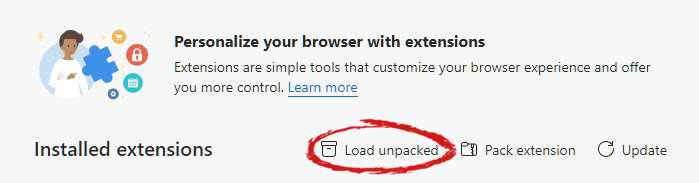
  3. Click on Load unpacked
  4. Navigate to the folder where you have extracted RUFFLE
chrome extensions

FOR EDGE:

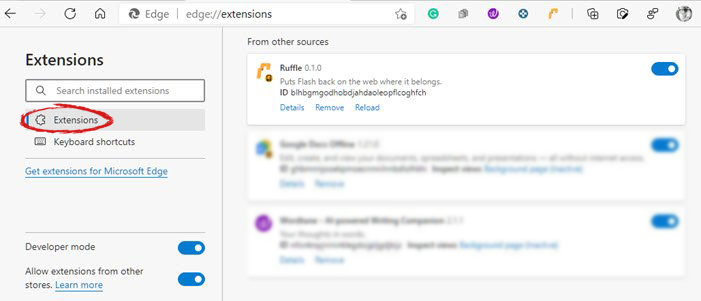
  1. Navigate to: edge://extensions/
  2. Turn ON developer mode on the bottom left corner
  3. Navigate to the folder where you have extracted RUFFLE
  4. Turn RUFFLE ON
edge extensions

FOR FIREFOX:

  1. Go to the RUFFLE download page, we can not use the zip package we were using for Chrome and Edge
  2. Right-click on the Firefox download link
  3. Save link by clicking on Save link as...
  4. Navigate to about: debugging
  5. Click on this Firefox
  6. Click Load Temporary Add-on
  7. Select the .xpi that you have downloaded

BONUS:

If you want to enable FLASH content live on your website use:  <script src="path_to_ruffle/ruffle.js"></script>
Read More
1 2 3 171
Logo
Copyright © 2023, ErrorTools. All Rights Reserved
Trademark: Microsoft Windows logos are registered trademarks of Microsoft. Disclaimer: ErrorTools.com is not affiliated with Microsoft, nor claims direct affiliation.
The information on this page is provided for information purposes only.
DMCA.com Protection Status