
Logo

MS Store and Electron Bot

So, what is Electron bot, and why it even matters if it is in the MS store. Electron bot is malware that somehow found its way inside MS Store via game clones of popular games temple run and subway surfer. This infiltration led to the infection of around 5000 systems over the globe in a very short period of time.
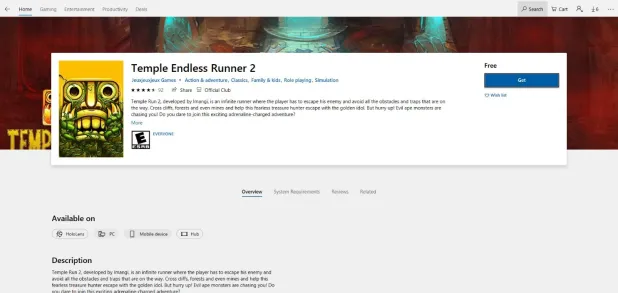
electron bot malware

This malware is a backdoor that gives complete system control to the attacker. Any type of execution can be performed remotely in real-time. Usually, this kind of attack was aimed at a spread of click fraud over popular social media like Facebook, google, youtube, etc.

Primary goal

Electron Bot's primary goals in the ongoing campaign analyzed by researchers are:

  • SEO poisoning – Create malware-dropping sites that rank high on Google Search results.
  • Ad clicking – Connect to remote sites in the background and click on non-viewable advertisements.
  • Social media account promotion – Direct traffic to specific content on social media platforms.
  • Online product promotion – Increase store rating by clicking on its advertisements.

These functions are offered as services to those who want to increase their online profits illegitimately, so the gains for the malware operators are indirect.

Publishers that contain malware

For now, users may take note of the publishers who released confirmed malicious game apps using the following names:


  • Lupy games
  • Crazy 4 games
  • Jeuxjeuxkeux games
  • Akshi games
  • Goo Games
  • Bizzon Case

Do You Need Help with Your Device?

Our Team of Experts May Help
Troubleshoot.Tech Experts are There for You!
Replace damaged files
Restore performance
Free disk space
Remove Malware
Protects WEB browser
Remove Viruses
Stop PC freezing
GET HELP
Troubleshoot.Tech experts work with all versions of Microsoft Windows including Windows 11, with Android, Mac, and more.

Share this article:

You might also like

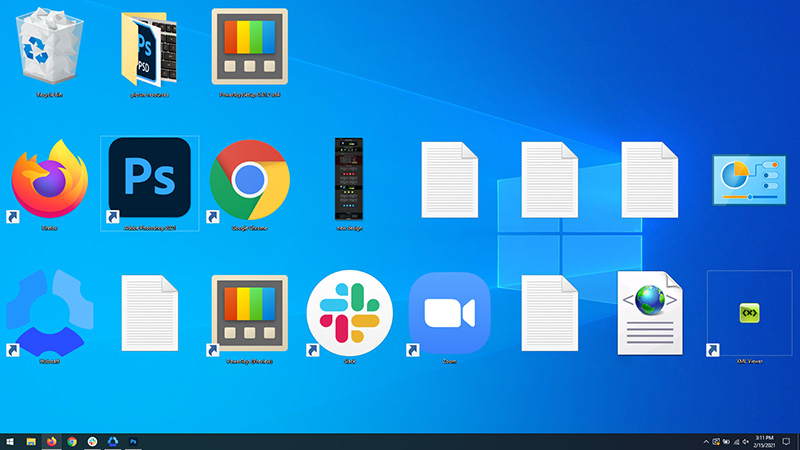
Resize icons on desktop quickly in Windows 10
Resize icons on desktop in Windows 10 in a matter of seconds! Hello everyone and welcome to today's quick tip. If you have ever been dissatisfied with icon size on your desktop and any of the default sizes like small, medium large, etc have not been appropriate know that there is a quick way to resize icons on your desktop in between sizes. All that you have to do in order to use this built-in feature is: Press and hold CTRL and scroll with the mouse. That's it! Find your appropriate size for icons and enjoy. icons on desktop
Read More
How to Fix Windows 10 Error Code 0xc0000142

Error Code 0xc0000142, What is it?

Error code 0xc0000142 is an error code that affects Windows 10 users. It often occurs when users attempt to run Windows applications. The message in the application error box allows users to recognize the error as it states that “the application was unable to start correctly (0xc0000142).” Common symptoms of this error code include the following:

  • Inability to start applications
  • Inability to completely run Windows applications
  • The appearance of error code 0xc0000142 message box

Error Causes

Error code 0xc0000142 in Windows 10 is often caused by issues related to startup programs, corrupted files or other applications. To address this issue, the source of the issue needs to be located. But how will users be able to do this while the error code is present?

Further Information and Manual Repair

To fix error code 0xc0000142 users will need to employ at least one manual repair procedure. This may include checking your system for corrupt files through tools like Microsoft’s System File Checker (SFC). If you are uncertain of your skills or prefer to get professional support, contact a Windows repair technician to assist you.

The top three methods to resolve error code 0xc0000142 include the following:

Method One: Perform a Clean Boot

A clean boot is one of the most basic procedures you can run to solve a Windows-based error code of this nature. It works by identifying whether or not conflict among startup programs is preventing Windows applications from running properly. This occurs through a clean boot process involving Windows using a minimal set of drivers and startup programs when you reboot.

Here is what you’ll need to do:

  • Step one: Go to Start and type msconfig
  • Step two: Right-click and select System Configuration
  • Step three: Select Service tab and click Hide all Microsoft Services then click Disable all.
  • Step four: Click Startup tab within the System Configuration dialog box.
  • Step five: Select Open Task Manager
  • Step six: Within the Startup tab of Task Manager, select Disable for each Startup item, then close Task Manager.
  • Step seven: Click OK on the Startup tab of System Configuration.
  • Step eight: Restart your computer.

This method resolves software conflict arising when you attempt to update, run a program or simply use your operating system. However, if error code 0xc0000142 remains unresolved after you restart your machine, follow the next step below.

Method Two: Run a System File Checker Scan

System File Checker (SFC) is a utility tool built into the Windows 10 operating system, as well as other versions of Windows, to detect and repair corrupted system files. Since corrupted system files can result in error code 0xc0000142, run this tool by following the steps below:

  • Step one: Go to Start and type Command Prompt or CMD.
  • Step two: Right-click and select Administrator
  • Step three: Check for and repair corrupted system files. Simply type sfc /scannow. (Be sure to place a space between “sfc” and “/scannow”).

Once these procedures are followed, the System File Checker tool will automatically scan your machine, and find and repair corrupted files. If this is the source or underlying cause of error code 0xc0000142 on your system, the error code will be resolved. However, if the source of the issue is not due to corruption in our system or is simply a more complicated issue try the next method highlighted below.

Read More
Fixing corrupted bootres.dll file in Windows 10
In this post, we will discuss what the “ bootres.dll ” file is in the Windows 10 operating system and where it’s also located. In addition, you will also be guided on how you can replace or fix a corrupt bootres.dll file which may prevent you from booting to your Windows desktop and will display an error message instead saying, “Boot critical file resourcescustombootres.dll is corrupt”. There are times when this error might also boot your PC to the Automatic Repair screen. DLL files, also known as Dynamic Link Libraries are external parts of applications that run on Windows as well as other operating systems. Almost all applications are not complete in themselves and store code in different files so if there is a need for the code, the related file being called by a certain application is loaded into memory and used. If the software or the operating system is unable to find the concerned DLL file or if the DLL file ends up getting corrupted, you will most likely get an error message. In case you don’t know, the bootres.dll file is a critical system OS file, size 90KB, and can be found in the Windows folder. It is a part of the Boot Resource Library and portrays an important role in making sure that your PC boots properly. So if it ends up getting corrupted, your PC may fail to boot correctly and you’ll get an error message instead. To resolve this problem, here are some suggestions that might help. If your PC automatically boots to the Automatic Repair screen, you need to click on that option to run the Automatic Repair. If it doesn’t work, you have to boot into the Advanced Startup options to manually access and run the Automatic Repair. Once you’re in the Advanced Options, you will be able to:
  • Run Automatic Repair
  • Use System Restore
  • Start Windows from an external device
  • Access Command Prompt
  • And use the System Image Recovery to restore Windows from a Factory image.
If the Automatic Repair fails to fix the problem, you may have to use System Restore or the Command Prompt to carry out further troubleshooting steps. Refer to the guide below to use these tools.

Option 1 – Try running the System File Checker in Safe Mode

Running the System File Checker is the safest way to fix DLL file missing or corrupted errors are thrown up by the Windows operating system as it could give you better results. System File Checker or SFC is a built-in command utility that helps in restoring corrupted files as well as missing files. It replaces bad and corrupted system files with good system files that might be causing the Machine Check Exception BSOD error. To run the SFC command, follow the steps given below.
  • Boot your PC into Safe Mode.
  • Tap Win + R to launch Run.
  • Type in cmd in the field and tap Enter.
  • After opening Command Prompt, type in sfc /scannow
The command will start a system scan which will take a few whiles before it finishes. Once it’s done, you could get the following results:
  1. Windows Resource Protection did not find any integrity violations.
  2. Windows Resource Protection found corrupt files and successfully repaired them.
  3. Windows Resource Protection found corrupt files but was unable to fix some of them.

Option 2 – Try running the DISM tool to repair the System Image

To repair the System Image, you need to use the DISM or Deployment Imaging and Servicing Management tool. The DISM tool is another command-line tool in the Windows operating system that could help users fix various corrupted system files. To use it, follow these steps:
  • Open the Command Prompt as admin.
  • Then type in this command: Dism /Online /Cleanup-Image /RestoreHealth
  • Do not close the window if the process takes a while as it will probably take a few minutes to finish.
Note: The command you executed will check for Windows component store corruption and will restore its good health. The scan might take up to 15 minutes. Once it is done, you have to restart your computer.

Option 3 – Try to repair the MBR and rebuild BCD

To repair the MBR and rebuild BCD, follow these steps: The problem might boil down to the Master Boot Records since the previous case has already been isolated. There are times when the Master Boot Records can get corrupted and even though it is a serious issue, it can still be rectified by repairing the Master Boot Record.
  • Tao the F8 key while booting the system to go into the Windows Recovery Menu.
  • Next, click on Troubleshoot.
  • Then click on the Advanced options to get into the Automatic Repair menu.
  • After that, you have to use the bootrex.exe tool, so click on the command prompt and type in the following commands, one after the other:
  • bootrec /RebuildBcd
  • bootrec /fixMbr
  • bootrec /fixboot
  • Exit and then go ahead and restart your PC.

Option 4 – Try running the ChkDsk utility

One of the best options you must try is running chkdsk as it will check the disk for any errors and repair them automatically. To use it, follow these steps:
  • Boot your PC to the Advanced Options menu and click on Command Prompt.
  • Once you’ve opened an elevated Command Prompt, type in the following command and tap Enter to execute it:
chkdsk C: /f /x /r
Note: “C” is the drive root drive so it could be changed if you’re using a different one.
Option 5 – Try resetting your PC

Go to the Advanced Options > Troubleshoot > and select the Reset This PC option from the menu and then select Keep my files.
Read More
Disable Touchscreen in Windows 11
The touchscreen feature inside Windows 11 is a pretty good thing but sometimes can be very impractical. The screen can easily and constantly get dirty due to fingers touching it all the time and there are users that do not wish or want to have this feature at all. touchscreen windows 11If you are one of the mentioned users and for any reason, you do not wish to have a touchscreen-enabled then sit back and relax, we have you covered in this tutorial on how to fully disable touchscreen inside Windows 11.

Turn off touchscreen via device manager

  1. Click on the Windows Search icon in the taskbar
  2. Type Device Manager
  3. Click on Device Manager from the list of results
  4. Inside locate Human Interface Devices and click on the right arrow
  5. In the list, find HID-Compliant Touch Screen and select Disable Device
  6. Click on Yes to confirm

Disable it via Windows Terminal

  1. Right-click on the Windows icon in the taskbar
  2. Click on Windows Terminal (admin)
  3. Inside run this command: Get-PnpDevice | Where-Object {$_.FriendlyName -like '*touch screen*'} | Disable-PnpDevice -Confirm:$false

Conclusion

No matter which method you prefer, both of them will disable the touch screen inside Windows 11. Thank you for reading trough article and I hope to see you again. Take care.
Read More
How to Fix DCOM Error 1084 on Windows
Distributed Component Object Model or DCOM is a module on Windows computers that allows computers to run programs over a network to another computer. It is a software component from Microsoft that allows COM objects to communicate with each other while that program is remotely running over the network. The COM Model is another extension of the DCOM model which both work together in order for the intended task to be executed. To make this module work, there are three components needed such as the Class Identifier or CLSID, the Programmatic Identifier or PROGID, and the Application Identifier or APPID. However, DCOM does not always work as expected as it could still encounter some errors. One of them is error 1084. Because of this error, the execution of programs in a remote computer on the network would be interrupted. So if you encounter the DCOM error 1084 when you try to start a service like running the DISM tool or in other scenarios on your Windows 10 computer, then this post could help you. Refer to the instructions given below to start troubleshooting the problem.

Option 1 – Try checking the status of DCOMLAUNCH Service or DCOM Server Process Launcher and its 3 dependencies

The DCOM Server Process Launcher service launches both COM and DCOM servers in response to object activation requests. This is why if this service is stopped or disabled, the programs that are using COM and DCOM won’t properly function. So you need to make sure that the DCOMLAUNCH service is running.
  • In the Cortana search box, type “services” and click on the Services icon to open the Services Manager. Alternatively, you can also tap the Win + R keys to launch the Run prompt and then type “services.msc” in the field and hit Enter to open the Services Manager.
  • Next, check the following services:
    • DCOM Service Process Launcher
    • Background Tasks Infrastructure Service
    • Local Session Manager
    • Remote Procedure Call (RPC)
  • Then right-click on each one of the services and click on their Properties.
  • After that, select Automatic from the drop-down menu of Startup Type and make sure that all the aforementioned services are Running.
  • Now click OK for each one of the services.

Option 2 – Troubleshoot the problem in a Clean Boot State

There are instances that some conflicting programs installed in your computer might be the one that’s causing DCOM error 1084. To identify which program is causing the problem, you need to put your computer in a Clean Boot State. To do so, follow the steps below.
  • Log onto your PC as an administrator.
  • Type in MSConfig in the Start Search to open the System Configuration utility.
  • From there, go to the General tab and click “Selective startup”.
  • Clear the “Load Startup items” check box and make sure that the “Load System Services” and “Use Original boot configuration” options are checked.
  • Next, click the Services tab and select the “Hide All Microsoft Services” check box.
  • Click Disable all.
  • Click on Apply/OK and restart your PC. (This will put your PC into a Clean Boot State. And configure Windows to use the usual startup, just simply undo the changes.)
  • From there, start to isolate the problem by checking which one of the programs you installed recently is the root cause of the problem.

Option 3 – Try to use the DISM tool

You might want to repair potentially corrupted files in your system as having them could also trigger the DCOM error 1084. To repair these corrupted system files, you can run the DISM commands:
  • Tap the Win + X keys and click on the “Command Prompt (Admin)” option.
  • After that, input each one of the commands listed below sequentially to execute them:
    • Dism /Online /Cleanup-Image /CheckHealth
    • Dism /Online /Cleanup-Image /ScanHealth
    • Dism /Online /Cleanup-Image /RestoreHealth
  • Once you’ve executed the commands given above, restart your computer and check if the DCOM error is now fixed.

Option 4 – Reset your computer

  • Tap the Win key or click on the Start button located in the Taskbar.
  • Then click on the Power button at the bottom right portion of the screen.
  • Next, press and hold the Shift key on your keyboard and then click on Restart. This will restart your Pc into the Advanced Startup options.
Note: Once you have access to the Advanced Startup options, you have to go to the setting which allows you to Reset your Windows 10 PC. All you have to do is select Troubleshoot > Reset this PC to reach the following screen Afterward, select either the “Keep my files” option and then proceed to the next on-screen instructions that follow to reset your Windows 10 computer without losing your files.
Read More
Fix ERR_CONNECTION_RESET in Chrome
This post will help you fix the ERR_CONNECTION_RESET error in Google Chrome. This error indicates that the Chrome browser wasn’t able to establish a stable connection or that there really is no connection at all with the website you are trying to open. This error does not occur on all websites though. When you encounter this kind of error message you will see the following message on your Google Chrome browser:
“This website is not available, The connection to example.com was interrupted, Error 101 (net:: ERR_CONNECTION_RESET): The Connection was reset.”
Note: You need to follow the options given below to fix the ERR_CONNECTION_RESET error and make sure to reload the webpage each time you complete following each one of the fixes.

Option 1 – Check the Network Cables and restart the router then reconnect

Of course, the first thing you can try is to check if the network cables connected to your computer or router are properly connected. And if your computer is connected via Wi-Fi, you need to make sure to restart your router once. In addition, you can also forget the Wi-Fi your computer is currently connected to and then try reconnecting again to see if it would work.

Option 2 – Try removing the Proxy

Removing the Proxy might also help you in fixing the ERR_CONNECTION_RESET error in Chrome. Here’s how you can do it:
  • Tap the Win + R keys to open the Run dialog box.
  • Then type “inetcpl.cpl” in the field and hit Enter to pull up the Internet Properties.
  • After that, go to the Connections tab and select the LAN settings.
  • From there. Uncheck the “Use a Proxy Server” option for your LAN and then make sure that the “Automatically detect settings” option is checked.
  • Now click the OK and the Apply buttons.
  • Restart your PC.
Note: If you are using a third-party proxy service, you have to disable it.

Option 3 – Try to increase the Maximum Transmission Unit (MTU)

You can also try increasing the Maximum Transmission Unit to fix the error. To do so, follow these steps:
  • Open Settings and go to Network & Internet > Ethernet.
  • From there, take off the Active Wireless / Wired Network Connection.
  • Next, open Command Prompt as admin.
  • Then type the “netsh interface IPv4 set subinterface “Ethernet 4” mtu=1472 store=persistent” command and hit Enter to execute it.

Option 4 – Flush the DNS and reset TCP/IP

Flushing the DNS and reset TCP/IP could also help in fixing the ERR_CONNECTION_RESET error in Chrome. To do so, refer to these steps:
  • Click the Start button and type in “command prompt” in the field.
  • From the search results that appear, right-click on Command Prompt and select the “Run as administrator” option.
  • After opening Command Prompt, you have to type each one of the commands listed below. Just make sure that after you type each command, you hit Enter
    • ipconfig /release
    • ipconfig /all
    • ipconfig /flushdns
    • ipconfig /renew
    • netsh int ip set dns
    • netsh winsock reset
After you key in the commands listed above, the DNS cache will be flushed and the Winsock, as well as the TCP/IP, will reset.

Option 5 – Disable the AppEx Networks Accelerator feature

The AppEx Networks Accelerator is known to slow down network connections. Some users reported that it slows down the network speed by 70% up to 80% which is why you need to disable it. Here’s how you can do it:
  • Go to Settings and select Network & Internet and from there select Ethernet > Change adapter options.
  • Next, right-click on the network connection and select Properties.
  • Then look for AppEx Networks Accelerator and uncheck its checkbox.
  • Now click the OK button to save the changes and then check if the error is now fixed.

Option 6 – Delete the WLAN Profiles

Deleting the WLAN Profiles might be a good idea if you are not able to connect to the internet on your computer and if you’re using Wi-Fi. It could be that the networks that were connected previously have gone rogue which is why it is not connecting properly. And so deleting the WLAN profiles might help you in fixing the ERR_CONNECTION_RESET error.

Option 7 – Reinstall the Network Adapter Drivers

  • Tap the Win + R keys to launch the Run window and then type in the “devmgmt.msc” command and hit Enter to open the Device Manager window.
  • Under the Device Manager, you will see a list of drivers. From there, look for the Network Adapters and expand it.
  • Then right-click on each one of the Network drivers and select “Uninstall device”.
  • Restart your PC.

Option 8 – Try to disable the Wi-Fi Miniport

  • In the Cortana Search box, type “command prompt” then right-click on the search result and select “Run as administrator”.
  • After opening Command Prompt with admin privileges, type the commands listed below and hit Enter right after you key in each one of them.
    • netsh wlan stop hostednetwork
    • netsh wlan set hostednetwork mode=disallow
  • Now exit Command Prompt and tap the Win + R keys to open the Run dialog box.
  • Type “cpl” in the field and hit Enter to open Network Connections.
  • From there, look for Microsoft Virtual Wi-Fi Miniport and right-click on it, and then select Disable.

Option 9 – Start Chrome in Safe Mode

The same with Windows Safe Mode, starting Chrome in Sage mode will open the browser but without all the user settings and extensions. And then try opening the website you were trying to open earlier.

Option 10 – Reset Google Chrome

  • Open Google Chrome, then tap the Alt + F keys.
  • After that, click on Settings.
  • Next, scroll down until you see the Advanced option, once you see it, click on it.
  • After clicking the Advanced option, go to the “Restore and clean up the option and click on the “Restore settings to their original defaults” option to reset Google Chrome.
  • Now restart Google Chrome.
Read More
Fix FAULTY_HARDWARE_CORRUPTED_PAGE
If you got the FAULTY_HARDWARE_CORRUPTED_PAGE Blue Screen error on your Windows 10 computer then it is most likely caused by various factors. It could be caused by an incomplete installation or uninstallation of some applications or program, or it could also be caused by some exploit that intervenes with the normal functioning of the computer, as well as bad sectors on the hard disk, damaged system files, malfunctioned system drivers, modified Windows Registry files, or a Blue Screen occurrence during a Windows Update and many more. Getting this bug check means that a single-bit error was found on this page. It also indicates that this is a hardware memory error and to resolve it, you need to follow the suggestions laid out below but before that, it is recommended for you to create a System Restore Point first so that if anything goes wrong, you can always go back to the previous state.

Option 1 – Run a Memory Check to test RAM

Since the problem might have something to do with hardware memory, you need to test RAM by running a Memory Check using the Windows Memory Diagnostic. Refer to these steps to do so.
  • Tap the Win + R keys to open the Run dialog box.
  • Then type “mdsched.exe” in the field and hit Enter to open the Windows Memory Diagnostic.
  • After that, the Windows Memory Diagnostic will give out two options such as:
  1. Restart now and check for problems (recommended)
  2. Check for problems the next time I start my computer
  • Select any of the given options. After that, your computer will restart and check for memory-based issues upon the restart. If there are any issues, it will automatically them.

Option 2 – Run the System File Checker

System File Checker or SFC is a built-in command utility that helps in restoring corrupted files as well as missing files. It replaces bad and corrupted system files with good system files that might be the cause why you’re getting the FAULTY_HARDWARE_CORRUPTED_PAGE Blue Screen error. To run the SFC command, follow the steps given below.
  • Tap Win + R to launch Run.
  • Type in cmd in the field and tap Enter.
  • After opening Command Prompt, type in sfc /scannow
The command will start a system scan which will take a few whiles before it finishes. Once it’s done, you could get the following results:
  1. Windows Resource Protection did not find any integrity violations.
  2. Windows Resource Protection found corrupt files and successfully repaired them.
  3. Windows Resource Protection found corrupt files but was unable to fix some of them.

Option 3 – Check for conflicting or incompatible programs by putting your PC in a Clean Boot state

As mentioned, the FAULTY_HARDWARE_CORRUPTED_PAGE Blue Screen error might be caused by some problematic programs that clash with your existing operating system. Several users reported that numerous programs that are supposedly designed to enhance computer performance are causing conflict in the system instead. To identify which program is causing the problem, you need to put your computer in a Clean Boot State. To do so, follow the steps below.
  • Log onto your PC as an administrator.
  • Type in MSConfig in the Start Search to open the System Configuration utility.
  • From there, go to the General tab and click “Selective startup”.
  • Clear the “Load Startup items” checkbox and make sure that the “Load System Services” and “Use Original boot configuration” options are checked.
  • Next, click the Services tab and select the “Hide All Microsoft Services” checkbox.
  • Click Disable all.
  • Click on Apply/OK and restart your PC. (This will put your PC into a Clean Boot State. And configure Windows to use the usual startup, just simply undo the changes.)
  • From there, start to isolate the problem by checking which one of the programs you installed recently is the root cause of the problem.

Option 4 – Update or rollback drivers

If the first few options didn’t work for you, then it’s time to either update or roll back the device drivers. It is most likely that after you updated your Windows computer that your driver also needs a refresh. On the other hand, if you have just updated your device drivers then you need to roll back the drivers to their previous versions. Whichever applies to you, refer to the steps below.
  • Open the Devices Manager from the Win X Menu.
  • Then locate the device drivers and right-click on them to open the Properties.
  • After that, switch to the Driver tab and click on the Uninstall Device button.
  • Follow the screen option to completely uninstall it.
  • Finally, restart your computer. It will just reinstall the device drivers automatically.
Note: You can install a dedicated driver on your computer in case you have it or you could also look for it directly from the website of the manufacturer.
Read More
How to Repair Bad_Pool_Header Error

Bad_Pool_Header Error - What is it?

Bad_Pool_Header is one of the types of BSOD (Blue Screen of Death) error codes. This error triggers a problem with Windows memory allocation. When this error message occurs, the screen turns blue and locks the user out of the application running on the system. The computer shuts down or restarts.

Solution

Restoro box imageError Causes

There is no one particular cause for the occurrence of the Bad_Pool_Header error code. It may appear on your system due to multiple reasons such as:
  • Device driver issues
  • Cluttered disk
  • Disk writing issues
  • Faulty memory hardware
Driver issues and disk writing issues occur when your try to update new driver versions. During this process, users often forget to remove the files of the uninstalled version from the registry. And due to the presence of the uninstalled driver files in the registry updating and disk writing becomes an uphill task which leads to the Bad_Pool_Header display on the computer screen. The main database of your system is the registry so you need to keep it clean to avoid disk cluttering. The hard disk clutters because the registry saves all the activities that you perform in your system. It saves junk files, internet history, invalid entries, and other unnecessary files. This occupies a lot of your disk space thus resulting in disk cluttering and faulty memory hardware issues triggering the Bad_Pool_Header. Ignoring the Bad_Pool_Header error is not wise. It is advisable to repair the Bad_Pool_Header right away as it can lead to serious threats like system failure and data loss.

Further Information and Manual Repair

The easiest, time and money-saving way to resolve the Bad_Pool_Header error on your system is to install Restoro. This is a high and multi-functional repair tool that features a powerful inbuilt registry cleaner, anti-virus, and a system optimizer. This tool is the one-stop solution for all your PC-related errors including the Bad_Pool_Header blue screen of death error. Whether it’s a driver issue, faulty memory, or cluttered disk, all the causes triggering the Bad_Pool_Header error code fall under the registry which is why it is recommended to install Restoro. Its innovative and powerful registry cleaner scans detect and repair all the errors related to the registry in one go including the Bad_Pool_Header errors. With this helper, you can easily remove all the unnecessary files cluttering your hard disk and damaging your registry. It wipes out the clutter in seconds and frees up disk space.

Why Should You Clean The Registry?

Sometimes the registry also gets cluttered by malicious software like viruses, spyware, and malware. These may also take up your disk space and prevent you to perform disk writing successfully and also corrupt the registry. The privacy error finding utility embedded in Restoro helps you scan for such malicious software on your system and removes them immediately. It lends the software anti-virus properties. When it comes to using repair tools, many users who are not technically sound often worried. They think it may be difficult to operate. If you think the same way, let us tell you that Restoro is very easy to use. It is integrated with a high-functional yet user-friendly interface complemented by simple navigation.

Restoro Special Features

This makes it simple for all levels of users to operate it regardless of whether they are technically adept or not. Restoro is compatible with all Windows versions. You can download it with ease and run it for scans on any Windows version you have installed on your system. To get started, all you have to do is:
  • Click here to install Restoro.
  • Once the installation is complete now run it to scan for errors like the Bad_Pool_Header
  • After that simply click on the ‘repair’ button to resolve
Read More
How to Fix Error Code 0x80072EE2 in Windows 10

Error Code 0x80072EE2 – What is it?

Windows 10 error code 0x80072EE2 usually occurs as a result of a disruption during the upgrade process when users attempt to upgrade their operating system using Windows Update. The disruption may be caused by a loss of Internet connection. Error code 0x80072EE2 may also occur due to problems related to one’s firewall. Common symptoms of this error code include the following:

  • Upgrade process fails to complete
  • A message box pops up highlighting the presence of error code 0x80072EE2

Solution

Restoro box imageError Causes

Upgrade error codes like error code 0x80072EE2 usually occur when disruptions or problems related to system files, or third-party apps prevent Windows Update from completing an upgrade. In the case of error code 0x80072EE2, the most likely cause is a bad Internet connection.

Further Information and Manual Repair

Windows 10 error codes are numerous and so are the solutions to fixing these problems. In most cases, Windows users have access to several manual repair solutions depending on the error code present on their device. These manual repair methods are usually easy to implement, with the exception of a few solutions that require technical knowledge and skills. In such cases, you may need to consider using an effective automated tool or you may contact a Windows repair technician to assist you.

In terms of error code 0x80072EE2, however, no technical skills are required. Manual repair solutions for this error code involve checking and troubleshoot network problems if your connection was disrupted. Also, you may need to check your firewall settings and disable it temporarily to verify whether or not your firewall is preventing you from accessing the upgrade. Further details are provided below.

Method One: Verify Internet Connection

If for whatever reason you lost Internet connection while attempting to upgrade your operating system via Windows Update, your upgrade will time out and error code 0x80072EE2 in Windows 10 may occur. For this reason, it is important for you to check your connection once you notice the presence of error code 0x80072EE2 on your device.

There are many ways you can verify your Internet connection but one of the simplest ways is to first open your preferred Internet browser and type the web address of a site you normally visit. Once you are able to access the website, you will know for sure that your connection is not an issue. Simply restart your PC and reattempt the upgrade.

If you are unable to complete the upgrade process, however, this simply means that there is another issue causing error code 0x80072EE2 to occur. Proceed to the next manual repair method. This method may also apply if you were unable to connect to the Internet.

Method Two: Troubleshoot Network Problems

Though you may be able to access a website or open your Internet browser, there may be other issues affecting your network that are causing the error code to occur. To verify for certain whether or not the issue causing error code 0x80072EE2 in Windows 10 is related to your network, troubleshoot your network using the Network Troubleshooter tool found on your PC.

  • Step one: Type Network Troubleshooter in the search box near the Start button
  • Step two: Select Identify and repair network problems
  • Step three: Wait until the troubleshooter has verified and fixed problems related to the network
  • Step four: Restart PC

Once the issue has been resolved, it is time to verify if the error code is fixed. Open Windows Update then select the option which enables you to access the latest upgrades to your machine. Wait to see if the error code reoccurs or if you can now access the upgrade to your operating system. If the error code reoccurs, move to the next manual repair method.

Method Three: Disable Firewall Settings

Another issue that may be causing an error code to occur is your firewall. To verify if your firewall is preventing you from accessing the upgrade, disable your firewall. If you are using third-party security software, simply open the security app and check its firewall settings. Select disable or turn off the firewall.

Restart your computer, then open Windows Update to reattempt to upgrade your device. If this proves successful, you will be able to access the upgrade. Error code 0x80072EE2 in Windows 10 will no longer be present.

Method Four: Download an Automated Tool

If you wish to always have at your disposal a utility tool to fix these Windows 10 and other related issues when they do arise, download and install a powerful automated tool.

Read More
Using ???? and other emoji in Windows
Did you know you can use emoji in file names inside Windows 10? It is no secret that emojis are basically everywhere and Microsoft has seen this and integrated them into Windows itself, so you can name files using emojis or combine them with text. Placing emojis in file names or in the text is extremely easy, all you have to do is press ⊞ WINDOWS + . and the emoji dialog will open from where you can find which emoji you would like to use. And that's it, you just used emoji for the file naming.

!!!NOTE!!!

In theory, some applications may not like these emojis if they don’t support Unicode characters. However, modern applications are designed to work with a broad set of languages that should properly support emojis. For example, the classic Windows Command Prompt can’t see emoji characters in file names properly, but both PowerShell and Microsoft’s new Windows Terminal can display them properly. If you do run into a problem, you can always open File Explorer and rename the affected files and folders to remove the emoji characters. You can then use those files in applications that don’t properly support emoji file names.
Read More
1 2 3 171
Logo
Copyright © 2023, ErrorTools. All Rights Reserved
Trademark: Microsoft Windows logos are registered trademarks of Microsoft. Disclaimer: ErrorTools.com is not affiliated with Microsoft, nor claims direct affiliation.
The information on this page is provided for information purposes only.
DMCA.com Protection Status

