Logo

How to remove Nectar Toolbar from your Windows PC

Nectar Toolbar is a Browser addon for Internet Explorer developed by AIMIA Coalition Loyalty. This addon changed your default search provider to Yahoo UK. While installed, you might see additional unwanted ads and sponsored links injected in the search results.

From the Author: We all search the web every day for information from handy how-to’s, must know news about shopping. So wouldn’t it be great if you could collect extra Nectar points just for doing something you do already? Like to shop online? Nectar Search will also tell you when you’re on a shopping website (like Argos, Debenhams, Next, Play.com, and Apple) where you can collect points too.

Several anti-virus scanners have marked this addon as a Browser Hijacker and are therefore not recommended to keep on your computer.

About Browser Hijackers

Browser hijacking means a malicious program code has power over and modified the settings of your browser, without your permission. Browser hijackers could do more than just changing home pages. In general, hijackers are developed for the benefit of online hackers often through income generation that comes from forced ad mouse clicks and website visits. Nonetheless, it isn’t that harmless. Your web safety is compromised and it is also really annoying. In a much worst case, your browser could be hijacked to download malicious software that will do a great deal of damage to your computer.

Key symptoms that your browser has been hijacked

When your browser is hi-jacked, the following can happen: you notice unauthorized changes to your internet browser’s homepage; you observe new unwanted favorites or bookmarks added, usually directed to advertisement-filled or porn websites; the default browser configurations have been changed and/or your default web engine is altered; unwanted new toolbars are added to your internet browser; you might notice numerous pop-up adverts on your computer screen; your browser has instability issues or exhibits frequent errors; You can’t access particular websites, especially anti-malware websites.

Exactly how they invade computers

A browser hijacker can be installed on your computer or laptop when you go to an infected site, click on an e-mail attachment, or download something from a file-sharing site. Many internet browser hijackings originate from add-on programs, i.e., browser helper objects (BHO), toolbars, or plug-ins added to browsers to provide them additional features. Other times you might have accidentally accepted a browser hijacker as part of a software bundle (generally freeware or shareware). Popular examples of browser hijackers include CoolWebSearch, Conduit, OneWebSearch, Coupon Server, RocketTab, Delta Search, Searchult.com, and Snap.do.

Browser hijacking can bring about serious privacy problems and even identity theft, affect your web browsing experience by taking control over outgoing traffic, drastically slows down your computer or laptop by depleting lots of resources, and lead to system instability also.

Browser hijacker removal methods

Some browser hijacking can be easily stopped by identifying and eliminating the corresponding malware software from your control panel. However, most hijackers are quite tenacious and require specialized applications to get rid of them. Moreover, browser hijackers could modify the Windows registry so it can be extremely tough to fix manually, particularly when you are not a tech-savvy person.

Browser hijackers can be effectively removed by installing and running an anti-malware application on the affected computer. To get rid of any browser hijacker out of your computer, you could download this particular top-notch malware removal application – SafeBytes Anti-Malware. Together with anti-malware, a PC optimizer software, similar to Total System Care, could help you correct Windows registry errors, remove unwanted toolbars, secure your internet privacy, and stabilize programs installed on your computer.

Find Out How To Install Safebytes Anti-Malware On An Infected Computer system

All malware is bad and the consequences of the damage will vary based on the specific type of malicious software. Certain malware goes to great lengths to stop you from downloading or installing anything on your computer system, particularly anti-virus programs. If you are reading this, you probably have infected by a virus that stops you from installing a security program like Safebytes Anti-Malware. Follow the instructions below to remove malware through alternative methods.

Install in Safe Mode with Networking

Safe Mode is a unique, simplified version of Windows where just essential services are loaded to counteract malware and other problematic programs from loading. In case the malicious software is set to load immediately when the PC boots, switching to this mode could prevent it from doing so. To boot into Safe Mode, hit “F8” key on the keyboard right before Windows logo screen appears; Or right after normal Windows boot up, run MSCONFIG, look over Safe Boot under Boot tab, and then click Apply. Once you are in Safe Mode, you can try to install your anti-malware application without the hindrance of the malware. After installation, run the malware scanner to eliminate standard infections.

Download the anti-malware program in a different internet browser

Some malware only targets particular internet browsers. If this is your case, employ another browser as it might circumvent the computer virus. In case you suspect that your Internet Explorer happens to be hijacked by a computer virus or otherwise compromised by online hackers, the most effective course of action is to switch over to a different web browser such as Mozilla Firefox, Google Chrome, or Apple Safari to download your favorite security application – Safebytes Anti-Malware.

Make a bootable USB anti-virus drive

Another solution is to save and run an anti-malware software program entirely from a Thumb drive. To run antivirus from a thumb drive, follow these simple steps:
1) On a clean computer, install Safebytes Anti-Malware.
2) Plug the USB drive into the clean computer.
3) Double-click the Setup icon of the anti-malware software to run the Installation Wizard.
4) Select the drive letter of the pen drive as the location when the wizard asks you where you would like to install the anti-virus. Follow the onscreen instructions to finish the installation.
5) Now, insert the USB drive into the corrupted PC.
6) Run the Safebytes Anti-malware directly from the pen drive by double-clicking the icon.
7) Simply click “Scan Now” to run a complete scan on the affected computer for malware.

SafeBytes Anti-Malware Features

To protect your laptop or computer from various internet-based threats, it’s important to install anti-malware software on your personal computer. However, with countless numbers antimalware companies out there, these days it is hard to decide which one you should buy for your laptop. Some of them do a great job in eliminating malware threats while some will damage your PC by themselves. You must be careful not to pick the wrong product, especially if you buy a paid application. On the list of strongly recommended software by industry leaders is SafeBytes Anti-Malware, the most dependable program for Microsoft Windows.

SafeBytes anti-malware is a trustworthy tool that not only secures your PC permanently but is also quite user-friendly for people of all skill levels. Once you’ve got installed this application, SafeByte's sophisticated protection system will ensure that no viruses or malware can seep through your PC.

SafeBytes anti-malware provides an array of enhanced features that sets it aside from all others. Some of them are listed as below:

Real-Time Protection: SafeBytes gives you round-the-clock protection for your PC limiting malware intrusions in real-time. This utility will constantly monitor your computer for suspicious activity and updates itself continuously to keep abreast of the constantly changing threat landscape.

Most effective AntiMalware Protection: Built on a greatly acclaimed anti-virus engine, this malware removal application can find and get rid of numerous stubborn malware threats such as browser hijackers, potentially unwanted programs, and ransomware that other common anti-virus applications will miss.

Website Filtering: Safebytes allots all websites a unique safety score that helps you to have an idea of whether the webpage you’re just about to visit is safe to browse or known to be a phishing site.

Fast Multi-threaded Scanning: Safebytes Anti-Malware, with its advanced scanning engine, offers extremely fast scanning which can promptly target any active online threat.

Low CPU/Memory Usage: SafeBytes is well known for its low influence on processing power and great detection rate of various threats. It operates silently and efficiently in the background so you’re free to utilize your PC at full power all of the time.

24/7 Customer Service: For any technical concerns or product assistance, you could get 24/7 professional assistance through chat and email.

Put simply, SafeBytes has created a meaningful anti-malware solution that is aimed to protect you against all manner of malware. You now may understand that this particular software does more than just scan and eliminate threats from your PC. So if you’re searching for the absolute best malware removal application out there, and when you don’t mind shelling out a few bucks for it, opt for SafeBytes Anti-Malware.

Technical Details and Manual Removal (Advanced Users)

To eliminate Nectar Toolbar manually, go to the Add or Remove programs list in the Windows Control Panel and choose the program you want to remove. For browser extensions, go to your web browser’s Addon/Extension manager and select the add-on you want to remove or disable. You’ll probably also want to reset your internet browser to its default settings.

Finally, check your hard disk for all of the following and clean your computer registry manually to get rid of leftover application entries after uninstallation. But bear in mind, this can be a tough task and only computer professionals can perform safely. In addition, certain malicious programs have the capability to defend against its removal. Completing this task in Safe Mode is suggested.


Files:
C:\Program Files (x86)\Nectar Toolbar
C:\Program Files (x86)\Nectar Toolbar\tbunsg7A.tmp\AimiaPoints.png
C:\Program Files (x86)\Nectar Toolbar\tbunsg7A.tmp\AimiaPointsAct.png
C:\Program Files (x86)\Nectar Toolbar\tbunsg7A.tmp\AimiaToolbar.css
C:\Program Files (x86)\Nectar Toolbar\tbunsg7A.tmp\ArrowDown.png
C:\Program Files (x86)\Nectar Toolbar\tbunsg7A.tmp\ArrowRight.png
C:\Program Files (x86)\Nectar Toolbar\tbunsg7A.tmp\ArrowUp.png
C:\Program Files (x86)\Nectar Toolbar\tbunsg7A.tmp\arrow_refresh.png
C:\Program Files (x86)\Nectar Toolbar\tbunsg7A.tmp\background.html
C:\Program Files (x86)\Nectar Toolbar\tbunsg7A.tmp\background.js
C:\Program Files (x86)\Nectar Toolbar\tbunsg7A.tmp\basis.xml
C:\Program Files (x86)\Nectar Toolbar\tbunsg7A.tmp\BrowserTweak.css
C:\Program Files (x86)\Nectar Toolbar\tbunsg7A.tmp\btn-background-grey.png
C:\Program Files (x86)\Nectar Toolbar\tbunsg7A.tmp\CanCollect.png
C:\Program Files (x86)\Nectar Toolbar\tbunsg7A.tmp\CanCollectAct.png
C:\Program Files (x86)\Nectar Toolbar\tbunsg7A.tmp\closeIcon.png
C:\Program Files (x86)\Nectar Toolbar\tbunsg7A.tmp\cog.png
C:\Program Files (x86)\Nectar Toolbar\tbunsg7A.tmp\Collecting.png
C:\Program Files (x86)\Nectar Toolbar\tbunsg7A.tmp\CollectingAct.png
C:\Program Files (x86)\Nectar Toolbar\tbunsg7A.tmp\computer_delete.png
C:\Program Files (x86)\Nectar Toolbar\tbunsg7A.tmp\eShopsMenu.html
C:\Program Files (x86)\Nectar Toolbar\tbunsg7A.tmp\eShopsMenu.js
C:\Program Files (x86)\Nectar Toolbar\tbunsg7A.tmp\help.png
C:\Program Files (x86)\Nectar Toolbar\tbunsg7A.tmp\HelpMenu.html
C:\Program Files (x86)\Nectar Toolbar\tbunsg7A.tmp\HelpMenu.js
C:\Program Files (x86)\Nectar Toolbar\tbunsg7A.tmp\icon-128.png
C:\Program Files (x86)\Nectar Toolbar\tbunsg7A.tmp\icon-16.png
C:\Program Files (x86)\Nectar Toolbar\tbunsg7A.tmp\icon-48.png
C:\Program Files (x86)\Nectar Toolbar\tbunsg7A.tmp\icons.bmp
C:\Program Files (x86)\Nectar Toolbar\tbunsg7A.tmp\icons.png
C:\Program Files (x86)\Nectar Toolbar\tbunsg7A.tmp\ie7vista.png
C:\Program Files (x86)\Nectar Toolbar\tbunsg7A.tmp\ie7xp.png
C:\Program Files (x86)\Nectar Toolbar\tbunsg7A.tmp\ie8bg.png
C:\Program Files (x86)\Nectar Toolbar\tbunsg7A.tmp\IE8GuardWorkaround.exe
C:\Program Files (x86)\Nectar Toolbar\tbunsg7A.tmp\info.txt
C:\Program Files (x86)\Nectar Toolbar\tbunsg7A.tmp\InstIcon.ico
C:\Program Files (x86)\Nectar Toolbar\tbunsg7A.tmp\jquery-1.7.2.min.js
C:\Program Files (x86)\Nectar Toolbar\tbunsg7A.tmp\jquery.placeholder.min.js
C:\Program Files (x86)\Nectar Toolbar\tbunsg7A.tmp\JSON.js
C:\Program Files (x86)\Nectar Toolbar\tbunsg7A.tmp\main.js
C:\Program Files (x86)\Nectar Toolbar\tbunsg7A.tmp\menu.js
C:\Program Files (x86)\Nectar Toolbar\tbunsg7A.tmp\nectar-icon-32×32.png
C:\Program Files (x86)\Nectar Toolbar\tbunsg7A.tmp\PIE.htc
C:\Program Files (x86)\Nectar Toolbar\tbunsg7A.tmp\PIE.js
C:\Program Files (x86)\Nectar Toolbar\tbunsg7A.tmp\SearchHist.html
C:\Program Files (x86)\Nectar Toolbar\tbunsg7A.tmp\SearchHist.js
C:\Program Files (x86)\Nectar Toolbar\tbunsg7A.tmp\search_glass.png
C:\Program Files (x86)\Nectar Toolbar\tbunsg7A.tmp\separator.png
C:\Program Files (x86)\Nectar Toolbar\tbunsg7A.tmp\separator_arrows.png
C:\Program Files (x86)\Nectar Toolbar\tbunsg7A.tmp\TbCommonUtils.dll
C:\Program Files (x86)\Nectar Toolbar\tbunsg7A.tmp\tbcore3.dll
C:\Program Files (x86)\Nectar Toolbar\tbunsg7A.tmp\TbHelper2.exe
C:\Program Files (x86)\Nectar Toolbar\tbunsg7A.tmp\tbhelperU.dll
C:\Program Files (x86)\Nectar Toolbar\tbunsg7A.tmp\uninstall.exe
C:\Program Files (x86)\Nectar Toolbar\tbunsg7A.tmp\UninstIcon.ico
C:\Program Files (x86)\Nectar Toolbar\tbunsg7A.tmp\update.exe
C:\Program Files (x86)\Nectar Toolbar\tbunsg7A.tmp\version.txt
C:\Program Files (x86)\Nectar Toolbar\tbunsg7A.tmp\Yahoo.ico
C:\Program Files (x86)\Nectar Toolbar\tbunsg7A.tmp\yahoo.png
C:\Program Files (x86)\Nectar Toolbar\tbunsg7A.tmp\your_logo.png

Registry:
HKEY_CURRENT_USER\Software376694984709702142491016734454
HKEY_CURRENT_USER\Software\Microsoft\Windows\CurrentVersion\Run 13376694984709702142491016734454

Do You Need Help with Your Device?

Our Team of Experts May Help
Troubleshoot.Tech Experts are There for You!
Replace damaged files
Restore performance
Free disk space
Remove Malware
Protects WEB browser
Remove Viruses
Stop PC freezing
GET HELP
Troubleshoot.Tech experts work with all versions of Microsoft Windows including Windows 11, with Android, Mac, and more.

Share this article:

You might also like

My device used to work, but now it doesn’t
So you just have turned your computer ON only to find out that your device which was working perfectly yesterday is not working anymore. This situation can be very stressful and disappointing but do not despair, before you toss your device through the window know that this kind of behavior can be traced back to a software issue. In this article, we will give you hints on what to do and where to pay attention when something like this happens so you get the device back in working order.
  1. Check if it not a hardware malfunction

    To save yourself time and unnecessary frustration with juggling through Windows first inspect the device to be sure that indeed it is working properly, check all led lamps which could indicate that the device is working and receiving power, and if it is an internal device try opening the case and visually check if there are signs of working like rotating fans or led lamps on it.
  2. Check Cables

    If it is an external device that has stopped working try checking power cables and cables which go to your computer, see if they are tightly connected. If it is an internal device also check cables, nudge them and if possible disconnect and clean them.
  3. Disconnect and reconnect the device

    Try this solution to see will Windows register the device again and start it.
  4. Update Windows

    If there is a Windows update not installed, install it and see if the device will start working.
  5. Update device drivers

    Go to device manager and update the device driver to its latest version or go to the manufacturer's site and download the latest driver version.
  6. Reinstall the device

    In the device manager, uninstall the device driver and reboot Windows. When Windows boots it will recognize the device and install the necessary drivers for it.
  7. Disable antivirus and firewall

    Sometimes antivirus can prevent certain devices from working properly, especially if they rely on some system files to which antivirus or firewall has cut access. Try disabling your PC protection to see if this will resolve the issue.
  8. Use dedicated error software

    Use DRIVERFIX to automatically search and fix driver issues.
Read More
Fix Broadcom BCM20702A0 driver error
In recent times, some Windows 10 users have seen an error code BCM20702A0, when using Bluetooth and they are concerned as to what it is all about. We can say for certain that it has something to do with your Bluetooth driver. The error message in question is:
The drivers for this device are not installed. There are no compatible drivers for this device.
The problem here tends to no longer allow specific Bluetooth components to properly communicate with your Windows 10 operating system. It also affects laptops that do not have native Bluetooth support; therefore, the manufacturer installed a dongle on the inside to deliver the service. This is not the best way to do things because native support is always better. On the other hand, maybe you’re using a Broadcom USB Bluetooth dongle that is acting up, and as such, the error is showing. Below are solutions provided for this particular error and how to eliminate it.
  1. Run the Bluetooth Troubleshooter

    Press ⊞ WINDOWS to open the menu and select settings In settings choose Update & Security Go to troubleshoot and on the right panel click on additional troubleshooters Click on Bluetooth Select Run the troubleshooter, then sit back and allow the tool to do its thing. Once you’ve completed the task, click on Apply this fix if any repairs are needed Reboot your computer
  2. Install Broadcom driver from official website

    Windows drivers for Broadcom Bluetooth devices are no longer posted on their website. They should be available through Microsoft’s Windows Update service. If drivers were not downloaded automatically by Windows Update, use Device Manager to refresh the driver from Windows Update. However, the Broadcom Bluetooth drivers seem to be available here on the Lenovo website. To fix the BCM20702A0 driver error, you may download and install them. After downloading it, right-click on the downloaded item, and select Run as administrator. After installation, restart your computer, then check again if it works.
  3. Remove all Bluetooth drivers and USB controllers

    If previous solutions did not work, go to device manager and remove all Bluetooth devices along with all USB controllers. Reboot your computer and Windows will automatically reinstall and set all devices.
Read More
How to Fix Failed to load DLL file Error
If your operating system cannot or is not able to load a required DLL file on your Windows startup and you encounter a message saying, “Failed to load DLL”, then you’ve come to the right place as this post will guide you in fixing this problem. When you encounter this kind of issue, you will see either of the following error messages on your screen:
“The dynamic library dll failed to load.” “Failed to load dll library.”
This kind of error can occur when your Windows operating system fails to locate the DLL library which the system needs to access during startup. It can also occur when the DLL file is not in a directory specified in the path or when the DLL file is corrupted or has gone missing. Moreover, you can also encounter this error if the DLL file is infected with some malware. Whatever the case is, here are some suggestions you have to check out to resolve the problem.

Option 1 – Try to reinstall the program

The first thing you can do is to reinstall the program that’s giving you this error. Once you’ve uninstalled the program, download its latest setup file from its official site and then install it again.

Option 2 – Try checking the startup programs

You might also want to check the startup programs on your computer, especially the Windows Registry startup paths, and then remove the startup entry to the concerned DLL file.

Option 3 – Try to re-register the problematic DLL file

You may have to re-register the ntdll.dll file using the regsvr32.exe before you can successfully install the program and fix the ntdll.dll file crash error. The Regsvr32 tool is a command-line utility that can be used to register and unregister OLE controls like DLL and ActiveX (OCX) control in the Windows operating system. Follow the steps below to use it.
  • Open Command Prompt as admin from the WinX menu.
  • Next, type the following commands in the elevated Command Prompt and hit Enter to execute the command. This will re-register the affected DLL file using the Windows operating system tool, regsvr32.exe.
    • exe /[DLL file]
    • exe [DLL file]
Note: Replace “[DLL file]” with the name of the DLL file that was pointed out in the error.
  • After you execute the given commands, you should see a message saying, “DllRegisterServer in vbscript.dll succeeded” if the Regsvr32 tool was able to run successfully. After that, try to install the program again and see if it now works.

Option 4 – Try to replace the DLL file with a trusted source

  • First, you need to get the new DLL file from another computer with preferably the same file version number.
  • After that, you need to boot your PC into Safe Mode and navigate to the paths listed below and then replace the file using a USB drive or other external storage devices.
    • x86: This PC > C:/Windows/System32
    • x64: This PC > C:/Windows/SysWOW64
  • Next, type “cmd” in the Cortana search box and right-click on Command Prompt, and select “Run as administrator” to open it with administrator privileges.
  • Now type the “regsvr32 ntdll.dll” command and hit Enter.
  • Restart your PC and check if the error is now fixed.

Option 5 – Try checking the details in the Event Viewer

Checking the details in the Event Viewer can also help you find out the root cause of the problem as the Event Viewer usually contains detailed information about the error.

Option 6 – Try running the DISM tool

You might want to repair potentially corrupted files in your system as having them could also trigger the “Failed to load DLL” error. To repair these corrupted system files, you can run the DISM commands:
  • Tap the Win + X keys and click on the “Command Prompt (Admin)” option.
  • After that, input each one of the commands listed below sequentially to execute them:
    • Dism /Online /Cleanup-Image /CheckHealth
    • Dism /Online /Cleanup-Image /ScanHealth
    • Dism /Online /Cleanup-Image /RestoreHealth
  • Once you’ve executed the commands given above, restart your computer and check if the “Failed to load DLL” error is now fixed.

Option 7 – Try scanning your computer using Windows Defender

The DLL file might also be infected with malware or virus and to eliminate it which could explain why you’re getting the “Failed to load DLL” error. Thus, you have to scan your computer using security programs like Windows Defender.
  • Tap the Win + I keys to open Update & Security.
  • Then click on the Windows Security option and open Windows Defender Security Center.
  • Next, click on Virus & threat protection > Run a new advanced scan.
  • Now make sure that Full Scan is selected from the menu and then click the Scan Now button to get started.
Read More
Taskbar is not visible in Remote Desktop
Recently, several users reported an issue on their Windows 10 computers where the taskbar is not visible when they tried to connect to a computer via Remote Desktop Protocol or RDP. The Remote Desktop Connection feature uses the RDP which allows users to access a computer remotely. This is actually different from the taskbar being hidden automatically until the pointer hovers on it since, in this scenario, the taskbar is completely not accessible which makes using the remote computer entirely difficult, if not impossible. There are several suggestions you can check out to resolve this problem, you can try to restart the process of Windows Explorer via Task Manager or you could clear the cache for multiple processes. You could also try to reinstall the Shell Experience components or show the local taskbar in the Remote desktop. Moreover, you could also try to update, uninstall or roll back the display driver/graphics card driver. For more details, refer to each one of the options given below.

Option 1 – Try to restart the Windows Explorer process

The first option you have to try to fix the problem with the taskbar is to simply restart the Windows Explorer process in the Task Manager.
  • Tap the Ctrl + Shift + Esc keys to open the Task Manager.
  • Next, go to the Processes tab and find the process of Windows Explorer.
  • Once you find it, right-click on it and select Restart to restart its process.
  • After that, restart your computer and see if you can now see the Taskbar.

Option 2 – Try clearing the cache of multiple processes

The next thing you can do to resolve the problem is to clear the cache of many processes in your computer. To do so, follow these steps:
  • Open the Notepad app and paste the following content in the text area:
@echo off taskkill /f /im explorer.exe taskkill /f /im shellexperiencehost.exe timeout /t 3 /NOBREAK > nul del %localappdata%PackagesMicrosoft.Windows.ShellExperienceHost_cw5n1h2txyewyTempState* /q timeout /t 2 /NOBREAK > nul start explorer @echo on
  • After that, tap the Ctrl + S keys to save the changes you’ve made in Notepad and select the “All files” as its file type, and then name it “CacheClearTWC.bat”.
  • Next, go to the location where you saved the file using File Explorer and then run it. This will run a couple of batch scripts which will clear the cache of multiple processes in the system.
  • Tap the Win + X keys and select the “Windows PowerShell (Admin)” option to open PowerShell as admin.
  • Next, execute this command in the command line: Get-appxpackage -all *shellexperience* -packagetype bundle |% {add-appxpackage -register -disabledevelopmentmode ($_.installlocation + “appxmetadataappxbundlemanifest.xml”)}
  • After the command has been executed, this will reinstall the Shell Experience components and should fix the problem with the taskbar.

Option 4 – Update, uninstall or rollback the Graphics card drivers

  • First, boot your computer into Safe Mode.
  • After that, tap the Win + R keys to launch Run.
  • Type in MSC into the box and tap Enter or click OK to open the Device Manager.
  • After that, a list of device drivers will be displayed. From there, look for the Display Adapters and click on them.
  • After that, right-click on each entry under the Display Adapters and select the “Uninstall Device” option from the menu.
  • Now restart your computer.
  • After restarting your computer, go to the Settings app and Check for Updates in the Windows Update section.
Note: You also have the option to go directly to the website of your graphics card manufacturers like NVIDIA, Intel, or AMD and go to the section called Drivers then check if there’s a new available update – if there is, download and install it.
Read More
How to Stop online tracking in Browsers
It is no longer a secret that websites, social media, and other various places on WEB are tracking you and your messages and emails for keywords that they will later use to promote and serve your specific ads linked to those keywords. Altho the process is fully automated it does feel a little forced and uneasy. That is why we are bringing you this article in which we will show you how to stop website tracking in the most popular and used browsers.

SAFARI

Apple’s Safari browser gives you the option to block cross-site tracking. It also has a Privacy Report that displays all the sites and agencies that are gathering information about you. Before blocking these trackers, you may want to review exactly which sites are tracking you online and gathering information about you. Armed with this information, you may decide that cross-site tracking isn’t a huge issue for your particular browsing habits, or you may decide to avoid certain websites entirely. To access Safari’s Privacy Report:
  1. Launch the Safari web browser.
  2. In the toolbar, select Safari > Privacy Report.
  3. Select the Websites tab. This will display information about all the websites that are profiling you.
  4. Select the Trackers tab. This displays a list of all the trackers that are gathering information about you. This includes the companies that created these trackers and the number of times Safari detected these trackers during your browsing sessions.
You can also check how intrusive a particular website is by navigating to the website in question and then selecting the shield icon that appears alongside Safari’s address bar. You can then select Trackers on This Web Page, and Safari will display a list of all the trackers that are active on this particular webpage. Once you’ve seen all the websites and agencies who are tracking you, if you want to block these trackers:
  1. In the Safari toolbar, select Safari > Preferences …
  2. Select the Privacy tab.
  3. Select the following checkbox: Prevent Cross-Site Tracking.
Safari will now prevent these trackers from following you across the World Wide Web.

CHROME

As you’re browsing the web, Chrome can send a request for websites not to collect or track your browsing data. It’s important to note that this is a request, so there’s no guarantee that every website will honor the request. Frustratingly, Chrome doesn’t provide information about the websites that are tracking you online. However, we still recommend enabling this feature, as it can help minimize the number of websites that are tracking your online movements:
  1. In Chrome’s upper-right corner, select the three-dot menu icon, then Settings.
  2. In the menu on the left, select Privacy and security.
  3. Click Cookies and other site data.
  4. Find the Do not track slider and push it into the On position.
Now Chrome will send a Do Not Track request to every website you visit. Since this is only a request, you may want to take additional steps to protect your online privacy. Ghostery is a Chrome extension that enables you to view and block online trackers. After installing Ghostery, you can view all the trackers that are active on a particular website:
  1. Head to the site in question.
  2. Click the Extensions icon in the Chrome toolbar.
  3. Select Ghostery to see a list of all the trackers this extension has detected.
  4. You can block all of these trackers by selecting the Detailed tab and then clicking Restrict site.
Repeat this process for every site you visit.

MOZILLA FIREFOX

Firefox has an Enhanced Tracking Protection feature that can block all the cross-site trackers identified by Disconnect. This feature can also preserve your online privacy by blocking social media trackers, fingerprints, and crypto miners, making this a great all-arounder for the security-conscious Internet user. Enhanced Tracking Protection should be enabled by default. However, you can verify whether it’s active for your particular Firefox installation by navigating to any website. Next, click the little shield icon that appears alongside Firefox’s address bar and you should see a message confirming that Enhanced Tracking Protection is enabled.
If Enhanced Tracking Protection isn’t enabled, we recommend activating it:
  1. In Firefox’s upper-right corner, select the three-line icon, then Preferences.
  2. In the menu on the left, select Privacy & Security.
  3. You can now select either Standard or Strict. Note that Strict may affect the functionality of certain websites, so it’s recommended you opt for Standard unless you specifically require a greater level of protection.
Similar to Chrome, Firefox can send a Do Not Track request. While you’re in the Privacy & Security menu, you may want to consider activating Mozilla’s Do Not Track feature.

OPERA

When you first installed Opera, it gave you the option to block trackers. If you didn’t take Opera up on the offer then, you can start blocking trackers now:
  1. Along the left side of the Opera browser, click the cog icon. This opens Opera’s settings.
  2. In the menu on the left, select Basic.
  3. Find the Block Trackers slider and push it into the On position.
  4. Blocking trackers can impact the functionality of certain websites. If you start noticing strange behavior on a particular website, you may want to add that site to your Exceptions list. By allowing this site to use trackers, you should be able to resolve any issues you’re experiencing.
To make an exception for one or more websites:
  1. Launch Opera’s settings by clicking the little cog icon.
  2. Navigate to Basic > Manage Exceptions.
  3. Click Add and then type the address of the site where you want to permit trackers.
Repeat for all the sites that you want to add to your exceptions list.
Read More
How to Fix Error Code 0x802400d on Your PC

Error Code 0x802400d - What is it?

The Error Code 0x802400d most often occurs when users attempt to use the Windows Update tool on their computers to move from one version of the software to another. In some cases, this error is more likely to appear on your computer during the process if you have not performed regular updates to the software as they have been available.

Common symptoms include:

  • Inability to finish the download of the necessary update to Windows 10
  • Incomplete installation of the desired Windows 10 update

While it can take additional time to deal with the issues that cause Error Code 0x802400d to appear on your computer, there are several steps that you can take to address the problem. These are fairly simple to perform and do not require advanced knowledge of the system to employ.

Solution

Restoro box imageError Causes

The most basic cause for Error Code 0x802400d is that there is a file or a process that is causing the update process to hiccup. In many cases, this error appears when a user attempts to begin the process of updating their computer if they have several stacked updates to perform. Computers that are several updates behind where they should be will display this error more often than computers that are kept on a schedule of recommended updates.

Further Information and Manual Repair

While there are multiple reasons why the Error Code 0x802400d may appear on your computer during the Windows Update process, there are several methods that can be used to attempt to resolve the problem on your own. These are generally easy to do and do not require advanced techniques. However, if you do not feel comfortable addressing the issue on your own, contact a qualified Windows repair technician.

Here are some of the best methods that users can employ to resolve Error Code 0x802400d:

Method 1:  Run the System Update Readiness Tool

There are a number of different processes, files, and settings that could cause Error Code 0x802400d to appear on your computer during the Windows 10 Update process. For this reason, the most efficient way to determine what the culprit is for your specific issue is to download and use the System Update Readiness function.

This tool is available directly from Windows. Although there are other tools available on the Internet that claim to be able to fix the problem, these can contain viruses and malware, so be cautious if you decide to employ these instead. There are also several versions of the tool on the Windows website, so be sure to download the version that matches the operating system and version of your computer.

Once you have downloaded the Readiness tool from the Windows website, allow it to run a scan on your system. At a minimum, this process will take about fifteen minutes to complete. Although you will see a progress bar at the bottom of the window, it does not always update effectively. Some users have reported that the update appears to stop when it is two-thirds complete. Continue to let the scan run if this happens, rather than canceling it out. Even if the progress bar doesn’t update, the scan is still running.

Method 2: Remove New Software and Re-Attempt the Update Process

If you have recently installed new software on your machine, it can sometimes cause problems with the update process. The best way to resolve this issue is to remove or uninstall the software, run the update process again, and then reinstall the software once the Windows system has been successfully updated.

If the above methods are not successful in resolving Error Code 0x802400d from your machine and you are still unable to complete the Windows 10 Update process or if you are not confident in your ability to complete these steps successfully on your own, get in touch with a qualified computer repair technician who is familiar with the issues surrounding Windows 10 in particular. Microsoft offers certifications for Windows repair technicians, so look for a professional who has the experience, skills, and knowledge necessary to adequately address Error Code 0x802400d on your machine.

If you wish to always have at your disposal a utility tool to fix these Windows 10 and other related issues when they do arise, download and install a powerful automated tool.

Read More
Fix MEMORY_MANAGEMENT due to Chrome browser
When you try to open your Google Chrome browser and it starts to connect to the internet but suddenly, your Windows 10 computer crashes along with a Blue Screen error that says, “MEMORY_MANAGEMENT”, then read on as this post will guide you in fixing the problem. This kind of BSOD error occurs when Google Chrome requests more memory or when it tries to access the network and demand is raised for more memory, the memory management program fails. To fix the problem, here are some possible solutions you might want to try. Follow them thoroughly.

Option 1 – Use the Driver Verifier Manager

The Driver Verifier Manager is another tool in Windows that could help you fix driver-related issues. And since the MEMORY_MANAGEMENT Blue Screen error concerns Google Chrome and an internet connection, the root cause of the problem might have something to do with the Network driver and to verify that, you can use the Driver Verifier Manager:
  • Type in the keyword “Verifier” in the Cortana search box to search for Verifier in Windows 10.
  • After that, select the option “Create custom settings”.
  • Make sure that you have checked everything except the options “DDI compliance checking” and “Randomized low resources simulation”.
  • Next, select the option “Select driver names from a list” option.
  • Afterward, you have to select all the drivers from any unofficial or third-party provider. To simply put it, you have to select all the drivers that are not supplied by Microsoft.
  • Then click on the Finish button.
  • Open Command Prompt as administrator and execute this command – verifier /querysettings
  • The command you just executed will display the Driver Verifier settings so if you see any of the flags enabled boot your Windows 10 PC into Safe Mode.
  • Open the Command Prompt as admin again and run this command – verifier /reset
  • The command will reset the Driver Verifier. Once the process is done, restart your PC and check.

Option 2 – Try updating the Network drivers

  • Tap the Win + R keys to launch the Run window and then type in the “devmgmt.msc” command and hit Enter to open the Device Manager window.
  • Under the Device Manager, you will see a list of drivers. From there, look for the Network Adapters and expand it.
  • Then right-click on each one of the Network drivers and update them all.
  • Restart your PC and see if it helped in fixing the MEMORY_MANAGEMENT BSOD error.

Option 3 – Try disabling Hardware Acceleration

You might want to disable Hardware Acceleration system-wide or for a particular program like Google Chrome and see if it resolves the MEMORY_MANAGEMENT error

Option 4 – Run the Memory Diagnostic Tool to check for Memory leaks

  • Tap the Win + R keys to open Run and type exe and hit Enter to open the Windows Memory Diagnostic Tool.
  • After that, it will give two options such as:
    • Restart now and check for problems (Recommended)
    • Check for problems the next time I start my computer
  • Once your computer has restarted, perform a basic scan or you could also go for the “Advanced” options such as “Test mix” or “Pass count”. Simply tap the F10 key to start the test.
Note: After you select the option, your PC will restart and check for memory-based issues. If it finds any issues, it will automatically fix them and if there’s no issue found, then it’s most likely not a memory-based issue so you should try the other options given below.

Option 5 – Perform a System Restore

Performing System Restore might help you in fixing the SYNTP.SYS Blue Screen error. You can do this option either by booting into Safe Mode or in System Restore. If you are already in the Advanced Startup Options, just directly select System Restore and proceed with the next steps. And if you have just booted your PC into Safe Mode, refer to the steps below.
  • Tap the Win + R keys to open the Run dialog box.
  • After that, type in “sysdm.cpl” in the field and tap Enter.
  • Next, go to the System Protection tab then click the System Restore button. This will open a new window where you have to select your preferred System Restore point.
  • After that, follow the on-screen instructions to finish the process and then restart your computer and check if the problem is fixed or not.

Option 6 – Run the Blue Screen Troubleshooter

The Blue Screen troubleshooter is a built-in tool in Windows 10 that helps users in fixing BSOD errors like MEMORY_MANAGEMENT. It can be found in the Settings Troubleshooters page. To use it, refer to these steps:
  • Tap the Win + I keys to open the Settings panel.
  • Then go to Update & Security > Troubleshoot.
  • From there, look for the option called “Blue Screen” on your right-hand side and then click the “Run the troubleshooter” button to run the Blue Screen Troubleshooter and then follow the next on-screen options. Note that you might have to boot your PC into Safe Mode.
Read More
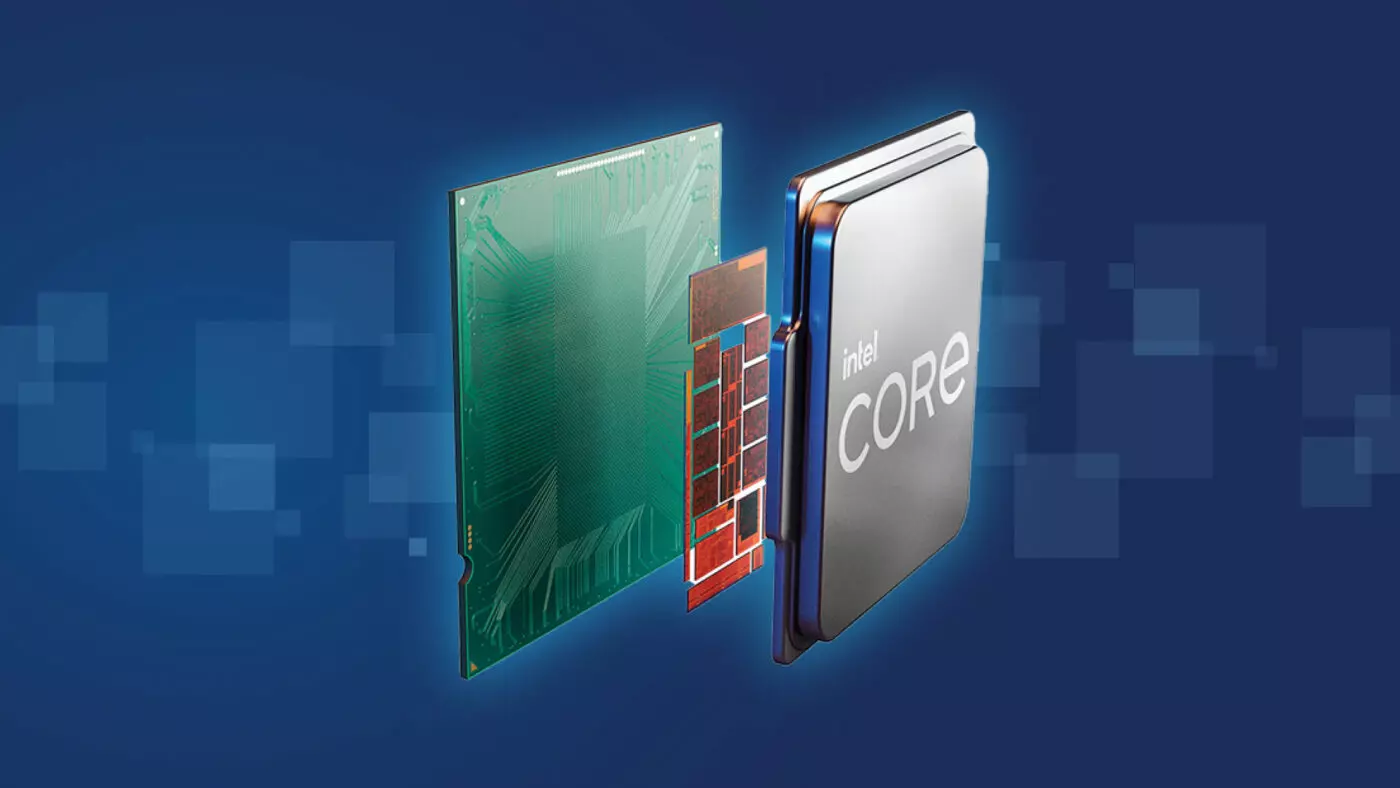
Raptor Lake is promising much

Raptor Lake, a new and upcoming Intel 13th generation CPU will break the 6GHz barrier for the first time ever in normal working mode, overclocked mode in Intel words will go as high as 8GHz. CPU will be 15% faster than Alder lake in single-threaded tasks and a stunning 41% faster in multi-threaded workloads.

The current world record for overclocking is 8.72GHz done with AMD FX-8370 and Intel is aiming at breaking that record with Raptor Lake, of course, this kind of extreme overclocking will require some top-of-the-line nitrogen cooling systems.

raptor lake

Raptor Lake will run on the current LGA 1700 socket, so you will not need to buy another motherboard for CPU and they will also be manufactured on a 10nm process which means that you will need to take care of cooling and power supply if they really go over 6GHz.

Mid-range Intel Core i5-13600K processor will come with 14 cores inside and 20 threads running at a maximum P-core frequency of 5.1GHz, while Core i7-13700K will have 16 cores and 24 threads and run on 5.3GHz max P-core frequency. Best i9-13900K will come packed with 24 cores, 8 of them will be P-cores, and the rest 16 are E-cores, and 32 threads. It will reach 5.4GHz frequency but it was stated it can go to 5.8GHz with Thermal Velocity Boost.

After this statement, we can clearly see that the 6GHz breaker CPU will probably be an i9 special KS variant. In other words, specially tested and picked existing i9 running at higher speeds as was with Alder Lake as well where normal i9-12900K ran at 5.2GHz while i9-12900KS was running at 5.5GHz.

Read More
TeamViewer stuck on Initializing Display
One of the popular tools that allow a user to offer or obtain remote assistance on a computer is the TeamViewer. It is available on all the major computer and mobile platforms which makes it a lot useful to every kind of user, even on the go. If you are one of the users who frequently use TeamViewer, then you must be familiar with this one sentence that states, “Initializing display parameters”. In common cases, this sentence will appear for a second and load the other user’s screen. However, some users reported that TeamViewer gets stuck on that stage and did not move ahead even a bit. If you experience the same problem, read on as this post will guide you in fixing this issue with TeamViewer on your Windows 10 computer. At the time of writing, the cause of this issue is still unclear. It could be due to the quality of internet connection, conflicts in process, misconfiguration of Remote Access, and many more. To fix this issue, you can try to update TeamViewer for both the users or have it reinstalled with Unattended Remote Access, or reconfigure the Remote Access. You can also try to kill any conflicting processes or optimize your internet connection. For more details, refer to the given options below.

Option 1 – Reboot your router

The first thing you can try to do to fix the error is to simply restart your router. All you need to do is reboot the router from its Admin panel or you can also turn it off manually and turn it back on after a couple of seconds so that it can completely reboot. Once you’re done, try accessing your server again and see if the error is now fixed.

Option 2 – Try to update TeamViewer on both users’ end

You might have to update the TeamViewer on both ends and to do that, you need to start the TeamViewer installer again. Once it is installed, run the program and click on the Help option in the Menu ribbon and then select the “Check for updates…” option. If an update is found, you will be notified within a couple of seconds through a pop-up mini window. From there, click on Update and then follow the next onscreen instructions that appear and choose your TeamViewer version to update.

Option 3 – Try reinstalling TeamViewer via the Unattended Remote Access

If the first two given options didn’t work, you might have to reinstall TeamViewer from the Windows 10 Settings app or Control Panel.
  • Tap the Win + R keys to launch the Run utility and type “regedit” in the field and hit Enter to open the Registry Editor.
  • Here, navigate to this registry key: Computer HKEY_LOCAL_MACHINE SOFTWARE Wow6432Node TeamViewer
  • Next, look for the TeamViewer key and right-click on it, and select Delete.
  • After that, restart your PC to apply the changes made and then start TeamViewer again, and then click on Connection > Open Management Console.
  • Then sign in or sign up to get registered and select the Add new device radio button under Add > Add computer located on the top-right corner and then select the Download now option.
  • Now follow the next onscreen instructions that appear to complete the installation and then check if it fixes the problem or not.

Option 4 – Try reconfiguring the Remote Access

You can also try to reconfigure Remote Access in case there is some misconfiguration that might have caused the problem with TeamViewer.
  • On your Desktop, right-click on This PC and click on Properties.
  • Next, go to the left side of the navigation panel and click on Remote Settings.
  • From there, make sure that the “Allow Remote Assistance Connections to this computer” checkbox is checked under the Remote Assistance section.
  • Once done, click on the Advanced button. This will open a new mini window where you’ll have to check the “Allow this computer to be controlled remotely” option under the Remote Control section.
  • Then click on OK and see if it fixed the problem.

Option 5 – Try to kill any conflicting processes

  • Tap the Ctrl + Shift + Esc key combination to open the Task Manager.
  • Then navigate to the Processes tab and right-click on the BGInfo process.
  • Now select the End Task option to kill its process and then start TeamViewer again and check if the problem is resolved.

Option 6 – Try to optimize the quality of connection

You need to take care of two things under this option – first, you have to disable the loading of the Wallpaper of the computer which is the one that you’re trying to access remotely. To do that, you have to select the Extras menu from the menu ribbon and then select Options. And under the Remote Control section, check the “Remove remote wallpaper” option. The next thing you have to do is to optimize the quality for the speed by selecting the “Optimize Speed” for the menu of Quality still under the Remote Control section.
Read More
How to Fix Backup Error 0x80070002

What is Backup Error 0x80070002?

Error 0x80070002 shows once you’re done backing up files through the Windows Backup program on a system running Windows 7, you see a notification that pops up with a message that reads something like: “Check your backup results. The backup completed but some files were skipped.” You try finding out the reason and you hover over to the Options button beside the message, then you get to read the following lines: “Check your backup results. The backup completed but some files were skipped. View skipped files.” Upon clicking the “View Skipped Files” option, the backup error 0x80070002 pops up on your screen and you’re left scratching your head, wondering what you’re going to do now.

Solution

Restoro box imageError Causes

There are multiple error logs that you will encounter in backup error 0x80070002 as per different conditions. The two most common cases in which this error shows up are stated below:

Case 1

You will see the following message when you press “View skipped files”: “Backup encountered a problem while backing up file C: Windows/System32/config/systemprofile. Error: (The system cannot find the file specified. (0x80070002))” You will face this case if you have backed up a library that included custom folders that were located in your user profile.

Case 2

Upon pressing “View Skipped files” you will encounter the below-mentioned messages: “Backup encountered a problem while backing up file C:/Users<User>AppDataLocalLow. Error: (The system cannot find the file specified. (0x80070002))” “Backup encountered a problem while backing up file C:/Users<User>Contacts. Error: (The system cannot find the file specified. (0x80070002))” “Backup encountered a problem while backing up file C:/Users<User>Searches. Error:(The system cannot find the file specified. (0x80070002))” You are likely to encounter any of these messages in case:
  • The Windows Backup program is trying to back up your files in either one or all of these folders (LocalLow, Searches, Contacts).
  • All three of these folders don’t exist in your system.
Keep in mind that all three of these folders exist due to the installation of certain programs and applications on your system.

Notes

The backup error 0x80070002 is also found to occur while using USB devices instead of storage devices. Other occurrences include the times when input/output (I/O) operations are performed on the USB device, which results in failure.

Further Information and Manual Repair

To make sure this issue is resolved, you will have to follow either one of the following solutions as appropriate to your situation:

Solution for Case 1

  1. Ignore the error. The store files of the custom library in your user profile will not be created as backups.
  2. Transfer the library folder from where it currently exists to a place outside its current folder (user profile). For instance, you can move the library folder to an entirely new destination such as “C: My Folders”
  3. Remove the library folder from the list of files that you are backing up using the Windows Backup program. Then, add the original place of the library’s content in the list.
  4. Go back and check step two. If carried out successfully then add a link to the folder you moved from the library. Check to see if the backup includes the library folder. To make sure, you have to do as follows:
  • Go to Start and select your username.
  • Hover across to the folder you wish to move, right-click on it and select “Cut”.
  • Head to the navigation pane and search for the area you will store the folder in, right-click and select “Paste” so that the folder is moved to that location.
  • Right-click on the folder that you just moved and select “Copy”.
  • Go back to Start, select your username, right-click any vacant space in your folder and select “Paste Shortcut”.
Note: If you want to store the folder in a different place other than the folder in which it currently exists (user profile), you will need to create a new folder. In order to do so, go to the Windows Explorer menu and look up the root of the drive. Hit “New Folder” and then choose edit to change its name. You can set it as any name for instance, “My Folders”.

Solution for Case 2

You can ignore this error safely. However, if you wish not to see this error in the future during your backup operations then you will need to carry out the following steps:
  1. Create all the folders listed in the error message including LocalLow, Contacts, and Searches.
  2. Remove all of these folders from the Backup settings to make sure they aren’t being backed up then add the folders which are in their original place. To carry out this procedure, you will have to follow the below-mentioned steps:
  • Head over to the Control Panel and open “Backup & Restore”.
  • Go to the Backup section and select “Change Settings”.
  • Click Next in the Setup backup dialog box.
  • Select “Let me choose” in the dialog box termed “What do you want to back up” then proceed by clicking Next.
  • Expand Data Files, expand <user> Libraries, expand Additional Locations then proceed by clearing out the AppData Folder, searches, and Contacts checkboxes.
  • Expand Computer as well as the item for your system drive (expand Local Disk (D:)), expand users, expand <user>, then go to AppData, Searches and Contacts and mark them if they are present.
  • Proceed by clicking next and select “Save Settings” then exit.
  • Back to Backup & Restore, select Back up now and your new backup will begin proceeding. The entire process will be complete without any errors now.
Read More
1 2 3 171
Logo
Copyright © 2023, ErrorTools. All Rights Reserved
Trademark: Microsoft Windows logos are registered trademarks of Microsoft. Disclaimer: ErrorTools.com is not affiliated with Microsoft, nor claims direct affiliation.
The information on this page is provided for information purposes only.
DMCA.com Protection Status