Logo

How to get rid of YourTemplateFinder from PC

YourTemplateFinder is a browser extension developed by Mindspark for Google Chrome. This extension allows users to browse and download various templates that can be used for all kinds of occasions.

When installed, it changes your default search engine and home page to MyWay.com. During your browsing sessions, YourTemplateFinder will monitor user activity, recording website visits, user information, product purchases, etc. This data is later used to target better ads to users.

While browsing the internet with this extension active you will see additional ads displayed throughout your browsing sessions. Sponsored content such as links, banners, and pop-up ads will appear on websites sometimes even covering the website content.

This extension has been marked for removal by several anti-virus applications and has been classified as a Browser Hijacker due to its aggressive behavior and ad injections. It is flagged for optional removal.

About Browser Hijackers

Browser hijacking is a common type of online fraud where your web browser settings are altered to make it carry out things you never intend. There are various reasons why you might experience a browser hijack; however commercial, advertising, and marketing are the main reasons for their creation. It redirects you to the sponsored websites and inserts adverts on your web browser that helps its creator generate revenue. However, it is not that innocent. Your online safety is jeopardized and it is also extremely irritating. As soon as the program attacks your PC, it begins to mess things up a whole that slows your system down to a crawl. In the worse case, you may be forced to deal with serious malware threats too.

How to know whether the browser is hijacked?

Symptoms that your internet browser is hi-jacked include:
1. the home page of your browser is changed unexpectedly
2. you observe new unwanted favorites or bookmarks added, typically directed to advertisement-filled or porn sites
3. the default browser settings are changed and/or your default web engine is altered
4. you see unsolicited new toolbars added
5. you’ll find random pop-ups start occurring frequently
6. webpages load slowly and sometimes incomplete
7. you can’t navigate to specific websites, like security software-related sites.

How they infect computer systems

There are a number of ways your computer or laptop could become infected by a browser hijacker. They generally arrive by way of spam e-mail, via file-sharing networks, or by a drive-by-download. They can also come from any BHO, extension, toolbar, add-on, or plug-in with malicious intent. A browser hijacker can also be installed as a part of freeware, demoware, shareware, and fake programs. Well-known examples of browser hijackers include CoolWebSearch, Conduit, RocketTab, OneWebSearch, Coupon Server, Delta Search, Searchult.com, and Snap.do.

Browser hijackers can affect the user’s browsing experience greatly, track the websites visited by users and steal personal information, cause problems in connecting to the internet, and eventually create stability problems, causing applications and computers to freeze.

How you can get rid of a browser hijacker

Certain hijackers can be removed by simply uninstalling the corresponding freeware or add-ons through the Add or Remove Programs in the Microsoft Windows Control Panel. However, most browser hijackers are hard to remove manually. Irrespective of how much you try to get rid of it, it could come back over and over. Furthermore, manual removals demand deep system understanding and thus can be a very difficult job for novices.

Installing and running anti-malware software on the affected system could automatically erase browser hijackers and also other malicious applications. If you’d like to eliminate persistent hijackers effectively, install the award-winning Anti-Malware program Safebytes Anti-Malware.

Can't Install Safebytes Anti-malware due to the presence of a Virus? Try This!

All malware is bad and the level of the damage will differ greatly depending on the type of infection. Some malware variants modify browser settings by including a proxy server or change the PC’s DNS settings. In such cases, you will be unable to visit some or all sites, and therefore not able to download or install the necessary security software to get rid of the infection. If you’re reading this right now, you have probably realized that virus infection is the reason for your blocked internet traffic. So what to do if you need to download and install an antivirus program such as Safebytes? There are a few solutions you can attempt to get around with this particular obstacle.

Install in Safe Mode with Networking

Safe Mode is actually a special, basic version of Microsoft Windows in which only the bare minimum services are loaded to prevent viruses and also other troublesome applications from loading. In the event the malware is obstructing the internet connection and affecting your computer, running it in Safe Mode will let you download antivirus and run a diagnostic scan while limiting potential damage. To enter into Safe Mode or Safe Mode with Networking, press the F8 key while the system is booting up or run MSConfig and locate the “Safe Boot” options in the “Boot” tab. Once you are in safe mode, you can attempt to download and install your antivirus software program without the hindrance of the virus. Now, you are able to run the antivirus scan to get rid of viruses and malware without interference from another application.

Switch to some other web browser

Malicious code can exploit vulnerabilities in a specific web browser and block access to all anti-virus software sites. In case you suspect that your Internet Explorer has been hijacked by malware or otherwise compromised by cybercriminals, the ideal approach would be to switch to an alternate internet browser like Mozilla Firefox, Google Chrome, or Apple Safari to download your chosen security software – Safebytes Anti-Malware.

Create a portable USB antivirus for eliminating malware

Here’s another solution which is using portable USB anti-virus software that can scan your computer for viruses without the need for installation. Try these simple steps to clean up your infected computer by using a portable antivirus.
1) Make use of another virus-free computer system to download Safebytes Anti-Malware.
2) Insert the USB drive into the uninfected computer.
3) Double-click the Setup icon of the anti-malware program to run the Installation Wizard.
4) Select the USB stick as the destination for saving the file. Follow activation instructions.
5) Now, plug the USB drive into the infected computer.
6) Double-click the antivirus program EXE file on the thumb drive.
7) Simply click “Scan Now” to run a complete scan on the infected computer for malware.

SafeBytes AntiMalware Overview

These days, an anti-malware program can protect the computer from different forms of internet threats. But wait, how to choose the right one among various malware protection software that’s available out there? Perhaps you might be aware, there are lots of anti-malware companies and tools for you to consider. Some are good ones, some are ok types, while some are simply just fake anti-malware programs that could harm your personal computer themselves! You must select one that is efficient, practical, and has a good reputation for its malware source protection. Among few good programs, SafeBytes Anti-Malware is the highly recommended software for the security-conscious individual.

SafeBytes anti-malware is a powerful, very effective protection software made to help end-users of all levels of computer literacy in identifying and eliminating malicious threats out of their PC. With its outstanding protection system, this software will quickly detect and remove the majority of the security threats, including adware, viruses, browser hijackers, ransomware, trojans, worms, and PUPs.

SafeBytes anti-malware takes computer protection to a totally new level with its enhanced features. Let us discuss a few of the great ones:

World-class AntiMalware Protection: Safebytes is built on the best virus engine within the industry. These engines can identify and remove threats even during the initial phases of a malware outbreak.

Real-time Protection: SafeBytes offers real-time active monitoring and protection against all known computer viruses and malware. It will inspect your computer system for suspicious activity at all times and shields your personal computer from illegal access.

Web Security: SafeBytes checks the links present on a webpage for possible threats and informs you if the website is safe to look at or not, through its unique safety rating system.

Low CPU and Memory Usage: The program is lightweight and will run silently in the background, and that does not impact your PC efficiency.

24/7 Customer Service: Support service is available 24 x 7 x 365 days via email and chats to answer your queries.

SafeBytes has created an amazing anti-malware solution that can help you conquer the latest malware threats and virus attacks. You can rest assured that your PC will be protected in real-time once you put this software program to use. So if you are looking for the best anti-malware subscription for your Windows-based PC, we recommend the SafeBytes Anti-Malware application.

Technical Details and Manual Removal (Advanced Users)

To remove YourTemplateFinder manually, go to the Add or Remove programs list in the Windows Control Panel and select the program you want to remove. For internet browser extensions, go to your web browser’s Addon/Extension manager and select the add-on you intend to remove or disable. You will probably also want to reset your web browser.

Finally, examine your hard disk for all of the following and clean your computer registry manually to remove leftover application entries following uninstalls. Please note that only advanced computer users should try to manually edit the registry because removing any single critical system file results in a serious problem or even a system crash. Also, some malware is capable of replicating itself or preventing its removal. You are encouraged to do this process in Windows Safe Mode.


Files:
%LOCALAPPDATA%\YourTemplateFinder_br
%UserProfile%\Local Settings\Application Data\YourTemplateFinder_br
%UserProfile%\Local Settings\Application Data\Google\Chrome\User Data\Default\Extensions\jadhamcfimejpbemfkgoeijaimpciehj
%LOCALAPPDATA%\Google\Chrome\User Data\Default\Extensions\jadhamcfimejpbemfkgoeijaimpciehj
%PROGRAMFILES%\YourTemplateFinder_br
%PROGRAMFILES(x86)%\YourTemplateFinder_br

Registry:
HKEY_CURRENT_USER\Software\Microsoft\Internet Explorer\SearchScopes\42f6cdef-be6a-48e4-b6ef-bc987c64fed9
HKEY_LOCAL_MACHINE\SOFTWARE\Wow6432Node\Microsoft\Internet Explorer\SearchScopes\42f6cdef-be6a-48e4-b6ef-bc987c64fed9
HKEY_CURRENT_USER\Software\Microsoft\Internet Explorer\DOMStorage\free.yourtemplatefinder.com
HKEY_CURRENT_USER\Software\Microsoft\Internet Explorer\Approved Extensions, value: F724FE0B-8C05-4498-B99E-9192CF2AECF4
HKEY_CURRENT_USER\Software\Microsoft\Internet Explorer\Approved Extensions, value: 4D283A70-2D2F-4CBB-81DA-C75B8DF410CC
HKEY_CURRENT_USER\Software\Microsoft\Internet Explorer\Approved Extensions, value: 3C417C00-968B-48B7-822E-407A82A47AE1
HKEY_LOCAL_MACHINE\SOFTWARE\Microsoft\Internet Explorer\DOMStorage\yourtemplatefinder.dl.tb.ask.com
HKEY_LOCAL_MACHINE\SOFTWARE\Microsoft\Internet Explorer\DOMStorage\yourtemplatefinder.com

Do You Need Help with Your Device?

Our Team of Experts May Help
Troubleshoot.Tech Experts are There for You!
Replace damaged files
Restore performance
Free disk space
Remove Malware
Protects WEB browser
Remove Viruses
Stop PC freezing
GET HELP
Troubleshoot.Tech experts work with all versions of Microsoft Windows including Windows 11, with Android, Mac, and more.

Share this article:

You might also like

Fix Error 0x80070057 in Windows
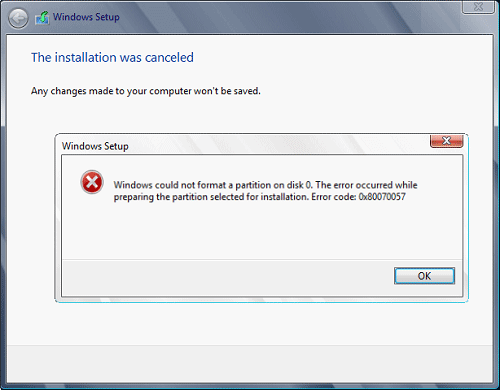
Hello and welcome to another problem-solving tutorial on errortools.com. Today we will be solving error 0x80070057, we could not format the selected partition which occurs during setup and installation when performing a clean install of Windows from a USB drive. So, you have backed up your files and decided to format and do clean WIndows installation, you have your USB ready, you reboot the system, plug in USB, start Windows setup, choose the hard drive on which you want to do a clean install and then this happens. error 0x80070057This error is very frustrating and it annoys pretty much anyone who encountered it but do not worry we have a solution for you. First thing is to confirm the error prompt, Click on the OK button and then on X to exit Windows 10 installation wizard. Click on yes to confirm that you want to exit the setup. You will find yourself in original installation windows. On that screen choose and click on Repair your computer. Choose an option screen that will pop up, click on Troubleshoot. In the advanced options, click on the command prompt. Once you are in command prompts type DISKPART and hit ENTER In the diskpart prompt type LIST DISK and hit ENTER again. type SELECT DISK #, where # is listed disk number where you would like to install Windows. type LIST VOLUME in order to list volumes in the selected disk and hit ENTER You need to select the volume on which you would like to place your WINDOWS, to do this type in SELECT VOLUME #, where # is the listed number of the volume Finally, type FORMAT FS=NTFS and hit ENTER You have successfully formated a given volume, you can now exit DISKPART and return to setup, to exit DISKPART simply type exit and hit ENTER. Leave command prompt as well by again typing exit and hitting ENTER You will be returned to Choose an option screen, click on Turn off your PC. Your drive has been successfully formatted and it is ready for clean Windows installation, you can now restart your Windows 10 installation and the process will complete without errors.

Read More
Fix update failed to install error 0xca00a000
This post will show you how to fix the Windows update error 0xca00a000 which you can encounter during the installation of Windows updates. Here’s the full error message of this Windows Update error:
“Updates failed There were problems installing some updates, but we’ll try again later. If you keep seeing this and want to search the web or contact support for information, this may help: 2018-07 Cumulative Update for Windows 10 Version 1803 for x64-based Systems (KB4345421) – Error 0xca00a000”
This kind of Windows Update error pops up when Windows has missed installing one of the cumulative updates needed or when there is some problem with the driver that won’t let the installation of the updates push through. There are also instances when the system files are modified with incorrect permission that may result in the Windows update error 0xca00a000. Thus, you need to fix the trusted installer permission as well as resolve the issue with the driver. To do these things, you need to follow the options laid out below.

Option 1 – Run the Windows Module Installer

The Windows Module Installer is a built-in service in the Windows operating system that could help you resolve the Windows update error 0xca00a000. You need to make sure that this service is Started and that its Startup type is set to Automatic – you can do this via Services Manager or by executing the command given below in an elevated Command Prompt.
  • Tap the Win + R keys to open the Run dialog box.
  • Then type “command prompt” in the field and hit Enter to open Command Prompt.
  • And in the elevated Command Prompt type in the following command and hit Enter:
SC config trustedinstaller start=auto
  • After executing the command successfully, you should see the “[SC] ChangeServiceConfig SUCCESS” message on the Command Prompt window.

Option 2 – Try manually installing the updates

As mentioned, the error might be because Windows missed installing a particular update which is why you are not able to proceed with the current update. So to resolve the issue, you need to install the update that wasn’t installed by downloading it from the Microsoft Update Catalog website. You also have to make sure that you didn’t turn off the Windows update or have it delayed.

Option 3 – Delete the files from the Software Distribution folder

The Software Distribution folder in the Windows operating system is a folder that can be found in the Windows directory and is used to store files temporarily which might be required to install the Windows Update on your PC. Thus, it is required by the Windows Update and maintained by WUAgent. A lot of users tried deleting the files in this folder to fix the problem and so far it has worked. Like them, you can try clearing the Windows Update cache by simply deleting the contents of the folder named “SoftwareDistribution” since Windows apparently can’t clear and re-download the update contents once they are corrupted. Thus, deleting the contents of this folder will make Windows download the contents again which will fix the problem. To do that, follow the steps below.
  • Open the WinX Menu.
  • From there, open Command Prompt as admin.
  • Then type in the following command – don’t forget to hit Enter right after typing each one of them.
net stop wuauserv net stop bits
  • After entering these commands, it will stop the Windows Update Service and the Background Intelligent Transfer Service.
  • Next, go to the C:/Windows/SoftwareDistribution folder and get rid of all the folders and files thereby tapping the Ctrl + A keys to select them all and then click on Delete. Note that if the files are in use, you won’t be able to delete them.
  • Once all the contents in the Software Distribution folder are deleted, restart your PC and then go back to Command Prompt and input the following commands again.
net start wuauserv net start bits
Since the folder has already been flushed, it will be populated afresh the instant your restart your computer and open Windows Update.
  • Now Open Settings and check for Windows Updates. Windows 10 should begin the download right away.

Option 4 – Install the updates in a Clean Boot State

You might want to try putting your computer in a Clean Boot state and then install Windows Updates again without any trouble. During this state, you can start the system with a minimum number of drivers and startup programs that will surely help you in isolating the root cause of the issue.
  • Log onto your PC as an administrator.
  • Type in MSConfig in the Start Search to open the System Configuration utility.
  • From there, go to the General tab and click “Selective startup”.
  • Clear the “Load Startup items” checkbox and make sure that the “Load System Services” and “Use Original boot configuration” options are checked.
  • Next, click the Services tab and select the “Hide All Microsoft Services” checkbox.
  • Click Disable all.
  • Click on Apply/OK and restart your PC. (This will put your PC into a Clean Boot State. And configure Windows to use the usual startup, just simply undo the changes.)
  • After that, try to install the Windows Updates or upgrade again.

Option 5 – Run the Windows Update Troubleshooter

Running the built-in Windows Update troubleshooter could also help you resolve the Windows update error 0xca00a000. To run it, go to Settings and then select Troubleshoot from the options. From there, click on Windows Update and then click the “Run the troubleshooter” button. After that, follow the next on-screen instructions and you should be good to go.

Option 6 – Run Microsoft’s online troubleshooter

Running Microsoft’s online troubleshooter might also help you fix the Windows update error 0xca00a000. This online troubleshooter is known to help in fixing Windows Update errors, it scans your computer for issues that might be causing the problem and then fixes them automatically.
Read More
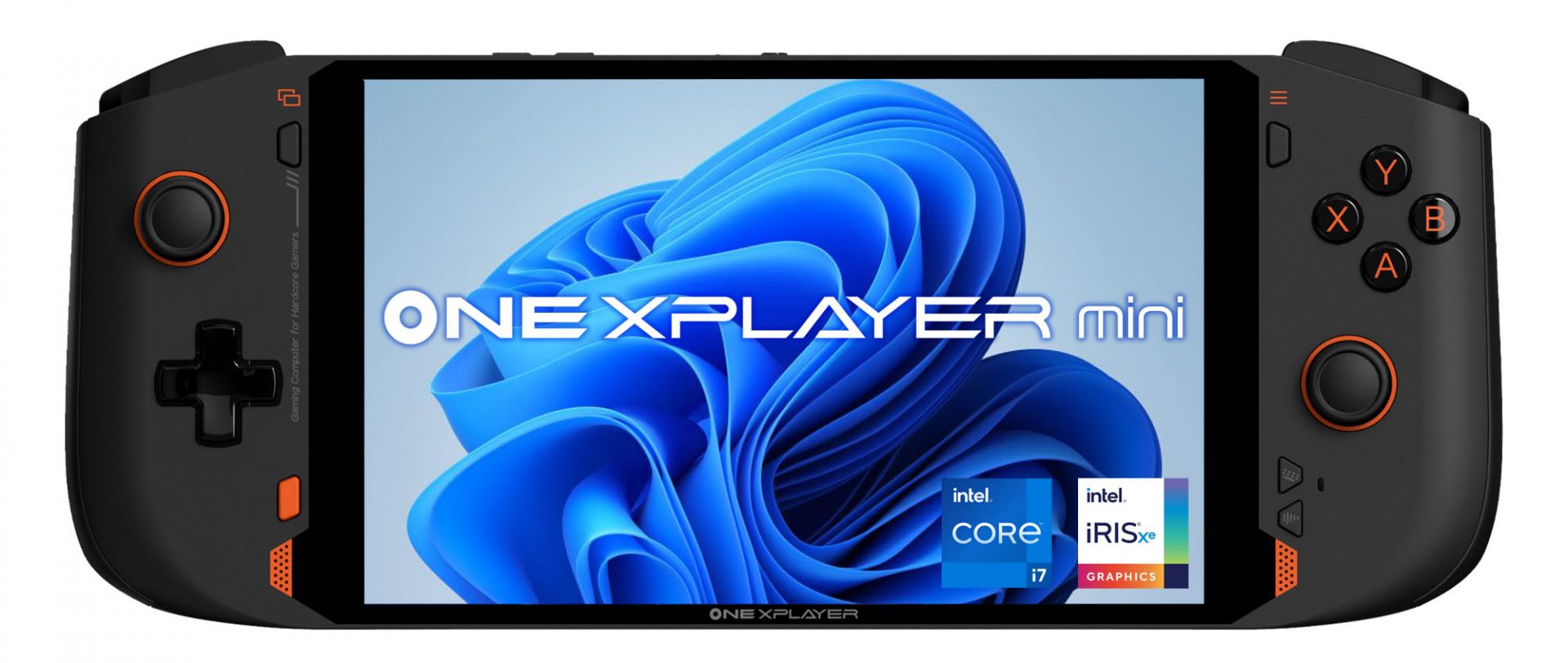
OneXPlayer Mini Handheld Gaming PC
OneXPlayer is a direct competitor to Valve’s upcoming steam deck. This device is clearly inspired by Valve’s offering and it shows all over the place, from its looks to its purpose and aims to PC gamers as a handheld device.

OneXPlayer miniHardware under the hood

This device is packing a 7-inch 1080p display, 11th generation Intel Core i7-1195G7 CPU, stunning 16GB of RAM, 512GB SSD drive with the option to purchase 1TB or 2TB model. GPU of choice is Intel iris Xe Graphics that is in our opinion a bottleneck in the whole system and for more demanding games, we believe switching them to 720p would be a better option. Everything here is powered with a 10455 mAh lithium-ion battery.

OneXPlayer inputs and other stuff

Handheld is equipped with dual bumpers and dual linear triggers. The console comes with dual speakers on both sides of it. Inside the console, there is an aluminum heat sink with copper heat pipes and a fan in order to cool internal hardware. On the outside, we have two USB-C ports and one USB-A port for connections, and of course, a headphone jack for headphones. The console comes with Wi-Fi 6 and Bluetooth 5.0 for wireless connectivity.

Price

The base entry model will cost you a whopping $1.259, 1TB model $1.399 and 2TB one will go as far as $1,599. With this kind of price, I am not sure it can come up as a winner against Valve. Sure it is packing fully licensed Windows 11 that will for sure offer more options than Stem’s OS based on Linux but even with that advantage I do not think it justifies such a big price difference.

Conclusion

Of course, this kind of console or handheld PC will still find its customer base, many users will probably like it since it comes Windows ready out of the box. Sure, you can place Windows on Steam deck as well but you will need to know how, where everything is ready and you can run beside steam other launchers without issues like origin, uplay, gog, etc. How this will be accepted by community time will tell but it is good to see that there is variety and competition in handheld PC space.
Read More
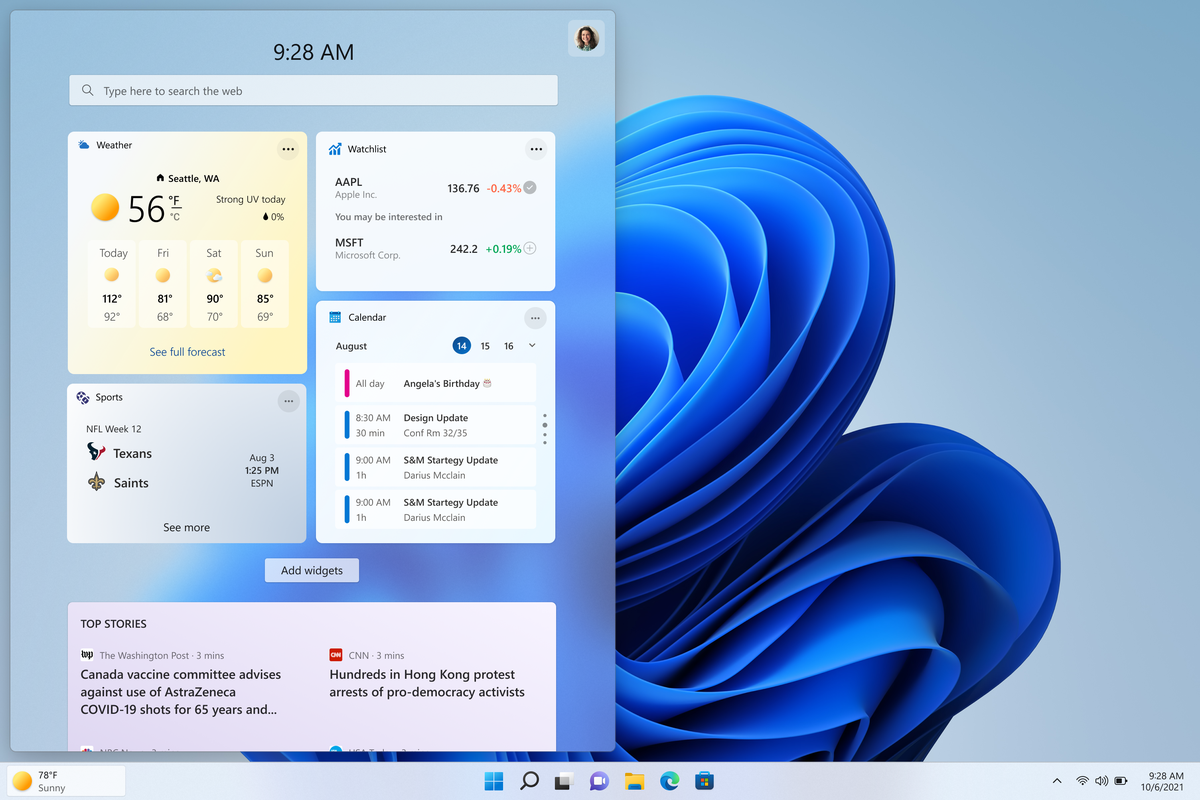
How to remove weather widget from W11
The latest Windows 11 update has brought with it not so popular widget from Windows 10, the weather widget that will reside into the taskbar and constantly show stuff like temperature, weather conditions, etc. The weather widget is not a bad thing but most users found it a little annoying and turned it off in Windows 10. If you wonder how can you do the same but this time inside Windows 11 please keep reading. weather widgetThe first step is to right-click  anywhere on the taskbar (in empty space) and choose Taskbar settings Once the taskbar settings are opened, find Widgets and click on the switch on the far right to turn it off, immediately no more information will be shown on the taskbar and it will be free again. And that is all there is to it.

Read More
How to fix windows 10 error code 0x80073712
Windows 10 has displayed one of the most efficient and user-friendly interfaces. However there have been many issues on the backend of this commonly praised operating system: For example, Windows Update is still a wonky and error-laded system application. One example of this error is Windows Update Error 0x80073712 which stands in the way of users just wanting to keep their PCs updated hassle-free. The error code 0x80073712 signifies that a file needed by Windows Update to function is either damaged, missing, or corrupted. However, this does not mean that your Windows version will forever stay as-is with no mode to update it. Windows Update Error 0x80073712 is perfectly fixable with the set of provided steps below and some of Windows’ built-in troubleshooting steps:

Solution 1: Open Windows Update Troubleshooter

  1. Open the Windows Update Troubleshooter by pressing the Windows and S keys simultaneously.
  2. Enter the word “Troubleshoot” in the search box and select the Troubleshoot result
  3. On the new window, select “Windows Update” to troubleshoot.
  4. Run the troubleshooter, then open Windows Update and try to install the update again.

Solution 2: Run the DISM tool

  1. Open the command prompt by pressing Windows and S keys simultaneously
  2. Enter “cmd” in the search box. Right Click command prompt among the results and select “Run as administrator”
  3. In the Command Prompt window type the following and press the Enter key after every command
DISM.exe /Online /Cleanup-image /Scanhealth DISM.exe /Online /Cleanup-image /Restorehealth
  1. To close the Administrator: Command prompt window, type Exit, and then press Enter.
  2. Run Windows Update again.

Solution 3: Rename the Software Distribution folder

  1. Open the command prompt as previously mentioned
  2. Input the following command pressing Enter after every line net stop wuauserv net stop cryptSvc net stop bits net stop msiserver rename c:/windows/SoftwareDistribution/softwaredistribution.old net start wuauserv net start cryptSvc net start bits net start msiserver exit
  3. Restart the PC and run the updater if it works again.

Solution 4: Restart Windows Update Services

  1. Press the Windows logo key and R together to open Run -> Input services.msc -> and press Enter
  2. Search for the Windows Update service -> Check its status
  3. If it is not indicated, right-click on the service and select Start to force start your Windows Update
  4. If you see an error, locate the Startup Type option and set it to Automatic
  5. Now you should reboot your computer and see if your Windows Update is OK

Solution 5: Fix Registry Issues

If after all the aforementioned solutions, you still experience problems with Windows Update, the problem may lie in the registry that is either damaged or corrupted. You may choose to do manual editing of your Windows registry by opening your Windows registry editor. But doing so is risky as one wrong letter may do incalculable damage to your system. To do so safely for more inexperienced users we recommend using a third-party registry cleaner/tools, many of which can be found online.
Read More
Troubleshooting Fortnite Connection Issues
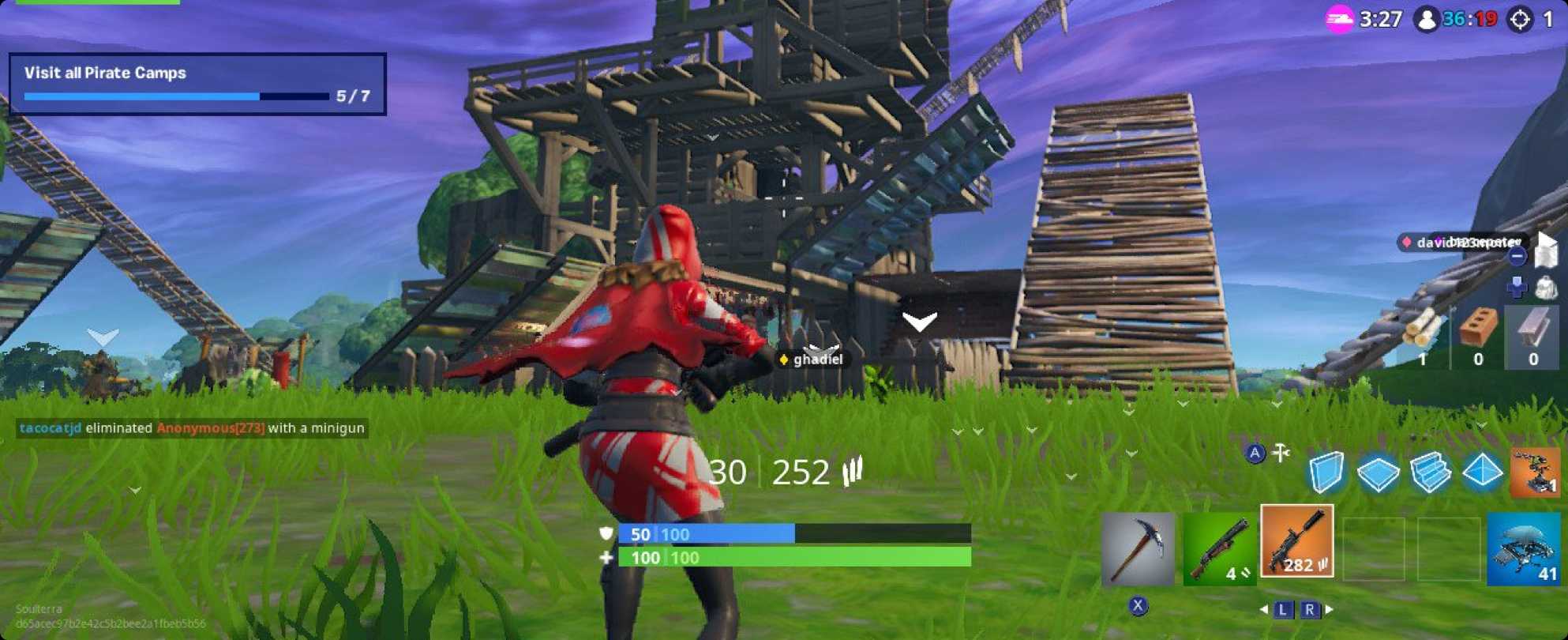
It is no secret that Fortnite is one of the most played games in the world. Epic has done a great job offering it to plenty of other platforms with cross-play feature meaning that you can play with your friends no matter on what platform they are on. But how Fortnite is a piece of software which is constantly updated and maintained it is pretty normal to have some bugs or issues from time to time. One of the before-mentioned issues is a connection issue or unable to connect to game servers. In our article, we will go through common fixes and solutions in order to get you back in-game as fast as possible. Keep on reading.

fortnite cannot connectCheck the Epic Games Status page

Check the Epic Games Server Status page to make sure all systems are operational. If the issue you’re experiencing is related to an outage or system-wide issue, you won’t be able to connect to the Epic Games Launcher or Fortnite until it's resolved.

Use a wired connection

Wireless connections are not as stable as wired connections. This means that the signal can be unreliable and result in packet loss, connection problems, or higher latency or ping. Connect directly to your modem or router with an Ethernet cable to eliminate this possibility and have the fastest connection possible.

Disable your firewalls

Often the quickest way to fix connection problems due to firewalls is to temporarily uninstall and/or disable it.

Windows Firewall disable guide:

  1. Click on Start.
  2. Click on Control Panel.
  3. Click on System and Security.
  4. Click on Windows Firewall.
  5. Click on Turn Windows Firewall on or off (You might need to provide the Administrator password at this step)
  6. Under each Network location, select the Turn off Windows Firewall option

Uninstall any other firewalls

Using a third-party firewall may prevent you from being able to connect to the Epic Games Launcher, Fortnite, or another Epic Games product. We recommend removing any third party firewalls temporarily to see if this resolves your issue. If it does resolve the problem, make sure to add the following executables as exceptions to your firewall:

Epic Games Launcher

  • C:\Program Files (x86)\Epic Games\Launcher\Engine\Binaries\Win64\EpicGamesLauncher.exe
  • C:\Program Files (x86)\Epic Games\Launcher\Engine\Binaries\Win32\EpicGamesLauncher.exe

Fortnite

  • C:\Program Files\Epic Games\Fortnite\FortniteGame\Binaries\Win64\FortniteClient-Win64-Shipping.exe
  • C:\Program Files\Epic Games\Fortnite\FortniteGame\Binaries\Win64\FortniteClient-Win64-Shipping_BE.exe
  • C:\Program Files\Epic Games\Fortnite\FortniteGame\Binaries\Win64\FortniteClient-Win64-Shipping_EAC.exe
  • C:\Program Files\Epic Games\Fortnite\FortniteGame\Binaries\Win64\FortniteLauncher.exe
Contact your firewall manufacturer for instructions on how to add these as exceptions to it as this varies between them.

Unblock your network ports

Network ports allow certain types of data to be successfully sent over a network that is used by our services. If you have any of these blocked, it may result in you being unable to connect to our games or use our services properly. To unblock your ports on your router do the following:

Windows

First, you will need to get your default gateway and internal IP address:

  1. Click on Start.
  2. Type cmd and press Enter.
  3. Type ipconfig and press Enter.
  4. Take note of your Default Gateway and IPv4.

Configuring your router to unblock the ports

  1. Open your web browser.
  2. Type your Default Gateway into the address bar and press Enter. (A common Default Gateway is 192.168.1.1)
  3. You may be asked for a username and password. This varies for each router. Before entering anything, try just hitting OK. If that doesn't work, try the common default username and password below: Username: admin Password: password If these don't work, you can check this website for a list of usernames and passwords based on your router model.
  4. Locate the Port Forwarding page in the administration tool and click on it.
  5. Make sure you have Port Forwarding selected and not Port Triggering as this is completely different.
  6. On this screen, you will need to enter the ports and port ranges below with the correct protocol and local IP of which you took note of above: 80 (TCP/UDP), 433 (TCP), 443 (TCP), 3478 (TCP/UDP), 3479 (TCP/UDP), 5060 (TCP/UDP), 5062 (TCP/UDP), 5222 (TCP), 6250 (TCP/UDP), and12000-65000 (TCP/UDP).
If you have any trouble doing the above on your router, make sure to check out the router manufacturer's support site for additional instructions as these will vary from router to router.

VPN and Proxy Servers

Do NOT use VPN or Proxy Servers. These cause issues that can't be resolved by us without having you disable them. Check out this article for information on how to disable your proxy server.

Switch Domain Name Systems (DNS)

Switching your DNS can result in better connectivity and performance for your internet connection. There are two different DNS services we recommend to have you try if you are having issues with your connection. Below are the followings links with instructions on how to change your DNS:

Epic Games Launcher: Edit your Engine.ini file (Windows only)

Editing these settings can result in better download speeds using the Epic Games Launcher:
  1. Click on Start.
  2. Type %localappdata% and press Enter.
  3. Open the EpicGamesLauncher
  4. Open the Saved
  5. Open the Config
  6. Open the Windows
  7. Open ini and add the following lines to it: [HTTP] HttpTimeout=10 HttpConnectionTimeout=10 HttpReceiveTimeout=10 HttpSendTimeout=10[Portal.BuildPatch] ChunkDownloads=3 ChunkRetries=20 RetryTime=0.5
  8. Save the file and open the Epic Games Launcher.
fortnite gameplay
Read More
Fix MUP_FILE_SYSTEM Blue Screen Error
If you encounter the MUP_FILE_SYSTEM Blue Screen error with a value of 0c00000103, then it indicates that the multiple UNC provider or MUP has got an invalid of unexpected data. This can lead to the fact that the MUP cannot channel a remote file system request to a network redirector, the UNC, or Universal Naming Convention provider. There are several ways you can fix the MUP_FILE_SYSTEM Blue Screen Error on your Windows 10 computer, you can try to check the hardware of your computer physically, update or rollback some device drivers, run the Driver Verifier Manager, remove any hardware you’ve installed recently or fix issues related to IRQ. Use the given options below as reference to fix the MUP_FILE_SYSTEM Blue Screen Error.

Option 1 – Try to physically check the hardware

The first thing you can do is to check the physical status of the hardware in your computer. You can clean the dust off the hardware components like the Network Card of the computer. You might want to use a small blower or you could also use a soft cloth and run the components gently. Make sure that you don’t damage any parts with moisture or cause harm to any circuits while you carry out this task.

Option 2 – Try to rollback, update several device drivers

You can try to roll back, update or disable certain device drivers on your computer to resolve the MUP_FILE_SYSTEM Blue Screen error.
  • First, boot your computer into Safe Mode.
  • After that, tap the Win + R keys to launch Run.
  • Type in devmgmt.msc into the box and tap Enter or click OK to open the Device Manager.
  • After that, a list of device drivers will be displayed. From there, look for the device drivers related to the Network Card, Chipset, Disk Drive, and the Graphics Drivers and any other driver related to MUP.sys and SwapBuffers.sys system files
  • After that, right-click on each entry of the device drivers and select the “Update Device” option from the menu.
  • Now follow the next on-screen instructions that appear and then restart your computer.
  • After restarting your computer, check if the Stop error is now fixed.

Option 3 – Configure the Driver Verifier Manager

The Driver Verifier Manager is another tool in Windows that could help you fix driver-related issues. And so if you want to fix the MUP_FILE_SYSTEM Blue Screen error you need to use the Driver Verifier Manager:
  • Type in the keyword “Verifier” in the Cortana search box to search for Verifier in Windows 10.
  • After that, select the option “Create custom settings”.
  • Make sure that you have checked everything except the options “DDI compliance checking” and “Randomized low resources simulation”.
  • Next, select the option “Select driver names from a list” option.
  • Afterward, you have to select all the drivers from any unofficial or third-party provider. To simply put it, you have to select all the drivers that are not supplied by Microsoft.
  • Then click on the Finish button.
  • Open Command Prompt as administrator and execute this command – verifier /querysettings
  • The command you just executed will display the Driver Verifier settings so if you see any of the flags enabled boot your Windows 10 PC into Safe Mode.
  • Open the Command Prompt as admin again and run this command – verifier /reset
  • The command will reset the Driver Verifier. Once the process is done, restart your PC and check.

Option 4 – Try to disconnect or disable newly installed hardware

In this option, you will have to disable or remove the hardware you’ve just installed recently since external devices could be the one that’s causing the Blue Screen of Death error to appear. To do that, just disconnect any external device that’s connected to your computer physically and then check if it fixes the MUP_FILE_SYSTEM Blue Screen error.

Option 5 – Try fixing IRQ-related issues

The Stop error might have something to do with an issue related to IRQ. You can verify it by switching your PCI Cards around. Aside from that, you can also check if the IRQ2 is assigned to a COM Port that is unavailable at that time.

Option 6 – Run the Blue Screen Troubleshooter

The Blue Screen troubleshooter is a built-in tool in Windows 10 that helps users in fixing BSOD errors like MUP_FILE_SYSTEM. It can be found in the Settings Troubleshooters page. To use it, refer to these steps:
  • Tap the Win + I keys to open the Settings panel.
  • Then go to Update & Security > Troubleshoot.
  • From there, look for the option called “Blue Screen” on your right-hand side and then click the “Run the troubleshooter” button to run the Blue Screen Troubleshooter and then follow the next on-screen options. Note that you might have to boot your PC into Safe Mode.

Option 7 – Perform a System Restore

Performing System Restore might help you in fixing the Blue Screen error. You can do this option either by booting into Safe Mode or in System Restore. If you are already in the Advanced Startup Options, just directly select System Restore and proceed with the next steps. And if you have just booted your PC into Safe Mode, refer to the steps below.
  • Tap the Win + R keys to open the Run dialog box.
  • After that, type in “sysdm.cpl” in the field and tap Enter.
  • Next, go to the System Protection tab then click the System Restore button. This will open a new window where you have to select your preferred System Restore point.
  • After that, follow the on-screen instructions to finish the process and then restart your computer and check if the problem is fixed or not.
Read More
Methods To Repair "Error in Loading DLL" on Windows PC's

Error in Loading DLL - What is it?

This is a Dynamic Link Library (DLL) error. It results when a program calls upon a DLL file to perform a certain task and the file fails to load as it is damaged. In a nutshell, DLL is a collection of small programs. DLL is called upon by the executable program (EXE) that is running. The DLL file allows the executable program to run on the system. For example this error may occur when you try to run wizards in Microsoft Office Access such as the Import Wizard, the Report Wizard or the Control Wizard. This error is usually displayed as:
“Error in loading dll” “Object library not registered”

Solution

Restoro box imageError Causes

The error in loading DLL occurs due to numerous reasons. Some of the most common causes include:
  • The DLL or the referenced DLL is not in a directory specified in the path.
  • DLL File is damaged due to hard disk errors and registry corruption
  • Registry key may not exist
  • Malware errors add malicious codes to the application
  • Spyware and adware infections
When you come across error in loading DLL, it is advisable to fix it right away as this error can pose serious threats and lead to your PC malfunctioning. It can corrupt programs and put you at risk of data security and privacy threats.

Further Information and Manual Repair

To resolve this error in loading DLL files, you don’t always have to hire a technician even if you don’t have technical knowledge. This error is quite easy to repair. Here are two ways to resolve error in loading DLL without any professional assistance:

Solution 1: Reinstall the Program

Reinstalling the program can help you resolve this issue. However, when doing this you will first have to uninstall the program and also remove the DLL files from the registry to ensure the update is carried successfully. In addition to this, you will also have to uninstall some programs that share DLL files with the program that you are removing from your system to reinstall it again. Windows will prompt the DLL shared message if it is being shared by other software on your system. Though this is a method used to resolve errors in loading DLL this can be slightly tricky and confusing for many.

Solution 2: Repair the Registry and Remove Malware

This is the best, easiest and most efficient way to repair error in loading DLL files. Did you know 94% of the PC-related errors are triggered by registry corruption and malware infection? To repair the registry and remove malware from your system, you don’t have to download a separate registry cleaner and an anti-virus. Simply download Restoro. Restoro is a cutting-edge and multi-functional repair tool integrated with powerful utilities like a registry cleaner, system optimizer, and an anti-virus. By running Restoro on your computer you can resolve all the underlying causes for error in loading DLL files in seconds. Whether the error results from registry corruption or viral infection, Restoro is the only tool you need to run to repair. It is a safe, efficient and a super functional tool. It has a neat layout, easy navigation, and a user-friendly interface embedded with advanced technology and automated algorithms that scan your entire PC and repair all kinds of PC issues right away.  It can be easily operated by even novice users.

Restoro features

The registry cleaner feature repairs DLL errors and corrupt registry. It removes all the unnecessary and obsolete files that have overloaded and damaged the hard disk. It scans and wipes out such files clearing up the disk space. It fixes mis-configured registry keys and settings thus resolving errors in loading DLL files. If your system is infected by malware it may create Dll.exe malicious files on your system. If these are viruses, they can damage your system. Malicious software like Trojan and spyware are detected and removed with the help of the privacy error detector module integrated into Restoro. Other features that are worth mentioning are its backup feature and outstanding Windows compatibility. With Restoro users can create backup files for data recovery in the event of data loss during repair. Also, it is compatible with all Windows versions. To resolve error in loading DLL files on your system you just have to perform 3 simple steps:
  1. Click here to download Restoro.
  2. Run it on your system to scan for errors in loading DLL files
  3. Click repair to fix the issues.
Read More
A Guide to Fixing Error Code 39

Code 39 - What is it?

Code 39 is a device driver error code that pops up when the Windows operating system cannot load the driver for the hardware you want to use.

This hampers your ability to use the hardware properly. The error code is almost always presented in the following format:

“Windows cannot load the device driver for this hardware. The driver may be corrupted or missing.” Code 39

Error Causes

A device driver is a software program that tells the operating system how to control a particular hardware device. Each hardware device has a different driver.

There are separate device drivers for printers, CD-ROM readers, and keyboards, to name a few.

Many device drivers are already built into the operating system. But sometimes you will need to install a new device driver when you want to use a new piece of hardware device that the operating system is not familiar with, or does not anticipate.

Regardless of whether or not the drivers are already integrated into the operating system, you may still experience code 39, typically because of the corrupted or outdated drivers.

Outdated and corrupted drivers cause hardware malfunction and failure, which trigger device driver error codes like code 39. Other causes include incorrect registry values.

Further Information and Manual Repair

Below are some of the easiest and most effective methods to resolve Device Manager error code 39 on your PC.

To follow and implement these methods, you don’t require any technical knowledge or expertise. Simply follow these instructions to fix the error right away.

Method 1 - Fix with a Simple Reboot

There is a possibility that the error code 39 is caused by some fluke within the Device Manager or your BIOS.

If that’s the reason, then a simple PC reboot can resolve the issue immediately. Therefore, before you try anything, it is advisable to restart your system.

If it works, then that is great, but if it doesn’t, then don’t worry, try other methods given below to fix this problem successfully.

Method 2 - Uninstall and Reinstall Drivers

If the error code 39 is generated due to faulty or outdated drivers, then simply uninstall and remove them and then reinstall new driver versions. There are two ways to remove faulty drivers.

Method One

  • One is, to go to the start menu, click on Control Panel, and then Add/Remove Programs.
  • Remove the program and the driver you think is causing problems. This will thoroughly remove all traces of the faulty driver.
  • To reinstall, follow the same steps but this time install the new device driver version.

Method Two

  • The other way is to go to the start menu, type Device Manager in the search bar, and then press enter to continue.
  • In the Device Manager, find and locate the problematic device.
  • After that, double-click the category of device that you wish to uninstall. Let’s say, Windows is unable to load the graphics card driver.
  • This means you will have to click on the Display Adapter category in the Device Manager to uninstall the graphics card.
  • After you have successfully uninstalled, Windows will prompt you to confirm device removal.
  • Simply click OK to confirm and proceed. To activate the changes, restart your PC.
  • To reinstall, go to the Device Manager, click on the Action tab and then select the option ‘Scan for Hardware Changes.’

This method, although effective in resolving error code 39,  can be time-consuming. To avoid the hassle and save time, try method 3.

Method 3 - Update Drivers Automatically with DRIVERFIX

If you would like to read more helpful articles and tips about various software and hardware visit errortools.com daily.
Read More
Disabling Auto Update in Chrome & Firefox
As you know, all the web browsers come with the support of auto-updates which include both Google Chrome and Mozilla Firefox. However, with these updates, the browser comes with the support of a new web APIs and better rendering. Although there could be a lot of problems that may arise due to these updates. These problems consist of depreciation of features, incompatibility with some websites, to name a few. It includes incompatibility with some websites, depreciation of features, and more. This might push someone to stop the auto-updates of these web browsers. So, in this guide, we will be checking out how to stop auto-update in Google Chrome and Mozilla Firefox on Windows 10. Thus, if you want to be rid of these issues, then you can disable the Chrome & Firefox auto-update and you can do that by either using the Windows Services Manager and the System Configuration utility.

Option 1 – Disable Chrome & Firefox auto-update via Windows Services Manager

The first thing you can do to disable the Chrome auto-update is through the Windows Services Manager. To do so, follow these steps:
  • First, tap the Win + R keys to open the Run dialog box.
  • Next, type “services.msc” in the field and hit Enter to open the Windows Services Manager.
  • After that, you will see a list of services and from there, look for the Google Update Services (gupdate) and Google Update Service (gupdatem).
  • Once you find these services, right-click on each one of them and select Properties and then make sure that the Service Status is set to be Stopped.
  • You should also select the Startup Type to Disabled and click on the Apply and OK buttons.
  • Now restart your computer. This should stop the automatic update of the Chrome browser.

Option 2 – Disable Chrome & Firefox auto-update via System Configuration utility or MSConfig

  • Tap the Win + R keys to open the Run utility and type “msconfig” in the field and tap Enter to open the System Configuration.
  • After that, go to the Services tab and uncheck the two entries, namely Google Update Service (gupdate) and Google Update Service (gupdatem).
  • Next, click on the Apply and OK buttons to save the changes made.
  • Restart your computer.
Note: Now that you’ve stopped the auto-update in Firefox, it’s time for you to stop the auto-update in Mozilla Firefox. To get started, follow the steps below.
  • Open the Mozilla Firefox browser and click on the hamburger menu located on the top-right portion of the screen.
  • After that, select Options and under the General panel and then go to the Firefox Updates section.
  • Next, click on the radio button for updates but select the option to let you install them.
  • You also have to uncheck the options named “Use a background service to install updates” and “Automatically update search engines”.
  • Once done, restart the Firefox browser. This should stop the automatic update.
Read More
1 2 3 171
Logo
Copyright © 2023, ErrorTools. All Rights Reserved
Trademark: Microsoft Windows logos are registered trademarks of Microsoft. Disclaimer: ErrorTools.com is not affiliated with Microsoft, nor claims direct affiliation.
The information on this page is provided for information purposes only.
DMCA.com Protection Status